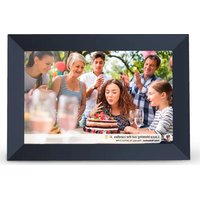
Prado - Digital photo frame Prixton - Free user manual and instructions
Find the device manual for free Prado Prixton in PDF.


User questions about Prado Prixton
0 question about this device. Answer the ones you know or ask your own.
Ask a new question about this device
Download the instructions for your Digital photo frame in PDF format for free! Find your manual Prado - Prixton and take your electronic device back in hand. On this page are published all the documents necessary for the use of your device. Prado by Prixton.
USER MANUAL Prado Prixton
natural_image
Simple line drawing of a rectangular frame with a small protrusion at the bottom left corner (no text or symbols)MARCO DIGITAL WIFI
DIGITAL WIFI PHOTO FRAME
Puntos clave
This manual includes security measures and correct operating methods. For personal safety, please make sure to read this manual before using. Thank you!
- The machine adopts capacitive touch screen, you can just touch it by finger or click with capacitive pen for operation. (Never use the sharp objects to click the screen, or the touch screen may be damaged).
- Do not put the device at any high temperature, high humidity or dusty place.
- Do not drop or crash the device to prevent the violent impacting between the display and the capacitive touch screen. Or the customers have to take the consequence by themselves.
- Don't use the different type charger or it may make the device burned. We assume no liability for the damage. Please contact with our agent if you need the original adaptor.
- Do not disconnect the device while formatting, or it may make the error.
Our company won't bear the duty for the loss of the memory erasing on account of the damage, repair or some other reason. Please operate the device according to the user manual rightly and backup the important data in time.
-
Do not dismantle this device by yourself, and do not polish it with alcohol, dilution, or benzene.
-
Do not use this device where electronics is forbidden, such as on the airplane.
-
Do not use this device while walking and driving, avoiding traffic accident.
-
USB is for transferring data but NOT for charging.
Virus can damage this device. So please use proper computer antivirus and keep it updated.
For any support needed for this device please contact the company or the authorized distributor. Any unauthorized dismantling of the device will make the warranty null and void. We reserve the right to keep the change of the products, the specification and design is subject to change without notice!
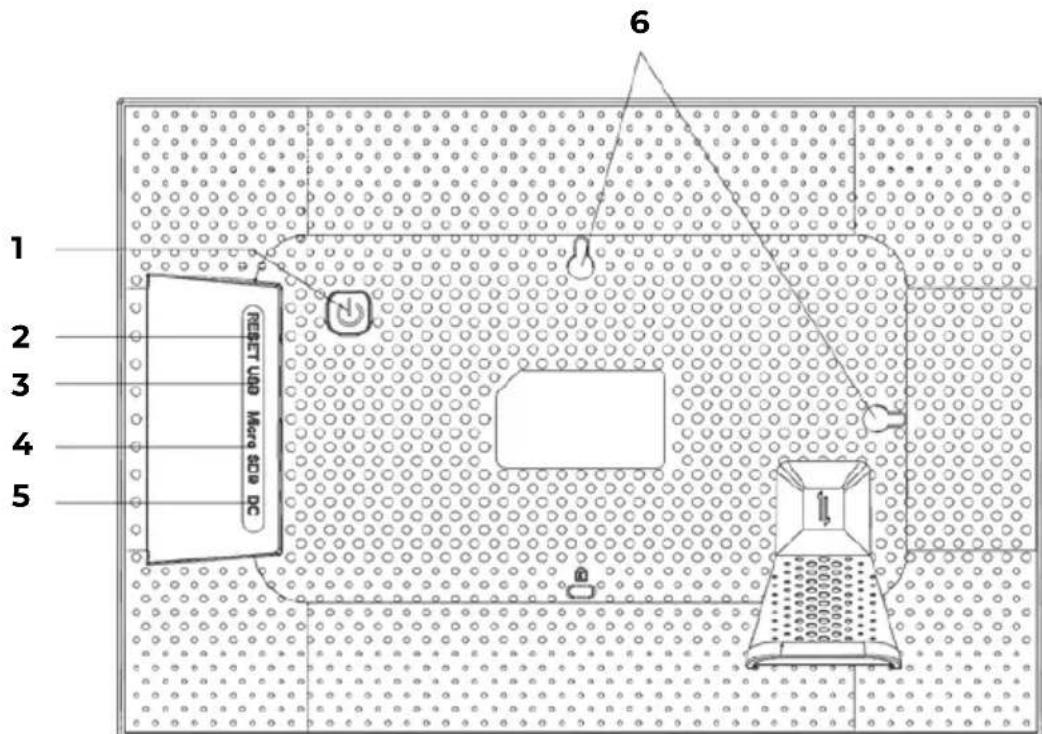
1. Power
After connecting power adapter, the unit will power on automatically for the first time. When it is on, press and hold power button for approximately 3 seconds to access reboot or power off menu. Short press on power button will turn off/on screen /but leave the photo frame in on position).
2. Reset
Use a needle or paper clip to reset unit.
3. MicroUSB
Using a MicroUSB-USB adapter you can connect an external memory and import your photos and videos to the frame.
NOTES:
- It is only for updating the software, not for charging.
- You cannot play photos/videos from the external memory directly.
- Add photos and videos to the frame via a USB cable to a computer (PC).
4. Micro SD
Insert external microSD memory cards here to import your photos and videos to the frame.
NOTE:
- You cannot play photos/videos from the external memory directly.
5. DC
Connect DC adapter to power on the device
6. Wall mounting holes
Use the screw to mount the frame on wall, portrait and landscape available.
Getting started
Thank you for purchasing your very own frameo.
Follow the on screen guide when powering it on for the first time.
Once you have set up your frameo, start connecting it to your friends and family.
Frameo app
To send photos to your frame, use the frameo app for iOS or Android.

Frameo quick setup
When starting your frame for the first time, you will need to setup the frame. All settings can be changed through the settings menu afterwards.
- First you start by selecting a language. This will be the language used throughout frameo.
- Connect your frame to the internet by connecting it to a wi-fi.
If a newer version of the frameo software is available, then you will be prompted with an update dialog. It is recommended to update your frame immediately if prompted. - Enter your name, and the location where you have placed your frame e.G. "Living room", "kitchen" or "office".
Start using Frameo
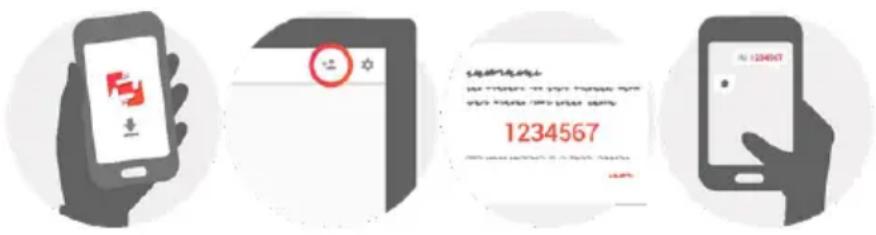
Start by connecting with your friends and family by providing them with a unique code from your frame.
If you want to be able to send photos to the frame yourself, start by downloading the app for iOS or Android on App Store or Google Play. Then use the code to connect your frame and app as described below.
Connecting a new friend:
- Make sure that your friend has downloaded and installed the frameo app
- Click the add friend icon on your frame 🔊. A dialog will appear showing a unique code which is valid for 24 hours.
- Now share this code in whatever fashion you prefer e.g. SMS, E-Mail, IM, phone call, to your friend.
ONCE YOUR FRIENDS HAVE ADDED THE CODE IN THEIR FRAMEO APP THEY WILL AUTOMATICALLY APPEAR ON YOUR FRAME AND BE ABLE TO SEND YOU PHOTOS.
Navigating your Frameo
You interact with your frame through its touchscreen. Swipe left or right to go through your photos. To access the menu bar, simply tap once on the screen, this will show the menu. In the menu bar you will find quick access to the add friends dialog + and the settings menu.

Settings
Through settings, you can personalize your frame to your needs.
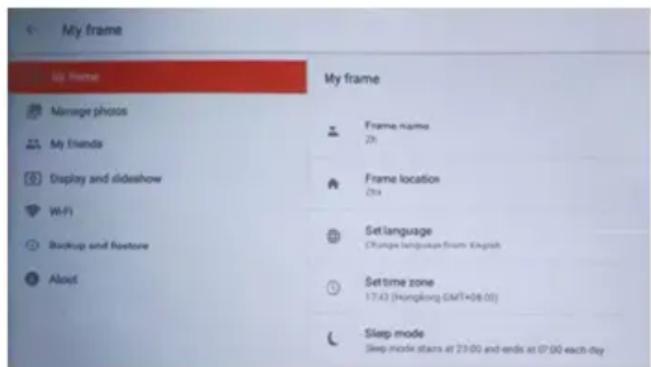
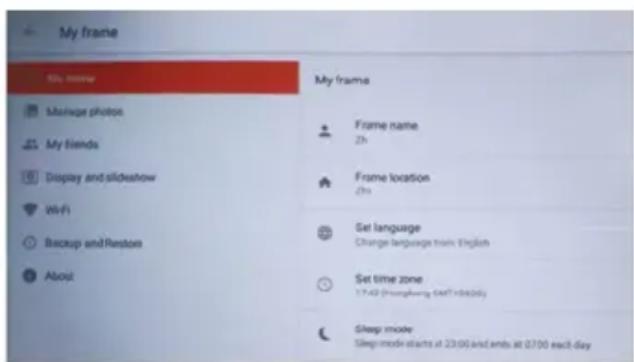
My frame
Frame name:
Changes the name of your frame. This is also the name the connected friends and family will see in their list of connected frames.
Frame location
Changes the location of your frame. This is the location displayed on your friends' and family's list of connected frames which can help to distinguish frames from each other.
Set language
Sets the language throughout your frame.
Sleep mode
Frameo offers a sleep mode which turns off the screen to reduce power consumption while you e.g. are sleeping. Its default setting is to turn off the screen at 23:00 and turn on the screen again at o7:00.
To change this just set the sleep mode start/end time.
YOUR FRAME IS NOT POWERED DOWN OR IN STANDBY SO YOU WILL STILL BE ABLE TO RECEIVE PHOTOS DURING SLEEP MODE.
Manage photos
Show/hide photos
Select which photos to show/hide by tapping the particular photos you wish to show/hide. Hidden photos will NOT be deleted from your frame, you can always select them to be shown again. Use ☐ to select or deselect all.
Delete photos
Select photos that you want to permanently delete from your frame by tapping the photo. Use ☐ to select or deselect all and ☐ to delete the selected photos.
Import photos
Allows you to import photos from an external Micro SD card.
Before you try to import photos from micro SD card, make sure you have micro SD
Card with photos on inserted into your frame.
Start by selecting the photos that you want to import onto your frame. Once selected tap the import button ↓ to start the import process.
It is currently not possible to add a caption or define the most important part of the photo when using the import function. Alternatively add yourself to your friend list and send them using the app.
Note:
-
It can not zoom in and out when playing the pictures.
-
When the picture is not in center, please tap the picture then there will appear a dialog, tap the icon 'adjust photo' to move the picture up and down, and tap the icon 'accept' to confirm the picture in center. Or tap the icon 'Fit to frame' to confirm the picture in center.
My Friends
This list contains all the people that are allowed to send photos to your frame.
Remove person
To remove a person from this list, thereby removing their permission to send you photos, tap the delete icon ✗. You will then be asked to confirm the removal and if you would like to remove all photos received from this person.
Add person
To allow a new person to send you photos, simply tap the add friend button 🙏 and share the presented code in whatever way you prefer.
Display and slideshow
Timer
Define the duration a photo should be displayed.
Show caption
Sets whether or not to display the captions that your friends have sent with the photo. Check to display captions. Uncheck to hide captions.
Brightness level
Adjust the brightness level of the screen.
Wi-Fi
Set which Wi-Fi the frame should be connected to.
Backup and Restore
Backup frame to Micro SD card
Tap to make a backup of your photos, friends and settings. The time of latest successful backup will be displayed.
Any existing backup on the Micro SD card will be overridden!
Automatic backup
If checked, your frame will automatically take a backup within 30 hours of you receiving new photos or making changes on your frame.
Requires that you have inserted a writeable Micro SD card into the frame.
Restore from backup
BEFORE YOU ATTEMPT TO RESTORE YOUR FRAME, START BY CONFIRMING THAT YOUR BACKUP IS UP-TO-DATE
To restore from a backup, you must first reset the frame. It is important to note that you cannot restore to a new Frameo frame
Note:
- It can not save the photos to this TF card, it can only save the photos to the NAND flash.
- As considering personal privacy it can not copy the photo from this product to computer. Also it can not copy the photo from computer to this product. you can send it by APP or Micro SD card.
Reset frame
Removes all data from your frame. This will permanently remove all your photos, friends/connections and settings.
About
Check for update
Check if an update is available for your frame.
Share anonymous analytics data
Sharing anonymous analytics data helps us tremendously with improving the frameo software. We understand if you do not wish to share this data with us. Set checked if you wish to help us improve frameo. Set unchecked to deny the sharing of anonymous analytics data.
Guide
Opens the quick start guide, that was shown when you first started the frame.
Note: To connect Wi-Fi after rest, you need to follow below steps:
- Slightly press the screen, it will show below image. Click setting and find Wi-Fi at setting page
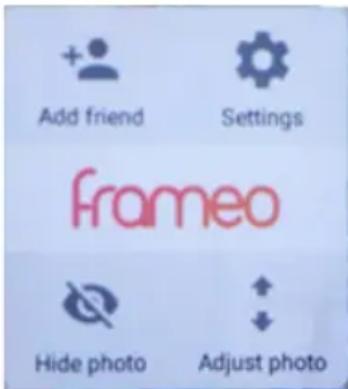
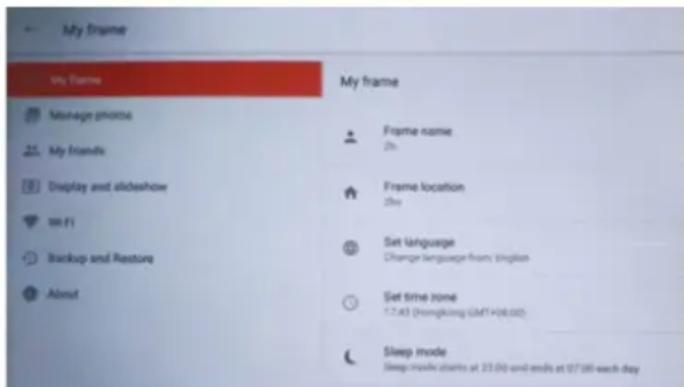
- Click Wi-Fi, select Wi-Fi from popped up menu and connect.
Warning: Changes or modifications to this unit not expressly approved by the party responsible for compliance could void the user's authority to operate the equipment.
NOTE: This equipment has been tested and found to comply with the limits for a Class B digital device, pursuant to Part 15 of the FCC Rules. These limits are designed to provide reasonable protection against harmful interference in a residential installation. This equipment generates, uses and can radiate radio frequency energy and, if not installed and used in accordance with the instructions, may cause harmful interference to radio communications.
However, there is no guarantee that interference will not occur in a particular installation. If this equipment does cause harmful interference to radio or television reception, which can be determined by turning the equipment off and on, the user is encouraged to try to correct the interference by one or more of the following measures:
Reorient or relocate the receiving antenna.
Increase the separation between the equipment and receiver.
Connect the equipment into an outlet on a circuit different from that to which thereceiver is connected.
Consult the dealer or an experienced radio/TV technician for help.
This device complies with Part 15 of the FCC Rules. Operation is subject to the following two conditions:
(1) this device may not cause harmful interference, and
(2) this device must accept any interference received, including interference that may cause undesired operation.
Warranty Policy
This product is guaranteed for 2 years from the date of purchase. When you have a problem that you can not solve, you must access the web
www.prixton.com and click on the contact option to send us your assistance form.
These technical and electrical specifications are those of typical units and may be changed without prior notice in order to provide improved equipment.
Simplified EU Declaration of Conformity
We, La Trastienda Digital located in Avenida Cervantes 49, módulo 25, Basauri 48970, Bizkaia hereby declare that the following goods, imported and selling at European market:
| BRAND | MODEL DESCRIPTION | CATEGORY | |
| PRIXTON | 10” PRADO | DIGITAL WIFIPHOTO FRAME | IMAGE |
Are in compliance with the EC Council Directive of 2014/53/EU (EM DIRECTIVE) and harmonized standards and with the board of the 16th of April 2014.
The complete text of the UE Declaration of conformity is available anytime at this website address:
www.prixton.com
LA TRASTIENDA DIGITAL
natural_image
Two vertical black bars with white speaker icons and a small robot figure, no text or symbols present.natural_image
Two black vertical bars with white speaker icons and a small star symbol at the bottom (no text or labels)Instantly Share Photos & Videos

GET IT ON Google Play

Download on the App Store
Navegar na sua frameo