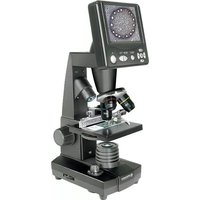
LCD Micro 40x-1600x - Microscope BRESSER - Free user manual and instructions
Find the device manual for free LCD Micro 40x-1600x BRESSER in PDF.


| Product type | Digital optical microscope with LCD screen |
| Brand | Bresser |
| Model | LCD Micro 40x-1600x |
| Optical magnification | 40x, 100x, 400x (objectives 4x, 10x, 40x) |
| Maximum digital magnification | 1600x (electronic zoom 1x-4x) |
| Screen | Integrated color LCD |
| Illumination | Adjustable LED (diascopic and episcopic) |
| Power supply | Mains 220-230 V AC via included adapter |
| Connections | USB (image transfer), SD memory card slot (up to 1 GB recommended) |
| Internal memory | 128 MB |
| Main functions | Live observation, photo and video capture (up to 2048x1536), digital zoom, brightness correction |
| Included accessories | Slides and cover slips, 5 permanent preparations, pipette, tweezers, shrimp hatchery, microtome, sea salt, shrimp eggs, yeast, USB cable, power adapter, nylon case |
| Care and cleaning | Clean with a soft lint-free cloth and a little alcohol, avoid dust and humidity |
| Safety | Keep out of reach of children, unplug before cleaning, avoid exposure to extreme temperatures |
| Spare parts and repairability | 2-year warranty, paid repairs after warranty, contact authorized dealer |
Frequently Asked Questions - LCD Micro 40x-1600x BRESSER
User questions about LCD Micro 40x-1600x BRESSER
0 question about this device. Answer the ones you know or ask your own.
Ask a new question about this device
Download the instructions for your Microscope in PDF format for free! Find your manual LCD Micro 40x-1600x - BRESSER and take your electronic device back in hand. On this page are published all the documents necessary for the use of your device. LCD Micro 40x-1600x by BRESSER.
USER MANUAL LCD Micro 40x-1600x BRESSER
Operating instructions
FR/CH/BE


Mode d'emploi
NL/BE


For working with this equipment, sharp edged and pointed aids are frequently used.
Therefore keep this equipment, as well as all accessories and aids, in a place inaccessible to children.
Only allow children to work with the equipment under supervision!
Keep packing materials (plastic bags, rubber bands, etc.) away from children!
For further inquiries and any complaints, in the first instance please contact the service centre responsible for your country,
by telephone. You will find the service addresses in these instructions.
(FR/CH/BE) ATTENTION!
Operating instructions 8
Mode d'emploi 12
Meade Instruments Europe

Helmut Ebbert
Geschäftsführer
11. Garantie
1 Screen module
LCD monitor
3 Tube
4 Lens turret
Objective
6 Slide (here: prepared slides)
7 Microscope table
8 Collector lens
9 LED lighting (transmitted light)
10 Microscope foot
11 Operating light
On/off switch for screen module
13 LED top illumination (only for use with 4x objective)
14 Stage
15 Colour filter plate
16 Focusing wheel
17 Power connection
Dimmer
19 Lighting selector switch
20 Input keys
Photo button
Menu key
Change key
24 Vernier scales
25 Clamping screw
26 Stage drive forwards/back
7 Stage drive left/right
Levers for clamping mounting plate
9 Mounting plate clamp
Clear aperture (without colour filter)
Colour filter
USB cable
Box with 10 slides, 10 covers and 5 prepared slides
A)Microscope utensils; B) Pipette; C) Tweezers
Shrimp breeding enclosure
Mikrotom tissue chopper
Preparations: A) Yeast; B) Gum Arabic Media; C) Sea salt; D) Shrimp eggs
Power supply plug
9 Nylon case
1. Location, connection types
Before you begin with the assembly of your microscope, you must select a suitable location.
First you should ensure that your microscope is set up on a stable, vibration-free surface.
Power connection (220-230 V) is required for observations using the electrical LED lighting and the electronic LCD eyepiece (screen module).
Furthermore the microscope possesses an interface to a PC (USB connection).
2. Start-up, electrical LED lighting
Before start-up, please check that the lighting selector switch (Fig. 1.19) is in the "OFF position".
The microscope is equipped with two LED lighting units. The lighting can take place in three ways. At the selector switch (Fig. 1.19) select position "I", in order to illuminate the object from underneath (with transmitted light), or "II", to illuminate it from above (with top illumination). With position "III" the object can be illuminated from above and below at the same time. The transmitted light unit (Fig. 1.9) is used for transparent preparations (preparations on glass slides). In order to see solid, non-transparent objects, select the top illumination unit (Fig. 1.13). The top illumination unit is only useful when using the 4x-objectivee. The use of both lighting at the same time is only useful with semi-transparent objects. This mode of operation is not recommended for transmitted light objects on slides, as this can lead to reflections on the slides.
To start-up, the power supply plug, which is provided, (Fig. 5.38) is connected to the power connection (Fig. 1.17) at the rear of the microscope foot (Fig. 1.10) and to a convenient outlet (220-230 V). Finally, switch on the desired lighting using the lighting selector switch and set the required brightness with the dimmer (Fig. 1.18).
Since your equipment is fitted with infinitely variable lighting (dimmer), the optimum illumination of the object to be observed is ensured.
3. Observation
3.1 Microscope observation in general
Once you have assembled the microscope and appropriately adjusted the illumination, the following principles apply:
a) Begin each observation with the lowest magnification, thus centring and positioning of the object to be observed will be easier.
Move the microscope table(Fig. 1.7), using the focusing wheel (Fig. 1.16) completely down and then turn the lens turret (Fig. 1.4) until it engages on the lowest magnification (the 4x-objective is vertical).
b) Begin with a simple observation. Place a prepared slide (Fig. 1+3.6) directly under the objective on the microscope table (Fig. 1+3.7), by clamping it into the stage (Fig. 1+3.14). For this, move the lever for the clamping mounting plate (Fig. 3.28) to the side, put the prepared slide onto the stage and carefully allow the clamping mounting plate (Fig. 3.29) to return onto the prepared slide. The object which is to be observed must be exactly above or below the illumination. In order to achieve this, there are two milled thumb screws on the stage. This is the so-called stage drive (Fig. 3.26+27). By turning these screws it is possible to precisely position the object, in the left or right direction (Fig. 3.27) and forwards or backwards (Fig. 3.26).
c) Then switch on the LCD monitor, by pressing the power switch on the screen module (Fig. 1+2.12); the red operating light Fig. 1+2.11) will light up. Then look at the LCD monitor (Fig. 1+2.2) and carefully turn the focusing wheel (Fig. 1.16) until the image is sharp. With the stage you can now centre the object at the desired place on the LCD monitor.
d) For higher magnification turn the lens turret (Fig. 1.4) to a higher setting (objectives 10x and 40x).
Note:
Before you change the objective setting, first move the microscope table fully downwards Fig. 1.7). This will avoid possible damage!
The higher the magnification, the more light is needed for a good image quality.
Important notes:
Depending on the preparation in use, higher magnification in individual cases will not lead to a better picture! The magnification is altered by changing the objective. This alters the sharpness of the image which must be adjusted by the focusing wheel (Fig. 1.16). Proceed here very carefully. If you raise the microscope table too quickly, the objective and the slides can touch each other and be damaged!
e) The magnification factor of the LCD eyepiece amounts to 10x. In combination with the 4x-objective we obtain a total magnification of 40x, i.e. 1 mm of the object is shown as 40 mm on the LCD monitor. With the 10x objective we have a total magnification of 100x, correspondingly, with the 40x objective 400x.
f) The colour filter disc (Fig. 1+4.15, beneath the microscope table (Fig. 1+4.7) helps you when viewing very brightly or transparent preparations. For this please select the suitable colour depending upon the object being observed. The components of colourless or transparent objects (e.g. grain containing starch, single-celled organisms) will be much easier to recognise.
3.2 Operation of the screen module
3.2.1 Observing the screen
If you switch on the LCD monitor (see section 3.1 c), you will see the live image of your object as well as five different displays:
If you've set the LCD screen option (see section 3.1 c) then you'll see a live picture of your specimen with four different entries.
a) There's a camera symbol at top left (photo mode) together with the graphics resolution (number of pixels by width and height).
b) Bottom left the remaining internal screen module memory for graphics files is shown in square brackets.
c) EV brightness correction is shown first bottom right. Press the up or down arrows (illustration 2.20) to adjust brightness from -1.2 (dark) to +1.2 (bright).
d) The electronic zoom factor is shown second bottom right next to a magnifying glass symbol. Use the right and left arrows (illustration 2.20) to enlarge the image by factors from 1 to 4. - Maximum LCD Micro enlargement is hence 4 × 400 = 1600x .
3.2.2 Producing photographs
By pressing of the photo button "SNAP" (Fig. 2.21) a photograph is taken of the live image, which is stored.
3.2.3 Photograph management
By pressing the change button "ESC" (Fig. 2.23) you change from live images to the list of stored photographs. In the list, you can select a required picture by pressing the appropriate arrow keys (Fig. 2.20); the selected picture has a yellow border. To display it press the "OK" input key (Fig. 2.20). By pressing "ESC" you can return to the list, press "ESC" again to return to the live image.
By pressing the "MENU" button (Fig. 2.22) whilst displaying the list, a menu bar appears, which you can control using the appropriate arrow keys (Fig. 2.20, ). Here you can also change certain settings and bring them into force by pressing the "OK" input key (Fig. 2.20).
Menu overview in list display.
a) File Protect, Lock, Unlock, Exit. Use the left arrow key to leave the selection screen.
b) Del File - Current (delete chosen graphics file), All (delete all graphics files). This is queried for certainty reasons. If you decide yes use the left arrow key to go to OK and press OK. If not leave Cancel activated and press OK to return to the list.
c) Video (list of film records, Video Player), Picture (list of photo records, Picture View). Video can be reached from the picture list and vice versa.
d) Exit has the same effect as "ESC".
3.2.4 Revise settings
By pressing the "MENU" button (Fig. 2.22) whilst displaying the live image a menu bar appears, which you can control using the appropriate arrow keys (Fig. 2.20). Here you can also change settings and bring them into force by pressing the "OK" input key (Fig. 2.20).
Menu overview (during live image display):
a) Mode (photography mode): Single, Auto (at intervals given in Setting), Setting (photo intervals in minutes and seconds, adjusted using arrow keys and OK). Start the photo session with ".SNAP"; the countdown to the next photo is shown in the middle of the screen. End it after the next snap with ESC.
b) Size (pictorial resolution, width x height) 2048 x 1536, 1600 x 1200, 1280 x 960, 1024 x 768, 800 x 600, 640 x 480.
c) Effect (graphical effect): Normal (normal positive colour image), Negative (negative image), Sepia (sepia shading), BlackWhite.
d) Date Label of the stored snaps: Setting (time), Yes (label), None (no label). If you're in Setting press OK. Use the up and down arrows to change the year shown by a yellow arrow. Use the right and left arrows to alter the month and day in "Date", the hours and minutes in "Time". Select the time set with OK - this will be acknowledged by brief display of "Success". The year, month and day of a picture is shown top left.
e) DV Record (mode for filming).
f) Exit (the menu).
3.2.5 Produce and administer film
In this mode resolution is shown top left outside the image during live picture display and the internal memory time available for film at bottom left. The electronic zoom factor (1.0 to 2.0) is shown bottom right. Start filming with SNAP (illustration 2.21); press this key again to end filming. During filming a camera symbol blinks at top left and the current filming time is shown at bottom left. Film image resolution is 320 × 240 . In Effect the same pictorial effects as for photos are selectable. Use Capture to toggle between filming and photographing. Use Exit or ESC to get out of the menu and then ESC to revert to the live picture display. To view the stored films use ESC to get to the photo list and then MENU to get to the film list via Video (see section 3.2.3). Use the arrows to choose a film, select it and then play it endlessly with OK. During play use OK to toggle between Pause (I) and Play (▶). Use the left arrow to choose the previous film (I) and the right the next (▶). A strip showing a film playing bar graph, play duration and functions is briefly displayed here. This can also be shown using Snap if you want to know current status. Use ESC" to end the play function. Delete films using MENU and DelFile as for photos (see section 3.2.3). You can view your films and manage them on any connected PC (see section 6 b) using a suitable media programme.
4. Viewed Object - condition and preparation
4.1 Condition
Transparent and non-transparent specimens can be examined with this microscope, which is a direct as well as transmitted light model. If opaque specimens are examined - such as small animals, plant parts, tissue, stone and so on - the light is reflected from the specimen through the lens and eyepiece, where it is magnified, to the eye (reflected light principle, switch position I). If opaque specimens are examined the light from below goes through the specimen, lens and eyepiece to the eye and is magnified en route (direct light principle, switch position II). Many small organisms of the water, plant parts and finest animal components have now from nature these transparent characteristic, other ones must be accordingly prepared. Is it that we make it by means of a pre-treatment or penetration with suitable materials (media) transparent or thus that we cut finest wafers off of them (hand cut, Microtom) and these then examine. With these methods will us the following part make familiar.
4.2 Manufacture of thin preparation cuts
Specimens should be sliced as thin as possible, as stated before. A little wax or paraffin is needed to achieve the best results. A candle can be used for the purpose. The wax is put in a bowl and heated over a flame. The specimen is then dipped several times in the liquid wax. The wax is finally allowed to harden. Use a MicroCut (Fig 5.36) or knife/scalpel (carefully) to make very thin slices of the object in its wax casing. These slices are then laid on a glass slide and covered with another.
4.3 Manufacture of an own preparation
Put the object which shall be observed on a glass slide and give with a pipette (Fig. 5.34 B) a drop of distilled water on the object (Fig. 6).
Set a cover glass (in each well sorted hobby shop available) perpendicularly at the edge of the water drop, so that the water runs along the cover glass edge (Fig. 7). Lower now the cover glass slowly over the water drop.
Note:
The gum medium supplied (Fig 5.37 B) is used to make permanent slide cultures. Add it instead of distilled water. The gum medium hardens so that the specimen is permanently affixed to its slide.
5. Experiments
If you made yourself familiar with the microscope already, you can accomplish the following experiments and observe the results under your microscope.
5.1 Newspaper print
Objects:
- A small piece of paper from a newspaper with parts of a picture and some letters
- A similar piece of paper from an illustrated magazine
Use your microscope at the lowest magnification and use the preparation of the daily paper. The letters seen are broken out, because the newspaper is printed on raw, inferior paper. Letters of the magazines appear smoother and more complete. The picture of the daily paper consists of many small points, which appear somewhat dirty. The pixels (raster points) of the magazine appear sharply.
5.2 Textile fibers
Items and accessories:
- Threads of different textiles: Cotton, line, wool, silk, Celanese, nylon etc..
- Two needles
Each thread is put on a glass slide and frayed with the help of the two needles. The threads are dampened and covered with a cover glass. The microscope is adjusted to a low magnification. Cotton staples are of vegetable origin and look under the microscope like a flat, turned volume. The fibres are thicker and rounder at the edges than in the centre. Cotton staples consist primary of long, collapsed tubes. Linen fibres are also vegetable origin; they are round and run in straight lines direction. The fibres shine like silk and exhibit countless swelling at the fibre pipe. Silk is animal origin and consists of solid fibres of smaller diameter contrary to the hollow vegetable fibres. Each fibre is smooth and even moderate and has the appearance of a small glass rod. Wool fibres are also animal origin; the surface consists of overlapping cases, which appear broken and wavy. If it is possible, compare wool fibres of different weaving mills. Consider thereby the different appearance of the fibres. Experts can determine from it the country of origin of wool. Celanese is like already the name says, artificially manufactured by a long chemical process. All fibres show hard, dark lines on the smooth, shining surface. The fibres ripple themselves/ crinkle after drying in the same condition. Observe the thing in common and differences.
5.3 Salt water prawns
Accessories:
- Prawn eggs (Fig 5.37 D)
- Sea salt (Fig 5.37 C)
- Prawn breeding plant (Fig 5.35)
- Yeast (Fig 5.37 A)
5.3.1 The lifecycle of the saltwater prawn
The saltwater prawn or artimia salina to scientists has an unusual and interesting lifecycle. The female's eggs are hatched without any male shrimp having to fertilise them. The resultant baby prawns are all female. Under unusual circumstances such as when a swamp is drained the eggs may produce male prawns. These males fertilise the female's eggs, resulting in a specific type of eggs. These are called winter eggs and have a thick shell as protection. They're pretty rugged and can survive the swamp or lake drying out causing the death of the entire prawn population for up to a decade in a form of hibernation. The eggs hatch once the right ambient conditions again obtain. The eggs supplied (Fig 5.37 D) are of this type.
5.3.2 Hatching of the salt water prawn
To hatch the prawn it is essential to first have a saline solution suited to the prawn's needs. Fill half a litre of rain- or fresh-water in a container. Let it stand for about thirty hours. As water evaporates over time it's a good idea to have a second container of such water left standing for thirty-six hours. Once it's stood for this length of time pour half of the sea salt supplied into one of the containers (Fig 5.37 C) and stir until it has dissolved. Then pour some of it into the prawn breeding plant (Fig 5.35). Add a few eggs and close the lid. Put it somewhere with plenty of light but not in the direct sun. The temperature should be approximately 25^ . The prawns will hatch in two or three days at this temperature. Should any water evaporate during this time replace it from the second container.
5.3.3 The saltwater prawn under the microscope
What comes out of the egg is known as a nauplius larva. Use the pipette (Fig 5.34 B) to put some of them on a slide for examination. They will move in the solution using their hair like limbs. Remove a few daily from the container for examination under the microscope. If you do so and save the pictures made with the MicrOcular you will then have a seamless record of the prawn's lifecycle. You can remove the upper lid of the prawn bleeding plant and put the whole thing under the microscope. The larvae will mature in six to ten weeks depending on ambient temperature. You will soon have bred an entire generation of saltwater prawns that constantly reproduce.
5.3.4 Feeding your saltwater prawns
To keep them alive saltwater prawns must be fed occasionally. This must be done carefully as overfeeding causes the water to stagnate and poison the prawns. Feeding is best down with dry powdered yeast (Fig 5.37 A). Give them a little every other day. If the water darkens this signifies it is stagnating. If so remove the prawns and put them in a fresh saline solution.
Note:
Shrimp eggs and shrimps are not suitable for consumption!
6. Image output and storage
The LCD Micro has three picture display and storage options:
a) View the picture on the LCD screen (sections 1+2.2). The device has internal memory of about 128 MB for your photos (see section 3.2.)
b) You can store your photographs on a suitable memory card (SD = Secure Digital). The memory card slot of the LCD Micro is on the left hand side of the screen module (Fig. 1+2.1) above the USB connection. To use, push the memory card, with the contacts at the front, into the slot, until they engage with a faint click. If the installation is correct, a blue memory card symbol appears above on the LCD monitor. This is again released by pressing and releasing the memory card, which after a faint click, can be taken out of the slot. Your photographs are now transportable.
c) If you connect your microscope to the PC using the USB cable provided (Fig. 5.32), you can transfer the photographs to the PC. The USB connection of the LCD Micro is on the left side of the screen module (Fig. 1+2.1) under the memory card slot. Put the smaller B-plug (Micro) into the socket on the microscope and the larger A plug (PC) into a free USB port in your computer (Fig. 5.32). After a successful USB connection, the operating system will recognise new hardware and then two new drive assemblies will be initialised. These are marked as "removable data carrier e" and "removable data carrier f:," the letters vary depending upon the number of drive assemblies in your computer. They are made available on the work station, as well as in Windows Explorer. The first drive assembly recognized (e:) is the internal memory of the screen module. The second (f:) contains - if a memory card is inserted - the contents of the card.
Note:
- The "Access SD card error!" after removing the card is to be acknowledged by pressing OK.
- If the card contains a lot of data the microscope module may be very slow or not react (Crash). Please then remove the card, turn the power to the microscope off, wait a bit and then start again.
- If you delete a lot of data using DelFile / All this may not work first time round.
If so simply repeat it until it does.
Caution:
When taking a photograph, no USB connection between PC and microscope may exist. Before you interrupt the USB connection or switch the screen module off, you must remove the screen module (removable data carrier e:) in the PC with the help of the hardware assistant and "deactivate" the card drive assembly (removable data carrier f:)! If the drive assemblies are not deactivated, the PC might "crash" or there might even be a loss of data!
Note:
If you wish to use your microscope with a memory card, then we recommend the use of an SD-memory card (Secure Digital) with 1 GB storage capacity.
7. Care and maintenance
The microscope is a high quality optical appliance. Therefore you should make sure that dust or moisture do not come into contact with your microscope.
Avoid putting fingerprints on any optical surfaces.
If dust or dirt should nevertheless have gotten onto your microscope, or the accessories, you should first remove this with a soft brush.
Then clean the soiled area with a soft, lint-free cloth. To remove fingerprints from the optical surfaces it is best to use a lint-free, soft cloth, to which you have applied some alcohol.
After usage, you should stow the microscope and the accessories in their correct containers again.
Remember:
A well maintained microscope will keep its optical quality for years and thus maintain its value.
8. Elimination of errors
Error Solution
No picture seen · switch on Light
- switch on LCD monitor
- re-set the focus
Screen module crash
photograph ceased,
no input reactions, switch off impossible) - Remove card and mains plug, wait,
reinsert it and then turn the LCD screen on.
Memory card does not function
(512 MB and higher) Use a memory card with smaller
capacity
9. Technical data
System requirements for USB connection / memory card use:
Windows operating system
Main board with USB connection
Media programme (e.g. Image processing programme, programme for playing films)
Memory card
Memory card reader
10. EEC conformity explanation
Meade Instruments Europe GmbH & Co KG, resident in 46414Rhede/Westf.
Gutenbergstr. 2, Germany, explains the agreement with in the following
specified EEC guidelines for this product:
EN 61558-2-6:1997
EN 61558-1:1997 +A1
Product description: Microscope
Model: LCD-Micro
Rhede, 01/04/2007
Meade Instruments Europe

Helmut Ebbert
Managing director
11. Warranty
The period of warranty is 2 years, beginning on the day of purchase. Please keep the cash receipt as evidence of purchase. Devices which become defective during the warranty period can be returned to the dealer where the device was bought. The repaired device or a new one will then be returned to you. In the case of defects which occur after the end of the warranty period, the devices can also be returned. However, repairs which become necessary after the end of the warranty period will be subject to a service fee.
Important:
Make sure to return the device carefully packed in the original packaging in order to prevent transport damage. Please also enclose the cash receipt (or a copy). This warranty does not imply any restriction of your statutory rights.
Your dealer:
Name:
Postcode / City:
Street:
Telephone:
Date of purchase:
Signature:
Listecompletedesdiversélementsgraph.1-5):
Meade Instruments Europe

Helmut Ebbert
Gérant
11. Garantie
Windows Operating system
Meade Instruments Europe

Helmut Ebbert
Director
11. Garantie
Meade Instruments Europe

Helmut Ebbert
Meade Instruments Europe
GmbH & Co. KG
Gutenbergstr. 2 - DE-46414 Rhede - Germany
www.bresser.de