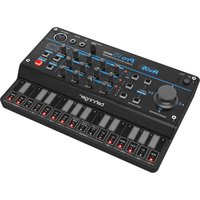
PRO-VS MINI - Synthesizer BEHRINGER - Free user manual and instructions
Find the device manual for free PRO-VS MINI BEHRINGER in PDF.



| Product type | Vector synthesizer |
| Brand | Behringer |
| Model | PRO-VS MINI |
| Power supply | USB-C (5 V, 500 mA) |
| Number of oscillators | 4 (A, B, C, D) |
| Synthesis | Vector with joystick and mix envelope |
| Filter | Low-pass 24 dB/octave with resonance |
| LFO | 2 LFOs with waveforms: triangle, square, sawtooth, ramp, S&H |
| Envelopes | ADSR for mix, filter and amplitude |
| Sequencer | Built-in, up to 16 steps, real-time or step recording |
| Arpeggiator | Modes Up, Down, Up/Down |
| Inputs/Outputs | USB-C (MIDI), MIDI IN (DIN), Sync (minijack), Headphone output (stereo minijack) |
| Keyboard | Built-in (number of keys not specified) |
| Display | OLED |
| Memory | Internal programs and sequences |
| MIDI connectivity | USB MIDI class-compliant, DIN MIDI In, SysEx receive/transmit |
| Operating temperature | 5°C to 45°C |
| Maintenance and cleaning | Clean with a dry cloth only |
| Safety | Do not expose to water, heat sources or open flames. Disconnect before cleaning. |
| Repairability | Fuse replaceable with an identical model. Contact Music Tribe for repair under warranty. |
Frequently Asked Questions - PRO-VS MINI BEHRINGER
User questions about PRO-VS MINI BEHRINGER
0 question about this device. Answer the ones you know or ask your own.
Ask a new question about this device
Download the instructions for your Synthesizer in PDF format for free! Find your manual PRO-VS MINI - BEHRINGER and take your electronic device back in hand. On this page are published all the documents necessary for the use of your device. PRO-VS MINI by BEHRINGER.
USER MANUAL PRO-VS MINI BEHRINGER
Portable 4-Voice Hybrid Synthesizer with 4 Vector Morphing Oscillators Per Voice, Analog Low-Pass Filter, 16-Step Sequencer and Arpeggiator
23CHCKST#Guide

EN Safety Instruction
- Please read and follow all instructions.

- Keep the apparatus away from water, except for outdoor products.

-
Clean only with a dry cloth.
-
Do not block any ventilation openings. Install in accordance with the manufacturer's instructions.
- Do not install near any heat sources such as radiators, heat registers, stoves or other apparatus (including amplifiers) that produce heat.
- Use only attachments/accessories specified by the manufacturer.

- Use only specified carts, stands, tripods, brackets,
or tables. Use caution to prevent tip-over when moving the cart/ apparatus combination.
- Avoid installing in confined spaces like bookcases.
-
Do not place near naked flame sources, such as lighted candles.
-
Operating temperature range 5° to 45°C (41° to 113°F).
LEGAL DISCLAIMER
Music Tribe accepts no liability for any loss which may be suffered by any person who relies either wholly or in part upon any description, photograph, or statement contained herein. Technical specifications, appearances and other information are subject to change without notice. All trademarks are the property of their respective owners. Midas, Klark Teknik, Lab Gruppen, Lake, Tannoy, Turbosound, TC Electronic, TC Helicon, Behringer, Bugera, Aston Microphones and Coolaudio are trademarks or registered trademarks of Music Tribe Global Brands Ltd. © Music Tribe Global Brands Ltd. 2024 All rights reserved.
LIMITED WARRANTY
For the applicable warranty terms and conditions and additional information regarding Music Tribe's
Limited Warranty, please see complete details online at community. musictribe.com/support.
BESCHRÄNKTE GARANTIE
detalhes na íntegra através do website community. musictribe.com/support
12 1BB0164 5MBt Guide
FN How Vector Synthesis works
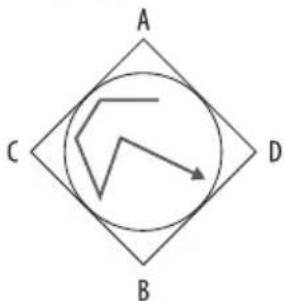
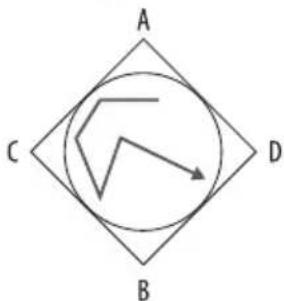
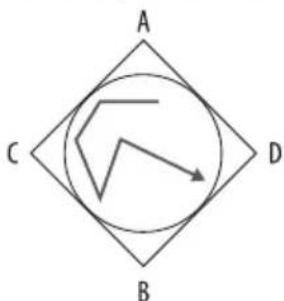
Unlike conventional synthesis, where oscillators are blended together to produce the basis for a sound, Vector Synthesis allows the balance of four oscillators to be continuously adjusted by both the joystick and using the mix envelope. The timbre of the sound can thus be changed subtly or dramatically as you play, depending on the waveforms you pick for each oscillator and how much mix automation you use.
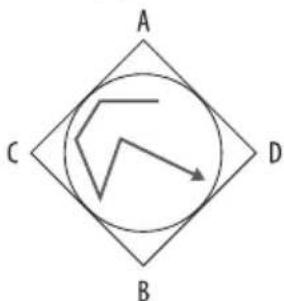
When the waveform mix joystick is in its central position all four oscillators have equal precedence. Moving the joystick upwards will increase the level of oscillator B while decreasing that of oscillator D; A and C remain the same. Equally moving it to the left increases the level of oscillator A against C while not affecting B and D. Therefore, for example, placing the joystick between A and B (North West) would give an equal amount of each of these oscillators while C and D will not contribute. Moving laterally to South East decreases A and B while increasing C and D proportionally, until A and B are not heard.
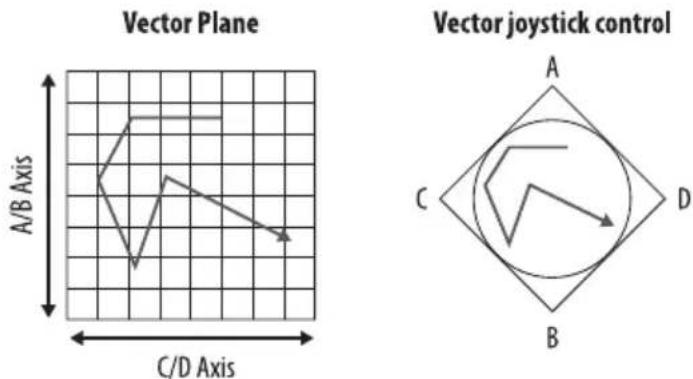
The result is a sound that morphs within a 2D plane with the joystick movement, mixed with the automation of the mix envelope.
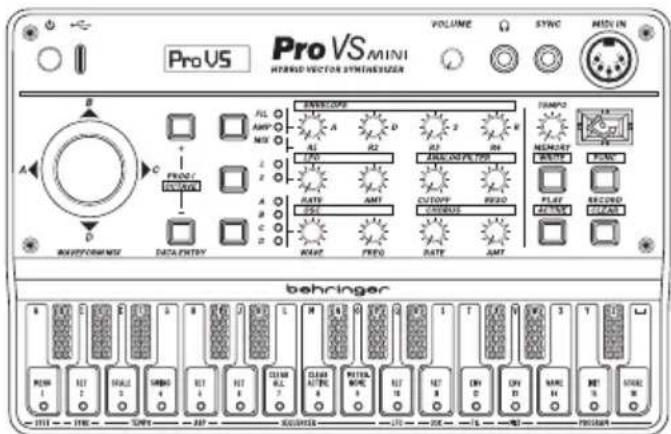
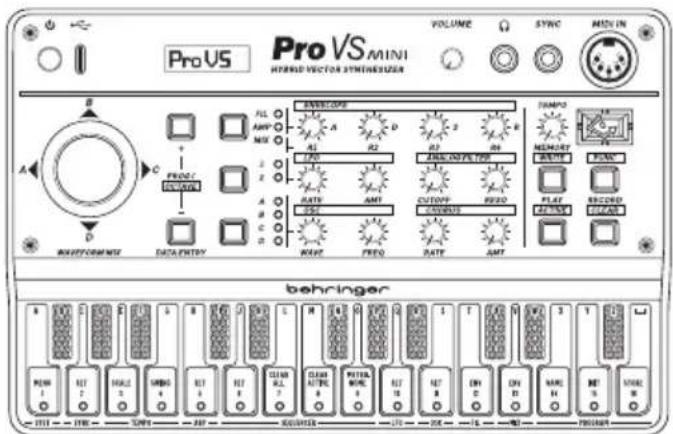
PRO VS MINI Controls
EN Step 2: Controls
EN
14 1580165 34bit Guice
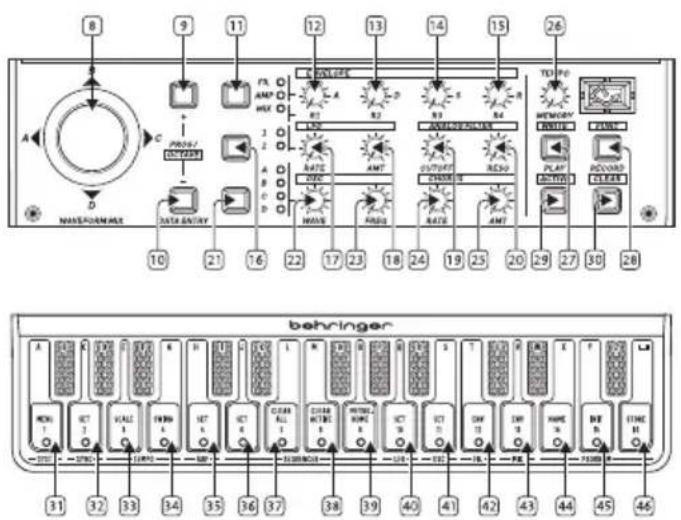
PRO VS MINI Controls
EN Step 2: Controls
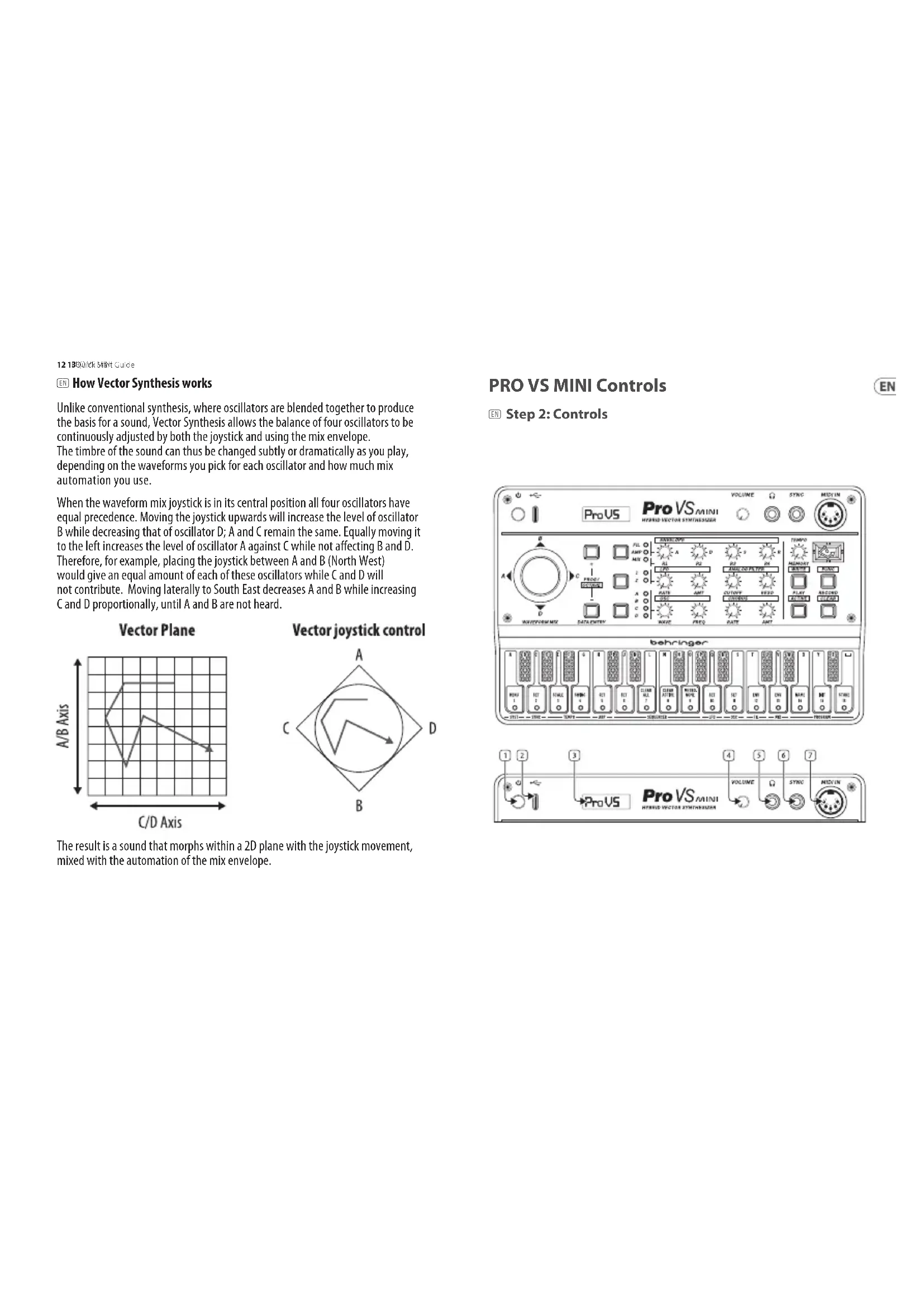
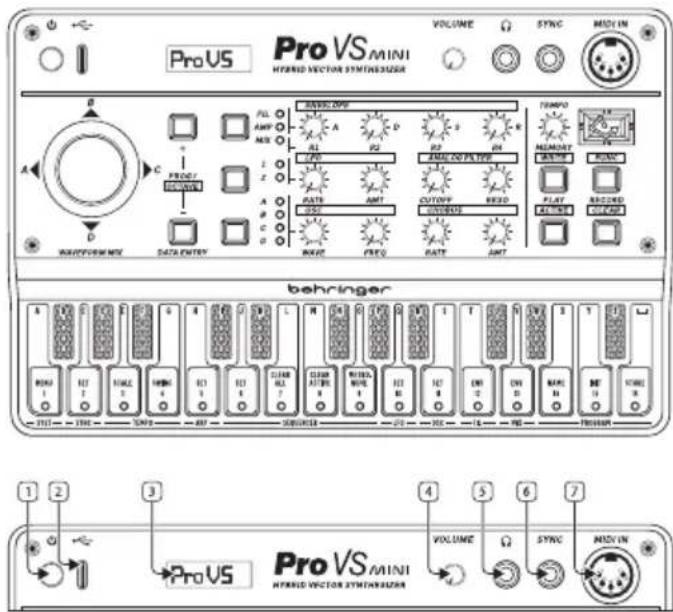
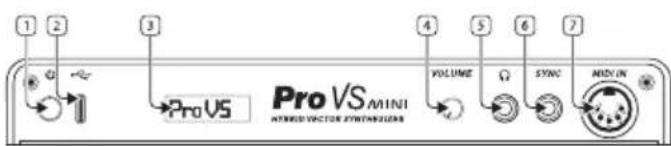
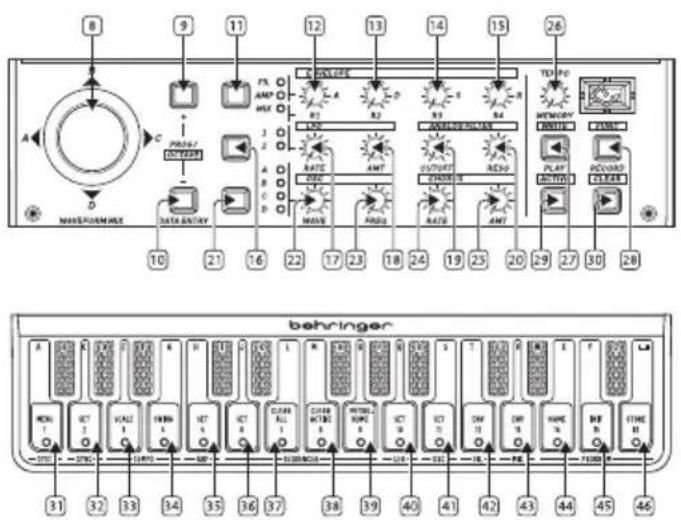
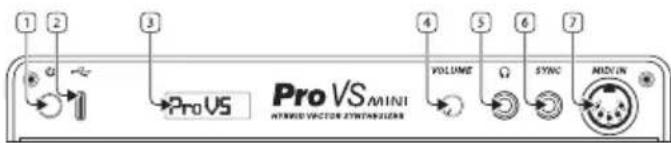
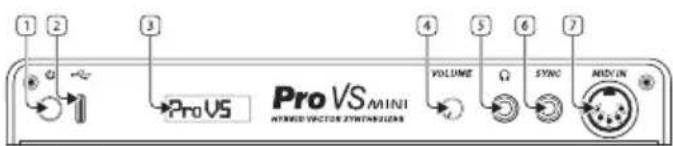
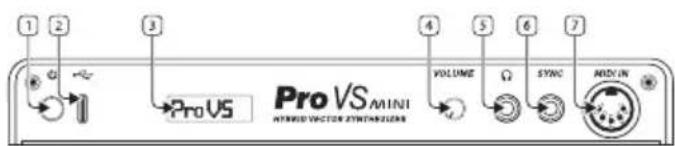
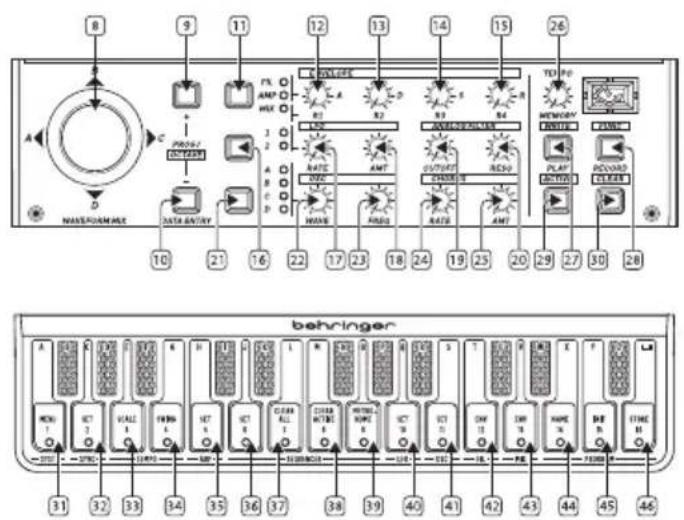
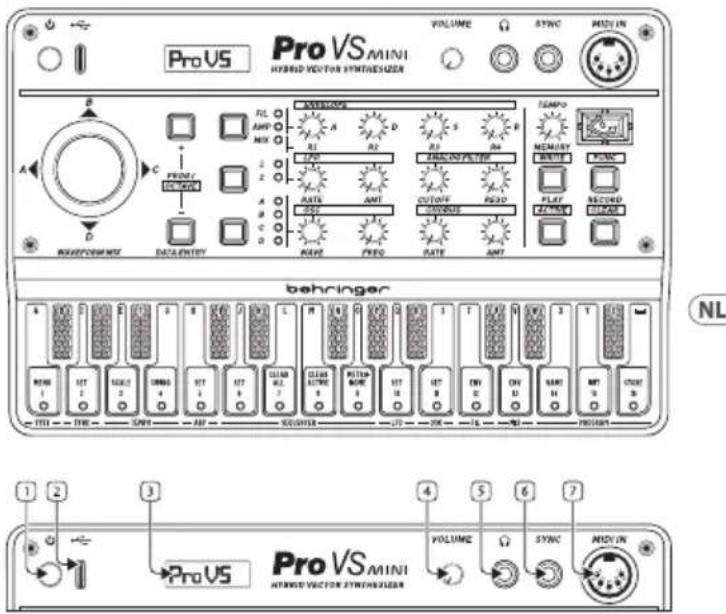
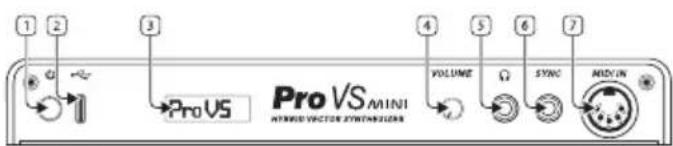
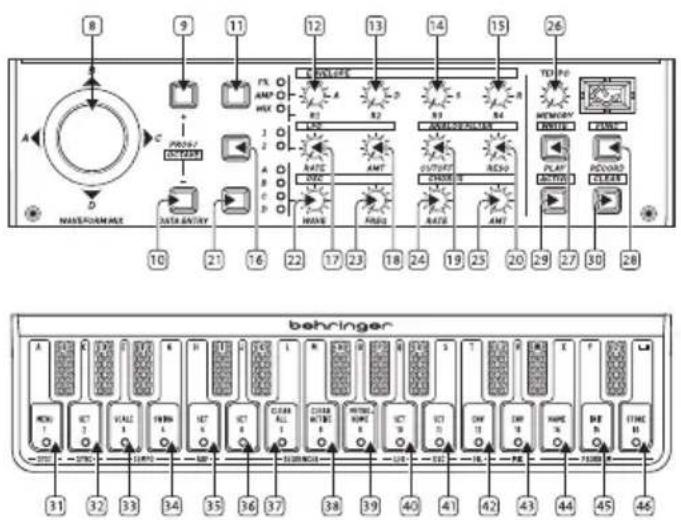
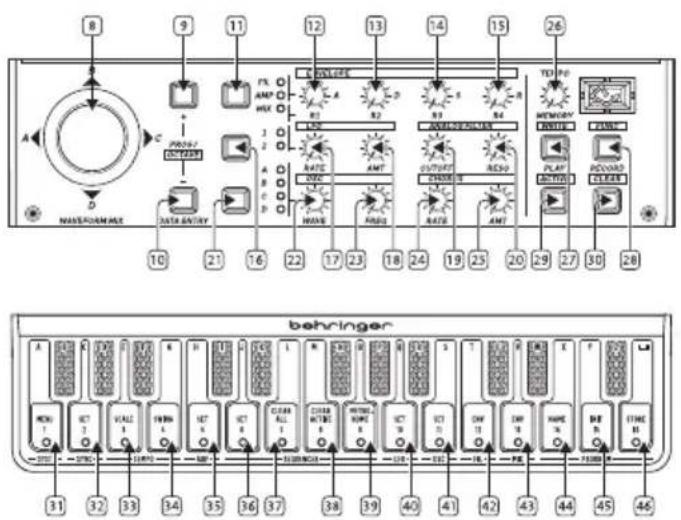
- POWER – On/Off button. Hold for 3 seconds to turn the PRO VS MINI on and off.
- USB-C—Used for power and to connect to a computer for USB MIDI control.
- LCDDISPLAY-OLED information display.
- VOLUME— Adjust the output level from the headphones output. Make sure the volume is turned down before putting on headphones.
- PHONES—Connect your headphones to this 3.5 mm TRS output. Make sure the volume is turned down before putting on headphones.
- SYNC—This input allows the use of an external clock and start/stop signal on 3.5 mm TRS jack.
- MIDIIN—Input MIDI from an external MIDI device such as a sequencer or DAW.
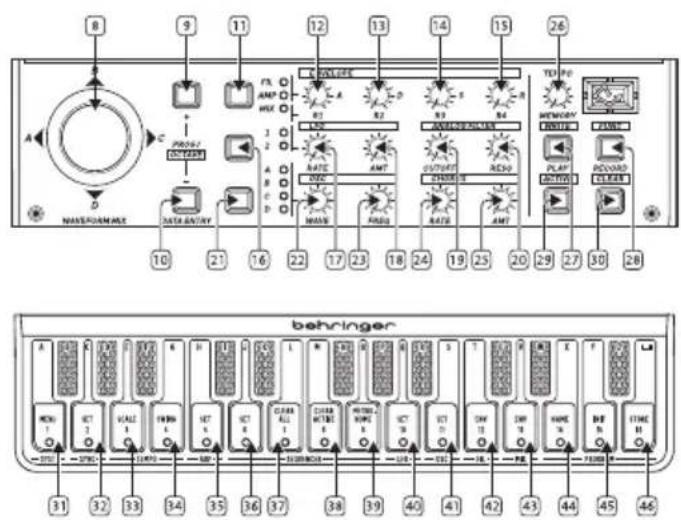
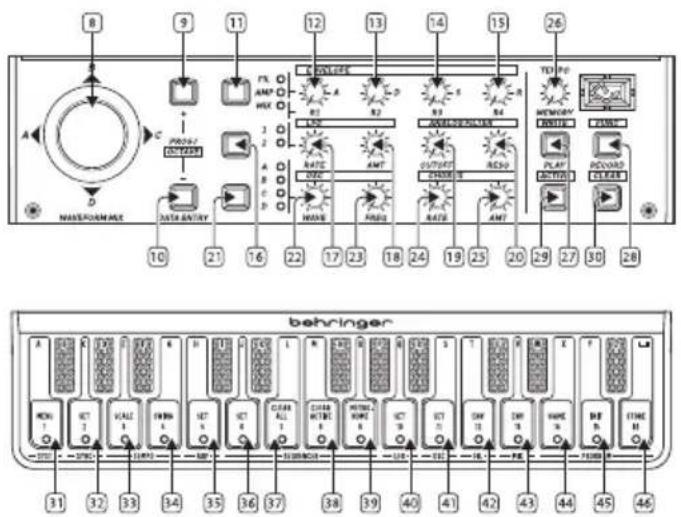
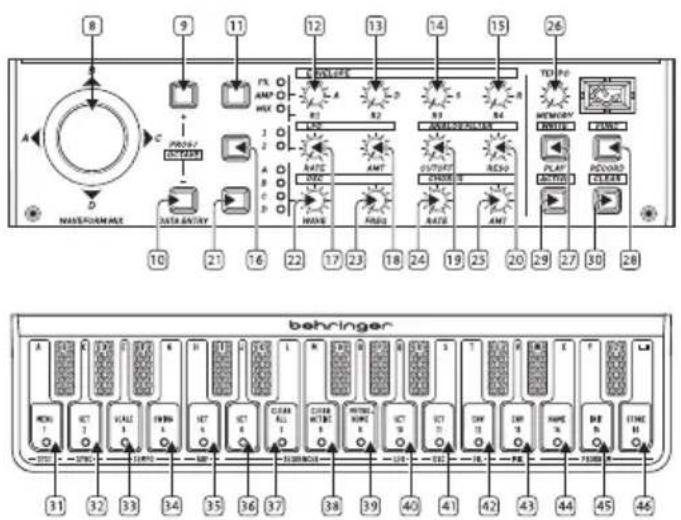
- WAVEFORMMIX—Mix the signals from the 4 sound sources.
-
- PROG/OCTAVE – Increase the program number or raise the octave up of the selected sound.
-
-PROG/OCTAVE— Decrease the program number or raise the octave up of the selected sound.
- ENVELOPE SELECT – Allows the controls to be used by the MIX, FILTER or AMPLITUDE sections.
- R1/ATTACK—Controls the attack time of the selected envelope.
- R2/DECAY—Controls the decay time of the selected envelope.
- R3/SUSTAIN—Controls the sustain level of the selected envelope.
- R4/RELEASE – Controls the release time of the selected envelope.
- LFOSELECT—Edit LFO 1 or 2.
- RATE—Sets the speed of the LFO.
- AMT—Controls the depth or amount of modulation.
- CUTOFF – Adjust the 24 dB low-pass filter's cutoff frequency.
- RESO—Adjusts the resonance of the filter. This emphasizes the frequencies around the cutoff point.
- WAVEFORM SELECT – Select which one of the 4 voice waveforms, A,B,C or D is active for voice control or editing.
EN
-
WAVE—Choose which waveform is used for the currently selected voice.
-
FREQ— Change the pitch or frequency of the waveform.
-
RATE—Adjust the speed of the chorus.
-
AMOUNT—Adjust the chorus depth.
-
TEMPO—Sets the speed of the ARP or sequencer in BPM.
-
MEMORY/WRITE—Calls up a new sequence memory or, with Function, writes a sequence to internal memory.
-
FUNC— Used to engage shift mode or for second functions.
-
PLAY/ACTIVE—Plays the arpeggiator or selected sequencer pattern. Function press to make active, which allows selected steps to be removed from the sequence.
-
RECORD/CLEAR—Press to enter record or function press to clear notes or a full pattern.
-
MENU – Repeated key press gives the following menus:
a. Seq/Arp – Switches between normal keyboard and sequencer operation and arpeggiator.
b. Filt Env Trig – Select either Single or Multi trigger. Single triggers the envelope with the first note played and will not re-trigger until all notes are released; Multi will re-trigger with each new note played.
c. MIDI Tx – Selects MIDI output channel 1 – 16 or off.
d. MIDI Rx – Selects MIDI input channel 1 – 16 or off.
e. MIDI Velocity – Switch velocity On or OFF.
f. MIDI CC — Selects whether MIDI continuous controller messages are received or off.
g. Prog Bulk SysEx Send — Outputs program memory contents as SysEx using the USB socket.
h. Prog Sing SysEx Send — Outputs current program as SysEx using the USB socket.
i. Patt Bulk SysEx Send – Outputs sequencer memory contents as SysEx using the USB socket.
j. Patt Sing SysEx Send – Outputs current sequence as SysEx using the USB socket.
k. SysEx Receive Listening - Allows the PRO VS MINI to receive SysEx from an external source using the USB socket.
-
Factory Reset – Resets all programs and sequences to factory default. Also displays firmware version. Press the + button (9) or - button (10) to initiate reset.
-
SYNC – Repeated key press gives the following menus:
a. Sync Source – Switch between Internal, MIDI, USB or Trigger.
b. Sync Type – Switch between 1ppq, 2ppq, 4ppq, 24ppq, 48ppq.
-
SCALE - Select 18 , 18 T, 116 , 116 T, 132 (global).
-
SWING—Select 50 (no swing), 55, 60, 65, 70, 75 (global).
-
ARPSET—Select up, down, up and down.
-
SEQUENCER SET — Switch between step fixed (note lengths defined by step) or record (notes as recorded).
-
CLEAR ALL – Wipes all sequencer memories.
-
CLEAR ACTIVE – Clears the action of Active Steps (button 29) and makes all steps active.
-
METRONOME – Switches the metronome on or off.
-
LFOSET— Selects the waveform for the LFO between triangle, square, sawtooth, ramp or S&H.
-
OSC SET – Selects coarse or fine tuning for the oscillators using control 23.
-
FIL ENV - Adjusts the amount of envelope modulation of the filter from 0 - 99.
-
MIXENV—Repeated key press gives the following menus:
a. Mix Env Loop – Select between off, 0->3, 1->3, 2->3, 0<->3, 1<->3, 2<->3 (if off is selected then no other menu options are available).
b. Mix Env Repeat – Select between 1 – 7 and continuous.
c. Mix Env Points: 0-4 — Use the waveform mix control 8 to set the balance between a, b, c and d at each point. Move from point to point with buttons 9 and 10.
-
NAME—Allows patch name to be set using keyboard.
-
PROGRAMINIT—Initialises the selected program.
-
STORE—Stores the current program.
Using the sequencer
- Press the Function button (28) then Menu (31) and select Seq.
- Select fixed steps or Record using key 36.
- Switch metronome on or off as required with key 39.
- Press the Function button again to exit Function mode.
- Put the sequencer into Play using button 29.
- Select the sequence that you want to write to using button 27 and the keyboard (white notes select patterns 1 – 16).
- Use Function and Clear buttons to remove notes from the sequence. Repeatedly pressing clear will clear all notes.
• Notes can then be recorded using the keyboard in time with the metronome (if used). -
The program can be changed at any time during recording using buttons 9 and 10.
-
When you are happy with your sequence press Function and Write. Select the pattern number you wish to write to using the keyboard, if you are not writing to the same pattern. Pressing Write again stores your sequence including the program used.
- Press Play to take sequencer out of Record mode. It is advisable to use Function and key 39 to switch off the metronome before playing back.
- Press the Function button (28) then Menu (31) and select Arp.
- Press Arp Set (key 35) and use buttons 9 and 10 to select Up, Down or Up and Down.
- Press the Function button again to return to normal use.
- Press Play (29).
- Hold down the keys that you want to use for your arpeggio.
PRO-VS MINI Getting Started
EN Step 3: Getting Started
OVERVIEW
This 'getting started' guide will help you set up your PRO VS MINI and briefly introduce its capabilities.
CONNECTION

To connect the PRO VS MINI to your system, please consult the connection guide earlier in this document.
SOFTWARE SETUP
The PRO VS MINI is a USB Class Compliant MIDI device, and so no driver installation is required. The PRO VS MINI does not require any additional drivers to work with Windows and MacOS.
HARDWARE SETUP
Make all the connections in your system. Keep the PRO VS MINI power turned off when making any connections.
Ensure your sound system is turned down.
Turn on the PRO VS MINI before turning on any power amplifiers and turn it off last. This will help prevent any turn on or turn off "pops or thumps" in your speakers.
WARM UP TIME
We recommend leaving 15 minutes or more time for the PRO VS MINI to warm up before recording or live performance. (Longer if it has been brought in from the cold). This will allow the precision analog circuits time to reach their normal operating temperature and tuned performance.
FIRMWARE UPDATE
Please check the behringer.com website regularly for any updates to the Behringer SYNTHTRIBE app. The app looks for the latest firmware file which can then be downloaded and used to update the PRO VS MINI.
The PRO VS MINI has 128 waveforms available for each voice
| Number Name | ||
| 0 | Twang |  |
| 1 | Clav |  |
| 2 | Xylophone |  |
| 3 | Slippery Slope |  |
| 4 | Enharmonic Square |  |
| 5 | Xylophone 2 |  |
| 6 | Mellow Square |  |
| 7 | Chaos 1 |  |
| 8 | Chaos 2 |  |
| 9 | Chaos 3 |  |
| 10 | Chaos 4 |  |
| 11 | Bright Square |  |
| Number Name | ||
| 12 | Hollow |  |
| 13 | BP Square |  |
| 14 | Ski Slope 1 |  |
| 15 | Rasp |  |
| 16 | Peal |  |
| 17 | Fuzz |  |
| 18 | Floss |  |
| 19 | Excite |  |
| 20 | Awaken |  |
| 21 | Energize |  |
| 22 | BP Twang |  |
| 23 | Complex Pulse |  |
| 24 | Mellow Square 2 |  |
22 23 QUVxMrt Guice
| Number | Name | |
| 25 | Harmonic Square |  |
| 26 | Thin Ramp |  |
| 27 | Xylophone 3 |  |
| 28 | Thin Square | [BYHT] |
| 29 | Harmonic Ramp |  |
| 30 | Rouse |  |
| 31 | Waken |  |
| 32 | Sine |  |
| 33 | Sawtooth |  |
| 34 | Square |  |
| 35 | Dome 1 |  |
| 36 | Dome 2 |  |
| 37 | Mellow Dome |  |
| Number | Name | |
| 38 | Dome 3 | |
| 39 | Dome 4 | |
| 40 | Rasp 1 | |
| 41 | Rasp 2 | |
| 42 | Rasp 3 | |
| 43 | Rasp 4 | |
| 44 | Dome 5 | |
| 45 | HP Saw | |
| 46 | High BP Saw | |
| 47 | High BP Square | |
| 48 | Vocal | |
| 49 | Squeeze box | |
| 50 | Pulse |
EN
51 Limp Saw
52 Spark Wave 1
53 Spark Wave 2
54 Spark Wave 3
55 Mid Wave 1
56 Cacophnous Buzz 1
57 Mid Buzz 1
58 Dome 6
59 Soft Dome 3
60 Dome 7
61 Spark Wave 4
62 Spark Wave 5
63 Soft Dome 4
64 Dome 8
65 Organ
66 Spark Wave 5
67 Soft Wave 1
68 Soft Wave 2
69 Spark Wave 7
70 Reed
71 Soft Wave 3
72 Soft Wave 4
73 Saxophone
74 Soft Wave 5
75 Trashy Wave 1
76 Trashy Wave 2
| Number Name | ||
| 77 | Trashy Wave 3 |  |
| 78 Trashy Wave 4 |  | |
| 79 Trashy Wave 5 |  | |
| 80 Trashy Wave 6 |  | |
| 81 | Jaw Harp 1 |  |
| 82 Jaw Harp 2 |  | |
| 83 Soft Wave 6 |  | |
| 84 Thin 1 |  | |
| 85 Thin 2 |  | |
| 86 Spark Wave 8 |  | |
| 87 Spark Wave 9 |  | |
| 88 Spark Wave 10 |  | |
| 89 Soft Dome 5 | [BY57] | |
| Number Name | ||
| 90 Soft Dome 6 | ~~~ | |
| 91 Cacophonous Buzz 2 | ~~~ | |
| 92 Thin 3 | ~~~ | |
| 93 Spark Wave 11 | ~~~ | |
| 94 Soft Dome 7 | ~~~ | |
| 95 Soft Wave 7 | ~~~ | |
| 96 Sine 2 | ~~~ | |
| 97 Syncd Sine | ~~~ | |
| 98 Trashy Wave 7 | ~~~ | |
| 99 Twingle Pad | ~~~ | |
| 100 | Dome 9 | ~~~ |
| 101 | Thin 4 | —— |
| 102 | Thin 5 | —— |
28 290015X9143 Guice
| Number Name | |
| 103 Trashy Wave 8 | |
| 104 Trashy Wave 9 | |
| 105 Trashy Wave 10 | |
| 106 Trashy Wave 11 | |
| 107 Trashy Wave 12 | |
| 108 Trashy Wave 13 | |
| 109 Spark Wave 12 | |
| 110 Spark Wave 13 | |
| 111 Trashy Wave 14 | |
| 112 Trashy Wave 15 | |
| 113 Rainbow | |
| 114 Soft Dome 8 | |
| 115 Trashy Wave 15 |
| Number Name | ||
| 116 | Soothing 1 | |
| 117 | Soothing 2 | |
| 118 | Space Wave | |
| 119 | 5th Rasp | |
| 120 | Octave Wave | |
| 121 | Triangle + Overtones | |
| 122 | Pulse + Overtones | |
| 123 | Rising Square | |
| 124 | Soft Wave 8 | |
| 125 | Cacophonous Buzz 3 | |
| 126 | Silence | |
| 127 | White Noise | |
EN
30 34 Quick Shift Guide
Vector joystick control
flowchart
graph TD
    A["A"] --> D["D"]
    B["B"] --> C["C"]
    C --> D
    D --> A
    style A fill:#fff,stroke:#000
    style B fill:#fff,stroke:#000
    style C fill:#fff,stroke:#000
    style D fill:#fff,stroke:#000
PRO-VS MINI Controles
ES Paso 2: Controles
PRO-VS MINI Controles

Paso 2: Controles
Vector joystick control
flowchart
graph TD
    A["A"] --> C["C"]
    C --> D["D"]
    D --> B["B"]
    B --> A
    style A fill:#fff,stroke:#000
    style B fill:#fff,stroke:#000
    style C fill:#fff,stroke:#000
    style D fill:#fff,stroke:#000
PRO-VS MINI Réglages
PRO-VS MINI Controles
PRO-VS MINI Controles
PT Passo 2: Controles
PRO-VS MINI Controles

Passo 2: Controles
PRO-VS MINI Controlli
PRO-VS MINI Controles
Step 2: Controlli
PRO-VS MINI Bediening
NL Stap 2: Bediening
82 83 QuickMail Guide
PRO-VS MINI Bediening
NL Stap 2: Bediening
b. Sync Type – Omschakelen tussen 1ppq, 2ppq, 4ppq, 24ppq of 48ppq.
SE
PRO-VS MINI Kontroller
SE Steg 2: Kontroller
Vector joystick control
flowchart
graph TD
    A["A"] --> C["C"]
    C --> D["D"]
    D --> B["B"]
    B --> A
PL
100 NOT Start Guide
PRO-VS MINI Sterowanica
Vector joystick control
flowchart
graph TD
    A["A"] --> D["D"]
    B["B"] --> C["C"]
    C --> D
    D --> A
    style A fill:#fff,stroke:#000
    style B fill:#fff,stroke:#000
    style C fill:#fff,stroke:#000
    style D fill:#fff,stroke:#000
132 1990 Quick Start Guide

PRO-VS MINI 控制
第二步: 控制
The PRO VS MINI is capable of extensive control by means of MIDI continuous controllers:
| CC # Affects Range | |
| 1 Modulation 0 – 127 | |
| 24 Voice A Wave 0 – 127 | |
| 25 Voice B Wave 0 – 127 | |
| 26 Voice C Wave 0 – 127 | |
| 27 Voice D Wave 0 – 127 | |
| 28 LFO 2 Amount 0 – 99 | |
| 47 Filter Env Amount | 0 – 127 |
| 54 LFO 1 waveform (triangle, square, saw) | 0 – 127 |
| 55 LFO 2 waveform (triangle, square, saw) | 0 – 127 |
| 56 LFO1 Destination (VCF OSC) | 0 – 127 |
| 70 LFO 1 Amount 0 – 99 | |
| 71 Filter Resonance 0 – 99 | |
| 72 LFO 1 Rate 0 – 99 | |
| 73 LFO 2 Rate 0 – 99 | |
| 74 Filter Cutoff 0 – 99 | |
| 81 Amplitude Envelope Attack 0 – 99 |
| CC # | Affects | Range |
| 82 Amplitude Envelope Decay | 0 – 99 | |
| 83 | Amplitude Envelope Sustain | 0 – 99 |
| 84 | Amplitude Envelope Release | 0 – 99 |
| 85 Filter Envelope Attack | 0 – 99 | |
| 86 Filter Envelope Decay | 0 – 99 | |
| 87 Filter Envelope Sustain | 0 – 99 | |
| 88 Filter Envelope Release | 0 – 99 | |
| 91 Chorus Depth | 0 – 99 | |
| 92 Chorus Rate | 0 – 99 | |
| 111 | Voice A Fine Tuning | 0 – 99 |
| 112 | Voice B Fine Tuning | 0 – 99 |
| 113 | Voice C Fine Tuning | 0 – 99 |
| 114 | Voice D Fine Tuning | 0 – 99 |
| 115 | Voice A Coarse Tuning | 0 – 99 |
| 116 | Voice B Coarse Tuning | 0 – 99 |
| 117 | Voice C Coarse Tuning | 0 – 99 |
| 118 | Voice C Coarse Tuning | 0 – 99 |
150150068d Start Guide
Specifications
| Synthesizer Architecture | |
| Number of voices 4 Voice | |
| Type Hybrid architecture | |
| Oscillators 16 Vector oscillators | |
| LFO 2 | |
| VCF Analog Low-Pass Filter | |
| Envelopes 3 | |
| Connectivity | |
| Power switch Push button on/off | |
| MIDI In 5-pin DIN / 16 channels | |
| USB (MIDI) USB-C | |
| Headphones | 3.5 mm TRS, stereo,max. 5 mW 32 Ω |
| Sync Input and Output | |
| USB | |
| Type USB-C | |
| Supported Operating Systems | Windows 7 or higher |
| Mac OS X 10.10 or higher | |
| Volume | |
| Control Volume: 0 to 10 | |
| Control Section | |
| Switches Prog ±/ / octave ± | |
| Arpeggiator | |
| Capacity 3 patterns | |
| Switch Func | |
| LFO Section | |
| Controls | LFO Rate |
| Amount | |
| Switches LFO 1 / 2 | |
| Oscillator Section | |
| Controls | Waveform select |
| Detune | |
| Switches Waveform select | |
| Chorus Section | |
| Controls Rate | |
| Depth | |
| Sequencer Section | |
| Capacity | 16 steps, 16 patterns |
| Control | Tempo |
| Switches | Memory write |
| Function | |
| Play/active | |
| Record/erase | |
| Analog Filter Section | |
| Controls | Cutoff |
| Resonance | |
EN
152 153 2014 Start Guide
EN
| Envelope Section | |
| Controls | R1/Attack (filter, amplifier, oscillator) |
| R2/Decay (filter, amplifier, oscillator) | |
| R3/Sustain (filter, amplifier, oscillator) | |
| R4/Release (filter, amplifier, oscillator) | |
| Keyboard and Controls | |
| Joystick Waveform mix | |
| Keyboard 27, capacitive touch | |
| Power Requirements | |
| Mains connector Micro USB | |
| Indicator Power LED | |
| Physical | |
| Standard operating temperature range | 5°C - 45°C (41°F - 113°F) |
| Dimensions (H x W x D) | 39 x 193 x 124 mm (1.55 x 7.60 x 4.88") |
| Weight 0.40 kg (0.88 lbs) | |
技术参数
Other important information

Important information

Please register your new Music Tribe equipment right after you purchase it by visiting musictribe.com. Registering your purchase using our simple online form helps us to process your repair claims more quickly and efficiently. Also, read the terms and conditions of our warranty, if applicable.
- Malfunction. Should your Music Tribe Authorized Reseller not be located in your vicinity, you may contact the Music Tribe Authorized Fulfiller for your country listed under "Support" at musictribe.com. Should your country not be listed, please check if your problem can be dealt with by our "Online Support" which may also be found under "Support" at musictribe.com. Alternatively, please submit an online warranty claim at musictribe.com BEFORE returning the product.
3. Power Connections
Before plugging the unit into a power socket, please make sure you are using the correct mains voltage for your particular model. Faulty fuses must be replaced with fuses of the same type and rating without exception.
1. Registro online.
Other important information

Responsible Party Name:
Music Tribe Commercial NV Inc.
Address:
122 E. 42nd St.1, 8th Floor NY, NY 10168, United States
Email Address:
legal@musictribe.com
PRO VS MINI
This equipment has been tested and found to comply with the limits for a Class B digital device, pursuant to part 15 of the FCC Rules. These limits are designed to provide reasonable protection against harmful interference in a residential installation. This equipment generates, uses and can radiate radio frequency energy and, if not installed and used in accordance with the instructions, may cause harmful interference to radio communications. However, there is no guarantee that interference will not occur in a particular installation. If this equipment does cause harmful interference to radio or television reception, which can be determined by turning the equipment off and on, the user is encouraged to try to correct the interference by one or more of the following measures:
- Reorient or relocate the receiving antenna.
- Increase the separation between the equipment and receiver.
- Connect the equipment into an outlet on a circuit different from that to which the receiver is connected.
- Consult the dealer or an experienced radio/TV technician for help.
This equipment complies with Part 15 of the FCC rules. Operation is subject to the following two conditions:
(1) this device may not cause harmful interference, and (2) this device must accept any interference received, including interference that may cause undesired operation.
Important information:
Changes or modifications to the equipment not expressly approved by Music Tribe can void the user's authority to use the equipment.
CE
Hereby, Music Tribe declares that this product is in compliance with Directive 2014/30/EU, Directive 2011/65/EU and Amendment 2015/863/EU, Directive 2012/19/EU, Regulation 519/2012 REACH SVHC and Directive 1907/2006/EC.
Full text of EU DoC is available at https://community.musictribe.com/
EU Representative: Music Tribe Brands DK A/S Address: Gammel Strand 44, DK-1202 København K, Denmark
UK Representative: Music Tribe Brands UK Ltd. Address: 8th Floor, 20 Farringdon Street London EC4A 4AB, United Kingdom

Correct disposal of this product: This symbol indicates that this product must not be disposed of with household waste, according to the WEEE Directive (2012/19/EU) and your
national law.
This product should be taken to a collection center licensed for the recycling of waste electrical and electronic equipment (EEE). The mishandling of this type of waste could have a possible negative impact on the environment and human health due to potentially hazardous substances that are generally associated with EEE. At the same time, your cooperation in the correct disposal of this product will contribute to the efficient use of natural resources. For more information about where you can take your waste equipment for recycling, please contact your local city office, or your household waste collection service.
We Hear You
- EN Safety Instruction
- LEGAL DISCLAIMER
- LIMITED WARRANTY
- BESCHRÄNKTE GARANTIE
- FN How Vector Synthesis works
- PRO VS MINI Controls
- EN Step 2: Controls
- Using the sequencer
- PRO-VS MINI Getting Started
- OVERVIEW
- CONNECTION
- SOFTWARE SETUP
- HARDWARE SETUP
- WARM UP TIME
- FIRMWARE UPDATE
- PRO-VS MINI Controles
- Paso 2: Controles
- PRO-VS MINI Réglages
- Passo 2: Controles
- PRO-VS MINI Controlli
- Step 2: Controlli
- PRO-VS MINI Bediening
- NL Stap 2: Bediening
- PRO-VS MINI Kontroller
- SE Steg 2: Kontroller
- PRO-VS MINI Sterowanica
- PRO-VS MINI 控制
- 第二步: 控制
- Other important information
- Power Connections
- Registro online.
- PRO VS MINI
- CE
Brand : BEHRINGER
Model : PRO-VS MINI
Category : Synthesizer