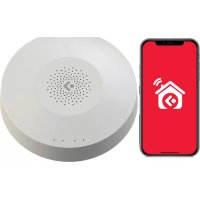
Smart Hub FS2SH - Smart Home Ferguson - Free user manual and instructions
Find the device manual for free Smart Hub FS2SH Ferguson in PDF.



| Product type | Central hub for ZigBee and Bluetooth devices |
| Brand | Ferguson |
| Model | Smart Hub FS2SH |
| Dimensions | 120.8 x 114.4 x 32.7 mm |
| Power supply | DC5V/2A with built-in 2400 mAh battery |
| Battery life | Up to 12 hours (Ethernet), up to 6 hours (Wi-Fi) |
| Main functions | Control up to 100 ZigBee devices, compatible with Wi-Fi and Ethernet, tamper alarm, backup battery, software update |
| Connectivity | ZigBee, Bluetooth, Wi-Fi, Ethernet RJ45, USB Type A |
| Range | Up to 200 m in open space |
| Operating temperature | 0°C to +55°C |
| Allowed humidity | ≤95% (non-condensing) |
| Rated power | 3 W (Ethernet), 3.5 W (Wi-Fi) |
| Box contents | Hub, USB cable, power adapter, mounting screws, Ethernet cable, mounting bracket |
| Maintenance | Clean with a soft, dry cloth. Do not use abrasive products. |
| Security | Tamper alarm if removed from bracket; anti-tamper (normally closed contact) |
| Installation | Wall mounting via included bracket |
Frequently Asked Questions - Smart Hub FS2SH Ferguson
User questions about Smart Hub FS2SH Ferguson
0 question about this device. Answer the ones you know or ask your own.
Ask a new question about this device
Download the instructions for your Smart Home in PDF format for free! Find your manual Smart Hub FS2SH - Ferguson and take your electronic device back in hand. On this page are published all the documents necessary for the use of your device. Smart Hub FS2SH by Ferguson.
USER MANUAL Smart Hub FS2SH Ferguson
natural_image
Circular object with a central dot pattern and a gray arrow symbol, set against a red background (no text or symbols)PL instrukcja obsługi
EN instructions manual
DE Bedienungsanleitung
ES manual de usuario
FR manuel de l'utilisateur
IT manuale d'uso
PT manual do usuário
natural_image
Collection of electronic components and connectors, including a speaker, battery pack, cable, and connector (no text or symbols visible)Opis bramki
natural_image
Diagram of a circular device with concentric rings and a dotted pattern, labeled with numbers ① and ② (no text or symbols on the diagram itself)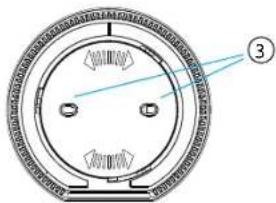
natural_image
Circular mechanical component with flanged ends and a central hole, labeled with number 3 (no text or symbols on the part itself)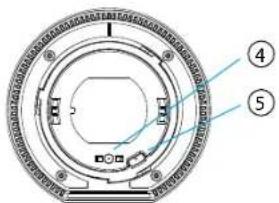
text_image
Technical diagram of a circular mechanical component with numbered annotations pointing to features.natural_image
Simple line drawing of a circular object with concentric rings and a central dot pattern (no text or symbols)Specyfikacja
text_image
Dodavashir Uzqidense Ferriplatin Smart Hub Newy Smart Hub Pedaj's website Wi-Fi Pedaj's website Smart Hub's wally adminnatural_image
White circular electronic device with perforated top and small indicator lights (no text or symbols visible)NOTE: Please read carefully before use. The illustrations in the manual are for reference only and may not be accurate.
Product description
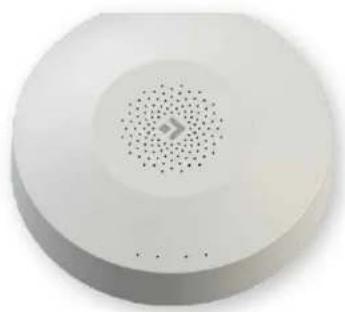
The Smart Hub is the control center for ZigBee and Bluetooth devices. Our gateway works with many types of ZigBee devices operating in the 1.2HA standard, e.g. smoke detectors, CO alarms, reed switches, motion sensors etc.
Through various combinations of smart home peripherals, you can use the control unit as an alarm system, security system, environmental control system, home automation system, etc.
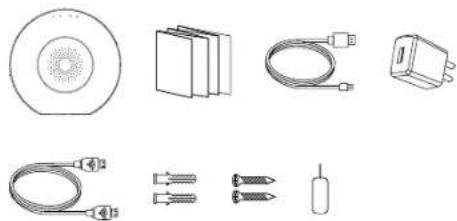
Contents of the package
- control unit
- instructions manual
- USB cable
- power supply
- mounting screws
- Ethernet cable
- needle
natural_image
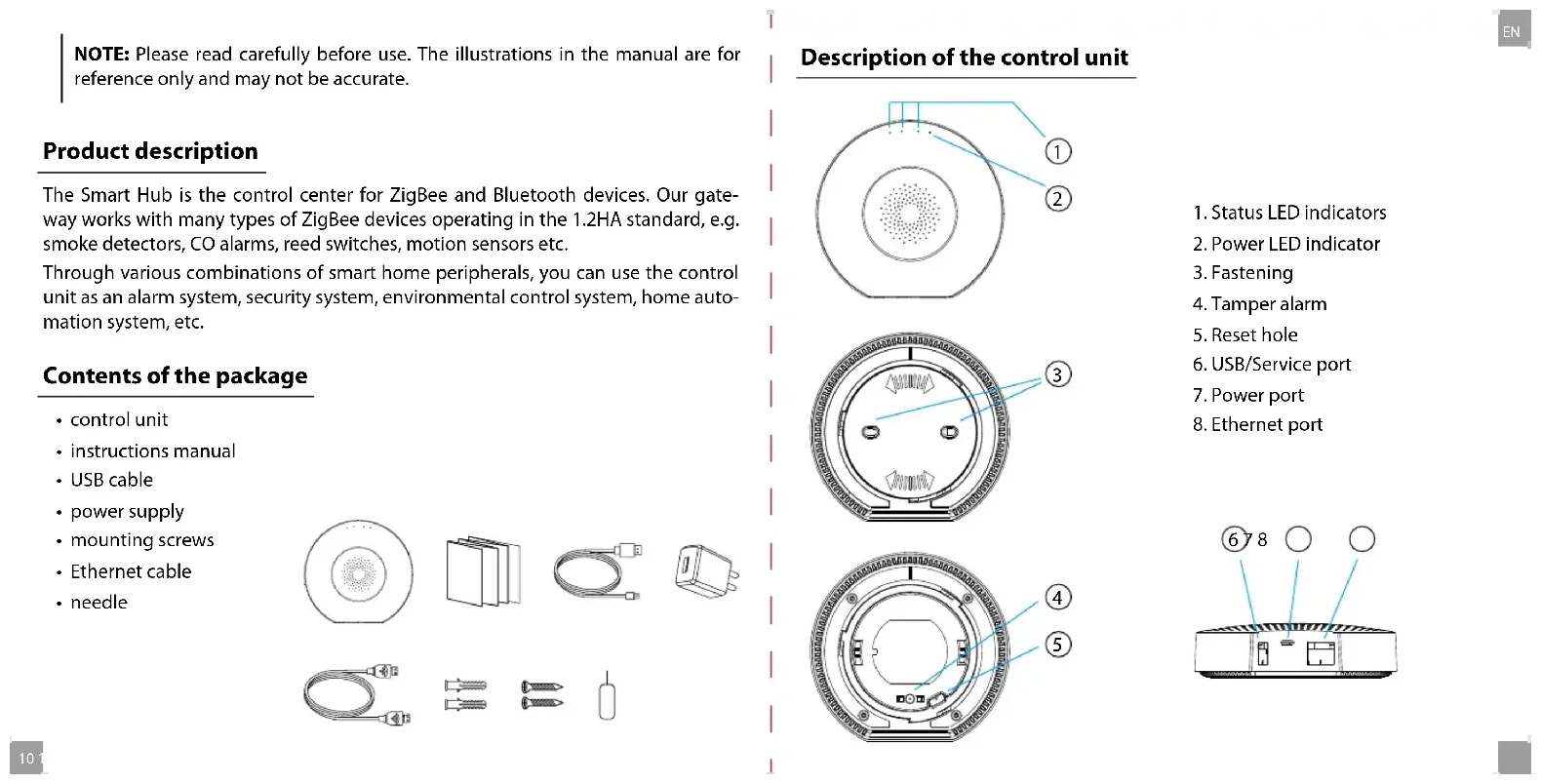
Collection of electronic components and connectors, including a speaker, battery pack, cable, and connector (no text or symbols visible)Description of the control unit
text_image
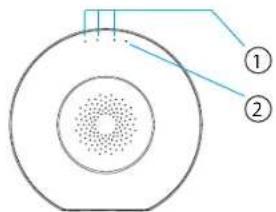
Diagram of a circular device with labeled components, showing concentric layers and connection points.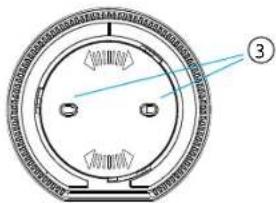
natural_image
Circular mechanical component with flanged ends and a central hub, labeled with number 3 (no text or symbols on the part itself)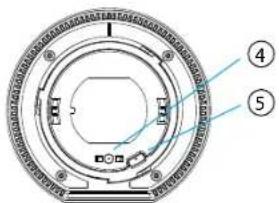
text_image
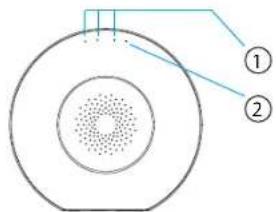
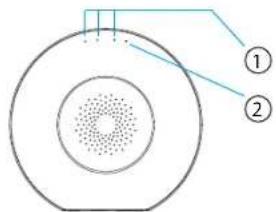
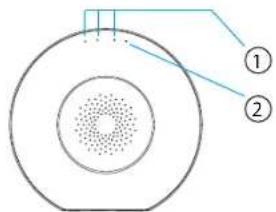
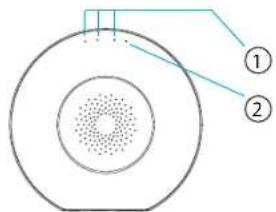
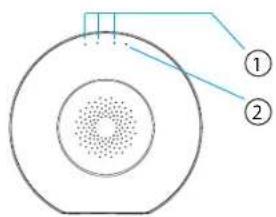
Technical diagram of a circular mechanical component with numbered annotations pointing to features.- Status LED indicators
- Power LED indicator
- Fastening
- Tamper alarm
- Reset hole
- USB/Service port
- Power port
- Ethernet port
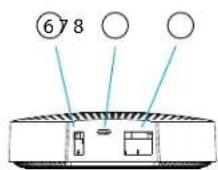
Functions
• Supports up to 100 Zigbee devices
- Ethernet and Wi-Fi support
• Automatic network switching in case of connection loss
• Support for software updates
• Built-in 2400 mAh battery
- Battery life up to 12 hours when connected via Ethernet and up to 6 hours when connected via Wi-Fi
- Tamper alarm that is activated immediately after removal of the device from the mounting bracket
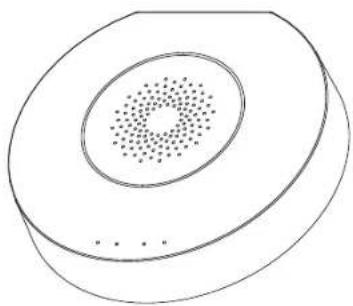
natural_image
Simple line drawing of a circular object with concentric rings and a central dot pattern (no text or symbols)Specification
| Power DC5V/2A | |
| Backup battery 2400mAh/3.7V | |
| Rated power 3W Ethernet, 3.5W Wi-Fi | |
| Working temperature 0°C ~ +55°C | |
| Permissible humidity = <95% (no condensation) | |
| Network Ethernet, Wi-Fi | |
| Communication Zigbee, Bluetooth | |
| Working range Up to 200m in open space | |
| Dimensions 120.8 x 114.4 x 32.7 mm | |
| Power port Micro USB | |
| Ethernet port RJ45 | |
| USB port | USB typ A |
| Tamper button | Normally closed |
| Reset hole | Push for 10 seconds to do factory reset |
Adding a gateway
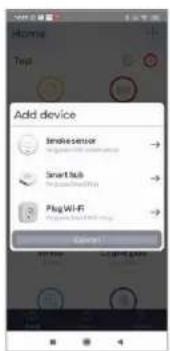
Connect the gateway to the power using the supplied cable and power adapter. Download the Ferguson Home app in the Google Play Store or Apple AppStore. Follow the steps necessary to run the application.
Then, using the "+" symbol in the „Desktop" tab, select the option to add a Smart Hub. Follow the instructions in the application. After a successful connection, the gateway will signal "successful connection" with a sound signal.
Pairing may take several minutes.
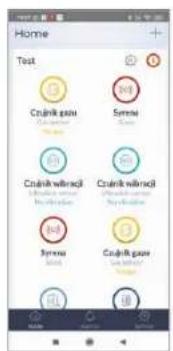
text_image
Home Text Crankl gau Crankl wiracil Crankl wiracil Crankl gau Crankl gauFerguson Home application
text_image
Add device Intekensor Smart Hub Plug Wi-Fi Search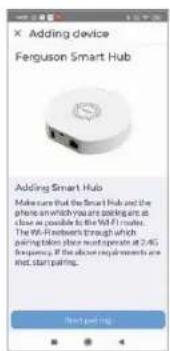
text_image
Adding device Ferguson Smart Hub Adding Smart Hub Make sure that the Smart Hub and the phone on which they are calling at as close as possible to be WiFi 1 mode. The WiFi 4000s through which calling taken place must operate at 2.4G frequency. If the above requirements are not, start calling. Next page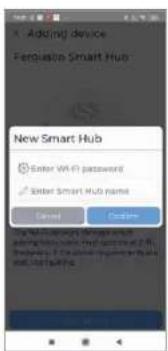
text_image
Adding device Ferquist Smart Hub New Smart Hub Enter Wi-Fi password Enter Smart Hub name Sendai Download Ferquist Smart Hub Enter Wi-Fi password Enter Smart Hub name Sendai Download



| LED Color Description | |||
| Power green | power status | 1. Steady light - powered from the power supply.2. Blinking - battery powered. | |
| 3 green/red | gateway status LED indicator | 1. Green is on - HUB is armed at night mode.2. Red is on - HUB is armed.3. Green is blinks very fast - update. | |
| 2 white | network connection status LED indicator | 1. Flashes every second - gateway pairing mode with Wi-Fi.2. Lights up for 5s - pairing successful.3. Flashes very quickly for 2s - Wi-Fi pairing failed.4. Steady light - connection to the server.5. Flashing very fast - update. | |
| 1 yellow/blue | device pairing status LED indicator | 1. Yellow flashing every second - pairing with a ZigBee device.2. Yellow is on for 5s - successful pairing of the ZigBee device.3. Yellow flashing very fast for 2s - ZigBee pairing failed.4. Blue flashing every second - pairing with a Bluetooth device.5. Blue is on for 5s - Bluetooth device pairing successful.6. Blue flashing very fast for 2s - Bluetooth pairing failed.7. Yellow flashing very fast - update. | |
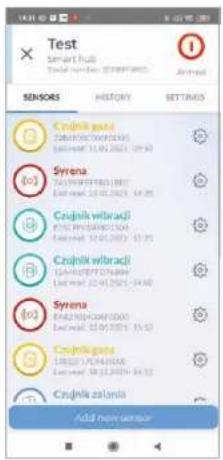
Adding peripherals
- Enter into gateway's setup (gear icon).
- At the bottom of the screen there is a button for adding a new device.
- Prepare the sensor you want to add.
- Press the add button and follow the instructions in the application.
text_image
Test Smart Hub Total number: 20000000000 Sensors Czynik gala CZYNIK GYRAN Last time: 11.01.2021-11.03 Syrena CZYNIK WIRAKJI EYE PHEKSHUKU Last time: 12.01.2021-12.05 Czynik wirakji CZYNIK WIRAKJI EYE PHEKSHUKU Last time: 12.01.2021-12.05 Syrena CZYNIK Gala CZYNIK GYRAN Last time: 12.01.2021-12.05 Czynik zanlja Add more sensors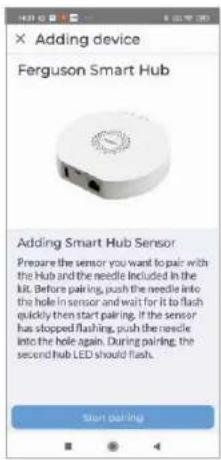
text_image
Adding device Ferguson Smart Hub Adding Smart Hub Sensor Prepare the sensor you want to pair with the Hub and the needle included in the kit. Before pairing, push the needle into the hole in sensor and wait for it to flash quickly then start pairing. If the sensor has stopped flashing, push the needle into the hole again. During pairing, the second hub LED should flash. start pairing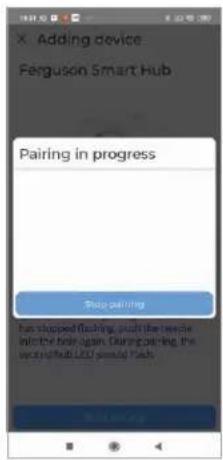
text_image
Adding device Ferguson Smart Hub Pairing in progress Stop calling Has stopped flashing, push the trigger initive the bolt again. During prompting, the wronofhub LED should Flash Stop callingAssembly
To assemble the device:
- Remove the mounting cover by turning it counterclockwise.
- After selecting the appropriate mounting location, use the mounting screws to attach the goal to the selected surface.
Attention!
- For better wireless communication parameters, avoid mounting on a metal surface or in a metal environment.
- To add devices, install the application.
- For stable communication, peripherals should be placed no more than 20 meters from the gate. The best connection is approx. 15 m from the gate.
natural_image
White circular electronic device with perforated grille and small indicator lights (no text or symbols visible)natural_image
Collection of electronic components and connectors, including a speaker, battery pack, cable, and connector (no text or symbols visible)text_image
Diagram of a circular device with labeled components, showing concentric layers and connection points.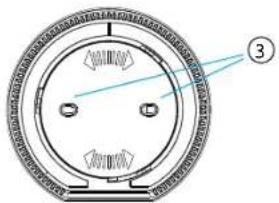
natural_image
Circular mechanical component with flanged edges and central hub, no visible text or symbols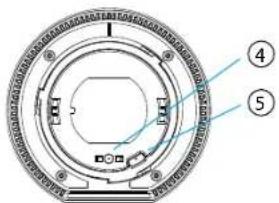
text_image
Technical diagram of a circular mechanical component with numbered annotations pointing to features.natural_image
Simple line drawing of a circular object with concentric rings and a central dot pattern (no text or symbols)Spezifikation
text_image
Add device Smoke sensor Smart Hub Plug Wi-Fi Cancel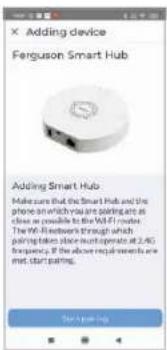
text_image
Adding device Ferguson Smart Hub Adding Smart Hub Make sure that the Smart Hub and the phone on which you are paying are as close as possible to the W/1 server. The Wi-Fi network through which pairing takes place until operate at 2.5G frequency if the above requirements are met, start paying. New Apple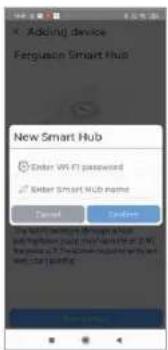
text_image
Adding device Ferguson Smart Hub New Smart Hub Enter Wi-Fi password Enter Smart Hub name Cancel Cancel



text_image
Adding device Ferguson Smart Hub Adding Smart Hub Sensor Prepare the sensor you want to pair with the Hub and the needle included in the Hill. Before pairing, push the needle into the hole in sensor and wait for it to flash quickly then start pairing. If the sensor has stopped flashing, push the needle into the hole again. During pairing, the second hub LED should flash. Start pairing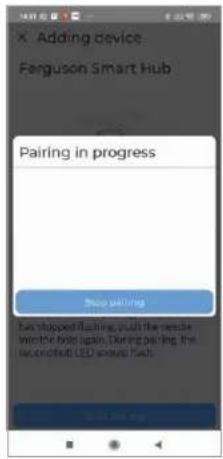
text_image
Adding device Ferguson Smart Hub Pairing in progress Stop setting Bus shopped flashing, such the rescue with the hotel again. During pairing, the second flash LED around flash.Montage
natural_image
White circular electronic device with perforated top and small indicator lights (no text or symbols visible)natural_image
Collection of electronic components and connectors, including a speaker, battery pack, and sensor-like devices (no text or symbols visible)Descripción de Hub
text_image
Diagram of a circular device with labeled components, showing concentric layers and connection points.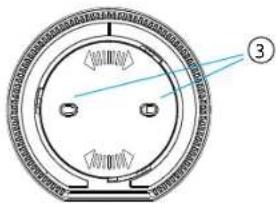
natural_image
Circular mechanical component with flanged ends and a central hole, labeled with number 3 (no text or symbols on the part itself)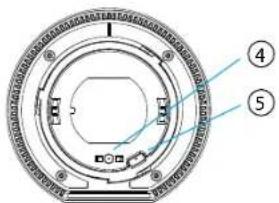
text_image
Technical diagram of a circular mechanical component with numbered annotations pointing to features.natural_image
Simple line drawing of a circular object with concentric rings and a central dot pattern (no text or symbols)Especificación
text_image
Add device Inlessensor SmartLab Plug Wi-Fi Energy
text_image
X Adding device Ferguson Smart Hub Adding Smart Hub Make sure that the Smart Hub and the phone will have you being installed as close as possible to be MFI server. The Wi-Fi hardware through which pairing taken place must operate at 2.0G frequency. If the above requirements are not, start payments. Recommendation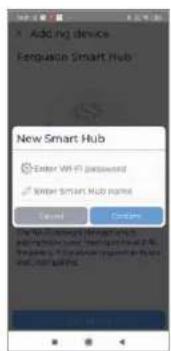
text_image
Add Air device Fengyuan Smart Hub New Smart Hub Enter WiFi password Enter Smart Hub name Cablet Detailstext_image
Adding device Ferguson Smart Hub Adding Smart Hub Sensor Prepare the sensor you want to pair with the Hub and the needle included in the kit. Before pairing, push the needle into the hole in sensor and wait for it to flash quickly then start pairing. If the sensor has stopped flashing, push the needle into the hole again. During pairing, the second hub LED should flash. start pairing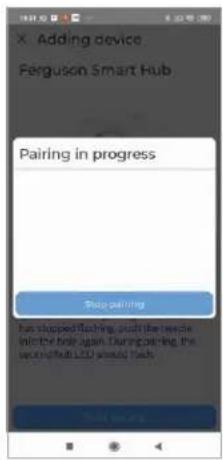
text_image
Adding device Ferguson Smart Hub Pairing in progress Stop calling Bus stopped flashing, such the rescue initive the best again. During prompting, the window/hub LED would finish.Instalación
natural_image
White circular electronic device with perforated top and small dot pattern on the surface (no text or symbols visible)natural_image
Collection of electronic components and connectors, including a speaker, battery pack, and sensor-like devices (no text or symbols visible)Description du Hub
text_image
Diagram of a circular device with labeled components, showing concentric layers and connection points.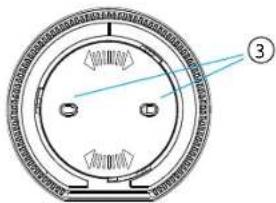
natural_image
Circular mechanical component with flanged ends and a central hole, labeled with number 3 (no text or symbols on the part itself)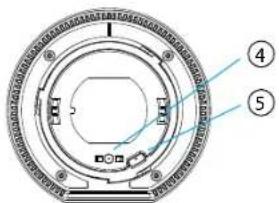
text_image
Technical diagram of a circular mechanical component with numbered annotations pointing to features.natural_image
Simple line drawing of a circular object with concentric rings and a central dot pattern (no text or symbols)Spécification
text_image
Adding device Ferguson Smart Hub Adding Smart Hub Make sure that the Smart Hub and the phone which you are paying are as close as possible to the Wi-Fi router. The Wi-Fi network through which paying taken place must operate at 3.0% frequency. If the above requirements are not, call paying. Checking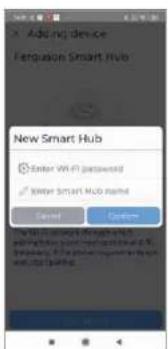
text_image
Adding device Fengfusion Smart Hub New Smart Hub Enter Wi-Fi password Sweyer Smart Hub named Send Explore The new smart hub is installed with the following: 1.0 percent of the total user's share of the total user's share of the total user's share of the total user's share of the total user's share of the total user's share of the total user's share of the total user's share of the total user's share of the total user's share of the total user's share of the total user's share of the total user's share of the total user's share of the total user's share of the total user's share of the total user's share of the total users' share of the total user's share of the total user's share of the total user's share of the total user's share of the total user's share of the total user's share of the total user's share of the total user's share of the total user's share of the total user's share of the total user's share of the total user's share of the total user's share of the total user's share of the total user's share of the total user's share of the all Total User's Share of the Total User's Share is 100% (100%) Total User's Share is 100% (100%) Total User's Share is 100% (100%) Total User's Share is 100% (100%) Total User's Share is 100% (100%) Total User's Share is 100% (100%) Total User's Share is 100% (100%) Total User's Share in the Total User's Share is 100% (100%) Total User's Share in the Total User's Share is 100% (100%) Total User's Share in the Total User's Share is 100% (100%) Total User's Share in the Total User's Share is 100% (100%) Total User's Share in the Total User's Share is 100% (1)application Ferguson Home




text_image
Adding device Ferguson Smart Hub Adding Smart Hub Sensor Prepare the sensor you want to pair with the Hub and the needle included in the kit. Before pairing, push the needle into the hole in sensor and wait for it to flash quickly then start pairing. If the sensor has stopped flashing, push the needle into the hole again. During pairing, the second hub LED should flash. Start pairing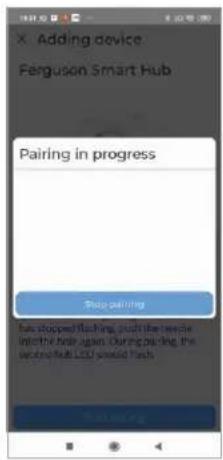
text_image
Adding device Ferguson Smart Hub Pairing in progress Free calling has stopped flashing, push the remote initive help again. During prompting, the waiting hub LCD would flushInstallation
natural_image
White circular electronic device with perforated top and small indicator lights (no text or symbols visible)natural_image
Illustration of various electronic components including a speaker, circuit board, and connectors (no text or symbols present)Descrizione del Hub
natural_image
Diagram of a circular structure with concentric rings and internal dotted pattern, labeled with numbers 1 and 2 (no text or symbols beyond labels)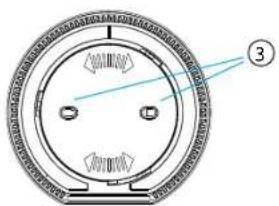
text_image
Technical diagram of a circular mechanical component with labeled parts and numbered annotation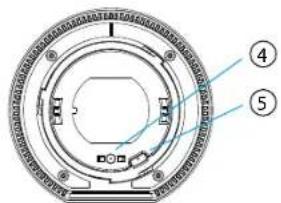
text_image
Technical diagram of a circular mechanical component with numbered annotations pointing to internal features.natural_image
Simple line drawing of a circular object with concentric rings and a central dot pattern (no text or symbols)Specificazione
text_image
Home Text Crankl gun Screw Crankl wrnackl Crankl wrnackl Screw Crankl gun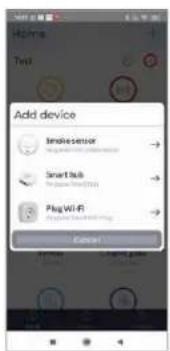
text_image
Add device Inksensor Smart Disk Plug Wi-Fi Canon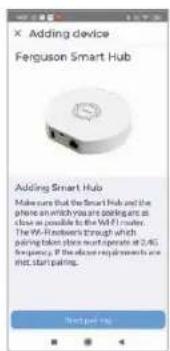
text_image
X Adding device Ferguson Smart Hub Adding Smart Hub Make sure that the Smart Hub and the phone on which you are paying are close as possible to be WiFi motors. The Wi-Fi network through which paying takes place must operate at 2.4G frequency. If the efficient requirements are not, start payments. Recommendation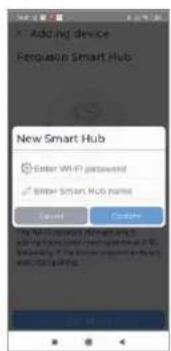
text_image
Adding device Ferolusion Smart Hub New Smart Hub Enter Wi-Fi password Smart Smart Hub name Cancel Finishtext_image
Adding device Ferguson Smart Hub Adding Smart Hub Sensor Prepare the sensor you want to pair with the Hub and the needle included in the lit. Before pairing, push the needle into the hole in sensor and wait for it to flash quickly then start pairing. If the sensor has stopped flashing, push the needle into the hole again. During pairing, the second hub LED should flash. Start pairing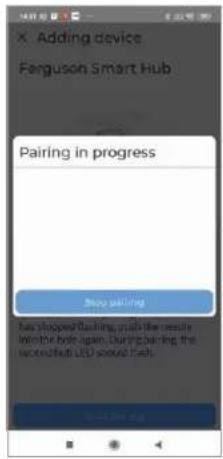
text_image
Adding device Ferguson Smart Hub Pairing in progress Stop pairing has shopped flashing, push the result initive hole again. During pairing the uocouchub LED sound flash.Installazione
Per installare il dispositivo:
natural_image
White circular electronic device with a perforated grille and small indicator lights (no text or symbols visible)natural_image
Collection of electronic components and connectors, including a speaker, battery pack, and sensor-like devices (no text or symbols visible)Descrição do Hub
text_image
Diagram of a circular device with labeled components, showing concentric rings and connection points.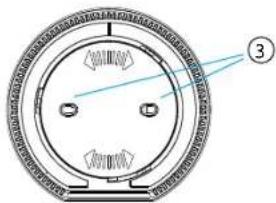
natural_image
Circular mechanical component with flanged ends and a central hole, labeled with number 3 (no text or symbols on the part itself)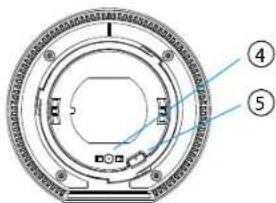
text_image
Technical diagram of a circular mechanical component with numbered annotations pointing to specific parts.natural_image
Simple line drawing of a circular object with concentric rings and a central dot pattern (no text or symbols)Especificação
text_image
X Adding device Ferguson Smart Hub Adding Smart Hub Make sure that the Smart Hub and the phone which they are palering are as close as possible to be MFI users. The Wi-Fi server's trough with paling taken place multi operate at 2.4G frequency, if the above requirements are and start platform. Helping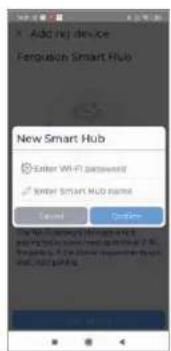
text_image
Add Wi-Fi device Ferolusion Smart Hub New Smart Hub Enter Wi-Fi password Sunder Smart Hub name Cancel Optionstext_image
Adding device Ferguson Smart Hub Adding Smart Hub Sensor Prepare the sensor you want to pair with the Hub and the needle included in the Hit. Before pairing, push the needle into the hole in sensor and wait for it to flash quickly then start pairing. If the sensor has stopped flashing, push the needle into the hole again. During pairing, the second hub LED should flash. Start pairing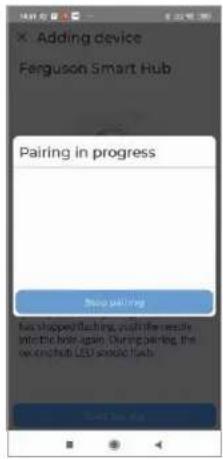
text_image
Adding device Ferguson Smart Hub Pairing in progress Done walking has shopped flashing, push the results into the lock again. During pairing, the second hub LED should flash.Instalação
natural_image
White circular electronic device with a perforated grille and indicator lights (no text or symbols visible)notatki / notes / Anmerkungen / notas / remarques / appunti / notas
notatki / notes / Anmerkungen / notas / remarques / appunti / notas

