
Eye Drive FHD170 - Dash cam Ferguson - Free user manual and instructions
Find the device manual for free Eye Drive FHD170 Ferguson in PDF.


| Product Type | Dash Cam (Car DVR) |
| Brand | Ferguson |
| Model | Eye Drive FHD170 |
| Video Resolution | 1920x1080P (Full HD) at 25fps |
| Photo Resolution | 5 Megapixels (2592x1944) |
| Lens | Wide-angle High Definition, 135° viewing angle |
| Display | 2.7-inch TFT LCD, 960x240 pixels |
| Memory Card | Micro SD (TF) up to 64GB, Class 10 or higher required |
| Internal Memory | 32MB FLASH (for firmware only, not for recording) |
| Battery | Internal Lithium-ion, 180mAh |
| Power Supply | 5.5VDC car charger (included) |
| Dimensions (LxWxH) | 71.7 x 62.5 x 32.5 mm |
| Weight | 388 g |
| G-Sensor | 3-axis gravity sensor for automatic file protection |
| Motion Detection | Yes, can be toggled via Down button in recording mode |
| Loop Recording | Automatic overwriting of oldest unprotected files; selectable intervals (Off, 1, 3, 5, 10 min) |
| Parking Monitoring | Two modes: Vibration start (P mode) and Time-lapse (T mode) |
| Time-Lapse Recording | 1 frame per second, 30x longer recording time |
| SOS Emergency Button | Manually lock current video file to protect from overwrite |
| Operating Temperature | -10°C to 55°C |
| Supported Languages | Polish, English, Spanish, Italian |
| System Compatibility | Windows XP/VISTA/7, Mac (for file access) |
| Accessories Included | Car charger, USB cable, car holder, user manual |
Frequently Asked Questions - Eye Drive FHD170 Ferguson
User questions about Eye Drive FHD170 Ferguson
0 question about this device. Answer the ones you know or ask your own.
Ask a new question about this device
Download the instructions for your Dash cam in PDF format for free! Find your manual Eye Drive FHD170 - Ferguson and take your electronic device back in hand. On this page are published all the documents necessary for the use of your device. Eye Drive FHD170 by Ferguson.
USER MANUAL Eye Drive FHD170 Ferguson
natural_image
Black Full HD 1080p digital camera with a circular lens and green lens (no text or symbols on the device body)English
SAFETY MEASURES
We request that you read the instruction manual and recommendations set forward therein.
- In order to avoid an electric shock, never open the housing. Damage to the warranty seal shall void the warranty.
- Do not attempt to disassemble car DVR and drop from high place.
- Keep the car DVR away from water and other liquids.
- After prolonged use, it is normal that the unit temperature will rise.
•The best working temperature range is: -10 – 55□. - Please use the accessories provided by the manufacturer.
- The device supports maximum 64GB TF cards, please use 8GB (Class 10) or above.
DOWNLOADABLE SOFTWARE
Ferguson has taken every effort to provide users with software updates in order to ensure that the parameters of the device are up to date. Ferguson reserves itself the right to amend, change or modify the software used in the device as it shall choose and without prior notification. The latest version of the software is available on the website http://www.ferguson-digital.eu
ABOUT THE INSTRUCTION MANUAL
Ferguson Sp. z o.o. has made every effort to provide the most current information about its products. Ferguson Sp. z o.o. does not grant any guarantee as to the contents of the present instruction manual and disclaims any implied guarantees concerning market value or suitability for specific purposes. The information contained herein is an instruction intended to enable the correct usage and maintenance of the receiver. Ferguson Sp. z o.o. reserves itself the right to introduce amendments, changes or translations of the instruction manual without prior notification thereof.
For this reason, we recommend you regularly visit our website in order to obtain the latest information.
MARKINGS AND SIGNS APPLIED TO THE DEVICE

Risk of electric shock - do not open. This notice warns the user not to open the device housing. The housing may be opened solely by authorized service technicians.


Your product is designed and manufactured with high quality materials and components, which can be recycled and reused.
CE logo.
The logo informs that the device conforms to the terms and conditions of Directive 2004/108/EC concerning observance by Member States of provisions regulating electromagnetic compatibility, and to the terms and conditions of Directives 2006/95/EC concerning observance by Member States of provisions regulating low voltage electricity and safety with relation to the handling and operation of electrical equipment.

When this crossed-out wheeled bin symbol is attached to a product it means that the product is covered by the European Directive 2002/96/EC. Please inform yourself about the local separate collection system for electrical and electronic products.
R&TTE
Hereby Ferguson Sp. z o.o., declares that the device is in compliance with the essential requirements and other relevant provisions of Directive 1999/5/EC. You can find the Declaration of Conformity on www.deklaracje.ferguson.pl
Please act according to your local rules and do not dispose of your old products with your normal household waste.
This product has been designed, tested and manufactured according the European R&TTE directive 1999/5/EC.
Correct disposal of your old product helps to prevent potential negative consequences for the environment and human health.
CE!
| AT | BE | BG | CH | CY |
| CZ | DE | DK | EE | ES |
| FI | FR | GR | HU | IE |
| IS | IT | LI | LT | LU |
| LV | MT | NL | NO | PL |
| PT | RO | SE | SK | SI |
| UK |

Your product contains batteries covered by the European Directive 2006/66/EC, which cannot be disposed with normal household waste. Please inform yourself about the local rules on separate collection of batteries because correct disposal helps to prevent negative consequences for the environmental and human health.
This product supports Wireless LAN.

When this logo is attached to a product, it means a financial contribution has been paid to the associated national recovery and recycling system.
1. General information about the car DVR
1.1 Product Structure
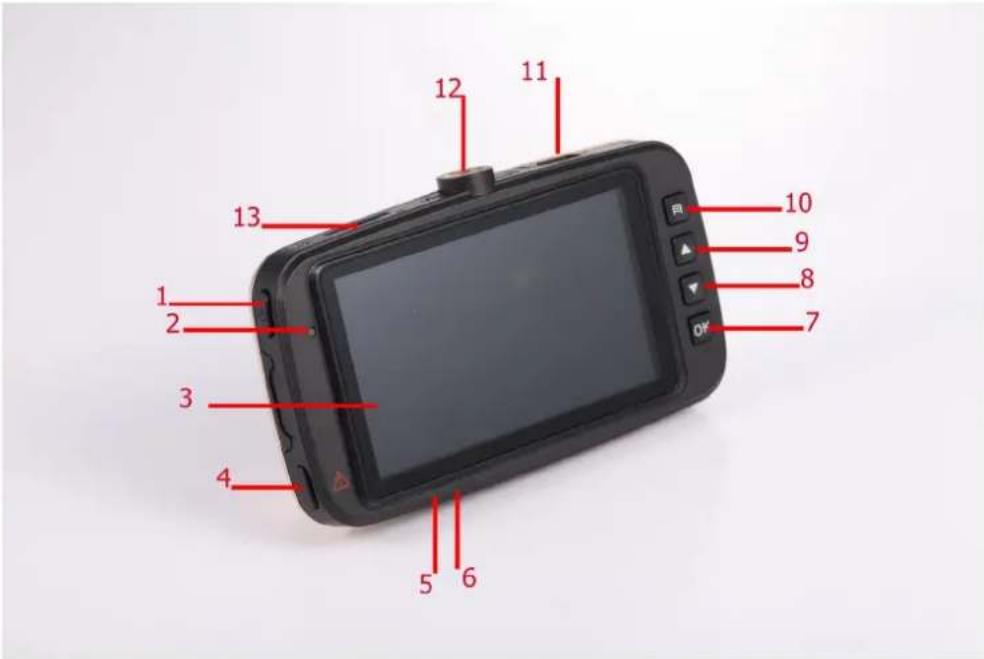
| 1) Power Button 2) Indicator | Light 3) Display Screen | |
| 4) SOS Emergency Button / Parking monitoring Button | 5) Microphone hole 6) Reset Button | |
| 7) OK Button / Time-lapse video key | 8) Down Button / Motion Detecting Button | 9) Up Button / Recording Button |
| 10) Menu Button/ Mode Button | 11) USB Interface 12) Support Interface | |
| 13) TF Card Slot 14) Camera | Lens 15) Loudspeaker hole |
1.2 Product Features
•Classic and elegant look.
- 4G High resolution wide-angle lens, more convenient for the high resolution video recording at all occasions and easy to carry.
- Sensitization device specially developed for the car black box, can capture more clear picture at dark occasions
- Circulating video recording function, automatically delete old files to record new ones.
•Automatic power-on and video-recording function upon the start of the vehicle.
- Matching the triaxial three-dimensional gravity sensing chip, automatically lock to protect the video files basing on the vehicle driving state.
- Increase more parking monitoring mode to watch your car in an omni bearing and full-time way.
- Time-lapse video recording, user can start this mode, and conduct long-time high-efficiency video recording with the minimum memory space after leaving the vehicle, and monitor the surrounding situation of the vehicle. (the device need to be provided with power supply all the time).
1.3 Preparation for First Use Device Installation
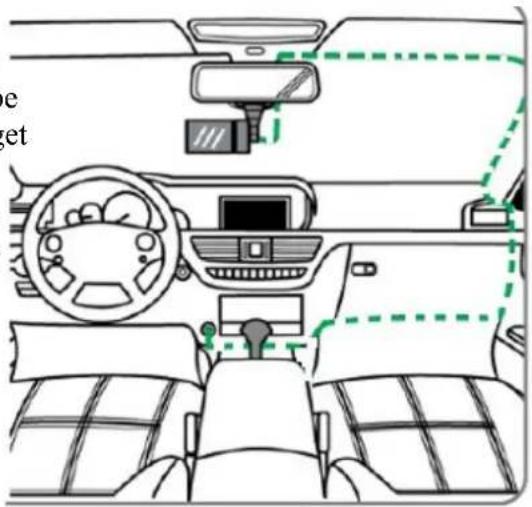
- Fix the vehicle-mounted power line based on that the specific interior environment can't affect the driving sight. Recorder should be located in front of the interior mirror to get more comprehensive view.
- Do not install the equipment in the position which will scatter the driver's attention or block the sight line.
- Part of the vehicles model still have power source unit after the engine is gone. You should pull out the vehicle-mounted power line when leaving the car to avoid the accident.
1.4 Installing the TF card
- Please choose the TF card of class 10.
| Card capacity | 1080P Video recording time |
| 64GB | 560 minutes |
| 32GB | 280 minutes |
| 16GB | 140 minutes |
| 8GB | 70 minutes |
| 4GB | 40 minutes |
| The above data is for reference only | |
- Please format the TF card before using the machine when using the TF card in the first time.
2. Car DVR settings
2.1 Software Setup
- Language setting. Press the menu button to enter into the main menu, press the up/down button to select "language selection" menu, and press OK button to enter, then press the up/down button to select language needed, and press OK button to save.
- Time setting: For the first use, shortly press menu button to enter into the menu setting interface, press the up/down button to select "system setting" menu, press OK button to enter, press the up/down button to select "clock setting" option, press OK button to enter. Press the up/down button to set the current option, press OK button to enter next option, exit after completion.
2.2 The Major Function and Basic Operation of Machine:
•The On and Off of the Machine
√In normal driving mode: Connect the vehicle-mounted power well. The machine would be on and start to record automatically when the car is on, which shall be off automatically when the car is off.
√ Manual mode: You can press the Power button manually to turn on or off the machine. But press OK button the machine would be start or stop to record.
Other individualized settings can be conducted under the menu and system setting menu of corresponding mode.
Remark: The setting function of the menu button shall be operated and used when the video recording is stopped.
2.3 Parking Monitoring Mode
Two parking monitoring modes are available on this machine, that is, P Mode and T Mode. The specific application and description are as follow:
• P mode (vibration start): Shortly press the parking monitoring button, and the
vibration starting-up function can be started or stopped, and an icon of will be displayed on the screen. Start this function, and if the vehicle was collided after the power-off, this device will automatically start and record the scene video. If during this period the vehicle was constantly oscillated, this icon will turn red. 30S after the stop of the oscillation, this device will automatically power off. And this mode applies the battery of this device to start.
- T mode (Time-lapse photography) time-lapse video recording: press for long OK button to start or stop the time-lapse video recording function. An icon of will be displayed on the screen after this function is started. The video recording was continually shot at the speed of 1 piece per second, and later will be played at the speed of 1 per second. This mode can bring the following experiences to the customer:


A. The time available for video recording increases at the speed of multiplication of 30X, e.g., if the original normal video recording time is 1 hour for 8G TF CARD, it will be 30 hours after starting this mode. 32GB memory card allows non-replacing video recording for about 1 week.
- B. Ask the customer to check the recorded video at the speed of 30X to avoid emergencies and anomalous events during the process of losing the video recordings. And the content and efficiency are all realized.
- This mode is mainly used for real-time monitoring when the user parks the vehicle. Because the device needs to work constantly during the process, external power supply will be needed. When the customer uses it, please select suitable external power supply according to the practical situations.

NOTE: This mode is mainly used to the real time monitoring when parking. The external power source is needed because the machine has to work all the time during such process and such external power source shall be selected by customers according to their own actual situation.
2.4 Video Recording
After startup, video recording will be started automatically, and it will be stopped or restarted by pressing OK.
2.5 Motion Detection Recording
When this function is on, the machine can detect what is ahead. The recording will be stopped if no change happens, while it will be restarted if the object ahead removes, which in return makes your recording files more valuable and disk space utilization more efficient.
2.6 Cycle Recording
When the TF card is full, the former unprotected files would be covered automatically when recording again. For emergencies file protection, the device equipped with gravity sensor will automatically protect current recording to avoid being overwritten when the car has a certain degree of vibration.
Urgent file protection:
This device has gravity sensing components, and when a certain extent of vibration occur to the vehicle, this device will automatically lock the current video recording to protect it from being replaced.
2.7 SOS one button for locking:
Besides the automatic protection method, this device also provided a mobile phone protection method, during the video recording process, if the customer thinks it necessary to protect the current video recording, he/she can press the SOS emergency button for once for manual protection. And another pressing will cancel the current file protection.

NOTE: sensitivity of gravity sensor can be set in the system menu.
2.8 Photo Mode
Under the video recording mode, press for long menu button for once, enter the Photograph Mode, and press the OK button to take one photo. Shortly press menu button to enter the main menu, select the image shooting option, then press OK button to enter for diversified menu option setting including image size, AWB, image quality, exposure adjustment and photosensitivity, etc.
2.9 Playback Mode
Under the stop status of video recording, press for long the Mode button for 2 times, and switch to Playback Mode. Under the Playback Mode, press the menu button for 5 items of operation including volume adjustment, delete, delete all files, protect and cancel a single file. If the current file is a video file, press OK button for play or pause on this device, press the Up/Down button for the fast forward/ fast backward operations, press the menu button to stop and quit the current video playing.
2.10 File naming method:
The video and photo naming of this device is date + time which is convenient for users to inquire. Classification and management of files: the files generated by this device will be classified according to different modes. Normal video recordings and images will be saved by establishing folders according to the date, e.g., files generated on Jan. 01, 2015 will be saved in folder 20150101. Files of G-SENSOR locked due to vibration will all be saved in Folder EVENT. The files generated by starting the time-lapse video recording will be saved in Folder PARK.
2.11 Specifications for shortcut key functions:
- Under the video recording mode, press for long the menu button to circulating switchover among video/photo/playback modes.
- Under the video recording mode, shortly press the UP button to start/stop the recording.
- Under the video recording mode, shortly press the Down button to start/stop the motion detection function.
- Under the video recording mode, press for long the OK button start/stop the time-lapse video recording function.
- Under the video recording mode, shortly press the SOS emergency button to start or close the parking monitoring function.
- Under the video recording mode, shortly press the SOS emergency button to manually protect (cancel the protection) the current video.
- Technical Specifications
| Resolution | Video Resolution 1920*1080P | |
| Photo Resolution 5M | ||
| Camera | Sensor GC1004 | |
| Len Wide-Angle High Definition Camera | ||
| Viewing angle 135° | ||
| Rotation angle Not support | ||
| Camera Quantity 1 | ||
| Zoom | Optical zoom Not support | |
| Digital zoom Not support | ||
| Screen | Size 2,7" | |
| Resolution 960*240 | ||
| Type TFT | ||
| Rotation angle Not support | ||
| Memory | Built-in memory 32Mb FLASH (Not for recording Use) | |
| Internal Cache 128Mb SDRAM | ||
| External memory (SD or TF Card) Micro SD Card (TF Card) Up to 64GB | ||
| Microphone | Microphone | Support |
| Speaker | Speaker | Support |
| Aided light | LED infrared light | Not support |
| LED light | Not support | |
| Port | Port | Micro USB |
| Power | Battery type | Internal Lithium Battery |
| Battery capacity | 180mA | |
| Max power dissipation | 320mA/4.2V | |
| Charger | 5.5VDC Output car charger | |
| Fixed mode | Holder | Car holder |
| USB Port | PC function | MSDC |
| USB | USB 2.0 | |
| Web camera | Support (Hold down key, then connect PC) | |
| Feature | Hardware feature | Low consumption system |
| Built-in G-SENSOR | ||
| Software feature | Motion detect function | |
| Video cycle record ( Off,1min,3min,5min,10 min) | ||
| Auto start record when switch on the car | ||
| Auto save video when switch off the car | ||
| Auto save video when low battery | ||
| Support exposure, white balance, sensitivity setting | ||
| Auto screen switch off ( Off,1min,3min,5min, ) | ||
| Support microphone on/off switch | ||
| Support frequency setting (50 / 60 Hz) | ||
| 24H parking monitoring | ||
| Language | Language | Polski /English /Espanol / Italiano |
| System | System support | Windows XP/VISTA/7, MAC |
| Photo | Format JPEG | |
| Resolution | 2592*1944 | |
| 1920*1080 | ||
| 1280*720 | ||
| Video | Video coding format | AVI |
| Video compression type | MJPG | |
| Audio coding format | AAC | |
| Resolution | 1920*1080P (1080P 25fps) | |
| 1280*720P (720P 30fps) | ||
| 640*480P(VGA 30fps) | ||
| Recording time | Recording time (for reference) | 1080P30min/4GB |
| Size | Device size (L*W*H) | 71.7x62.5x32.5 (L*W*H) |
| Packing size | TBD | |
| Weight | Device weight | 388g |
| Accessory | Car charger | Yes |
| USB cable Yes | ||
| Car holder | Yes | |
| Manual | Yes | |
| HDMI cable | No | |
| WiFi | No | |

Note: The design and specifications of this machine would be amended at any time without prior notice. Any difference, please refer to the entity.
- SAFETY MEASURES
- DOWNLOADABLE SOFTWARE
- ABOUT THE INSTRUCTION MANUAL
- MARKINGS AND SIGNS APPLIED TO THE DEVICE
- CE logo.
- R&TTE
- CE!
- General information about the car DVR
- Product Structure
- Product Features
- Preparation for First Use Device Installation
- Installing the TF card
- Car DVR settings
- Software Setup
- The Major Function and Basic Operation of Machine:
- •The On and Off of the Machine
- Parking Monitoring Mode
- Video Recording
- Motion Detection Recording
- Cycle Recording
- Urgent file protection:
- SOS one button for locking:
- Photo Mode
- Playback Mode
- File naming method:
- Specifications for shortcut key functions:
Brand : Ferguson
Model : Eye Drive FHD170
Category : Dash cam