W03 - Network card / adapter Ferguson - Free user manual and instructions
Find the device manual for free W03 Ferguson in PDF.


User questions about W03 Ferguson
0 question about this device. Answer the ones you know or ask your own.
Ask a new question about this device
Download the instructions for your Network card / adapter in PDF format for free! Find your manual W03 - Ferguson and take your electronic device back in hand. On this page are published all the documents necessary for the use of your device. W03 by Ferguson.
USER MANUAL W03 Ferguson
natural_image
Diagram showing a USB device with a black USB cable and a red dotted arrow indicating rotation or movement (no text or symbols)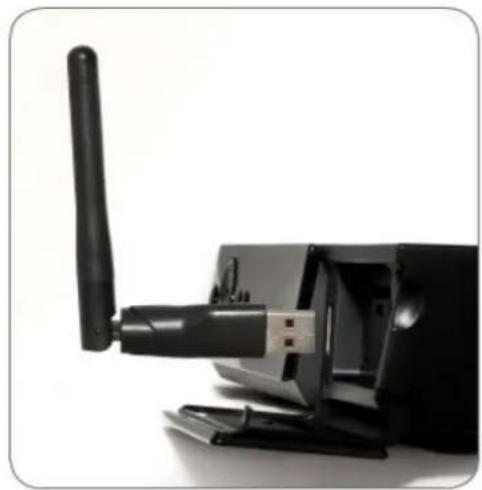
natural_image
Close-up of a black USB flash drive with a white antenna inserted, no visible text or symbols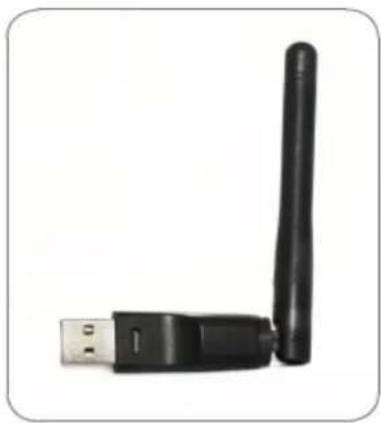
natural_image
Black wireless router with USB port and antenna (no text or symbols visible)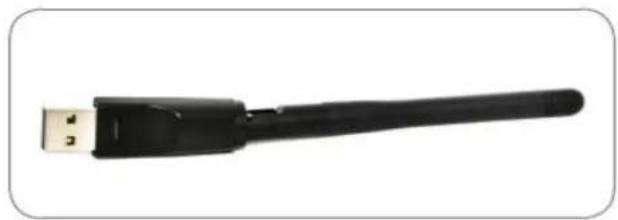
natural_image
Black USB connector with a black handle, isolated on white background (no text or symbols)
FERGUSON
www.ferguson-digital.eu
User's manual
150Mbps
IEEE802.11b/g/n
Adapter Wi-Fi W03
MARKINGS AND SIGNS
R&TTE Hereby Ferguson Sp. z o.o., declares that the device is in compliance with the essential requirements and other relevant provisions of Directive 1999/5/EC. You can find the Declaration of Conformity on www.deklaracje.ferguson.pl
This product has been designed, tested and manufactured according the European R&TTE directive 1999/5/EC.

CE logo.
The logo informs that the device conforms to the terms and conditions of Directive 2004/108/EC concerning observance by Member States of provisions regulating electromagnetic compatibility, and to the terms and conditions of Directives 2006/95/EC concerning observance by Member States of provisions regulating low voltage electricity and safety with relation to the handling and operation of electrical equipment.

Your product is designed and manufactured with high quality materials and components, which can be recycled and reused.
Introduction
Thank you for purchasing the IEEE 802.11b/g /n Wireless USB Adaptor. This Wireless Adaptor is easy to use and easy to setup. If you have been tired of dealing with all those messy wires to connect a laptop or PC to office or home network, this Wireless adaptor is an ideal access solution for wireless Internet connection.
A typical Internet access application for the USB wireless adaptor is shown as the following figure:
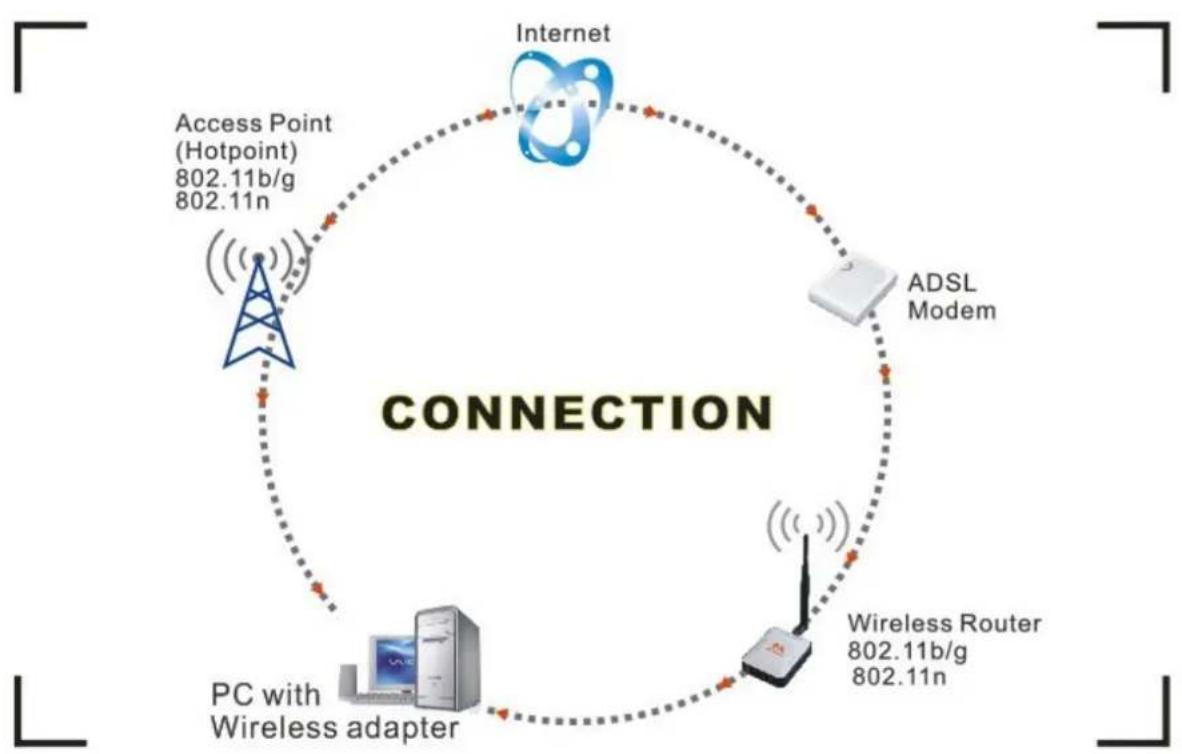
flowchart
graph TD
    A["Internet"] -->|Access Point (Hotpoint)\n802.11b/g\n802.11n| B["PC with Wireless adapter"]
    B -->|Wireless Router\n802.11b/g\n802.11n| C["ADSL Modem"]
    C -->|Wireless Router\n802.11b/g\n802.11n| A
There are two different ways to access Internet:
-
With a wireless adaptor, receiving and transferring signal via a wireless router, then passed to an ADSL modem, then to local ISP (Internet service supplier) through a telephone line.
-
With a wireless adaptor, receiving and transferring signal via local AP (Access Point) or so called Hotpoint directly.
Package Contents:
•One IEEE 802.11b/g/n 150Mbps WiFi NANO USB Adaptor.
•Installation disc.
-User's Manual.
Installation
To install the driver of the USB adaptor, please use administrator user account to login before the following steps:
Tips: the latest original drivers can be down loaded from the website of Ralink chipset manufacturer http://www.ralinktech.com or from the Ferguson side http://www.ferguson.pl .To find a correct driver, please identify the chipset type applied in the adaptor you have.
- Double click Ralink_***.exe program, which is located in the driver folder in the installation disc. Such as: G:\WiFi Driver\Windows\Ralink_RT5370.exe.
Notes: Because the chipset manufacturer Ralink often updates software, the drivers contained in the disc might be changed without prior notice.
- Follow the instructions and prompts of the “InstallShield Wizard” to finish the driver installation:
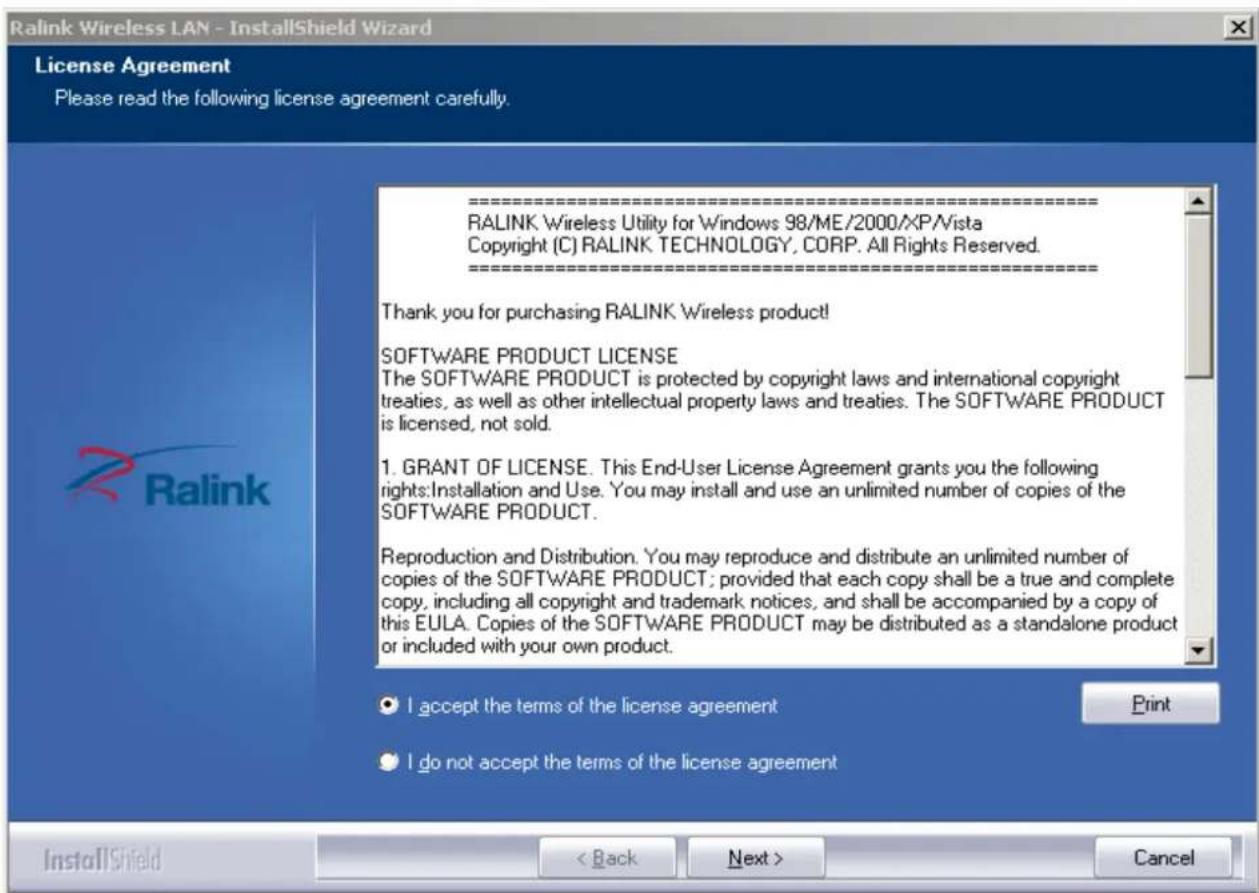
a.) Select the “I accept the terms of the license agreements”, then click the “Next”.
text_image
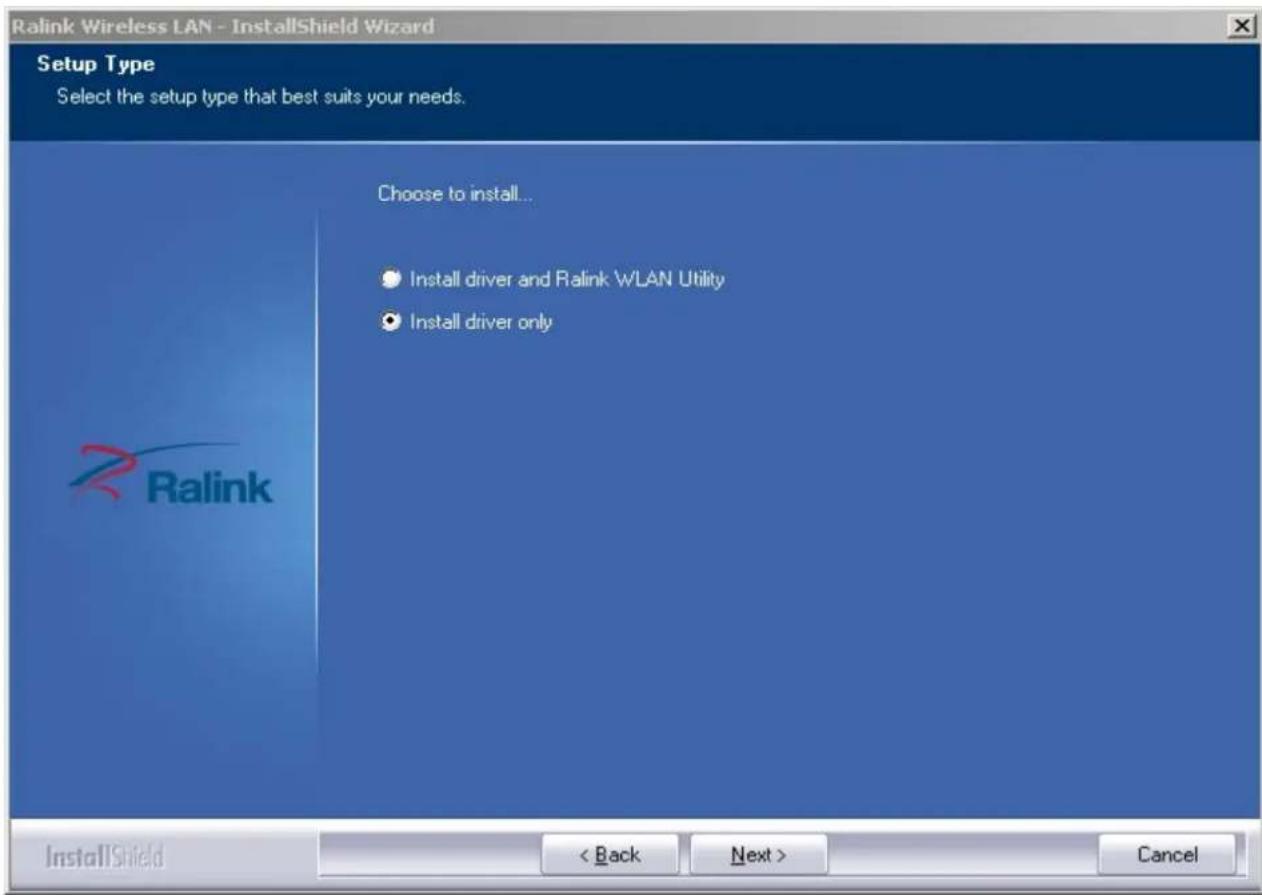
Ralink Wireless LAN - InstallShield Wizard License Agreement Please read the following license agreement carefully. RALINK Wireless Utility for Windows 98/ME/2000/XP/Vista Copyright (C) RALINK TECHNOLOGY, CORP. All Rights Reserved. Thank you for purchasing Ralink Wireless product! SOFTWARE PRODUCT LICENSE The SOFTWARE PRODUCT is protected by copyright laws and international copyright treaties, as well as other intellectual property laws and treaties. The SOFTWARE PRODUCT is licensed, not sold. 1. GRANT OF LICENSE. This End-User License Agreement grants you the following rights:Installation and Use. You may install and use an unlimited number of copies of the SOFTWARE PRODUCT. Reproduction and Distribution. You may reproduce and distribute an unlimited number of copies of the SOFTWARE PRODUCT; provided that each copy shall be a true and complete copy, including all copyright and trademark notices, and shall be accompanied by a copy of this EULA. Copies of the SOFTWARE PRODUCT may be distributed as a standalone product or included with your own product. I accept the terms of the license agreement I do not accept the terms of the license agreement InstallShield < Back Next > Cancelb.) There shows a setup type window, you can select “Install driver only” or “Install driver and Ralink WALN utility” and then click the “Next”.
text_image
Ralink Wireless LAN - InstallShield Wizard Setup Type Select the setup type that best suits your needs. Choose to install... • Install driver and Ralink WLAN Utility • Install driver only InstallShield < Back Next > CancelTips:
*The Windows XP utilizes a "Wireless Zero Configuration( WZC)" Service built into the operating system. Many wireless network adaptor cards utilize this service.
** Ralink- the chipset manufacturer has developed an utility for setting up wireless connection. If you select this item, you can switch between the Windows XP's WZC service and the Ralink WLAN utility service later.
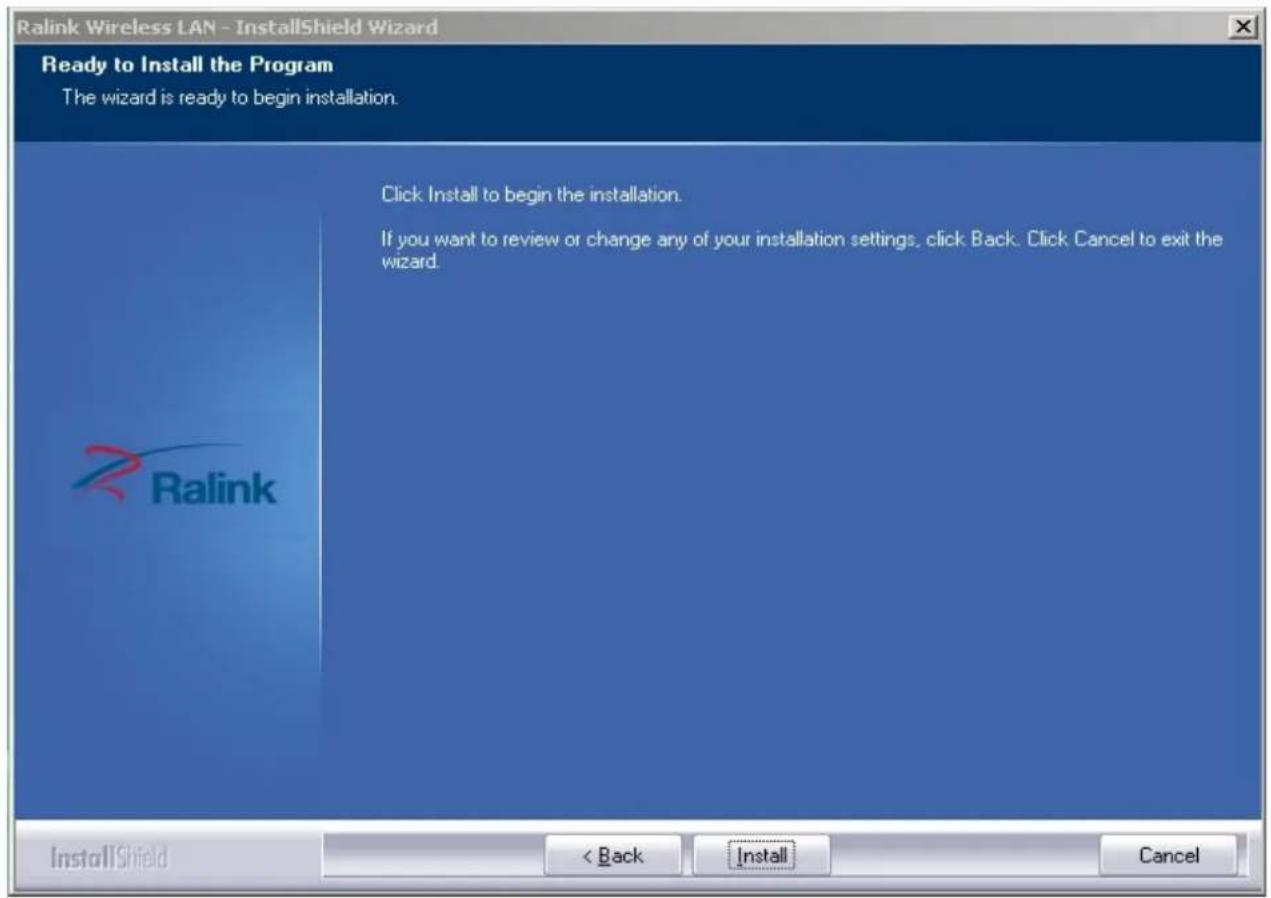
c.) Click the "Install" to confirm the installation, there shows the installation progress.
text_image
Ralink Wireless LAN - InstallShield Wizard Ready to Install the Program The wizard is ready to begin installation. Click Install to begin the installation. If you want to review or change any of your installation settings, click Back. Click Cancel to exit the wizard. InstallShield < Back Install Cancel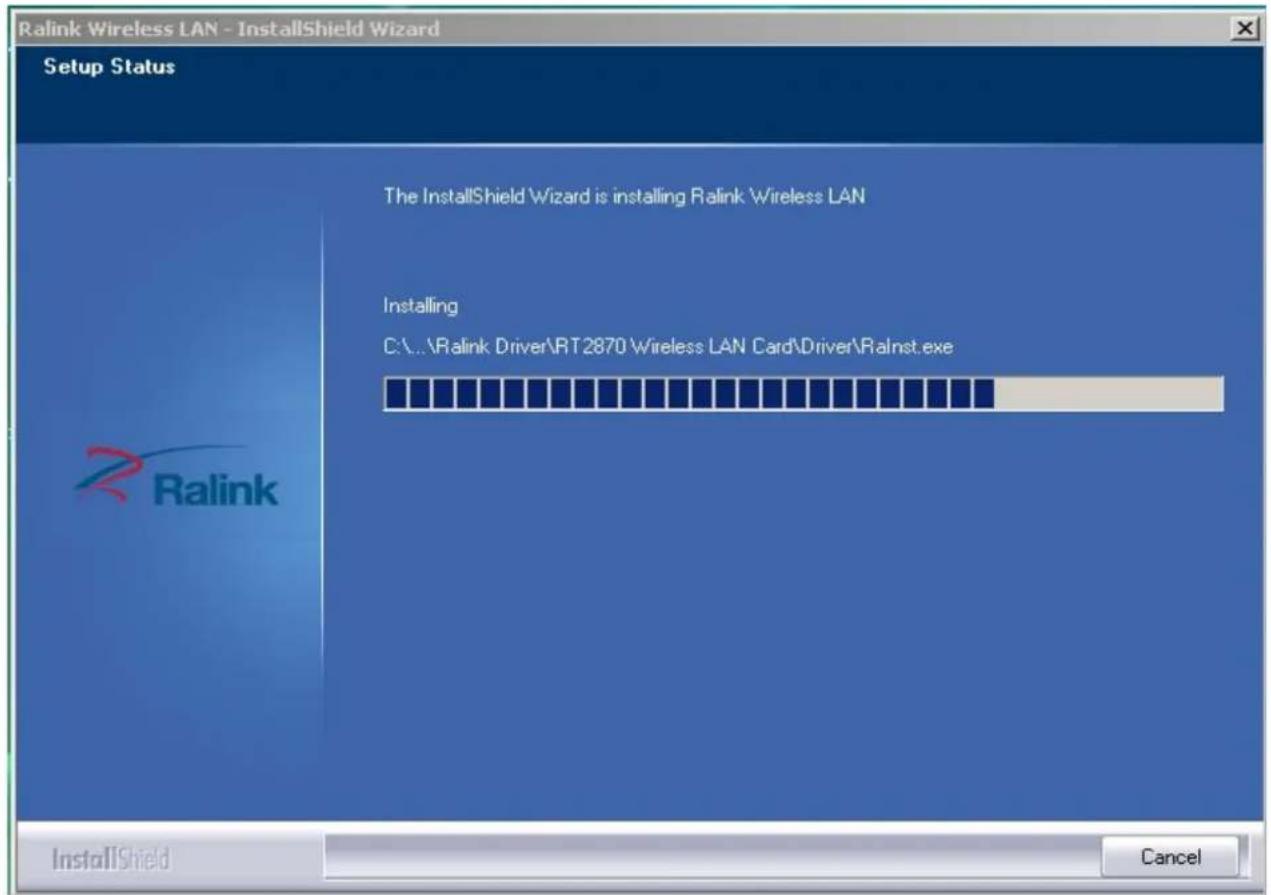
text_image
Ralink Wireless LAN - InstallShield Wizard Setup Status The InstallShield Wizard is installing Ralink Wireless LAN Installing C:\...\Ralink Driver\RT2870 Wireless LAN Card\Driver\Rainst.exe InstallShield Canceld.) Click "finish" to finish the driver installation.
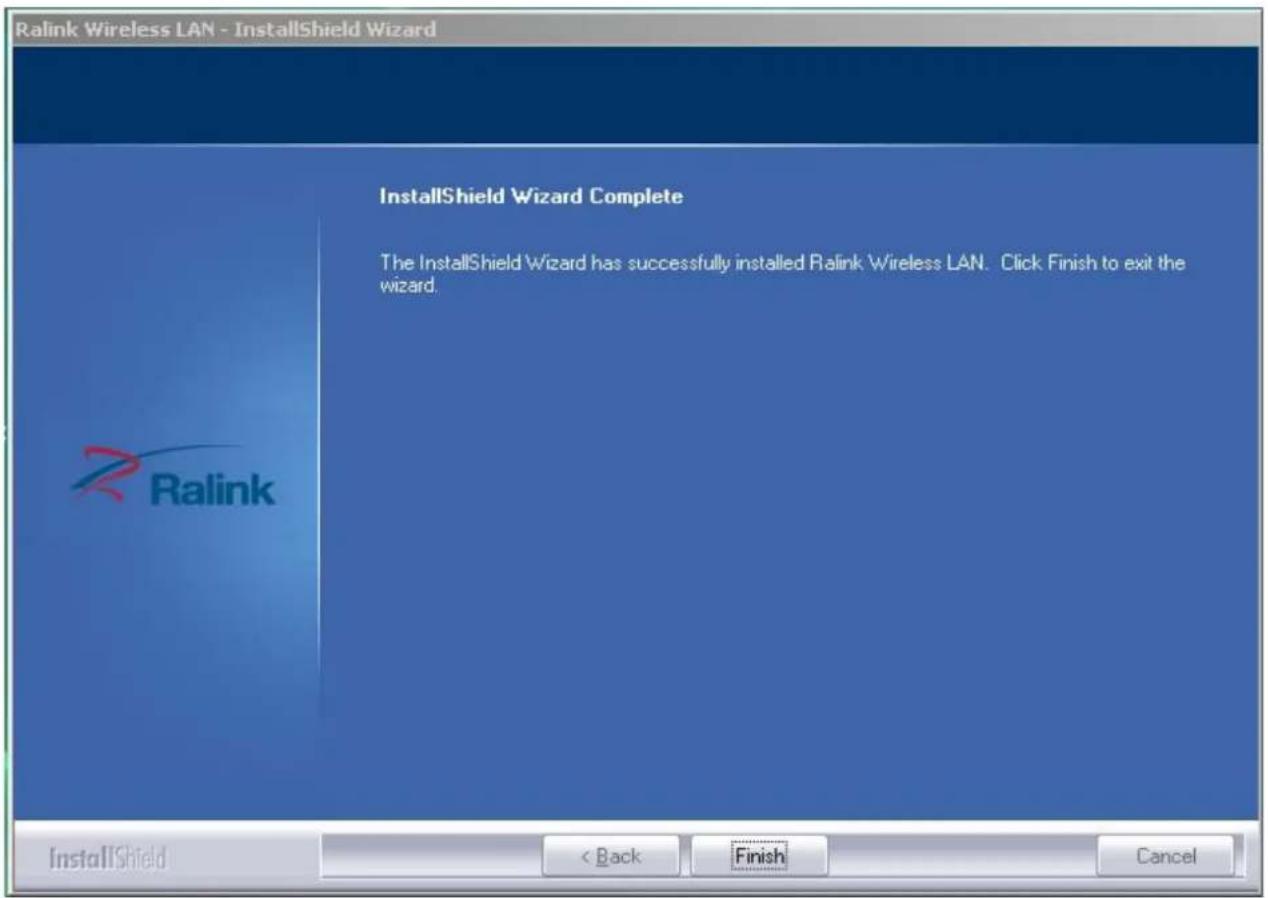
text_image
Ralink Wireless LAN - InstallShield Wizard InstallShield Wizard Complete The InstallShield Wizard has successfully installed Ralink Wireless LAN. Click Finish to exit the wizard. InstallShield < Back Finish CancelWireless Connection
- After finishing driver installation, insert the USB adaptor to Notebook or PC that supports USB 2.0/1.1 interface.
Remarks: Make sure to connect the adaptor to an USB port on your computer directly rather than an USB hub. Although it might work when connecting with an USB hub, the likelihood of configuration problems will be higher.
text_image
(p) Wireless networks detected One or more wireless networks are in range of this computer. To see the list and connect, click this message 5:01 PMShould the service " Wireless Zero Configuration (WZC)"
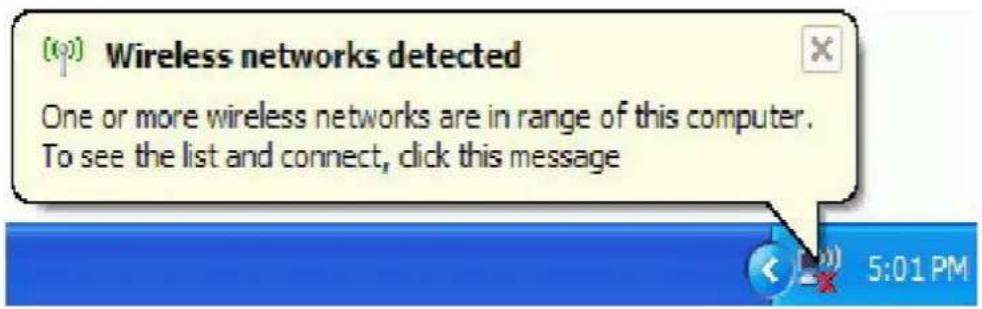
- The system shows a wireless utility icon in the Windows system tray, which locates in the bottom-right
corner of your computer screen, and pops up a message that indicates a new hardware is found and installed, something like this:
text_image
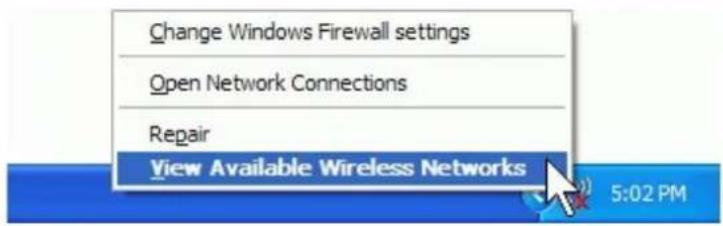
Change Windows Firewall settings Open Network Connections Repair View Available Wireless Networks 5:02 PMNotes: Before configuring your WiFi access, you need to have your network's SSID (service set identifier), security key and authentication type handy. Check the documentation coming with your router, ask your network administrator to get the information.
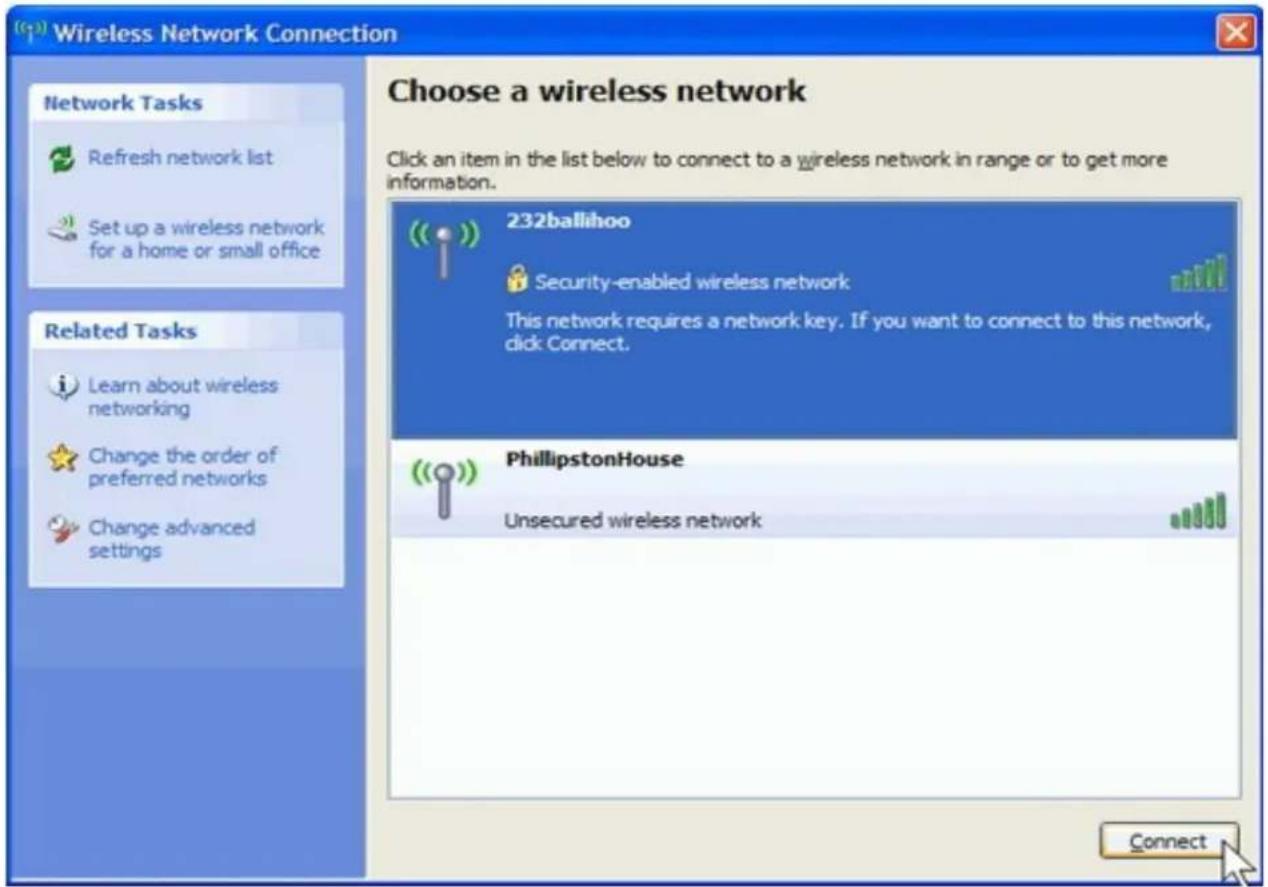
- If you don't see your network, click "Refresh network list" in the upper left corner. If you are locating within the valid range of hotspots or wireless routers, all available networks will be recognized and listed automatically. Click your preferred network, and then click "Connect" in the lower right corner.
text_image
Wireless Network Connection Choose a wireless network Click an item in the list below to connect to a wireless network in range or to get more information. Network Tasks Refresh network list Set up a wireless network for a home or small office Related Tasks Learn about wireless networking Change the order of preferred networks Change advanced settings 232ballihoo Security-enabled wireless network This network requires a network key. If you want to connect to this network, click Connect. PhillipstonHouse Unsecured wireless network Connect- If the network security key hasn't been inputted before, Windows XP prompts
you to enter the network's security key to access the wanted SSID. Type the encryption key that you wrote down earlier in both the Network key and Confirm network key boxes, and then click "Connect".
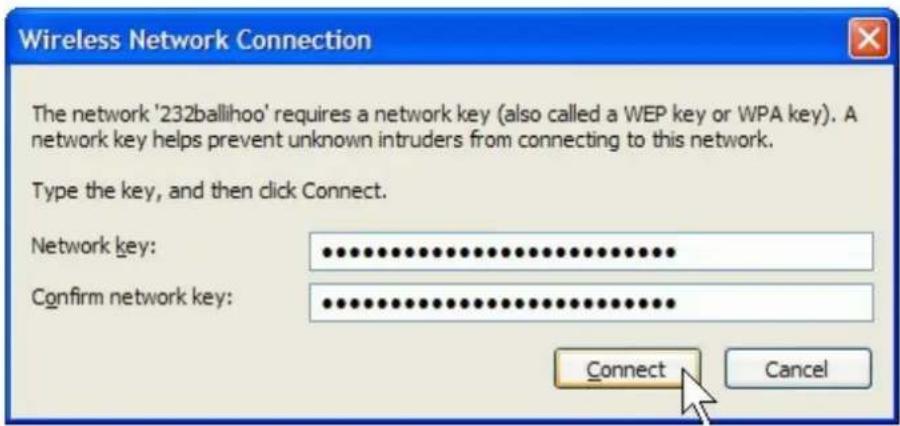
If there are free hotspots, simply select the network you want from the list displayed, then click Connecting. It tries to launch your Internet browser —you should be connected to the Internet.
If there is a pay hotspot, signing in or up will require either to enter your login information-if you're an existing customer, or to enter your credit card information for payment, it is just decided by you. Then clicking the Connecting, your default Internet browser will launch and take you to the service provider's login page. Most providers have very simple and step-by-step instructions for you to sign up and then to be connected. Another way to access the service provider's login page is to simply launch your Internet browser, if there's a pay network available, you'll be taken directly to the login page.
Should the service of Ralink wireless connection utility §
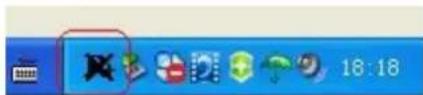
After the installation of Ralink utility, the system shows a special wireless utility icon in the Windows system tray:
text_image
18:18The icon changes colors according to the wireless signal quality.
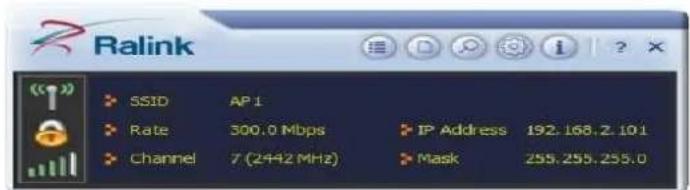
- Double-click the icon or right click the icon and then select “Launch Config Utility” to launch the utility, the RaUI window appears like:
text_image
Ralink SSID AP 1 Rate 300.0 Mbps IP Address 192.168.2.10.1 Channel 7 (2442 MHz) Mask 258.255.255.0The Ralink wireless utility starts in compact mode as shown above, provides profile management, the available networks listing, a statistical counter display, Wi-Fi multimedia (WMM), protected Wi-Fi setup, Cisco compatible extensions (CCX), call admission control (CAC), radio controls, Ralink driver/utility information, and help functions.
- Clicking the expanding icon can change to the full mode as shown below::
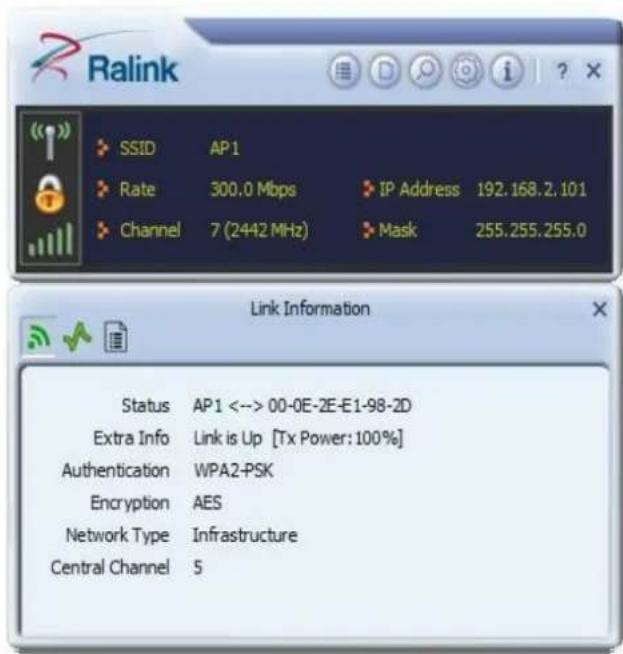
text_image
Ralink SSID AP1 Rate 300.0 Mbps IP Address 192.168.2.101 Channel 7 (2442 MHz) Mask 255.255.255.0 Link Information Status AP1 <--> 00-0E-2E-E1-98-2D Extra Info Link is Up [Tx Power: 100%] Authentication WPA2-PSK Encryption AES Network Type Infrastructure Central Channel 5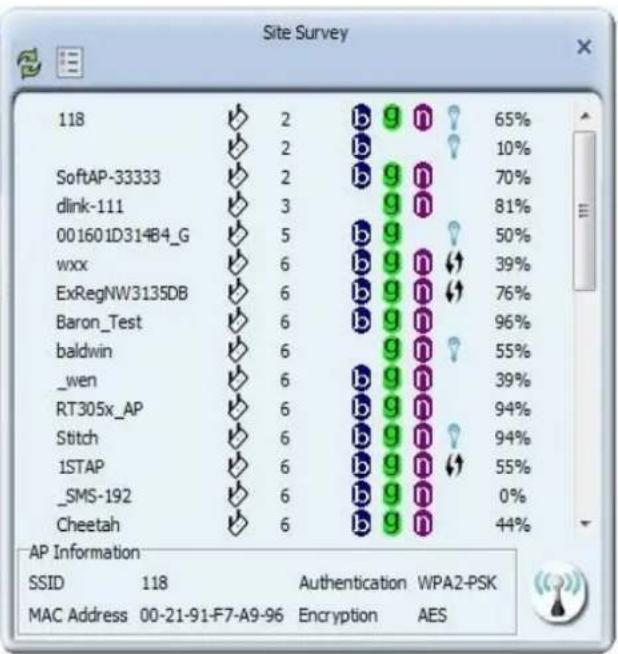
bar
| AP Information | SSID | 118 | Authentication | WPA2-PSK | MAC Address | Encryption | AES | |---|---|---|---|---|---|---|---| | 118 | b | 2 | g | n | ? | 65% | | | SoftAP-33333 | b | 2 | g | n | ? | 10% | | | dlink-111 | b | 2 | g | n | ? | 70% | | | 001601D314B4_G | b | 5 | g | n | ? | 81% | | | wxx | b | 6 | g | n | ↓ | 50% | | | ExRegNW3135DB | b | 6 | g | n | ↓ | 39% | | | Baron_Test | b | 6 | g | n | ↓ | 76% | | | baldwin | b | 6 | g | n | ? | 96% | | | _wen | b | 6 | g | n | ? | 55% | | | RT305x_AP | b | 6 | g | n | ? | 39% | | | Stitch | b | 6 | g | n | ? | 94% | | | 1STAP | b | 6 | g | n | ↓ | 94% | | | _SMS-192 | b | 6 | g | n | ? | 55% | | | Cheetah | b | 6 | g | n | ? | 0% | | | AP Information: SSID 118 Authentication WPA2-PSK MAC Address 00-21-91-F7-A9-96 Encryption AESFor more details about the RaUI utility, please read the help information of the utility by clicking the tab:

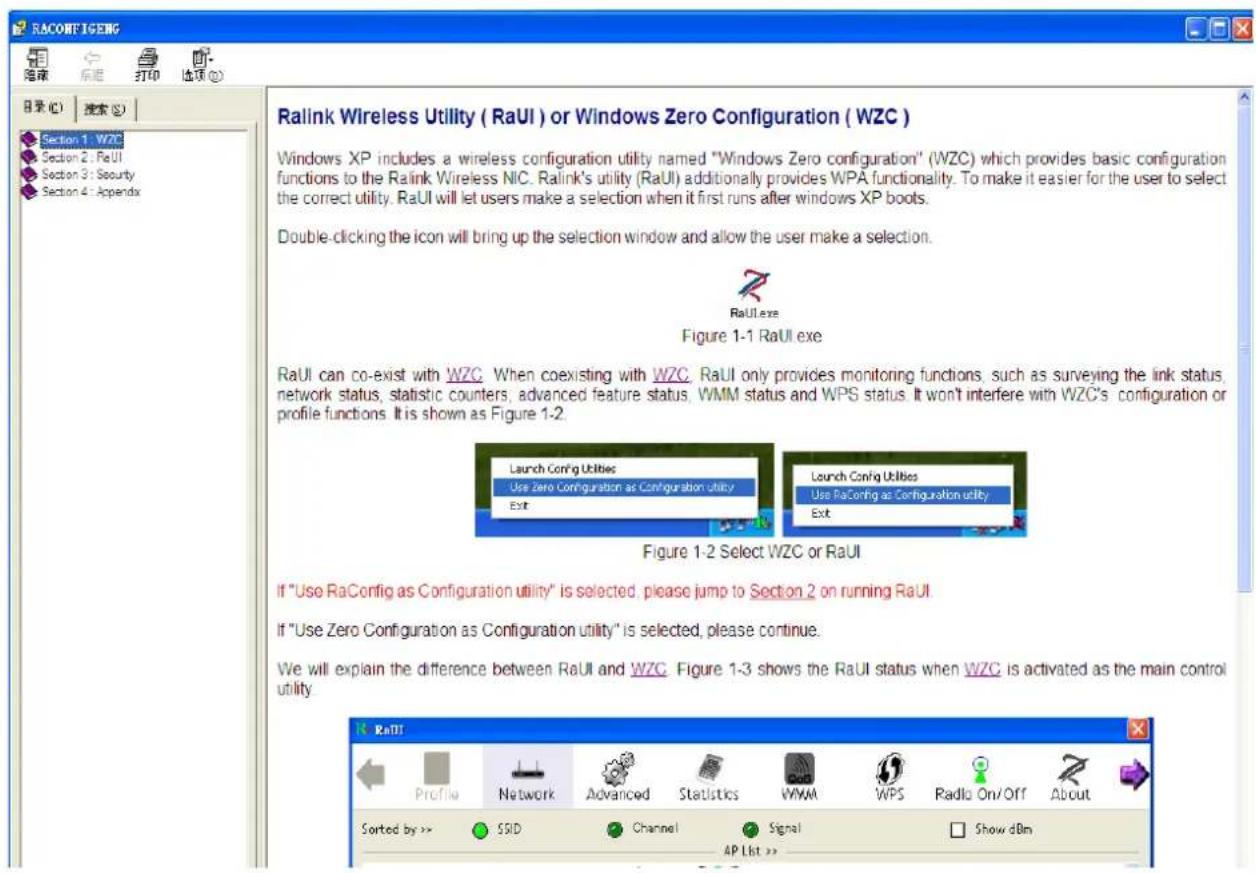
text_image
Ralink Wireless Utility ( RaUI ) or Windows Zero Configuration ( WZC ) Windows XP includes a wireless configuration utility named "Windows Zero configuration" (WZC) which provides basic configuration functions to the RaLink Wireless NIC. RaLink's utility (RaUI) additionally provides WPA functionality. To make it easier for the user to select the correct utility. RaUI will let users make a selection when it first runs after windows XP boots. Double-clicking the icon will bring up the selection window and allow the user make a selection. RaUI.exe Figure 1-1 RaUI.exe RaUI can co-exist with WZC. When coexisting with WZC. RaUI only provides monitoring functions, such as surveying the link status, network status, statistic counters, advanced feature status, WMM status and WPS status. It won't interfere with WZC's configuration or profile functions. It is shown as Figure 1-2. Launch Config Utilities Use zero Configuration as Configuration utility Exit Launch Config Utilities Use RaConfig as Configuration utility Exit Figure 1-2 Select WZC or RaUI If "Use RaConfig as Configuration utility" is selected, please jump to Section 2 on running RaUI If "Use Zero Configuration as Configuration utility" is selected, please continue. We will explain the difference between RaUI and WZC. Figure 1-3 shows the RaUI status when WZC is activated as the main control utility.Tips for Wi-Fi users
With a Wi-Fi connection, you can roam about 150 m around the access point (depends on different environment), so find a spot where you can work without any interruption.
Wi-Fi offers greater speed and range than Bluetooth, but it drains your portable device batteries a lot faster than Bluetooth does. In fact, if you use a Wi-Fi connection regularly on your laptop PC, you'll undoubtedly notice that you need to recharge more often. If you need to conserve battery life — on a long trip for example — turn off your Wi-Fi connection when you don't actually need it.
Security
Because wireless networks rely on radio signals to transmit data, they are not as secure as wire network. Wireless networks are susceptible to viruses and breaches like eavesdropping and need to be protected in order to be secure.
There are many security measures to safeguard wireless networks, protect the data, and keep unauthorized users out. Hotspots, on the other hand, are often free of standard security practices in an effort to make it easy for anyone to connect. It may be found that some pay hotspots administered by service providers offer have some level of security, however, when using a hotspot, it's always a good idea to be proactive and to employ security measures of your own.
Key terms
Wi-Fi: Short for “wireless fidelity,” a generic label that refers to wireless networks or networking.
Hotspot: A specific geographic location in which an access point provides public wireless broadband network services to mobile visitors through a WLAN.
Throughput: The amount of data transmitted in a set amount of time.
Bandwidth: the amount of data that can be carried from one point to another in a given time period (usually a second).
Chipset: A group of microchips that execute various functions (like memory) to support the CPU.
Specification (Typical):
| Protocol and Standards IEEE 802.11b/g/n, 1T1R mode | |
| Interface USB1.1, USB2.0 | |
| Frequency Band | 2.412~2.4835GHz (Depends on different countries' regulation) |
| Data Rate | For 802.11b/g:Peak rate 54Mbps,Peak throughput: 27Mbps. |
| For 802.11nPeak rate: 150Mbps,Peak throughput: 90Mbps | |
| Transmit Power | 802.11b: -86+/-1bBm; 802.11g:-74+/-1dBm802.11n (HT20). -70+/-1dBm; 802.11n (HT40).-70+/-1dBm |
| Data Security WEP, WPA, | WPA2, WPAI, 802.1X |
| Power Consumption 5V DC | input, 160mA |
| Transmission Distance | Indoor up to 100m, outdoor up to 300m (Standard transmission distance, it is affected depending on different environment). |
| Environment | Operating Temperature: -10°C~60°CStorage Temperature: -20~70°COperating Humidity: 10%~95% non-condensing.Storage Humidity: 5%~95% non-condensing. |
| Operating System | It supports :Windows 2000/XP/Vista/7;Mac OS X;Linux 2.6.X |