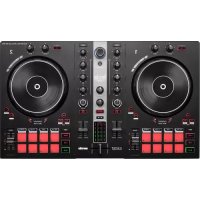
DJControl Inpulse 300 MK2 - DJ Equipment HERCULES - Free user manual and instructions
Find the device manual for free DJControl Inpulse 300 MK2 HERCULES in PDF.


| Product type | DJ controller |
| Brand | Hercules |
| Model | DJControl Inpulse 300 MK2 |
| Compatible software | DJUCED®, Serato DJ Lite |
| Number of decks | 2 |
| Master output | 2 x RCA (Cinch) |
| Headphone output | 3.5 mm stereo jack |
| Connectors | USB-B 2.0, proprietary extension connector |
| Audio resolution | 24 bits |
| Sampling frequency | 44 kHz |
| Power supply | Via USB port (USB-A to USB-B cable included) |
| Key features | Beatmatch Guide, backlit pads, jog wheels, effects, loops, Slip mode, quantize, 8 pad modes |
| Maintenance | Clean with a soft dry cloth. Do not use abrasive products. |
| Safety | Use only with the supplied adapter. Do not expose to moisture. |
| Spare parts and repairability | Contact Hercules support for any repairs. No spare parts provided. |
| General information | 2-channel DJ controller with built-in multi-channel sound card. Serato DJ Lite license included (not Serato DJ Pro). |
Frequently Asked Questions - DJControl Inpulse 300 MK2 HERCULES
User questions about DJControl Inpulse 300 MK2 HERCULES
0 question about this device. Answer the ones you know or ask your own.
Ask a new question about this device
Download the instructions for your DJ Equipment in PDF format for free! Find your manual DJControl Inpulse 300 MK2 - HERCULES and take your electronic device back in hand. On this page are published all the documents necessary for the use of your device. DJControl Inpulse 300 MK2 by HERCULES.
USER MANUAL DJControl Inpulse 300 MK2 HERCULES
Overview 7
Decks. 8
Mixing 21
Connectors. 29
- INSTALLATION 30
Connections 30
Downloading the software 32
DJUCED 32
Serato DJ Lite 35
Hercules DJControl Impulse 300 MK2 is a full-featured controller designed to make it easy to learn how to mix thanks to dedicated features, video tutorials and integration with the DJUCED® and Serato DJ Lite software.

Hercules DJControl Impulse 300 MK2 includes a license for Serato DJ Lite, not a license for Serato DJ Pro. If you install Serato DJ Pro instead of Serato DJ Lite, Serato DJ Pro will work with your DJControl Impulse 300 MK2 for the duration of a trial period. At the end of this trial period, if you want to continue using Serato DJ Pro, you must purchase a Serato DJ Pro license.
1. Box contents
Hercules DJControl Inpulse 300 MK2
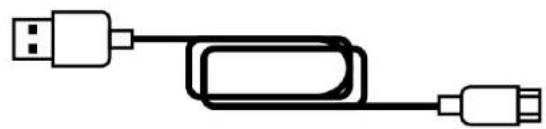
- Braided power cable (USB-A - USB-B)
Hercules, Serato and DJUCED® stickers
Warranty flyer
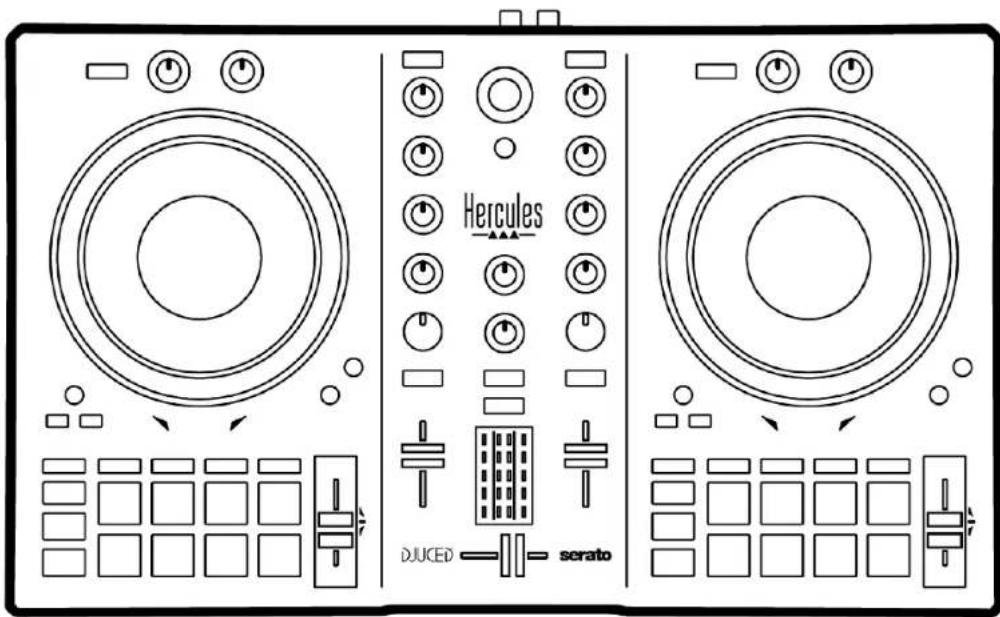
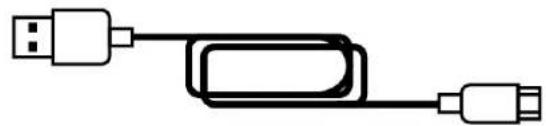

You can remove the protective film covering the VU meter on the Hercules DJControl Inpulse 300 MK2 controller. You can also leave the protective film in place, as it does not affect the use of the VU meter.
2. Technical specifications
System requirements:
DJUCED
https://www.djuced.com/downloaddjuced/
(in English)
- Serato DJ Lite:
https://serato.com/dj/lite/downloads?systemreq
uirements#system-requirements (in English)
Master output for speakers (output 1-2) via two RCA connectors:
Maximum output power = 5 dBU @ 1 kΩ
- THD+N @ 1 kHz < 0.01%
- Resolution = 24-bit
- Sample rate = 44 kHz
Headphones output (output 3-4) via one 1/8'' / 3.5 mm stereo mini-jack connector:
Maximum output power = 5 dBU for 32 @1kHz
- THD+N @ 1 kHz < 0.017%
- Resolution = 24-bit
- Sample rate = 44 kHz
3. Features
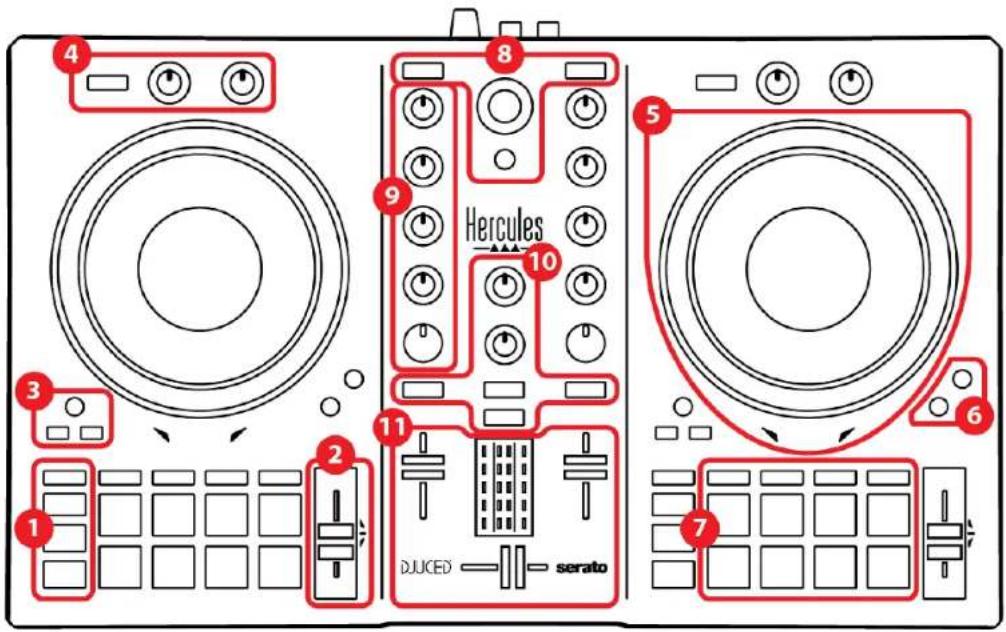
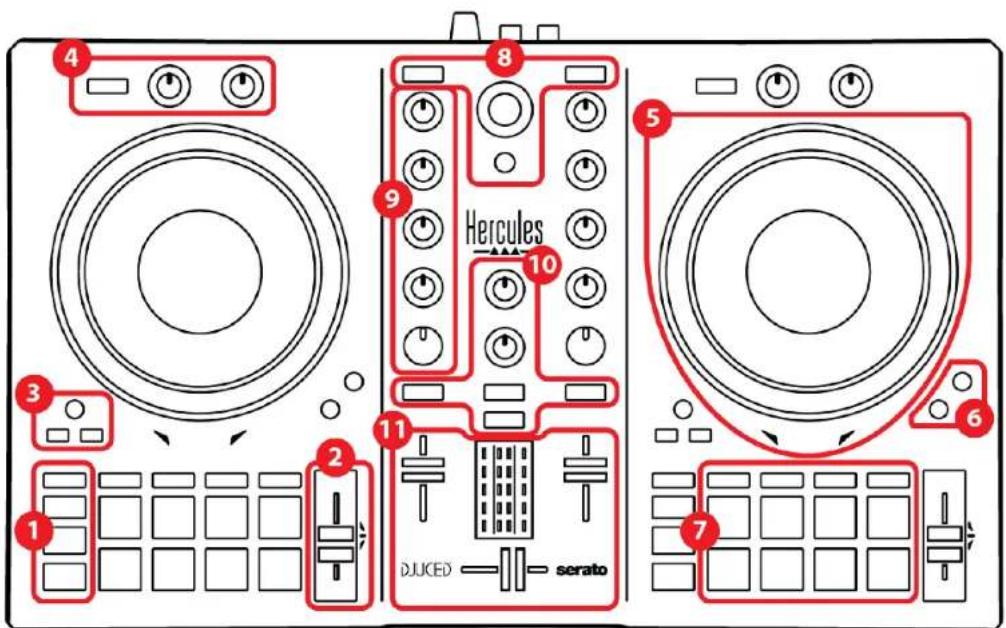
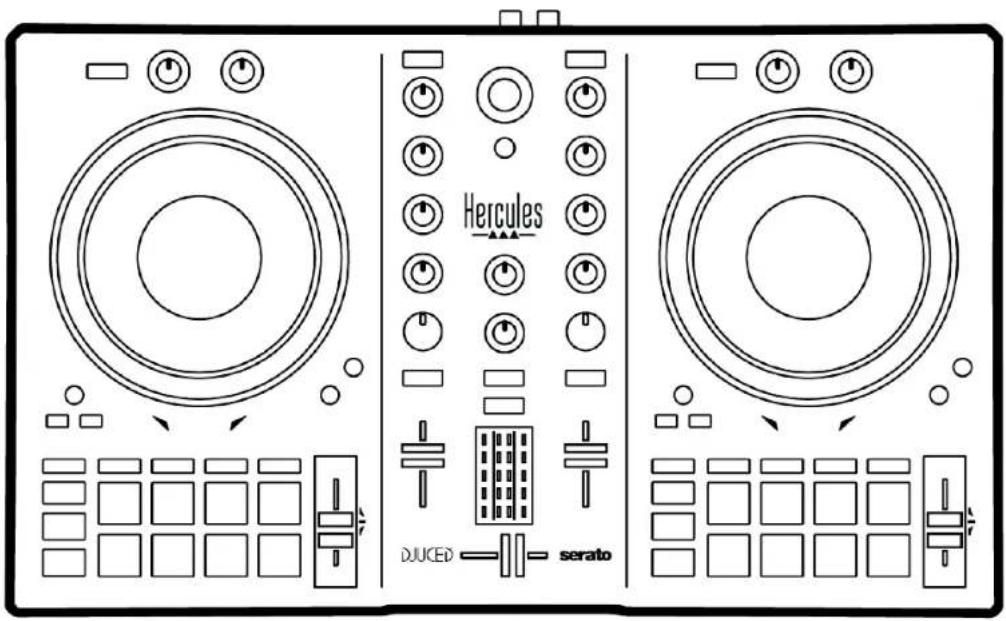
Overview
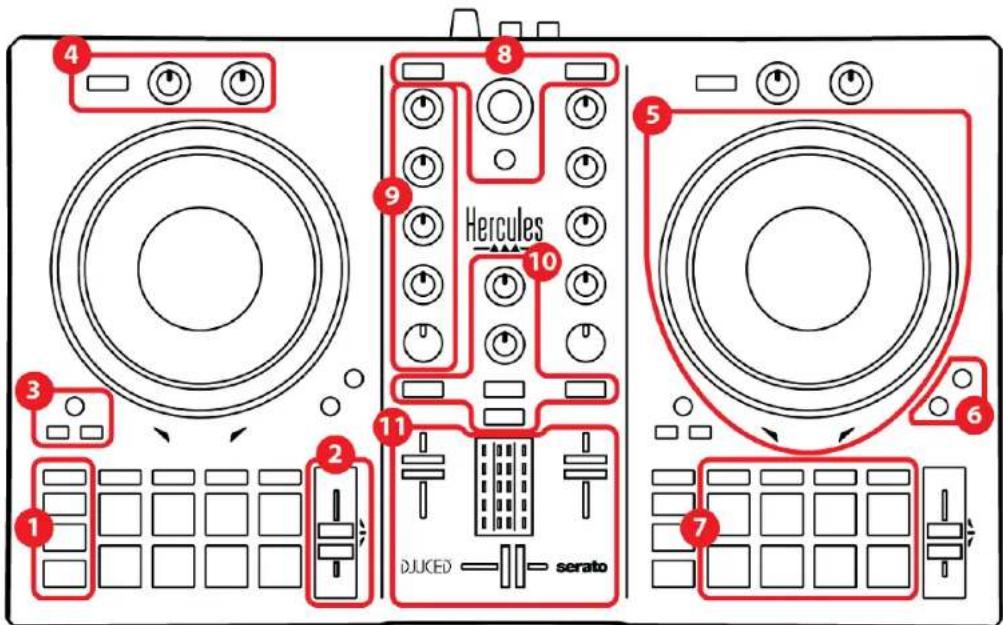
- Transport buttons
- Tempo fader
- Loop controls
- Effects
- Jog wheel
6.Playback modes - Pads and modes
- Track selection controls
- Mixing section
- Monitoring, volume and Beatmatch Guide
- Mixer
Decks
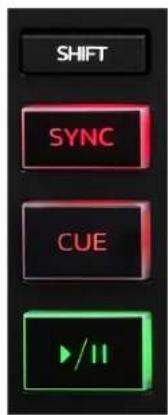
1. Transport buttons
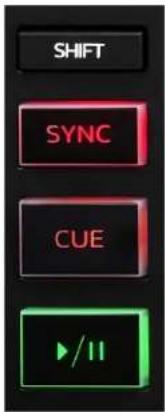
SHIFT: combined control. For example:
- SHIFT + IN: divides the length of the loop by two.
- SHIFT + FX ON: changes the effect selected in the list.
SYNC: enables or disables automatic synchronization of the BPM (beats per minute) values of two tracks.
- SHIFT + SYNC:
In DJUCED: makes the deck the master synchronization (Master Sync) deck.
In Serato DJ Lite: disables synchronization on the deck.
CUE: inserts a Cue point in the track to identify a specific instant, or moves the deck playhead to the Cue point's position.
- Track paused: inserts a Cue point at the spot where the track is stopped.
- Track playing: stops playback of the track and moves the deck playhead to the Cue point.
If no Cue point has been defined, pressing CUE stops playback and places a Cue point at the playhead's location.
- CUE + PLAY: in DJUCED®, moves the playhead to the Cue point and plays the track from that point.
-SHIFT+CUE:
In DJUCED: moves the playhead to the start of the track, and stops playback.
In Serato DJ Lite: moves the playhead to the start of the track, and starts playback.
Play/Pause: plays or pauses the track.
2. Tempo fader
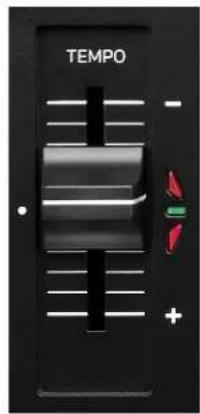
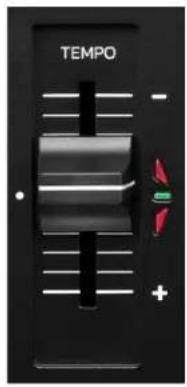
Tempo fader: sets the track's playback speed by adjusting the number of BPM.
- Move up: slows down the track.
- Move down: speeds up the track.
- Tempo fader in the middle: the track's original speed. The green LED is lit up.
When the Beatmatch Guide function is enabled, the TEMPO visual guides indicate whether you need to move the tempo fader up or down, in order to slow down or speed up the track. When the two red arrows are off, the tempo on that deck is identical to the tempo on the other deck.
For more information on the Beatmatch Guide function, please read the Beatmatch Guide section on page 25.
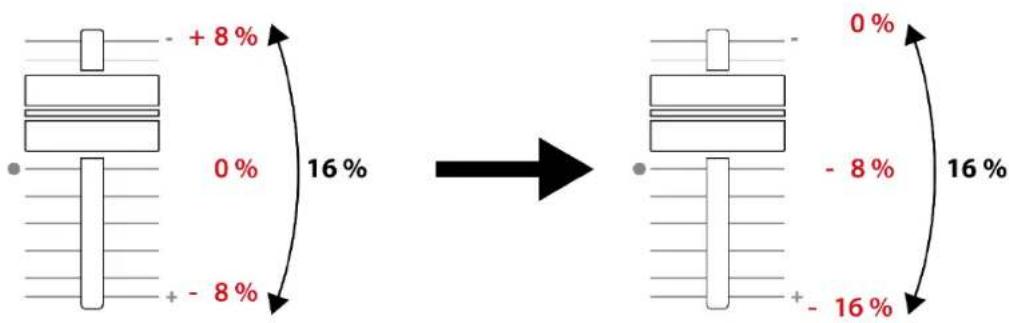
In Serato DJ Lite and Serato DJ Pro, when Sync mode is enabled, pressing SHIFT and moving the tempo fader at the same time lets you move the tempo fader's values while maintaining the amplitude.
For example, with a tempo scale of ± 8% , or 16% amplitude, you can move the tempo fader's values to cover from 0% (maximum) to -16% (minimum), which still results in 16% amplitude, with -8% in the center.
3. Loop controls
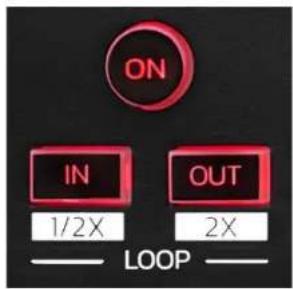
LOOP ON: enables or disables playback of the loop.
IN/OUT: enables a loop by choosing the in point (IN) and the out point (OUT).
- SHIFT + IN: divides the size of the active loop by two.
- SHIFT + OUT: multiplies the size of the active loop by two.
When the loop is active (i.e. enabled):
- Press IN (the button flashes) and turn the jog wheel to move the start of the loop.
- Press OUT (the button flashes) and turn the jog wheel to move the end of the loop.
To exit the loop, press LOOP ON.
4. Effects
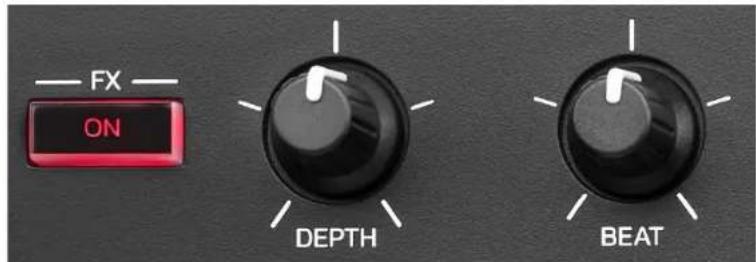
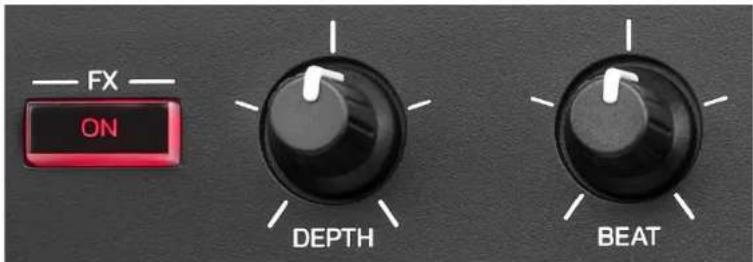
Effects rack: manages the effect on the deck.
- FX ON button: enables or disables the effect.
- DEPTH knob: adjusts the intensity of the effect.
- BEAT knob: adjusts the duration of the effect's cycle synchronized to the music.
- SHIFT + FX ON: changes the effect selected in the list.
To display the effects rack:
- In DJUCED®: click FX
- In Serato DJ Lite: click FX.
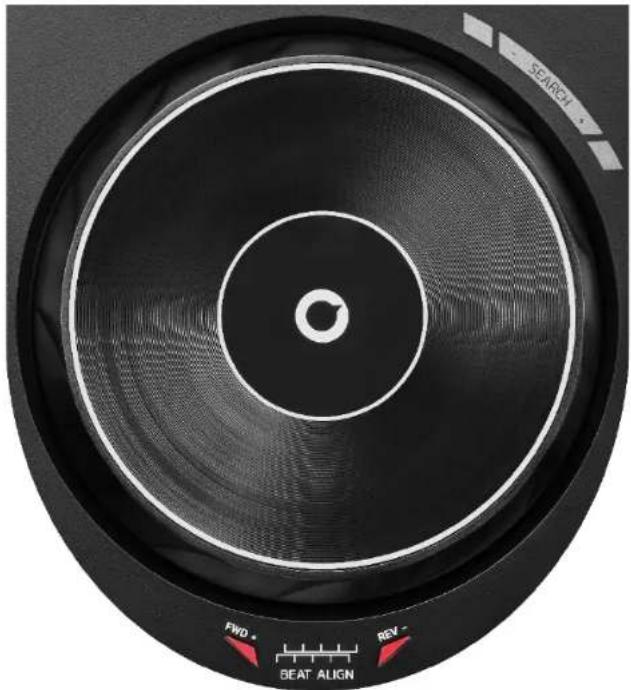
5. Jog wheel
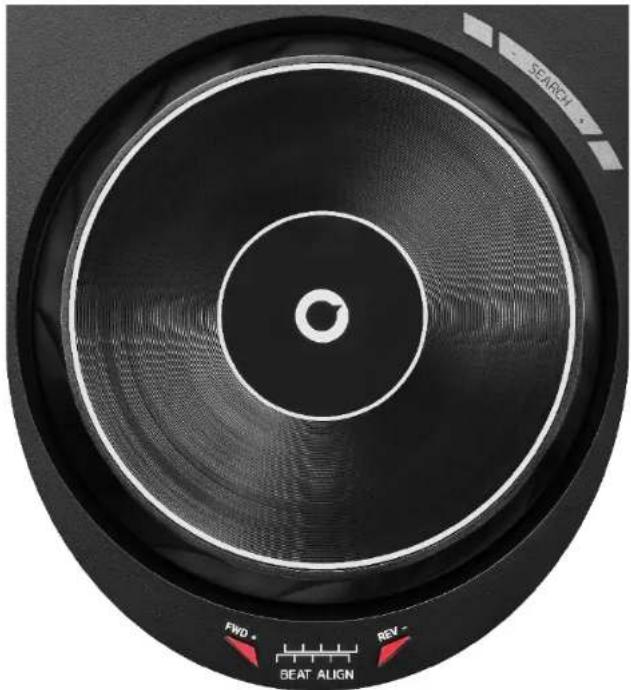
Jog wheel: lets you move within the track, modify the track's playback, and scratch.
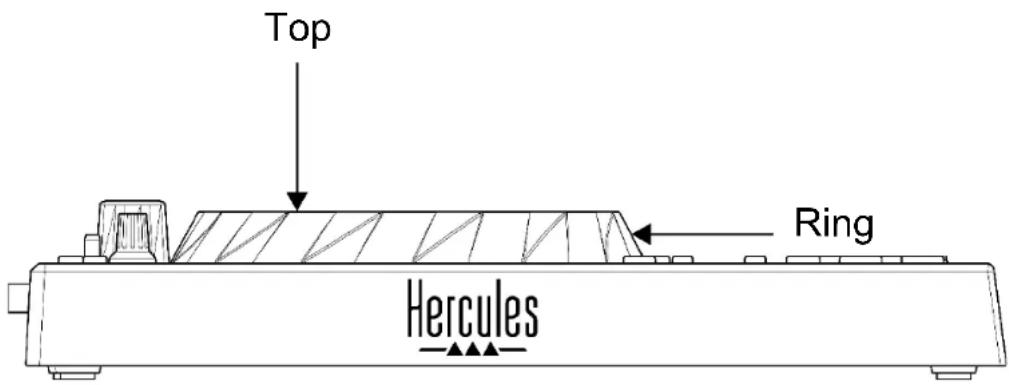
When the Beatmatch Guide function is enabled, the BEAT ALIGN visual guides indicate the direction in which you need to turn the ring (i.e. the edge) of the jog wheel in order to align the beat grids of the two tracks. When the two red arrows are off, the beat grids are aligned.
For more information on the Beatmatch Guide function, please read the Beatmatch Guide section on page 25.
The action carried out depends on three criteria:
- Vinyl (Scratch) mode enabled or disabled;
- track playing or paused;
- the spot where you are touching the jog wheel.
To enable Vinyl (Scratch) mode, press SHIFT and SLIP at the same time. To make sure that Vinyl mode is enabled, press SHIFT. The SLIP button is lit up.
Actions of the jog wheels with Serato DJ Lite and Serato DJ Pro:
| Vinyl mode | Play/Pause | Jog wheel | SHIFT button |
| Enabled | Play | Top | - |
| Scratching | |||
| Enabled | Play | Ring | - |
| Speed up or slow down playback | |||
| Enabled | Pause Top | Press and hold | |
| Move quickly within the track | |||
| Enabled | Pause | Ring | - |
| Move slowly within the track | |||
| Disabled | Play | Top | - |
| Speed up or slow down playback | |||
| Disabled | Play | Ring | - |
| Speed up or slow down playback | |||
| Disabled | Pause Top | Press and hold | |
| Move quickly within the track | |||

serato DJ Lite
Actions of the jog wheels with DJUCED®:
| Vinyl mode | Play/Pause | Jog wheel | SHIFT button |
| Enabled | Play | Top | - |
| Scratching | |||
| Enabled | Play | Ring | - |
| Speed up or slow down playback | |||
| Enabled Pause Top | Press and hold | ||
| Move very quickly within the track | |||
| Enabled Pause Ring | Press and hold | ||
| Move very quickly within the track | |||
| Disabled | Play | Top | - |
| Speed up or slow down playback | |||
| Disabled | Play | Ring | - |
| Speed up or slow down playback | |||
| Disabled | Pause | Top | - |
| Move quickly within the track | |||
| Disabled Pause Top | Press and hold | ||
| Move very quickly within the track | |||
DJUCED
6. Playback modes
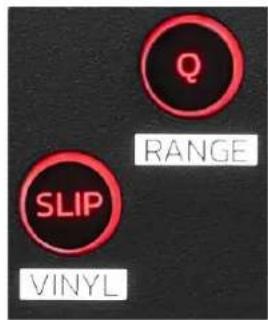
Q: enables or disables Quantize mode. Quantization lets you apply an action on the next beat in the grid (play the track, place a Cue point, start a loop...).
- SHIFT + Q: lets you change the tempo scale.
In DJUCED: ±6%, ±8%, ±10%, ±12%, ±16%, ±20%, ±25%, ±33%, ±50%, ±100%.
In Serato DJ Lite: ±8%, ±16%, ±50%.

Serato DJ Lite does not feature Quantize mode. Serato DJ Pro features Quantize mode.
SLIP: enables or disables Slip mode. In Slip mode, the deck playhead continues to advance in the background when you apply an effect or a loop, place a Cue point, or when you use the jog wheels. When you stop applying an effect, playback resumes from the point where the track would be if it had kept playing.

Serato DJ Lite does not feature Slip mode.
Serato DJ Pro features Slip mode.
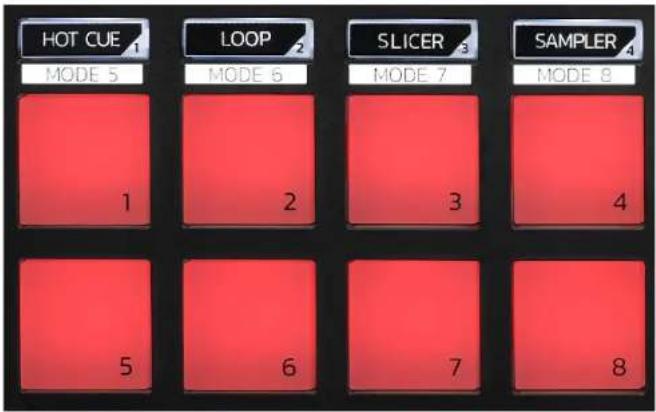
7. Pads and modes
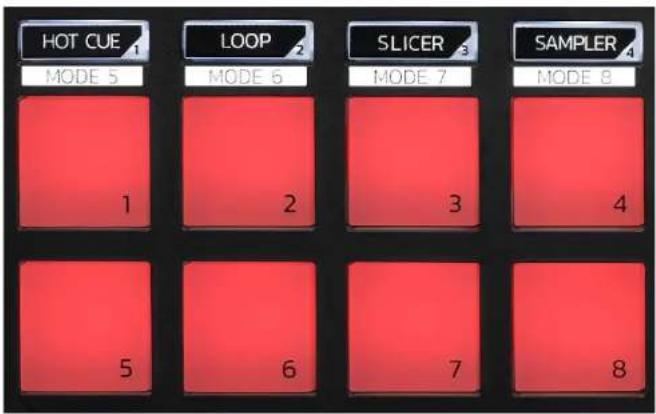
Mode buttons: lets you enable up to eight modes.
To enable a main mode, press HOT CUE, LOOP, SLICER or SAMPLER.
To enable a secondary mode (MODE 5, MODE 6, MODE 7 and MODE 8), simultaneously press SHIFT and HOT CUE, LOOP, SLICER or SAMPLER. The mode button flashes.
The modes enabled on the pads vary according to the software being used.
For more information about the different modes with DJUCED®, Serato DJ Lite and Serato DJ Pro, please read the Modes and pads section on page 37.
Performance pads: a pad performs an action.
Mixing
8. Track selection controls
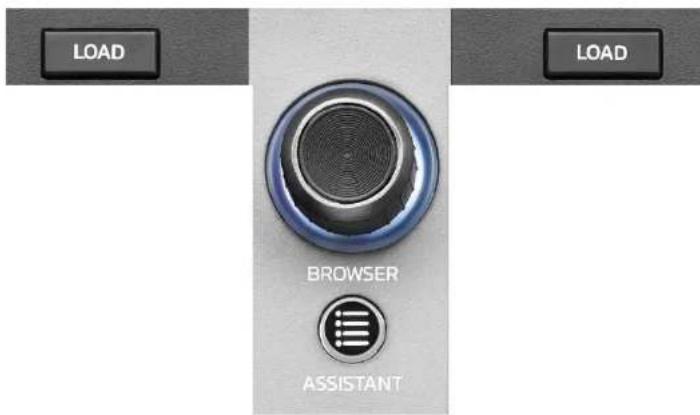
LOAD*: loads the selected track on the destination deck. In DJUCED®, collapses or expands folders.
BROWSER encoder: lets you browse through your music library by turning the encoder to the left (up) or to the right (down).
Press the encoder to select folders and files.
In DJUCED®, press SHIFT and the encoder to return to the root of your music library.
*The functionality is identical on decks 1 and 2.
Illuminated ring:
- In DJUCED®, shows the energy level of the master track for the tempo.
- In Serato DJ Lite, shows the rhythm. The light flashes to the beat of the track.
ASSISTANT:
- In DJUCED®, displays the panel suggesting the best upcoming tracks for your mix.
Press ASSISTANT and turn the encoder to adjust the energy level of the tracks being suggested.
- In Serato DJ Lite, adds the track currently being played to the Prepare list.
9. Mixing section
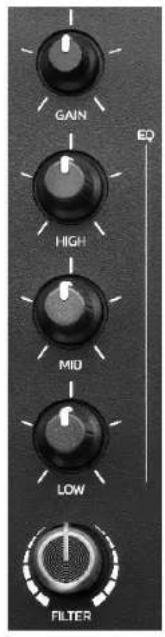
GAIN knob*: adjusts the gain (i.e. the volume level before the volume fader).
3-band equalizer (EQ)*: controls the intensity of the EQ. A knob is associated with each band: HIGH, MID and LOW.
FILTER knob*: adjusts the frequency of the dual filter (high-pass and low-pass).
*The functionality is identical on decks 1 and 2.
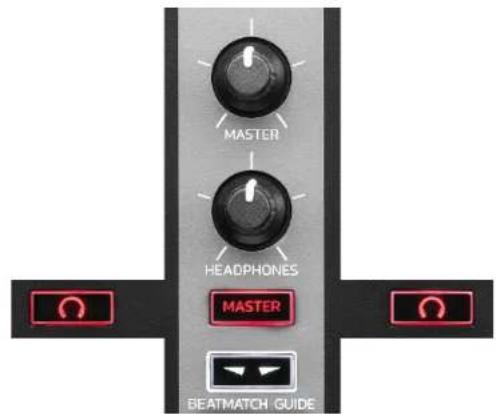
10. Monitoring, volume and Beatmatch Guide
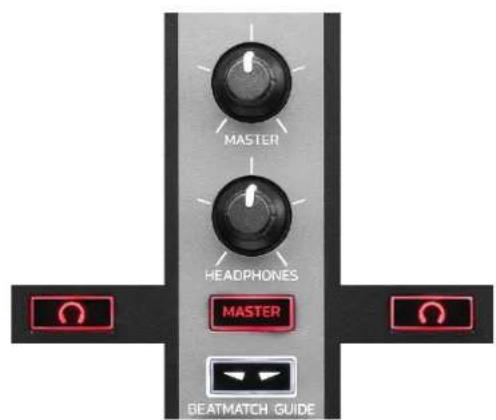
MASTER volume: adjusts the volume of the mix being played on your speakers.
HEADPHONES volume: adjusts the volume of the headphones output.
Monitoring: selects the sound source played on your headphones.
- 0 : plays the sound from deck 1 or deck 2.
- MASTER: plays the sound of the mix being played out loud for the audience.
*The functionality is identical on decks 1 and 2.
BEATMATCH GUIDE: enables or disables the light guides to adjust the tempo and align the beat grids of the two tracks. There are four red arrows per deck.

DJUCED® defines one of the decks as the mastersynchronization (Master Sync) deck, and the other as the slave deck. The red arrows only light up on the slave deck, as this deck follows the tempo of the master synchronization deck.
Serato DJ Lite does not define a master synchronization deck. The red arrows light up on both decks.
- TEMPO visual guides: if one of the two red arrows located to the right of a tempo fader is lit up, this means that the tempo (i.e. number of beats per minute) of the track being played on this deck is different than the tempo of the other deck.
The arrows indicate the direction in which you need to move the tempo fader in order to adjust the tempo of the track being played to match the tempo on the other deck.
Top arrow lit up: move the tempo fader up. This will slow down the tempo.
Bottom arrow lit up: move the tempo fader down. This will speed up the tempo.
Arrows not lit up: the deck's tempo is identical to the tempo of the master synchronization deck.
- BEAT ALIGN visual guides: if one of the two red arrows located below a jog wheel is lit up, this means that the beats of the track being played on this deck are not aligned with the beats of the other deck.
The arrows indicate the direction in which you need to turn the jog wheel in order to align the beats of the track being played with the beats of the other deck.
- Left arrow lit up: turn the jog wheel clockwise. This speeds up the playback speed.
○ Right arrow lit up: turn the jog wheel counterclockwise. This slows down the playback speed. - Arrows not lit up: the deck's beats are aligned with the beats of the master synchronization deck.
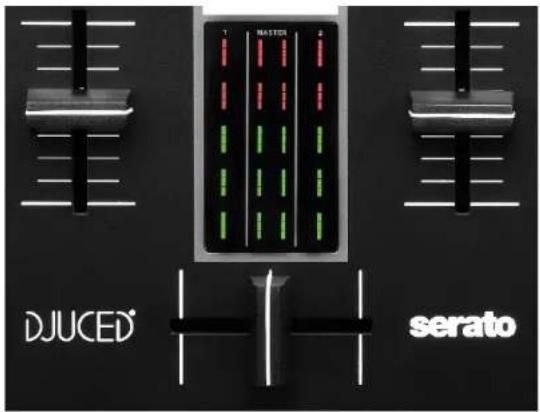
11. Mixer
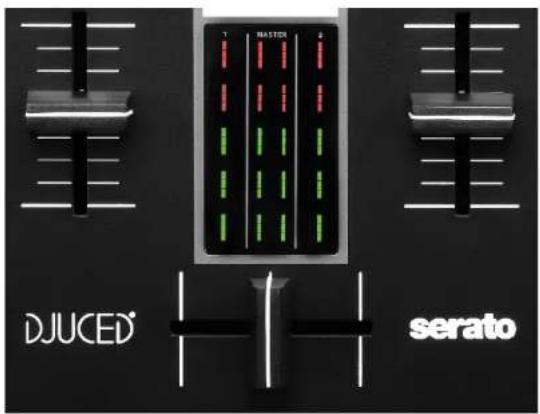
Volume fader*: adjusts the deck's volume.
VU meter: displays the level of the audio signal of decks 1 and 2, along with that of the Master output for speakers.
Crossfader: lets you make a transition between two tracks by increasing the volume of one of the decks, while decreasing the volume of the other deck.
- Crossfader all the way to the left: you only hear the track on deck 1.
- Crossfader all the way to the right: you only hear the track on deck 2.
- Crossfader in the middle: you hear the tracks on both decks 1 and 2 at the same time.
*The functionality is identical on decks 1 and 2.
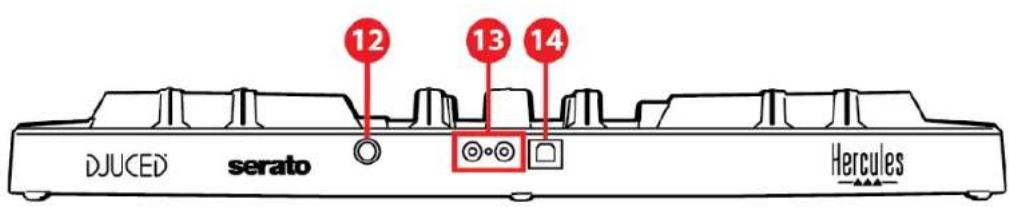
Connectors
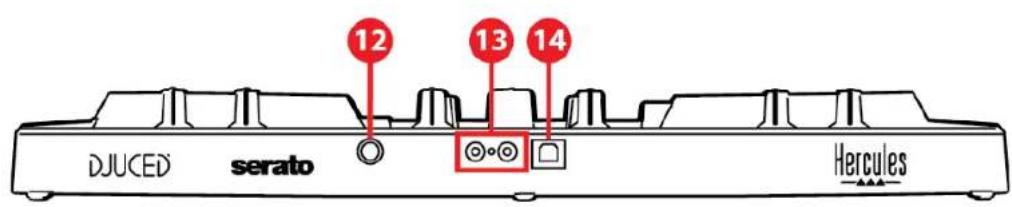

- Proprietary Hercules expansion port
- Master output for speakers (output 1-2)
- USB-B 2.0 port
- Headphones output (output 3-4)
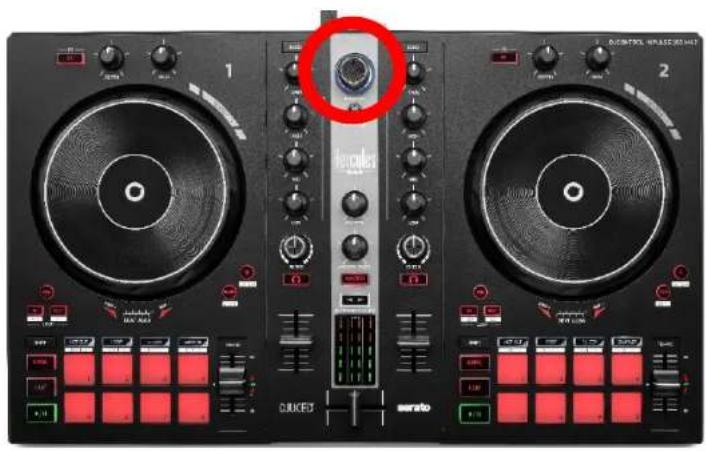
Expansion port: lets you connect additional accessories.
Master output for speakers (output 1-2): lets you connect active speakers.
Format: 2 × RCA (Cinch)
USB-B 2.0 port: lets you connect the controller to a computer.
Headphones output (output 3-4): lets you connect headphones in order to monitor tracks.
Format: 1/8'' / 3.5 mm stereo mini-jack connector
4. Installation
Connections
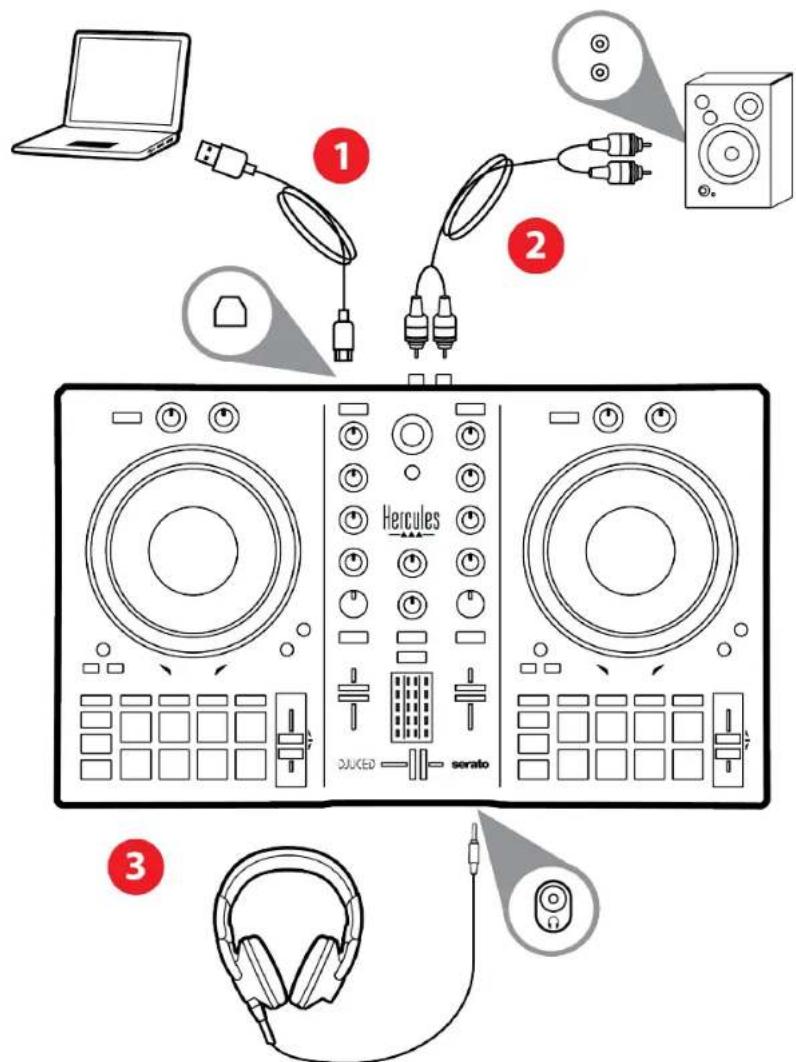
- Connect the DJControl Inpulse 300 MK2 controller to your computer with the USB cable.
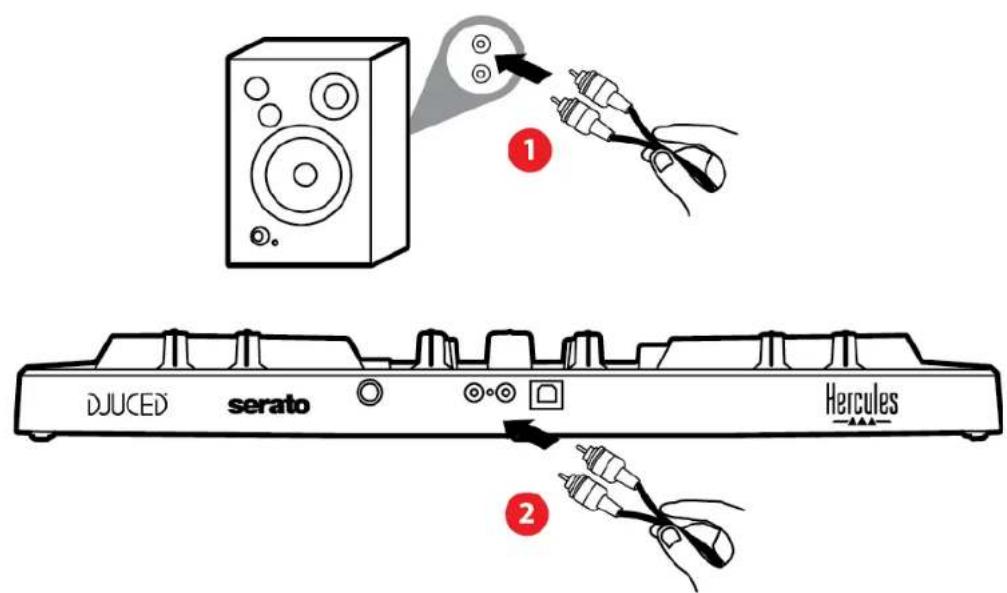
- Connect the inputs on your active speakers to the speaker outputs on DJControl Inpulse 300 MK2 (2 RCA).
- Connect your headphones to the 1 / 8'' / 3.5 mm stereo mini-jack connector at the front of DJControl Impulse 300 MK2.

An LED illumination sequence, called Vegas Mode, starts up each time you connect the device to your computer. Vegas Mode takes place in four phases, allowing it to light up all of the LEDs and display different possible colors for the multicolored backlit energy ring.
Downloading the software
DJUCED®
-
Please visit: https://www.djuced.com/hercules (in English).
-
Download and install DJUCED
-
Please visit:
https://support.hercules.com/product/djcontrolin pulse300mk2/ (in English).
- Download and install the driver pack for your computer's operating system.
O macOS®: HDJCSeries Mac
Windows®: HDJCSeries PC
Windows® requires that you install the drivers in order to use DJControl Inpulse 300 MK2 in ASIO mode, which reduces the latency compared to WASAPI mode and is generally more stable.
The drivers also let you test your DJControl Inpulse 300 MK2 and verify the firmware version in both Windows® and macOS®.
- Launch the DJUCED® software. A window appears, indicating that your product has been successfully detected and is ready to use.


When you run the software for the first time, DJUCED® guides you through connecting your headphones and active speakers (or lets you use the speakers built into your computer, if you don't have external active speakers). Follow the on- screen information step by step before getting started.
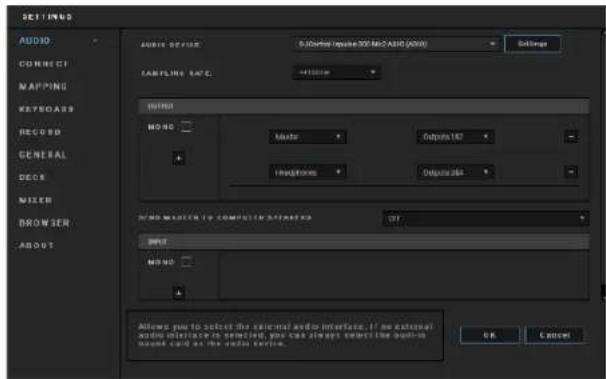
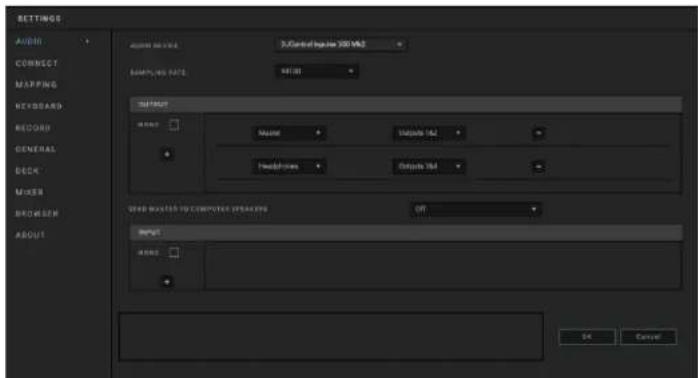
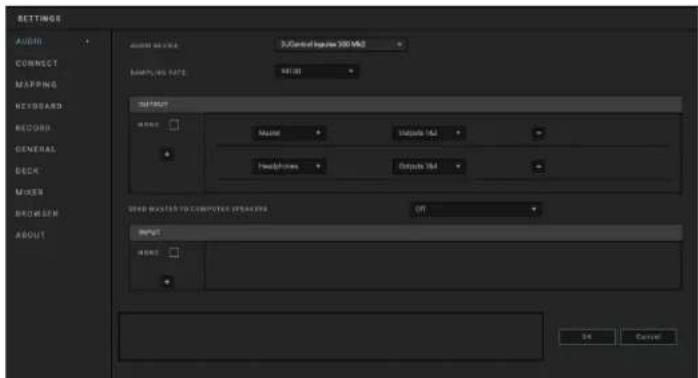
Audio settings :
To modify the sound card settings, click the gear wheel icon in the upper right-hand part of the screen. The Settings menu is displayed.
Select the Audio tab to choose the sound card, and assign the outputs for headphones and speakers.
The standard setup for Windows® is as follows:
-
Audio device: DJControl Inpulse 300 MK2 ASIO (ASIO)
-
Output:
Master: Outputs 1&2
○ Headphones: Outputs 3&4
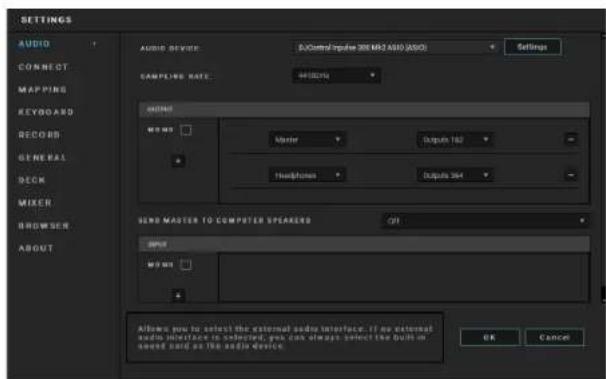
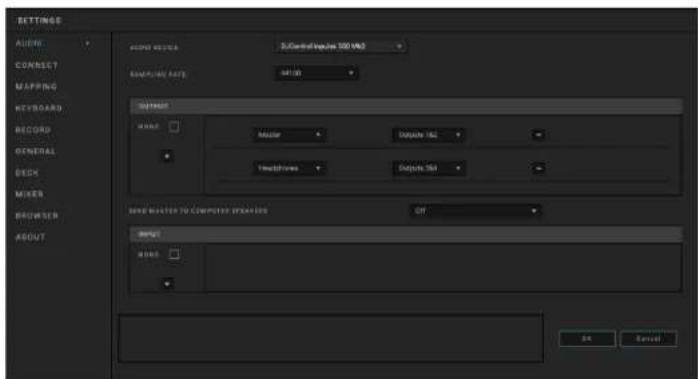
The standard setup for macOS® is as follows:
- Audio device: DJControl Inpulse 300 MK2
Output:
Master: Outputs 1&2
○ Headphones: Outputs 3&4

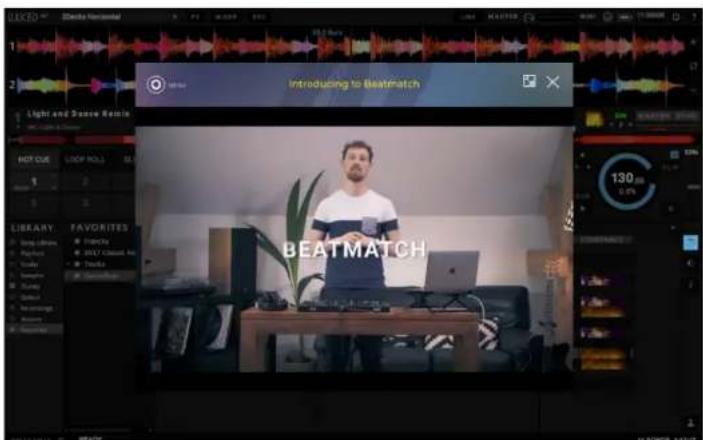
Follow the Hercules DJ Academy tutorials integrated into DJUCED®, which you can access by clicking the

icon.
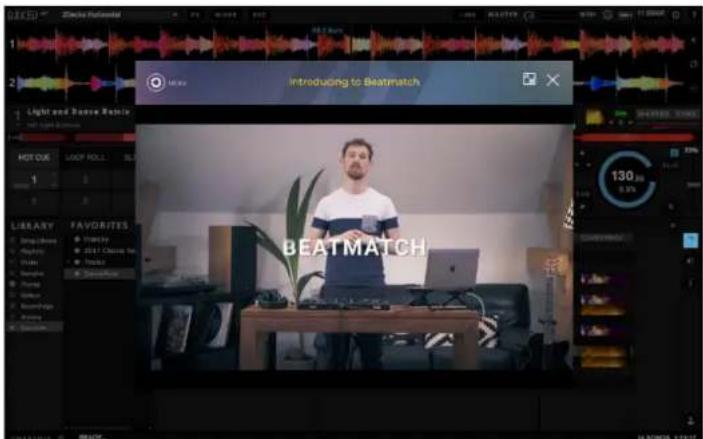
The tutorials are also available here, on the Hercules DJ YouTube channel.
Serato DJ Lite
- Please visit: https://serato.com/dj/lite/downloads (in English).
- Download and install Serato DJ Lite.
- Please visit:
https://support.hercules.com/product/djcontrolin pulse300mk2/ (in English).
- Download and install the driver pack for your computer's operating system.
macOS: HDJCSeries Mac
Windows®: HDJCSeries PC
Windows® requires that you install the drivers in order to use DJControl Inpulse 300 MK2 in ASIO mode, which reduces the latency compared to WASAPI mode and is generally more stable.
The drivers also let you test your DJControl Inpulse 300 MK2 and verify the firmware version in both Windows® and macOS®.

Hercules DJControl Impulse 300 MK2 includes a license for Serato DJ Lite, not a license for Serato DJ Pro. If you install Serato DJ Pro instead of Serato DJ Lite, Serato DJ Pro will work with your DJControl Impulse 300 MK2 for the duration of a trial period. At the end of this trial period, if you want to continue using Serato DJ Pro, you must purchase a Serato DJ Pro license.
5. Living up your mix
There are different ways to liven up your mix.
Modes and pads
The pads
In DJUCED® pads 1 to 8 carry out the actions corresponding to the mode currently enabled.
In Serato DJ Lite, pads 1 to 4 carry out the actions corresponding to the mode currently enabled. Pads 5 to 8 carry out the following actions:
- Pad 5: Reverse (reverse playback)
- Pad 6: rewind
- Pad 7: fast forward
- Pad 8: Censor. This action lets you play the track in reverse while the pad is held down. Once the pad is released, playback resumes from the point where the track would be if it had kept playing normally. This can be used to mask explicit language in a song.
The modes enabled on the pads vary according to the software being used:
| Modes | DJUCED® | Serato DJ Lite | Serato DJ Pro** |
| 1 | Hot Cue | Hot Cue | Hot Cue |
| 2 | Loop | Auto Loop | Auto Loop |
| 3 | Slicer | Stems | Stems |
| 4 | Sampler | Sampler | Sampler |
| 5 | TonePlay | - | Pitch Play |
| 6 | FX | - | Loop Roll |
| 7 | Slicer Loop | - | Manual Loop |
| 8 | BeatJump | Scratch Banks | Scratch Banks |
**Serato DJ Pro license not included.
Hot Cue mode
A Hot Cue point is a marker (like a bookmark) that you can place in a track to easily locate this moment in the track again, and instantly return to it afterwards.
In DJUCED, eight Hot Cue points can be set per track.
In Serato DJ Lite, four Hot Cue points can be set per track.
In Serato DJ Pro, eight Hot Cue points can be set per track.
- To access Hot Cue mode, press HOT CUE. The HOT CUE button's light stays lit up.
- To set a Hot Cue point, press a pad.
- To play the track from a Hot Cue point, press the corresponding pad.
- To remove a Hot Cue point, press SHIFT and the pad at the same time.
Loop mode
A loop is a part of the track that is played repeatedly.
- To access Loop mode, press LOOP. The LOOP button's light stays lit up.
In DJUCED®:
- To apply a loop, press and hold a pad.
- To disable a loop, release the corresponding pad.
In Serato DJ Lite:
- To apply a loop, press a pad.
- To disable a loop, press the corresponding pad.
Loop length:
| Deck 1 / Deck 2 | DJUCED® | Serato DJ Lite |
| Pad 1 | 1/16 of a beat | 1 beat |
| Pad 2 | 1⁄8 of a beat | 2 beats |
| Pad 3 | 1⁄4 of a beat | 4 beats |
| Pad 4 | 1⁄2 of a beat | 8 beats |
| Pad 5 | 1 beat | - |
| Pad 6 | 2 beats | - |
| Pad 7 | 4 beats | - |
| Pad 8 | 8 beats | - |

In DJUCED®, the deck playhead continues to advance in the background when you apply a loop. When you disable the loop, playback resumes from the point where the track would be if it had kept playing.
Slicer mode

Slicer mode is only available with DJUCED®.
In DJUCED®, Slicer mode lets you slice the active loop into eight sections. The loop moves throughout the track.
- To access Slicer mode, press SLICER. The SLICER button's light stays lit up.
- To play a section as a loop, press and hold a pad.
- To stop playing a section, release the corresponding pad.
Stems mode

Stems mode is only available with Serato DJ Lite.
In Serato DJ Lite, Stems mode lets you separate a track into four different parts (vocals and instruments), called "stems".
- To access Stems mode, press SLICER. The SLICER button's light stays lit up.
- Pads 1 to 4 are each associated with a stem. To stop playing a stem, press the corresponding pad. The pad's light turns off.
- To resume playing the stem, press the corresponding pad. The pad lights up.
Stems:
| Deck 1 / Deck 2 | Stem |
| Pad 1 | Vocals |
| Pad 2 | Melody |
| Pad 3 | Bass |
| Pad 4 | Drums |
Sampler mode
A sample is a short sound played over the track that is currently playing: it can be played either once or in repetition.
In DJUCED®, pads 1 to 8 let you play the eight samples found on the first two lines of the multilayer sampler.
To display the multilayer sampler, select 2Decks Horizontal + 2 Samplers in the drop-down menu in the upper left-hand part of the screen in DJUCED®.
In Serato DJ Lite, pads 1 to 4 let you play a sample.
To display the samples panel, click in Serato DJ Lite.
- To access Sampler mode, press SAMPLER. The SAMPLER button's light stays lit up.
- To play a sample, press a pad.
- To stop playing a sample, press SHIFT and the corresponding pad at the same time.
Mode 5

Serato DJ Lite does not feature mode 5 (TonePlay). Serato DJ Pro, in conjunction with the Pitch 'n Time plugin, offers a Pitch Play mode which works using the same principle as TonePlay mode.
In DJUCED® mode 5 corresponds to TonePlay mode. This mode lets you replay a Hot Cue point in different tones.
- Enable Hot Cue mode, then select a Hot Cue point.
- To access mode 5, press SHIFT and HOT CUE at the same time. The HOT CUE button flashes.
- To modify the tone of a Hot Cue point, press one of pads 2 to 8.
- To return to the original tone, press pad 1.
Modifying the tone:
| Deck 1 / Deck 2 | Tone |
| Pad 1 | Original tone |
| Pad 2 | + 1 |
| Pad 3 | + 2 |
| Pad 4 | + 3 |
| Pad 5 | - 1 |
| Pad 6 | - 2 |
| Pad 7 | - 3 |
| Pad 8 | - 4 |
Mode 6

Serato DJ Lite does not feature mode 6.
In DJUCED, mode 6 offers an additional mode for controlling the effects rack.
An effect is sometimes a filter or a combination of filters applied to a track to modify its sound (echo, reverb...).
- To access mode 6, press SHIFT and LOOP at the same time. The LOOP button flashes.
- To carry out an action, press a pad.
Possible actions:
| Deck 1 / Deck 2 | Effects |
| Pad 1 | Effect 1 of the rack |
| Pad 2 | Effect 2 of the rack |
| Pad 3 | Effect 3 of the rack |
| Pad 4 | Displays/ hides the effects rack |
| Pad 5 | Changes effect 1 in the rack |
| Pad 6 | Changes effect 2 in the rack |
| Pad 7 | Changes effect 3 in the rack |
| Pad 8 | - |
Mode 7

Serato DJ Lite does not feature mode 7.
In DJUCED®, mode 7 corresponds to Slicer Loop mode. This mode lets you slice the active loop into eight sections. Contrary to Slicer mode, the active loop remains looping in this mode.
- To access mode 7, press SHIFT and SLICER at the same time. The SLICER button flashes.
- To play a section as a loop, press and hold a pad.
- To stop playing a section, release the corresponding pad.
Mode 8

In DJUCED®, mode 8 corresponds to BeatJump mode. In Serato DJ Lite and Serato DJ Pro, mode 8 corresponds to Scratch Banks mode.
In DJUCED, mode 8 corresponds to BeatJump mode. This mode lets you make a precise jump in the track.
- To access mode 8 (BeatJump), press SHIFT and SAMPLER at the same time. The SAMPLER button flashes.
- To make a jump, press a pad.
Length of the jump:
| Deck 1 / Deck 2 | Jump |
| Pad 1 | Go back 1 beat |
| Pad 2 | Go forward 1 beat |
| Pad 3 | Go back 2 beats |
| Pad 4 | Go forward 2 beats |
| Pad 5 | Go back 4 beats |
| Pad 6 | Go forward 4 beats |
| Pad 7 | Go back 8 beats |
| Pad 8 | Go forward 8 beats |
In Serato DJ Lite and Serato DJ Pro, mode 8 corresponds to Scratch Banks mode. This mode lets you instantly load a scratch sample onto the deck to scratch on the jog wheel in place of the track that's currently playing, and then quickly return to the track that's currently playing.
To display the scratch samples panel, click Serato DJ Lite.
- To access mode 8 (Scratch Banks), press SHIFT and SAMPLER at the same time. The SAMPLER button flashes.
- To play a scratch sample, press a pad.
- To stop playing a scratch sample and return to the track that had been playing previously, press SHIFT and the corresponding pad at the same time.
Samples:
| Deck 1 / Deck 2 | Sample |
| Pad 1 | Ahh! |
| Pad 2 | Hey You! |
| Pad 3 | Oww! |
| Pad 4 | Yeah! |
Scratching
Scratching consists of producing a sound effect from a track, by turning the jog wheel.
- To enable the scratch function, press SHIFT and SLIP at the same time.
In order to ensure that the scratch function (Vinyl mode) is enabled, press SHIFT. The SLIP button is lit up.
- Place your index finger on top of the jog wheel and make small, quick movements to the right and to the left.
You can repeat this scratch multiple times to create a rhythm.
Filters
Adjustment of the track's filter lets you attenuate certain frequencies.
- Attenuate the high frequencies (known as a low-pass filter or high-cut filter): turn the filter knob (FILTER) to the left.
- Attenuate the low frequencies (known as a high-pass filter or low-cut filter): turn the filter knob (FILTER) to the right.
6. Multichannel sound card
The product includes a built-in multichannel sound card, allowing you to play your mix on speakers for the audience (Master output for speakers) and monitor the next track that you're preparing on your headphones (headphones output).
Master output for speakers (output 1-2)
Your active speakers should be connected to the Master output for speakers located at the back of your product.
Headphones output (output 3-4)
Your headphones should be connected to the headphones output located at the front of your product.
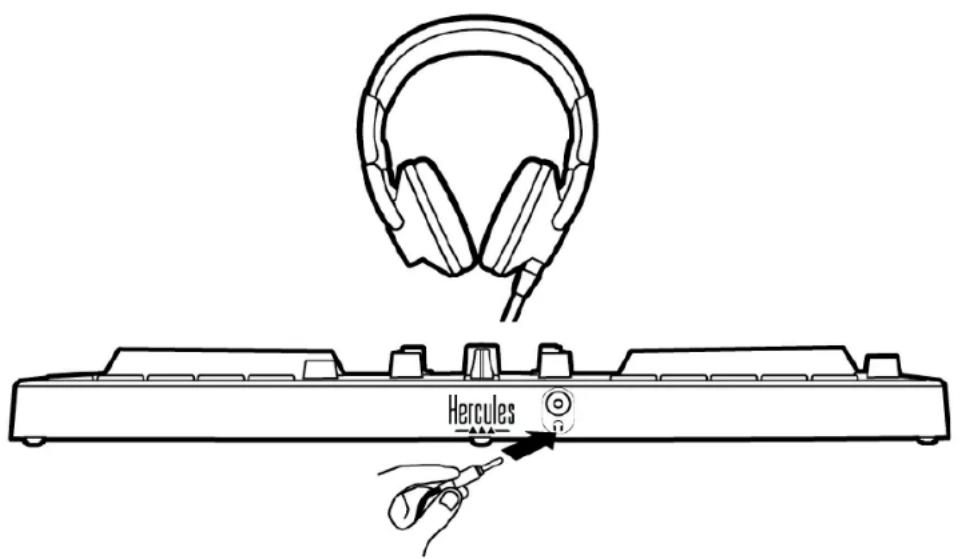
By default, each time your product is connected, the headphones output is assigned to output 3-4 so that it can work with all DJing software available on the market — including DJUCED® and Serato DJ Lite, in particular.
However, if you wish to use your product's headphones output to listen to music on your computer using iTunes, for example, you must route output 1-2 to the headphones output. To do this, press the MASTER button.
7. Compatibility
USB Audio / USB MIDI
This product is Plug & Play and can work without drivers on any PC or Mac, as it complies with the USB Audio and USB MIDI standards.
ASIO and Windows® control panel
To use the DJControl Inpulse 300 MK2 controller with Serato DJ Lite, you must install the ASIO drivers. The ASIO drivers are available here:
https://support.hercules.com//product/djcontrolinputse300mk2/.
If you are using DJUCED®, you can also download the ASIO drivers in order to take advantage of lower latency on your PC.
The ASIO drivers come with a control panel accessible in the taskbar on PC, or in the C:\Program Files\DJHERCULESMIX\Audio\DJ Console Series\ directory. This panel lets you adjust the different ASIO settings including the buffer sizes and the latency.
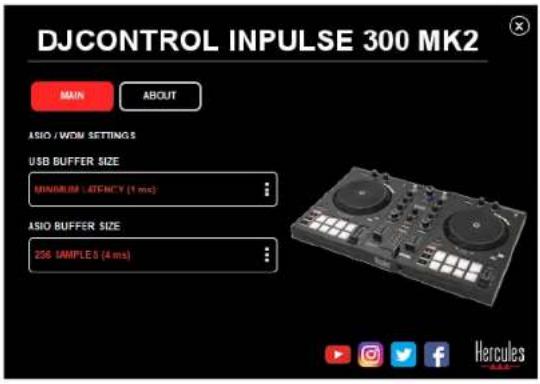
To adjust the ASIO settings:
- Set the USB buffer size to 1 ms.
- Set the ASIO buffer size to 4 or 8 ms.
- Start up your software (e.g.: DJUCED®) and select the DJControl Inpulse 300 Mk2 ASIO driver:
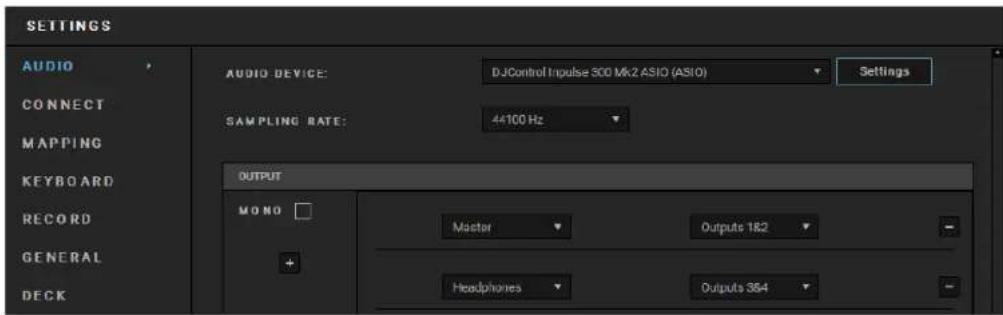
Once the software begins using the ASIO driver, the ASIO settings can no longer be modified in the control panel. This is perfectly normal, and indicates that the ASIO driver is in use.
Use your software and listen for any artifacts, audio glitches (clicks, pops) and latency problems: should any of these issues arise, you will need to adjust the buffer sizes accordingly.
Close your software and adjust your ASIO buffer by one value at a time:
- Reduce the buffer size to reduce latency.
- Increase the buffer size if you notice glitches or artifacts in the audio.
You will need to repeat this procedure until you find the optimal buffer size for your system.
The drivers are available here:
https://support.hercules.com//product/djcontrolinputse300mk2/.
Firmware update
Your product features an automatic firmware update mode. This requires installing the Hercules drivers and following the on-screen instructions. The firmware update will occur automatically.
The drivers are available here:
https://support.hercules.com//product/djcontrolinputse300mk2/.
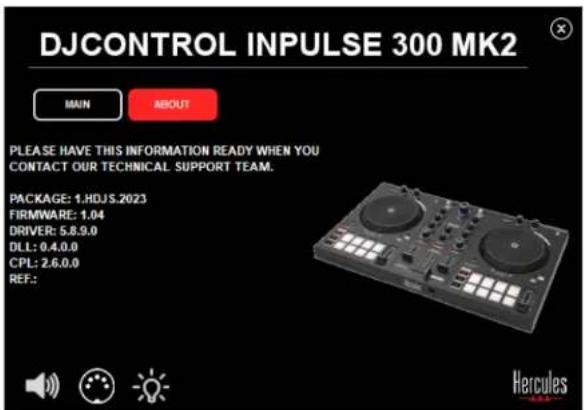
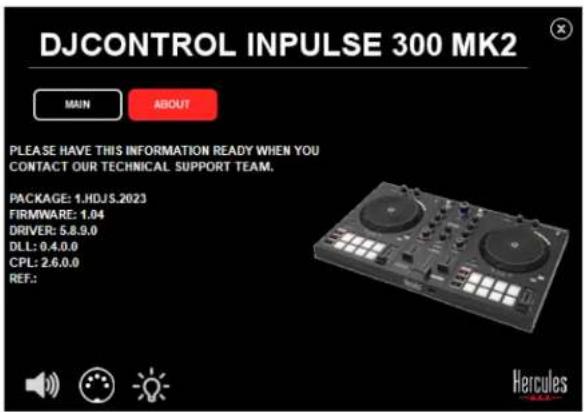
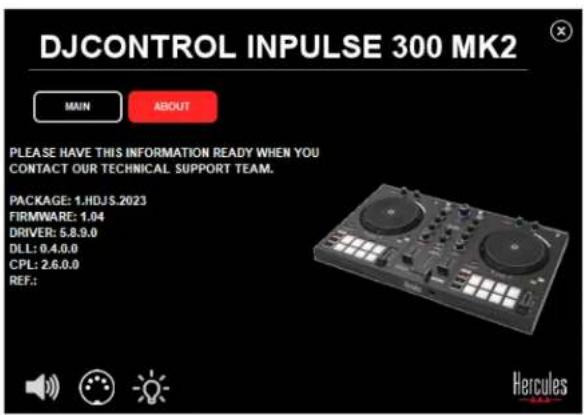
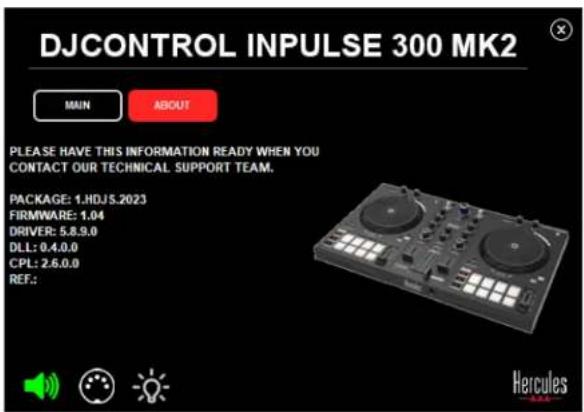
The control panel also allows you to access this information and display the driver versions installed on your computer in the ABOUT tab. Have this information ready if you need to contact Hercules' technical support.
8. Demo mode
This mode is available when you connect your product to a USB power supply, and is used in-store, in particular. In this case, the product is not operational but is in demo mode: a demo sequence lighting up the controller's different lights keeps repeating itself.
9. FAQs
1. No sound is coming out of my headphones.
Make sure that you have connected your headphones at the front of the product, as your product is equipped with a multichannel sound card preconfigured to work with DJUCED® and Serato DJ Lite.
By default, the two monitoring buttons are enabled when the software is first launched. You can then select either deck that you want to listen to on your headphones, or use the MASTER button to listen to the results of your mix.
2. The sound on my headphones is distorted.
Make sure that your headphones feature a TRS connector (standard headphones) and not a TRRS connector (headphones + microphone).
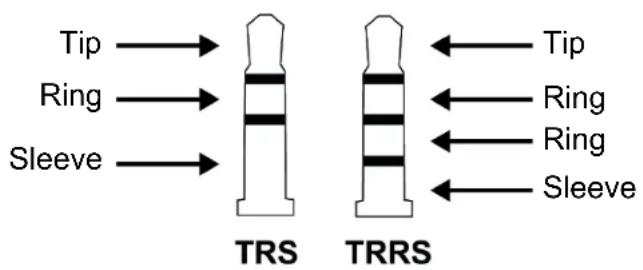
TRRS connectors are not compatible with the DJControl Impulse 300 MK2 controller.
3. No sound is coming out of my speakers.
Make sure that you have connected your speakers to the RCA connectors at the back of the product, as your product is equipped with a multichannel sound card preconfigured to work with DJUCED® and Serato DJ Lite.
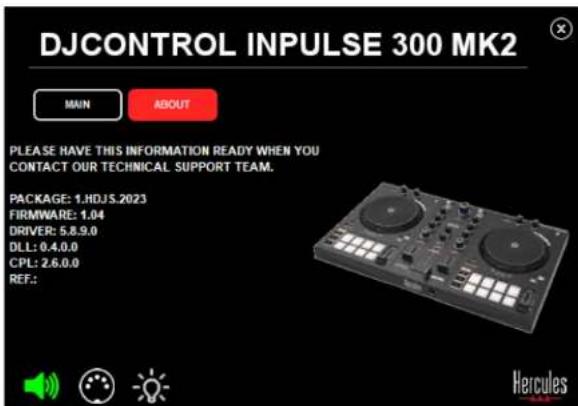
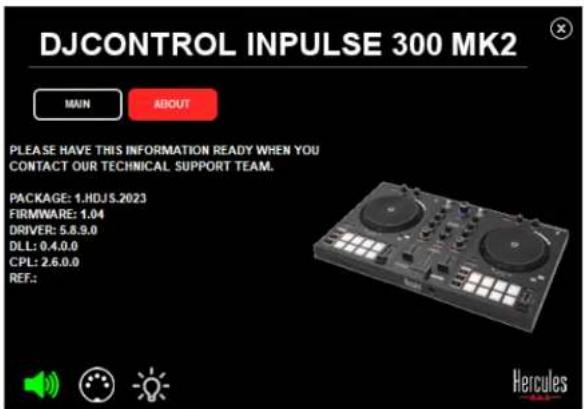
In order to test (without using DJ software) whether the audio interface of the DJControl Inpulse 300 MK2 controller is producing sound, you can display the DJ controller's control panel. Click the ABOUT tab, and then click the speaker icon. The icon turns green when sound is being played.
4. No sound is coming out of my laptop computer speakers.
Your product is equipped with a preconfigured multichannel sound card. If you want to use the speakers built into your laptop computer:
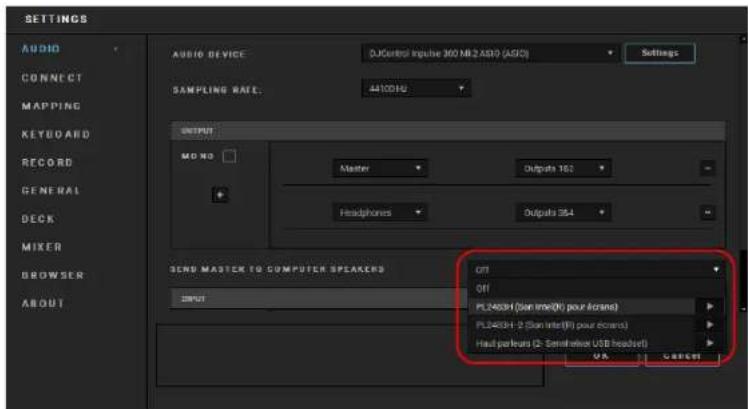
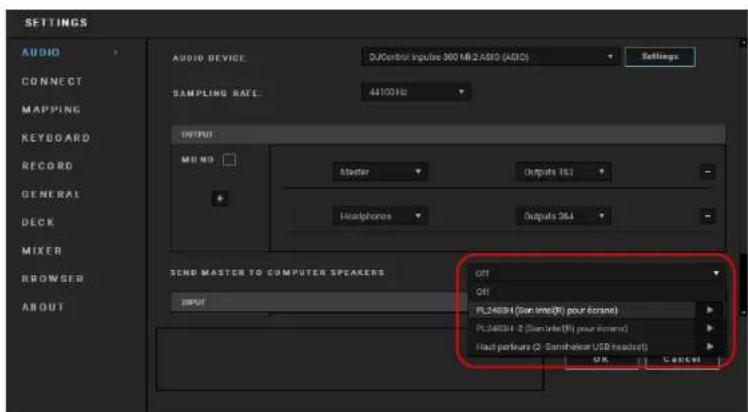
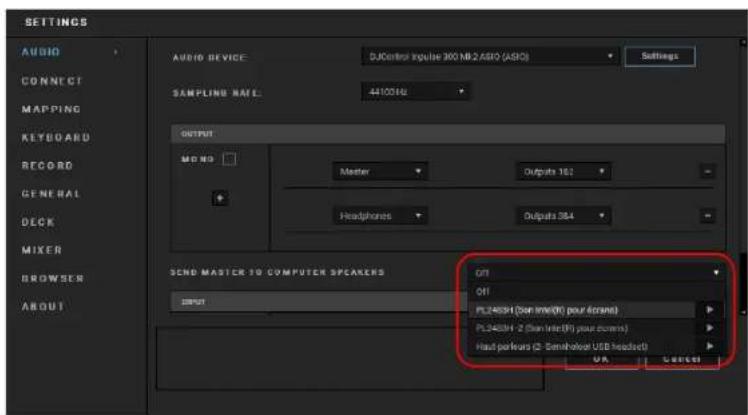
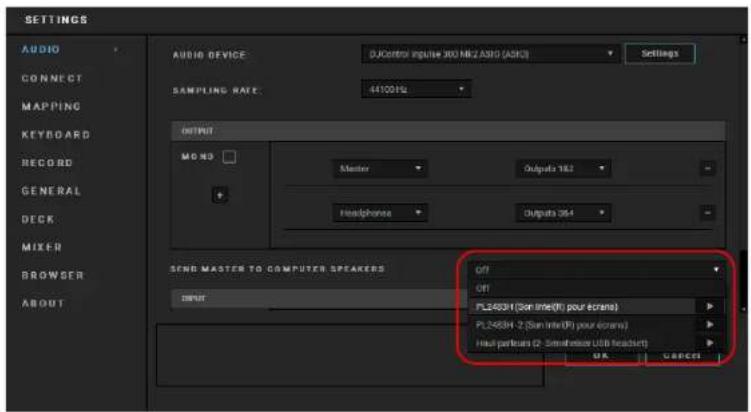
- In DJUCED®, access the settings and tick the SEND MASTER TO COMPUTER SPEAKERS option.
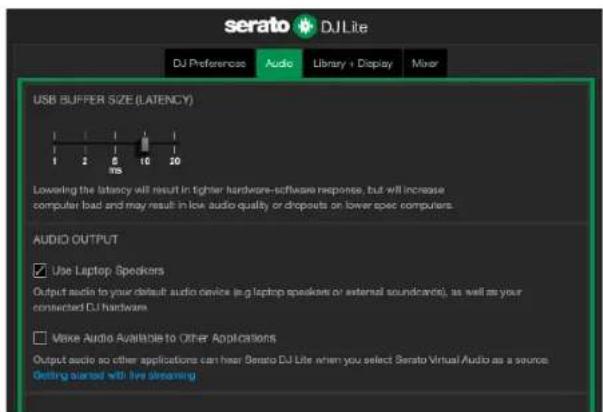
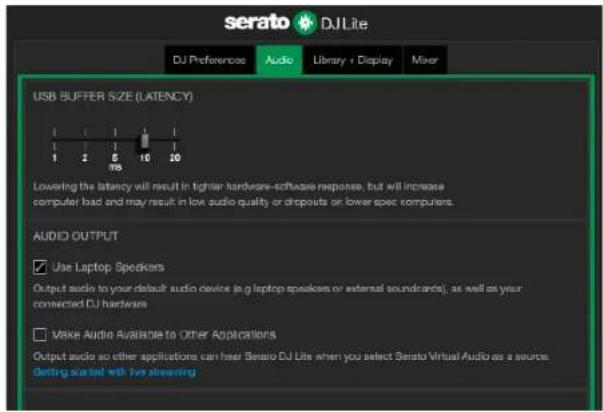
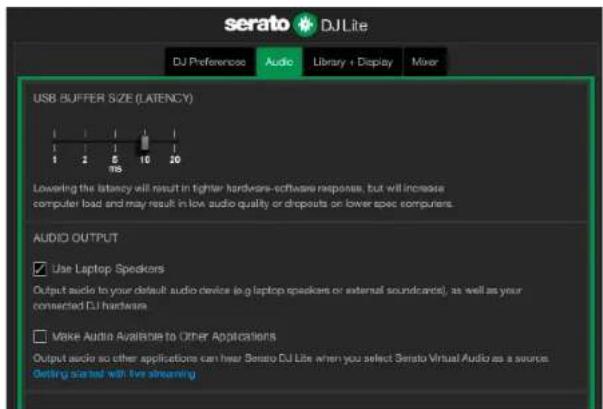
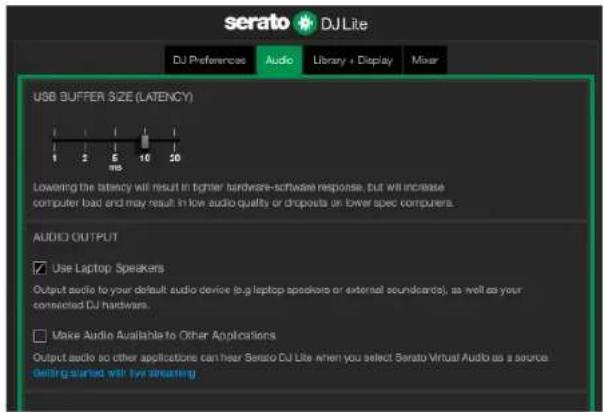
- In Serato DJ Lite, access the settings, open the Audio tab and tick the Use Laptop Speakers option.
5. No sound is coming out of my headphones, or my laptop computer speakers.
By default, the sound comes from the Master output for speakers, and the headphones output. It is therefore normal that no sound is coming out of your laptop computer.
If you want to use the speakers built into your laptop computer:
- In DJUCED®, access the settings and tick the SEND MASTER TO COMPUTER SPEAKERS option. You must connect your headphones to the DJControl Impulse 300 MK2 controller.
- In Serato DJ Lite, access the settings, open the Audio tab and tick the Use Laptop Speakers option. You must connect your headphones to the DJControl Impulse 300 MK2 controller.
In order to test (without using DJ software) whether the audio interface of the DJControl Inpulse 300 MK2 controller is producing sound, you can display the DJ controller's control panel. Click the ABOUT tab, and then click the speaker icon. The icon turns green when sound is being played.
6. I can't connect my multimedia speakers to my DJControl Inpulse 300 MK2.
If your speakers' connectors differ from the connectors on the DJControl Inpulse 300 MK2, you can use a dual RCA to 1/8'' / 3.5 mm mini-jack adapter (not included) or any other adapter format corresponding to your speakers.
You can also connect your speakers to the headphones output and route output 1-2 to output 3-4 by pressing the MASTER button.
7. Is the DJControl Impulse 300 MK2 controller compatible with an iPad or iPhone?
No, the DJControl Impulse 300 MK2 controller is not compatible with an iPad or iPhone. It only works with a PC or Mac.
Hercules
TECHNICAL SUPPORT
https://support.hercules.com



Trademarks
Intel® and Intel Core™ are trademarks or registered trademarks of Intel Corporation.
Microsoft® Windows® 10/11 is a registered trademark or trademark of Microsoft Corporation in the U.S. and/or in other countries.
Mac® and macOS® are trademarks of Apple Inc., registered in the U.S. and other countries.
Serato, Serato DJ Lite and Serato DJ Pro are registered trademarks of Serato Audio Research Limited.
The DJUCED® brand and DJUCED®'s graphic elements are the property of Guillemot Corporation.
ASIO is a trademark of Steinberg Media Technologies GmbH.
All other trademarks and trade names are hereby acknowledged in this document and are the property of their respective owners. Illustrations not binding. Contents, designs and specifications in this document are subject to change without notice and may vary from one country to another.
Copyright
No part of this manual may be reproduced, summarized, transmitted, transcribed, stored in a retrieval system, or translated into any language or computer language, in any form or by any means, electronic, mechanical, magnetic, manual, via photocopying, recording, or other, without the express written consent of Guillemot Corporation S.A.
DJUCED® and Serato DJ Lite End User License Agreement
Please read the License Agreement displayed during installation of DJUCED® and Serato DJ Lite carefully.
DJCONTROL INPUT 300 MK2
https://www.djuced.com/downloaddjuced/
(en anglais)
- Serato DJ Lite :
https://serato.com/dj/lite/downloads?systemreq
Dans Serato DJ Lite: ± 8%, ± 16%, ± 50%.

https://www.djuced.com/downloadjuced/
(in Englisch)
- Serato DJ Lite:
https://serato.com/dj/lite/downloads?systemreq
https://support.hercules.com/product/djcontrolinputse300mk2/.
https://support.hercules.com/product/djcontrolinputse300mk2/.
https://www.djuced.com/downloaddjuced/
(in het Engels)
- Serato DJ Lite:
https://serato.com/dj/lite/downloads?systemreq
De software downloaden
DJUCED®
| Deck 1 / deck 2 | Stem |
| Pad 1 | Zang |
| Pad 2 | Melodie |
| Pad 3 | Bas |
| Pad 4 | Drums |
Sampler-modus
| Deck 1 / deck 2 | Sample |
| Pad 1 | Ahh! |
| Pad 2 | Hey You! |
| Pad 3 | Oww! |
| Pad 4 | Yeah! |
Scratchen
https://support.hercules.com/product/djcontrolinputse300mk2/.
https://support.hercules.com/product/djcontrolinputse300mk2/.
Firmware-update
https://support.hercules.com/product/djcontrolinputse300mk2/.
https://www.djuced.com/downloadjuced/
(in inglese)
- Serato DJ Lite:
https://serato.com/dj/lite/downloads?systemreq
uirements#system-requirements (in inglse)
In DJUCED: ±6%, ±8%, ±10%, ±12%, ±16%,
± 20% ± 25% ± 33% ± 50% ± 100%
In Serato DJ Lite: ±8%, ±16%, ±50%.

https://support.hercules.com/product/djcontrolin pulse300mk2/ (in inglese).
https://support.hercules.com/product/djcontrolinputse300mk2/.
https://support.hercules.com/product/djcontrolinputse300mk2/.
https://support.hercules.com/product/djcontrolinputse300mk2/.
https://www.djuced.com/downloaddjuced/
(en ingles)
- Serato DJ Lite:
https://serato.com/dj/lite/downloads?systemreq
https://support.hercules.com/product/djcontrolinputse300mk2/.
https://support.hercules.com/product/djcontrolinputse300mk2/.
https://support.hercules.com/product/djcontrolinputse300mk2/.
Pads. 37
Modo Hot Cue. 39
Modo Loop 40
ModoSlicer. 42
ModoStems. 43
Modo Sampler. 44
Modo 5. 45
Modo 6. 47
Modo 7. 48
Modo 8. 49
Fazer scratch. 51
Filtros 52
6. PLACA DE SOM MULTICANAL 53
Saía Master para altifalantes (saía 1-2) ...53
Saia de auscultadores (saia 3-4) 54
7. COMPATIBILIDADE 55
USB Audio / USB MIDI 55
Painel de controlo ASIO e Windows®……55
Atualização do firmware. 58
8. MODO DEMO 59
9. PERGUNTAS FREQUENTES 60
DJCONTROL INPULSE 300 MK2
https://www.djuced.com/downloaddjuced/
(em inglês)
- Serato DJ Lite:
https://serato.com/dj/lite/downloads?systemreq
No DJUCED: ±6%, ±8%, ±10%, ±12%, ±16%, ±20%, ±25%, ±33%, ±50%, ±100%.
No Serato DJ Lite: ±8%, ±16%, ±50%.

- Visit: https://www.djuced.com/hercules (em
ings).
-
Transfira e instale o DJUCED®
-
Visite:
| Deck 1 / Deck 2 | Amostra |
| Pad 1 | Ahh! |
| Pad 2 | Hey You! |
| Pad 3 | Oww! |
| Pad 4 | Yeah! |
Fazer scratch
https://support.hercules.com/product/djcontrolinputse300mk2/.
https://support.hercules.com/product/djcontrolinputse300mk2/.
https://support.hercules.com/product/djcontrolinputse300mk2/.
O pail de controlo también lhe permite aceder a esta informacao e visualizar as versoes dos controladores instalados no seu computador no separator ABOUT (ACERCA DE). Tenha esta informacao consigo caso necessite de contactar o suporte técnico da Hercules.
8. Modo Demo
https://www.djuced.com/downloaddjuced/
(Ha aHrnnckom 3bIKe)
- Serato DJ Lite:
https://serato.com/dj/lite/downloads?systemreq
uirements#system-requirements (Ha aHJIINCKOM 3bIke)
- MaKcImaJIbHaJa BbIXOJHaЯ MoUHOCTb = 5 dBU @ 1 kΩ
- THD+N @ 1 kHz < 0.01%
- Pa3peWeHne = 24 6nT
- YacToTa nnckpeTn3aun = 44 KΓ
BbIXoHa HayuHnKn (BbIXo3-4) chepe3 oDIn 3,5-MM cTepeofoHnueckn pa3bem mini-jack:
- Маримальна Выховая мошноctь = 5 dBU Дпя 32 Ω @ 1 kHz
- THD+N @ 1 kHz < 0.017%
- Pa3peuHne = 24 6nt
- YacToTa nnckpeTn3aun = 44 KΓ
3.Функции
Ouua unopmaue
- TpaHcnpTHbIe KhoNKn
2.Фeйдер Temma - YnpabJIeHne neTJMaMn
- ΘΦΦeKTB1
5.Джог - Peximbl Bocnpon3BeDeHnA
- Пэды и ржимь!
- Θлем entbl ynpabJIeHЯ BbI6Opom TpeKOB
- CekncaBedeHna
- MoHITOpINr, rPOMKocTb n Beatmatch Guide
- Мншер
Декu
1. TpaHcnpMhIe KhONKU
SHIFT — История B COMБИHAЦЯС Дугим Кногам. Нар pinep:
-SHIFT+IN—dennTnnHy nettnHaDba.
- SHIFT + FX ON — MeHЯET эффеКТ, ВыбpaHHынВ спиcke.
Kypcop BocnpOn3BedeHna Ha MeCTO TOckn Cue.
- Ecnn TpeK CTOIT Ha nay3e, To KHONka CTaBNT TOky
Cue B TOM MecTe, Ha KOTOPOM OCTaHOBJIeH TpeK.
- Ecπn TpeK BOCnpoN3BOJNTcR, TO BOCnpoN3BeJeHne
OCTaHaBJIbAeTcI N KypCop DaHHoJ DeKn
nepemeaetcBTokyCue.
EcnTouka Cue eune He co3daHa, To KhoNk CAUE
OCTaHaBJIbAeT BOCpON3BeDHeNc I
yctaHabnBaet Tocky Cue B MeCe paCnoIoxeHna
Kypcopa BocnpOn3VeJeHnIa.
-CUE + PLAY- B npniloxeHn DJUCED
nepemeeaet Kypcop BocnpOn3BedeHnB TOnky
Cue n npoJoxaET BocnpOn3BeDeHne TpeKa C 3Toi
TOUKN.
-SHIFT+CUE:
B DJUCED - nepemeaaet Kypcop B hauaio
TpeKa N OCTaHaBJIbBaet BOCnpON3BeDEHne.
B Serato DJ Lite — nepemeaet kypcop B
HaçaIIO TpeKa I BKNIOUOaE T BOCnPOn3BVeIeHne.
Bocnpon3BepeHne/Play3a - BKJIIOUaET
Bocnpon3BeJeHne IJI N CTaBNT TpeK Ha nay3y.
2. Φεύθερ memna
Фeндер Temma yctaHaBnBaet CKOpOCTb
Bocnpon3BeDeHnTpeKa,peryIupyu YncNo BPM.
- Ecni noDbHHTb peryIaTOp BBepx, Temn 3aMeIJIeTcI.
- Ecnn IOBnHyb Bn3, Temn yckopraetca.
- Ecπn Φeɪdερ cTOnT nOcepeDInHe, To TpeK BOCpɒn3BODntcR C nCXoDHoN cKOpocTbH. Ppr ΘOM CBETNTcR 3eJIeHbI CBETODnOД.
Korda yHKzna Beatmatch Guide BkIoueHa,
Bn3yaJIbHbIe noDcKa3Kn TEMPO noka3bIbaIoT, HxKHO JI
CMECTITb peYyIaTOp Temna BBepx INN BHN3, YTO6bl
3aMeIITb IIN yckOpITb TpeK. EcII KpaChbIe
Hdikatopbl B opMe cTpeJOK He CBetTcra, 3TO
O3Haayet, yTo Ha o6eHX deKaX TpeKn BocnpOn3BODaTcR
C OДИнAКOBБIM TemПOM.
DOnoJIHnTeIbHyIO INΦopMauHO O ΦyHKmN Beatmatch
Guide Bbl haideTe B pa3deJe Beatmatch Guide Ha
ctpaHnue 25.
IN/OUT — NO3BOJRAET BKNIOHTb peTNI, Bbl6paB TOnKy Hauana (IN) n ToUky OkOHuaHnA (OUT) zIKJIuHOrO BOCpOu3BeDeHnA.
-SHIFT + IN — DeJIIT dIINHy aKTINBHOJ nTeTIN Ha dBa.
-SHIFT+OUT—ymHOxKaETdINHyakTnBHOJneTnHaDba.
Korda netraakTnBHa (BkIIOyeHa):
Haxmte IN (KhONka HauHet MraTb) n NOBepHnte Jxor, YTO6bl NpeMeCTNTb Haayano neTIN.
- Haxmte OUT (KhoNka HaHcET MnraTb) n NOBepHnte dxor, yTo6bl nepemecTb OKOHuaHne neTNI.
ЧтобыnpерватьцИКПИHоe BOCnрОЗБeДeHne,нжмITE LOOP ON.
4. ΘΦΦeKmbI
Panaelb 3ΦΦeKToB N03BOJЯeT ynpaBJIaTb 3ΦΦeKTaMn Ha DeKe.
-KhONka FX ON BkJIIOyaeT N BBKJIIOyaeT aΦΦeKT.
-Pyuka DEPTH perynipyeT nHTeHcNBHOCTb 3000
-Pyuka BEAT perylnpyet npoJoxTeIbHocTb cnKna 3ofoekTa, cINxpoHn3npoBaHHoro C My3bIKoN.
- SHIFT + FX ON — MeHЯET эффеКТ, ВыбpaHHынВспUCKe.
YTO6bI OTO6pa3NTb NaHeJIb 3ΦΦeKToB:
-BDJUCED- 电KHTe FX
-B Serato DJ Lite - ueJKNITE FX.
5.Джоа
Джor NO3BOJЯТ поЕмьсг NO Tpeky, упаВлгы BOCПОИЗБЕДEHМ И CКрETЧИТь.
-SHIFT+Q—n03B0JЯETn3MeHHTbUkayTeMna.
B DJUCED: ± 6% ± 8% ± 10% ± 12% ± 16% ± 20% ± 25% ± 33% ± 50% ± 100%
B Serato DJ Lite: ± 8% , ± 16% , ± 50% .

B Serato DJ Lite HeT cyHKuIN dNcKpeTn3aun.
B Serato DJ Pro Функця диckpeTn3aци ectb.
SLIP BKNIOUaET NIN BbIKIOUaET peKIM Slip. B peKIMe Slip KypCop BocnpoN3BeDeHnA DeKn npOJXaET DBNrATbCnB FOHOBOm peKIMe, NOKA Bbl npIMEnYeTe 3ΦΦeKT NIN NtTNO, CTABNTe TOnKy Cue NII INI NOJIb3yETecb JxGOrAMn. Korda Bbl npeKpaUaete npIMHeHne 3ΦΦeKTA, BocnpoN3BeDeHnE BO306HOBJIaETcC TTOMeCTa, B KOTOPOM HaxOJINc8 6bl TpeK, ecn6bl BOCpOuN3BeDeHnE npOJXaNoCb.

B Serato DJ Lite HeT peKIma Slip.
B Serato DJ Propekm Slip ectb.
7. Πάδύν ὄρεχύmbί
KhoNk npexnMoB n03BOJraHOT NCIOJIb3OBAtB (BKJIouaTb N BblKJIIOUaTb) Do BOCbMn peXnMOB.
Чтобbl BKЛЮЧИТь OCHOВ"HОй ржIM, наЖмITE HOT CUE, LOOP, SLICER ИПS SAMPLER.
Pyuka FILTER* NO3BOJnEYCTaHOBnTb YAcTOTbl JIy DBycSTOPOHHeRo ΦnIbTp a (high-pass n low-pass).
10. Mohumopuha, apomkocmb u Beatmatch Guide
Pyuka rpomkoctn MASTER pergunpyet rpomkoctb MInKca, 3Byaueero B Baushx KOJohkax.
PyuKa rPOMKocTn HEADPHONES peryInpyeT rPOMKOCTb 3ByKa B HayShnKax.
MonhtopnHr — BbI6Op nCTOuHnKa 3ByKa, KOTOpbI Bbl 6yndeTe cIbIaTb B HayuHnKax.
-6ydt BocnpOn3BODntbC 3ByK C DeKn 1 nnn 2.
- MASTER - 6ydeT BocnpOn3BODNTbCRA MINKC (TaK, KaK erO cnblaT OkpykaIOUne).
BEATMATCH GUIDE BkIIOUaET IIN BbIKIOUaET
CBETOBbIe NOdCKa3KN, NOMORAIOUne HAcTpaNBaTb Temn i CInHxPOHN3INPOBaTb CeTKN pNTMOB DByx TpeKOB. Ha KaJDoi DeKe eCTb YeTbIpe KpaCHbIe CTpeJIKN.

DJUCED® onpepejareT odHy n3 DeK kaK BeDyUO DeKy cInxpoHn3aUu (Master Sync), a dpyruo — KaK BeDomyo DeKy. KpacbIe cTpeJIKN 3aRopaHTcY TOnbKO Ha BeDOMoN DeKe, TaK KaK 3Ta DeKa CJIeDyET TemNy BeDyUeJ DeKn cInxpoHn3aUu.
Serato DJ Lite He onpeJeIeT BeDyUyO Deky CnHxpoHn3aUu. KpacHbIe cTpeJIkn 3arOpaHTcra Ha oBeHX deKax.
-Визуалыные подсаЗКI TEMPO: ecnno Onda n3 DBvX KpaCHbIX cTpeJIOK, paCNoLOJKeHHbIX cnpaba OT peRyJIaTOPa Temna,CBETNTcY,3TO O3NaUaET, YTO Temn (T.e. KoJIuYeCTBO ydapOB B MmHyTu) TpeKa, BOCpON3BOIDMOrO Ha daHHOJ DeKe, OTJIuHaETcY OT Temna dpyroJ DeKn.
CTpeJKN yka3bIBaHOT HnpaBHeHne, B KOTOpOM HyxHo nepemeuatab pyky feydepa, UTo6bl COIacOBaTb TEMN BOCpON3BOIDMOrO TpeKa C TeMnOM Ha npyroJ DeKe.
O EcIn CBETITcB BepXHra CTpeJka, HxKHO cDINHyTb pykY fepa BBepx. 3To I03BOJNT 3aMeIITb TEMn.
O EcIn CBETITcHnXnY CTpeJIka, HxKHO cDnHyTb pyuKy fepa Bn3. 3To n03BOJNT yCKOpNTb Temn.
O Ecnn CTrpeJIKN He CBETTcY, 3TO O3HaayeT, YTO TEMn DeKn COBnaJaE T C TEMNOM dpyroJ DeKn.
-Bn3yaJIbHbIe noDcKa3Kn BEAT ALIGN: ecnn
CBeTnTbCra OdHa n3 DByX KpaChbIX CTeJOK,
pacnoIooKeHHbIX IOd JxKOrOM, 3TO O3HaayaET, yTO
ceTKa pHTMOB TpeKa, BOCpON3BOIDMOrO Ha 3TOI
Deke, He cHxpoHn3npoBaHbI C cETKO pNTMOB
dpyroJ deKn.
CtpeIyka3bIBaOT HnpaBHeHne, B KOTOpOM
HyXHO IOBopauNBaTb JxKOr, YTo6bl
CINHXPOHn3npoBaTb CETKN pNTMOB.
O EcIn CBETITcIeBaI CTpeIka, HxKHO NOBepHyTb JxKOr IIO YacOBoi CTpeIke. 3To yCKOpNT BOCnPoN3BeDeHne.
O EcIn CBeITcI npabA CTpeJIka, HxKHO NOBepHyTb JxKOr IpOTINb YacOBOn CTpeJIKN. 3To 3aMeIINT BOCnpon3BeDeHne.
O Ecnn CTpeJKN He CBeTЯTCa, 3TO O3HaayaeT, UTO CETKIN PNTMOB DByX DeK CnHXPOHn3nPoBAHbl.
11. Mukwep
Фeйдер Гомкови* NO3BOJЯET NaCTpONTb ГOMKOCTb Dekn.
Boliometp noka3bIbaeT ypoBeHb aydnocnHaJa Ha dekax 1 n 2, a TaKxe ypoBeHb BbIXoHoro MasterCnHaJa dIЯ KOJHOK.
Kpocceep no3BOJareT co3daTb nepexoM meKdy DBym TpekAm, yBeJIuHBA rPOMKOCTb OndHn I3 DeK, npn 3tOM yMeHbIaR rPOMKOCTb dpyroJ deKn.
- Ecni cDInHyTb Kpoccpeiep Do ynpa BneBO, Bbl 6yTe CblIaTb TOnbKO TpeK Ha Deke 1.
- EcIn cDInHyTb KpOcCpeiDeep Do yNopa BnpaBO, Bbl 6yndeTe CblIaTb TOnbKO TpeK Ha Deke 2.
- Ecni noctabnTb pyk Ky kpoccpeiepa nocpeiHe, Bbl 6yTe cIbIaTb oBa TpeKa OndHOBpeMeHNo.
* FyHKuuu KHOIOK Ha deekax 1 u 2 coeanaom.
Pa3beMbl

12.Фирмehнь пот пасиpenя Hercules
13. Master-Быхов дя колонok (Выхов 1-2)
14. NopT USB-B 2.0
15. BbIXoДдЯHayшнкOB(BbIXo3-4)
IopTpacupeHnno3BOJAreT NOdkNIOUaTb DOONHHTeNbHbIe akceccyapbl.
Master-BbIXoI dIy KOLOHOK (BbIXoI 1-2) N03BOJRAET NOdkNIOUaTb aKTHBHe IINHAMIKI.
ΦopMaT: 2 x RCA (Cinch)
Nopr USB-B 2.0 NO3BOJRAET NOdKJIouHTb KOHTPOJIpep K KOMNbIOTepy.
BbIXoD dIyUHnKOB (BbIXoD 3-4) NO3BOJRAET NOdKNIOHTb HayuHnKn dJIa MOHITOpINHra TpeKOB.
ΦopMaT: cTepeopa3bEm MmHn-Джek 3,5 MM
4. YctaHOBka
IodKIOUyeHue
https://www.djuced.com/hercules (Ha
aHrJIInCKOMra3bIKe).
2.СkaаиTe n yctaHOBiTe npnIoXeHne DJUCED
- OTKpoITe cTpaHnUy
https://support.hercules.com/product/djcontrolin
pulse300mk2/ (Ha aHrnnckom r3bike).
4.СkaаиTe n yctaHOBnTe NaKeT dpaIbepOB ДЯ onepaUNHOHcNTeMbI BaUeRO KOMNbHTepa.
macOS®: HDJCSeries Mac
Windows®: HDJCSeries PC
Ha komnbHep c OC Windows Heo6xOdmo
yCTaHOBNTb dpaIbepbl, yTO6bl nCIOJIb3OBaTb
KoHTpOJIpep DJControl Inpulse 300 MK2В ржИмe
ASIO, KOTOpBIn CHnJXaET 3aIepKky (B cpaBHeHn
cpeximom WASAPI) n B ceIOM OTJIuHaETcA
60Jee BbICOKOcTa6nIbHOCTbIO.
ДраиВеры ТаЖе ДaHOT Bam BO3MOxHOCtB
npoTeCTnPoBaTb KOHTpOJIpep DJControl Inpulse
300 MK2 n npOBepntb BepcHIO npoWNBKn KaK Ha
KOMnbIOTepe C Windows®, TaK n Ha KOMnbIOTepe C
macOS®.
OtkpoetcmeHIO Settings (HaCtpoN).
BbI6epnte BknaKy Audio (Aydno), yTo6bl Bbl6paTb 3ByKObyIO KapTy n Ha3HaHTb BblXOdbI dIyHNIKOB IN KOJHOHOK.
CtahdapthbIe hactpoiKn IJy Windows®:
-
Audio device (AydnoocpoIcTBO): DJControl
Inpulse 300 MK2 ASIO (ASIO) -
Output (BbIXoI):
Master: Outputs 1&2
○ Headphones: Outputs 3&4
CtahapThbIe HacTpoKn IJma macOS®:
-
Audio device (AydnoocpoIcTBO): DJControl
Inpulse 300 MK2 -
Output (BbIXoJ):
Master: Outputs 1&2
○ Headphones: Outputs 3&4

ПользуйТecь уебнikuМи Hercules DJ Academy, BCTpoEHhbIMN B DJUCED . Их можно OTКpbITb, шелкhyB 3HaYOK
Yue6HnKn TakaKe DoCTynHbI 3Decb, Ha YouTube-KaHaJe Hercules DJ.
Serato DJ Lite
1.ОткpoиTe
CTpaHnUy
https://serato.com/dj/lite/downloads (Ha anHrJIiNCKOMЯ3bIKe).
2.Сачайтей установпг Serato DJ Lite.
3. ПосмOTРпЕ мATEриаЛы на саTe https://support.hercules.com/product/djcontrolin pulse300mk2/ (на aнглійСКОМ р3ыKE).
4.СkaаиTe n yctaHOBnTe NaKeT dpaIbepOB ДЯ onepaUNHOH CnCTeMbI BaUeRO KOMNbHTepa.
macOS®: HDJCSeries Mac
Windows®: HDJCSeries PC
Ha komlbTepeC OC Windows Heo6xOIMO yCTaHOBnTB dpaIbEpbI, YTO6bl NcNoIb3OBaTb KOHTpOJIep DJControl Inpulse 300 MK2 B peKIme ASIO, KOTOpBI CHIXKaET 3aIepXkUy (B cpaBHeHIn C peKIMOM WASAPI) n B ZeIOM OTIIuHaETc8 6OJIee BBICOKOI CTa6NlNbHOCTbIO.
Pexim Stems B Serato DJ Lite no3B0JraT pa3dJIntb TpeK Ha cheTbIpe napTIN (BOKaI INHCTpyMeHTbl) -- Ix N Ha3bIBaHT stems.
B Serato DJ Lite He npeducmoTpeH peKIM 5 (TonePlay).
Serato DJ Pro B coyeTaHn C pIaRInHom Pitch'n Time no3B0JraT POnb3OBaTbcr peKIMOM Pitch Play, KOToPbI pa6oTaET NO TOMy Je npHcNpy, YTO n peKIM TonePlay.
В пиложенny DJUCED peжIM 5 COOTBeTCTByeTpexmy TonePlay. 3TO T peжIM nO3BOJraE MeHЯrToH BocnpOn3BedeHn Taokn Hot Cue.
Bo3MOxHbIe DeiCTBnJ:
https://support.hercules.com/product/djcontrolinputse300mk2/.
OboeHue npouku
ПршИВka KOHTрОЛпepa OБНOBЯETСАВТOMATУCHEКN.ДЯЗTORO Heo6xODnmo yCTaHOBITb ДpaIВерbl HerculesN BblONHITb INHCTpyKcIMn Ha 3KpaHe. OБНOBJIeHneПршИВКПрOn30ДeT aBTOMATUcheKN.
https://support.hercules.com/product/djcontrolinputse300mk2/.
Ha naneu npablenna MoXHo TaKxe NocMOTpeTb HOpMauno 6 yCTPOcTBe n BepnO dpaBepOB, UCTaHOBJIeHHbIX Ha KOMnbIOTepe -- IJRA 3TOrO HxHNo nepeiTn Ha BknaDky ABOUT (OB YCTPOcTBE). ByTe rOtOBbl COo6uNTb 3Tu INOpMauno, eCIn Bam Heo6xOdImo CBra3aTbcra Co CnyXboi TexHnuecko noDepeKKn Hercules.
YcTpoIcTBO OCHaUeHO 3apaHee HaCTpoEHHO 3ByKOBOI
kapToI. EcII Bbl XOTITE NcNoJIb3OBaTb DInHaMnK,
BcTpoEHHbIE B HOyT6yK, cDeJaIte CpeDyIOUe:
-ВприлloxениDJUCED—OTKpoIteHaCTpoIKNu yctaHOBNTeФлaxokSENDMASTERTO COMPUTER SPEAKERS(OTNPABJIrTb MACTEP-CHHAJI HAДINHAMIKN KOMMbIOTEPA).
- BПриложенSerato DJ Lite - otkpоite NaCTpoiKn,перейдnte Ha BKJaKy Audio (Aydno) n yctaHOBnte Флaxok Use Laptop Speakers (ИсноьзOBaTb ДИнamКn HOyT6yka).
5. Hem 38yka b Hayushukax uju Ha duhamukax Hoym6yka.
No ymoJIuHaHIO 3ByK noCTyNaeT Ha Master-BbIXoD dIЯ KOnOHOK n Ha BbIXoD dIЯ HayShnKOB. IOnToMy OTCyTCTBne 3ByKa Ha dInHaMnKax HoYt6yKa - 3TO HOpMaJIbHo.
EcJIb Bbl XOTnTe nCNoIb3OBaTb DnHaMnK, BCTpoeHHbIe B HoyToyK, CdeJaIte CneDyUoUee:
-ВприлобеньиDJUCED—OTKpoIteHaCTpoiKnI yctaHOBInTeФлaxokSENDMASTERTO COMPUTER SPEAKERS(OTNPAJBITb MACTEP-CINHJIHAДIHAMIKI KOMMbHTEPA).BbIdoJxHbI IOdKJIIOHTb HayuHnKnK KOHTpOJIpepy DJControl Inpulse 300 MK2.
-В пиложенSerato DJ Lite - otкpoite NaCTpoiK,перейдnte Ha BknaIky Audio (Aydno) n UcTaHOBInTe Флaxok Use Laptop Speakers (ИспОЛьЗOBaTb ДИнамКи НоуТбуka).БыdoЛжны ПОДКПЮчТь HayшнКи K KOHTpoJInepy DJControl Inpulse 300 MK2.
Чтобл поверпь (6e3 пиюженя дя дджени), BOCPON3BODIT ЛаудноHTepфс KoHTpoJIpepa DJControl Inpulse 300 MK2 3Byk, можно ВыВecТи на Зкран панель упавлениkoHTpoJIpepa. ПерейдITE Ha BKlaIky ABOUT (OB YCTPOICTBE), a 3aTeM ΜeЛКHITe 3HaUOK KOLOHKn. 3HaUOK CTaHOBNTcR 3eJIeHbIM, KOrda BOCPON3BODITcR 3ByK.
6. He polnyaemcnoeknouymb mylbmumeduHbIe KOJOnKu K DJControl Inpulse 300 MK2.
Ecni pa3bembl BaIINX KOLOHOK OTIIuHaOTcra OT pa3bEMOB Ha DJControl Inpulse 300 MK2, Bbl MoKeTe NcNoJIb3OBAtB nepexoHNK c DByx RCA Ha 3,5 MM MInn-IXeK (He BXoINT B KOMPNeKT) nII INIOboI dpyroI nepexoHNK, COOTBeTCTByUoIiN φOpMaTy BaIINX KOJHOHOK.
BbI TaKKe MoKTe NOdKJIIOuHTb KOJIOHKn K BbIXOy JJIa HayShnKOB I HaPpaBNTb BbIXoJ 1-2 Na BbIXoJ 3-4, Haxab KhONky MASTER.
7.Соьмec mum lu konmpoJIpe DJControl Inpulse 300 MK2 c iPad u iPhone?
HeT, DJControl Inpulse 300 MK2 He COBMeCTnM Hn C iPad, Hn c iPhone. Oh pa6oTaET TOnbko C PK nIi Mac.
Hercules
TEXHnueCKa IOpIePJKA
https://support.hercules.com

Toprobles mapk
Intel® n Intel Core™ RNAJHOTCA 3apeHCTpnpOBaHHbIMN TOBapHBIMN 3HaKaAMn Intel Corporation.
https://www.djuced.com/downloaddjuced/
(v angličtině)
- Serato DJ Lite:
https://serato.com/dj/lite/downloads?systemreq
https://support.hercules.com/product/djcontrolinputse300mk2/.
https://support.hercules.com/product/djcontrolinputse300mk2/.
https://support.hercules.com/product/djcontrolinputse300mk2/.
https://www.djuced.com/downloadjuced/
(Ingilizce)
- Serato DJ Lite:
https://serato.com/dj/lite/downloads?systemreq
uirements#system-requirements (ingilizce)
DJUCEDda: ±%6, ±%8, ±%10, ±%12, ±%16, ±%20, ±%25, ±%33, ±%50, ±%100.
Serato DJ Lite'da: ±%8, ±%16, ±%50.

-
Audio device (Ses aygiti): DJControl Inpulse 300 MK2
-
Output (Cikis):
Master: Outputs 1&2
○ Headphones: Outputs 3&4

| Deck 1 / Deck 2 | DJUCED® | Serato DJ Lite |
| Ped 1 | Bir beat'in | 1 beat |
| Ped 2 | Bir beat'in 1/8'i | 2 beat |
| Ped 3 | 1¼ beat | 4 beat |
| Ped 4 | 1½ beat | 8 beat |
| Ped 5 | 1 beat | - |
| Ped 6 | 2 beat | - |
| Ped 7 | 4 beat | - |
| Ped 8 | 8 beat | - |

| Deck 1 / Deck 2 | Ton |
| Ped 1 | Original ton |
| Ped 2 | + 1 |
| Ped 3 | + 2 |
| Ped 4 | + 3 |
| Ped 5 | - 1 |
| Ped 6 | - 2 |
| Ped 7 | - 3 |
| Ped 8 | - 4 |
Mod 6

https://support.hercules.com/product/djcontrolinputse300mk2/.
https://support.hercules.com/product/djcontrolinputse300mk2/.
Donanim yazilimiGPCellemesi
https://support.hercules.com/product/djcontrolinputse300mk2/.
https://www.djuced.com/downloadjuced/
https://serato.com/dj/lite/downloads?systemreq
-
SHIFT + Q: umożliwia zmień skali tempa.
-
W programie DJUCED: ±6%, ±8%, ±10%, ±12%, ±16%, ±20%, ±25%, ±33%, ±50%, ±100%.
W programie Serato DJ Lite: ± 8% ± 16% ± 50%

https://support.hercules.com/product/djcontrolinputse300mk2/.
https://support.hercules.com/product/djcontrolinputse300mk2/.
https://www.djuced.com/downloaddjuced/
(英語版)
- Serato DJ Lite :
https://serato.com/dj/lite/downloads?systemreq
https://support.hercules.com/product/djcontrolinputse300mk2/.
https://support.hercules.com/product/djcontrolinputse300mk2/.
軻體更新
https://support.hercules.com/product/djcontrolinputse300mk2/.
https://www.djuced.com/downloaddjuced/
(英语版)
- Serato DJ Lite:
https://serato.com/dj/lite/downloads?systemreq
Hercules DJControl Impulse 300 MK2
- 旦RlI3JrJrJrJrJrJrJrJrJrJrJrJrJrJrJrJrJrJrJrJrJrJrJrJrJrJrJrJrJrJrJrJrJrJrJrJrJrJrJrJrJrJrJrJrJrJrJrJrJrJrJ
Hercules, Serato, DJUCED
-

Hercules DJControl Impulse 300 MK2 凯特號號號號號號號號號號號號號號號號號號號號號號號號號號號號號號號號號號號號號號號號號號號號號號號號號號號號號號號號號號號號號號號號號號號號號號號號號號號號號號號號號號號號號號號號號號號號號號號號號號號號
IMTEI
- DJUCED®: https://www.djuced.com/downloaddjected/ (英语)
- Serato DJ Lite: https://serato.com/dj/lite/downloads?systemrequirements#system REQUIREMENTS
2.2RCAKHTT
- 常用的叠层斜面 = 5 ~dB U @ 1 k
- THD+N @ 1 kHz < 0.01%
- 品種號碼 = 24 B/10
- 生成音 44 kHz
3.5 mm SsTeReO Mni Jck KneTc 1 Ie Tbe Hh HeDfos
叠层(叠层3-4):
- 师大曲斜式 = 5 dBU(32Ω@1kHz的图)
- THD+N @ 1 kHz < 0.017%
- 品種電動機 = 24馬達
- 生成 次元 = 44 kHz
3. 卸體
#