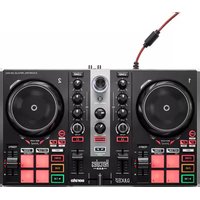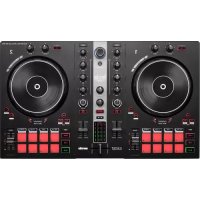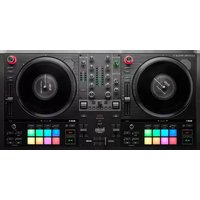
DJControl Inpulse T7 - DJ Equipment HERCULES - Free user manual and instructions
Find the device manual for free DJControl Inpulse T7 HERCULES in PDF.


| Product type | DJ controller with motorized platters |
| Power supply | 18.5 V DC, 2.6 A, 47.9 W power adapter; model A481-1852590D |
| Audio outputs | Master: RCA (unbalanced) and XLR (balanced); headphones: 3.5 mm mini-jack and 6.35 mm stereo jack; balanced 6.35 mm microphone input |
| Audio resolution | 24-bit, 44.1 kHz sampling rate |
| Main features | Motorized platters, Beatmatch Guide with visual TEMPO and BEAT ALIGN guides, Hot Cue, Loop (Auto Loop/Loop Roll), Stems (vocal/instrument separation), Sampler, TonePlay, PadFX, Slicer Loop, BeatJump, Scratch Banks, scratch effect, high-pass/low-pass filters, 3-band EQ, crossfader with adjustable curve, headphone cue, microphone |
| Compatible software | DJUCED® (included), Serato DJ Lite (license included), Serato DJ Pro (trial then purchase) |
| Connections | USB-B 2.0, power connector, Master RCA and XLR outputs, 3.5 mm and 6.35 mm headphone outputs, balanced 6.35 mm microphone input |
| System requirements | PC or Mac with USB port, ASIO drivers recommended for Windows |
| Maintenance and cleaning | Remove protective films from VU meters if desired; always place the felt pad between the platter and the vinyl record; do not force the vinyl record into place; avoid keeping the platter stopped for long periods |
| Safety | Use only the power supply listed in the manual; respect the voltage and frequency indicated on the rating plate; do not exceed 5 kg of pressure on the unfolded feet |
| General information | Serato DJ Lite license included (unlimited use); Plug & Play via USB Audio/MIDI; automatic firmware update via Hercules drivers; control panel for audio, MIDI, LEDs and motorized platter tests |
Frequently Asked Questions - DJControl Inpulse T7 HERCULES
User questions about DJControl Inpulse T7 HERCULES
0 question about this device. Answer the ones you know or ask your own.
Ask a new question about this device
Download the instructions for your DJ Equipment in PDF format for free! Find your manual DJControl Inpulse T7 - HERCULES and take your electronic device back in hand. On this page are published all the documents necessary for the use of your device. DJControl Inpulse T7 by HERCULES.
USER MANUAL DJControl Inpulse T7 HERCULES
natural_image
Black vinyl vinyl vinyl record with dual dials and a colorful CD/DVD interface (no visible text or symbols)DJCONTROL INPUTSE T7
PREMIUM EDITION
natural_image
Black vinyl vinyl triacoter with dual dials and control knobs (no visible text or symbols)TABLE OF CONTENTS
- BOX CONTENTS......6
DJControl Inpulse T7....6
DJControl Inpulse T7 Premium Edition......8
-
TECHNICAL SPECIFICATIONS .....10
-
FEATURES....13
Overview....13
Decks....14
Mixing....32
Connectors....43
- INSTALLATION......46
Connections......46
Downloading the software....49
ASIO and Windows® control panel......78
Firmware update....81
Testing the DJ controller in the control
panel....82
-
DEMO MODE....86
-
FAQs....87
DJCONTROL INPUTSE T7
DJCONTROL INPUTSE T7
PREMIUM EDITION
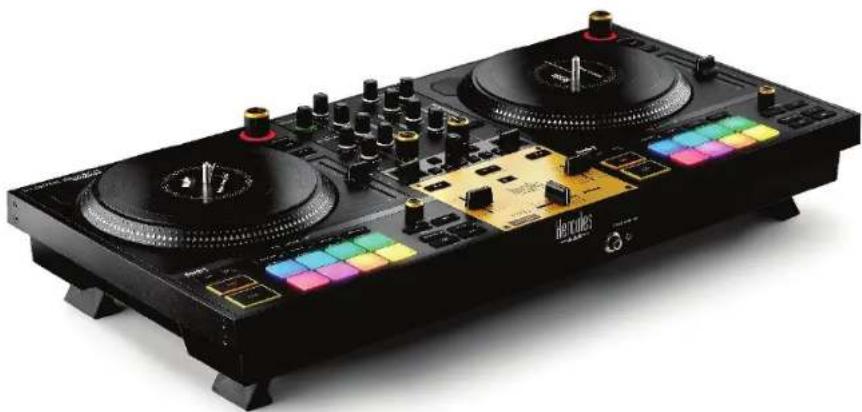
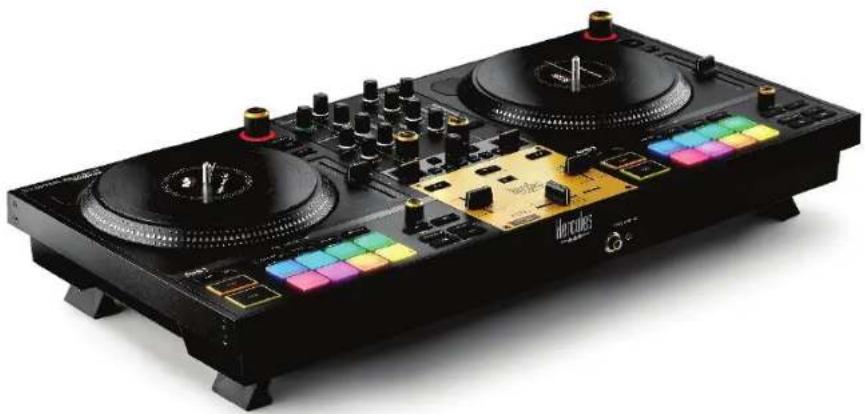
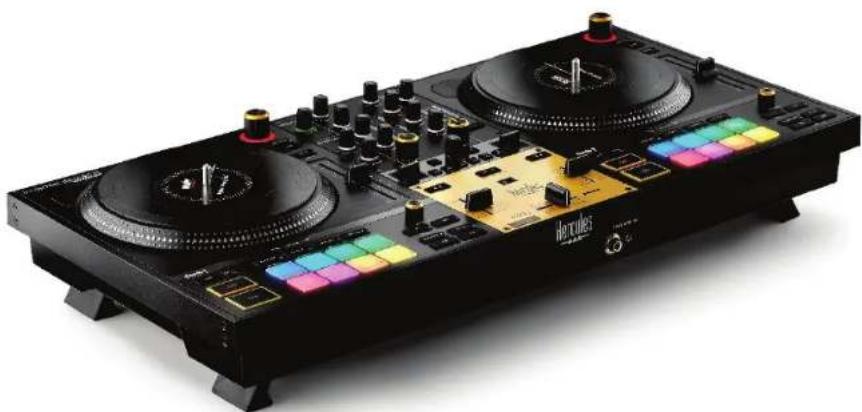
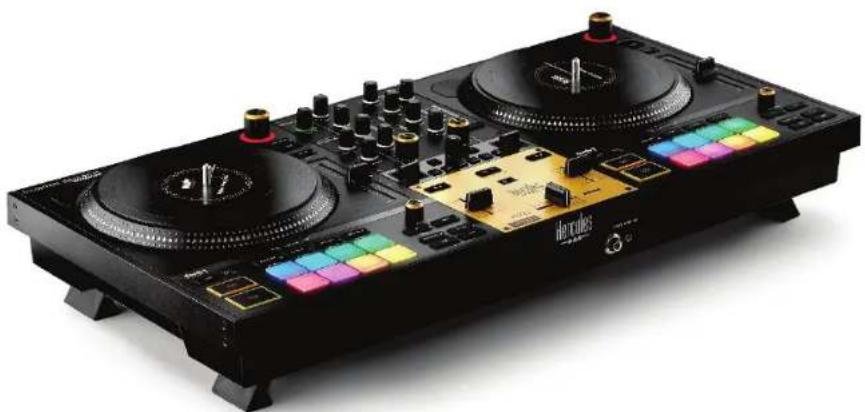
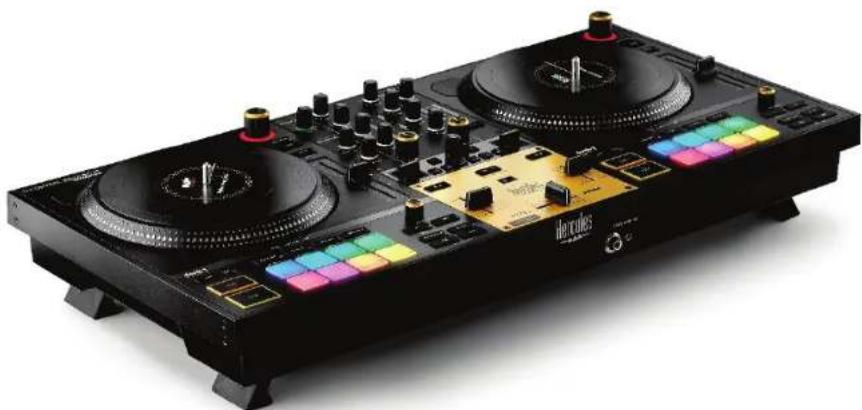
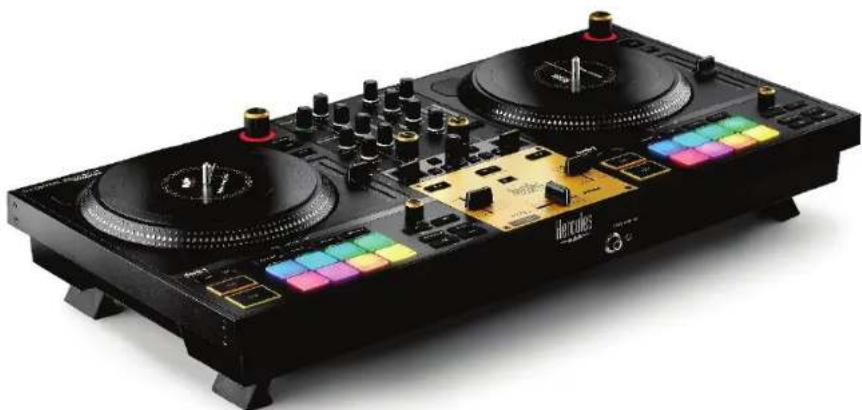
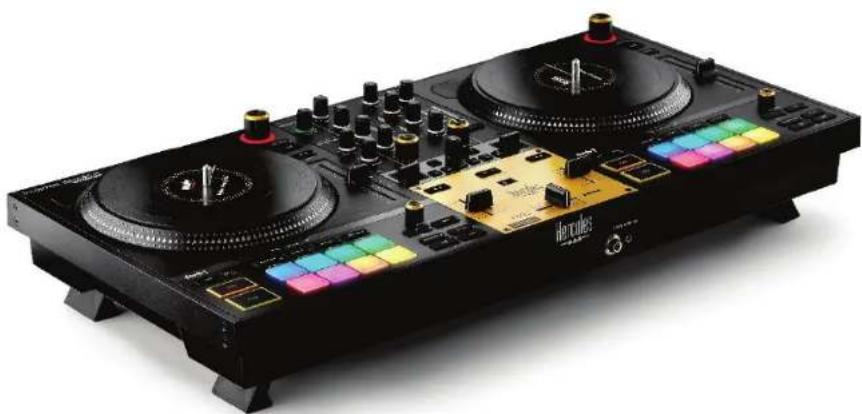
Hercules DJControl Inpulse T7 is a full-featured controller designed to help you master the art of vinyl turntables thanks to two motorized platters, video tutorials and integration of the DJUCED® and Serato DJ Lite software.

Hercules DJControl Inpulse T7 includes a license for Serato DJ Lite, not a license for Serato DJ Pro.
Serato DJ Lite can be used without any time limit.
If you install Serato DJ Pro instead of Serato DJ Lite, Serato DJ Pro will work with your DJControl Inpulse T7 for the duration of a trial period. At the end of this trial period, if you want to continue using Serato DJ Pro, you must purchase a Serato DJ Pro license.

A wide variety of video tutorials are available to help you learn to mix with the Hercules DJControl Inpulse T7 controller:
– Hercules DJ Academy:
○ In DJUCED ^® , by clicking the icon.
○ On the DJUCED ^® website.
- The Hercules Audio YouTube channel.
- The DJ Coach, with courses given by DJ HAPA on Serato DJ Lite.
1. Box contents
DJControl Inpulse T7
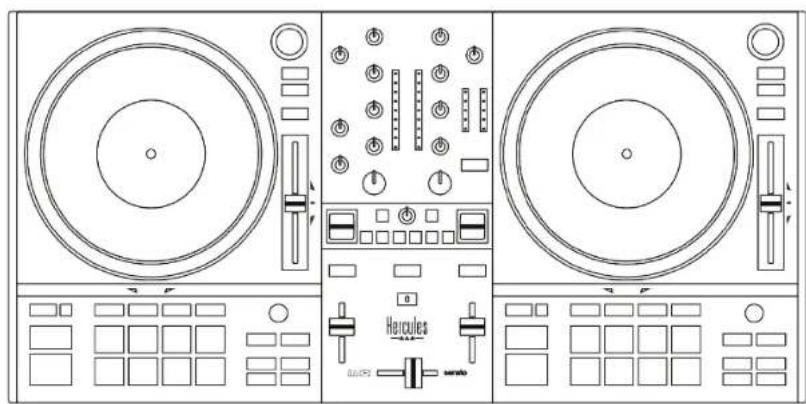
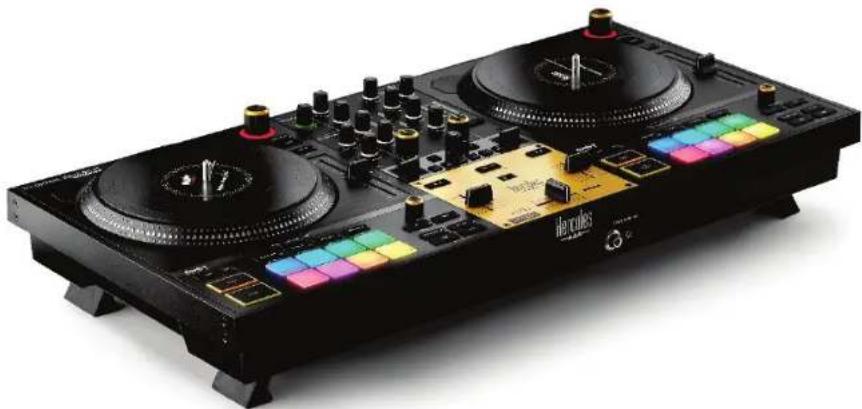
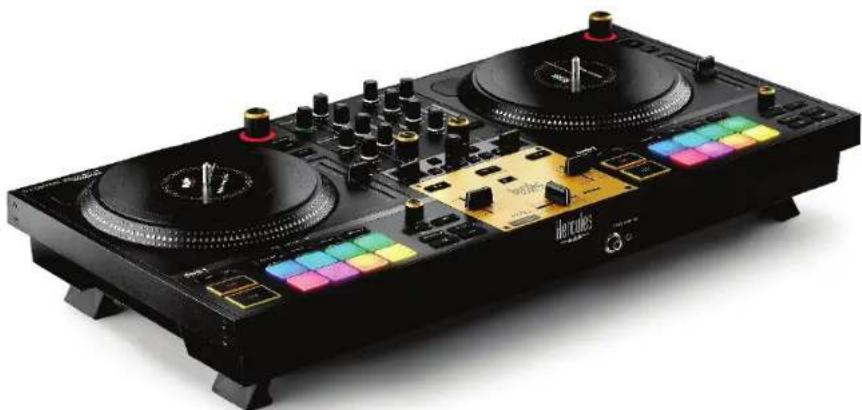
- Hercules DJControl Inpulse T7
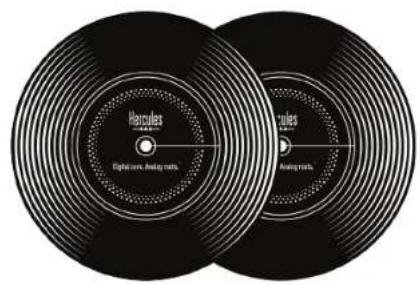
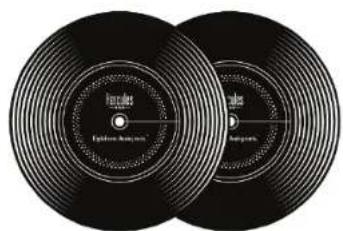
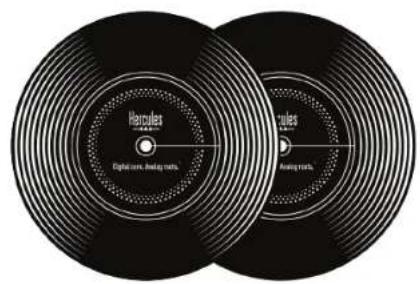
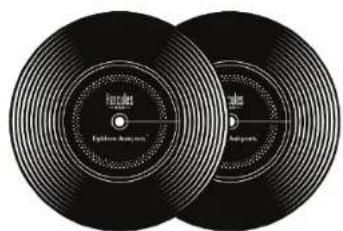
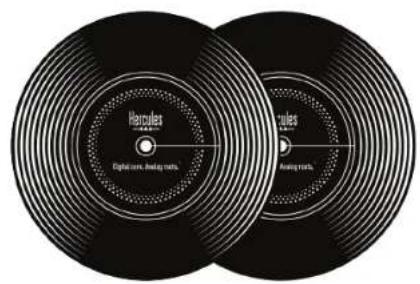
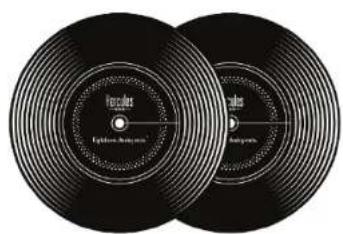
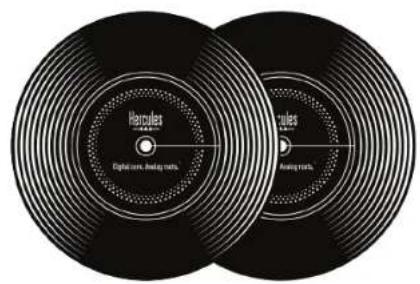
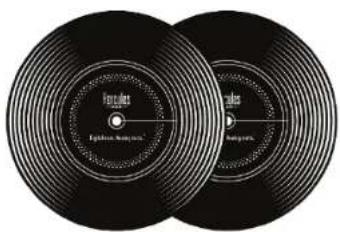
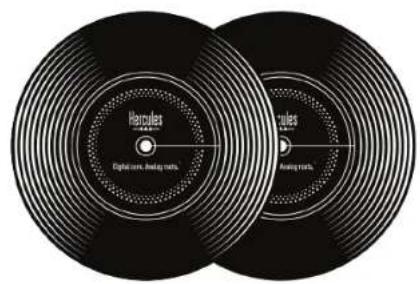
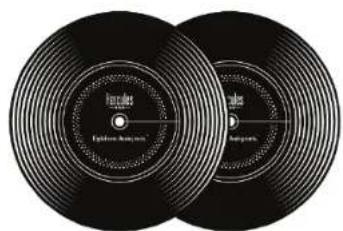
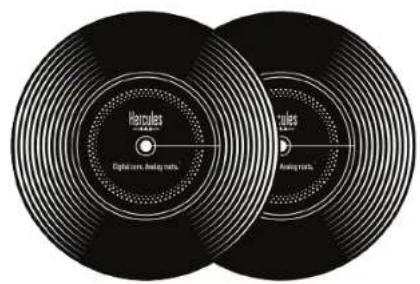
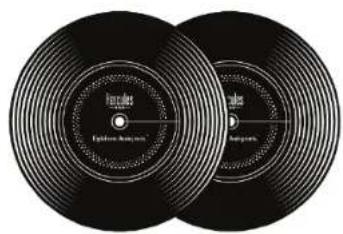
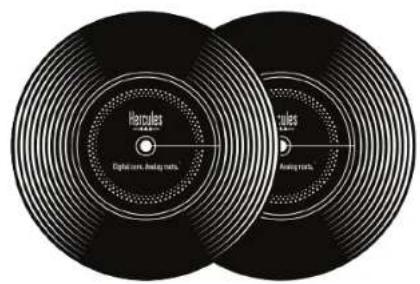
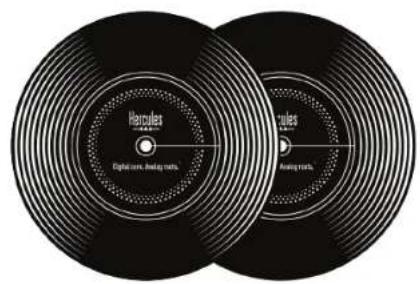
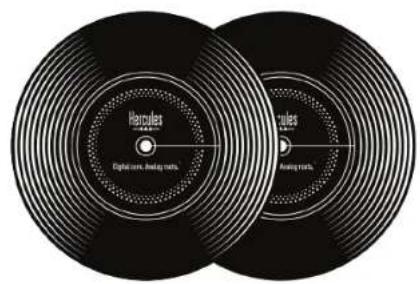
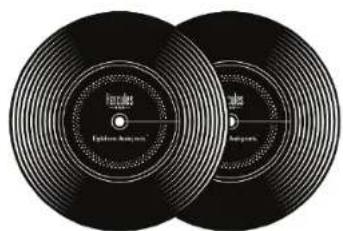
- Two vinyl records (7 inches / 17.8 cm)
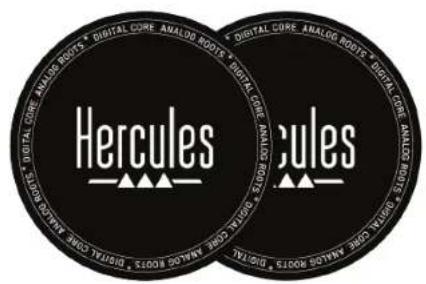
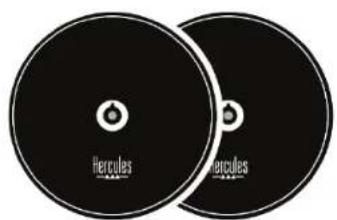
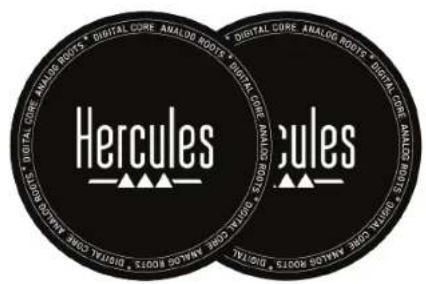
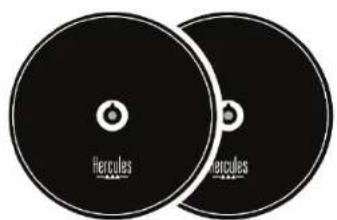
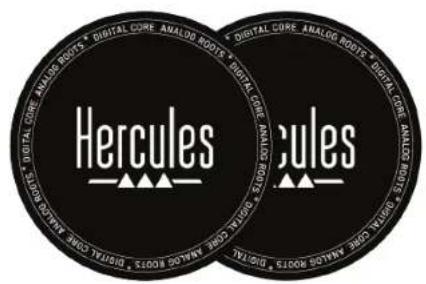
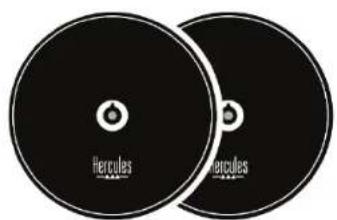
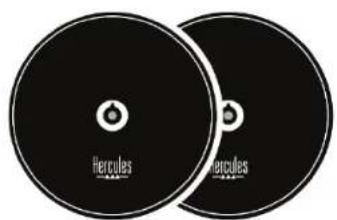
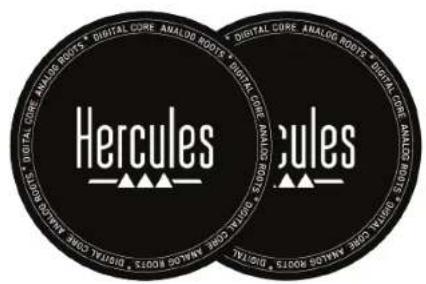
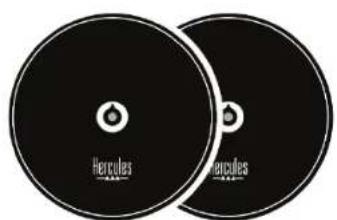
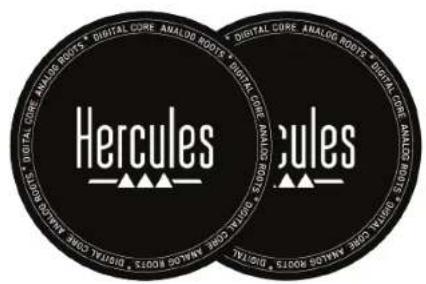
- Two felt slipmats
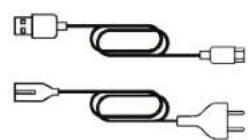
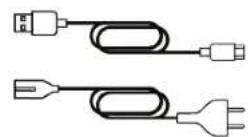
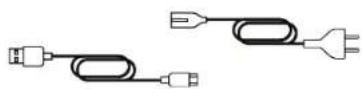
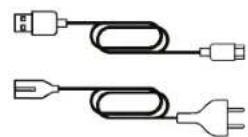
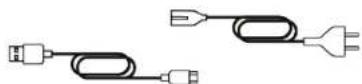
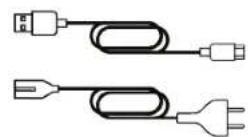
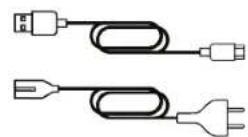
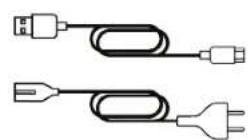
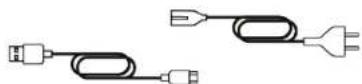
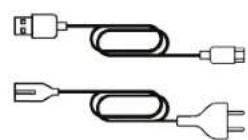
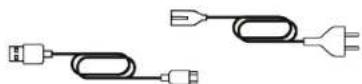
- Braided USB cable
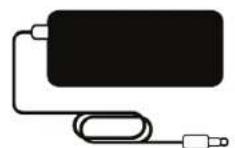
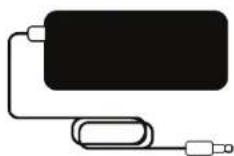
- Removable power cable
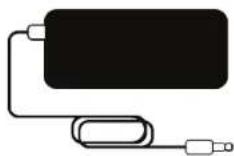
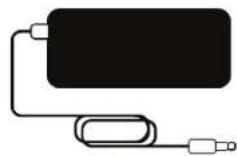
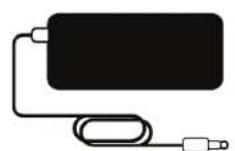
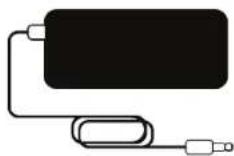
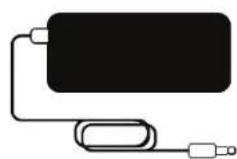
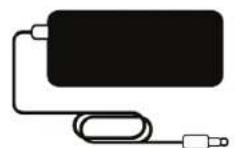
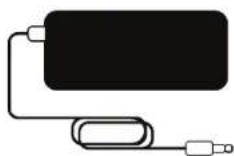
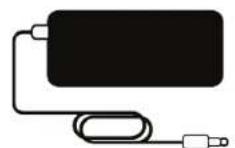
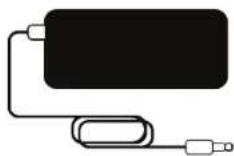
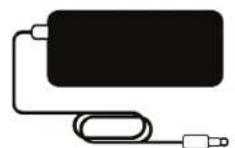
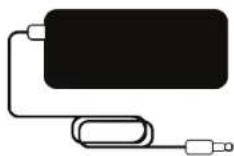
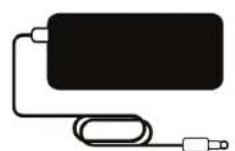
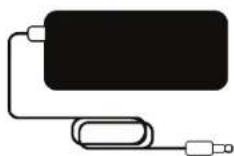
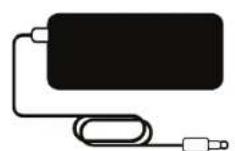
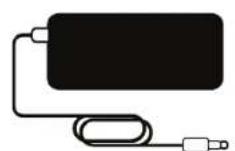
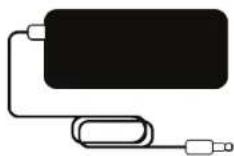
- Power adapter
- Instruction manual
- Warranty flyer
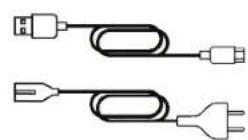
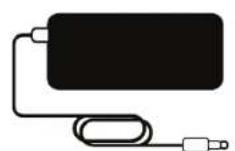


You can remove the protective films covering the VU meters on the Hercules DJControl Inpulse T7 controller. You can also leave the protective films in place, as they do not affect the use of the VU meters.
DJControl Inpulse T7 Premium Edition
natural_image
Line drawing of two vintage dials with control panels and buttons, no text or symbols present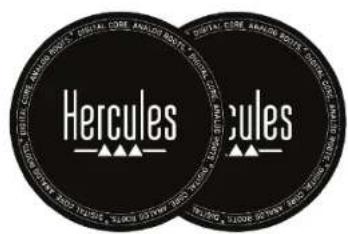
natural_image
Two black vinyl record covers with concentric rings and no visible text or symbols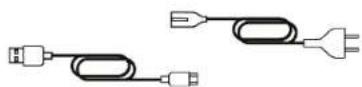
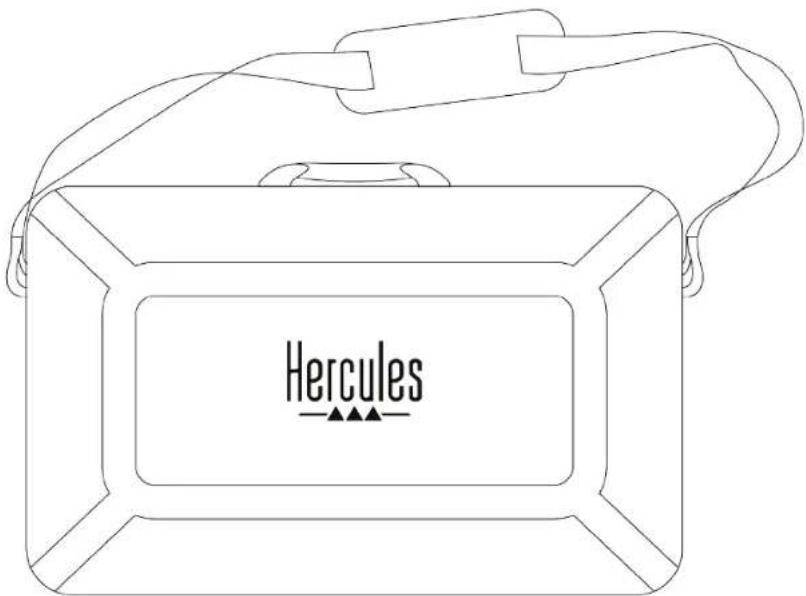
– Hercules DJControl Inpulse T7 Premium Edition
- Two vinyl records (7 inches / 17.8 cm)
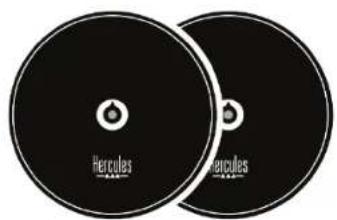
- Two felt slipmats
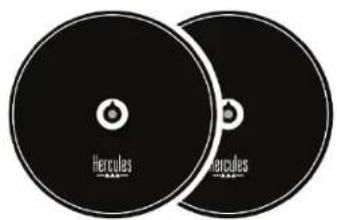
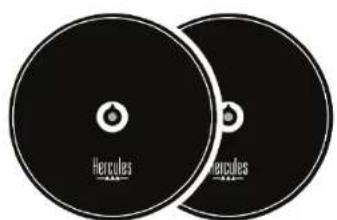
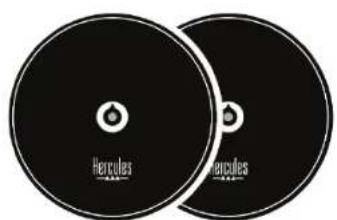
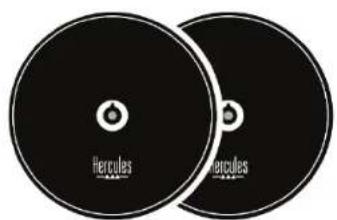
- Two thin felt slipmats
- Braided USB cable
- Removable power cable
- Power adapter
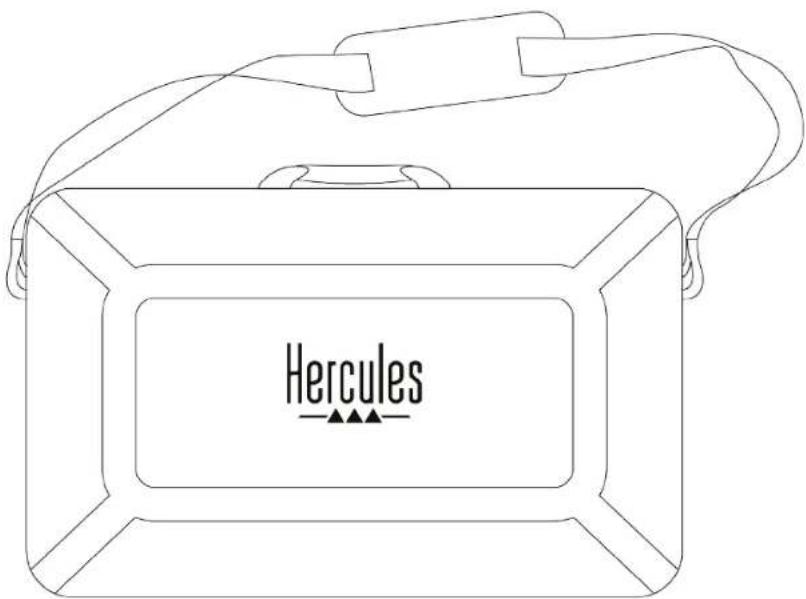
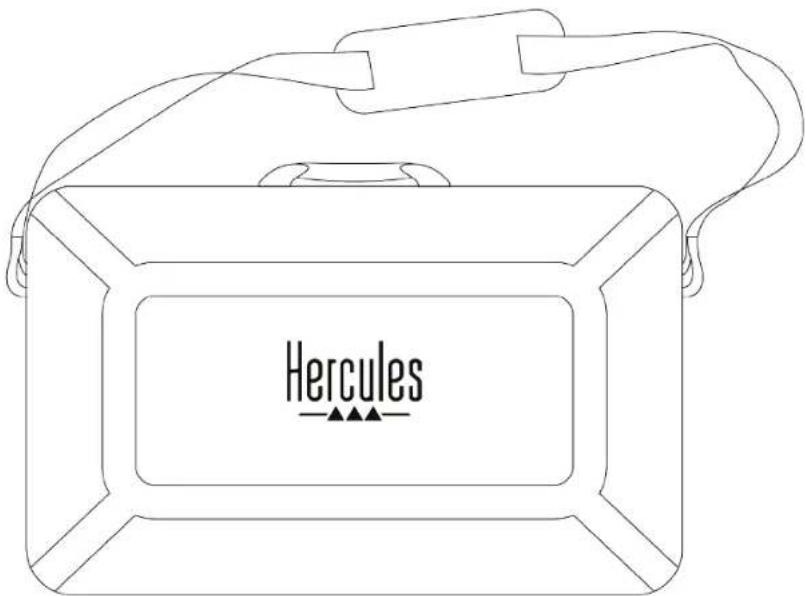
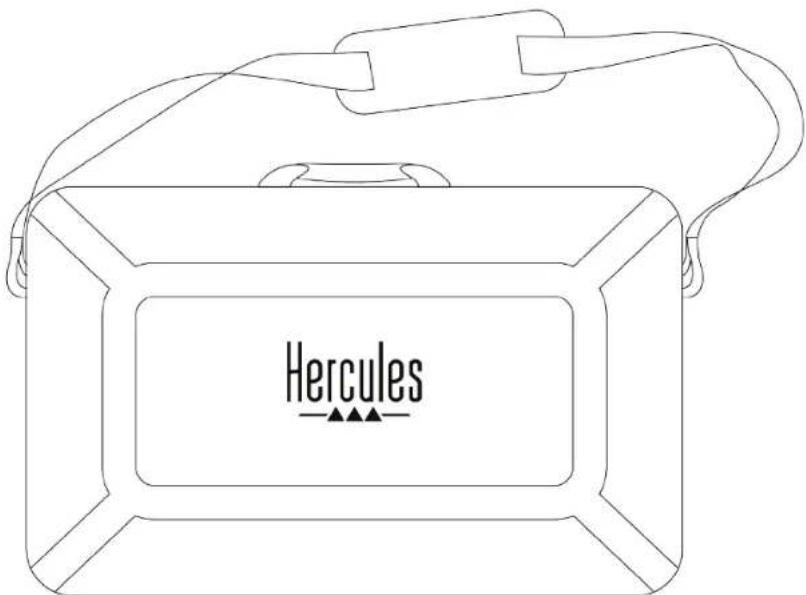
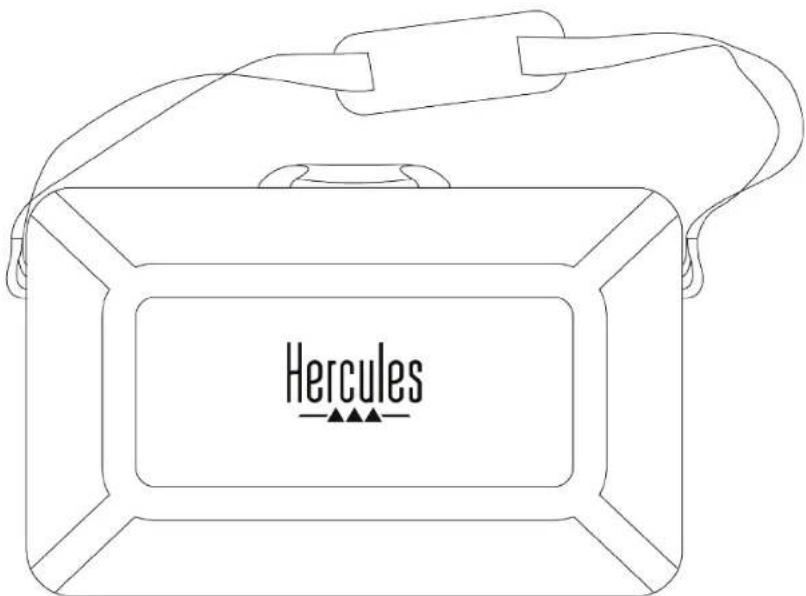
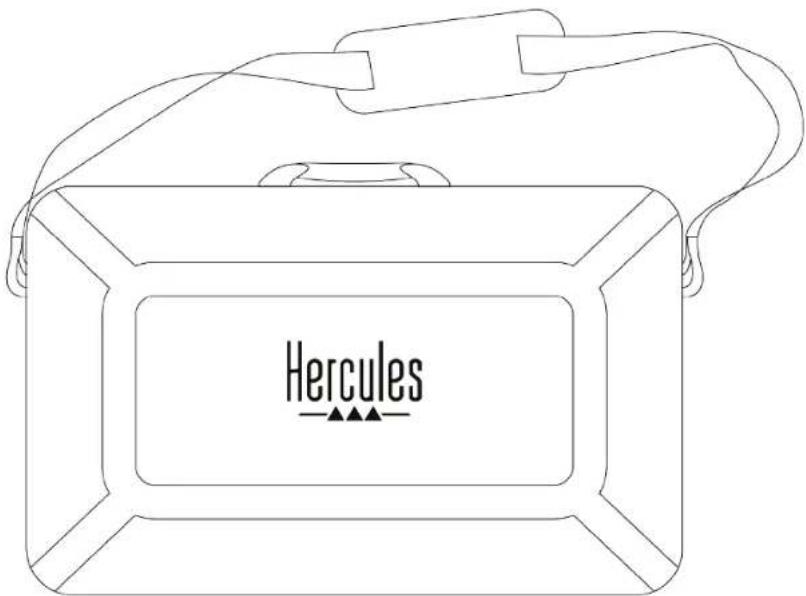
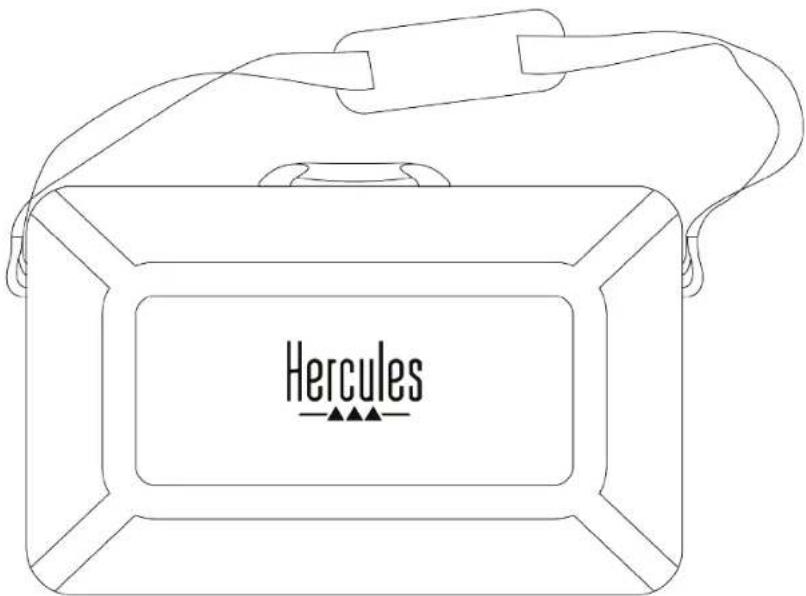
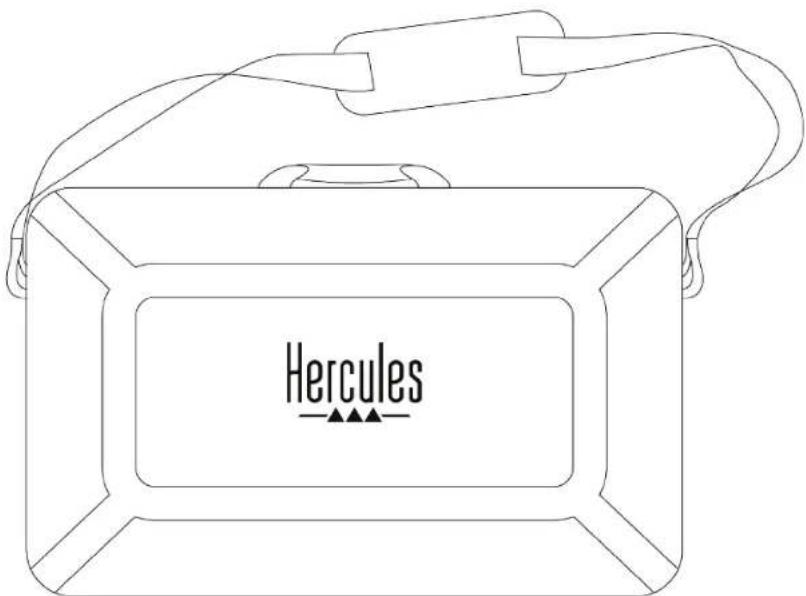
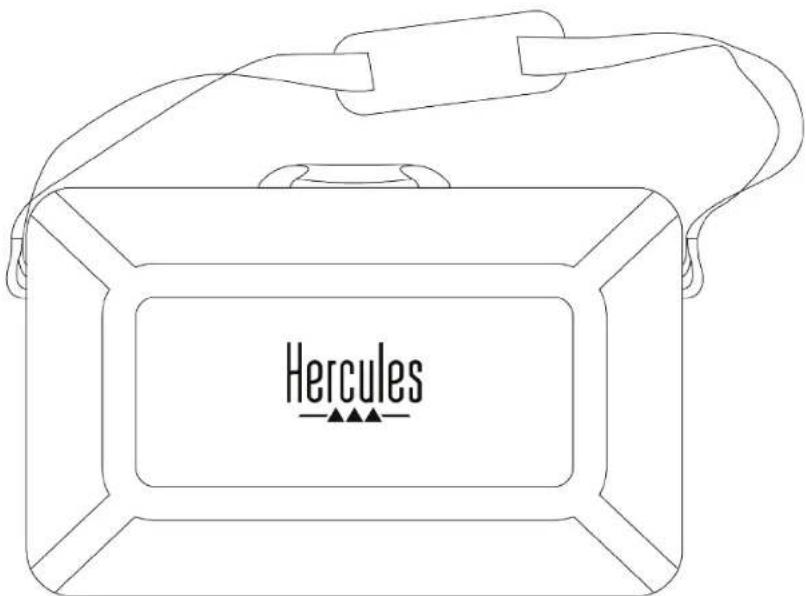
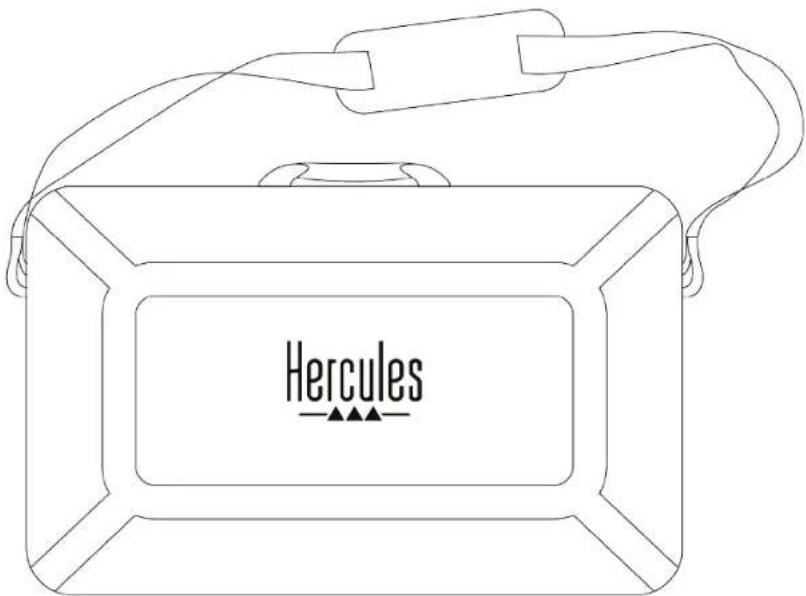
- Carry bag
- Instruction manual
- Warranty flyer

You can remove the protective films covering the VU meters on the Hercules DJControl Inpulse T7 Premium Edition controller. You can also leave the protective films in place, as they do not affect the use of the VU meters.
2. Technical specifications
System requirements:
- DJUCED®:
https://www.djuced.com/downloaddjuded/
- Serato DJ Lite:
https://serato.com/dj/lite/downloads?systemrequirements#system-requirements
Audio outputs:
○ Resolution = 24-bit
○ Sample rate = 44.1 kHz
Master outputs for speakers (output 1-2) via:
- Two RCA connectors:
○ Maximum output power = 7 dBU @ 1 kΩ - Two XLR connectors (balanced):
○ Maximum output power = 13 dBU @ 1 kΩ
Headphones output (output 3-4) via one 1/8" / 3.5 mm stereo mini-jack connector and one 14 " / 6.35 mm stereo jack connector:
○ Maximum output power = 5 dBU for 32Ω @ 1 kHz
Microphone input via one 14 " / 6.35 mm jack connector (balanced)

Power supply
- Only use the power supply indicated in the user manual.
- Only use the power supply with the network voltage and frequency indicated on the power supply's rating plate.

Information regarding the power supply
| Published information | Value Unit | |
| Manufacturer's name or trademark Business number Address | GUILLEMOT CORPORATION S.A.414 196 758 R.C.S. Vannes2 Rue du Chêne Héleuc56910 CarentoirFrance | |
| Model identifier | A481-1852590D | |
| Input voltage | 100 - 240 | V |
| Input AC frequency | 50 - 60 | Hz |
| Output voltage | 18.5 | V DC |
| Output current | 2.6 | A |
| Output power | 47.9 | W |
| Average active efficiency | 87.8 % | |
| Efficiency at low load (10%) | 87.8 % | |
| No-load power consumption | 0.10 W |
3. Features
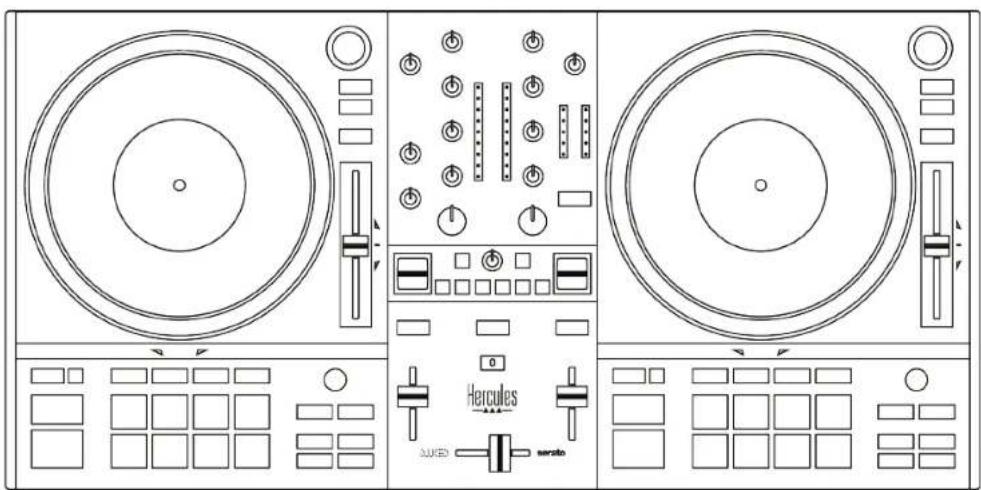
Overview
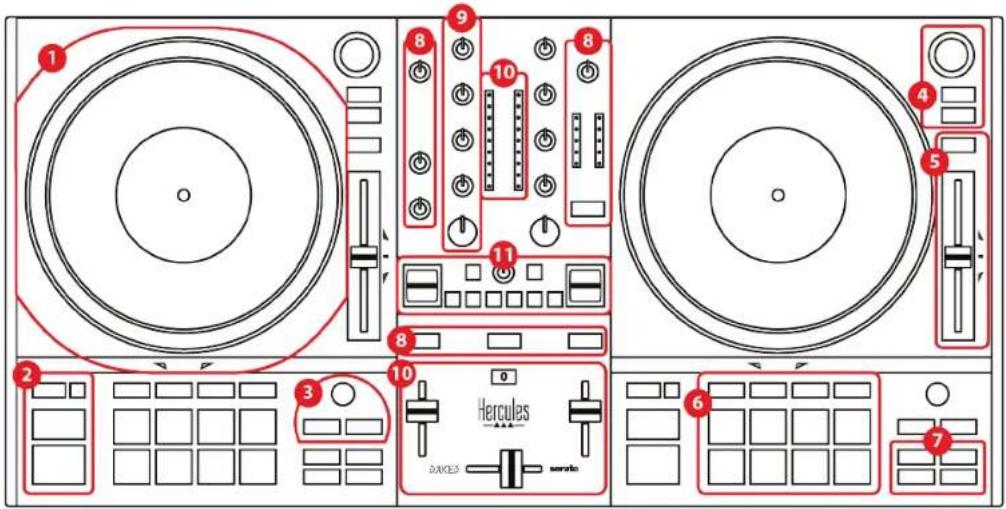
- Motorized platter
- Transport buttons (Play, Cue, Sync, Shift)
- Loop controls (Loop)
- Track selection controls (Browser, Load, Assist./Prep.)
- Tempo fader (Pitch fader)
- Pads and modes
- Playback modes
- Monitoring, volumes (Master, Headphones and Microphone) and Beatmatch Guide
- Mixing section (Gain, EQ, Filter)
- Mixer (Crossfader, volume faders)
- Effects
Decks
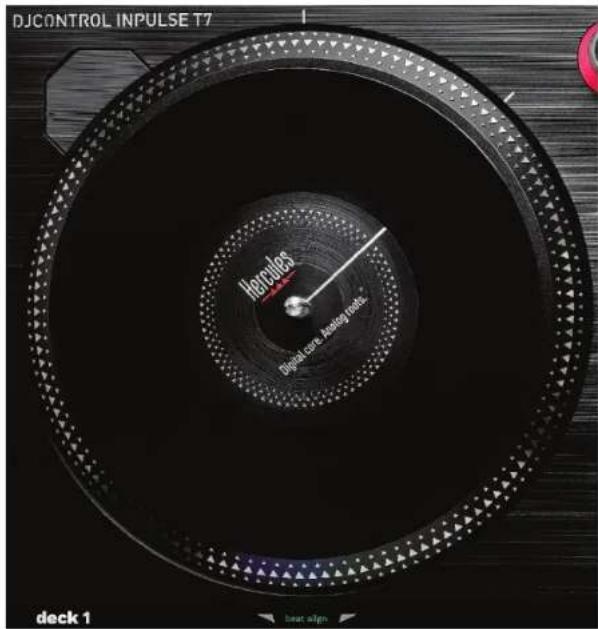
1. Motorized platter
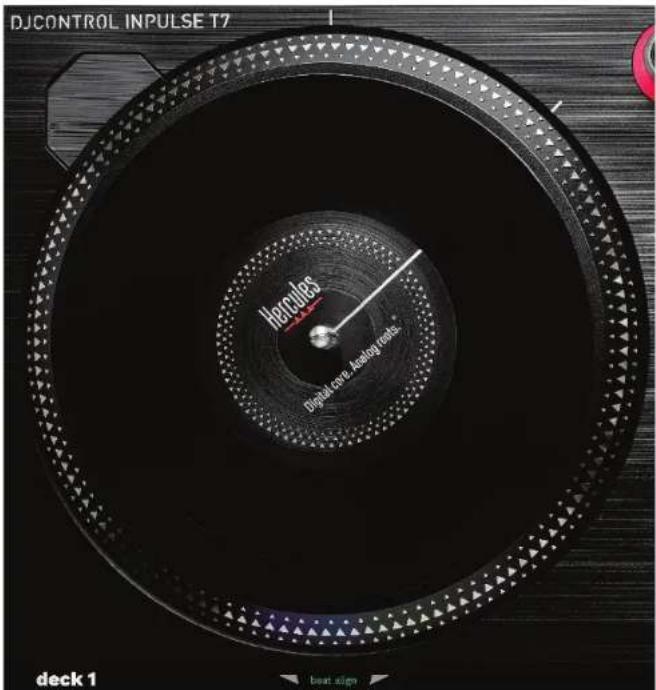
Felt slipmat: placed between the motorized platter and the vinyl record. It protects the vinyl record from rubbing against the platter, and reduces vibrations when playing the record.

You must always be sure to place the felt slipmat on the motorized platter before installing the vinyl record.
Vinyl record: lets you scratch, speed up or slow down playback, and move within the track.
The line on the vinyl record's label is a point of reference (i.e. a marker) for mixing and scratching.
The action carried out depends on two criteria:
- track playing or paused;
- the spot where you are touching the vinyl record (top or ring).
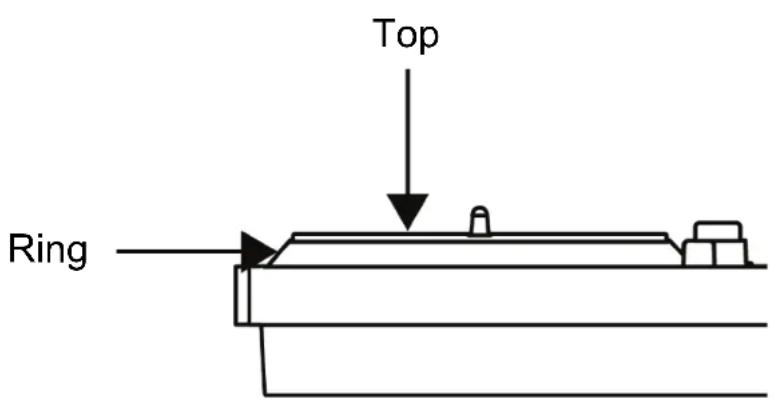
Actions of the vinyl records with Serato DJ Lite and Serato DJ Pro:
| Play/Pause | Motorized platter | SHIFT button |
| Play | Top | - |
| Scratching | ||
| Play | Top/Ring | Press and hold |
| Move quickly within the track | ||
| Play | Ring | - |
| Speed up or slow down playback | ||
| Pause | Top/Ring | - |
| Move slowly within the track | ||
| Pause | Top/Ring | Press and hold |
| Move quickly within the track | ||

serato DJ Lite
Actions of the vinyl records with DJUCED®:
| Play/Pause | Motorized platter | SHIFT button |
| Play | Top | - |
| Scratching | ||
| Play | Top/Ring | Press and hold |
| Move quickly within the track | ||
| Play | Ring | - |
| Speed up or slow down playback | ||
| Pause | Ring | - |
| Move slowly within the track | ||
DJUCED®
Motorized platter: drives the vinyl record that controls the playback of the track and the track's speed according to the tempo set with the tempo fader.
When the Beatmatch Guide function is enabled, the BEAT ALIGN visual guides indicate the direction in which you need to turn the ring (i.e. the edge) of the motorized platter in order to align the beat grids of the two tracks. When the two red arrows are not lit up, the beat grids are aligned.
For more information on the Beatmatch Guide function, please read the Beatmatch Guide section.

It is not possible to disable the platters' motorization.

- When the motorized platter is turning, avoid holding it stopped with your hand for very long, so as not to damage the drive system.
- When placing the vinyl record on the motorized platter, do not force it. You risk damaging the center of the vinyl record.
2. Transport buttons
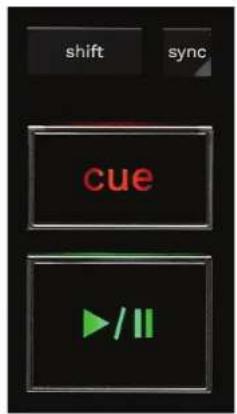
SHIFT: combined control. For example:
- SHIFT + RANGE (KEYLOCK): locks the track's musical key.
- SHIFT + IN: in DJUCED®, divides the size of the active loop by two.
SYNC: enables or disables automatic synchronization of the BPM (beats per minute) values of two tracks.
- SHIFT + SYNC:
○ In DJUCED®: makes the deck the master synchronization (Master Sync) deck.
- In Serato DJ Lite: disables synchronization on the deck.
CUE: inserts a Cue point in the track to identify a specific instant, or moves the deck playhead to the Cue point's position.
- Track paused: inserts a Cue point at the spot where the track is stopped. - Track playing: stops playback of the track and moves the deck playhead to the Cue point.
- In DJUCED ^ , if no Cue point has been defined, pressing CUE stops playback and places a Cue point at the playhead's location.
- In Serato DJ Lite, if no Cue point has been defined, pressing CUE stops playback and places a Cue point at the beginning of the track.
- CUE + PLAY: moves the playhead to the Cue point and plays the track from that point.
- SHIFT + CUE:
- In DJUCED®: moves the playhead to the start of the track, and stops playback.
- In Serato DJ Lite: moves the playhead to the start of the track, and starts playback.
Play/Pause: plays or pauses the track.
- SHIFT + PLAY: in Serato DJ Lite, moves the playhead to the Cue point and plays the track from this marker.
3. Loop controls
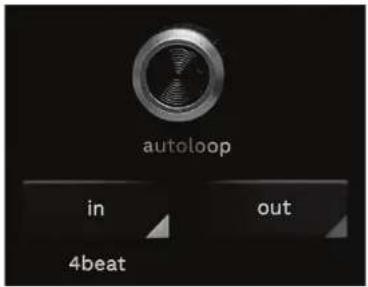
AUTOLOOP encoder:
- Press the encoder: enables or disables playback of the loop.
- Turn the encoder: adjusts the length of the loop.
IN/OUT: enables a loop by choosing the in point (IN) and the out point (OUT).
When the loop is active (i.e. enabled):
- Press IN (the button flashes) and turn the motorized platter to move the start of the loop.
- Press OUT (the button flashes) and turn the motorized platter to move the end of the loop.
To exit the loop, press the AUTOLOOP encoder.
In DJUCED®:
- SHIFT + IN: divides the size of the active loop by two.
- SHIFT + OUT: multiplies the size of the active loop by two.
- Long press on IN: enables a loop of four beats.
4. Track selection controls
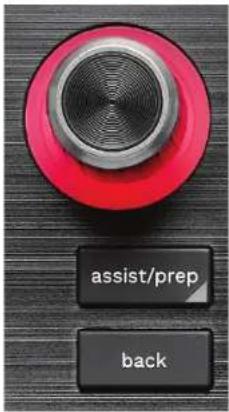
BROWSER encoder*: lets you browse through your music library and the list of tracks by turning the encoder to the left (up) or to the right (down).
Press the encoder to select folders and load the selected track on the destination deck.
Illuminated ring:
- In DJUCED ^® , shows the energy level of the master track for the tempo.
- In Serato DJ Lite, shows the rhythm. The light flashes to the beat of the track:
- Red: indicates the first beat.
○ Blue: indicates the three following beats.
ASSIST./PREP.\*:
- In DJUCED ^ , displays the panel suggesting the best upcoming tracks for your mix.
To move through the list of suggested tracks, turn the BROWSER encoder.
To select a track, press the BROWSER encoder. The track already loaded on this deck must be paused.
Press ASSIST./PREP. and turn the encoder to adjust the energy level of the tracks being suggested.
- In Serato DJ Lite, adds the track currently being played to the Prepare list.
SHIFT + ASSIST./PREP.: opens the Prepare panel.
BACK*: lets you move through the tree structure in DJUCED® and Serato DJ Lite.
- In DJUCED ^ , press SHIFT and BACK to return to the Library column.
5. Tempo fader
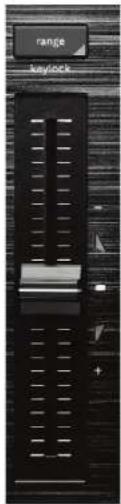
Tempo fader: sets the track's playback speed by adjusting the number of BPM.
- Move up: slows down the track.
- Move down: speeds up the track.
- Tempo fader in the middle: the track's original speed. The white LED is lit up.
When the Beatmatch Guide function is enabled, the TEMPO visual guides indicate whether you need to move the tempo fader up or down, in order to slow down or speed up the track. When the two red arrows are off, the tempo on that deck is identical to the tempo on the other deck.
For more information on the Beatmatch Guide function, please read the Beatmatch Guide section.
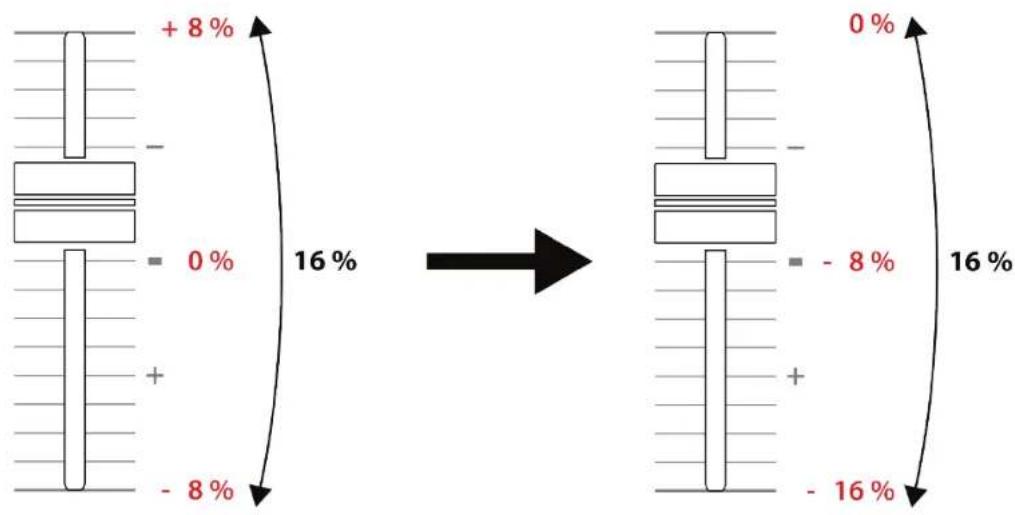
In Serato DJ Lite and Serato DJ Pro, when SYNC mode is enabled, pressing SHIFT and moving the tempo fader at the same time lets you move the tempo fader's values while maintaining the amplitude.
For example, with a tempo scale of ± 8% , or 16% amplitude, you can move the tempo fader's values to cover from 0% (maximum) to -16% (minimum), which still results in 16% amplitude, with -8% in the center.
RANGE*: lets you change the tempo scale of the tempo faders.
$$ \begin{array}{l} - \text { In } \mathrm{DJUCED} ^ {\circledast}: \pm 6 \%, \pm 8 \%, \pm 10 \%, \pm 12 \%, \pm 16 \%, \ \pm 20 \%, \pm 25 \%, \pm 33 \%, \pm 50 \%. \ - \text { In Serato DJ Lite: } \pm 8 \%, \pm 16 \%, \pm 50 \%. \ \end{array} $$
SHIFT + RANGE (KEYLOCK): locks the track's musical key.
To make sure that musical key is locked, press SHIFT. The RANGE button is lit up.
6. Pads and modes
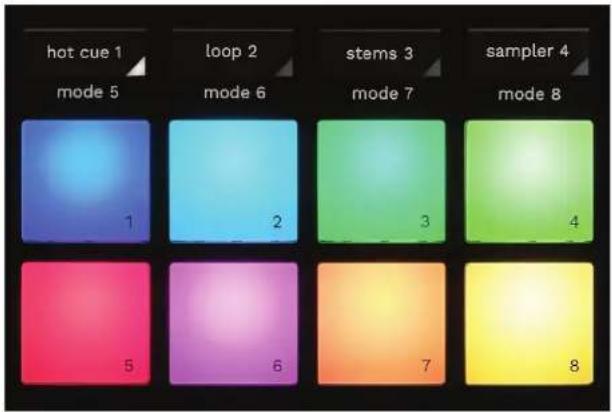
Mode buttons: lets you enable up to eight modes.
To enable a main mode, press HOT CUE 1, LOOP 2, STEMS 3 or SAMPLER 4.
To enable a secondary mode (MODE 5, MODE 6, MODE 7 and MODE 8), simultaneously press SHIFT and HOT CUE 1, LOOP 2, STEMS 3 or SAMPLER 4. The mode button flashes.
The modes enabled on the pads vary according to the software being used.
For more information about the different modes with DJUCED ^® , Serato DJ Lite and Serato DJ Pro, please read the Modes and pads section.
Performance pads: a pad performs an action.
7. Playback modes
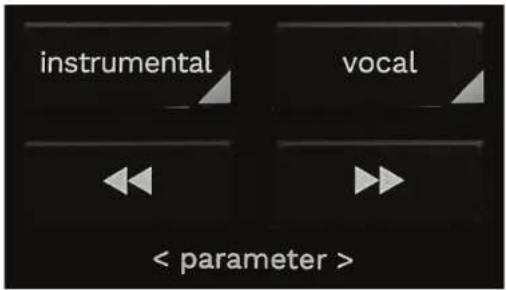
INSTRUMENTAL: lets you play just the Melody, Bass and Drums parts of a track. This is a shortcut for Stems mode.
- To play just the Melody, Bass and Drums parts of a track, press the INSTRUMENTAL button. The button lights up.
- To resume playing all parts of a track (Vocals, Melody, Bass and Drums), press the INSTRUMENTAL button again. The button's light turns off.
SHIFT + INSTRUMENTAL: enables Slip mode. In Slip mode, the deck playhead continues to advance in the background when you apply an effect or a loop, place a Cue point, or when you use the motorized platters. When you stop applying an effect, playback resumes from the point where the track would be if it had kept playing.
To make sure that Slip mode is enabled, press SHIFT. The INSTRUMENTAL button is lit up.

Serato DJ Lite does not feature Slip mode.
Serato DJ Pro features Slip mode.
VOCAL: lets you play just the Vocals part of a track. This is a shortcut for Stems mode.
- To play just the Vocals part of a track, press the VOCAL button. The button lights up.
- To resume playing all parts of a track (Vocals, Melody, Bass and Drums), press the VOCAL button again. The button's light turns off.
SHIFT + VOCAL: enables Quantize mode. Quantization lets you apply an action on the next beat in the grid (play the track, place a Cue point, start a loop...).
To make sure that Quantize mode is enabled, press SHIFT. The VOCAL button is lit up.

Serato DJ Lite does not feature Quantize mode.
Serato DJ Pro features Quantize mode.
◀ (pitch bend -) / ▶ (pitch bend +): lets you manually align the beat grid of the track being played on this deck with the beat grid of the other deck.
- Press and hold to momentarily slow down the deck.
- Press and hold ▶ to momentarily speed up the deck.

In Serato DJ Lite and Serato DJ Pro, SHIFT + ▶ and SHIFT + ▶ let you adjust settings in certain modes (Settings).
Mixing
8. Monitoring, volume and Beatmatch Guide
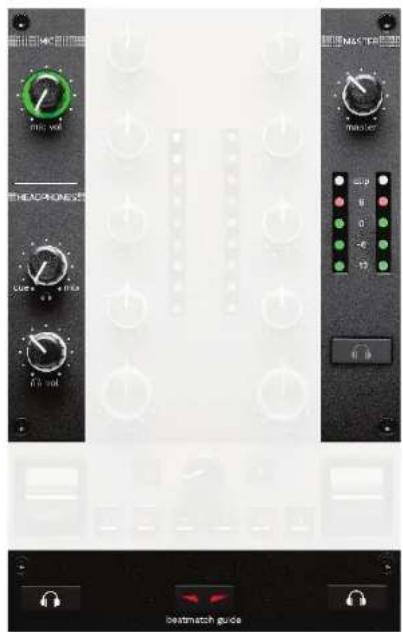
MIC volume: adjusts the volume of the microphone.
MIC illuminated ring: indicates the level of the audio signal (VU meter).
- Off: there is no audio signal.
- Green: the audio signal is being played.
- Red: the audio signal is saturated.
MASTER volume: adjusts the volume of the mix being played on your speakers.
MASTER VU meter: displays the level of the audio signal of the Master output (RCA or XLR) for speakers.
HEADPHONES volume:
- cue / mix: adjusts the signal being played on your headphones, mixing the Cue output (monitoring of decks 1 and 2) and the Mix output (Master output).
- To only listen to the monitoring, press the Monitoring buttons for decks 1 and 2. The buttons light up. Then set the knob to Cue.
- To only listen to the Master output, press the Master Monitoring button. The button lights up. Then set the knob to Mix to adjust the mix being played on your headphones.
- vol: adjusts the volume of the headphones output.
Monitoring: selects the sound source played on your headphones.
- (located below the MASTER VU meter): plays the sound of the mix also being played out loud for the audience.
- 📞* (located on both sides of the BEATMATCH GUIDE button): plays the sound of deck 1 or deck 2 when the Cue/Mix button is set to Cue.
In Serato DJ Lite, press SHIFT and 📞* (next to the BEATMATCH GUIDE button) to modify the beat grid of the track being played on this deck. To exit the beat grid editing mode, click Edit Grid.
BEATMATCH GUIDE: enables or disables the light guides to adjust the tempo and align the beat grids of the two tracks. There are four red arrows per deck.

DJUCED ^® defines one of the decks as the master synchronization (Master Sync) deck, and the other as the slave deck. The red arrows only light up on the slave deck, as this deck follows the tempo of the master synchronization deck.
Serato DJ Lite does not define a master synchronization deck. The red arrows light up on both decks.
- TEMPO visual guides: if one of the two red arrows located to the right of a tempo fader is lit up, this means that the tempo (i.e. number of beats per minute) of the track being played on this deck is different than the tempo of the other deck.
The arrows indicate the direction in which you need to move the tempo fader in order to adjust the tempo of the track being played to match the tempo on the other deck.
- Top arrow lit up: move the tempo fader up. This will slow down the tempo.
- Bottom arrow lit up: move the tempo fader down. This will speed up the tempo.
- Arrows not lit up: the deck's tempo is identical to the tempo of the master synchronization deck.
- BEAT ALIGN visual guides: if one of the two red arrows located below a motorized platter is lit up, this means that the beats of the track being played on this deck are not aligned with the beats of the other deck. The arrows indicate the direction in which you need to turn the motorized platter in order to align the beats of the track being played with the beats of the other deck.
○ Left arrow lit up: turn the motorized platter clockwise. This speeds up the playback speed.
- Right arrow lit up: turn the motorized platter counterclockwise. This slows down the playback speed.
- Arrows not lit up: the deck's beats are aligned with the beats of the other deck.
9. Mixing section

GAIN knob*: adjusts the gain (i.e. the volume level before the volume fader).
3-band equalizer (EQ)*: controls the intensity of the EQ. A knob is associated with each band: HIGH, MID and LOW.
FILTER knob*: adjusts the frequency of the dual filter (high-pass and low-pass).
*The functionality is identical on decks 1 and 2.
10. Mixer
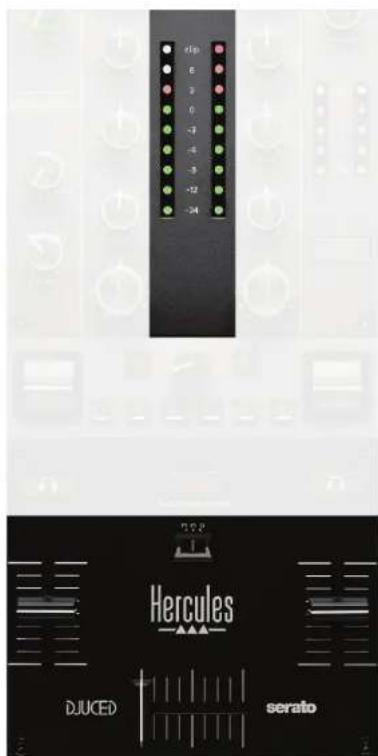
VU meter: displays the level of the audio signal of decks 1 and 2.
Volume fader*: adjusts the deck's volume.
Crossfader: lets you make a transition between two tracks by increasing the volume of one of the decks, while decreasing the volume of the other deck.
- Crossfader all the way to the left: you only hear the track on deck 1.
- Crossfader all the way to the right: you only hear the track on deck 2.
- Crossfader in the middle: you hear the tracks on both decks 1 and 2 at the same time.
Curve switch: lets you modify the crossfader curve.
- (mix): progressive mixing of the two decks.
- (scratch): very fast mixing of the two decks.
- (disabled): crossfader disabled, to mix using the volume faders only.

In Serato DJ Lite and Serato DJ Pro, you can modify the crossfader settings. Go to Settings, then Mixer:
– Power: fast curve for scratching.
- Linear: progressive curve for mixing.
- Reverse: reverses the direction of the crossfader, also known as "Hamster" mode.
11. Effects
To display the effects rack:
- In DJUCED®: click FX
- In Serato DJ Lite: click FX
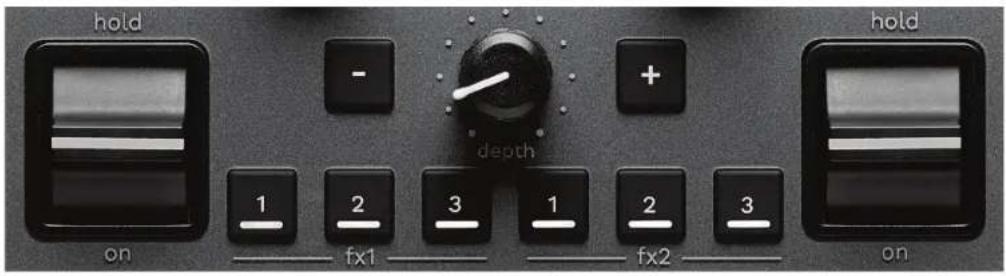
Effects buttons ☐ / ☐ / ☐*: lets you select an effect from the effects rack. The button lights up.
To enable an effect, use the performance lever.
To modify the effects associated with buttons ☐ / ☐ / ☐, select a new effect in the effects rack. In Serato DJ Lite and Serato DJ Pro, you can also press SHIFT and ☐, ☐ or ☐ to display the list of effects, then press SHIFT and ☐, ☐ or ☐ again to move through the list and select the new effect.

In Serato DJ Lite:
- It is possible to combine multiple effects at the same time.
- The three effects 📁 / 📁 / 📁 on the left apply to the left-hand deck (Deck 1), and the three effects 📁 / 📁 / 📁 on the right apply to the right-hand deck (Deck 2). In Serato DJ Pro, the two groups of three effects buttons apply to the two virtual decks.
Performance lever*: lets you enable an effect loaded on buttons ☐, ☐ or ☐. There are three different positions:
- HOLD: continuously enables the effect while the lever is in this position.
- ON: momentarily enables the effect while the lever is in this position.
– Central position: effect disabled.
DEPTH knob: adjusts the intensity of the effect.
- / + buttons: adjusts the duration of the cycle of the effect synchronized with the music.

DJUCED ^® does not include this functionality.
Connectors
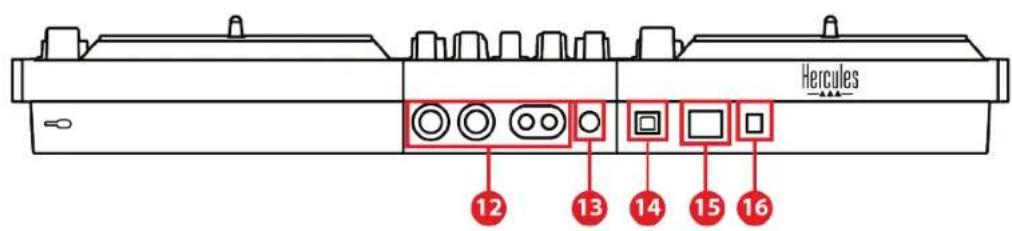
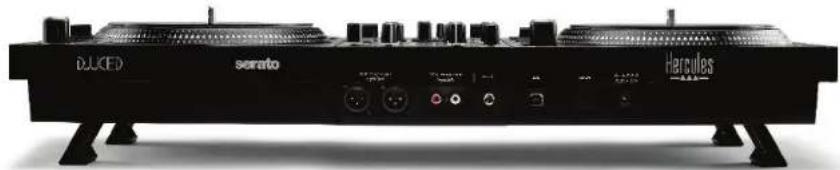
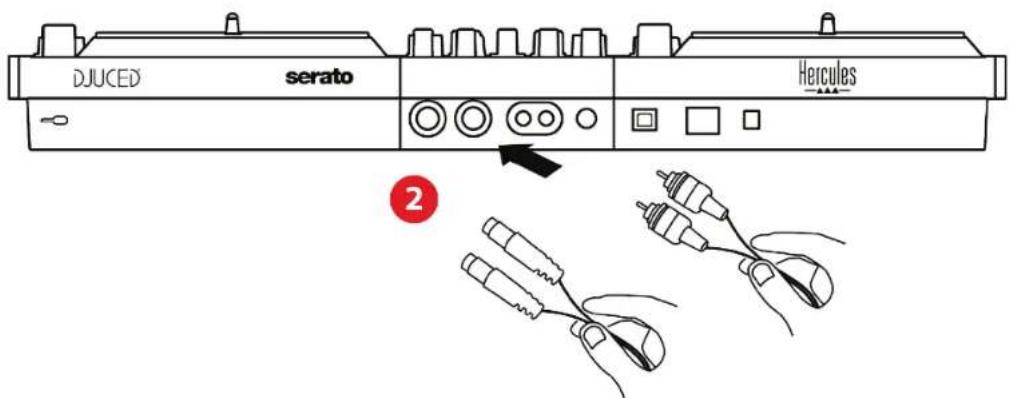
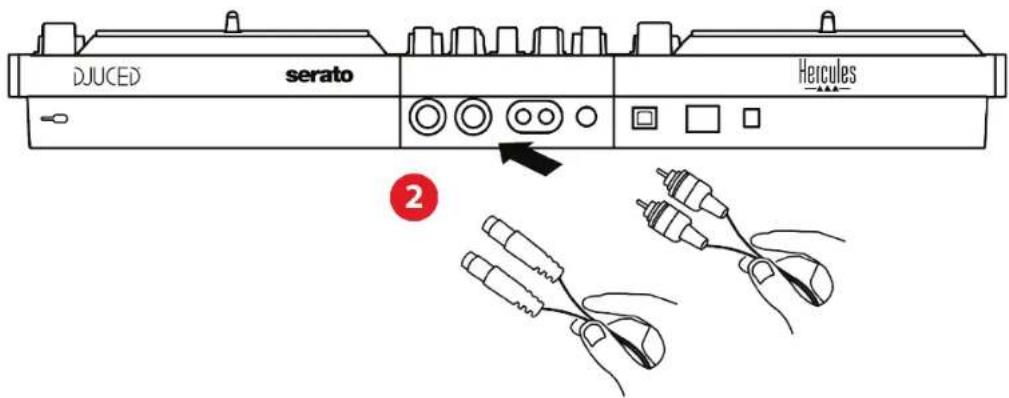
- Master output for speakers (output 1-2)
- Balanced microphone input
- USB-B 2.0 port
- POWER button
- Connector for power adapter
- Headphones output (output 3-4)
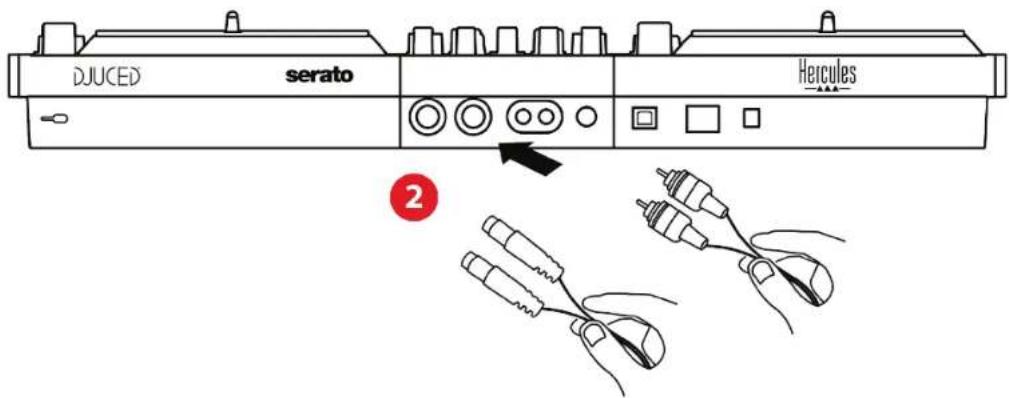
Master output for speakers (output 1-2): lets you connect active speakers.
Formats: 2 x unbalanced RCA (Cinch) and 2 x balanced XLR.
Balanced microphone input: lets you connect a balanced or unbalanced microphone.
Format: 14 " / 6.35 mm jack.
USB-B 2.0 port: lets you connect the controller to a computer.
POWER button: lets you power on and power off the DJControl Inpulse T7 controller.
Connector for power adapter: lets you connect the power cable and plug the DJControl Inpulse T7 controller into an electrical outlet using the adapter.
Headphones output (output 3-4): lets you connect headphones in order to monitor tracks.
Formats: 1/8" / 3.5 mm stereo mini-jack connector and 14 " / 6.35 mm stereo jack connector.

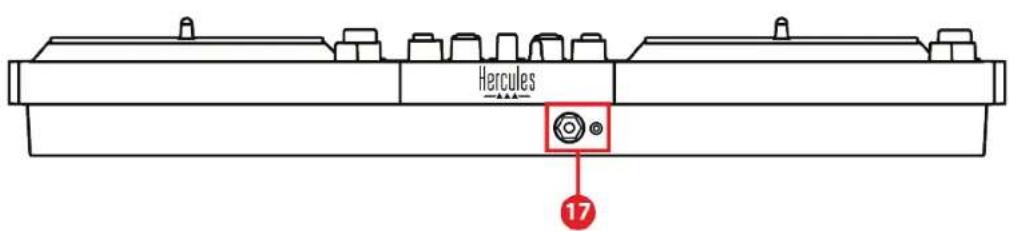
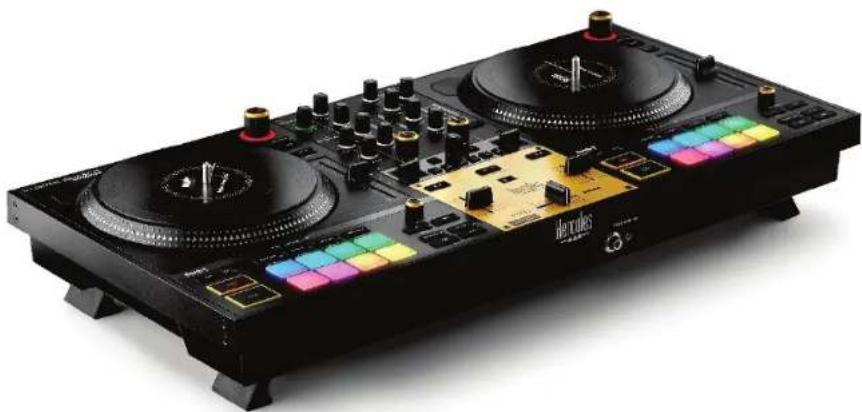
Extend the four retractable feet to elevate the DJControl Inpulse T7 controller and run the cables underneath it.
natural_image
Front view of a black DUKED serato and Hercules duxed instrument (no visible text or symbols on the device body)
- Retract the feet before transporting the DJControl Inpulse T7 controller.
- Retract the feet when you are not using the DJControl Inpulse T7 controller.
- When the feet are extended, do not press down on the DJControl Inpulse T7 controller with more than 11 lb / 5 kg / 50 newtons of force.
4. Installation
Connections
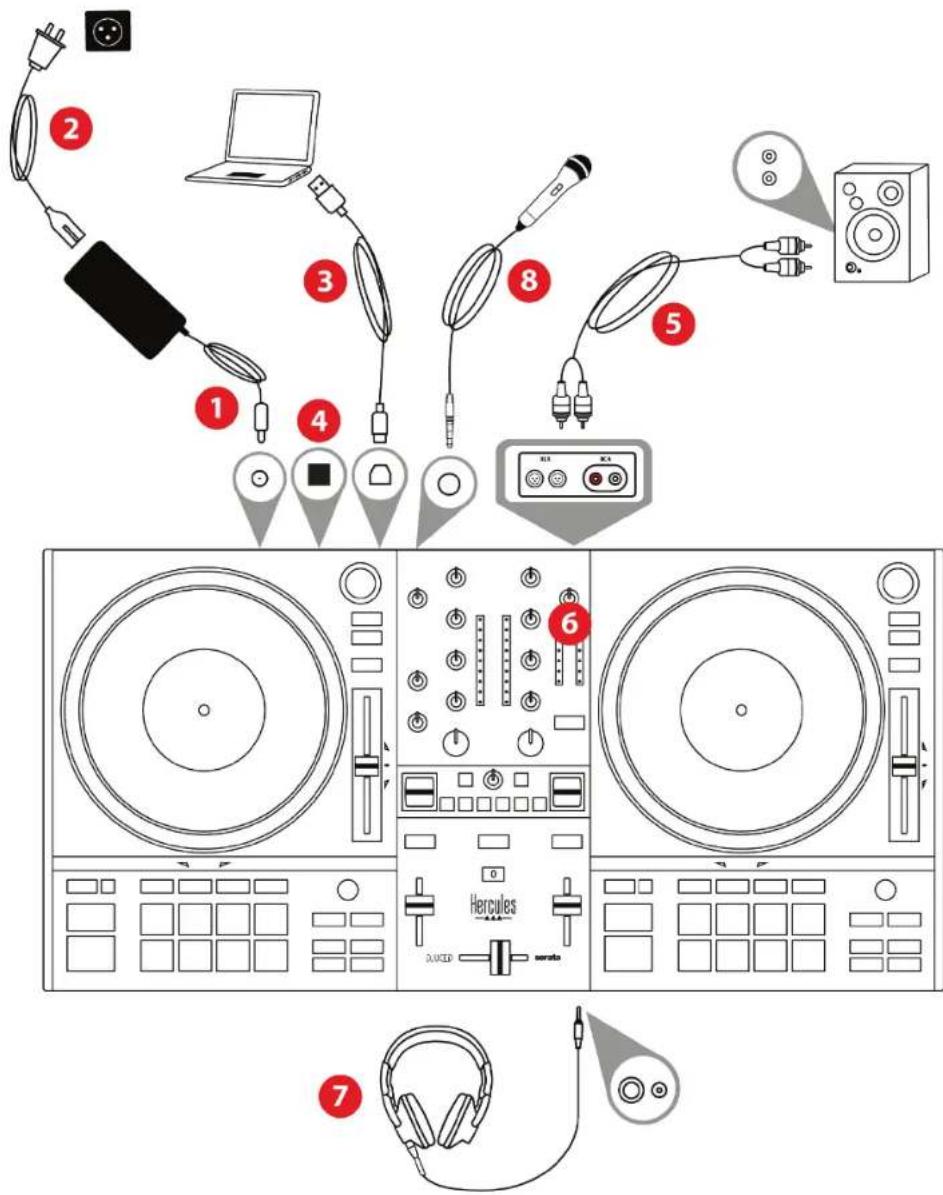
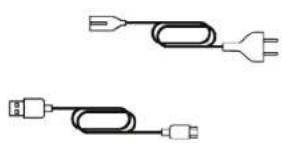
- Connect the power adapter to the DJControl Inpulse T7 controller.
- Connect the power cable to the power adapter, and plug it into an electrical outlet.
- Connect the USB cable to the DJControl Inpulse T7 controller and to the computer.
- Press the POWER button on the DJControl Inpulse T7 controller. The button is pushed in.
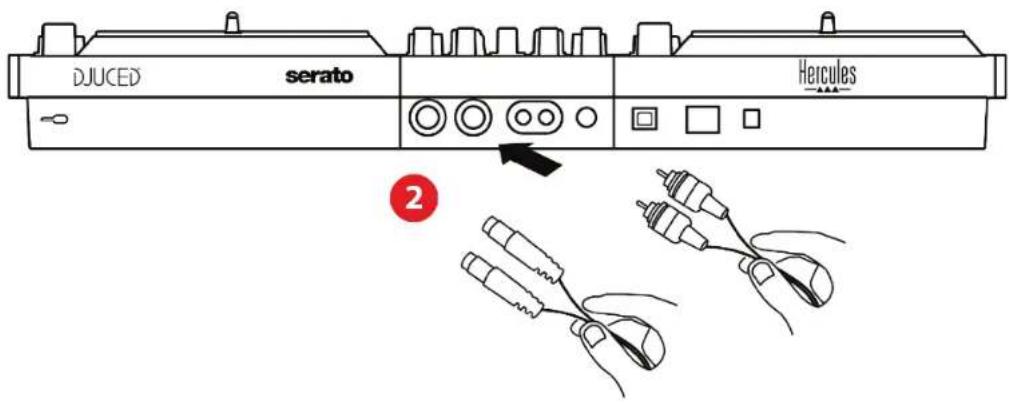
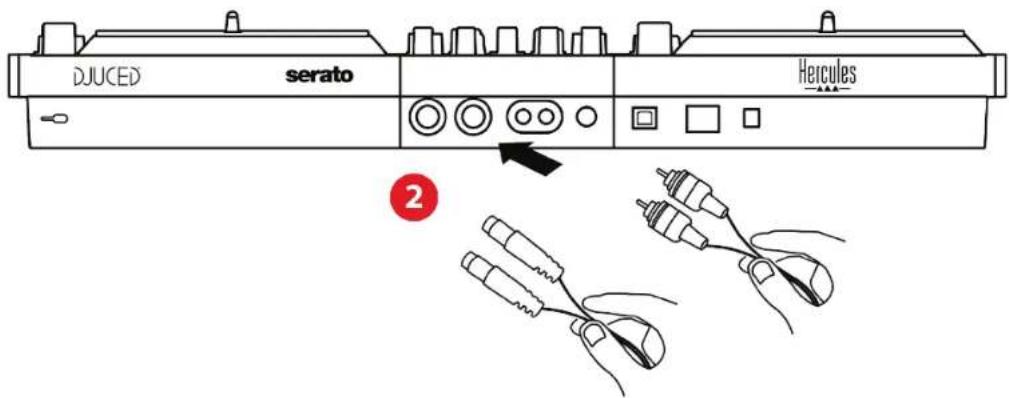
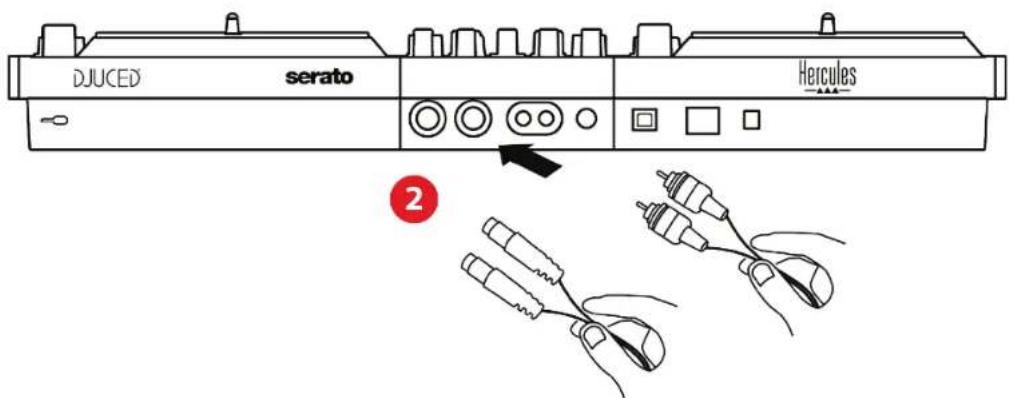
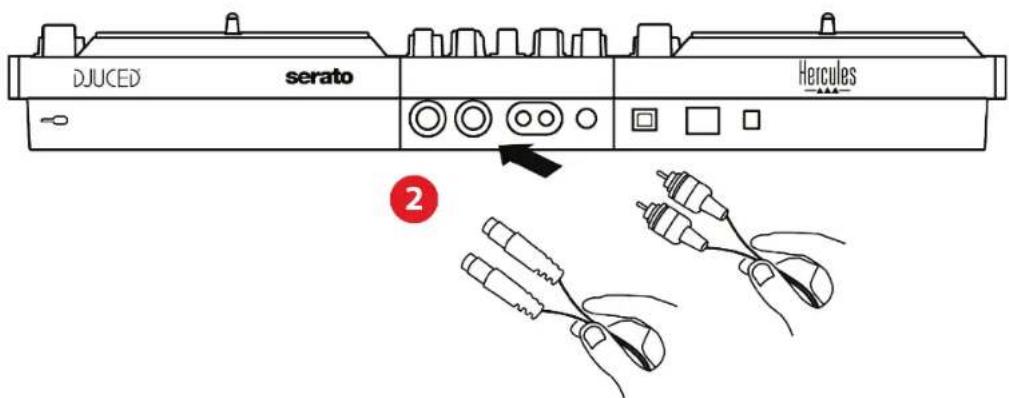
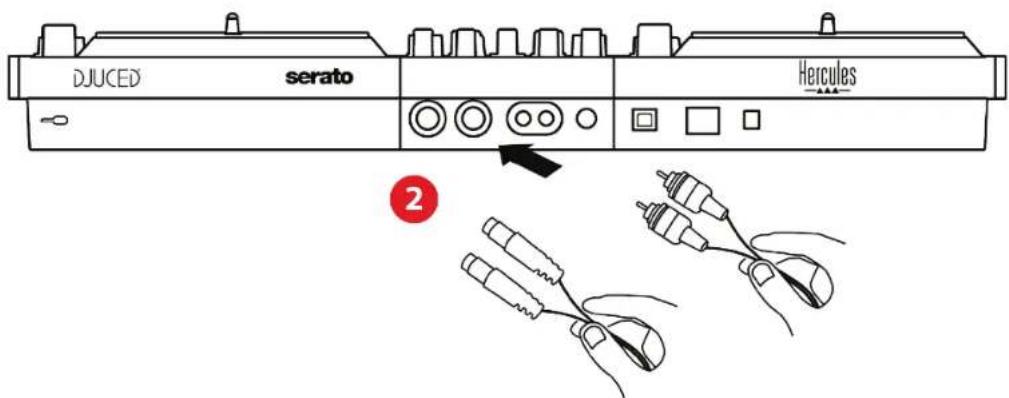
- Make sure that the speakers are powered off or, if they are connected to an external amplifier, that the amplifier is powered off. Connect the inputs of the active speakers to the Master outputs for speakers of the DJControl Inpulse T7 controller (2 x RCA or 2 x XLR).
- Adjust the MASTER volume to the minimum level on the DJControl Inpulse T7 controller, then power on the speakers.
- Place the headphones around your neck (and not on your ears), then connect the headphones to the 1/8" / 3.5 mm mini-jack connector or the 14 " / 6.35 mm jack connector.
- Connect the microphone to the Microphone input (optional).

Power supply
- Only use the power supply indicated in the user manual.
- Only use the power supply with the network voltage and frequency indicated on the power supply's rating plate.

- It is possible to simultaneously use both output formats (XLR and RCA) — for example, by connecting an output pair to the PA system, and a second output pair to monitoring speakers.
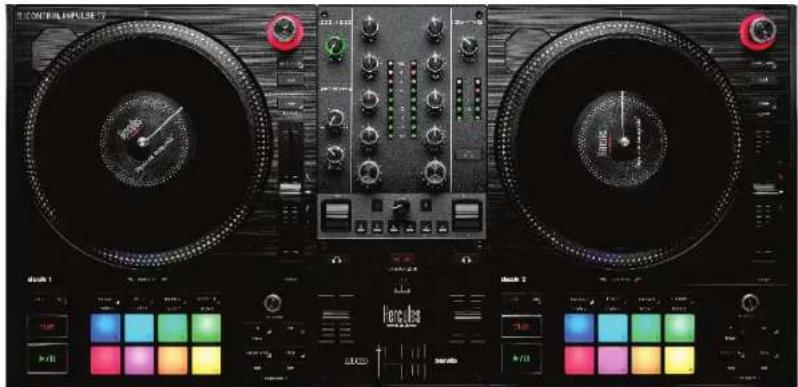
- An LED illumination sequence, called Vegas Mode, starts up each time you connect the DJControl Inpulse T7 controller to your computer. Vegas Mode takes place in four phases, allowing it to light up all of the LEDs and display different possible colors on the pads and on the backlit rings of the BROWSER encoders.
natural_image
Digital audio workstation dashboard with two dials, a vinyl record, and a color palette (no readable text or symbols)Downloading the software
DJUCED®
- Please visit: https://www.djuded.com/hercules.
- Download and install DJUCED ^® .
- Please visit:
https://support.hercules.com/product/djcontrolinpulset7/.
- Download and install the driver pack for your computer's operating system.
○ macOS®: HDJC Series Mac
- Windows®: HDJC Series PC
Windows ^® requires that you install the drivers in order to use DJControl Inpulse T7 in ASIO mode, which reduces the latency compared to WASAPI mode and is generally more stable.
The drivers also let you test your DJControl Inpulse T7 controller and verify the firmware version in both Windows ^® and macOS ^® .
- Launch the DJUCED ^® software. A window appears, indicating that your DJControl Inpulse T7 controller has been successfully detected and is ready to use.


When you run the software for the first time, DJUCED® guides you through connecting your headphones and active speakers (or lets you use the speakers built into your computer, if you don't have external active speakers). Follow the on-screen information step by step before getting started.
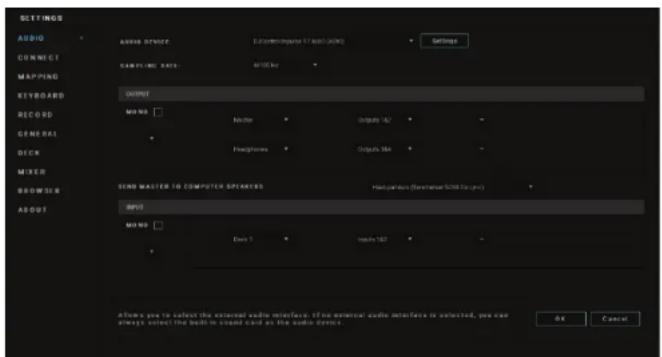
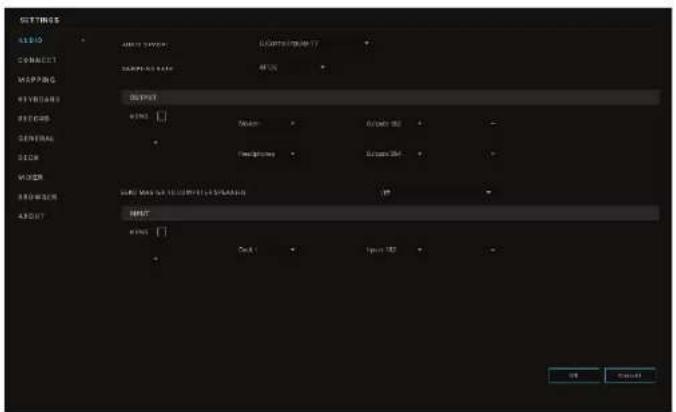
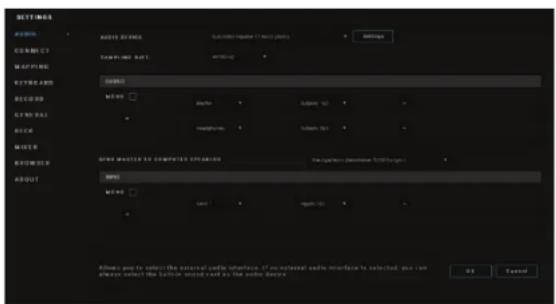
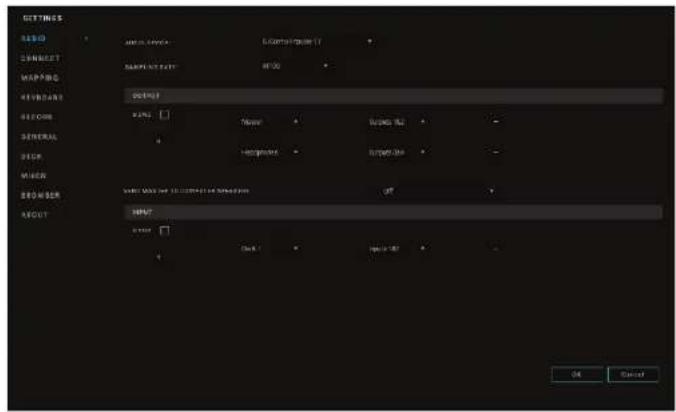
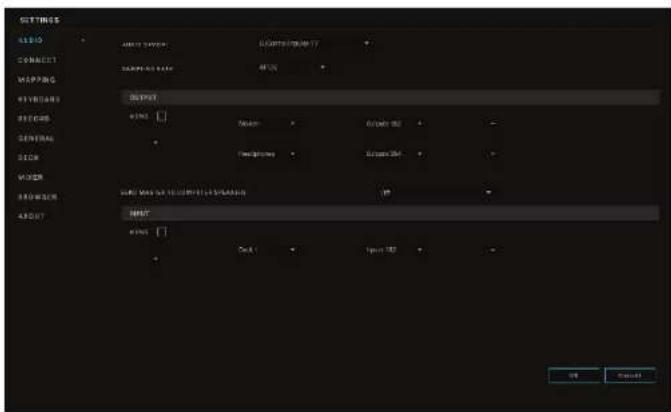
Audio settings:
In DJUCED ^® , to modify the sound card settings, click the gear wheel icon ⚙ in the upper right-hand part of the screen. The Settings menu is displayed.
Select the Audio tab to choose the sound card, and assign the outputs for headphones and speakers.
The standard setup for Windows ^® is as follows:
– Audio device: DJControl Inpulse T7 ASIO (ASIO)
- Output:
○ Master: Outputs 1&2
○ Headphones: Outputs 3&4
The standard setup for macOS ^® is as follows:
- Audio device: DJControl Inpulse T7
- Output:
- Master: Outputs 1&2
○ Headphones: Outputs 3&4
Serato DJ Lite
-
Please visit: https://serato.com/dj/lite/downloads.
-
Download and install Serato DJ Lite.
-
Please visit:
https://support.hercules.com/product/djcontrolinpulset7/.
- Download and install the driver pack for your computer's operating system.
○ macOS®: HDJC Series Mac
- Windows®: HDJC Series PC
Windows ^® requires that you install the drivers in order to use DJControl Inpulse T7 in ASIO mode, which reduces the latency compared to WASAPI mode and is generally more stable.
The drivers also let you test your DJControl Inpulse T7 controller and verify the firmware version in both Windows® and macOS®.

Hercules DJControl Inpulse T7 includes a license for Serato DJ Lite, not a license for Serato DJ Pro.
Serato DJ Lite can be used without any time limit.
If you install Serato DJ Pro instead of Serato DJ Lite, Serato DJ Pro will work with your DJControl Inpulse T7 for the duration of a trial period. At the end of this trial period, if you want to continue using Serato DJ Pro, you must purchase a Serato DJ Pro license.
5. Livening up your mix
There are different ways to liven up your mix.
Modes and pads
The pads
In DJUCED ^® , pads 1 to 8 carry out the actions corresponding to the mode currently enabled.
In Serato DJ Lite, pads 1 to 4 carry out the actions corresponding to the mode currently enabled. Pads 5 to 8 carry out the following actions:
- Pad 5: Reverse (reverse playback)
- Pad 6: rewind
- Pad 7: fast forward
- Pad 8: Censor. This action lets you play the track in reverse while the pad is held down. Once the pad is released, playback resumes from the point where the track would be if it had kept playing normally. This can be used to mask explicit language in a song.
The modes enabled on the pads vary according to the software being used:
| Modes | DJUCED® | Serato DJ Lite | Serato DJ Pro** |
| 1 | Hot Cue | Hot Cue | Hot Cue |
| 2 | Loop Roll | Auto Loop | Auto Loop |
| 3 | Stems | Stems | Stems |
| 4 | Sampler | Sampler | Sampler |
| 5 | TonePlay | - | Pitch Play |
| 6 | PadFX | - | Loop Roll |
| 7 | Slicer Loop | Manual Loop | Manual Loop |
| 8 | BeatJump | Scratch Banks | Scratch Banks |
**Serato DJ Pro license not included.
Hot Cue mode
A Hot Cue point is a marker (like a bookmark) that you can place in a track to easily locate this moment in the track again, and instantly return to it afterwards.
In DJUCED ^® , eight Hot Cue points can be set per track.
In Serato DJ Lite, four Hot Cue points can be set per track. In Serato DJ Pro, eight Hot Cue points can be set per track.
- To access Hot Cue mode, press HOT CUE 1. The HOT CUE 1 button's light stays lit up.
- To set a Hot Cue point, press a pad.
- To play the track from a Hot Cue point, press the corresponding pad.
- To remove a Hot Cue point, press SHIFT and the pad at the same time.
Loop mode

In DJUCED ^® , this mode corresponds to Loop Roll mode. The deck playhead continues to advance in the background when you apply a loop. When you disable the loop, playback resumes from the point where the track would be if it had kept playing.
In Serato DJ Lite and Serato DJ Pro, this mode corresponds to Auto Loop mode.
A loop is a part of the track that is played repeatedly.
- To access Loop mode, press LOOP 2. The LOOP 2 button's light stays lit up.
In DJUCED®:
-
To apply a loop, press and hold a pad.
-
To disable a loop, release the corresponding pad.
In Serato DJ Lite:
-
To apply a loop, press a pad.
-
To disable a loop, press the corresponding pad.
Loop length:
| Deck 1 / Deck 2 | DJUCED® | Serato DJ Lite |
| Pad 1 | 1/16 of a beat | 1 beat |
| Pad 2 | 18 of a beat | 2 beats |
| Pad 3 | 14 of a beat | 4 beats |
| Pad 4 | 12 of a beat | 8 beats |
| Pad 5 | 1 beat | - |
| Pad 6 | 2 beats | - |
| Pad 7 | 4 beats | - |
| Pad 8 | 8 beats | - |
Stems mode
Stems mode lets you separate a track into four different parts (vocals and instruments), called “stems”.
-
To access Stems mode, press STEMS 3. The STEMS 3 button's light stays lit up.
-
Pads 1 to 4 are each associated with a stem. To stop playing a stem, press the corresponding pad. The pad's light turns off.
-
To resume playing the stem, press the corresponding pad. The pad lights up.
Stems:
| Deck 1 / Deck 2 | Stem |
| Pad 1 | Vocals |
| Pad 2 | Melody |
| Pad 3 | Bass |
| Pad 4 | Drums |

When you enable stems in a track for the first time, the separation is not always immediate. This may take a few moments, while the DJ software analyzes the track and generates the different parts (vocals, melody, bass, drums).
You should remember to leave enough time between the moment when you are separating the stems and the moment when you are playing them. Once the different parts for the stems have been generated, the playback of the stems is instantaneous.
A powerful computer is required in order to use Stems mode.
Sampler mode
A sample is a short sound played over the track that is currently playing: it can be played either once (jingle) or in repetition (loop).
In DJUCED ^® , pads 1 to 8 let you play the eight samples found on the first two lines of the multilayer sampler.
To display the multilayer sampler, select 2Decks Horizontal + 2 Samplers in the drop-down menu in the upper left-hand part of the screen in DJUCED ^® .
In Serato DJ Lite, pads 1 to 4 let you play a sample. To display the samples panel, click 📄 in Serato DJ Lite.
- To access Sampler mode, press SAMPLER 4. The SAMPLER 4 button's light stays lit up.
- To play a sample, press a pad.
- To stop playing a sample, press SHIFT and the corresponding pad at the same time.
Mode 5

Serato DJ Lite does not feature mode 5 (TonePlay). Serato DJ Pro, in conjunction with the Pitch 'n Time plugin, offers a Pitch Play mode which works using the same principle as TonePlay mode.
In DJUCED ^® , mode 5 corresponds to TonePlay mode. This mode lets you replay a Hot Cue point in different tones.
- Enable Hot Cue mode, then select a Hot Cue point.
- To access mode 5, press SHIFT and HOT CUE 1 at the same time. The HOT CUE 1 button flashes.
- To modify the tone of a Hot Cue point, press one of pads 2 to 8.
- To return to the original tone, press pad 1.
Modifying the tone:
| Deck 1 / Deck 2 | Tone |
| Pad 1 | Original tone |
| Pad 2 | + 1 |
| Pad 3 | + 2 |
| Pad 4 | + 3 |
| Pad 5 | - 1 |
| Pad 6 | - 2 |
| Pad 7 | - 3 |
| Pad 8 | - 4 |
Mode 6

Serato DJ Lite does not feature mode 6.
In DJUCED ^® , mode 6 corresponds to PadFX mode. This mode lets you control the effects in the effects rack using the pads.
An effect is sometimes a filter or a combination of filters applied to a track to modify its sound (echo, reverb...).
To display the effects rack, click FX
- To access mode 6, press SHIFT and LOOP 2 at the same time. The LOOP 2 button flashes.
- To carry out an action, press a pad.
- To disable an effect, press the corresponding pad (pad 1 to 3).
Possible actions:
| Deck 1 / Deck | Effects |
| Pad 1 | Effect 1 of the rack |
| Pad 2 | Effect 2 of the rack |
| Pad 3 | Effect 3 of the rack |
| Pad 4 | Displays/hides the effects rack |
| Pad 5 | Changes effect 1 in the rack |
| Pad 6 | Changes effect 2 in the rack |
| Pad 7 | Changes effect 3 in the rack |
| Pad 8 | - |
Mode 7

In DJUCED ^® , mode 7 corresponds to Slicer Loop mode. In Serato DJ Lite and Serato DJ Pro, mode 7 corresponds to Manual Loop mode.
In DJUCED ^® , mode 7 corresponds to Slicer Loop mode. This mode lets you slice the active loop into eight sections.
- To access mode 7 (Slicer Loop), press SHIFT and STEMS 3 at the same time. The STEMS 3 button flashes.
- To play a section as a loop, press and hold a pad.
- To stop playing a section, release the corresponding pad.
In Serato DJ Lite and Serato DJ Pro, mode 7 corresponds to Manual Loop mode. This mode lets you manually enable a loop.
- To access mode 7 (Manual Loop), simultaneously press SHIFT and STEMS 3. The STEMS 3 button flashes.
- To carry out an action, press a pad.
Possible actions:
| Deck 1/2 | Effects |
| Pad 1 | First press: sets the in point (IN)Second press: modifies the in point (IN) |
| Pad 2 | First press: sets the out point (OUT)Second press: modifies the out point (OUT) |
| Pad 3 | Enables/disables the loop |
| Pad 4 | Moves the playhead to the start of the loop and plays the loop (Reloop) |
| AUTOLOOP encoder | Increases/decreases the length of the loop |
Mode 8

In DJUCED ^® , mode 8 corresponds to BeatJump mode. In Serato DJ Lite and Serato DJ Pro, mode 8 corresponds to Scratch Banks mode.
In DJUCED ^® , mode 8 corresponds to BeatJump mode. This mode lets you make a precise jump in the track.
-
To access mode 8 (BeatJump), press SHIFT and SAMPLER 4 at the same time. The SAMPLER 4 button flashes.
-
To make a jump, press a pad.
Length of the jump:
| Deck 1 / Deck 2 | Jump |
| Pad 1 | Go back 1 beat |
| Pad 2 | Go forward 1 beat |
| Pad 3 | Go back 2 beats |
| Pad 4 | Go forward 2 beats |
| Pad 5 | Go back 4 beats |
| Pad 6 | Go forward 4 beats |
| Pad 7 | Go back 8 beats |
| Pad 8 | Go forward 8 beats |
In Serato DJ Lite and Serato DJ Pro, mode 8 corresponds to Scratch Banks mode. This mode lets you instantly load a scratch sample onto the deck to scratch on the motorized platter in place of the track that's currently playing, and then quickly return to the track that's currently playing.
To display the scratch samples panel, click 📋 in Serato DJ Lite.
- To access mode 8 (Scratch Banks), press SHIFT and SAMPLER 4 at the same time. The SAMPLER 4 button flashes.
- To play a scratch sample, press a pad.
- To stop playing a scratch sample and return to the track that had been playing previously, press SHIFT and the corresponding pad at the same time.
Samples:
| Deck 1 / Deck 2 | Sample |
| Pad 1 | Ahh! |
| Pad 2 | Hey You! |
| Pad 3 | Oww! |
| Pad 4 | Yeah! |
Scratching
Scratching consists of producing a sound effect from a track, by turning the motorized platter.
Place your index finger on top of the motorized platter and make small, quick movements to the right and to the left.
You can repeat this scratch multiple times to create a rhythm.

- Before scratching or mixing, make sure that you have placed a felt slipmat between the motorized platter and the vinyl record.
- When placing the vinyl record on the motorized platter, do not force it. You risk damaging the center of the vinyl record.
Filters
Adjustment of the track's filter lets you attenuate certain frequencies.
- Attenuate the high frequencies (known as a low-pass filter or high-cut filter): turn the filter knob (FILTER) to the left.
- Attenuate the low frequencies (known as a high-pass filter or low-cut filter): turn the filter knob (FILTER) to the right.
6. Multichannel sound card
The DJControl Inpulse T7 controller includes a built-in multichannel sound card, allowing you to play your mix on speakers for the audience (Master output for speakers), monitor the next track that you're preparing on your headphones (headphones output), and use a microphone and/or a device equipped with a line-level output as an audio source.
Master output for speakers (output 1-2)
Your active speakers must be connected to one of the two Master outputs for speakers located at the back of your DJ controller.
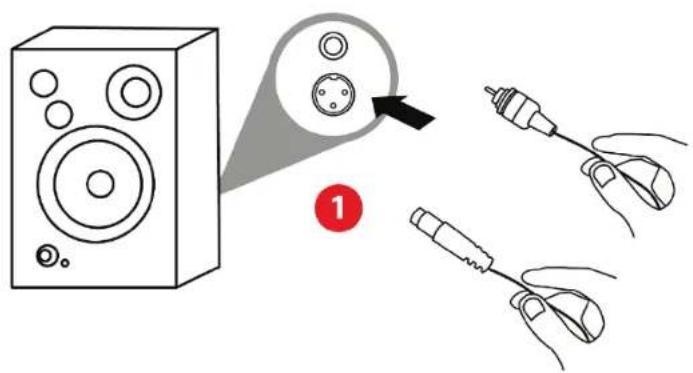
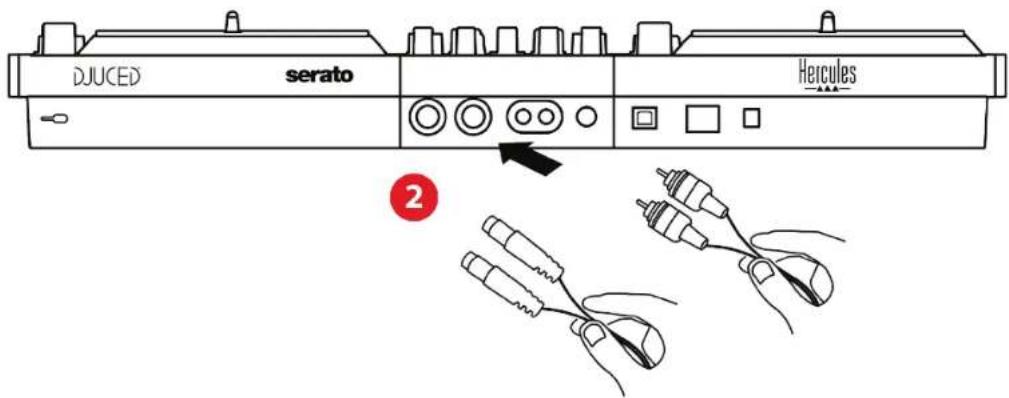

It is possible to simultaneously use both output formats — for example, by connecting an output pair to the PA system, and a second output pair to monitoring speakers.
Headphones output (output 3-4)
Your headphones must be connected to one of the two headphones outputs @located at the front of your DJ controller.
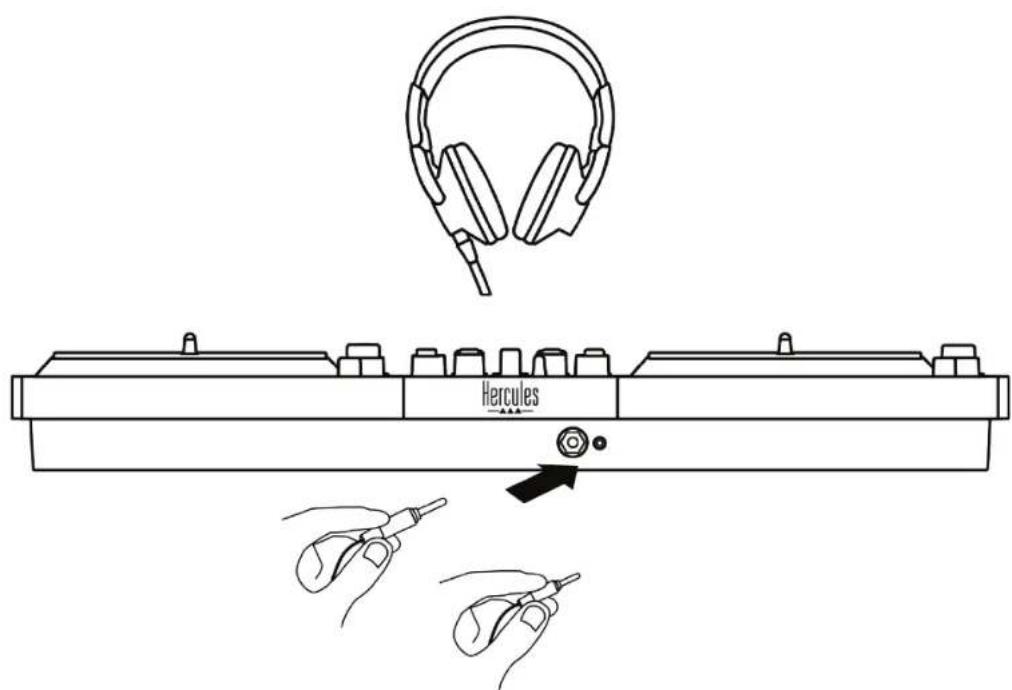
By default, each time your DJ controller is connected, the headphones output is assigned to output 3-4 so that it can work with all DJing software available on the market — including DJUCED® and Serato DJ Lite, in particular.
However, if you wish to use your DJ controller's headphones output to listen to music on your computer using iTunes, for example, you must route output 1-2 to the headphones output. To do so, press the 📞 button located below the MASTER VU meter.

We do not recommend that you connect two pairs of headphones at the same time (i.e. one to the 1/8" / 3.5 mm mini-jack output connector, and one to the 14 " / 6.35 mm jack output connector). If both pairs of headphones do not have the same impedance, they will have different output volumes.
Microphone input
Your microphone must be connected to the Microphone input located at the back of your DJ controller. The microphone input is balanced.
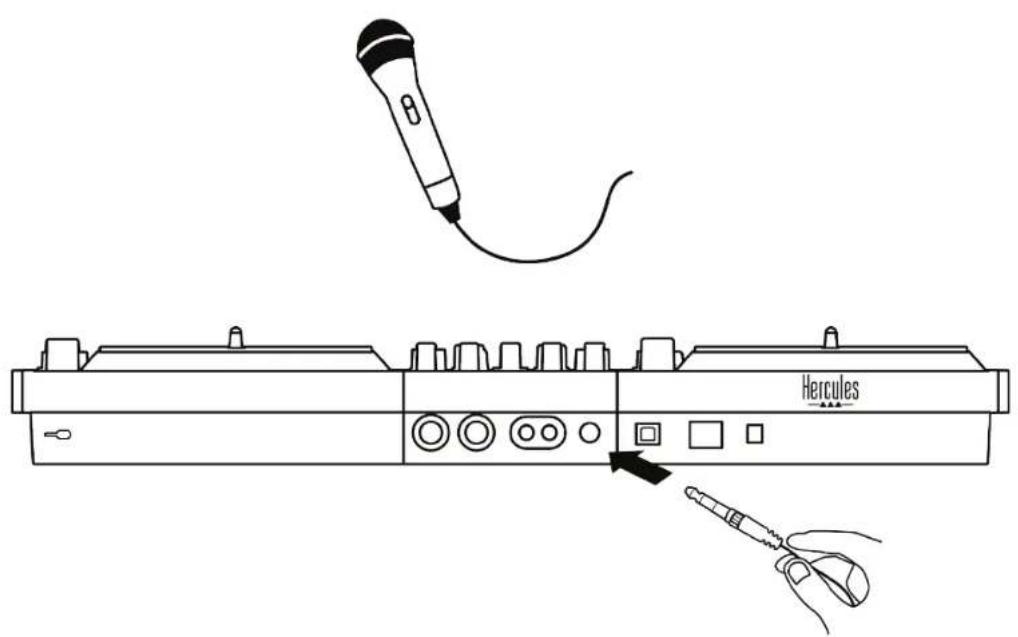

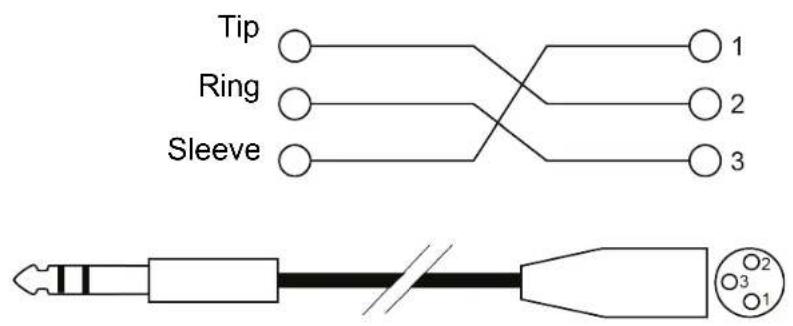
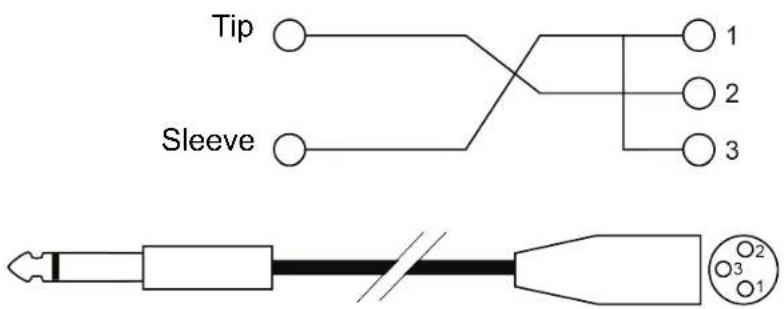
You can connect a balanced or unbalanced microphone. A balanced microphone produces a clearer, more powerful sound with less breathing effects. If your balanced microphone is not connected using a balanced cable, your microphone cable will reduce your microphone's sound quality.
Balanced cable
Unbalanced cable
7. Compatibility
USB Audio / USB MIDI
This DJ controller is Plug & Play and can work without drivers with DJUCED ^® on any PC or Mac, as it complies with the USB Audio and USB MIDI standards.
ASIO and Windows® control panel
To use the DJControl Inpulse T7 controller with Serato DJ Lite, you must install the ASIO drivers. The ASIO drivers are available here:
https://support.hercules.com/product/djcontrolinputset7/.
If you are using DJUCED ^® , you can also download the ASIO drivers in order to take advantage of lower latency on your PC.
The ASIO drivers come with a control panel accessible in the taskbar on PC, or in the C:\Program Files\DJHERCULESMIX\Audio\DJ Console Series\cpl2\ directory. This panel lets you adjust the different ASIO settings including the buffer sizes and the latency.
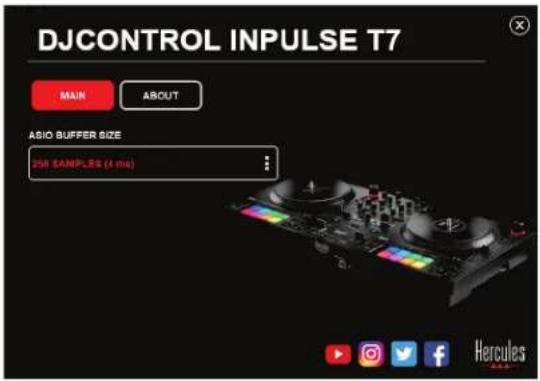
To adjust the ASIO settings:
- Set the ASIO buffer size to 4 or 8 ms.
- Start up your software (e.g.: DJUCED®) and select the DJControl Inpulse T7 ASIO (ASIO) driver:
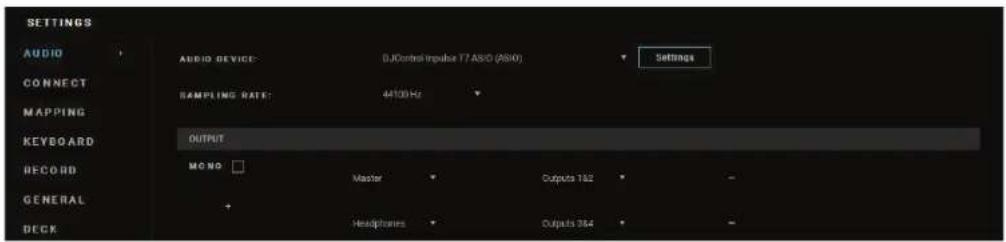
Once the software begins using the ASIO driver, the ASIO settings can no longer be modified in the control panel. This is perfectly normal, and indicates that the ASIO driver is in use.
Use your software and listen carefully for any possible glitches or artifacts in the audio (clicks, pops), or any problems with the latency. Should glitches or artifacts occur, you will need to increase the buffer size in order to resolve the problems.
Close your software and adjust your ASIO buffer by one value at a time:
- Reduce the buffer size to reduce latency.
- Increase the buffer size if you notice glitches or artifacts in the audio.
You will need to repeat this procedure until you find the optimal buffer size for your system.
The drivers are available here:
https://support.hercules.com/product/djcontrolinputset7/
Firmware update
Your DJ controller features an automatic firmware update mode. This requires installing the Hercules drivers and following the on-screen instructions. The firmware update will occur automatically.
The drivers are available here:
https://support.hercules.com/product/djcontrolinput set7/
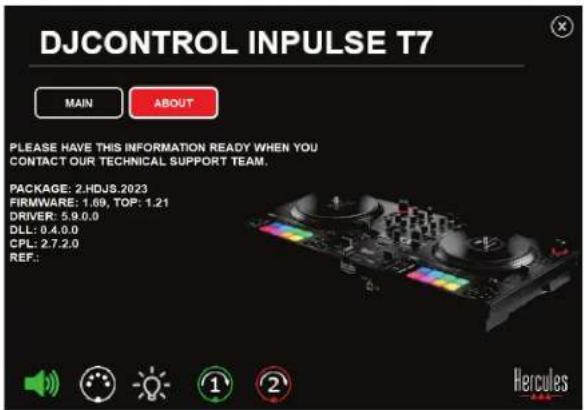
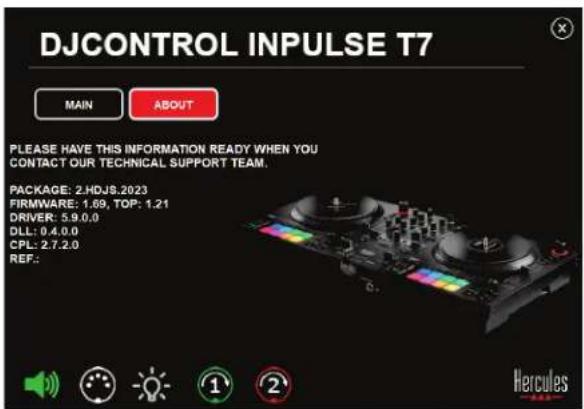
The control panel also allows you to access this information and display the driver versions installed on your computer in the ABOUT tab. Have this information ready if you need to contact Hercules' technical support.
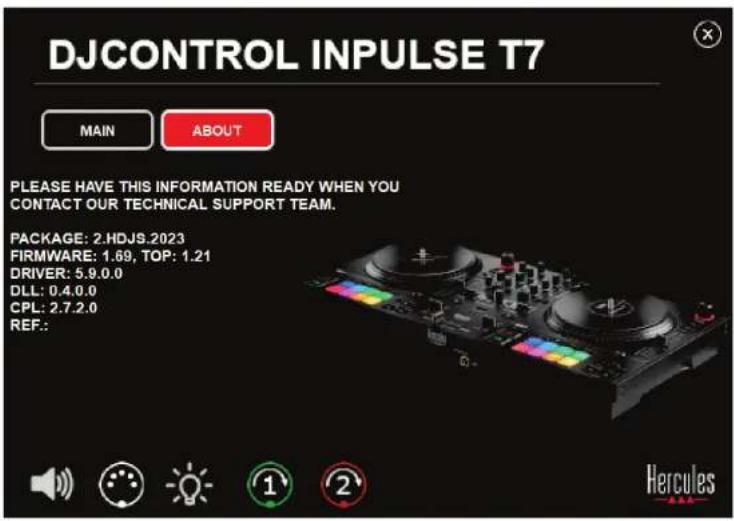
Testing the DJ controller in the control panel
In the ABOUT section of the DJControl Inpulse T7 control panel, you can test your DJ controller's sound, MIDI controls and lighting, along with the motorized platters.
To access the control panel, go to the following directory: C:\Program Files\DJHERCULESMIX\Audio\DJ Console Series\cpl2.
1. Audio test
To test whether the DJControl Inpulse T7 controller's audio interface is producing sound (without using DJ software to do so), click the speaker icon. The icon turns green during the test, and the program plays a sound on the Master outputs for speakers and headphones.
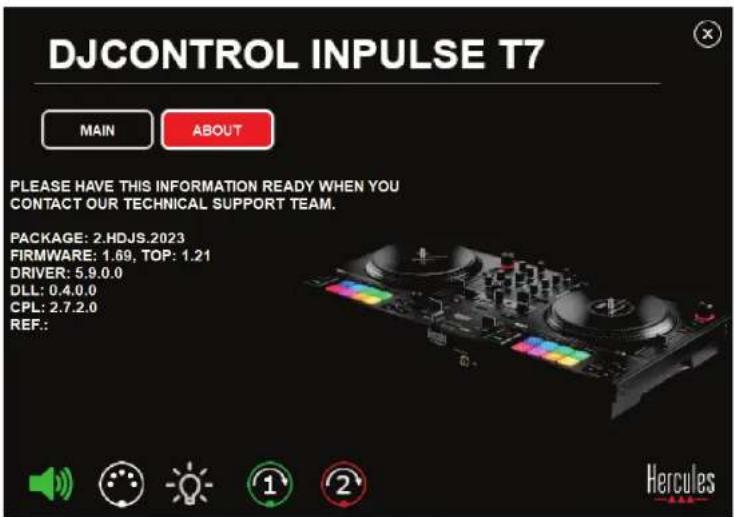
2. MIDI controls test
To test whether the DJControl Inpulse T7 controller's MIDI controls are working (without using DJ software to do so), try using the buttons or other controls that you want to test out. If the DIN connector icon turns green, this means that the MIDI command is being received and the button or other control is working properly.
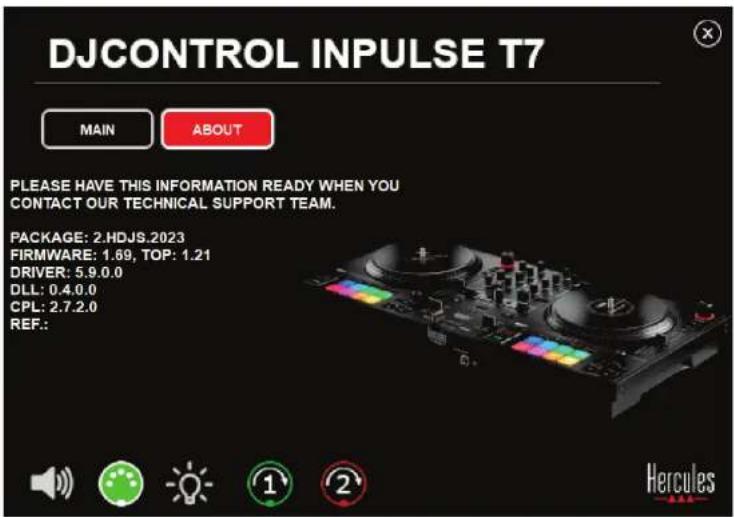
3. Lighting test
To test whether the DJControl Inpulse T7 controller's LEDs are working (without using DJ software to do so), click the light bulb icon to light up the controller's LEDs. The icon turns green during the test, and the controller's LEDs light up.
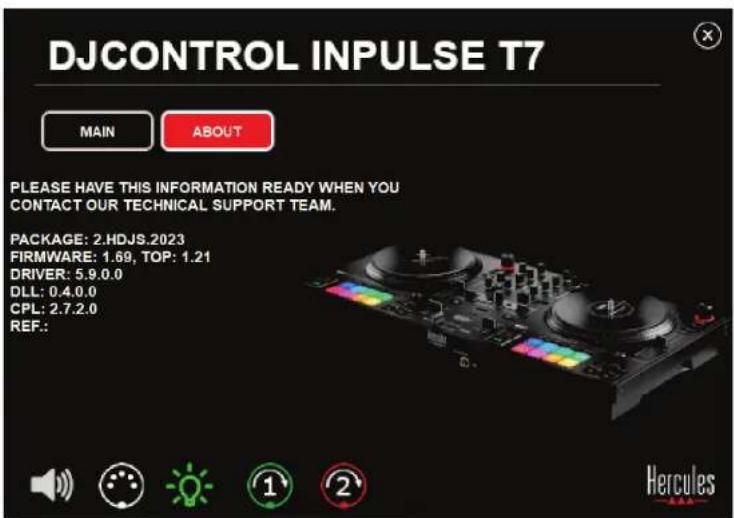

You can also light up all of the DJControl Inpulse T7 controller's LEDs by simultaneously pressing the IN and OUT buttons on both decks.
4. Motorized platters test
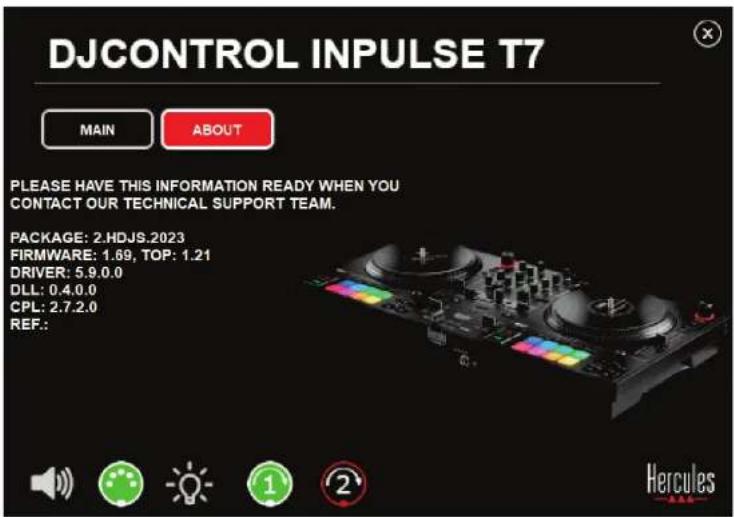
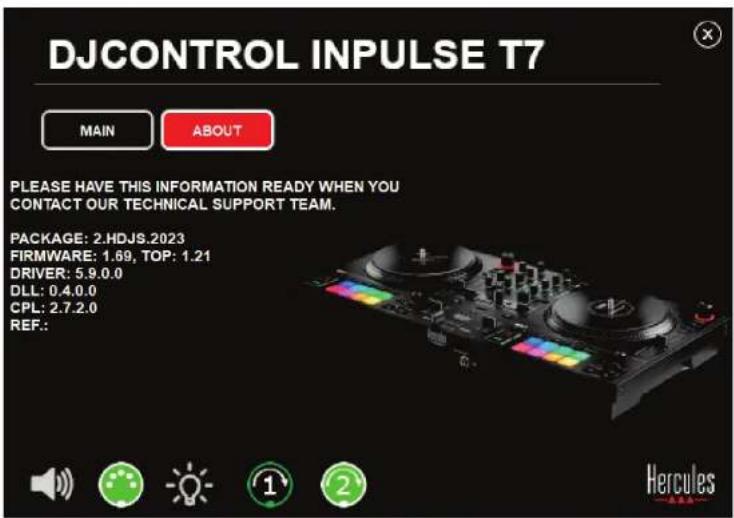
To test whether the DJControl Inpulse T7 controller's motorized platters are working (without using DJ software to do so), click the icon for platter 1 or 2. The icons for the corresponding platter and the DIN connector turn green during the test, and the motorized platter moves (i.e. turns) on the controller.
Test of motorized platter number 1:
Test of motorized platter number 2:
8. Demo mode
This mode is available when you connect your DJ controller to a power supply and a USB power supply without a computer, and is used in-store, in particular. In this case, the DJ controller is not operational but is in demo mode: a demo sequence lighting up the controller's different lights keeps repeating itself.
9. FAQs
1. No sound is coming out of my headphones.
Make sure that you have connected your headphones at the front of the DJ controller, as your DJ controller is equipped with a multichannel sound card preconfigured to work with DJUCED ^® and Serato DJ Lite.
By default, the two monitoring buttons are enabled when the software is first launched. You can then select either deck that you want to listen to on your headphones, or press the 📷 button located below the MASTER VU meter to listen to the results of your mix.
2. The sound on my headphones is distorted or too low.
Make sure that your headphones feature a TRS connector (standard headphones) and not a TRRS connector (headphones + microphone).
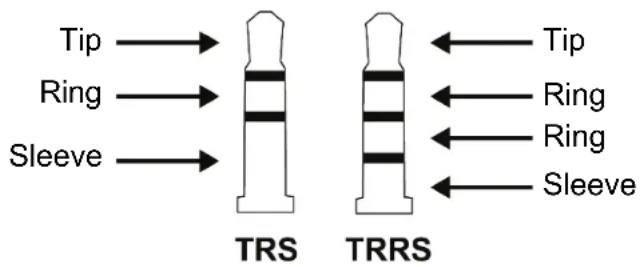
TRRS connectors are not compatible with the DJControl Inpulse T7 controller.
3. No sound is coming out of my speakers.
Make sure that you have connected your speakers to the RCA or XLR connectors at the back of the DJ controller, as your DJ controller is equipped with a multichannel sound card preconfigured to work with DJUCED® and Serato DJ Lite.
In order to test (without using DJ software) whether the audio interface of the DJControl Inpulse T7 controller is producing sound, you can display the DJ controller's control panel. Click the ABOUT tab, and then click the speaker icon. The icon turns green when sound is being played.
4. No sound is coming out of my laptop computer speakers.
Your DJ controller is equipped with a preconfigured multichannel sound card. If you want to use the speakers built into your laptop computer:
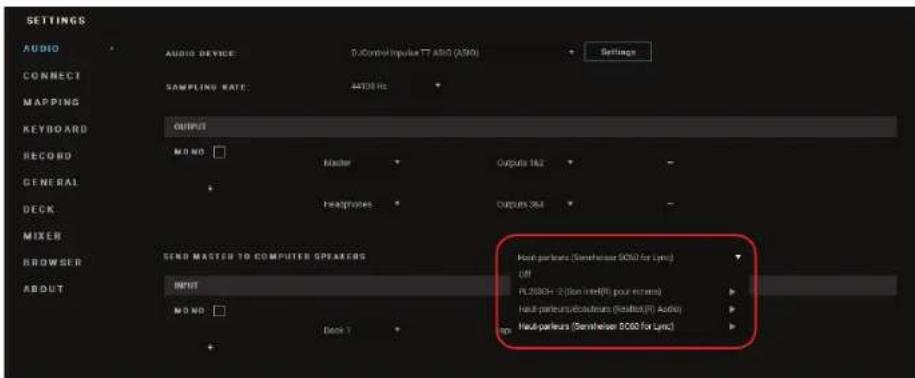
- In DJUCED®, access the settings and tick the SEND MASTER TO COMPUTER SPEAKERS option.
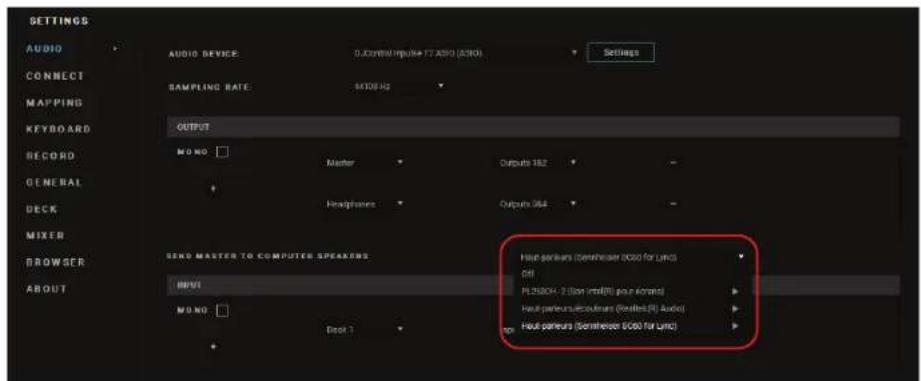
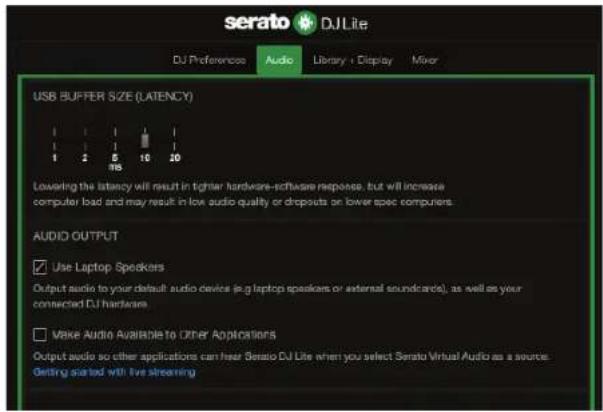
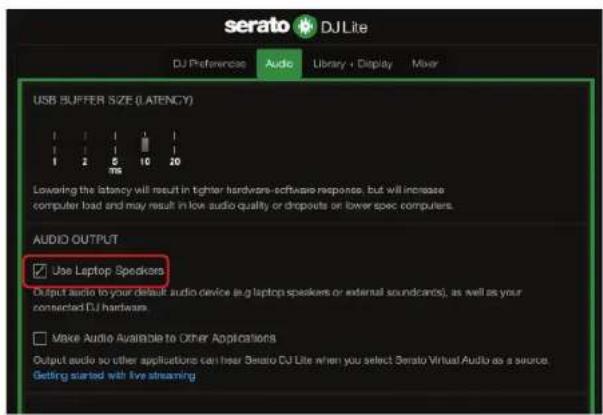
- In Serato DJ Lite, access the settings, open the Audio tab and tick the Use Laptop Speakers option.
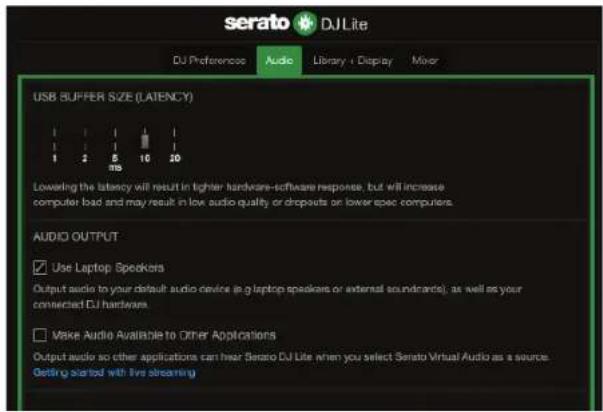
5. No sound is coming out of my headphones, or my laptop computer speakers.
By default, the sound comes from the Master output for speakers, and the headphones output. It is therefore normal that no sound is coming out of your laptop computer.
If you want to use the speakers built into your laptop computer:
- In DJUCED®, access the settings and tick the SEND MASTER TO COMPUTER SPEAKERS option. You must connect your headphones to the DJControl Inpulse T7 controller.
- In Serato DJ Lite, access the settings, open the Audio tab and tick the Use Laptop Speakers option. You must connect your headphones to the DJControl Impulse T7 controller.
In order to test (without using DJ software) whether the audio interface of the DJControl Inpulse T7 controller is producing sound, you can display the DJ controller's control panel. Click the ABOUT tab, and then click the speaker icon. The icon turns green when sound is being played.
6. I'm experiencing sound quality problems with Windows®.
The volume of the track being played is too low
The master volume of the DJ software is independent of the volume controls on the DJ controller. Therefore, as long as the master volume of the DJ software is low, the volume of the Master output will be low as well.
Check the volume of the DJ software and increase it if necessary.
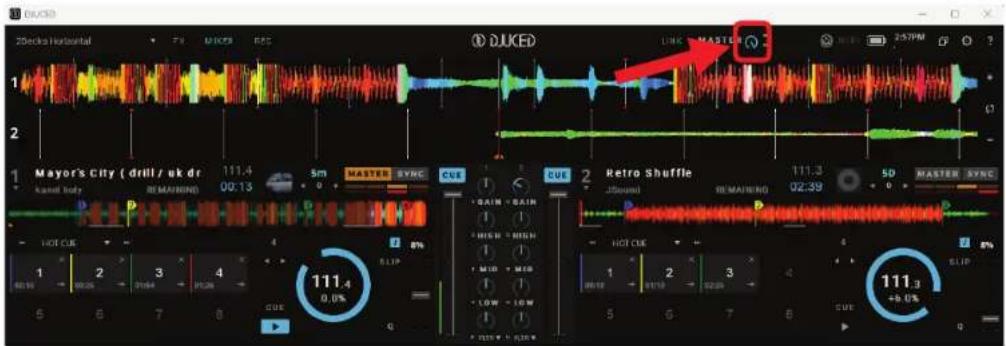
- In DJUCED®, use the volume button located in the bar in the upper right-hand part of the window.
- In Serato DJ Lite, use the volume button located in the bar in the upper right-hand part of the window.
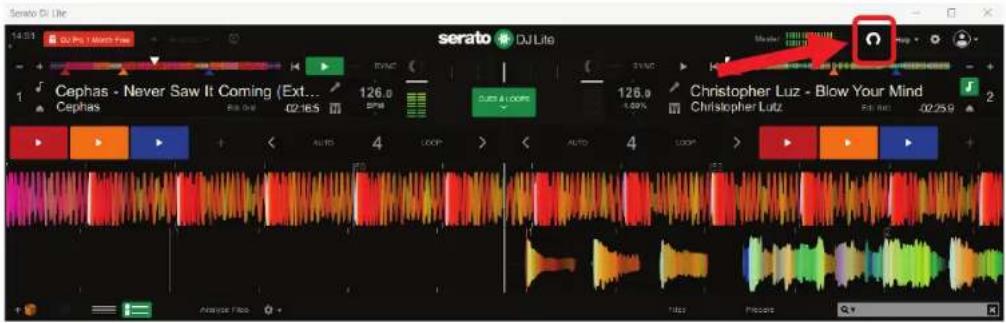
The volume on my headphones is too low
In Serato DJ Lite, access the settings, open the Audio tab and untick (i.e. deselect) Use Laptop Speakers.
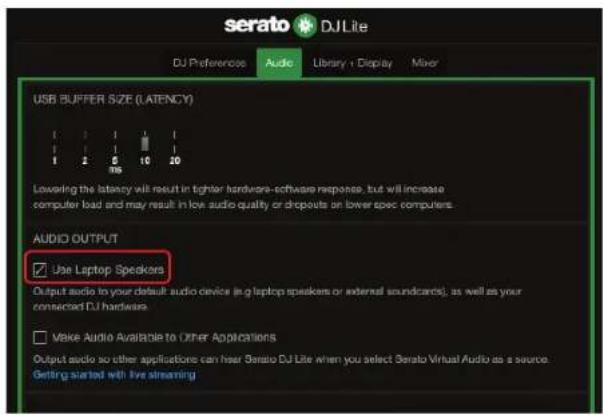
If you need to keep the Use Laptop Speakers box ticked (i.e. selected), set the computer's built-in sound card as "Computer speakers":
- Close the Serato DJ Lite software.
- Access the Windows® settings and go to System and then Sound.
- Under Output, select the computer's built-in sound card. Your DJ controller must no longer be set as the output.
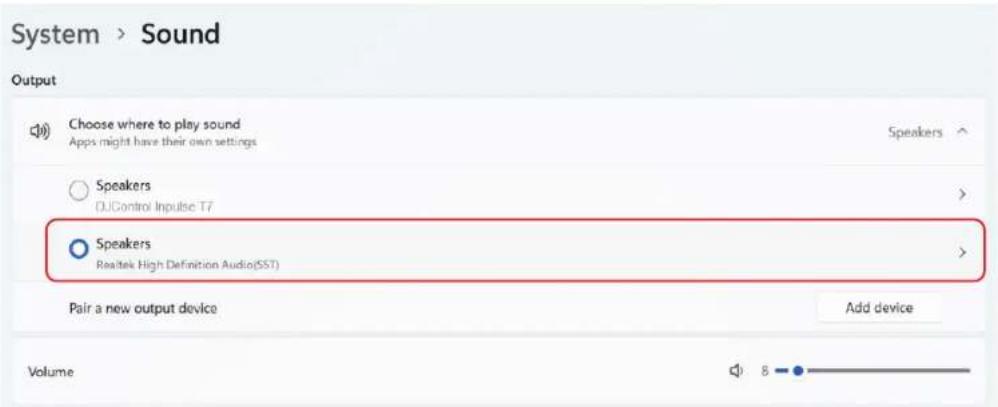
Windows® may have set your DJ controller as the Windows® sound card. If you keep this setting, the Use Laptop Speakers setting can play the Master output on your DJ controller's 4-channel output (Master output + headphones).
The sound isn't clear
In DJUCED®:
We recommend that you use an ASIO audio device. With a WASAPI device, the sound quality is generally good. However, the latency may increase and the sound may not be clear.
Access the settings, click on the Audio tab and select DJControl Inpulse T7 ASIO (ASIO) as the Audio device.
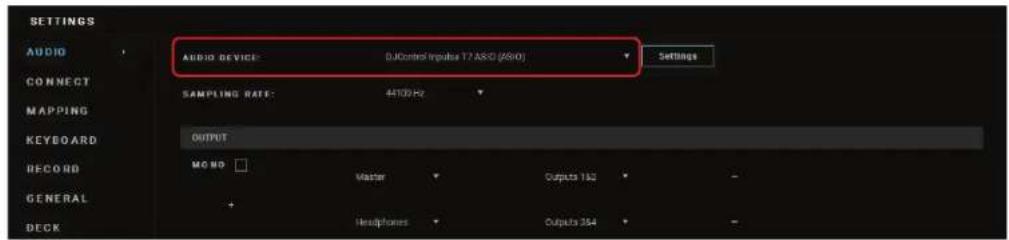
In Serato DJ Lite:
Access the settings, open the Audio tab and untick (i.e. deselect) Use Laptop Speakers.
7. I can't connect my multimedia speakers to my DJControl Inpulse T7.
If your speakers' connectors differ from the connectors on the DJControl Inpulse T7 controller, you can use a dual RCA to 1/8" / 3.5 mm mini-jack adapter (not included) to connect multimedia speakers, a dual XLR to ¼" / 6.35 mm jack adapter (not included) to connect PA speakers, or any other adapter format corresponding to your speakers. You can also connect your speakers to the headphones output and route output 1-2 to output 3-4 by pressing the button located below the MASTER VU meter.
8. Is the DJControl Inpulse T7 controller compatible with an iPad or iPhone?
No, the DJControl Inpulse T7 controller is not compatible with an iPad or iPhone. It only works with a PC or Mac.
9. How can I connect the DJControl Inpulse T7 controller to a USB-C port, or a Thunderbolt 3 port?
You can connect the DJControl Inpulse T7 controller to a USB-C port or a Thunderbolt 3 port in three different ways:
- By using an adapter (USB-C [male] or Thunderbolt 3 to USB-A [female]) between the computer and the DJ controller. Please note that some low-cost adapters will not work properly, as they cut off a part of the power supply.
- By using a dock (USB-C or Thunderbolt 3) between the computer and the DJ controller. Make sure that the dock has a dedicated power supply, as a dock powered only via the USB-C or Thunderbolt 3 port may not have enough power.
- By replacing the included USB cable with a USB-C or Thunderbolt 3 to USB-B 2.0 cable.
Hercules

TECHNICAL SUPPORT
https://support.hercules.com


Trademarks
Intel ^® and Intel Core ^™ are trademarks or registered trademarks of Intel Corporation.
Microsoft ^® Windows ^® 10/11 is a registered trademark or trademark of Microsoft Corporation in the U.S. and/or in other countries.
Mac ^® and macOS ^® are trademarks of Apple Inc., registered in the U.S. and other countries.
Serato, Serato DJ Lite and Serato DJ Pro are registered trademarks of Serato Audio Research Limited.
The DJUCED ^® brand and DJUCED ^® 's graphic elements are the property of Guillemot Corporation.
ASIO is a trademark of Steinberg Media Technologies GmbH.
All other trademarks and trade names are hereby acknowledged in this document and are the property of their respective owners. Illustrations not binding. Contents, designs and specifications in this document are subject to change without notice and may vary from one country to another.
Copyright
No part of this manual may be reproduced, summarized, transmitted, transcribed, stored in a retrieval system, or translated into any language or computer language, in any form or by any means, electronic, mechanical, magnetic, manual, via photocopying, recording, or other, without the express written consent of Guillemot Corporation S.A.
DJUCED® and Serato DJ Lite End User License Agreement
Please read the License Agreement displayed during installation of DJUCED® and Serato DJ Lite carefully.
natural_image
Black Kercutas audio synthesizer with dual dials and control knobs (no visible text or symbols)DJCONTROL INPUTSE T7
PREMIUM EDITION
natural_image
Black Heidelberg DJG3023 digital audio workstation with dual dials and control knobs (no visible text or symbols)TABLE DES MATIÈRES
- CONTENU DE LA BOÎTE......6
DJControl Inpulse T7....6
DJControl Inpulse T7 Premium Edition......8
-
CARACTÉRISTIQUES TECHNIQUES......10
-
FONCTIONS ......13
Platines (Decks)....14
Mixage....32
Branchements....43
- INSTALLATION......46
Branchements....46
natural_image
Two types of electrical plug connectors shown in line drawings (no text or symbols)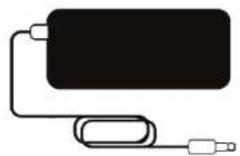
natural_image
Line drawing of two identical vintage dials with control panels and buttons, no text or symbols present.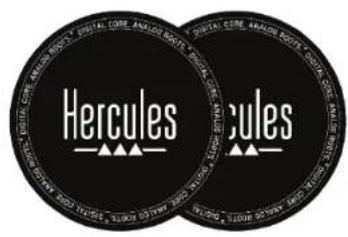
natural_image
Two black circular discs labeled 'Hercules' with white branding, overlapping side by side (no additional text or symbols)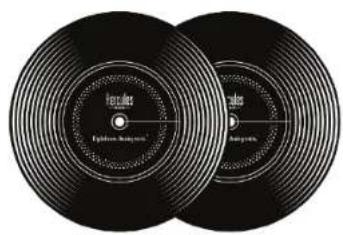
natural_image
Two black vinyl record covers with concentric rings and no visible text or symbols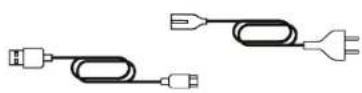
https://www.djuced.com/downloaddjudced/
(en anglais)
- Serato DJ Lite :
https://serato.com/dj/lite/downloads?systemreq
○ Puissance max = 7 dBU @ 1 kΩ
○ Puissance max = 13 dBU @ 1 kΩ
- Jog wheel
- Boutons de transport (Play, Cue, Sync, Shift)
- Commandes de boucles (Loop)
- Sélection des morceaux (Browser, Load, Assist./Prep.)
- Fader de tempo (Pitch fader)
- Pads et modes
- Modes de lecture
- Pré-écoute, volumes (Master, Casque et Microphone) et Beatmatch Guide
- Tranche de mixage (Gain, EQ, Filter)
- Mixage (Crossfader, volume faders)
- Effets
Platines (Decks)
1. Jog wheel
bar
| Condition | Change (%) | | --------- | ---------- | | Left | +8% | | Left | - | | Right | 0% | | Right | -8% | | Right | 0% | | Right | -16% |RANGE*: permet de changer l'échelle de tempo des faders de tempo.
natural_image
Front view of a black DUKED serato and Hercules duxed instrument (no visible text or symbols on the device body)

Bloc d'alimentation
natural_image
Digital vinyl record and dials with control knobs and a color palette, no visible text or symbols on the device itself.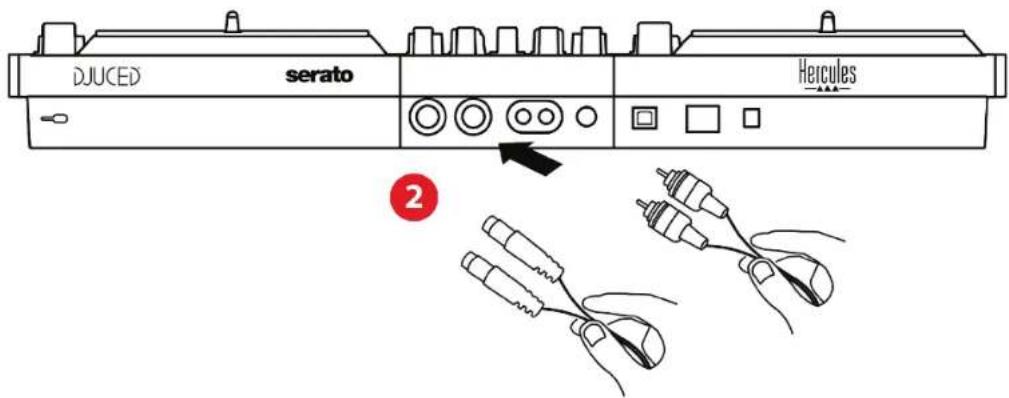

https://support.hercules.com/product/djcontrolinputset7/.
natural_image
Black Kercules audio synthesizer with dual dials and colorful buttons (no visible text or symbols)DJCONTROL INPUTSE T7
PREMIUM EDITION
natural_image
Black vinyl vinyl record with dual dials and a CD/DVD interface (no visible text or symbols)INHALTSVERZEICHNIS
- VERPACKUNGSINHALT 6
DJControl Inpulse T7....6
DJControl Inpulse T7 Premium Edition......8
-
TECHNISCHE DATEN......10
-
FUNKTIONEN....13
Überblick....13
Decks....14
Mixen 32
Anschlüsse....43
- INSTALLATION......46
Anschlüsse....46


natural_image
Line drawing of two vintage dials with control panels and buttons, no text or symbols present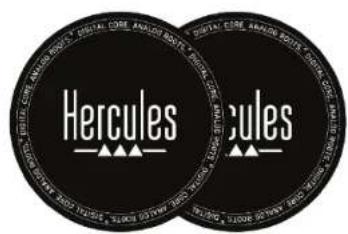
natural_image
Two black vinyl record covers with concentric rings and reflective surfaces (no visible text or symbols)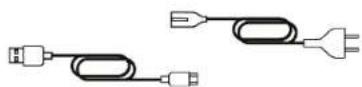
bar
| Position | Value | |--------|-------| | Left | +8% | | Right | 0% | | Left | -8% | | Right | -8% |natural_image
Front view of a black DUKED serato Herculos audio console with control knobs and buttons (no visible text beyond branding)

Stromversorgung
natural_image
Digital DJG instrument with dual dials and control knobs (no readable text or symbols)○ macOS®: HDJC Series Mac
- Windows®: HDJC Series PC
Serato DJ Lite
- Bitte besuchen Sie:
https://serato.com/dj/lite/downloads.
○ macOS®: HDJC Series Mac
- Windows®: HDJC Series PC

https://support.hercules.com/product/djcontrolinputset7/.
natural_image
Black vinyl vinyl vinyl vinyl record with dual dials and a Honduras logo (no text or symbols on the device itself)DJCONTROL INPUTSE T7
PREMIUM EDITION
natural_image
Black vinyl record driver with dual dials and a Honduras CD player (no visible text or symbols)INHOUDSOPGAVE
- DOOS VAN DE VERPAKKING ......6
DJControl Inpulse T7 6
DJControl Inpulse T7 Premium Edition .....8
-
TECHNISCHE SPECIFICATIES......10
-
KENMERKEN 13
Overzicht 13
Decks....14
Mixen 32
Aansluitingen....43
- INSTALLATIE......46
Aansluitingen....46
De software downloaden....49
- BRENG EXTRA LEVEN IN UW MIX ....54
Modi en pads....54
Scratchen....70
Filters....71
6. MEERKANAALS AUDIOVERSTERKER....72
Master-uitgang voor
speakers (uitgang 1-2)....73


natural_image
Line drawing of a dual-chamber electric radio with dials, control knobs, and a labeled 'Hercules' component (no text or symbols beyond labels)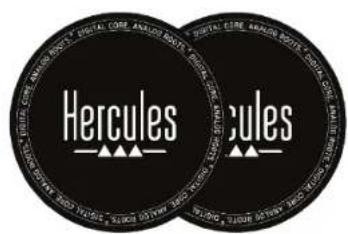
- DJUCED®: https://www.djuced.com/downloaddjuded/ (in het Engels)
- Serato DJ Lite: https://serato.com/dj/lite/downloads?systemrequirements#system-requirements (in het Engels)
Audio-uitgangen:
○ Resolutie = 24-bit
○ Sample frequentie = 44.1 kHz
RANGE*: Hiermee kunt u de temposchaal van de tempofaders veranderen.
$$ \begin{array}{l} - \text { In } \quad \text { DJUCED } ^ {\circledast}: \pm 6 \%, \pm 8 \%, \pm 10 \%, \pm 12 \%, \ \pm 16 \%, \pm 20 \%, \pm 25 \%, \pm 33 \%, \pm 50 \%. \ - \text { In Serato DJ Lite: } \pm 8 \%, \pm 16 \%, \pm 50 \%. \ \end{array} $$
natural_image
Front view of a black DUKED serato and Hercules duxed instrument (no visible text or symbols on the device body)

Stroomvoorziening
natural_image
Digital audio workstation dashboard with two dials, a vinyl record, and a color palette (no readable text or symbols)De software downloaden
DJUCED®
| Deck 1 / Deck 2 | Stem |
| Pad 1 | Zang |
| Pad 2 | Melodie |
| Pad 3 | Bas |
| Pad 4 | Drums |


7. Compatibiliteit
USB Audio / USB MIDI
https://support.hercules.com/product/djcontrolinputset7/.
natural_image
Exterior view of a black Hertler's vinyl record driver with dual dials and control knobs (no visible text or symbols)DJCONTROL INPUTSE T7
PREMIUM EDITION
natural_image
Black and white electronic circuit board with dual dials and a multicolored CD/DVD module (no visible text or symbols)INDICE
DJControl Inpulse T7....6
DJControl Inpulse T7 Premium Edition......8
-
CARATTERISTICHE TECNICHE......10
-
CARATTERISTICHE ......13
Panoramica 13
Banchi 14
Mixaggio 32
Connettori....43
- Hercules DJ Academy (in inglese):


natural_image
Line drawing of two identical vintage dials with control panels and buttons, no text or symbols present.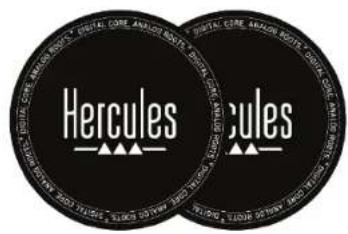
https://www.djuced.com/downloaddjuded/
(in inglese)
- Serato DJ Lite:
https://serato.com/dj/lite/downloads?systemreq
uirements#system-requirements (in inglese)
Uscite audio:
natural_image
Front view of a black DJUKED serato audio recorder with control knobs and buttons (no visible text or symbols on device body)

Alimentatore
natural_image
Front view of a vintage JACD music synthesizer with two dials, control knobs, and a color palette (no readable text or symbols)https://support.hercules.com/product/djcontrolinpulset7/ (in inglese).
○ macOS®: HDJC Series Mac
- Windows®: HDJC Series PC
- Audio device (Periferica audio): DJControl Inpulse T7 ASIO (ASIO)
- Output (Uscita):
○ Master: Outputs 1&2
○ Headphones: Outputs 3&4
- Audio device (Periferica audio): DJControl Inpulse T7
- Output (Uscita):
- Master: Outputs 1&2
○ Headphones: Outputs 3&4
Serato DJ Lite
- Visita la pagina:
https://serato.com/dj/lite/downloads.
-
Scarica e installa Serato DJ Lite.
-
Visita la pagina:
https://support.hercules.com/product/djcontrolinpulset7/ (in inglese).
○ macOS®: HDJC Series Mac
- Windows®: HDJC Series PC

https://support.hercules.com/product/djcontrolinputset7/.
natural_image
Black vinyl vinyl vinyl vinyl vinyl vinyl vinyl vinyl vinyl vinyl vinyl vinyl vinyl vinyl vinyl vinyl vinyl vinyl vinyl vinyl vinyl vinyl vinyl vinyl vinyl vinyl vinyl vinyl vinyl vinyl vinyl vinyl vinyl vinyl vinyl vinyl vinyl vinyl vinyl vinyl vinyl vinyl vinyl vinyl vinyl vinyl vinyl vinyl vinyl vinyl vinyl vinyl vinyl vinyl vinyl vinyl vinyl vinyl vinyl vinyl vinyl vinyl vinyl vinyl vinyl vinyl vinyl vinyl vinyl vinyl vinyl vinyl vinyl vinyl vinyl vinyl vinyl vinyl vinyl vinyl vinyl vinyl vinyl vinyl vinyl vinyl vinyl vinyl vinyl vinyl vinyl vinyl vinyl vinyl vinyl vinyl vinyl vinyl vinyl vinyl Vinyl 2000 (no visible text or symbols on the device body)DJCONTROL INPUTSE T7
PREMIUM EDITION
natural_image
Black vinyl vinyl vinyl record with dual dials and a Heico's CD player interface (no visible text or symbols on the device body)TABLA DE CONTENIDO
- CONTENIDO DE LA CAJA......6
DJControl Inpulse T7....6
DJControl Inpulse T7 Premium Edition......8
-
ESPECIFICACIONES TÉCNICAS .....10
-
CARACTERÍSTICAS....13
Descripción general....13
Decks....14
Mezclas 32
Conectores....43
- INSTALACIÓN......46
Conexiones 46
Descarga del software....49


natural_image
Line drawing of two vintage dials with control panels and buttons, no text or symbols present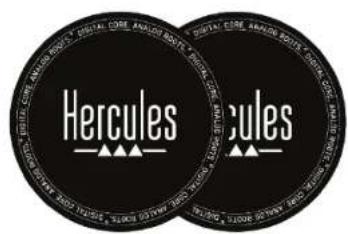
natural_image
Two black vinyl record covers with concentric rings and reflective surfaces (no text or symbols visible)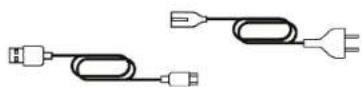
https://www.djuced.com/downloaddjudced/
(en inglés)
- Serato DJ Lite:
https://serato.com/dj/lite/downloads?systemreq
- En DJUCED®: ±6%, ±8%, ±10%, ±12%, ±16%, ±20%, ±25%, ±33%, ±50%.
- En Serato DJ Lite: ±8%, ±16%, ±50%.
natural_image
Front view of a black DUKED serato Harcules industrial machine with control knobs and buttons (no visible text beyond branding)

natural_image
Digital DJG instrument with dual dials and control knobs, displayed in a black studio environment (no readable text or symbols)Descarga del software
DJUCED®
- Visita: https://www.djuced.com/hercules.
- Descarga e instala DJUCED®.
- Visita:
○ macOS®: HDJC Series Mac
- Windows®: HDJC Series PC
○ macOS®: HDJC Series Mac
- Windows®: HDJC Series PC

https://support.hercules.com/product/djcontrolinputset7/.
natural_image
Black vinyl vinyl vinyl vinyl vinyl vinyl vinyl vinyl vinyl vinyl vinyl vinyl vinyl vinyl vinyl vinyl vinyl vinyl vinyl vinyl vinyl vinyl vinyl vinyl vinyl vinyl vinyl vinyl vinyl vinyl vinyl vinyl vinyl vinyl vinyl vinyl vinyl vinyl vinyl vinyl vinyl vinyl vinyl vinyl vinyl vinyl vinyl vinyl vinyl vinyl vinyl vinyl vinyl vinyl vinyl vinyl vinyl vinyl vinyl vinyl vinyl vinyl vinyl vinyl vinyl vinyl vinyl vinyl vinyl vinyl vinyl vinyl vinyl vinyl vinyl vinyl vinyl vinyl vinyl vinyl vinyl vinyl vinyl vinyl vinyl vinyl vinyl vinyl vinyl vinyl vinyl vinyl vinyl vinyl vinyl vinyl vinyl vinyl vinyl vinyl Vinyl 2000 (no visible text or symbols on the device body)DJCONTROL INPUTSE T7
PREMIUM EDITION
natural_image
Black vinyl vinyl vinyl record with dual dials and a Heico's CD player (no visible text or symbols on the device body)ÍNDICE
- CONTEÚDO DA EMBALAGEM......6
DJControl Inpulse T7....6
DJControl Inpulse T7 Premium Edition......8
-
ESPECIFICAÇÕES TÉCNICAS .....10
-
CARACTERÍSTICAS....13
Vista geral....13
Decks....14
Misturar....32
Conectores....43
- INSTALAÇÃO......46
Ligações 46
Transferir o software 49
- ANIMAR A SUA MISTURA ....54
Modos e pads....54
Scratching 70
Filtros ....71
- PLACA DE SOM MULTICANAL....72
-
MODO DEMO......86
-
PERGUNTAS FREQUENTES......87
DJCONTROL INPUTSE T7
DJCONTROL INPUTSE T7
PREMIUM EDITION


natural_image
Line drawing of two vintage dials with control panels and buttons, no text or symbols present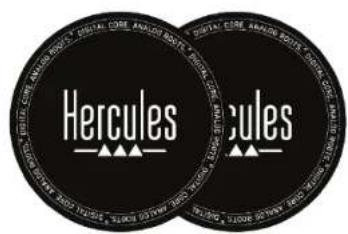
natural_image
Two black vinyl record covers with concentric rings, no visible text or symbols on covers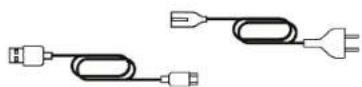
- No DJUCED®: ±6%, ±8%, ±10%, ±12%, ±16%,
- No Serato DJ Lite: ±8%, ±16%, ±50%.
$$ \pm 20\% , \pm 25\% , \pm 33\% , \pm 50 \% . $$
natural_image
Front view of a black DUKED serato Herculos audio console with control knobs and buttons (no visible text beyond branding)

natural_image
Digital DJG instrument with two dials and a color palette, no visible text or symbols on the main device.Transferir o software
DJUCED®
- Visite: https://www.djuded.com/hercules.
- Transfira e instale o DJUCED®.
- Visite:
○ macOS®: HDJC Series Mac
- Windows®: HDJC Series PC
- Visite: https://serato.com/dj/lite/downloads.
- Transfira e instale o Serato DJ Lite.
- Visite:
○ macOS®: HDJC Series Mac
- Windows®: HDJC Series PC
| Deck 1 / Deck 2 | Amostra |
| Pad 1 | Ahh! |
| Pad 2 | Hey You! |
| Pad 3 | Oww! |
| Pad 4 | Yeah! |
Scratching

https://support.hercules.com/product/djcontrolinputset7/.
https://support.hercules.com/product/djcontrolinputset7/.
natural_image
Black vinyl vinyl vinyl record with dual dials and control knobs (no visible text or symbols)DJCONTROL INPUTSE T7
PREMIUM EDITION
natural_image
Black DJD triac with dual dials and a CD/DVD interface (no visible text or symbols)ОГЛАВЛЕНИЕ


natural_image
Line drawing of two identical vintage dials with control panels and buttons, no text or symbols present.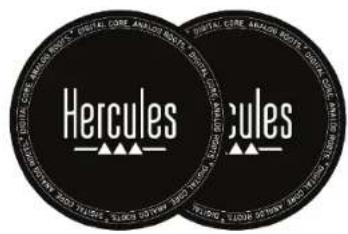
natural_image
Two black circular discs labeled 'Hercules' with white branding, overlapping side by side (no additional text or symbols)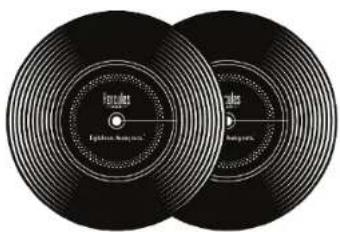
https://www.djuced.com/downloaddjudced/
bar
| Condition | Change (%) | | --------- | ---------- | | Left | +8% | | Left | - | | Right | 0% | | Right | -8% | | Right | 0% | | Right | -8% | | Right | -16% |natural_image
Front view of a black DUKED serato Herculole industrial machine (no visible text or symbols on the device body)

Питание
natural_image
Digital DJG instrument with two dials and control knobs, displayed in a black industrial setting (no readable text or symbols)- macOS®: HDJC Series Mac
- Windows®: HDJC Series PC
○ macOS®: HDJC Series Mac
- Windows®: HDJC Series PC

Choose where to play sound Apps might have their own settings
Speakers

Speakers DJControl Impulse T7

Speakers Realtek High Definition Audio(SST)
Pair a new output device
Add device
Volume


natural_image
Black Kerculas audio synthesizer with dual dials and colorful buttons (no visible text or symbols)DJCONTROL INPUTSE T7
PREMIUM EDITION
natural_image
Black vinyl vinyl vinyl diper with dual dials and control knobs (no visible text or symbols)OBSAH
- OBSAH BALENÍ......6
DJControl Inpulse T7....6
DJControl Inpulse T7 Premium Edition ......8
-
TECHNICKÉ SPECIFIKACE ......10
-
VLASTNOSTI......13
Přehled....13
Decky....14
Mixování....32
Konektory 43
- INSTALACE......46
Připojení......46



natural_image
Line drawing of two identical vintage dials with control panels and buttons, no text or symbols present.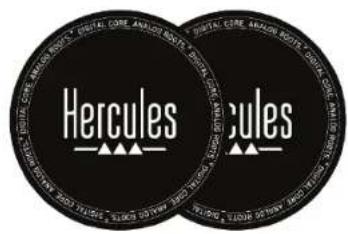
natural_image
Two black circular discs labeled 'Hercules' with white branding, overlapping side by side (no additional text or symbols)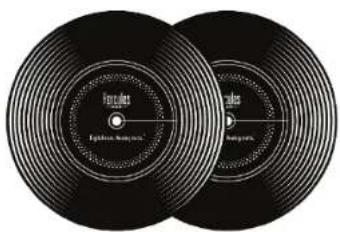
https://www.djuced.com/downloaddjuded/
(v angličtině)
- Serato DJ Lite:
https://serato.com/dj/lite/downloads?systemreq
bar
| Direction | Value | | --------- | ----- | | Left | +8% | | Right | 0% | | Left | -8% | | Right | -8% | | Right | 0% |natural_image
Front view of a black electronic instrument labeled 'DUKED' and 'serato', with control knobs and buttons (no readable text beyond labels)

Napájení
natural_image
Digital audio workstation dashboard with two dials, a vinyl record, and a color palette (no readable text or symbols)Stažení softwaru
DJUCED®
- macOS®: HDJC Series Mac - Windows®: HDJC Series PC
https://serato.com/dj/lite/downloads.
○ macOS®: HDJC Series Mac
- Windows®: HDJC Series PC

https://support.hercules.com/product/djcontrolinputset7/.
natural_image
Black vinyl vinyl vinyl record with dual dials and a colorful CD/DVD interface (no visible text or symbols)DJCONTROL INPUTSE T7
PREMIUM EDITION
natural_image
Black vinyl record driver with dual dials and a CD-ROM, no visible text or symbols on the device itself.içİNDEKİLER
- KUTU İÇERİĞİ 6
DJControl Inpulse T7....6
DJControl Inpulse T7 Premium Edition......8


natural_image
Line drawing of two vintage dials with control panels and buttons, no text or symbols present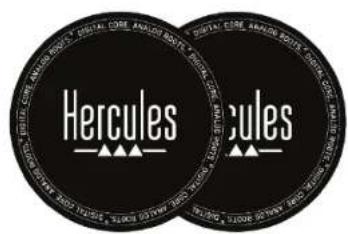
natural_image
Two black vinyl record covers with concentric rings and no visible text or symbols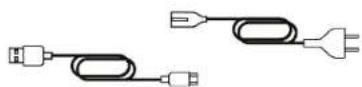
https://www.djuced.com/downloaddjuded/
(İngilizce)
- Serato DJ Lite:
https://serato.com/dj/lite/downloads?systemreq
uirements#system-requirements (Ingilizce)
Audio çıkışları:
natural_image
Front view of a black DUKED serato Herculole industrial machine (no visible text or symbols on the device body)

Güç kaynağı
natural_image
Digital audio workstation dashboard with two dials, a vinyl record, and a color palette (no readable text or symbols)Yazılımı indirme
DJUCED®
○ macOS®: HDJC Series Mac
- Windows®: HDJC Series PC
– Audio device (Ses aygıtı): DJControl Inpulse T7
- Output (Çıkış):
- Master: Outputs 1&2
○ Headphones: Outputs 3&4
Serato DJ Lite
○ macOS®: HDJC Series Mac
- Windows®: HDJC Series PC
| Deck 1 / Deck 2 | Ton |
| Ped 1 | Orijinal ton |
| Ped 2 | + 1 |
| Ped 3 | + 2 |
| Ped 4 | + 3 |
| Ped 5 | - 1 |
| Ped 6 | - 2 |
| Ped 7 | - 3 |
| Ped 8 | - 4 |
Mod 6

| Deck 1 / Deck 2 | Sample |
| Ped 1 | Ahh! |
| Ped 2 | Hey You! |
| Ped 3 | Oww! |
| Ped 4 | Yeah! |
Scratch atma

7. Uyumluluk
USB Audio / USB MIDI
https://support.hercules.com/product/djcontrolinputset7/.