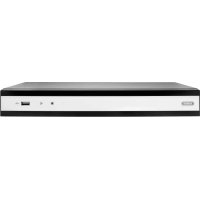
TVVR36801 - VCR ABUS - Free user manual and instructions
Find the device manual for free TVVR36801 ABUS in PDF.



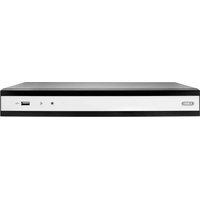
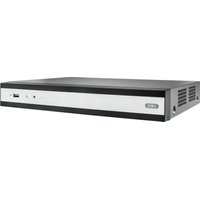
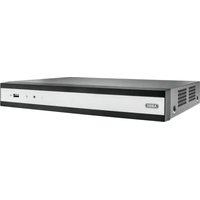
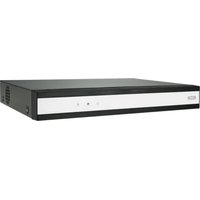
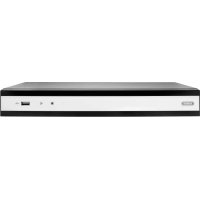
| Product Type | 8-channel PoE IP Network Recorder |
| Brand | ABUS |
| Model | TVVR36801 |
| Dimensions (approx.) | 300 x 200 x 50 mm |
| Weight (approx.) | 1.5 kg |
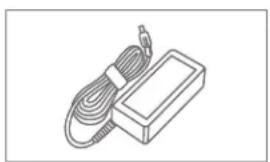
| Power Supply | 48 V DC, power adapter included |
| Power Consumption | Approx. 30 W (depending on number of cameras) |
| Number of Channels | 8 PoE channels |
| Max Recording Resolution | Up to 4K (depending on cameras) |
| Storage | Internal SATA hard drive (not included, max 10 TB) |
| Connectivity | RJ45 10/100/1000 Mbps, HDMI/VGA output |
| Main Functions | Continuous/motion recording, remote access via ABUS Link Station, smartphone viewing, management via CMS or IP Installer |
| Initial Setup | Setup wizard with administrator password and camera activation |
| Maintenance and Cleaning | Clean with a soft dry cloth. Do not use liquids. Ensure adequate ventilation. |
| Security | Administrator password required, verification code for app, reset only via ABUS support |
| Spare Parts and Repairability | Replaceable hard drive (standard SATA), power adapter included. Repair by ABUS authorized service. |
| Package Contents | Recorder, 48 V power adapter, USB wireless mouse, 1 m network cable, HDD connection cable, screws, safety instructions, quick start guide |
| Operating Temperature | 0 °C to 40 °C |
| Operating Humidity | 10 % to 90 % (non-condensing) |
| Legal Warranty | 2 years (EU compliance) |
Frequently Asked Questions - TVVR36801 ABUS
User questions about TVVR36801 ABUS
0 question about this device. Answer the ones you know or ask your own.
Ask a new question about this device
Download the instructions for your VCR in PDF format for free! Find your manual TVVR36801 - ABUS and take your electronic device back in hand. On this page are published all the documents necessary for the use of your device. TVVR36801 by ABUS.
USER MANUAL TVVR36801 ABUS
Security Tech Germany
ABUS


TVVR36401 / TVVR36801
QUICKGUIDE FÜR IP- REKORDER
Scope of delivery 24
Warnings 25
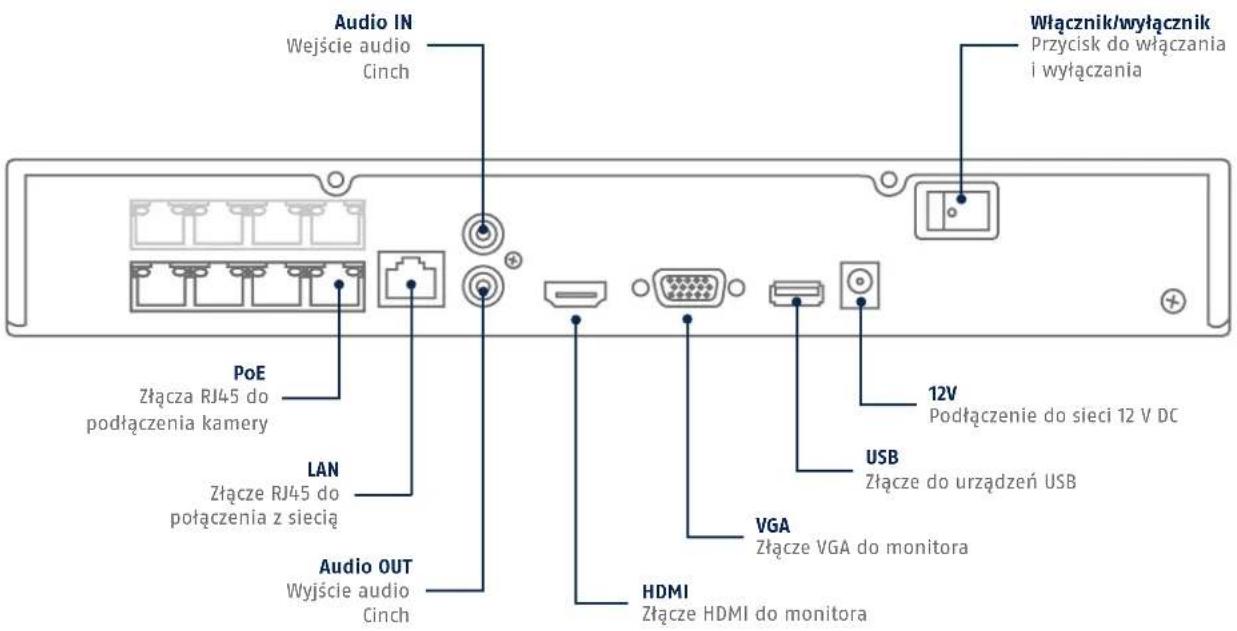
Connections 26
Tips for camera installation 28
Hardware installation 29
Software set-up 31
App setup 36
Instructions + software 38
Nederlands
Security Tech Germany
Dansk
Indhold i kassen 78
natural_image
Simple line drawing of a rectangular frame with no text, numbers, or symbols
natural_image
Line drawing of a cable and rectangular electronic device (no text or symbols)
natural_image
Line drawing of a computer mouse (no text or symbols)
natural_image
Line drawing of a flexible broadband cable with connector ends (no text or symbols)

WARNHINWEISE

Security Tech Germany
natural_image
Line drawing of a security camera module with connected cables and connectors (no text or symbols)Security Tech Germany

natural_image
Line drawing of hands installing or adjusting an electronic device with internal components (no text or symbols)natural_image
Line drawing of a mechanical device with arrows indicating force or movement (no text or symbols)natural_image
Hand holding a USB cable with ports and an icon, pointing to a device (no text or symbols visible)Security Tech Germany
1

Security Tech Germany
2


iOS
Apple App Store
Android
Google Play Store
Einrichtung App
https://www.abus.com/product/TVVR36401 https://www.abus.com/product/TVVR36801
Soft ware:
Security Tech Germany
ABUS


TVVR36401 / TVVR36801
QUICK START GUIDE FOR
IP RECORDER
This quick-start guide describes the initial installation steps for your IP recorder.
Detailed information can be found in the user guide on the website www.abus.com
ABUS


Dear Customer,
Thank you for purchasing one of our products. This product complies with current European and national regulations.
Conformity has been proven, and all related certifications are available from the manufacturer on request: ABUS Security Center GmbH & Co. KG, Linker Kreuthweg 5, 86444 Affing, GERMANY.
To ensure that this standard is maintained and that safe operation is guaranteed, you are obliged to observe the stipulations set out in this user guide. Read the entire user guide before putting the product into operation, and pay attention to all operating instructions and safety information.
All company names and product descriptions are trademarks of the corresponding owner. All rights reserved. If you have any questions, please contact your specialist dealer.
SCOPE OF DELIVERY
TVVR36401:
• 4-channel PoE recorder
• 48 V power supply unit
- Wireless USB mouse
- 1 m network cable
• Hard disk drive connection cable
- Screws for hard disk drive
- Safety Information
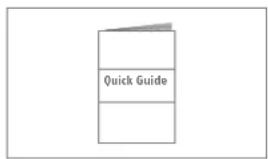
- Quick start guide

natural_image
Simple line drawing of a rectangular frame with no text, numbers, or symbols
natural_image
Line drawing of a cable and rectangular electronic device (no text or symbols)
natural_image
Line drawing of a computer mouse (no text or symbols)
natural_image
Line drawing of a flexible broadband cable with connector ends (no text or symbols)

TVVR36801:
• 8-channel recorder
- 48 V power supply unit
- Wireless USB mouse
- 1 m network cable
• Hard disk drive connection cable
- Screws for hard disk drive
- Safety Information
- Quick start guide
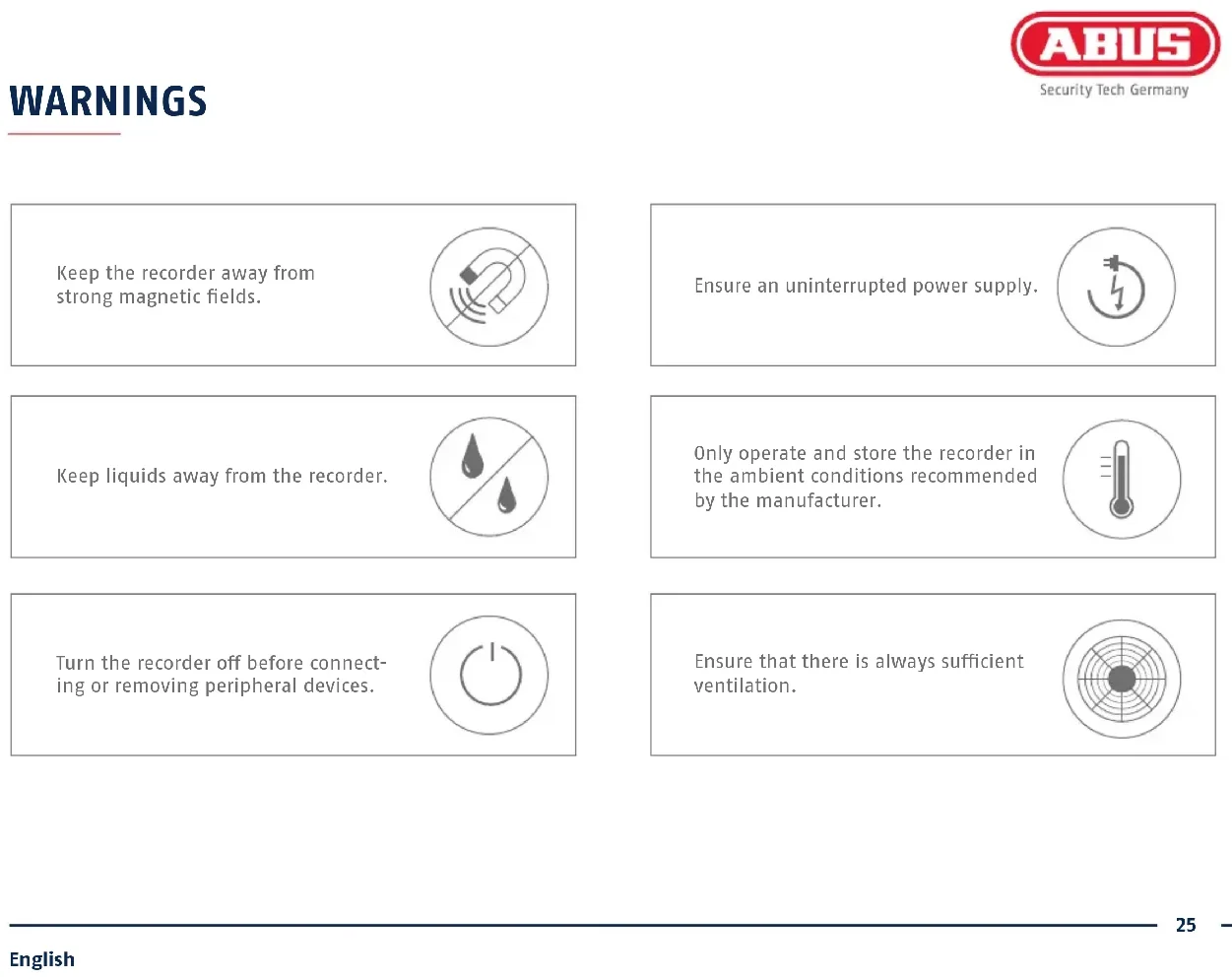
WARNINGS

Security Tech Germany
Keep the recorder away from strong magnetic fields.

Ensure an uninterrupted power supply.

Keep liquids away from the recorder.

Only operate and store the recorder in the ambient conditions recommended by the manufacturer.

Turn the recorder off before connecting or removing peripheral devices.

Ensure that there is always sufficient ventilation.

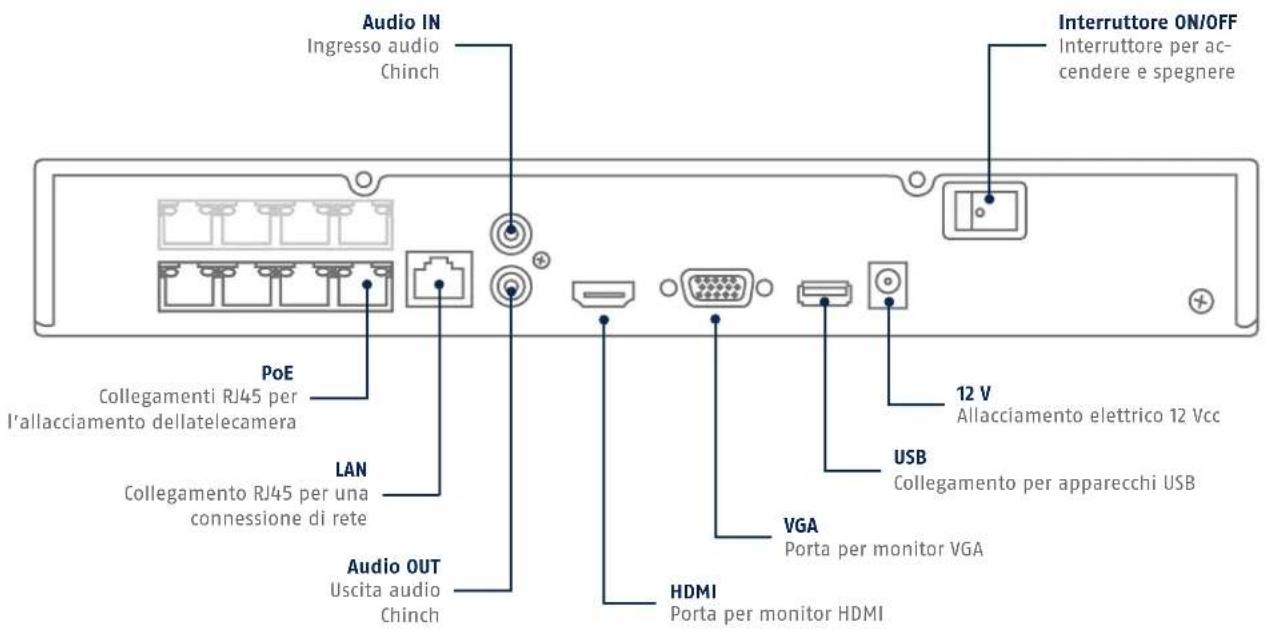
CONNECTIONS


Security Tech Germany

TIPS FOR CAMERA INSTALLATION

natural_image
Line drawing of a security camera module with connected cables and connectors (no text or symbols)When installing the cameras, connect only one camera at a time to a PoE port of the recorder via a network cable until the camera is fully integrated. The installation usually takes about 3 minutes per camera.
In the local interface, the image from the camera automatically appears on the monitor after a successful operation. On the web interface, check the status of the camera in Settings -> System -> Camera Administration.
HARDWARE INSTALLATION

Security Tech Germany


5678

natural_image
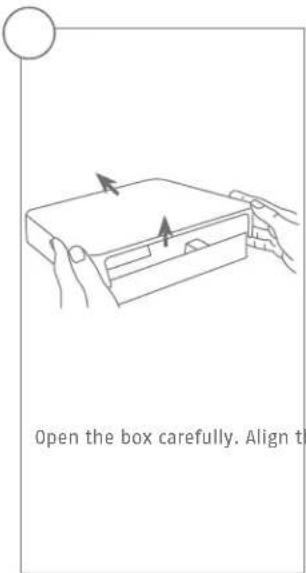
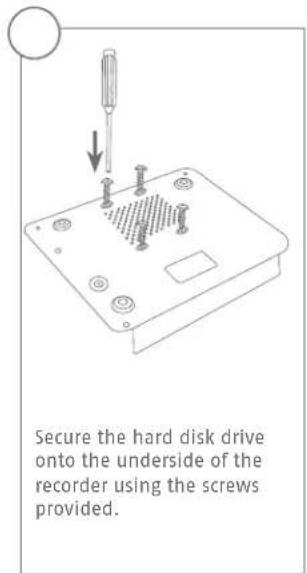
Line drawing of hands installing or adjusting an electronic device with internal components (no text or symbols)Connect the hard disk drive to the motherboard with the data cable (small connector) and the power cable (large connector).

natural_image
Line drawing of a mechanical device with arrows indicating force or movement (no text or symbols)Now place the box along the guide rails over the base plate of the recorder.


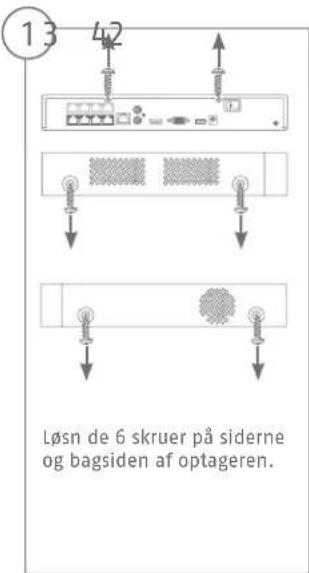
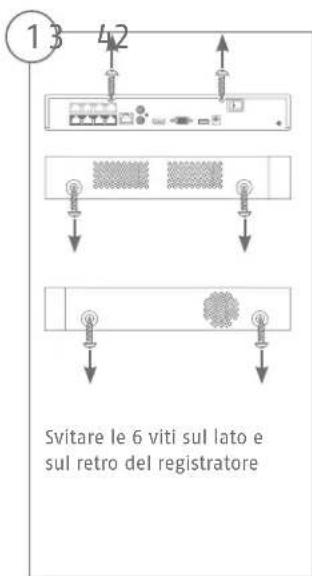
Then secure the box and the base plate with the six screws.

natural_image
Hand holding a device with an arrow pointing to a button (no text or symbols visible)Connect the power supply unit and switch the recorder on using the on/off switch.
SOFTWARE SET-UP

Security Tech Germany
1
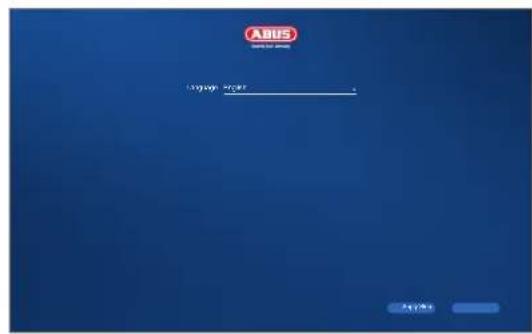
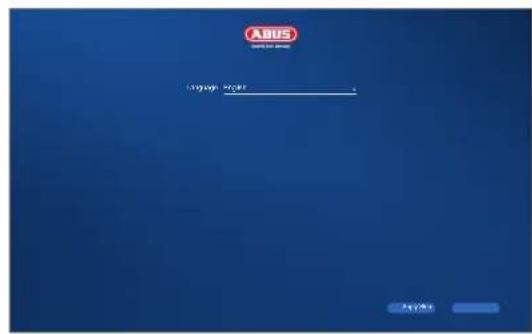
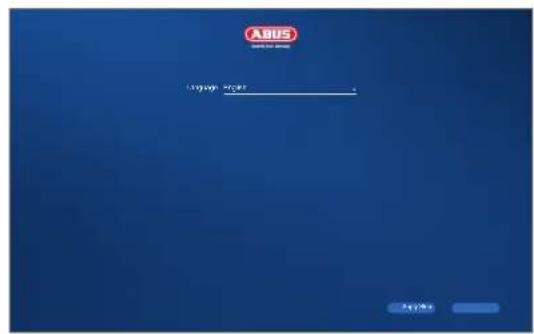
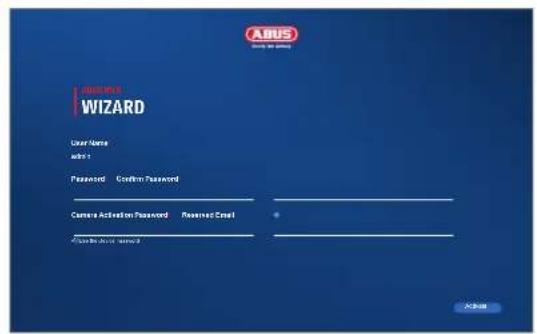
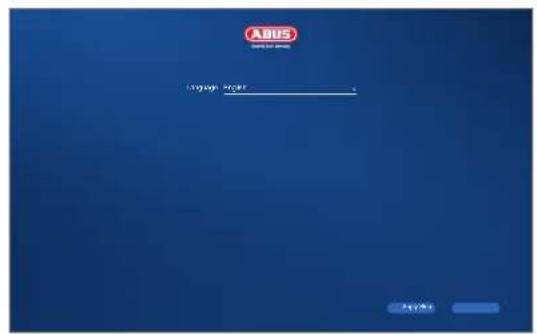
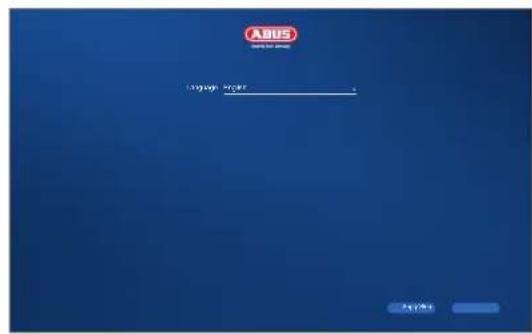
Select the desired language and click "Apply".
2

In the field "password" enter a password for the admin user. The password must meet the specified minimum requirements. Recommendation: Use a password that is as complex as possible and is classified as "strong".
Admin password:
3

Re-enter the password to confirm it. Make a note of the password in the quick start guide as well and keep it in a safe place. The admin password can only be reset by ABUS technical support.
4

You should also enter the activation password for the cameras here. If you activate a camera via the recorder, the recorder uses this password for it. Then click on "OK". The device is now activated and all of its functions can be used.

5

Set the time zone, date, date format and system time. Close the screen by clicking "Next".
6
![WIZARD IP Address Subnet Mask 190.166.2.17 233.225.205.0 Internet Release 190.166.2.1 DHSP [IPv] Auto Obtain DNS Preferred DNS Server 190.166.2.1 Alternate DNS Server 3.6.5](/content/2026/04/620087/images/5f62049ceff0b09d41dc6c66a88e0df2393f85f8484ea8637f41b6cd5e9d1d74.jpg)
If you wish the address data to be automatically assigned, tick the "Enable DHCP" checkbox. The addresses will then be automatically assigned by your router (where supported).
7

If your router does not automatically assign the address data, enter the data according to the following steps. The image gives an example of connected devices with the corresponding IP addresses.
8
flowchart
graph LR
    A["File"] --> B["PC Access"]
    B --> C["Command Name"]
    C --> D["Sales"]
    D --> E["Product"]
    E --> F["Operative"]
    F --> G["Security"]
    G --> H["User Video"]
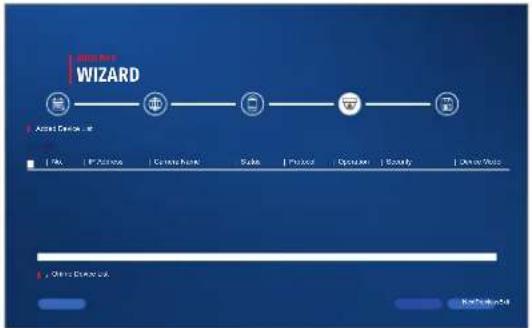
Below you will find all compatible network cameras. Use the checkbox to select the desired network cameras and click on add. Switch to the next screen with „Next“.

9
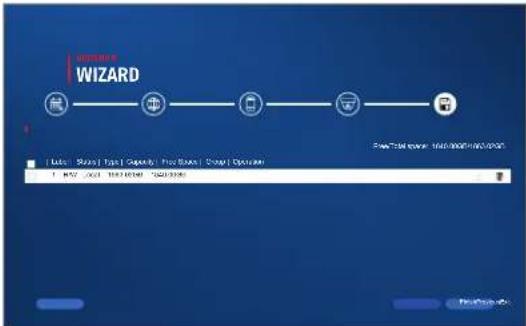
The installed hard disk must be initialized before use. Select the disk to initialize. Click the „Edit“ button in the „Process“ column and confirm the initialization with OK. Then press "Finish".
APP SETUP
1
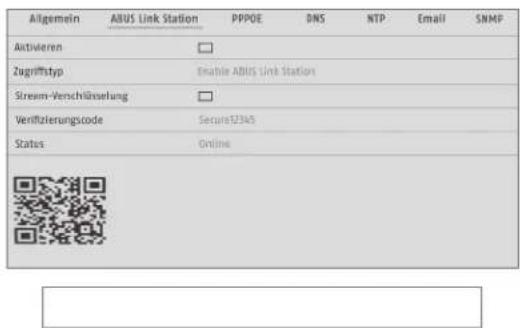
Activating ABUS Link Station
- Navigate to the network settings in your local interface and open the ABUS Link Station settings.
- Activate the ABUS Link Station function and click on "Save settings".
- The status should now show as "online". If "offline" is still shown, check that the camera is connected to a network with internet access.
- Now assign a verification code for the connection. You can write down the code you used here, then keep the quick guide in a safe place.
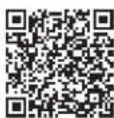
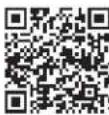
- Leave the web interface open. The QR code and verification code shown are required to set up the recorder in the app.
Please note: The ABUS Link Station connects your recorder to your smartphone via the cloud service. You do not need to reconfigure your router for this. If you do not want to use the cloud service, you can follow an alternative app setup procedure in the recorder's instruction manual.

Security Tech Germany
2


iOS
Apple App Store

Android
Google Play Store
App setup
- Download the "ABUS Link Station" app from the iOS App Store or Google Playstore and open it.
- Create an account for remote access by clicking on "Log in" and then on "Register an account".
- Activate the account using the verification code sent to you by email.
- Click on "Add device" and scan the QR code from the recorder's local interface.
- After the recorder has been found, enter the recorder's verification code. The recorder has now been added to your account.
- If you experience problems during setup, please go to our support website: https://support.abus-sc.com/
INSTRUCTIONS + SOFTWARE
Instructions:
Further instructions for operating the online and recorder interfaces can be found under the "Downloads" tab at the following link:
https://www.abus.com/product/TVVR36401
https://www.abus.com/product/TVVR36801
Soft ware:

1001 ABUS Central Monitor Station (CMS) allows you to monitor, control and manage the video data
from your ABUS recorder on your PC:
ABUS IP Installer to find your recorder in the network, to check for and install fi rmware updates and to download instruction manuals and quick start guides directly to your PC:
https://www.abus.com/var/ImagesPIM/d110001/medias/common/23/ABUS-IP-Installer_V9.5.3.zip

Security Tech Germany
ABUS


TVVR36401 / TVVR36801
GUIDE DE DÉMARRAGE RAPIDE POUR ENREGISTREUR IP
natural_image
Line drawing of a cable and rectangular device (no text or symbols)
natural_image
Line drawing of a computer mouse (no text or symbols)
natural_image
Line drawing of a flexible broadband cable with connector ends (no text or symbols)

TVVR36801 :
Security Tech Germany
Security Tech Germany

natural_image
Line drawing of a security camera module with connected cables and connectors (no text or symbols)Security Tech Germany

natural_image
Line drawing of hands inserting a device into an electronic device casing (no text or symbols)natural_image
Line drawing of a mechanical device with arrows indicating force or movement (no text or symbols)natural_image
Diagram showing three views of a server rack with indicator lights and screw connectors (no text or labels)natural_image
Hand holding a device with an arrow pointing to the right button (no text or symbols visible)Security Tech Germany
1
Security Tech Germany
2

iOS
Apple App Store

Android
Google Play Store
Configuration de l'application
https://www.abus.com/product/TVVR36401 https://www.abus.com/product/TVVR36801
Logiciel :

Security Tech Germany
ABUS


TVVR36401 / TVVR36801
QUICKGUIDE VOOR
IP-RECORDER
natural_image
Simple line drawing of a rectangular frame with no text, numbers, or symbols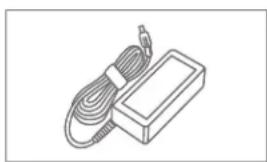
natural_image
Line drawing of a cable and rectangular electronic device (no text or symbols)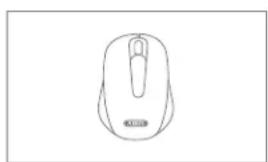
natural_image
Line drawing of a computer mouse (no text or symbols)
natural_image
Line drawing of a flexible broadband cable with connector ends (no text or symbols)

TVVR36801:
Security Tech Germany
natural_image
Line drawing of a security camera module with attached cables and connectors (no text or symbols)Security Tech Germany

natural_image
Line drawing of hands installing or adjusting an electronic device with a circuit board (no text or symbols visible)natural_image
Line drawing of a mechanical device with arrows indicating force or movement (no text or symbols)natural_image
Hand holding a cable with an arrow pointing to a device panel (no text or symbols visible)Security Tech Germany
1

Security Tech Germany
⑨
![Microsoft WIZARD [ Luts | Stocks | Types | Capex | Prod Stocks | Change | Options ] 1 M57 Jock T64 K510 1243 3398 SWEETEN INDEX / USD/USD IN USD/JPY File Edit View Help](/content/2026/04/620087/images/e849d8d61c6967e393ca004052ec1a644ecc19b75965b6f1e0d8a30f5e7026fa.jpg)
ABUS Link Station activeren
Security Tech Germany
2

iOS
Apple App Store
Android
Google Play Store
Confi guratie app
https://www.abus.com/product/TVVR36401 https://www.abus.com/product/TVVR36801
Soft ware:

1 ABUS Central Monitor Station (CMS) bewaken, aansturen en beheren van uw videogegevens van uw ABUS-recorder op de pc: https://mobil.abus.com/de/Gewerbe/Videoueberwachung/Netzwerktechnik/ABUS-CMS-Soft ware-Windows

de ABUS IP Installer om uw recorder in het netwerk te zoeken, fi rmware-updates te controlleren en te installeren, handleidingen en Quickguides direct op uw PC te downloaden: https://www.abus.com/var/ImagesPIM/d110001/medias/common/23/ABUS-IP-Installer_V9.5.3.zip

Security Tech Germany
ABUS


TVVR36401 / TVVR36801
KVIKGUIDE TIL IP-OPTAGER
Security Tech Germany
natural_image
Line drawing of a security camera module with connected cables and connectors (no text or symbols)Security Tech Germany
natural_image
Line drawing of hands installing or adjusting an electronic device with a circuit board (no text or symbols visible)natural_image
Line drawing of a hand holding a rectangular device with arrows indicating movement or force (no text or symbols)natural_image
Hand holding a device with ports and an arrow pointing to a button (no text or symbols visible)Security Tech Germany
1

Security Tech Germany
2


iOS
Apple App Store

Android
Google Play Store
Opsætning app
https://www.abus.com/product/TVVR36401
https://www.abus.com/product/TVVR36801
Soft ware:

Security Tech Germany
ABUS


TVVR36401 / TVVR36801
GUIDA RAPIDA PER
REGISTRATORE IP
natural_image
Simple line drawing of a rectangular frame with no text, numbers, or symbols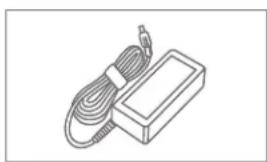
natural_image
Line drawing of a cable and rectangular electronic device (no text or symbols)
natural_image
Line drawing of a computer mouse (no text or symbols)
natural_image
Line drawing of a flexible network cable with connectors (no text or symbols)

TVVR36801:
Security Tech Germany
Security Tech Germany
natural_image
Line drawing of a surveillance camera module with ports, cables, and connectors (no text or symbols)Security Tech Germany
natural_image
Line drawing of hands installing or adjusting an electronic device with internal components (no text or symbols)natural_image
Line drawing of a mechanical device with arrows indicating force or movement (no text or symbols)natural_image
Hand holding a device panel with an arrow pointing to the right button (no text or symbols visible)Security Tech Germany
1
Selezionare la lingua desiderata e fare clic su „Applica“.
2
Security Tech Germany
2


iOS
Apple App Store

Android
Google Play Store
Confi gurazione app
https://www.abus.com/product/TVVR36401
https://www.abus.com/product/TVVR36801
Soft ware:
Security Tech Germany
ABUS


TVVR36401 / TVVR36801
KRÓTKI PRZEWODNIK DO NAGRYWARKI IP
natural_image
Simple line drawing of a rectangular frame with no text, numbers, or symbols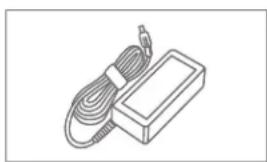
natural_image
Line drawing of a cable and rectangular electronic device (no text or symbols)
natural_image
Line drawing of a computer mouse (no text or symbols)
natural_image
Line drawing of a flexible broadband cable with connector ends (no text or symbols)
Security Tech Germany
Security Tech Germany
natural_image
Line drawing of a security camera module with connected cables and connectors (no text or symbols)Security Tech Germany

natural_image
Line drawing of hands assembling electronic components on a device (no text or symbols visible)natural_image
Line drawing of a mechanical component with arrows indicating motion direction (no text or symbols)natural_image
Diagram showing three views of a server rack with connectors and ports, no text or symbols presentnatural_image
Hand holding a device with an arrow pointing to the right button (no text or symbols visible)Security Tech Germany
1
Security Tech Germany
2

iOS
Apple App Store

Android
Google Play Store
https://www.abus.com/product/TVVR36401
https://www.abus.com/product/TVVR36801
Oprogramowanie:

Security Tech Germany
ABUS


TVVR36401 / TVVR36801
SNABBGUIDE FÖR IP-INSPELARE
natural_image
Simple line drawing of a rectangular frame with no text, numbers, or symbols
natural_image
Line drawing of a cable and rectangular electronic device (no text or symbols)
natural_image
Line drawing of a computer mouse (no text or symbols)
natural_image
Line drawing of a flexible broadband cable with connector ends (no text or symbols)
WARNINGAR

Security Tech Germany
natural_image
Line drawing of a security camera module with attached cables and connectors (no text or symbols)Security Tech Germany
natural_image
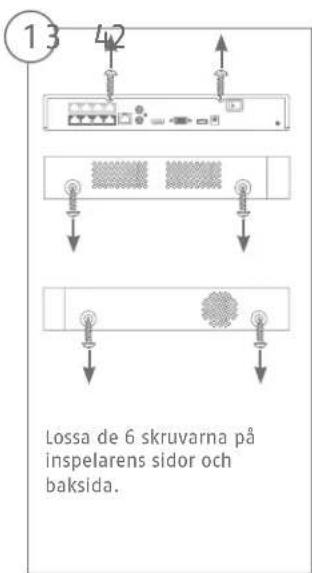
Line drawing of hands installing or adjusting an electronic device with a circuit board (no text or symbols visible)natural_image
Line drawing of a mechanical device with hands holding a tray and arrows indicating motion (no text or symbols)natural_image
Hand holding a cable with an arrow pointing to a device panel (no text or symbols visible)Security Tech Germany
1

Security Tech Germany
9
![Microsoft WIZARD [ Luts | Stocks | Types | Capex | Prod Stocks | Change | Options ] 1 M57 Jock T64 K510 1243 3398 SWEETEN INDEX / USD/USD IN USD/JPY File Edit View Help](/content/2026/04/620087/images/beb71b874123dc7c2947a573201a8ff346e545713bd3afb3a1a51152f3bcf384.jpg)
Security Tech Germany
2

iOS
Apple App Store

Android
Google Play Store
Ställa in appen
https://www.abus.com/product/TVVR36401
https://www.abus.com/product/TVVR36801
Programvara:

Security Tech Germany
ABUS


TVVR36401 / TVVR36801
GUÍA RÁPIDA DE LA
GRABADORA IP
natural_image
Simple line drawing of a rectangular frame with no text, numbers, or symbols
natural_image
Line drawing of a cable and rectangular electronic device (no text or symbols)
natural_image
Line drawing of a computer mouse (no text or symbols)
natural_image
Line drawing of a flexible broadband cable with connector ends (no text or symbols)
TVVR36801:
Security Tech Germany
natural_image
Line drawing of a security camera module with connected cables and ports (no text or symbols)Security Tech Germany
natural_image
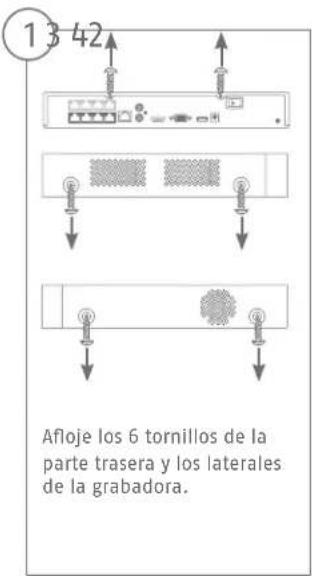
Line drawing of hands inserting a device into an electronic device casing (no text or symbols)natural_image
Line drawing of a mechanical device with hands holding a tray and arrows indicating motion (no text or symbols)natural_image
Hand holding a device panel with an arrow pointing to the right button (no text or symbols visible)Security Tech Germany
1
Security Tech Germany
2


iOS
Apple App Store

Android
Google Play Store
https://www.abus.com/product/TVVR36401 https://www.abus.com/product/TVVR36801
Soft ware:
Security Tech Germany

Security Tech Germany
abus.com
- Nederlands
- Dansk
- WARNHINWEISE
- Einrichtung App
- QUICK START GUIDE FOR
- IP RECORDER
- SCOPE OF DELIVERY
- TVVR36401:
- TVVR36801:
- WARNINGS
- CONNECTIONS
- TIPS FOR CAMERA INSTALLATION
- HARDWARE INSTALLATION
- 5678
- SOFTWARE SET-UP
- 5
- 6
- APP SETUP
- Activating ABUS Link Station
- INSTRUCTIONS + SOFTWARE
- GUIDE DE DÉMARRAGE RAPIDE POUR ENREGISTREUR IP
- TVVR36801 :
- QUICKGUIDE VOOR
- IP-RECORDER
- ABUS Link Station activeren
- KVIKGUIDE TIL IP-OPTAGER
- Opsætning app
- GUIDA RAPIDA PER
- REGISTRATORE IP
- KRÓTKI PRZEWODNIK DO NAGRYWARKI IP
- SNABBGUIDE FÖR IP-INSPELARE
- WARNINGAR
- Ställa in appen
Brand : ABUS
Model : TVVR36801
Category : VCR