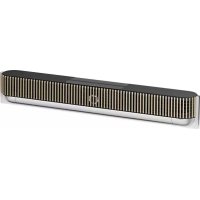
BeoSound Theatre - Soundbar BANG & OLUFSEN - Free user manual and instructions
Find the device manual for free BeoSound Theatre BANG & OLUFSEN in PDF.


| Product Type | Soundbar |
| Brand | Bang & Olufsen |
| Model | BeoSound Theatre |
| Audio Technologies | Dolby Atmos, Beosonic, RoomSense |
| Streaming Formats | AirPlay 2, Google Cast, Spotify Connect, Bluetooth, DLNA |
| Network Connectivity | Wi-Fi, Ethernet (LAN) |
| Wired Connectivity | HDMI IN (x3), HDMI ARC, LAN, Powerlink (PL1-PL4), USB-C Line-in, PUC (x2) |
| Wireless Connectivity | Wireless Powerlink (up to 8 speakers), Bluetooth |
| Main Functions | Listening positions, sound modes (Movie, TV, Music, Gaming, Night), favorites, alarms, timers, multiroom |
| Control | Bang & Olufsen app, Beoremote One, Halo, Essence remote controls, top touch interface |
| TV Compatibility | LG C, G, Z series screens (CX, GX, ZX and newer) with Bang & Olufsen mode |
| Power Supply | Mains (wall outlet) |
| Dimensions (approx.) | 1200 x 100 x 150 mm |
| Weight (approx.) | 15 kg |
| Care and Cleaning | Clean with a soft, dry cloth. Avoid abrasive products. |
| Software Update | Automatic via the app or can be disabled |
| Factory Reset | Press and hold the Next and Previous buttons simultaneously for 8 seconds |
| Spare Parts | Contact a Bang & Olufsen dealer for PUC cables and accessories |
| Warranty | Refer to the supplied "Important Information and Warranty" document |
Frequently Asked Questions - BeoSound Theatre BANG & OLUFSEN
User questions about BeoSound Theatre BANG & OLUFSEN
0 question about this device. Answer the ones you know or ask your own.
Ask a new question about this device
Download the instructions for your Soundbar in PDF format for free! Find your manual BeoSound Theatre - BANG & OLUFSEN and take your electronic device back in hand. On this page are published all the documents necessary for the use of your device. BeoSound Theatre by BANG & OLUFSEN.
USER MANUAL BeoSound Theatre BANG & OLUFSEN
PykoBOCTBO NnIb3ObaTeNa
Anvandarhandbok
用户指南
使用者指南
Languages
English, 3
Dansk, 23
Svenska, 43
Norsk, 63
Deutsch, 83
Nederlands, 103
Francais, 123
Espanol, 143
Italiano, 163
Portugues, 183
Pycckn,203
日本語, 223
韓国兒,243
简体中文263
繁體中文283
Table of Contents
Getting started, 5
First things first, 6
Bang & Olufsen app, 6
Why download the app? 6
Download the app. 6
In-App Initial Setup, 7
Enable Bang & Olufsen Mode 7
Pair a bang & Olufsen remote. Z
Connect external speakers. 7
Calibrate your motorised setup. 7
Create your first listening position. Z
Allow for automatic updates. Z
Everyday use, 8
Control operations, 8
How to control your Beosound Theatre. 8
How to play media, 8
Alarms and timers. 8
Basic operations, 9
Media Operations. 9
Managing connections, 10
Network Connections, 10
Connections, 10
Supported sources. 11
LG IV sources, 11
Listening Positions, 12
What is a Listening Position? 12
Setting up Your first Listening Position, 12
Adding a new Listening Position, 13
Editing Listening Positions.13
Adding external speakers, 14
Sound Modes, 15
What is a Sound Mode? 15
Creating editing, and selecting Sound Modes. 15
Curating Favourites, 18
What are Favourites? 18
Use and controls summary, 19
At a glance: controls and features, 19
Good to know, 20
Dolby Atmos, 20
Software updates, 21
Light Indicators, 21
Peripheral unit controller (PUC) setup, 22
Factory reset, 22
More technical questions?, 22
Getting Started
Congratulations on your new Beosound Theatre!
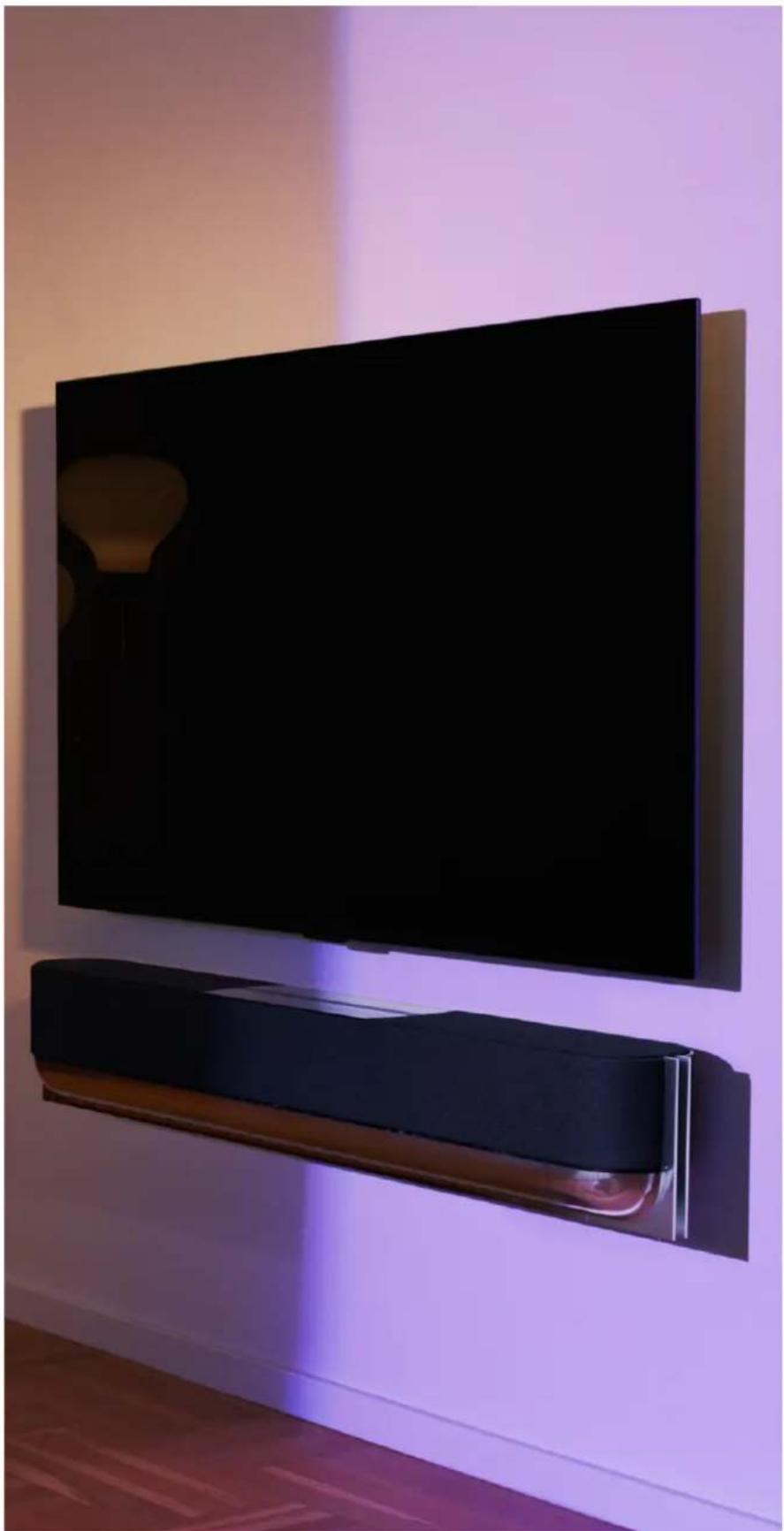
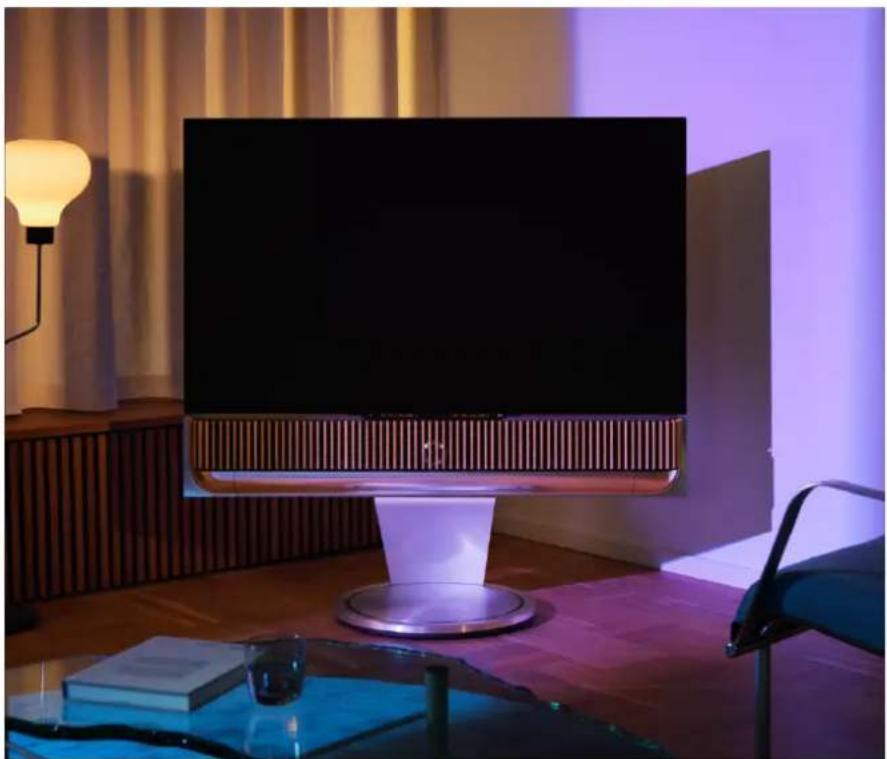
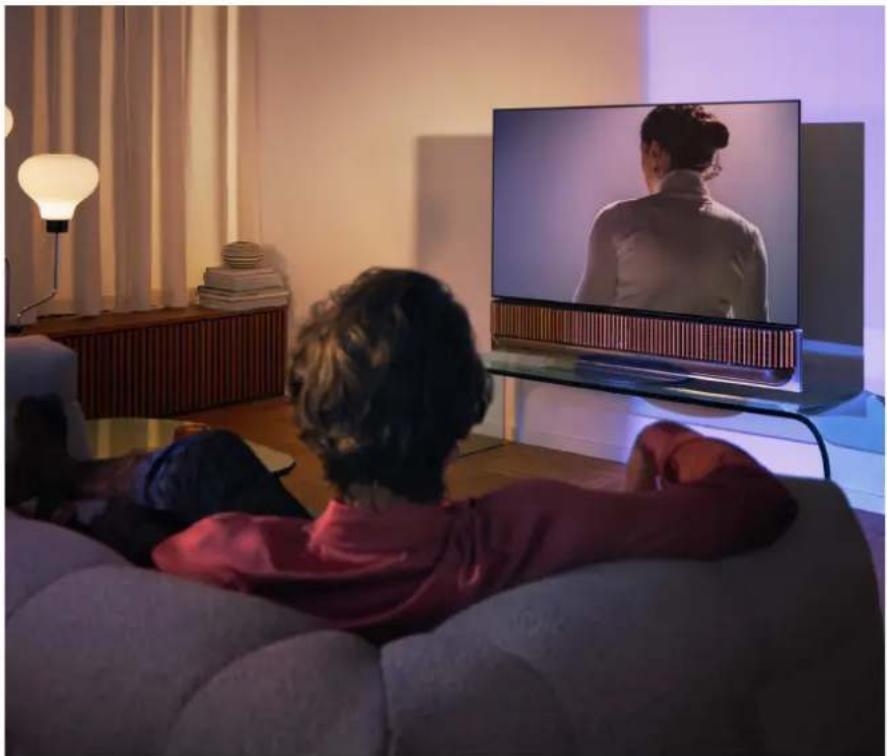
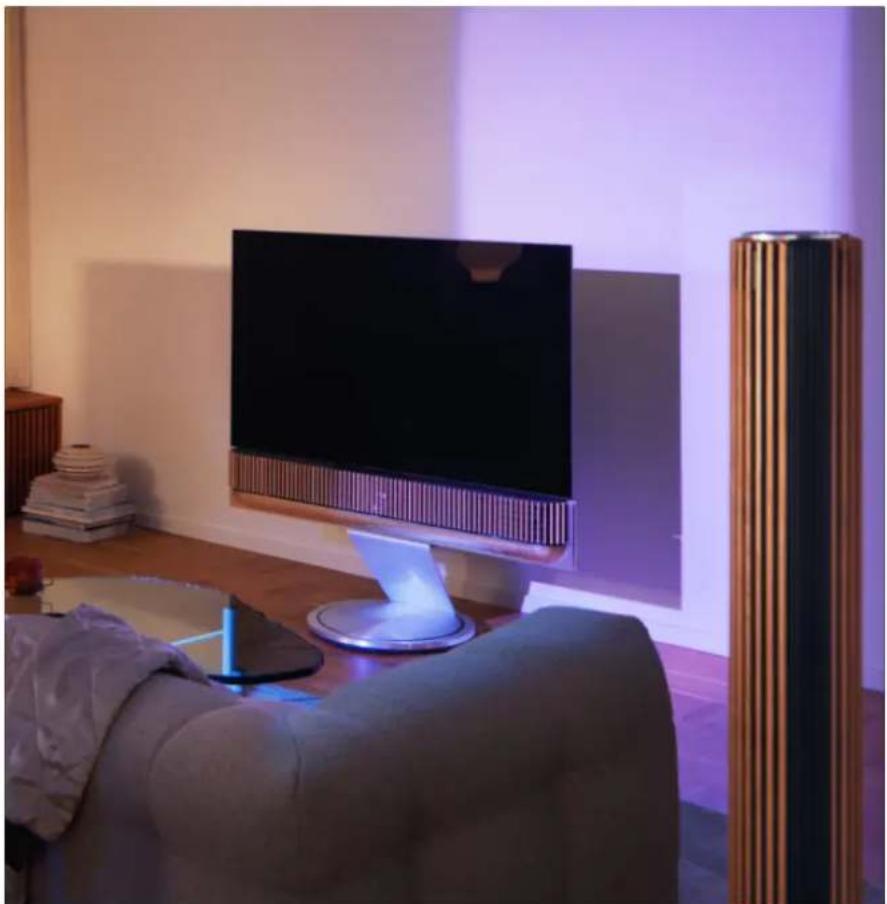
This guide contains information about the daily use and operation of your Beosound Theatre, which can shine on its own as a powerful soundbar as well as create immersive theatre experiences when integrated with a television and external Bang & Olufsen and Wireless Powerlink compatible speakers.
This guide is best used once you have assembled your Beosound Theatre. Other useful resources include:
- Assembly Guide: Instructs you through the assembly of your Beosound Theatre and its parts, in addition to explaining initial connection and sound configuration steps.
- Important Information and Warranty: Explains product specifications, conformities, the product warranty options, and legal and technical information.
- Bang & Olufsen app: Control and personalise your experience with your Beosound Theatre.
Guides, FAQs as well as other supportive materials can be found here. You can also scan the QR code below:

on.beo.com/beosound-theatre-support
Note: The product must be assembled prior to using this guide.
First things first
Bang & Olufsen app
WHY DOWNLOAD THE APP?
Providing a space for software updates and controlling your Bang & Olufsen products and experience, the Bang & Olufsen app lets you participate in experience beta testing and much more.
The Bang & Olufsen app includes many exciting features to personalise your Beosound Theatre, such as:
- Listening Positions
Sound Modes
Favours
DOWNLOAD THE APP
Access all features and personalisation opportunities that the Beosound Theatre has to offer by downloading the Bang & Olufsen app from your app store, or by scanning the QR codes below:




If you do not already have one, please go ahead and create an account. When your Beosound Theatre is assembled and switched on, the app will prompt you to set it up. Alternatively, you can add a product by tapping the "+" button in the right corner of the app home screen, finding it in the product list, and following the steps provided.
You will then be asked to:
- Connect to your home network via Wi-Fi or Ethernet cable
- Update the software
- Name your Beosound Theatre
In-App Initial Setup
Before your Beosound Theatre is ready for everyday use, it requires some initial in-app setup. These steps will depend on your Beosound Theatre setup:
- Enable Bang & Olufsen mode
- Pair a Bang & Olufsen remote
- Connect external speakers
- Calibrate your motorised setups
- Create your first Listening Position
- Allow for automatic updates
ENABLE BANG & OLUFSEN MODE (LG SCREENS ONLY)
If your setup includes an LG screen C-series, G-series and Z-series (newer than CX, GX, ZX), please ensure that it is connected as described in the Beosound Theatre assembly guide. Enabling the Bang & Olufsen Mode allows you to use the screen as an integrated Bang & Olufsen experience. The Bang & Olufsen app will then know if your Beosound Theatre is connected to a compatible LG screen. Simply follow the instructions in the app for this step.
PAIR A BANG & OLUFSEN REMOTE
If you have a Beoremote One, Beoremote Halo, or a Beoremote Essence Remote, you can use Bluetooth to pair them to your Beosound Theatre by following the instructions in the app.
You can also manually prompt Bluetooth pairing on your Beosound Theatre by long pressing on the Bluetooth icon on the top touch interface. Use your remote to connect to your Beosound Theatre. Please refer to the respective remote's user guide for instructions on how to pair your remote.
CONNECT EXTERNAL SPEAKERS
The next step is connecting your external Bang & Olufsen and Wireless Powerlink compatible speakers, if applicable. This can be done either through Powerlink (PL) or Wireless Powerlink (WPL). See here for more details or follow the steps in the app to connect and create a surround setup.
CALIBRATE YOUR MOTORISED SETUP
If your setup includes a motorised floor stand or wall bracket, you will be prompted to calibrate the motorised movement. The app will prompt you to do the following:
- Set the maximum side-to-side movement. This means you will set the total left and right angles that your Beosound Theatre can turn without hitting another object or wall.
- You will then be asked to set the standby position for your Beosound Theatre.
CREATE YOUR FIRST LISTENING POSITION
Follow the steps in the app, also described in the assembly guide, to set up your first Listening Position and tailor your listening experience.
ALLOW FOR AUTOMATIC UPDATES
After you set your Beosound Theatre up in the app, allow for automatic updates so your product is always ready with the newest software and features.
Everyday use
Control operations
HOW TO CONTROL YOUR BEOSOUND THEATRE
There are several ways to control your Beosound Theatre:
Bang & Olufsen App
Designed to be a control centre, the Bang & Olufsen app gives you full control of any Beosound Theatre and allows extensive customization to personalise your experience.
Beoremote One (Recommended for LG Screens)
You can use the Beoremote One to control your Beosound Theatre. If your setup includes a compatible LG screen, you can also control your TV and connected devices.
Beoremote Essence Remote and Beoremote Halo
You can use these remotes for simple music controls.
Third-Party Remotes
If you have external sources, you can also use third-party remotes to control that specific source. Please note that this does not apply to the Beosound Theatre itself.
HOW TO PLAY MEDIA
Streaming
Connect your favourite music or streaming app to your Beosound Theatre by using AirPlay 2, Google Cast, Spotify Connect, or Bluetooth. You can control these via the interface on your Beosound Theatre or through the streaming apps themselves, such as the Spotify app for Spotify music sessions.
Beolink
Beolink allows you to start your media through the Bang & Olufsen app and join experiences playing in other rooms. Once the media is playing in one room, it can conveniently be moved and expanded around to other rooms in the home. Beolink can also be started using Beoremote One.
Peripheral Unit Controller (PUC)
To operate non-Bang & Olufsen products with a Beoremote One, attach a Bang & Olufsen IR-transmitter on your non-Bang & Olufsen product and then connect it to one of the sockets marked PUC on the connection panel. Attach the transmitter near the IR-receiver on the connected product to ensure remote control operation. Before attaching the transmitter permanently, check that you can operate the product menus on the TV screen using BeoRemote One. When you set up the transmitter to a selected PUC socket in the Sources menu (found under Sound & BeoLink in the Bang & Olufsen app), the settings for the IR-transmitter can be made. However, it is possible to perform a manual setup of the socket if alternative settings are required.
For a PUC cable, contact your Bang & Olufsen retailer. For information about download of Peripheral Unit Controller (PUC) tables for set-top boxes, see the article Set up connected products. See here for more details.
ALARMS AND TIMERS
Alarms and timers can be set in the Bang & Olufsen app. Access from the product control screen then follow the instructions shown in the app.
Basic operations
MEDIA OPERATIONS
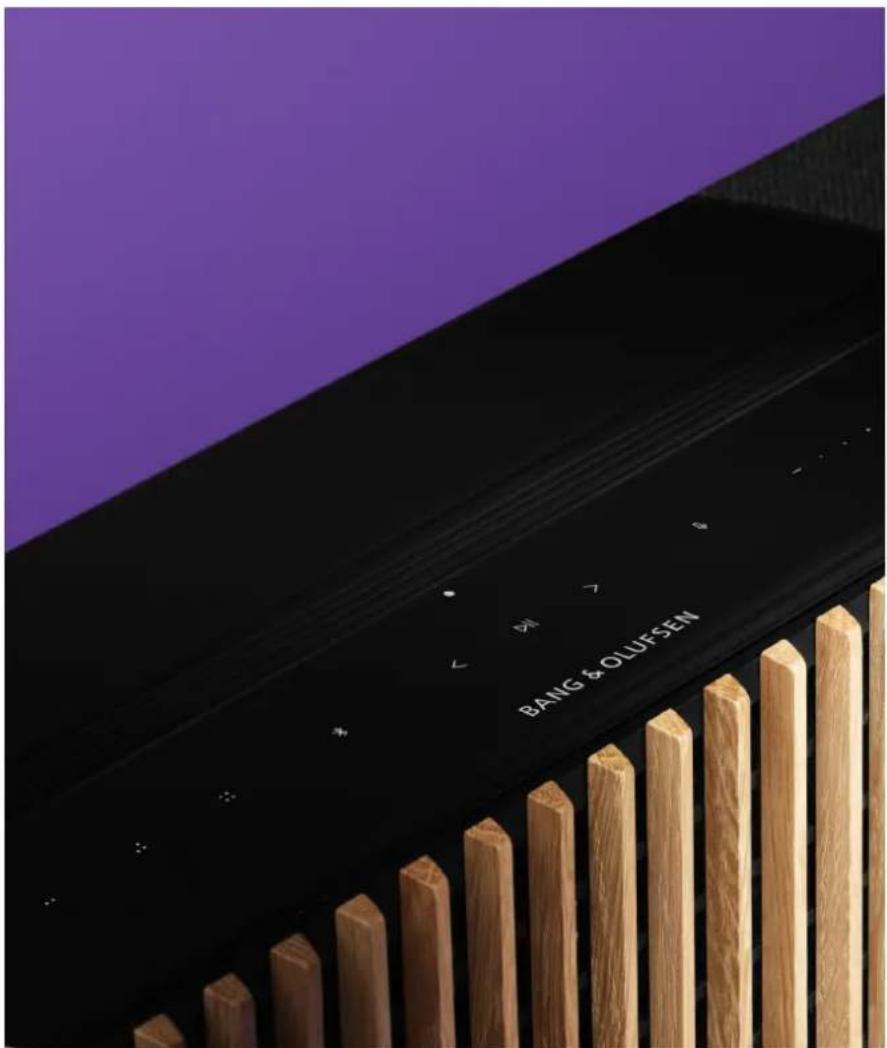
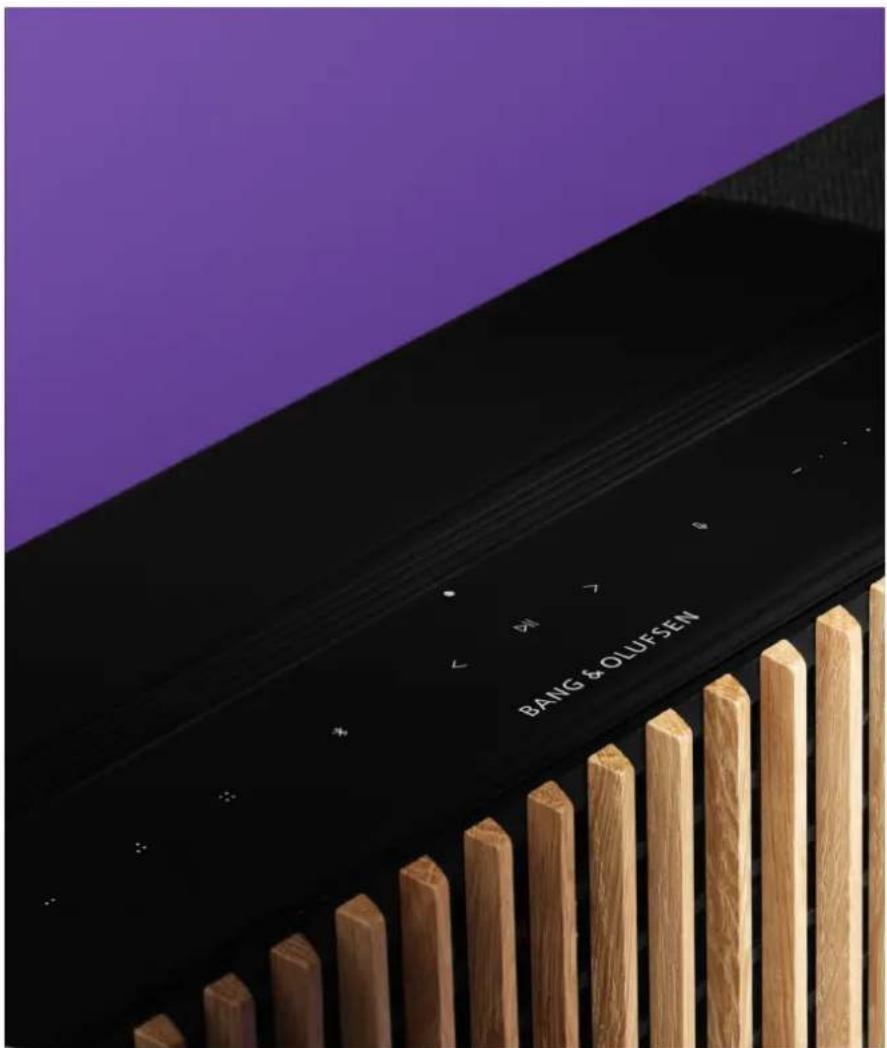
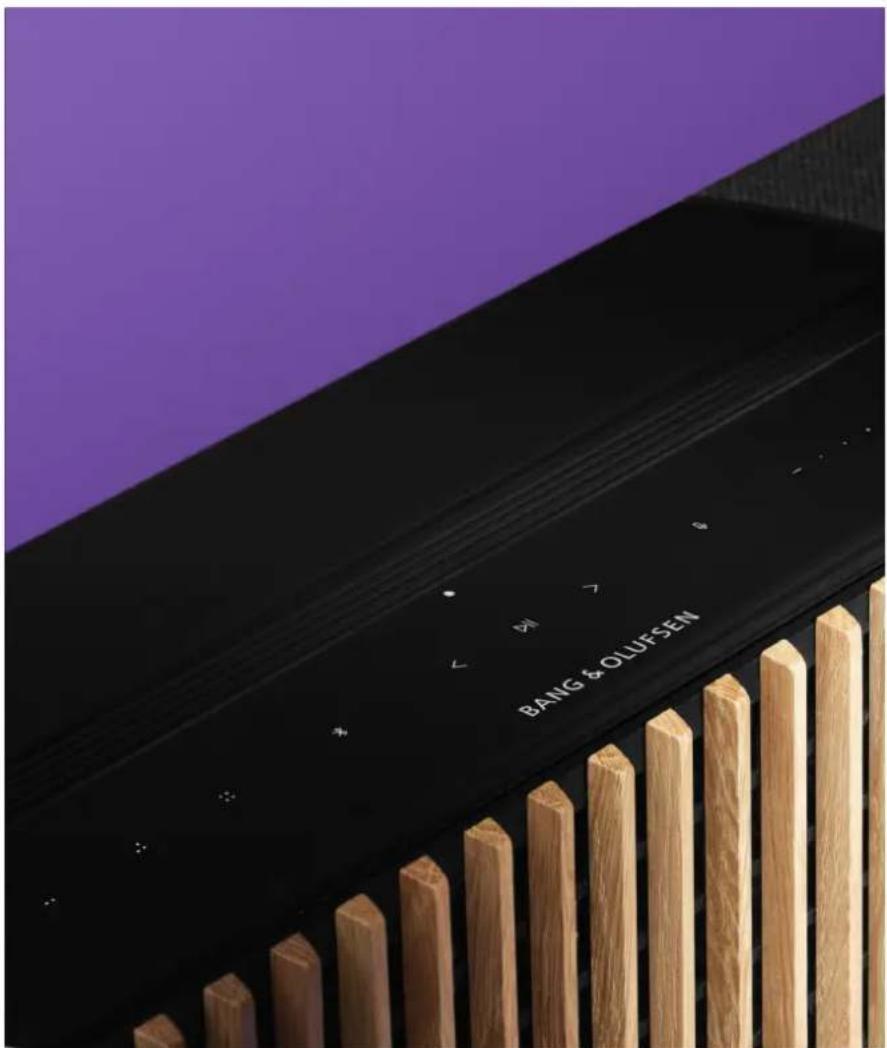
The touch surface on top of your Beosound Theatre will light up when you approach, ready for you to control your theatre experience.
Tap to play or pause
Long press to join a multiroom experience
< > Tap to switch tracks or your favourite stations
- + Swipe along on the line, tap the plus and minus buttons, or tap the dots to control volume
Long press to prompt Bluetooth pairing mode
- Tap to cancel pairing mode or reconnect to the previously connected device.
Select or set Favourites
Managing connections
NETWORK CONNECTIONS
There are two ways to connect your Beosound Theatre to a network. You can connect wirelessly through Wi-Fi, which can be set up in the Bang & Olufsen app, or you can use a wired LAN connection.
CONNECTIONS
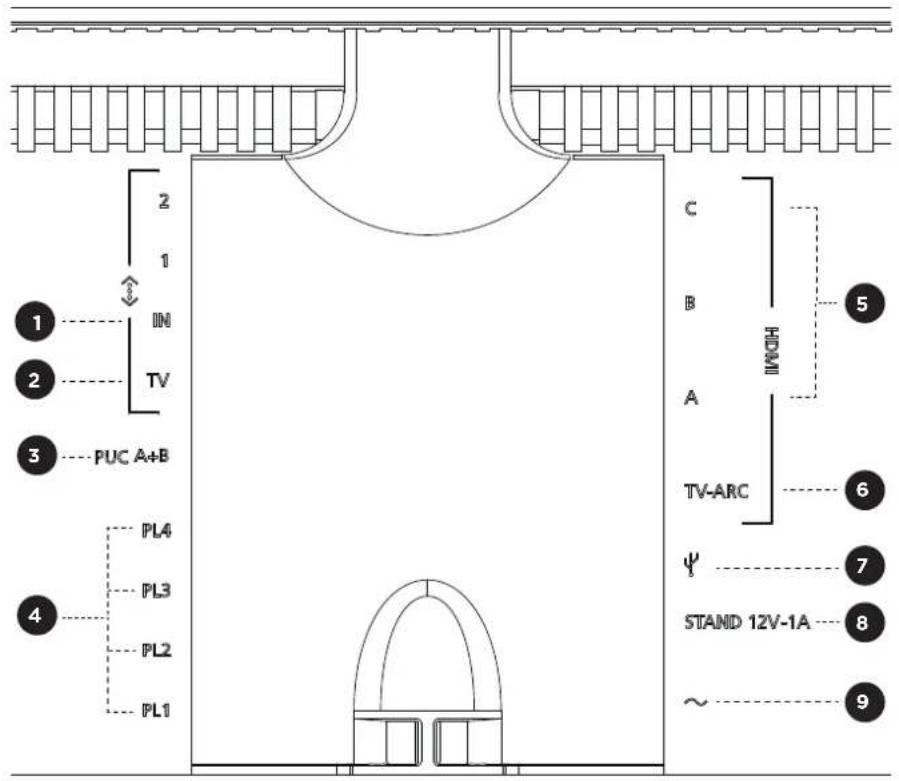
Connections, both wired and wireless, are external additions that enhance and support your Beosound Theatre experience. You will find the following connections in the connection well:
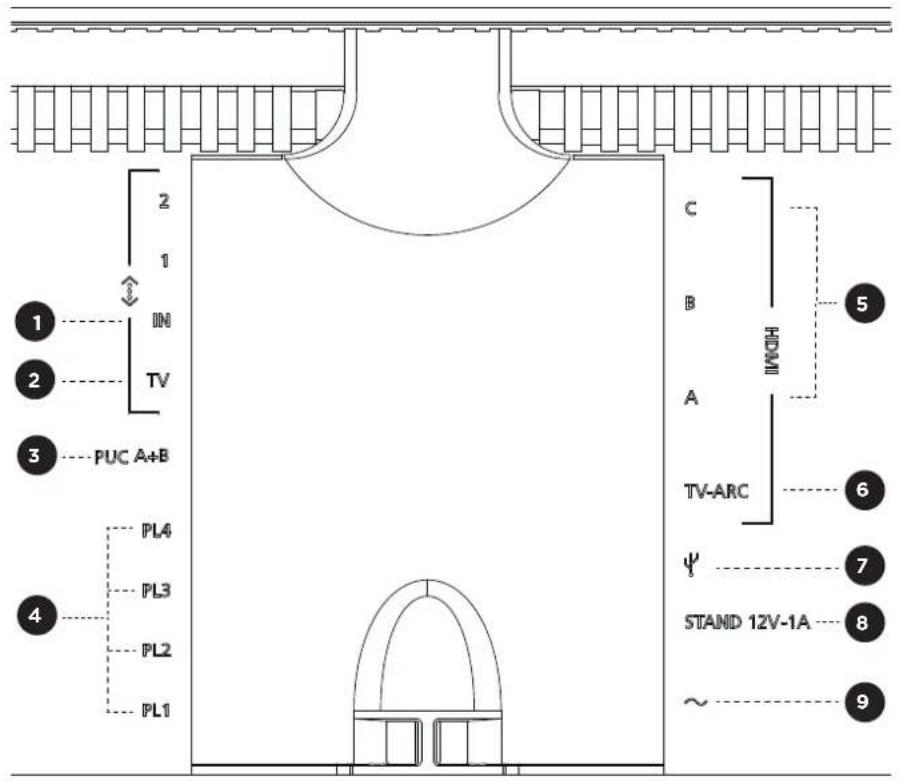
- LAN (Network Connection): Connect an Ethernet cable (from your router) for Internet connection. Alternatively, you can connect to your Wi-Fi.
2.TV (LG screens only): Use a LAN cable to connect your LG screen to your Beosound Theatre. - PUC A+B: For IR control signals to external products connected to an HDMI IN socket. Allows you to control non-Bang & Olufsen products with your Bang & Olufsen remote control. HDMI-CEC also allows this for devices that support it.
- Powerlink (PL1-PL4): For the connection of external Bang & Olufsen speakers in a surround sound or stereo setup.
- Wireless Powerlink (WPL): The product supports up to 8 wireless Powerlink speakers.
6.HDMI IN A-C: The High Definition Multimedia Interface allows you to connect many different sources, such as set-top boxes, multimedia players, Blu-ray players, or a PC. For optimal sound and control, we recommend connecting external devices directly to your Beosound Theatre.
7. TV ARC: Connect your Beosound Theatre to enable TV sound to be played on your Beosound Theatre. On some models, you may need to select the HDMI ARC sound output via the speaker or sound options in your TV setup menu.
8. Line-in: A USB-C connection for third-party audio devices, requiring a passive USB-C to Line-in adapter (can be purchased from your Bang & Olufsen dealer).
9. Stand: For the connection of a motorised stand or wall bracket.
10. Main Power Supply.
SUPPORTED SOURCES
Sources are external wireless platforms from which you can play media through your Beosound Theatre, including sources like Bang & Olufsen Radio, Spotify and Deezer. You can also stream using DLNA, Airplay 2, Google Cast, and Bluetooth.
LG TV SOURCES
When set up with an LG screen, your Beosound Theatre will have access to apps that come with an LG setup. You can specify behaviours and configurations for all your sources in the Bang & Olufsen app, including Listening Positions, Sound Modes and default volume.
Sources can be directly selected using the list function in your Beoremote One. You can also set an ongoing LG source as a Favourite.
Please refer to your LG documentation for information on sources and further accessibility options.
Listening Positions
Create your preferred Listening Positions, so the sound is just right for where you are.
WHAT IS A LISTENING POSITION?
A Listening Position is a series of parameters that are configured to best match your favourite spot in the room when enjoying audio such as listening to music or watching a movie. It includes which speakers are playing and what speaker role they are each assigned to. It also includes distances and level differences from each speaker to the listening position as well as advanced room correction filters. All of this is to ensure that the content you are playing sounds as the artist intended.
Choose a stand orientation, select which speakers to include and run our RoomSense technology (previously known as room compensation) to analyse your room and optimise the sound and setup. Listening Positions can afterwards be assigned to a source and start automatically to suit your everyday life.
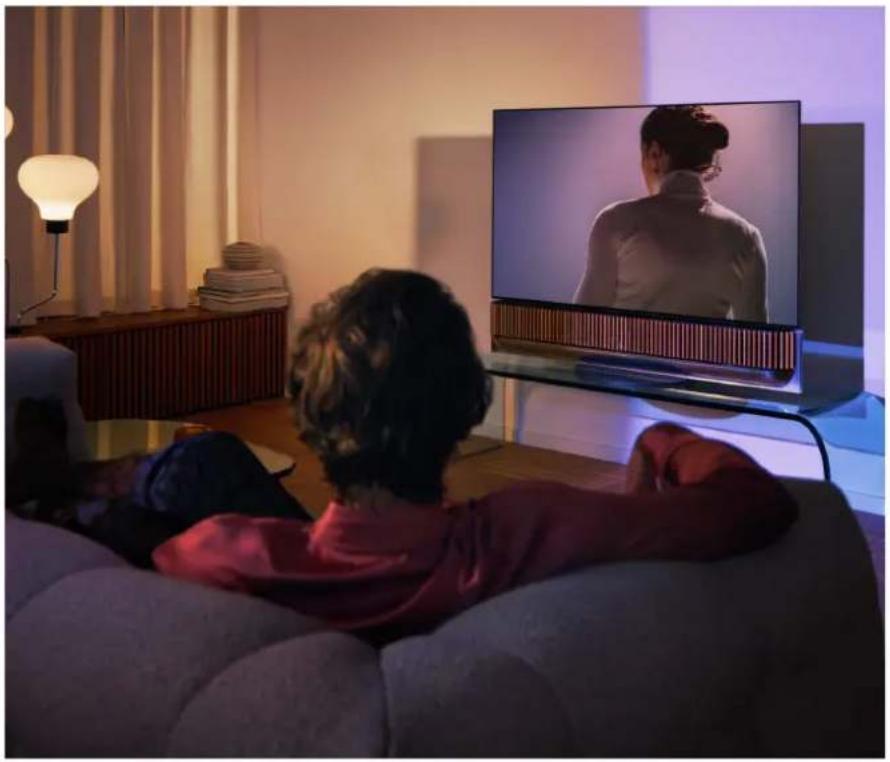
SETTING UP YOUR FIRST LISTENING POSITION
After assembling your Beosound Theatre and before you continue discovering its features, it is important that you set up your very first Listening Position using the supplied external microphone.
You will be prompted in the app during first-time setup to create a Listening Position. If you skip this step, you can always return to the app and select Listening Position from the Beosound Theatre control screen.
ADDING ANew LISTENINGPOSITION
You can add more Listening Positions anytime, by visiting Step 6 in the assembly guide on the support page.
EDITING LISTENING POSITIONS
You can always return to the app to edit your Listening Positions. Calibration will save a Listening Position as a surround sound experience, but this can be edited after saving. Create even better experiences by adding additional Bang & Olufsen speakers.
Adding external speakers
While your Beosound Theatre is capable of creating immersive theatre-level audio experiences on its own, you can further enjoy surround sound and amplify the acoustical experience by adding speakers.
There are different ways to connect external speakers to your Beosound Theatre:
- Use wired Powerlink (PL) to physically connect your external Bang & Olufsen speakers through the PL1-PL4 connections in the back connection well of your Beosound Theatre.
- Use Wireless Powerlink (WPL) to connect your Bang & Olufsen speakers wirelessly*. Please refer to the user guide of your speakers to see how to connect them.
You can then use your Bang & Olufsen app to select the type of speakers you would like to connect and add them to your Beosound Theatre. Some Bang & Olufsen speakers that support Wireless Powerlink will automatically appear in the app. Follow the steps in the app to configure your setup.
Sound Modes
A Sound Mode is a specific mix of the bass, treble, balance and height of the sound input. You can create or edit a Sound Mode to tune your Beosound Theatre to your liking.
CREATING, EDITING, AND SELECTING SOUND MODES
A wide range of controls allow you to adjust the sound output to your personal preference or to optimise the current listening experience. You can select and customise Sound Modes on the Beosound Theatre control screen in the Bang & Olufsen app.
You can save your personally adjusted settings as Sound Modes so that they can easily be accessed again, or use the predefined settings designed for your Beosound Theatre:
- Movie: Designed for watching movies, this mode utilises the full surround capabilities of your Beosound Theatre to create an immersive experience.
TV: Designed for general TV listening where the speech intelligibility is preferred, such as when watching the news. - Music: Designed for listening to your favourite music with immersive sound.
Game: Designed for when your Beosound Theatre is used with gaming consoles.
Night: Listen to sound without disturbing others.
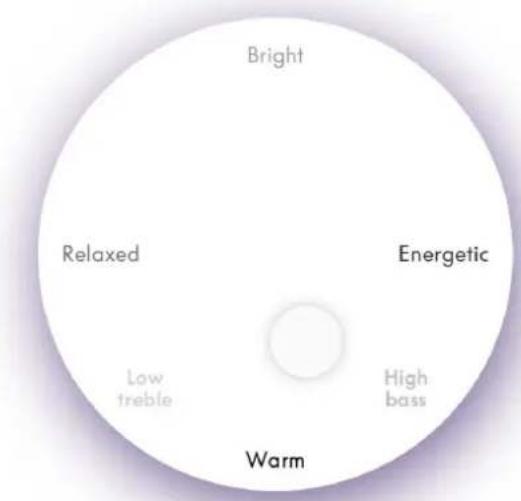
Beosonic
Advanced digital sound algorithms developed by our acoustics team allow you to explore different audio spaces by simply moving the circle around.
Advanced Sound Mode Controls
The Bang & Olufsen app features many detailed sound controls, from tone to spatial to dynamic controls.
Tone Controls
- Frequency tilt can be considered a combination of bass and treble controls in a single parameter. When frequency tilt is set to a low value, the low frequency content of the audio signal is increased, and the level of the high frequency content is reduced.
- Sound enhancement affects both low and high frequency bands with a single slider. Increasing the Sound enhancement increases the level of bass and treble bands while reducing midrange. Decreasing the Sound enhancement decreases the level of bass and treble but increases the midrange.
- Speech enhancement increases the intelligibility of the dialogue, making speech and voices easier to understand. It has no effect on the audio signal when at its lowest setting.
Spatial Controls
- Balance left/right re-directs the input signal to different output channels in your loudspeaker setup. For example, adjusting the Balance all the way to the left will direct the signal to the loudspeakers in your setup that have a speaker role to the left.
- Fader back/front re-directs the input signal to different output channels in your loudspeaker setup. For example, adjusting the Fader back/front all the way to the front will direct the signal to the loudspeakers in your setup that have a speaker role in the front.
- Surround determines the balance between the frontal sound stage and the surround information.
- Height determines the levels of the feeds to all loudspeakers in your configuration with a "height" speaker role. It will have no effect on other loudspeakers in your system. If the Height control is set to minimum, then no signal will be sent to the "height" loudspeakers.
- Stage width adjusts the perceived width of the front images in the sound stage. At a minimum setting, the images will appear to collapse to the centre. At a maximum setting, the images can appear as wide as the loudspeakers with the left front and right front speaker roles, depending on their position in the mix.
- Envelopment allows you to set the preferred amount of perceived width or spaciousness from your loudspeakers with a "surround" or "back" Speaker Role. At its minimum setting, the surround information will appear to collapse to a centre back location.
Dynamics Controls
- Compression reduces the dynamic range of audio signals. This is especially useful when television advertisements are broadcast at a higher sound level than the programme they interrupt or when movies have large differences in sound level between the quietest and loudest moments. Increasing compression will decrease the difference between loud and quiet.
- Bass management allows content to be switched on and re-routed to all loudspeakers at different levels, depending on their individual capabilities. This ensures that you not only experience the maximum possible bass capability of the entire system, but also, due to the spatial distribution of the loudspeakers, maintain a better control of the resonances in the listening room.
Curating Favourites
WHAT ARE FAVOURITES?
Curate, save, and recreate your favourite experiences with a single touch by setting up your Favourites. Favourites are shortcuts to the experiences you enjoy on your Bang & Olufsen products, customisable to set the atmosphere and help to easily start your preferred content in your home.
Once you've started an experience you would like to store, long press on one of the Favourite buttons on your Beosound Theatre top touch interface (or on a connected remote) to save a Favourite.
Favourites can be further personalised in the Bang & Olufsen app, where you can also save things like Listening Positions, volume levels and Sound Modes.
Once you have set Favourites, you can start listening to them with a short press on the respective Favourite button on the top of your Beosound Theatre, on the remote or by selecting it in the app.
Using Sources as Favourites
Set your Favourites using any of your preferred sources, such as:
- Deezer
- Bang & Olufsen Radio Station
- Spotify Connect
- TV Apps (when setup with an LG screen)
Live TV Channel (when setup with an LG screen)
HDMI
You can also save a video source, for example your favourite TV series, as a Favourite.
Adding Atmospheres
When a Favourite experience is saved through a long press on the product or a connected remote, every possible element (except for volume) from the on-going experience is saved so it can be replicated as closely as possible. These can later be edited or removed from the Favourites in the Bang & Olufsen app by editing the following Atmosphere elements saved with the Favourite:
Sound Mode
- Listening Position
- Stand (for motorised stands only)
It is not required that every single Atmosphere element that can be saved as a Favourite is saved and defined in a Favourite. For example, it is possible to save a Spotify playlist without including a Sound Mode.
If a Favourite is defined with any Atmosphere elements, these will override the same elements saved as default configuration for that specific source.
Setting Standby
You can also set one of your Favourites as a standby option. If set and pressed once, this button will put your Beosound Theatre on standby. If long pressed, it will switch all the products in your system to standby.
Use and controls summary
AT A GLANCE: CONTROLS AND FEATURES
The table below provides an overview from where you can access different features and controls. Depending on which control method(s) you have at hand, we recommend investigating as many listed in the table as possible.
Bang & Olufsen app
From Now Playing screen
Control the playing media source (play, pause, volume, etc)
Control playing video source
- Change the source
From the music screen
- Search between music and playlists
- Set a playlist/song as a Favourite
From the radio screen
Search and choose between stations
- Set a radio station as a Favourite
From the control screen
- Select or edit Favourites
- Select or edit Listening Positions
- Select or edit stand (motorised setups only)
- Select or edit Sound Modes
- Set or edit alarms and timers
- Access equaliser and sound settings
- Re-access initial setup (under Product Settings)
- Select or edit external speakers (under Product Settings)
- Enable B&O TV mode (LG screens only)
- Add or remove a Beoremote
Beoremote
- Connect to your Beoremote
- Select and set audio Favourite
- Select and set video Favourite
Control audio (play, set as Favourite, etc)
Control video (play, set as Favourite, etc) - Select and activate source
Beosound Theatre (top touch interface)
- Select and set a Favourite (audio or video)
- Bluetooth prompts
Volume and play controls - Toggle microphone (on/off)
Good to know
DOLBY ATMOS
Your Beosound Theatre features Dolby Atmos which delivers a more immersive sound experience using the concept of object-based audio and simulating surround and overhead loudspeakers. So, instead of merely playing back two or more channels directly to the loudspeakers in your configuration, portions of the total sound field are custom rendered, ensuring that you get the best possible experience to match the theatrical mix with your loudspeaker system.
Having the ability to re-create overhead sounds is a key element in making Atmos® sound so realistic. The surround virtualiser processes the surround and height channels of the incoming multichannel signal to create an enveloping virtual surround effect, compensating for the form factor of the Beosound Theatre. In cases where those channels do not exist - 2-channel stereo for example - these extra channels are synthesised by the mixing portion of the processing. This is done using audio processing that simulates how sound arrives at your eardrums from a full surround system.
Through the connection of external Bang & Olufsen speakers, you can create an even fuller Atmos experience.
SOFTWARE UPDATES
As long as your Beosound Theatre is connected to your app and the Internet, it will automatically install updates and new features. You can disable this feature in the app. If automatic updates are disabled, the app will remind you if there is a new available software version.
LIGHT INDICATORS
Beosound Theatre uses both the Play/Pause icon on the top and the light indicator at the front as status indications.
Top Play/Pause Icon
| Action Meaning | |
| White | |
| Solid Connected to network, ready for use | |
| Blue | |
| Solid (5 sec) Connected/paired to Bluetooth | |
| Pulsing Open for Bluetooth pairing | |
| Red | |
| Solid | Product error, please visit the support page at on.beo.com/beosound-theatre-support |
| Amber | |
| Solid No network connection, connection lost | |
| Flashing Ready for network setup | |
| Pulse Connecting to network | |
| Green | |
| Pulsing Software update in progress | |
Front Light Indicator
The front light indicator mirrors the behaviour of the Play/Pause icon. When the Play/Pause icon displays a colour other than white, the front light indicator will do the same. The front light indicator also serves as a product on/off status indicator. It will blink once when your Beosound Theatre is switched on or off and will turn white when it is playing sound.
PERIPHERAL UNIT CONTROLLER (PUC) SETUP
A Peripheral Unit Controller, or PUC, is a cable for products that use infrared (IR) transmitters. PUC cables allow the Beosound Theatre to act as an infrared remote control for products that require it, such as TV boxes. Products connected to your Beosound Theatre with a PUC cable can still be operated with a third-party remote.
Follow the instructions in the app to set up your Bang & Olufsen remote, PUC, and external device(s). With a PUC cable, your Beosound Theatre can control up to 2 external devices.
PUC cables can be purchased from your Bang & Olufsen dealer.
FACTORY RESET
You can restore factory settings by pressing and holding the next and previous buttons at the same time for 8 seconds. You'll find them on the top control panel. Your Beosound Theatre will begin the reset process and, after approximately one minute, it will be ready for first-time setup again.
MORE TECHNICAL QUESTIONS?
For further support, please visit:

Indholdsfortegnelse
Kom godt I gang, 25

on.beo.com/beosound-theatre-support

Download on the App Store

GETITON GooglePlay

EXPLORITON AppGallery

Baidu百度
Peripheral Unit Controller (PUC)
HVADERENLYTTEPOSITION?

on.beo.com/beosound-theatre-support
Mark vial: Produktien ska monteras innan du anvanderenna guide.
Först och främst
Bang & Olufsen-app
VARFOR LADDA NER APPEN?
ANSLUT EXTERNA HÖGTALARE
Peripheral Unit Controller (PUC)

on.beo.com/beosound-theatre-support
Merk: Produktet m monteres for du kan bruke donne veiledmingen.
För du starter
Bang & Olufsen-appen
HVORFOR SKAL JEG LASTENED APPEN?

Download on the App Store

GETITON GooglePlay

EXPLORITON AppGallery

Baidu百度
Opprett en konto hvis du icike allerede har en. När Beosound Theatre er montert og slätt pa, fär du en oppfording i appen om á konfigurere den. Du kan ögså legge til et produit ved Å trykke pa «+»-knappen i høyre hjørne av appens startskjerm, finne det i produktlisten og folge instruksjönene.
Beoremote One (anbefalt for LG-skjermer)
HVAERENLYTTEPOSISJON?

on.beo.com/beosound-theatre-support
Peripheral Unit Controller (PUC)
PUC-installatie (Peripheral Unit Controller), 122
Terugzettenaar fabrieksinstellungen,122

on.beo.com/beosound-theatre-support

Download on the App Store

GETITON GooglePlay

EXPLORITON

Baidu百度
Peripheral Unit Controller (PUC)
Selecteer of stel Favorieten in
Verbindingen beheren
NETWERKVERBINDINGEN
Telecharger application. 126
Comment controllery Notre Beosound Theatre. 128

on.beo.com/beosound-theatre-support
Application Bang & Olufsen
POURQUOI TELECHARGER L'APPLICATION?
Application Bang & Olufsen
Peripheral Unit Controller (PUC)
Application Bang & Olufsen
Beosound Theatre (Interface tactile supérieure)
MISES A JOUR LOGICIELLES
on.beo.com/beosound-theatre-support
Para usar productos no pertenecientes a Bang & Olufsen con un BeoRemote One,性和 design of the system. Aided by the use of a device that allows for the use of a computer and a computer with a computer operating on a computer.
Beosound Theatre (Interfaz tactil superior)
Come controllare Beosound Theatre, 168
Come riproduire contenuit multimediali, 168
Allarmietimer,168
on.beo.com/beosound-theatre-support

Download on the App Store

GETITON GooglePlay

EXPLORITON AppGallery

Baidu百度
Beoremote Essence Remote e Beoremote Halo
Peripheral Unit Controller (PUC)

on.beo.com/beosound-theatre-support
Note: o produits deve ser montado antes de utiliser este guia.
LIGAR COLUMNSEXTERNAS
Beoremote Essence Remote e Beoremote Halo
Pode usar estas commandos à distência para controlos de música simples.
Comandos à distança de terreiros
KaIIbPOBbKa CNTeMbIC 3NEKTPOINPBOIDOM,207
Co3aHnE npBoro noJoxeHH npocnyuBaHH, 207
BkIOueHHe ABOMaTnueckoro O6HObNeHH, 207
TobceHbHoe nCnOb3OBaHne, 208
Onepaun ynpablenn,208
Kak ynpabnB Bcosound Theatre, 208
Kak BOCPON3BODUT MybTmMcdnHOC COcpxmoe.208
YoTo TaKoe 3ByKOBOI pExUM?215
Co3aHHe,peaKTHOpOBaHHe H BbIooB 3ByKobBix peXIMOB,215
UnpaBHeNc «I36paHbIM», 218
YTO TAKOE "U36paHHoe"2,218
Onncahne 3nementOB ynpablenenH INx nCnnonbObaHn2,219
Kpatkn 0630p. 3nemehtbIynpabHeHn n yHKnn, 219
Pone3Ho 3HaTb,220
Dolby Atmos. 220
06HOBNEHNA 10.221
CBeTobblie HAnikatOpbl.221
HactpoKa KOHTpOnnepa nepupepnHbix yCTpoNCTB (PUC).222
C6poc HAcTpock.222
ECTbTexHnuecknBONPocb?222
Peped nauaJom pa60tbl
Ipo3dpablaem Bac c npoknKo Beosound Theatre!
3To pykoBOCTBO copejNt HhOpMaIIO
O exeHHeBHOM NIOJb3OBaHHn pa6ote
BaWero Beosound Theatre, KOtpbi MoKet
cam No ce6e pa6oTaB KAK MOUHaN 3ByKOBAra
NaHeJIb, a TakoE, B COeTaHHn C TeJeBn3Opom N
BHEUHM KONOHKAMn, COBMeCTIMbIMn C Bang
& Olufsen n Wireless Powerlink, CTaHOBNTcbr
DOMAUHMM KINHTeaTPOM, CO3DaHOUmm
BNeHATJIeHne IIOIHOro INGpyKeHH.
DAnHoe pyKoBOcTO JyUe Bcero
NcNoJIb3OBA Tb noCe c6OpKn Beosound Theatre.
DpyTne NoIe3HbIe pecypcbi BKIOaHOT B c6Ba:
1.PykoBoCTBO no c6opKe: HNCTpyKcHnNo c6opKe Beosound Theatre n erOaTei, a TaXke oBbIeHHe NlaRoB No nepBOHaayhOMy nokKnIOeHNIO NaCTpoKe 3Byka.
2.BaKHa HOpMaunu rapaTn: oBacHReTexHHeCKHe XapakTePncTNk YcToPiCTBa, COOTBeTcBne CTaHApTa m HOpMaTbAM, BapNaHTbI rapaHTn Ha yCToPiCTBO,a TAKKe IopNUnueckyIO n TexHHeCKyIO HOpMaunio.

on.beo.com/beosound-theatre-support
PmmmeHnne:peepncnoB3oBaHem daHHORO pykoobctba ndeHne HeooxdoMo c0paTb
Перво-нанерво
Прилaxes Bang & Olufsen
3AUYEM 3AΓPYKATb PPNIOXKEHNE?
IpeocTabnB O3MOxHOCb OBHOJIeHn IpOpaMMHOro oecneHn yIpaBHeHn ycpoCTBaMn Bang & Olufsen npnoXeHne Bang & Olufsen no3BOJraT yAcTBoBaTb B 6eTaTeCTnpoBaHN mHOroe dpyroe.
PpIIOXeHne Bang & Olufen BKIOUoHaET MHOKeCTBO INHTepcHbIX fYHKnIN DnI nepcoHaIN3aUN paBoTcBaAMm Beosound Theatre, TaKnx KaK:
- IonoJKeHnI npocnyuBaHnIa;
3BykoBbIepeKumbl;
-136paHHoe.
3APTy3NTbPNIJIOXKEHNE
Ionyte doctyn Ko Bcem dyHKuYm N Bo3MoXHocTn NepcoHaN3aun, KOTOpBie npednaet Beosound Theatre, 3arpyNB npinoKeHnE Bang & Olufsen n3 BaJero Mara3nHa npinoKeHn HInO tCKAnpoBaB QR-KoDbHnke:




Ecn y bac ero ue HeT, co3aIte yueThy 3anbc. KOrda Baaw Beosound Theatre 6ydtco6paHn BkJIOUeH, npJIOXeHne IpeJIOXNT Bam HAcTPOINb erO. Kpome TOrO, Bbl MoKTe DoabNTb YcTPOINCTBO, HxAB KNHOY 一 + 一 B nPaBOM yrNl HaAahBHorO kPpHa npJIOXeHn, HauJa erO B CnICke YcTPOINCTB N BInOJIHNb Yka3AHhle DeiCTBnR.
3aTEM Bac nonpocrt:
- PódklouchTcK K domaunHe cTeu che3 Wi-Fi nJn Ka6eb Ethernet;
- 06HOBNTb nporpaMMHoe o6ecneueHHe;
- Ha3BaTb cBoi Beosound Theatre.
IepBoHaayaJIbHaJaHaCTpoiKa
BПИJOXKeHIN
Ipejne yem Baai Beosound Theatre 6ynet IOTOB KIOBceHHeBHomY NcIOJIb3OBAHHIO, OH Tpe6yeT nepBOHaauhboHn HAcToPkn B npInloXeHN. 3tn warr 6ydt 3aBnCetb OT HAcToPek BaWero Beosound Theatre:
- BKNIOHNE pEXIMBa Bang & Olufsen;
- Conpexene C nybTom y Bang & Olufsen;
3.ПОДКЛЮЧЕНBEHWHNXKOLHOK; - Kanibpobka cncTeMbI cNeKtpnpBODom;
- Co3dHne nepBoro noIoxKeHH npocJyWuBaHH;
6.BKIOUeHHe ABTOMaTHueckoro 0bHOBJEHNr.
BKKIOUOHEHPEKIMABANG&OLUFSEN(TONbKO TENEBU3OPblLG)
Ecnn BaAa yctahOBKa BkIOHaeT Cce6 TeJeBn3Op LG cepin C, G n Z (6oJee HOBbX, Yem CX, GX, ZX), ybeNTecb, yTO OH noKIOHcH, KAK onncAo B pykoBocTBe no c6opKe Beosound Theatre. BkIOHcHne pexima Bang & Olufsen no3BOJIeT nCIOb3ObaT b kpaH B kaHeCTBe INTerpnpobAHHO INTEPpeHca Bang & Olufsen. PpINOxHne Bang & Olufsen 6yTe THaTb, IIOKIOHcH Jn BAa Beosound Theatre K COBmecTMOMy TeJEBn3Op Ly. IpocTo cIeJyIne INhCTpyKUINM B pnpNOxHHN dN TaToro Wara.
CONPRAKHENCIyJIbTOMyBANG&OLUFSEN
Ecn y Bac cebt Beoremote One, Beoremote Halo nnn Beoremote Essence Remote, Bbl moxete nCnoB3oBaTb Bluetooth dnn nx copnqKeHn C BaAMm Beosound Theatre, cnedy HnctpyKnIM B npiloxeHH.
Bb TaKke MoKeTe BpyHyo 3anpocnTb cOpJKeHne yepe3 Bluetooth Ha Beosound Theatre, BblIOJIINB IInIeNbHOe HaxaIte Ha 3HaQk Bluetooth Ha BepxHei ceHCOPHOI nAHeIN. NcNoIb3yIe NybT Dnna noKKnIOUeHnK Beosound Theatre. NcHTpyKuNn NO cOpJKeHIO nybTa DY cm. B pykoBOOCTBe nOlb3OBaTeNa COOTBeTCTByIOero NybTa DY.
NOKKIOUeyHNE BHEWHX KOJHOK
CneIyUIMMiAROMAIBLAEcTNOKIIIOueHNE BHEIHINX KOHOHK,COBMeCTNMBix C Bang & Olufsen n Wireless Powerlink, eCNn 3TO npImeHMo. 3TO MOxHo cJeNaTb N6o yepe3 Powerlink (PL), n6o uepe3 Wireless Powerlink (WPL).DOnONHInTeNbHe CBeJeHnM CM. 3Nc6b nn nCneJyInhCTpykUaM BnpIoXKeHH, YTO6bI NOKJIIOUYtCBn CO3DaTb HAcTpOky ObemHOrO 3ByaHnR.
KAJIIBPOBKA CNTEMblC 3JNEKTPONPBODOM
Ecnn BaWsa yctaHOBKa BkIIOuAeT B ce6ra HanoIbHyO NOCTABky C 3JKeKTPoPnPBODOM NnN HAcTeHHb KPOHHTeH, Bam 6yET npEINOxEHO OTKaIIN6pOBAt b CNTEmy C 3JKeKTPoPnPBODOM. PnpIoXeHne npEINOxHTBam CcenaTb cLeyouee:
1.YCTAHOBITE MaKcIMMaJIbHoe DnBIXeHHe n3 CTOpOHb B CTOpOHy. 3TO O3Haayet, YTO BBYCTAHOBITE neBBi N npaBBi yIbI, Ha KOTopBie BAu Beosound Theatre MoKeT NOBOPAHBaTbCRA, He yIapraRc bO pyroI obBeKT UIN CTeHy.
2. 3aTeM Bam 6yET npeIIOXeHcO yCTaHOBnTb IonoJKeHne OxuJaHnI dna BaIero Beosound Theatre.
CO3DAHNE NEPBOFO NOJOKENI PPOCNU WBAHNA
BbIIOHnHTe ⅢaRbI pInIOXeHH, TaKx eONcaHNbI B pykoBOcTBe No c6OpKe, TTo6bl HaCTpOHTb nepBoe IIOJOxEHe IpocLyuINBaHmN bIbIOJIHnTb peYIpNPOBky nOd ce6r.
BKNIOUeyHNE ABTOMATNUeCKO OeHOBJEHn
Iocne HactpoKn Beosound Theatre B npnnojEHN BKIOUHTe AToMaTHueckoe oHOBHeHne, YTO6bBaSe yCTPOINCTBO Bcerda 6blIO rOToBO K paOte C HOBEnHM IpOgPAMMbIM oBeCNEeHHem nФyHKuYMaN.
Beoremote One (peKoMeHdyetcIy TneBn3OpOB LG)
BbMoKTe NcNoIb3oBaTBeoremote One nIynpaBHeHn Beosound Theater. Ecn BaIa yCTaHOBaK BkIOuHaet COBMeCTIMbI TeEbn3Op LG, Bbl TaXke MoKTe y npabTb TneEBnOpor m I NOKnIOueHbIMN yCTpOCTBaMn.
Beoremote Essence Remote u Beoremote Halo
3nnybbldy moxho ncojbo8aB Dn npocToro ynpabneHMy3bkoJ.
CtoponHne npnbTbI y
Ecm y Bac cctb BHeuHHe NCTOHHKn, Bbl TaKke MoKeTe NTOB3oBaT CToPOHHMe nIbTy Dy Iy npaBHeHn 3TNM KOHKpeTHbIM NCTOHHKmOM. ObpaTHe BHMaHMe, YTO He OTHocITcKc K camomy Beosound Theatre.
KAKBOCPON3BODNTbMylbTMMEHNOHOCDEPXMMOE
Bocnpoun3BedeHne nToKOBOro KOHTeHTa
IpoKIOHHe CBOE IIOBIMcO My3bKaJIbHoe Hnn noTOKOBc npnIOXeHne K Beosound Theater c nOMoUbIo AirPlay 2, Google Cast, Spotify Connect nnu Bluetooth. Bby MoXeTe ynpabIbIb Nmpe3 nHTepFeic Ha BaWem Beosound Theatre nnu chePc camn noTOKOBie npnIOXeHn, TAKne KaK npnIOXeHne Spotify drr My3bKaJIbHbIX ceAHCOB Spotify.
Beolink
Beolink no3B0JAEBOcPOn3BODnTb MybTmEmdHoe coepKIMoe uepe npnOKeHne Bang & OluFSen n npncOeHNrTcR K nIrpam B dpyrNk KomHaTax. KaT ToJIbKO mYbTmEeHoe coepKIMoe BOcPOn3BODNTCB O ANDON KOHMHe, eRo MOxHO yDObHO nepMeaTaB n paCUnpArTB DpyrNe KOHAtb IOMa. Beolink TAKXe MOxHO 3aNyCTnTb C NOMouBo Beoremote One.
KoHTpoJInepe npHepnHbIX yCTPOIcTB (PUC)
IynpabHe yctpoCTBAMn npo3BOuNTeNe,OTNHybIX OT Bang & Olufsen, c NOMOuio NybTa
DCTAHIOHOY npaBHeHBeoRemote One noCoEHHNEtIK-apeaTHK Bang & Olufsen K
yctpoCTBy npo3BOUTeJI,OTNIHOROT Bang&Olufsen,3ATEM NOkNIOHTe YcTPOCTBO K ODHOMY na
pa3bEmOB C MapKnPOBKO PUC Ha KOOMyTAUHOH NaHEn. Yo6bl NoLyHTB BO3MOXHOCTb UypaBnTb
NOkLIOHeHBM ycTPOCBOM C NOMOuio NylTa DY, INPKpeNTe NepeaTHK PAIDOM C NK-NpmeMHKOM
Ha NOkLIOHeHOM yctpoCTBE. Pepe npcoeHNHeHMe nepeaTHKa Ha NOCToHHO CHObE pnoBepbTe,
CMOXeTE Bbl OcyueCTBnTB HABIRAUIO NO MeHO yCToPcTBA HA 3KpAne TEeBu3Opa C NOMOuio NybTa
BeoRemote One. Nocne NOkLIOHeH NpeaTHKa K Bb6paHOMy pa3bemy PUC B MeHO IcTOHKNI" B
IyHKte 3Byk NEoLink B npIoXeHN Bang & Olufsen, MOxHO BbINOHNb HAcTPOKn IK-opeaTHKa.
OdHaKe, eCN Bam HyKbI dpyrme HAcTPOKn, Bbl MoXeTe BbINOHNb pyHyIO yCTaHOBY 3TOrO pa3bema.
Ia nanyehn Ka6en PUC opaTneCb K pO3HnHOMy npOabu Bang & Olufsen. CBeHnO 0 3aRpy3Ke TaBnKoHTponNepnepnHHbx yCTpoCTB (PUC) Ia NTeBn3HOHHbx npCTABOK cm. B CTaTbe HAcTPOKa nOKnIOaEMyx yCTpoCTB. Bone noOpOHyNo IHΦopMaHIO cm. 3Decb.
BvIINbHnKnTAMEMPbl
CnHaBn TaMepb MoXHO yCTaHOBnTB B npInoxKeHN Bang & Olufsen. Docyn ocYueCTBnaTeTc 3KpaHa ynpaBHeH NyCTpoCTBOM, 3aTe m CneDyIe HNCTpyKzma, Yka3aHHbIM B npInoxKeHN.
OchOBhble onepaun
ONEPAUINCMyIbTmEENHbIMCODEPKMblM
CencnpnnaHeB BepxHeu Hacnt BaWero Beosound Theater 3aropntcKorda Bb nooJeTe K HeMy, CnHaHn3npy O rTOBHOCTN yCTpoiCTBa Ka paOte.
HaKMTe,HTO6bBocnpou3BecTuIN npnoctaHOBTb.
HakMNte u ydepXnBaTne, TTo6b npncoeHNHtbcK Multiroom.
<> Haxmnte, TTo6bI nepeKIOHHTb TpeK NIN BaUN IIOMbIe CTAHUM.
- + IpoBcIte no nnHnn, KOCHNTecb KHOJOK «PNIOC/«MNHyc» NIN KOCHNTecb ToyeK, TTO6bl perynipOBaTb rpmKOCTb.
T DnIeBHeHae HaxaTne dIy 3anpoca pexmua cnpjKeHHape3 Bluetooth.
HaKMITE, yTO6bl OTMeHHTb pexm cOpraKeHn nn NOBtOHO noKIOuHTbcr K paHee NOKJIIOEHHomy yCTPOICTBy.
Bb6opnnHactpoKa《N36paHHoro
YnpaBneHne
COeDnHeHnA M
CETEBIE COEINHEHNA
EcTb Db Cnocoba NpokKIOHHTb Beosound Theatre K cTeN. Bbl MoKeTe NpokKIOHHTbCn I0 6ecnpoBODHO cTeN Wi-Fi, kOtopyIO MOxHO HAcTpOHTb B npInoxKeHN Bang & Olufsen, nnn nCIOIb3OBaTb IpOBoHDoe LAN-NpokKIOHcHHe.
I O D K I N U O Y E H N I
CoeHNHeHn, KaN pOBoHbIe, TaK n BecnpoBOHbIe, ABJIOTcB BHeUHMM DOnONHeHnMn, KOtOpBle yLyuHaIOT n NOdepxNBAIOT pa60Ty c Beosound Theatre. B CEHTpe NODKIOUChENr Bb HauTe CNeDyUOuIe CoeHNHeHn:
- LAN (ceteboe noqknohe): noqknouhte kaebb Ethernet (ot mappytnaTopa) nna nooknouehn K INHTepHeTy. Nnn Bbl moKeTe noqknouHTbcr K Wi-Fi.
- TelenbOp (ToIbKO TeIeBIO3Opbl LG): nCnoJIb3yIte Ka6eIb LAN IJRA NOIKNIOUeHIN 3KpaHa LG K Beosound Theatre.
3.PUC A+B:ДЯ NIK-упавл�оших синhalов ДОпOLHITeьнбх yctpoiCTB, NOДКLOЧЕньх К pa3bemy HDMI IN. Дает BO3MOxHOCt b ynpabJIbY yctpoiCTBaMn ПОПЗВODINTEJIe, OTINCHbX OT Bang & Olufsen, cnomOuь baiJero nIbTa Dy Bang & Olufsen. HDMI-CEC TAKKE IO3BOJIaRET ATOДЯ yctpoiCTB, KOTOpBE erO NOДePexNBAKOT.
4.Powerlink (PL1-PL4):Длг NOДКЛЮЧЕНВHEUHIX KOLOHOK Bang & Olufsen Дд BOCPON3BVEHIN OБьEMHORO 3Byka UNI CTepeO3Byka. - Wireless Powerlink (WPL): npoNykt npDnepxNbaeT do 86cnpOBOHbIX KOHOK Powerlink.
6.HDMI IN A-C: nHTeppeC HDMI (High Definition Multimedia Interface) no3B0Jnert NOKJIIOuAaTB K TeJIeBN3Opy MHOXEcTBO pa3JIuYbIX NCTOCHNKOB, TAKNX KAK TEJIePNCtABKN, MyJIbTImeHINHbIe NIIeepbI, npOIrpBaTeJIu Blu-ray IINI PI. JIy ONTIImaJIbHorO 3ByaHnI ynpaBHeHnM bI peKOMeHdyem NOKJIIOuAaTB BHeUHHe yCTPOiCTBA HENOCpeDCTBeHHo Ka BaWemy Beosound Theatre.
7. TV ARC: NOKIOHTe BaW Beosound Theatre, 3Byk TeneBnOpa MOR Bocpon3BOIDTCpe3 Beosound Theatre. Ha HeKOToPbIX MoJEnx TeneBn3OpOB M MeHIO HAcTPOKN Bam IHOAnO6NTcBAIpaTB BbBOd 3Byka HDMI ARC NoCpeCTBOM KOIOHKn.
8. JInHeHbI BxOa: noKlnHcHHe USB-C nla ayDnOyCTpoiCTB CTopoHHnx npOn3BOJnteJe, Tpe6yIOoee naccNBHor o aAnTepa USB-C to Line-in (MOXHO npNo6pctu y dInepa Bang & Olufsen).
9. NpOCTaBka: IJIy NpOKIIOUeHnI NpCTaBKn C 3JIeKTPoPnBODOM INN HAcTeHHORO KPOHHTeHa.
10.OCHOBHOH NCTOYHK NITAHNA.
IIOIDEPKINBAEMBLENCTOCHNK
NCTOCHNI - 3TO BHEHNE 6ecnpoBOHbIe PnAaTfOpMbI, C KOToPbIX Bbl MoKeTe BOCnPOn3BOdITb MybTMHeHoe coepKHMoe uepe3 Beosound Theatre, BKIOUoay TaKne IcToHNI, KaK Bang & OluFSen Radio, Spoty n Deezer. Bbl TAKke MoKeTe BECTn TpaHCJIauIO C nOMouBIO DLNA, Airplay 2, Google Cast u Bluetooth.
NCTOCHKNI-TENEBUN3OPbl LG
PnHacTpoKe TeIeBn3opa LG BaW Beosound Theatre 6ydt IMetb DocTyK PnIIOXeHNM, KOtOpblc NoCTaBnIOTc Lg. Bb MoKeTe yka3aTb NOBeJeHne N KOHpNpypaun DNr BceX BaUNX nCTOuHKOB B PnIOXeHN Bang & Olufsen, BkJIIOyAra NIOXeHN IPOClyuINBaHn, peXIMb3ByKa n rIpOMKoCTb no yMOJUHaHIO.
NCTOCHMKMOKHO Bb6paTB HnPMAyO C NOMOsbH yHKcN CNsCKa B Beoremote One. Bbl TAKKe MOKTe YCTAHOBNTb TEkyuIN NCTOCHNK LG B KaueCTBe 36paHHoro.
HΦopMaHIO6 NCTOCHKAX I DONJHHTeHBHX BO3MOXHOCTx DOCTyNa CM. B DOKyMeHTaUN LG.
IonoJxHn
npoocnyuBaHnA
Co3daIte npednoTnTeBhIe noNoKeHnnaPocJyWuBaHn,YTO6bI 38yK 6blIMEHHO TaM,rDe Bbl HaxoNTecb.
TTO TAKOE NOJOKEHN NPOCnyuBAHn?
IIOJXHHe IPOCNYUINBAHn — 3To pRn npaMeTpoB, KOtOpBe HAcTpoEhbl TaK, YTObbl HAUYUMM O6pa3OM COOTBEcTBOBaTB NIOUMOMy MeCTy B KOMHaTe npn IPOCNYUINBAHn 3Byka, HApIMep, PnnpOcLYUINBAHN My3bIKN NII npOCMOTpe fNlbMa. OH BKJIIOHaET B c6BaN HΦopMaUIO O TOM, KaKNe KOLOHKN UpAHT N KaKa JyHKUN BO3JIOKeHa Ha KaKdyIO N3 HIX. OH TakKe BKJIOuaeT paCtOAHn IN pa3HOCTb yPObHn OT KaKdoN KOJIOHKn DO IIOJIOXeHn IPOCNYUINBAHn, A TAKKe paCUnpeHHbE fNlbTpbl KoppeKUIN NOMEueHn. Bce 3To DeJaetcIITTO, YTO6bl BOCIPoN3BOIDMbl BamN KOHTET 3ByaJI TaK, Ka3aMymN CnONHInTeNb.
Bb6epnte opnentauu noctabkn, bbl6epnte, kaKne KOJIOHK BKNIOHTb, n 3aIyCTnte Hauy TexHOLOrIO RoomSense (paHee N3BeCTHyIO KAK KOMNeHcaunn NOMEUENH), YTO6bl npOaHAn3npoBaTb BaWe NOMEUENH n ONTMUN3npoBaTb 3Byk n HAcTpOkiy. BnOcJIeCTBmN IIOJOKeHn IPOCJLYWBAHN MOrY 6bITb Ha3HaueHb NCTOCHNK y 3aIyCKaTbCn ABOTMaTnueckn B COOTBEcTbn C BaWe NOBCEHNEBHOJ XN3HbIO.
HACTPOKKA NEPBOO NOJOKEHN INPOCnyUBAHN
Pocne c6opkn Beosound Theatre n do TOrO, KaK Bbl IpooJIOJIKe 3HaKOMCTBO cero fHyHKUIMn, BaxHO HAcTpoNTb nepBoe noIooKeHHe IpocnyuINBaHn C NOMOUIIO npNlaerMoR O BHeUHero MnkpofoHa.
Pn npboHacpoKe BAM 6ydt npeIIOxHeo co3aTb nIOxHe n pOcnyuBaHa. EcnBbl npocYtne 3OT WAr, Bbl Bcerda MoXeTe BepHybC B npIOxHe n Bbl6paTb «PiOnoxHe n npocLyuBaHaHa Ha ekpahe ynpabLeHn Beosound Theatre.
IOBABJENHEHOBOI NOLOXEHN IPOCnyUBAHNA
BbMOKeTeIobaHTbDIOJONHHTeHbIeNIOJOKeHnIPOCJNUBaHnBJIIOOeBpEmy,BblNOJINHB 134 BpykoOCTBe no C6Opke Ha cTpaHHe NOIDepKKn.
PDAKTIPOBAHNE NOJOKEHNI POCJNUVAHNA
Bb Bcerda moKTe BepybCnB nPnIOxHne, yTo6bl peaTPOBaTB cBOI IOXeHN npocnyuBaHn. KaN6pOBKa coxaHNT noIOXeHne npocnyuBaHn KaK obemhB 3Byk, Ho erO moKHO oTpeaktnoBaTB nocHe coxaHn. NolyuHTe LyuHne BneatLeHn, doabNB dOnonHtEnbHbKe KOnOHKn Bang & Olufsen.
OobBHeBHeHnX KOHOHOK
BTO BpMa KaBau Beosound Theatre cnoocoben camocotEnbHO co3aBaTb 3aXBaTbIAOuue 3ByKoBle 3000ekTby ypoBn DOMaHrero KINHOeTaPa, Bbl MoKeTe HacnaKaTaBCa OBemHbIM 3ByKom N yCNIIBaTb AkyCTHueckne OUsUeHn,doabNn KOIOHKn.
CyueCTbYIOI pa3JIHyHbe cnooc6bl nOdkJIOUeHnBHeuHX KOJOHOK K Beosound Theater:
1.ИспόлььутepnoBODHOPowerlink (PL)ДЯФиЗиЧЕСКОнODКЛУECHENBAWEHINKOLOHOBang&Olufsenuepe3coeDINHeHnPL1-PL4Ha3aJHNeCOeDINHTeNBOnNAHENBAweroBeosound Theatre.
2.ИспοлььутewirelessPowerlink(WPL)ДЯбспpoBODHOroNoKlnHoeHnR*KOLOHOK Bang&Olufsen.O3HaKOMbTeCbcpykoBOCTBOMNoIb3OBATeNBAuNXKOLOHOK,YTO6bl y3HaTb,KaIKNPOKJIQUHTb.
3aTEM Bb MOKTe NcNoB3OBaTb npINOxKeHne Bang & Olufsen, TTo6bbl6paTb Tn KOnOHok, KOtOpBie XOTeJIb 6bI NOkJIIOHTb, IN Do6aBNTb IN B CBOI Beosound Theatre. HeKOTopBie KOnOHKn Bang & Olufsen, noDepXknBaHOue Wireless Powerlink, abTomauCeKn noBArTcB INpINOxKeHN. CJeDuYte IHCTpyKUHM B pINIOxKeHN, TTo6bHaCTpOHTb NapaMeTpbl.
3BykoBbiepeXnMbI
ECTb TEXHnueCKNE BONPOcbI?
IJIIOJUChHIN DOnONHHTeBHOI NOIDepKKn IOcTeTHe:

目次
夕一卜艾普吉卜225
最初にすをきと226
Bang&Olufsen226
APL 226
丁APU1eDwU口一F26 226
APR内の初期設定227
Bang&OlufsenE一为有效的227
Beosound Theatre to CootoLur'sar方法228
MDEIAの再生方法228
アラムとタマ-228
基本操作229
M7T7操作229
接統を管理する230
新トフク接統230
接续230
扑卜対象y-231
LGTVV-231
Ls2n2nDg0J32
LISUNNGPOJSHON&232
最初のリスニングロジンを設定する232
新いリスニングロジンを追加する233
Ls二n2gboJshonを編集る233
外部匕一力一追加的234
卡尔卡卡卡卡卡卡卡卡卡卡卡卡卡卡卡卡卡卡卡卡卡卡卡卡卡卡卡卡卡卡卡卡卡卡卡卡卡卡卡卡
卡王卜王一卜是235
on.beo.com/beosound-theatre-support

Download on the App Store

GETITON GooglePlay

EXPORe IT ON AppGallery

Baidu百度
Beoremote Essence Remote & Beoremote Halo
Peripheral Unit Controller (PUC)
Beosound Theatre 248
MIDIORJXHJ248
1248
日基本字,249
MdiHaJ# 249
enelgelr,250
NtJWKJ 250
1250
J. 1.251
LGTV△,25j
直刺 命,252
通击哉则?,252
封回国到自的
新朝制的刘孙253
彭剑钊 涂 253
司本社社刊
suo 255
Aaundo moedr2.255
AaOnD MoD 500, 255
将之快之,258
凿越凿越2.258
SAHJ 259

on.beo.com/beosound-theatre-support
中:
가장蠊지일
Bang & Olufsen
藥藥 請

Download on the App Store

GETITON GooglePlay

EXPLORITON APPGALLERY

Baidu百度
音的,如:
函函表,求确定的程序
- 早送入托贝尼IaIeNtEeIeIeIeIeIeIeIeIeIeIe
- 木元三媒阿用
3.Beosound Theatre 1
in-
Beosound Theatre 般 造
Bang & Olufsen
Beoremote One to be sound Theatre LG TV
Beoremote Essence 韓云和 Beoremote Halo
江
卡萨拉多克
6.TVARC:BeosoundTheatreTTVsAnundTAVsAnundTAVsAnundTAVsAnundTAVsAnundTAVsAnundTAVsAnundTAVsAnundTAVsAnundTAVsAnundTAVsAnundTAVsAnundTAVsAnundTAVsAnundTAVsAnundTAVsAnundTAVsAnundTAVsAnundTAVsAnundTAVsAnundTAVsAnundT
SOSIN Beosound Theatre 1000 Bang & Olufsen Radio, Spotify, Deezer 1000 is my dierer to rereh hou wthn the wupr plcokm nld. DLNA, Airplay 2, Google Cast,
LGTV
LG TV 者 沒有在,Beosound Theatre 电 电电电电电电电电电电电电电电电电电电电电电电电电电电电电电电电电电电电电电电电电电电电电电电电电电电电电电电电电电电电电电电电电电电电电电电电电电电电电电电电电电电电电电电电电电电电电电电电电电电电电
daiy h 10000000000000000000000000000000000000000000000000000000000000000000000000000
on.beo.com/beosound-theatre-support

Download on the App Store

GETITON GooglePlay

EXPLORITON APPGALLERY

Bai百度
on.beo.com/beosound-theatre-support
注意事項:使用本指南前必須先組裝產品。
首要事項
Bang & Olufsen 應用程式
為什麼要下載應用程式?

Download on the App Store

GETITON Google Play

EXPLORE IT ON AppGallery

Baidu百度