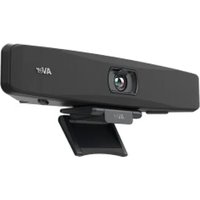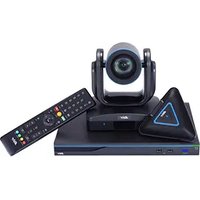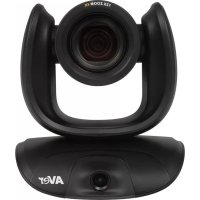
CAM550 - Video conferencing system AVer - Free user manual and instructions
Find the device manual for free CAM550 AVer in PDF.


| Product Type | Video Conferencing System |
| Brand | AVer |
| Model | CAM550 |
| Optical Zoom | 12x |
| Maximum Resolution (USB 3.1) | 4K at 30 fps |
| Maximum Resolution (HDMI) | 1080p at 60 fps |
| Interfaces | HDMI Out, USB 3.1 Type-B, RS232, Ethernet (PoE), DC 12V |
| Power Supply | 12V DC (adapter included) or PoE (IEEE 802.3AT/802.3AF) |
| AI Detection and Tracking | Dedicated AI lens for participant detection and auto tracking |
| Smart Framing | Yes, with manual, automatic, and preset modes |
| Gesture Control | Yes, effective distance up to 5 meters |
| PIP Function (overlay) | Yes, on HDMI output |
| Network Streaming | RTSP, RTMP, access via IP web page |
| Remote Control | IR remote, PTZApp 2, web interface |
| Mounting | Wall mount (kit included) or tripod |
| Operating Temperature | 0°C to 40°C |
| Maintenance and Cleaning | Clean with a soft, dry cloth. Avoid solvents. |
| Safety | Class A digital device compliant with Canadian NMB-003 standard |
| Spare Parts and Repairability | Contact AVer support for spare parts and repairs |
Frequently Asked Questions - CAM550 AVer
User questions about CAM550 AVer
0 question about this device. Answer the ones you know or ask your own.
Ask a new question about this device
Download the instructions for your Video conferencing system in PDF format for free! Find your manual CAM550 - AVer and take your electronic device back in hand. On this page are published all the documents necessary for the use of your device. CAM550 by AVer.
USER MANUAL CAM550 AVer
| Camera Unit | Remote Control | Power Adapter & Power Cord* | USB 3.1 Type-B to Type-A Cable (3m) |
| Mini DIN9 to Mini DIN8 RS232 Adapter Cable | HDMI Cable(3m) | Wall Mount Kit | Screws for Mount |
| Tripod Screw | Drilling Paper | ||
| 1/4" -20 L=7.5mm (x2) |
- The power cord will vary depending on the standard power outlet of the country where it is sold.
Optional Accessories
| USB 2.0 Type-B to Type-A Cable (5m) | Mini DIN8 to D-Sub9 Cable | Foldable TV mount | USB 3.1 Extender 10m/20m/30m |
| Ceiling Mount** |
- Optional Accessories will vary depending on the country where it is sold.
** This is a dual lens camera and doesn't support upside down installation. To mount on ceiling, please purchase ceiling mount from AVer.
Overview
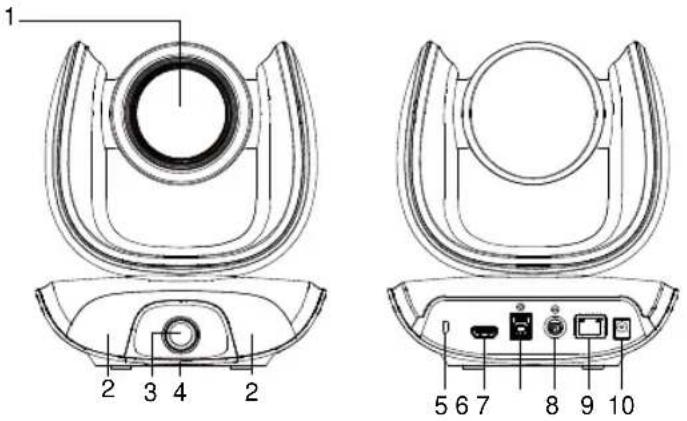
1 Optical Zoom Lens 6 HDMI Port
2 IR Sensor 7 USB3.1 Type B Port
3 AI Lens 8 RS232 In/Out Port
4 Status LED 9 PoE Port
5 Kensington Lock 10 DC 12V Power Jack
* Al Lens:
Users can see AI lens preview image in PTZApp 2, IP webpage or HDMI out to check camera installation location.
AI lens is used to detect participants within its 95 degree field of view to trigger optical zoom lens to track people in the room. Please don't put the camera on table because the AI lens view will be blocked. The suggested installation height is at least 1.5m .
** HDMI out streaming supports picture in picture (PIP) function. For more details, please refer to user's manual.
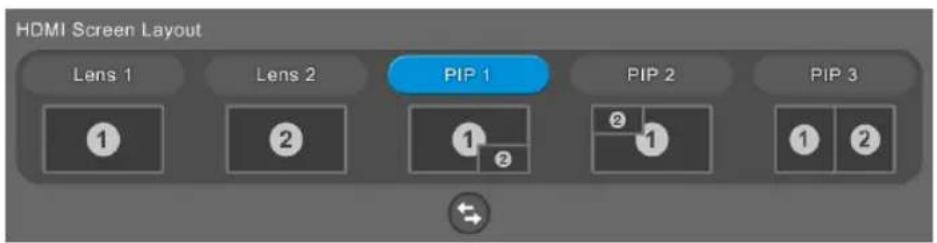
*** Power over Ethernet (PoE), compatible with IEEE 802.3AT/802.3AF. Please use CAT 5e FTP cable (not included.)
LED Indicator
Solid blue: Power on
Solid red: Start-up
Solid orange: Only power cable connected
Solid blue: Video on
Solid white: USB cable is connected but camera doesn't have any streaming out Flash orange: Manually update FW
Gesture control
Blue light blinks for 2 seconds: Successfully wake up gesture control function by any valid gesture command
Blue light blinks for 4 seconds: Camera recognizes a valid gesture command and start to action.
[Note]: The default of gesture control is off. Please enable it via PTZApp 2 or IP web page. The effective distance is up to 5-meter away from the camera.
Installation
- Connect the camera to power outlet.
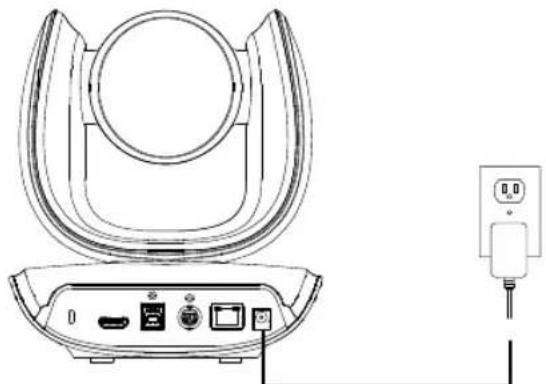
Power cord
- Connect the necessary cables.
[Notes]
- Secure the USB and RS232 cables with attached screws.
Make sure the cable is well connected to the connector on the camera before securing the cable.
![AVer CAM550 - [Notes] - 1](/content/2026/04/595828/images/33736ef955edcf876210a0289f59fb629ba30ab91ea9cb32efccd72619357522.jpg)
3. Connect the camera to the computer/laptop.
[Notes]
Use the USB 3.1 cable included in the package.
CAM550 has the USB 3.1 port which is USB 2.0 compatible.
Maximum resolution/fps for USB 2.0 and USB 3.1 port are shown below.
![AVer CAM550 - [Notes] - 1](/content/2026/04/595828/images/12c71dbc6fd7dbd2978f03aab90ecfb69bb0b7b6a36f7a38eae20679cf80d579.jpg)
| USB 2.0 | USB 3.1 | HDMI | ||
| YUV | M-JPEG | YUV | M-JPEG | |
| -640x480 or less resolution, up to 30fps | -1080p/60fps | - Up to 1080p/30fps | - Up to 4k/30fps | 1080p/60fps |
| -720p/60fps | -1080p/60fps | 1080p/30fps | ||
| -720p, up to 10fps | ||||
- Al lens is used to detect participants within its 95 degree field of view to trigger optical zoom lens to track people in the room. Please don't put the camera on table because the Al lens view will be blocked. The suggested installation height is at least 1.5m .
5. Connect Ethernet cable for IP streaming and remote camera control.
[Note]
To ensure stability of IP video streaming, please use CAT 5e FTP cable.
6. Connect an HDMI cable to a TV monitor to have instant live video.
[Notes]
HDMI port only supports 1080p resolution.
If you select RTSP/RTMP resolution up to 4k resolution, the HDMI out streaming will be disabled.
![AVer CAM550 - [Notes] - 1](/content/2026/04/595828/images/446bd4f27a19c39d60aa0d2d5638ee32f22c59c1c72e731c2ddc8355399bf58e.jpg)
![AVer CAM550 - [Notes] - 2](/content/2026/04/595828/images/0aedb70dceb22df781cb07989c76f1b2fbf3b0a632a90eb0bde414dd7a8ed89b.jpg)
Remote Control
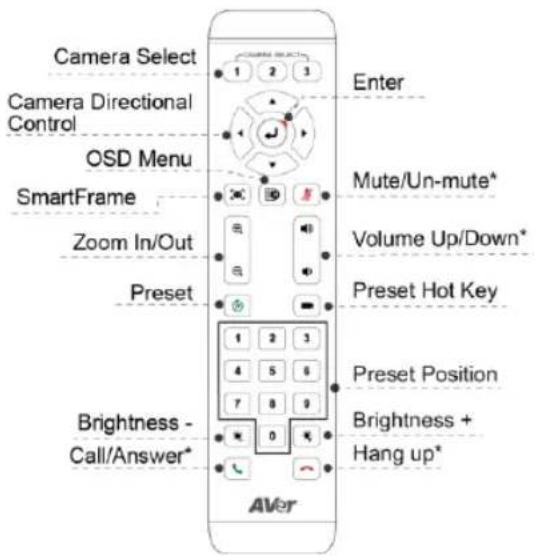
AAA Batteries (required)
*Not supported for CAM550
- Preset (I) The Preset button on the remote serves 2 functions.
To Save a Preset - Move camera to desired position. Press and hold the preset button until you receive the save message on the screen. Select preset position button 0-9 to store the current camera position. Repeat steps if needed.
To Load a Preset - Press the preset button and preset position button 0-9 to load a saved camera position. Repeat steps if needed.
Press and hold the number button "for 1 second to turn on or off the WDR function.
[Note] WDR function is suggested to be used in high contrast background environment to enhance the dark area. The frame rate will drop to 30fps or lower. If the light condition is normal, this function will cause image blur.
Press and hold the number button or 1 second to turn on or off the SmartFrame function.
Press and hold the number button 8 for 1 second to enable or disable RTMP streaming function.
Press and hold the number button 9 for 1 second to force camera to enter sleep mode. This will end any video streaming. To wake up the camera, press the button or any directional button for 1 second. This mode is not functional while USB streaming is on.
Camera Select (1)
remote control can control up to three AVer USB cameras. To bind cameras, please use PTZApp 2 or access IP web page to set it up.If you don't do any binding setting, no matter which number you press, you can control all the AVer USB camera around you.
SmartFrame(Press for 1~2
second to switch the SmartFrame function among Manual Framing/Auto Framing/ Preset Framing modes. A message (as figures shown) will display on the screen to indicate the mode while using HDMI out function.
Manual Framing
Auto Framing
Presat Framing
[Note] SmartFrame deploys face and body detection technology. People wearing masks and side facial profiles can still be detected. The maximum detection distance is 7-10 meters away from the camera.
Set up preset points in advance (Only for Preset point 1-9. Preset 0 is for home position).
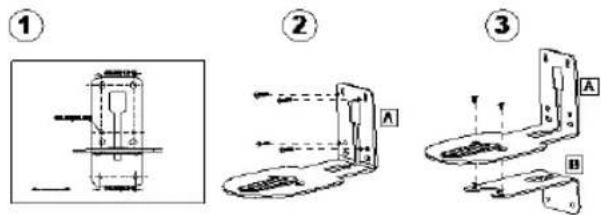
Wall Mount Installation
-
Use the drilling paper included in the package to drill the holes in the wall where the user wants to mount the camera.
-
Use the screws (not included) to secure the L-mount bracket on the wall.
[Note] For cement wall: M4 x20mm self-tapping screws (x4) + Plastic conical anchor. For wooden wall: M4 x20mm self-tapping screws (x4)
-
Then, assemble the L-mount brackets A + B with 2 screws (M4 x8mm, included in the package).
-
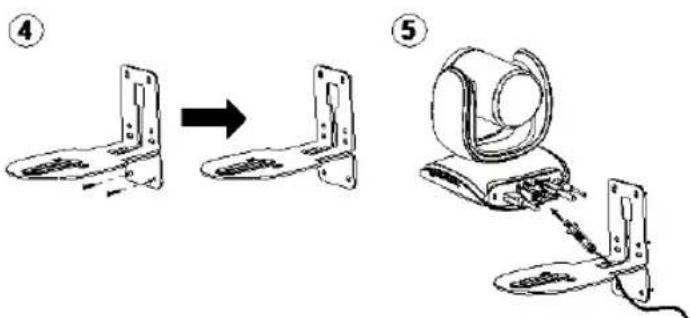
After assembling the L-mount brackets, use the screws (not included) to secure the lower part of L-mount brackets on the wall.
[Note] For cement wall: M4 x20mm self-tapping screws (x2) + Plastic conical anchor. For wooden wall: M4 x20mm self-tapping screws (x2)
-
Pass the cables through the hole on the L-mount brackets and connect the cables to corresponding connection ports.
-
Use the remaining screws (1/4"-20 L=7.5mm, included in the package) to secure the camera on the L-mount brackets.
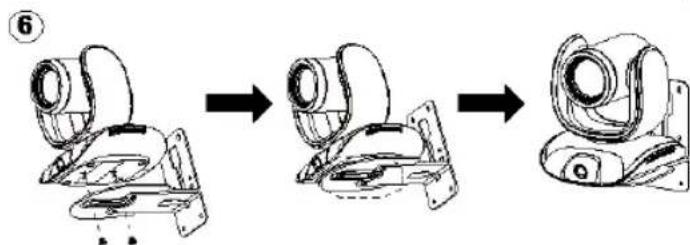
Making a Video Call
A computer is required to use this device.
- Open your video collaboration application such as Zoom, Microsoft Teams, Skype for Business, Skype, Google Meet, Intel Unite™, RingCentral, BlueJeans, V-Cube, LiveOn, CyberLink U Meeting®, TrueConf, Adobe Connect, Cisco WebEx®, Fuze, GoToMeeting™, Microsoft Lync™, Vidyo, vMix, WebRTC, Wirecast, XSplit.
- Set the CAM550 as your primary camera device in your application (Please consult your application setup guide for details).
- Ready to make a video call.
[Note] CAM550 is a Plug-n-Play Conference Camera. The system requires no special drivers. For advanced setting and firmware update, please download PTZApp 2.
Making a Connection through the Browser
CAM550 has an Ethernet port for IP streaming and allows administrators to remotely control and set up the camera via an internet access. Moreover, CAM550 also supports RTSP and RTMP functions. For more details, please refer to user's manual or contact our technical support.
- Make sure the CAM550 has an internet access connection.
- Launch PTZApp 2* (PTZ) and connect CAM550 to PC with USB cable.
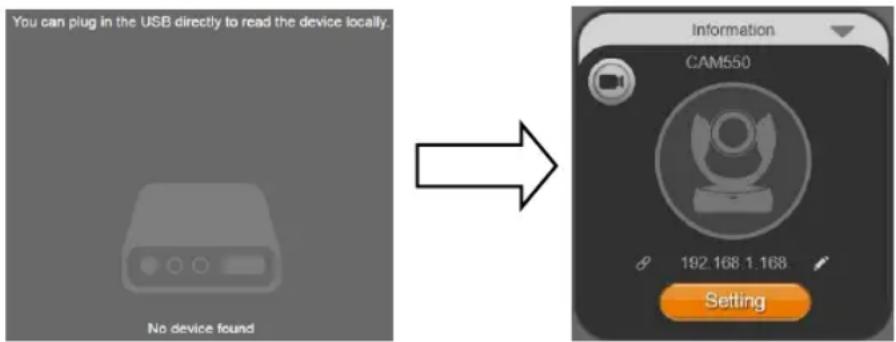
- The camera default IP address is 192.168.1.168. Click pencil icon ( ) to edit IP address**.
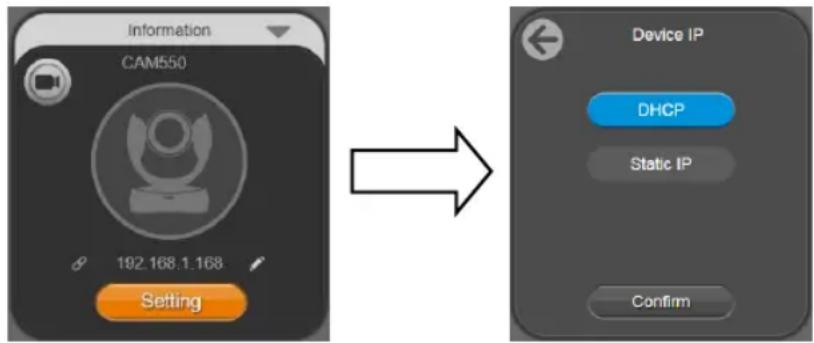
- Click weblink icon ( ) to launch Chrome page. Please enter the password (default password is aver4321).
[Note] The browser supports:
-
Chrome: version 76.x or above - Firefox: version 69 or above - IE: Doesn't support
-
After editing IP address, user can access web settings of the camera with only Ethernet cable connection. Unplug the USB cable.
-
The main web screen is displayed as below.
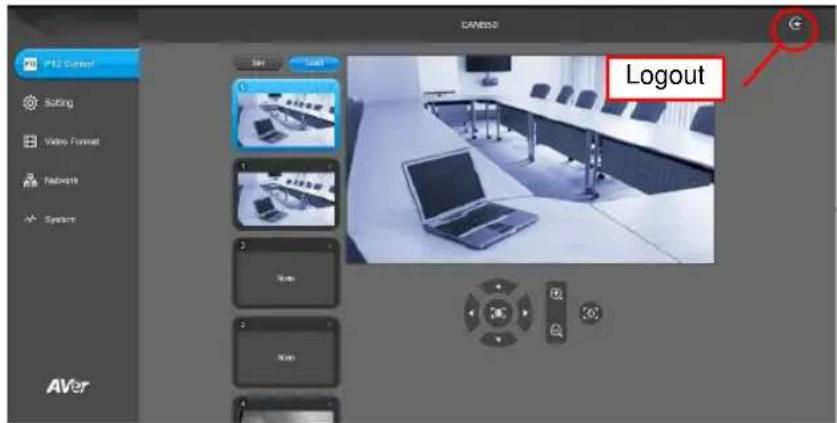
- In PTZApp 2, user can change the IP address setting of CAM550, configure the parameters of the camera, set up AI tracking functions and some advanced image settings, pan, tilt, and zoom the camera. Please refer to the user manual for details.
Please go to https://www.aver.com/download-center (Global),
https://www.aveurope.com/download-center (Europe), or
https://www.averusa.com/business/support (USA) to download the PTZApp 2. After downloading, double-click on the file and follow the on-screen instructions to complete the installation.
After installing the PTZApp 2, double-click on the PTZApp 2 icon to run the application.
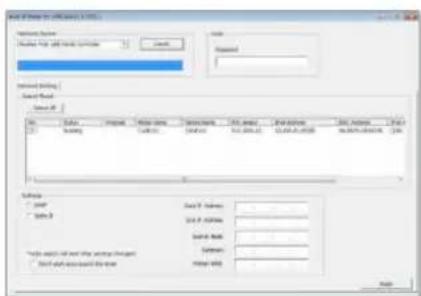
** To support IP address changes in groups, user can download AVer IP Finder app.
- Download the IP Finder from https://www.aver.com/download-center (Global), https://www.aveereurope.com/download-center (Europe), or https://www.averusa.com/business/support (USA).
- Run the IP Finder.
- Click "Search", and all available devices will be listed on the screen.
English-8
FEDERAL COMMUNICATIONS COMMISSION
NOTE: This equipment has been tested and found to comply with the limits for a Class A digital device, pursuant to part 15 of the FCC Rules. These limits are designed to provide reasonable protection against harmful interference when the equipment is operated in a commercial environment. This equipment generates, uses, and can radiate radiofrequency energy and, if not installed and used in accordance with the instruction manual, may cause harmful interference to radio communications. Operation of this equipment in a residential area is likely to cause harmful interference in which case the user will be required to correct the interference at his own expense. FCC Caution: Any changes or modifications not expressly approved by the party responsible for compliance could void the user's authority to operate this equipment.
This device complies with part 15 of the FCC Rules. Operation is subject to the following two conditions: (1) This device may not cause harmful interference, and (2) this device must accept any interference received, including interference that may cause undesired operation.
Warning:
This is a class A product. In a domestic environment this product may cause radio interference in which case the user may be required to take adequate measures.
Risk of Explosion if Battery is replaced by an Incorrect Type. Dispos of Used Batteries According to the Instructions.
COPYRIGHT
© 2024 AVer Information Inc. All rights reserved. | March 11, 2024
The information contained in this documentation is subject to change without notice.
More Help
For FAQs, technical support, software and user manual download, please visit:
Global: https://www.aver.com/download-center
USA: https://www.averusa.com/business/support
Europe: https://www.aveurope.com/download-center
Technical Support:
Global: https://www.aver.com/technical-support
USA: https://averusa.force.com/support/s/contactsupport
Europe: https://www.aveereurope.com/technical-support
Contact Information
Headquarters
AVer Information Inc.
https://www.aver.com
8F, No.157, Da-An Rd., Tucheng Dist., New Taipei City 23673, Taiwan
Tel: +886 (2) 2269 8535
USA Branch Office
AVer Information Inc.
https://www.averusa.com
668 Mission Ct., Fremont, CA 94539, USA
Tel: +1 (408) 263 3828
Toll-free: +1 (877) 528 7824
Technical support: support.usa@aver.com
Europe Branch Office
AVer Information Europe B.V.
https://www.aveurope.com
Westblaak 134, 3012 KM, Rotterdam, The Netherlands
Technical support: eu.rma@aver.com
Japan Branch Office
ABAI·INFMO-ON株式会社
https://jp.aver.com
Vietnam Branch Office
Congty TNHH AVer Information (Viet Nam)
Tang 5, 596 Nguyen Dinh Chieu, P.3, Quan 3, Thanh pho Ho Chi Minh 700000, Viet Nam
Tel: +84 (0) 28 22 539 211
包装内容物
https://www.aveurope.com/download-center(歐洲)或
https://www.averusa.com/business/support(美國)下載IP Finder。
https://www.aver.com
https://www.averusa.com/business/support(美国)下载IPFinder。
https://www.aver.com
新北市土城区大安路157号8楼
电话:+886(2)22698535
八味一内容
©2024 AVer Information Inc. All rights reserved.
dwon口一·-https://jp.aver.com/download-center
ルフSennterhttps://jp.aver.com/helpcenter
PTZApp2 1000 PTZApp2 0000000000000000000000000000000000000000000
中
至需日 责
FAO.7金刘恩本品三明国口安
https://www.precom/downloader
8F.No157,Da-An Rd.Tucheng Dist.New Taipei City 23673,Taiwan
28622698535
Assistance Technique: https://www.aveereurope.com/technical-support
Westblaak 134, 3012 KM, Rotterdam, The Netherlands
Tel: +31 (0) 10 7600 550
Assistance technique: eu.rma@aver.com
Soporte technique: https://www.aveurope.com/technical-support
Westblaak 134, 3012 KM, Rotterdam, The Netherlands
Tel: +31 (0) 10 7600 550
Soporte专业技术: eu.rma@aver.com
KoMnJIeKT NOCTaBKn
LJehTp 3aRpy3ok: https://www.aver.com/download-center
TexnoДерЖka: https://www.aver.com/technical-support
KoHTaKTHaHnHΦopMaζη
AVer Information Inc.
https://www.aver.com
8F, No.157, Da-An Rd., Tucheng Dist., New Taipei City 23673, Taiwan
Tei.: +886 (2) 2269 8535