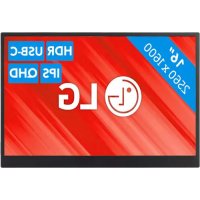
Gran +View 16MQ70 - Monitor LG - Free user manual and instructions
Find the device manual for free Gran +View 16MQ70 LG in PDF.



| Product Type | 16-inch IPS Portable Monitor |
| Screen Size | 40.6 cm (16 inches) diagonal |
| Maximum Resolution | 2560 x 1600 @ 60 Hz |
| Color Depth | 16.7 million colors (8-bit) |
| Display Standard | DisplayPort Alternate Mode (DP Alt Mode) |
| Power Supply | USB-C, 5V / 2A (USB PD 7.5W minimum required) |
| Power Consumption (Typical) | 8 W |
| Dimensions with Protective Case | 362 (L) x 249 (H) x 11.3 mm (D) |
| Dimensions without Protective Case | 360 (L) x 245.5 (H) x 8.3 mm (D) |
| Weight with Protective Case | Approximately 990 g |
| Weight without Protective Case | Approximately 670 g |
| Connectors | 2 USB-C ports (support DP Alt Mode and power delivery) |
| Main Features | Extend mode, brightness adjustment, foldable case as stand, OnScreen Control software for Windows |
| Operating Temperature | 0°C to 40°C |
| Storage Temperature | -20°C to 60°C |
| Operating Humidity | Less than 80% |
| Storage Humidity | 85% or less |
| Maintenance and Cleaning | Use a computer and monitor cleaning product. Do not use thinners, benzene, alcohol. |
| Safety | Do not press on the screen, avoid dust and moisture, use in a safe place. |
| Spare Parts and Repairability | Protective case available separately from LG Electronics service center. |
| Provided Software | OnScreen Control (Windows only) for display management |
Frequently Asked Questions - Gran +View 16MQ70 LG
User questions about Gran +View 16MQ70 LG
0 question about this device. Answer the ones you know or ask your own.
Ask a new question about this device
Download the instructions for your Monitor in PDF format for free! Find your manual Gran +View 16MQ70 - LG and take your electronic device back in hand. On this page are published all the documents necessary for the use of your device. Gran +View 16MQ70 by LG.
USER MANUAL Gran +View 16MQ70 LG
For safe and convenient use, please read this owner's manual carefully before starting to use the product.
16MQ70 Series
www.lg.com
Copyright © 2022 LG Electronics Inc. All Rights Reserved
1 Important Safety Precautions
Important Safety Precautions
| Important Safety Precautions | 1 | Caution | Do not press the monitor screen with fingers or put y Do not tap or scratch the screen with a sharp object. y If the screen is damaged, do not touch it with your hands. y Keep ing a paused image on the screen for an extended period of time may result in screen burn-in. y Use a screensaver, etc. y When its temperature is low, turning on the monitor may cause momentary blinking of the screen. y If this is the case, you may see some red, green, and blue spots on the screen but it is normal. |
| While using product | 2 | 警告 | Do not use the monitor screen with the instruction may cause serious physical damage or fatal injuries. |
| Product Tour | 3 | WARNING: Noncompliance with the instruction may cause serious physical damage or fatal injuries. | |
| Using Folio Cover | 4 | CAUTION: Noncompliance with the instruction may cause minor damage | |
| Connecting Monitor | 5 | 警告 | Do not use the monitor in the machine |
| Setting Screen (Extension Mode) | 6 | While using product | |
| Adjusting Screen Brightness | 7 | WARNING y | Use the product in a safe place where there is no danger |
| Installing SW | 8 | Use the product in a safe place where there is no danger | |
| Pre-Tech Support Checklist | 9 | Do not use the product in a dusty or humid place | |
| Appendix | 10 | Do not use the product in a high or low-temperature | |
| Product Specifications | 11 | Do not touch the power cord with your hands wet. | |
| Factory Default Mode | 12 | Keep the power cable port free of foreign substances. | |
| Registered Trademark and Open Source Software Notice Information | 13 | Please use the product with a proper amount and dry it completely before using it again. | |
| Symbols | 14 | Caution | Do not press the monitor screen with fingers or put y Do not tap or scratch the screen with a sharp object. y If the screen is damaged, do not touch it with your hands. y Keep ing a paused image on the screen for an extended period of time may result in screen burn-in. y Use a screensaver, etc. y When its temperature is low, turning on the monitor may cause momentary blinking of the screen. y If this is the case, you may see some red, green, and blue spots on the screen but it is normal. |
2Checking the Comp
Checking the Components
The components shown below are provided when you purchase the product. Check the components before use.
- Some of its components may look different in shape and color from the pictures in certain models.
- To clean the product, use a dedicated cleaning agent for PC and monitor. Using thinners, benzene, alcohol or other similar agents may cause product damage or deformation.

Monitor body


Owner's manual USB-C™ cable Folio cover
NOTE
The figures in the user's guide are subject to change without prior notice.
Product Tour
The product may differ in shape and color from the product images included in this Owner's manual.
Front

USB-CTM port
USB-CTM port
Screen brightness button
Using Folio Cover
You can fold back the folio cover and use it as a stand.


CAUTION
- When you are moving the product, make sure to keep the folio cover on it to protect the screen.

NOTE
- There are two angles available for using the folio cover.


The folio cover can be used in the horizontal mode only.
- The folio cover is a consumable item and can be damaged during use. You can purchase folio covers separately from LG Electronics Service Center.
Connecting Monitor
Connect the USB-CTM ports of the monitor and the PC using the USB-CTM cable.


CAUTION
- Do not use any other type of cable than USB-C™ cable for this connection. Doing so can damage the connector.

NOTE
- This product is designed to be used only with a laptop. The device to be connected with the monitor must support DisplayPort Alternate Mode (DP Alt Mode) and power output (USB PD) at 7.5 W (5 V / 1.5 A) or higher.
- The USB-CTM port only supports single connection and does not support multiple connections.
- Use the USB-C™ cable enclosed with the monitor for connection. If a cable for a different product is used, it may cause the screen to operate abnormally.
If the device connected to the monitor has low battery, connection may be lost. - This monitor supports the plug-and-play function. (Plug-and-play: When a device is connected to a PC, the PC automatically recognizes the connected device without any environment settings by the user.)
4Setting Screen (Ext)
Setting Screen (Extension Mode)
If you set the portable monitor to Extension Mode, you can set the screen ratio and layout.
1 Press [Ctrl] + [ESC] on your keyboard to bring up the Start menu.
- Windows 10: Press the Start button [ ] and then select the Settings [ ].
- Windows 11: Press the Start button [ ] and then select the Settings [ ] on the start screen.
2 When the Settings screen appears, select [System] > [Display].
3 Windows 10: Select [Extend these displays] under [Multiple displays]. Windows 11: Select [Extend these displays].
4 Select monitor 2.

5 Change settings as desired under [Scale & layout].


NOTE
- The image is only representative and may vary depending on the Windows version and language of the country.
Adjusting Screen Brightness
You can use the screen brightness button on the right of the monitor to adjust the screen brightness.

Installing SW
Install OnScreen Control and use various functions such as screen split, monitor settings, and screen switch easily and conveniently.
1 Visit the LG Electronics website (http://lg.com).
2 Select the "SUPPORT" menu option and search for the product model.
3 Select "OnScreen Control" and start installing the software.

NOTE
After OnScreen Control is installed, you can see how to use it from the Help menu provided inside the app.
- OnScreen Control is available for Windows only.
- The Auto Screen Rotation function is available only while OnScreen Control is enabled.

Pre-Tech Support Checklist
If the following symptoms appear while using the product, check again. It may not be a malfunction.
| Symptom | Cause and Solution |
| The screen stays blank or connection is unstable. | Check if the device connected to the monitor supports DisplayPort Alternate Mode (DP Alt Mode) and USB Power Delivery(USB PD). |
| The power does not turn on. | Check if you can properly connect the device to the monitor using the USB-CTM cable that comes with the monitor. |
| The monitor's supported frequency range has been exceeded. | This phenomenon occurs when the signal sent from the PC exceeds the horizontal or vertical frequency range. Refer to the Factory Mode settings and reset the frequency. |
| The screen looks unclear. | Setting the screen resolution to any other than the recommended (optimal) resolution may result in blurry text or dimming, cropping, or tilting of the screen. Use the recommended screen resolution setting. |
| Screen burn-in remains even when power is off. | Note that having a fixed screen on for an extended period of time may cause damage to the display and lead to screen burn-in. To use the monitor for a long time, use a screensaver. |
| There are spots on the screen. | You may see a few pixel spots (red, green, blue, white, black) on the screen while using the monitor. This is a normal phenomenon of an LCD screen. This is unrelated to the monitor performance and is not an abnormality. |
Appendix
Product Specifications
| Display 16 inch (40.6 cm) IPS LCD | ||
| Color Depth 16.7 million colors (8 bits) | ||
| Resolution | Maximum Resolution | 2560 x 1600 @ 60 Hz |
| Recommended Resolution | 2560 x 1600 @ 60 Hz | |
| Display Standard Supported | DisplayPort Alternate Mode (DP Alt Mode) | |
| Power | Rated | 5 V = 2 A |
| Power Consumption | Operation mode: 8 W general (factory default)* | |
| Environment | Operation | Temperature +32 °F to +104 °F (0 °C to 40 °C) |
| Humidity Lower than 80 % | ||
| Storage | Temperature -4 °F to +140 °F (-20 °C to 60 °C) | |
| Humidity 85 % or lower | ||
| Dimensions (not including package) | With a folio cover | 14.3 (width) x 9.8 (height) x 0.4 inch (thickness) / (362 (width) x 249 (height) x 11.3 mm (thickness)) |
| Without a folio cover | 14.2 (width) x 9.7 (height) x 0.3 inch (thickness) / (360 (width) x 245.5 (height) x 8.3 mm (thickness)) | |
| Weight (not including package) | With a folio cover Approx. 35 oz (990 g) | |
| Without a folio cover Approx. 24 oz (670 g) | ||

NOTE
- Power consumption in On Mode was measured under LGE's standard testing conditions (full white pattern, maximum resolution).
- The product specifications are subject to change without notice for product improvement.
- Power consumption level may differ depending on the operating conditions and monitor settings.
Factory Default Mode
| Preset Mode | Horizontal frequency (kHz) | Vertical frequency (Hz) | Polarity (H/V) |
| 640 x 480 31.4 | 59 59.94 +/- | ||
| 800 x 600 37.8 | 79 60.317 +/- | ||
| 1024 x 768 48 | 363 60 +/- | ||
| 1152 x 864 54 | 347 60.05 +/- | ||
| 1280 x 720 45 | 60 +/- | ||
| 1280 x 1024 63 | 981 60.02 +/- | ||
| 1600 x 900 60 | 60 +/- | ||
| 1680 x 1050 65 | 29 59.954 +/- | ||
| 1920 x 1080 67.5 | 60 +/- | ||
| 1920 x 1080 | 83.894 74.973 +/- | ||
| 2560 x 1440 88.79 | 59.95 +/- | ||
| 2560 x 1600 48.62 | 29.96 +/- | ||
| 2560 x 1600 98.71 | 59.97 +/- | ||
| 2560 x 1600 124.26 | 74.95 +/- |
Registered Trademark and Open Source Software Notice Information
USB Type-CTM and USB-CTM are trademarks of USB Implementers forum.

LG
LG logo is a registered trademark of LG Electronics Inc.
To obtain the source code that is contained in this product, under GPL, LGPL, MPL, and other open source licenses that have the obligation to disclose source code, and to access all referred license terms, copyright notices and other relevant documents please visit https://opensource.ige.com.
LG Electronics will also provide open source code to you on CD-ROM for a charge covering the cost of performing such distribution (such as the cost of media, shipping, and handling) upon email request to opensource@lge.com.
This offer is valid to anyone in receipt of this information for a period of three years after our last shipment of this product.
Symbols
| ~ | Refers to alternating current (AC). |
| --- | Refers to direct current (DC). |
| □ | Refers to class II equipment. |
| ◇ | Refers to stand-by. |
| | | Refers to "ON" (power). |
| ∑ | Refers to dangerous voltage. |
MEMO
OWNER'S MANUAL
PORTABLE MONITOR
For safe and convenient use, please read this owner's manual carefully before starting to use the product.
16MQ70 Series
www.lg.com
Copyright © 2022 LG Electronics Inc. All Rights Reserved
Contents
Important Safety Precautions. 1
While using product 1
Checking the Components 2
Product Tour. 2
Using Folio Cover 3
Connecting Monitor 3
Setting Screen (Extension Mode) 4
Adjusting Screen Brightness 4
Installing SW 4
Pre-Tech Support Checklist. 5
Appendix 5
Product Specifications. 5
Factory Default Mode 6
Registered Trademark and Open Source Software Notice Information 6
Symbols 6
Important Safety Precautions
Check the following 'Important Safety Precautions' to prevent unexpected danger or damage in advance.
'Important Safety Precautions' is divided into 'Warning' and 'Caution.'
WARNING: Noncompliance with the instruction may cause serious physical damage or fatal injuries.
CAUTION: Noncompliance with the instruction may cause minor damage to the body or the machine.
While using product

WARNING
Use the product in a safe place where there is no danger of the product falling.
- Do not use the product in a dusty or humid place.
- Do not use the product in a high or low-temperature environment.
- Do not touch the power cord with your hands wet.
- Keep the power cable port free of foreign substances.
Clean the product with a proper agent and dry it completely before using it again.

CAUTION
- Do not press the monitor screen with fingers or put objects on it.
- Do not tap or scratch the screen with a sharp object.
If the screen is damaged, do not touch it with your hands. - Keeping a paused image on the screen for an extended period of time may result in screen burn-in.
Use a screensaver, etc. - When its temperature is low, turning on the monitor may cause momentary blinking of the screen.
If this is the case, you may see some red, green, and blue spots on the screen but it is normal.
2Checking the Comp
Checking the Components
The components shown below are provided when you purchase the product. Check the components before use.
- Some of its components may look different in shape and color from the pictures in certain models.
- To clean the product, use a dedicated cleaning agent for PC and monitor. Using thinners, benzene, alcohol or other similar agents may cause product damage or deformation.

Monitor body


Owner's manual USB-C™ cable Folio cover
NOTE
The figures in the user's guide are subject to change without prior notice.
Product Tour
The product may differ in shape and color from the product images included in this Owner's manual.
Front

USB-CTM port
USB-CTM port
Screen brightness button
Using Folio Cover
You can fold back the folio cover and use it as a stand.


CAUTION
- When you are moving the product, make sure to keep the folio cover on it to protect the screen.

NOTE
- There are two angles available for using the folio cover.


The folio cover can be used in the horizontal mode only.
- The folio cover is a consumable item and can be damaged during use. You can purchase folio covers separately from LG Electronics Service Center.
Connecting Monitor
Connect the USB-CTM ports of the monitor and the PC using the USB-CTM cable.


CAUTION
- Do not use any other type of cable than USB-C™ cable for this connection. Doing so can damage the connector.

NOTE
- This product is designed to be used only with a laptop. The device to be connected with the monitor must support DisplayPort Alternate Mode (DP Alt Mode) and power output (USB PD) at 7.5 W (5 V / 1.5 A) or higher.
- The USB-CTM port only supports single connection and does not support multiple connections.
- Use the USB-C™ cable enclosed with the monitor for connection. If a cable for a different product is used, it may cause the screen to operate abnormally.
If the device connected to the monitor has low battery, connection may be lost. - This monitor supports the plug-and-play function. (Plug-and-play: When a device is connected to a PC, the PC automatically recognizes the connected device without any environment settings by the user.)
4Setting Screen (Ext)
Setting Screen (Extension Mode)
If you set the portable monitor to Extension Mode, you can set the screen ratio and layout.
1 Press [Ctrl] + [ESC] on your keyboard to bring up the Start menu.
- Windows 10: Press the Start button [ ] and then select the Settings [ ].
- Windows 11: Press the Start button [ ] and then select the Settings [ ] on the start screen.
2 When the Settings screen appears, select [System] > [Display].
3 Windows 10: Select [Extend these displays] under [Multiple displays]. Windows 11: Select [Extend these displays].
4 Select monitor 2.

5 Change settings as desired under [Scale & layout].


NOTE
- The image is only representative and may vary depending on the Windows version and language of the country.
Adjusting Screen Brightness
You can use the screen brightness button on the right of the monitor to adjust the screen brightness.

Installing SW
Install OnScreen Control and use various functions such as screen split, monitor settings, and screen switch easily and conveniently.
1 Visit the LG Electronics website (http://lg.com/uk).
2 Select the "SUPPORT" menu option and search for the product model.
3 Select "OnScreen Control" and start installing the software.

NOTE
After OnScreen Control is installed, you can see how to use it from the Help menu provided inside the app.
- OnScreen Control is available for Windows only.
- The Auto Screen Rotation function is available only while OnScreen Control is enabled.

Pre-Tech Support Checklist
If the following symptoms appear while using the product, check again. It may not be a malfunction.
| Symptom | Cause and Solution |
| The screen stays blank or connection is unstable. | Check if the device connected to the monitor supports DisplayPort Alternate Mode (DP Alt Mode) and USB Power Delivery(USB PD). |
| The power does not turn on. | Check if you can properly connect the device to the monitor using the USB-CTM cable that comes with the monitor. |
| The monitor's supported frequency range has been exceeded. | This phenomenon occurs when the signal sent from the PC exceeds the horizontal or vertical frequency range. Refer to the Factory Mode settings and reset the frequency. |
| The screen looks unclear. | Setting the screen resolution to any other than the recommended (optimal) resolution may result in blurry text or dimming, cropping, or tilting of the screen. Use the recommended screen resolution setting. |
| Screen burn-in remains even when power is off. | Note that having a fixed screen on for an extended period of time may cause damage to the display and lead to screen burn-in. To use the monitor for a long time, use a screensaver. |
| There are spots on the screen. | You may see a few pixel spots (red, green, blue, white, black) on the screen while using the monitor. This is a normal phenomenon of an LCD screen. This is unrelated to the monitor performance and is not an abnormality. |
Appendix
Product Specifications
| Display 40.6 cm IPS LCD | ||
| Color Depth 16.7 million colors (8 bits) | ||
| Resolution | Maximum Resolution | 2560 x 1600 @ 60 Hz |
| Recommended Resolution | 2560 x 1600 @ 60 Hz | |
| Display Standard Supported | DisplayPort Alternate Mode (DP Alt Mode) | |
| Power | Rated | 5 V --- 2 A |
| Power Consumption | Operation mode: 8 W general (factory default)* | |
| Environment | Operation | Temperature 0 °C to 40 °C |
| Humidity Lower than 80 % | ||
| Storage | Temperature -20 °C to 60 °C | |
| Humidity 85 % or lower | ||
| Dimensions (not including package) | With a folio cover | 362 (width) x 249 (height) x 11.3 mm (thickness) |
| Without a folio cover | 360 (width) x 245.5 (height) x 8.3 mm (thickness) | |
| Weight (not including package) | With a folio cover | Approx. 990 g |
| Without a folio cover | Approx. 670 g | |

NOTE
- Power consumption in On Mode was measured under LGE's standard testing conditions (full white pattern, maximum resolution).
- The product specifications are subject to change without notice for product improvement.
- Power consumption level may differ depending on the operating conditions and monitor settings.
Factory Default Mode
| Preset Mode | Horizontal frequency (kHz) | Vertical frequency (Hz) | Polarity (H/V) |
| 640 x 480 31.4 | 59 59.94 +/- | ||
| 800 x 600 37.8 | 79 60.317 +/- | ||
| 1024 x 768 48 | 363 60 +/- | ||
| 1152 x 864 54 | 347 60.05 +/- | ||
| 1280 x 720 45 | 60 +/- | ||
| 1280 x 1024 63 | 981 60.02 +/- | ||
| 1600 x 900 60 | 60 +/- | ||
| 1680 x 1050 65 | 29 59.954 +/- | ||
| 1920 x 1080 67.5 | 60 +/- | ||
| 1920 x 1080 | 83.894 74.973 +/- | ||
| 2560 x 1440 88.79 | 59.95 +/- | ||
| 2560 x 1600 48.62 | 29.96 +/- | ||
| 2560 x 1600 98.71 | 59.97 +/- | ||
| 2560 x 1600 124.26 | 74.95 +/- |
Registered Trademark and Open Source Software Notice Information
USB Type-CTM and USB-CTM are trademarks of USB Implementers forum.

LG
LG logo is a registered trademark of LG Electronics Inc.
To obtain the source code that is contained in this product, under GPL, LGPL, MPL, and other open source licenses that have the obligation to disclose source code, and to access all referred license terms, copyright notices and other relevant documents please visit https://opensource.ige.com.
LG Electronics will also provide open source code to you on CD-ROM for a charge covering the cost of performing such distribution (such as the cost of media, shipping, and handling) upon email request to opensource@lge.com.
This offer is valid to anyone in receipt of this information for a period of three years after our last shipment of this product.
Symbols
| ~ | Refers to alternating current (AC). |
| --- | Refers to direct current (DC). |
| □ | Refers to class II equipment. |
| ◇ | Refers to stand-by. |
| | | Refers to "ON" (power). |
| ∑ | Refers to dangerous voltage. |
MEMO
MANUEL D'UTILISATION
MONITEUR PORTABLE
4 Selecteer monitor 2.

Ligue as portas USB-CTM do monitor e do PC utilizing o cabo USB-CTM.


CUIDADO
Copyright © 2022 LG Electronics Inc. All Rights Reserved
Sommario
Copyright © 2022 LG Electronics Inc. Bce npaba 3aunuenebl.
Coepexahne
BaxKhble MepbI npedocTopoxHocTn 1
BoBpemnIb30BaHMyyctpoHCTBa 1
PpOBepka KOMNoHEHToB. 2
Ob3op ycTpoiCTBa 3
IcnoB3OBaHne yexna. 3
IoiKJIIOHHeMoHHTopa.4
Hactpoikka3kpaHa(Pekm pacupeHna) 4
Perynipobka npkoctn 3kpaHa .5
YcTaHOBka nporpamMHoro oecneueHnra 5
YTOcneUeT npOBepntb neped o6paueHnEM B cnyx6y noDepkKn 5
PpuiJoxKeHne 6
Cneunfkaa.. 6
CTaHapTHbI p6pHbI peXIM 7
HNFOPMNAI YBEOMENHIA O 3aERNTCPUPOBAHbIX TOBbIX hXAKAHN InpPAMGMNH OECeEHIN COTKbPTbH MCOXDHBM KODOM 7
06o3haeHna 8
Baxhble MepbI npedocTopoxHoctn
O3HaKOMbTeCb co cIeNyIOUIMM «BaxHbIMM MepaMn
PpeOCTOpOXHOCTN》,YTo6bl N36ExKaTb HeoXnDaHHOI ONaCHOCTN IIN
NoBpeXKeHn.

PykoBOOCTBO nolb30BaTeJIa

Ka6enb USB-C Tm Hcexon


ПОНМЕЧАНЕ
-306paKeHHn, npEctaBHeHHbE B daHOM pyKOBoCTBe, MOrYT 13MeHrTBcB e3 npEeBaHTeJIbHO rOyEBoDMHeHH.
063op yctpOuCTBa
YCTPOCTBO MOKET IMTeB foOpMy uCBet,OTNnHbIe OTn3o6paXeHm, npdctTabHeHHbIX B DAHHOM pyKOBoDCTBe NOJb3OBaTErA.
BnCpeDn

1 NopT USB-CTM
2 Nopt USB-CTM
KhONka perynupOBKn npkOtn 3kpHa
IcnoJb3ObaHne yexJa
Yexon MoXHO CNOKHTb H NcNtB3OBAbTB KaueCTBe NoDCTaBKM.


IPEUYIPEKDEHME
-Пин РпсЕМЕСЕНМ MOHITOPA 3akpbIaIte erOЧeXnOM,ТуБbl 3aUINNTb 3kpAn.

PIMMEUAHNE
-PlnHcNpIb3ObaHmYexHaB KaueCTBeNoCTABKIOCTyHb DBAyrna HAKIOHa.

*Exon MOKET NcNOB3OBATbCA B KaHECTe NOCTABKH TOnbKO B RTOPIOHAJTbHOM PEXKIME.
*Exon 1BnIETcPacXoNbIM AkceccyapOM IN MOKet NOBpejDatbcB npOecce nONb3oBAHnA. DOnONHtEnbHbYe cXbI MOnHO npNoBpctm B cepenchom cHntpe LG Electronics.
PoiKJIIOUeHHe MOHITopa
CoeHHHe npTb USB-CTM Ha MOHTope H Hoy76yKe Ka6eMe USB-CTM.


TPEUYIPKDEHME
-He nCnoIb3yIte dIra tOrO coeHneHnna DpyrNe ka6en, kpoMe USB-CTM. DpyrNe ka6en MoryT nopeHnTa pa3bem.

PIMMEUHNE
-3To yctpoHcTB npedHa3HaueHO nIINoNb30BaHnN NCKHOnTeBHo C HOY6yK, HoTy6k, KOTOpB noKnIOHuaTc K MOHTOpY, DIOJKeH NOdepxmbTa DisplayPort Alternate Mode (DP Alt Mode) n BixOHyMoUHocb (USB PD) 7.5 Bt (5 B / 1,5 A) nn BBwe.
-Not USB-CTM NOIDepKBAeT TOnBko OOnHO NOkNIOueHne. HeckoJIbKO NOkNIOueHn HeDocTyHNO.
-Дян дклочени Испьдуг КабиJSB-CTM, noctabnembl B KOMNJIKTE C MOHOTOP MOKET pa60TbC HENOAqkam.
-Ecnny noDkNIOHaeMOr KO MOHITopy HOY6yka Hn3kn 3apd 6aTapei, coeINHeHne MoKET 6bIb NOTepHO.
-3T0 MOnHITOP NOdEepKnBaET FyHKuIHO Plug and Play. (Plug and Play: npn NOxKnIOHeN yCToPcB7A K KombIoTepy NOIOIOeHHOE yCToPcBTO paCNo3HaTe cA TOMaTHeCKN, 6e3 Heo6xoDMnOCTH NactPoIKN NoJIb3oBeTaeMeN.
HactpoiaKa3kpaHa(Pexm pacwnpeHn)
PnncnoB3oBAHmnpTaTMBHO MOHHTOPa B pexHMe paUHeHH MoXHO HAcTPOuTB pa3peHHe N KOMNOHOKBy 3kpaHa.
1 Haxmnte [ ] [Ctrl] + [ESC] Ha knabnataype, yto6bl OTKpbTb MeHO «Iyck>.
Windows 10: Hahmnte KhoNkY «PcK» [ ] bblbepnTe Hactpoikn [ ].
Windows11:HakmteKhONkY(NcK)[M Bb6epTe HactpoiKn[] HaHauJIbHOM 3KpaHe.
2 Pocne OTKpbBAnHa OKHa HAcTPOKn Bb6epTe [CnCTema] >[Dncnnei].
3 Windows 10: Bb6epnte [Pacuipntb 3n3kpaHb] B MeHO [HeckonkbO dncnneeB]. Windows 11: Bb6epnte [Pacuipntb 3n3kpaHb].
4 BbIepeHTe MoHHTop 2.

5 N3MeHHTe XeNaeMbIe HAcTpoNk Bpa3dene [MacTu6nMaKeT].


IPIMEYAHNE
-306paJxHHe NpNBOUITC TOnbKO DnI CNPABKN MOKET OTJNUATbCB B 3aBNCIMOCNT O T BepcN Windows n 3bka.
PerynpoBka npKocTn kpaHa
IpyrnpOBK npKOCTN 3kpaHa MoXHO nCNOJb30BaTb KHOky cnpaHa MOHTope.

YcTaHOBKa nporpaMMHoro o6ecneueHnA
YctahOBHe NTporpamMy OnScreen Control n noB3yIeB pa3nHbIMn fynKUHMn, TaKIMn KaK pa3deJeHe n3kpaHa, HAcTpoIK MoHITOpu N nepeKUCHHeN 3kpAa npOCTbIM n YDo6bIM cNoC0bOM.
1 Ppeennte Ha Be6-cain LG Electronics (https://www.lg.com/ru).
2Bb6epHTE(IOIDEPKKA)BMeHNO BbINONHHTe NOCKMOEBAWEROyCTpOCTBa.
3 BbIbepnTe «OnScreen Control» n 3aIyCTne yCTaHOBky nporpamMHorO oBecepeHn.

ПРИМЕЧАНЕ
- Tocne yctaHOBn OnScreen Control Bbl CMOXeTe 03HAKOMMbTcCce HCNIOB3OBAHMEM MEHO CPaBKN BHYTPN nporpAMMb.
-Поррамma OnScreen Control Достунталько дд Windows. - ABTOMATMNECKN NOBOPOT 3KpHa DocTyEN TONbKO pnp BKNIOUeHNO OnScreen Control.

YTo cNeIyET npOBepNTb nepeD o6paueHnEM B cnJx6y noIepeKKn
EcnB npocece HcnoIb3oBaHn ycTpoIcTBa BO3HkaIOT cneDyIOue CmNTOMbl, pOBepeTe INx eUe pa3.
Bo3MOxHO,3TO He HEnCnPaBHoCTb.
JLGLPLGLPLGLGLGLGLGLGLGLGLGLGLGLGLGLGLGLGLGLGLGLGLGLGLGLGLGLGLGLGLGLGLGLGLGLGLGLGLGLGLGLGLGLGLGLGLGLGLGLGLGLGLGLGLGLGLGLGLGLGLGLGLGLGLGLGLGLGLGLGLGLGLGLGLGLGLGLGLGLGLGLGLGLGLGLGLGLGLGLGLGLGLGLGLGLGLGLGLGLGLGL
CD-ROM 1500000000000000000000000000000000000000000000000000000000000000000000000000000000000000
j 1
| (AC) | |
| (DC) | |
#
| USB 4.0, 128位 (DP Alt 128) DisplayPort (.USB PD) | ||
| Junction to the display port is connected to the USB port Junction to the display port is connected to the USB port USB-C™ JCS plugging in | Junction to the display port Junction to the display port Junction to the display port Junction to the display port Junction to the display port Junction to the display port Junction to the display port Junction to the display port Junction to the display port Junction to the display port Junction to the display port Junction to the display port Junction to the display port Junction to the display port Junction to the display port J junction to the display port J junction to the display port J junction to the display port J junction to the display port J junction to the display port J junction to the display port J junction to the display port J junction to the display port J junction to the display port J junction to the display port J junction to the display port J junction to the display port J junction to the display port J junction to the display port J junction to J junction to J junction to J junction to J junction to J junction to J junction to J junction to J junction to J junction to J junction to J junction to J junction to J junction to J junction to J junction to J junction to J junction to J junction to J junction to J junction to J junction to J junction to J junction to J junction to J junction J junction J junction J junction J junction J junction J junction J junction J junction J junction J junction J junction J junction J junction J junction J junction J junction J junction J junction J junction J junction J junction J junction J junction J junction J junction J junction J junction J junction J junction J junction J junction J junction J junction | |
| Junction to the display port Junction to the display port Junction to the display port Junction to the display port Junction to the display port Junction to the display port Junction to the display port Junction to the display port Junction to the display port Junction to the display port Junction to the display port Junction to the display port Junction to the display port Junction to the display port JB junction JB junction JB junction JB junction JB junction JB junction JB junction JB junction JB junction JB junction JB junction JB junction JB junction JB junction JB junction JB junction JB junction JB junction JB junction JB junction JB junction JB junction JB junction JB junction JB junction JB junction JB junction JB junction JB junction JB junction JB junction JB junction JB junction JB junction |
auiie 1
aill 1jaiil aill jaiie jaii iaiii 1

C
J 1
- (http://lg.com) LG Electronics
- 1
23

45
y
aaii aaii jaij
Aa
()
aaii i aaiiaaiiaaiiaaiiaaiiaaiiaaiiaaiiaaiiaaiiaaiiaaiiaaiiaaiiaaiiaaiiaaiiaaiiaaiiaaiiaaiiaaiiaaiiaaiiaaiiaaiiaaiiaaiiaaiiaaiiaaiiaaiiaaiiaaiiaaiiaaiiaaiiaaiiaaiiaaiiaaiiaaiiaaiiaai
[Ctrl] + [ESC]

10000000000000000000000000000000000000000000
[ ]
2.[jzj1]j435
3.[aiai jaej]
4.2

5.[jai]&jai]

设 x_0
i 1
J
gai jia yao jia liu lai 1

·
·
a a
y j 1
C
-
1
2 1
2
3
3 -
(C)
4.
4
5
5
5
6 1
6.
6
aegaae
aallll lllllllllllllllllllllllllllll
16MQ70
www/lg.com
2022 2