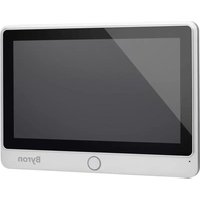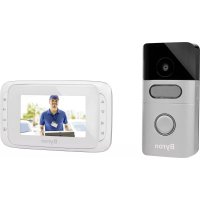
DIC24712 - Intercom BYRON - Free user manual and instructions
Find the device manual for free DIC24712 BYRON in PDF.



User questions about DIC24712 BYRON
0 question about this device. Answer the ones you know or ask your own.
Ask a new question about this device
Download the instructions for your Intercom in PDF format for free! Find your manual DIC24712 - BYRON and take your electronic device back in hand. On this page are published all the documents necessary for the use of your device. DIC24712 by BYRON.
USER MANUAL DIC24712 BYRON
Byron Table of Contents
Table of Contents
1 Safety 5
1.1 Installation Safety....5
1.2 Operation Safety 5
2 Parts description .... 5
2.1 What's in the box....5
2.2 Indoor unit (Monitor)....5
2.3 Outdoor unit (Doorbell) 6
3 Installation....6
3.1 Fix the mounting plate of the indoor unit (monitor) 6
3.2 Fix the mounting plate of the outdoor unit (doorbell) 6
3.3 Electrical installation 6
3.3.1 Connecting the indoor unit (Monitor) to the outdoor unit (doorbell) 6
3.3.2 Connecting the AC adapter....7
3.3.3 Mount the indoor unit and outdoor unit 7
3.3.4 Connecting a gate opener (not included)....7
3.3.5 Connecting a door lock (not included) 7
4 Basic functions....7
5 Settings menu 8
6 Frequently asked questions 8
Table of Contents Byron
7 Specifications 9
8 Environment....9
1 Safety
- Please read these instructions carefully before installing and using the product.
- Do not cut the power supply cable to extend it; the device (transformer) will not work with a longer cable. Do not plug in the device until all the wiring has been finished.
1.1 INSTALLATION SAFETY
- Keep children and bystanders away while installing the products. Distractions can cause you to lose control.
- Do not overreach when installing this product. Keep proper footing and balance at all times. This enables better control in unexpected situations.
- This product is not a toy. Mount it out of reach of children.
- Do not operate electrically powered products in explosive atmospheres, such as in the presence of flammable liquids, gases, or dust. Electrically powered products create sparks which may ignite the dust or fumes.
-
The warnings, precautions, and instructions discussed in this instruction manual cannot cover all possible conditions and situations that may occur. It must be understood by the operator that common sense and caution are factors which cannot be built into this product, but must be supplied by the operator.
-
Do not expose the Power Adapter of this product to rain or wet conditions. Water entering the Power Adapter will increase the risk of electric shock.
- Do not abuse the Power Cord. Never use the cord for unplugging the plug from the outlet. Keep cord away from heat, oil, sharp edges or moving parts. Damaged or entangled cords increase the risk of electric shock.
- The adapter must match the outlet. Never modify the plug in any way. Unmodified plugs and matching outlets will reduce risk of electric shock.
2 Parts description
2.1 WHAT'S IN THE BOX
- Indoor unit (Monitor)
- Outdoor unit (Doorbell)
- Mounting plate outdoor unit
- Mounting plate monitor
- AC adaptor
- Cables
- Screws and plugs
- Instruction manual
2.2 INDOOR UNIT (MONITOR)
- Microphone
- Mute LED
- Intercom
-
Mute
-
Door lock
- Gate opener
- Settings
- Close
- Microphone
- Photosensitive resistor
- Camera
- Night vision light
- Speaker
- Call button
3 Installation
3.1 FIX THE MOUNTING PLATE OF THE INDOOR UNIT (MONITOR)
To mount the monitor, you will need the following tools:
√ A suitable screwdriver for the included screws.
√ A drill and suitable drill bit for the included screw plugs.
A. Position the provided mounting plate where desired.
B. Mark the screw positions with a pen.
C. Drill the necessary holes.
D. Insert the plugs.
E. Pull the required cables through the mounting plate.
F. Fasten the mounting plate with the screws.
3.2 FIX THE MOUNTING PLATE OF THE OUTDOOR UNIT (DOORBELL)
To mount the outdoor unit, you will need the following tools:
√ A suitable screwdriver for the included screws.
√ A drill and suitable drill bit for the included screw plugs.
A. Position the provided mounting plate where desired.
B. Mark the screw positions with a pen.
C. Drill the necessary holes.
D. Insert the plugs.
E. Use a knife or sharp object to puncture the cable gland.
F. Pull the required cables through the cable gland.
G. Fasten the mounting plate with the screws.
3.3 ELECTRICAL INSTALLATION
3.3.1 Connecting the indoor unit (Monitor) to the outdoor unit (doorbell)
To connect the terminals, you will need the following tool:
√ A small flat head screw driver.
A. On the monitor: Loosen the terminal screws. (See sticker on the monitor for position.)
B. Insert the wires with the cable shoes (See sticker on the monitor for position.)
C. Fasten the terminal screws.
D. On the outdoor unit (doorbell): Loosen the terminal screws. (See sticker on the outdoor unit for position.)
E. Insert the wires. (See sticker on the outdoor unit for position.)
F. Fasten terminal screws.
3.3.2 Connecting the AC adapter
To connect the terminals, you will need the following tool:
√ A small flat head screw driver.
A. On the monitor: Loosen the terminal screws. (See sticker on monitor for position.)
B. Insert the wires of the AC adapter with the cable shoes. (See markings on wires for '+' or '-'.)
C. Fasten the terminal screws.
D. After wiring the outdoor unit: Plug in the AC adapter into a compatible wall outlet.
3.3.3 Mount the indoor unit and outdoor unit
√ A suitable screwdriver for the included screws.
A. Attach the indoor unit and outdoor unit to the mounting plates.
B. Fasten the screw at the bottom of the outdoor unit.
3.3.4 Connecting a gate opener (not included)
To connect the gate opener, you will need the following tool:
√ A small flat head screw driver.
A. On the monitor: Loosen the terminal screws. (see sticker on the monitor for position)
B. Insert the wires. (see sticker on the monitor for position)
It is important that the + and - wires are in the correct position.
A. Fasten the terminal screws.
B. On the gate opener: (See the manual provided with your gate opener.)
3.3.5 Connecting a door lock (not included)
It is possible to connect a lock to the outdoor unit that can be opened, using the monitor. Door locks are sold separately. Article no: DB5005 & DB5005L
To connect the door lock, you will need the following tool:
√ A small flat head screw driver.
A. On the outdoor unit: Loosen the terminal screws. (see sticker on the outdoor unit for position)
B. Insert the wires (any order)
C. Fasten the terminal screws.
D. On the lock: Loosen the two terminal screws. (Please check the manual of your door lock for more details.)
E. Insert the wires (any order)
F. Fasten the terminal screws.
4 Basic functions
Touch anywhere on the screen to activate it when in standby mode. You can monitor the entrance at any time via the monitor.
| No: | Button: | Description |
| 1 | Answer Used to communicate with the outside unit after the doorbell is pushed | |
| 2 | Mute Mute the monitor ring tone | |
| No: Button: Description | |
| 3 Door lock Opens the door lock | |
| 4 Gate opener | Opens the gate |
| 5 Settings This menu contains settings for:• Brightness• Color saturation• Contrast• Volume• Doorbell melodies• Door lock time | |
| 6 Close Turns the monitor in stand-by mode | |
Table 1: Buttons and functions
5 Settings menu
Touch the settings icon on the home screen to enter the settings menu.
Use the arrows to adjust the settings.
| No: Button: Description | |
| 1 Brightness Use to adjust the brightness of the screen | |
| 2 Contrast Use to adjust the contrast on the screen | |
| 3 Color Use to adjust the colors | |
| 4 Volume Use to adjust the volume of the ring tone | |
| 5 Set ring tone | Use to change ring tone |
| 6 Door lock Use to | set the door lock to close after 1 or 4 seconds |
| 7 Exit Use to exit the settings menu | |
6 Frequently asked questions
| Problem Solution | |
| • The indoor unit does not switch on. | • Make sure that the monitor is connected to the power source.• Make sure the adapter plug is properly pushed in to the power outlet. |
| • The ring tone volume is too low. | • Perhaps you extended the cable. Extending the cable can reduce the volume due to being too long or too thin. |
| • I connected the indoor unit to a lock but it does not work. | • Check if the lock is connected properly and that a suitable lock with an external power source is used. |
| • I hear interference on the line. • Move other electronics away from the unit to minimize interference.• Perhaps the cable is too long or the wire too thin. | |
| • There is no sound between the outdoor unit and the indoor unit. | • The microphone may be obstructed. Clean the microphone.• Check that the cables are connected and fastened properly. |
7 Specifications
Monitor
| Screen size 7"(Diagonal) inch | |
| Video System PAL/NTSC | |
| Effective Pixels 1024 RGB (H) x600(V) | |
| Consumption Current 500±100mA | |
| Operation Temperature -5°C ~ +50°C | |
| Operation Humidity 85%(Max) | |
| Supply Voltage DC 15V 1A | |
| Doorbell | |
| Imaging Sensor Type 1/4"CMOS | |
| View Angle about 110o | |
| Night vision distance 0.5 ~ 1m | |
| Operating Temperature -10°C ~ +50°C | |
| Storage Temperature -20°C ~ +60°C | |
| Operating Humidity ≤85%RH | |
8 Environment

This appliance should not be put into the domestic garbage at the end of its durability, but must be offered at a central point for the recycling of electric and electronic domestic appliances. This symbol on the appliance, instruction manual and packaging puts your attention to this important issue. The materials used in this appliance can be recycled. By recycling of used domestic appliances you contribute an important push to the protection of our environment.
Ask your local authorities for information regarding the point of recollection.
Support
You can find all available information and spare parts at www.chbyron.eu
Please read manual before use, and store it carefully for future use and maintenance.
You can also check out our YouTube videos by scanning the QR code below with your phone!

Inhalt
1 Sicherheit 12
3 Installation....21
7 Specifications Monitor
3 Installation....61
3.3 Einstallation....61