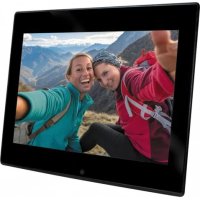
DigiFrame 1220 - Digital photo frame BRAUN - Free user manual and instructions
Find the device manual for free DigiFrame 1220 BRAUN in PDF.



| Product type | Digital photo frame |
| Brand | Braun |
| Model | DigiFrame 1220 |
| Screen size | 30.7 cm (12.1 inches) TFT |
| Resolution | 1024 x 768 pixels |
| Contrast ratio | 300:1 |
| Image aspect ratio | 4:3 |
| Brightness | 250 cd/m² |
| Response time | 20 ms |
| Viewing angle | 60° (left/right/vertical), 40° (horizontal) |
| Power supply | AC power adapter 100-240 V ~ 50/60 Hz, output 9 V / 1.5 A |
| Supported image formats | JPEG |
| Supported audio formats | MP3, WMA |
| Supported video formats | MPEG1, MPEG2, MPEG4, AVI, M-JPEG, H.264 |
| Supported memory cards | SD, MMC, SDHC |
| Connectivity | USB 2.0, Mini USB |
| Main functions | Auto slideshow, built-in clock and calendar, on/off timer, brightness/contrast/saturation settings, file copy/delete, stereo speaker, headphone jack |
| Care and cleaning | Use a soft non-abrasive cloth. Dampen slightly with a cleaning agent. Turn off the device before cleaning. |
| Safety | Indoor use only. Do not expose to moisture or condensation. Do not block ventilation openings. Do not disassemble the device. |
| Package contents | Digital photo frame, power adapter, remote control, user manual, mounting ring |
Frequently Asked Questions - DigiFrame 1220 BRAUN
User questions about DigiFrame 1220 BRAUN
0 question about this device. Answer the ones you know or ask your own.
Ask a new question about this device
Download the instructions for your Digital photo frame in PDF format for free! Find your manual DigiFrame 1220 - BRAUN and take your electronic device back in hand. On this page are published all the documents necessary for the use of your device. DigiFrame 1220 by BRAUN.
USER MANUAL DigiFrame 1220 BRAUN
natural_image
Two women taking a selfie on a tablet displaying mountain scenery (no text or symbols visible)| DE | EN | FR | ES | IT | NL | PL | RO |

natural_image
Two horizontal bar designs with grayscale shades and a central crosshair symbol (no text or labels)

Vorsichtsmaßnahmen
text_image
① ② ③ ④ ⑤natural_image
Black rectangular electronic device with a circular lens and a small inset image (no visible text or symbols)Erste Schritte3.
text_image
Digital Photo Frame Digital Photo Issuenatural_image
Six app icons on a blue background, including photo, calendar, folder, film clapperboard, video player, screwdriver, and pencil (no text or symbols)text_image
Memory Cardtext_image
Nothing in the world .mp3 Only love .wma Free loop .wma The day you went away .mp3 Trouble is a friend .mp3 Promis do not come easy .wma leave .wma Do not beat me .mp3 4.0MB 5/5text_image
Group photo of smiling people holding beer glasses with a digital interface displaying menu options in the backgroundnatural_image
Three sequential line drawings of a folding or lifting device, showing left, right, and side views with no text or symbols.9. Technische Daten
natural_image
Illustration of a desktop computer connected to a monitor (no text or symbols visible)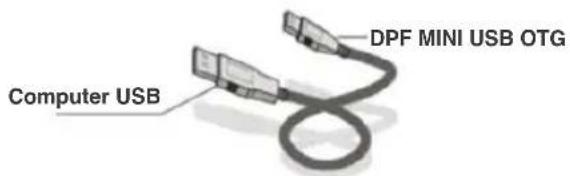
text_image
DPF MINI USB OTG Computer USBPrecautions and maintenance
- For indoor use only.
- To avoid risk of fire or electric shock, do not expose the unit to moisture or condensation.
- To avoid overheating, do not block the ventilation holes on the back of the digital photo frame.
- Keep the digital photo frame out of direct sunlight.
- Do not dismantle the digital photo frame. There is a risk of electric shock and there are no user-serviceable parts inside. Dismantling the digital photo frame will void your warranty.
Cleaning the LCD Screen
- Treat the screen with care. The screen of the digital photo frame is made of glass and is easily broken or scratched.
- If fingerprints or dust accumulate on the LCD screen, we recommend using a soft, non-abrasive cloth such as a camera lens cloth to clean the LCD screen.
- Moisten the cleaning cloth with the cleaning solution and apply the cloth to the screen.
WARNING:
Please power off the unit before inserting or removing a card or USB device.
Failure to do so may cause damage to the card/USB and the unit.
To reduce the risk of fire or electric shock, do not expose this appliance to rain or moisture.
Note: This Device is for private use only and not designed for commercial utilization.
Introduction:
Thank you for purchasing the BRAUN DigiFrame 1220. The product is designed to allow quick and easy viewing of photos taken from your digital camera, mobile phone, or from a memory storage card. Please read this user manual carefully to learn the correct way to use the digital photo frame.
Features:
- Supported picture formats: JPEG
- Supported audio formats: MP3 & WMA
- Supported video formats: MPEG1, MPEG2, MPEG4, AVI, M-JPEG
- Supported memory cards: SD/MMC/SDHC CARD
- USB connection: USB 2.0 & Mini USB
- Auto Slideshow when inserting memory card
- Picture & Music: Picture slideshow with background music
- Supports viewing pictures in thumbnail mode
- Built-in clock and calendar, schedule auto on/off
- Image display modes: slideshow, preview, zoom, rotate function
- Adjustable slideshow speed and about 10 types of slideshow transitions
- Adjustable brightness, contrast, saturation
- Copy and delete files in the in-built memory & memory card
- Built-in stereo speaker and earphone jack
- OSD languages: English and other languages selectable
Packaging Check List:
- 12.1 inch (30,7 cm) digital photo frame 1 piece
- AC/DC adapter 1 piece
- remote control 1 piece
- user's manual 1 piece
- bracket 1 piece
Contents
- Product Diagram....4
1.1 Remote Control ....4
1.2 Buttons at the back....5
1.3 Left of the frame 5
- Installing & Replacing the Battery ....6
- Getting Started....6
- Operating Instruction....7
4.1 Card and USB 7
4.2 Photo Mode 8
4.3 Video Mode 8
4.4 Music Mode 9
- Calendar 9
- File 9
- Setup....10
- Stand Instructions .... 10
- Technical Specifications....11
- PC connection 11
- Troubleshooting Guide....12
1. Product Diagram
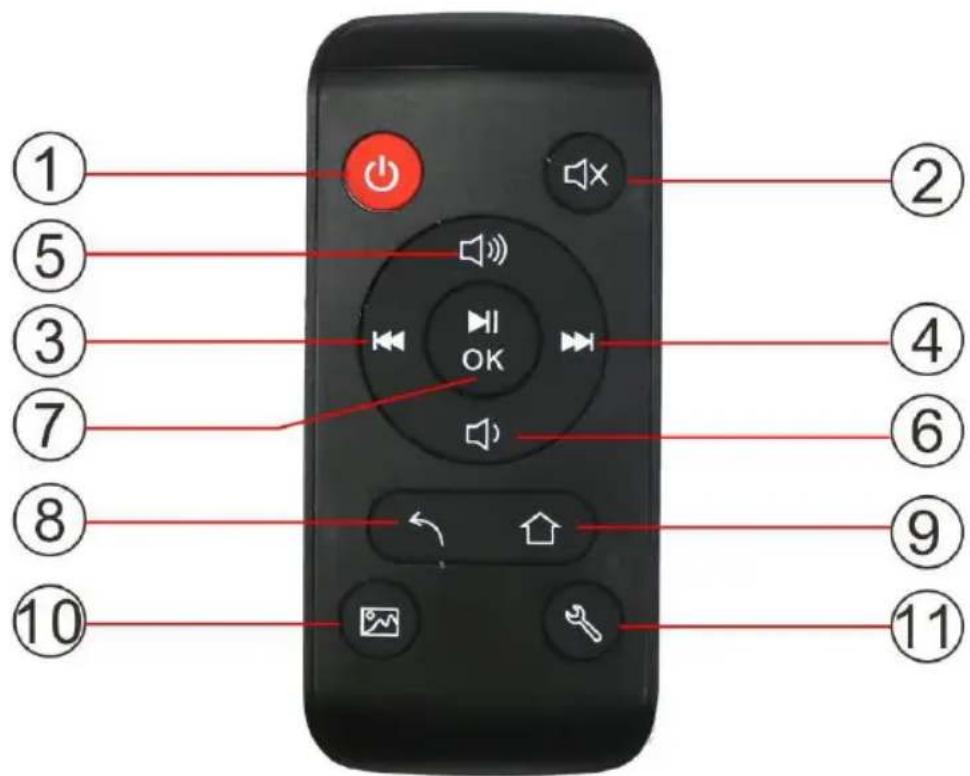
1.1 Remote Control
text_image
① ⑤ ③ ⑦ ⑧ ⑩ ② ④ ⑥ ⑨ ⑪1) ⏻ — Switch On/Off
2) — Mute: Press the Mute button to silence the sound temporarily.
3) ← — Left function selection button.
— Move back to previous music or video file.
4) — Right function selection button.
— Move forward to next music or video file.
5) — Up function selection button.
— Turn up the volume.
6) — Down function selection button.
— Turn down the volume.
7) — Confirmation button. Play/pause: Press this button during play mode to pause; press this button again to start playing again.
8) — Return to previous page.
9) — Go back to the main menu interface.
10) — View pictures in slideshow mode with background music.
11) - Go directly to Setup mode.
1.2 Buttons at the back
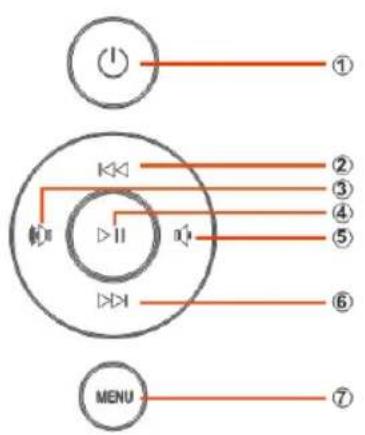
text_image
① ② ③ ④ ⑤ ⑥ MENU ⑦- Power on/off
- Up/Previous
- Vol +/Right
- Play/Pause/OK
- Vol-/Left
- Down/Next
- Menu/Exit/Return
1.3 Left of the frame
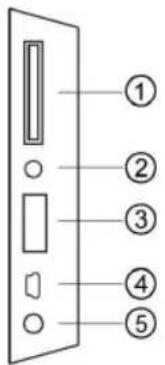
text_image
① ② ③ ④ ⑤- SD/MMC/SDHC CARD card
- Earphone Jack
- USB
- Mini USB
- DC IN
Installing & Replacing the Battery2.
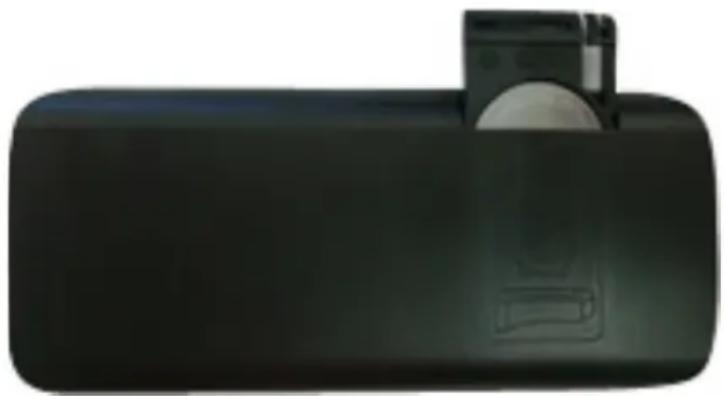
Place the remote control upside down, press down on the ridged area of the battery cover and pull towards you to remove the tray. Place one CR2025 lithium button-cell battery on the tray with the positive “+” side facing you. Reinsert the tray.
natural_image
Black rectangular electronic device with a circular lens and a small inset image (no visible text or symbols)Getting Started3.
3.1. Put the digital photo frame with installing bracket on a flat position steadily, then plug one end of the AC adapter into a standard 110-240V AC electrical outlet and the other end into the DC IN slot on the left side of the frame.
3.2. Slowly remove the protective film covering on the screen.
3.3. Remove the plastic battery insulator from the battery compartment and make sure the remote control has a battery inside. Please refer to "Installing & Replacing Battery" if you need a new battery.
3.4. It will start up automatically when the power is on. Press the power button on the backboard or press the Power Button on the Remote Control to Switch On/Off.
Operating Instruction4.
text_image
Digital Photo Frame digital photo frameAfter turning on the unit, it will show the startup picture and go to the built-in memory interface.
4.1 Card and USB
natural_image
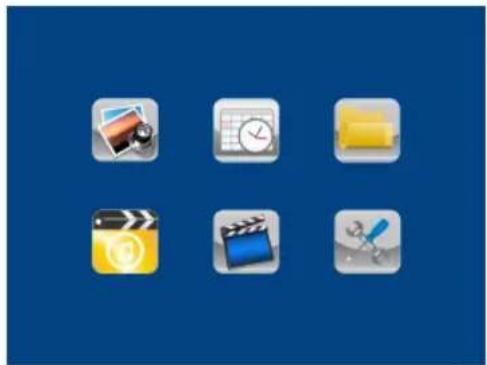
Six app icons on a blue background, including photo, calendar, folder, film clapperboard, and pencil (no text or symbols)SD/MMC/SDHC CARD and USB 2.0 are supported. After inserting a card or USB device, the slideshow will play automatically. Press 📄 access
Photo, Video, Music, Calendar, File or Setting menus. Press ◀◀ ▶▶ on the remote control to choose what you want enter and press OK to confirm.
text_image
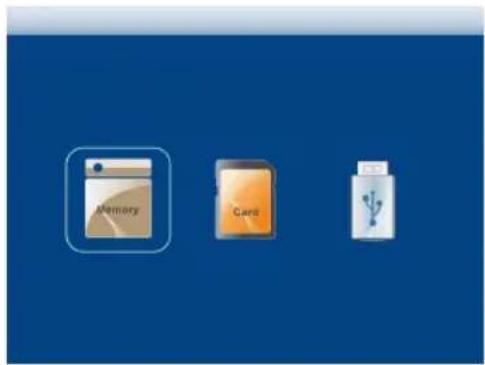
Memory CardPress MENU on the frame or 📤 on the remote control to enter the main menu. Press MENU on the frame or ↩ on the remote control again to choose Storage Device and press OK to confirm.
Note:
1) Make sure there are supported Picture, Music and Video files in the Card or USB device.
2) If there are supported picture and music files in the memory card or USB Device, the slideshow will play automatically with background music.
4.2 Photo Mode
text_image
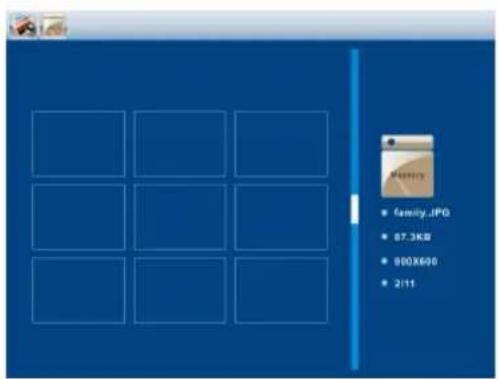
family.JPG 87.3KB 900X600 2:11Choose Photo and press OK to enter into the 9-Picture mode, use
on the remote control to choose the picture and press OK to play. If the "Music" option is set to "On" in the Photo setup, the slideshow with have background music. The music files must be stored in the same memory device!
You can use VOL+/VOL- to turn up/down the volume; you can also use
◀◀ ▶▶ to go to the previous/next background music.
Press Setup. You can set different settings in the Photo Setup menu. Press OK to enter the sub-menu items. Press 🔊 on the remote control to set the Value and press OK to confirm.
4.3 Video Mode
text_image
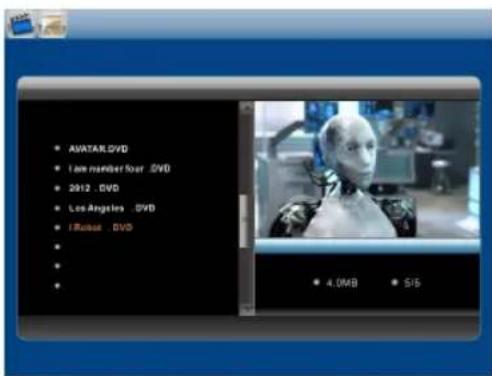
AVATAR.DVD I am member four .DVD 2012 .DVD Los Angeles .DVD iRobot .DVD 4.0MB SISChoose Video and press OK to enter. Press UP 🔒 and DOWN 🔒 on the remote control to select the video from the playlist, then press OK to Play.
Press 🔵 to turn up/down the volume.
In the video playing mode, press OK to pause, and press again to continue playback.
Press to play the previous or next video.
Press Setup. You can set different settings in Video Setup. Press OK to enter the sub-menu items. Press << >> on the remote control to set the value and press OK to confirm.
4.4 Music Mode
text_image
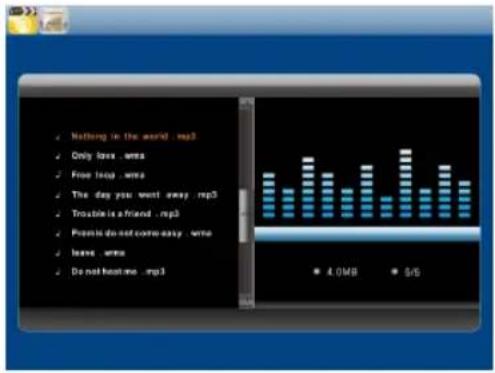
Nothing in the world .mp3 Only loss .write Free loop .write The day you went away .mp3 Trouble is a friend .mp3 Prestis do not come easy .write Leave .write Do not beat me .mp3 4.0MB S/SChoose Music and press OK to enter, press UP/DOWN on the frame, or press 🔍 on the remote control to select the music in the playlist, then press OK to Play/Pause. Long press 🔍 to turn up/down the volume.
In the music playing mode, press OK to pause and play. You can play the previous or next music file by pressing or on the frame. You can fast-forward/rewind music by pressing or the remote control.
Press Setup. You can choose different settings in Music Setup; press OK to enter the sub-menu items. Press << >> on the remote control to set the value and press OK to confirm.
Calendar5.
text_image
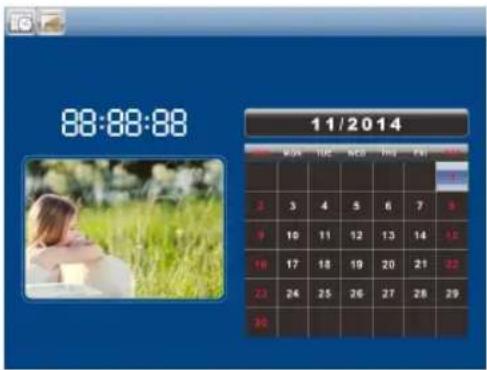
88:88:88 11/2014Choose Calendar in the main menu, press OK to enter. A calendar with a window on the left will be shown with the slideshow.
File6.

text_image
family.JPG only love.mp3 leave.mp3 2012.OVD I Robot.DVD Photo.JPG Son.JPG Jjo.JPG Sr.JPG Wu.JPG family.JPG 500X000 1:7Choose File in the main menu and press OK to enter, you can browse through all the files in your selected storage device. You can press UP and DOWN to choose a file then press OK to confirm.

text_image
Group photo of smiling people holding champagne glasses with a mobile app interface displaying 'Take Orange' and 'Clearing'Setup7.
text_image
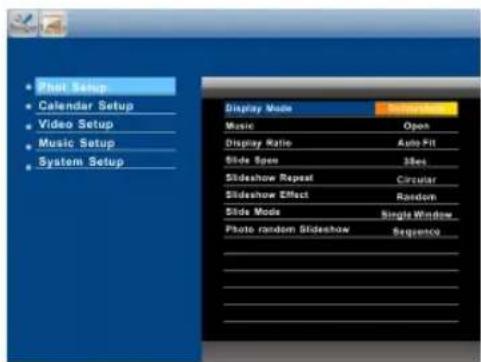
Phot Setup Calendar Setup Video Setup Music Setup System Setup Display Mode Music Display Ratio Slide Speed Slideshow Repeat Slideshow Effect Slide Mode Photo random Slideshow Single Window SequenceEnter File in main menu, then press photo/music/video to go into the sub-folder, select a file then press ▶ on the remote control to copy/delete.
Select Setup in the main menu, press OK to enter the setup interface and press UP and DOWN to highlight the main item and press OK to enter the sub-menu items. Press to set the value and press OK to confirm.
Note: After you make a setting for an item and enter into the next item, the mode/data will be saved automatically.
Note: In the pause mode for photo slideshow/music play/video play, long press Setup to see the operation options for photo/music/video on the right.
Stand Instructions8.
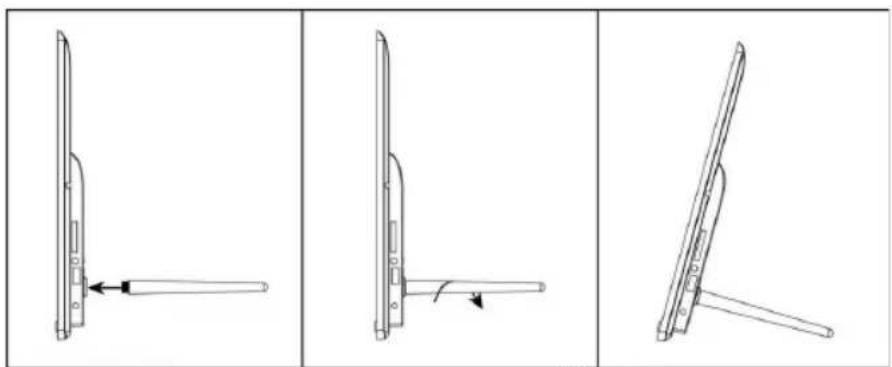
Insert the bracket into the slot of the digital photo frame and rotate the bracket clockwise. Please make sure the stand is locked in before you put it on the table steadily. Please refer to the illustration below.
natural_image
Three technical line drawings of a device with a lever mechanism, shown from front, side, and top views (no text or symbols)10
Technical Specifications9.
- Adapter: Input AC 100-240V 50/60HZ, Output DC: 9V/1.5A
● Picture Formats: JPEG
● Audio Format: MP3 & WMA
● Video formats: MPEG1, MPEG2, MPEG4, AVI, M-JPEG and H.264
● Memory Cards: SD/MMC/SDHC CARD - USB: USB Host & MINI USB
- Screen Parameter:
screen size: 12.1 inch (30,7 cm) TFT
resolution: 1024*768 Pixel
contrast: 300:1
aspect ratio: 4:3
brightness: 250cd/m2
response time: 20ms
viewing angle: 60° left/right/vertical), 40° (horizontal)
working temperature: 0°C\~40°C, humidity: 10-85%
PC connection10.
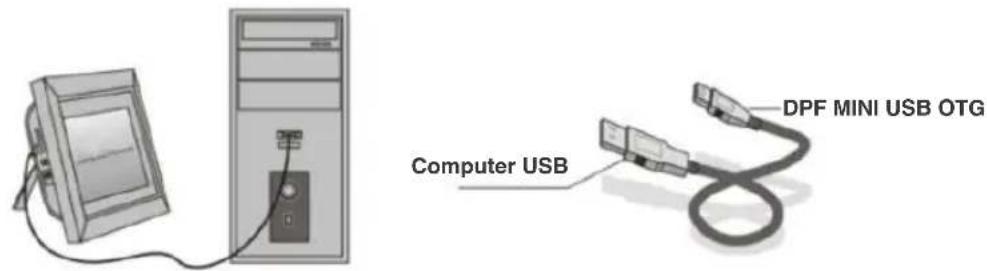
You can connect the unit to external equipment using USB Cable for file copying, deleting and editing operations.
A. Please turn on the digital photo frame, then connect it with the USB cable to your PC. The frame supports Windows 2000/XP/Vista/7/8.
B. The unit will be automatically detected and it will display "PC Connecting" on the screen. You can edit or delete files in the internal memory or the memory device inserted in the picture frame and copy files to and from the computer. You need to restart the digital photo frame after you finished the operation.
text_image
Computer USB DPF MINI USB OTGNOTE: Never disconnect the USB cable during any operations. Doing so may damage your DPF. Press "Safely Remove Hardware-Icon" on the computer to disconnect the PC-Connection.
Troubleshooting Guide11.
If you are having problems with your player, please consult both this guide and the manual. If you need further assistance, please contact Technical Support.
- No power:
Please check whether the plug is inserted correctly.
● Remote control not functioning:
Please check whether the battery has power (the battery can be used for half a year under normal conditions). Replace with new battery if necessary.
● Cannot read the CARD or USB:
Please confirm whether there is storage in the card or USB device.
Empty devices cannot be read.
- Cannot play the file:
Please confirm if the file format is compatible with the player.
● Display is too bright or too dark:
Please adjust the brightness or contrast in the setup menu.
● The color is too sharp or there is no color:
Please adjust the color and contrast setup.
- No sound:
Please check whether the volume is correct and that the player is not in Mute mode.
Avertissements
text_image
① ② ③ ④ ⑤natural_image
Black rectangular electronic device with a circular lens and a small inset image (no visible text or symbols)3. Mise en route
natural_image
Six app icons arranged in a 2x2 grid on a blue background, no text or symbols present.text_image
Memory Cardtext_image
Nothing in the world -.mp3 Only love .mms Free loop .mms The day you went away.mp3 Trouble is a friend .mp3 Please do not come away .wms Leave .mms Do not heat use .mp3 4.0MB 5/5text_image
Group photo of smiling people at a party event with a smartphone displaying a menu interface in Chinese8. Instructions concernant le support
natural_image
Three technical line drawings of a mechanical component with arrows indicating motion, shown from front, side, and top views (no text or symbols present)natural_image
Illustration of a desktop computer connected to a monitor (no text or symbols visible)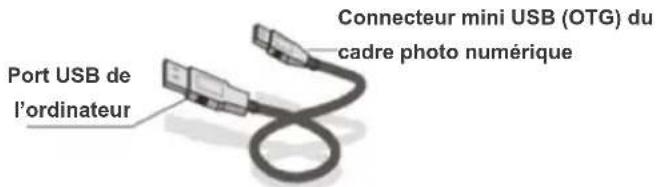
text_image
① ② ③ ④ ⑤natural_image
Black rectangular electronic device with a circular button and a small inset image (no visible text or symbols)Primeros pasos3.
text_image
Digital Photo Frame digital photo imagenatural_image
Six app icons on a blue background, including photo, calendar, folder, film clapperboard, video player, and screwdriver (no text or symbols)text_image
Memory Card Batterytext_image
Nothing is the world .mp3 Only love .wns Free loop .wns The day you went away .mp3 Trouble is a friend .mp3 Promis do not come away .wns Leave .wns Do not heat me .mp3 4.0MB 5/5text_image
Group photo of smiling people holding a trophy with visible app interface text in Chinesenatural_image
Three technical line drawings of a folding blade assembly, showing different angles and orientations (no text or symbols)natural_image
Illustration of a vintage computer monitor connected to a desktop tower via cable (no text or symbols visible)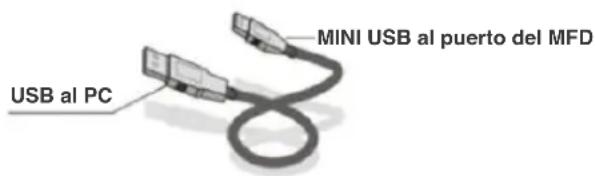
text_image
MINI USB al puerto del MFD USB al PCtext_image
① ② ③ ④ ⑤- Scheda SD/MMC/SDHC CARD
- Presa cuffie
- USB
- Mini USB
- Ingresso CC
natural_image
Black rectangular electronic device with a circular button and a small inset image (no visible text or symbols)natural_image
Six app icons on a blue background, including photo, calendar, folder, film clapperboard, video player, and screwdriver (no text or symbols)text_image
Memory Cardtext_image
Nothing is the world .mp3 Only love .msx Free loop .msx The day you went away .mp3 Trouble is a friend .mp3 Premia do not come easy .msx leave .msx Do not hear me .mp3 4.0MB 51Stext_image
Group photo of smiling people holding beer glasses, with a context menu in the corner showing options like 'Sale Inside', 'Rally Drive', and 'Delete'.natural_image
Three sequential line drawings of a flat-screen blade assembly, showing different angles and orientations (no text or symbols)natural_image
Illustration of a desktop computer connected to a tower via cable (no text or symbols visible)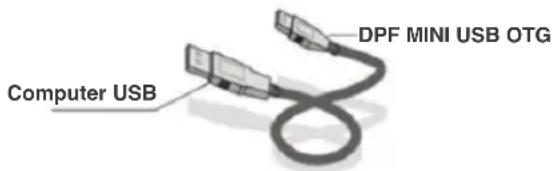
text_image
DPF MINI USB OTG Computer USBtext_image
① ② ③ ④ ⑤natural_image
Black rectangular electronic device with a circular lens and a small inset image (no visible text or symbols)Aan de slag3.
text_image
Digital Photo Frame DIGITAL PHOTO LIGUSnatural_image
Six app icons arranged in a 2x2 grid on a blue background, no text or symbols present.text_image
Memory Cardtext_image
AVATAR.DVD I are number four .DVD 2012 .DVD Los Angeles .DVD Robot .DVD 4.008 $15text_image
Nothing is the world .mp3 Only love .msx Free loop .msx The day you want away .mp3 Trouble is afraid .mp3 Promis do not come easy .msx I leave .msx Do not constant .mp3 4.0MS 5/5text_image
Group photo of smiling people holding champagne glasses, with a mobile app interface displaying menu options in the backgroundnatural_image
Three technical line drawings of a device with a lever mechanism, shown from front, side, and top views (no text or symbols present)Technische specificaties9.
● Adapter: Ingang AC 100-240V 50/60HZ, uitgang DC: 9V/1,5A
- Fotoformaten: JPEG
● Audioformaat: MP3 & WMA
- Videoformaten: MPEG1, MPEG2, MPEG4, AVI, M-JPEG en H.264
● Geheugenkaarten: SD/MMC/SDHC CARD
- USB: USB Host & MINI USB
● Schermparameters:
Schermafmeting: 12.1 inch (30,7 cm) TFT
Resolutie: 1024*768 pixels
Contrast: 300:1
text_image
Computer USB DPF MINI USB OTGtext_image
① ② ③ ④ ⑤natural_image
Black rectangular electronic device with a circular button and a small inset disc (no visible text or symbols)Rozpoczynanie3.
text_image
Digital Photo Frame digital photonatural_image
Six app icons on a blue background, including photo, calendar, folder, film clapperboard, video player, and screwdriver (no text or symbols)text_image
Memory Cardtext_image
Nothing to the world .mp3 Only love .wms Free loop .wms The day you went away .mp3 Trouble is a friend .mp3 Prove do not come easy .wms Leave .wms Do not heat me .mp3 4.088 5/6text_image
Group photo of smiling people with champagne glasses, accompanied by a smartphone displaying menu options in Chinese.natural_image
Three technical line drawings of a flat-screen device with a lever mechanism, shown from front, side, and top views (no text or symbols)text_image
① ② ③ ④ ⑤- Card SD/MMC/SDHC CARD
- Mufă căşti
- USB
- Mini USB
- DC IN (Intrare alimentare CC)
natural_image
Black rectangular electronic device with a circular button and a small inset disc (no visible text or symbols)Noțiuni de bază3.
natural_image
Six app icons on a blue background, including photo, timer, hard drive, film clapperboard, video player, screwdriver, and document (no text or symbols)text_image
Memory Cardtext_image
Nothing in the world .mp3 Only love .wms Free loop .wms The day you went away .mp3 Trouble is a friend .mp3 Promiss do not come easy .wms Leave .wms Do not beat me .mp3 4.0MB 5/5text_image
Group photo of smiling people holding champagne glasses with a context menu open showing options like 'Zoom', 'Side Exercise', and 'Options'.natural_image
Three technical line drawings of a flat-screen device with a lever mechanism, shown from front, side, and top views (no text or symbols present)natural_image
Illustration of a desktop computer connected to a monitor, showing cable and power cord (no text or symbols)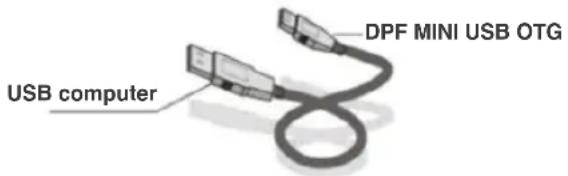
text_image
USB computer DPF MINI USB OTGnatural_image
Solid black background with a thin red horizontal line at the bottom (no text or symbols)