
DigiFrame 1361 - Digital photo frame BRAUN - Free user manual and instructions
Find the device manual for free DigiFrame 1361 BRAUN in PDF.
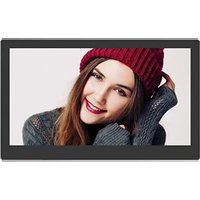


| Product type | Digital photo frame |
| Brand | Braun |
| Model | DigiFrame 1361 |
| Screen size | 33.78 cm (13.3 inches) IPS TFT |
| Screen resolution | 1920 x 1080 pixels |
| Aspect ratio | 16:9 |
| Supported image formats | JPEG |
| Supported audio formats | MP3 |
| Supported video formats | MPEG1, MPEG2, MPEG4, DivX 4.0, DivX 5.0, M-JPEG, AVI, MOV, RMVB |
| Supported memory cards | SD / SDHC / MS / MMC |
| USB port | USB 2.0 (USB host) |
| HDMI port | HDMI input (HDMI IN) |
| Power supply | AC power adapter 100-240V, 50/60Hz; DC output 12V / 2A |
| Built-in memory | 8 GB |
| Main functions | Slideshow with background music, built-in clock, alarm clock, calendar, scrolling subtitles, file copy |
| Display settings | Brightness, contrast, saturation adjustable (0-100) |
| OSD languages | German, English, French, Italian, Spanish, Dutch, Romanian, Greek |
| Operating temperature | 0°C to 40°C |
| Operating humidity | 10% to 85% |
| Maintenance and cleaning | Clean the LCD screen with a soft, non-abrasive cloth (like a lens cloth) moistened with a mild cleaning solution |
| Safety | Indoor use only; do not expose to moisture or direct sunlight; do not open the casing |
| Spare parts and repairability | Remote control battery type CR2025 (replaceable); AC adapter included; stand included; no user-serviceable parts inside |
| General information | Weight not specified; approximate dimensions: 33.78 cm diagonal, standard thickness |
Frequently Asked Questions - DigiFrame 1361 BRAUN
User questions about DigiFrame 1361 BRAUN
0 question about this device. Answer the ones you know or ask your own.
Ask a new question about this device
Download the instructions for your Digital photo frame in PDF format for free! Find your manual DigiFrame 1361 - BRAUN and take your electronic device back in hand. On this page are published all the documents necessary for the use of your device. DigiFrame 1361 by BRAUN.
USER MANUAL DigiFrame 1361 BRAUN
Introduction:
3. First Steps
NOTE:
7. Video Mode
NOTE:
Thank you for purchasing this Digital Photo Frame. It is designed to allow quick and easy viewing of photos taken with your digital camera, mobile phone, or from a memory card. Please read this user manual carefully to learn the correct way to use the digital photo frame.
Contents:
- Stand Installation 11 2a. Rear and Left Side View 11 2b. Remote Control 12 2c. Installing & Replacing the Battery 12
- Getting Started 13
- Operating Instructions 13 Memory card and USB 13
- Picture Mode 13
- Music Mode 14
- Video Mode 14
- Copy function 15
- Scrolling Subtitle Function 15
- Calendar 15
- HDMI-IN Function 15
- Setup 16
- Specifications 16
- Troubleshooting 16
Technical Support
We are committed to providing the best customer service support. If you need assistance with your BRAUN product, please contact the BRAUN Technical Support department prior to returning this device. Reach out to us in any of the following ways:
Radio and TV Interference Statement
This equipment has been tested and found to comply with the limits of a Class B digital device, pursuant to part of the CE rules. These limits are designed to provide reasonable protection against harmful interference in a residential installation.
To view the associated declaration of conformity, please visit our website.
Packaging Check List:
- 13.3 inch digital photo frame
- AC/DC adapter
- Remote control
- User manual
- Bracket
Cautions:
Precautions and maintenance
- For indoor use only
- To avoid risk of fire or electric shock, do not expose the unit to moisture or condensation.
- To avoid overheating, do not block the ventilation holes on the back of the Digital Photo Frame.
- Keep the Digital Photo Frame out of direct sunlight.
- Do not dismantle the Digital Photo Frame. There is a risk of electric shock and there are no user serviceable parts inside.
- Dismantling the Digital Photo Frame will void your warranty.
Cleaning the LCD Screen
- Treat the screen carefully. Because the screen of the Digital Photo Frame is made of glass and it would easily be broken or scratched.
- If fingerprints or dust accumulate on the LCD screen, we recommend using a soft, non-abrasive cloth such as a camera lens cloth to clean the LCD screen.
- Moisten the cleaning cloth with the cleaning solution and apply the cloth to the screen.
WARNING:
Please turn off the power before inserting or removing a memory card or USB device. Otherwise, damage may occur to the memory card or the USB device and the digital picture frame. To reduce the risk of fire or electric shock, do not expose this unit to rain or moisture.
Note:
This Device is for private use only and not designed for commercial utilization.
Features:
- Supported picture formats: JPEG
- Supported audio formats: MP3
- Supported video formats: MPEG1, MPEG2, MPEG4, RMVB, MOV, MJPEG, DivX 4.0, DivX 5.0, AVI
- Supported memory cards: SD/MMC/MS
- USB port: USB 2.0
- HDMI interface: supports HDMI-IN function
- Slideshow with background music
- Supports running subtitles during photo, music and movie playback
- Supports timeline during photo, music and movie playback
- Integrated clock and alarm clock, automatic On / off
- Brightness, Contrast, Saturation adjustable
- OSD languages: German, English and others Languages selectable
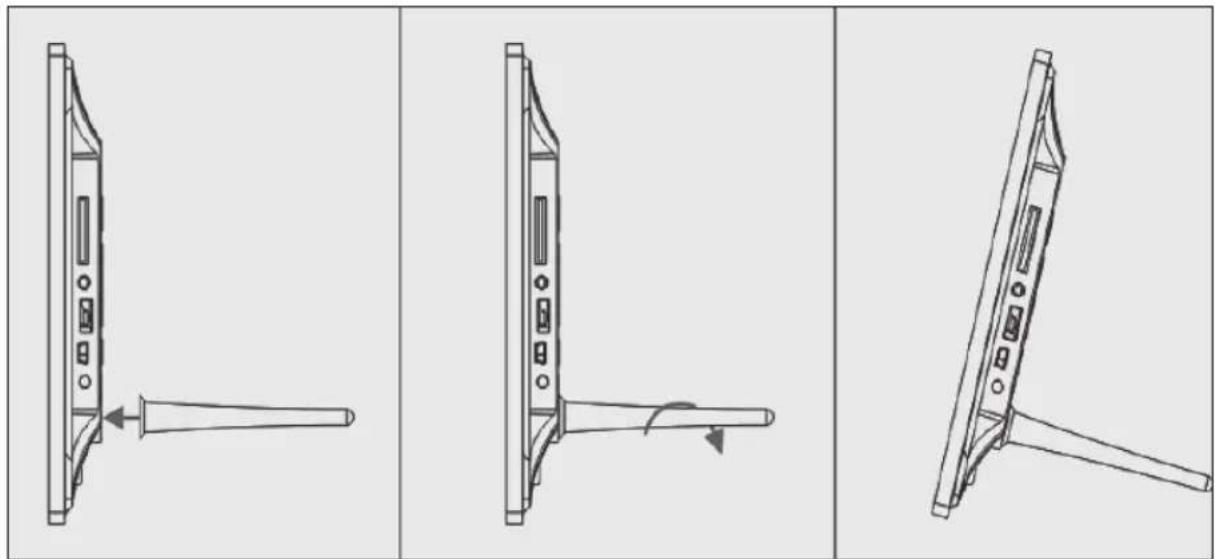
1. Stand Instruction
Insert the bracket into the slot of the digital photo frame and rotate the bracket clockwise to set it tight. Please make
sure the bracket is locked before then put it on the table steadily .Please refer to the illustration showing below.
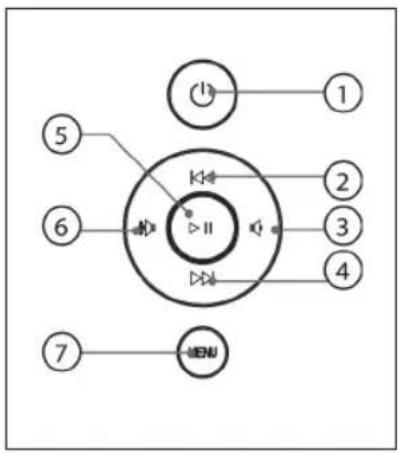
2a. Rear and Left side of Frame

- Power
- UP/ Previous
- VOL-/Left
- Down / Next
- Play/Pause/OK
- VOL +/Right
- MENU
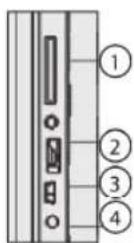
- SD/MMC/MS CARD
- USB
- HDMI
- DC IN
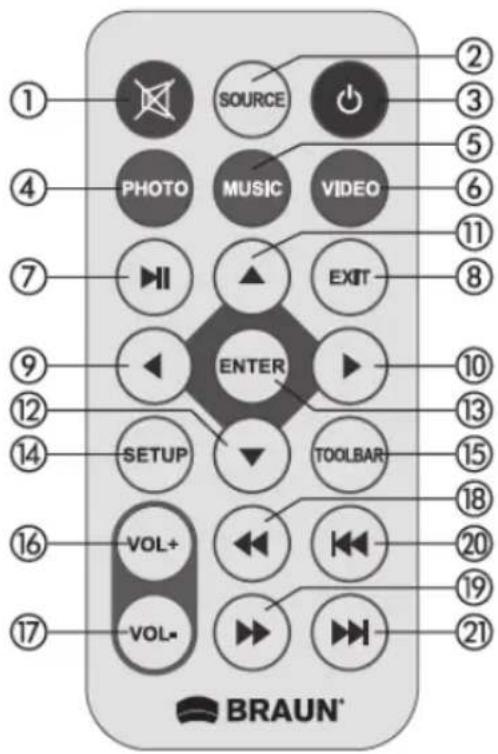
2b Remote Control
- Mute: Mute speaker output
- Source: Press it to select input source (HDMI-IN/DMP)
- Power: Switch On/Off
- Photo: Press to show photos
- Music: Press to play music
- Movie: Press to play movies
- ▶ II Play/Pause: Press to start playback in stop or pause modes, and press again to pause
- Exit – Return to previous page
- ◀ Navigation left
- ▶ Navigation right
- ▲ Navigation up
- ▼ Navigation down
- Enter: Press to confirm
- Setup: Enter setup mode
- Toolbar: Enter info bar or Calendar 16. VOL +: Turn up the volume 17. VOL -: Turn down the volume
- ◀ Rewind music or video file
- ▶▶ Fast forward in music or video file
- Previous music or video file 21. ▶▶ Next music or video file
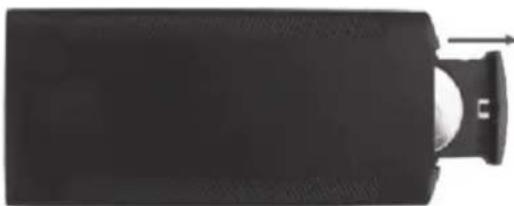
2c INSTALLING & REPLACING THE BATTERY
Place the remote control upside down. Press down on the ridged area of the battery cover and pull towards you to remove the tray. Place one CR2025 lithium button-cell battery on the tray with the positive “+” side facing you. Reinsert the tray.
3. Getting Started
3.1 Plug one end of the included AC adapter into a standard 110-240V AC electrical outlet and the other end into DC in of the photo frame. 3.2 Remove the protective film covering the LCD. 3.3 Remove the plastic battery insulator from the battery compartment and make sure the remote control has a battery inside. Please refer to "Installing & Replacing Battery" if you need a new battery. 3.4 Power on the unit by pressing the Power button on the remote control.
4. Operating Instructions
After turning the unit on, it will show the start-up logo, and then show the main interface after 3~5 seconds. If there are pictures and music in USB/SD or memory, it will play the slideshow and enter the main menu after pressing
RETURN button.

4.1 Main Menu
After showing the start-up picture, it will automatically enter the main menu.
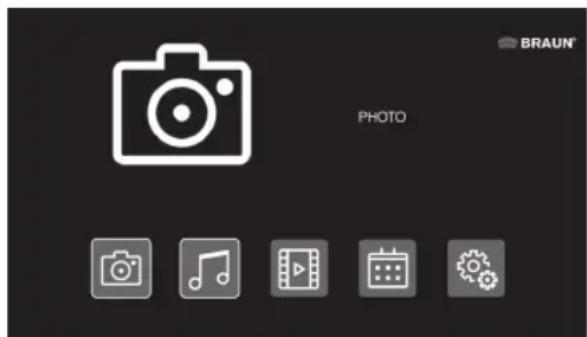
Total 5 icons:
Photo,
Music,
Video,
Calendar,
Setup
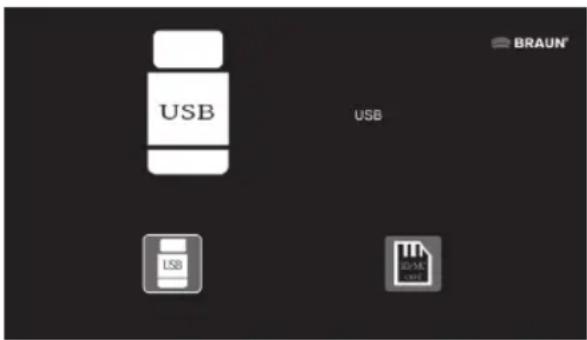
USB and Memory Card
The unit supports SD/MMC/MS and USB 2.0. Press Enter to select the source device.
NOTE:
1) Make sure there are supported picture, music, and video files in the Card or USB device. 2) You can also select Auto-play Photo, Music, Movie, or Photo + Music, off in the Setup Menu.
5. Picture Mode
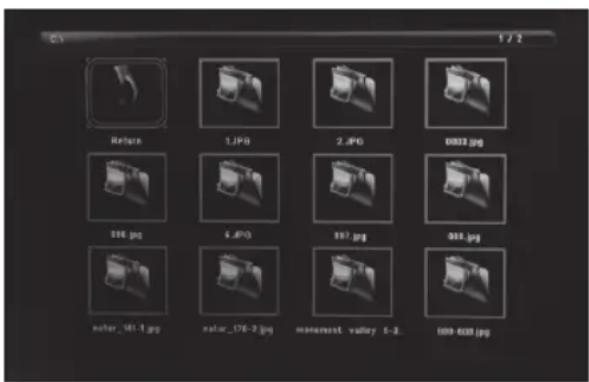
Highlight Photo from the main menu or press the PHOTO button on the remote control to display the photos stored on the USB drive or SD card. Press the EXIT button on the remote control to display the photo file list of the memory device.
Press ▲ ▼ ◀ to highlight and select the photo to be displayed and press ENTER to display the photo. Press the EXIT button on the remote control to display the memory device menu. Press ◀ to highlight and select the memory device (card/USB) and press ENTER to display the photos stored on this device.
Picture Playback
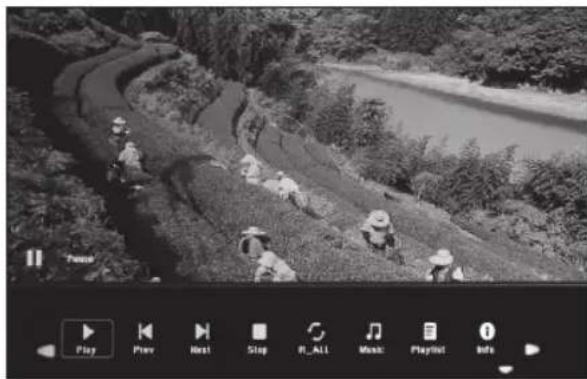
When playing a single picture, press Toolbar to enter the information bar and set up the item.
NOTE:
1) In the setup menu, press ◀ ▶ to enter the time setup menu, where you can set up Time format, Time position, and Time colour of the time bar. 2) In the sub-menu Time format, you can select "Off" to close the time bar. 3) Press Toolbar to enter the info bar, then use ◀ ▶ to operate.
6. Music Mode
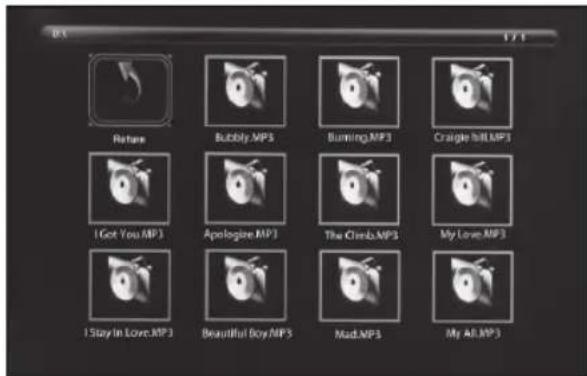
Highlight Music from the main menu or press the MUSIC button on the remote control to play the music stored on the USB drive or SD card.
Press the EXIT button on the remote control to display the music file list of the memory device. Press ▲ ▼ ◀ ▶ to highlight and select the music to be played and press ENTER to play the music. Press the EXIT button on the remote control to display the memory device menu. Press ◀ ▶ to highlight and select the memory device and press ENTER to display the music stored on this device.
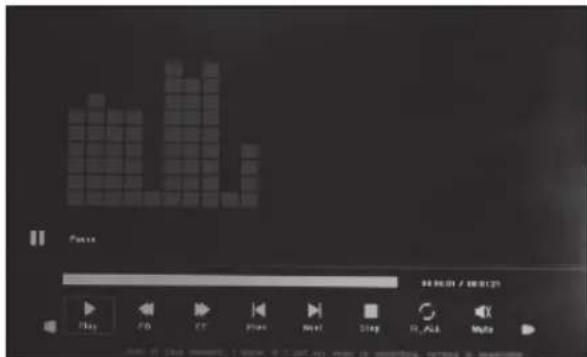
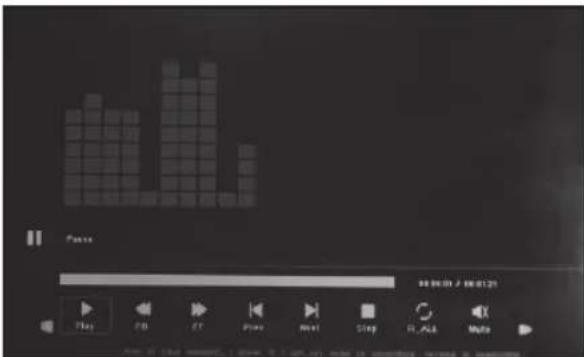
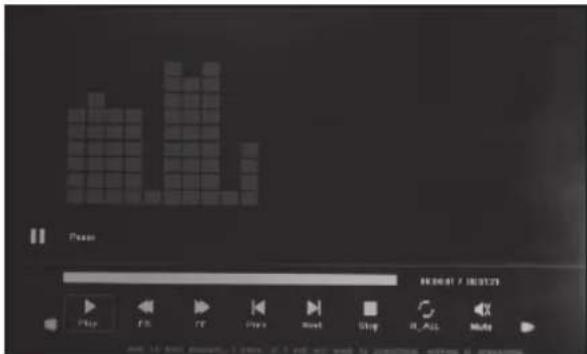
Music Playback
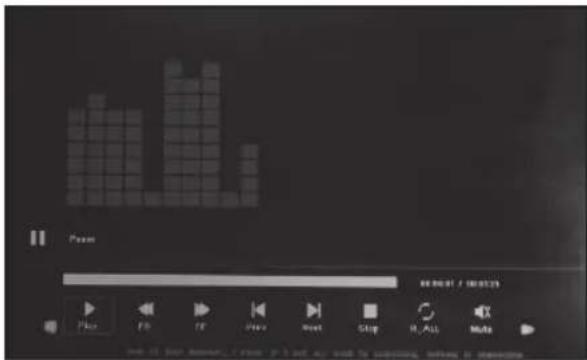
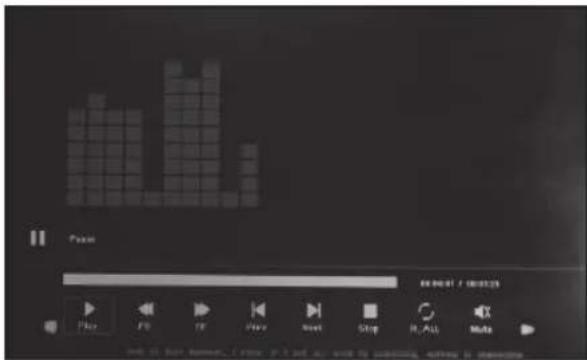
During music playback, press Toolbar to enter the music information bar, select with ◀ ▶ and press Enter to operate.

7 Video Mode
Highlight Video from the main menu or press the VIDEO button on the remote control to display the videos stored on the USB drive or SD card. Press the EXIT button on the remote control to display the video file list of the memory device. Press ▲ ▼ ◀ ▶ to highlight and select the video to be played and press ENTER to play the video. Press the EXIT button on the remote control to display the memory device menu. Press ◀ ▶ to highlight and select the memory device and press ENTER to display the videos stored on this device.
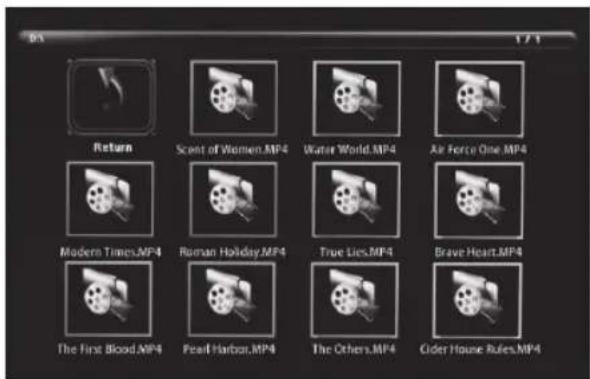
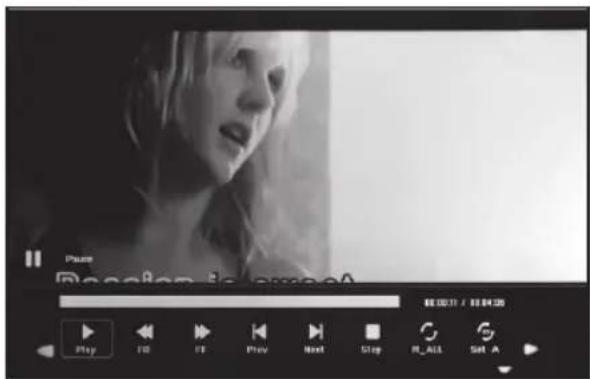
Video play
When playing a single video, press Toolbar to enter info bar to set up.
8. Copy files to internal memory
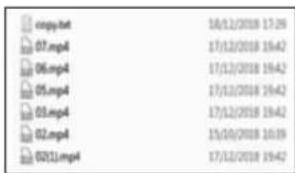
Add a file named "copy.txt" to the USB memory stick. The file name must be written in lower case. Files on the USB memory stick are automatically copied to the integrated memory when the USB memory stick is connected. Important:
- Make sure that the files have been backed up in the built-in memory, otherwise they will be deleted.
- The capacity of the built-in memory is 8 GB. Not all files on the USB memory stick are copied to the built-in memory if the total size of the files to be copied exceeds 8 GB.
9. Scroll Subtitle function
The unit supports scrolling subtitles when playing photo, music, video files.

NOTE:
Follow these steps to set up scrolling subtitle:
a) Create a TXT file. b) Save as TXT file in "Unicode" format and name it "SCROLL.TXT" in CAPITALS.
c) Copy this TXT file to USB stick or memory card. d) Insert the USB stick or memory card, it will show the subtitle when playing the photo, music or movie file.
Note:
Do not drag and drop all picture, music and video files into a folder in the USB device before creating a .txt file with the name "Copy" in the USB device.
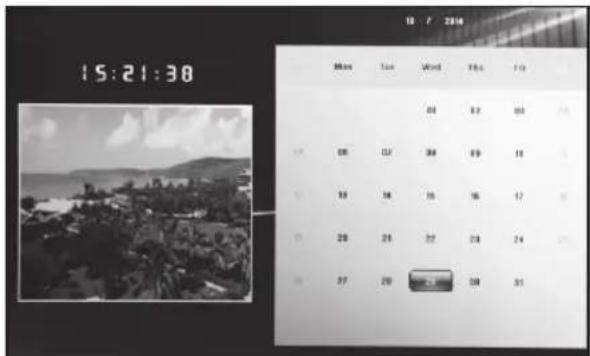
10. Calendar
Enter the Calendar from the main menu or select the function directly in the toolbar.
Press ▲ ▼ ◀ ▶ to browse the calendar.
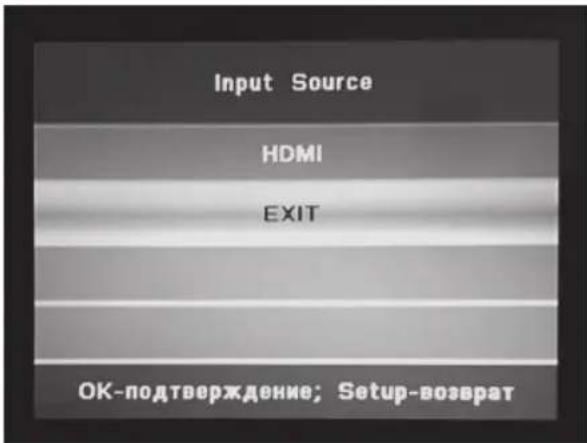
11. HDMI-IN Function
Connect the HDMI-out device with the HDMI-IN interface of the frames. Press Source to select input Source "HDMI"
12. Setup Menu
Mark the Setup icon on the main menu and press OK to open the menu. Press ▲ ▼ to select the desired menu item (Note: Press RETURN to return to the main menu or press SETUP to return to the previous menu).
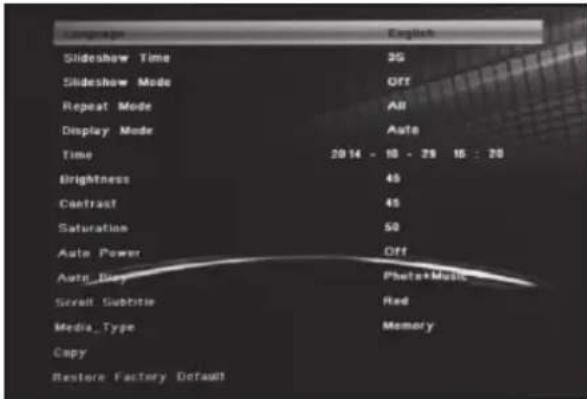
12.1 Language: English, German, French, Italian, Spanish, Dutch, Romanian, Greek. 12.2 Slideshow Time: 5 minutes, 15 minutes, 30 minutes, 60 minutes, 2 hours, 4 hours, 8 hours, 24 hours. 12.3 Slideshow Mode: Off/On. 12.4 Repeat Mode: ALL/One/Off. 12.5 Display Mode: Auto, Fit, Panorama. 12.6 Time: Press OK to enter the submenu, then press ◀ ▶ to adjust the time: Date, Month, Year, Hour, Minute, Second. 12.7 Brightness: Press ◀ ▶ to select from 0 (lowest) to 100 (highest). 12.8 Contrast: Press ◀ ▶ to select from 0 (lowest) to 100 (highest). 12.9 Saturation: Press ◀ ▶ to select from 0 (lowest) to 100 (highest). 12.10 Auto Power: Press OK, then press ▲▼◀▶ to set the frequency of automatic power On/Off as: Once, Every Day, Off.
Press ▲ ▼ ◀ ▶ to enter the desired alarm ID.
Press ▲ ▼ ◀ ▶ to select Off/On; when selecting
"On" you can setup Hours and Minutes for Auto power On/Off.
12.11 Auto Play: Press OK, then press ▲▼◀▶ to select the auto play type as: Photo, Music, Movie, Photo + Music, Off. 12.12 Scroll Subtitle: Black, White, Red, Blue, Green, Off. 12.13 Copy: Copy files from USB to SD.
12.14 Restore Factory Default: Press OK to confirm reset to factory settings.
13. Technical Specifications
- Adapter: Input AC 100-240V 50/60Hz Output DC: 12V/2A • Picture Format: JPEG
- Audio Format: MP3 • Video formats: MPEG1, MPEG2, MPEG4, Divx4.0, Divx5.0, M-JPEG, AVI, MOV, RMVB • Memory Cards: SD/SDHC/MS/MMC
- USB: USB Host
- Screen Parameter:
Screen Size: 33.78 cm, 13.3 inch IPS TFT
Resolution: 1920x1080 pixels
Aspect Ratio: 16:9
Operating temperature: 0°~40°
Moisture: 10 - 85%
14. Troubleshooting Guide
If you are having problems with your player, please consult this guide. If you need further assistance, please contact Technical Support.
No power:
- Please check whether the plug is inserted correctly.
Remote control no function:
- Please check whether the battery has power (the battery can be used for half a year in normal conditions). Replace with new battery if necessary.
Cannot read the CARD or USB:
- Please confirm whether there is storage in the card or USB device. Empty devices cannot be read.
Cannot play the file:
Please confirm if the file format is compatible with the player.
Display too bright or too dark:
Please adjust the brightness or contrast in the setup menu.
The color is light or no color:
Please adjust the color and contrast setup.
No sound:
Please check whether the volume is correct and the player is not in Mute mode.
Introduction:
Technical support
3. Getting started
NOTE:
7. Video mode
NOTE:
2a. Rear view and left side view
NOTE:
7 Video modes
NOTE:
3. Getting started
NOTE:
NOTE:
3. Basics
Note:
7 Video mode
Note:
3. Getting started
Note:
7 Video mode
Note:
3. Getting Started
Note:
7 Video Operation
Note:
This symbol on the product or in the instructions means that your electrical and electronic equipment should be disposed at the end of its life separately from your household waste. There are separate collection systems for recycling in the EU. For more information, please contact the local authority or your retailer where you purchased the product.
Design and specifications are subject to change without notice.


- INTRODUCTION
- FIRST STEPS
- NOTE
- VIDEO MODE
- CONTENTS
- TECHNICAL SUPPORT
- RADIO AND TV INTERFERENCE STATEMENT
- PACKAGING CHECK LIST
- CAUTIONS
- PRECAUTIONS AND MAINTENANCE
- CLEANING THE LCD SCREEN
- WARNING
- FEATURES
- STAND INSTRUCTION
- A. REAR AND LEFT SIDE OF FRAME
- B REMOTE CONTROL
- C INSTALLING & REPLACING THE BATTERY
- GETTING STARTED
- OPERATING INSTRUCTIONS
- MAIN MENU
- TOTAL 5 ICONS
- USB AND MEMORY CARD
- PICTURE MODE
- PICTURE PLAYBACK
- MUSIC MODE
- MUSIC PLAYBACK
- VIDEO PLAY
- COPY FILES TO INTERNAL MEMORY
- SCROLL SUBTITLE FUNCTION
- CALENDAR
- HDMI-IN FUNCTION
- SETUP MENU
- TECHNICAL SPECIFICATIONS
- TROUBLESHOOTING GUIDE
- NO POWER
- REMOTE CONTROL NO FUNCTION
- CANNOT READ THE CARD OR USB
- CANNOT PLAY THE FILE
- DISPLAY TOO BRIGHT OR TOO DARK
- THE COLOR IS LIGHT OR NO COLOR
- NO SOUND
- A. REAR VIEW AND LEFT SIDE VIEW
- VIDEO MODES
- BASICS
- VIDEO OPERATION
Brand : BRAUN
Model : DigiFrame 1361
Category : Digital photo frame