
DigiFrame 1095 - Digital photo frame BRAUN - Free user manual and instructions
Find the device manual for free DigiFrame 1095 BRAUN in PDF.


| Product Type | Digital Photo Frame |
| Brand | Braun |
| Model | DigiFrame 1095 |
| Screen Size | 10.9 inches (diagonal) |
| Display Resolution | 1024 x 768 pixels |
| Supported Image Formats | JPEG, BMP, PNG |
| Internal Memory | 512 MB |
| Card Reader | SD/SDHC/MMC |
| Connectivity | USB 2.0 |
| Power Supply | Power adapter 5V/1A |
| Dimensions (W x H x D) | 300 x 200 x 25 mm |
| Weight | 750 g |
| Main Functions | Slideshow, calendar, clock, alarm, brightness adjustment |
| Wall Mountable | Yes (mount included) |
| Care and Cleaning | Clean with a soft dry cloth. Avoid solvents. |
| Safety | Do not expose to moisture or excessive heat. |
| Spare parts and repairability | Power adapter available as an option. |
Frequently Asked Questions - DigiFrame 1095 BRAUN
User questions about DigiFrame 1095 BRAUN
0 question about this device. Answer the ones you know or ask your own.
Ask a new question about this device
Download the instructions for your Digital photo frame in PDF format for free! Find your manual DigiFrame 1095 - BRAUN and take your electronic device back in hand. On this page are published all the documents necessary for the use of your device. DigiFrame 1095 by BRAUN.
USER MANUAL DigiFrame 1095 BRAUN
BRAUN 10.1” DigiFrame 1095 8GB User Manual
BRAUN 10.1” DigiFrame 1095 8GB User Manual
BRAUN PHOTO TECHNIK GMBH, Merkurstr. 8, 72184 Eutingen, Germany
Features:
- Supports image formats: JPEG, BMP, PNG
- Supports audio format: MP3
- Supports video formats: MPEG1, MPEG2, MPEG3, H264, RM, RMVB, MOV, MJPEG, DivX
- Supports memory cards: SD/SDHC/MMC
- Built-in 8 GB memory
- Built-in stereo speaker and earphone jack
- USB connection: USB 2.0
- HDMI interface: supports HDMI-IN function
- Slideshow with background music
- Supports scrolling subtitles when playing photos, music, movies
- Supports standby mode
- Built-in clock, auto on/off
- Adjustable brightness, contrast, saturation
- Supports file copy from USB to SD card
- OSD languages: English and other languages selectable
Controls:

| POWER Switch on/off. | |
| MUTE Mute | |
| SOURCE Signal input HDMI/AV/DMP | |
| PHOTO Photo playback mode directly | |
| MUSIC Music playback mode directly | |
| VIDEO Video-playback mode directly | |
| ▶|| | Play or pause |
| RETURN Back to previous screen | |
| ▲▼◀▶ | Move up/down/left/right cursor keys. |
| OK Confirmation | |
| SETUP Setup menu | |
| CALENDAR Calendar function directly | |
| VOL+ VOL- | Volume adjustment |
| ZOOM Enlarge the photo in photo play mode | |
| ROTATE | Rotate the photo in photo play mode |
| |◀◀ ▶▶| | Select previous or next file |
Main Menu:
Supports SD/SDHC/MMC and USB 2.0. Press ◀▶ to access photo, music, video, calendar and settings menus. Press OK button to confirm selection.

Note: Make sure there are supported picture, music or video files on the memory card or USB device.
Picture Mode:
Highlight Photo from the main menu, press OK to select the USB or memory card for playback and press RETURN to access thumbnail mode. Press to select the photo for playback and press OK to confirm.

During photo playback, press OK to display the on-screen controls and select the desired function with ◀▶: Play, Previous, Next, Stop, Playlist, Zoom in, Zoom out, Move, then press OK to confirm.
Music Mode
Highlight Music from the main menu, press OK to select the USB 2.0 or memory card for playback and press RETURN to access thumbnail mode. Press ▲▼◀▶ to select the music for playback and press OK to confirm.
Music Playback:
During music playback, press OK to display the on-screen controls and select the desired function with ◀Play, Fast Rewind, Fast Forward, Previous, Next, Stop, Mute, Playlist, then press OK to confirm.
Video Mode

From the main menu, highlight Video and press OK to select USB 2.0 or memory card for playback. Press RETURN again to access thumbnail mode. Press ▲ to select the movie for playback and press OK to confirm.
Video Playback:

During video playback, press OK to display the on-screen controls and select the desired function with ◀▶: Play, Fast Rewind, Fast Forward, Previous, Next, Stop, Playlist, Aspect. Then press OK to confirm.
Copy Function for Image, Music and Video Files:

Copying all files from USB device to SD Card is supported. Highlight Setting and press OK to go to the Settings menu. Press ◀▶ to select the Setting option, press ▲▼ to select and set Auto Copy in the list, and set the value to On. The progress is displayed.
After successfully copying all files, the slideshow will start automatically.
Note: Make sure the photo/music/video files are saved in the root directory of the USB device, not in any folder of the USB. Otherwise copying will fail.
Calendar:

Press the Calendar menu from the main menu. Browse the calendar with ▲▼◀▶.
HDMI-IN Function: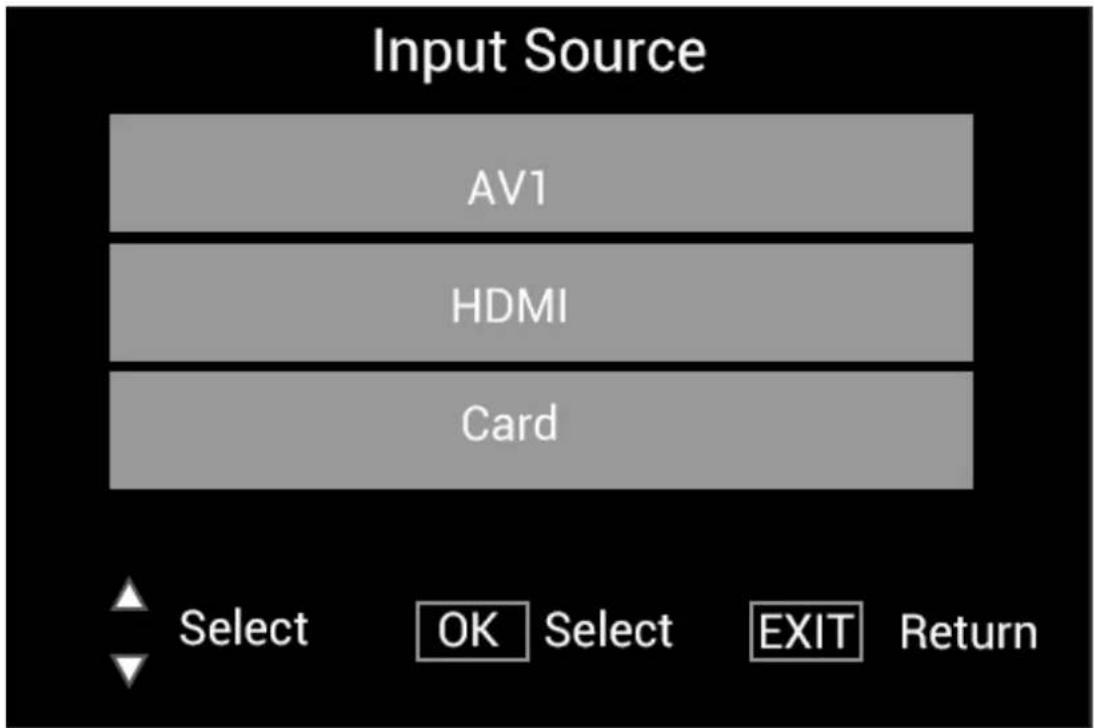
Connect the HDMI device to the HDMI-IN interface of the digital picture frame. Press SOURCE, press ▲▼ to highlight the HDMI option, and press OK to select HDMI as input source.
Setup Menu
Select Setting in the main menu, press ◀ to select the sub-menu Setup list: Photo, Music, Video,
Calendar, Setting. Press to highlight the setting option, and press to set the Value.
Technical Support
We are committed to providing the best customer service support. If you need assistance with your BRAUN product, please contact the BRAUN Technical Support department prior to returning this device. Reach out to us in any of the following ways:
This device has been tested and found to comply with the limits for a digital device according to the CE regulations. These limits are intended to provide reasonable protection against harmful interference in home installations. The declaration of conformity is available on our homepage.
Technical Assistance
CE Regulations Explanation
BRAUN 10.1” DigiFrame 1095 8GB User Manual
BRAUN PHOTO TECHNIK GMBH, Merkurstr. 8, 72184 Eutingen, Germany
Features:


Brand : BRAUN
Model : DigiFrame 1095
Category : Digital photo frame