
DigiFrame 1096 - Digital photo frame BRAUN - Free user manual and instructions
Find the device manual for free DigiFrame 1096 BRAUN in PDF.
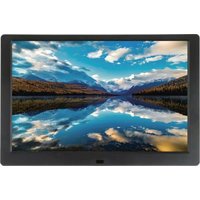


| Brand | Braun |
| Model | DigiFrame 1096 |
| Product type | Digital photo frame |
| Supported image formats | JPEG, BMP, PNG |
| Supported audio formats | MP3, AAC, APE, FLAC, OGG, WAV, WMA |
| Supported video formats | MP4, MPEG, H264, RM, RMVB, MOV, MKV, DIVX |
| Internal memory | 16 GB |
| Compatible memory cards | SD/SDHC/MMC (up to 32 GB) |
| USB port | USB 2.0, supports USB drives up to 32 GB |
| HDMI port | HDMI-IN for external video input |
| Speakers | Built-in stereo |
| Headphone jack | Yes, for earphones |
| OSD languages | English and other languages |
| Power supply | DC power adapter (DC input) |
| File copy | From SD card/USB drive to internal memory (up to 3000 files) |
| Slideshow | Up to 10,000 images, with background music and transition effects |
| Calendar and clock | Built-in, with alarm and on/off timer |
| Display settings | Brightness, contrast, saturation, display mode, transition duration |
| HDMI function | Displays content from a connected HDMI device |
| Maintenance | Clean with a soft, dry cloth; do not use abrasive products |
| Safety | Compliant with CE limits for digital devices |
| Repairability | Contact Braun technical support; no spare parts listed |
Frequently Asked Questions - DigiFrame 1096 BRAUN
User questions about DigiFrame 1096 BRAUN
0 question about this device. Answer the ones you know or ask your own.
Ask a new question about this device
Download the instructions for your Digital photo frame in PDF format for free! Find your manual DigiFrame 1096 - BRAUN and take your electronic device back in hand. On this page are published all the documents necessary for the use of your device. DigiFrame 1096 by BRAUN.
USER MANUAL DigiFrame 1096 BRAUN
System configuration:
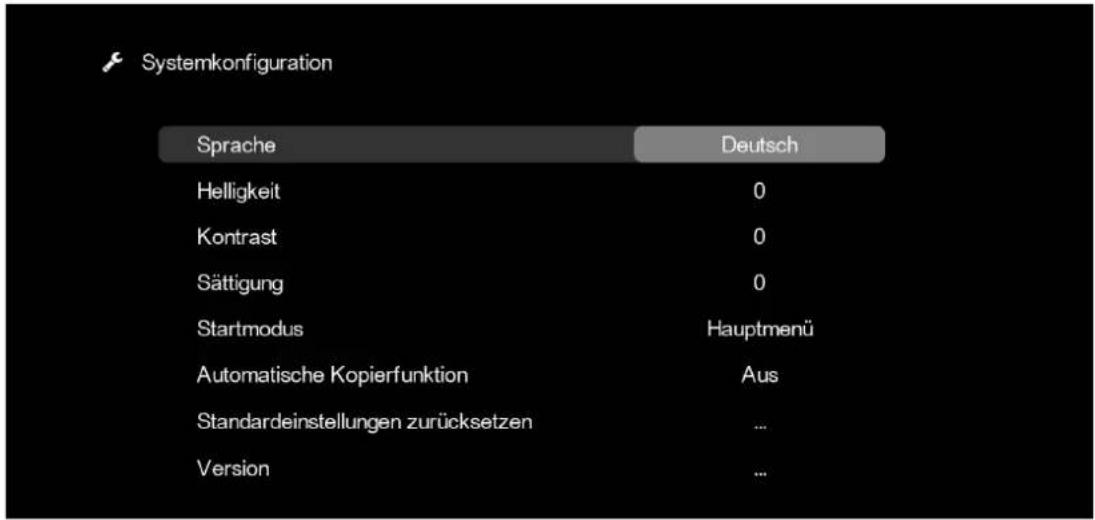
- Supports image formats: JPEG, BMP, PNG
- Supports audio formats: MP3, AAC, APE, FLAC, OGG, WAV, WMA
- Supports video formats: MP4, MPEG, H264, RM, RMVB, MOV, MKV, DIVX
- Supports SD/SDHC/MMC memory cards and USB sticks (USB 2.0) up to 32GB
- Internal memory with 16GB capacity
- Integrated stereo speakers and headphone jack
- USB port: USB 2.0
- HDMI port: supports HDMI-IN function
- Slideshow (max. 10,000 images from memory card/USB stick) with background music
- Supports standby mode
- Integrated clock, automatic on/off
- Adjustable brightness, contrast, color saturation
- Supports copying files from USB stick/SD card to internal memory
- OSD languages: English and other selectable languages
Controls:
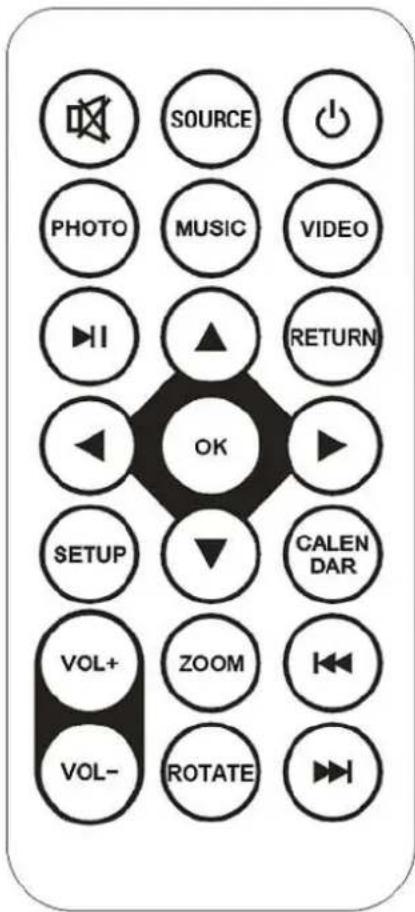
| POWER Switch on/off. | |
| MUTE Mute/Sound off | |
| SOURCE HDMI signal input | |
| PHOTO Photo playback mode directly | |
| MUSIC Music playback mode directly | |
| VIDEO Video playback mode directly | |
| II | Play or pause |
| RETURN Back to the previous screen | |
| ▲▼← | Arrow keys up/down/left/right movement |
| OK Confirmation | |
| SETUP Setup menu | |
| CALENDAR Calendar function directly | |
| VOL+ VOL- Volume adjustment | |
| ZOOM Enlarge the photo in photo play mode | |
| ROTATE Rotate the photo in photo play mode | |
| Select previous or next file | |
Buttons:
| POWER ON/OFF |
| UP/PLAY PREVIOUS |
| VOL+/RIGHT |
| PLAY/PAUSE/OK |
| VOL-/LEFT |
| DOWN/PLAY NEXT |
| MENU/RETURN |
Ports:
| SD/SHDC/MMC card slot | |
| Earphone Jack | |
| USB port | |
| HDMI | |
| DC IN |
Main Menu:



Our digital photo frame supports SD/SDHC/MMC memory cards and USB sticks (USB 2.0) up to 32GB. Use the arrow keys to access the photo, music, or video mode, calendar, HDMI mode, or settings (system configuration) in the main menu. Confirm your selection with the OK button.
Please note: Supported photo, music, or video files must be present on the memory card or USB stick.
Picture Mode:
In the main menu, select Photo (or press the PHOTO button on the remote) and confirm with OK to choose between memory card, USB stick, or internal memory, which also needs to be confirmed with OK. Then press RETURN to open the thumbnail mode. Use the arrow keys to select the desired image and confirm with OK.
Music Mode:
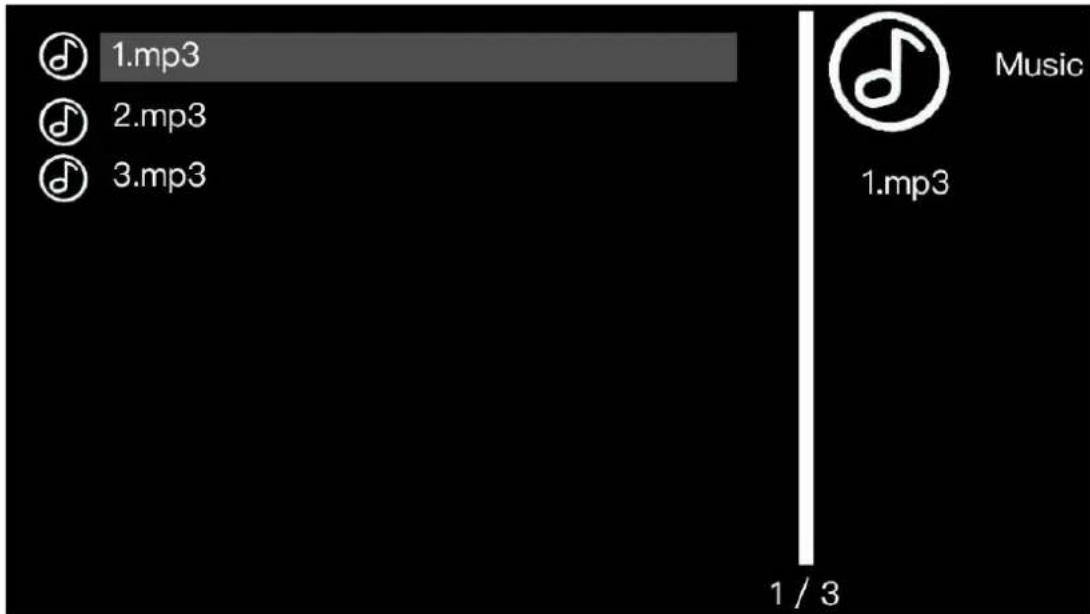
In the main menu, select Music (or press the MUSIC button on the remote), press OK to choose between memory card, USB stick, or internal memory, which also needs to be confirmed with OK. Then press RETURN to open the overview of music files. Use the arrow keys to select the desired music file for playback and confirm with OK.
Video Mode:
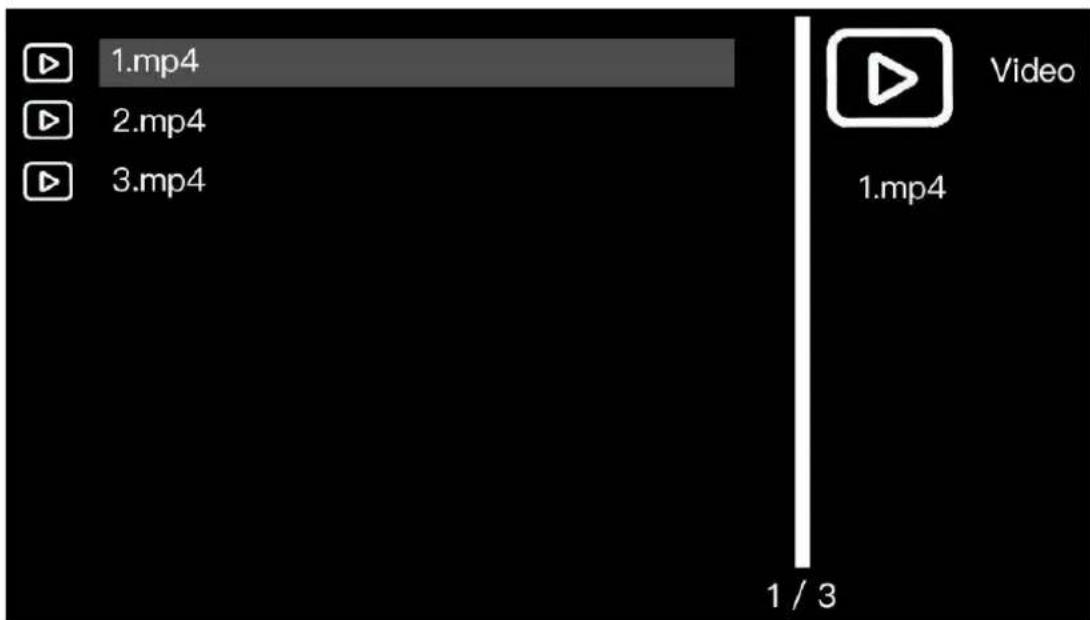
In the main menu, select Video (or press the VIDEO button on the remote), press OK to choose between memory card, USB stick, or internal memory, which also needs to be confirmed with OK. Then press RETURN to access the video files overview. Use the arrow keys to select the desired video for playback and confirm with OK.
Copy Function for Image, Music and Video Files:
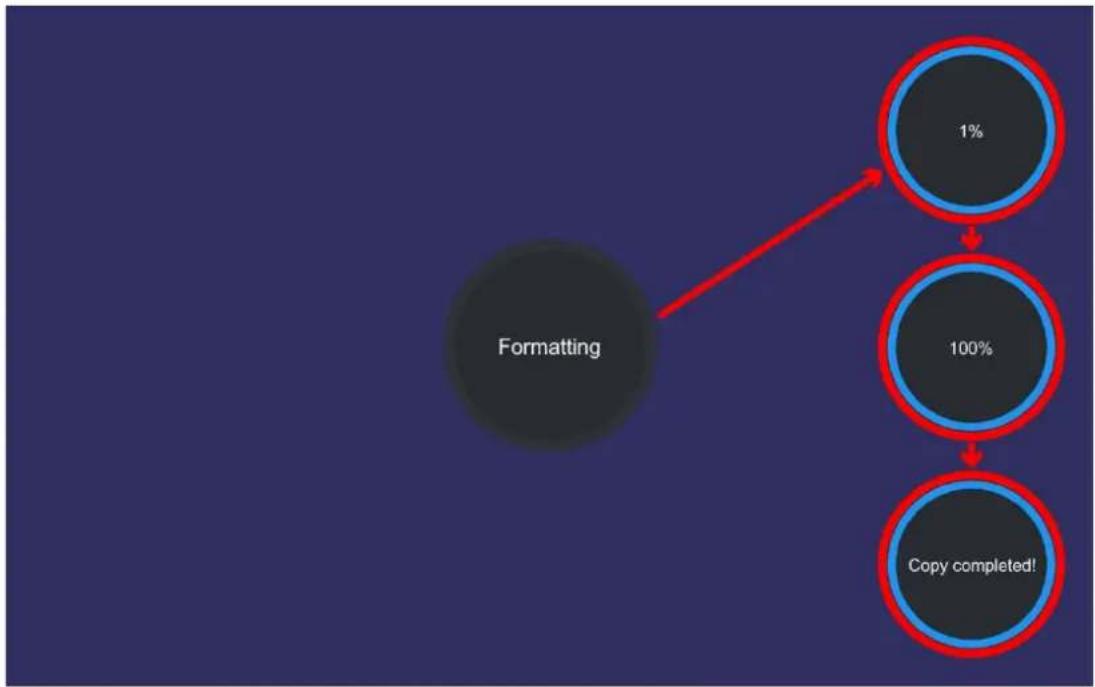
It is possible to copy all files from the memory card or USB stick to the internal memory. To do this, select Settings in the main menu (or press the SETUP button on the remote) and press OK to open the settings menu. Navigate with the arrow keys to the System Setup option and confirm with OK. Select the Copy All function with the arrow keys and set the value to On. Then press RETURN to return to the main menu. Turn off and on the digital photo frame briefly. Insert the memory card or USB stick with the files to be copied. The copying process starts automatically, and the progress is displayed. After successful copying, you can select and play the files in the respective mode (photo/music/video) from the internal memory. After completing the copying process, set the value for the Copy All function back to Off to deactivate automatic copying. Ensure that the photo, music, and video files are stored in the root directory of the memory card or USB stick to avoid/exclude copying issues.
Please note:
The number of files which can be copied (images and/or music/video files) is limited to 3,000. If you try to copy more than 3,000 files to the internal memory, you will receive the error message "Quantity exceeded 3,000 files". It should also be noted that when copying from memory cards or USB sticks, the files already stored in the internal memory will be deleted or completely overwritten. Therefore, if you want
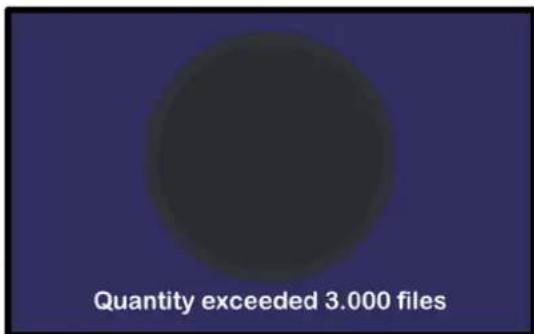
to completely "fill" the internal memory with files, you have to copy all the required files (pictures and/or music/video files) to a memory card or USB stick in order to be able to copy them completely to the internal memory.
Calendar: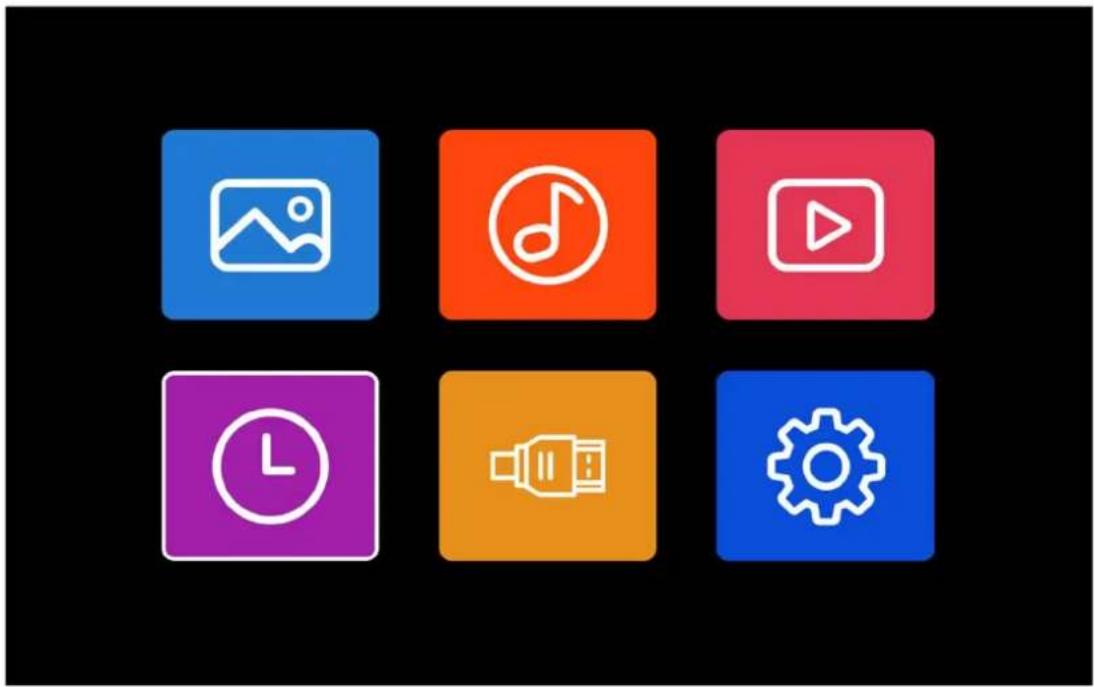
In the main menu, select the clock symbol (or press the CALENDAR button on the remote) and press OK to access the calendar.
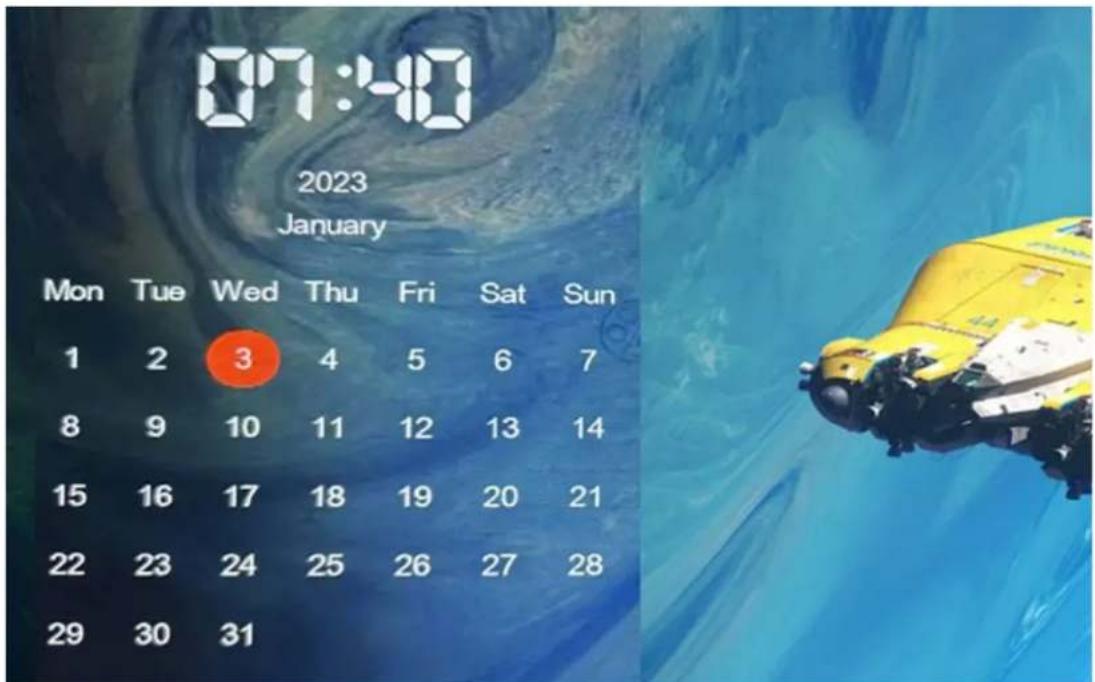
Navigate the calendar with the arrow keys ▲▼ △▶.
HDMI Input:
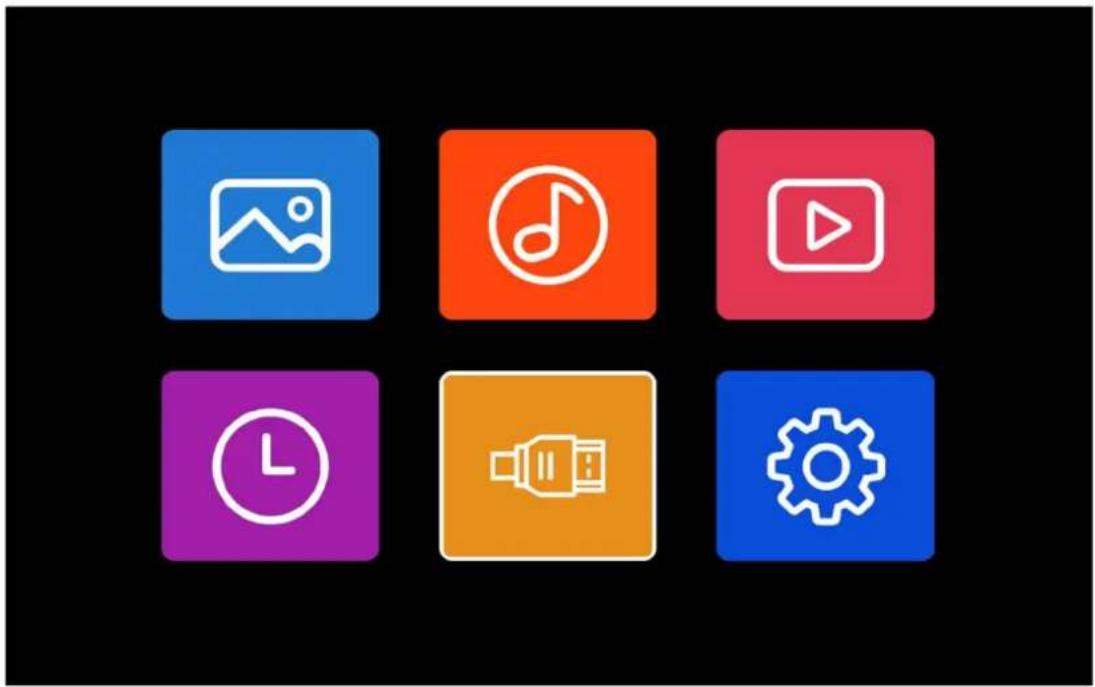
Connect the HDMI-enabled device to the HDMI input of the digital photo frame. In the main menu, select the HDMI symbol (or press the SOURCE button on the remote) and press OK to choose HDMI as the input source.
Settings Menu:
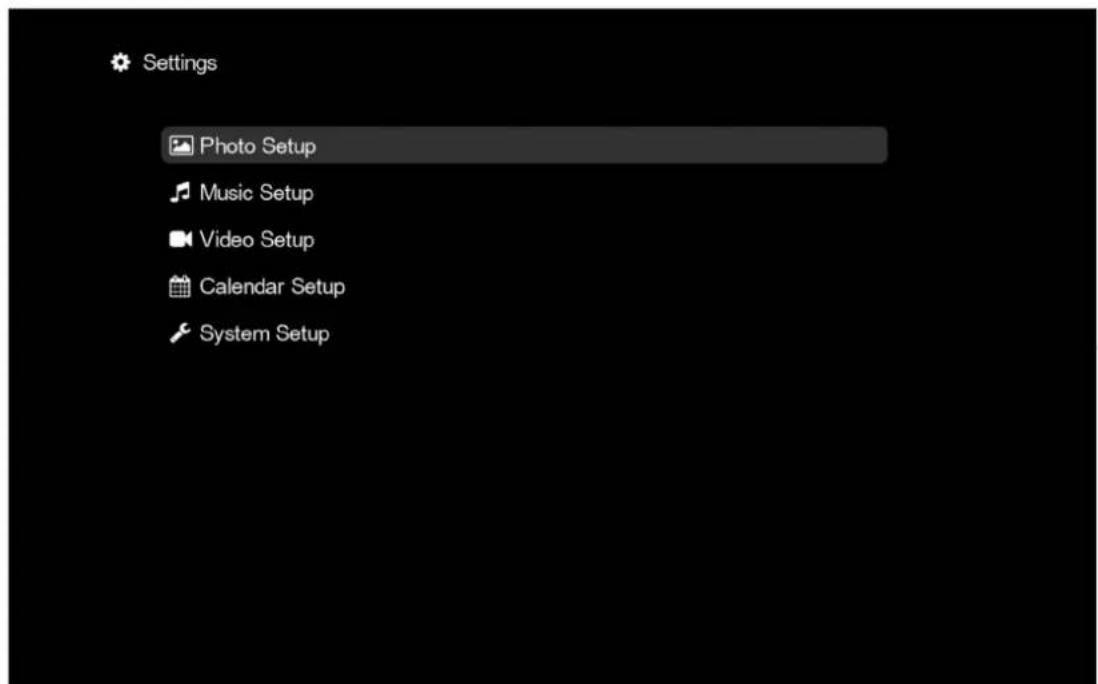
In the main menu, select Settings (gear symbol) or press the SETUP button on the remote to open the settings menu (Photo Setup, Music Setup, Video Setup, Calendar Setup or System Setup). Use the arrow keys ▲▼ to highlight the desired setting option and confirm with OK to make the corresponding settings.
Overview of Setting Options
Photo Setup:

Photo Setup
Display Mode
Slideshow
Background Music
On
Display Ratio
Original Size
Slideshow Transition Time
3 Sec
Slideshow Repeat Mode
Random
Slideshow Transition Effect
Random
Display Mode Slideshow - Displaying a series of digital photos on the screen
Thumbnail-Browser view with image preview
Browse Mode - shows individual images - use the
forward/backward buttons to select the desired image
Background Music Turn background music on or off for the slideshow
On/Off
Display Ratio Options for optimal display of your images
Full Screen / Original Size / Fit to Screen /
Crop to Fill
Slideshow Transition Time Set the time for displaying each image in the slideshow
3 Sec / 5 Sec / 10 Sec / 15 Sec / 30 Sec / 1 Min / 5 Min/
10 Min / 15 Min / 30 Min / 1 Hour / 6 Hours / 12 Hours /
24 Hours / Off
Repeat/Sequence/Random
Slideshow Transition Effect Set the transition effects in the slideshow
Random/Blinds/Erase/Slide/Grid/Fade In Out
Use the arrow keys to adjust/change the desired value.
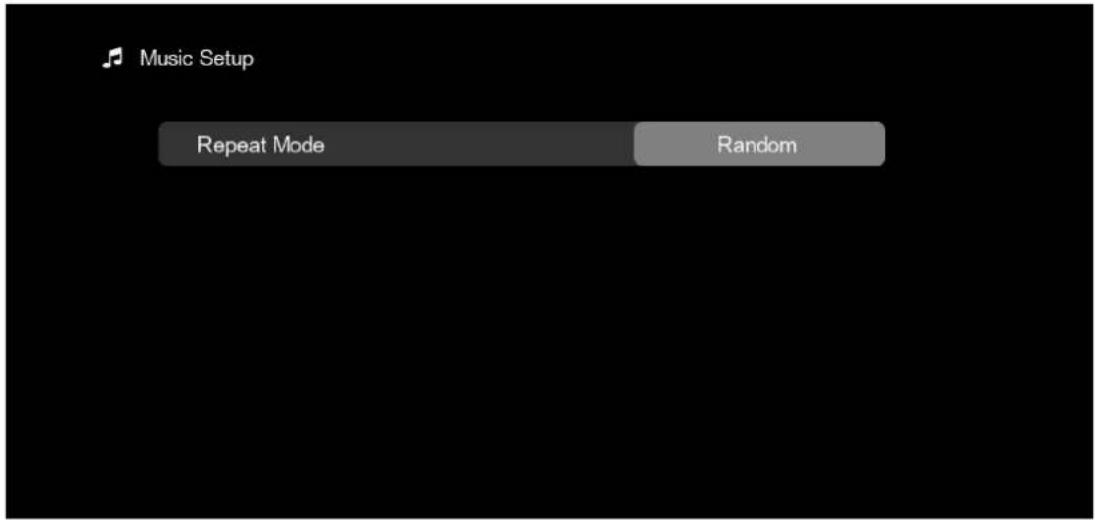
Music Setup:
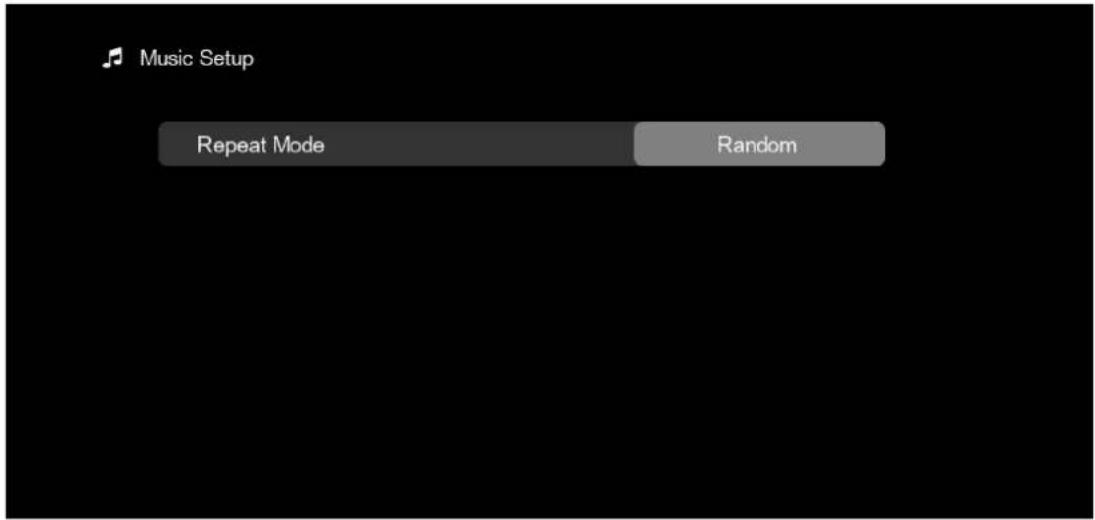
Repeat Mode Set the playback mode of the music files
Repeat All/Repeat One/Sequence/Random
Use the arrow keys to adjust/change the desired value.
Video Setup:
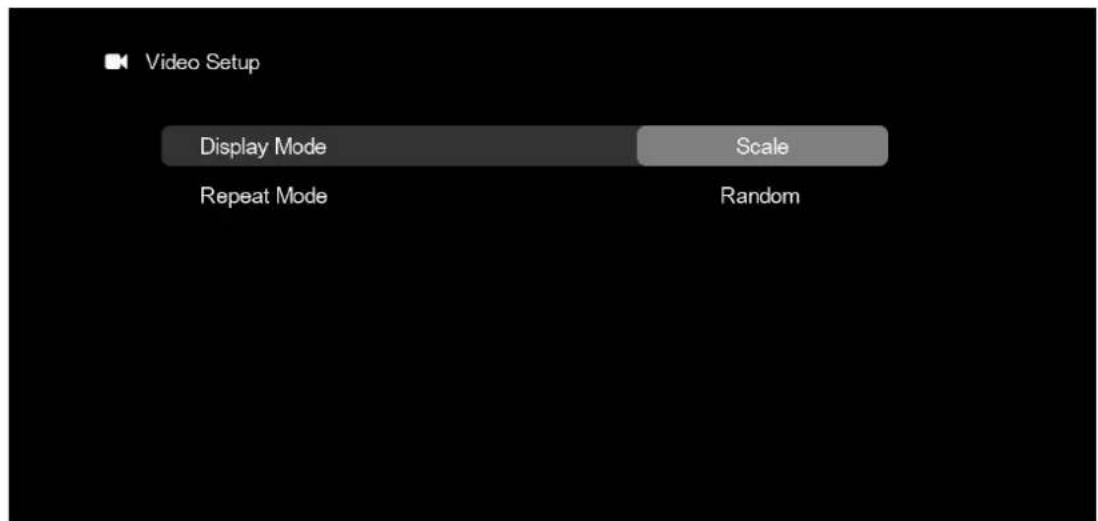
Display Mode Options for optimal display of your videos
Scale/4:3/16:9/Full Screen
Repeat Mode Set the playback mode of the video files
Repeat All/Repeat One/Sequence/Random
Use the arrow keys to adjust/change the desired value.
Calendar Setup:
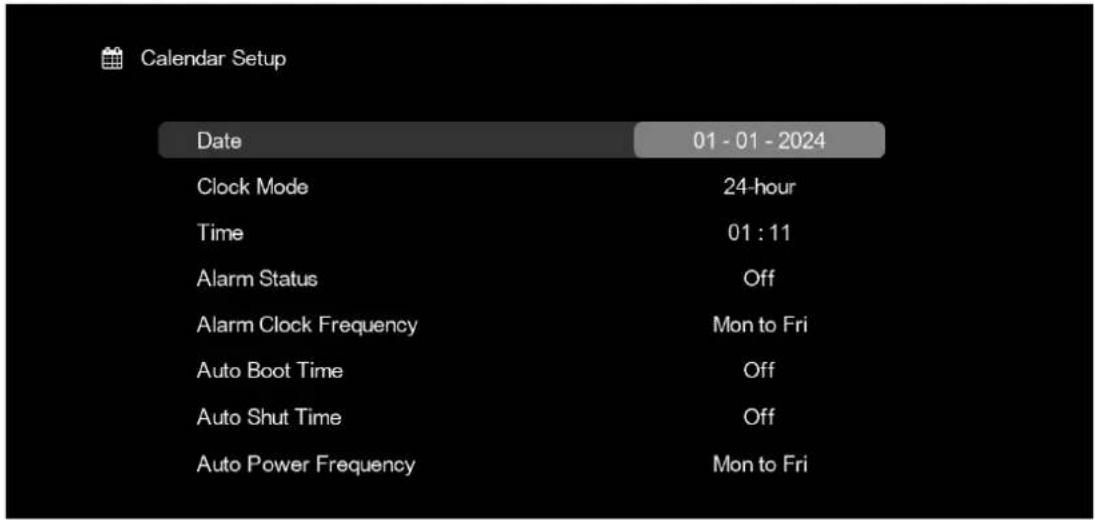
Date Set the date
dd-mm-yy
Clock Mode Set the time format
12-hour/24-hour
Time Set the time
hh:mm
Alarm Status Set the alarm/clock (with sound)
hh:mm/Off
Alarm Clock Frequency: Set the wake time for the alarm/clock.
Mo to Fr / Weekend / Once / Everyday
Auto Boot Time: Set the automatic power-on time for the digital photo frame.
hh:mm/Off
Auto Shut Time: Set the automatic power-off time for the digital photo frame.
Auto Shut Time: Set the automatic power-off time for the digital photo.
Auto Power Frequency: Set the interval for automatic on/off time.
Mo to Fr/Weekend/Once/Everyday
Auto Power Frequency: Set the interval for automatic on/off time.
System Setup:
Use the arrow keys to adjust/change the desired value.
German / English / French / Italian / Dutch / Portuguese /
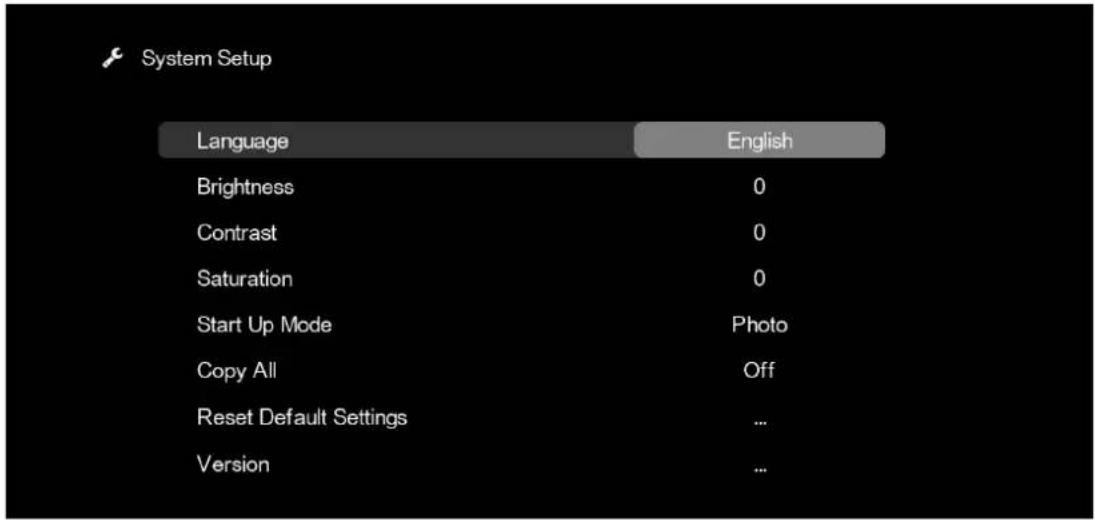
Language: Set the desired/preferred language
German / English / French / Italian / Dutch / Portuguese /
Spanish/Swedish/Czech/Danish/Polish/Russian/
Turkish / Hungarian / Romanian / Norwegian / Finnish /
Slovak / Croatian / Serbian / Bulgarian / Greek /
Slovenian
Brightness Adjustment from "0" to "-10 / +10"
Contrast Adjustment from "0" to "-10 / +10"
Saturation Adjustment from "0" to "-10 / +10"
Start Up Mode Mode that automatically starts after turning on the digital photo frame.
Main Menu / Photo / Music / Video / Calendar
Copy All Automatic copying of image/music or video files from the memory card or USB stick to the internal memory.
Off/On
Reset Default Settings Reset the digital photo frame to the default settings.
Reset to default settings? Yes / No
Version The current firmware version of the digital photo frame is displayed here!
Use the arrow keys to adjust/change the desired value.
Technical Support
We are committed to providing the best customer service support. If you need assistance with your BRAUN product, please contact the BRAUN Technical Support department prior to returning this device. Reach out to us in any of the following ways:
This device has been tested and found to comply with the limits for a digital device according to the CE regulations. These limits are intended to provide reasonable protection against harmful interference in home installations. The declaration of conformity is available on our homepage.
Slideshow Transition Effect
Random
Full Screen / Original Size / Fit to Screen / Crop to Fill
Repeat/Sequence/Random
Scale/4:3/16:9/Full Screen
Mo to Fr/Weekend/Once/Everyday
German / English / French / Italian / Dutch / Portuguese
/ Spanish / Swedish / Czech / Danish / Polish / Russian /
Turkish / Hungarian / Romanian / Norwegian / Finnish /
Slovak / Croatian / Serbian / Bulgarian / Greek /
Slovenian
Technical Assistance
Slideshow Transition Effect
Random
Full Screen / Original Size / Fit to Screen / Crop to Fill
Repeat/Sequence/Random
Random/Blinds/Erase/Slide/Grid/Fade In Out
Scale/4:3/16:9/Full Screen
Repeat All/Repeat One/Sequence/Random
Mo to Fr/Weekend/Once/Everyday
German / English / French / Italian / Dutch / Portuguese
/ Spanish / Swedish / Czech / Danish / Polish / Russian /
Turkish / Hungarian / Romanian / Norwegian / Finnish /
Slovak / Croatian / Serbian / Bulgarian / Greek /
Slovenian
Brightness Adjustment from "0" to "-10 / +10"
Slideshow Transition Effect
Random
Display Mode Slideshow - displays a series of digital photos on the
display
Full Screen / Original Size / Fit to Screen / Crop to Fill
Repeat/Sequence/Random
Scale/4:3/16:9/Full Screen
German / English / French / Italian / Dutch / Portuguese
/ Spanish / Swedish / Czech / Danish / Polish / Russian /
Turkish / Hungarian / Romanian / Norwegian / Finnish /
Slovak / Croatian / Serbian / Bulgarian / Greek /
Slovenian
Brightness Setting from "0" to "-10 / +10"
Contrast Setting from "0" to "-10 / +10"
Saturation Setting from "0" to "-10 / +10"
Slideshow Transition Effect
Random
Full Screen / Original Size / Fit to Screen / Crop to Fill
Repeat/Sequence/Random
Scale/4:3/16:9/Full Screen
German / English / French / Italian / Dutch / Portuguese
/ Spanish / Swedish / Czech / Danish / Polish / Russian /
Turkish / Hungarian / Romanian / Norwegian / Finnish /
Slovak / Croatian / Serbian / Bulgarian / Greek /
Slovenian
Brightness allows adjustment in the range from 0 to -10 / +10
Slideshow Transition Effect
Random
Full Screen / Original Size / Fit to Screen / Crop to Fill
Repeat/Sequence/Random
Random/Blinds/Erase/Slide/Grid/Fade In Out
Scale/4:3/16:9/Full Screen
German / English / French / Italian / Dutch / Portuguese
/ Spanish / Swedish / Czech / Danish / Polish / Russian /
Turkish / Hungarian / Romanian / Norwegian / Finnish /
Slovak / Croatian / Serbian / Bulgarian / Greek /
Slovenian
Slideshow Transition Effect
Random
Display Mode Slideshow - displays a sequence of digital photos on the screen Thumbnail - browser view with image preview Browse Mode - displays individual images; use the forward/back buttons to select the desired image
Background Music Turn background music on/off for slideshow On/Off
Display Ratio Options for optimal image display Full Screen/Original Size/Fit to Screen/Crop to Fill
Slideshow Transition Time Sets the display time for individual images in the slideshow 3 Sec / 5 Sec / 10 Sec / 15 Sec / 30 Sec / 1 Min / 5 Min / 10 Min / 15 Min / 30 Min / 1 Hour / 6 Hours / 12 Hours / 24 Hours / Off
Slideshow Repeat Mode Setting for image display in slideshow Repeat/Sequence/Random
Slideshow Transition Effect Set transition effects in slideshow Random/Blinds/Erase/Slide/Grid/Fade In Out
Use the left/right arrow keys to adjust/change the desired value.
Music Setup:
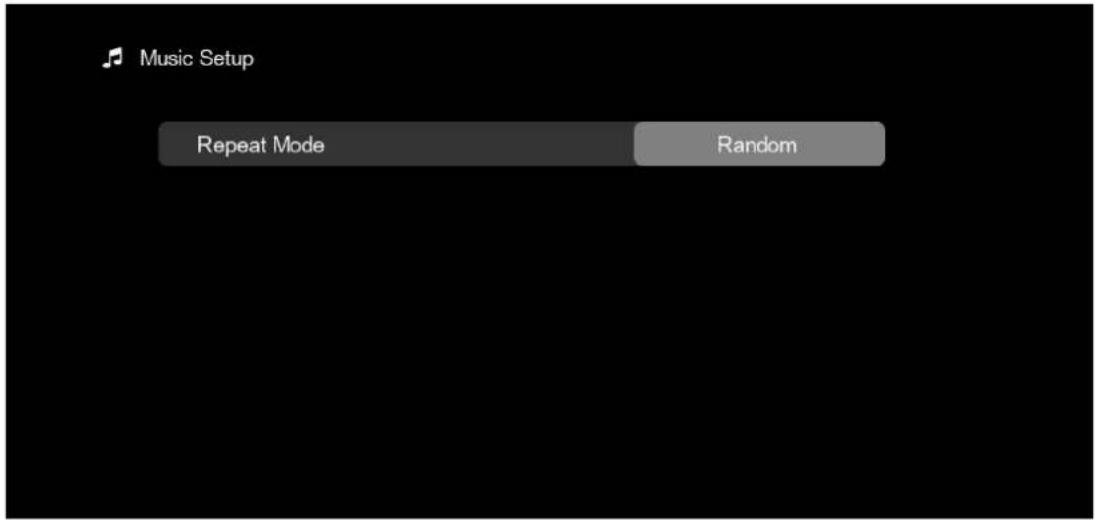
Repeat Mode: Set the playback mode for music files.
Repeat All / Repeat One / Sequence / Random
Use the left/right buttons to adjust/change the desired value.
Video Setup:
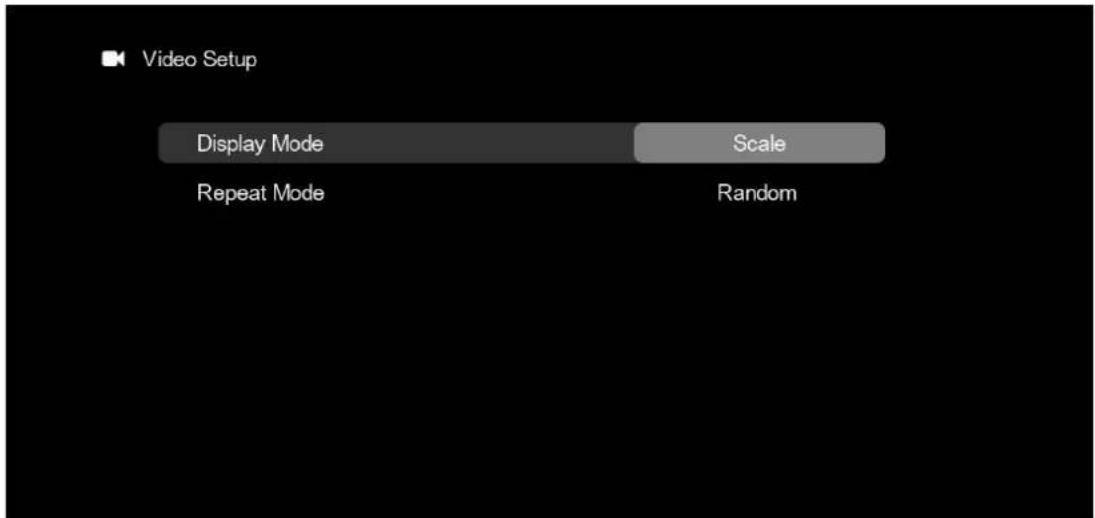
Display Mode: Options for optimal video display.
Scale / 4:3 / 16:9 / Full Screen
Repeat Mode: Set the playback mode for video files.
Repeat All / Repeat One / Sequence / Random
Use the left/right buttons to adjust/change the desired value.
Calendar Setup:
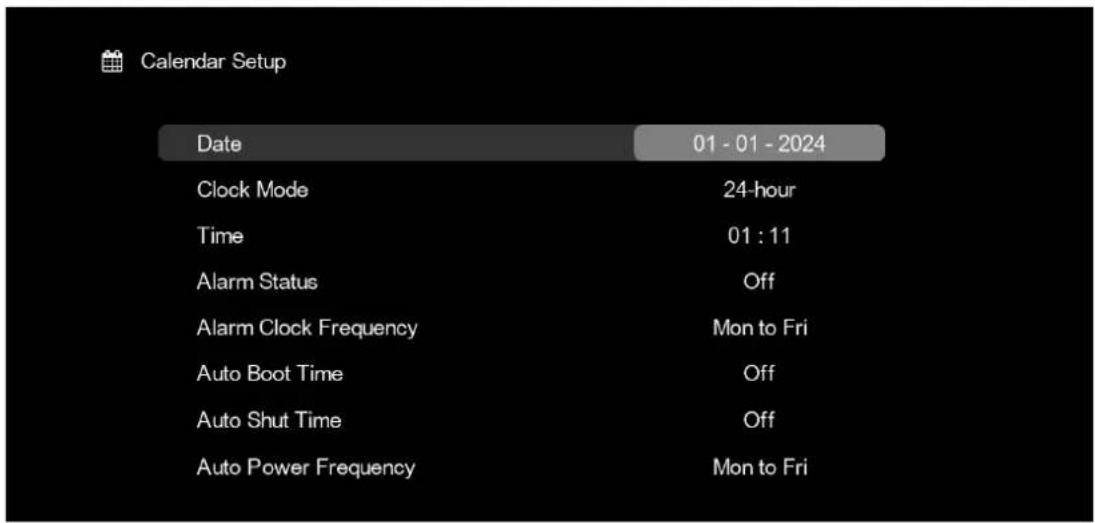
Date: Set the date.
dd-mm-yyyy
Clock Mode: Set the time format.
12-hour / 24-hour
Time
hh:mm
Alarm Status Set alarm/clock (with sound)
hh:mm/Off
Alarm Clock Frequency Set alarm time for clock
Mo to Fr/Weekend/Once/Everyday
Auto Boot Time Set automatic turn-on time for digital photo frame
hh:mm/Off
Auto Shut Time Set automatic turn-off time for digital photo frame
hh:mm/Off
Auto Power Frequency Set interval for automatic on/off time
Mo to Fr/Weekend/Once/Everyday
Use the left/right buttons to adjust/change the desired value.
System Setup:
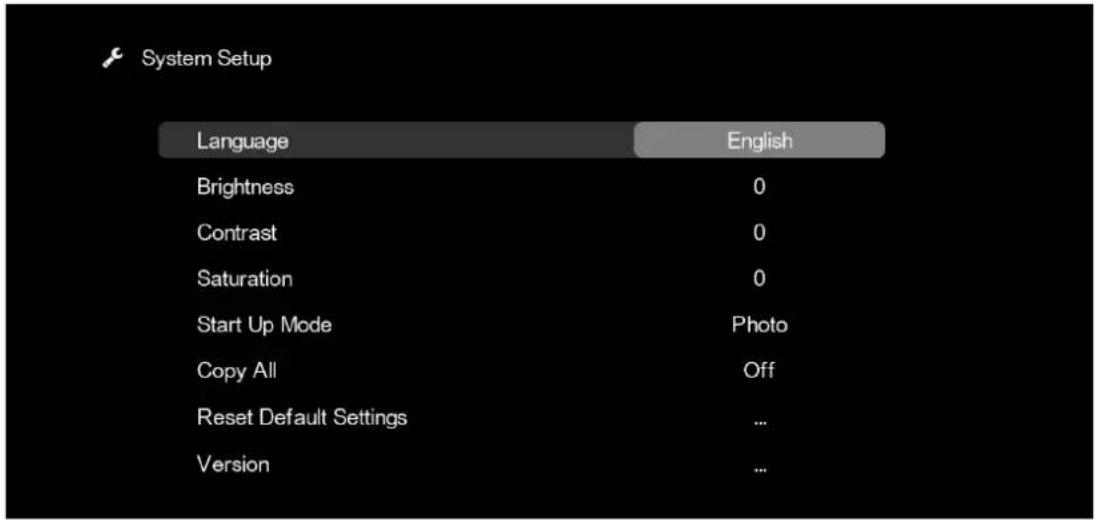
Language Set desired language
German / English / French / Italian / Dutch / Portuguese / Spanish / Swedish / Czech / Danish / Polish / Russian / Turkish / Hungarian / Romanian / Norwegian / Finnish / Slovak / Croatian / Serbian / Bulgarian / Greek / Slovenian
Brightness: Adjust between 0 and -10 / +10
Contrast: Adjust between 0 and -10 / +10
Saturation: Adjust between 0 and -10 / +10
Start Up Mode: Mode that automatically starts after turning on the digital photo frame.
Main Menu/Photo/Music/Video/Calendar
Reset to default settings? Yes/No
Version: Current firmware version
of the digital photo frame.
Use the left/right buttons to adjust/change the desired value.
Technical support
Slideshow Transition Effect
Random
Display Mode: Slideshow - display of a series of digital photos on the screen
Thumbnail - browser with image preview
Full Screen / Original Size / Fit to Screen / Crop to Fill
Slideshow Transition Time
Repeat/Sequence/Random
Slideshow Transition Effect Set the transition effects in the slideshow
Random/Blinds/Erase/Slide/Grid/Fade In Out
Use the arrow keys to adjust/change the desired value.
Music Setup:
Scale/4:3/16:9/Full Screen
Repeat Mode Set the playback mode for video files
Repeat All/Repeat One/Sequence/Random
Use the arrow keys to adjust/change the desired value.
Calendar Setup:
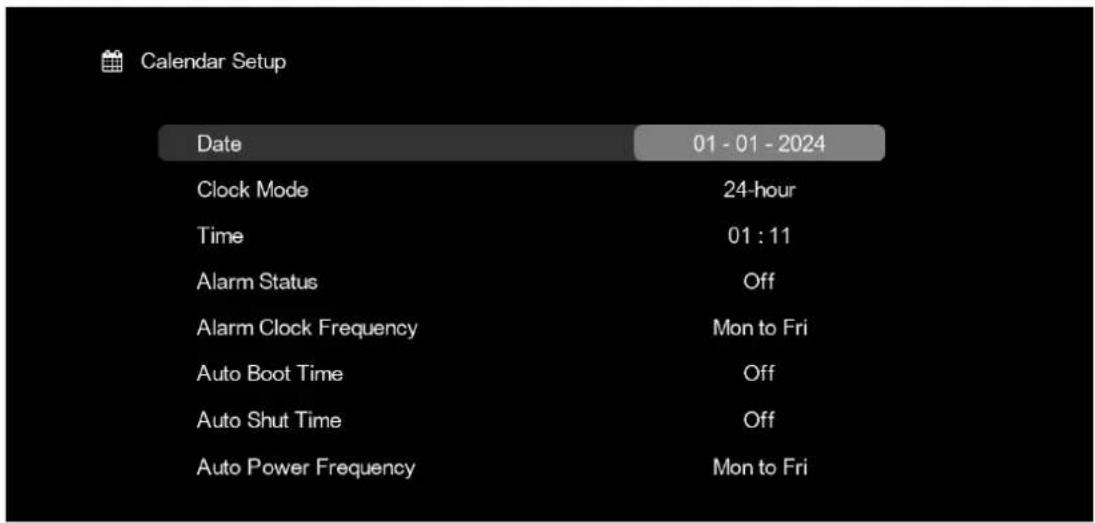
Date Set the date
dd-mm-yyyy
Clock Mode Set the time format
12-hour/24-hour
Time Set the time
hh:mm
Alarm Status Set the alarm (with sound)
hh:mm/Off
Alarm Clock Frequency Set the wake-up time for the alarm clock
Mo to Fr / Weekend / Once / Everyday
Auto Boot Time Set the automatic power-on time for the digital
photo frame
hh:mm/Off
Auto Shut Time Set the automatic power-off time for the digital
photo frame
hh:mm/Off
Auto Power Frequency Set the interval for automatic
| German / English / French / Italian / Dutch / Portuguese |
| / Spanish / Swedish / Czech / Danish / Polish / Russian / Turkish / Hungarian / Romanian / Norwegian / Finnish / Slovak / Croatian / Serbian / Bulgarian / Greek / Slovenian |
Brightness Adjust from to -10 / + 10
Contrast: Adjust from 0 to -10/+10
Saturation: Adjust from 0 to -10/+10
Start Up Mode: Mode that automatically starts after turning on the digital photo frame.
Main Menu / Photo / Music / Video / Calendar
Copy All: Automatically copy music/videos from memory
| Off / On | kartice ili USB sticka na unutarnju memoriju. |
Reset Default Settings: Reset the digital photo frame to default settings.
Reset to default settings? Yes / No
Version: Here is the current firmware version of the digital photo frame.
photo frame!
Use the arrow keys to adjust/change the desired value.
Technical Support
We are committed to providing the best customer support. If you need help with a BRAUN product, please contact BRAUN technical support before returning the device. Contact us in any of the following ways:
E-mail: post@braun-phototechnik.de
Website: www.braun-phototechnik.de
+49 (0) 7457 / 9465-60
Regulations of the European Union
Slideshow Transition Effect
Random
Display Mode Slideshow - A series of digital photos is displayed on the screen
digital
Full Screen / Original Size / Fit to Screen / Crop to Fill
Repeat/Sequence/Random
Random/Blinds/Erase/Slide/Grid/Fade In Out
Scale/4:3/16:9/Full Screen
Mo to Fr/Weekend/Once/Everyday
German / English / French / Italian / Dutch / Portuguese
/ Spanish / Swedish / Czech / Danish / Polish / Russian /
Turkish / Hungarian / Romanian / Norwegian / Finnish /
Slovak / Croatian / Serbian / Bulgarian / Greek /
Slovenian
Slideshow Transition Effect
Random
Full Screen / Original Size / Fit to Screen / Crop to Fill
Repeat/Sequence/Random
Scale/4:3/16:9/Full Screen
Repeat Mode: Set the playback mode for video files
Repeat All/Repeat One/Sequence/Random
Mo to Fr/Weekend/Once/Everyday
Mo to Fr/Weekend/Once/Everyday
German / English / French / Italian / Dutch / Portuguese
/ Spanish / Swedish / Czech / Danish / Polish / Russian /
Turkish / Hungarian / Romanian / Norwegian / Finnish /
Slovak / Croatian / Serbian / Bulgarian / Greek /
Slovenian
Brightness: Adjust from "0" to "-10 / +10"
Contrast: Adjust from "0" to "-10 / +10"
Saturation: Adjust from "0" to "-10 / +10"
Start Up Mode: Mode that starts automatically (before turning on the
digital photo frame.
Main Menu / Photo / Music / Video / Calendar
Copy All: Automatic copy of image/music files or
Slideshow Transition Effect
Random
Display Mode: Slideshow - Display a series of digital photos on the
screen
Full Screen/Original Size/Fit to Screen/Crop to Fill
Slideshow Transition Time: Set the display time for each image in the slideshow
presentation
3 sec/5 sec/10 sec/15 sec/30 sec/1 min/5 min/10 min/
15 min/30 min/1 hour/6 hours/12 hours/24 hours/Off
Repeat/Sequence/Random
Slideshow Transition Effect Set the transition effects in the slideshow
Random/Blinds/Erase/Slide/Grid/Fade In Out
Repeat All/Repeat One/Sequence/Random
Scale/4:3/16:9/Full Screen
Repeat Mode Set the playback mode for video files
Repeat All/Repeat One/Sequence/Random
Mo to Fr/Weekend/Once/Everyday
Mo to Fr/Weekend/Once/Everyday
German/English/French/Italian/Dutch/Portuguese/Spanish/Swedish/Czech/Danish/Polish/Russian/Turkish/Hungarian/Romanian/Norwegian/Finnish/Slovak/Croatian/Serbian/Bulgarian/Greek/Slovenian
Brightness Adjust from "0" to -10/+10
Contrast Adjust from "0" to -10/+10
Saturation Adjust from "0" to -10/+10
Start Up Mode Mode that starts automatically after the digital photo frame is powered on.
Main Menu/Photo/Music/Video/Calendar
Reset to default settings? Yes/No
Slideshow Transition Effect
Random
Full Screen / Original Size / Fit to Screen / Crop to Fill
Slideshow Transition Time - Set the time interval for each image in the
presentation
3 Sec / 5 Sec / 10 Sec / 15 Sec / 30 Sec / 1 Min / 5 Min /
10 Min / 15 Min / 30 Min / 1 Hour / 6 Hours / 12 Hours
/24Hours/Off
Slideshow Repeat Mode - Set the repeat mode for the images in the
presentation
Repeat/Sequence/Random
Slideshow Transition Effect - Set the transition effect for the presentation
Random/Blinds/Erase/Slide/Grid/FadeInOut
Use the arrow keys to adjust the selected setting.
Music Setup:
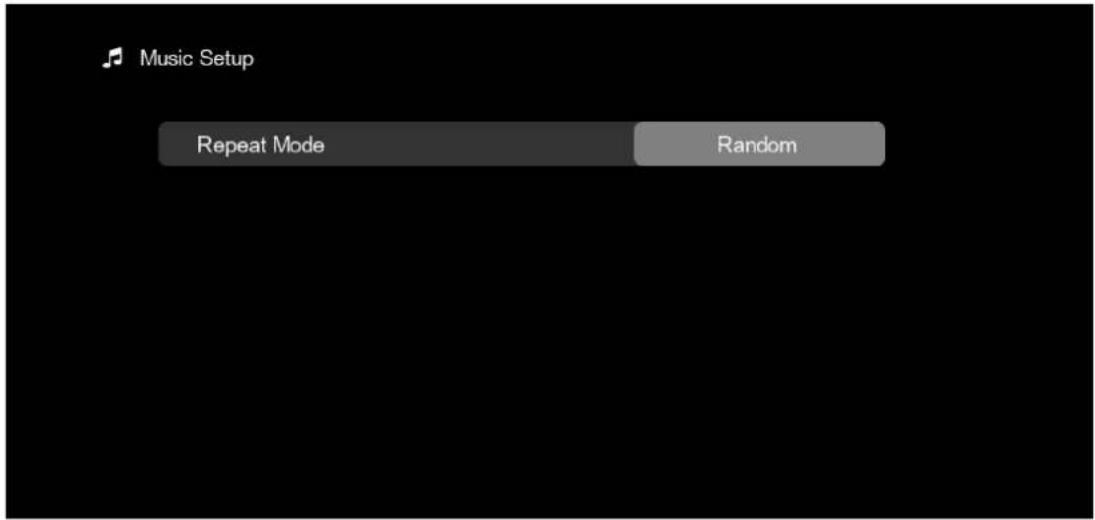
Repeat Mode: Select the playback mode for the files.
Music
Repeat All / Repeat One / Sequence / Random
Use the ◀ ▶ buttons to set/change the current mode.
Video Setup:
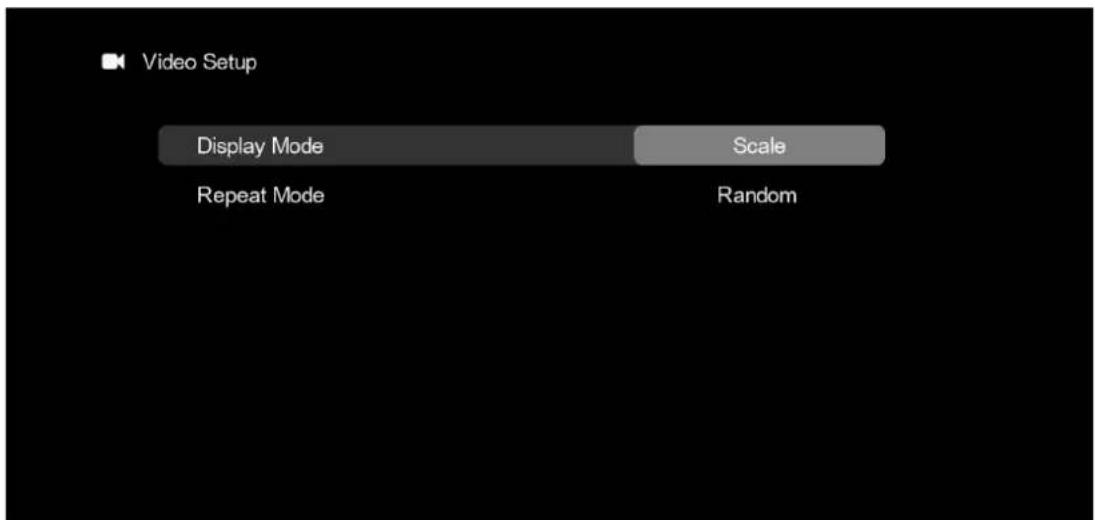
Scale/4:3/16:9/Full Screen
Repeat Mode: Select the playback mode for the files.
Video
Repeat All / Repeat One / Sequence / Random
Use the ◀ ▶ buttons to set/change the current mode.
Calendar Setup:
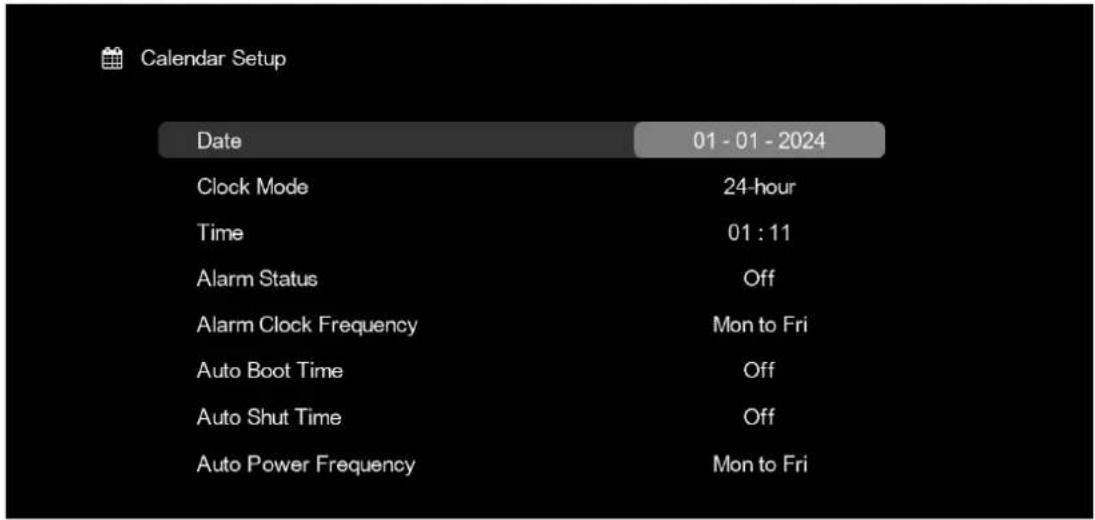
Date: Set the current date.
dd-mm-yyyy
German / English / French / Italian / Dutch / Portuguese
/ Spanish / Swedish / Czech / Danish / Polish / Russian /
Turkish / Hungarian / Romanian / Norwegian / Finnish /
Slovak / Croatian / Serbian / Bulgarian / Greek /
Slovenian
Brightness: from "0" to "-10/+10"
Contrast: from "0" to "-10/+10"
Saturation: from "0" to "-10/+10"


- SYSTEM CONFIGURATION
- CONTROLS
- MAIN MENU
- PICTURE MODE
- MUSIC MODE
- VIDEO MODE
- COPY FUNCTION FOR IMAGE, MUSIC AND VIDEO FILES
- PLEASE NOTE
- HDMI INPUT
- SETTINGS MENU
- OVERVIEW OF SETTING OPTIONS
- PHOTO SETUP
- MUSIC SETUP
- VIDEO SETUP
- CALENDAR SETUP
- GERMAN / ENGLISH / FRENCH / ITALIAN / DUTCH / PORTUGUESE
- TECHNICAL SUPPORT
- TECHNICAL ASSISTANCE
- SYSTEM SETUP
- REGULATIONS OF THE EUROPEAN UNION
Brand : BRAUN
Model : DigiFrame 1096
Category : Digital photo frame