BabyCam 80420 - Baby monitors Reer - Free user manual and instructions
Find the device manual for free BabyCam 80420 Reer in PDF.
User questions about BabyCam 80420 Reer
0 question about this device. Answer the ones you know or ask your own.
Ask a new question about this device
Download the instructions for your Baby monitors in PDF format for free! Find your manual BabyCam 80420 - Reer and take your electronic device back in hand. On this page are published all the documents necessary for the use of your device. BabyCam 80420 by Reer.

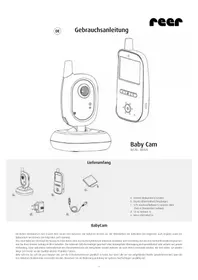
USER MANUAL BabyCam 80420 Reer
7. Micro USB slot for power supply
13. Status light (operation/charging mode)
Putting into operation 1. Fully charge the battery before using the parent unit for the first time, until the battery level indicator on the display shows a full charge.
2. Connect the camera using the mains adapter supplied.
3. Place the camera on a stable table or mount it on a wall.
4. Turn the camera on using the On/Off button (2). The power indicator (4) lights up green.
5. Switch on the display by holding the On/Off button (8) for 2 seconds until the status light (13) turns green. If the status light flashes green, it means that the battery level is low and the parent unit needs to be recharged. 6. he devices are pre-coupled in the factory, enabling you see the camera’s picture on the screen and hear the sound picked up by the microphone through its speaker. If this is not the case, please proceed with the steps described under adding/deleting additional cameras. 3Functional possibilities: Camera
1. As soon as your baby becomes quiet and makes no more sound, the camera stops transmitting. It then goes into stand-by
mode until noises are detected again. This reduces the radiation exposure to a minimum. 2. If light conditions are sufficient, the camera transmits a colour image to the display. If there is insufficient light, night vision mode is automatically activated. In this case, only a black-and-white image will be transmitted.
3. The camera can be tilted manually to find the best angle for viewing your baby.
Adding/deleting additional cameras
1. 1. Turn on both the parent unit and the camera you wish to connect to it.
2. Briefly press the pairing button (17) on the parent unit using a thin object.
3. Use the arrow keys to select CAM and press the OK key (11) to confirm. Use the arrow keys to assign a number to the new camera and confirm again.
4. Use the arrow keys to select Not Connected and confirm with OK.
5. Now press the pairing button (6) on the back of the camera. If the pairing process was successful, a confirmation of the connection will appear on the screen.
6. The camera is now ready for use.
7. If the confirmation does not appear, please repeat steps 1 – 5.
8. Repeat the steps for all other cameras. Please note: If you select a save location that is already occupied, the existing data will. 9. To remove a camera, press the pairing button (6) on the camera. In step 2, select the number of the camera you wish to remove and proceed to step 3. Wait 20 seconds for the Not Connected screen to appear. The camera is no longer connected. Display 1. The VOX function automatically turns on the screen as soon as the camera picks up any sounds, and automatically turns it off again as soon as the baby stops making any noise. This VOX mode keeps camera radiation to a minimum and reduces the display’s battery consumption. 2. To turn on permanent camera transmission, briefly press the On/Off button (8). Continuous transmission is indicated on the screen by the message SCREEN ON and can be deactivated at any time by pressing the On/Off button (8) again. 3. If the parent unit status light (13) starts flashing green, the built-in battery is empty. This means the display needs to be recharged. 4. Adjust the volume using the arrow keys (9/10). The volume is displayed on the screen in the form of a bar chart. To mute the speaker, press and hold the key (10) to decrease the volume until the icon appears. To cancel muting, press and hold the key (9) to increase the volume until it reaches the desired level. 5. If required, the display unit can also be placed on a flat surface (table or similar). To do this, fold out the stand on the back. 6. Press the Menu key (11) briefly to access the main menu. You can select the desired sub-item by navigating with the arrow keys. By pressing the OK key (11), you confirm the selection and enter the respective submenu. Clicking Back either takes you back to the previous top item or exits the menu. Menu Camera If the parent unit is connected to more than one camera, you can select the camera to be displayed here. Use the arrow keys to select Camera and confirm with the OK key (11). You can now select the camera (1,2,3,4, Scan) you want to display using the arrow keys, before confirming with OK. If you have selected the Scan setting, the parent unit works as follows: (a) The screen is on: Each camera is displayed on the screen for 10 seconds. When a noise is detected by a particular camera, the parent unit displays the corresponding camera on its screen until no further sound is detected. (b) The screen is off: As soon as a noise is detected, the screen turns on and the image of the respective camera is displayed until no further sound is detected. Key tone Here you can turn the parent unit’s key tone on or off. Zoom This setting allows the displayed image to be enlarged to double size. Settings Display You can adjust the brightness of the screen and the orientation of the image displayed on the screen. Language Choose between German or English as your language. Microphone sensitivity The higher you set the sensitivity of the camera microphone, the more sensi- tive to noise it becomes. Night vision mode If the surroundings of the camera become too dark, the camera switches to night vision mode and transmits only black and white images. In this menu item, you can set the brightness level at which the night view mode is to be activated. Reset If you select this menu item, all settings will be reset, but the coupling remains. 4Symbols A) Signal strength: The further away the display and camera are positioned from each other, the weaker the signal is and the fewer bars are displayed. If the camera is out of range, this is clearly indicated on the screen – the noise level indicator starts flashing and an audible alarm sounds until a connection can be re-established. A weaker signal can cause the image to occasionally freeze. B) Camera number: Number of the camera currently displayed on the screen. C) Zoom: When the Zoom function is activated, this icon appears and the image is enlarged twofold. D) Battery level indicator: The status of the battery is indicated here. When the battery level falls below 20%, the icon will start flashing and an audible alarm will sound. When charging, the icon will flash and the status light (13) will light up in red until the battery is fully charged. When this is achieved, it changes colour and turns green. Cleaning and maintenance Always disconnect the mains adapters from the wall power socket before cleaning the unit. Only use a slightly dampened cloth. Do not submerge the unit in water. Do not use chemical detergents. This product does not require any special maintenance. Repairs to the unit must be carried out by skilled personnel only. Troubleshooting: Problem Possible cause Action No audio or video signal is transmitted • Camera microphone sensitivity is too low
- No power supply to the camera
- Adjust the sensitivity in the menu
- Test the power supply Constant transmission • Camera microphone sensitivity is too high
- Continuous operation of the screen is activated without Auto off
- Adjust the sensitivity in the menu
- Set a time limit for continuous operation or activa- te VOX mode Constant range alarm • Camera is turned off or power is not supplied
- Distance between the units is too large
- The coupling is faulty or no longer there
- Switch on the camera and test the power supply
- Reduce distance between units
- Carry out coupling again Unclear image or image standstill or sudden black and white image
- Brightness at camera location too low, camera switches to night vision mode
- Interference from other electronic devices, e.g. WiFi router, microwave...
- Reduce distance between units
- Adjust the brightness sensitivity in the menu or increase the brightness at the camera location
- Increase distance to other electronic devices, switch off unused devices if possible instead of switching to stand-by mode Low battery indicated on the display • Built-in battery is empty
- Continuous operation of the screen is activated without Auto off
- Charge the display unit with the supplied charging cable
- Set a time limit for continuous operation or activa- te VOX mode The display unit speaker does not emit any sound • The speaker is muted • Increase volume using the key Range too small • Too much signal interference between camera and display
EasyManual