Reer BabyCam L 80430 - Baby monitors

BabyCam L 80430 - Baby monitors Reer - Free user manual and instructions

Find the device manual for free BabyCam L 80430 Reer in PDF.

📄 48 pages English EN 💬 AI Question
Notice Reer BabyCam L 80430 - page 7

User questions about BabyCam L 80430 Reer

0 question about this device. Answer the ones you know or ask your own.

Ask a new question about this device

L'email reste privé : il sert seulement à vous prévenir si quelqu'un répond à votre question.

No questions yet. Be the first to ask one.

Download the instructions for your Baby monitors in PDF format for free! Find your manual BabyCam L 80430 - Reer and take your electronic device back in hand. On this page are published all the documents necessary for the use of your device. BabyCam L 80430 by Reer.
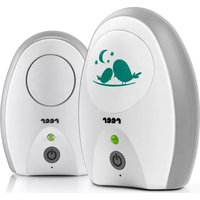
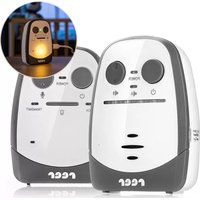
USER MANUAL BabyCam L 80430 Reer

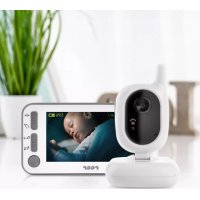
  • Umpositionierung von Kamera und Display Problembehebung: 6Instruction manual Scope of delivery BabyCam L Congratulations on your purchase of a new reer BabyCam L. The BabyCam L consists of a parent unit with screen (also referred to here as the display) and a baby unit with camera (also referred to here as the camera). Your new BabyCam L uses a highly sensitive microphone to provide you with clear and reliable feed of any sounds your baby makes, with a high-definition display that also lets you keep an eye on your little one at all times. The modern FHSS technology ensures interference-free transmission and guarantees a secure and private connection. Thanks to the parent unit‘s optional battery operation, the baby monitor can be used both in a stationary position or while moving around. We are sure you will enjoy the quality of our product for many years to come. Please take a few minutes to read through the safety instructions carefully. The reer video baby monitor can only be used in a carefree manner reservations if all of the points listed here are fulfilled. Please keep the instruction manual in a safe place for future reference. Please keep the instruction manual in a safe place for future reference. Baby Cam L Art.no.: 80430 a. Camera (baby unit/transmitter) b. Display (parent unit/receiver) c. 3.7 V rechargeable Li-polymer battery (built into parent unit) d. 5 V AC mains adapter 1x e. Micro-USB cable 2x 1Technical Data General safety instructions ! Check the unit for visible damage before each use. If you detect any damage, do not use the unit. ! Only use the supplied chargers and mains adapters. Make sure that the operating voltage of the power outlet matches that of the mains adapter. Check - especially when travelling abroad - that the local mains voltage matches the voltage specified on the units and/or mains adapters. ! Except for the battery compartment cover, never open the units or mains adapters, as there is a risk of electric shock. If a unit does not work correctly, please do NOT try to fix the problem yourself. Please contact your dealer in the case of any problems. ! Avoid bringing the battery and/or electrical connection contacts on the units into contact with metal objects. ! This product is not a toy! Do not allow children to play with the unit. ATTENTION! This baby monitor was designed exclusively for monitoring your baby. It may neither be regarded as a substitute for parental supervision nor as a medical device. Safety instructions for installation ! Always place the baby unit out of your child´s reach (minimum distance: 1 meter). ! Never place the baby monitor inside the crib, cot or playpen. ! The power lead must be secured out of the reach of children to avoid any risk of strangulation. Do not use extension cables. ! To ensure optimal transmission, the units must be kept upright at all times and placed in an elevated position. ! DO NOT place the receiver in the vicinity of radio transceivers or microwaves. Radiant emissions from these devices can significantly affect radio reception. ! Do not use the units near water or in humid places. Do not submerge the units in water. ! Do not rinse the units under running water. ! Do not cover the baby monitor with towels, clothes or blankets. ! Avoid extreme heat and direct sunlight ! The socket used for connecting the mains adapter must be located close to the baby monitor and kept freely accessible at all times. ! Disconnection from the mains supply is only allowed if the mains adapter is disconnected from the power socket. Technology Digital FHSS with FSK modulation Frequency 2,4 GHz Transmitter baby unit camera Power supply with mains adaptor Receiver parent unit display Power supply with mains adapter or optional 3.7 V 1400 mAh Li-polymer battery/rechargeable (integrated in parent unit) Input 100 – 240 V / 50 Hz / 0.15 A max. Output 5 V / 1000 mA max. Transmitter power TX: 17 dBm / RX: 17 dBm Field of view of the lens 50° Range Up to 300 m Cable length 1,50 m Operating temperature 0°C – +50°C Maximum battery life of the parent unit (display; on stand-by) Up to 17 hours 2Description of the units Camera (baby unit/transmitter) Display (parent unit/receiver) Putting into operation 1. Fully charge the battery before using the parent unit for the first time, until the battery level indicator on the display shows a full charge.

2. Connect the camera using the mains adapter supplied.

3. Place the camera on a stable table or mount it on a wall.

4. Turn the camera on using the On/Off button (2). The power indicator (4) lights up green.

5. Switch on the display using the On/Off button (8). The status light (16) lights up green. If the status light is red, it means that the battery level is low and the parent unit needs to be recharged. 6. The devices are pre-coupled in the factory, enabling you see the camera’s picture on the screen and hear the sound picked up by the microphone through its speaker. If this is not the case, please proceed with the steps described under Adding/deleting additional cameras.

7. Micro USB slot for power supply

9. Motion detection on/off (normal mode) /

10. Feed timer on/off (normal mode) / down

12. Rotate image on/off (normal mode) / right

16. Status light (operation/charging mode)

3Functional possibilities: Camera

1. As soon as your baby becomes quiet and makes no more sound, the camera stops transmitting. It then goes into stand-by

mode until noises are detected again. This reduces the radiation exposure to a minimum. 2. If light conditions are sufficient, the camera transmits a colour image to the display. If there is insufficient light, night vision mode is automatically activated. In this case, only a black-and-white image will be transmitted.

3. The camera can be tilted manually to find the best angle for viewing your baby.

Adding/deleting additional cameras

1. Turn on both the parent unit and the camera you wish to connect to it.

2. Briefly press the pairing button (21) on the parent unit using a thin object.

3. Add: Use the arrow keys to select Add Camera and press the OK key (15) to confirm.

Remove: Use the arrow keys to select Remove Camera and press the OK key to confirm.“

4. Use the arrow keys to select the camera you want to add or remove and confirm your selection with the OK key (15).

5. Within 30 seconds, press the pairing button (6) on the back of the camera and wait for around 5 seconds. A successful coupling is then confirmed by a double beep and a confirmation message on the screen. If the confirmation does not appear, please repeat steps 2 – 5. 6. Repeat the steps for all other cameras. Please note: If you select a save location that is already occupied, the existing data will. Display 1. If the parent unit status light (16) starts flashing green, the built-in battery is empty. This means the display needs to be recharged. 2. Adjust the volume using the Volume Control key (14). The volume is displayed on the screen in the form of a bar chart. To mute the speaker, press and hold the key to decrease the volume until the icon appears. To cancel muting, press and hold the key to increase the volume until it reaches the desired level. 3. If required, the display unit can also be placed on a flat surface (table or similar). To do this, fold out the stand on the back.

4. In normal camera mode, keys 9 – 12 have the following functions:

5. Press the Menu key (13) briefly to access the main menu. You can select the desired sub-item by navigating with the arrow keys. By pressing the OK key (15), you confirm the selection and enter the respective submenu. Press the Menu key again to return from the submenu to the previous submenu or to the main menu. Motion alarm Press the function key (9) briefly to activate the motion alarm. The corresponding symbol appears on the screen. As soon as the camera detects any movement, the parent unit begins transmission and an acoustic signal is given. Feed alarm Pressing this function key (10) starts a countdown that displays the time remaining until your baby’s next feed. Once this countdown has expired, an alarm will sound that can be turned off by pressing any key. The time interval between feeds can be set in the menu under Feeds. Zoom This function key (11) turns the 2x zoom of the image displayed on the parent unit on or off. Rotation You can use this key (12) to rotate the image displayed on the parent unit by 180°. 4Menu If the parent unit is connected to more than one camera, you can select the camera to be displayed here. Use the arrow keys to select Camera and confirm with the OK key (15). You can now select the camera (1,2,3,4, Scan) you want to display using the arrow keys, before confirming with OK. If you have selected the Scan setting and VOX mode is on, the parent unit will scan all connected cameras for a signal. If any camera detects a noise, the parent unit will display the image from that camera until the noise stops. When VOX mode is off, the parent unit alternately displays the image of each connected camera for 10 seconds. If any camera detects a noise, the parent unit will display the image from that camera until the noise stops. If multiple cameras detect sounds, a message about the other cameras appears on the screen. Press the OK key (15) to immediately switch to this camera.“ You can either choose for the display to be on permanently or use the low-radiation VOX mode. To do so, select the desired mode using the arrow key naviga- tion and confirm with the OK key (15). In VOX mode, the screen automatically turns on as soon as the camera picks up any sounds and turns it off automatically as soon as the baby stops making any noise. For this, you can select the time delay (between 30 seconds and 3 minutes) before the screen switches off. 10 seconds before the screen switches off, a message appears on the display. The VOX mode keeps camera radiation to a minimum and reduces the display’s battery consumption. The screen remains permanently switched on during continuous operation. You can choose whether alarm tones and key tones should be played. Here you can set the time interval between feed alarms. Choose a sensitivity level of between 1 and 5 for the microphone that detects your child’s sounds. The higher the set value, the more sensitively the micro- phone reacts to noise. Select 1 of the 5 available sensitivity levels of the camera that detects your child’s movement. The higher the set value, the more sensitive the camera reacts to movements. Choose 1 of the 5 brightness levels available. The following three options are available in this menu item: Language Choose between German or English as your language. Night vision mode If the camera’s surroundings become too dark, it automatically switches to night vision mode and transmits only in black and white. This menu item allows you to set the brightness level at which night vision mode is activated. Reset If you select this menu item, all settings will be reset, but the coupling remains. Symbols A) Signal strength: The further away the display and camera are positioned from each other, the weaker the sig- nal is and the fewer bars are displayed. If the camera is out of range, this is clearly indicated on the screen – the noise level indicator starts flashing and an audible alarm sounds until a connection can be re-established. A weaker sig- nal can cause the image to occasionally freeze. B) Camera number: Number of the camera currently displayed on the screen. C) Motion alarm: This symbol indicates that the motion alarm is active. D) Zoom: When the Zoom function is activated, this icon appears and the image is enlarged twofold. E) Rotation: When this icon is displayed, the screen is rotat- ed 180°. F) Battery level indicator: The status of the battery is indicated here. When the battery level falls below 20%, the icon will start flashing and an audible alarm will sound. When charging, the icon will flash and the status light (16) will light up in red until the battery is fully charged. When this is achieved, it changes colour and turns green. G) Feed alarm When the feed alarm is switched on, the dis- play shows a countdown to the next feed. 5Warranty Please retain your receipt, the user manual and item number. Warranty claims or claims from promises of guarantee must be processed by the dealer. The technical specification, information and characteristics of the product described herein have been compiled to the best of our knowledge and belief and are correct at the time of printing. Any information provided by reer should be correct and authoritative. Nevertheless, reer does not accept liability for potential errors in this document and reserves the right to make changes to the product design and/or specifications without prior notice. Reproduction and disclosure of information contained in this copyright protected document, in any form or by any means - graphical, electronic or mechanical by photocopying, recording on tape or storage in a data retrieval system (even in part), require prior written consent from reer. Environmental protection At the end of its life, this product must not be disposed of as normal domestic waste, but should be recycled at a collection point for electrical appliances. Please see the relevant symbol on the product, in the user manual and packaging. Materials can be recycled as specified. An important contribution to the protection of the environment can be made by reusing the unit, recycling its components or otherwise reusing old appliances. Please contact your local council to find out more about an appropriate disposal centre. reer GmbH Muehlstr. 41 • 71229 Leonberg • Germany www.reer.de Operation permitted in the following countries: DE, CH, AT, IT, FR, BE, NL, ES, LU, GR, HU, CZ, SI, PL, CY, DK, FI, IS, LI, LT, NO, RO, SE, SK, TR reer GmbH hereby declares that the radio system type in the video baby monitor (Art.No.: 80430) complies with Directive 2014/53/EU. The full EU Declaration of Conformity text is available at the following web address: http://www.reer.de Rev. 015019 Cleaning and maintenance Always disconnect the mains adapters from the wall power socket before cleaning the unit. Only use a slightly dampened cloth. Do not submerge the unit in water. Do not use chemical detergents. This product does not require any special maintenance. Repairs to the unit must be carried out by skilled personnel only. Problem Possible cause Action No audio or video signal is transmitted • Camera microphone sensitivity is too low

  • No power supply to the camera
  • Adjust the sensitivity in the menu
  • Test the power supply Constant transmission • Camera microphone sensitivity is too high
  • Continuous operation of the screen is activated without Auto off
  • Adjust the sensitivity in the menu
  • Set a time limit for continuous operation or activate VOX mode Constant range alarm • Camera is turned off or power is not supplied
  • Distance between the units is too large
  • The coupling is faulty or no longer there
  • Switch on the camera and test the power supply
  • Reduce distance between units
  • Carry out coupling again Unclear image or image standstill or sudden black and white image
  • Brightness at camera location too low, camera switches to night vision mode
  • Interference from other electronic devices, e.g. WiFi router, microwave...
  • Reduce distance between units
  • Adjust the brightness sensitivity in the menu or in- crease the brightness at the camera location
  • Increase distance to other electronic devices, switch off unused devices if possible instead of switching to stand-by mode Low battery indicated on the display • Built-in battery is empty
  • Continuous operation of the screen is activated without Auto off
  • Charge the display unit with the supplied charging cable
  • Set a time limit for continuous operation or activate VOX mode The display unit speaker does not emit any sound
  • The speaker is muted • Increase volume using the key Range too small • Too much signal interference between camera and display
Manual assistant
Powered by Anthropic
Waiting for your message
Product information

Brand : Reer

Model : BabyCam L 80430

Category : Baby monitors