IP BabyCam Move 80310 - Baby monitors Reer - Free user manual and instructions

Find the device manual for free IP BabyCam Move 80310 Reer in PDF.

📄 116 pages English EN 💬 AI Question
Notice Reer IP BabyCam Move 80310 - page 20

User questions about IP BabyCam Move 80310 Reer

0 question about this device. Answer the ones you know or ask your own.

Ask a new question about this device

L'email reste privé : il sert seulement à vous prévenir si quelqu'un répond à votre question.

No questions yet. Be the first to ask one.

Download the instructions for your Baby monitors in PDF format for free! Find your manual IP BabyCam Move 80310 - Reer and take your electronic device back in hand. On this page are published all the documents necessary for the use of your device. IP BabyCam Move 80310 by Reer.
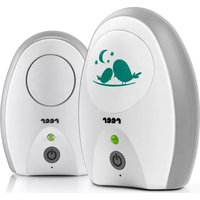
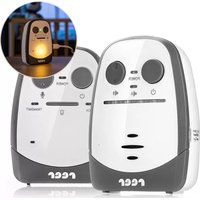
USER MANUAL IP BabyCam Move 80310 Reer

GB- 20 - General safety instructions: ! Check the unit for visible damage before each use. If you detect any damage, do not use the unit. ! Only use the supplied chargers and mains adapters. Make sure that the operating voltage of the power outlet matches that of the mains adapter. Check - especially when travelling abroad - that the local mains voltage matches the voltage specified on the units and/or mains adapters. ! Do not open the device or mains adapter, as this may cause electric shocks. If a unit does not work correctly, please do NOT try to fix the problem yourself. Please contact your dealer in the case of any problems. ! Avoid bringing the battery and/or electrical connection contacts on the units into contact with metal objects. ! This product is not a toyDo not allow children to play with the unit. ! ATTENTION! This baby monitor was designed exclusively for monitoring your baby. It may neither be regarded as a substitute for parental super- vision nor as a medical device. Safety instructions for installation: ! Always place the baby unit out of your child´s reach (minimum distance: 1 meter). ! Never place the baby monitor inside the crib, cot or playpen. ! The power lead must be secured out of the reach of children to avoid any risk of strangulation. Do not use extension cables. ! To ensure optimal transmission, the units must be kept upright at all times and placed in an elevated position. ! DO NOT place the receiver in the vicinity of radio transceivers or mic- GB- 21 - rowaves. Radiant emissions from these devices can significantly affect radio reception. ! Do not use the units near water or in humid places. Do not submerge the units in water. ! Do not rinse the units under running water. ! Do not cover the baby monitor with towels, clothes or blankets. ! Avoid extreme heat and direct sunlight ! The socket used for connecting the mains adapter must be located close to the baby monitor and kept freely accessible at all times. ! Disconnection from the mains supply is only allowed if the mains adap- ter is disconnected from the power socket.

Description of the units

6. Micro USB slot for power supply

GB- 22 - Start operation and pairing process

1. Place the camera on a stable table or mount it on a wall.

2. Download the reer IP BabyCam Move app from the Apple App

Store/Google Play Store.

3. Connect the camera with the power adapter supplied and use the

on/off button (1) to switch it on. The power indicator (2) lights up green. After it starts, the camera performs a calibration process which takes about 1 minute. During this calibration process, the camera will tilt and turn on its own. Please wait until the camera has finished the calibration process and has come to a standstill before using the camera.

4. Open the reer IP BabyCam Move app and create an account by

entering your name, email and password and accept the terms of the privacy policy. Your data is stored securely, in encrypted format, on the reer server, located in Germany. If you already have an account please use your data to log in.

6. Press and hold the pairing button on the underside of the camera

until a voice confirms that the camera is in pairing mode. In pairing mode the Wi-Fi indicator light blinks purple.

7. Make sure that your mobile device is connected to your 2.4 GHz Wi-Fi

network. Enter your Wi-Fi password and press enter to confirm.

8. Hold your mobile device, with the generated QR code in front of the

camera, at a distance of approx. 20 cm. If the camera doesn’t recog- nise the QR code, try moving the mobile device towards the camera and back again. When the camera has successfully scanned the QR code you will receive voice confirmation.

9. The camera will now connect to the Wi-Fi network automatically. This

connection process takes about 30 seconds. When the camera has connected to the Wi-Fi network successfully, its Wi-Fi indicator will glow blue and it will audibly confirm the connection. If pairing is not successful, please repeat points 5 to 8.

10. The next step is to select your camera and assign it a name. The

camera’s name can be changed at any time in the camera options.

11. After successful pairing your camera will be ready to use and will

appear in the main menu of the reer IP BabyCam Move app. If the lighting conditions are sufficient the camera will transmit a colour image to the display. If there is insufficient light, night vision mode is automatically activated. In this case, only a black-and-white image will be transmitted. GB- 24 -

12. The Wi-Fi indicator can display the following states:

  • Flashing red – camera is connecting to router
  • Solid blue – camera is connected to router
  • Flashing blue – weak connection between camera and router. Image may be distorted. Reduce distance between camera and router
  • Flashing purple – camera is in pairing mode Functions

1. Video quality settings

2. Temperature display

3. Share/Settings/Update

11. Brightness/Contrast settings

GB- 25 - Video quality settings You can choose between 4 levels of video signal quality (1080p, 720p, SD, Smooth) according to the strength of the signal. Depending on what internet bandwidth is available, the picture may freeze. If this happens, choose a lower resolution to return to a moving image. Temperature display Temperature at the location of the paired camera. Share/Settings/Update Under the submenu you can share your IP BabyCam Move video signal with family and friends via QR-Code. The video signal can only be shared by the main account holder. Under Settings you can switch the sound, motion and temperature alarms on and off individually, as well as configuring the sensitivity of the alarms and the time interval between them. You will receive push notifications on your mobile device when the alarms are triggered. The brightness level at which the camera switches to automatic night vision mode can also be configured. There is also a setting for image smoothing available. If image smoothing is switched on there may be a delay in image transmission. If you want less delay you can turn this feature off. The menu item Update checks the app to see if a new version of the camera software is available. If an update is necessary, do not close the app or turn off the camera before the update has finished. GB- 26 - Sound On/Off You can switch sound transmission on or off. Record video/Take photo You have the option to capture your child’s most beautiful moments on video or photo and share them with family and friends. The videos or photos you capture are saved in the main menu under Media and can be shared from there. Intercom Press and hold the button to communicate with your baby via the camera. Full screen To control the camera in full screen mode, slide your finger across the touchscreen.In full screen mode, the image can be enlarged by pulling two fingers apart on the touchscreen (pinch-to-zoom). If the image is zoomed in and you can’t control the camera, zoom back out to the normal size and try again. Zoom the camera back out with a double click, to see the full image. D pad/Camera control You can control the camera remotely using the directional pad (D pad). The camera can be swivelled by 330° and tilted by 110°. Brightness/Contrast settings Choose 1 of the 10 available brightness or contrast levels GB- 27 - Save positions For easier navigation of the camera, up to 4 positions can be saved. Click once on the respective number and the camera automatically move to the saved position. Use the recycle bin symbol to delete items that have already been saved. Night Light Switch the night light on, off or to VOX mode to change the brightness of the night light. In VOX mode the night light switches on as soon as the microphone detects noise. Lullabies Choose from one of the 6 pre-installed lullabies and nature sounds and control the playback. Use the volume button (8) on the back of the camera to increase or decrease the volume. Cleaning and maintenance Always disconnect the mains adapters from the wall power socket before cleaning the unit. Only use a slightly dampened cloth. Do not submerge the unit in water. Do not use chemical detergents. This product does not require any special maintenance. Repairs to the unit must be carried out by skilled personnel only. GB- 28 - Troubleshooting: Problem Possible cause Action No video signal is transmitted

  • Camera is turned off
  • Camera is not con- nected to router
  • Your home network has a bandwidth less than 8 Mbps
  • Camera operating system has crashed
  • Your mobile device is connected to a firewall router
  • Enter the correct password in the app
  • Switch off your rou- ter, wait one minute, then restart
  • Repeat the pairing process
  • Use a network with more than 20 Mbps
  • Connect to a diffe- rent router or use the mobile network GB- 29 - Problem Possible cause Action Unclear or frozen picture
  • To many devices are using the same router as the camera
  • Your internet band- width is too low to view the HD image
  • Camera and router are too far apart
  • Disconnect some of the other devices from your router
  • Change image qua- lity (e.g. from 1080p HD to smooth, SD or 720p)
  • Reduce distance between camera and router Constant temperature alarm
  • Current measured value in app is too close to maximum and minimum tem- perature limits
  • Raise or lower temperature limit in the app Camera cannot be controlled in full screen mode
  • Camera image is zoomed in
Manual assistant
Powered by Anthropic
Waiting for your message
Product information

Brand : Reer

Model : IP BabyCam Move 80310

Category : Baby monitors