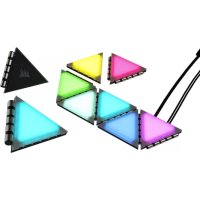
iCUE LC100 - Lighting CORSAIR - Free user manual and instructions
Find the device manual for free iCUE LC100 CORSAIR in PDF.



| Product Type | Accent lighting for case |
| Brand | Corsair |
| Model | iCUE LC100 |
| Panel Dimensions | 4 cm side triangles (approximately) |
| Weight | Approximately 50g per triangle |
| Power Supply | Via SATA connector (included with controller) |
| Connectivity | Internal USB 2.0 (9-pin) for controller |
| Maximum Number of Panels | Up to 18 triangles per controller |
| Controller Type | Lighting Node PRO (included in starter kit) |
| Control Software | iCUE (free download) |
| Operating Temperature | 0°C to +40°C |
| Material | Plastic with steel surface for magnetic attachment |
| Lighting Color | Addressable RGB (16.8 million colors) |
| Attachment | Magnetic on steel surface |
| Panel Connection | 4mm or 5.5mm connection sticks |
| Compatibility | PC cases with steel surface |
| Starter Kit Contents | LC100 triangles, Lighting Node PRO controller, cables, connection sticks |
| Maintenance | Clean with a soft, dry cloth |
| Safety | Avoid contact of pins with foreign objects |
| Warranty | Conforms to European directives (see manual) |
| Repairability | Spare parts not specified, contact Corsair support |
Frequently Asked Questions - iCUE LC100 CORSAIR
User questions about iCUE LC100 CORSAIR
0 question about this device. Answer the ones you know or ask your own.
Ask a new question about this device
Download the instructions for your Lighting in PDF format for free! Find your manual iCUE LC100 - CORSAIR and take your electronic device back in hand. On this page are published all the documents necessary for the use of your device. iCUE LC100 by CORSAIR.
USER MANUAL iCUE LC100 CORSAIR
natural_image
Colorful 3D geometric shapes arranged on a black surface, no text or symbols visibleiCUE LC100
CASE ACCENT LIGHTING PANELS - MINI TRIANGLE

ENGLISHEN
FR
FRANÇAIS
DE
DEUTSCH
NL
NEDERLANDS
IT
ITALIANO
ES
ESPAÑOL
PT
PORTUGUÊS
PL
POLSKI
RU
РУССКИЙ
sc
简体中文
AR
العربية
GETTING TO KNOW YOUR LC100
text_image
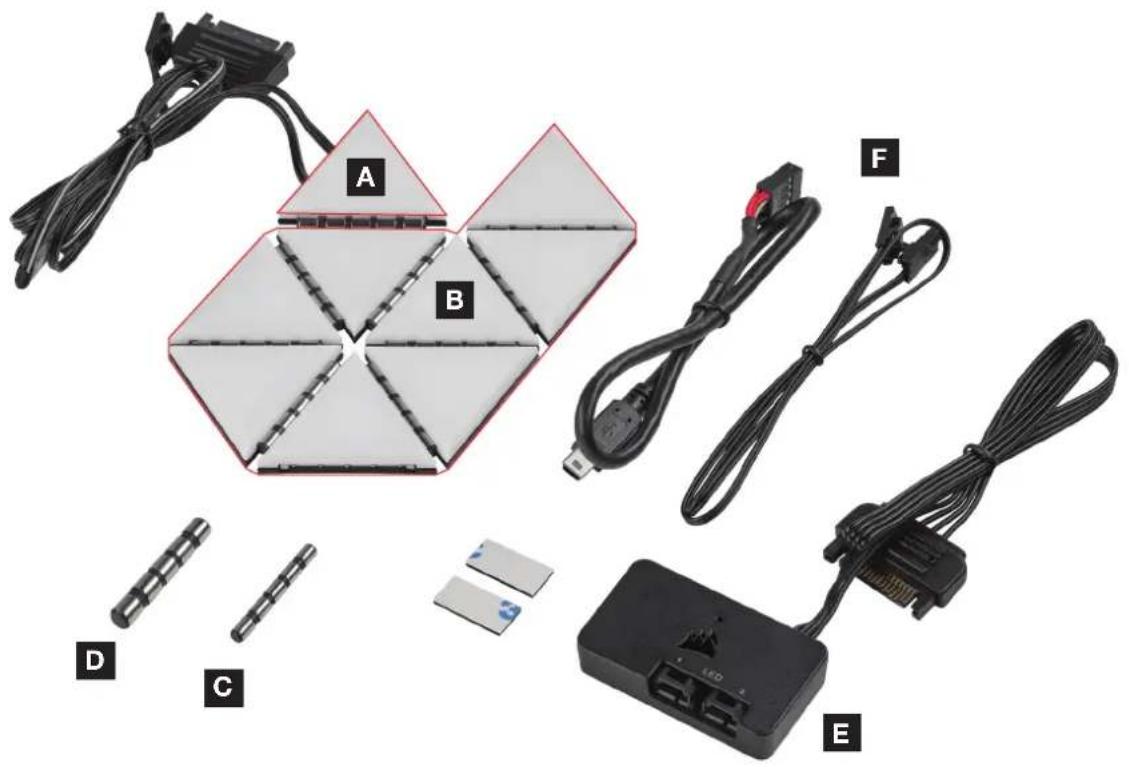
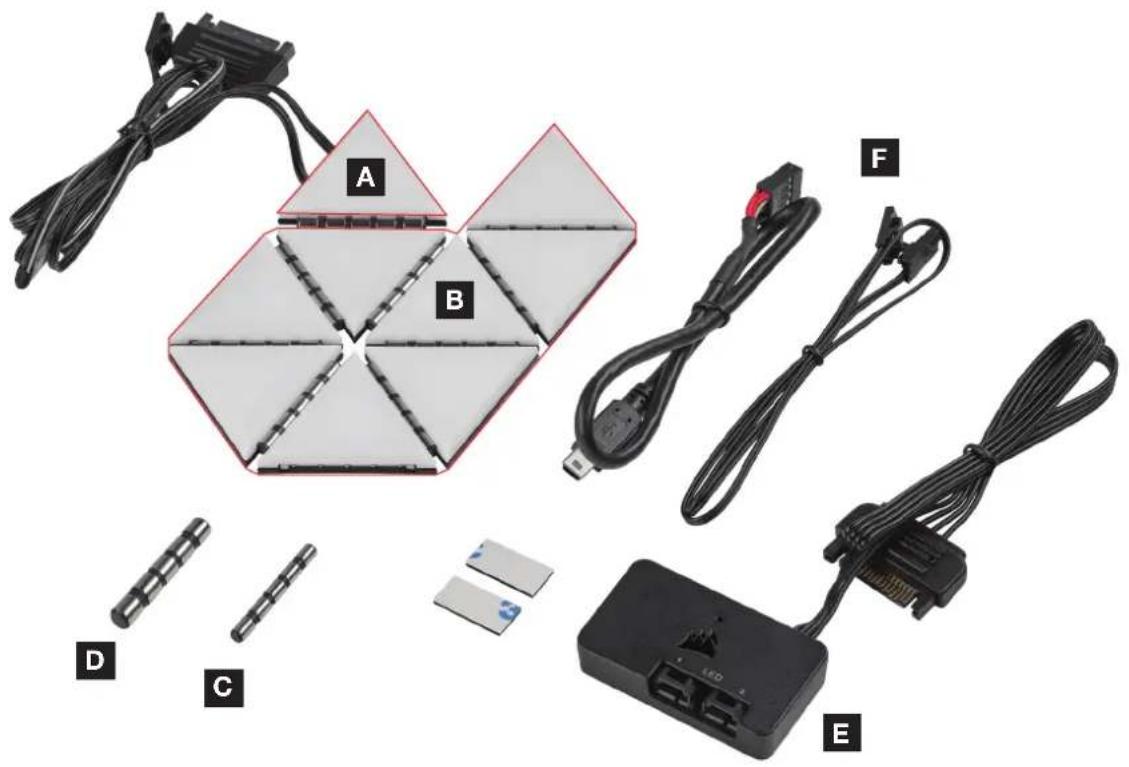
A B F D C EA 1x MASTER LC100 TRIANGLE
B 8x COMPANION LC100 TRIANGLES
C 8x 4mm CONNECTION RODS
D 2x 5.5mm CONNECTION RODS
E LIGHTING NODE PRO (INCLUDED WITH LC100 STARTER KIT)
F CABLES (INCLUDED WITH LC100 STARTER KIT)
LC100 INSTALLATION

To ensure proper operation, keep the contact pins and connection rods free of any foreign objects/materials.
Please use the LC100 panels and connection rods as defined in this document. Only LC100 panels must be connected to the connection rods.
1. Turn off computer

Turn your system off prior to installing your LC100 Case Accent Lighting Triangles and Lighting Node PRO.
2. Mount LC100
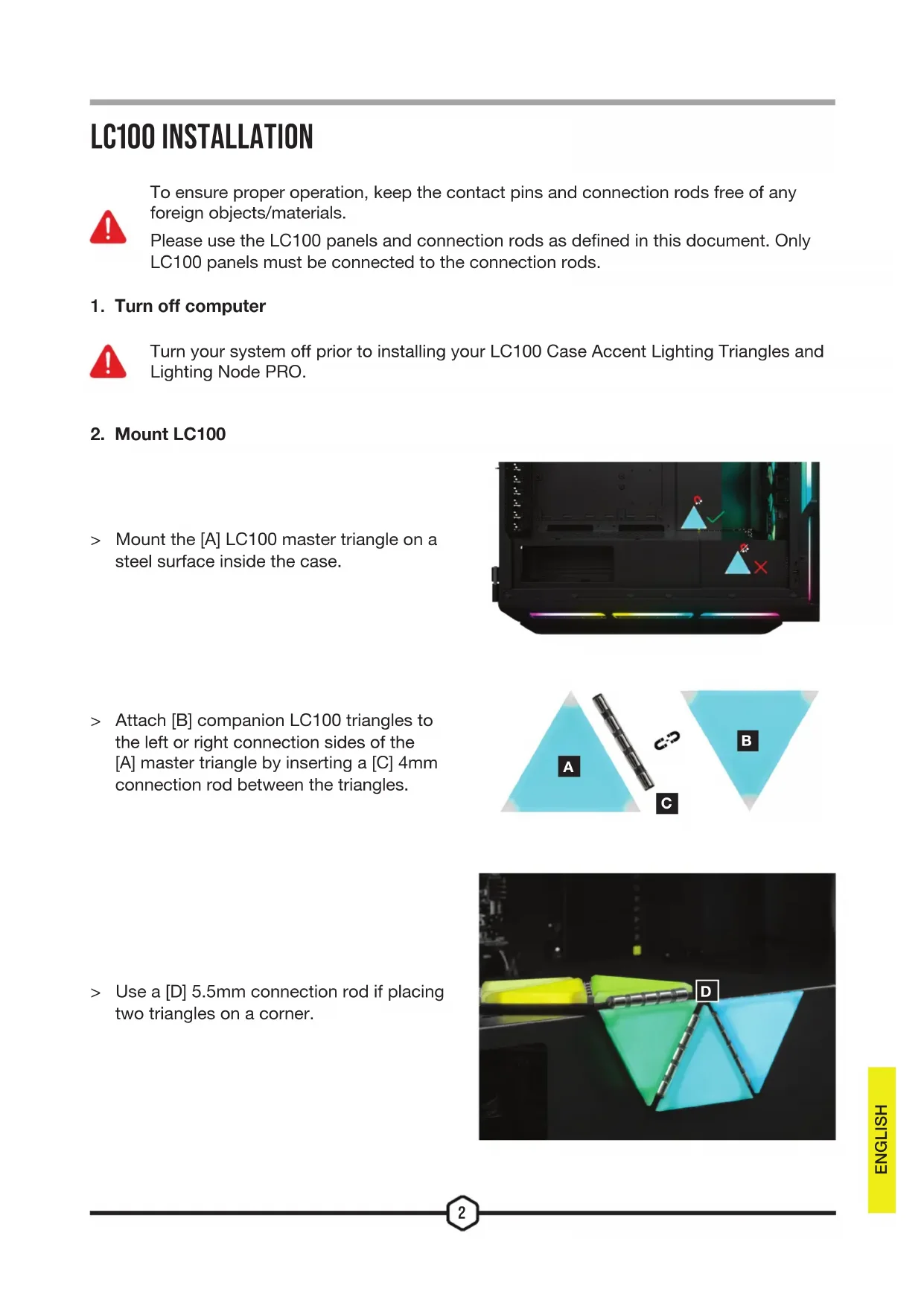
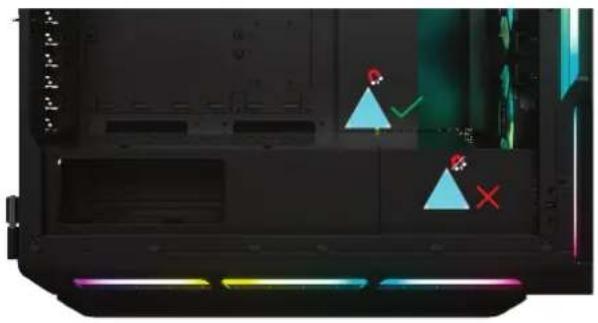
Mount the [A] LC100 master triangle on a steel surface inside the case.
Attach [B] companion LC100 triangles to the left or right connection sides of the [A] master triangle by inserting a [C] 4mm connection rod between the triangles.
Use a [D] 5.5mm connection rod if placing two triangles on a corner.
natural_image
Interior view of a computer monitor case with indicator lights and warning symbols (no readable text or labels)
text_image
A C B
natural_image
Abstract geometric shapes in green and blue, with a yellow notebook-like object on the left (no text or symbols)Up to eighteen (18) total LC100 triangles can be connected simultaneously. An additional [A] LC100 master triangle is required as a power input which is available through the LC100 Expansion Kit.
The 3-pin RGB connector from the secondary master tile is not required to be connected to the Lighting Node PRO.

text_image
A A A A A X3. Mount Lighting Node PRO (Starter Kit only)
Find a location for the [E] Lighting Node PRO that allows the 3-pin RGB cable from the [A] master triangle to reach the [E] Lighting Node PRO, then mount it with the provided mounting strips.

natural_image
Interior view of a computer tower case showing internal components like CPU socket, drive bays, and E indicator (no text or symbols beyond label)4. Connect LC100
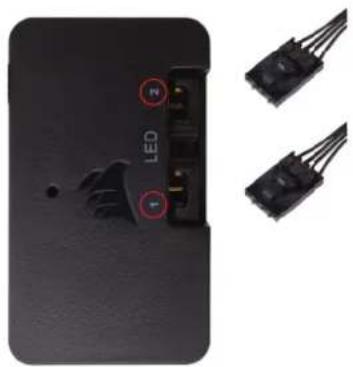
Connect the 3-pin RGB connector from the main [A] master triangle into the [E] Lighting Node PRO.
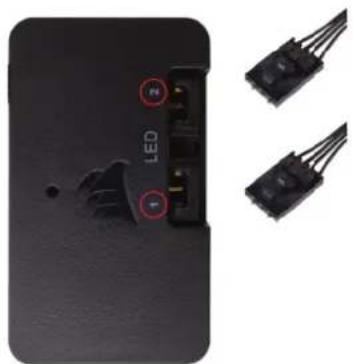
natural_image
Close-up of a black electronic device with LED indicator lights and two connected electrical connectors (no text or symbols visible)5. Connect Lighting Node PRO
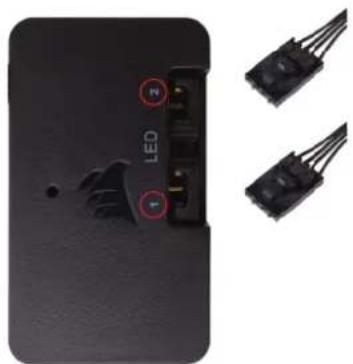
Plug the 9-pin USB cable [F] from the [E] Lighting Node PRO into an available internal USB 2.0 header on your motherboard or USB hub.
Connect the SATA power connector to an available SATA connector from your power supply unit.
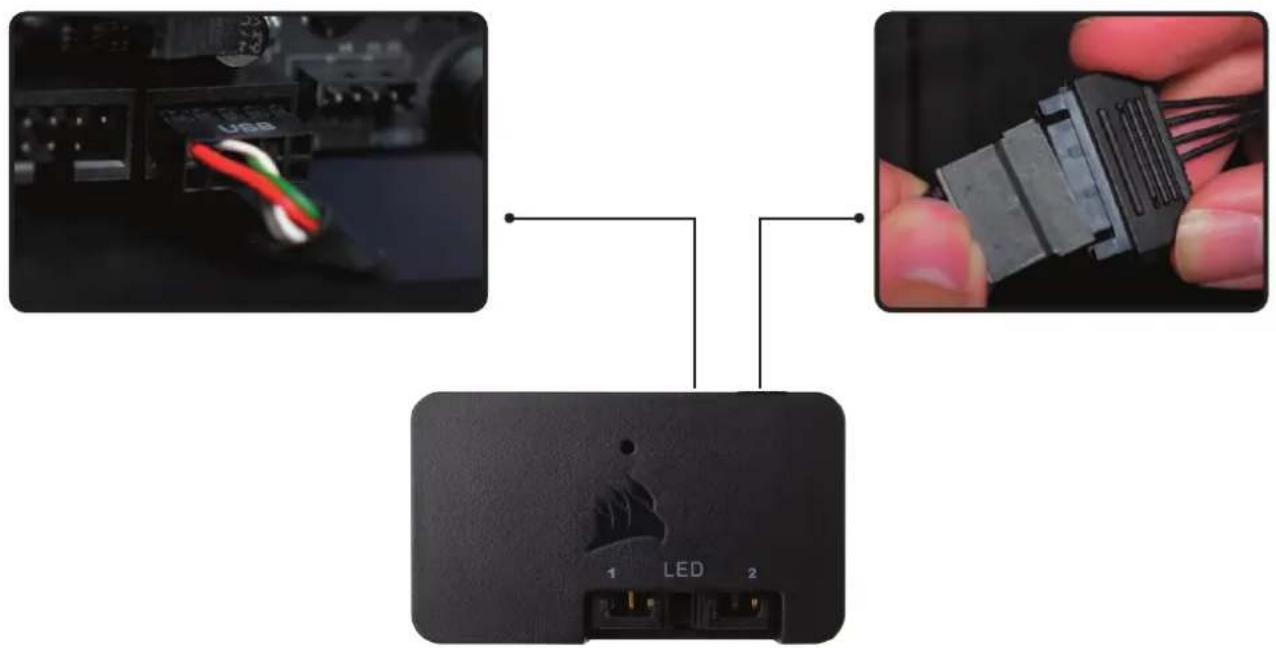
text_image
LED 1 LED 2iCUE SETUP
6. Install iCUE
Click the image to download CORSAIR's latest iCUE software.
text_image
CUE UNITE YOUR SETUP The next evolution in CORSAIR iCUE software is here, turning your entire setup into a cohesive, fully immersive ecosystem with intuitive control.7. Configure iCUE
Once iCUE is installed, select the "LC100" in the Lighting Setup page under Lighting Node PRO and define the number of triangles you have in your system.
Alternatively, use the Setup Wizard in iCUE to guide you with configuring your LC100 Case Accent Lighting Triangles.

text_image
Lighting NODE PRO Lighting Setup Lighting Channel 1 Hardware Lighting Channel 1 Device Settings Setup Lighting Channel 1 LC100 Acorn Stramples Number of Concurrent Symbols 8 Setup Lighting Channel 2 LC Device ConfrontsADDITIONAL SETUP
Please visit our CORSAIR LAB for additional iCUE setup, configuration, and tips.

LIGHTING NODE PRO COMMANDER PRO COMMANDER CORE XT
natural_image
Close-up of a black electronic device with two connected ports, one labeled 'LED' (no additional text or symbols visible)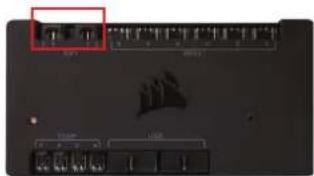
natural_image
Front view of a computer monitor with indicator lights and ports (no readable text or symbols)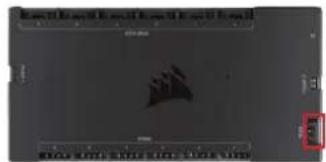
text_image
B: 1 B: 2Up to 18 LC100 triangles max. per controller
PRÉSENTATION DU LC100
text_image
A B F D C EA 1x TRIANGLE PRINCIPAL LC100
B 8x TRIANGLES COMPAGNONS LC100
8x BAGUETTES DE CONNEXION 4 MM
D 2x BAGUETTES DE CONNEXION 5,5 MM
LIGHTING NODE PRO
(INCLUS DANS LE KIT DE DÉMARRAGE LC100)
F CÂBLES (INCLUS DANS LE KIT DE DÉMARRAGE LC100)
INSTALLATION DE LC100

natural_image
Interior view of a computer monitor case with indicator lights and geometric shapes (no readable text or symbols)
text_image
A C B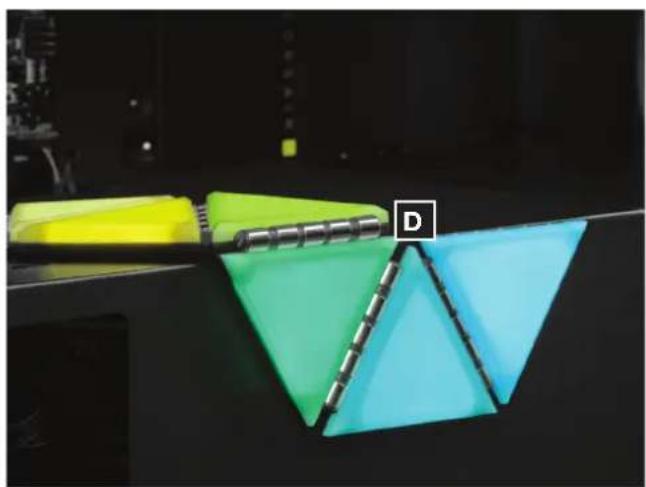
natural_image
Close-up of a 3D printer with yellow and green folders, showing a geometric design (no text or symbols visible)text_image
A A ✓ A A Xnatural_image
Interior view of a computer tower case showing internal components like CPU socket, drive bays, and memory drive (no text or symbols visible)natural_image
Close-up of a black electronic device with LED connector and two separate electrical connectors shown alongside (no text or symbols visible)5. Connexion de Lighting Node PRO
text_image
Diagram showing three connected components: USB port, LED connector, and a hand holding a USB socket.CONFIGURATION iCUE
6. Installez iCUE
text_image
CUE A CORSAIR INTERFACE UNITE YOUR SETUP The next evolution in CORSAIR iCUE software is here, turning your entire setup into a cohesive, fully immersive ecosystem with intuitive control.7. Configurez iCUE
text_image
Lighting NODE PRO Lighting Setup Lighting Channel 1 Hardware Lighting Channel 1 Device Settings Setup Lighting Channel 1 LC100 Acorn Stramples Number of Concurrent Symbols 8 Setup Lighting Channel 2 LC Device ConfrontsCONFIGURATION SUPPLÉMENTAIRE
natural_image
Close-up of a black electronic device with a metallic light fixture and two connected LEDs (no visible text or symbols)
text_image
Device panel with highlighted ports and indicator lights, showing network connections and status indicators
text_image
Scanned document snippet with Chinese text and a silhouette graphic, likely from a technical or legal report.natural_image
Interior view of a computer monitor case with illuminated drive lights and indicator lights (no readable text or symbols)
text_image
A C B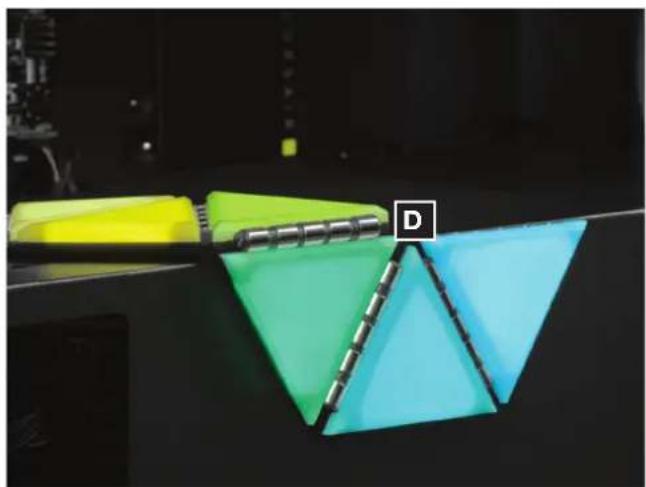
natural_image
Close-up of a 3D printer with green and cyan triangular blades, no visible text or symbolstext_image
A A A A A Xnatural_image
Interior view of a computer tower case showing internal components like CPU socket, drive bays, and memory drive (no text or symbols visible)4. LC100 verbinden
natural_image
Close-up of a black electronic device with LED ports and two separate black connectors (no text or symbols visible)text_image
Diagram showing LED connector connections with labeled ports and wiring, alongside a close-up of an electronic device interface.iCUE-EINRICHTUNG
6. iCUE installieren
text_image
CUE UNITE YOUR SETUP The next evolution in CORSAIR iCUE software is here, turning your entire setup into a cohesive, fully immersive ecosystem with intuitive control.7. iCUE konfigurieren
text_image
Lighting NODE PRO Lighting Setup Lighting Channel 1 Hardware Lighting Channel 1 Device Settings Setup Lighting Channel 1 LC180 Audio Triangles Number of Computer Triangles 8 Setup Lighting Channel 2 by Device CommandWEITERE EINRICHTUNG
natural_image
Close-up of a black electronic device with two connected ports labeled 'LED' and a red box highlighting one (no additional text or symbols visible)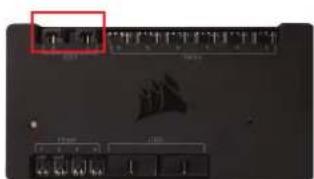
text_image
Device panel with labeled ports and a highlighted section, showing internal structure and status indicators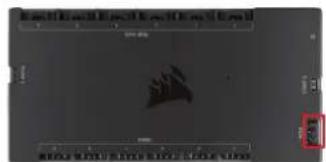
text_image
Scanned interface screenshot showing a dark gray screen with a black silhouette and Chinese text, likely from a software or presentation.natural_image
Interior view of a computer monitor with illuminated drive lights and indicator lights (no readable text or symbols)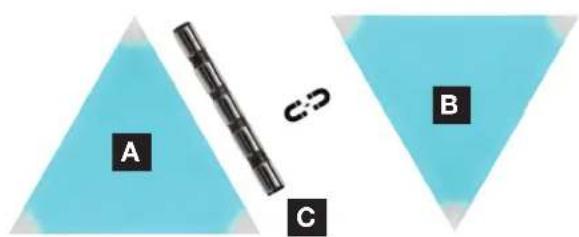
text_image
A C B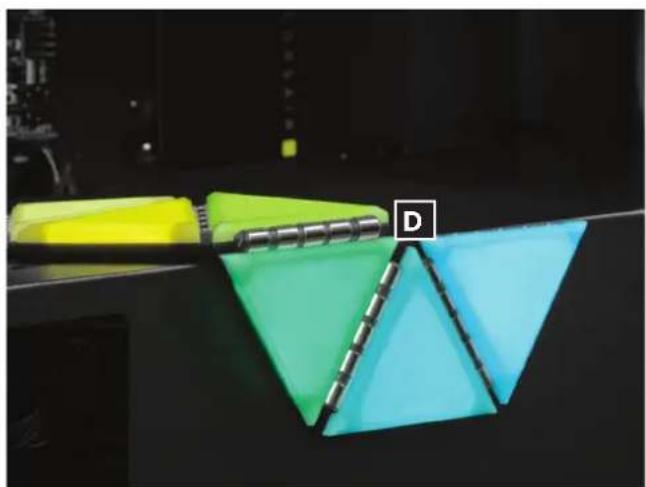
natural_image
Close-up of a green and cyan 3D geometric object with a yellow binder clip, displayed on a dark surface (no text or symbols visible)text_image
A A ✓ A A X3. Lighting Node PRO bevestigen (alleen startset)
natural_image
Interior view of a computer tower case showing internal components like CPU socket, drive bays, and memory drive (no text or symbols visible)4. LC100 verbinden
Verbindt de 3-pins RGB-connector van de [A] masterdriehoek met de [E] Lighting Node PRO.
natural_image
Close-up of a black electronic device with LED ports and two separate black connectors (no text or symbols visible)text_image
Diagram showing LED port connections to a device with labeled ports and connectors, including a close-up of an electronic component.iCUE-SETUP
6. iCUE installeren
text_image
CUE A CORSAIR INTERFACE UNITE YOUR SETUP The next evolution in CORSAIR iCUE software is here, turning your entire setup into a cohesive, fully immersive ecosystem with intuitive control.7. iCUE configureren
text_image
Lighting NODE PRO Lighting Setup Lighting Channel 1 Hardware Lighting Channel 1 Device Settings Setup Lighting Channel 1 LC100 Acorn Stramples Number of Concurrent Symbols 8 Setup Lighting Channel 2 LC Device ConfrontsAANVULLENDE INSTELLINGEN
natural_image
Close-up of a black electronic device with two connected ports, one labeled 'LED' (no additional text or symbols visible)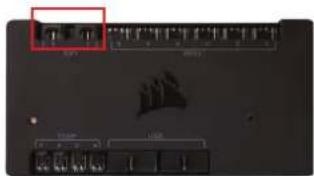
natural_image
Front view of a computer monitor with indicator lights and ports (no readable text or symbols)
text_image
B: 1 B: 2Maximaal 18 LC100-driehoeken per controller
ITALIANO
natural_image
Interior view of a computer monitor case with indicator lights and triangular warning symbols (no readable text or labels)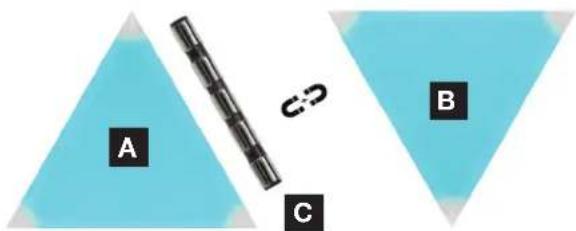
text_image
A C B
natural_image
3D geometric shapes in yellow, green, and blue with a labeled point 'D' on a black surface (no text or symbols beyond the label)text_image
A A ✓ A A X3. Montaggio di Lighting Node PRO (solo Starter Kit)
natural_image
Interior view of a computer tower case showing internal components like CPU socket, drive bays, and memory unit (no text or symbols visible)natural_image
Close-up of a black electronic device with LED indicator lights and two connected electrical connectors (no visible text or symbols)text_image
Diagram showing LED port connections to a device with labeled ports and connectors, including a close-up of an electronic component.text_image
CUE UNITE YOUR SETUP The next evolution in CORSAIR iCUE software is here, turning your entire setup into a cohesive, fully immersive ecosystem with intuitive control.text_image
LIGHTING NODE PRO Lighting Setup Lighting Channel 1 Hardware Lighting Channel 1 Device Settings Setup Lighting Channel 1 LCT100 Accr. Triangles Runtime of Computer Surveys 8 Setup Lighting Channel 2 No Setup Connectednatural_image
Close-up of a black electronic device with a logo and two connected ports labeled 'LED' (no additional text or symbols visible)
text_image
Device panel with indicator lights and labeled ports, showing a red annotation box highlighting a specific component.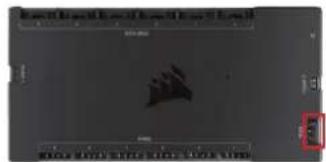
text_image
Reported General History of the World's Science OK NOVOLATE HISTORY OF THE WORLD'S SCIENCEnatural_image
Interior view of a computer monitor case with indicator lights and geometric shapes (no readable text or symbols)
text_image
A C B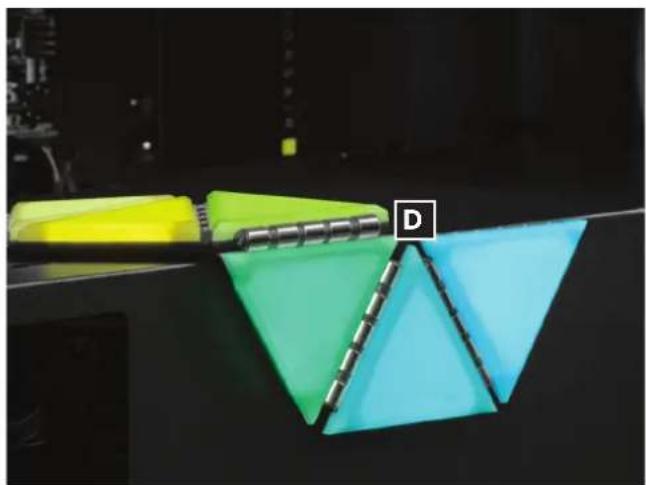
natural_image
3D printer setup with yellow and green folders and a blue triangular pyramid, labeled 'D' (no text or symbols on main objects)text_image
A A ✓ A A Xnatural_image
Interior view of a computer tower case showing internal components like CPU socket, drive bays, and E indicator (no text or symbols beyond labels)4. Conecte el LC100
Conecte el conector RGB de 3 pines del triángulo principal [A] al [E] Lighting Node PRO.
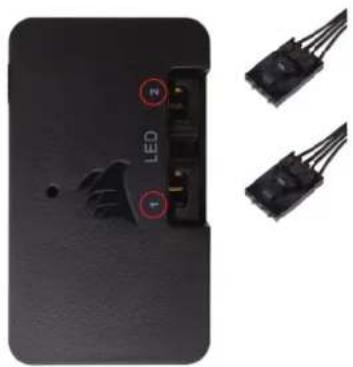
natural_image
Close-up of a black electronic device with LED control panel and two separate electrical connectors (no text or symbols visible)5. Conecte el Lighting Node PRO
text_image
Diagram showing LED connector connections with labeled ports and wiring, including a close-up of an electronic device.text_image
CUE A CORSAIR PROCESSED UNITE YOUR SETUP The next evolution in CORSAIR ICUE software is here, turning your entire setup into a cohesive, fully immersive ecosystem with intuitive control.7. Configure iCUE
text_image
Lighting NODE PRO Lighting Setup Lighting Channel 1 Hardware Lighting Channel 1 Device Settings Setup Lighting Channel 1 LC100 Acorn Stramples Number of Concurrent Symbols 8 Setup Lighting Channel 2 LC Device Concurrentnatural_image
Close-up of a black electronic device with two connected ports, one labeled 'LED' (no additional text or symbols visible)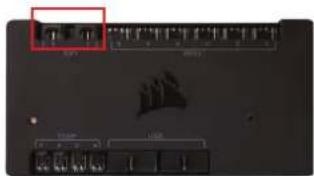
natural_image
Front view of a computer monitor with indicator lights and ports (no readable text or symbols)
text_image
B: 1 B: 2natural_image
Interior view of a computer monitor case with indicator lights and triangular markers (no readable text or symbols)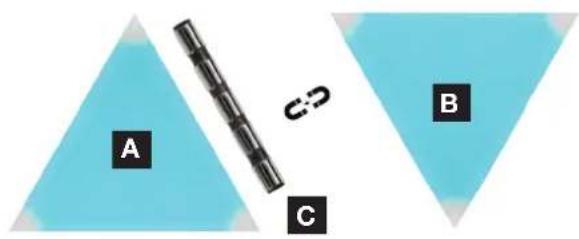
text_image
A C B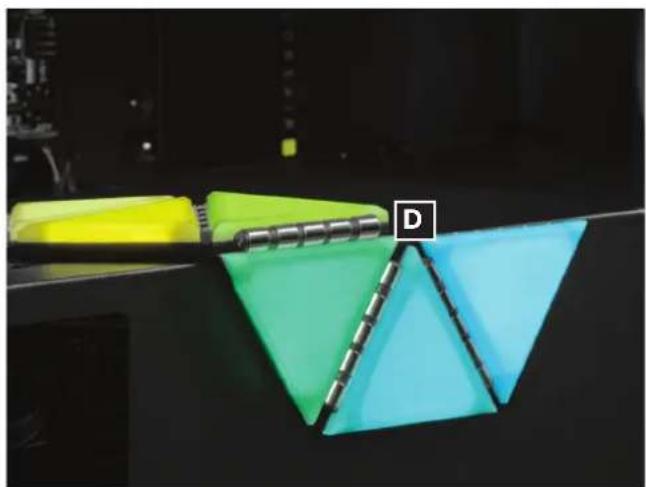
natural_image
Close-up of a 3D printer with green and blue triangular blades, no visible text or symbolstext_image
A A A A A X3. Instalar o Lighting Node PRO (apenas kit básico)
natural_image
Interior view of a computer tower case showing internal components like CPU socket, drive bays, and memory drive (no text or symbols visible)4. Ligar o LC100
Ligue o conector RGB de 3 pinos do triângulo principal [A] ao Lighting Node PRO [E].
natural_image
Close-up of a black electronic device with LED control panel and two separate electrical connectors (no text or symbols visible)5. Ligar o Lighting Node PRO
text_image
Diagram showing LED port connection with labeled ports and connectors, including a close-up of an electronic device with visible wiring.text_image
CUE A CORSAIR INTERFACE UNITE YOUR SETUP The next evolution in CORSAIR iCUE software is here, turning your entire setup into a cohesive, fully immersive ecosystem with intuitive control.7. Configurar o iCUE
text_image
Lighting NODE PRO Lighting Setup Lighting Channel 1 Hardware Lighting Channel 1 Device Settings Setup Lighting Channel 1 LC100 Acorn Stramples Number of Concurrent Symbols 8 Setup Lighting Channel 2 LC Device Concurrentnatural_image
Close-up of a black electronic device with two connected ports, one labeled 'LED' (no additional text or symbols visible)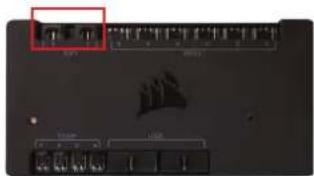
natural_image
Front view of a computer monitor with indicator lights and ports (no readable text or symbols)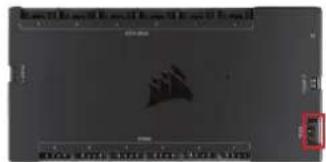
text_image
B: 1 B: 2natural_image
Interior view of a computer monitor case with illuminated drive lights and two triangular display screens (no visible text or symbols)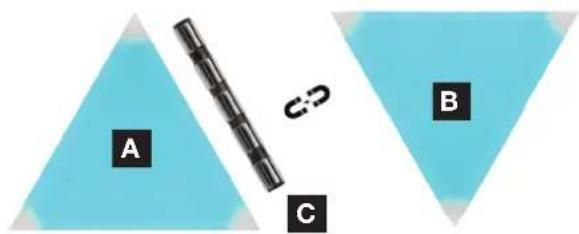
text_image
A C B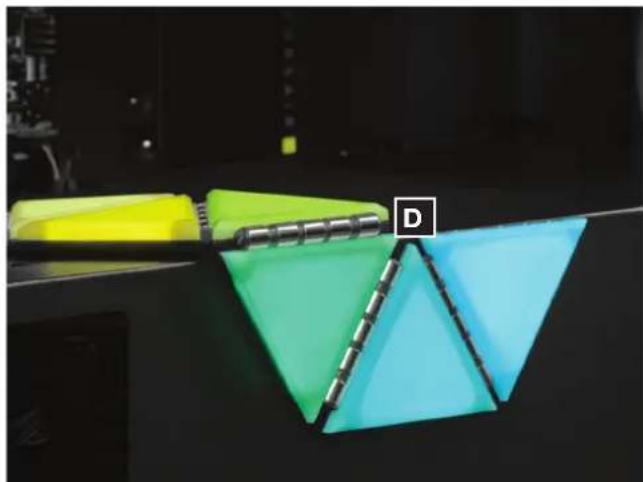
natural_image
Close-up of a yellow and green 3D geometric object with a black handle, labeled 'D' in the center (no readable text or symbols on the objects themselves)text_image
A A A A A Xnatural_image
Interior view of a computer tower case showing internal components like CPU socket, drive bays, and expansion slots (no text or symbols visible)4. Podłącz LC100
natural_image
Close-up of a black electronic device with LED ports and two connected electrical connectors (no visible text or symbols)text_image
Diagram showing LED port connections to a device with labeled ports and connectors, including a close-up of an electronic component.KONFIGURACJA iCUE
6. Zainstaluj iCUE
text_image
CUE UNITE YOUR SETUP The next evolution in CORSAIR iCUE software is here, turning your entire setup into a cohesive, fully immersive ecosystem with intuitive control.7. Skonfiguruj iCUE
text_image
LIGHTING NODE PRO Lighting Setup Lighting Channel 1 Hardware Lighting Channel 1 Device Settings Setup Lighting Channel 1 LCT100 Accr. Triangles Runtime of Computer Surveys 8 Setup Lighting Channel 2 No Setup ConnectedDODATKOWA KONFIGURACJA
natural_image
Close-up of a black electronic device with a logo and two connected ports labeled 'LED' (no additional text or symbols visible)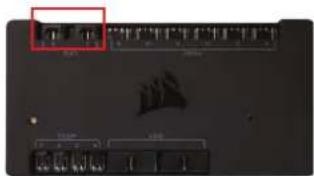
text_image
Device panel with indicator lights and labeled ports, showing a red annotation box highlighting a specific component.
text_image
Reported General History of the World's Science OK NOVOLATE HISTORY OF THE WORLD'S SCIENCEnatural_image
Interior view of a computer monitor with illuminated drive bays and indicator lights (no readable text or symbols)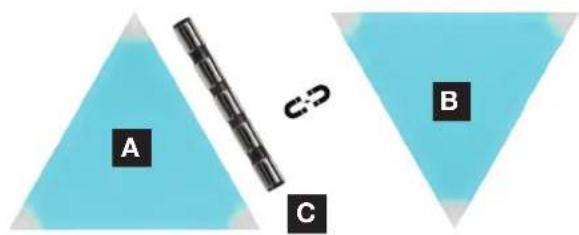
text_image
A C B
natural_image
Close-up of a green and cyan 3D geometric object with a yellow notebook, displayed on a dark surface (no text or symbols visible)text_image
A A A A A Xnatural_image
Interior view of a computer tower case showing internal components like CPU socket, drive bays, and ventilation ducts (no text or symbols visible)natural_image
Close-up of a black electronic device with two connected wires and labeled ports (no readable text or symbols)text_image
USB 1 LED 2НАСТРОЙКА iCUE
6. Установка iCUE
text_image
CUE A CORSAIR PROCESSED UNITE YOUR SETUP The next evolution in CORSAIR ICUE software is here, turning your entire setup into a cohesive, fully immersive ecosystem with intuitive control.7. Настройка iCUE
text_image
Home Dashboard Default LIGHTING NODE PRO Lighting Setup Lighting Channel 1 Hardware Lighting Channel 1 Device Settings Setup Lighting Channel 1 UC100 Assess Stramples Number of Comparison Stramples 8 Setup Lighting Channel 2 No. Number Of Optionsnatural_image
Close-up of a black electronic device with a star-shaped logo and two connected ports labeled 'LED' (no additional text or symbols visible)
text_image
Device panel with indicator lights and a highlighted red button, showing status indicators and control buttons
text_image
Scanned document with a black silhouette of a ship and a red box highlighting a location, likely from an older computer interface.natural_image
Interior view of a computer monitor case with two triangular indicators (red and green) and a red X mark, no visible text or symbols.natural_image
Close-up of a 3D printer with yellow and green blades, showing a blue triangular cover and a black tray (no text or symbols visible)text_image
A A A A A X3. 安装 Lighting Node PRO (仅限入门套装)
natural_image
Interior view of a computer tower case showing internal components like CPU socket, drive bays, and memory unit (no text or symbols visible)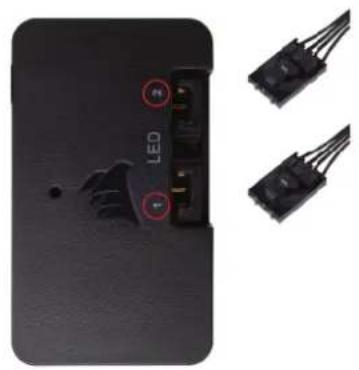
natural_image
Close-up of a black electronic device with LED control buttons and two separate black connectors (no text or symbols visible)text_image
LED 1 LED 2iCUE 设置
6. 安装 iCUE
text_image
CUE A CORSAIR INTERFACE UNITE YOUR SETUP The next evolution in CORSAIR iCUE software is here, turning your entire setup into a cohesive, fully immersive ecosystem with intuitive control.7. 配置 iCUE
text_image
Lighting NODE PRO Lighting Setup Lighting Channel 1 Hardware Lighting Channel 1 Device Settings Setup Lighting Channel 1 LC100 Acorn Stramples Number of Concurrent Symbols 8 Setup Lighting Channel 2 LC Device Confronts其他设置
natural_image
Close-up of a black electronic device with two connected ports, one labeled 'LED' (no additional text or symbols visible)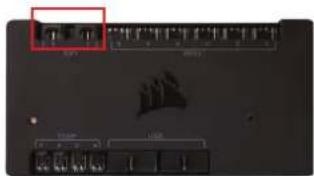
natural_image
Front view of a computer monitor with indicator lights and ports (no readable text or symbols)
text_image
B: 1 B: 2natural_image
Interior view of a computer monitor case with indicator lights and triangular markers (no readable text or symbols)natural_image
Close-up of a 3D printer with green and cyan triangular blades, no visible text or symbolstext_image
A A A A A A XLC100 .4
natural_image
Close-up of a black electronic device with LED ports and two separate black connectors (no text or symbols visible)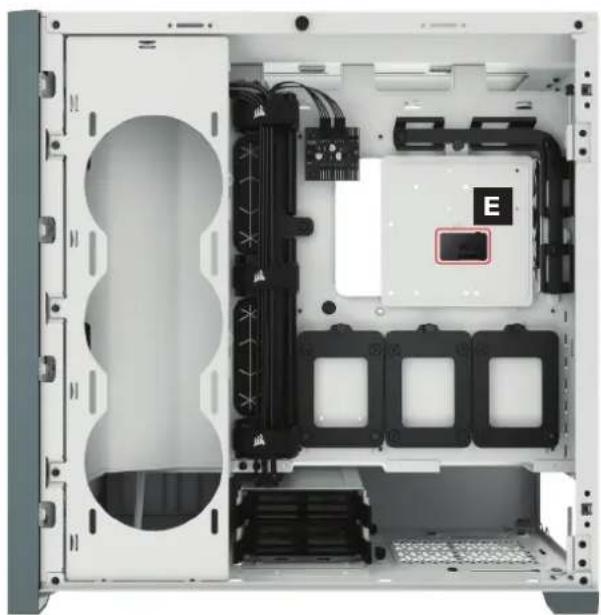
natural_image
Interior view of a computer tower case showing internal components like CPU socket, drive bays, and E indicator (no text or symbols beyond label)2.0 USB [ه] Lighting Node PRO [إلى رأس] Lighting Node PRO
صل كابل USB
text_image
LED 1 LED 2iCUE إعداد
iCUE .6
text_image
CUE UNITE YOUR SETUP The next evolution in CORSAIR iCUE software is here, turning your entire setup into a cohesive, fully immersive ecosystem with intuitive control.text_image
Lighting NODE PRO Lighting Setup Lighting Channel 1 Hardware Lighting Channel 1 Device Settings Setup Lighting Channel 1 LC100 Acorn Stramples Number of Concurrent Symbols 8 Setup Lighting Channel 2 LC Device Concurrentالإعداد الإضافي

natural_image
Close-up of a black electronic device with a labeled LED and two ports, no visible text or symbols beyond the label.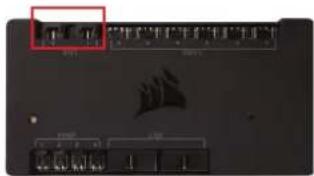
natural_image
Front view of a computer interface with ports and a highlighted port (no readable text or symbols)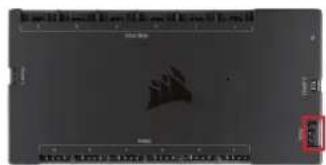
text_image
Scanned document with a grayscale image of a ship silhouette and partial text blocks, likely from a technical or legal document.EN SV CORSAIR MEMORY, Inc. declares that this equipment is in compliance with Directive 2014/30/EU and Directive
2011/65/EU. A copy of the original declaration of conformity can be obtained at “corsair.com/documentation”.
Operating temperature: 0°C \~ +40°C
The Authorized Representative In Europe
CORSAIR MEMORY, BV | Wormerweg 8, 1311 XB,
Almere, Netherlands
CORSAIR MEMORY, BV | Wormerweg 8, 1311 XB,
Almere, Netherlands
CORSAIR MEMORY, BV | Wormerweg 8, 1311 XB,
Almere, Netherlands
corsair.com/documentation.
CORSAIR MEMORY, BV | Wormerweg 8, 1311 XB,
Almere, Netherlands
via corsair.com/documentation.
CORSAIR MEMORY, BV | Wormerweg 8, 1311 XB,
Almere, Netherlands
CORSAIR MEMORY, BV | Wormerweg 8, 1311 XB,
Almere, Netherlands
CORSAIR MEMORY, BV | Wormerweg 8, 1311 XB,
Almere, Netherlands
CORSAIR MEMORY, BV | Wormerweg 8, 1311 XB,
Almere, Netherlands
CORSAIR MEMORY, BV | Wormerweg 8, 1311 XB,
Almere, Netherlands
CORSAIR MEMORY, BV | Wormerweg 8, 1311 XB,
Almere, Netherlands
CORSAIR MEMORY, BV | Wormerweg 8, 1311 XB,
Almere, Netherlands
EN
NOTE ON ENVIRONMENTAL PROTECTION
After the implementation of the European Directive 2012/19/EU in the national legal system, the following applies:
Electrical and electronic devices may not be disposed of with domestic waste.
Consumers are obliged by law to return electrical and electronic devices at the end of their service lives to the public collecting points set up for this purpose or point of sale. Details to this are defined by the national law of the respective country. This symbol on the product, the instruction manual or the package indicates that a product is subject to these regulations. By recycling, reusing the materials or other forms of utilising old devices, you are making an important contribution to protecting our environment.
FR
REMARQUES CONCERNANT LA PROTECTION DE L'ENVIRONNEMENT
Federal Communication Commission Interference Statement
This equipment has been tested and found to comply with the limits for a Class B digital device, pursuant to part 15 of the FCC Rules. These limits are designed to provide reasonable protection against harmful interference in a residential installation. This equipment generates, uses and can radiate radio frequency energy and, if not installed and used in accordance with the instructions, may cause harmful interference to radio communications. However, there is no guarantee that interference will not occur in a particular installation. If this equipment does cause harmful interference to radio or television reception, which can be determined by turning the equipment off and on, the user is encouraged to try to correct the interference by one or more of the following measures:
– Reorient or relocate the receiving antenna.
– Increase the separation between the equipment and receiver.
- Connect the equipment into an outlet on a circuit different from that to which the receiver is connected.
- Consult the dealer or an experienced radio/TV technician for help.
This device complies with part 15 of the FCC Rules. Operation is subject to the following two conditions:
(1) This device may not cause harmful interference, and
(2) this device must accept any interference received, including interference that may cause undesired operation.
FCC Caution: Any changes or modifications not expressly approved by the party responsible for compliance could void the user's authority to operate this equipment.
IC Statement:
Applicant Name (상호명): CORSAIR MEMORY, Inc.
Product Name (제품명칭): RGB LED Strip / Lighting Node PRO controller
Model No.(모델명): RWF0072/ RWF0019
Manufactured Year & Month (제조연월): Please refer to S/N
CORSAIR MEMORY, Inc. / Please refer to retail packages
EAC
| 部件名称 | 有害物质 | |||||
| 铅(Pb) | 汞(Hg) | 镉(Cd) | 六价铬(Cr+6) | 多溴联苯(PBB) | 多溴二苯醚(PBDE) | |
| 金屬件 0 0 0 0 0 | O | |||||
| 塑膠件 0 0 0 0 0 0 | ||||||
| 電線 0 0 0 0 0 0 | ||||||
| 集成电路组件 X 0 0 0 0 0 | ||||||
| 其它 0 0 0 0 0 0 | ||||||