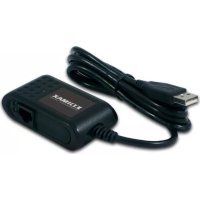
EU4206 - Interface Edimax - Free user manual and instructions
Find the device manual for free EU4206 Edimax in PDF.



User questions about EU4206 Edimax
0 question about this device. Answer the ones you know or ask your own.
Ask a new question about this device
Download the instructions for your Interface in PDF format for free! Find your manual EU4206 - Edimax and take your electronic device back in hand. On this page are published all the documents necessary for the use of your device. EU4206 by Edimax.
USER MANUAL EU4206 Edimax
USB2.0 to 10/100Mbps Fast Ethernet Adapter
EU-4206
Quick Installation Guide
Version 1.1 / September, 2008

natural_image
Black EQIMAX handheld device with coiled cable, no visible text or symbols on bodyMulti-Language QIG in Driver CD

EDIMAX NETWORKING PEOPLE TOGETHER
Copyright© by Edimax Technology Co, LTD. all rights reserved. No part of this publication may be reproduced, transmitted, transcribed, stored in a retrieval system, or translated into any language or computer language, in any form or by any means, electronic, mechanical, magnetic, optical, chemical, manual or otherwise, without the prior written permission of this company.
This company makes no representations or warranties, either expressed or implied, with respect to the contents hereof and specifically disclaims any warranties, merchantability or fitness for any particular purpose. Any software described in this manual is sold or licensed "as is". Should the programs prove defective following their purchase, the buyer (and not this company, its distributor, or its dealer) assumes the entire cost of all necessary servicing, repair, and any incidental or consequential damages resulting from any defect in the software. Further, this company reserves the right to revise this publication and to make changes from time to time in the contents hereof without obligation to notify any person of such revision or changes.
The product you have purchased and the setup screen may appear slightly different from those shown in this QIG. For more detailed information about this product, please refer to the User's Manual on the CD-ROM. The software and specifications are subject to change without notice. Please visit our web site www.edimax.com for the update. All right reserved including all brand and product names mentioned in this manual are trademarks and/or registered trademarks of their respective holders.
Contents
English 4
Český 8
Deutsch.... 12
Español 16
Français 20
Italiano.... 24
Magyar 28
Nederlands 32
Polski 36
Português 40
Русский 44
Türkçe 49
English
Introduction
Thank you for purchasing the USB2.0 10/100Mbps to Fast Ethernet Adapter. This unique cable adapter allows you to connect your computer into Internet in the fast and easy way.
Specifications
Standards
• IEEE 802.3 10Base-T and 802.3u 100Base-TX Compliant
• USB specification 1.0 /1.1 and 2.0 compliant
Connection Mode
• Full or Half duplex for both 10Mbps and 100Mbps
Media Supported
• Category-3, 4, 5 for 10Base-T and Category 5 for 100Base-TX
LEDs
• Link/Active LED indicator
Feature
• USB specification revision 1.0/1.1 and 2.0 full speed compliant
• Complies with IEEE 802.3 10Based-T and 802.3u 100Base-TX
• USB interface to desktop/notebook PC without power adapter
• RJ-45 connector to 10Mbps or 100Mbps Ethernet networks 10/100Mbps Auto-Sense
• Full/Half Duplex auto-negotiation for both 10Base-T and 100Base-TX
• Compatible with Windows 98SE / ME / 2000 / XP
Device Installation Guide
Follow the steps below on installing the USB2.0 10/100 Fast Ethernet adapter cable:
Step1.
Please connect the male B-connector of 1.5M USB2.0 cable to the female USB B-connector of USB2.0 Fast Ethernet Adapter and RJ-45 connector of networking cable to another end of USB2.0 Fast Ethernet Adapter.
Step2.
Connect the male A-connector of 1.5M USB2.0 cable to an available USB2.0 port on the computer or an available USB2.0 port on the USB2.0 HUB plugged into the computer.
Driver installation for Windows 98SE / Me
Step1. Power on the computer. "New Hard Ware Found" window comes up to request you to insert the driver diskette, and click "OK".
Step2. Select "Search the proper files of driver", and click "Next".
Step3. Insert the driver disc into the computer. Select "CD-ROM Devices" or "specify a Location" link D:\Driver\EU-4206, and click "Next".
Step4. The driver will be found, and click "Next" to proceed.
Step5. The system will ask windows 98SE original disk.
Step6. Please insert the disk, and the system will install driver automatically.
Step7. Click "Finished" completing installation.
Step8. Windows 98SE / Me will find the driver and automatically configure the USB Fast Ethernet Adapter.
Step9. Reboot the computer and remove the driver disc. The driver will take effect.
Step10. Check if the device is complete install in your computer" My Computer → (right key on the mouse) content → Hardware → Device Manager.

text_image
System Properties General Device Manager Hardware Profiles Performance View devices by type View devices by connection Computer CDROM Disk drives Display adapters Floppy disk controllers Hard disk controllers Keyboard Monitors Mouse Network adapters MosChip 7730 FullSpeed USB-Ethernet Adapter Ports (COM & LPT) System devices Universal Serial Bus controllers Properties Refresh Remove Print... Close CancelDriver installation for Windows 2000
Step1. Power on the computer. When the "New Hardware Found Wizard" window comes up, click "Next" to install the driver.
Step2. Select "Search the proper files of driver", and click "Next".
Step3. Insert the driver disc into the computer. Select "CD-ROM Devices" or "specify a Location" link D:\Driver/EU-4206, and click "Next".
Step4. The driver will be found, and click "Next" to proceed.
Step5. Click "Finished" to complete installation.
Step6. Windows 2000 will automatically configure the USB Fast Ethernet Adapter.
Step7. Reboot the computer and remove the driver disc. The driver will take effect.
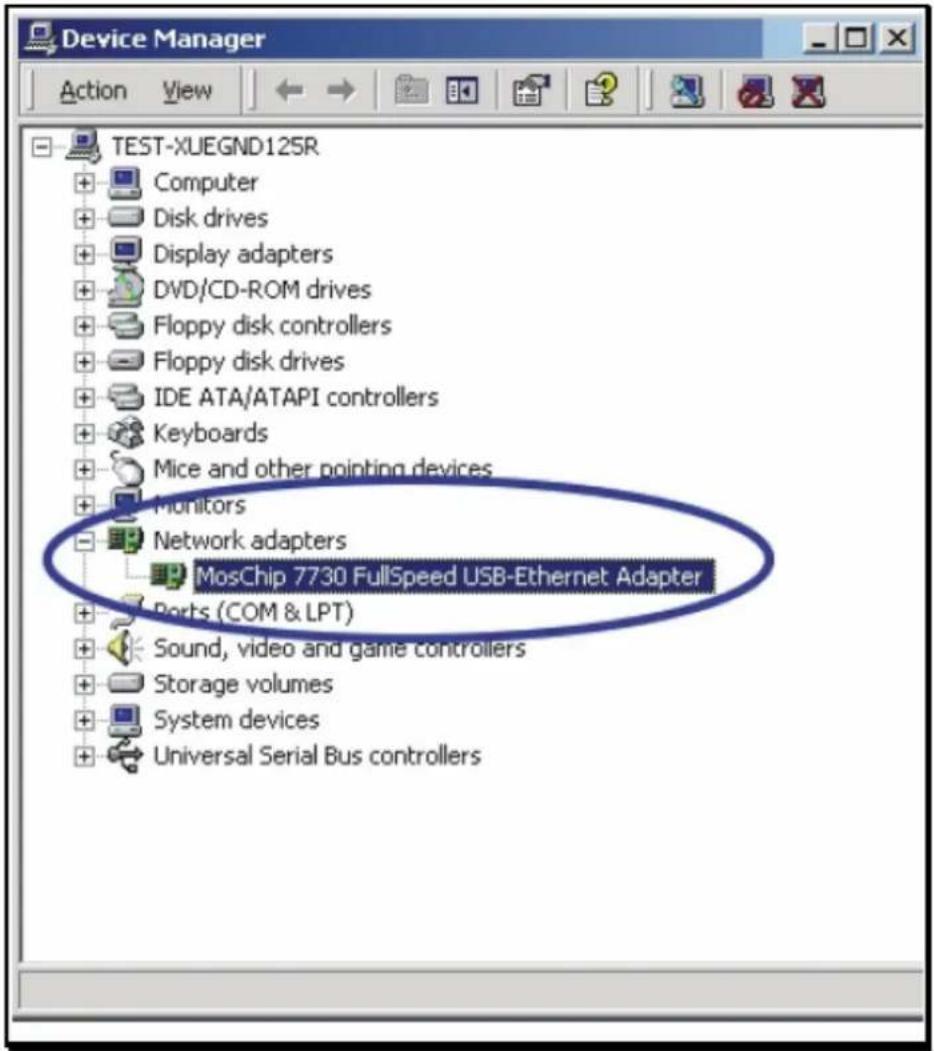
Step8. Check if the device is complete install in your computer “ My Computer → (right key on the mouse) content → Hardware → Device Manager.
text_image
Device Manager TEST-XUEGND12SR Computer Disk drives Display adapters DVD/CD-ROM drives Floppy disk controllers Floppy disk drives IDE ATA/ATAPI controllers Keyboards Mice and other pointing devices Monitors Network adapters MosChip 7730 FullSpeed USB-Ethernet Adapter Ports (COM & LPT) Sound, video and game controllers Storage volumes System devices Universal Serial Bus controllersDriver Installation for Windows XP
Step1. Power on the computer. When the "New Hardware Found Wizard" windows comes up, select "install from a list or a specific location (Advanced)", and click "Next".
Step2. Insert the driver disc into the computer. Select "CD-ROM Devices" or "specify a Location" link D:\Driver/EU-4206, and click "Next".
Step3. Windows XP will find the driver and request to continue installing and copying needed files".
Step4. Click "Finished" to complete the installation.
Step5. A dialogue box will appear above the taskbar showing "New network device installed".
Step6. Reboot the computer and remove the driver disc. The driver will take effect.
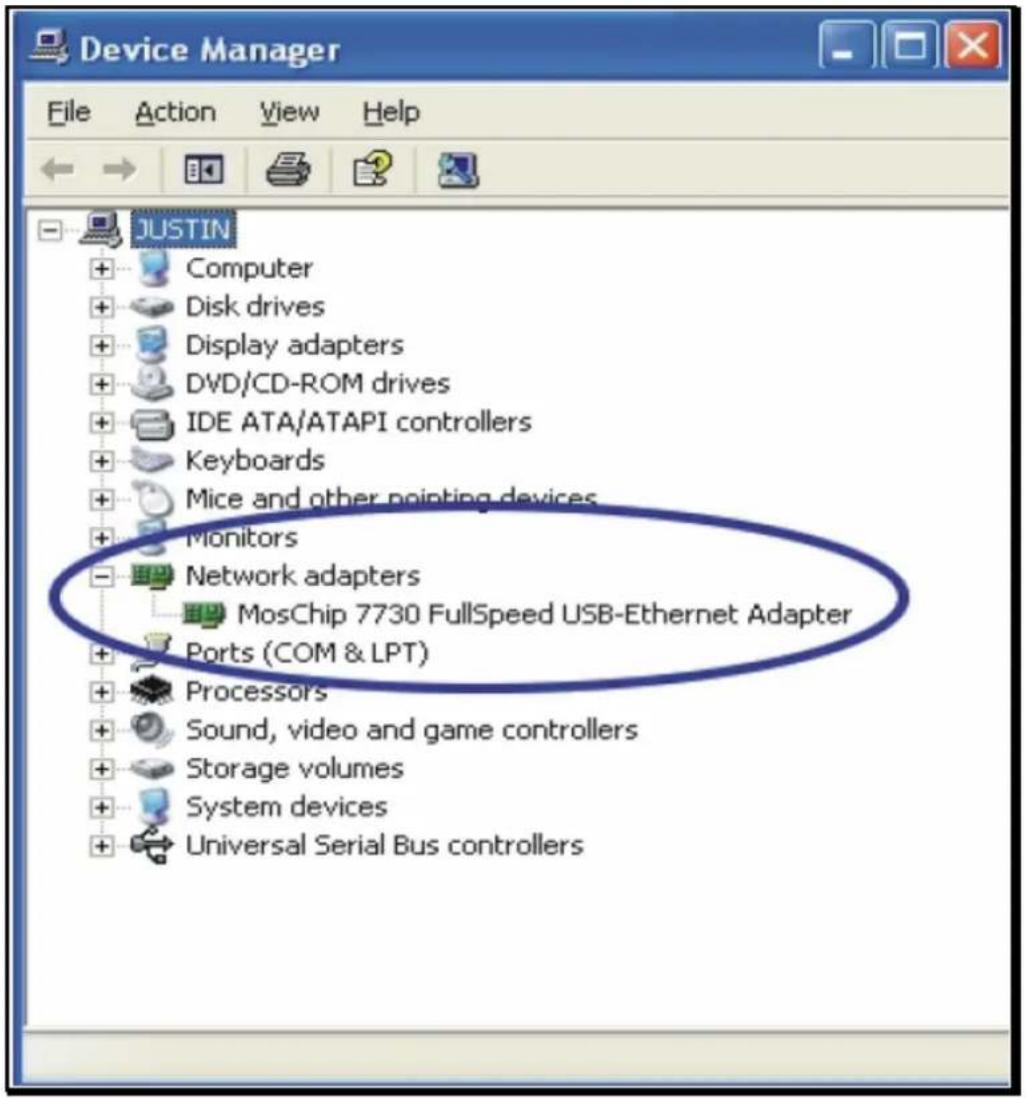
Step7. Check if the device is complete install in your computer" Star → My Computer → (right key on the mouse) content → Hardware → Device Manager
text_image
Device Manager File Action View Help JUSTIN Computer Disk drives Display adapters DVD/CD-ROM drives IDE ATA/ATAPI controllers Keyboards Mice and other pointing devices Monitors Network adapters MosChip 7730 FullSpeed USB-Ethernet Adapter Ports (COM & LPT) Processors Sound, video and game controllers Storage volumes System devices Universal Serial Bus controllersČeský
Úvod
text_image
System Properties General Device Manager Hardware Profiles Performance View devices by type View devices by connection Computer CDROM Disk drives Display adapters Floppy disk controllers Hard disk controllers Keyboard Monitors Mouse Network adapters MosChip 7730 FullSpeed USB-Ethernet Adapter Ports (COM & LPT) System devices Universal Serial Bus controllers Properties Refresh Remove Print... Close CancelInstalace ovladače v systému Windows 2000
text_image
Device Manager TEST-XUEGND125R Computer Disk drives Display adapters DVD/CD-ROM drives Floppy disk controllers Floppy disk drives IDE ATA/ATAPI controllers Keyboards Mice and other pointing devices Monitors Network adapters MosChip 7730 FullSpeed USB-Ethernet Adapter Ports (COM & LPT) Sound, video and game controllers Storage volumes System devices Universal Serial Bus controllersInstalace ovladače v systému Windows XP
text_image
Device Manager File Action View Help JUSTIN Computer Disk drives Display adapters DVD/CD-ROM drives IDE ATA/ATAPI controllers Keyboards Mice and other pointing devices Monitors Network adapters MosChip 7730 FullSpeed USB-Ethernet Adapter Ports (COM & LPT) Processors Sound, video and game controllers Storage volumes System devices Universal Serial Bus controllersDeutsch
Einleitung
text_image
System Properties General Device Manager Hardware Profiles Performance View devices by type View devices by connection Computer CDROM Disk drives Display adapters Floppy disk controllers Hard disk controllers Keyboard Monitors Mouse Network adapters MosChip 7730 FullSpeed USB-Ethernet Adapter Ports (COM & LPT) System devices Universal Serial Bus controllers Properties Refresh Remove Print... Close Canceltext_image
Device Manager TEST-XUEGND125R Computer Disk drives Display adapters DVD/CD-ROM drives Floppy disk controllers Floppy disk drives IDE ATA/ATAPI controllers Keyboards Mice and other pointing devices Monitors Network adapters MosChip 7730 FullSpeed USB-Ethernet Adapter Ports (COM & LPT) Sound, video and game controllers Storage volumes System devices Universal Serial Bus controllerstext_image
Device Manager File Action View Help JUSTIN Computer Disk drives Display adapters DVD/CD-ROM drives IDE ATA/ATAPI controllers Keyboards Mice and other pointing devices Monitors Network adapters MosChip 7730 FullSpeed USB-Ethernet Adapter Ports (COM & LPT) Processors Sound, video and game controllers Storage volumes System devices Universal Serial Bus controllersEspañol
Introducción
text_image
System Properties General Device Manager Hardware Profiles Performance View devices by type View devices by connection Computer CDROM Disk drives Display adapters Floppy disk controllers Hard disk controllers Keyboard Monitors Mouse Network adapters MosChip 7730 FullSpeed USB-Ethernet Adapter Ports (COM & LPT) System devices Universal Serial Bus controllers Properties Refresh Remove Print... Close Canceltext_image
Device Manager TEST-XUEGND125R Computer Disk drives Display adapters DVD/CD-ROM drives Floppy disk controllers Floppy disk drives IDE ATA/ATAPI controllers Keyboards Mice and other pointing devices Monitors Network adapters MosChip 7730 FullSpeed USB-Ethernet Adapter Ports (COM & LPT) Sound, video and game controllers Storage volumes System devices Universal Serial Bus controllerstext_image
Device Manager File Action View Help JUSTIN Computer Disk drives Display adapters DVD/CD-ROM drives IDE ATA/ATAPI controllers Keyboards Mice and other pointing devices Monitors Network adapters MosChip 7730 FullSpeed USB-Ethernet Adapter Ports (COM & LPT) Processors Sound, video and game controllers Storage volumes System devices Universal Serial Bus controllersFrançais
Introduction
text_image
System Properties General Device Manager Hardware Profiles Performance View devices by type View devices by connection Computer CDROM Disk drives Display adapters Floppy disk controllers Hard disk controllers Keyboard Monitors Mouse Network adapters MosChip 7730 FullSpeed USB-Ethernet Adapter Ports (COM & LPT) System devices Universal Serial Bus controllers Properties Refresh Remove Print... Close Canceltext_image
Device Manager TEST-XUEGND125R Computer Disk drives Display adapters DVD/CD-ROM drives Floppy disk controllers Floppy disk drives IDE ATA/ATAPI controllers Keyboards Mice and other pointing devices Monitors Network adapters MosChip 7730 FullSpeed USB-Ethernet Adapter Ports (COM & LPT) Sound, video and game controllers Storage volumes System devices Universal Serial Bus controllerstext_image
Device Manager File Action View Help JUSTIN + Computer + Disk drives + Display adapters + DVD/CD-ROM drives + IDE ATA/ATAPI controllers + Keyboards + Mice and other pointing devices + Monitors - Network adapters MosChip 7730 FullSpeed USB-Ethernet Adapter + Ports (COM & LPT) + Processors + Sound, video and game controllers + Storage volumes + System devices + Universal Serial Bus controllersItaliano
Introduzione
text_image
System Properties General Device Manager Hardware Profiles Performance View devices by type View devices by connection Computer CDROM Disk drives Display adapters Floppy disk controllers Hard disk controllers Keyboard Monitors Mouse Network adapters MosChip 7730 FullSpeed USB-Ethernet Adapter Ports (COM & LPT) System devices Universal Serial Bus controllers Properties Refresh Remove Print... Close Canceltext_image
Device Manager TEST-XUEGND125R Computer Disk drives Display adapters DVD/CD-ROM drives Floppy disk controllers Floppy disk drives IDE ATA/ATAPI controllers Keyboards Mice and other pointing devices Monitors Network adapters MosChip 7730 FullSpeed USB-Ethernet Adapter Ports (COM & LPT) Sound, video and game controllers Storage volumes System devices Universal Serial Bus controllerstext_image
Device Manager File Action View Help JUSTIN Computer Disk drives Display adapters DVD/CD-ROM drives IDE ATA/ATAPI controllers Keyboards Mice and other pointing devices Monitors Network adapters MosChip 7730 FullSpeed USB-Ethernet Adapter Ports (COM & LPT) Processors Sound, video and game controllers Storage volumes System devices Universal Serial Bus controllersMagyar
Bevezetés
text_image
System Properties General Device Manager Hardware Profiles Performance View devices by type View devices by connection Computer CDROM Disk drives Display adapters Floppy disk controllers Hard disk controllers Keyboard Monitors Mouse Network adapters MosChip 7730 FullSpeed USB-Ethernet Adapter Ports (COM & LPT) System devices Universal Serial Bus controllers Properties Refresh Remove Print... Close Canceltext_image
Device Manager TEST-XUEGND125R Computer Disk drives Display adapters DVD/CD-ROM drives Floppy disk controllers Floppy disk drives IDE ATA/ATAPI controllers Keyboards Mice and other pointing devices Monitors Network adapters MosChip 7730 FullSpeed USB-Ethernet Adapter Ports (COM & LPT) Sound, video and game controllers Storage volumes System devices Universal Serial Bus controllerstext_image
Device Manager File Action View Help JUSTIN Computer Disk drives Display adapters DVD/CD-ROM drives IDE ATA/ATAPI controllers Keyboards Mice and other pointing devices Monitors Network adapters MosChip 7730 FullSpeed USB-Ethernet Adapter Ports (COM & LPT) Processors Sound, video and game controllers Storage volumes System devices Universal Serial Bus controllersNederlands
Introductie
text_image
System Properties General Device Manager Hardware Profiles Performance View devices by type View devices by connection Computer CDROM Disk drives Display adapters Floppy disk controllers Hard disk controllers Keyboard Monitors Mouse Network adapters MosChip 7730 FullSpeed USB-Ethernet Adapter Ports (COM & LPT) System devices Universal Serial Bus controllers Properties Refresh Remove Print... Close Canceltext_image
Device Manager TEST-XUEGND125R Computer Disk drives Display adapters DVD/CD-ROM drives Floppy disk controllers Floppy disk drives IDE ATA/ATAPI controllers Keyboards Mice and other pointing devices Monitors Network adapters MosChip 7730 FullSpeed USB-Ethernet Adapter Ports (COM & LPT) Sound, video and game controllers Storage volumes System devices Universal Serial Bus controllerstext_image
Device Manager File Action View Help JUSTIN Computer Disk drives Display adapters DVD/CD-ROM drives IDE ATA/ATAPI controllers Keyboards Mice and other pointing devices Monitors Network adapters MosChip 7730 FullSpeed USB-Ethernet Adapter Ports (COM & LPT) Processors Sound, video and game controllers Storage volumes System devices Universal Serial Bus controllersPolski
Wprowadzenie
text_image
System Properties General Device Manager Hardware Profiles Performance View devices by type View devices by connection Computer CDROM Disk drives Display adapters Floppy disk controllers Hard disk controllers Keyboard Monitors Mouse Network adapters MosChip 7730 FullSpeed USB-Ethernet Adapter Ports (COM & LPT) System devices Universal Serial Bus controllers Properties Refresh Remove Print... Close Canceltext_image
Device Manager TEST-XUEGND125R Computer Disk drives Display adapters DVD/CD-ROM drives Floppy disk controllers Floppy disk drives IDE ATA/ATAPI controllers Keyboards Mice and other pointing devices Monitors Network adapters MosChip 7730 FullSpeed USB-Ethernet Adapter Ports (COM & LPT) Sound, video and game controllers Storage volumes System devices Universal Serial Bus controllerstext_image
Device Manager File Action View Help JUSTIN Computer Disk drives Display adapters DVD/CD-ROM drives IDE ATA/ATAPI controllers Keyboards Mice and other pointing devices Monitors Network adapters MosChip 7730 FullSpeed USB-Ethernet Adapter Ports (COM & LPT) Processors Sound, video and game controllers Storage volumes System devices Universal Serial Bus controllersPortuguês
Introdução
Obrigado por ter adquirido o USB 2.0 10/100Mbps para Adaptador Fast Ethernet. Este adaptador de cabo único permite ligar o computador à Internet da forma mais fácil e rápida.
Especificações
Normas
text_image
System Properties General Device Manager Hardware Profiles Performance View devices by type View devices by connection Computer CDROM Disk drives Display adapters Floppy disk controllers Hard disk controllers Keyboard Monitors Mouse Network adapters MosChip 7730 FullSpeed USB-Ethernet Adapter Ports (COM & LPT) System devices Universal Serial Bus controllers Properties Refresh Remove Print... Close Canceltext_image
Device Manager TEST-XUEGND125R Computer Disk drives Display adapters DVD/CD-ROM drives Floppy disk controllers Floppy disk drives IDE ATA/ATAPI controllers Keyboards Mice and other pointing devices Monitors Network adapters MosChip 7730 FullSpeed USB-Ethernet Adapter Ports (COM & LPT) Sound, video and game controllers Storage volumes System devices Universal Serial Bus controllerstext_image
Device Manager File Action View Help JUSTIN + Computer + Disk drives + Display adapters + DVD/CD-ROM drives + IDE ATA/ATAPI controllers + Keyboards + Mice and other pointing devices + Monitors - Network adapters MosChip 7730 FullSpeed USB-Ethernet Adapter + Ports (COM & LPT) + Processors + Sound, video and game controllers + Storage volumes + System devices + Universal Serial Bus controllersРусский
Введение
text_image
System Properties General Device Manager Hardware Profiles Performance View devices by type View devices by connection Computer CDROM Disk drives Display adapters Floppy disk controllers Hard disk controllers Keyboard Monitors Mouse Network adapters MosChip 7730 FullSpeed USB-Ethernet Adapter Ports (COM & LPT) System devices Universal Serial Bus controllers Properties Refresh Remove Print... Close Canceltext_image
Device Manager TEST-XUEGND125R Computer Disk drives Display adapters DVD/CD-ROM drives Floppy disk controllers Floppy disk drives IDE ATA/ATAPI controllers Keyboards Mice and other pointing devices Monitors Network adapters MosChip 7730 FullSpeed USB-Ethernet Adapter Ports (COM & LPT) Sound, video and game controllers Storage volumes System devices Universal Serial Bus controllerstext_image
Device Manager File Action View Help JUSTIN + Computer + Disk drives + Display adapters + DVD/CD-ROM drives + IDE ATA/ATAPI controllers + Keyboards + Mice and other pointing devices + Monitors - Network adapters MosChip 7730 FullSpeed USB-Ethernet Adapter + Ports (COM & LPT) + Processors + Sound, video and game controllers + Storage volumes + System devices + Universal Serial Bus controllersTürkçe
Giriş
text_image
System Properties General Device Manager Hardware Profiles Performance View devices by type View devices by connection Computer CDROM Disk drives Display adapters Floppy disk controllers Hard disk controllers Keyboard Monitors Mouse Network adapters MosChip 7730 FullSpeed USB-Ethernet Adapter Ports (COM & LPT) System devices Universal Serial Bus controllers Properties Refresh Remove Print... Close Canceltext_image
Device Manager TEST-XUEGND12SR Computer Disk drives Display adapters DVD/CD-ROM drives Floppy disk controllers Floppy disk drives IDE ATA/ATAPI controllers Keyboards Mice and other pointing devices Monitors Network adapters MosChip 7730 FullSpeed USB-Ethernet Adapter Ports (COM & LPT) Sound, video and game controllers Storage volumes System devices Universal Serial Bus controllerstext_image
Device Manager File Action View Help JUSTIN + Computer + Disk drives + Display adapters + DVD/CD-ROM drives + IDE ATA/ATAPI controllers + Keyboards + Mice and other pointing devices + Monitors - Network adapters MosChip 7730 FullSpeed USB-Ethernet Adapter + Ports (COM & LPT) + Processors + Sound, video and game controllers + Storage volumes + System devices + Universal Serial Bus controllersFederal Communication Commission Interference Statement
This equipment has been tested and found to comply with the limits for a Class B digital device, pursuant to Part 15 of FCC Rules. These limits are designed to provide reasonable protection against harmful interference in a residential installation. This equipment generates, uses, and can radiate radio frequency energy and, if not installed and used in accordance with the instructions, may cause harmful interference to radio communications. However, there is no guarantee that interference will not occur in a particular installation. If this equipment does cause harmful interference to radio or television reception, which can be determined by turning the equipment off and on, the user is encouraged to try to correct the interference by one or more of the following measures:
- Reorient or relocate the receiving antenna.
- Increase the separation between the equipment and receiver.
- Connect the equipment into an outlet on a circuit different from that to which the receiver is connected.
- Consult the dealer or an experienced radio technician for help.
A CE declaration of conformity is available on www.edimax.com

text_image
EDIMAX NETWORKING PEOPLE TOGETHEREDIMAX Technology Co., Ltd.
www.edimax.com