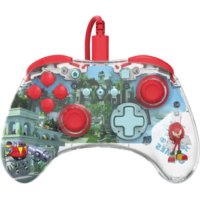
REALMz Wired Controller - Game controller PDP - Free user manual and instructions
Find the device manual for free REALMz Wired Controller PDP in PDF.


| Product Type | Wired Video Game Controller |
| Brand | PDP |
| Model | REALMz Wired Controller |
| Connectivity | USB-C to USB-A |
| Compatibility | Xbox Series X|S, Xbox One, PC Windows |
| Power Source | Via USB port of the console or PC |
| Function Button | Patented button at the bottom center for quick access to controls |
| Volume Control | Game volume (D-Pad up/down) and game/chat balance (D-Pad left/right) via function button |
| Microphone Mute | Press the function button twice to toggle mute |
| Programmable Rear Buttons | 2 rear buttons mappable via function button + desired button |
| LED Lighting | 4 preset modes (A, B, X, Y) adjustable brightness (LB/RB) |
| Customization App | PDP Control Hub (Windows Store) for remapping, diagnostics, recalibration |
| Cable Length | Approximately 3 meters (estimated) |
| Care and Cleaning | Clean with a soft, dry cloth. Do not use chemicals. |
| Safety | Do not disassemble the controller: the interior figure is fixed and removing it voids the warranty. |
| Warranty | 2-year manufacturer warranty |
| Country of Origin | China (estimated) |
Frequently Asked Questions - REALMz Wired Controller PDP
User questions about REALMz Wired Controller PDP
0 question about this device. Answer the ones you know or ask your own.
Ask a new question about this device
Download the instructions for your Game controller in PDF format for free! Find your manual REALMz Wired Controller - PDP and take your electronic device back in hand. On this page are published all the documents necessary for the use of your device. REALMz Wired Controller by PDP.
USER MANUAL REALMz Wired Controller PDP
Xbox is a trademark of Microsoft. © 2023 Microsoft.
English
Deutsch
Dansk
Español – Mexico
Español
Français – Canada
Français
Italiano
Nederlands
Norsk
Polski
natural_image
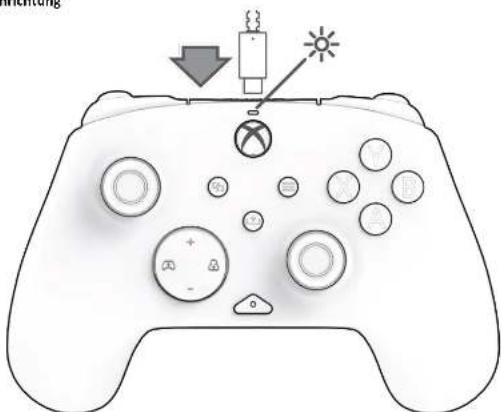
Line drawing of a game controller with action buttons and a warning symbol (no text or labels)Plug the USB-C end of the cable into the top of the controller, and the USB side into your console or PC. The light above the Xbox logo will appear to indicate it is connected.
- "Function" Button
natural_image
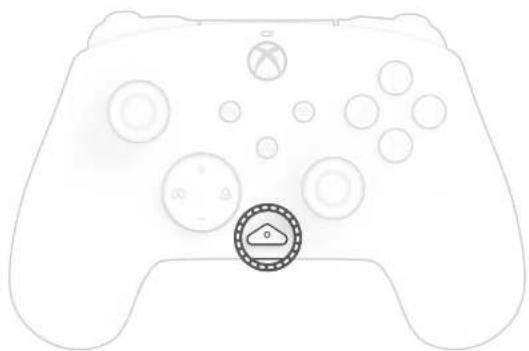
Line drawing of a game controller with circular buttons and a small icon (no text or symbols)The REALMz Wired Controller features our patented "function" button at the bottom center of the controller (above the audio jack). This button can be used to adjust volume, mute your mic, change LED lighting modes, and program the back buttons.
- Control Volume
flowchart
graph TD
    A["Speaker+"] --> B["App"]
    B --> C["Phone Icon"]
    C --> D["Speaker-"]
    D --> E["Touch Button"]
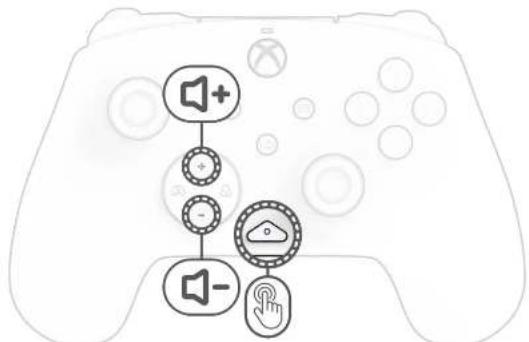
While holding down the "function" button, press D-Pad +Up/-Down to adjust game volume.
- Game/Chat Balance
flowchart
graph TD
    A["Controller"] --> B["Game Controller"]
    B --> C["User with Icon"]
    C --> D["User with Icon"]
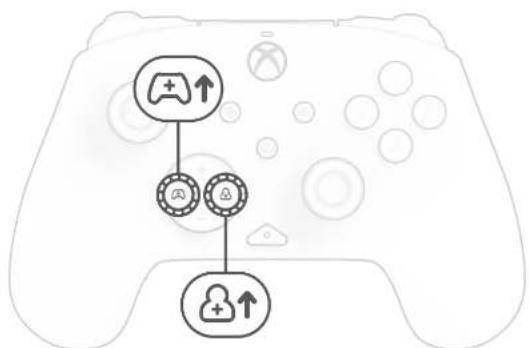
While holding down the "function" button, press D-Pad Left/Right to adjust your game/chat balance.
- Mic Mute
natural_image
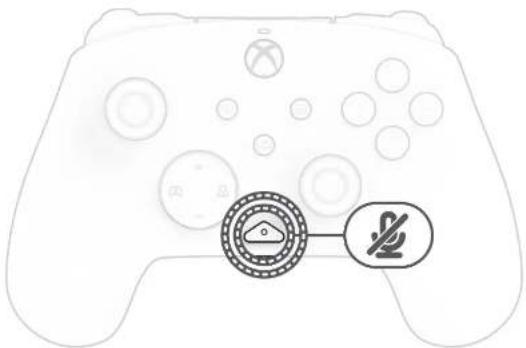
Line drawing of a game controller with a circular icon containing a house and a prohibition symbol (no text or labels)To mute your headset's mic, press the "function" button twice. The LED on the "function" button will turn on to indicate that you are now muted. To unmute, press the "function" button twice again.
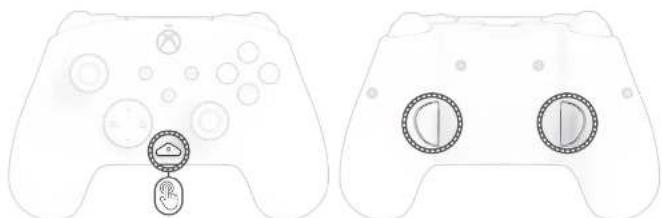
- Programming the Back Buttons
natural_image
Two identical line drawings of a game controller with control buttons and a small circular icon on the left (no text or symbols)A. While holding down the "function" button, press the back button you would like to map a function to and release. The function button LED will start flashing.
B. Press any button you would like mapped, and the function button LED will flash 3 times indicating a successfully mapped function. Note: The programmed button mapping will remain after unplugging the controller.
- Change LED Lighting Modes
natural_image
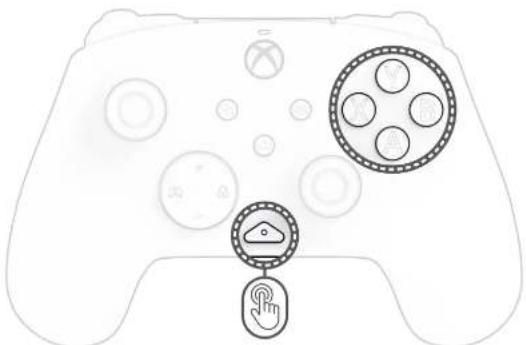
Line drawing of a game controller with circular buttons and a finger icon (no text or symbols)A. The REALMz™ Wired Controller comes with four different lighting effects pre-programmed to the controller's A, B, X, and Y buttons. B. To explore these effects and cycle through them, hold the "function" button and press either A, B, X, or Y. Note: When the controller and system turn off, the lighting modes reset to the default mode (the mode for the A button).
- Adjusting LED Light Settings
natural_image
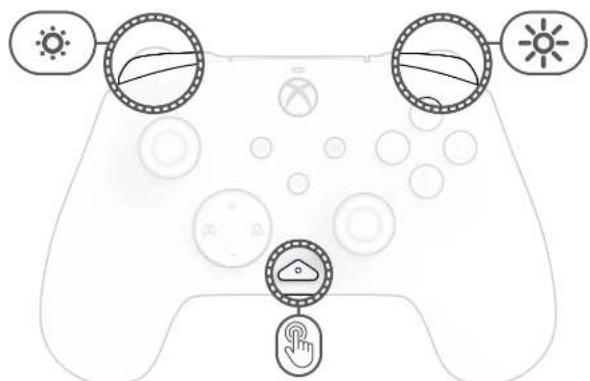
Line drawing of a game controller with sun icons and finger buttons (no text or symbols)A. To adjust the LED brightness, hold the "function" button and press LB to decrease brightness, or RB to increase brightness.
- PDP Control Hub App
text_image
PDP CONTROL User 2022E HUAO 84 1 1 000 000 00 Select Rocalibrate Vorare 12:30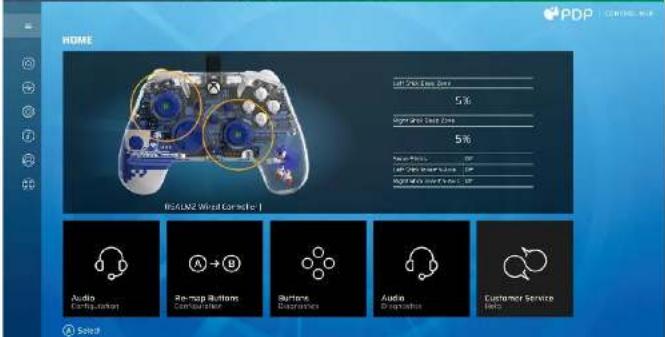
text_image
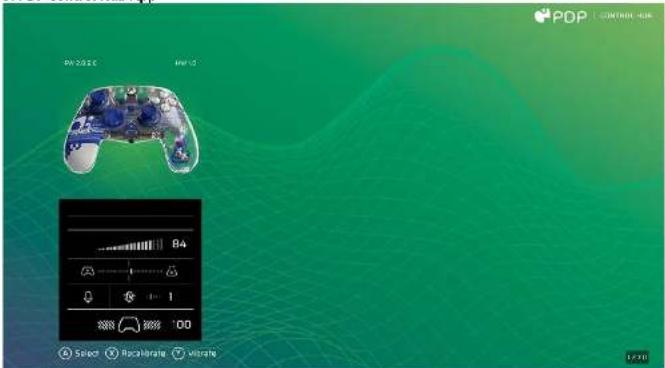
HOME real-time wire zone 5% Generalized wire zone 5% Audio Options LIF LIF-Can Interface LIF Generalized Interface LIF Audio Audio Audio Audio Audio Audio Audio Audio Audio Audio Audio Audio Audio Audio Audio Audio Audio Audio Audio Audio Audio Audio Audio Audio Audio Audio Audio Audio Audio Audio Audio Audio Audio Audio Audio Audio Audio Audio Audio Audio Audio Audio Audio Audio Audio Audio Audio Audio Audio Audio RadioWire Cord Controller 1 Audio Configuration Pre-map Buttons Configuration Solutions Descriptions Audio Descriptions Customer Service HelpTo customize your controller further, download the free PDP Control Hub app from the Windows Store on your PC or Xbox. Use it to re-map buttons, run diagnostics, recalibrate analog sticks and triggers, and much more.
WARNING: DO NOT DISASSEMBLE THE CONTROLLER!
Disassembling the controller to remove the figurine or any other components will void the 2-year manufacturer's warranty. The figurine is securely fixed inside the controller and is not designed for removal by users.
Deutsch
- Ersteinrichtung
natural_image
Line drawing of a game controller with buttons and a warning symbol (no text or labels)natural_image
Line drawing of a game controller with circular buttons and a small icon (no text or symbols)- Taste „Funktion“
flowchart
graph TD
    A["Game Controller"] --> B["Security App"]
    B --> C["User Icon"]
- Spiel-/Chat-Balance
natural_image
Line drawing of a game controller with a circular icon containing a warning symbol and a crossed-out 'No' sign (no text or labels)natural_image
Two identical line drawings of a game controller with circular buttons and a hand icon, no text or symbols present.natural_image
Line drawing of a game controller with circular buttons and a finger icon (no text or symbols)natural_image
Line drawing of a game controller with sun icons and finger icon (no text or symbols)text_image
HOME REALNZ Wireless Controller | Audio Configuration Pre-map Buttons Configuration Solutions Specifications Audio Specifications Customer Service Help Selectnatural_image
Line drawing of a game controller with action buttons and a warning symbol (no text or labels)natural_image
Line drawing of a game controller with circular buttons and a small icon (no text or symbols)- Funktionsknappen
flowchart
graph TD
    A["Controller"] --> B["Game Controller"]
    B --> C["User with Icon"]
    C --> D["User with Icon"]
- Spil-/chatbalance
text_image
Diagram of a game controller with labeled icons for incident detection and no-smoking5. Mikrofondæmpning
natural_image
Two identical line drawings of a game controller with circular buttons and a small icon, shown from different angles (no text or symbols)natural_image
Line drawing of a game controller with circular buttons and a finger icon (no text or symbols)natural_image
Line drawing of a game controller with circular UI elements and a finger icon (no text or symbols)text_image
HOME 5% 5% Audio Mode: On Audio Mode: On Audio Mode: On Audio Mode: On Audio Mode: On Audio Mode: On Audio Mode: On Audio Mode: On Audio Mode: On Audio Mode: On Audio Mode: On Audio Mode: On Audio Mode: On Audio Mode: On Audio Mode: On Audio Mode: On Audio Mode: On Audio Mode: On Audio Mode: On Audio Mode: On Audio Mode: Onnatural_image
Line drawing of a game controller with action buttons and a warning symbol (no text or labels)natural_image
Line drawing of a game controller with circular buttons and a small icon (no text or symbols)flowchart
graph TD
    A["Controller"] --> B["Game Controller"]
    B --> C["User with Icon"]
    C --> D["User with Icon"]
natural_image
Line drawing of a game controller with a circular icon and a prohibition symbol (no text or labels)natural_image
Two identical line drawings of a game controller with circular buttons and a small icon, no text or symbols present.natural_image
Line drawing of a game controller with circular buttons and a finger icon (no text or symbols)natural_image
Line drawing of a game controller with sun, moon, and finger icons on the grip (no text or symbols)natural_image
Line drawing of a game controller with action buttons and a warning symbol (no text or labels)natural_image
Line drawing of a game controller with circular buttons and a central icon (no text or symbols)natural_image
Line drawing of a game controller with a circular icon containing a house and a prohibition symbol (no text or labels)natural_image
Two identical line drawings of a game controller with control buttons and a small circular icon on the left (no text or symbols)natural_image
Line drawing of a game controller with circular buttons and a finger icon (no text or symbols)natural_image
Line drawing of a game controller with sun icons and finger buttons (no text or symbols)natural_image
Line drawing of a game controller with action buttons and a warning symbol (no text or labels)natural_image
Line drawing of a game controller with circular buttons and a small icon (no text or symbols)flowchart
graph TD
    A["Controller"] --> B["Game Controller"]
    B --> C["User with Icon"]
    C --> D["User with Icon"]
natural_image
Line drawing of a game controller with a circular icon and a prohibition symbol (no text or labels)natural_image
Two identical line drawings of a game controller with circular buttons and a small icon, no text or symbols present.natural_image
Line drawing of a game controller with circular buttons and a finger icon (no text or symbols)natural_image
Line drawing of a game controller with sun, moon, and finger icons on the grip (no text or symbols)natural_image
Line drawing of a game controller with action buttons and a warning symbol (no text or labels)natural_image
Line drawing of a game controller with control buttons and a circular icon (no text or symbols)flowchart
graph TD
    A["Game Controller"] --> B["Game Controller Icon"]
    A --> C["Game Controller Icon Icon"]
    A --> D["Player Controller Icon"]
natural_image
Line drawing of a game controller with a circular icon and a prohibition symbol (no text or labels)natural_image
Two identical line drawings of a game controller with circular buttons and a small icon, no text or symbols present.natural_image
Line drawing of a game controller with circular buttons and a finger icon (no text or symbols)natural_image
Line drawing of a game controller with sun, moon, and finger icons on the grip (no text or symbols)natural_image
Line drawing of a game controller with circular buttons and a small icon (no text or symbols)flowchart
graph TD
    A["Controller"] --> B["Game Controller"]
    B --> C["User with Platform Icon"]
    C --> D["User with User Icon"]
natural_image
Line drawing of a game controller with a circular icon and a prohibition symbol (no text or labels)natural_image
Two identical line drawings of a game controller with circular buttons and a small icon, no text or symbols present.natural_image
Line drawing of a game controller with circular buttons and a finger icon (no text or symbols)natural_image
Line drawing of a game controller with sun, moon, and finger icons on the grip (no text or symbols)text_image
HOME real-time wireless control 5% 5% Audio Configuring A → B System Dispersions Audio Dispersions Customer Service Info Selectnatural_image
Line drawing of a game controller with action buttons and a warning symbol (no text or labels)natural_image
Line drawing of a game controller with circular buttons and a small icon (no text or symbols)flowchart
graph TD
    A["Controller"] --> B["Game Controller"]
    B --> C["User with Directional Arrow"]
    C --> D["User with Directional Arrow"]
natural_image
Line drawing of a game controller with a circular icon containing a house and a prohibition symbol (no text or labels)natural_image
Two identical line drawings of a game controller with control buttons and a small circular icon on the left (no text or symbols)natural_image
Line drawing of a game controller with circular buttons and a finger icon (no text or symbols)natural_image
Line drawing of a game controller with sun icons and finger buttons (no text or symbols)text_image
HOME real-time wireless control 5% 5% Audio Configuring A → B Playtime Dispersions Audio Dispersions Customer Service Help Selectnatural_image
Line drawing of a game controller with action buttons and a warning symbol (no text or labels)natural_image
Line drawing of a game controller with circular buttons and a small icon (no text or symbols)flowchart
graph TD
    A["Controller"] --> B["Game Controller"]
    B --> C["User with Icon"]
    C --> D["User with Icon"]
natural_image
Line drawing of a game controller with a circular icon containing a house and a prohibition symbol (no text or labels)natural_image
Two identical line drawings of a game controller with circular buttons and a small icon, no text or symbols present.natural_image
Line drawing of a game controller with circular buttons and a finger icon (no text or symbols)natural_image
Line drawing of a game controller with sun icons and finger buttons (no text or symbols)text_image
HOME PDP 5% 5% 5% REDAZ Wrist Controller 1 Audio Configuration Re-map Buttons Configuration Buttons Disruptions Audio Configuration Customer Service Both Selectnatural_image
Line drawing of a game controller with action buttons and a warning symbol (no text or labels)natural_image
Line drawing of a game controller with circular buttons and a small icon (no text or symbols)flowchart
graph TD
    A["Controller"] --> B["Game Controller"]
    B --> C["User with Icon"]
    C --> D["User with Icon"]
text_image
Diagram of a game controller with a warning sign and circular icon containing a house symbolnatural_image
Two identical line drawings of a game controller with circular buttons and a small icon, no text or symbols present.natural_image
Line drawing of a game controller with circular buttons and a finger icon (no text or symbols)natural_image
Line drawing of a game controller with sun icons and finger icon (no text or symbols)natural_image
Line drawing of a game controller with action buttons and a warning symbol (no text or labels)natural_image
Line drawing of a game controller with circular buttons and a small icon (no text or symbols)flowchart
graph TD
    A["Controller"] --> B["Game Controller"]
    B --> C["User with Icon"]
    C --> D["User with Icon"]
text_image
Diagram of a game controller with a warning sign and circular icons, indicating no protection or hazard.natural_image
Two identical line drawings of a game controller with control buttons and a small circular icon on the left (no text or symbols)natural_image
Line drawing of a game controller with circular buttons and a finger icon (no text or symbols)natural_image
Line drawing of a game controller with sun, moon, and finger icons (no text or symbols)natural_image
Line drawing of a game controller with action buttons and a warning symbol (no text or labels)natural_image
Line drawing of a game controller with circular buttons and a small icon (no text or symbols)flowchart
graph TD
    A["Controller"] --> B["Game Controller"]
    B --> C["User with Icon"]
    C --> D["User with Icon"]
natural_image
Line drawing of a game controller with a circular icon and a prohibition symbol (no text or labels)natural_image
Two identical line drawings of a game controller with control buttons and a small circular icon on the left (no text or symbols)natural_image
Line drawing of a game controller with circular buttons and a finger icon (no text or symbols)natural_image
Line drawing of a game controller with sun, moon, and finger icons (no text or symbols)natural_image
Line drawing of a game controller with action buttons and a warning symbol (no text or labels)natural_image
Line drawing of a game controller with circular buttons and a small icon (no text or symbols)flowchart
graph TD
    A["Controller"] --> B["Game Controller"]
    B --> C["User with Icon"]
    C --> D["User with Icon"]