Universal - Remote control PDP - Free user manual and instructions
Find the device manual for free Universal PDP in PDF.


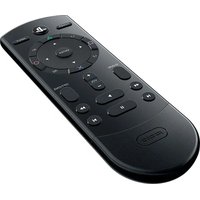
| Product Type | Universal Multimedia Remote Control |
| Brand | PDP |
| Model | Universal (for PS4™) |
| Connectivity | Bluetooth® (for PS4™) and infrared (IR) (for TV, amplifier, set-top box) |
| Power Supply | 2 AAA batteries (not included) |
| Infrared Range | Up to 8 meters (without obstruction) |
| Compatibility | PlayStation®4 (PS4™ system version 3.0 or later), televisions, audio/video amplifiers, cable/satellite set-top boxes |
| Main Functions | PS4™ system control, navigation, media playback (Blu-ray, etc.), automatic or manual device programming, learning function, direct volume control, sleep mode after 30 min of inactivity |
| Device Buttons | PS4™, TV, AMP, CBL |
| Programmable Keys | PWR, yellow, blue, red, green/INPUT, Guide, Vol+, Vol-, CH+, CH- |
| Warranty | 2-year limited (manufacturing defects), upon presentation of valid proof of purchase |
| Customer Support | (800) 331-3844 (US/Canada) or support.pdp.com |
| Care and Cleaning | Soft, dry cloth. Do not use solvents or chemicals. |
| Safety Precautions | Do not expose to high temperatures, humidity, or direct sunlight. Do not dispose of batteries in fire. Keep out of reach of young children. |
| Certifications | FCC (Part 15, Class B), IC (ICES-003), Directive 1999/5/EC |
| FCC ID | X5B-051038 |
| IC | 8814A-051038 |
| Battery Type | AAA (alkaline recommended) |
| Battery Life | Several months depending on usage (estimate) |
Frequently Asked Questions - Universal PDP
User questions about Universal PDP
0 question about this device. Answer the ones you know or ask your own.
Ask a new question about this device
Download the instructions for your Remote control in PDF format for free! Find your manual Universal - PDP and take your electronic device back in hand. On this page are published all the documents necessary for the use of your device. Universal by PDP.
USER MANUAL Universal PDP
PDP warrants that this product will be free from manufacturing defects for two years from the original date of purchase. Manufacturing defects are those defects in materials and/or workmanship, subject to PDP's customer service department. This warranty applies only to original purchasers with a valid proof of purchase from an authorized PDP retailer that clearly shows the date of purchase.
Exclusive Remedy and Exclusions
The exclusive remedy will be the repair, replacement or refund of the product. This warranty does not cover defects caused by accidents, improper or abusive use of the product, unauthorized or improper modifications, repairs or handling.
How to Get Service
Purchasers should contact the PDP customer service department at (800) 331-3844 (US and Canada only) or +442036957905 (UK only) or by visiting
support.pdp.com or support.pdp-eu.com
Your Rights Under Applicable Law
This warranty does not affect the legal rights of customers under applicable state, provincial or national laws governing the sale of consumer goods.
Additional Information for Australian Consumers
PDP products come with guarantees that cannot be excluded under the Australian Consumer Law. You are entitled to a replacement or refund for a major failure and compensation for any other reasonably foreseeable loss or damage. You are also entitled to have the goods repaired or replaced if the goods fail to be of acceptable quality and the failure does not amount to a major failure. The benefits given to you under our express warranty are in addition to other rights and remedies you have under the Australian Consumer Law and other laws.
To make a warranty claim, return your product to the authorized PDP retailer from which the product was purchased together with your proof of purchase. If your warranty claim is deemed to be valid, we will replace or repair the product.
WARNING
- Before using this product, carefully read this manual and retain it for future reference. Additionally, read the instructions for the PlayStation®4 system.
- Do not handle damaged or leaking batteries.
What you can do with the Universal Remote
- The Universal Remote uses Bluetooth® wireless technology to operate your PS4™ system and to control the playback of common types of media, including Blu-ray Disc™ media.
- Infrared (IR) technology enables you to operate peripheral devices such as your television, AV amplifier, and cable/satellite set-top box. For IR operation, you must point the IR transmitter of the remote directly at the device. Check that there are no obstructions between the remote control and the device.
Preparing for use
Remove the battery cover on the rear of the Universal Remote and insert 2 AAA batteries. Make sure the batteries are in the correct position.
Operating the PS4TM system
Check the PS4TM system software version
To use the Universal Remote, the PS4TM system software must be version 3.0 or later. You can check the system software version by selecting
Settings -> System -> System Information.
Pairing the Universal Remote with a PS4™ system
This operation is performed only once, when you are using the Universal Remote for the first time.
- Turn on the PS4^TM system.
- From the PS4TM system menu, select Settings -> Devices -> Bluetooth Devices.
- On the Universal Remote, press the PS4TM device key.
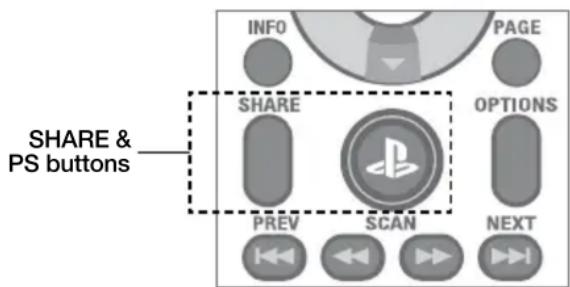
- Next, press and hold the SHARE button and the PS button simultaneously until the red LED begins to flash.
- Place the remote close to the PS4TM system and wait for "PDP Universal Remote" to appear in the device list.
-
Using a connected controller, select "PDP Universal Remote" from the list, and press the "X" button. When prompted, select "Yes".
-
The red LED on the remote will illuminate for 3 seconds and then turn off, indicating successful pairing.
- If pairing is unsuccessful, repeat steps 3 through 6.
Note: The remote will enter sleep mode after 30 minutes of inactivity. To wake the remote, press the PS button or PS4 device button. Sleep mode does not affect TV, CBL, or AMP operation.
Tips
- For the latest PS4™ usage instructions, refer to the user's guide for the PS4™ system (manuals.playstation.net/document/).
- For the latest Universal Remote instructions, refer to the online user's guide (support.pdp.com).
- Only one Universal Remote can be registered with the PS4™ system at a time.
- When you pair the Universal Remote with another PS4™ system, registration with the original PS4™ system is cleared. To use the remote with the original PS4™ system, you will have to follow the pairing procedure again.
How to use the Universal Remote
DEVICE buttons
Switch between devices.
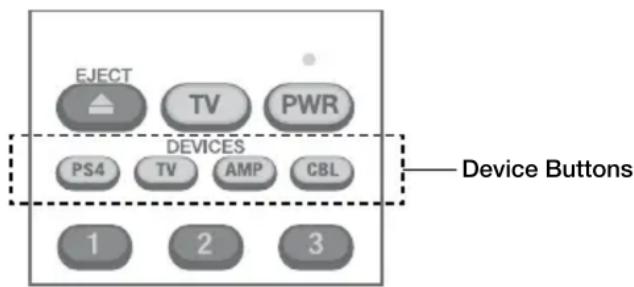
| PS4TM system button Switch the remote to operate the PS4 TM system |
| TV button Switch the remote to operate a TV |
| AMP button Switch the remote to operate an AV amplifier |
| CBL button Switch the remote to operate a cable/satellite set-top box |
Buttons for operating a PS4TM system, TV, AV amplifier, or cable/satellite set-top box
The meaning of the icons shown in the table below is as follows:
(PS4) used to operate the PS4 ^TM system
(TV) used to operate the TV
(AMP) used to operate the AV amplifier
(CBL) used to operate a cable/satellite set-top box
Operating a TV, A/V amplifier, or cable/satellite set-top box
You can use the Universal Remote to operate a TV, A/V amplifier, or set-top box. Set the remote code to match the product in use.
NOTE: Some functions of your original remote may not be controlled by this remote. Use the original remote, if available, to control such functions. Sometimes buttons other than described in these instructions may actually perform the function. For example, the channel and volume buttons might be used to navigate through menu choices. We recommend you experiment with the remote to identify if such situations apply to your equipment.
Programming TV, AMP, and CBL devices
There are two ways to program TV, AMP, and CBL devices, AUTO SEARCH MODE, or MANUAL ENTRY MODE.
Auto Search Mode
- Turn the target device ON.
- Point the Universal Remote directly at the target device and make sure it stays pointed at the device throughout the programming process.
- On your Universal Remote, press and hold down the green TV key and the desired device key for about 5 seconds. The red LED on the remote will turn on, indicating that it is now in Auto Search Mode.
- Keep the remote pointed at the device.
- When the remote locates the correct code, the device will turn OFF.
- When the device turns OFF, immediately press any key to complete programming.
- If the red LED turns off and programming was not successful, please use manual entry mode.
Manual Entry Mode
- Turn the target device ON
- Refer to the Manufacturer's Code List included in the product documentation.
- Find the brand name of the target device.
- On your Universal Remote, press and hold the gray device key, and enter the first 4-digit code from the Code List. Release the gray device key.
- Point the remote at the target device and press the PWR key.
- If the device does not turn on, repeat the process with the remaining codes on the list until programming is successful.
- If programming results in only partial functionality, try reprogramming with remaining codes. Depending on the device, full functionality may not be possible. See Learning Function section below for instructions on programming additional functions.
Learning Function
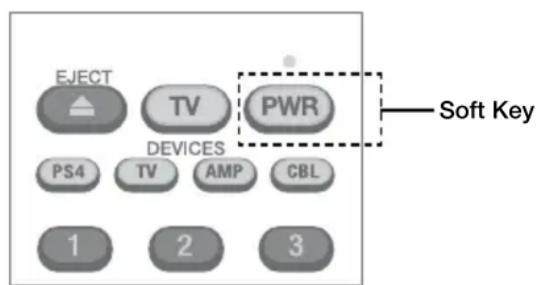
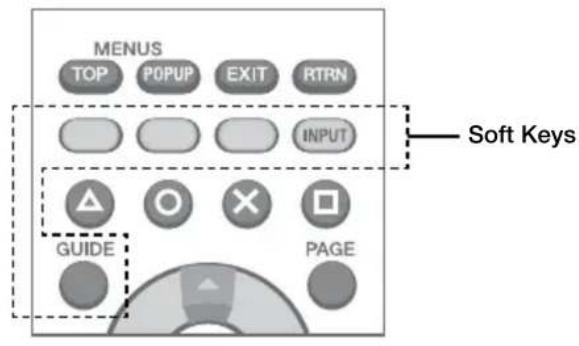
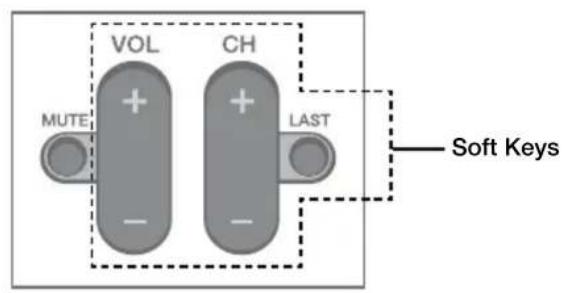
The PWR, Yellow, Blue, Red, Green/INPUT, Guide, Vol+, Vol-, CH+, CH-, and Last "soft keys" can be used for learning additional IR commands from other remote control devices. By default, the green soft key controls device INPUT. If desired, this key can be reprogrammed.
- On the Universal Remote, hold down the gray device key that corresponds to the device of the existing (teaching) remote. At the same time, hold down the Soft Key you wish to program.
- After 5 seconds, the red LED will light up, indicating the remote is ready to learn.
- Point the teaching remote directly at the IR window on the front of the Universal Remote, and press the key on the teaching remote that you want to teach.
- The red LED on the Universal Remote will flash 3 times, indicating that learning was successful.
Volume Punch Through
The volume keys can be set to control a specific device even when the remote is in other modes. Be sure to program devices using one of the methods above before setting Volume Punch Through.
- Hold down the gray device key for the device that should always control volume and the MUTE key at the same time.
- The red LED will flash 3 times to indicate Volume Punch Through is successful.
PRECAUTIONS
Battery Use
- Never throw batteries into a fire.
If you come into contact with material from a leaking battery, take the following actions:
° If the material gets into the eyes, do not rub. Immediately flush the eyes with clean water and seek medical attention.
0 If the material comes into contact with the skin or clothes, immediately rinse the affected area with clean water. Consult your physician if inflammation or soreness develops.
- Keep the product out of reach of small children. Small children may swallow the batteries or small parts, which may inflict injury or cause an accident.
- Do not use batteries other than those specified, and always replace with the same type of battery. Do not mix old and new batteries.
- Insert batteries with the plus and minus ends in the correct direction.
- Remove batteries when they have reached the end of their life, or if the remote is to be stored for an extended period of time.
Use and handling
- Do not expose the remote to high temperatures, high humidity or direct sunlight.
- Do not allow liquid or small particles to get into the product.
- Do not put heavy objects on the product.
- Never disassemble or modify the product.
- Do not throw or drop the product, or otherwise expose it to strong physical impact.
- Do not place any rubber or vinyl materials on the product exterior for an extended period of time.
- When cleaning the product, use a soft, dry cloth. Do not use solvents or other chemicals.
FCC and IC NOTICE
This equipment complies with FCC and IC radiation exposure limits set forth for an uncontrolled environment and meets the FCC radio frequency (RF) Exposure Guidelines in Supplement C to OET65 and RSS-102 of the IC radio frequency (RF) Exposure rules. This equipment has very low levels of RF energy that are deemed to comply without testing specific absorption ratio (SAR).
NOTE:
This equipment has been tested and found to comply with the limits for a Class B digital device, pursuant to Part 15 of the FCC Rules. These limits are designed to provide reasonable protection against harmful interference in a residential installation. This equipment generates, uses and can radiate radio frequency energy and, if not installed and used in accordance with the instructions, may cause harmful interference to radio communications. However, there is no guarantee that interference will not occur in a particular installation. If this equipment does cause harmful interference to radio or television reception, which can be determined by turning the equipment off and on, the user is encouraged to try to correct the interference by one or more of the following measures:
- Reorient or relocate the receiving antenna.
- Increase the separation between the equipment and receiver.
- Connect the equipment into an outlet on a circuit different from that to which the receiver is connected.
- Consult the dealer or an experienced radio/television technician for help.
You are cautioned that any changes or modifications not expressly approved by the party responsible for compliance could void the user's authority to operate the equipment. This Class B digital apparatus complies with Canadian ICES-003 Under Industry Canada regulations, this radio transmitter may only operate using an antenna of a type and maximum (or lesser) gain approved for the transmitter by Industry Canada. To reduce potential radio interference to other users, the antenna type and its gain should be so chosen that the equivalent isotropically radiated power (e.i.r.p) is not more than that necessary for successful communication. Hereby, Performance Designed Products, declares that this remote control is in compliance with the essential requirements and other relevant provisions of Directive 1999/5/EC. The declaration of conformity may be consulted at www.pdp.com/doc.
support.pdp.com o support.pdp-eu.com
2 year limited warranty.
See www.pdp.com for details
© 2016 Performance Designed Products, LLC. Performance Designed Products, PDP, and their respective logos are trademarks and/or registered trademarks of Performance Designed Products, LLC. All other logos and trademarks are property of their respective owners. Manufactured and Distributed under license from Sony Interactive Entertainment America LLC. Playstation and the PS family logo are trademarks of Sony Interactive Entertainment Inc. All rights reserved.
Under Industry Canada regulations, this radio transmitter may only operate using an antenna of a type and maximum (or lesser) gain approved for the transmitter by Industry Canada. To reduce potential radio interference to other users, the antenna type and its gain should be so chosen that the equivalent isotropically radiated power (e.i.r.p.) is not more than that necessary for successful communication.
This device complies with Industry Canada licence-exempt RSS standard(s). Operation is subject to the following two conditions:
(1) this device may not cause interference, and (2) this device must accept any interference, including interference that may cause undesired operation of the device.
Canada applicable aux apparereils radio exempts de licence.
PERFORMANCE DESIGNED PRODUCTS
1840 East 27th Street
Vernon, CA 90058, USA
Ph: 800-331-3844
(USA and Canada only)
www.pdp.com
Please keep this information for future reference.
Designed in the USA by PDP
Made in China