88051 - Computer Docking Station DeLOCK - Free user manual and instructions
Find the device manual for free 88051 DeLOCK in PDF.



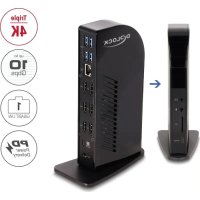
| Product type | Computer docking station |
| Brand | DeLOCK |
| Model | 88051 |
| Dimensions (WxDxH, without stand) | 195 x 94 x 35 mm |
| Weight (estimated) | Approx. 500 g |
| Color | Black |
| Power supply | Input: 100-240 V AC, 50/60 Hz, 2.37 A; Output: 20 V / 6.75 A (135 W); Host charging up to 96 W (PD 3.0) |
| Maximum resolution | Triple 4K @ 60 Hz (USB-C host with DP Alt Mode); Dual 4K @ 60 Hz (host without DP Alt Mode) |
| Video connectors | 1x DisplayPort (DP Alt Mode), 2x DisplayPort (DisplayLink), 1x HDMI (DP Alt Mode), 2x HDMI (DisplayLink) |
| USB connectors | 4x USB-A 5 Gbps, 1x USB-C 10 Gbps |
| Audio | 1x 3.5 mm microphone jack, 1x 3.5 mm headphone/speaker jack |
| Network | Gigabit LAN (RJ45) 10/100/1000 Mbps |
| Card reader | 1x SD slot |
| Features | Mirror or extended mode, PD 3.0 charging, vertical installation, LED indicator (blue power, green device) |
| Operating system | Windows 10/11, Mac OS 12.4 or later |
| Required driver | DisplayLink (download from www.delock.com) |
| Package contents | Docking station, USB-C cable (1 m), power supply (cable 1.6 m), power cable (1.8 m), user manual |
| Maintenance and cleaning | Clean with a soft, dry cloth; avoid moisture and direct sunlight |
| Safety | Protect from moisture and direct sunlight; use the supplied power supply |
| Spare parts and repairability | Not applicable (device not user-serviceable) |
Frequently Asked Questions - 88051 DeLOCK
User questions about 88051 DeLOCK
0 question about this device. Answer the ones you know or ask your own.
Ask a new question about this device
Download the instructions for your Computer Docking Station in PDF format for free! Find your manual 88051 - DeLOCK and take your electronic device back in hand. On this page are published all the documents necessary for the use of your device. 88051 by DeLOCK.
USER MANUAL 88051 DeLOCK
USB Type-C™ Triple Display Docking Station
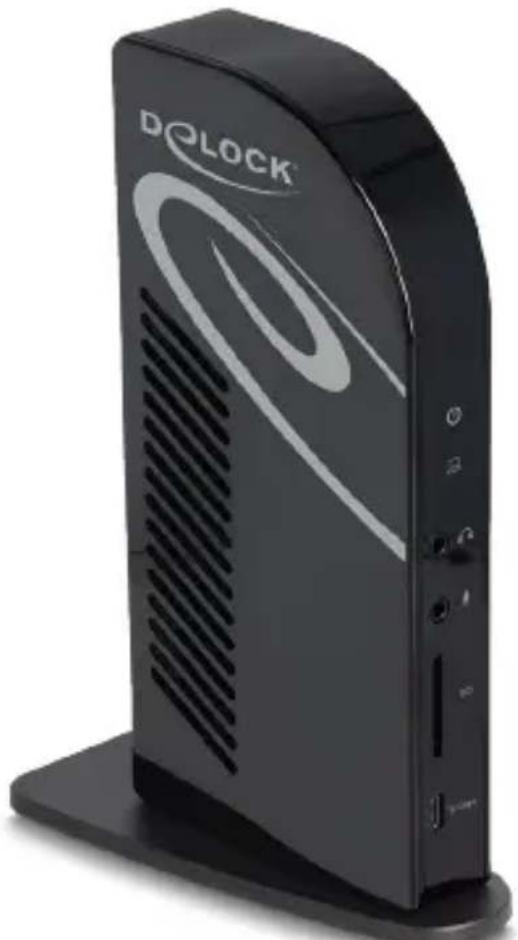
natural_image
Exterior view of a black DQLOCK device with ventilation slots and ports (no readable text or symbols beyond branding)
CE
FC
®
Product-No: 88051
User manual no: 88051-a
www.delock.com
Layout
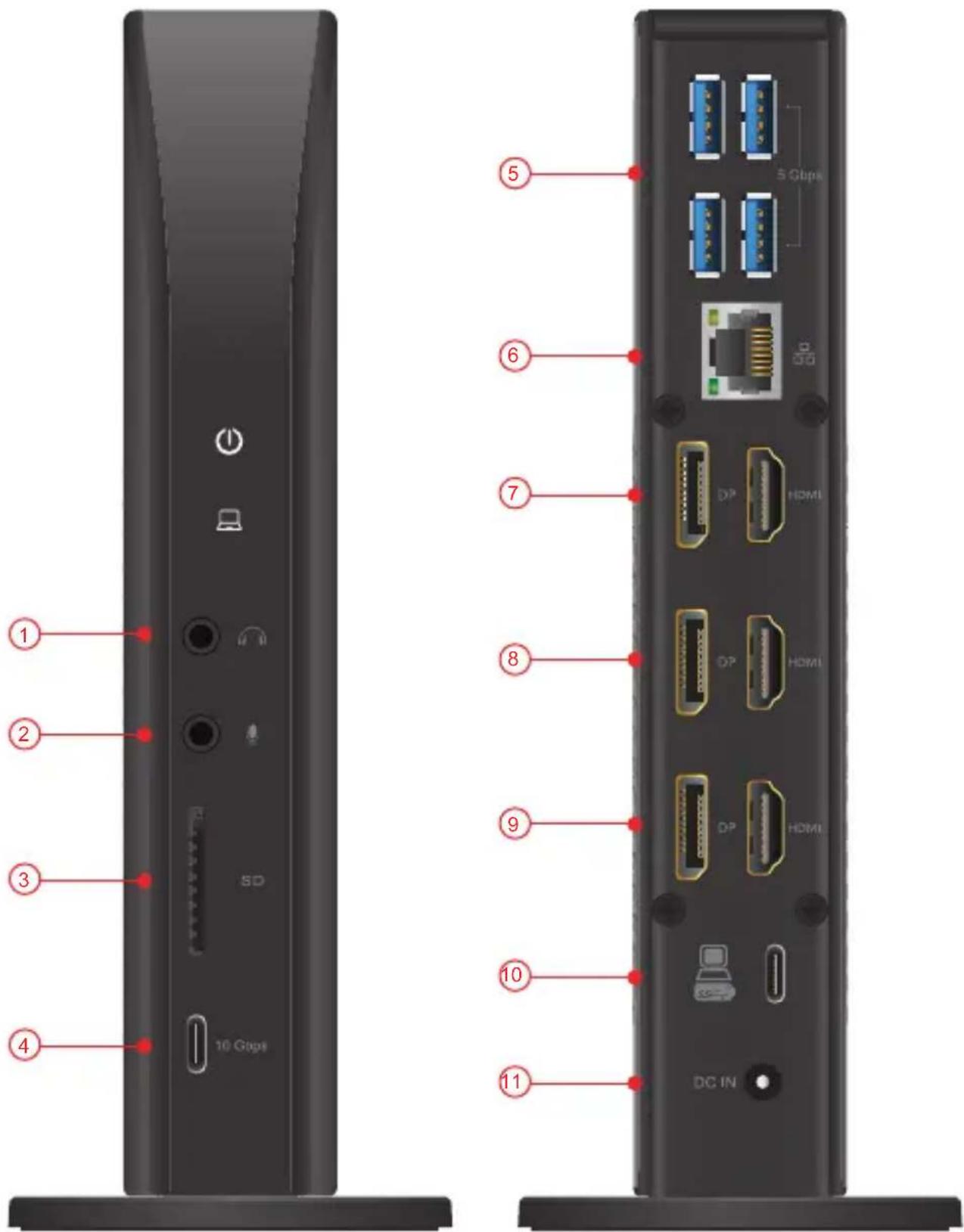
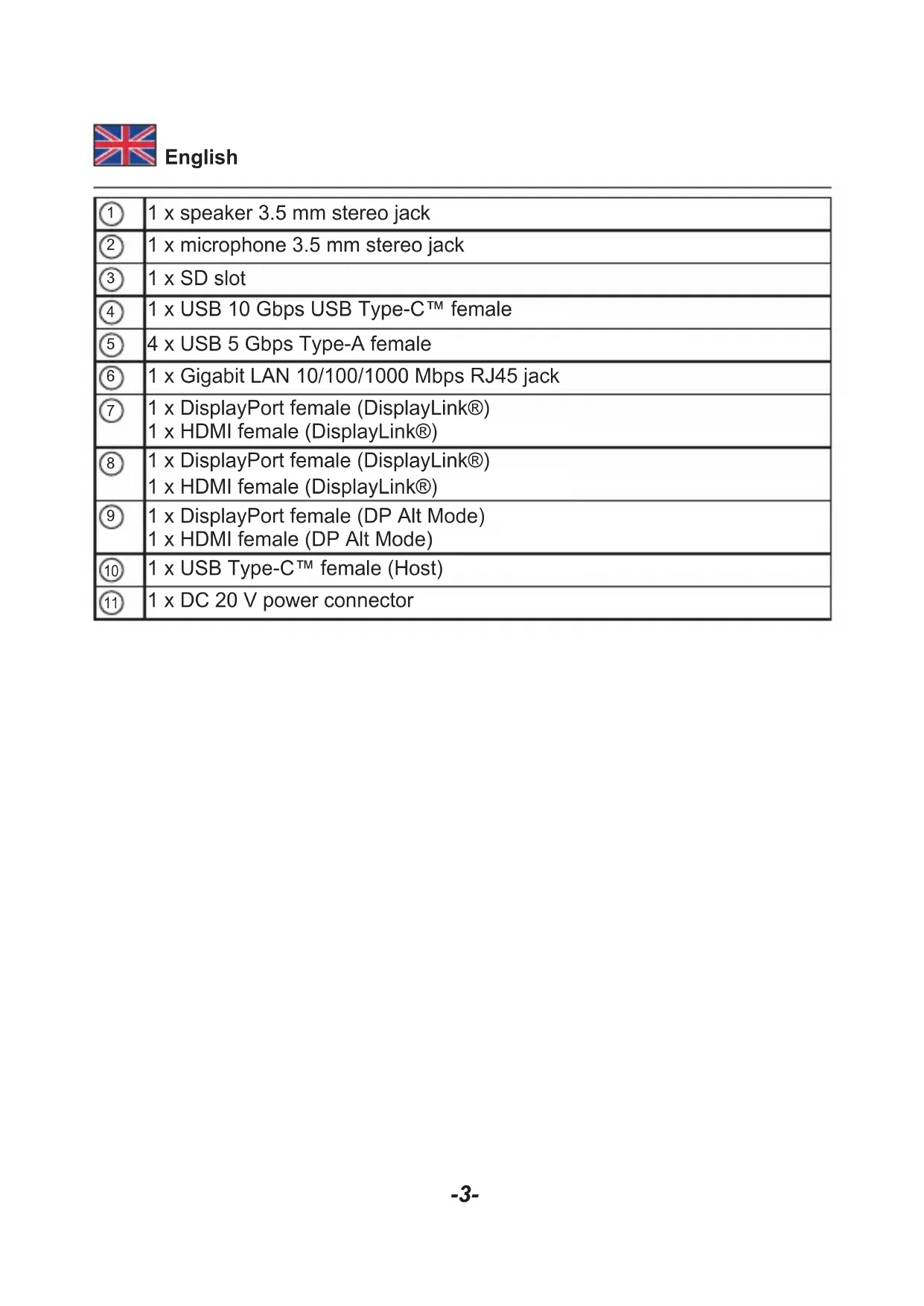
| 1 | 1 x speaker 3.5 mm stereo jack |
| 2 | 1 x microphone 3.5 mm stereo jack |
| 3 | 1 x SD slot |
| 4 | 1 x USB 10 Gbps USB Type-CTM female |
| 5 | 4 x USB 5 Gbps Type-A female |
| 6 | 1 x Gigabit LAN 10/100/1000 Mbps RJ45 jack |
| 7 | 1 x DisplayPort female (DisplayLink®)1 x HDMI female (DisplayLink®) |
| 8 | 1 x DisplayPort female (DisplayLink®)1 x HDMI female (DisplayLink®) |
| 9 | 1 x DisplayPort female (DP Alt Mode)1 x HDMI female (DP Alt Mode) |
| 10 | 1 x USB Type-CTM female (Host) |
| 11 | 1 x DC 20 V power connector |
Description
This docking station by Delock can be connected to a computer with a USB-C™ DP Alt Mode, Thunderbolt™ 3 or Thunderbolt™ 4 and provides a variety of interfaces. Three monitors can be operated at the monitor outputs at the same time. Five built-in USB ports allow the use of peripherals and another USB port can be used to charge mobile devices. Connectors for a microphone and speaker, a Gigabit network connection, as well as a card reader for SD memory cards complete the features.
Triple Display 4K UHD resolution
When using the three video outputs at the same time, one monitor is operated via DisplayPort Alternate Mode, the other two via DisplayLink®. One port can be used from each double group of DisplayPort and HDMI connector. The Delock docking station can also be operated on devices without a USB Type-C™ port with DP Alt Mode support, with a video output on a maximum of two monitors. A maximum resolution of 4K on all ports can be guaranteed, regardless of the operating system. Due to the DisplayLink® graphics chipset it is possible to use mirrored and extended screen functions on Windows and Mac OS operating systems.
USB Power Delivery (USB PD 3.0) support up to 96 watt
Via the power supply, which is connected to the docking station, the host device is charged with up to 96 watts during operation.
Stand
Due to the vertical installation, the Delock docking station takes up less space on the desk.
Specification
- Connectors:
1 x USB Type-C ^TM female
1 x DisplayPort female (DP Alt Mode)
2 x DisplayPort female (DisplayLink®)
1 x HDMI female (DP Alt Mode)
2 x HDMI female (DisplayLink®)
4 x USB 5 Gbps Type-A female
1 x USB 10 Gbps USB Type-C™ female
1 x microphone 3.5 mm stereo jack
1 x speaker 3.5 mm stereo jack
1 x Gigabit LAN 10/100/1000 Mbps RJ45 jack
1 x SD slot
1 x DC 20 V power connector
- Maximum resolution (depending on the system and the connected hardware): Host USB Type-C™ DP Alt Mode: 3 x 4K / 60 Hz Host without DP Alt Mode: 2 x 4K / 60 Hz
• Transmission of audio and video signals
• Functions: Mirrored or Extended
- Input power: 135 W, 39 W are used for the docking station
• Output power for host: max. 96 W
- 1 x LED indicator
- Colour: black
- Dimensions without stand (LxWxH): ca. 195 x 94 x 35 mm
Power supply specification
• Wall power supply
- Input: AC 100 \~ 240 V / 50 \~ 60 Hz / 2.37 A
• Output: 20 V / 6.75 A / 135 W
• Ground outside, plus inside
- Dimensions: inside: ca. 2.5 mm outside: ca. 5.5 mm length: ca. 10.0 mm
System requirements
• Mac OS 12.4 or above
- Windows 10/10-64/11
- A free USB Type-C™ female port (DisplayLink®) or
- Device with a free USB Type-C™ port and DisplayPort alternate mode or with a free Thunderbolt™ 3 or Thunderbolt™ 4 port
Package content
- USB docking station
- Cable USB-C™ male to USB-C™ male, length ca. 1 m
• Power supply, cable length ca. 1.6 m
• Power cord, length ca. 1.8 m - User manual
Safety instructions
- Protect the product against moisture
- Protect the product against direct sunlight
Driver Installation
- Switch on your computer.
- Connect the power supply to the DC female port.
- Connect the docking station to an available USB port of your computer.
- Download the driver from the product page: https://www.delock.com/produkte/G_88051/treiber.html.
- Follow the instructions of the driver installation.
- The driver will now be installed.
- Click on "Finish".
- Your computer will ask to reboot. Click "Yes" to restart the computer.
- After restart you can start using the device immediately.
Configuration
- Network connection: Supports 10/100/1000 Mbps and can be used immediately.
- USB ports: You can now connect your devices to these 5 ports.
- Audio ports: You can connect your headset and your speakers to the audio ports.
Note
As soon as an audio device is connected to the stereo jack, the output takes place exclusively over it. An output via the video outputs is then not possible.
- Video ports: You can set the additional displays on mirroring or extended. In order to change the setting, proceed like this:
Windows: Click with the right mouse button on the desktop and click on "display settings".
Afterwards you can change the graphics settings.
Mac: Open the System Preferences > Displays.
It can happen that the security settings need to be changed. Therefore go to System Preferences > Security & Privacy > Privacy and set the hook on "DisplayLinkUserAgent".
Note
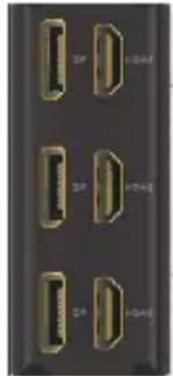
When using the three video outputs at the same time, one monitor is operated via DisplayPort Alternate Mode, the other two via DisplayLink®. The Delock docking station can also be operated on devices without a USB Type-C™ port with DP Alt Mode support, with a video output on a maximum of two monitors.
One port can be used from each double group of DisplayPort and HDMI connector:
natural_image
Close-up of a black electronic device with multiple gold connector slots (no visible text or symbols)- Insert an SD card into the card reader.
- LED indicator
- Docking station served with power: The LED lights up blue.
- USB device connected: The LED lights up green.
Support Delock
If you have further questions, please contact our customer support support@delock.de
You can find current product information on our homepage: www.delock.com
Final clause
Information and data contained in this manual are subject to change without notice in advance. Errors and misprints excepted.
Copyright
No part of this user manual may be reproduced, or transmitted for any purpose, regardless in which way or by any means, electronically or mechanically, without explicit written approval of Delock.
Edition: 07/2023
Kurzbeschreibung
Host USB Type-C™ DP Alt Mode: 3 x 4K / 60 Hz
Host ohne DP Alt Mode: 2 x 4K / 60 Hz
natural_image
Close-up of a black electronic device with multiple gold connector pins (no visible text or symbols)natural_image
Close-up of a black electronic device with multiple gold connector pins (no visible text or symbols)natural_image
Close-up of a black electronic device with multiple ports (no visible text or symbols)natural_image
Close-up of a black electronic device with multiple gold connector pins (no visible text or symbols)natural_image
Close-up of a black electronic device with multiple ports (no visible text or symbols)natural_image
Close-up of a black electronic device with multiple ports (no visible text or symbols)natural_image
Close-up of a black electronic device with multiple ports (no visible text or symbols)Gazdă USB Type-C™ DP Alt Mode: 3 x 4K / 60 Hz
natural_image
Close-up of four electronic connector ports labeled 2F, 3F, 4F, and 5F (no text or symbols visible)natural_image
Close-up of a black electronic device with multiple connected ports (no visible text or symbols)natural_image
Close-up of a black electronic device rear panel with multiple connected ports (no visible text or symbols)natural_image
Close-up of a black electronic device with multiple ports (no visible text or symbols)Declaration of conformity
Products with a CE symbol fulfill the EMC directive (2014/30/EU), the ErP directive (2009/125/EC), LVD directive (2014/35/EU) and RoHS directive (2011/65/EU+2015/863+2017/2102), which were released by the EU-comission.
The declaration of conformity can be downloaded here: https://www.delock.de/produkte/G_88051/merkmale.html
WEEE-notice
The WEEE (Waste Electrical and Electronic Equipment)-directive, which became effective as European law on February 13th 2003, resulted in an all out change in the disposal of disused electro devices. The primarily purpose of this directive is the avoidance of electrical waste (WEEE) and at the same time the support of recycling and other forms of recycling in order to reduce waste. The WEEE-logo on the device and the package indicates that the device should not be disposed in the normal household garbage. You are responsible for taking the disused electrical and electronical devices to a respective collecting point. A separated collection and reasonable recycling of your electrical waste helps handling the natural resources more economical. Furthermore recycling of electrical waste is a contribution to keep the environment and thus also the health of men. Further information about disposal of electrical and electronical waste, recycling and the collection points are available in local organizations, waste management enterprises, in specialized trade and the producer of the device.

- USB Type-C™ Triple Display Docking Station
- Description
- Triple Display 4K UHD resolution
- USB Power Delivery (USB PD 3.0) support up to 96 watt
- Stand
- Specification
- Power supply specification
- System requirements
- Package content
- Safety instructions
- Driver Installation
- Configuration
- Note
- Support Delock
- Final clause
- Copyright
- Kurzbeschreibung
- Declaration of conformity
- WEEE-notice
Brand : DeLOCK
Model : 88051
Category : Computer Docking Station