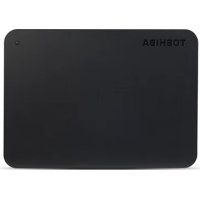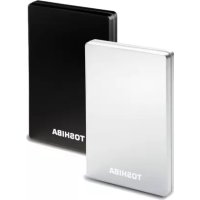
STOR.E Alu 2S - External hard drive TOSHIBA - Free user manual and instructions
Find the device manual for free STOR.E Alu 2S TOSHIBA in PDF.


| Product type | External hard drive |
| Brand | Toshiba |
| Model | STOR.E Alu 2S |
| Disk size | 3.5 inches |
| Interface | USB 3.0 (backward compatible with USB 2.0) |
| Power supply | 12V AC adapter |
| Connectors | USB 3.0 Type B, DC input jack |
| Supported operating systems | Windows XP/Vista/7 |
| Required processor | 750 MHz or higher |
| Required memory | 256 MB |
| Required disk space | 10 MB |
| Functions | External storage, data backup |
| Safety | Do not open the case, avoid shocks, liquids, extreme temperatures |
| Cleaning | Disconnect before cleaning, use standard products |
| Compliance | CE marking |
| Operating temperature | 5°C to 35°C |
| Storage temperature | -20°C to 60°C |
| Ventilation | Fanless, passive cooling |
| Formatting | Ready to use, factory formatted |
| Data recovery service | Available via Toshiba |
Frequently Asked Questions - STOR.E Alu 2S TOSHIBA
User questions about STOR.E Alu 2S TOSHIBA
0 question about this device. Answer the ones you know or ask your own.
Ask a new question about this device
Download the instructions for your External hard drive in PDF format for free! Find your manual STOR.E Alu 2S - TOSHIBA and take your electronic device back in hand. On this page are published all the documents necessary for the use of your device. STOR.E Alu 2S by TOSHIBA.
USER MANUAL STOR.E Alu 2S TOSHIBA
Safety Instructions 4
System Requirements 5
Installing the drive. 5
Installing and Removing the Replaceable Plugs 5
Connecting the drive to your computer 6
Dismount and disconnect the drive 7
Further Advise 7
Frequently Asked Questions 7
Troubleshooting 8
TOSHIBASupport 9
Regulatory statements 10
Introduction
Thank you for choosing our TOSHIBA STORE.E ALU 2S 3.5" Hard Disk Drive. Please read this User's Manual carefully, as it contains all relevant information for installation, usage and maintenance of the drive, as well as security and safety advice.
In case it does not behave as expected, please refer to the "Frequently Asked Questions" section at the end of this manual.
Toshiba Places
Toshiba Places
Toshiba Places offers you a convenient way to browse, access and buy music, video and other content to enjoy on your PC*. Just go to www.toshibaplaces.com and enjoy!
*Content available depends on country of residence.
Check the Components
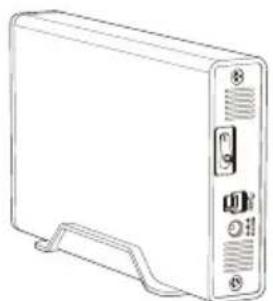
STOR.E ALU 2S 3.5" (including User's Manual) and Slide-on Stand
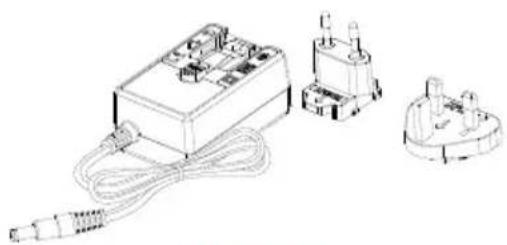
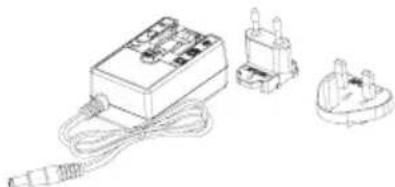
AC adaptor and the replaceable plug (Provided with some models)
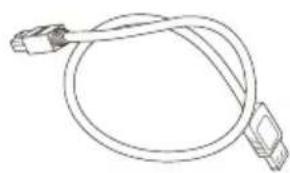
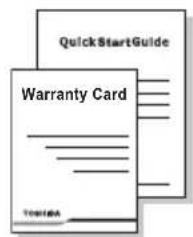
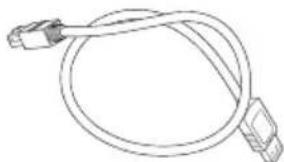
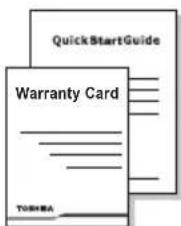
USB 3.0 Type B Cable Quick Start Guide
and Warranty Leaflet
This User's Manual is uploaded on the drive itself. We recommend to backup the User's Manual onto a CD or your local hard disk drive, directly after the drive being installed.
Safety Instructions
In order to avoid malfunction or damage of the drive, please carefully follow the precautions listed below.

WARNING
Make sure that you backup all your data on the drive, as Toshiba is not responsible for data corruption or data loss. Toshiba will not cover any data recovery cost.
Do not
open the enclosure or drive
disassemble the drive or parts of it
place liquids near or on the drive, as it may damage the drive, cause personal injury or may result in an electrical shock or fire
■ bump, drop or jar the drive
move the drive while operating, as data damage may happen
use other connectors than USB bus powered types
use other AC/DC adaptors than the one bundled with your drive,as otherwise your drive may be damaged
■ disconnect cables while operating. Please dismount the drive first!
expose the drive to temperatures outside the range of 5^ - 35^ while operating, and temperatures of -20^ - 60^ while switched off
expose the drive to wet or damp conditions
cover the drive during operation, as it may become overheated
place the drive close to hot appliances
And
make sure that the connectors will be inserted correctly
never use pressure for connecting the cables
check the polarity before connecting
- Immediately disconnect the drive from the power outlet and the host PC if
■ smoke or an unusual smell is coming from the drive enclosure
water has entered the drive enclosure or if it becomes wet
an object has entered the drive enclosure
the cable has been damaged (in such case replace the cable with a new one)
NOTE
The power switch does not disconnect the AC adaptor from the electricity network, but just switches off the drive itself.
We therefore recommend that you disconnect the AC/DC adaptor from the power outlet if the drive may not be used for a while in order to save energy.
If the drive behaves not as expected or you have doubts about the electrical safety, please contact the TOSHIBA hotline or an authorised reseller immediately!
System Requirements
WindowsXP/VISTA/Windows7
CPU with 750 MHz or faster
10 MB system hard disk space
256 MB system memory
One free port of USB 3.0 or USB 2.0
NOTE
USB 3.0 is backward compatible with USB 2.0.
Installing the drive
Some information about bus-powered operation and the supplied USB cable:
Passive USB hubs or USB connectors like keyboards, mice or similar products cannot be used or connected to the drive.
Make sure that the connectors will be inserted correctly.
Never use pressure for connecting the cables. Check the polarity before connecting!
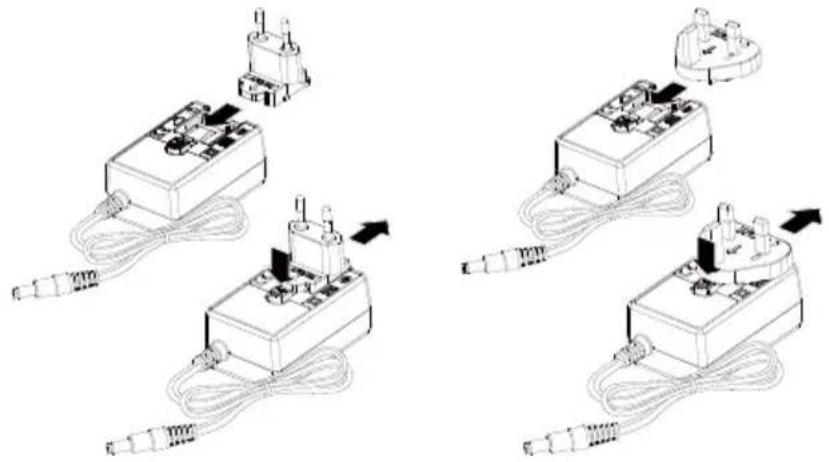
Installing and Removing the Replaceable Plugs
To install and remove the AC adapter replaceable plugs, see the illustrations below.
Connecting the drive to your computer
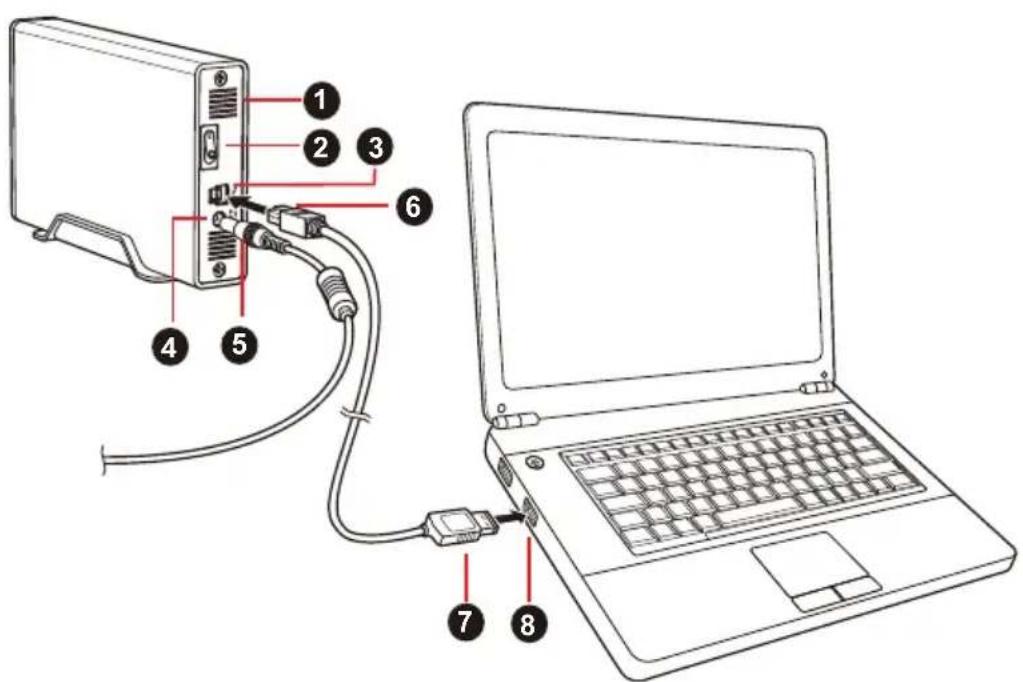
- Air Vent 5. DC output plug
- Power Switch 6. USB 3.0 Type B connector
- USB 3.0 port 7. USB 3.0 Standard-A connector
- DC IN 12V Jack 8. USB 3.0 host
backward compatible to USB 2.0
- Turn off your computer.
- Plug the AC adaptor's DC output plug into the DC IN 12V jack of the drive and the power cord into a live wall outlet.
- Plug the USB 3.0 Standard-A connector into a USB port of your host system or an active USB HUB.
NOTE
You may need USB 3.0 Express Card Host Controller for your computer if the computer doesn't have USB 3.0 port. You also can connect the device to USB 2.0 port of your computer, However the transfer rate will be downgraded to that of USB 2.0.
- Now, plug the USB 3.0 Type B connector into the corresponding port of the drive itself.
- Boot up your computer.
- Switch on the drive by pushing the Power Switch.
the Power/Data indicator light will illuminate
the drive will power up
the drive should mount and a new drive icon should appear in "My Computer"
Dismount and disconnect the drive
It is strongly recommended not to unplug the drive by just unplugging the cable connection as it may be that data is written to the drive at that time.
Such data will be lost and the drive may be damaged physically!
Please follow the steps below for a safe dismount of the drive (Windows 7).
- Click the "Hardware and Eject Media - icon"
A pop-up message box will appear listing the external devices connected to your computer.
- Select the TOSHIBA drive to eject.
After a few seconds, you will get the notification that it is now safe to remove the device.
- Click "OK" and you can unplug the drive now.
- Switch off the drive by pushing the Power Switch.
Cleaning the drive case / enclosure
Before cleaning the drive, make sure that it's physically disconnected from the computer. We suggest to use standard products for cleaning it and to make sure that possible remaining liquid on the surface will be wiped off.
Further Advise
For any further action of normal operation such as renaming the drive, backup data, or file management, we suggest to read your operation system user's manual.
Also for maintenance tasks such as defragmenting and optimisation we suggest to refer to the operating system user's manual.
We also strongly suggest having anti-virus software installed to protect your data against intended damage caused by virus or Trojan programs.
Frequently Asked Questions
Q: Do I need to format my drive after installation?
A: No, as the drive is already formatted during the manufacturing process.
Q: Do I need USB drivers for Windows Vista, XP or Windows 7?
A: No, they are already available with your operating system.
Q: Can I boot my system from the drive?
A: No, because Windows does not support booting from external hard disk drives.
Q: Why doesn't the drive need a fan?
A: The drives are designed to have optimal heat dissipation, and therefore no fan is required. This results in a near silent operation.
Q: Why is the capacity of my drive (as shown in Windows) lower than the drives actual stated capacity?
A: This difference can be explained because of the different methods of calculating the capacity.
Hard drive manufacturers calculate on the decimal system, while the operating system calculates in the binary system.
Example decimal:
[ 1GB = 1,000MB = 1,000,000KB = 1,000,000,000 bytes ]
Example binary:
[ 1GB = 1,024MB = 1,048,576KB = 1,073,741,824 bytes ]
As a result, a 120GB (decimal) hard disk appears in Windows to have just 112GB (binary).
Q: Can I use my drive to copy an operating system from one computer to another?
A: No, you must follow the operating system supplier instructions for installation. A simple copy does not work.
Q: Does Toshiba offer a data recovery services?
A: Yes, Toshiba offers a Data Recovery Service for external hard drives. Please check our website www.toshiba-europe.com/services for further information about this service.
Troubleshooting
My computer does not recognize the disk drive at all.
Make sure all of your connections are secure.
If using an add-on card, make sure it is working properly and update the software/firmware.
If using Windows XP, make sure you have Service Pack 1 or later.
Is it dangerous if the drive feels warm whilst in operation?
A: This is normal, and therefore not dangerous.
The drive gives me a "Device cannot start."
A: Two possible reasons. It is either a power problem and you should check the connections, or the drive has a malfunction and requires service.
I cannot see my drive in "My Computer", but it does appear in the Device Manager.
A: Follow these instructions:
- Right-click "My Computer".
- Select "Manage" in the pop-up menu.
- Select "Disk Management".
You should see a list of available storage devices.
- Check whether your drive is listed.
- Right-click the right hand box and select "Delete Partition" in the pop-up menu.
- Right-click the box and select "Create New Partition" in the pop-up menu.
- Then select "Primary Partition" in the partition wizard window. Click next.
- A drive letter will be displayed, which you can change. Click next.
- Confirm to format the drive.
As I try to format the drive, I receive the message "Could not complete format".
A: This can be caused by formatting the drive with FAT file system. Try "NTFS" file system. This should solve the problem.
TOSHIBA Support
Need help?
For the latest driver updates, User's manuals & FAQs please have a look at the TOSHIBA options & services support page:
computers.toshiba.eu/options-support
Please see computers.toshiba.eu/options-warranty for the TOSHIBA hotline numbers.
Regulatory statements
CE Compliance
CE
This product is CE marked in accordance with the requirements of the applicable EU Directives.
Responsible for CE marking is Toshiba Europe GmbH, Hammfelddamm 8, 41460 Neuss, Germany. A copy of the official Declaration of Conformity can be obtained from following website: http://epps.toshiba-tec.com.
Working Environment
The Electromagnetic Compliance (EMC) of this product has been verified typically for this product category for a so called Residential, Commercial & Light Industry Environment. Any other working environment has not been verified by Toshiba and the use of this product in these working environments is maybe restricted or cannot be recommended. Possible consequences of the use of this product in non verified working environments can be: Disturbances of other products or of this product in the nearby surrounding area with temporarily malfunction or data loss/ corruption as result. Example of non verified working environments and related advices:
Industrial environment (e. g. where 3-phase 380V mains is being used mainly): Danger of disturbances of this product due to possible strong electromagnetic fields especially near to big machinery or power units.
Medical environment: The compliance to the Medical Product Directive has not been verified by Toshiba, therefore this product cannot be used as a medical product without further verification. The use in usual office environments e.g. in hospitals should be no problem if there is no restriction by the responsible administration.
Automotive environment: Please search the owner instructions of the related vehicle for advices regarding the use of this product (category).
■ Aviation environment: Please follow the instructions of the flight personnel regarding restrictions of use.
Additional Environments not Related to EMC
- Outdoor use: As a typical home/office equipment this product has no special resistance against ingress of moisture and is not strong shock proofed.
- Explosive atmosphere: The use of this product in such special working environment (Ex) is not allowed.
Following information is only valid for EU-member States:
REACH - Compliance Statement
The new European Union (EU) chemical regulation, REACH (Registration, Evaluation, Authorization and Restriction of Chemicals), entered into force on 1 June 2007.
Toshiba will meet all REACH requirements and is committed to provide our customers with information about the chemical substances in our products according to REACH regulation.
Please consult the following website
www.toshiba-europe.com/computers/info/reach for information about the presence in our articles of substances included on the candidate list according to article 59(1) of Regulation (EC) No 1907/2006 ("REACH") in a concentration above 0.1% weight by weight.
Disposal of products
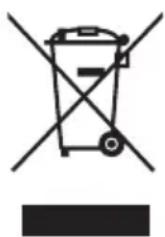
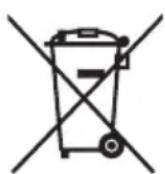
The crossed out wheeled dust bin symbol indicates that products must be collected and disposed of separately from household waste.
The black bar indicates that the product was placed on the market after August 13, 2005.
By participating in separate collection of products, you will help to assure the proper disposal of products and thus help to prevent potential negative consequences for the environment and human health.
For more detailed information about the collection and recycling programmes available in your country, please visit our website (http://eu.computers.toshiba-europe.com) or contact your local city office or the shop where you purchased the product.
Notices
©2011 TOSHIBA Europe GmbH. All rights reserved.
TOSHIBA reserves the right to make technical changes. TOSHIBA assumes no liability for damages incurred directly or indirectly from errors, omissions or discrepancies between this product and the documentation.
The Toshiba name and its logos are registered trademarks of Toshiba. Other trademarks mentioned or appearing in this document are the property of their respective owners. Errors and omissions excepted.
Obsah
1 GB = 1.024 MB = 1.048.576 KB = 1.073.741.824 Byte
1 GB = 1.024 MB = 1.048.576 KB = 1.073.741.824 byte
1 Gt = 1000 Mt = 1000000 kt = 1000000000 tavua
Binaarijärjestelmä:
1 Gt = 1024 Mt = 1048576 kt = 1073741824 tavua
1 GB = 1.024 MB = 1.048.576 KB = 1.073.741.824 bajtova
Kao rezultat, tvrdi disk velicine 120 GB (decimalno) se u sustavu
Windows pojavljue kao samo 112 GB (binarno).
A: Volg deque instructions:
Feilmeldingen Device cannot start (Kan/DD) vises.
A: Det er to mulige ørsaker. Det er et strømprBLEM, og du ma kontrollere tlikoplingene, eller stasjonen er skadet og ma repareres.
[ 1GB = 1,000MB = 1,000,000KB = 1,000,000,000 ] bytes
Exemplo binario:
[ 1GB = 1,024MB = 1,048,576KB = 1,073,741,824 bytes ]
OTBeTbI Ha yacTo 3aDaBaemble BOpocbl
B: Hyxho Jn fopMaTnpoBaTb nck noCne erO yCTaHOBKn?
O: HeT, dNCK yKe OTOΦopMaTHIPOBaH B IpoUcEe N3rOToBnHeHn.
B: HxHbI Jn dpaBepbl USB dJra Windows Vista, XP nnn Windows 7?
O: Het, OHyXe IMeOTcB OnepaauHHOu CnCTeme.
B: MoKHo JI 3aRpyKaTb CnCTeMy c 3ToRo DnCKa?
O: HeT, notomy uTo cncTeMa Windows He noDepxNBAe 3aRpy3ky CBHeuHnX JecTKnx DnCKOB.
B: Noyemy 3TOMy DnCKy He HuyKeH BeHTnJIaTOp?
O: KoHCTpyKUra DNCKa OBeCneuNbae ONTmAmlbHoe paccenBaHne Tenna, NO3tOMy BeHTnIaTOp He Tpe6yeTc. B pe3yIbTaTe N3dJIne pa6oTaet NOUTN 6ecwymHO.
B:Почему emkoctbДИСКА (OTOBPAXaEMaB Windows) MeHbIe erOФakTnuecko3aBJIeHHoN emKocTN?
O: Pa3nue o6brcraTc npimeHHeM pa3hbx cncocob pacyea EMKoCTN.
ПОНЗВОДИТЕЛЖЕСТКИXДИСКOBБИПОЛНЯЮТpacuetВDECEТУHΟн cnCTeMe,aONEpaционнаясnteMa-BДBOUHNoI.
Ppimep paucheta B decaTnHoi cnCTeme:
1 B = 1000MB = 1000000KB = 10000000006a_H
Homepa ropeyenn Toshiba cm. no apecy: computers.toshiba.eu/options-warranty.
3aЯВленья O COOTBETCTBиHopMaTnBhbIM Tpe6obahniaM
CoOTBcTbHe Tpe6OBaHnIe EC
Данhoe Издени IMeET МаркИрOBky CE, OTbeчaIOуTO Tpe6OBaHЯM COOTBETCTBYIOUX ДиpeKТИВ EC. OТВЕТСBEHNOCTb 3a 3Ty MAPKИрOBky Hecet KOMпань TOSHIBA Europe GmbH, Hammfelddamm 8, 41460 Neuss, Germany (Германя). C TeKCTOM oФиц�ьнй ДeКларачи COOTBETCTBЯ можно OЗнakOMTbсЯ на Be6-caITe http://epps.toshiba-tek.com
YcNoBnE3KcPnyatauN
CoOTBETCTBHe DaHHORO N3dEJIa Tpe6OBaHnM B OTHOWeHn
3NEKTPOMaTHHOn COBMecTUMOCn IPOBepaIOc bTINOBbIM dJaDaHHo
KaTeROPn N3dEJIncN CnOCo6om npImeHNTbHO K TaK Ha3bIbAeMbIM
6bITOBbIM, KOMMepeCKm IM MeIKOpPbMIuHEHbIM ycNOBnM. IPOBepKa
Ha BO3MOxHOCTb NcNoJIb3OBaHnB V DpyrNX ycNOBnx KopnpaUnei
Toshiba He npOBoDnIacb. NcNoJIb3OBaHnE daHHoro N3dEJIyB DpyrNX
ycNOBnX MoKeT 6bITb OrpaHnEHO IN He peKOMeHdyetcR. Bo3MOxHbI
CLeNyUOuNe NocJeCDTBn IprimeHEnra DaHHORO N3dEJIyB
HeNPoBepEHbIX ycNOBnX: HapUSeHnE HopMaJIbHO pa60TbI DpyrNX
HaxOJaXxCn O6JIuN3OCTn N3dEJIIn INn DaHHORO N3dEJIyC
NocJeDuOUsm BbIXODom IN3 CTpOra INII NOTepeN/NOBpeJDeHnEM
DaHHbIX. PPrimepbI HeNPoBepEHbIX ycNOBn IprimeHEnry IN
COOTBETCTByUOuine peKOMeHdaUznn:
IpnmbiHHeHHbE yCNOBnA (HaNPmep, yCIOBnA, Ie B OCHOBHom nCNoJIb3yETcra Tpexpa3hN ToK HAnpJxKeHnem 380 B): onaChocTb HApUWeHn HopMaJIbHO pa6Otbl DaHHO r3dEINr B pe3yIbTaTe BO3MOxHOro BO3DeIcTBn CInlbHbIX 3NeKTpOMarHHTbIX POne, Oco6eHHO prdOM c KpynHbIM MaUNHAMn IN CINOBbIMY UCTAHOBKaMn.
MeiHcknue ycnoBna: Kopnpaunr Toshiba He npoBoHnla npOBepKy DaHHoro n3deJnHa COOTBeTCTBne DnpeKTNBe O MeiunHcknx N3dEInyx, PO3tOMy DaHHoe N3deJnne HEnb3ra NcNoIb3OBaTb B MeiunHcknx ceJnx 6e3 COOTBeTCTByUOSeI npOBepKn. IcNoIb3OBaHne B O6bIHyix OfncbIX ycNOBnX, HApPIMep, B BoJIbHncax, He DoJHXo PpNBecTI K BO3HNKHOBEHnIO npo6IeM pRn OTCyTCTBnOrpaHnueHn Co CTOPOHbI OTBeTCTBeHHo aDMMHnCTpaun.
A BTOTaHcNopt: peKomeHdaaunB OTHOWeHn NCNoIb3OBAHn DaHHoro n3dennn (nn KaTeOpn n3deJn) cmOTpnte B pyKOBoDCTBe NOIb3OBaTeJn COOTBeTCTByUoJero TpaHCnOpTHOrO cpeDCTBa.
Bo3dyuHbI TpaHcnpT: co6nOdaTe yka3aHna JETHO nepcoHa na no orpaHnueHIO nCNoJb3OBaHna N3dEIny.
Дрг帮我 усань,在 He CBЯЗанные с заектомагнтою COBMECTUMOCTbIO
IcnoJb3OBaHne BHe NOMEeHn: DaHHoe n3dJIne OTHOCNTcK TINOBOMy 6bITOBOMy/OoNCHOMy O6OpyIOBaHnO K aK TaKOBoe He IMeET CNEuaJIbHOJ 3aUHTbI OT pOnHKnHOBHeHn BJaRn, a TaKKe OT CNJbHbIX yDapOB.
B3pbIbOONaChnay aTMoccepa: nCNoJIb3OBaHne daHHOro N3eJIy B TaKnx oc6bIx ycNoBnAx (Ex) He pa3peSeHo.
m = 311
J 1 J 1 J 1 J 1 J 1 J 1 J 1 J 1 J 1 J 1 J 1 J 1
B. gull USB 3.0
aannnnnnae
aill 10 no aalai Jao gagg. aai jall lce Jao laiaiell
aXuI
i 1
i 1 i 1 1 1 1 1 1 1 1 1 1 1 1 1 1 1 1 1 1 1 1 1

山
Hardware and Eject Media" 1
Jysslll lalgall jj yj 11 11
TOSHIBA jj
J 1
OK" 1e jai
y511 2e 6 000000000000000
a
aaii i 1iio ai i 1i 1i 1i 1i 1i 1i
. 1
a#
a aale 1 1 1 1 1 1 1 1 1 1 1 1 1 1 1 1
alol 1
J 1
.
J 1
.(trojan) 1
8
45
i 2
Windows 7 XP Windows Vista USB
1 1
J 1
Ae 7
i 1
1 2
J (Windows)
aallll 1 1 1 1 1 1 1 1 1 1 1 1 1 1 1 1 1 1 1 1 1 1 1 1 1 1
i 1
s
1 1 1 1 1 1 1 1 1 1 1
:
- VTV21A2ε = CULyS 1. ΕAOVγ = CULyS 1.γε = CULyS
114 4,Windows (s) 17.
()
j 1
Jaa 1yabw y w. bS jill Jzll p a 20 g 2j
:
DataRecoveryServiceL
www.toshiba-europe.com/services
aodill o 100
JSL
y
i
add-on card)
1
aalr g aal
Service Pack 1 Windows XP
a
1 1
.(jLjJ 1 J Y)“Device cannot start”
j 1
ii
Device Manager My Computer
:
My Computer" 1
Manage" j 1
Disk Management"
aaii jj j j j j j j j j
-aaalil
"Delete Partition" jzj 10
aaii
Gate New Partition" jzjg
next 1e jai g. 150 "Primary Partition" jai Y -
next 15
J 1
"Could not complete format"
.FAT 1
"NTFS"
PdLw
J 1
ii 1
computers.toshiba.eu/options-support
computers.toshiba.eu/options-warranty
Jl 1111
a#i1
CE
EU Cagg Gag Gag CE aee gaaaall Iaeg aae TOSHIBA Europe GmbH Lgwr Jgall Directives aag Hammfelddamm 8, 41460 Neuses aill
(Declaration of Conformity)
http://epps.toshiba-tec.com:
CE
Jai
y jll y jll l 12 (MC) yjll g jll p jll . Residential, Commercial & Light Industry Environment) a jll all g jll all jll all jll g jll g jll g jll g jll g jll g jll g jll g jll g jll g jll g jll g jll g jll g jll g jll g jll g jll g jll g jll g jll g jll g jll g jll g jll g jll g jll g jll g jll
aill 15 jg y siaeaall jie Jaaell cll g lio. aaiis ciilal
()
aallll 1 g j 11 llll 1
Medical Product 1111111111111111111111111111111111111111111111
12gai gai wall 12y
()
1
y
a aai i 1
yagalllalldnssnnns
Ex) jyjyl Jlll yj 11111111111111111111
.
-REACH
Registration 150
) Restriction of Chemicals & Authorization Evaluation
1 1
e 10000000000000000000000000000000000000000000
REACH 1u 11 11 1 1 1 1 1 1 1 1
aaiieiiee eae aee
Jg j 1111111111111111111111111111111111
(1)09dallg jnssrll aiai gaaaal
.(REACH")7/19.
yll llll yle bupblll dall gdaalllgds
jaiiaolal jie Juaio kuiuulil g
15 2000000000000000000000000000000000000000000
y = 0 求半径
cclwii gwi iiaaiiie aaiiaiae gao 5k jui