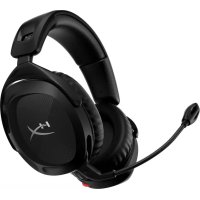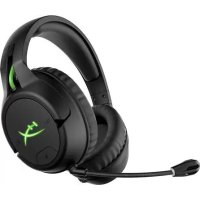
CloudX Flight - Headphones HYPERX - Free user manual and instructions
Find the device manual for free CloudX Flight HYPERX in PDF.


| Product type | Wireless headset for console and PC |
| Brand | HyperX |
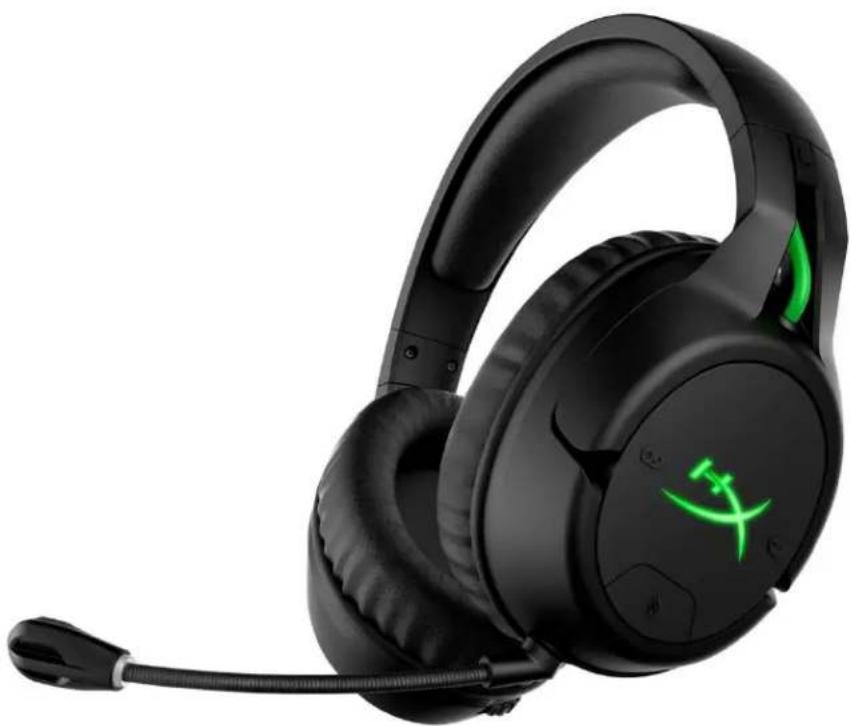
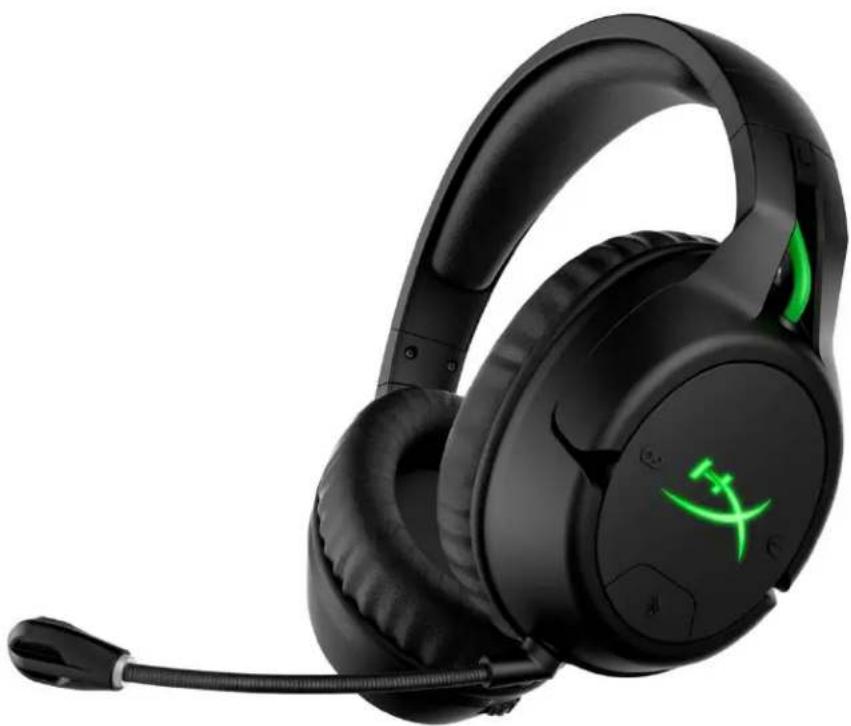
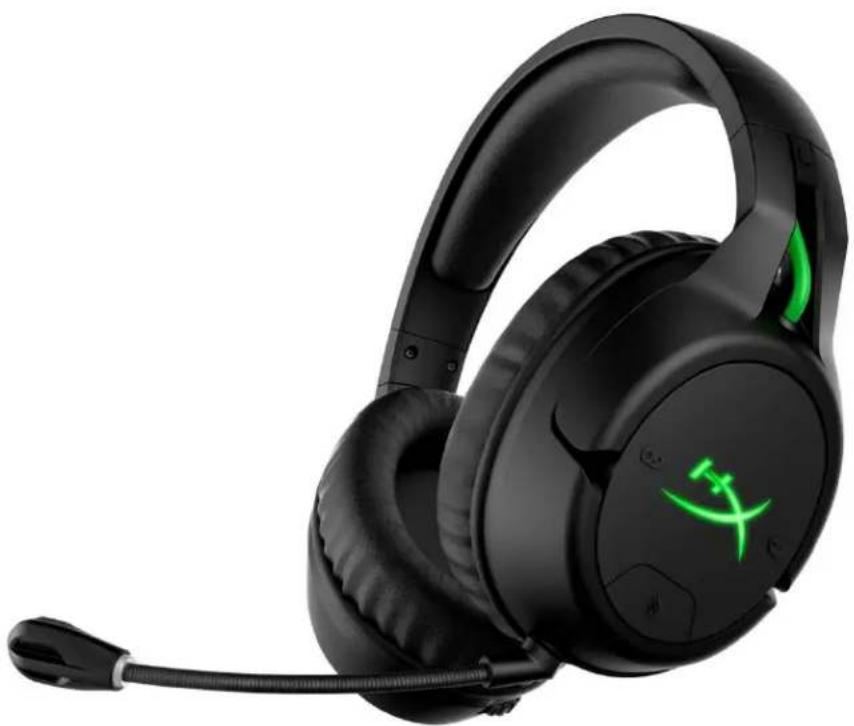
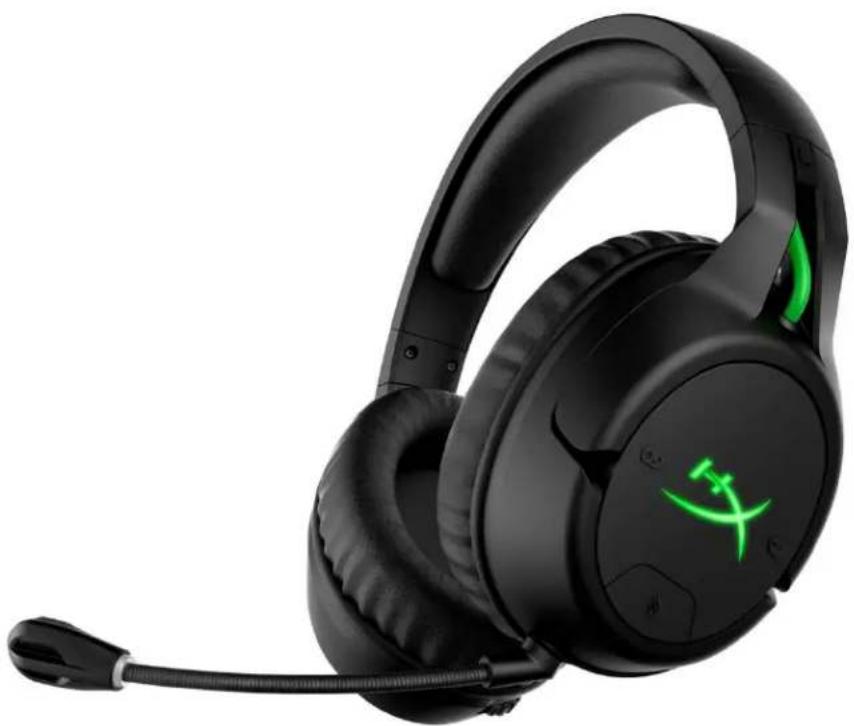
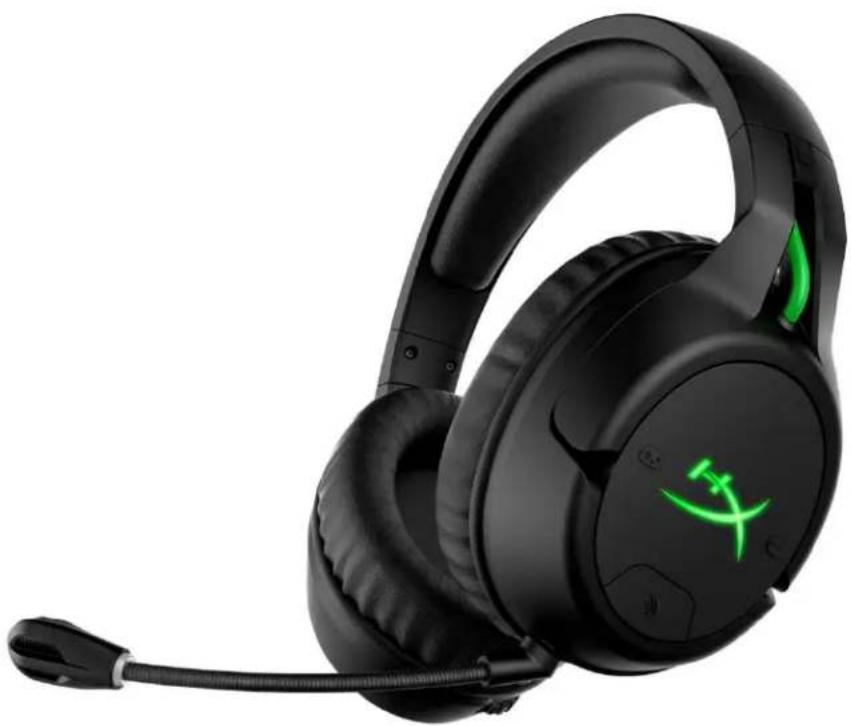
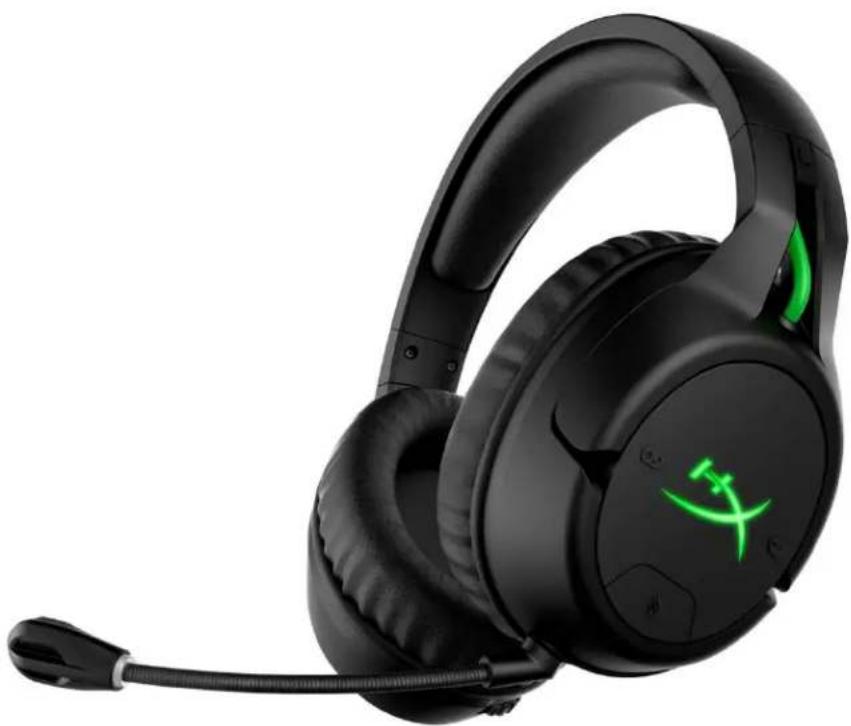
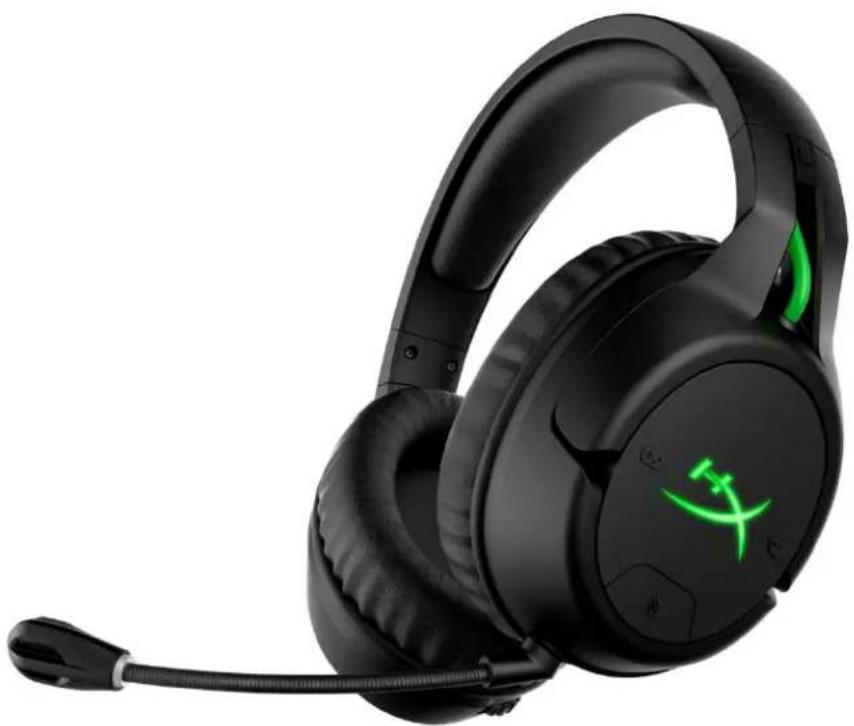
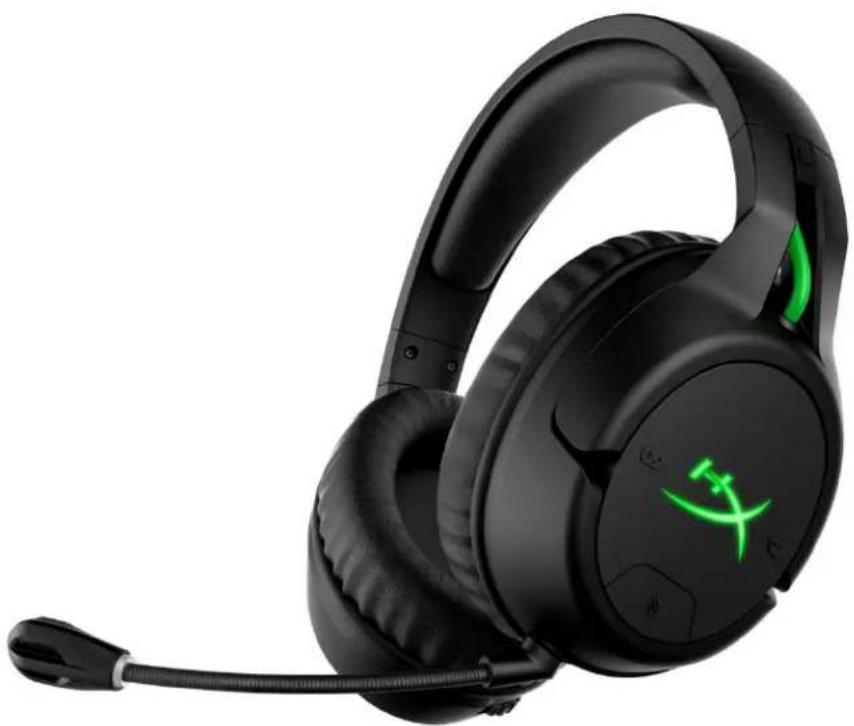
| Model | CloudX Flight |
| Weight | 288 g (without mic) / 298 g (with mic) |
| Driver type | Dynamic 50 mm with neodymium magnets |
| Frequency response (headset) | 20 Hz – 20 000 Hz |
| Impedance | 32 Ω |
| Sound pressure level | 113 dB SPL/mW at 1 kHz |
| Total harmonic distortion | < 2 % |
| Microphone type | Electret condenser, bidirectional with noise cancellation |
| Frequency response (mic) | 100 Hz – 10 000 Hz |
| Microphone sensitivity | -51 dBV (0 dB = 1 V/Pa, 1 kHz) |
| Connection type | 2.4 GHz wireless via USB adapter |
| Wireless range | Up to 20 m (depending on environment) |
| Battery life | 30 h (LED off) / 18 h (LED breathing) / 13 h (LED solid) – tested at 50% volume |
| Charging | Via USB cable (1 m), LED indicates charging status |
| Built-in controls | On/Off, volume, mic mute, game/chat audio balance |
| LED indicators | Headphone LED (solid, breathing, off) and mic mute LED |
| Compatibility | Xbox One (adapter included), compatible with PC via USB adapter |
| Included accessories | USB charging cable (1 m), wireless adapter, detachable microphone |
| Maintenance | Clean with a soft, dry cloth. Do not use chemicals. |
| Warranty | Limited manufacturer warranty – see HyperX website |
Frequently Asked Questions - CloudX Flight HYPERX
User questions about CloudX Flight HYPERX
0 question about this device. Answer the ones you know or ask your own.
Ask a new question about this device
Download the instructions for your Headphones in PDF format for free! Find your manual CloudX Flight - HYPERX and take your electronic device back in hand. On this page are published all the documents necessary for the use of your device. CloudX Flight by HYPERX.
USER MANUAL CloudX Flight HYPERX
HyperX CloudX Flight™ Headset Keyboard
Find the language and latest documentation for your HyperX CloudX Flight Headset here.
HyperX CloudX Flight Headset Installation Guide
For instructions in English
Para instrucciones en Español
Für Anleitungen in Deutsch
Pour des instructions en Français
...... Per le istruzioni in Italiano
Por as instruções em Português
Instrukcje w języku Polskim
Для инструкции на Русском
C. Turkce talimatlar icin
日本語マニュアル用
한국어 안내
.....คําแนะนําภาษาไทย
Đế xem hướng dẫn bằng tiếng Việt
Simplified Chinese ..... 简体中文说明书
Traditional Chinese ....繁體中文說明
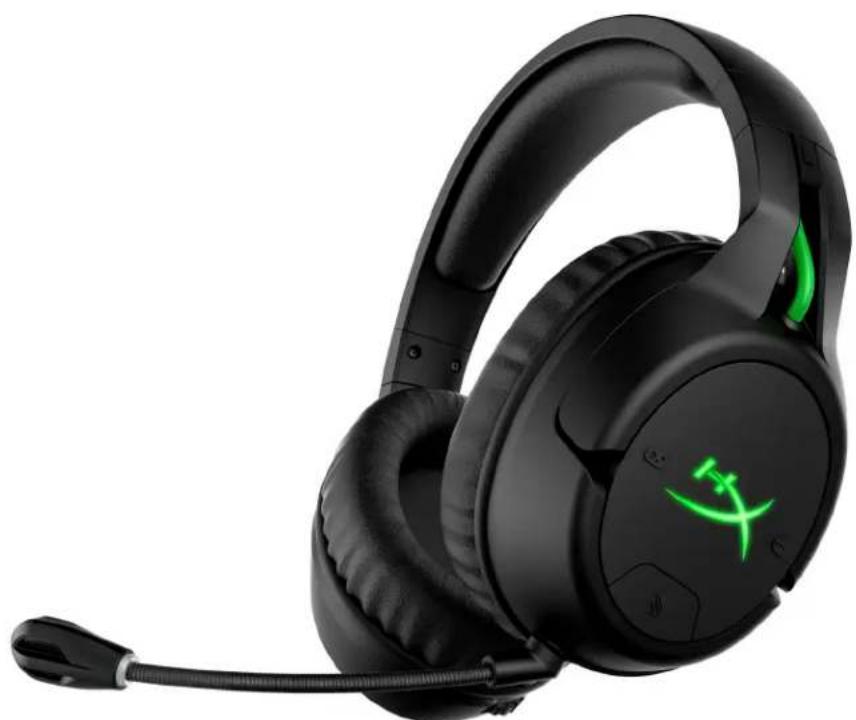
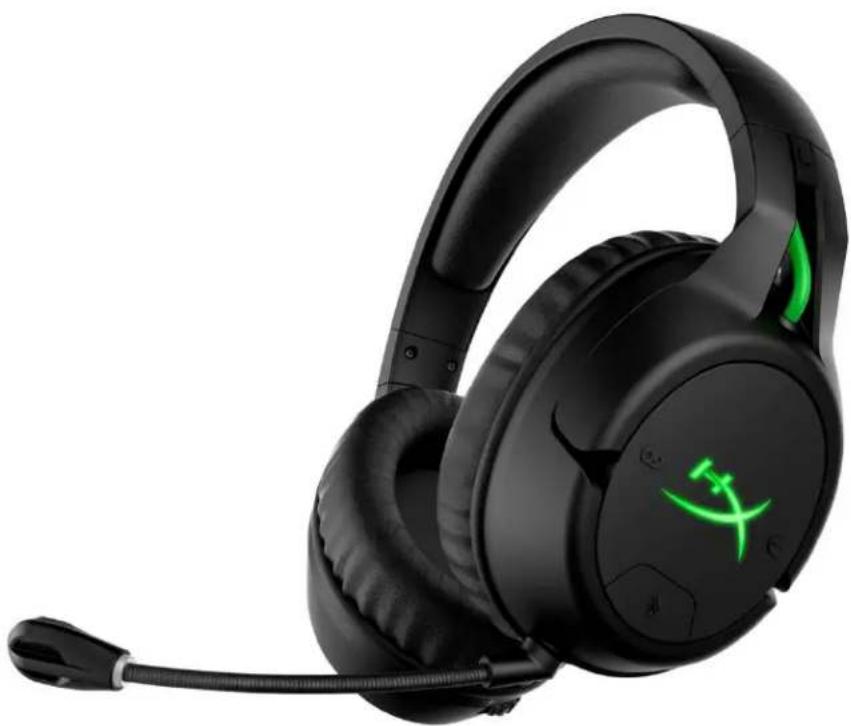
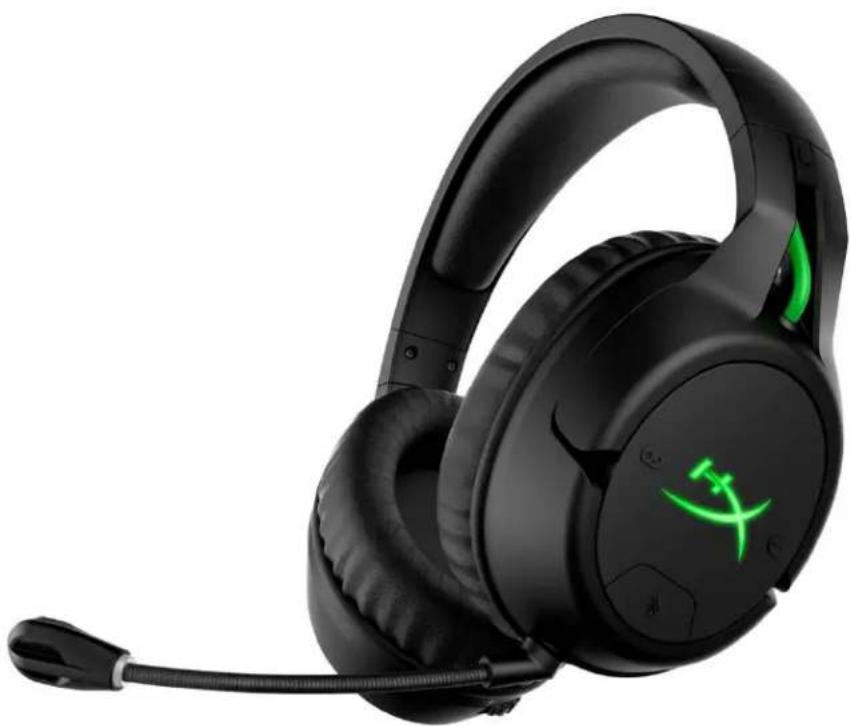
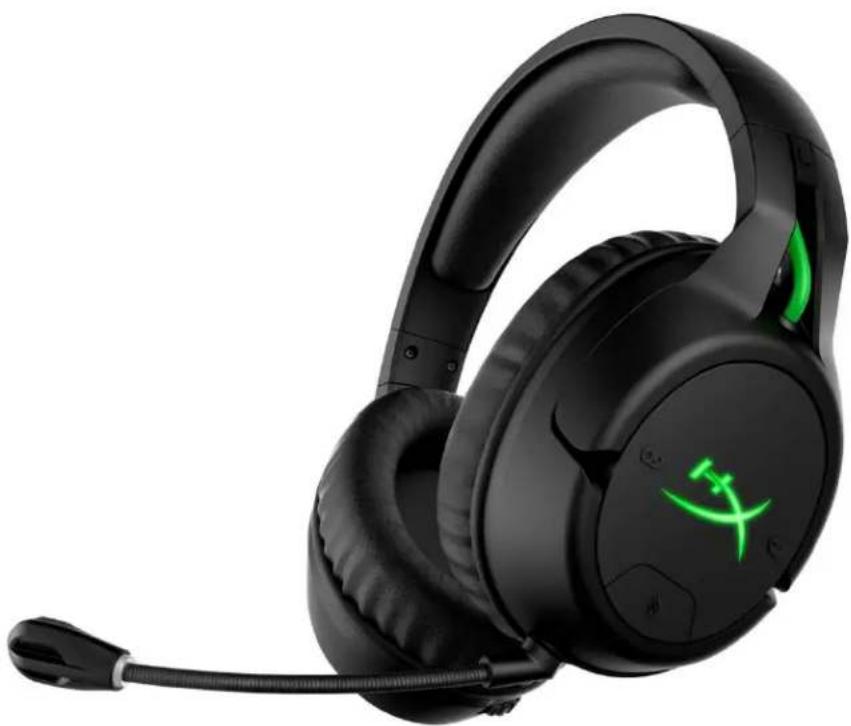
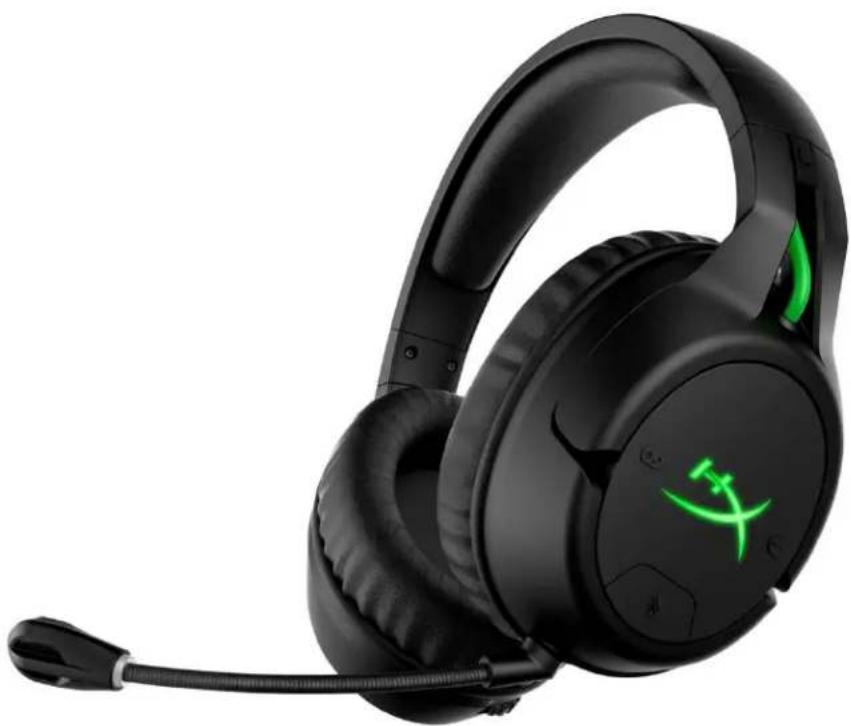
HyperX CloudX Flight™
natural_image
Black and white headboard with a green LED logo, no visible text or symbols on the headset or background.Part Numbers
HX-HSCFX-BK/WW
TABLE OF CONTENTS
Overview....3
Specifications 4
Usage....5
Using with Xbox One ^® 5
Headset Controls 6
Headset Status Beep Tone Indicators 8
Headset Charging 9
Manually Pairing Headset and Wireless Adapter 10
Questions or Setup Issues? 11
Overview
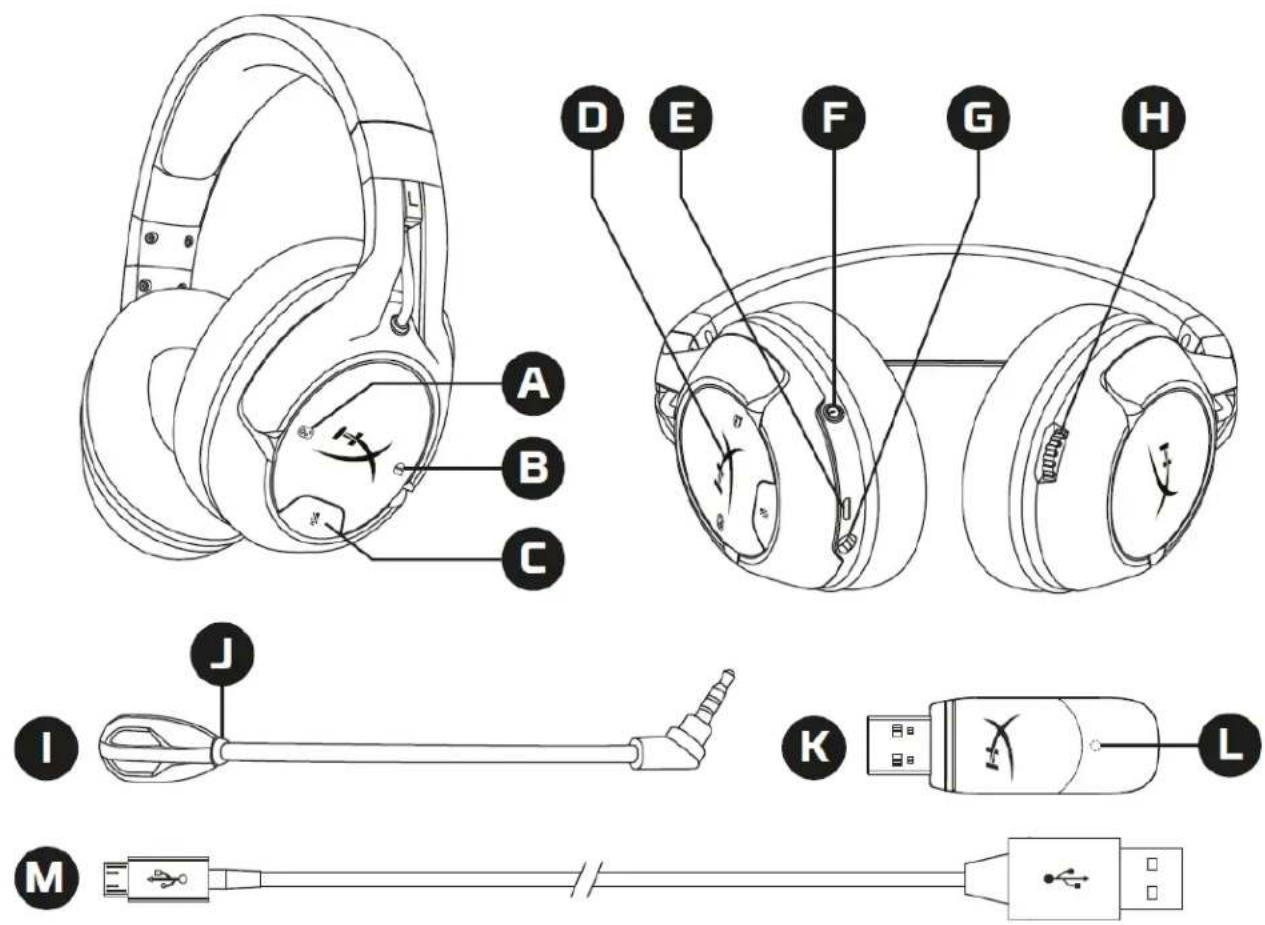
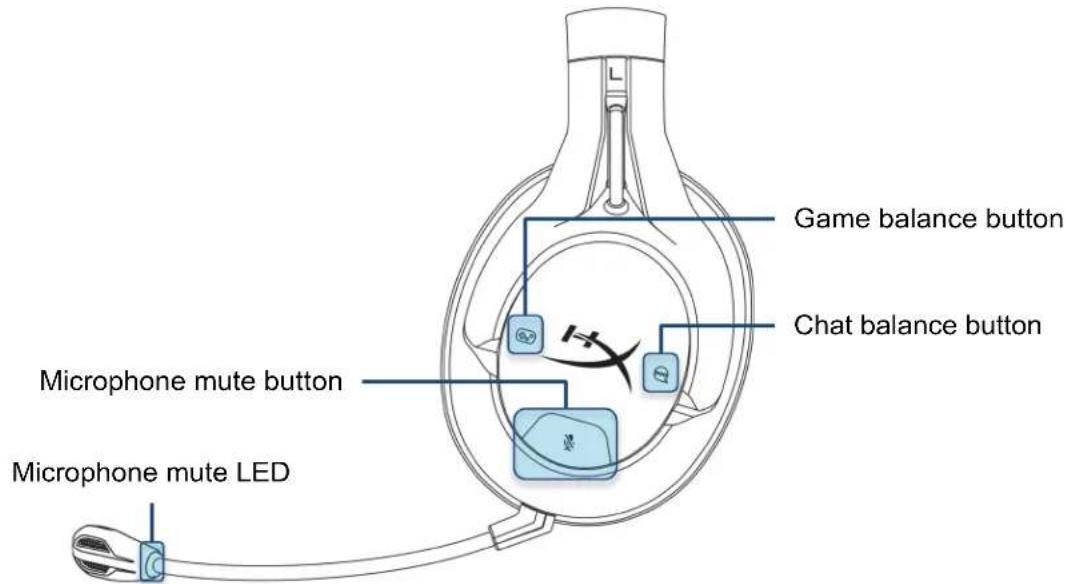
A. Game balance button
B. Chat balance button
C. Microphone mute button
D. Ear cup LED
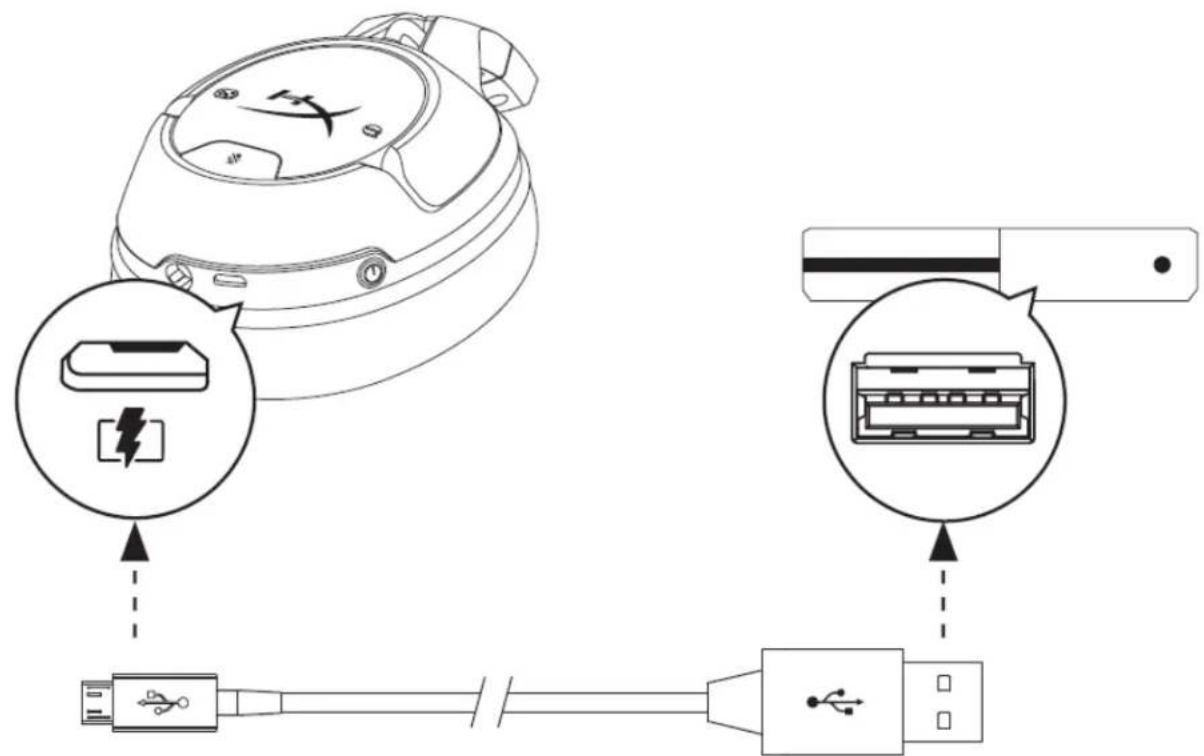
E. USB charge port
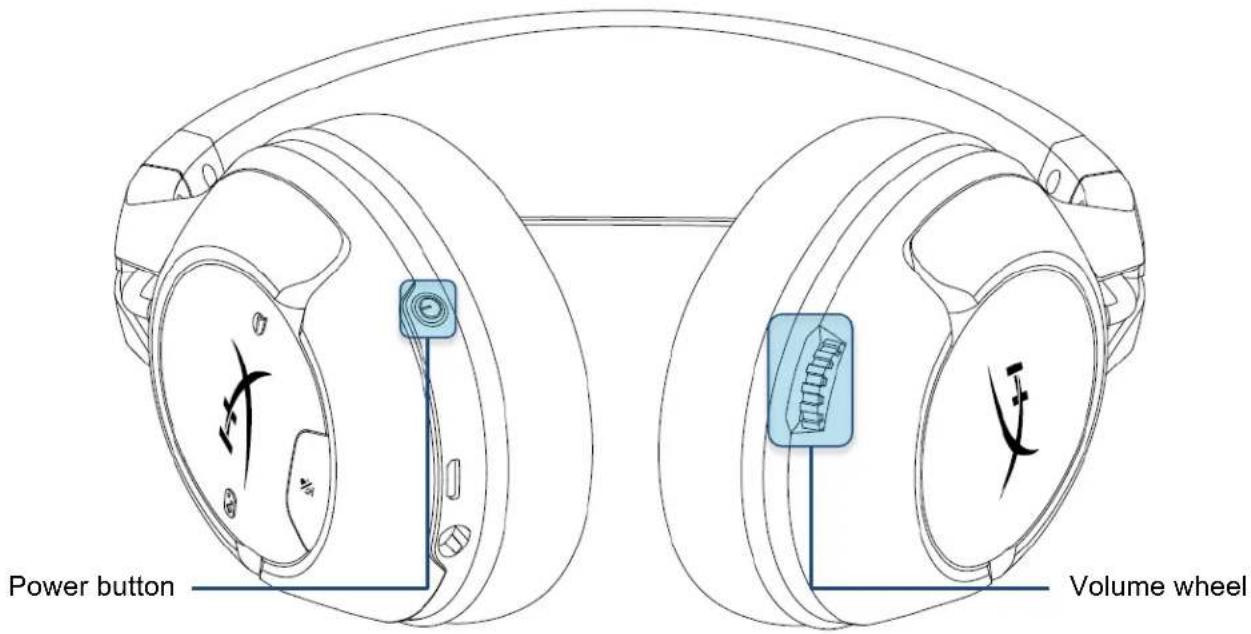
F. Power button
G. Microphone port
H. Volume wheel
I. Detachable microphone
J. Microphone mute LED
K. Wireless adapter
L. Wireless status light
M. USB charge cable
Specifications
Headphone
Driver: Dynamic, 50mm with neodymium magnets
Type: Circumaural, Closed back
Frequency response: 20Hz–20,000Hz
Impedance: 32 Ω
Sound pressure level: 113dBSPL/mW at 1kHz
T.H.D.: < 2%
Weight: 288g
Weight with mic: 298g
Cable length and type: USB charge cable (1m)
Microphone
Element: Electret condenser microphone
Polar pattern: Bi-directional, Noise-cancelling
Frequency response: 100Hz-10,000 Hz
Sensitivity: -51dBV (0dB=1V/Pa,1kHz)
Battery life\*
30 hours - LED off
18 hours - Breathing LED
13 hours - Solid LED
Wireless Range\*\*
2.4 GHz
Up to 20 meters
*Tested at 50% headphone volume
**Wireless range may vary due to environmental conditions
Usage
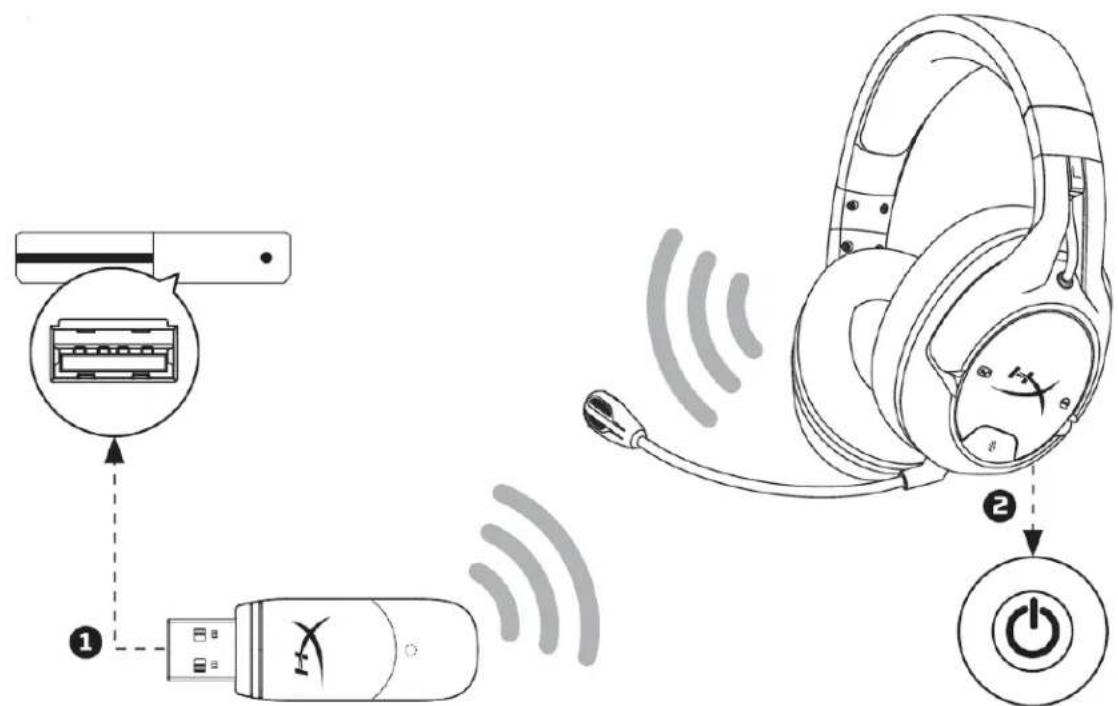
Using with Xbox One®
text_image
Diagram illustrating wireless audio headset connection with labeled components and signal flow- Connect the wireless adapter to a USB port on the Xbox One ^® system.
- Power on the headset.
- When the wireless adapter status light is solid, the headset is now connected to the adapter.
- If logged in with an account, the Xbox One ^® will assign the headset to that account and notify the user.
Note: Connecting the headset to the Xbox One ^® system does not automatically mute or adjust the sound from the TV.
Headset Controls
text_image
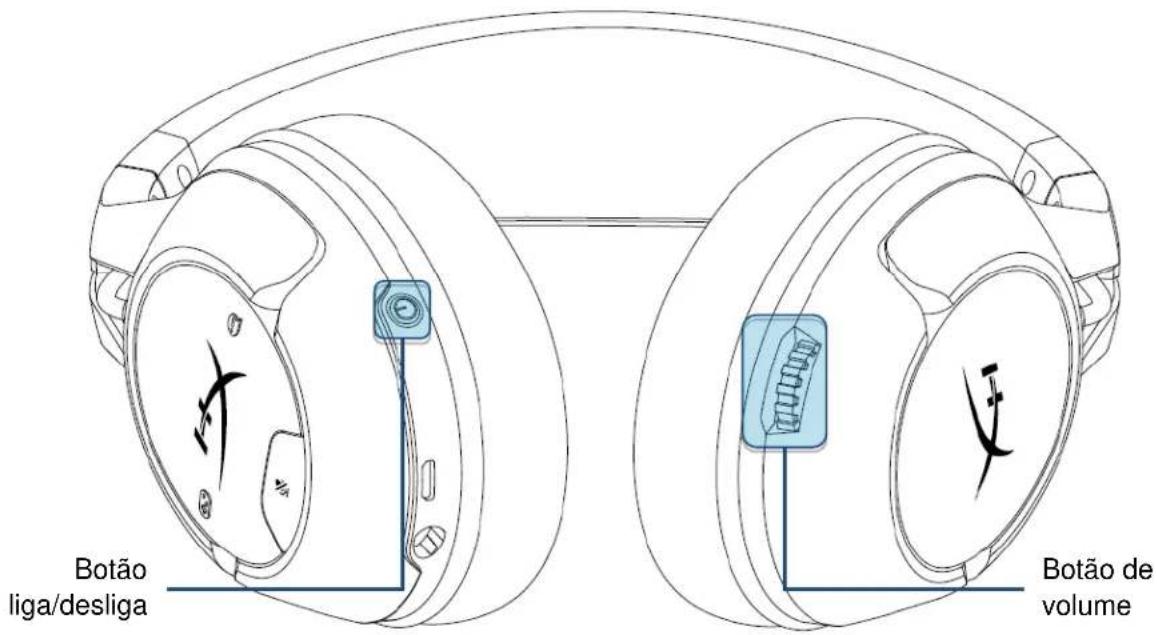
Power button Volume wheelPower button
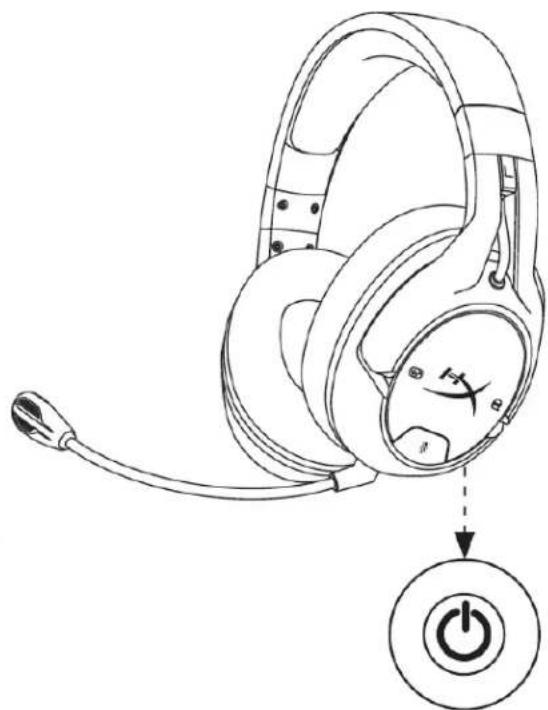
Hold the power button for 3 seconds to power on/off the headset.
With the headset powered on, short press the power button to cycle through the ear cup LED modes.
The supported LED modes are solid (default), breathing, and off.
Volume wheel
Rotate the volume wheel up or down to adjust the volume level.
text_image
Game balance button Chat balance button Microphone mute button Microphone mute LEDGame/Chat balance buttons
Press the game/chat balance buttons to adjust mix between game audio and chat audio.

bar
| Category | Percentage (%) | | :--- | :--- | | Game Chat | 100 | | Chat | 50 | | Game Chat | 50 | | Chat | 100 |The game/chat balance functionality operates independently from the overall headset audio volume.
Microphone mute button
Press the microphone mute button to toggle the microphone mute. The microphone mute LED will indicate the current mute status.
| Microphone Mute LED | Mic Status |
| On | Muted |
| Off | Active |
Hold the microphone mute button for 3 seconds to turn mic monitoring on/off.
Headset Status Beep Tone Indicators
The headset will emit beep tones to indicate status for power, volume, game/chat balance, microphone mute, mic monitoring, and battery charge.
| Power Status | Beep Tone Indicator |
| Power on | One tone (high) |
| Power off | Two tones (high, low) |
| Volume Status | Beep Tone Indicator |
| Setting to 100% maximum volume | Three tones (high) |
| Setting to 0% minimum volume | Three tones (low) |
| Game/Chat Balance Status | Beep Tone Indicator |
| Setting to 50% Game / 50% Chat | One tone (mid) |
| Setting to 100% Game / 0% Chat | Two tones (low) |
| Setting to 0% Game / 100% Chat | Two tones (low) |
| Microphone Mute Status | Beep Tone Indicator |
| Microphone muted | Two tones (high) |
| Microphone active | One tone (high) |
| Mic Monitoring Status | Beep Tone Indicator |
| Mic Monitoring enabled | One tone (low) |
| Mic Monitoring disabled | One tone (low) |
| Battery Status | Beep Tone Indicator |
| 25% battery remaining | Two tones (low) |
| 10% battery remaining | Three tones (low) |
| 5% battery remaining | Five tones (mid, low, mid, low, mid) |
Headset Charging
When the headset is connected to a charger with the USB charge cable, the ear cup LEDs will indicate the charge status.
text_image
Diagram showing connections between a device and a USB port, with labeled components and dashed arrows indicating connection points.| Ear Cup LEDs | Charging Status |
| Breathing | Charging |
| Off | Charging complete |
Manually Pairing Headset and Wireless Adapter
The headset and wireless adapter are already paired together for first time use. If manual pairing is necessary, follow the steps below to pair the headset and wireless adapter together.
- Make sure the headset is powered off.
- Plug the USB wireless adapter into the Xbox One ^® system.
- Use a small pin to press the small button on the back side of the USB wireless adapter for 3 seconds. The USB wireless adapter LED will be fast blinking.
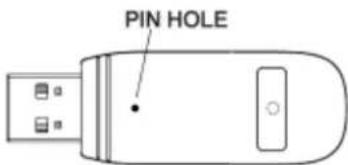
text_image
PIN HOLE- With the headset turned off, press and hold the headset power button for 10 seconds to enter pairing mode. The headset earcup LEDs will blink rapidly.
natural_image
Line drawing of a headset with a power button icon (no text or symbols)- When the USB wireless adapter LED turns solid and the headset ear cup LEDs have returned to their last used mode, the pairing process has been completed.
Questions or Setup Issues?
Contact the HyperX support team at: hyperxgaming.com/support/headsets
HyperX CloudX Flight™
natural_image
Black and white headboard with a green LED logo, no visible text or symbols on the headset or background.Controles de audio....6
text_image
A B C D E F G H I J K L Mtext_image
Diagram illustrating wireless audio transmission from a device to an headphones, showing signal flow and power button connection.text_image
Diagram showing connections between a device and a USB port, with labeled components and connection arrows.natural_image
Line drawing of a pair of headphones with a power button icon (no text or symbols)HyperX CloudX Flight™
natural_image
Black and white headboard with a green LED logo, no visible text or symbols on the headset or background.Artikelnummern
HX-HSCFX-BK/WW
INHALT
Übersicht....3
Spezifikationen 4
Verwendung 5
text_image
A B C D E F G H J I K L Mtext_image
Diagram illustrating wireless audio transmission from a device to an headphones, showing signal flow and power button connection.bar
| Category | Percentage (%) | | :--- | :--- | | 100% Game | 0 | | 50% Game | 50 | | 0% Game | 100 | Chat (comprising 0% Chat) and 0% Chat (comprising 50% Chat).text_image
Diagram showing connections between a device and a USB port, with labeled components and connection points.natural_image
Line drawing of a multi-Headphone ear with a power button icon (no text or symbols)HyperX CloudX Flight™
natural_image
Black and white headboard with a green LED logo, no visible text or symbols on the headset or background.Références produits
HX-HSCFX-BK/WW
TABLE DES MATIÈRES
Présentation.... 3
Spécifications 4
Utilisation 5
text_image
A B C D E F G H I J K L Mtext_image
Diagram illustrating wireless audio transmission from a device to an headphones, showing signal flow and power button connection.bar
| Activity | Percentage (%) | | :--- | :--- | | 100% Game | 0 | | 50% Game | 50 | | 0% Game | 100 | Chat (with + and o) indicated by a plus icon.text_image
Diagram showing connections between a device and a USB port, with labeled components and dashed arrows indicating connection points.natural_image
Line drawing of a pair of audio headphones with a power button icon (no text or symbols)HyperX CloudX Flight™
natural_image
Black and white headboard with a green LED logo, no visible text or symbols on the headset or background.Numeri di parte
HX-HSCFX-BK/WW
INDICE
text_image
A B C D E F G H I J K L Mtext_image
Diagram illustrating wireless audio transmission from a device to an headphones, showing signal flow and power button connection.text_image
Diagram showing connections between a device and a USB port, with labeled components and connection points.natural_image
Line drawing of a pair of headphones with a power button icon (no text or symbols)HyperX CloudX Flight™
natural_image
Black and white headboard with a green 'X' logo, no visible text or symbols on the headset or background.Número das peças
HX-HSCFX-BK/WW
ÍNDICE
Visão geral 3
Controles do Headset 6
Indicadores do som do bip de status do headset....8
text_image
A B C D E F G H I J K L Mtext_image
Diagram illustrating wireless audio device connections, showing headset, USB, and power button with signal wavesControles do Headset
text_image
Diagram showing connections between a device and a USB port, with labeled components and connection points.natural_image
Line drawing of a pair of headphones with a power button icon (no text or symbols)HyperX CloudX Flight™
natural_image
Black and white headboard with a green LED logo, no visible text or symbols on the headset or background.Numery katalogowe
HX-HSCFX-BK/WW
SPIS TREŚCI
Prezentacja.... 3
Dane techniczne 4
text_image
A B C D E F G H J I K L Mtext_image
Diagram illustrating wireless audio transmission from a device to an headphones, showing signal flow and power button connection.text_image
Diagram showing connections between a device and a USB port, with labeled components and dashed arrows indicating connection points.natural_image
Line drawing of a headboard with earphones and a power button icon (no text or symbols)HyperX CloudX Flight™
natural_image
Black and white headboard with a green 'X' logo, no visible text or symbols on the headset or background.Номера по каталогу
HX-HSCFX-BK/WW
СОДЕРЖАНИЕ
Обзор 3
text_image
A B C D E F G H I J K L Mtext_image
Diagram illustrating wireless audio device connections, showing headset, USB, and power button with signal wavestext_image
Diagram showing connections between a device and a USB port, with labeled components and connection arrows.natural_image
Line drawing of a headset with a power button icon (no text or symbols)HyperX CloudX Flight™
natural_image
Black and white headboard with a green LED logo, no visible text or symbols on the headset or background.Parça Numaraları
HX-HSCFX-BK/WW
iÇINDEKILER
Genel Görünüm 3
text_image
A B C D E F G H J I K L Mtext_image
Diagram illustrating wireless audio transmission from a device to an headphones, showing signal flow and power button connection.text_image
Diagram showing connections between a device and a USB port, with labeled components and connection points.natural_image
Line drawing of a headset with a power button icon (no text or symbols)HyperX CloudX Flight™
natural_image
Black and white headboard with green logo, no visible text or symbols製品番号
HX-HSCFX-BK/WW
目次
概要 3
仕様 4
使用方法 5
text_image
A B C D E F G H J I K L Mtext_image
Diagram illustrating wireless audio headset connection with labeled components and signal flowtext_image
Diagram showing connections between a device and a USB port, with labeled components and connection points.natural_image
Line drawing of a headboard with earplugs and a power button icon (no text or symbols)HyperX CloudX Flight™
natural_image
Black and white headboard with green logo, no visible text or symbols부품 번호
HX-HSCFX-BK/WW
목차
개요 3
규격 4
사용 5
Xbox One 에 사용® 5
헤드셋 컨트롤....6
헤드셋 상태 비프음 표시기 8
헤드셋 충전 9
text_image
A B C D E F G H J I K L MA. 게임 밸런스 버튼
B. 채팅 밸런스 버튼
C.마이크 음소거 버튼
D. 이어 컥 LED
E. USB 충전 포트
F. 전원 버튼
G. 마이크 포트
H. 볼륨 훨
I. 분리형 마이크
J.마이크 음소거 LED
K.무선 어댑터
L. 무선 상태등
M. USB 충전 케이블
규격
헤드폰
감도: -51dBV(0dB=1V/Pa,1kHz)
배터리 수명*
LED 가 꺼진 채로 30 시간
text_image
Diagram illustrating wireless audio headset connection with labeled components and power buttontext_image
Diagram showing connection between a device and a USB port, with labeled components and wiring connections.natural_image
Line drawing of a headboard with earplugs and a power button icon (no text or symbols)HyperX CloudX Flight™
natural_image
Black and white headboard with a green LED logo, no visible text or symbols on the headset or background.หมายเลขชิ้น
HX-HSCFX-BK/WW
สารบัญ
ภาพรวม 3
text_image
A B C D E F G H J I K L Mtext_image
Diagram illustrating wireless audio headset connection with labeled components and signal flowbar
| Category | Percentage (%) | | :--- | :--- | | 100% Game | 0 | | 50% Game | 50 | | 0% Game | 100 | Chat (with play icon) and Chat (with speech icon) both at 0%.text_image
Diagram showing connections between a device and a USB port, with labeled components and connection points.natural_image
Line drawing of a pair of headphones with a power button icon (no text or symbols)HyperX CloudX Flight™
natural_image
Black and white headboard with a green 'X' logo, no visible text or symbols on the headset or background.Mã sản phẩm
HX-HSCFX-BK/WW
Mục Lục
Tổng quan 3
text_image
A B C D E F G H J I K L Mtext_image
Diagram illustrating wireless audio device connections, showing headset, USB, and power button with signal wavestext_image
Diagram showing connections between a device and a USB port, with labeled components and connection points.natural_image
Line drawing of a pair of headphones with a power button icon (no text or symbols)HyperX CloudX Flight™
natural_image
Black and white headboard with green logo, no visible text or symbols产品型号
HX-HSCFX-BK/WW
目录
概述 3
规格 4
使用 5
text_image
A B C D E F G H I J K L M灵敏度:-51dBV (0dB=1V/Pa,1kHz)
电池寿命*
30 小时 - LED 关闭
18 小时 - LED 呼吸
13 小时 - LED 常亮
无线范围**
2.4 GHz
20 米以内
* 以 50% 的耳机音量测试
**无线范围可能因环境条件而异
使用
text_image
Diagram illustrating wireless audio headset connection with labeled components and signal flowtext_image
Diagram showing connections between a device and a USB port, with labeled components and connection points.natural_image
Line drawing of a headset with a power button icon (no text or symbols)HyperX CloudX Flight™
natural_image
Black and white headboard with green logo, no visible text or symbols產品型號
HX-HSCFX-BK/WW
目錄
概觀 3
產品規格....4
使用說明 5