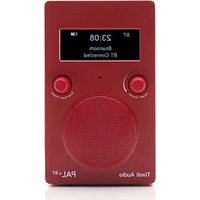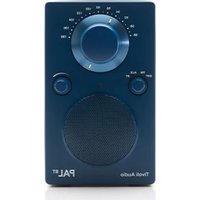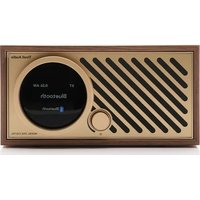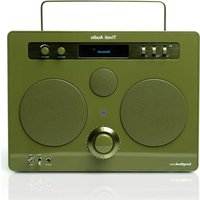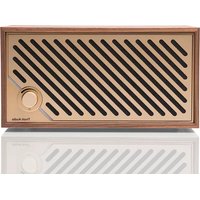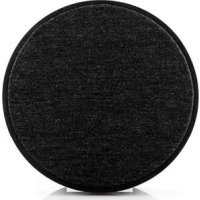
ORB - Wireless Speaker TIVOLI AUDIO - Free user manual and instructions
Find the device manual for free ORB TIVOLI AUDIO in PDF.



User questions about ORB TIVOLI AUDIO
0 question about this device. Answer the ones you know or ask your own.
Ask a new question about this device
Download the instructions for your Wireless Speaker in PDF format for free! Find your manual ORB - TIVOLI AUDIO and take your electronic device back in hand. On this page are published all the documents necessary for the use of your device. ORB by TIVOLI AUDIO.
USER MANUAL ORB TIVOLI AUDIO
Guide to Features. 5
Top Panel 5
Bottom Panel 6
WiFi Mode. 7
Setup. 7
Creating a Zone 10
Selecting Speaker or Speakers for a Zone 11
All Zones Page 12
Zone Player Page 13
Zone Speaker List 14
Speaker Details Page 15
Sources 16
Music Screen 16
Settings Page 17
Devices Page 18
Speaker Configuration Page 19
Party Mode 20
DDMS Mode 20
Bluetooth Mode 21
Pairing 21
Bluetooth Over WiFi 21
Auxiliary Mode 22
Updating Firmware 22
Care 25
Troubleshooting and FAQ 25
Troubleshooting 25
FAQ 26
Welcome

Thank you for your purchase! Orb mixes classic design and the latest technology to create a simple solution for wireless audio in the home. Encased in a furniture grade wood cabinet and finished with a high-quality Gabriel® fabric grill, this piece elevates the craftsmanship and technology of the ART by Tivoli Audio product line.
These DAB, FM, WiFi and Bluetooth® enabled radios and speakers allow for a variety of configurations to meet your playback preferences. Whether it's a single Orb playing in your kitchen, paired to another ART speaker in your dining room in a stereo configuration, or your Spotify party playlist playing throughout your home in a multi-room system, the Orb offers a simple and flexible solution to best fit your surroundings and enhance your world through music. Start with one, learn how simple it is to build upon, and match your style in each room.
We know you are eager to begin listening to your new purchase, but in order to take full advantage of what it is capable of, please take a moment to read this owner's manual and the safety instructions. If you have any questions, please do not hesitate to contact your dealer or Tivoli Audio.
Please save the original packing should you ever need to ship your product.
Packed with your Orb you should find:
(1) External Power Supply and accompanying plugs
Please contact your dealer or Tivoli Audio if any of these items are missing.
Guide to Features
Top
Tivoli Audio
Tivoli Audio LOGO: This is a capacitive touch control beneath the wood. In wireless mode, it will Pause/Play the music stream. In Bluetooth mode, it will Mute the speaker.
Bottom
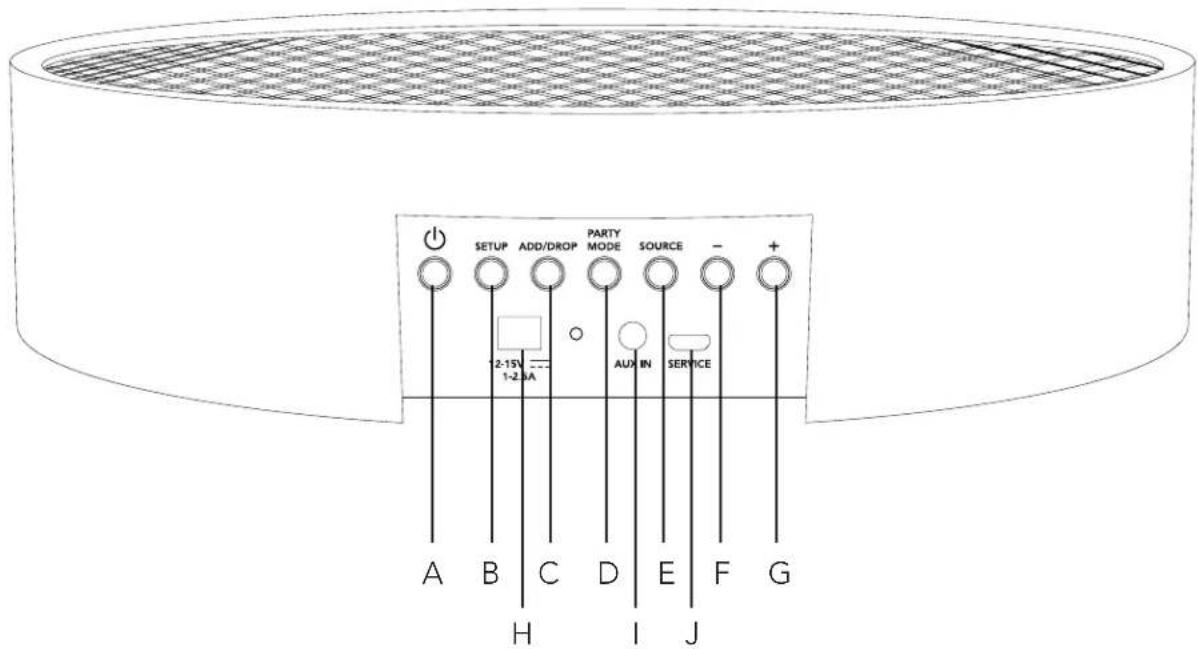
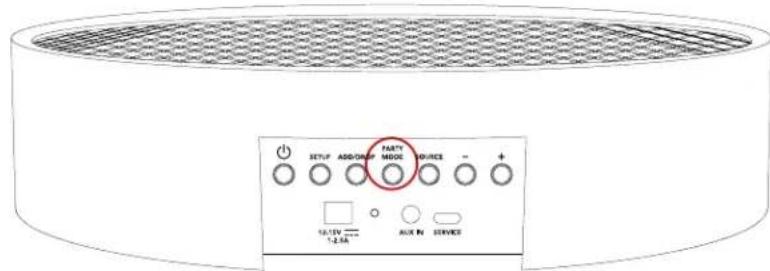
A. POWER: Press to turn on the unit. Hold to turn off.
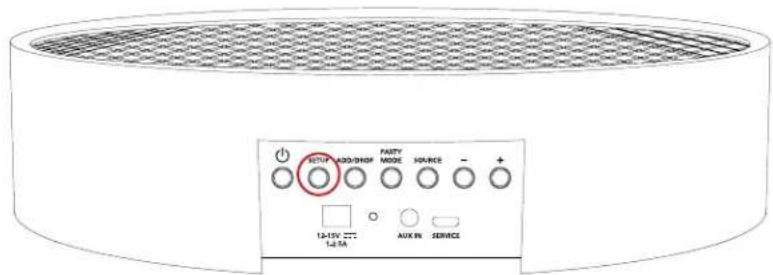
B. SETUP: Press to enable your speaker to be connected to your home network.
C. ADD/DROP: If the speaker is connected to a group, holding this button removes it from the group. If the speaker is not connected to a group, pressing this button connects it to the next available group. More information can be found in the "Add/Drop" section of this manual.
D. PARTY MODE: Hold to send the music from this speaker to all other connected speakers. More information can be found in the "Party Mode" section of this manual.
E. SOURCE: Tap to switch between audio sources. Audio source is indicated by the color of the LED. When in Bluetooth mode, hold this button for one second if it is already flashing or, if solid, until it starts flashing to enable pairing mode.
GreenLEDcolor-Wirelessmode
Blue LED color - Bluetooth streaming mode
Purple LED Color - Auxiliary mode
F. VOLUME -: Press to decrease the volume.
G. VOLUME +: Press to increase the volume.
H. DC Power: Plug in your Tivoli power adapter to power your Orb.
I. AUX IN: Plug in music directly for a standalone experience.
J. SERVICE: Service port. Only for use by an Authorized Tivoli service center.
WiFi Mode
Setup
Follow these steps to connect your speaker to your home WiFi network.
- Turn on your unit using the power button.
- Download and open the Tivoli Audio Wireless App
- Scroll left/right on the app to select the type of speaker you are setting up.
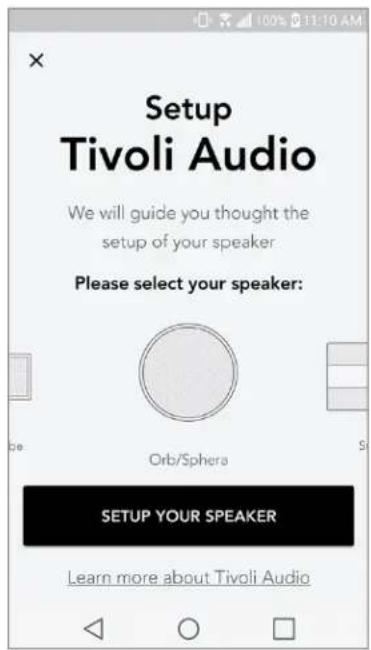
- On the back of the unit, press the "Setup" button, then tap "I SEE GREEN LIGHT".
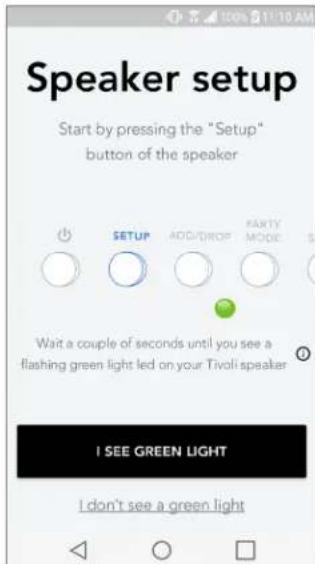
- Select "Go To Settings" to go to your WiFi networks to connect to the unit.
- Select "TivoliXXXXXXXX" in your WiFi settings. After your device has confirmed connection to the Tivoli network, return to the Tivoli Audio Wireless App.
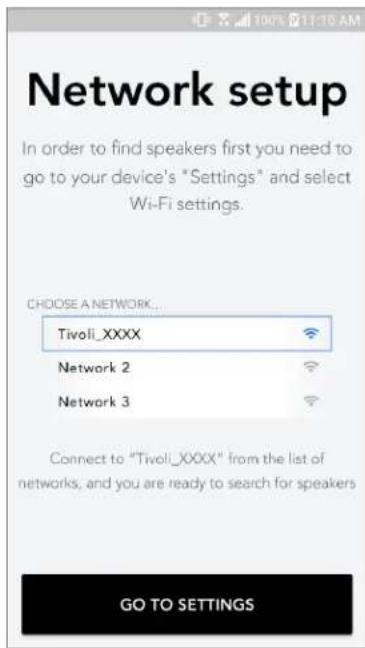
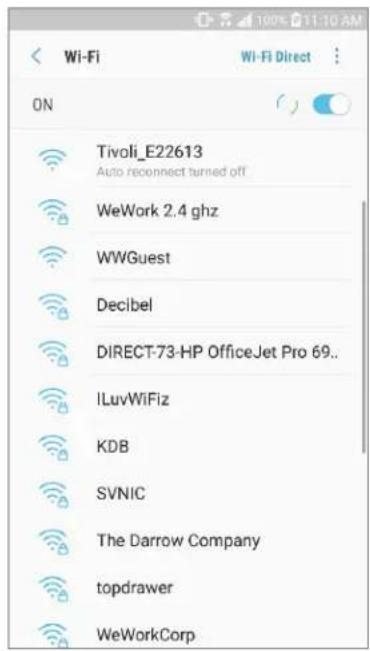
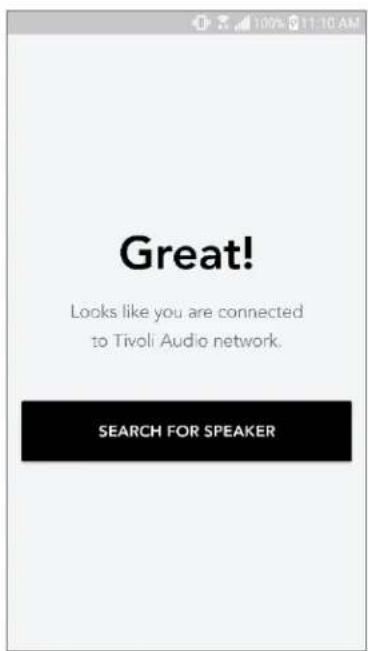
- You should see that you are connected to the unit. Then select "Search for Speaker" to enter your WiFi settings.
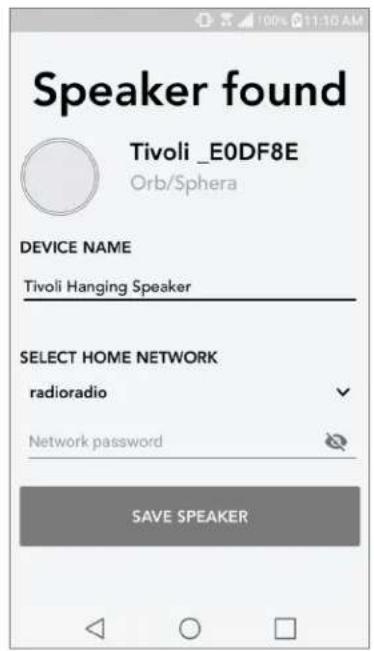
- In the dropdown menu, select the WiFi network you will be connecting the unit to, and then enter in your password information. Please note this must be a 2.4GHz network; 5GHz networks are normally labeled and are not compatible with Tivoli Audio products. After entering your WiFi network information, select "Save Speaker".
- After you have saved your WiFi settings in the speaker, you are ready to set up a Zone. It may take approximately 30 seconds for the speaker to connect to your WiFi network.
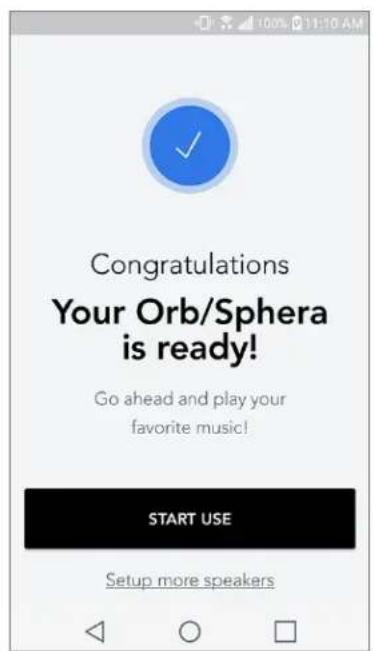
Note: If the set up is not complete and you receive a failed to connect message, please start over and repeat steps 1-9.
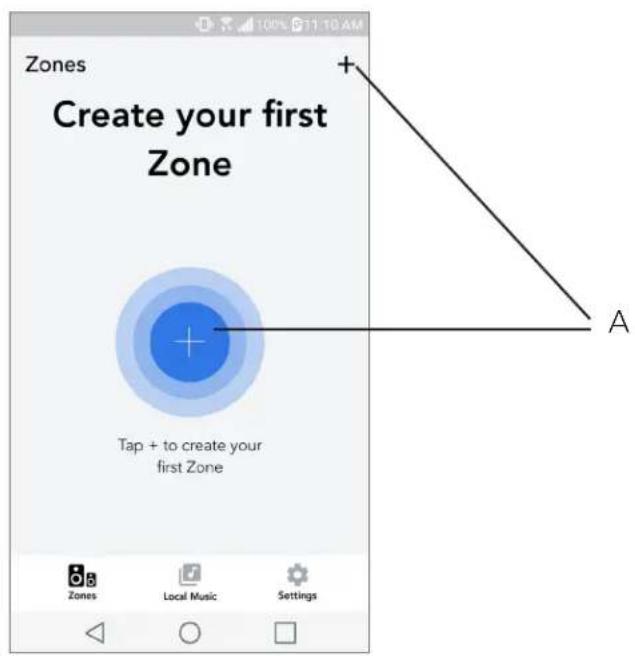
Creating a Zone
A. Creates a zone. A zone can consist of one or more speakers.
Selecting speaker or speakers for a Zone
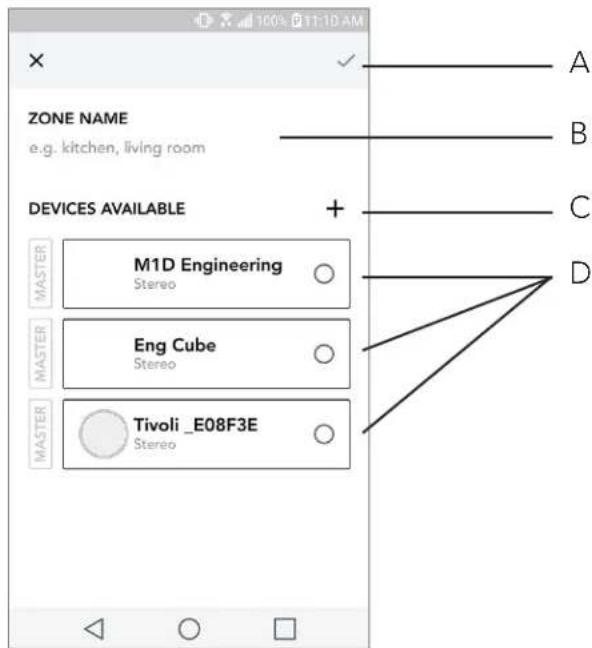
A. Saves changes
B. Names the zone
C. Goes to setup page to add an additional speaker
D. Select speakers to include in the zone
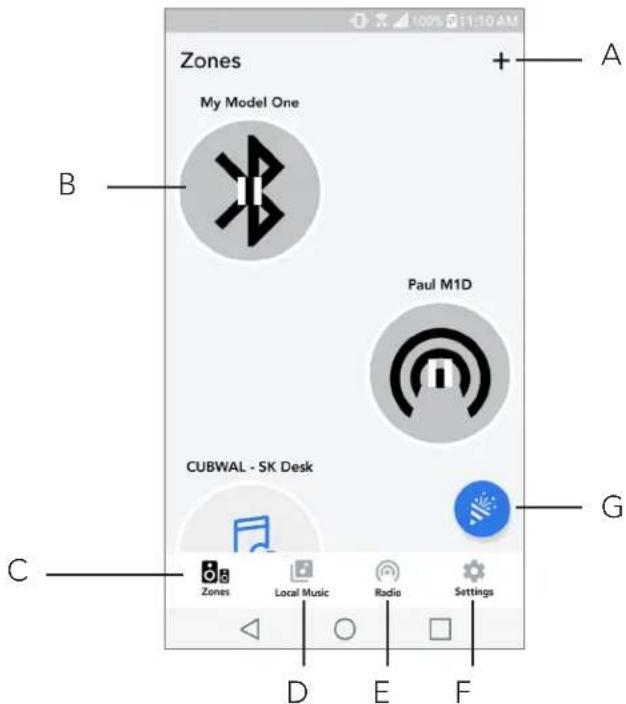
All Zones Page
A. Creates a new zone
B. Select to open zone
C. See all zones (current screen)
D. See music locally stored on your phone or tablet to play on a zone
E. Select FM/DAB radio as a source for any zone that has a Model One Digital available.
F. Goes to Settings Page
G. Drag onto a zone to enable Party Mode. More information on party mode can be found on page 20.
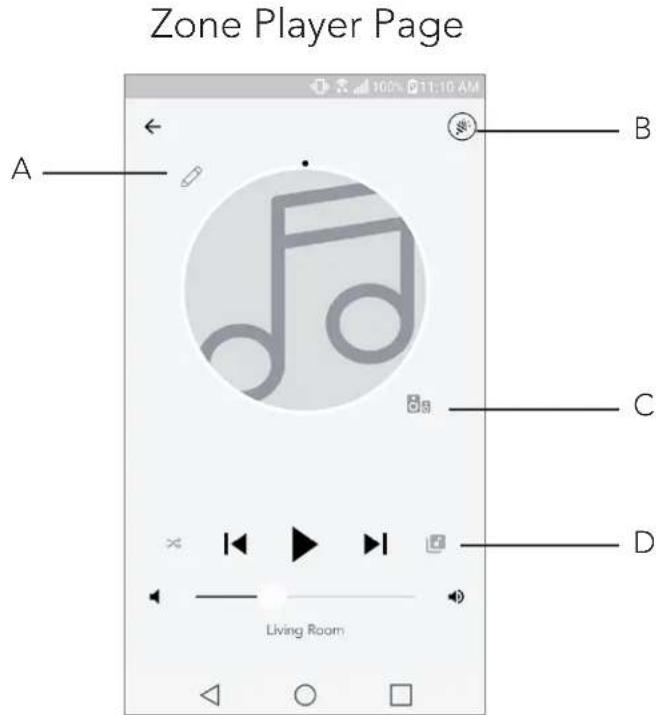
A. Changes the name of the zone
B. Activates Party Mode, joining all active speakers in playback
C. Goes to the zone speaker list.
D. Select music source to play on a zone. Please note, some in app available sources require registered account login information.
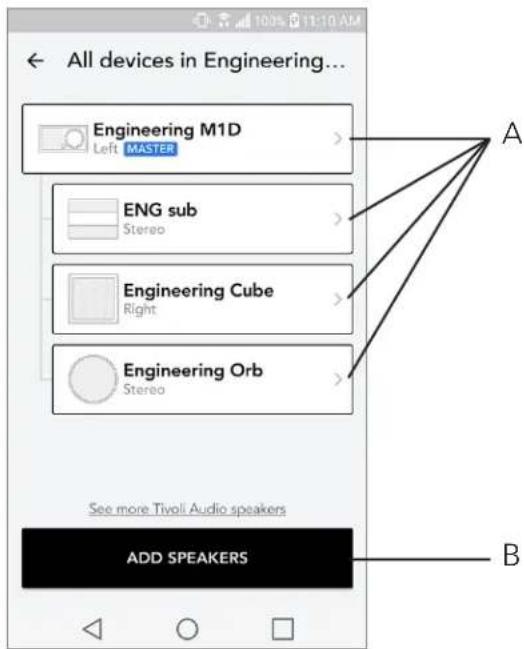
Zone Speaker List
A. Tap a speaker to see its detail page.
B. Tap to add speakers to the zone.
Speaker Details Page
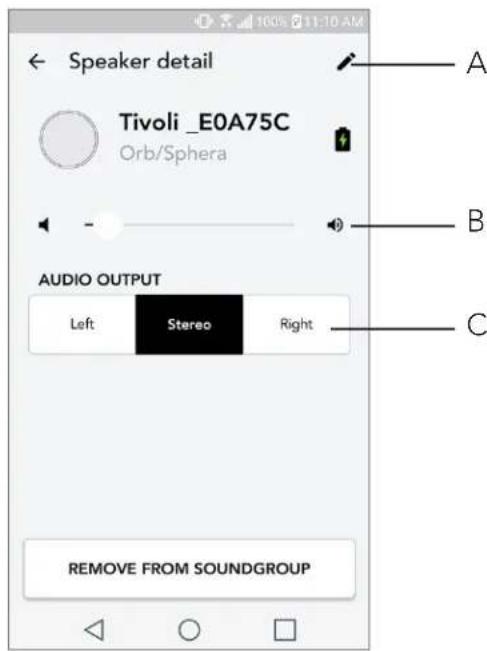
A. Change the speaker name
B. Adjust speaker volume
C. Set the speaker as Right Channel only, Left Channel only, or Stereo output
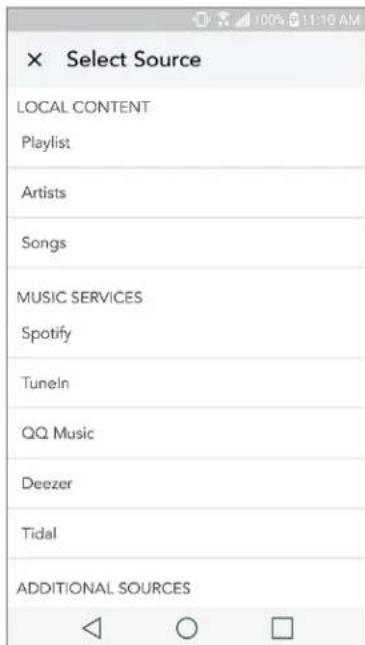
Sources
Select music source to play on a zone. Please note, some in app available sources require registered account login information. For more information on playing Bluetooth over WiFi, consult the Bluetooth over WiFi section.
Music Screen (only applies to local content)
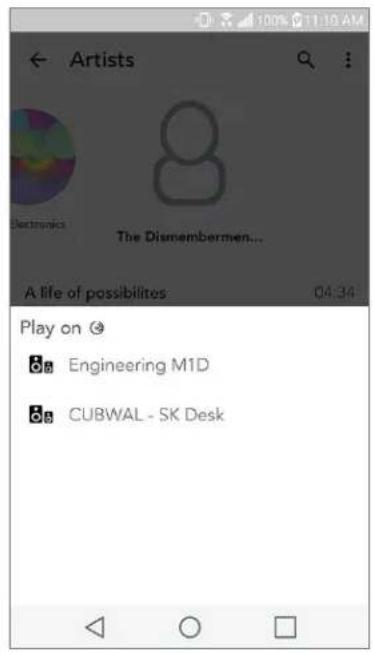
Browse music that is stored locally, directly on your phone or tablet.
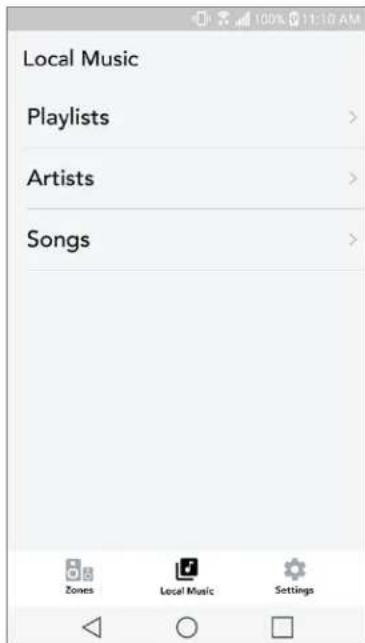
Note: After choosing a song for playback, if you have not selected a zone the app will prompt you to do so.
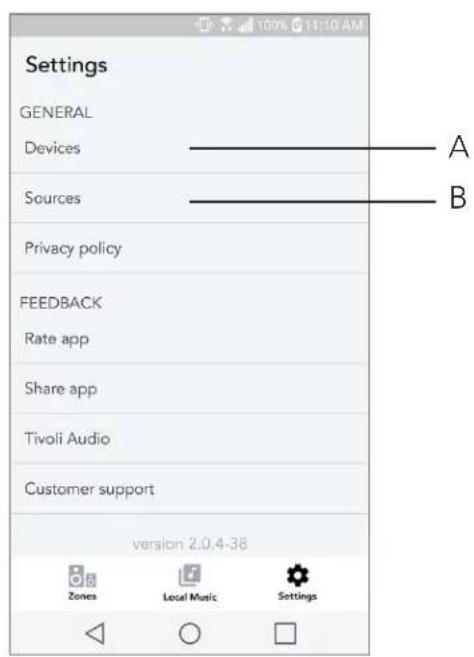
Settings Page
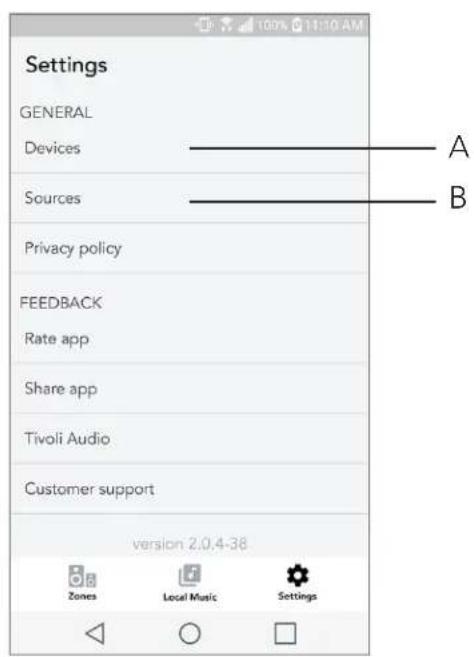
A. See all speakers that have been set up
B. Manage music service account logins
Devices Page
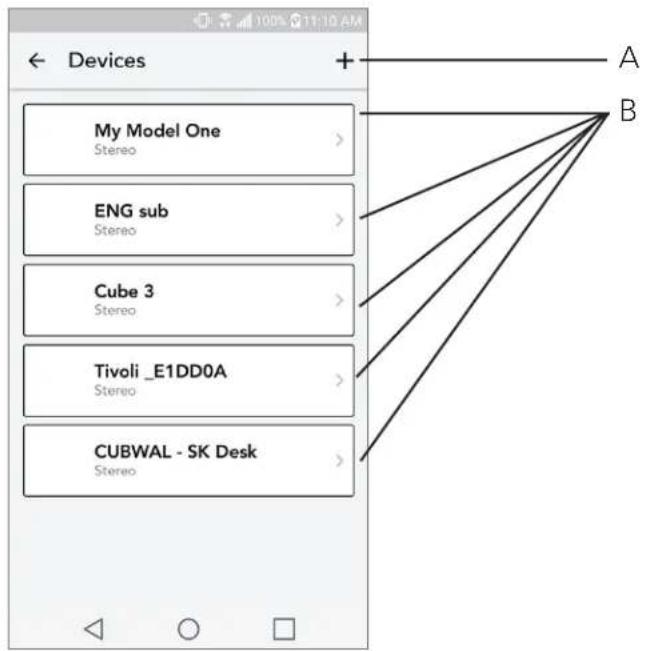
A. Setup a new speaker
B. See individual speaker's information and configuration
Speaker Configuration page
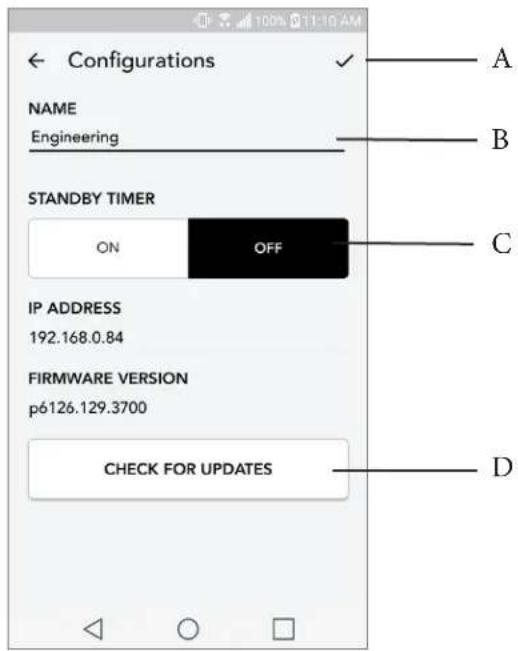
A. Select to save speaker name change
B. Select to rename the speaker
C. Turn Standby On or Off
D. Select to check for new firmware or re-install existing firmware
Party Mode Button
The Party Mode button allows you to quickly send music to all of the ART by Tivoli Audio products in your home. To enable party mode via the speaker, press and hold the Party Mode button for three seconds on the unit that is playing the music you would like broadcasted by all speakers. This is similar to the Party Mode function available in the App on the All Zones and Zone Player screens.
Disable Party Mode in the app's All Zones page by sliding the icon out of the highlighted zone.
DDMS Mode
If you are using your Orb in an area where there is no internet connection but you wish to play Local Content from your phone or tablet, you can connect to the Orb via DDMS mode.
- On your speaker, press the SETUP button for three seconds.
- Go to the Wireless Networks Settings screen on your phone or tablet, and select "DIRECT-LBTivoli".
- If prompted for a password, enter "hello123".
- Be sure to restart your Tivoli Audio Wireless App after you have joined the "DIRECT-LBTivoli" network.
- You may now play local content from your phone or tablet on a single speaker. Note that music streaming services or anything requiring an internet or data connection will not function.
Bluetooth Mode
Pairing
Your Orb can act as a standalone Bluetooth speaker.
- On your Orb, short press the SOURCE button until the LED light is blue, then hold SOURCE until the light is flashing quickly. Go to the Bluetooth settings screen on your phone or tablet.
- Select the device that has a name similar to "Tivoli Orb |XXXXX".
- Once the phone or tablet indicates pairing success, the speaker is ready for use.
- You can begin playing your music via Bluetooth.
Bluetooth over WiFi
Bluetooth over WiFi enables you to use any music services that may not already be supported in the Tivoli Audio Wireless App and stream it via Bluetooth on all of your ART by Tivoli Audio speakers. This allows you to play music over multiple speakers even if a music service is not listed in the Source screen.
- Pair normally to the speaker via Bluetooth, to the speaker which will be the "Master" speaker of the zone. If you have never paired to any of your speakers before, it helps to turn off all speakers except the speaker that will be master until you've paired. Then turn all other speakers back on.
- Open the Tivoli Audio Wireless App and make a zone with the speaker you have paired to set as the "master" speaker, adding any other speakers you want to play the Bluetooth stream.
- On the Sources page, make sure the Bluetooth slider is enabled.
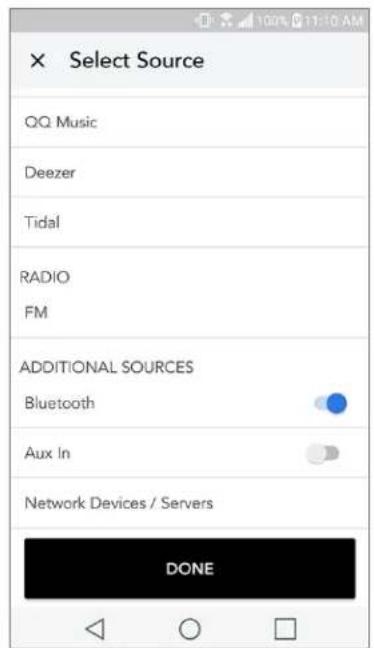
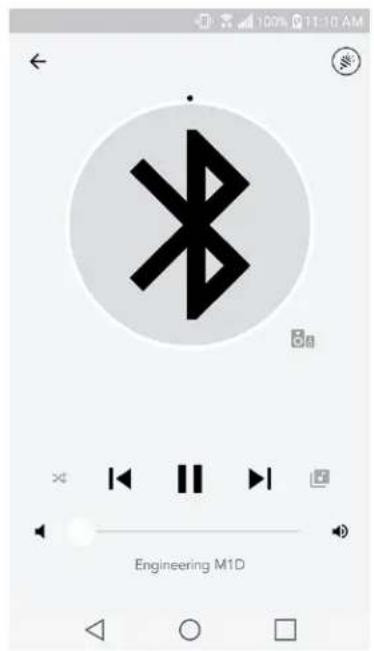
- You will now see that Bluetooth is playing in the zone, and should hear your music on all speakers included in the zone.
Auxiliary Mode
Your Orb can be used as a standalone speaker. Simply use an 1/8" stereo cable to attach any line or headphone level source into the AUX input on the back of your speaker. You can control the volume of the speaker using the volume control on the Orb or using the Tivoli Audio Wireless App. Please note the Orb cannot send the signal going into the AUX input to any other speakers. If you wish to do this, refer to the Bluetooth over WiFi section of the Orb manual.
Updating Firmware
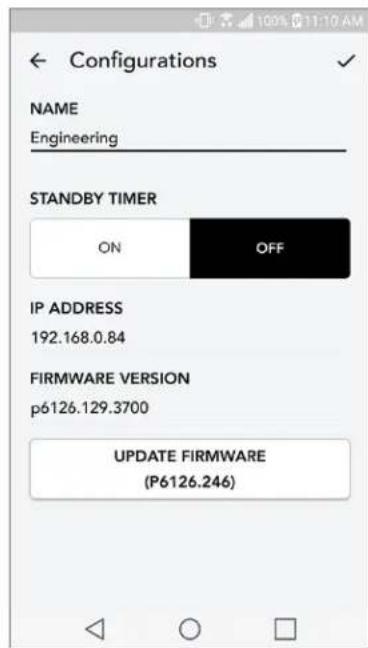
Your Orb will have periodic software updates. It is best to check for these updates when you first use the product, and about every 4 months after. The app will notify you of new firmware updates, or you can check on the Speaker Configuration page.
To check for updates:
- In your settings page, go to Devices.
-
Any units that need the latest firmware should be listed. Select the unit you would like to update in the list.
-
Once you are in the unit's page, select "Check for Updates"
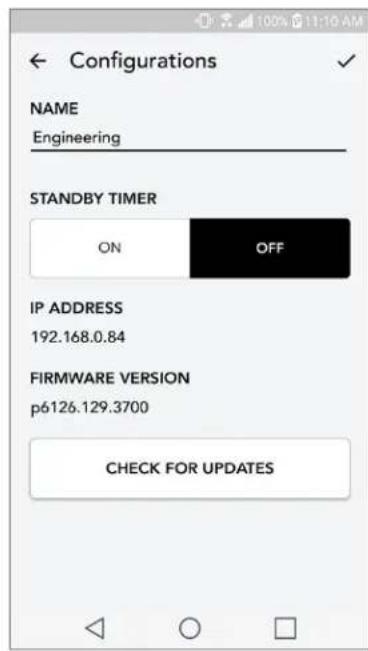
- If the unit IS NOT up to date, the button will say "Update Firmware". If the unit IS up to date, the button will say "Re-Install Firmware". It is not necessary to re-install firmware unless instructed to do so by a customer service agent.
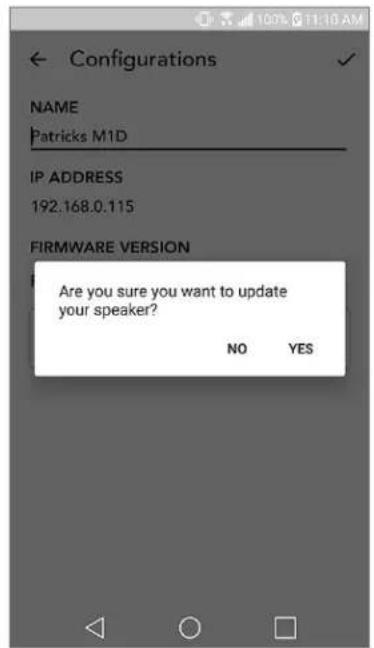
- Confirm you would like to update your firmware.
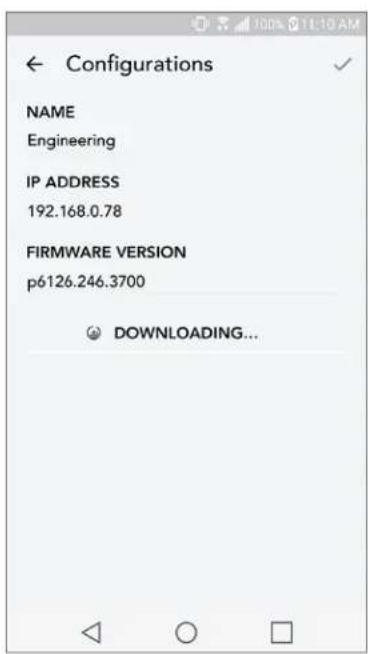
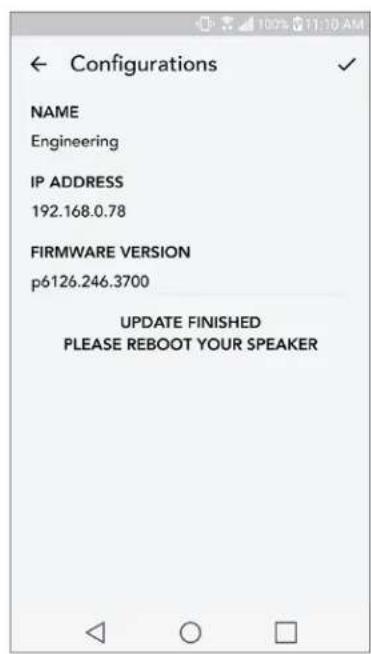
- You will see your unit download and install the firmware update. Once the update is finished, your speaker will turn itself off. Turn your unit back on, and it is ready for use.
Care
A dry cloth is recommended to clean the back and wooden cabinet of your Orb. A lint roller can be used to clean the fabric on the front. Do not expose to water.
Troubleshooting and FAQs
Troubleshooting
-
The LED is blinking green slowly. Your speaker is having trouble connecting to a network it was previously set up for. Check to make sure the network is still active. If the network is still active, try turning off the speaker and turning it back on. If that does not work, perform a factory reset (hold down the Setup and Party Mode buttons for 3 seconds) and repeat the setup process for the speaker.
-
The LED is blinking green fast. Your speaker has not been set up for a wireless network and it is in setup mode. Refer to the setup directions in either the Quick Setup Guide or the Online Manual.
-
The LED is blinking blue. Your speaker is in Bluetooth pairing mode. Refer to the Bluetooth pairing directions in either the Quick Setup Guide or the Online Manual.
-
I can't find my Wireless Network (WiFi) listed in the Tivoli App. Make sure your Wireless Access Point or Wireless Router is powered on and connected to the internet. Verify that your WiFi band is set to the standard 2.4GHz. The ART system does not support 5GHz. Make sure your device is connected to your Wireless Network. Close the Tivoli Audio App and then re-open the App. You should be able to see the Wireless Network now.
-
The music sounds unbalanced through my speaker. To check balance, open the Tivoli App, select Zone and select Speakers. Select the speaker(s) you are using. If you are using only one speaker, verify that the speaker is set to Stereo. If you are using two speakers, confirm the volume levels are the same and that they are both set to Stereo or Left/Right if you are listening to them as a stereo pair. If you are using more than two speakers, make sure all Left and Right speakers are set up in pairs (for example, do not have 2 Lefts and 1 Right).
-
I have set up the speakers, but I can't find the Orb listed in the App. Make sure the LED in the back of the speaker is a solid green color. Power off the unit by holding down the power button on the back of the unit until the LED turns red, then press the power button again to turn the speaker on. Restart the App and once the LED on speaker is solid green again, look for the speaker again in the "Play New" window. If green LED is flashing, refer to Troubleshooting tip #1 or #2.
-
I'm playing Spotify, but the speaker is coming through my phone. Open the Spotify App. While playing a song, at the bottom of the App, click where it says "Available Devices". Select name of the master speaker of your Zone and the sound will switch to the Tivoli system. Refer to the Spotify Connect guide that accompanies your speaker for more information, as well as your Orb Quick Setup Guide and Online Manual.
-
I'm playing Spotify, but I cannot see where it says "Available Devices" at the bottom of the App. Make sure you are using a Spotify Premium account. For more information, refer to the Spotify Connect guide that accompanies your speaker or visit Spotify.com. If you are using a Spotify Premium account, make sure the speaker is connected to your Wireless Network, and restart your Spotify App.
- I don't see Apple Music or Google Play listed in the App. Not a problem! Set your Orb to Bluetooth mode. Pair your media device via Bluetooth to your desired Orb. If you want to hear the music on more than one speaker, use the Bluetooth over WiFi feature.
- My Orb is on and connected but no sound is coming from the system. Increase the volume on your Orb using the volume knob located on the front of the unit. You can also check the volume on the Tivoli App. Next check the media volume on your phone. Make sure it is turned on and try raising the volume. Make sure nothing is touching the top of your Orb on the touch-sensitive area that may be pausing the system. Pause and then play your audio source, as your wireless network may have had issues affecting all of your devices.
11.My speaker is non-responsive. Perform a factory reset. Hold the Setup and Party Mode buttons on the speaker at the same time for 3 seconds. The LED will turn red. Press the Power button. The speaker has now been restored to factory default settings. If it is still non-responsive, remove the power source (either battery or adapter) and then re-connect the power source.
Frequently Asked Questions
- How can I play music on my new Orb? You can play music on your Orb by streaming music over WiFi via the Tivoli App, pair to the Orb via Bluetooth, or use the auxiliary input on the back of the unit. Refer to your Quick Setup Guide or Online Manual for more information.
- Where can I find the App? The Tivoli Audio Wireless App can be found in both the iOS App Store and the Google Play Store.
- What kind of power does the Orb require? The Orb is packaged with a 12 Volt DC power supply. The unit can also be powered by an optional rechargeable battery pack (sold separately).
- If I purchase a rechargeable battery pack, how long does the battery play for? A fully charged battery can play up to 10 hours, on 50% volume.
- Can I use my Orb on a public WiFi network? Yes, but the strength of the WiFi signal and streaming capabilities may vary depending on the number of other devices using the network.
- Can I connect my non-WiFi enabled Tivoli products to the new ART Line? Yes! Using the new ConX, you can turn any Tivoli Audio product into a WiFi speaker. It can then be connected wirelessly to your Orb system.
-
Can I connect my laptop or desktop computer via WiFi to my Orb? At this time, the Tivoli Audio App is only optimized for phone and tablet use. However, this may change in the future. You can still connect via Bluetooth or using the Auxiliary port.
-
What services are supported by the ART by Tivoli Audio system? Spotify (premium), Tidal, Deezer, QQ Music, Tune In, Network Devices/Servers, and local content. Other music services are still available to use, but via Bluetooth and the Bluetooth over WiFi feature. Refer the Bluetooth over WiFi section of your Online Manual for more information.
- How do I clean my Orb? We recommend cleaning the wood finish with a dry cloth. The fabric can be cleaned with a lint roller.
- Can I connect separate ART products together wirelessly? Yes! Once all desired speakers have been properly set up on your WiFi network, the speakers will be available for you to connect. These selected systems will be part of a zone which you can play music to simultaneously. Refer to your Quick Setup Guide and Online Manual for more information.
11.Can I play multiple sources at the same time? Yes! You can have as many sources as you have speakers. Each zone can play a different source if you wish. - Do I need a special internet speed or router to use my Orb? You will need a basic broadband connection connected to a 2.4GHz capable router/wireless access point. This is the common setup in many homes. The Orb does not support 5GHz routers/wireless access points at this time.
Indholdsfortegnelse
Velkommen 29
Auxiliary-tilstand 47
LED in Violett - AUX-Modus
Pulsante modalita Party. 145
Modalità DDMS 145
Bluetooth via wifi 171
Auxiliary-modus 172
Firmware update 172
Zorg 175
Side for innstlinger
A. Select to save speaker name change
B. Select to rename the speaker
C. Turn Standby On or Off
D. Select to check for new firmware or re-install existing firmware