LX601i - Projector Christie - Free user manual and instructions
Find the device manual for free LX601i Christie in PDF.



User questions about LX601i Christie
0 question about this device. Answer the ones you know or ask your own.
Ask a new question about this device
Download the instructions for your Projector in PDF format for free! Find your manual LX601i - Christie and take your electronic device back in hand. On this page are published all the documents necessary for the use of your device. LX601i by Christie.
USER MANUAL LX601i Christie
LiveViewer Application
User Manual
020-000543-02
LiveViewer6 Application User's Manual
NOTE
The manufacturer assumes no responsibility for any errors that may appear in this manual.
The reproduction, transfer or copy of all or any part of this document is not permitted without express written consent.
Trademark acknowledgment
- Power Point, Internet Explorer, Windows, Windows Vista and Aero are registered trademarks of Microsoft Corporation in the U.S. and/or other countries.
All other trademarks are the properties of their respective owners.
Caution
The Software is being delivered to you "AS IS" and Christie Digital Systems USA, Inc. (CHRISTIE) make no warranty as to its use or performance. CHRISTIE AND ITS SUPPLIERS, INCLUDING BUT NOT LIMITED TO CHRISTIE, DO NOT AND CANNOT WARRANTY THE PERFORMANCE OR RESULTS YOU MAY OBTAIN BY USING THE SOFTWARE. EXCEPT TO THE EXTENT PROHIBITED BY LAW IN YOUR JURISDICTION, CHRISTIE AND ITS SUPPLIERS MAKE NO WARRANTY CONDITIONS, REPRESENTATIONS, OR TERMS (EXPRESS OR IMPLIED WHETHER BY STATUTE, COMMON LAW, CUSTOM, USAGE OR OTHERWISE) AS TO ANY MATTER IN CONNECTION WITH THE SOFTWARE, INCLUDING WITHOUT LIMITATION NONINFRINGEMENT OF THIRD PARTY RIGHTS, MERCHANTABILITY, INTEGRATION, SATISFACTORY QUALITY, OR FITNESS FOR ANY PARTICULAR PURPOSE.
You agree that the Software will not be shipped, transferred or exported into any country or used in any manner prohibited by the United States Export Administration Act or any other applicable export laws, restrictions or regulations (collectively the "Export Laws"). In addition, if the Software is identified as export controlled items under the Export Laws, you represent and warrant that you are not a citizen, or otherwise located within, an embargoed nation (including without limitation Iran, Iraq, Syria, Sudan, Libya, Cuba, North Korea, and Serbia) and that you are not otherwise prohibited under the Export Laws from receiving the Software. All rights to Use the Software are granted on condition that such rights are forfeited if you fail to comply with the terms of this Agreement.
Contents
1 Features. 3
1.1 Display Mode 3
1.1.1 Single PC mode 3
1.1.2 Multi PC mode 3
1.2 Multi Projector Mode 4
1.3 Moderator Control Mode 4
2 Compatibility 5
2.1 Hardware and software requirements for computer 5
2.2 Software versions 5
2.3 Updating VLCiewer 6
3 Starting with VLCiewer 7
3.1 Installing VLCiewer 7
3.2 Connecting to the network 9
3.2.1 Launch Viewer 9
3.2.2 Select Connection method 9
3.2.3 Passcode 13
3.2.4 Configuring Network Setting Manually 19
3.2.5 Connection and transmission 22
3.2.6 Connection error 23
3.3 Starting the Network Presentation 24
3.3.1 Display Mode 24
3.3.2 Presenter Mode 24
3.3.3 DisplayUserName 25
3.3.4 Multi Projector Mode 25
3.3.5 Moderator Control Mode 26
4.4 LiveViewer Operation 27
4.1 Main menu and Operating buttons 27
4.1.1 Menu Type 27
4.1.2 Operating buttons 27
4.1.3 Displaying the Status 29
4.1.4 Switching the display mode 30
4.2 Multi Projector Control window 30
4.3 Moderator Control window 31
4.4 Option menu 32
4.5 Profile data 34
4.5.1 Outline of Profile data 34
4.5.2 Making Profile data 34
4.5.3 Editing Profile data 35
4.5.4 Registering My Connection 35
Appendix 36
1 Features
The VLCiewer software can translate images and audio from a computer to the projector via wireless LAN or wired LAN. This software has a variety of features that helps comfortable presentation and easy connection.
1.1 Display Mode
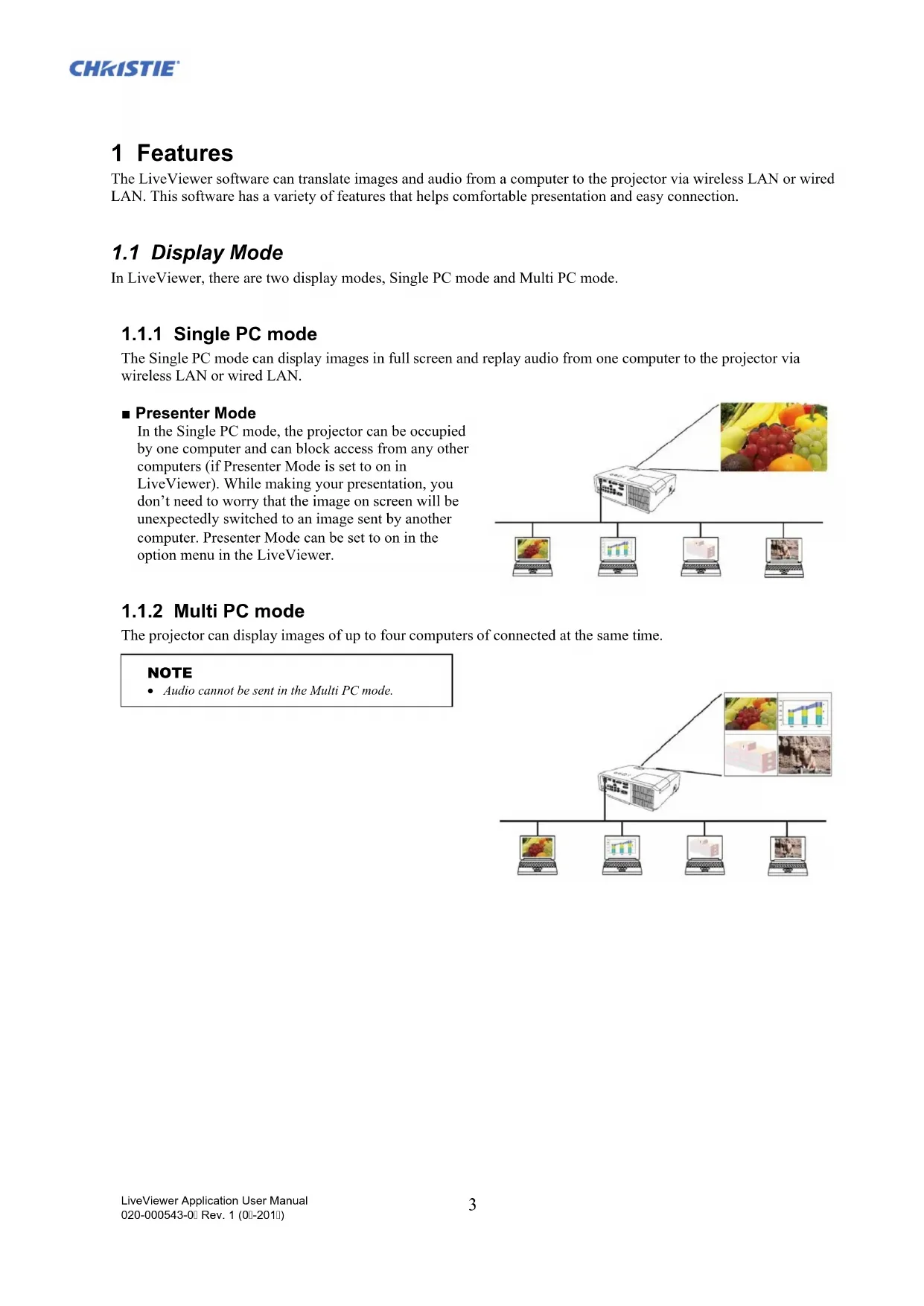
In VLCiewer, there are two display modes, Single PC mode and Multi PC mode.
1.1.1 Single PC mode
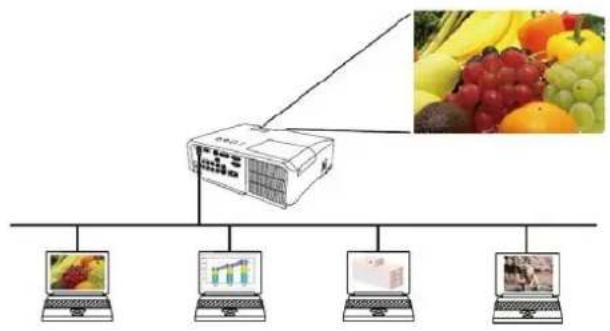
The Single PC mode can display images in full screen and replay audio from one computer to the projector via wireless LAN or wired LAN.
Presenter Mode
In the Single PC mode, the projector can be occupied by one computer and can block access from any other computers (if Presenter Mode is set to on in VLC viewer). While making your presentation, you don't need to worry that the image on screen will be unexpectedly switched to an image sent by another computer. Presenter Mode can be set to on in the option menu in the VLC viewer.
1.1.2 Multi PC mode
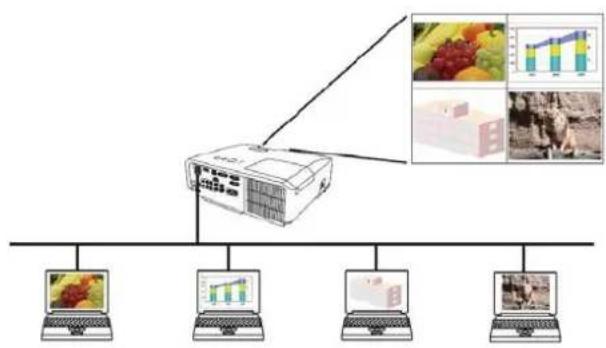
The projector can display images of up to four computers of connected at the same time.
NOTE
Audio cannot be sent in the Multi PC mode.
1.2 Multi Projector Mode
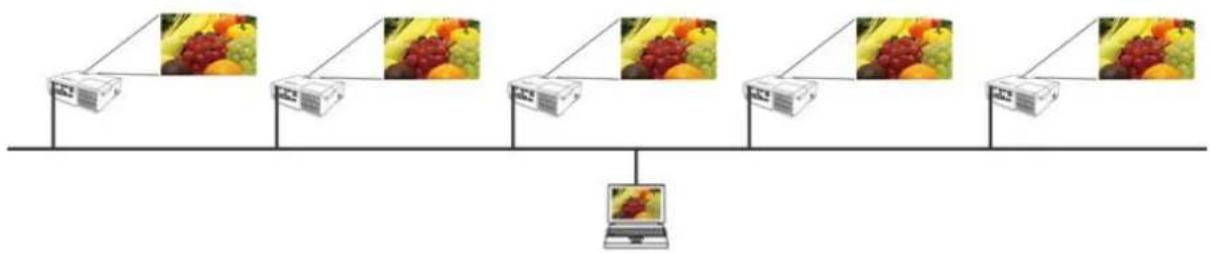
In the Multi Projector mode, up to 12 projectors can connect with the computer via wireless or wired LAN simultaneously.
1.3 Moderator Control Mode
A computer can be set to Moderator (Host) that can control all other computers (Clients) connected with the projector via wireless LAN or wired LAN. Since Clients cannot control the VLCiewer and the projector, the Host can proceed with the program as arranged smoothly and safety.

2 Compatibility
2.1 Hardware and software requirements for computer
OS
WindowsXP
Home Edition / Professional
Windows Vista®
Home Basic / Home Premium /
(Service Pack 1 or later)
Business / Enterprise / Ultimate
Windows® 7
Starter / Home Basic / Home Premium /
Professional / Enterprise / Ultimate
Graphic card
Windows® 8 / Windows® 8 Pro / Windows® 8 Enterprise
Windows® 8.1 / Windows® 8.1 Pro / Windows® 8.1 Enterprise
VGA: 640x480 or higher (recommended XGA: 1024x768)
65,536 simultaneous colors or higher
Pentium 4 (2.8 GHz or higher)
100MB or higher
Internet Explorer® (6.0 or higher)
CPU
IEEE802.11b/g/n
Hard disk space
Web browser
CD-ROM/DVD-ROM drive
Wireless LAN
2.2 Software versions
Check and confirm before you install the VLCiewer if its version suits to the projector model you are going to connect to. The correct software version depends upon the projector model that you have. If the version is not matched with the projector, the software may not work properly.
If you use the models network functions are available not listed in the table below, check the group of projector models written in the User's Manual of the projector.
| LiveViewer Version | Group of Projector Models | |
| Group A | Group B | |
| LX41 LW41 and etc. | LX501 LX601i LW401 LW551i LWU421 LWU501i DXG1051 DWX951 DWU951 DHD951 DWX851 DWU851 DHD851 and etc. | |
| 4.1x* | ✓ | - |
| 4.2x* | ✓ | - |
| 4.3x | ✓ | ✓ |
| 5.xx | ✓ | ✓ |
| 6.xx | ✓ | ✓ |
" X " in the version means 0 or greater.
*Only Windows® 32-bit version.
NOTE for the computer
- Improper OS version or driver software for network adapter on your computer may prevent images from being transmitted correctly. It is highly recommended that you check for OS and driver updates.
Depending on the type of wireless network device and computer you are using, the projector may not be able to communicate properly with your computer, even if the computer you are using is equipped with built-in wireless LAN functionality. If communication problems occur, please use a Wi-Fi certified wireless network device. - In case you use LiveViewer in Windows Vista or Windows 7, Aero Glass cannot be used while the computer image is displayed to the projector.
- When installing LiveViewer in Windows Vista, Windows 7 or Windows 8, the UAC (User Account Control) warning message is displayed.
- Your computer needs to meet the minimum hardware requirement of your OS.
The LiveViewer does not work on Windows Vista that is not updated to Service Pack 1 or later. Please install the latest Service Pack on your Windows Vista.
Video transfer through network may not be supported depending on combination of computer hardware and software. In this case, video/computer cable is preferable.
Depending on the specification of your computer, the computer may slow down due to high CPU usage when the LiveViewer is running.
The screen size will be shrinked and then transmitted to the projector if the screen size of computer is greater than WXGA/XGA. The transmitting speed may delay than usual due to processing shrinking. For higher transmission speed, it is recommended to set the resolution of computer screen to WXGA/XGA. Please refer to the manuals of your computer or Windows for the settings.
NOTE for the projector
The network communication control is disabled while the projector is in standby mode if the STANDBY MODE item in the SETUP menu of the projector is set to SAVING. Please connect the network communication to the projector after setting the STANDBY MODE to NORMAL.
2.3 Updating-liveViewer
Please check and get the latest version from the Christie Web site.
http://www.christiedigital.com
Some functions explained in this manual require the Viewer Version 6.xx. ("x" in the version means 0 or greater.)
3 Starting with Viewer
This section explains the process of using VLCiewer. The outline of the process is as follows:
STEP 1. Install the Viewer application (below)
STEP 2. Connect to the network (9)
The Quick Connection feature prepares some options for connecting to the projector. You can select one that meets your requirements.
Select From List
Passcode connection
Profile connection
History connection
Manual connection
My Connection
In some cases, there are several projectors connected to the same network. Before you send your image, confirm that the right projector is selected.
STEP 3. Start Network Presentation (24)
The VLC viewer main menu will be on screen. Now, you can send your images to the projector through the network.
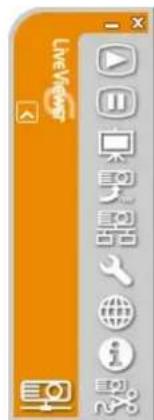
Fig.3.a Viewer Main menu
3.1 Installing Viewer
In order to use VLCiewer, you first need to install the software from the CD enclosed with the projector onto all computers that you want to connect to your network projector.
The following procedures show you how to install VLCiewer to a computer with Windows 7.
- Turn on the computer and log on as Administrator.
- Shut down all other applications.
- Insert the accompanying CD-ROM into the computer's CD-ROM/DVD-ROM drive.
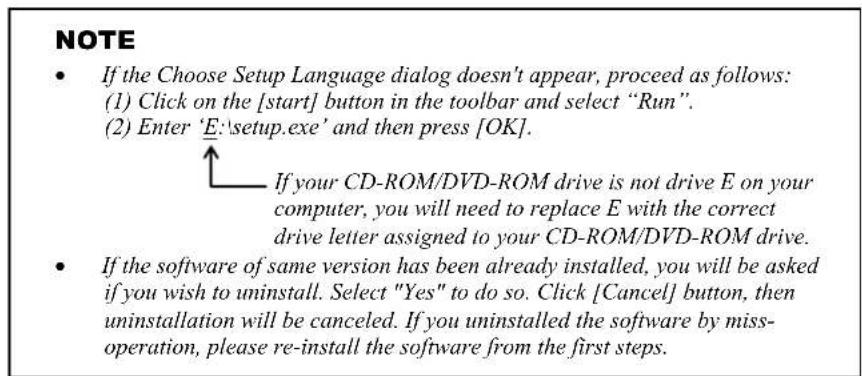
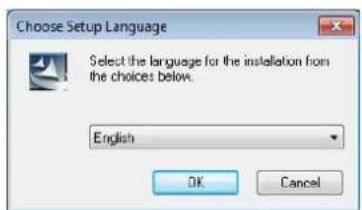
- After a moment, the Choose Setup Language dialog will appear as shown on the right. Select the language you will use in the list and click [OK].
-
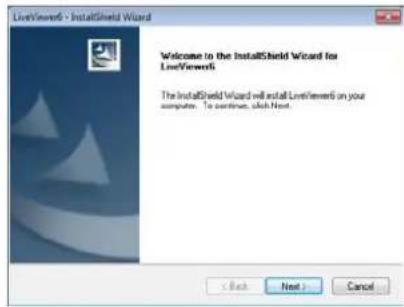
After a moment, the Welcome dialog will appear as shown on the right. Press the [Next].
-
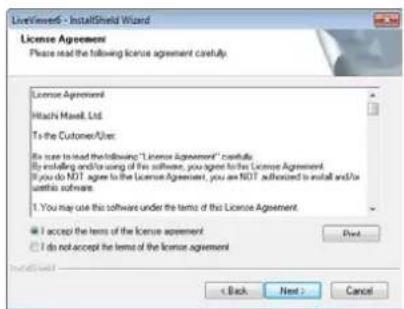
The License Agreement dialog appears. If you accept it, select "I accept the terms of the license agreement" and press the [Next].
-
The Choose Destination Location dialog appears. Press the [Next].
NOTE
The 'C:\Program Files\Projector Tools\Livewer6' folder will be created and the program will be installed into that folder. If you wish to install to a different folder, click [Browse] and select another folder.
-
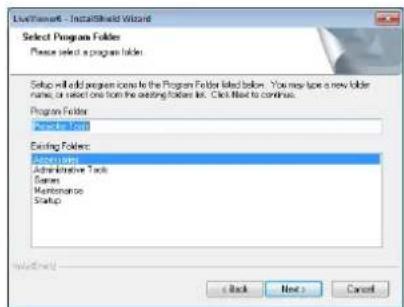
The Select Program Folder dialog appears. Confirm the program folder name. If "Projector Tools" is okay, press the [Next] to continue. If not enter the desired folder name and then press [Next].
-
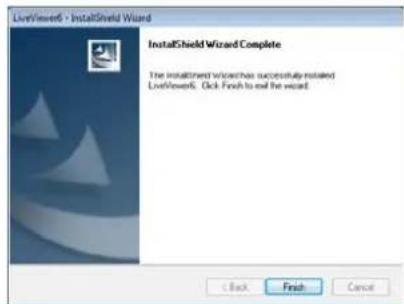
After a moment, installation will complete and the Setup Complete dialog will appear as shown on the right. Click [Finish].
To confirm that the software as been properly installed, press the [start] button on the toolbar, select All Programs and then select the Projector Tools folder.
- "LiveViewer" will appear in that folder if the installation was successful.

3.2 Connecting to the network
LiveViewer provides several options for connecting to your network projector. You can choose one that best meets your system and user needs. The descriptions here are based on the case that Windows 7 is installed in your computer.
NOTE
- Picture quality may deteriorate or audio output may be interrupted due to low data transfer rate caused by low communication band between computer and projector when multiple computers are communicating with projector.
If you try to connect via network to the projector which another computer has been using as a USB display, it might reduce transfer rate causing deterioration of image quality or interruption of audio output.
3.2.1 Launch Viewer
Start the VLCiewer software in your computer, using one of the methods below:
Double click the "Viewer" icon on the Desktop in your computer
Select "start" "All Programs" "Projector Tools" VLC viewer6 on Windows® menu.
Then, proceed to item "3.2.2 Select Connection method". (9)
NOTE
- LiveViewer cannot be started if "LiveViewer Lite for USB" is running on your computer.
- A message dialog appears if a problem has occurred or to present to you information. Read and deal with the message if it appears. About the messages, refer to "Appendix A Messages" (36).
3.2.2 Select Connection method
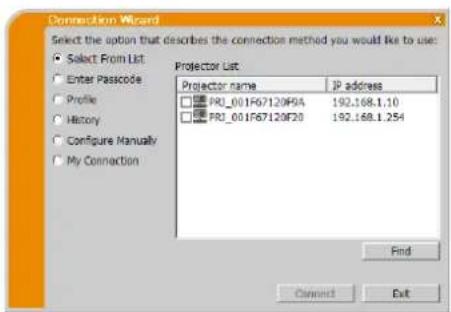
To start VLCviewer on your computer, the following menu appears. Select the option that describes the connection method you want to use.
Select From List
Proceed to item "3.2.2.1 Selecting from List". (10)
O Enter Passcode
Proceed to item "3.2.2.2 Passcode connection". (10)
Profile
Proceed to item "3.2.2.3 Profile connection". (11)
History
Proceed to item "3.2.2.4 History connection". (11)
ConfigureManually
Proceed to item "3.2.2.5 Configuring manually". (12)
My Connection
Proceed to item "3.2.2.6 Selecting My Connection". (12)
3.2.2.1 Selecting from List
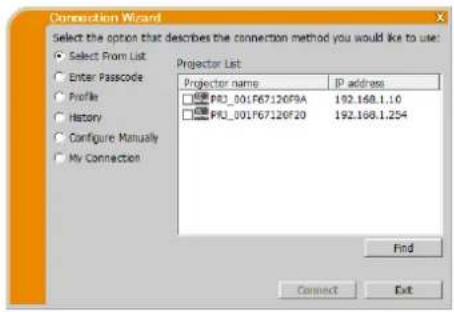
Before selecting this item, your computer and projectors need to be connected to the same network. If the connection is already established, select the "Select From List". The Projector List, a list of the projectors connected to the network will appear in the window. Select the projectors you want to use and check their boxes. Then click [Connect]. The connecting process starts.
Proceed to item "3.2.5 Connection and transmission". (22)
You can check the status of the connection by the following icon on projector list.
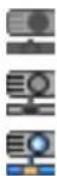
: The network connection to the projector is not established yet.
: The network connection is established, but the image transmission is on hold.
: The network connection is established and the images on the computer are being sent to the projector.
NOTE
- You can select up to 12 projectors at the same time from the list.
- When you select multiple projectors, the Multi Projector mode is selected automatically. (I25)
- You may not find any projector on the list under your network condition. Please click [Find].
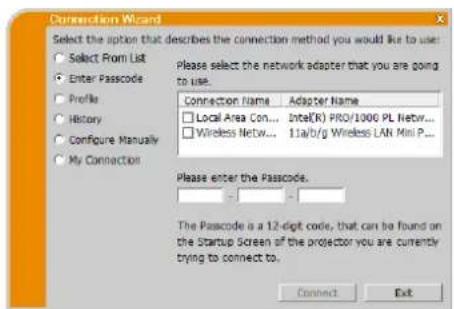
3.2.2.2 Passcode connection
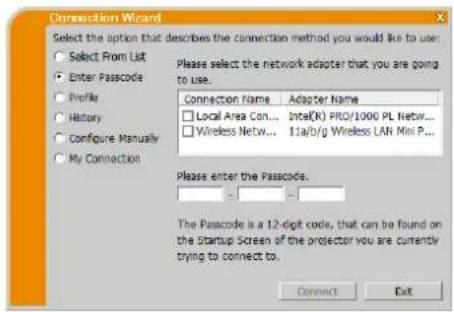
If you want to use the Passcode for connecting to the projector, select "Enter Passcode". A list of available network adapters and input boxes for Passcode will appear in the window. The Passcode is given by the projector on screen. Simply input the Passcode into VLC viewer to connect the network projector.
Select the network adapter you want to use and check its box, and enter the Passcode of the projector you are currently trying to connect to. Then click [Connect]. The connecting process starts.
Proceed to item "3.2.5 Connection and transmission". (22)
For more detail about Passcode, refer to "3.2.3 Passcode" (13).
NOTE
- You cannot connect when there is no available network adapter on your computer.
You may need to set IP address and other network settings manually under your network conditions.
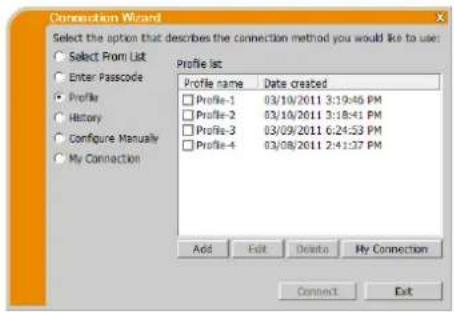
3.2.2.3 Profile connection
If you want to use the profile data for connecting to your network projector, select "Profile". Profile list, which is a list of stored profile data will appear in the window. It is required to store the profile data in advance.
Select the 'Profile' data you want to use and check its box. Then click [Connect]. The connecting process starts.
Proceed to item "3.2.5 Connection and transmission". (22)
For more detail about profile, refer to "4.5 Profile data" (34).
NOTE
To check the setting in a profile data, follow the process below.
Choose a 'Profile' data that you want to check.
Move the mouse cursor to the 'Profile' and click the right button on the mouse to display a pop-up menu.
Select the "Properties" in the pop-up menu, and click the left button on the mouse. The setting information of the selected 'Profile' data is shown.
If the DHCP is set on in the projector, the network connection between the projector and computer may not be established since IP address may be varied. If you would like to use the profile connection, it is recommended that you set DHCP to off in the projector.
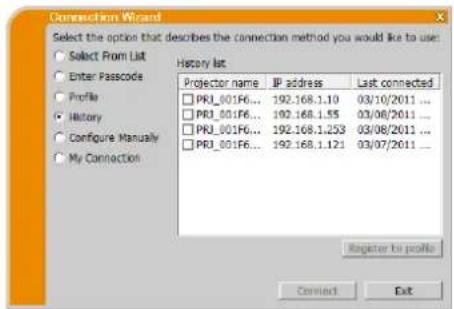
3.2.2.4 History connection
If you want to use the History data for connecting to the projector, select "History". The History list of connection, which is a list of projectors connected in past will appear in the window.
Select the History data you want to use and check its box. Then click [Connect]. The connecting process starts.
Proceed to item "3.2.5 Connection and transmission". (22)
If you want to copy a History record to a profile data, select one of the History records and click [Register to profile]. The profile data cannot be erased automatically.
For more detail about profile, refer to "4.5 Profile data". (34)
NOTE
The number of the History record is maximum 20. When the 21st data is stored, the oldest record among the 20 will be overwritten.
The date & time information in each History record is renewed when the network is connected by using the History record.
If the DHCP is set to on in the projector, the network connection between the projector and computer may not be established since IP address can vary. If you would like to use the History connection, it is recommended that you set DHCP to off in the projector.
3.2.2.5 Configuring manually
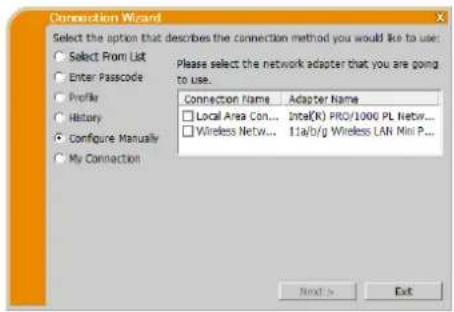
If you want to set the connection manually, select "Configure Manually". A list of available network adapters will appear in the window.
Select the network adapter you want to use and check its box, and click [Next].
Proceed to item "3.2.4 Configuring Network Setting Manually". (19)
NOTE
- Up to 12 projectors can be connected at the same time.
- When multiple projectors are connected, the Multi Projector mode is selected automatically. (L 25)
3.2.2.6 Selecting My Connection
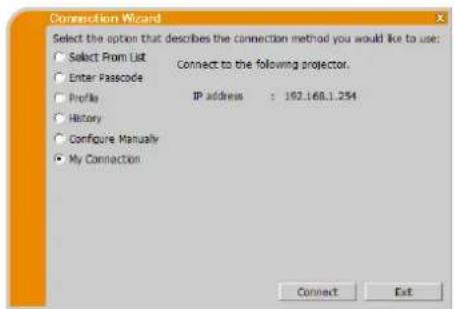
If you select the My Connection, the computer is connected to the projector through the network by using profile data that is preassigned to My Connection.
Select "My Connection" and click [Connect]. The computer immediately starts the connecting process to the projector.
Proceed to item "3.2.5 Connection and transmission". (22)
NOTE
If the DHCP is set to on in the projector, the network connection between the projector and computer may not be established since IP address can vary. If you would like to use My Connection, it is recommended that you set DHCP to off in the projector.
If no profile data is assigned to My Connection, it cannot be used.
3.2.3 Passcode
The unique Passcode system brings you very quick and simple connection to the network. The Passcode is a code that expresses the network setting in the projector. When you input the Passcode in the VLC viewer software on your computer, the network settings of the projector and computer are matched and the connection will be established immediately. The section is intended to explain how to use the Passcode.
NOTE
- The Passcode system does not work under the conditions below. If your system meets one of them, please set the connection manually after you input the Passcode.
1) Encryption is used.
2) Unique SSID is used.
The factory default SSID are 4 of below;
Factory default SSID 1: wireless
Factory default SSID 2: WLANProjector1
Factory default SSID 3: WLANProjector2
Factory default SSID 4: WLANProjector3
3) Subnet mask is not Class A or B or C.
Class A:(255.0.0.0), Class B:(255.255.0.0), Class C:(255.255.255.0)
3.2.3.1 Getting the Passcode
The Passcode is 12-digit code consisting of alphanumeric characters (1-9 and A-Z). The Passcode is displayed on the projector screen.
Projector Models Group: A
There are two methods to get the Passcode from the projector.
Method 1
Turn on the projector, and make sure that the projector image is on screen.
Press the COMPUTER button on the remote control or INPUT button on the projector to select the LAN as input port.
If there is no signal on the LAN port, you can find the Passcode on screen.
Method 2
Turn on the projector, and make sure that the projector image is on screen.
Press the MENU button on the remote control or the / / buttons on the projector to show the menu on screen.
Use the / cursor buttons to select ADVANCED MENU and use the cursor button to enter the item.
Use the / cursor buttons to select NETWORK, and use the cursor button to enter the item.
Use the / cursor buttons to select INFORMATION, and use the cursor button to display the INFORMATION.
The Passcode appears at the top in the INFORMATION window.
NOTE
- Use method 2 when you project your computer image by the VLC viewer, or when the LAN port is not selected as input source.
If there is no communication between the projector and computer for five minutes, the Passcode will be changed.
Projector Models Group: B
There are two methods to get the Passcode from the projector.
Method 1
Turn on the projector, and make sure that the projector image is on screen.
Press the COMPUTER button on the remote control or INPUT button on the projector to select the LAN as input port.
If there is no signal on the LAN port, you can find the Passcode on screen.
Method 2
Turn on the projector, and make sure that the projector image is on screen.
Press the MENU button on the remote control or the / / buttons on the projector to show the menu on screen.
Use the / cursor buttons to select ADVANCED MENU and use the cursor button to enter the item.
Use the / cursor buttons to select NETWORK, and use the cursor button to enter the item.
Use the / cursor buttons to select the WIRELESS INFORMATION or WIRED INFORMATION depending on the type of connection you use, and press the cursor button.
The Passcode appears at the top in the "INFORMATION" window.
NOTE
- Use method 2 when you project your computer image by the VLC viewer, or when the LAN port is not selected as input source.
If there is no communication between the projector and computer for five minutes, the Passcode will be changed. - There are two types of the Passcode, PASSCODE_WIRELESS and PASSCODE_WIED. Select proper type you want to use referring to the following images.
| PASSCODE WIRELESS | PASSCODE WIRED |
| a) Direct connection between the projector and computer | a) The projector connected to computer by the wired LAN |
| b) The projector connected to an access point by the wireless LAN | b) The projector connected to an access point by the wired LAN |
3.2.3.2 Entering the Passcode
After you select the network adapter you want to use, enter Passcode in the menu of VLCiewer divided 4-digit each in 3 boxes (total 12-digit).
Example: PASSCODE 1234-5678-9ABC
Refer to "3.2.2.2 Passcode connection" to proceed. (10)
NOTE
- When entering the Passcode, capital and small letters are not distinguished.
If the manual setting screen is displayed, please follow the item "3.2.3.3 Manual Configuration".(□ below)
3.2.3.3 Manual Configuration
After you input the Passcode (above), you are required to input the network setting manually if you use any encryption code or your unique SSID or subnet mask except Class A/B/C (13).
NOTE
If you require the network setting information on the projector, follow these procedures:
Projector Models Group: A
Turn on the projector, and make sure that the projector image is on screen.
Press the MENU button on the remote control or the / / / buttons on the projector to show the menu on screen.
Use the / cursor buttons to select ADVANCED MENU, and use the cursor button to enter the item.
Use the / cursor buttons to select NETWORK, and use the cursor button to enter the item.
Use the / cursor buttons to select INFORMATION, and press the cursor button.
The setting will be displayed in the NETWORK INFORMATION box.
Projector Models Group: B
Turn on the projector, and make sure that the projector image is on screen.
Press the MENU button on the remote control or the / / / buttons on the projector to show the menu on screen.
Use the / cursor buttons to select ADVANCED MENU, and use the cursor button to enter the item.
Use the / cursor buttons to select NETWORK, and use the cursor button to enter the item.
Use the / cursor buttons to select the WIREFLESS INFORMATION or WIRED INFORMATION depending on the type of connection you use, and press the cursor button.
The setting will be displayed in the "INFORMATION" window.
Wireless LAN
The required information depends on how you connect the projector and computer.
Direct connection between the projector and computer.
Proceed to item "3.2.3.4 Direct connection between the projector and computer". (16)
The projector connected to an access point by the wired LAN.
Proceed to item "3.2.3.5 The projector connected to an access point by the wired LAN". (17)
The projector connected to an access point by the wireless LAN.
Proceed to item "3.2.3.6 The projector connected to an access point by the wireless LAN". (18)
Wired LAN
If you use the wired LAN, proceed to item "3.2.3.7 Wired LAN". (18)
3.2.3.4 Direct connection between the projector and computer
(Projection Models Group: B)
Enter the following information that is set in the projector. * /
SSID: wireless (example)
Encryption: WEP64bit (example)
Encryption key *: ******************************************************************************************************* example)
Subnet mask *255.255.255.128 (example)
Click [Connect]
The connecting process via wireless LAN starts.
Proceed to item "3.2.5 Connection and transmission". (22)

Fig.3.2.3.4: Direct connection between the projector and computer

NOTE
* To find the network setting on the projector, refer to the NOTE. (15)
- Click Find to update SSID list.
If you use encryption, you need to set it. Contact the network administrator to check the encryption key that is set in the projector. The encryption key is always shown as "***".
^3 If you use subnet mask except Class A/B/C, please set it.
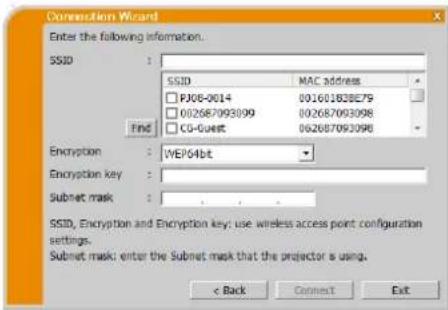
3.2.3.5 The projector connected to an access point by the wired LAN
The setting on the access point. Enter the following information.
SSID: WirelessAccessPoint (example)
Encryption: WEP64bit (example)
Encryption key ^2 : *****************************************************************************************************
The setting on the projector ^*3 Enter the following information.
Subnet mask*4: 255.255.255.128 (example)
Click [Connect].
The connecting process starts.
Proceed to item "3.2.5 Connection and transmission". (22)

Fig.3.2.3.5: The projector connected to an access point by the wired LAN
NOTE
- Contact the network administrator to find out the setting on the access point.
- Click [Find] to update SSID list.
^2 If you use encryption, you need to set it. Contact the network administrator to check the encryption key that is set in the access point. The encryption key is always shown as “*”.
^3 To find the network setting on the projector, refer to the NOTE. (115)
^4 If you use subnet mask except Class A/B/C, please set it.
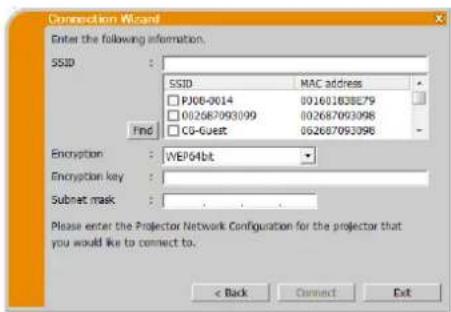
3.2.3.6 The projector connected to an access point by the wireless LAN
(Projection Models Group: B)
The setting on the access point*/.
Enter the following information.
SSID: WirelessAccessPoint (example)
Encryption: WEP64bit (example)
Encryption key ^2 : ****************************************************************************************************** example)
The setting on the projector*3
Enter the following information.
Subnet mask*f: 255.255.255.128 (example)
Click [Connect].
The connecting process via wireless LAN starts.
Proceed to item "3.2.5 Connection and transmission". (22)
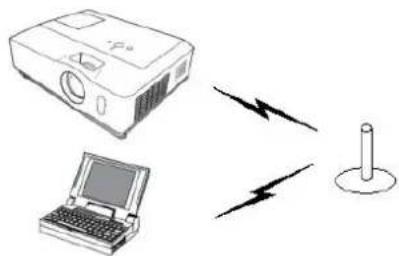
Fig.3.2.3.6: The projector connected to an access point by the wireless LAN
NOTE
- Contact the network administrator to find out the setting on the access point.
- Click [Find] to update SSID list.
^2 If you use encryption, you need to set it. Contact the network administrator to check the encryption key that is set in the access point. The encryption key is always shown as “*”.
^3 To find the network setting on the projector, refer to the NOTE. (15)
^4 If you use subnet mask except Class A/B/C, please set it.
3.2.3.7 Wired LAN
Enter the following information that is set in the projector.
Subnet mask*255.255.255.128 (example)
Click [Connect].
The connecting process starts.
Proceed to item "3.2.5 Connection and transmission". (22)
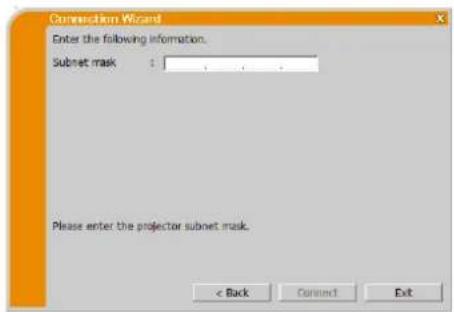
NOTE
^*t If you use subnet mask except Class A / B / C, please set it.
3.2.4 Configuring Network Setting Manually
All the settings for the network connection between the projector and computer have to be input manually if you select "Configure Manually" in the menu of VLC viewer connection method.
The information to be input for a manual configuration will vary, depending on how you want to connect the projector and computer.
Wireless LAN
The required information depends on how you connect the projector and computer.
Direct connection between the projector and computer.
Proceed to item "3.2.4.1 Direct connection between the projector and computer" (below)
The projector connected to an access point by the wired LAN.
Proceed to item "3.2.4.2 The projector connected to an access point by the wired LAN" (H 20)
The projector connected to an access point by the wireless LAN.
Proceed to item "3.2.4.3 The projector connected to an access point by the wireless LAN" (21)
Wired LAN
If you use the wired LAN, proceed to item "3.2.4.4 Wired LAN" (21).
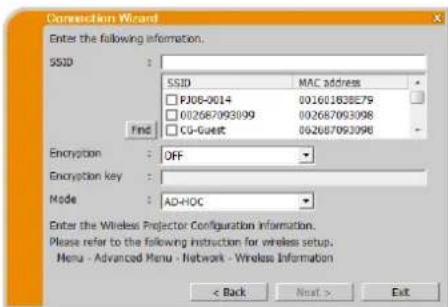
3.2.4.1 Direct connection between the projector and computer
(Projection Models Group: B)
Enter the following information that is set in the projector. *
SSID: wireless (example)
Encryption: WEP64bit (example)
Encryption key*: *** (example)
Mode:AD-HOC
Click [Next].
Enter the following information that is set in the projector.
IP address: 192.168.1.10 (example)
Click [Add]. The IP address is added to the list.
Subnet mask: 255.255.255.0 (example)
Click [Connect].
The connecting process via wireless LAN to all the projectors in the list starts.
Proceed to item "3.2.5 Connection and transmission". (22)
NOTE
To find the network setting on the projector, refer to the NOTE. (15)
- Click [Find] to update SSID list.
* If you use encryption, you need to set it. Contact the network administrator to check the encryption key that is set in the projector. The encryption key is always shown as
- Up to 12 IP addresses can be registered on the list.
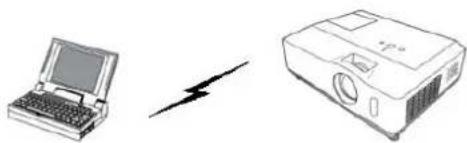
Fig.3.2.4.1: Direct connection between the projector and computer

3.2.4.2 The projector connected to an access point by the wired LAN
The setting on the access point Enter the following information.
SSID: WirelessAccessPoint (example) Encryption: WEP64bit (example) Encryption key *2: *****************************************************************************************************
Click [Next].
The setting on the projector*3 Enter the following information IP address: 192.168.1:
Click [Add]. The IP address is added to the list. Subnet mask: 255.255.255.0 (example)
Click [Connect].
The connecting process starts.
Proceed to item "3.2.5 Connection and transmission". (22)
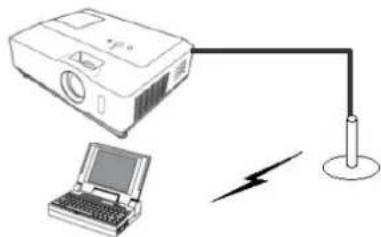
Fig.3.2.4.2: The projector connected to an access point by a LAN cable
NOTE
- Contact the network administrator to find out the setting on the access point.
- Click [Find] to update SSID list.
^2 If you use encryption, you need to set it. Contact the network administrator to check the encryption key that is set in the access point. The encryption key is always shown as “**”.
^3 To find the network setting on the projector, refer to the NOTE. (15) - Up to 12 IP addresses can be registered on the list.
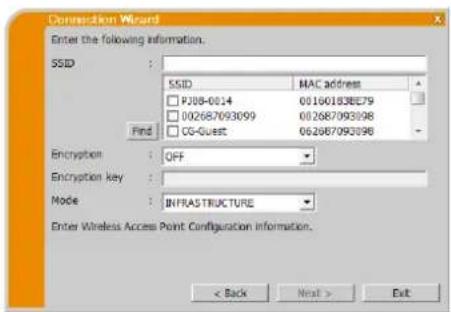
3.2.4.3 The projector connected to an access point by the wireless LAN
(Projection Models Group: B)
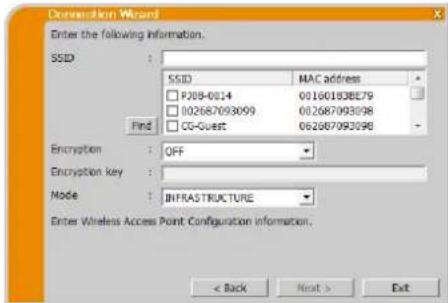
The setting on the access point
Enter the following information.
SSID: WirelessAccessPoint (example)
Encryption: WEP64bit (example)
Encryption key ^2 : ****************************************************************************************************** example)
Mode: INFRASTRUCTURE
Click [Next].
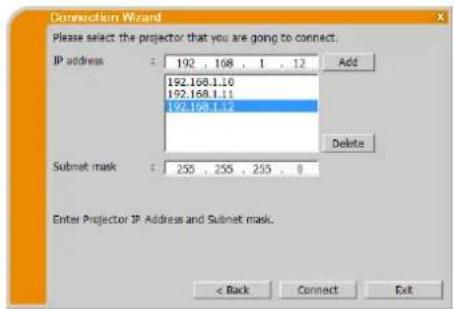
The setting on the projector*3
Enter the following information.
IP address: 192.168.1.10 (example)
Click [Add]. The IP address is added to the list.
Subnet mask: 255.255.255.0 (example)
Click [Connect].
The connecting process via wireless LAN to all the projectors in the list starts.
Proceed to item "3.2.5 Connection and transmission". (22)
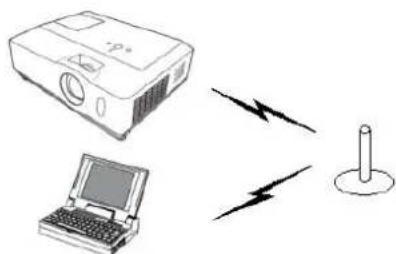
Fig.3.2.4.3: The projector connected to an access point by the wireless LAN
NOTE
- Contact the network administrator to find out the setting on the access point.
- Click [Find] to update SSID list.
^2 If you use encryption, you need to set it. Contact the network administrator to check the encryption key that is set in the access point. The encryption key is always shown as “***”.
* To find the network setting on the projector, refer to the NOTE. (15) - Up to 12 IP addresses can be registered on the list.
3.2.4.4 Wired LAN
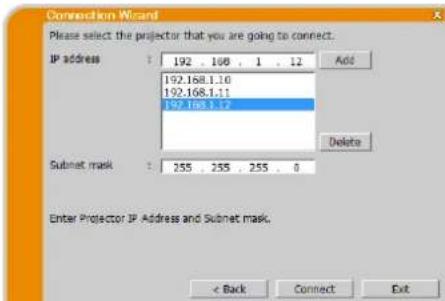
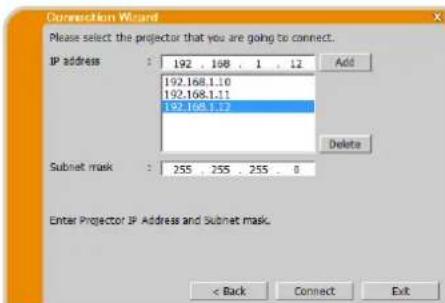
Enter the following information that is set in the projector. *
IP address: 192.168.1.10 (example)
Click [Add]. The IP address is added to the list.
Subnet mask: 255.255.255.128 (example)
Click [Connect].
The connecting process starts.
Proceed to item "3.2.5 Connection and transmission". (22)
NOTE
^* To find the network setting on the projector, refer to the NOTE. (15)
- Up to 12 IP addresses can be registered on the list.
3.2.5 Connection and transmission
3.2.5.1 Confirmation Connection status
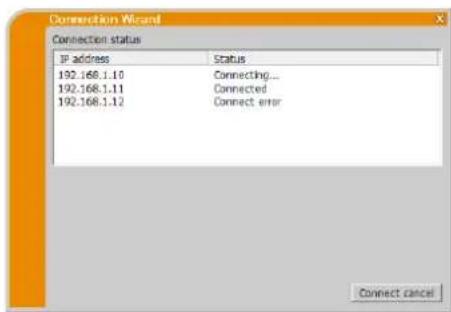
Connection status menu appears when you click [Connect] and connecting process starts. You can check the process from the [Status] field.
When all the projectors are connected, the Connection list will appear. To cancel the connections, click [Connect cancel].
If there are any connections which had established before [Connect cancel] was clicked, Connection list will appear after the connecting process is canceled.
Proceed to item "3.2.5.2 Connection List". (below)
An error message will appear if there is a connection error.
Proceed to item "3.2.6 Connection error". (23)
NOTE
The connection is canceled and time out error when it cannot connect over one minute.
3.2.5.2 Connection List
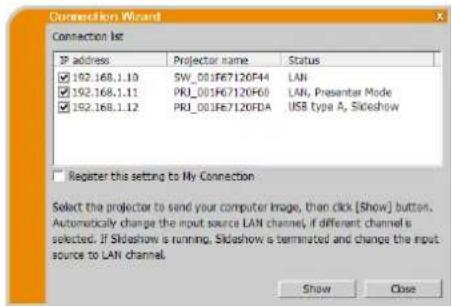
All projectors are connected, the Connection list will appear.
Click the check box of the projector you want to transmit the image to and click [Show].
The input port of the projector is automatically switched to LAN and image transmission starts.
Proceed to item "4 Viewer Operation" (27).
If you select [Close], then the Viewer main menu is displayed in stand-by mode. (Stand-by mode is the state where there is no image transmission, although the network connection is established.) The transmission starts when you click display mode button or start capture button on the Viewer main menu.
NOTE
- Up to 12 projectors can be connected at the same time.
If you want to register one of the settings of connection as My Connection, check the "Register this setting to My Connection". After the registration of My Connection, the data will be shown in the Profile list.
3.2.6 Connection error
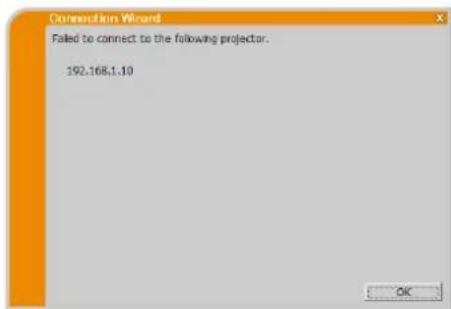
When the connection to the projector could not be established, an error message, "Failed to connect to the following projector." will be displayed.
Click [OK], then the VLCiewer main menu is displayed even though the network connection is not established. Click connect button on the VLCiewer main menu to go back to "3.2.2 Select Connection method". (9)
If you tried to connect to plural projectors and there are any projectors their connection were established, the Connection list will appear after you click [OK].
Proceed to item "3.2.5.2 Connection List". (22)
NOTE
- Check the network setting in the projector especially if you use My Connection, and retry the connection from item "3.2.2 Select Connection method". (19)
3.3 Starting the Network Presentation
This chapter explains the Network Presentation feature with which you can project computer images transmitted through a network.
The VLCiewer allows you to project images from one or multiple computers by connecting the projector to an existing network without using computer cables. This Network Presentation feature helps you to smoothly make your presentations and conduct conferences.
To start the Network Presentation, select the LAN port as the input source on the projector and click the start capture button on the VLCiewer.
3.3.1 Display Mode
In VLCiewer, there are two display modes, Single PC mode and Multi PC mode.
Single PC mode
The projector displays images sent by one computer. Also audio can be sent by one computer. (32)
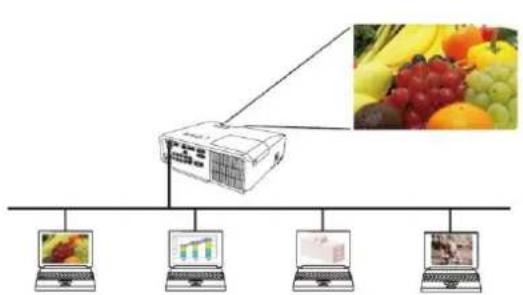
Multi PC mode
The projector can display images of up to four computers of connected at the same time.

NOTE
Audio cannot be sent in the Multi PC mode.
- When multiple computers are connected and try to communicate with one projector, data transfer performance may decrease.
- When motion pictures are displayed on screen of the projector, it is not recommended to connect more than five computers with the projector.
- When multiple computers are connected to one projector, it is recommended to consult with network administrator to establish suitable connection environment with less load given to network as possible.
Picture quality may deteriorate or audio output may be interrupted due to low data transfer rate caused by low communication band between computer and projector when multiple computers are communicating with projector.
If you try to connect via network to the projector which another computer has been using as a USB display, it might reduce transfer rate causing deterioration of image quality or interruption of audio output.
3.3.2 Presenter Mode
In the Single PC mode, the projector can be occupied by one computer and can block access from any other computer, if the Presenter Mode is selected in VLCiewer. While making your presentation, you don't need to worry that the image on screen is unexpectedly switched to an image sent by another computer. Presenter Mode can be set to on in the option menu in the VLCiewer.
3.3.3 DisplayUserName
A user name can be set in情况来看, which is displayed on screen while presenting. So, viewers know whose image is currently displayed on screen.
3.3.4 Multi Projector Mode
The projectors and your computer are in Multi Projector mode when plural projectors are connected to your computer. In the Multi Projector mode, up to 12 projectors can connect with the computer via wireless or wired LAN simultaneously.

NOTE
- Audio cannot be sent in the Multi Projector mode.
The Presenter Mode is canceled in all projectors when one of them canceled it in the Multi Projector mode. - Multi PC mode is NOT available in the Multi Projector mode.
- Transfer performance may decrease in the Multi Projector mode.
- Display mode button on the Viewer main menu is automatically changed to Multi Projector mode button in the Multi Projector mode. (U27)
It is recommended to connect computer and multiple projectors wired for Multi Projector mode.
3.3.5 Moderator Control Mode
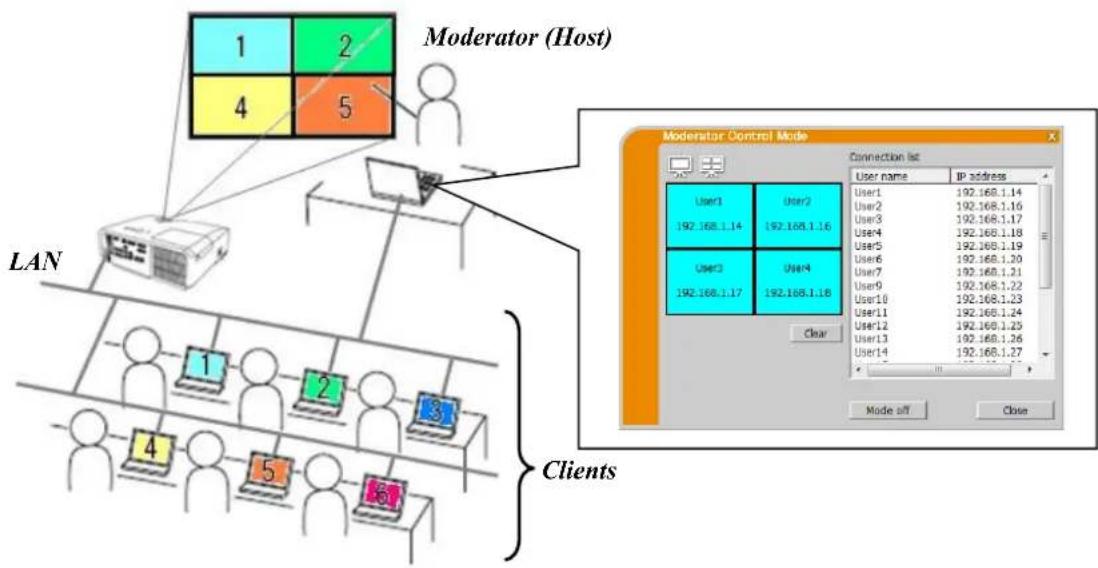
A computer can be set to Moderator (Host) that can control all other computers (Clients) connected with the projector via wireless or wired LAN. Since Clients cannot control the VLCiewer and the projector, the Host can proceed with the program as arranged smoothly and safety. (Projector Models Group: B)
NOTE
Up to 50 computers, including the Host computer, can join one group of the Moderator Control mode.
- Only one computer can be set as Moderator.
- When a computer is set as Moderator, once all computers including the Moderator connected to the same projector stop image transmission.
The Presenter mode is NOT available in the Moderator Control mode.
- The Moderator Control mode can be canceled by force when the network is restarted in the projector menu or Web Control on a web browser is executed.
4 liveliewer Operation
When you get the connection between your projector and computer, the VLCiewer main menu will be shown on the computer screen. On the main menu you can configure settings and operate functions to send your images to the projector.
4.1 Main menu and Operating buttons
4.1.1 Menu Type
There are two types of the Viewer main menu, Easy and Advanced, which can be switched on screen. When Viewer is started or the connection is not established, Advanced type will be shown first.
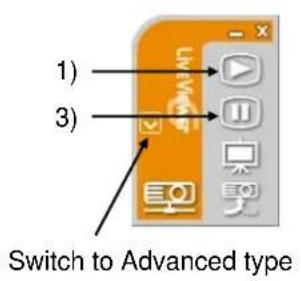
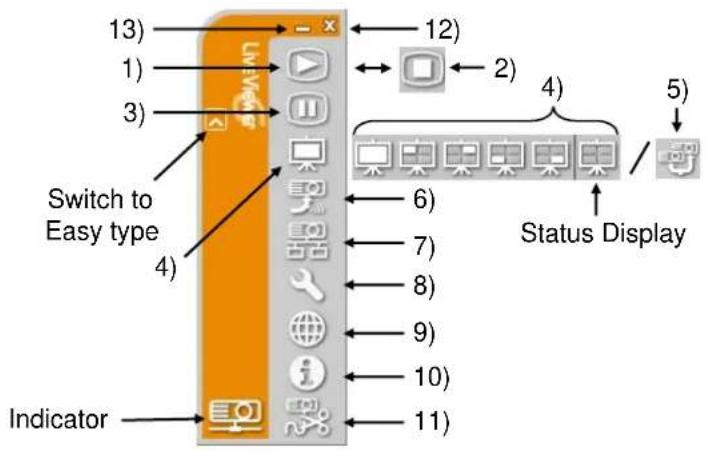
Fig.4.a VLCvewer6 main menu (Easy type / Advanced type)
4.1.2 Operating buttons
1) Start capture button
The transmission to the projector is started and the images will be displayed. The display mode will be the Single PC mode at first. After that, the last display mode will be applied.
NOTE
The start capture button cannot be operated if someone has already been Moderator.
- The primary image is displayed in multi-display environment.
2) Stop capture button
Start capture button is automatically changed to stop capture button when image transmission starts. The image transmission is stopped.
NOTE
Images may not be displayed on screen, if the start/stop capture buttons are clicked repeatedly.
3) Hold button
The image on screen is temporally frozen. The last image before the button is clicked remains on screen. You can revise the image data on your computer without showing it on the projector's screen.
NOTE
The Multi Projector mode button cannot operate until the screen unfreezes.
4) Display mode buttons (30)
Display mode switches between Single PC mode and Multi PC mode.
Also the image transmission can be started or stopped.
5) Multi Projector mode button
Display mode button is automatically changed to Multi Projector mode button in the Multi
Projector mode.
The Multi Projector Control window appears. (30)
6) Moderator Control mode button (Projector Models Group: B)
The computer is set to the Moderator and the Moderator Control window appears. (31)
NOTE
- The Moderator Control mode button and start capture button cannot be operated if somebody connected to same projector has already been Moderator.
The Moderator Control mode button cannot be clicked in the Multi Projector mode.
7) Connect button
The dialog to select the connection method is displayed.
For details, refer to the section 3.2.2 Select Connection method. (9)
8) Option button
The option menu is displayed.
Starts the Web browser on your computer and displays the Web Control screen to control one projector and change various settings for the projector.
NOTE
- "Web Control" cannot control multiple projectors at the same time. In the Multi Projector mode, a window with all connected projectors listed is displayed when Web Control button is clicked. Select one projector you want to control.
10) Information button
The version of VLCiewer is displayed.
The network is disconnected.
12) Exit button
The network is disconnected and VLC viewer is closed.
13) Minimize button
The main menu is closed, and only the
Viewer icon is displayed on the task tray in your computer.
Double-click the icon in the task tray to relaunch the main menu.
Connected

Disconnected

Not connected

Hold

Fig.4.b Task tray Icon
4.1.3 Displaying the Status
4.1.3.1 Indicator
The indicator shows the following status.
| Indicator | Status | Note |
| Not connected | The network connection to the projector is not established yet. | |
| Hold | The network connection is established, but the image transmission is on hold. | |
| Connected | The network connection is established and the images on the computer are sent to the projector. The indicator blinks while the connection is in progress. | |
| Disconnected | The network connection to the projector is disconnected. |
4.1.3.2 Status Display in Multi PC mode
The icon is displayed at the right end of the display mode buttons. One of the following icons are designed to inform you how many and which of the quarter screens are in use in Multi PC mode.
| Status | Status icon |
| No computer is on screen | |
| One computer is on screen. | |
| Two computers are on screen. | |
| Three computers are on screen. | |
| Four computers are on screen. |
NOTE
The status display is refreshed in every four seconds.
- If status cannot be acquired, it will not be refreshed.
4.1.4 Switching the display mode
LiveViewer has Single PC mode and Multi PC mode. These modes can be switched on the main menu.
Click the display mode button on the main menu. The buttons below are displayed.
Select from 1) to 5) buttons, and click it. 1) Single PC mode button: Switches to the Single PC mode. Your image is displayed full screen.
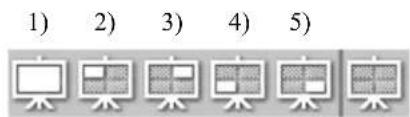
2) - 5) Multi PC mode buttons: Switches to the Multi PC mode. Your image is displayed on a quarter screen as identified in the button.
The projector screen is switched to the mode selected above, and the transmission of your computer image will be started to display your image on the screen.
The icon of the display mode button on the main menu is replaced by the icon you selected.
NOTE
- Image transmission will be stopped in the following situations:
When you click the Single PC mode button while the projector is in the Single PC mode
When you click one of the Multi PC mode buttons while the projector is in the Multi PC mode
- When Multi PC mode is selected, the projector screen is automatically divided into four zones.
- When the screen or one of the areas occupied by another computer is selected, the image transmission from that computer will be put on hold and the image of the currently specified computer will be displayed.
4.2 Multi Projector Control window
In the Multi Projector mode, up to 12 projectors can be connected and controlled individually or simultaneously.
1) Connection list
All of the connected projectors are displayed in the list.
2) Start capture button
The transmission to the projector is started and the images will be displayed
3) Stop capture button
The image transmission is stopped.
4) Disconnect button
The network is disconnected. The disconnected projector disappears from the Connection list.
5) Close button
Close the Multi Projector Control window and back to the Viewer main menu.
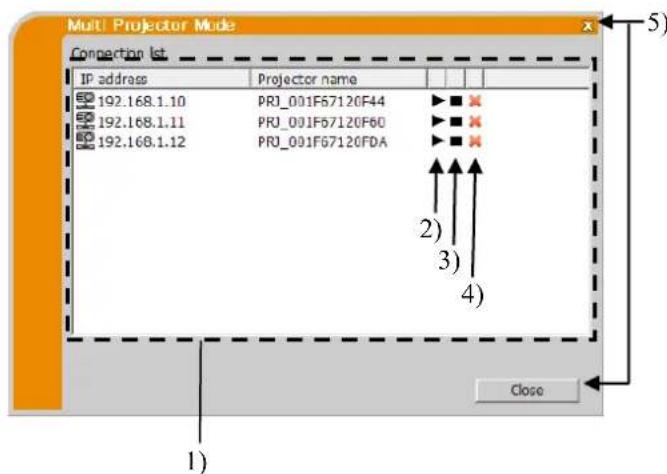
You can check the status of the connection by the following icon on Connection list.


: The network connection is established, but the image transmission is on hold.
: The network connection is established and the images on the computer are being sent to the projector.
4.3 Moderator Control window
A computer can be set to Moderator (Host) that can control all other computers (Clients) connected with the projector. (Projector Models Group: B)
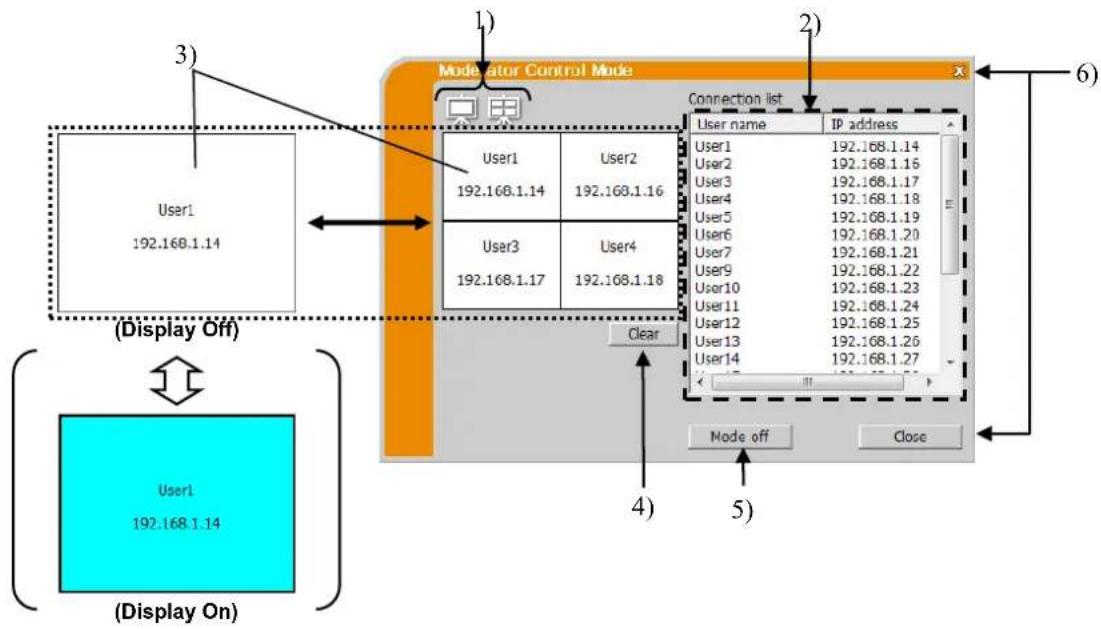
1) Display mode buttons (30)
Display mode switches between Single PC mode and Multi PC mode.
2) Connection list
All computers connected to the same projector as the Moderator connected to are displayed in the list.
3) Display window
The information of the computers whose images are displayed on screen of the projector is displayed. Drag and drop the computer from the Connection list onto this area to display the image on screen of the projector. Image transmission is started/stopped each time the window is clicked.
In the Multi PC mode, the window is divided into four zones the same as the screen. Each zone can be manipulate independently and the information is displayed for each.
4) Clear button
Clears the Display window and stops image transmission to the projector.
5) Mode off button
Cancels the Moderator Control mode. The Display window is cleared and image transmission to the projector stops.
6) Close button
Closes the Moderator Control window and back to the Viewer main menu.
4.4 Option menu
Clicking the option button displays the option menu on screen.
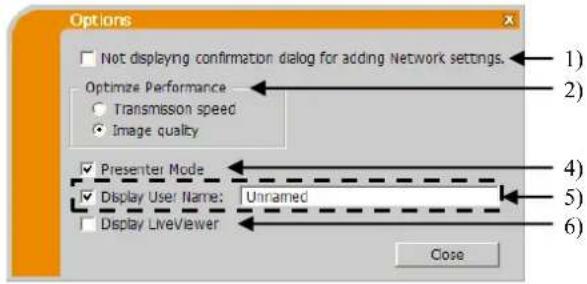
Fig. 4.c Option menu of Projector Models Group: A
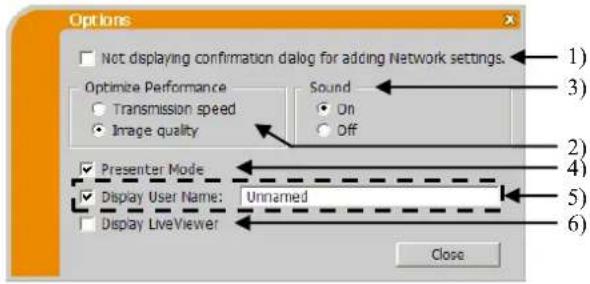
Fig. 4.d Option menu of Projector Models Group: B
1) Not displaying confirmation dialog for adding Network settings.
If checked - The confirmation dialog for adding a network configuration (37) is not displayed when you connect the computer to the projector.
If unchecked - The dialog is always displayed (Default behavior).
2) Optimize Performance
LiveViewer captures computer screen in JPEG data and sends the JPEG data to the projector. Viewer has two options that have different compression rate of JPEG data.
Transmission speed: Speed takes priority over image quality. It makes JPEG compression rate higher. The screen on the projector is rewritten quicker because the transferred data is smaller, but the image quality is worse.
Image Quality: Image quality takes priority over speed. It makes JPEG compression rate lower. The screen on the projector is rewritten slower because the transferred data is larger, but the image quality is better.
3) Sound (only for Projector Models Group: B)
Audio transmission can be selected valid (On) or invalid (Off). The default setting is On.
4) Presenter Mode
In the Single PC mode, the projector can be occupied by one computer and can block access from any other computer, if the Presenter mode is selected in VLC viewer. While making your presentation, you don't need to worry that the image on screen is unexpectedly switched to an image sent by another computer. If you want to turn it on, put a check mark in the check box.
NOTE
If the Multi PC mode is selected, the setting for the Presenter mode is invalid.
- When switching from the Multi PC mode to the Single PC mode, the Presenter mode setting of the computer is valid.
The Presenter mode is set valid in factory default setting.
5) Display User Name
A user name that is up to 20 letters can be input by using alphanumeric characters. The user name can be displayed on the projector screen, so you can find out whose image is currently on the screen. If the check box is not marked, the information is not sent to the projector.
6) Display Viewer
If you want to display VLCviewer application window to the screen of the projector, please check the box.
NOTE
- When,《LiveViewer is used in Windows ^ 8, the setting of "Display,《LiveViewer" is always on.
4.5 Profile data
4.5.1 Outline of Profile data
The network setting to connect the projector and computer can be stored as a profile data. Once the data is stored, all you need to do is to select the data to connect to the network. It is recommended when the same network connection is often used.
4.5.2 Making Profile data
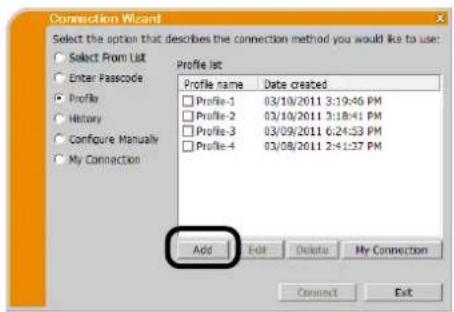
Select "Profile" and click [Add] in the menu of VLCiewer connection method.
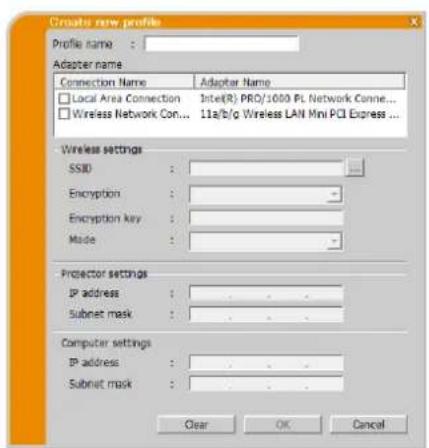
"Create new profile" will come up. If you have already made 20 profile data, you cannot make a new one, until you delete a stored data. Input all information required for your network connection. If you want to clear all information you input, click [Clear].
Click [OK], after all information is set. If you don't want to store it, click [Cancel].
The new profile data is shown in the Profile list, if you click [OK].
NOTE
- When you make a new profile, it is strongly recommended to check that the new profile works properly by selecting the data at the profile connection.
- If you change a network adapter on your computer, make a new profile for the adapter.
Up to 20 profiles can be registered. If 20 profiles already exist, the box cannot be checked. - The Profile name is assigned by Viewer automatically if you registered the profile data as My Connection from the Connection list. The name will be shown in the Profile list.
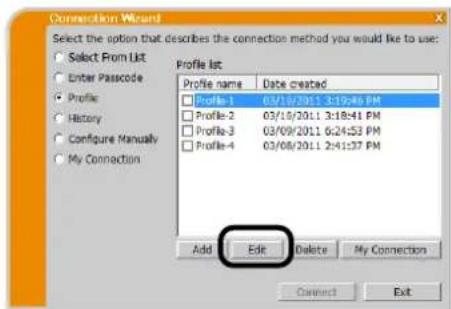
4.5.3 Editing Profile data
Select "Profile", and select one of the profiles listed in the menu of VLCviewer connection method.
Click [Edit].
The "Edit profile" screen will come up.
Edit the information required to be revised. If you want to clear all information you input, click [Clear].
Click [OK], after the editing is completed. If you don't want to store it, click [Cancel].
The edited profile data is stored and shown in the Profile list with the new Date created information, if you click [OK].
NOTE
- When you make a new profile, it is strongly recommended to check that the new profile works properly by selecting the data at the profile connection.

4.5.4 Registering My Connection
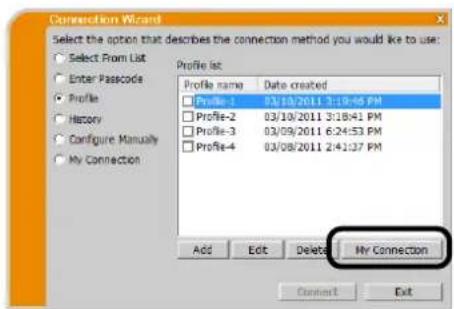
One profile can be registered as 'My Connection' to be often used. Once registered, all you need to do is to select My Connection to connect to the network.
Click [My Connection].
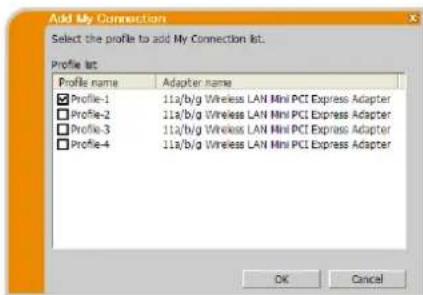
- The "Add My Connection" screen will come up. The currently selected profile data for the My Connection is shown with a check mark in the list.
Select one profile listed in the window and put a mark in the check box.
Click [OK], then the window is closed. If you don't want to select a new one, click [Cancel].
You can also register My Connection from the Connection list displayed after the network connection is established. For details, refer to the section "3.2.5.2 Connection List". (22)
NOTE
- In the list, all profile data are shown no matter which network adapter is selected. You can register a profile that is not for currently selected network adapter as My Connection.
Appendix
A Messages
The following message dialogs appear if a problem has occurred or to present to you information. Read and deal with the messages if they appear.
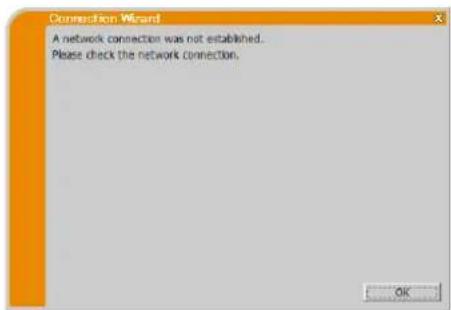
Message 1: A network connection was not established.
This message is displayed in the case that the projector is not connected with a LAN cable to your computer when wired LAN is selected. Be sure that the projector is connected with a LAN cable to your computer.
Click [OK] to return to the previous screen.
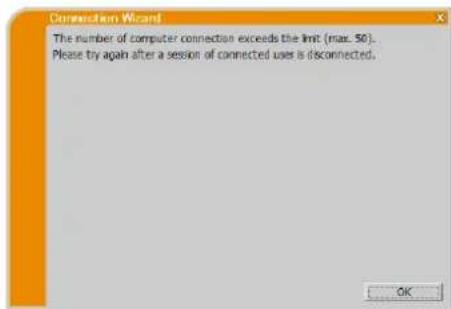
Message 2: The number of computer connection exceeds the limit (max. 50).
The projector has already reached the maximum number of network connections.
Click [OK], and the VLC viewer main menu is displayed.
Please retry after disconnecting one (or more) of the connected computers.
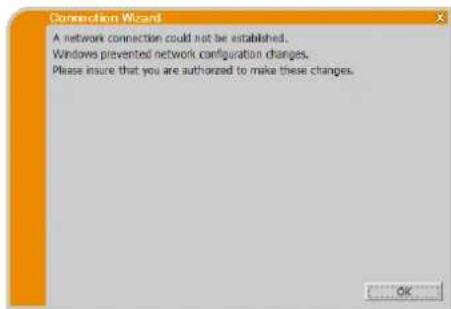
Message 3: A network connection could not be established.
Windows® prevented network configuration changes because you may have not logged into Windows® under Administrator authority. Click [OK] to return to the previous screen.
Consult with the network administrator to log in under Administrator authority. Once log out from Windows, log in again with
Administrator authority and return to "3.2 Connecting to the network". (9)
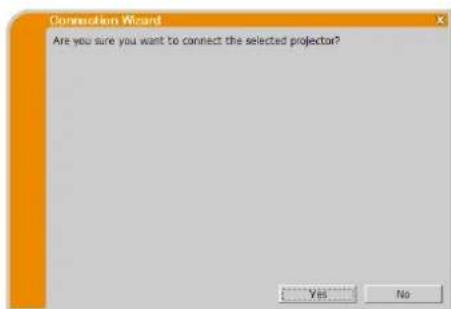
Message 4: Are you sure you want to connect the selected projector?
This message appears when the wireless adapter you selected is already in use with another network connection.
To connect, click [Yes].
Proceed to item "3.2.5 Connection and transmission". (22)
Click [No] to return to the previous screen.
Message 5: Incorrect Passcode.
The incorrect Passcode was input.
Click [OK] to return to the "Enter Passcode" screen.
Check the Passcode on the projector screen and enter the code again.
(13)
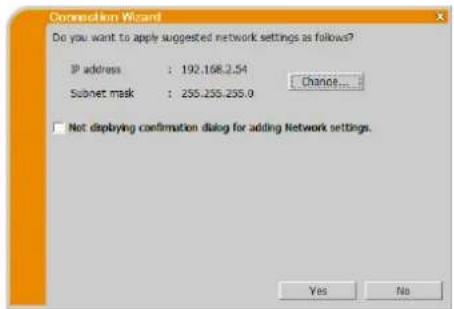
Message 6: Do you want to apply suggested network settings as follows?
This dialog will be displayed when you need to change a Network configuration on your computer in order to connect to the projector. Confirm with your network administrator if the Network configuration on the dialog is OK. Then click [Yes].
If you don't want to apply the Network configuration on the dialog, click [No].
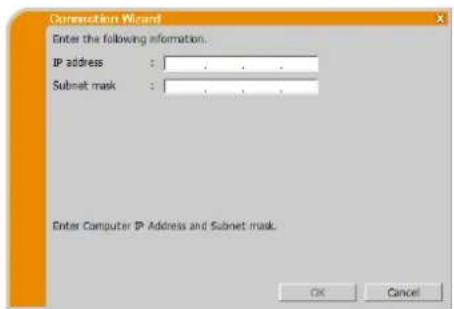
If you want to add the Network configuration manually, click [Change]. A new dialog will be displayed to add a network configuration as shown on the right hand side. Please enter IP address and subnet mask of your computer. Then click [OK].
NOTE
- If you checked "Not displaying confirmation dialog for adding Network settings" option, this dialog will not show up the next time. If you would like to change the setting, click option button on the VLCiewer main menu and uncheck "Not displaying confirmation dialog for adding Network settings" option.
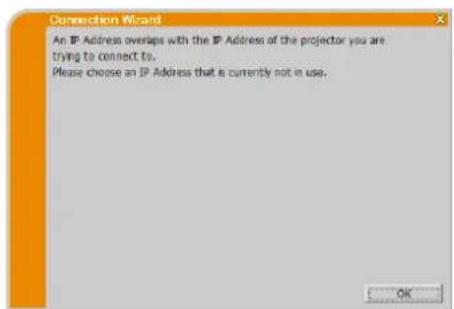
Message 7: An IP Address overlaps with the IP Address of the projector you are trying to connect to.
This message appears when the IP address on your computer is the same as that of the projector. Since different IP addresses are required, click [OK] and enter proper IP address.
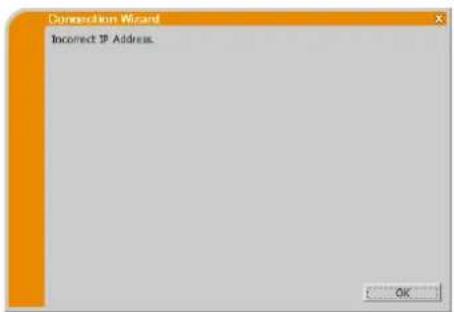
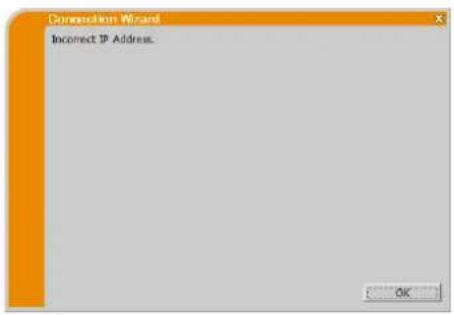
Message 8: Incorrect IP Address.
This message appears when an incorrect IP address on your computer is set.
Click [OK] and enter proper IP address.
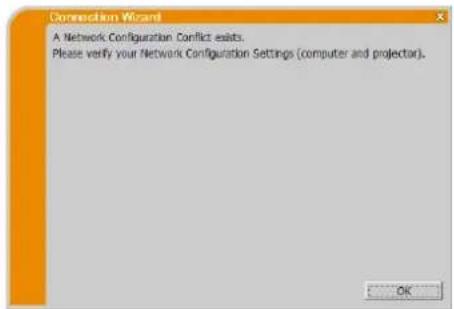
Message 9: A Network Configuration Conflict exists.
This message comes up when the network connection mode you set in the computer does not match with the mode of the projector.
Please verify your network configuration setting on the projector and computer.
Click [OK], then the Viewer main menu is displayed even though the network connection is not established.
Click connect button on the VLCiewer main menu to go back to "3.2.2 Select Connection method". (9)
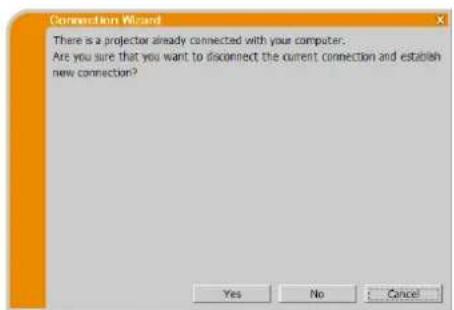
Message 10: There is a projector already connected with your computer.
This message appears when there is a projector already connected with your computer.
Click [Yes] if you disconnect the current connection. New connection is established.
Click [No] if you keep the current connection with establishing new connection. (Multi Projector mode)
Click [Cancel] if new connection cannot be established and keep current connection.
NOTE
- Up to 12 projectors can be connected at the same time.
- When multiple projectors are connected to, the Multi Projector mode is selected automatically. (25)
- "No" cannot be clicked when there are already 12 connected projectors.
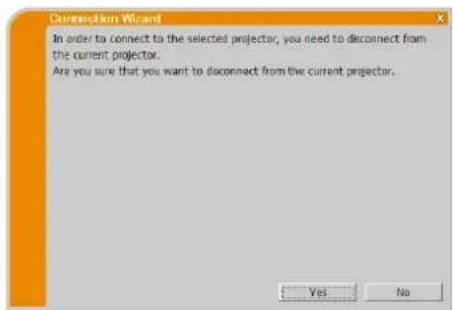
Message 11: In order to connect to the selected projector, you need to disconnect from the current projector.
This message appears when the number of connected projectors exceeds the maximum number.
Click [Yes] if you disconnect the current connection. New connection is established.
Click [No] if new connection cannot be established and keep current connection.
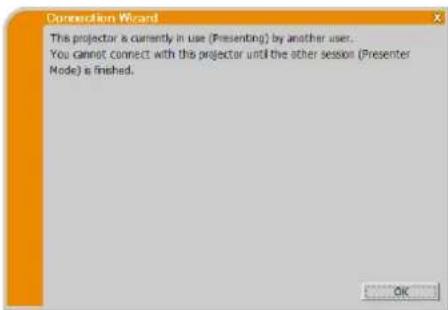
Message 12: This projector is currently in use (Presenting) by another user.
The projector you want to send your images to is occupied by another computer in the Presenter mode.
Click [OK], then the Viewer main menu is displayed in stand-by mode.
Retry to send your images, after the Presenter mode is off.
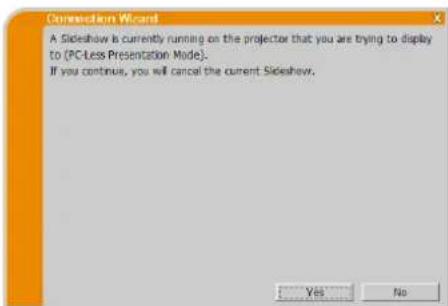
Message 13: A Slideshow is currently running on the projector that you are trying to display to. (PC-Less Presentation Mode).
The projector you want to send your images to is in the Slideshow mode in the PC-LESS Presentation.
Click [Yes], then the projector will stop the Slideshow and switch the input port to LAN. Your computer starts image transmission.
Click [No], then the projector remains in the Slideshow mode, and the Viewer main menu is displayed in stand-by mode on your computer.
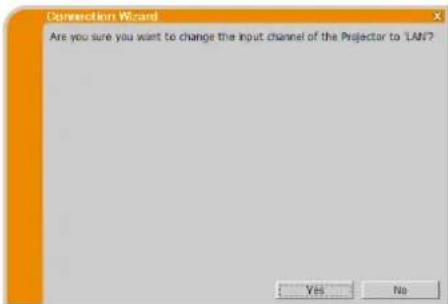
Message 14: Are you sure you want to change the input channel of the Projector to 'LAN'?
The projector is not set to the LAN as an input signal.
Click [Yes], and the projector is switched to the LAN.
Click [No], then the projector remains as it is, and the VLC viewer main menu is displayed in the stand-by mode on your computer.
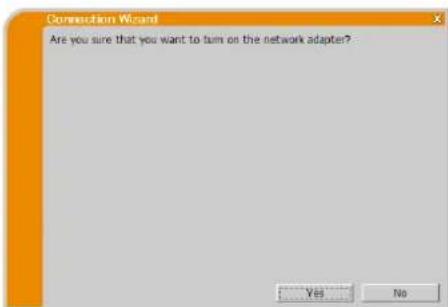
Message 15: Are you sure that you want to turn on the network adapter?
The screen is displayed in the case that the selected network adapter is invalid.
Click [Yes] to turn it on. Proceed to item "3.2.5 Connection and transmission". (22)
Click [No] to not turn it on. The screen is back to the previous one to select another network adapter.
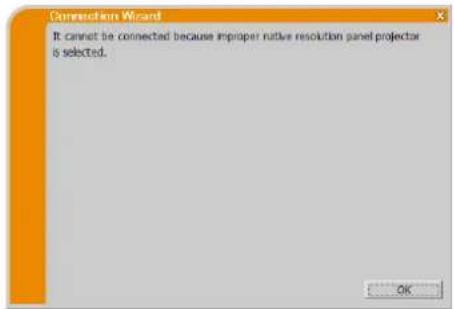
Message 16: It cannot be connected because improper native resolution panel projector is selected.
This message is displayed when the projectors with different native panel resolutions are trying to connect to same computer.
Click [OK], then the Viewer main menu is displayed even though the network connections with selected projectors are not established.
Click connect button on the VLC viewer main menu to go back to "3.2.2 Select Connection method". (9)
Message 17: Since moderator control mode of connected projector (IP address: ********* becomes effective, Multi Projector mode is canceled.
This message appears when the Multi Projector mode is canceled, since Moderator Control mode of connected projector becomes effective by another computer.
Click [OK], and the Viewer main menu is displayed.
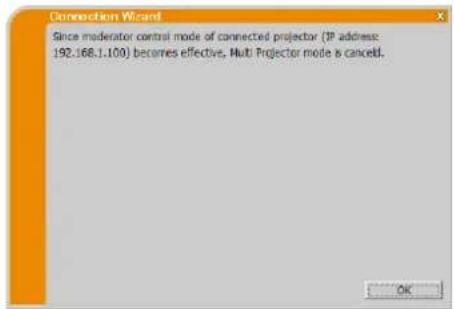
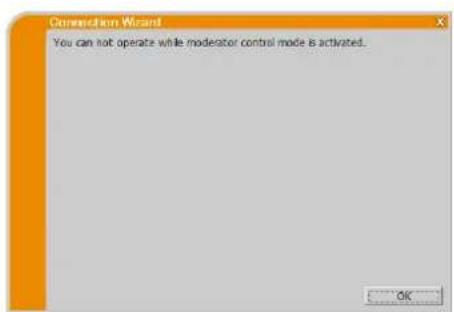
Message 18: You can not operate while moderator control mode is activated.
The projector is occupied by another computer in the Moderator Control mode.
Click [OK], and the Viewer main menu is displayed.
B Trouble Shooting
| Problem | Likely Cause | Things to Check | Reference Page Number | |
| No image | The projector is not turned on. | Is the projector's lamp on? | - | |
| The projector's input source isn't switched to LAN. | Is the projector switched to LAN? | - | ||
| Connection to the Network | The projector that you want to connect to is not found on the list of available projectors | The computer and/or projector's network settings are not configured correctly. | Check the network configurations of the computer and projector. If you change the projector's settings, turn off the projector's AC power and then turn it on again. If you simply put the projector in standby power mode and then turn it on again, the new settings might not take effect. | 15 |
| Firewall software other than Windows® Firewall is installed in your computer. | Refer to the manual for the firewall software and take one of the following actions:- Remove VLCiewer from blocking item list- Disable the firewall software while using VLCiewer | - | ||
| Cannot communicate | The computer and/or projector's network settings are not configured correctly. | Check the network configurations of the computer and projector. | 15 | |
| The projector's input source isn't switched to LAN. | Is the projector switched to LAN? | - | ||
| An access point is used, and your computer is connected to the access point via wireless LAN. | Use network utilities that may come with your computer or wireless LAN adapter to establish wireless network connection. For details, refer to the manual of the computer or the adapter. | - | ||
| Network Presentation | The projected image is rather slow compared to that of the computer | Using the Multi PC mode or the Multi Projector mode. | Use the Single PC mode. | 24 |
| The projector isn't capable of relaying dynamic images such as PowerPoint® animation at full speed. | Switching the priority to 'Transmission Speed' under the option menu may help to improve speed. | 32 | ||
| The compression rate being used for image transmission is too low. | ||||
| Network Presentation (continued) | No Image | Using Photo Gallery Slide Show in Windows Vista®. | LiveViewer cannot send computer screen data while using Windows Vista® Photo Gallery Slide Show. Please close Photo Gallery Slide Show before using Viewer. | - |
| Using Photo Viewer Slide Show in Windows® 7. | LiveViewer cannot send computer screen data while using Windows® 7 Photo Viewer Slide Show. Please close Photo Viewer Slide Show before using Viewer. | - | ||
| Poor communication between the computer and projector. | Click the stop capture button from the Viewer main menu to disconnect the computer and projector. Next, click the start capture button in the main menu to reconnect the computer and projector. If the projector still does not show any image (black screen), exit from Viewer and try again. | 27 | ||
| Can't display movies correctly. | In some combinations of computer's video card and application software, there is a possibility that true image - especially movies played by media player - cannot be transferred to the projector with Viewer. | If there is a video acceleration level adjustment function in your application, please try to adjust it. For details, refer to the manual of your application. | - | |
| Images contain lots of interference. | The compression rate being used for image transmission is too high. | Try setting the priority to 'Image Quality' in the Viewer option menu. You may experience a drop in speed. | 32 | |
| Neither transparency nor translucency effects (Glass) | Viewer does not support these features of Windows® Aero®. | Change the effect other than "Glass". | - | |
| Cannot select Moderator Control mode. | Using Multi Projector mode. | Stop the Multi Projector mode. | 30 | |
| Other computer is already set to Moderator. | Cancel the current Moderator and select new Moderator. | 31 | ||
| Network Presentation (continued) | No Audio | Audio is off. | Set "Sound" 'On' in the option menu of VLC viewer. | 32 |
| Using the Multi PC mode or the Multi Projector mode. | Use the Single PC mode. | 30 | ||
| Audio not supported on some models. | Check the model name of the projector and group of the projector models. Audio transmission is available only for Projector Models Group: B. | 5 | ||
| Mute or low volume is selected on the projector. | Check the audio settings on the projector. | - | ||
| Mute or low volume is selected on your computer. | Check the audio settings on your computer. | - | ||
| Poor communication between the computer and projector. | Once set 'Off' the "Sound" in the option menu of VLC viewer, then set it 'On' again. If the projector still does not produce any sound, restart VLC viewer. | 32 | ||
| If audio output cannot be obtained even though above countermeasures are applied, install VLC viewer again. | 7 | |||
| Network Presentation (continued) | Sound interruption | The computer is connected to or disconnected from peripheral equipment with HDMI™ cable, so that the audio configuration on the computer is changed while using VLC viewer. | Please restart VLC viewer. | 9 |
| When multiple computers are communicating with the projector, low communication band between the computers and the projector makes data transfer rate lower and may interrupt the sound. | Please check your network connection. | - | ||
| USB equipment (USB storage device, USB wireless adapter, or others) is connected to USB TYPE A port of the projector. | Wait for a while. Transaction of embedding driver takes up to 30 seconds. | - | ||
| Sound might be interrupted till the firmware of the projector transacts driver embedding that starts just after insertion of the device. | Check following items in NETWORK - WIRELESS SETUP menu of the projector, too if you inserted USB wireless adapter. Refer to the User's Manual of the projector for the details of WIRELESS SETUP menu. WIRELESS SETUP confirmation items - MODE - ENCRYPTION - SSD | - | ||
| In addition, sound may be interrupted while the USB wireless adapter is searchingSSID. The adapter searchesSSID repeatedly until wireless communication is established. | Please disconnect the USB wireless adapter when the access point or computer connected to is not working or wireless LAN is not used. Even though the issue is not resolved, reconnect VLC viewer. | |||
| Network Presentation (continued) | Noise comes from the speakers in the projector even though computer does not output sound. | Mute function in audio playback software like Windows® Media Player is used. | When computer does not output audio, making VLC viewer "Sound" 'Off' decreases noise. | 32 |
| USB equipment (USB storage device, USB wireless adapter and so on) is connected to USB TYPE A port of the projector. | ||||
| Iris feature of the projector is activated. | When computer does not output audio, making VLC viewer "Sound" 'Off' decreases sound noise. | 32 | ||
| When active iris is not used, set "ACTIVE IRIS" to "OFF" using projector menu. Refer to the User's Manual of the projector for the detail of "ACTIVE IRIS". | ||||
| Others - Information displayed in the screens of VLC viewer is incorrect. - The projector does not respond. - Image on screen is frozen. | Communication between the projector and computer is not working well. Network functions of the projector are not working well. | Click the stop capture button from the VLC viewer main menu to disconnect the computer and projector. Next, click the start capture button in the main menu to reconnect the computer and projector. Even though the issue is not resolved, reconnect VLC viewer. | 27 | |
The Software is being delivered to you "AS IS" and Christie Digital Systems USA, Inc. (CHRISTIE) make no warranty as to its use or performance. CHRISTIE AND ITS SUPPLIERS, INCLUDING BUT NOT LIMITED TO CHRISTIE, DO NOT AND CANNOT WARRANTY THE PERFORMANCE OR RESULTS YOU MAY OBTAIN BY USING THE SOFTWARE. EXCEPT TO THE EXTENT PROHIBITED BY LAW IN YOUR JURISDICTION, CHRISTIE AND ITS SUPPLIERS MAKE NO WARRANTY CONDITIONS, REPRESENTATIONS, OR TERMS (EXPRESS OR IMPLIED WHETHER BY STATUTE, COMMON LAW, CUSTOM, USAGE OR OTHERWISE) AS TO ANY MATTER IN CONNECTION WITH THE SOFTWARE, INCLUDING WITHOUT LIMITATION NONINFRINGEMENT OF THIRD PARTY RIGHTS, MERCHANTABILITY, INTEGRATION, SATISFACTORY QUALITY, OR FITNESS FOR ANY PARTICULAR PURPOSE.
You agree that the Software will not be shipped, transferred or exported into any country or used in any manner prohibited by the United States Export Administration Act or any other applicable export laws, restrictions or regulations (collectively the "Export Laws"). In addition, if the Software is identified as export controlled items under the Export Laws, you represent and warrant that you are not a citizen, or otherwise located within, an embargoed nation (including without limitation Iran, Iraq, Syria, Sudan, Libya, Cuba, North Korea, and Serbia) and that you are not otherwise prohibited under the Export Laws from receiving the Software. All rights to Use the Software are granted on condition that such rights are forfeited if you fail to comply with the terms of this Agreement.
Table des matieres
Encryption (Cryptage):
WEP64bit (example)
Encryption key (Clé de cryptage)*:
***************************************************************************************************** (Example)
Enter the following information that is set in the projector.
SSID: wireless (example)
Encryption (Cryptage): WEP64bit (example)
IP address (Adresse IP): 192.168.1.10 (example)
Encryption (Cryptage):
WEP64bit (example)
Mode (mode): INFRASTRUCTURE
Cliquez sur [Next].
IP address (Adresse IP): 192.168.1.10 (example)
IP address (Adresse IP): 192.168.1.10 (exemple)
Message 1: A network connection was not established
Message 2: The number of computer connection exceeds the limit (max. 50).
Message 3: A network connection could not be established.
Message 4: Are you sure you want to connect the selected projector?
Message 6: Do you want to apply suggested network settings as follows?
Message 7: An IP Address overlaps with the IP Address of the projector you are trying to connect to.
Message 8: Incorrect IP Address.
Message 9: A Network Configuration Conflict exists.
Message 10: There is a projector already connected with your computer.
Message 11: In order to connect to the selected projector, you need to disconnect from the current projector.
Message 12: This projector is currently in use (Presenting) by another user.
Message 13: A Slideshow is currently running on the projector that you are trying to display to (PC-Less Presentation Mode).
Message 14: Are you sure you want to change input channel of Projector to LAN?
Message 15: Are you sure that you want to turn on network adapter?
Message 16: It cannot be connected because improper native resolution panel projector is selected.
Message 17: Since moderator control mode of connected projector (IP address: ***.***.***) becomes effective, Multi Projector mode is canceled.
Message 18: You can not operate while moderator control mode is activated.
The Software is being delivered to you "AS IS" and Christie Digital Systems USA, Inc. (CHRISTIE) make no warranty as to its use or performance. CHRISTIE AND ITS SUPPLIERS, INCLUDING BUT NOT LIMITED TO CHRISTIE, DO NOT AND CANNOT WARRANTY THE PERFORMANCE OR RESULTS YOU MAY OBTAIN BY USING THE SOFTWARE. EXCEPT TO THE EXTENT PROHIBITED BY LAW IN YOUR JURISDICTION, CHRISTIE AND ITS SUPPLIERS MAKE NO WARRANTY CONDITIONS, REPRESENTATIONS, OR TERMS (EXPRESS OR IMPLIED WHETHER BY STATUTE, COMMON LAW, CUSTOM, USAGE OR OTHERWISE) AS TO ANY MATTER IN CONNECTION WITH THE SOFTWARE, INCLUDING WITHOUT LIMITATION NONINFRINGEMENT OF THIRD PARTY RIGHTS, MERCHANTABILITY, INTEGRATION, SATISFACTORY QUALITY, OR FITNESS FOR ANY PARTICULAR PURPOSE.
You agree that the Software will not be shipped, transferred or exported into any country or used in any manner prohibited by the United States Export Administration Act or any other applicable export laws, restrictions or regulations (collectively the "Export Laws"). In addition, if the Software is identified as export controlled items under the Export Laws, you represent and warrant that you are not a citizen, or otherwise located within, an embargoed nation (including without limitation Iran, Iraq, Syria, Sudan, Libya, Cuba, North Korea, and Serbia) and that you are not otherwise prohibited under the Export Laws from receiving the Software. All rights to Use the Software are granted on condition that such rights are forfeited if you fail to comply with the terms of this Agreement.
Inhalt
1 Funktionen 3
1.1 Display-Modus 3
Mode (Modus): AD-HOC
Mode (Modus): INFRASTRUCTURE
Encryption key (Schlüssel)*
******** (Beispiel)
Mode (Modus): INFRASTRUCTURE
3.2.5.2 Connection List
Meldung 1: A network connection was not established.
Meldung 2: The number of computer connection exceeds the limit (max. 50).
Meldung 3: A network connection could not be established.
Meldung 4: Are you sure you want to connect the selected projector?
Meldung 6: Do you want to apply suggested network settings as follows?
Meldung 7: An IP Address overlaps with the IP Address of the projector you are trying to connect to.
Meldung 8: Incorrect IP Address.
Meldung 10: There is a projector already connected with your computer.
Meldung 11: In order to connect to the selected projector, you need to disconnect from the current projector.
Meldung 12: This projector is currently in use (Presenting) by another user.
Meldung 13: A Slideshow is currently running on the projector that you are trying to display to (PC-Less Presentation Mode).
Meldung 14: Are you sure you want to change the input channel of the Projector to 'LAN'?
Meldung 15: Are you sure you want to change the input channel of the Projector to LAN?
Meldung 16: It cannot be connected because improper native resolution panel projector is selected.
Meldung 17: Since moderator control mode of connected projector (IP address: ***.***.***) becomes effective, Multi Projector mode is canceled.
Meldung 18: You can not operate while moderator control mode is activated.
The Software is being delivered to you "AS IS" and Christie Digital Systems USA, Inc. (CHRISTIE) make no warranty as to its use or performance. CHRISTIE AND ITS SUPPLIERS, INCLUDING BUT NOT LIMITED TO CHRISTIE, DO NOT AND CANNOT WARRANTY THE PERFORMANCE OR RESULTS YOU MAY OBTAIN BY USING THE SOFTWARE. EXCEPT TO THE EXTENT PROHIBITED BY LAW IN YOUR JURISDICTION, CHRISTIE AND ITS SUPPLIERS MAKE NO WARRANTY CONDITIONS, REPRESENTATIONS, OR TERMS (EXPRESS OR IMPLIED WHETHER BY STATUTE, COMMON LAW, CUSTOM, USAGE OR OTHERWISE) AS TO ANY MATTER IN CONNECTION WITH THE SOFTWARE, INCLUDING WITHOUT LIMITATION NONINFRINGEMENT OF THIRD PARTY RIGHTS, MERCHANTABILITY, INTEGRATION, SATISFACTORY QUALITY, OR FITNESS FOR ANY PARTICULAR PURPOSE.
You agree that the Software will not be shipped, transferred or exported into any country or used in any manner prohibited by the United States Export Administration Act or any other applicable export laws, restrictions or regulations (collectively the "Export Laws"). In addition, if the Software is identified as export controlled items under the Export Laws, you represent and warrant that you are not a citizen, or otherwise located within, an embargoed nation (including without limitation Iran, Iraq, Syria, Sudan, Libya, Cuba, North Korea, and Serbia) and that you are not otherwise prohibited under the Export Laws from receiving the Software. All rights to Use the Software are granted on condition that such rights are forfeited if you fail to comply with the terms of this Agreement.
Indices
1 Characteristicas. 3
1.1 Modo de visualizacion 3
1.1.1 Modo PC Unico 3
1.1.2 Modo PC Molecule 3
History (Historical)
The setting on the access point Enter the following information.
SSID: WirelessAccessPoint (ejemplo)
Encryption (Cifrado): WEP64bit (ejemplo)
Encryption key (Clave de encryptacion) ^2 : * (ejemplo)
Mode (Modo): INFRASTRUCTURE
Mode (Modo): INFRASTRUCTURE
Haga cli en [Next].
Mensaje 1: A network connection was not established.
Mensaje 3: A network connection could not be established.
Mensaje 4: Are you sure you want to connect selected projector?
Mensaje 6: Do you want to apply suggested network settings as follows?
Mensaje 7: An IP Address overlaps with the IP Address of the projector you are trying to connect to.
Mensaje 10: There is a projector already connected with your computer.
Mensaje 11: In order to connect to the selected projector, you need to disconnect from the current projector.
Mensaje 12: This projector is currently in use (Presenting) by another user.
Mensaje 13: A Slideshow is currently running on projector that you are trying to display to (PC-Less Presentation Mode).
Mensaje 14: Are you sure you want to change input channel of Projector to LAN?
Mensaje 15: Are you sure that you want to turn on network adapter?
Mensaje 16: It cannot be connected because improper native resolution panel projector is selected.
Mensaje 17: Since moderator control mode of connected projector (IP address: \*\*\*\*\*\*\*\*\*\* becomes effective, Multi Projector mode is canceled.
Mensaje 18: You can not operate while moderator control mode is activated.
The Software is being delivered to you "AS IS" and Christie Digital Systems USA, Inc. (CHRISTIE) make no warranty as to its use or performance. CHRISTIE AND ITS SUPPLIERS, INCLUDING BUT NOT LIMITED TO CHRISTIE, DO NOT AND CANNOT WARRANTY THE PERFORMANCE OR RESULTS YOU MAY OBTAIN BY USING THE SOFTWARE. EXCEPT TO THE EXTENT PROHIBITED BY LAW IN YOUR JURISDICTION, CHRISTIE AND ITS SUPPLIERS MAKE NO WARRANTY CONDITIONS, REPRESENTATIONS, OR TERMS (EXPRESS OR IMPLIED WHETHER BY STATUTE, COMMON LAW, CUSTOM, USAGE OR OTHERWISE) AS TO ANY MATTER IN CONNECTION WITH THE SOFTWARE, INCLUDING WITHOUT LIMITATION NONINFRINGEMENT OF THIRD PARTY RIGHTS, MERCHANTABILITY, INTEGRATION, SATISFACTORY QUALITY, OR FITNESS FOR ANY PARTICULAR PURPOSE.
You agree that the Software will not be shipped, transferred or exported into any country or used in any manner prohibited by the United States Export Administration Act or any other applicable export laws, restrictions or regulations (collectively the "Export Laws"). In addition, if the Software is identified as export controlled items under the Export Laws, you represent and warrant that you are not a citizen, or otherwise located within, an embargoed nation (including without limitation Iran, Iraq, Syria, Sudan, Libya, Cuba, North Korea, and Serbia) and that you are not otherwise prohibited under the Export Laws from receiving the Software. All rights to Use the Software are granted on condition that such rights are forfeited if you fail to comply with the terms of this Agreement.
Contenuo
1 Caratteristica 3
Messaggio 1: A network connection was not established.
Messaggio 2: The number of computer connection exceeds the limit (max. 50).
Messaggio 3: A network connection could not be established.
Messaggio 4: Are you sure you want to connect the selected projector?
Messaggio 6: Do you want to apply suggested network settings as follows?
Messaggio 7: An IP Address overlaps with the IP Address of the projector you are trying to connect to.
Messaggio 9: A Network Configuration Conflict exists.
Messaggio 10: There is a projector already connected with your computer.
Messaggio 11: In order to connect to the selected projector, you need to disconnect from the current projector.
Messaggio 12: This projector is currently in use (Presenting) by another user.
Messaggio 13: A Slideshow is currently running on the projector that you are trying to display to (PC-Less Presentation Mode).
Messaggio 14: Are you sure you want to change the input channel of the Projector to LAN?
Messaggio 15: Are you sure that you want to turn on the network adapter?
Messaggio 16: It cannot be connected because improper native resolution panel projector is selected.
Messaggio 17: Since moderator control mode of connected projector (IP address: ***.***.***) becomes effective, Multi Projector mode is canceled.
Messaggio 18: You can not operate while moderator control mode is activated.
The Software is being delivered to you "AS IS" and Christie Digital Systems USA, Inc. (CHRISTIE) make no warranty as to its use or performance. CHRISTIE AND ITS SUPPLIERS, INCLUDING BUT NOT LIMITED TO CHRISTIE, DO NOT AND CANNOT WARRANTY THE PERFORMANCE OR RESULTS YOU MAY OBTAIN BY USING THE SOFTWARE. EXCEPT TO THE EXTENT PROHIBITED BY LAW IN YOUR JURISDICTION, CHRISTIE AND ITS SUPPLIERS MAKE NO WARRANTY CONDITIONS, REPRESENTATIONS, OR TERMS (EXPRESS OR IMPLIED WHETHER BY STATUTE, COMMON LAW, CUSTOM, USAGE OR OTHERWISE) AS TO ANY MATTER IN CONNECTION WITH THE SOFTWARE, INCLUDING WITHOUT LIMITATION NONINFRINGEMENT OF THIRD PARTY RIGHTS, MERCHANTABILITY, INTEGRATION, SATISFACTORY QUALITY, OR FITNESS FOR ANY PARTICULAR PURPOSE.
You agree that the Software will not be shipped, transferred or exported into any country or used in any manner prohibited by the United States Export Administration Act or any other applicable export laws, restrictions or regulations (collectively the "Export Laws"). In addition, if the Software is identified as export controlled items under the Export Laws, you represent and warrant that you are not a citizen, or otherwise located within, an embargoed nation (including without limitation Iran, Iraq, Syria, Sudan, Libya, Cuba, North Korea, and Serbia) and that you are not otherwise prohibited under the Export Laws from receiving the Software. All rights to Use the Software are granted on condition that such rights are forfeited if you fail to comply with the terms of this Agreement.
Innhold
1 Funksjoner 3
1.1 Visningsmodus 3
1.1.1 Enkelt PC-modus 3
1.1.2 Flere PC-modus.. 3
My Connection (Min tilkobling)
Fabrikstandard SSID 1: wireless
Fabrikstandard SSID 2: WANProjector
Fabrikstandard SSID 3: WLANProjector2
Fabrikstandard SSID 4: WLANProjector3
3) Subnettaske er/DDe Klasse A eller B eller C.
Klasse A:(255.0.0.0), Klasse B:(255.255.0.0), Klasse C:(255.255.255.0)
3.2.3.1 Å fã passkoden
Encryption (Kryptering):
WEP64bit (eksempel)
Encryption key (Koderingsnokkel) *: ******************************************************************************************************* (eksempel)
Subnet mask (Subnettmaske) *255.255.255.128 (eksempel)
Klikk [Connect].
Koblingsprosessen via tradløs LAN starter.
Encryption (Kryptering):
WEP64bit (eksempel)
Encryption key (Koderingsnokkel) ^2 : ****************************************************************************************************** (eksempel)
Innstillingen pa prosjektoren.
Skriv inn ffolgende informasjon.
Subnet mask (Subnettmaske) 4: 255.255.255.128 (eksempel)
Klikk [Connect].
Tilkoblingsprosessen starter.
Encryption (Kryptering):
WEP64bit (eksempel)
Encryption key (Koderingsnøkkel) ^2 :
******************************************************************************************************* (eksempel)
Innstillingen pa prosjektoren.
Skriv inn ffolgende informasjon.
Subnet mask (Subnettmaske) ^d :
255.255.255.128 (eksempel)
Klikk [Connect].
Koblingsprosessen via tradløs LAN starter.
3.2.4 Configuring Network Setting Manually
Encryption (Kryptering):
WEP64bit (eksempel)
Encryption key (Koderingsnøkkel) ^*2 :
******************************************************************************************************* (eksempel)
Mode (Modus): INFRASTRUCTURE
Klikk [Next].
Subnet mask (Subnettmaske):
255.255.255.0 (eksempel)
Klikk [Connect].
Tilkoblingsprossessen starter.
Mode (Modus): INFRASTRUCTURE
Klikk [Next].
Melding 1: A network connection was not established.
Melding 2: The number of computer connection exceeds the limit (max. 50).
Melding 3: A network connection could not be established.
Melding 4: Are you sure you want to connect the selected projector?
Denne meldingen vises nár den tradlose adapteren du valgte allerede cr i bruk mcd en annen nettverkstilkobling.
Melding 5: Incorrect Passcode
Melding 6: Do you want to apply suggested network settings as follows?
Melding 7: An IP Address overlaps with the IP Address of the projector you are trying to connect to.
Denne meldingen vises nár IP-adressen på datamaskinen er den samme som på projektoren. Siden forskjellige IP-adresser er nodsvendig, klikk på [OK] og skriv riktig IP-adresse.

Melding 8: Incorrect IP Address.
Denne meldingen vises nár en feil IP-adresse er satt på datamaskinen. Klikk [OK], og angi riktig IP-adresse.
Melding 9: A Network Configuration Conflict exists.
Melding 10: There is a projector already connected with your computer.
Melding 11: In order to connect to the selected projector, you need to disconnect from the current projector.
Denne meldingen vises nár antall tilkoblde projektorer overstiger det maksimale antallet.
Melding 12: This projector is currently in use (Presenting) by another user.
Projektoren du vil scende bildene til er opptatt med en annen maskin i presentasjonsmodusen.
Klikk [OK], sä vises hovedmenyen "LiveViewer" i beredskapsmodus. Prov Å送来 bildene dine på nytt erter at presentasjonsmodusen er slätt av.
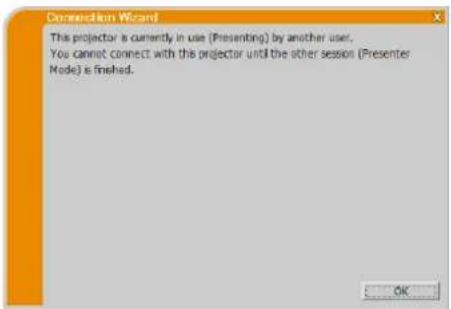
Melding 13: A Slideshow is currently running on the projector that you are trying to display to (PC-Less Presentation Mode).
Projektoren du vil scnde bildene til er i lysbildeframvisningsmodus i UTEN PCpresentasjonen.
Melding 14: Are you sure you want to change the input channel of the Projector to LAN?
Projektoren cr ikke innstilt med LAN som inngangssignal. Klikk [Yes], og projektoren skifter til LAN.
Melding 15: Are you sure that you want to turn on the network adapter?
Melding 16: It cannot be connected because improper native resolution panel projector is selected.
Melding 17: Since moderator control mode of connected projector (IP address: ***.***.***) becomes effective, Multi Projector mode is canceled.
Denne meldingen viscs nár Flerprojektormodus avsluttes, ettersom Moderatorkontrollmodus for tilkoblet projetor blir effektiv av en annen datamaskin.
Melding 18: You can not operate while moderator control mode is activated.
Projektoren er okkupert av en annen datamaskin i Moderatorkontrollmodus.
The Software is being delivered to you "AS IS" and Christie Digital Systems USA, Inc. (CHRISTIE) make no warranty as to its use or performance. CHRISTIE AND ITS SUPPLIERS, INCLUDING BUT NOT LIMITED TO CHRISTIE, DO NOT AND CANNOT WARRANTY THE PERFORMANCE OR RESULTS YOU MAY OBTAIN BY USING THE SOFTWARE. EXCEPT TO THE EXTENT PROHIBITED BY LAW IN YOUR JURISDICTION, CHRISTIE AND ITS SUPPLIERS MAKE NO WARRANTY CONDITIONS, REPRESENTATIONS, OR TERMS (EXPRESS OR IMPLIED WHETHER BY STATUTE, COMMON LAW, CUSTOM, USAGE OR OTHERWISE) AS TO ANY MATTER IN CONNECTION WITH THE SOFTWARE, INCLUDING WITHOUT LIMITATION NONINFRINGEMENT OF THIRD PARTY RIGHTS, MERCHANTABILITY, INTEGRATION, SATISFACTORY QUALITY, OR FITNESS FOR ANY PARTICULAR PURPOSE.
You agree that the Software will not be shipped, transferred or exported into any country or used in any manner prohibited by the United States Export Administration Act or any other applicable export laws, restrictions or regulations (collectively the "Export Laws"). In addition, if the Software is identified as export controlled items under the Export Laws, you represent and warrant that you are not a citizen, or otherwise located within, an embargoed nation (including without limitation Iran, Iraq, Syria, Sudan, Libya, Cuba, North Korea, and Serbia) and that you are not otherwise prohibited under the Export Laws from receiving the Software. All rights to Use the Software are granted on condition that such rights are forfeited if you fail to comply with the terms of this Agreement.
Inhoud
1 Kenmerken 3
1.1 Weergavemodus 3
1.1.1 Enkel-PC-modus 3
1.1.2 Multi-PC-modus 3
1.2 Multi-projectormodus 4
1.3 Moderator-besturingsmodus 4
2 5
2.1 Vereiste pc-hardware en -software 5
2.2 Softwareversies 5
2.3 "Viewer" updaten 6
(Service Pack 1 of later)
Enterprise / Ultimate
Windows® 7
Starter / Home Basic / Home Premium /
Professional / Enterprise / Ultimate
Grafische kaart
Windows® 8 / Windows® 8 / Windows® 8 Enterprise
Windows® 8.1 / Windows® 8.1 Pro / Windows® 8.1 Enterprise
VGA: 640x480 of hoger (aanbevolen XGA: 1024x768)
CD-ROM/DVD-ROM station
Draadloze LAN
2.2 Softwareversies
3.2.2.3 Profielverbinding
Fabrieksinstelling SSID 1: wireless
Fabrieksinstelling SSID 2: WLANProjector1
Fabrieksinstalling SSID 3: WLANProjector2
Fabrieksinstalling SSID 4: WLANProjector3
Encryption (Encrypted):
Mode (Modus): AD-HOC
Klik op [Next].
Encryption (Encrypted):
Mode (Modus): INFRASTRUCTURE
Klik op [Next].
3.2.6 Verboundingsfout
Bericht 1: A network connection was not established.
Bericht 2: The number of computer connection exceeds the limit (max. 50).
Bericht 3: A network connection could not be established.
Verbindingmakemethetnetwork".(9)
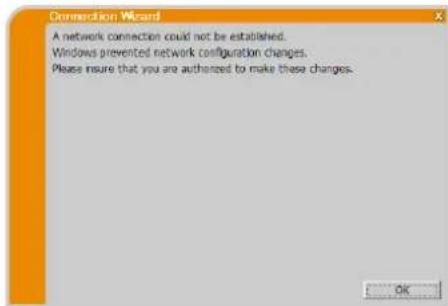
Bericht 4: Are you sure you want to connect the selected projector?
Bericht 6: Do you want to apply suggested network settings as follows?
Bericht 7: An IP Address overlaps with the IP Address of the projector you are trying to connect to.
Bericht 8: Incorrect IP Address.
Bericht 9: A Network Configuration Conflict exists.
Bericht 10: There is a projector already connected with your computer.
Bericht 11: In order to connect to the selected projector, you need to disconnect from the current projector.
Bericht 12: This projector is currently in use (Presenting) by another user.
Bericht 13: A Slideshow is currently running on the projector that you are trying to display to. (PC-Less Presentation Mode)
Bericht 14: Are you sure you want to change the input channel of the Projector to LAN?
Bericht 15: Are you sure that you want to turn on the network adapter?
Bericht 16: It cannot be connected because improper native resolution panel projector is selected.
Bericht 17: Since moderator control mode of connected projector (IP address: \*\*\*\*\*\*\*\*\*\* becomes effective, Multi Projector mode is canceled.
Bericht 18: You can not operate while moderator control mode is activated.
The Software is being delivered to you "AS IS" and Christie Digital Systems USA, Inc. (CHRISTIE) make no warranty as to its use or performance. CHRISTIE AND ITS SUPPLIERS, INCLUDING BUT NOT LIMITED TO CHRISTIE, DO NOT AND CANNOT WARRANTY THE PERFORMANCE OR RESULTS YOU MAY OBTAIN BY USING THE SOFTWARE. EXCEPT TO THE EXTENT PROHIBITED BY LAW IN YOUR JURISDICTION, CHRISTIE AND ITS SUPPLIERS MAKE NO WARRANTY CONDITIONS, REPRESENTATIONS, OR TERMS (EXPRESS OR IMPLIED WHETHER BY STATUTE, COMMON LAW, CUSTOM, USAGE OR OTHERWISE) AS TO ANY MATTER IN CONNECTION WITH THE SOFTWARE, INCLUDING WITHOUT LIMITATION NONINFRINGEMENT OF THIRD PARTY RIGHTS, MERCHANTABILITY, INTEGRATION, SATISFACTORY QUALITY, OR FITNESS FOR ANY PARTICULAR PURPOSE.
You agree that the Software will not be shipped, transferred or exported into any country or used in any manner prohibited by the United States Export Administration Act or any other applicable export laws, restrictions or regulations (collectively the "Export Laws"). In addition, if the Software is identified as export controlled items under the Export Laws, you represent and warrant that you are not a citizen, or otherwise located within, an embargoed nation (including without limitation Iran, Iraq, Syria, Sudan, Libya, Cuba, North Korea, and Serbia) and that you are not otherwise prohibited under the Export Laws from receiving the Software. All rights to Use the Software are granted on condition that such rights are forfeited if you fail to comply with the terms of this Agreement.
Contudo
1 Characteristicas. 3
1.1 Modo de exibicao 3
1.1.1 Modo PC individual 3
1.1.2 Modo PC multiplo 3
1.2 Modo Projector Mulplo 4
1.3 Modo de Controlo do Moderador 4
2 5
2.1 Requisitos de hardware e software para PC 5
2.2 Versoes de software 5
2.3 Actualizar o "LiveViewer" 6
3 Iniciar o VLCviewer. 7
Mode (Modo): INFRASTRUCTURE
Clique no [Next].
A configuracao no projector.*j
Mensagem 1: A network connection could not be established.
Mensagem 2: The number of computer connection exceeds the limit (max. 50).
Mensagem 3: A network connection could not be established.
Mensagem 4: Are you sure you want to connect the selected projector?
Mensagem 6: Do you want to apply suggested network settings as follows?
Mensagem 7: An IP Address overlaps with the IP Address of the projector you are trying to connect to.
Mensagem 10: There is a projector already connected with your computer.
Mensagem 11: In order to connect to the selected projector, you need to disconnect from the current projector.
Mensagem 12: The projector is currently in use (Presenting) by another user.
Mensagem 13: A Slideshow is currently running on the projector that you are trying to display to (PC-Less Presentation Mode).
Mensagem 14: Are you sure you want to change the input channel of the Projector to LAN?
Mensagem 15: Are you sure that you want to turn on the network adapter?
Mensagem 16: It cannot be connected because improper native resolution panel projector is selected.
Mensagem 17: Since moderator control mode of connected projector (IP address: \*\*\*\*\*\*\*\*\*\* becomes effective, Multi Projector mode is canceled.
Mensagem 18: You can not operate while moderator control mode is activated.
O projector éocupado por及其他 computador no modo de Controlo do Moderador.
The Software is being delivered to you "AS IS" and Christie Digital Systems USA, Inc. (CHRISTIE) make no warranty as to its use or performance. CHRISTIE AND ITS SUPPLIERS, INCLUDING BUT NOT LIMITED TO CHRISTIE, DO NOT AND CANNOT WARRANTY THE PERFORMANCE OR RESULTS YOU MAY OBTAIN BY USING THE SOFTWARE. EXCEPT TO THE EXTENT PROHIBITED BY LAW IN YOUR JURISDICTION, CHRISTIE AND ITS SUPPLIERS MAKE NO WARRANTY CONDITIONS, REPRESENTATIONS, OR TERMS (EXPRESS OR IMPLIED WHETHER BY STATUTE, COMMON LAW, CUSTOM, USAGE OR OTHERWISE) AS TO ANY MATTER IN CONNECTION WITH THE SOFTWARE, INCLUDING WITHOUT LIMITATION NONINFRINGEMENT OF THIRD PARTY RIGHTS, MERCHANTABILITY, INTEGRATION, SATISFACTORY QUALITY, OR FITNESS FOR ANY PARTICULAR PURPOSE.
You agree that the Software will not be shipped, transferred or exported into any country or used in any manner prohibited by the United States Export Administration Act or any other applicable export laws, restrictions or regulations (collectively the "Export Laws"). In addition, if the Software is identified as export controlled items under the Export Laws, you represent and warrant that you are not a citizen, or otherwise located within, an embargoed nation (including without limitation Iran, Iraq, Syria, Sudan, Libya, Cuba, North Korea, and Serbia) and that you are not otherwise prohibited under the Export Laws from receiving the Software. All rights to Use the Software are granted on condition that such rights are forfeited if you fail to comply with the terms of this Agreement.
目录
1 特点 3
1.1 显示模式 3
The Software is being delivered to you "AS IS" and Christie Digital Systems USA, Inc. (CHRISTIE) make no warranty as to its use or performance. CHRISTIE AND ITS SUPPLIERS, INCLUDING BUT NOT LIMITED TO CHRISTIE, DO NOT AND CANNOT WARRANTY THE PERFORMANCE OR RESULTS YOU MAY OBTAIN BY USING THE SOFTWARE. EXCEPT TO THE EXTENT PROHIBITED BY LAW IN YOUR JURISDICTION, CHRISTIE AND ITS SUPPLIERS MAKE NO WARRANTY CONDITIONS, REPRESENTATIONS, OR TERMS (EXPRESS OR IMPLIED WHETHER BY STATUTE, COMMON LAW, CUSTOM, USAGE OR OTHERWISE) AS TO ANY MATTER IN CONNECTION WITH THE SOFTWARE, INCLUDING WITHOUT LIMITATION NONINFRINGEMENT OF THIRD PARTY RIGHTS, MERCHANTABILITY, INTEGRATION, SATISFACTORY QUALITY, OR FITNESS FOR ANY PARTICULAR PURPOSE.
You agree that the Software will not be shipped, transferred or exported into any country or used in any manner prohibited by the United States Export Administration Act or any other applicable export laws, restrictions or regulations (collectively the "Export Laws"). In addition, if the Software is identified as export controlled items under the Export Laws, you represent and warrant that you are not a citizen, or otherwise located within, an embargoed nation (including without limitation Iran, Iraq, Syria, Sudan, Libya, Cuba, North Korea, and Serbia) and that you are not otherwise prohibited under the Export Laws from receiving the Software. All rights to Use the Software are granted on condition that such rights are forfeited if you fail to comply with the terms of this Agreement.
CHRISTIE
号
1 3
1.1 亚星豆兰
1.1.1 3
1.1.2 3
1.2 4
1.3 4
2 5
2.1 PC的h3-贝贝贝贝贝贝贝贝贝贝
2.2 5
2.3LiveViewer
3Viewer
3.1 Viewer
3.2 9
3.2.1LiveViewer
322
323 13
324 专
325
326 23
3.3 24
3.1 24
3.3.2 24
3.3.3 25
3.4 25
3.3.5 26
4LiveViewer 27
CHRISTIE
1号
LiveViewer sFImIeEeH 1.
1.1 亚人
LiveViewer 13:00 PM
1.1.1 影片PC动画
PCM0D3nOIMIJHJFJL 1000000000000000000000000000000000000000000000000000
-
PGMOEETF1D0
TETTAATIDOTDAETETETETETETETETETETETETETETETETETETETETETETETETETETETETETETETET
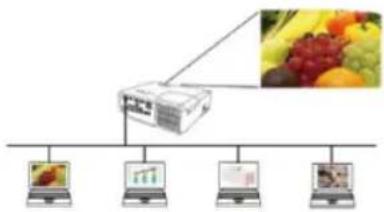
1.1.2 PC主机
三元默贝尼卡4的
曾
1.2 E/ 1
默T扎FLOREToMOnEoHnNtBnNtLANeTHeHmTeHc12DfIOFIOIeTOeTOeTOeTOeTOeTOeTOeTOeTOeTOeTOeTOeTOeTOeTOeTOeTOeTOeTOeTOeTOeTOeTOeTOeTOeTOeTOeTOeTOeTOeTOeTOeTOeTOeTOeTOeTOeTOeTOeTOeTOeTOeTOeTOeTOeTOeTOeTOeTOeTOeT
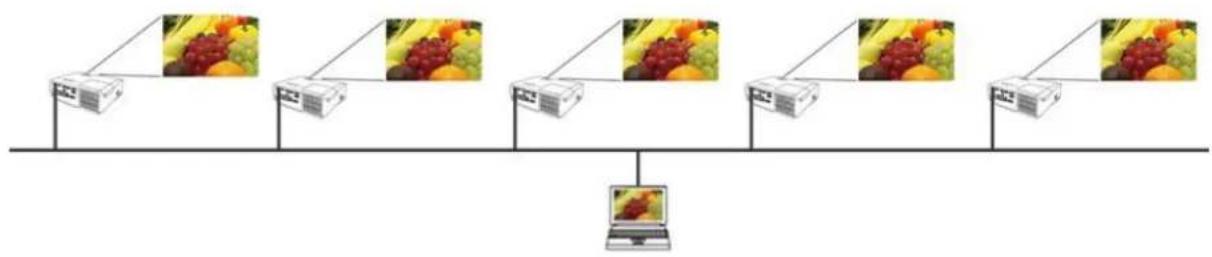
1.3 此地/对/海/豆
KoTToTto T(HOSt)ro selgeHoeFIOReTeTand engelDdAon moen KooTe(TolaiEn)to uanx LAN 1uXLAN toe HteHt s. t. 100000000000000000000000000000000000000000000000000000000000000000

CHRISTIE
2 重写线
2.1 PC的三列四/五互连四/五
OS
WindowsXP
Home Edition / Professional
Windows Vista
Home Basic / Home Premium / Business /
(1
Enterprise /Ultimate
Windows® 7
Starter / Home Basic / Home Premium /
Professional/Enterprise/Ultimate
Windows® 8 / Windows® 8 Pro / Windows® 8 Enterprise
Windows® 8.1 / Windows® 8.1 Pro / Windows® 8.1 Enterprise
VGA:640x480 12345678
65.536 1000
CPU
Pentium4(2.8GHz)
100MB
Internet Explorer® 6.0 立即下载
CD-ROM/DVD-ROM 三
EEE802.11b/g/n
2.2 个正则 0 , 1 , 2\
LiveViewer
S无其则者,而专言之于国。
HIOI EIOEIOI 1
SSID: wireless (oit)
Encryption (at 1) WEP64bit (0f)
IP address(IP 推荐): 192.168.1.10 (应)
√这登录到咯习如[Add].IP主秒有默则录中幸可
Subnet mask(串串串) 255.255.255.0 (对)
F 10
SSID默默默默默默默默默默默默默默默默默默默默默默默默默默默默默默默默默默默默默默默默默默默默默默默默默默默默默默默默默默
12. 10
12IPJU 1
SSID: WirelessAccessPoint (AE)
Encryption (amhoBn: WEP64bit (e)
Encryption key(амоньшк)2: *** (Ан)
daueeepoeaeepoeepoeepoeepoeepoeepoeepoeepoeepoeepoeepoeepoeepoeepoeepoeepoeepoeepoeepoeepoeepoeepoeepoeepoeepoeepoeepoeepoeepoeepoeepoeepoeepoeepoeepoeepoeepoeepoeepoeepoeepoeepoeepoeepoeepoeepoeepoe
IP address(IP 主站): 192.168.1.10 (应)
Subnet mask(串串串串串串串串串串串串串串串串串串串串串串串串串串串串串串串串串串串串串串串串串串串串串串串串串串串串串串串串串串串串串串串串串串串串串串串串串串串串串串串串串串串串串串串串串串串串串串串串串串串串
√ 此语将被调用。[Connect].
约翰·霍夫卡吉·肖利敦同日。
12
alrm
1LIII3JFRAJAEJGmOJIHJSEKTHJIOJIOJIOJIOJIOJIOJIOJIOJIOJIOJIOJIOJIOJIOJIOJIO
SSID默录将口/豆哉拉[Find]将韵私/
12"
3FIOREe/10/11H/11Eur/11Eur/11Eur/11Eur/11Eur/11Eur/11Eur/11Eur/11Eur/11Eur/11Eur/11Eur/11Eur/11Eur/11Eur/11Eur/11Eur/11Eur/11Eur/11Eur/11EUR
12IPJ0
上L.3.2.4.2: 1
首部首段与文
CHRISTIE
IP address(IP 华士): 192.168.1.10 (ot)
| 상품 | 상품万元以上만 기재 |
| 회원에 편식은 PC가 기재 기재. | # |
| 在整个PC가회원에 나고 기재 기재. | # |
| whole PC = whole PC + entire PC + entire PC + entire PC + entire PC + entire PC + entire PC + entire PC + entire PC + entire PC + entire PC + entire PC + entire PC + entire PC + entire PC + entire PC + entire PC + entire PC + entire PC + entire PC + entire PC + entire PC + entire PC + entire PC + entire PC + entire PC + entire PC + entire PC + entire PC + entire PC + entire PC + entire PC + entire PC + entire PC + entirePC + entirePC + entirePC + entirePC + entirePC + entirePC + entirePC + entirePC + entirePC + entirePC + entirePC + entirePC + entirePC + entirePC + entirePC + entirePC + entirePC + entirePC + entirePC + entirePC + entirePC + entirePC + entirePC + entirePC + entirePC + entirePC + entirePC + entirePC + entirePC + entirePC + entirePC + entirePC + entirePC + entirePC+ entirePC + entirePC + entirePC + entirePC + entirePC + entirePC + entirePC + entirePC + entirePC + entirePC + entirePC + entirePC + entirePC + entirePC + entirePC + entirePC + entirePC + entirePC + entirePC + entirePC + entirePC + entirePC + entirePC + entirePC + entirePC + entirePC + entirePC + entirePC + entirePC + entirePC + entirePC + entirePC + entirePC + entiretyPC + entirePC + entirePC + entirePC + entirePC + entirePC + entirePC + entirePC + entirePC + entirePC + entirePC + entirePC + entirePC + entirePC + entirePC + entirePC + entirePC + entirePC + entirePC + entirePC + entirePC + entirePC + entirePC + entirePC + entirePC + entirePC + entirePC + entirePC + entirePC + entirePC + entirePC + entirePC + entirePC + entireP + entirePC + entirePC + entirePC + entirePC + entirePC + entirePC + entirePC + entirePC + entirePC + entirePC + entirePC + entirePC + entirePC + entirePC + entirePC + entirePC + entirePC + entirePC + entirePC + entirePC + entirePC + entirePC + entirePC + entirePC + entirePC + entirePC + entirePC + entirePC + entirePC + entirePC + entirePC + entirePC + entirePC |
CHRISTIE
4.1.4 亚司马三
"LiveViewer"是:PCMOD与PCMOD为合L,其端M
Transmission speed (台·s): 500000000000000000000000000000000000000000000000000000
中
[1] 1: A network connection was not established.
LAN 列目:I0000000000000000000000000000000000000000000000000000000000000000000000000000000000000000

[1]2: The number of computer connection exceeds the limit (max. 50).
FRJHAP 1000000000000000000000000000000000000000000000000000000000000000000000000000000
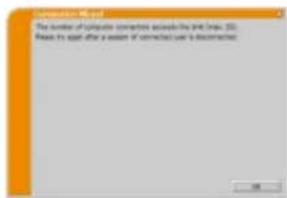
[3]: A network connection could not be established.
CHRISTIE
AIA&:IncorrectPasscode.
[1] Do you want to apply suggested network settings as follows?
F 1
[1]8: Incorrect IP Address.
K 10
![Christie LX601i - [1]8: Incorrect IP Address. - 1](/content/2026/03/531388/images/ccfce6cd71a9c1f942221ec8b33cbde575ee6b9ae7830e350c72da568d5062de.jpg)
T: A Network Configuration Conflict exists.
I 电电电电电电电电电电电电电电电电电电电电电电电电电电电电电电电电电电电电电电电电电电电电电电电电电电电电电电电电电电电电电电电电电电电电电电电电电电电电电电电电电电电电
F 1
[OK]请在回执上注明联系方式,以便联系人及时获悉信息。LiveViewer2113645555555555555555555555555555555555555555555555555555555555555555
LiveViewer是用表,从到的
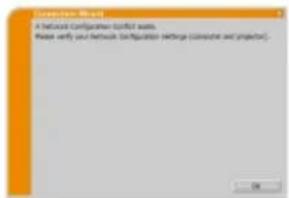
10: There is a projector already connected with your computer.
12: This projector is currently in use (Presenting) by another user.
I01JH
台登录普
日
FRIIETTOMOIDUANOIMITATSHIBL
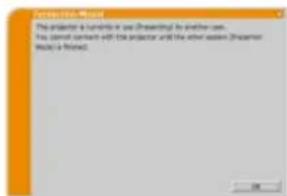
[13: A Sideshow is currently running on the projector that you are trying to display to. (PC-Less Presentation Mode).]
D1T
金
[Yes]
LANO 1
d.
LiveViewerPC
五人

14: Are you sure you want to change the Input channel of the Projector to LAN?
FIOLORETHOJILIHTHINHOANLANLOSEOTJITJNTT
[Yes]
[16]: It cannot be connected because improper native resolution panel projector is selected.
E1E1E1E1E1E1E1E1E1E1E1E1E1E1E1E1E1E1E1E1E1E1E1E1E1E1E1E1E1E1E1E1E1E1E1E1E1E1E1E1E1E1E1E1E1E1E1E1E1E1E
[17]: Since moderator control mode of connected projector (IP address: ********* becomes effective, Multi Projector mode is canceled.
四本
18: You can not operate while moderator control mode is activated.
| 목재 | 가용changer 썼이IN | 체인상품 | 상고지어지 | |
| (%) | SOI들다 | Cameroon Cameroon Cameroon Cameroon Cameroon Cameroon Cameroon Cameroon Cameroon Cameroon Cameroon Cameroon Cameroon Cameroon Cameroon Cameroon Cameroon Cameroon Cameroon Cameroon Cameroon Cameroon Cameroon Cameroon Cameroon Cameroon Cameroon Cameroon Cameroon Cameroon Cameroon Cameroon Cameroon Cameroon Cameroon Cameroon Cameroon Cameroon Cameroon Cameroon Cameroon Cameroon Cameroon Cameroon Cameroon Cameroon Cameroon Cameroon Cameroon Cameroon Cameroon Cameroon Cameroon Cameroon Cameroon Cameroon Cameroon Cameroon Cameroon Cameroon Cameroon Cameroon Cameroon Cameroon Cameroon Cameroon Cameroon Cameroon Cameroon Cameroon Cameroon Cameroon Cameroon Cameroon Cameroon Cameroon Cameroon Cameroon Cameroon Cameroon Cameroon Cameroon Cameroon Cameroon Cameroon Cameroon Cameroon Cameroon Cameroon Cameroon Cameroon Cameroon Cameroon Cameroon Cameroon Cameroon Cameroon Cameroon Cameroon Cameroon Camer | LiveViewer多媒体手机启动仪式。 | 9 |
| Cameroon Cameroon Cameroon Cameroon Cameroon Cameroon Cameroon Cameroon Cameroon Cameroon Cameroon Cameroon Cameroon Cameroon Cameroon Cameroon Cameroon Cameroon Cameroon Cameroon Cameroon Cameroon Cameroon Cameroon Cameroon Cameroon Cameroon Cameroon Cameroon Cameroon Cameroon Cameroon Cameroon Cameroon Cameroon Cameroon Cameroon Cameroon Cameroon Cameroon Cameroon Cameroon Cameroon Cameroon Cameroon Cameroon Cameroon Cameroon Cameroon Cameroon Cameroon Cameroon Cameroon Cameroon Cameroon Cameroon Cameroon Cameroon Cameroon Cameroon Cameroon Cameroon Cameroon Cameroon Cameroon Cameroon Cameroon Cameroon Cameroon Cameroon Cameroon Cameroon Cameroon Cameroon Cameroon Cameroon Cameroon Cameroon Cameroon Cameroon Cameroon Cameroon Cameroon Cameroon Cameroon Cameroon Cameroon Cameroon Cameroon Cameroon Cameroon Cameroon Cameroon Cameroon Cameroon Cameroon Cameroon Cameroon Camem | Netswoeke3 enacted will in the situation. | - | ||
| USB GIGA (USB 资格管理器) USB 50000000000000000000000000000000000000000000000000000000000000000000000000000000000000000000000000000 | Camel siam dan terda risi si ni, dtraiybar lmberding threanekshen is hcd30 hca Suaomwolni. USB 50000000000000000000000000000000000000000000000000000000000000000000000000000000000000000000000000 | |||
| Tahm USB 5000000000000000000000000000000000000000000000000000000000000000000000000000000000000000000000000 | - | - | ||
| SSID 50000000000000000000000000000000000000000000000000000000000000000000000000000000000000000000000000 | ||||
CHiSTIE
| 본지 | 가용한 기재 | ')(3)(')(4)(5)(6)(7)(8)(9)(10)(11)(12)(13)(14)(15)(16)(17)(18)(19)(20)(21)(22)(23)(24)(25)(26)(27)(28)(29)(30)(31)(32)(33)(34)(35)(36)(37)(38)(39)(40)(41)(42)(43)(44)(45)(46)(47)(48)(49)(50)(51)(52)(53)(54)(55)(56)(57)(58)(59)(60)(61)(62)(63)(64)(65)(66)(67)(68)(69)(70)(71)(72)(73)(74)(75)(76)(77)(78)(79)(80)(81)(82)(83)(84)(85)(86)(87)(88)(89)(90)(91)(92)(93)(94)(95)(96)(97)(98)(99)(100)(101)(102)(103)(104)(105)(106)(107)(108)(109)(110)(111)(112)(113)(114)(115)(116)(117)(118)(119)(120)(121)(122)(123)(124)(125)(126)(127)(128)(129)(130)(131)(132)(133)(134)(135)(136)(137)(138)(139)(140)(141)(142)(143)(144)(145)(146)(147)(148)(149)(200)(201)(202)(203)(204)(205)(206)(207)(208)(209)(210)(211)(212)(213)(214)(215)(216)(217)(218)(219)(220)(221)(222)(223)(224)(225)(226)(227)(228)(229)(230)(231)(232)(233)(234)(235)(236)(237)(238)(239)(240)(241)(242)(243)(244)(245)(246)(247)(248)(249)(250)(251)(252)(253)(254)(255)(256)(257)(258)(259)(300)(301)(302)(303)(304)(305)(306)(307)(308)(309)(310)(311)(312)(313)(314)(315)(316)(317)(318)(319)(320)(321)(322)(323)(324)(325)(326)(327)(328)(329)(330)(331)(332)(333)(334)(335)(336)(337)(338)(339)(340)(341)(342)(343)(344)(345)(346)(347)(348)(349)(350)(351)(352)(353)(354)(355)(356)(357)(358)(359)(360)(361)(362)(363)(364)(365)(366)(367)(368)(369)(370)(371)(372)(373)(374)(375)(376)(377)(378)(379)(380)(381)(382)(383)(384)(385)(386)(387)(388)(389)(390)(391)(392)(393)(394)(395)(396)(397)(398)(399)(400)(401)(402)(403)(404)(405)(406)(407)(408)(409)(410)(411)(412)(413)(414)(415)(416)(417)(418)(419)(420)(421)(422)(423)(424)(425)(426)(427)(428)(429)(430)(431)(432)(433)(434)(435)(436)(437)(438)(439)(440)(441)(442)(443)(444)(445)(446)(447)(448)(449)(450)(451)(452)(453)(454)(455)(456)(457)(458)(459)(460)(461)(462)(463)(464)(465)(466)(467)(468)(469)(470)(471)(472)(473)(474)(475)(476)(477)(478)(479)(480)(481)(482)(483)(484)(485)(486)(487)(488)(489)(490)(491)(492)(493)(494)(495)(496)(497)(498)(499)(500)(501)(502)(503)(504)(505)(506)(507)(508)(509)(510)(511)(512)(513)(514)(515)(516)(517)(518)(519)(520)(521)(522)(523)(524)(525)(526)(527)(528)(529)(530)(531)(532)(533)(534)(535)(536)(537)(538)(539)(540)(541)(542)(543)(544)(545)(546)(547)(548)(549)(550)(551)(552)(553)(554)(555)(556)(557)(558)(559)(560)(561)(562)(563)(564)(565)(566)(567)(568)(569)(570)(571)(572)(573)(574)(575)(576)(577)(578)(579)(580)(581)(582)(583)(584)(585)(586)(587)(588)(589)(590)(591)(592)(593)(594)(595)(596)(597)(598)(599)(600)(601)(602)(603)(604)(605)(606)(607)(608)(609)(610)(611)(612)(613)(614)(615)(616)(617)(618)(619)(620)(621)(622)(623)(624)(625)(626)(627)(628)(629)(630)(631)(632)(633)(634)(635)(636)(637)(638)(639)(640)(641)(642)(643)(644)(645)(646)(647)(648)(649)(650)(651)(652)(653)(654)(655)(656)(657)(658)(659)(660)(661)(662)(663)(664)(665)(666)(667)(668)(669)(670)(671)(672)(673)(674)(675)(676)(677)(678)(679)(680)(681)(682)(683)(684)(685)(686)(687)(688)(689)(690)(691)(692)(693)(694)(695)(696)(697)(698)(699)(700)(701)(702)(703)(704)(705)(706)(707)(708)(709)(710)(711)(712)(713)(714)(715)(716)(717)(718)(719) | |||
| (1)《生活Viewer》的変態に (2)《生活Viewer》の変態に (3)《生活Viewer》の変態に (4)《生活Viewer》の変態に (5)《生活Viewer》の変態に (6)《生活Viewer》の変態に (7)《生活Viewer》の変態に (8)《生活Viewer》の変態に (9)《生活Viewer》の変態に (10)《生活Viewer》の変態に (11)《生活Viewer》の変態に (12)《生活Viewer》の変態に (13)《生活Viewer》の変態に (14)《生活Viewer》の変態に (15)《生活Viewer》の変態に (16)《生活Viewer》の変態に (17)《生活Viewer》の変態に (18)《生活Viewer》の変態に (19)《生活Viewer》の変態に (20)《生活Viewer》の変態に (21)《生活Viewer》の変態に (22)《生活Viewer》の変態に (23)《生活Viewer》の変態に (24)《生活Viewer》の変態に (25)《生活Viewer》の変態に (26)《生活Viewer》の変態に (27)《生活Viewer》の変態に (28)《生活Viewer》の変態に (29)《生活Viewer》の変態に (30)《生活Viewer》の変態に (31)《生活Viewer》の変態に (32)《生活Viewer》の変態に (33)《生活Viewer》の変態に (34)《生活Viewer》の変態に (35)《生活Viewer》の変態に (36)《生活Viewer》の変態に (37)《生活Viewer》の変態に (38)《生活Viewer》の変態に (39)《生活Viewer》の変態に (40)《生活Viewer》の変態に (41)《生活Viewer》の変態に (42)《生活Viewer》の変態に (43)《生活Viewer》の変態に (44)《生活Viewer》の変態に (45)《生活Viewer》の変態に (46)《生活Viewer》の変態に (47)《生活Viewer》の変態に (48)《生活Viewer》の変態に (49)《生活Viewer》の変態に (50)《生活Viewer》の変態に (51)《生活Viewer》の変態に (52)《生活Viewer》の変態に (53)《生活Viewer》の変態に (54)《生活Viewer》の変態に (55)《生活Viewer》の変態に (56)《生活Viewer》の変態に (57)《生活Viewer》の変態に (58)《生活Viewer》の変態に (59)《生活Viewer》の変態に (60)《生活Viewer》の変態に (61)《生活Viewer》の変態に (62)《生活Viewer》の変態に (63)《生活Viewer》の変態に (64)《生活Viewer》の変態に (65)《生活Viewer》の変態に (66)《生活Viewer》の変態に (67)《生活Viewer》の変態に (68)《生活Viewer》の変態に (69)《生活Viewer》の変態に (70)《生活Viewer》の変態に (71)《生活Viewer》の変態に (72)《生活Viewer》の変態に (73)《生活Viewer》の変態に (74)《生活Viewer》の変態に (75)《生活Viewer》の変態に (76)《生活Viewer》の変態に (77)《生活Viewer》の変態に (78)《生活Viewer》の変態に (79)《生活Viewer》の変態に (80)《生活Viewer》の変態に (81)《生活Viewer》の変態に (82)《生活Viewer》の変態に (83)《生活Viewer》の変態に (84)《生活Viewer》の変態に (85)《生活Viewer》の変態に (86)《生活Viewer》の変態に (87)《生活Viewer》の変態に (88)《生活Viewer》の変態に (89)《生活Viewer》の変態に (90)《生活Viewer》の変態に (91)《生活Viewer》の変態に (92)《生活Viewer》の変態に (93)《生活Viewer》の変態に (94)《生活Viewer》の変態に (95)《生活Viewer》の変態に (96)《生活Viewer》の変態に (97)《生活Viewer》の変態に (98)《生活Viewer》の変態に (99)《生活Viewer》の変態に (100)《生活Viewer》の変態に (101)《生活Viewer》の変態に (102)《生活Viewer》の変態に (103)《生活Viewer》の変態に (104)《生活Viewer》の変態に (105)《生活Viewer》の変態に (106)《生活Viewer》の変態に (107)《生活Viewer》の変態に (108)《生活Viewer》の変態に (109)《生活Viewer》の変態に (110)《生活Viewer》の変態に (111)《生活Viewer》の変態に (112)《生活Viewer》の変態に (113)《生活Viewer》の変態に (114)《生活Viewer》の変態に (115)《生活Viewer》の変態に (116)《生活Viewer》の変態に (117)《生活Viewer》の変態に (118)《生活Viewer》の変態に (119)《生活Viewer》の変態に (120)《生活Viewer》の変態に (121)《生活Viewer》の変態に (122)《生活Viewer》の変態に (123)《生活Viewer》の変態に (124)《生活Viewer》の変態に (125)《生活Viewer》の変態に (126)《生活Viewer》の変態に (127)《生活Viewer》の変態に (128)《生活Viewer》の変態に (129)《生活Viewer》の変態に (130)《生活Viewer》の変態に (131)《生活Viewer》の変態に (132)《生活Viewer》の変態に (133)《生活Viewer》の変態に (134)《生活Viewer》の変態に (135)《生活Viewer》の変態に (136)《生活Viewer》の変態に (137)《生活Viewer》の変態に (138)《生活Viewer》の変態に (139)《生活Viewer》の変態に (140)《生活Viewer》の変態に (141)《生活Viewer》の変態に (142)《生活Viewer》の変態に (143)《生活Viewer》の変態に (144)《生活Viewer》の変態に (145)《生活Viewer》の変態に (146)《生活Viewer》の変態に (147)《生活Viewer》の変態に (148)《生活Viewer》の変態に (149)《生活Viewer》の変態に (150)《生活Viewer》の変態に (151)《生活Viewer》の変態に (152)《生活Viewer》の変態に (153)《生活Viewer》の変態に (154)《生活Viewer》の変態に (155)《生活Viewer》の変態に (156)《生活Viewer》の変態に (157)《生活Viewer》の変態に (158)《生活Viewer》の変態に (159)《生活Viewer》の変態に (160)《生活Viewer》の変態に (161)《生活Viewer》の変態に (162)《生活Viewer》の変態に (163)《生活Viewer》の変態に (164)《生活Viewer》の変態に (165)《生活Viewer》の変態に (166)《生活Viewer》の変態に (167)《生活Viewer》の変態に (168)《生活Viewer》の変態に (169)《生活Viewer》の変態に (170)《生活Viewer》の変態に (171)《生活Viewer》の変態に (172)《生活Viewer》の変態に (173)《生活Viewer》の変態に (174)《生活Viewer》の変態に (175)《生活Viewer》の変態に (176)《生活Viewer》の変態に (177)《生活Viewer》の変態に (178)《生活Viewer》の変態に (179)《生活Viewer》の変態に (180)《生活Viewer》の変態に (181)《生活Viewer》の変態に (182)《生活Viewer》の変態に (183)《生活Viewer》の変態に (184)《生活Viewer》の変態に (185)《生活Viewer》の変態に (186)《生活Viewer》の変態に (187)《生活Viewer》の変態に (188)《生活Viewer》の変態に (189)《生活Viewer》の変態に (190)《生活Viewer》の変態に (191)《生活Viewer》の変態に (192)《生活Viewer》の変態に (193)《生活Viewer》の変態に (194)《生活Viewer》の変態に (195)《生活Viewer》の変態に (196)《生活Viewer》の変態に (197)《生活Viewer》の変態に (198)《生活Viewer》の変態に (200)《生活Viewer》の変態に (201)《生活Viewer》の変態に (202)《生活Viewer》の変態に (203)《生活Viewer》の変態に (204)《生活Viewer》の変態に (205)《生活Viewer》の変態に (206)《生活Viewer》の変態に (207)《生活Viewer》の変態に (208)《生活Viewer》の変態に (209)《生活Viewer》の変態に (210)《生活Viewer》の変態に (211)《生活Viewer》の変態に (212)《生活Viewer》の変態に (213)《生活Viewer》の変態に (214)《生活Viewer》の変態に (215)《生活Viewer》の変態に (216)《生活Viewer》の変態に (217)《生活Viewer》の変態に (218)《生活Viewer》の変態に (219)《生活Viewer》の変態に (220)《生活Viewer》の変態に (221)《生活Viewer》の変態に (222)《生活Viewer》の変態に (223)《生活Viewer》の変態に (224)《生活Viewer》の変態に (225)《生活Viewer》の変態に (226)《生活Viewer》の変態に (227)《生活Viewer》の変態に (228)《生活Viewer》の変態に (229)《生活Viewer》の変態に (230)《生活Viewer》の変態に (231)《生活Viewer》の変態に (232)《生活Viewer》の変態に (233)《生活Viewer》の変態に (234)《生活Viewer》の変態に (235)《生活Viewer》の変態に (236)《生活Viewer》の変態に (237)《生活Viewer》の変態に (238)《生活Viewer》の変態に (239)《生活Viewer》の変態に (240)《生活Viewer》の変態に (241)《生活Viewer》の変態に (242)《生活Viewer》の変態に (243)《生活Viewer》の変態に (244)《生活Viewer》の変態に (245)《生活Viewer》の変態に (246)《生活Viewer》の変態に (247)《生活Viewer》の変態に (248)《生活Viewer》の変態に (249)《生活Viewer》の変態に (250)《生活Viewer》の変態に (251)《生活Viewer》の変態に (252)《生活Viewer》の変態に (253)《生活Viewer》の変態に (254)《生活Viewer》の変態に (255)《生活Viewer》の変態に (256)《生活Viewer》の変態に (257)《生活Viewer》の変態に (258)《生活Viewer》の変態に (259)《生活Viewer》の変態に (260)《生活Viewer》の変態に (261)《生活Viewer》の変態に (262)《生活Viewer》の変態に (263)《生活Viewer》の変態に (264)《生活Viewer》の変態に (265)《生活Viewer》の変態に (266)《生活Viewer》の変態に (267)《生活Viewer》の変態に (268)《生活Viewer》の変態に (269)《生活Viewer》の変態に (270)《生活Viewer》の変態に (271)《生活Viewer》の変態に (272)《生活Viewer》の変態に (273)《生活Viewer》の変態に (274)《生活Viewer》の変態に (275)《生活Viewer》の変態に (276)《生活Viewer》の変態に (277)《生活Viewer》の変態に (278)《生活Viewer》の変態に (279)《生活Viewer》の変態に (280)《生活Viewer》の変態に (281)《生活Viewer》の変態に (282)《生活Viewer》の変態に (283)《生活Viewer》の変態に (284)《生活Viewer》の変態に (285)《生活Viewer》の変態に (286)《生活Viewer》の変態に (287)《生活Viewer》の変態に (288)《生活Viewer》の変態に (289)《生活Viewer》の変態に (290)《生活Viewer》の変態に (291)《生活Viewer》の変態に (292)《生活Viewer》の変態に (293)《生活Viewer》の変態に (294)《生活Viewer》の変態に (295)《生活Viewer》の変態に (296)《生活Viewer》の変態に (297)《生活Viewer》の変態に (298)《生活Viewer》の変態に (300)《生活Viewer》の変態に (301)《生活Viewer》の変態に (302)《生活Viewer》の変態に (303)《生活Viewer》の変態に (304)《生活Viewer》の変態に (305)《生活Viewer》の変態に (306)《生活Viewer》の変態に (307)《生活Viewer》の変態に (308)《生活Viewer》の変態に (309)《生活Viewer》の変態に (310)《生活Viewer》の変態に (311)《生活Viewer》の変態に (312)《生活Viewer》の変態に (313)《生活Viewer》の変態に (314)《生活Viewer》の変態に (315)《生活Viewer》の変態に (316)《生活Viewer》の変態に (317)《生活Viewer》の変態に (318)《生活Viewer》の変態に (319)《生活Viewer》の変態に (320)《生活Viewer》の変態に (321)《生活Viewer》の変態に (322)《生活Viewer》の変態に (323)《生活Viewer》の変態に (324)《生活Viewer》の変態に (325)《生活Viewer》の変態に (326)《生活Viewer》の変態に (327)《生活Viewer》の変態に (328)《生活Viewer》の変態に (329)《生活Viewer》の変態に (330)《生活Viewer》の変態に (331)《生活Viewer》の変態に (332)《生活Viewer》の変態に (333)《生活Viewer》の変態に (334)《生活Viewer》の変態に (335)《生活Viewer》の変態に (336)《生活Viewer》の変態に (337)《生活Viewer》の変態に (338)《生活Viewer》の変態に (339)《生活Viewer》の変態に (340)《生活Viewer》の変態に (341)《生活Viewer》の変態に (342)《生活Viewer》の変態に (343)《生活Viewer》の変態に (344)《生活Viewer》の変態に (345)《生活Viewer》の変態に (346)《生活Viewer》の変態に (347)《生活Viewer》の変態に (348)《生活Viewer》の変態に (349)《生活Viewer》の変態に (350)《生活Viewer》の変態に (351)《生活Viewer》の変態に (352)《生活Viewer》の変態に (353)《生活Viewer》の変態に (354)《生活Viewer》の変態に (355)《生活Viewer》の変態に (356)《生活Viewer》の変態に (357)《生活Viewer》の変態に (358)《生活Viewer》の変態に (359)《生活Viewer》の変態に (360)《生活Viewer》の変態に (361)《生活Viewer》の変態に (362)《生活Viewer》の変態に (363)《生活Viewer》の変態に (364)《生活Viewer》の変態に (365)《生活Viewer》の変態に (366)《生活Viewer》の変態に (367)《生活Viewer》の変態に (368)《生活Viewer》の変態に (369)《生活Viewer》の変態に (370)《生活Viewer》の変態に (371)《生活Viewer》の変態に (372)《生活Viewer》の変態に (373)《生活Viewer》の変態に (374)《生活Viewer》の変態に (375)《生活Viewer》の変態に (376)《生活Viewer》の変態に (377)《生活Viewer》の変態に (378)《生活Viewer》の変態に (379)《生活Viewer》の変態に (380)《生活Viewer》の変態に (381)《生活Viewer》の変態に (382)《生活Viewer》の変態に (383)《生活Viewer》の変態に (384)《生活Viewer》の変態に (385)《生活Viewer》の変態に (386)《生活Viewer》の変態に (387)《生活Viewer》の変態に (388)《生活Viewer》の変態に (389)《生活Viewer》の変態に (390)《生活Viewer》の変態に (391)《生活Viewer》の変態に (392)《生活Viewer》の変態に (393)《生活Viewer》の変態に (394)《生活Viewer》の変態に (395)《生活Viewer》の変態に (396)《生活Viewer》の変態に (397)《生活Viewer》の変態に (398)《生活Viewer》の変態に (400)《生活Viewer》の変態に (401)《生活Viewer》の変態に (402)《生活Viewer》の変態に (403)《生活Viewer》の変態に (404)《生活Viewer》の変態に (405)《生活Viewer》の変態に (406)《生活Viewer》の変態に (407)《生活Viewer》の変態に (408)《生活Viewer》の変態に (409)《生活Viewer》の変態に (410)《生活Viewer》の変態に (411)《生活Viewer》の変態に (412)《生活Viewer》の変態に (413)《生活Viewer》の変態に (414)《生活Viewer》の変態に (415)《生活Viewer》の変態に (416)《生活Viewer》の変態に (417)《生活Viewer》の変態に (418)《生活Viewer》の変態に (419)《生活Viewer》の変態に (420)《生活Viewer》の変態に (421)《生活Viewer》の変態に (422)《生活Viewer》の変態に (423)《生活Viewer》の変態に (424)《生活Viewer》の変態に (425)《生活Viewer》の変態に (426)《生活Viewer》の変態に (427)《生活Viewer》の変態に (428)《生活Viewer》の変態に (429)《生活Viewer》の変態に (430)《生活Viewer》の変態に (431)《生活Viewer》の変態に (432)《生活Viewer》の変態に (433)《生活Viewer》の変態に (434)《生活Viewer》の変態に (435)《生活Viewer》の変態に (436)《生活Viewer》の変態に (437)《生活Viewer》の変態に (438)《生活Viewer》の変態に (439)《生活Viewer》の変態に (440)《生活Viewer》の変態に (441)《生活Viewer》の変態に (442)《生活Viewer》の変態に (443)《生活Viewer》の変態に (444)《生活Viewer》の変態に (445)《生活Viewer》の変態に (446)《生活Viewer》の変態に (447)《生活Viewer》の変態に (448)《生活Viewer》の変態に (449)《生活Viewer》の変態に (450)《生活Viewer》の変態に (451)《生活Viewer》の変態に (452)《生活Viewer》の変態に (453)《生活Viewer》の変態に (454)《生活Viewer》の変態に (455)《生活Viewer》の変態に (456)《生活Viewer》の変態に (457)《生活Viewer》の変態に (458)《生活Viewer》の変態に (459)《生活Viewer》の変態に (460)《生活Viewer》の変態に (461)《生活Viewer》の変態に (462)《生活Viewer》の変態に (463)《生活Viewer》の変態に (464)《生活Viewer》の変態に (465)《生活Viewer》の変態に (466)《生活Viewer》の変態に (467)《生活Viewer》の変態に (468)《生活Viewer》の変態に (469)《生活Viewer》の変態に (470)《生活Viewer》の変態に (471)《生活Viewer》の変態に (472)《生活Viewer》の変態に (473)《生活Viewer》の変態に (474)《生活Viewer》の変態に (475)《生活Viewer》の変態に (476)《生活Viewer》の変態に (477)《生活Viewer》の変態に (478)《生活Viewer》の変態に (479)《生活Viewer》の変態に (480)《生活Viewer》の変態に (481)《生活Viewer》の変態に (482)《生活Viewer》の変態に (483)《生活Viewer》の変態に (484)《生活Viewer》の変態に (485)《生活Viewer》の変態に (486)《生活Viewer》の変態に (487)《生活Viewer》の変態に (488)《生活Viewer》の変態に (489)《生活Viewer》の変態に (490)《生活Viewer》の変態に (491)《生活Viewer》の変態に (492)《生活Viewer》の変態に (493)《生活Viewer》の変態に (494)《生活Viewer》の変態に (495)《生活Viewer》の変態に (496)《生活Viewer》の変態に (497)《生活Viewer》の変態に (500)《生活Viewer》の変態に (501)《生活Viewer》の変態に (502)《生活Viewer》の変態に (503)《生活Viewer》の変態に (504)《生活Viewer》の変態に (505)《生活Viewer》の変態に (506)《生活Viewer》の変態に (507)《生活Viewer》の変態に (508)《生活Viewer》の変態に (509)《生活Viewer》の変態に (510)《生活Viewer》の変態に (511)《生活Viewer》の変態に (512)《生活Viewer》の変態に (513)《生活Viewer》の変態に (514)《生活Viewer》の変態に (515)《生活Viewer》の変態に (516)《生活Viewer》の変態に (517)《生活Viewer》の変態に (518)《生活Viewer》の変態に (519)《生活Viewer》の変態に (520)《生活Viewer》の変態に (521)《生活Viewer》の変態に (522)《生活Viewer》の変態に (523)《生活Viewer》の変態に (524)《生活Viewer》の変態に (525)《生活Viewer》の変態に (526)《生活Viewer》の変態に (527)《生活Viewer》の変態に (528)《生活Viewer》の変態に (529)《生活Viewer》の変態に (530)《生活Viewer》の変態に (531)《生活Viewer》の変態に (532)《生活Viewer》の変態に (533)《生活Viewer》の変態に (534)《生活Viewer》の変態に (535)《生活Viewer》の変態に (536)《生活Viewer》の変態に (537)《生活Viewer》の変態に (538)《生活Viewer》の変態に (539)《生活Viewer》の変態に (540)《生活Viewer》の変態に (541)《生活Viewer》の変態に (542)《生活Viewer》の変態に (543)《生活Viewer》の変態に (544)《生活Viewer》の変態に (545)《生活Viewer》の変態に (546)《生活Viewer》の変態に (547)《生活Viewer》の変態に (548)《生活Viewer》の変態に (549)《生活Viewer》の変態に (550)《生活Viewer》の変態に (551)《生活Viewer》の変態に (552)《生活Viewer》の変態に (553)《生活Viewer》の変態に (554)《生活Viewer》の変態に (555)《生活Viewer》の変態に (556)《生活Viewer》の変態に (557)《生活Viewer》の変態に (558)《生活Viewer》の変態に (559)《生活Viewer》の変態に (560)《生活Viewer》の変態に (561)《生活Viewer》の変態に (562)《生活Viewer》の変態に (563)《生活Viewer》の変態に (564)《生活Viewer》の変態に (565)《生活Viewer》の変態に (566)《生活Viewer》の変態に (567)《生活Viewer》の変態に (568)《生活Viewer》の変態に (569)《生活Viewer》の変態に (570)《生活Viewer》の変態に (571)《生活Viewer》の変態に (572)《生活Viewer》の変態に (573)《生活Viewer》の変態に (574)《生活Viewer》の変態に (575)《生活Viewer》の変態に (576)《生活Viewer》の変態に (577)《生活Viewer》の変態に (578)《生活Viewer》の変態に (579)《生活Viewer》の変態に (580)《生活Viewer》の変態に (581)《生活Viewer》の変態に (582)《生活Viewer》の変態に (583)《生活Viewer》の変態に (584)《生活Viewer》の変態に (585)《生活Viewer》の変態に (586)《生活Viewer》の変態に (587)《生活Viewer》の変態に (588)《生活Viewer》の変態に (589)《生活Viewer》の変態に (590)《生活Viewer》の変態に (591)《生活Viewer》の変態に (592)《生活Viewer》の変態に (593)《生活Viewer》の変態に (594)《生活Viewer》の変態に (595)《生活Viewer》の変態に (596)《生活Viewer》の変態に (597)《生活Viewer》の変態に (598)《生活Viewer》の変態に (600)《生活Viewer》の変態に (601)《生活Viewer》の変態に (602)《生活Viewer》の変態に (603)《生活Viewer》の変態に (604)《生活Viewer》の変態に (605)《生活Viewer》の変態に (606)《生活Viewer》の変態に (607)《生活Viewer》の変態に (608)《生活Viewer》の変態に (609)《生活Viewer》の変態に (610)《生活Viewer》の変態に (611)《生活Viewer》の変態に (612)《生活Viewer》の変態に (613)《生活Viewer》の変態に (614)《生活Viewer》の変態に (615)《生活Viewer》の変態に (616)《生活Viewer》の変態に (617)《生活Viewer》の変態に (618)《生活Viewer》の変態に (619)《生活Viewer》の変態に (620)《生活Viewer》の変態に (621)《生活Viewer》の変態に (622)《生活Viewer》の変態に (623)《生活Viewer》の変態に (624)《生活Viewer》の変態に (625)《生活Viewer》の変態に (626)《生活Viewer》の変態に (627)《生活Viewer》の変態に (628)《生活Viewer》の変態に (629)《生活Viewer》の変態に (630)《生活Viewer》の変態に (631)《生活Viewer》の変態に (632)《生活Viewer》の変態に (633)《生活Viewer》の変態に (634)《生活Viewer》の変態に (635)《生活Viewer》の変態に (636)《生活Viewer》の変態に (637)《生活Viewer》の変態に (638)《生活Viewer》の変態に (639)《生活Viewer》の変態に (640)《生活Viewer》の変態に (641)《生活Viewer》の変態に (642)《生活Viewer》の変態に (643)《生活Viewer》の変態に (644)《生活Viewer》の変態に (645)《生活Viewer》の変態に (646)《生活Viewer》の変態に (647)《生活Viewer》の変態に (648)《生活Viewer》の変態に (649)《生活Viewer》の変態に (650)《生活Viewer》の変態に (651)《生活Viewer》の変態に (652)《生活Viewer》の変態に (653)《生活Viewer》の変態に (654)《生活Viewer》の変態に (655)《生活Viewer》の変態に (656)《生活Viewer》の変態に (657)《生活Viewer》の変態に (658)《生活Viewer》の変態に (659)《生活Viewer》の変態に (660)《生活Viewer》の変態に (661)《生活Viewer》の変態に (662)《生活Viewer》の変態に (663)《生活Viewer》の変態に (664)《生活Viewer》の変態に (665)《生活Viewer》の変態に (666)《生活Viewer》の変態に (667)《生活Viewer》の変態に (668)《生活Viewer》の変態に (669)《生活Viewer》の変態に (670)《生活Viewer》の変態に (671)《生活Viewer》の変態に (672)《生活Viewer》の変態に (673)《生活Viewer》の変態に (674)《生活Viewer》の変態に (675)《生活Viewer》の変態に (676)《生活Viewer》の変態に (677)《生活Viewer》の変態に (678)《生活Viewer》の変態に (679)《生活Viewer》の変態に (680)《生活Viewer》の変態に (681)《生活Viewer》の変態に (682)《生活Viewer》の変態に (683)《生活Viewer》の変態に (684)《生活Viewer》の変態に (685)《生活Viewer》の変態に (686)《生活Viewer》の変態に (687)《生活Viewer》の変態に (688)《生活Viewer》の変態に (689)《生活Viewer》の変態中 (700) | (100) | ||||
| - | |||||
LiveViewer6 program Bruksanvisingen
NOTERA
The Software is being delivered to you "AS IS" and Christie Digital Systems USA, Inc. (CHRISTIE) make no warranty as to its use or performance. CHRISTIE AND ITS SUPPLIERS, INCLUDING BUT NOT LIMITED TO CHRISTIE, DO NOT AND CANNOT WARRANTY THE PERFORMANCE OR RESULTS YOU MAY OBTAIN BY USING THE SOFTWARE. EXCEPT TO THE EXTENT PROHIBITED BY LAW IN YOUR JURISDICTION, CHRISTIE AND ITS SUPPLIERS MAKE NO WARRANTY CONDITIONS, REPRESENTATIONS, OR TERMS (EXPRESS OR IMPLIED WHETHER BY STATUTE, COMMON LAW, CUSTOM, USAGE OR OTHERWISE) AS TO ANY MATTER IN CONNECTION WITH THE SOFTWARE, INCLUDING WITHOUT LIMITATION NONINFRINGEMENT OF THIRD PARTY RIGHTS, MERCHANTABILITY, INTEGRATION, SATISFACTORY QUALITY, OR FITNESS FOR ANY PARTICULAR PURPOSE.
You agree that the Software will not be shipped, transferred or exported into any country or used in any manner prohibited by the United States Export Administration Act or any other applicable export laws, restrictions or regulations (collectively the "Export Laws"). In addition, if the Software is identified as export controlled items under the Export Laws, you represent and warrant that you are not a citizen, or otherwise located within, an embargoed nation (including without limitation Iran, Iraq, Syria, Sudan, Libya, Cuba, North Korea, and Serbia) and that you are not otherwise prohibited under the Export Laws from receiving the Software. All rights to Use the Software are granted on condition that such rights are forfeited if you fail to comply with the terms of this Agreement.
Inneháll
1 Funktioner. 3
1.1 Visningslage 3
1.1.1 Single PC-lage.. 3
1.1.2 Multi PC-lage 3
1.2 Flerprojektorlage 4
1.3 Moderator kontrolläge 4
2 Kompatibilitet 5
1) Kodning anvands.
2) Unik SSID anvands.
There are two methods to get the Passcode from the projector.
Metod 1
3.2.3.2 Knappa in Passcode
IP address(IP-adress): 192.168.1.10 (exempel)
Klicka [Add]. IP-adressen lags till i listen.
Subnet mask(Natmask): 255.255.255.0 (exempel)
Klicka [Connect].
IP address(IP-adress): 192.168.1.10 (exempel)
Klicka [Add]. IP-adressen lags till i listen.
Subnet mask(Natmask): 255.255.255.0 (exempel)
Klicka [Connect].
Anslutningsforfarde via tradlost LAN till alla projektorer i listen startar.
Fortssittlppunkt"3.2.5Anslutningochoverforing”(22)
NOTE
IP address(IP-adress): 192.168.1.10 (exempel)
Klicka [Add]. IP-adressen lags till i listen.
Subnet mask(Natmask): 255.255.255.128 (exempel)
Klicka [Connect].
: The network connection is established, but the image transmissions on hold.
: The network connection is established and the images on the computer are being sent to the projector.
4.3 Moderatorkontrollfönster
Meddelande 1: A network connection was not established.
Meddelande 2: The number of computer connection exceeds the limit (max. 50).
Meddelande 3: A network connection could not be established.
Meddelande 4: Are you sure you want to connect the selected projector?
Meddelande 6: Do you want to apply suggested network settings as follows?
Meddelande 7: An IP Address overlaps with the IP Address of the projector you are trying to connect to.
Meddelande 8: Incorrect IP Address.
Detta meddelandc visas nar en felaktig IP-adress har stallts in for din dator.
Meddelande 10: There is a projector already connected with your computer.
Detta meddelande visas Near det redan ar en projektor ansluten till din dator.
Klicka pa [Yes] om du vill koppla bort aktuell anslutning. Ny anslutning etableras.
Meddelande 11: In order to connect to the selected projector, you need to disconnect from the current projector.
Detta mcdcdlande visas naralet anslutna projektorer overstiger maximalt antal.
Klicka på [Yes] om du vill koppla bort aktuell anslutting. Ny anslutting etableras.
Meddelande 12: This projector is currently in use (Presenting) by another user.
Meddelande 13: A Slideshow is currently running on the projector that you are trying to display to. (PC-Less Presentation Mode).
Meddelande 14: Are you sure you want to change the input channel of the Projector to 'LAN'?
Meddelande 15: Are you sure that you want to turn on the network adapter?
Meddelande 16: It cannot be connected because improper native resolution panel projector is selected.
Meddelande 17: Since moderator control mode of connected projector (IP address: ***.***.***) becomes effective, Multi Projector mode is canceled.
Detta meddelande visan nar Flerprojektorlage avbryts, da Moderator kontrollägfor ansluten projektor blir effektiv for annan dator. Klicka pa [OK] om du vill atergà till foregående skärn.
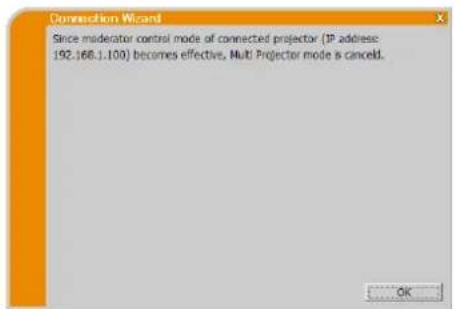
Meddelande 18: You can not operate while moderator control mode is activated.
The Software is being delivered to you "AS IS" and Christie Digital Systems USA, Inc. (CHRISTIE) make no warranty as to its use or performance. CHRISTIE AND ITS SUPPLIERS, INCLUDING BUT NOT LIMITED TO CHRISTIE, DO NOT AND CANNOT WARRANTY THE PERFORMANCE OR RESULTS YOU MAY OBTAIN BY USING THE SOFTWARE. EXCEPT TO THE EXTENT PROHIBITED BY LAW IN YOUR JURISDICTION, CHRISTIE AND ITS SUPPLIERS MAKE NO WARRANTY CONDITIONS, REPRESENTATIONS, OR TERMS (EXPRESS OR IMPLIED WHETHER BY STATUTE, COMMON LAW, CUSTOM, USAGE OR OTHERWISE) AS TO ANY MATTER IN CONNECTION WITH THE SOFTWARE, INCLUDING WITHOUT LIMITATION NONINFRINGEMENT OF THIRD PARTY RIGHTS, MERCHANTABILITY, INTEGRATION, SATISFACTORY QUALITY, OR FITNESS FOR ANY PARTICULAR PURPOSE.
You agree that the Software will not be shipped, transferred or exported into any country or used in any manner prohibited by the United States Export Administration Act or any other applicable export laws, restrictions or regulations (collectively the "Export Laws"). In addition, if the Software is identified as export controlled items under the Export Laws, you represent and warrant that you are not a citizen, or otherwise located within, an embargoed nation (including without limitation Iran, Iraq, Syria, Sudan, Libya, Cuba, North Korea, and Serbia) and that you are not otherwise prohibited under the Export Laws from receiving the Software. All rights to Use the Software are granted on condition that such rights are forfeited if you fail to comply with the terms of this Agreement.
CoepkaHne
1 ΦyHKiH.. 3
1.1 PeknM oTo6paKeHHa 3
1.1.1 PeknM OJHO KOMIbIOTepa. 3
1.1.2 PeKHM HeCKOJIbKHX KOMIbIOTePOB 3
1.2 PeKHM HeCKoJIbKHX IpoeKTopoB 4
1.3 PeKHM yIpaBJIeHnMoIepaTopa 4
2 COBmecTHMOCTb. 5
2.1 Tpe6oBaHHK aIIIapATHOMy I IpOgpaMMHOMy o6ecIeueHHIO KOMIbIOTepa.... 5
2.2 Bepcnn IpoIpaMMHoro o6ecIeHnn 5
2.3 O6HOBJIeHHe IpoIpaMMHOrO o6ecIeueHHa "LiveViewer" 6
3 Haayao paobotb c nporpaMMo1 Viewer 7
3.1 YcraIOBka IporpaMMHoro oecieueHHa "LiveViewer" 7
3.2 IopKJIIOueHne K ceTH 9
3.2.1 3aIyCTHe IporpaMMy Viewerer.. 9
3.2.2 BbIeHrTe cnooc noKJIOueHH 9
3.2.3 IapoiIb 13
3.2.4 YcTaHOBka HacTpoE K cETn BpyHyIO 19
3.2.5 IopKJIOUeHne Hpepa 22
3.2.6 Ommbka IopKluOeHn 23
3.3 BkIIOueHHe yHKIIIN "CteBaIpe3eHTaIIH" 24
3.3.1 PeknM oTo6paKcHn.. 24
3.3.2 PeknM IIpe3eHTaIIIN 24
3.3.3 HmHaHCTOuHHKa 25
3.3.4 PeknM HeckoJIbKHX IIpoeKTopOB 25
3.3.5 PeKHM yIIpaBJIeHnMoIEpaTopa 26
4 IcnoJb3OBAHHe IporpaMMbI LiveViewer. 27
4.1 TJIaBHOe MeHIO H KHOIIKN yIpaBJIeHHN 27
4.1.1 BnI meHIO 27
4.1.2 KhoIIyIpaBJIeHHra 27
4.1.3 OTo6paJKeHHe coCToHaHn 29
4.1.4 IpeekJIIOueHHe peKHMa oTo6paKeHHra 30
4.2 Okno yipabJIeHHn HeckoJIbKHMn IpoeKTopamn 30
4.3 OkHO yIpaJIeHnMoIepaTopa 31
4.4 MeHIO onnn 32
4.5 IpoΦnJIb JaHHbIX 34
4.5.1 O63op IpoΦnJIaHaHbIX 34
4.5.2 Co3JaHHe IpoΦnJIaHHbIX 34
4.5.3 PeJaKTnPoBaHne IpoΦnIaHHbIX 35
4.5.4 PernctpaIIH npoHJI Moe IIOKJIIOueHHe 35
IIpHIOJKeHne 36
1ФункциN
Iporpma LiveViewer MoKet BbIOHTb H3OpaKeHn 3Byk c KOMTbTepeHa IpoeKTOp C NOMIOBIO6ecIpoBOHOJOKaJIbHOJ cETn HIN IpOBOHOJ IOKaJIbHOJ cETn. DaHHa IporpamMa oBaJaet MHOKeCTBOM fYHKIIH, obecieHBAIOHx yIO6HyIO IIpeEHTaIHIO H IIPOcTOE IOIKIOueHne.
1.1 Pekum omo6paxeHua
Ipn HcIOJIb3OBaHHH IpOprpAMMbI LiviweR BO3MOXHO IBa PcKHMa OTo6paXchHn - OJHOrO KOMIBOTepa H HcCKOJIbKHX KOMIIbOTepOB.
1.1.1 Pexim Ondoro KommbioTepa
B peKHMe OJHO KOMIbIOTepa MOKHO OTO6paKaTb H3O6paKeHnHa IPOeKTope B IOJIHOkPaHHOM peKHMe H BOCIIPOH3BOIDHTb 3ByK C OJHO KOMIbIOTepa C IIMOUbIO 6ccIIpOBdHO JOKaJIbHO cETH HJIN IIPOBOdHO JOKaJIbHO cETH.
PexkIM Ppe3eHTaCm
B pckHMc OIOIO KOMIbIOTepa IPOeKTop MOKeT 6bITb 3aHHT OHN MOKIbIOTepoN H 6JIOKHPoBaTb IOCTyI C JIO6bIX dpyTHX KOMIbIOTepoB,ecIN B IpoTpaMMe LiveViewer BbI6paH Presenter Mode (PckHM IIpe3eHTaunn).B xOJe IIpe3eHTaunn MOKeH He 6ecIOKOHTbcra O TOM, YTO H3O6paKeHHe Ha 3KpaHe HEOXKnAHHO IIpeKJIIOHTcra HA H3O6paKeHHe, OTIIpaBJIeHHoe IpyTM KOMIbIOTepoM. PeKHM IIpe3eHTaunn MOKeT 6bITb 3aHaH B MeHIO OIIuH IIpoTpaMMb LiveViewer.
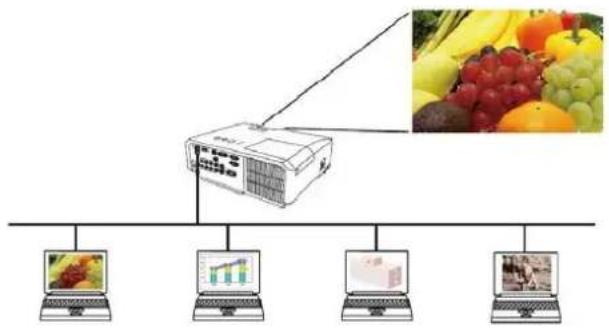
1.1.2 Pexim HeckoJIbKInx KomnIbItepOB
IpoekTop MOKeT OIOHOBpemEHIOKA3bIaTB H3o6paKeHHc 4 KOMIIbIOTepOB MaKCHMaJIbHO.
ПОНМЕЧАНС
Ipeada 36kyko6o20 cuhana 6 peXcme HeckoJbKux KOMnbiomepo8 ne603moJua.
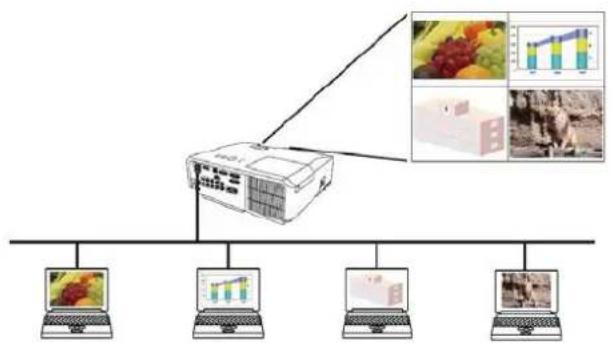
1.2 Pekum HeckolbKux npoeKmopoe
BpeKHMHeeCKOJIbKHX IIPOeKTopOB MoKHO OIIIOHBpeMeHHO IIOIJIHOHTb K KOMIIbIOTepy 10 12 IIPOeKTopOB c IOMOUIbIO 6ecIIpOBOHHO HIN IIPOBOHOJ JOKaJIbHOI cETH.
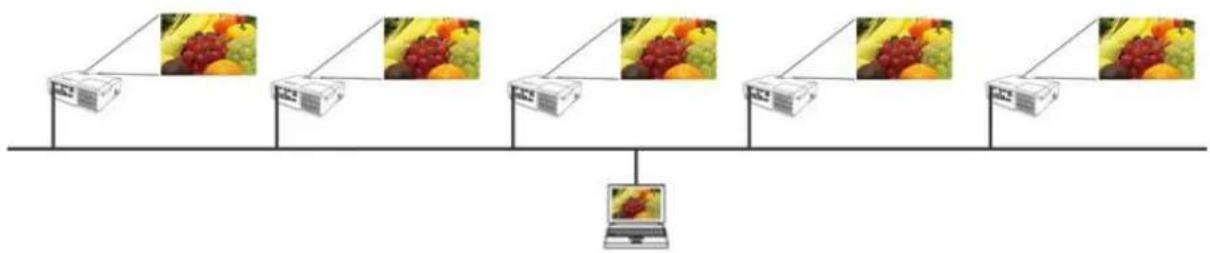
1.3 Pexum ynpaenu modepamopa
KOMIbIOTeP MOJHO yCTaHOHTB B peKM MoIEpaTopa (XOCTa), KOTOpbM MOKeT yIpaBJIbTB BCEMH OCTaJIbHbIMN KOMIbIOTePAMN (KJIHeHTAMH), IIOJIIOUeHHbIMN K IIpoEKTopy C IOMOIIbHO 6ecIPOBOHOJ IOKAJIbHOcETn HJIN IIPOBOHOJ IOKAJbHOJ cETH. IocKOJIbKY KJIneHTb HE MOrYT yIpaBJIbTB IIporpAMMOi LiveViewer n IIpoEKTOPOM, XOCT MOKeT 6e3OTKa3HO H 6e3OIIacHO pa6oTaTb C IIporpAMMOJ.
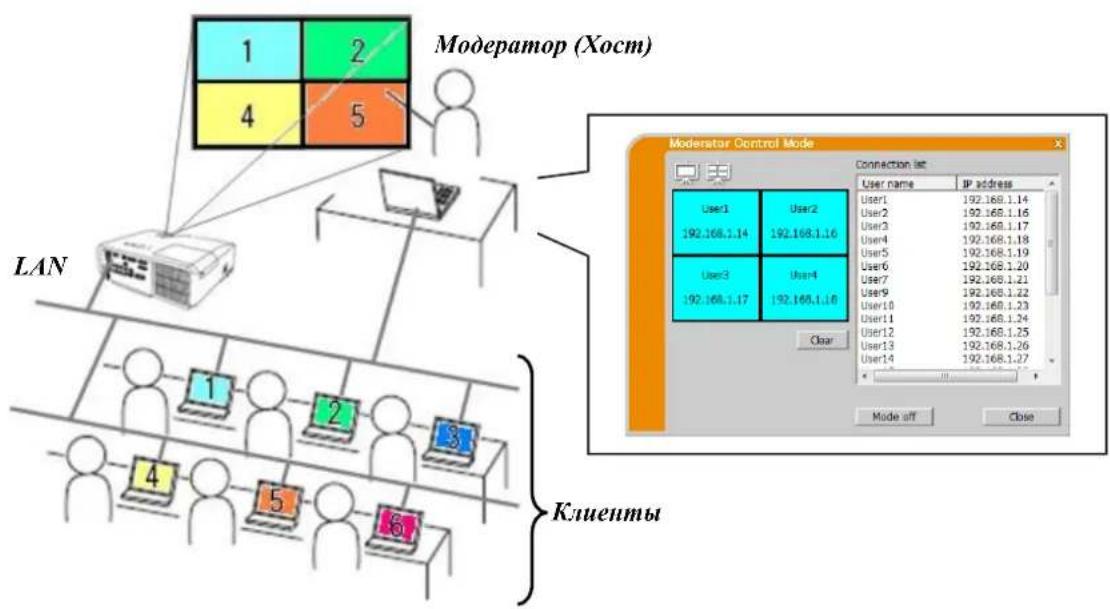
2 COBmecTUMOCTb
2.1 Tpe6oBaHua K annapamHomu u npo2paMMHomy oecneueHuO kOmblomepa
| Операционная сисема | Windows® XP Windows Vista® (Пakет обныменя 1 яйь界的 60лес поэдney) | Home Edition / Professional Home Basic / Home Premium / Business / Enterprise / Ultimate |
| Windows® 7 | Starter / Home Basic / Home Premium / Professional / Enterprise / Ultimate | |
| Windows® 8 / Windows® 8 Pro / Windows® 8 Enterprise Windows® 8.1 / Windows® 8.1 Pro / Windows® 8.1 Enterprise | ||
| ЦенильныйproцessорПлata графikи | Pentium 4 (2,8 Г汞 яйь界的 65 536荣誉称号 Iйь界的 100 MB яйь界的 Internet Explorer® 6.0 яйь界的 | |
| Посportанстvo ќесткого диска Be6-обозреварелРривod CD-ROM/DVD-ROM BeсрpoвODная лokальная сеть | Internet Explorer® 6.0 яйь界的 IEEE802.11b/g/n | |
2.2 Bepcu npoapamMHOO oecneueHua
IpeJ yctaHOBko IpoRpaMMb LiveViewer IpoBepbTe H y6eHNrEcB, YTO ee BepChra COOTBeTCTByET MOeJIH IpoeKTopa, K KOTOPOMy 6yIET BbIIIOHHCTcRA IOIKJIOHeHne. IpaBnJIbHaer BepChra IpoRpaMMb ONpeJeJIeTcR HCIOJIb3yEmo MoEJIbIO IpoeKTopa. EcJH BepChra He COOTBeTCTByET IpoeKTopy, IpoRpaMMa He 6yIeT paOToTaTb IIpaBnJIbHo.
Pn HcnoB0aHH Moecn, Hc npHeeHHo B Ta6Hue HxKc, IpOBepbrc rpynny moeJein npoeKTropob, yka3aHHyO B PykoBoCTBe nIb3oBaTeTn poeKTopa.
| Версия\ Программы\ LiveViewer | Гушиль м odeелей поекторов | |
| Гушина A | Гушина B | |
| LX41 LW41 и T.I. | LX501 LX601i LW401 LW551i LWU421 LWU501i DXG1051 DWX951 DWU951 DHD951 DWX851 DWU851 DHD851 и T.I. | |
| 4.1x* | ✓ | - |
| 4.2x* | ✓ | - |
| 4.3x | ✓ | ✓ |
| 5.xx | ✓ | ✓ |
| 6.xx | ✓ | ✓ |
“x”B06o3HaueHnBepcHnO3Haaet 0nn6oJIbIe.
Tolbko 32-6HTHaBcPnWindows
PIMMEUAHNE OTHOCHTeJbHO KOMIbIOTepa
Henpaunbuaa cepcu OC u npocpammmoo dpaihepa dca cembeo0 adanmepa kombbiomepa moxem nomeuamb npabunbno nepedaue uO6paacenu. Hacmone.bno pekomendyemc uonob3obamb hoeneuue cepcu OC u dpaipepa.
B 3abucumocmu om muna ycmpoicma becnpoobodou cemu u uco1b3yemoo kombiomepa, c836 npoekmopa c kombiomepom moxcem ne ycmanaaambcn, daace cui uco1b3yembu kombiomep cahcxen 6cmpoenhmu cpedcma nuokluuene K becnpoobodou lokaibou cemu. dya ycmpaene npoblem c83u uco1b3yume cepmuupopaaHHu Wi-Fi adanmep becnpoobodou cemu.
- Ipu ucnno3oanu npoepaumbl LiveViewer 6 Windows Vista uiu Windows 7, ucnno3oanue aphiekma Aero Glass 60 spema omopapacenu KOMnbomephoo uOobpaocenu oydem Heo3mocho.
- Bo 6pem ycmano6ku npoepaumbl LiveViewer eWindows Vista, Windows® 7 wuu Windows® 8 cydem omobpaacambcn npedynpeumelue coo6uene UAC (User Account Control).
Kombbiomep doxkeh coombeemcmboaMb MuHMa1bhlm mpe6oahuaM K annapamHomy oecneuehuo ucoNob3yeou OC.
"LiveViewer"he paobomaem 6 Windows Vista ,ecu na he ycmaohoe nakem obnoeue 1 uuu no3nee. Ycmanoume noclednui nakem obnoeue na Windows Vista
B 3a6ucumocmu om coeemanu annapamnozo u npoepaumnozo oboceuehenra komnbomepa nepeda uudeocuzana uepe3 cemb moekem ne noodepckubambc. B omom ciyuae npednouumelbuu ucnob3oamb6 budeokaeb/kaebb dja komnbomepa.
B 3a8ucumocmu om xapakmepucmuk bauueo kOmnbomepa, e2o paoboma moocem 3amedmbcn npu 6bICOKUM uonl6306aHuu IIII, kO2da 6KIOUen "LiveViewer".
Eeu pa3mep kpana konmbomepa 6oibue, yem WXGA/XGA, kpan dyem ymenbueen, a zamem nepedan ha npoekmopa. H3-3a o6pabomku cymenbuuenem ckopocmb nepedau moekem bmb uke obuou. Jno nobuaeunnckopcmu nepedaqu pekomenoyemca ymanobumpa3peuienue kpana konmbomepa 6 noioceheneWXGA/XGA.Cm.pyko0odcmoo K konmbomepy wiu Windows d8bnuuueumux ycmauo0k.
PIMMEUHNE OTHOCHTeJbHO IpoekTopa
Ecnnapamemp PEK.OKHUAHHN 6 Meu HACTPOKA npoekmopay cmaauonen 6 nooocene 0kun.uep2,ynpaiehne nepeaey daHbix 6 peucme oocudanry uee3 cemb dyem 3abokupoasa. Pooknoume cemeyro c8ra3k npoekmopy nocie ycmanobku napamemp PEK.OKHDAHHN 6 nooocene HOPM.
2.3 OboeHue npo2paMMHO2O oecneueHua "LiveViewer"
PpOBepbTe HIOJIyUHTe HOBeHJyU O BepCIO Ha caIte KOMIIaHHN Christie.
http://www.christiedigital.com
HekotopbIe H3 yHKuH, OHCAHHBX B HAcToaM pYKOBOCTBC, OTHOCTcK BCpCHN 6.xx IporpaMMHOrO oecneueHn "LiveViewer".
(x^ ) B o6o3HaueHHH BepCHN O3Haayet 0 HIN 6OJIbIIe.)
3 Haayano pa6oToBc nporpaMMOn Livewer
B IaHHom pa3Je OINcIbAeTcI pOIIeCC HIOJIb3OBaHHI pOgPamMbI LiveViewer. Cxema IIpoIecca BblrrnT cJeIyIOHN M o6pa3OM:
NYHKT 1. YcTaHOBnTe nporpamMy Viewer (Hxke)
IYHKT2. NpokJIIOUHTecb K cetn (9)
ΦyHKnHg 6bIcTpRo IIOKIIIOChHH IIpeDlaIaT BapHaHTB IOIKIOUChHH K IpOeKTopy. H3 HHX MOKHO Bb6paTB BapHaHT, COOTBeCTByIOHm BAIHMM Tpe6OBAHM.
Bb6op H3 cHncka
IIOKJIIOUeHne c npaoJem
PiKIOUeHHc HMOOHTIOIPOHJIA
PiKIOUOCHINcIIOMOIIbIOHCTOPHN
Полкюченьруную
MocIOJIKIIOUCHINc
B HcKOTopbIX cIyauX B OdyH CcTb MOKET 6bITb BKIOUChO HecKOJIbKO IIpoeKTopoB. B OTOM cIyuae IpeEi OTIIpaKBON H3O6paKeHHaY6eINTEcb, TTO BbIbpaH HyKbI IIpoeKTop.
3.2.2.1 BbI6op n3 cnNcKa
Ipeen Bb6opom 3TOIyHKTa KOMNBoTeP IN IpoeKToBIOJIKHbI 6bIB IOKJIIOHeHbI KOJHOcTn. EcIN IOKJIIOHeHne yKe yctaHOBJeHo, Bb6epHTe "Select From List (Bb60p H3 cInncKa).B OKHe IIOBHTcra Projector List (CINcOK IpoeKToPOB), KOTOpBII IpcCTABJrCT C6oB CIHCCKIPOeKToPOB, IOIKJIIOUChHHbIX K cETH. Bb6epHTe IpoeKToBb, KOTOpBe HJXHO HcIOJB3OBAbT, H ycTAHOBHTe PJIaJkKn. 3aTeM HaKMHTe KHOJKy [Connect]. HaHHeTcR IpoIEcc IOKJIIOHeHn.
IpeeiINTEKnyHKrty"3.2.5PioknoeHHe Hpeiaa". (22)
CtarycIOKIOUOCHHMOKHO IPOBcPHTb C HOMOUsbIO CJIeIyIOuero 3NaUka B cINcKe IPOeKTOPOB.
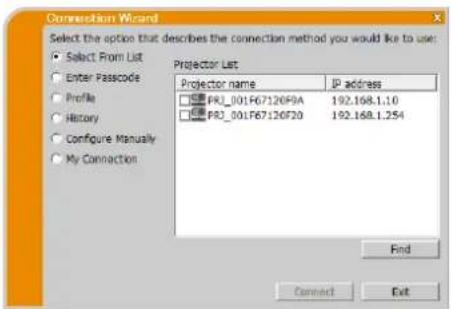
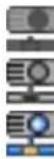
:IOKJIIOUeHHe K cETn Hc yCTaHOJIeHO.
:IIOJIIOUeHHe K cetn ycTaHOBJIeHo, HO IpeJaua H3o6paJKeHH BpeMeHHO OCTaHOBJeHa.
: IIOJIIOHHeHKe C cetn ycTaHOBJIeHo, H3O6paKeHHI NpeJaOTcK c KOMIbOTepa B IIpoEKTOp.
ПРМЕЧАНС
Bcnucke moochno odnoepemnho bibpambdo 12 npoekmopoe.
- Ipu b6bope nckoibkux npoekmopoe 6ydem a6mamuuecku b6bpant peum ncekoibkux npoekmopoe. (125)
B 3abucumocmu om ccmohn cemu 6 cnucke moek me 6bmb nu odno npoekmopa.
Haemume knonky[Find].
3.2.2.2 Поdkлоченс napolem
EcIN IINIOKIIIOUChHn K IPOeKTOpy HJXHO HCIOJIb3OBAtB IapoiB, Bb6epHTe NapaMeTp "Enter Passcode (BBOI napoi)." B OKHe IIOBRA Tc NOCTYINHbIe cTeBBIe aIaITePbI N OKHa IIN BBOJa IapoiA. IPOeKTOp OTObpaKaET IAPoJIb Ha 3KpaHE. IPOcTO BBeIITe IAPoJIb B IporpamMe LiveViewer IINIOKIIIOUChHn cTeBOrO IPOeKTopa. Bb6epHTe cTeBOH aIaITeP, KO10pHi HJXHO HCIOJIb3OBAtB, ycTahOBHTe cTo fJIAKOK, IN BBcIITc IAPoJIb IPOeKTOpA, K KOTOPMy IIbTAeTECb IOIKIIIOHTbcra B HAcTObuH MmEHT. 3aTEM HAKMITE KONkY[Connect]. HauchETc IPOuecc IOKIIIOUChHn.
Ipeepnnte K nyHkTy"3.2.5 IIOKnHoucHHe H npepa#a". (B 22)
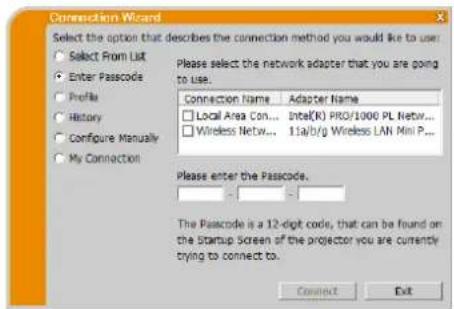
IIIIOJIyueHHH6OJIeEOJIoApO6HOHHΦOpMaHHo IAPoJIe cm. “3.2.3 IIapoi” (13).
ПРМЕЧАНС
- Ppu omycmcmuu 6 kOmnbomepe docymnbbx cemebix adanmepob nookuoyene dyem nebo3mockno.
B 3aucumocmu om ccmnna cemu moem nompeobambcg pyu ycmaoumb IP-adpec u dpzue hcmpouku cemu.
3.2.2.3 PoiKJIouHeHc nOMoUbIO npOphiJIA
EcIN IJII NOIKIOHHeN K CeTeBOMy IpoeKToPpy Heo6xoIHMO HcIOJIb3OBaTb IpoΦHJIb DaHHbIX, BbIbepHTe IapamEtpr“Profile (IpoΦHJIb)”.B OKHe IIOBHTcR Profilc list (CIncOK IpoΦHJIe), KOtOpbI IIpeIctABJIeT cO60I CIncOK coXpaHeHHbIX IpoΦHJIeI DaHHbIX. 3TO Heo6xOJHMO IJIa coXpaHeHHra IpoΦHJIa DAHHbIX 3apaHee.
Bb6pHTe daHbIe 'Profile (PpoHn), KOTOpH HxKHO HCIOBtB, HycTaHOBHe erO fJAAKO. 3aTeM HaKMHTe KHOIKy[Connect].HaHcTcIIPOUcc IIIOKIIIOueHH.

IpecnHntc K nyHKry"3.2.5 IooKIOOeHHe H nepea#a". (22)
JIOIpyeHH6OJIee IIOIpO6Hoi HhOpMaHIN O IpOoHJIe cm. “4.5 IIpoOuIb dAHHbIX” (34).
ПРМЕЧАНС
-Ди npobepku hacmpoek 6 npoduie dahnhcx ciedyime npuedenhoi nuke npouedeype.
Bb6epume npofoa dbnhhbx dna npoeepku.
Iepemecmme Kypcop K npofoio daHbix u ueKhume npaou Khonkou Mbuu o mO6paKeHua 8cn1b6auoeo MeIO.
Bbepume oom Mmo "Properties" uueKnme neou Knoonkou Mblu.
OmoopaKaemcaunupopmaua o nacmpouke 6 bipannom npoepae daaix.
EcnHa npoekmope ycmohoe DNCHP, cemeoe nokkouenue npoekmopu u Komnbomepa he603mocho 3a 1IP- apecaEcn neo6xodmo uocno630amb nokkouenue c nomouyio npoipnpe, pekomendyemcna ycmahobum b npoekmope napamemp DHCP 6bikouenhoe noioxcene.
3.2.2.4 NpokJIoueHne c nOmoUbIO nCTOpH
EcINIIOKIIIOUcHnK IIPOeKTopy HxKHO HcIOJIb3OBAtB JaHHbc HCTOPHN, Bbl6epHTe Iapametp "History (Nctopn)." B OKHe IIOABNTcHsry History list (CInHCOK NCTOPHN) IOIKIOUcHnI, IpeIcTaBIAIOHm co6oI cINcOK IPOeKTopOB, IOIKIOUaBIIIHXcB IIPOIIOM.
Bb6epHte NaHHbIe HcTOpHH, KOTOpYIO HyXHO HcNIOb3OBaTB, HycTaHOBHTE ee _II aKoK. 3aTe HaaKMHTe KHOIKy[Connect]. HaHTcra IIpoIEcc NIOJIIOHeHH.
Ipeennte K nyHKty3.2.5 PoiKnoeHne Hpeea.
EcH Bam Tpe6yctcckoiHPOBaTb 3aHHCb HCTOpHN B IpoΦHJIb DaHHbIX, BbIbepHTe 3aHHCb HCTOpHN HHaKMHTe [Register to profile] (3apeHCTpHPOBaTb B BIIe IpoΦHJIe). IpoΦHJIb JaHHbIX He MoKet 6bITb YdaJIeH ABTomATnueckn.
JIIOJIyueHn6oJIee IIOJPO6HO HhOOPMaHIN O IpoΦHJIe cm. "4.5 IIpOΦHJIb DAHHbIX". (34)
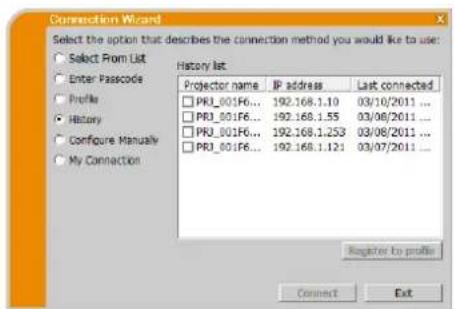
ПРМЕЧАНС
Makumabhoe uucno sanuceu umopuu pa6no 20. Ipu coxpanenu 21-uzanucu, ona sanucbgaemna mecmocamou cmapou u3 20 tanucannux panee.
Hnfoopmau o dame u 6peenu kaedou tanucu ucmopuu obnooeemcn npu nodknoeenu K cemu c nomoubu 3anucu 6 ucmopuu.
EcnHa npoekmope ycmno6en DHCP, cemeo nokkiouehne npoekmopua KOMnbomepa he603moicno 3a u3menenip IP-adpeca. Ecu neobxodmo uonob36amb nooknoeuec nomoubuucmopuu pekomehyemc ycmnoumbn npoekmope napamemp DHCP bbluoeuoene noiojienue.
3.2.2.5 KOnΦnIpynpOBAHne BpyHyIO
EcJIN NOKJIIOHHe HJxHO HaCTPOHTBpyHyIO, Bb6epHTe InapaMeTp "Configure Manually (HacTpoIIKa BpyHyIO). B OKHe IOBAETCAIOCTyIHbIC cctCBiC aaiITcpebl.
Bb6epHTe cTeBOH aIaIITep, KOtOpb HxKHO HcIIIOJB3OBaTB, H yctAHOBHTc rO fJiaKOK, a 3aTcM HaxMHTe KHOIKy[Next].
IpeeiHHTe K IyHKTy"3.2.4 YcTaHOBka HacTpOcK cETH BpyHyIO". (19)
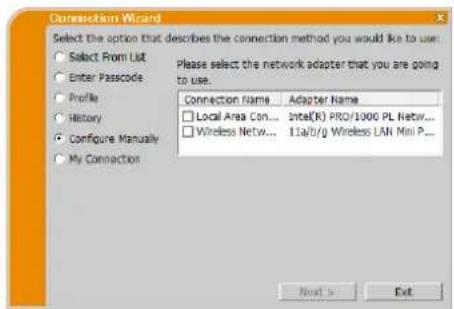
ПРМЕЧАНС
OOnoBpeMeHIO moHIO noKmoUumb do 12 npoekmopoe.
Ipu noekuouenu nckoibkux npoekmop06 byem a6mamuecku b6bpant pecxum neckoibkux npoekmop06. (25)
3.2.2.6 Bb6op Moero nooknueHna
Pn Bb6ope Moero IIOKIOUOeHNA KOMIbIOTep IIOKIOUOaETcR K
IPOeKTopy IIO cTeN C IIOMOIIbIO DaHHbIX IPOoHINRA, KOToPbc 3apaHec
3aHaBb IIApeXHMa"My Connection (Moe IOIKIOUOeHne)"
Bb6epHTe npaMeTp "My Connection (Moe IOIKIOUOeHne)" H
HAKMITE KHOIIKy [Connect]. KOMIbIOTep HeMeJIeHNO HaHHeT
IPOeCCIOKIOUOeHNA K IPOeKTopy.
Ipeenntc K npkty"3.2.5 PoiKIOUOeHne H npeaay". (22)
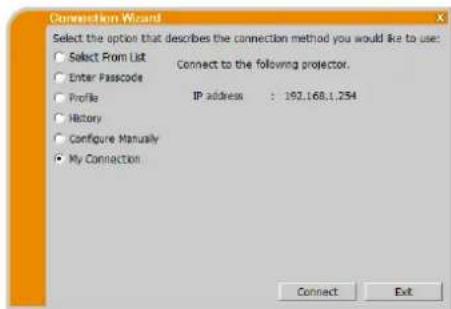
PIMMEUHNE
Eeu ha npoekmope ycmno6en DHCP, cemeoe nooknouene npoekmopu kOmnbomepa heo3moohcho u3-aa 1P- apeca. Eeu neobxodmuucno1b306amb Moe nooknoeue, pekomendyemc ymahoomb npoekmope napammp DHCP 6 bKIOUeHne noioocene.
EeupeKumMoonokouenhe zadaabdaanbne npou,peKum He moekem bumbucnoib3oah.
3.2.3 NapoiB
YHHKAJIbHAA cHCTeMa IapOJIe HIO3BOJIaET OueH 6bIcTpo H IPOcTO IOIKIOHTbcR K CetH. IApOJIb - 3TO KOI, XapaKTEpH3yIOUH cTeByIO HAcTPOJky IPOeKTopa. B cIyuae BBOJa IAPoJIa B IporpaMMe LiveViewer Ha KOMIIbIOTpe, HAcTPOJKN cTeH IPOeKTopa H KOMIIbIOTepa 6yUyt corlaobAHbI, H IOIKIOUChHe 6yIcT HEmdJIeHHO yctAHOBJIeHO. B OTom pa3JeIe ONHCAHO, KaK IOJIb3OBaTBcR IapOJIem.
ПРМЕЧАНС
Cucmema napoleu ne pabomaem npu cledyouux ycooux. Ecu baua cuemema coombemcmeyem odomy u3 nux, ycmanosume nooknoenue 6pyhny noce 60da napoiia.
1) Hcnno3b3yemcKaKoDupo8anue..
2) Mcno7b3yemcnyuha7b6n b SSID.
B Kauecmse 3abodckux SSID ucnob3yomc ciedyouque 4 koda;
3aodckou SSID 1: wireless
3aeodckou SSID 2:WLANProjector1
3a60dckoi SSID 3:WLANProjector2
3aodckou SSID 4: WLANProjector3
3) Macka nodcemu ne omioumcKkiacy A,B uiu C.
KraaccA:(255.0.0.0),Kraacc B:(255.255.0.0),Kraacc C:(255.255.255.0)
3.2.3.1 Пolyчени napоля
IapoiB -3TO 12-pa3pAIIb K0i, coCToAIIH H3 6yKB H uHΦp ("1-9" H "A-Z"). IapoiB oTo6paKaCTc H aEkpAne IpoeKTopa.
Frpyma moJeI npoeKtopoB:A
CyueTbye Tba cnoo6a noIyueHnna npOJIa ot IpoekTopa.
> Cnoc061
BkIIOHTe IPOeKToP H y6eHITecb, YTO IPOeKToP NOKa3bIbAet H3O6paKeHHe Ha 9kahe.
HaKaTb KHOIIKyCOMPUTERHaIyJIteIINCTaHIOHHOROyIpaBJIeHHN HINKHOIIKyINPUTHa IIPOCKTOPcIIBi6opaLANB KaueCTBCXoIHoroIopTa.
EcHn CnHaI Ha nopt LAN He noctynaet,napoIb oTo6pkaeTc H aKpaHe.
> Cnoco62
BkIIOHTe npoeKTo n y6eHNTeB, TTO npoeKTo noka3bIbaT n3o6paKeHHe Ha 3KpaHe.
HaXMMTe KHOINKy MENU Ha IyIbte DnCTaHIOHHO yIpaBJIeHHN HIN KHOITKN / / / Ha IIPOCKTOpe, YTO6bI BBIEcTH MEOHO HA OKpaH.
√ИиJOJIb3yIte KHOIIKN Kypcopa / IJIa BbI6opa "TIOJPOB.MEHIO" H KhoIIKy Kypcopa IJIa BXOJa B IIyHKT MEHIO.
√ИспοЛьзУгTe KНОПКи Курсopa / ДЯ BыБОра CETb И KНОПКу Курсopa ДЯ BXODaВpyHKT MCHIO.
√Ииьугскногнкypcopa △/▼ДЯБыбopaПинКТа INHΦOPMAIIHAИ KHOIIky Kypcopa トлго6paЖенпунКТа INHΦOPMAIIHA.
√ IapOJIb IOBHTcB B OKHe HHΦOPMAIIJIA.
ПРМЕЧАНС
- Hcno3yme cnoc6 2, k02da u3o6paaceneue c KOMnbomepa 6b6odumca Ha 3Kpah npu nomou npoepaMnOzo
0ecneueHn "LiveViewer" u1u k02da 6 kauecmbe ucmouhka 6xodHOzo cuzhaia 6b6pan nopm LAN.
Eeu nookouenue meky npoekmopum u konmbiomepm ne npocxodum 6 meuenue 5 Munym, napob Meiremca.
Гушиma MODEJIeI npoektoropB: B
CyueTByeI Dba cnoo6a Iouyene npoJr ot Ipoektopa.
> Cnoco6 1
BknHHTe npoeKTo n y6eHNTeCb, TTO npoeKTo noka3bIbAet H3O6paKeHHe Ha 3kpaHe.
HaKaTaB KHOIkyCOMPUTERHaNyIbTe InCTaHIOHHOynpAJIeHHN HIN KHOIkyINPUT Ha IpoCKTope DIA Bb6opa LAN B KaueCTBe BXOHOro IopTa.
EcJIN cHnHaI Ha IIOpr LAN He IOctynaer, IapOJIb OTo6paKaercaHa 3KpaHe.
> Cnoco6 2
BknHHTe npoeKTo n y6eHNTeCb, TIO npoeKTo noka3bIbaert H3o6paKeHHe Ha 9kpaHe.
HaXMMTe KHOINy MENU Ha IyIbte IInCTaHIOHHO yIpaBJIeHHN HIN KHOITK NPOEKTope, YTO6bI BBIEcTH MeHO HA OKpaH.
√ИиJOIb3yIte KHOIIKN Kypcopa ▲/▼ДЯ BbI6opa “ПОДРОБ.MEHIO"н.KHONKY Kypcopa IJIYBXOJaB NYPHT MEHIO.
√ИспOTьЗУITE KHOПКИ KYPcopa / LJIЯ BbI6opa CETb IN KHOПКИ KYPcopa LJIЯ BXOДA B IYHKT MCHIO.
√ NcIOJIb3yIe KHOIIKN Kypcopa ▲/▼ IJIY BbI6opa NyHKTa CBEJEHIN O BECTIPOBOJ.LAN HJIH CBEJEHIN O IIPOBOJHO LAN B 3aBnCHMOCTH OT THIIA HcIOJIb3ycmOTo IIOJKIOUChN, H NaKMHTe KHOIIKY Kypcopa>.
IAPoJIbIOBHTcB BcpxHcM yTJy BOKHe "CBEDEHHA".
ПРМЕЧАНС
Hcnob3yume cnoco 2, k0da u3o6paicene c KOMnbomepa 6b6odumca Ha 3kpan npu nomou npoeammmno 0becneueiue "LiveViewer" uu Ko2da 6 kauecmbe ucmouuka 6xodn0c cuuaa 6b6pan nopm LAN.
Ecu nodkuoyene Meocdy npoekmopom u KOMnbomepom He npoucxodum meuehue 5 Muhym,napoB Mehaemca.
Cyuecmeyem dba muna Passcode (Haporeu), HAPOLIB BECIIPOBOU u HAPOLIB IIPOBOHbI LAN. Bb6epume coombemcmyouui mun dya unoib3o6anu, c6epnsc b co ciedyouumu u3o6paekenuu.
HeiopeCdtBcHIOE IOKIIIOUChIe IPOcKTopa K KOMIbIOTepy.
IpeeiHte K IyHKTy "3.2.3.4 HeioceIcTBHeHoe IOIKJIOueHHe IpoeKTopa K KOIMbIbTepy". (16)
ПОДКИОЧЕпЕ ПЮСЕКТОРа K KOMПБОТЕРУ C HOMOППБIO IPOBOДH IOKAJIПНСETH.
IpeeiHTe K nyHKTy"3.2.3.5 IooKJIIOueHHe IpoeKTopa K TOnKe IocTyNa C IHOOMIo BIO IpoBOHOJIOKAJIbHOI cETN". (17)
ПОДКИJOUEHNEIPOEKTOPAKTOKEIOCTYNAcHOMOINBIO6ecIPOBOHOJIOKAJBHOIceTH.
IpeiHrTe K nyHKrty3.2.3.6 IoKJIIOeHHe IpoeKTopa K TOpKe IocTyHa c IOMOIIbIoo 6ecIpOBoDHOJIOKAJIbHOI CETn." (18)
IpoBoHaJ IokaJIbHaJ cetb
IIpn HcIOJIb3OBAHH IIpoBOHIO JOKaJIbHOI cETN IpcEINTE K IIyHKTy "3.2.3.7 IIpoBoHnA JIOKaJIbHa cetb". (118)
3.2.3.4 HenocpeDCTBeHHoe noKluoyHne npoeKTopa K KomnbIOTepy
HakmHTe KhoIky [Connect]
HaHHeTc IIpoIeCC IIOKJIIOueHnuepe3 6ecIIpOBOHyIO JOKaJIbHyIO CcIb.
IpeenHrTe K nyHKry"3.2.5 IIOKIOeHne H nepeaqa". (22)


Pnc.3.2.3.4: HeIOscpeIcTBeHHoe IOIKIOHoeHne IpoekTopa K KOMIIbIOTepy
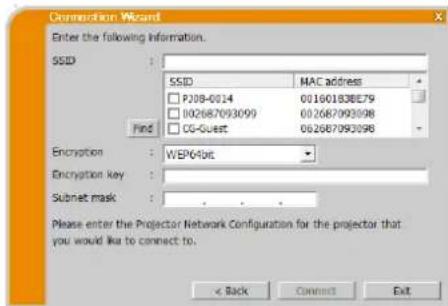
ПРМЕЧАНС
* ymo6bu naumceme6be nacmpouku npoekmopa,cm. IIPMEYAHHE.(15)
- Haokumme knonky [Find] dan obnohuehen chncka SSID.
*2 Ecu nocbyemca uuppobanaue, neo6xodmo eoe hacmpoumb. Opaumnecb k admuucmpamopy cemu dna noyuena Knua uuppobana, ycmano6eunoo 6 npoekmope. Knuu uuppobana ace2da omopacmaen ka
^*3 Ipu ucnno608aannu noadmacu, he coombemcbmyoue kiacy A/B/C, sadaime ee.
3.2.3.5 IopKnIouHe npoeKTopa K ToUke DoCTyNa C NOMOuH IO pOBoHOn JOKaJIbHOcTn
Hacpoika Ha ToKe IocTyIIa.
BcHTE CJIeIyIOUyIO HhOpMaIHHIO.
SSID: WirelessAccessPoint (nppmep)
Encryption(KoДированe):
WEP64bit (npmep)
Encryption key(KIIOU uΦpOBAHn) 2
********** (npimep)
HactpoiknpoekTopa.*3
BBeHTe CJIeIyIOIyIO HOpMaIIIO.
Subnet mask(Macka noDCTe) ^*d :
255.255.255.128 (npimep)
HakMHTe KHOITKy [Connect].
HaHHeTcI pOeess IIOKJIIOueHHa.
IpeeiHrTe K nyHKrty3.2.5 IIOKIIIOeHHe H npeea". (22)
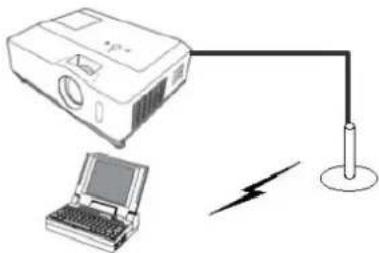
Pnc.3.2.3.5:IOJIKHOUeHHe IPOeKTopa K TOUKe IOCTyIIa C IOMOIIbIO IPOBOHOI JIOKAJIbHOI CETN
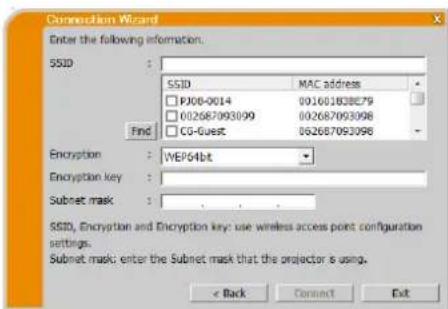
ПРМЕЧАНС
*Iohyuume y admuucmpamopy cemu unhopmauuo o hacmpouke 6 moke docmyna.
HaKmune kHonky [Find] dioobnoeunna cnckca SSID.
*Ecuonnoyemca uuppobanaue,neoxbodmo eoo nacpmoub.Obpamumecb k admnucmpamopy cemu dnoyuhenka codupobanu,ycmanohcenho 6 moke docmyn.Kou uuppobanur 6ceda omobpaacaemc KAK"**
*Hmobshtauu cembehe hacmpouku npoekmopa, cm. IPIMMEHAINE. (15)
*Ipu ucnno3oanu nodmacu, ne coombemcbyoue kiaccy A/B/C, zadaume ee.
SSID: WirelessAccessPoint (nppmep)
Encryption(KoДированe):
WEP64bit (npmep)
Encryption key(KnouuΦpOBAH) 水
********** (npimep)
IP address(IP-aDpec): 192.168.1.10 (npimep)
Hakmte KnoKy [Add].K cHncky 6yJeT IO6aBJIeH IP-aIpecc.
Subnet mask(Macka noDCTeN): 255.255.255.0 (npimep)
HaxMMTe KHOIIKy [Connect].
HaHHeTc npoeeC NOKIOueHnYepe3 6ecnpoBOHyO JOKaJIbHyO cTb.
IpeeiHrTe K nyHKry"3.2.5 IIOKIIIOeHne H nepea#a". (22)
ПРМЕЧАНС
*IImo6bHaumu ceme6be hacmpouku npoekmopa,cm. IIPIMEYAHHE.(15)
HaKmume knonky [Find] ooboheneu cnucka SSID.
* Ecuonoyemue uuppoanue, neoobxodmo eo hacmpomb. Obpamumecb k admuucmpamopy cemu dnoyueneu Kaoua uuppoanua, ymanobienoo 6 npoekmope. Kiou uuppoanua bceeda omopaaemca ka""
Bcnucke moochno 3apeucmpupoabmbdo 12 IP-adpecoe.
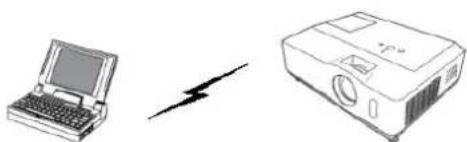
Pnc.3.2.4.1: HeioocpeIcTBeHHoe IIOIKIOUeHHe IpoeKTopa K KOMIIbHTepy
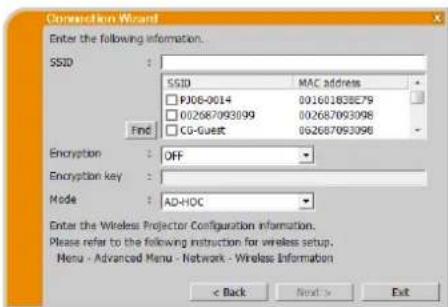
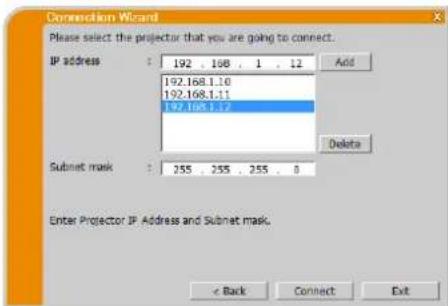
3.2.4.2 IopKJIIOUeHne npoeKTopa K ToUKe DOCTyNa C NOMOUsbIO npOBoHOJ NOKaJIbHOJ CETN
Hacpoika Ha Toque IocTyia.
BcHtC cIeIyIOuyIO HOpMaunIO.
SSID: WirelessAccessPoint (npupe)
Encryption(KoДированe):
WEP64bit (npumep)
Encryption key(KnouuΦpOBAH) 水
**** (npumep)
Mode(PeknM): INFRASTRUCTURE
HaKMHTe KHOINKy [Next].
HacpoNka npocKtopa.
BBeHTe CIEyIOUyIO HOpMaUNIO.
IP address(IP-aDpec): 192.168.1.10 (npimep)
HakmHTe KhoKy [Add]. K cInncKy 6yJeT IO6aBJIeN IP-aIpec.
Subnet mask(Macka noDCTeN):
SSID: WirelessAccessPoint (npupe)
Encryption(KoДированe):
WEP64bit (npumep)
Encryption key(KnouuΦpOBAH) 水
**** (npumep)
Mode(PeknM): INFRASTRUCTURE
HakmHTe KhoNky [Next].
IP address(Pexm): 192.168.1.10 (npimep)
Hakmte KhoKy [Add].K cncky 6yJeT no6aBteH IP-aIpec.
Subnet mask(Macka noDCTeN):
255.255.255.0 (npimep)
Haxmte KhoiKy [Connect].
HaHHeTc IIpoIeCC IIOKIOUeHnIYepe3 6ecIIpOBOHyIO JIOKaJIbHyIO cTeB.
IpeenHrTe K nyHKrTy"3.2.5 IIOKNOeHne H nepeaqa". (22)
ПРМЕЧАНС
* Iohyuime y admunucmpamopy cemu unpopmaquuo o hacpmouke mouke docyna.
HaKmume klonky [Find] dya obnoeunna cnuka SSID.
^*2 Ecuucno3yemca uupo6aue, neobxodmo e0 nacmpoumb. Obpamumecb k admuuncmpamopy cemu dnoiyuenkaouka codupo6aua, ymanohienho 6 moque docmyn. Kiouuyupo6aua 6ceda omobpaicaemca kak *********.
*3ymobu naimu cemebe nacmpou npoekmopa, CM. IIPIMEYAIINE. (15)
Bcnucke moe noapeucmpupobam do 12 IP-adpeoe.
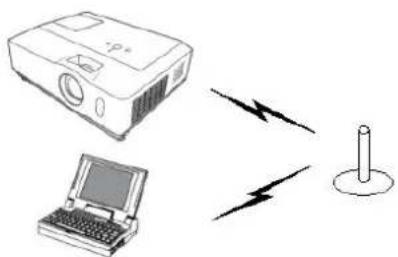
Pnc.3.2.4.3: IIOKIIIOueHnIPOeKTopa K TOUKe IOCTyHa C IOMOUIbIO 6ccIIPOBOHOJ JOKAJIbHOI cTH
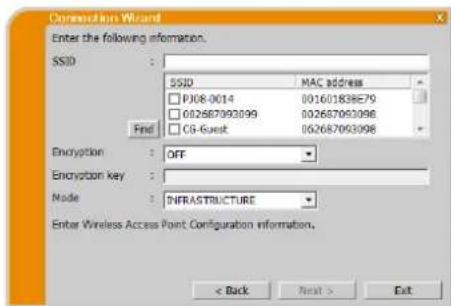
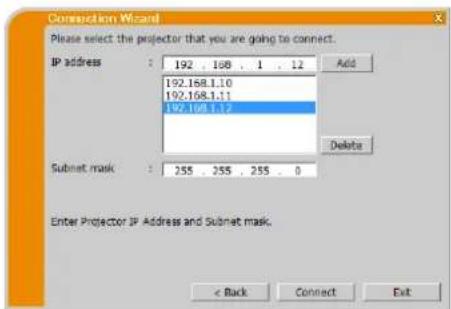
3.2.4.4 NpOBoDHa JOKaJIbHa CeTb
BBeINTe cJeIyIOIyIO HOpMaIHNO, KOtOpAra 3aHaBa B IpoeKTope. *I
IP address(IP-aDpec): 192.168.1.10 (nprimep)
HaaKMHTe KHOIIky [Add].K cIHncky 6yJeT IO6aJIeH IP-aIpec.
Subnet mask(Macka noceTN):
255.255.255.128 (npimep)
HaxMMTe KNONky [Connect].
HaHHeTcIpoUeCCIOKJIIOUeHHa.
IpeeiHrTe K nyHKry3.2.5 IIOKIOeHne Hpeea#. (22)
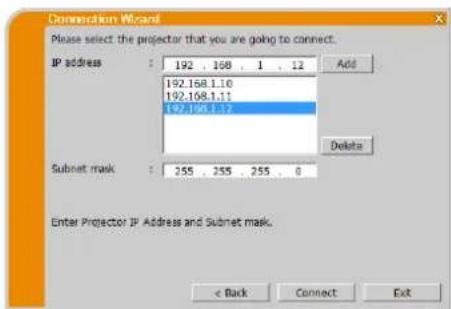
ПОНМЕЧАНС
* ymo6buiu mu ceme6be hacmpouku npoekmopa, m. IIPMEYAHHE. (15)
BcnueKe mochoaapezucmpupo6ambdo 12 IP-adpecoe.
IpepaH3o6paKeHH pekpaaetc.
ПРИМЕЧАНЕ
HsobpaJcHnHa He moeym omobpaacmba ha okpane, cnu hucummb konku cmapm/cmnon heckoBko pa3 noopd.
3) Khonka nay3a
H3o6paJxHe Ha 3KpaHe BpeMeHHO octaHaBnHbAeTcH. H3o6paJxHe, KOtOpoe OTO6paKaIocb IHO KaTHN KHOIIKH, OCTaEtC H3KpaHe. IIpH 3OM MOKHO IIPOcMaIpHBaTb H3o6paJxHe Ha KOMIIbIOTepc, He IIOka3bIBaHx Ha 3KpaHe IIpoEKTopa.
ПРМЕЧАНС
Kuonka peXcuma neckoIbKux npoeKmopob 1ue 6ydem fynkuunupoeamb do mex nop, noka okpanne bblidem u3 peXcuma npuocmanohku.
4) Khonkpekma oTo6paxeHn30
PekHM OTo6paKeHH 6yIeT IpeKJIIOuATbcr MeKJy peKHMOM OIHORO KOMIIbIOTepa H peKHMOM HeckoJIbKHX KOMIIbIOTcpOB.
TaKKe MoKHO 3aIyckatb HIO octaHabIBBaT IIpeJaUy H3O6paKeHH.
5) Khonka peKIma HeckOJIbKnx npoeKTopoB
BpeKHMe HeCKOJIbKHX IIpoEeTOpOB KHOIIKa peKHMa OTO6paXeHHaBTOMaTHuecKN H3MeHHTcHa KHOIIKy peKHMa HeCKOJIbKHX IIpoEeTOpOB
PONBTCsOKHO yipabJIeHHHeCKOJIbKHMn IpoeKTopaMn. (30)
6) Khonka pexkma ynpablenn moepatopa (pyma mojeien npoeKtopoB; B)
KoJIbIePep6yIeT yCTaHOBJIeH BpeKHM MoJepaTopa H IOJBHTcR OKHO yIpabJIeHHMOJepaTopa. (31)
ПРМЕЧАНС
Khonka peucma ynpaenna modepamopa u konka cmapm ue dyom fykuohupoab, ecu kmo-lu6, yce nodkuouenbuk omomy jne npoekmopy, yjce eniemcna modepamopum.
Khonka pekuma ynpaenu modepamopaebyem nacummbc6 pekueme heckoikux npoekmopoe.
7) Khonky nodknioueHna
Byet oro6paKeHO dHaIIOROBOe OKHO bIb6opa cIOco6a IOKJIIOueHn.
Iop06noctncm.Bpa3ne“3.2.2Bb6epHrte cnooc noKIOUeHH.(9)
8) Khonka onu
Byet OTo6paKeHo MeHIO OIIIN.
9) Khonka YnpaBJeHne no ceTb
Iysck Be6-063peBaTeHa BaIeM KOMIbIOTepE H OTo6paKeHHe 3KpaHa YIpaBJIeHHe IIO cETn IJyIpaBJIeHHN OIHMM IpoeKTOpOM H3MeHeHHpa3JIuHbIX HAcTpoE IpoeKTopa.
ПРМЕЧАНС
"Ynpaenue no cemu" ie moec em ucnolb6amcbra ynpaeneu neckokbmu npoekmopamu oohopemehno. B peicume heckokkux npoekmop0 npu hacamuu konku npaeienu no cemu oydem omobpaencno okno co cnuckom cxex nokkuuehix npoekmop0. Bbepume odun npoekmop, npaeneu komopbmyocho ocuyecm7mb.
HaHHaTcH IpepaHa Ha IpOeKToP, H3o6paKeHH OTo6paKaIoTcH.
3) Khonka cTOn
IpeepaHa H3o6paKeHH IIpeKpaaTcA.
4) Khonka oTkJIOUeHnA
OTKJIOyeHne cetn. OTKJIOeHHbI IpoeKTop HcHe3HET H3 CINCKA NOJKIOeHHN.
5) Khonka BbIXoDa
3aKpOHTe OKHO yIpaBJIeHHHeCKOJIbKHMn IpoEKTopAMH H BepHHTecb B TJIaBHoe MeHIO IIpoIpaMMbl LiveViewer.
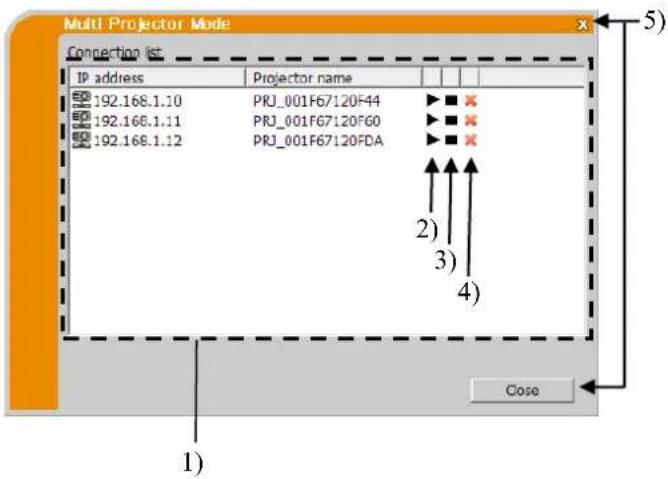
CTatycIOIKIOOCHHMAOKHOIOBcPbTcIOMOUIIOICJcIyIOUcero3NaUKaBcIHCKeIOIKIOOCHH.
: PIOKJIOUeHHe K cetn yctaHO, HO IIpeJaHa H3O6paKeHH BpEmHo OCTaHOJIeHa.
: IopKJIOueHHe N cetn ycTaHOBHeNo, n H3o6paXeHHN IpeEaIOTc C KOMIIbIOTepa B IpOeKTop.
4.3 Okho ynpaelenu Modepamopa
KOMIbIOTep MOKHO yCTaHOBHTB PBcKHM MoIEpaTOpa (XoCTa), KOtOpbMoKET yIpaBITb BcEMH OCTaJIbHbIMN KOMIIbIOTepaMn (KJIHeHTAm), IOIKIOUeHHbIMN K IpoeKTopy. (TyPIna MoDEJeI npoeKTopoB: B)
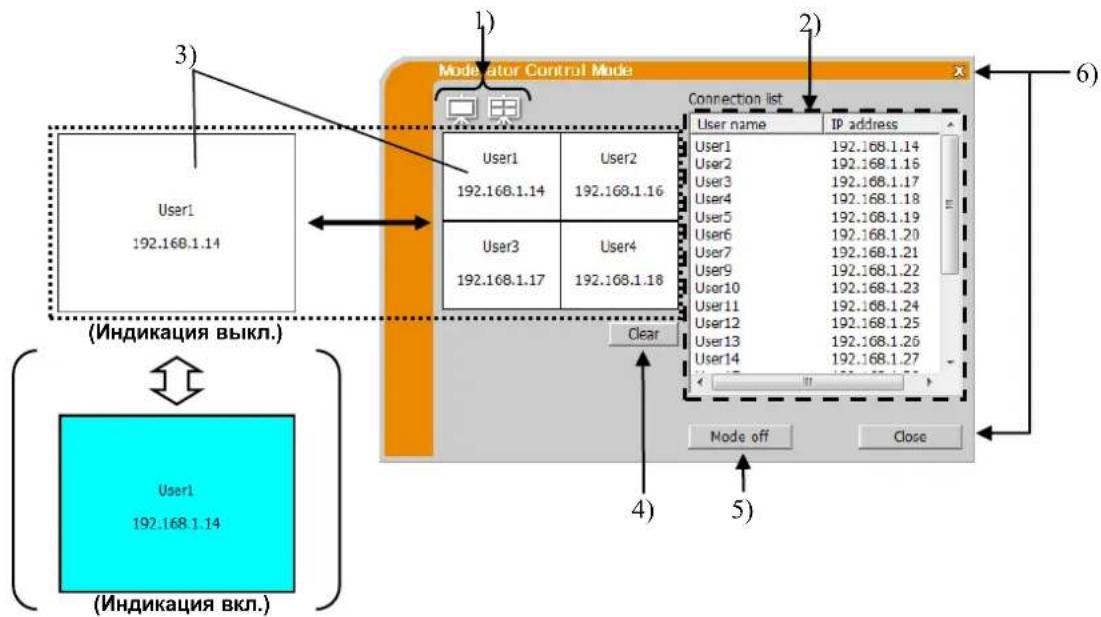
1) Khonka pexmama oTo6paxeHnA (30
PcKHM OTO6paXeHn 6byET IpeKJIIOuATbcra McKJy pcKHMOM OIHORO KOMIbIOTepa H peKHMOM HeCKOJIbKHX KOMIIbIOTepOB.
2) Connection list (Cnncok nodklouhen)
B cHcKe 6yIyT OTo6paKeHb BCE KOMIIbIOTepe, IIOKJIIOHeHHbIE K TOMy JxepKTopy, K KOtOpomy IOIKJIIOueH MoIepaTOp.
3) Okho oTo6paKeHnA
ByeT OTo6paKaTbCn HhOpMaIIH N KOMIbIOTepaM, H3O6paKeHH KOTopbIX OTo6paKaOTcHa 3KpaHe.
IIIBBOa H3O6paKeHH Ha 3KpaH IIPOeKTopa IIpeTaWHTe KOMIbIOTep H3 CINNcKa IIOKIIIOUeHH B 3Ty
0bIactb. IepCaHa H3O6paKeHH 6yET HAHHATbc/OCtAHABJIbAITbcg IIHN KaJdOM HAkaTHN OToro OKHa.
B peKHM HeCKoJIbKHX KOMIbIOTepOB OKHO 6yET pa3JeIeHO Ha qETbpe 3OHbI, KaH 3KpaH. KaJdOu 3OHo
MOxHO 6yET yIPaBJIbTb OTJeMbHO, H hOpMaIIH 6yET OTo6paKaTbCn IIA KaJdoN 3OHbI.
4) KhonkaClear(ouncTk)
OuHCTka OKHa OTo6paKcHn HnpckpaUcHHe Ipeaun H3o6paKeHHn Ha npoeKTrop.
5) KhonkaMode off (peXmMa BbIKJ.)
OTMeHa peKHMa yIpaBHeHHMoIepaTopa. OkHO OTo6paJKeHH 6yIeT OUHHeHO H IpeJaHa H3O6paJKeHH Ha IIpoCKTOp 6yIeT OCTAHOBJIeHa.
6) KhoIIKa BbIXOa
3aKpbTHe OKHa yIpaBJIeHHMaMOePaTopa H BO3BpaT B rJABHoe MeHIO IpoIpaMMb1 LiveViewer.
4.4 MeHIO onuU
EcJH HauKaTb Ha KhoIky OuHH, Ha 3KpaHc OTo6paKaetc MeHIO OIIHH.
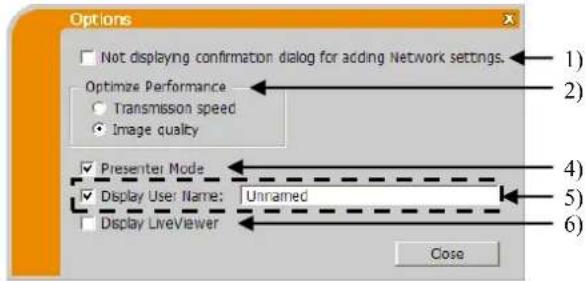
Pnc.4.cMeHIO onnnI rpynnb MoJeIe I npoeKtropoB:A
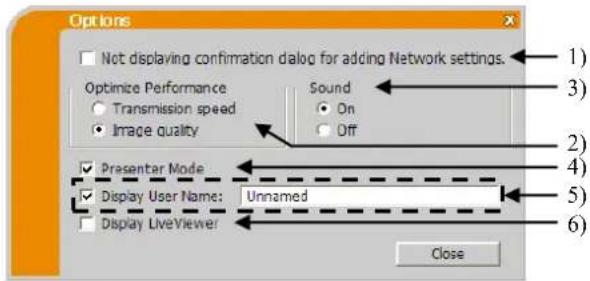
Pnc.4.dMeHIO OIIHIN rpynnbI MoJeJIe IpoeKTopoB:B
1) Not displaying confirmation dialog for adding Network settings.(Дианoroboe okho Ддь Ввда настpoек сети He Вьвовпся На Зкразн.)
B cIyae yctaHOBKn ⅡHaIOROBOe OKHO IOITBeKJHEnn IIO6abJIeHHN KOHNpyauHH Cetn (37) He 6yTeT OTObpaKaTbcn Pn IOIKIOueHHN KOMIIbIOTepa K IIpoEKTopy. B cIyae cHTHNaKKa - HaIOROBOc OKHO BcEgTa 6yTeT OTObpaKaTbcn (IOBcENHC HO yMOJIaHHIO).
2) Optimize Performance (OnTmM3aunpa6oTbI)
Iporpma "LiveViewer" 3axBaTBaet H3o6paKeHne OkaHa KOMNbOtepa B oOpMaTe JPEG nOTnPaBJIeT cro Ha IpoekTop. Iporpma "LiveViewer" IO3BOJIAc T b6paTb Ody H3 DByx cTcNHe CKaTHa DaHHbIX B oOpMaTe JPEG.
Transmission speed (Ckopoctb nepeda): PnmeHaeTcEe nnckooctb BaxKee KaectBa H36paKeHH. CTepeh cKaTHJ JPEG pRn 0TM BblIe. N36paKeHHe Ha ekpaHe IpoekTopa CmHaeTc 6bICTpee, IOCKOJIbky Oobem IpeJaBAeMbIX DaHHbIX MeHbIIe, HO KaueCTBO H36paKeHH pRn 0TM HHXe.
Image Quality (KauecTBO n3o6paXeHn): IpiMeHneTcEeTH KauecTBO n3o6paXeHn BaKHee ckOpocTH.
CTeHeB cKaTHJ JPEG npr OToM HnKe. N3o6paKeHne Ha OKpaHe IpoEeTopa CmehAeTcMeJIeHHe,IOCKOJIbKy 06bem IpeJaBAeMbIX JaHHbIX 60JIbIIe, HO KaueCTBO H3o6paKeHHI pNOTOM BblIIIE.
3)Sound (3Byk)(TOJIbKOДЯгурпьmoDEJEN npoekTopob:B)
Ipeaay aynocnHaia MoKet 6bItb Bb6paHa DeiCTBHTeJbHO (On (BK)) HIn HeJeCTBHTeJbHO (Off (BkI)).HacptoiKoi no yMOuaHHIO RaTaeTc 3HaueHne On (BK).
4) Presenter Mode (Pexm Ppe3eHTaunn
B peKHMe OJHOrO KOMIbIOTepa IIpoEKTop MOKeT 6bITb 3aHrT OJHHM KOMIIbIOTepom H 6IOKHPOBaT bOCTyI c JIO6bIX IpyTHX KOMIIbIOTepoB, eCIN B Iporpamme "LiveViewer" BblpaH peKHM Ipe3eHTaHH. B xOJe Ipc3cHTaHH MOKHO He 6ccIOKoHTbcra O TOM, YTO H3O6paKHeHH Ha 3KpaHC HCOKHaHHIO HcpeCKIIIOHTcra Ha H3O6paKHeHne, OTIIpaBJIeHHoe IpyTHM KOMIIbIOTepom. IJIY BKIOUeHHN peKHMa yCTaHOBHTe OTOT fJIAKOK.
ПРМЕЧАНС
Ecu b6pan peum ncko1b6kux kmmbiomepo6, hcmpouka peum npesmaquu ne deicmyem.
- Ipu nepeKIOHcHu u3 peICMa HeckoIbKux KOMnbIomepo6 peICum odHOzO KOmnbiomepa HacmpoiKa peICMa npeZnmauu 6 KOmnbiomepe deUcmByem.
Pecum npezenmauyn ymanoien na akmuibn ypoenb npu naaibnoi acmpouke 3aboda no ymoanuo.
5) Display User Name (Имяисточника)
HMa IIOJIb3OBaTeJII DIIHHoJ IO 20 CHMBOJIOB MOXHO BBecTH C HOMOIIbIO 6yKBEHHO-IIIΦPOBbIX CMBOJIOB. HMr IIOJIb3OBaTcJI MOKCT OTObpaKaTbC HA 3KpaIc IIPOeKTOpA, IIOTOMY MOXIO BBycIHHTb, Ybc H3O6paXCHINBA HAcToIIM MOMeHT OTObpaKaTcR Ha 3KpaHe. Ecln 3OT FJaAKOK He yctAHOBJIeH, 3ra HHΦopMaIIHr Ha IIPOeKTOp Hc IpeIaTcR.
6) Display-liveViewer(Отобрази综合体LiveViewer)
EcnHaKpaHnpoekTopaHyxHO OTO6pa3HTb OKHO IporpaMMb1 LiveViewer, yctaHOBHTe OTJkaOK.
ПРМЕЧАНС
- Ipu ucnno1b3o8aunu npocpaMmbi LiveViewer 6 Windows ⑧ 8 nacmpouka "DisplayLiveViewer" 6ydem 6ce2da 6KIOUcHnA.
4.5 PpOΦuJIb daHHbIX
4.5.1 O63op npoФиЯ daHHbIX
CetBbIe HacTPOiKN IINIOKIIIOUeHn IIOEKTopa N KOMIbIOTepa MoTyT 6bITb COxpaHebl KaK IIpoOHHJIN DaHHbIX. IocJIc coXpAHChnnaHbIX IINIOKIIIOUeHn K CcTH IOCTaTOHBO BbIbPaTb OTN daHHbc. PckomchNyctc npH acTOM HcIOJIb3OBAHH OdHOro CeTeBOrIO IOIKIIIOUeHn.
4.5.2 Co3dahne npoФиЯ daHHbIX
BbIbepHTe npaMetp "Profile (PiPoΦnJIb) H NaKMITE KHOIIky [Add]B MCHIO cHOCo6a IOKIIIOUcHIN IIOpPAMMb LiveViewer.
IIOBHTc npHrJaIIeHne "Create new profile" (Co3aTb HOBbI npoHJIb).Ecln yke co3aHO 20 npoHJeiN daHHbIX,co3aTb HOBbIMoKHO,ToJIbKO ydaJIHB COXpAHeHHbIe DaHHbIE.BBeJIHTe BCIO HhOpMaIHIO,HEO6XoINMyIO DA BAHIero CeTEBOI IOIKIOueHHN.ДЯ cTHpaHHa BBeJeHHOH INHΦOpMaIIHN HAKMITE [Clear].
HaKMHTe KHOIIky [OK], NocJe BBeIeHnB Cei HhOpMaIH. ECH BBHc XOTHTc coXpaHrTB cc, HaKMHTc [Cancel].
Ipn HauKaTHN KHOHN [OK] B Profile list (CnncKe npoHnei) 6yETIOKA3AHOBBI IIpOHHbJaHHbIX.
ПРМЕЧАНС
- Ipu cosdaauu no6o2 npofua hacmoa mebho pekomehoyemcn npoeepumnb npabuibocmb paobmy u6o2 npofua, 6b1pa6 daHHbe dnookKIOUeHnC nomoubuO m02o npofua.
- Ecmu cmehme cemeou adanmep na cboem konmbomepe, co3aume hoobie dahbie npofoia dya anampea.
MoKno 3apeucmpupo6am do 20 npouie. Ecu 20 npouie yce cyuecmeyem, daa bfoaakok neb3ymanoumb.
B cyuae peucmpauu npoohn danhbx 6 kayecme napamempa Moe noekouene 6 cnueke nookouen,napamemp Profile name (Hm npo) byem aomamueecku na3naen npo2pamou LiveViewer. Ha3baue 6ydem nokaao 6 cnuek npoepieu.
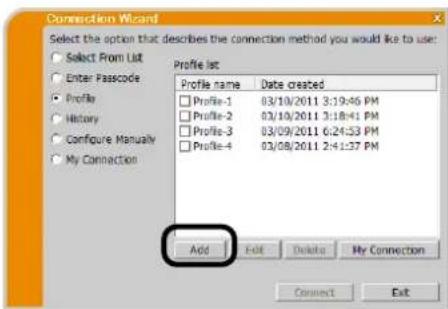
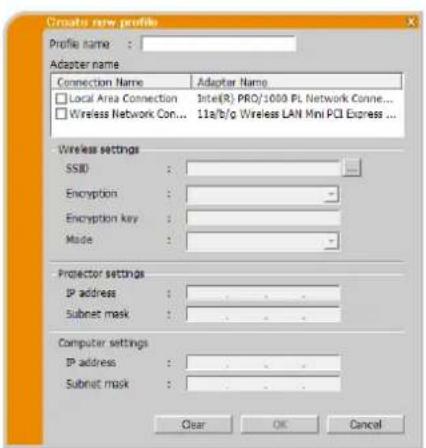
4.5.3 PeDaKtIpoBaHnne npoФиЯ DaHHbIX
Bb6epHTe npaMeIe "Profile (PpOphi) H Bb6epHTe OHH H pOphi, HepeHCJIeHHB IN MeHIO cHOCo6a NODKIOUcHn HpoIpaMMb LiveViewer.
Hakmnte [Edit].
IIOBHTc8 OKHO "Edit profile" (PeJaKTHpoBaTb IIpoΦHJIb).
BHeCHTe HxKbIe H3MeHHeHH. IJIa CTnpaHnBce BBeJeHHoB OKHe HhΦopMaunn HaKMHTe [Clear].
HaKMHTe KHOIKy [OK] nocJe 3aBepHcHHpeJAKTHPOBaHH. ECHN BbI He XOTHTe COXpaHb HhOpMaHIO, HaKMHTe[Cancel].
Ipn HaxaTHN KHOHN [OK] orpeJaKTHPOBaHHbI npoHJIb daHHbIX 6yJeT coXpaHeH IIIOKa3aH B Profile list (CInncke npoΦnei) c HOBoI HhΦopMaIIHei Date created (Jata co3JauHna).
ПРМЕЧАНС
- Ipu co3dauu noo2o npofu hacmme1bho pekomehyemcn npoeepum npabuibocmb paobmy noo2o npofu, 6bipaa daHhie o nookouenca nomoubu 3mo2o npofu.
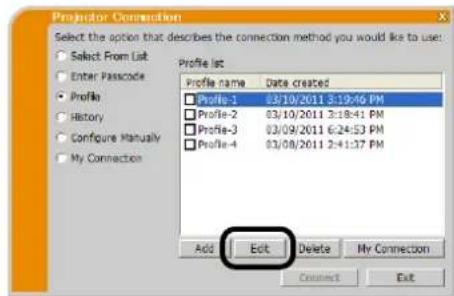
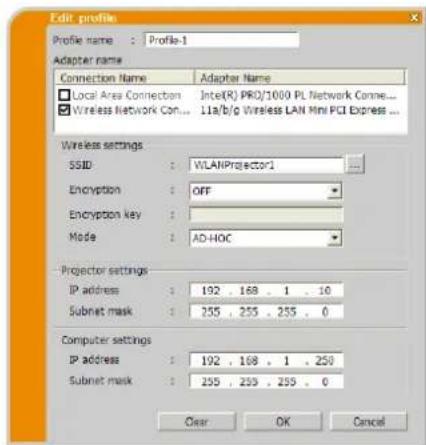
4.5.4 Perinctpaun npoФnla Moe nodkloucheHne
OHH npoHb, KOTOpB 6yCT HAcTo HcIOJIb3OBaTbC, MoKHO 3apeHCTpHPOBaTb B KaueCTBe IapAmetpa My Connection (Moe IOIKIOUChHe).PiocIe pcrHCTpaHH DaHHbIX IJI IOIKIOUChHH K cETn IOCTaTOuHO BB6paTb npoHb Moe IOIKIOUeHne.
Hakmte KhoIky My Connection.
OTo6pa3ntcra OKHO "Add My Connection" (Io6aHTb Moe IOJIKIOHcHc). TckyIIN Bb6paHHb IpoΦHb DaHHbIX "Moc IOJIKIOHcHc" OTMeHcB CInNcKe RaIOUcKo.
Bb6epHTe OHH H3 IpoΦHJIeH, IpeHcJIeHHbIX BOKHC, HOTMeTbTe erO JAAKKOM.
HaKMHTe KHOIIky [OK], OKHO 3aKpoETc. EcJHb HxOHTe BbIbpaTb HOBbI IIpOΦJIb, HaKMHTe [Cancel].
MoKHO TaKKe 3apeHCTpnpoBaTb Moe IOIKIOueHHe B CINHKe IIOKIOueHH, OTO6paKeHHOM IOcJIe yCTaHOBKn CeTeBOrO IIOKIOueHH. IIOpo6HoCTn CM. B pa3JeIe"3.2.5.2 CIncoK IOIKIOueHH". (22).
ПРМЕЧАНС
Bomom cuncke nokazabdaanhe 6ex npofuue, hesabucmo om mozo, kakou cemeo adannep bopan. B kaucmee napamempa Moe noekouenue moKHO zapezucmpupobamb npdu, komopui ne npednauen dA cemu, b6pauu 6 hacmonuui MOMHm.
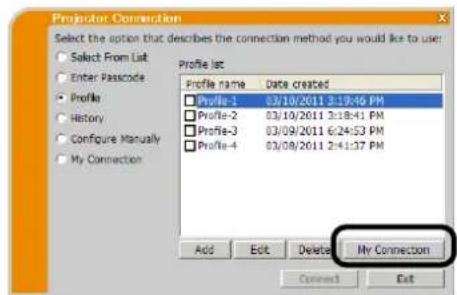
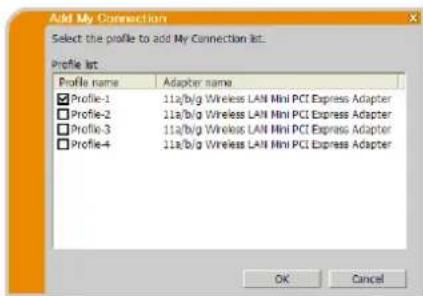
PpniloxKeHne
A Coo6uēnna
Pn BO3HKnIOBcHH IpO6JIeMbI HJH Heo6xoIHMoCTH BbBOa HIIΦopMaunn IOABHTc CICdyIOoee DHaJOROBC OKHO c COo6HHeHem. EcJIN NOBraTc coo6HHeH, IpOHTte HN H BbINOJHNTe Heo6xoHMbIe DeiCTBn.
Co06eHne 1: A network connection was not established.
3TO COO6HHe H6yET OTo6paXeHO B TOM Clyuac, cCJIN IPOeKTop HIOJKIOCHI K KOMIIbIOTepy C IIOMOUbIO Ka6cJIJAOKaJIbHO CTeH IIpH Bb6ope IPOBOHOJ IOKAJBHOI CETH. Y6eINTEcB, YTO IPOeKTopA IIOJKIOHEK KOMIIbIOTepy C IIOMOUbIO CeTeBOrO Ka6JIa.
Hakmte KhoIky [OK] IJIa BO3BpaTa K nppeIbIyIeMy ekpaHy.
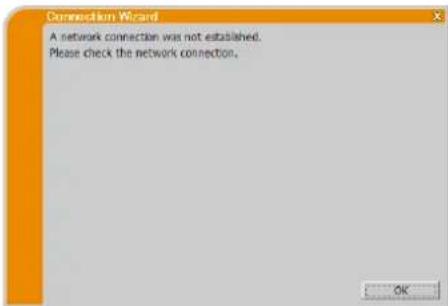
Coo6eHne 2: The number of computer connection exceeds the limit (max. 50).
IpoektopIOCTHI MAKCHMAJIbHOrO YHcJIa CeTeBbIX IOIKIIIOueHH. HaKMITE KHOIIKy [OK],IOcJIe Yero 6yJeT OTO6paKeHo rJABHoe McHIO IIporpAMMb LiveViewer.
IIOBTOPHTe NONBtKY IOCJIe OTKJIOUeHnOJHOrO (NJIN HeCKoJIbKHX) IIOJKJIOUeHHbIX KOMIIbIOTepOB.
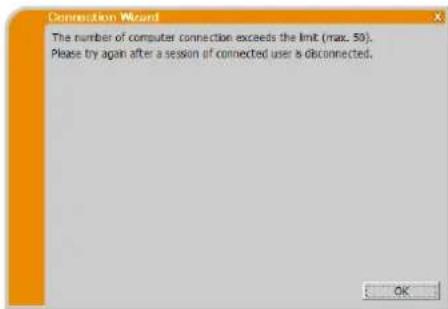
Coobuchene 3: A network connection could not be established.
CnCTema WindowsI npcOTbpaTHJa H3McHHeHH B KOHpyaHH ceTH, NocKoJIbky BBi He BOIIIN B CnCTeMy Windows C npaBAMn aDMHHCTpaTopa.
HaKMHTc KIOIky [OK] IJIa BO3BpataK IIpcIbIyIcMy 3KpaIy.
IIPOKOHcyJIbTHpyIteCb c aIMHHNCTpaTOpOM cETH IO BOIpoCy BXOJa C IIpaAMn aIMHHNCTpaTopa. PocJIe BbIXOJa H3 cHCTeMbI Windows CHOBa BOJNTc C IIpaAMn aIMHHNCTpaTopa H BcPHTccb K IIyHKTy "3.2 IOnKIOHeHne K cETH". (9)
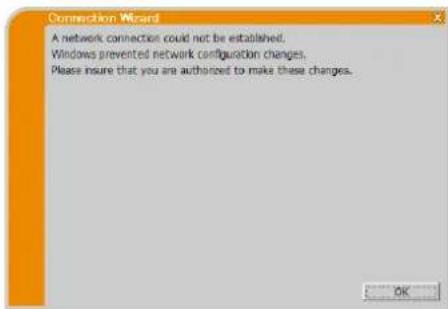
Coo6eHne 4: Are you sure you want to connect the selected projector?
To coo6HHeNe OTo6paKaetc, KOrJa BbIbpaHHb aHaTep 6ccIIPOBOHOH cETn yKc HcIOJIb3yctc IJIa npYrOc cTeCBORIOIOKJIOUeHH.
IIIOKIOHnHaKaTb[Ycs].
IpeepiHTe K HnHKTy"3.2.5 IIOKIOUChHe H npepa". (22)
HaKMHTe KHOJIky [No] IIOB3Bpata K IIpeBbUYIIeMy 3KpaHy.
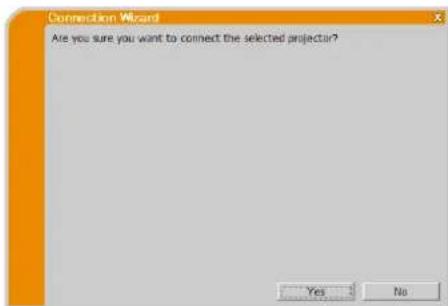
Co06eHne 5: Incorrect Passcode.
BcEeH HeBcpHbI npoJIb.
HaKMHTe KHOIIky [OK] IJIa BO3BpaTa B OKHO "Enter Passcode (BBOI npoJI).
IpoBepbTe IapOJIb Ha 3KpaHe npoeKTopa H cHOBa BBeHrTe KOJI. (13)
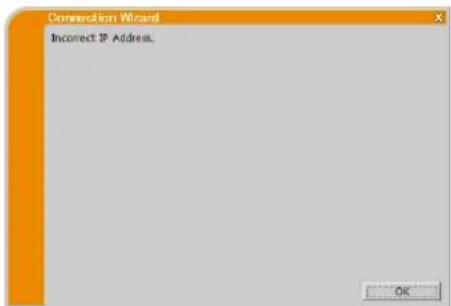
Coo6eHne 6: Do you want to apply suggested network settings as follows?
JaHHoe DnHaJIIOROBE OKHO IOBHTcK, KOrIa Bam IOTpe6yETc H3MCHHtB KOHfHpyaHIO cCTH Ha BaHcEM KOMIIbIOTepc, YTO6bl IIOJKIIOHHTbcR K IIPOeKTOpY.
O6paHTTc8b KaAMHHHCTpaTOpy cetn, YTO6bI IOITBcPdHTb IpaBnIbHocTb KOHfHpyaHH cetn B IHaJIOROBOM OKHe. 3aTeM HaaMMte KHOIIky[Yes].
EcJH BbHe XOTHTe PpHMEnrTb KOHpyaHIO ceTH B JHaJorOBOM OKHE, HaxMHTe KHOKNy[No].
EcJIH BbI XOTHTe IO6aBHTb KOHΦHrypaIIHIO cETN BpyHyIO, HaxMMTe KHOIIky[Change]. OTo6pa3HTcra HOBOc IHaJIOrOBOc OKHO IIIA IO6aBJIeHNr KOHΦHrypaIIHcETN, KaK NOKa3AHO cIpBa. BBeINrte IP-aIpcn H MaCKy IIOCTH CBOERO KOMIIbIOTepa. 3aTeM HaxMMTe KHOIIky[OK].
ПРМЕЧАНС
Ipu ycmanoke fiaekka Not displaying confirmation dialog for adding Network settings. (Duaioo0oe OKno d8 60da hacmpoek cemu he bboodumcna Kpan.) duaioo0oe OKno he 6ydem omobpaacamcbc 6 ciedyoouu pa3. Ecu uynho u3menub hacmpouky, hakmume knonky onnu 62aabHom MeHIO npozpambl LiveViewer u ybepume fiaok "duaioo0oe OKno d8 60da hacmpoek cemu he bboodumcna Kpan."
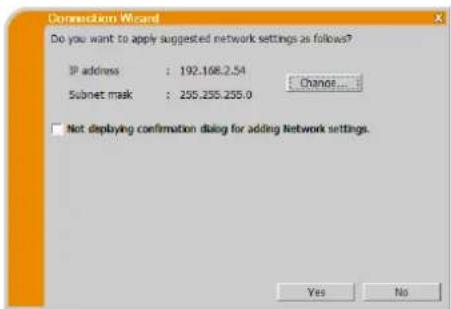
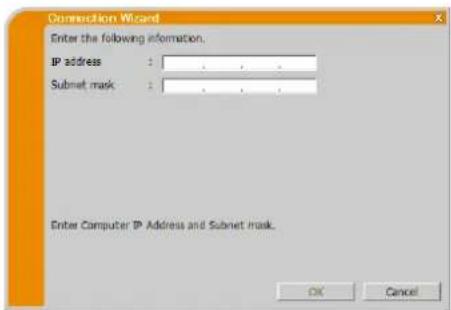
Coo6eHne 7: An IP Address overlaps with the IP Address of the projector you are trying to connect to.
To cooHHe HOBJIeTc, ecn IP-aIpec BaIIero KOMbIOTepa COIIaAet C IPOEKTOpOM. NocKOJIbky IP-aIpeca JIOJKNbI OTINaTBc, HaKMHTe KHOJIky [OK] IN BBeIHTe HaJIeXaIIH IN IP- aIpec.
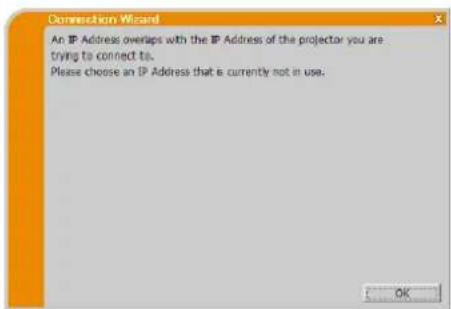
Co06eHne 8: Incorrect IP Address.
3TO COO6HHe HIOBJIeTcB CJIyAc yCTaHOBKn Ha KOMIbIOTepc HeipabNIIbHOrO IP-aIpeca.
HaKMHTc KHOIIKy [OK] IN BBCDHTe IpaBnIbIbIy IP-aIpccc.
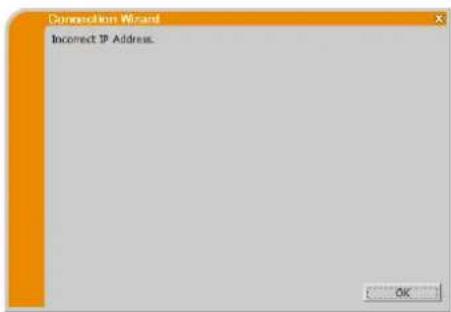
Co06eHne 9: A Network Configuration Conflict exists.
3TO COOIIIEHNE IIOBJIIETCs, KOrJa peKHM IOIKIIOUeHHK CeTH, 3aHaHHb B KOMIbIOTpe, He COOTBeTCTByeT peKHMy IpoeKTopa. IpoBepTe HAcTPOiKN KOHfHiypauHH cetn Ha IpoeKTope H KOMIbIbTepe.
HaKMnTe KhoNky [OK], nocTe yeTo 6yJeT oTo6paKeHo rIaBHOe McHIO IIpOgPaMMbI LiveViewer, XOTa CTeBOe IOnKIIIOueHHe Hc yCTaIOBJIcHIO.
HaKMHTe KHOIIky IIOJIIOueHHeTHaBHOM MeHIO IIpoIpaMMbI LiveViewer 118 BO3Bpata K IIyHKTy "3.2.2 BbI6epHTe cnooc6 IOIKIOueHHN". (9)
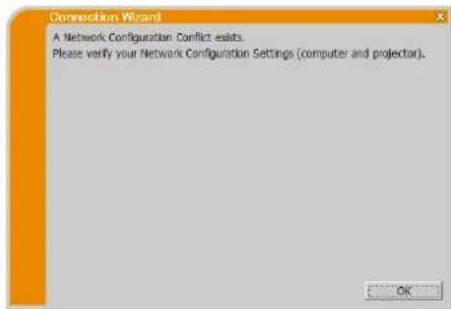
Coo6eHne 10: There is a projector already connected with your computer.
3TO COO6HHe HIOBJIeTc Hn HaJIuHn IIpoEeKTopa, yKe IIOJKIHOeHHOr K BaIIeMy KOMIIbIOTepy.
HaKMnTE KHOIIky [Yes] JIM OTKJIIOueHHe TEKYIIErO IIOKJIIOueHHe. ByCT yCTaHOBJIEHO HOBOc IOKJIIOueHNC.
HaKMHTe KHOIIky[No] dIa coXpaHEnH TeKyuIeTo IIOKJIIOueHH npu yCTaHOBKe HOBOrIOIKJIOueHH. (PeKHM HeCKOJIbKHX IIPOCKTOpOB)
HaKMHTe KHOIky [Cancel], ecJH HOBOE IOJKIOHeH He HyKHO yCTaHABINBaT, HHyKHO COxpaHHTb TeKYIeE IOJKIOHeHne.
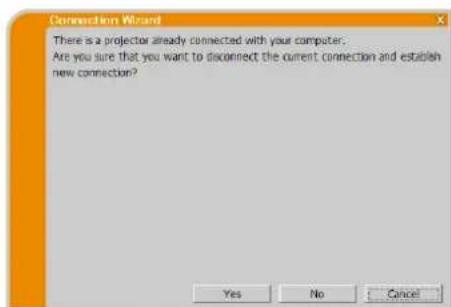
ПРМЕЧАНС
- Odoepemenuo moxno nookouumb do 12 npoekmopoe.
Ipu nookuoueenu uueckoibkux npoekmop06 byem aomamueecku sbipah peucn heckoibkux npoekmop06. (1125)
Eciu yice noidknoeho 12 npoekmopoo, knony "No" h6o3moocno dyem haicamb.
Coo6eHne 11: In order to connect to the selected projector, you need to disconnect from the current projector.
TO COOJIeHHe IIOBJIeTcE, ECJIN HNCIO IOJKIOueHHbIX IIPOCKTOPOB IIPCBbIaCT MaKCHMaJIbHOC HNCIO.
HaKMnTe KhoNkY [Yes] nTn OTKIOHEnr TKyIeTo IOKIOHeHn. ByET yCTaHOBJIEHO HOBOE IOIKIOueHne.
HaXMMTe KHOIky [No], ecJH HOBOe IOKIOUOHe He HyxHo yCTaHaBJIHBaTb, H HyKHO COxpaHHTb TEKyIeE IOKIOUOHe.
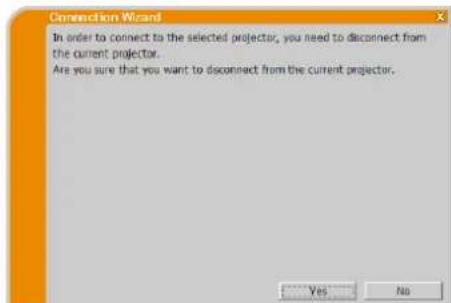
Coo6eHne 12: This projector is currently in use (Presenting) by another user.
Ipoektop,Ha KOTOpBn Bb XOTHTe OTIIpaBHTb H3O6paKcHnA,3aHrT dpYHM KOMIIbIOTepOM BpeKHmC Presenter.
HaKMHTe KhoIky [OK], nocJIe 0TOB PcXHMe OxHJaHHa Ha ekpaHc OTo6pKaetaTc rIaHBoe MeHIO nporpaMMb "LiveViewer".
IOBTOPHTe IIOIbHTKy OTIpaBHTb H3O6paXeHHaNIOcJIe OTKJIOueHHa peKHa Ipe3eHTaHH.
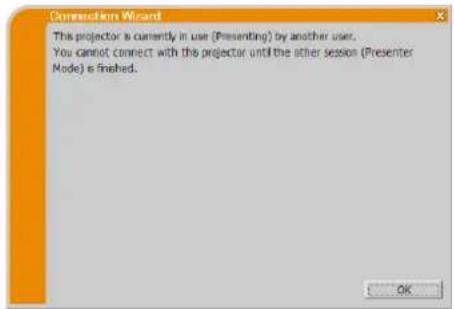
Coo6eHne 13: A Slideshow is currently running on the projector that you are trying to display to. (PC-Less Presentation Mode).
IPOCKTOP, HAI KOTOPBI BIX XOTHTC OTIIpaBHTH3O6paKcHHA, DEMOHCTpHPyET CIAJIDHOY BpeKHMpe3eHTaHH 6e3 PC.
HaKMHTc KHOIIky [Ycs], IIpH OTOM IpoeKTop ocTaHOBHT cJaI-IOy H IIpeKeIIOOH TBOJIOH IOpt Ha LAN. KomIbIOTep NaHET IIpeJaCy H3O6paKeeHHa.
HaxMHTe KhoIky [No],IOcJIe 3rTO pOeKToP ocTaetcBpeKHMc CJaII-Iooy, H Na 3KpaHc KOMIbIOTepa OTo6pKaactcB JxUicm peKHMc IJIaBHoc MCHIO IIporpamMbI "LiveViewer".
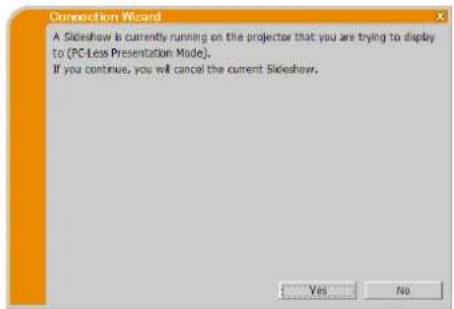
Coo6eHne 14: Are you sure you want to change the input channel of the Projector to 'LAN'?
Ha IIpoeKTOpe LAN He yctaHOBIEH B KaueCTBE BXOIIHO rHrHAJ. HaKMHTe KhoIky [Yes], IocJIe 3TOrO IIpoeKTOp IIpeKJIIOHTc H LAN.
HaKMHTe KhoIky [No], TOrIa IIpoEKTOp ocTaHETcB IIpeXHeM peKHMc, H Ha 3KpaHe KOMIIbOTepa B pcKHMc OxHuaHHa 6ydet OIO6paKeHO IJIABHO MeHIO IIporpAMMb LiveViewer.
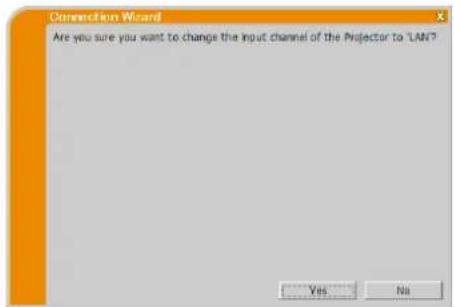
Coobcene 15: Are you sure that you want to turn on the network adapter?
TOT kpaI OTO6pKaactc, cCIN Bb6paHbI aAANTep cETN HopMaJIbHO He fYHKIIIOHHPyeT.
HaKMHTe KHOIIky [Yes] IJIa cRO BKIIIOUcHnI. IIpeeiIHTe K IyHKTy "3.2.5 IIOKIOUOHeHne H npepa". (22)
HaKMHe KHOIIky[No], YTO6bI He BKIOIOuATb eTo. Ipn 3OM 6yJeT BbIOJIHeH BO3BpaT Ha IIpeIbIyIINN EKpaH, IO3BOJIAIOII INBbIbpaT bpyrO CEteBOI aIaITep.
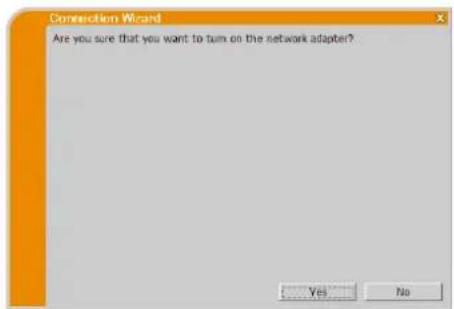
Coo6eHne 16: It cannot be connected because improper native resolution panel projector is selected.
3TO COO6HHe H OTo6paKaetc IIpH IIOIbITke IIOKIIIOueHHa K OIOHOMY KOMIBOTpy IIOeKTopoB C pa3HBIM CO6CTBCHHbIM pa3peHHeHem IINCIJIe.
HaKMNTc KHOIky [OK], IocJIe cero 6yIeT OTO6paJKeHOrIaBHOc MEHIO IIPOrpaMMbI LiveViewer, XOTa CeTeBOe IOIKIIIOueHHe K BB6paHHOMY IIpoEKTopy He yCTaHOBJIEHO.
HaKMHTc KHOIIKy IIOKJIIOUChHc B TJIABHOM MCHIO IIporpaMMbI LiveViewer JIA BO3Bpata K IyHKTy "3.2.2 BbI6epHrte cnoco6 IOIKJIOUChHra". (9)
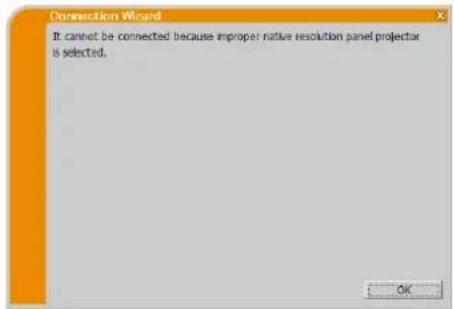
Coobuchne 17: Since moderator control mode of connected projector (IP address: \*\*\*\*\*\*\*\*\*\* becomes effective, Multi Projector mode is canceled.
3To coo6HHe HOBBHeTc HnO tMeHe peKHM HeCKoTBkHX
IIPOeKTopoB,IOCKoJIbKy peKHM yIpaBJeHH MaepaTopa
IOIKJIOueHHOro IIPOeKTopa HCIOJIb3yeTc IpyTHM KOMIBOTepOM.
HaKMnte KHOHKy [OK], IOcIE Ycero 6yET OTO6paKeHo IuaBHOe
MeHIO IIPOrpaMMbl LiveViewer.
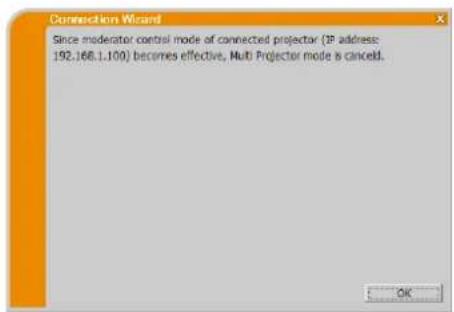
Co06eHne 18: You can not operate while moderator control mode is activated.
IpoeKTop 3aHHT npYHM KOMIIbIOTepoM B peJHMe yIpaJIeHHN MoIepaTopa.
HaKMHTe KHOIIky [OK], IIOcJIe yero 6yIeT OTO6paKeH OJIaBHOe MCHIO IIPOrpaMMbI LiveViewer.
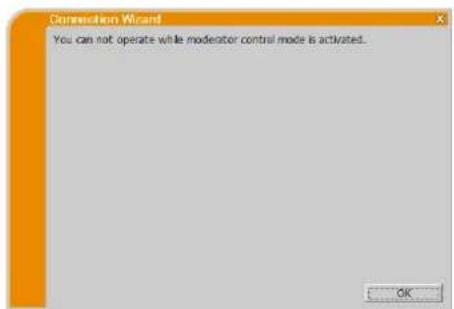
B POnck uYcTpaHHe HeNCpPaBHOCTe
| ПюбLEMа | Вер�огная річина | Пюверka | Homerstpaniú | ||||
| Изобравожения оTCутCTыveТ | Пюбкове не велочень. | Пювовп дулочь. | Дамма пюев各项工作? | - | |||
| Источник ведиморсгигулары сизалдддддддддддддддддддддддддддддддддддддддддддддддддддддддддддддддддддддддддддддддддддддддддддддддддддд徳пскпспспспспспспспспспспспспспспспспспспспспспспспспспспспспспспспспспспспспспспспспспспспспспспспспспспcпспспспспспспспспспспспспспспспспспспспспспспспспспспспспспспспспспспспспспспспспспспспспспспспспспСпспспспспспспспспспспспспспспспспспспспспспспспспспспспспспспспспспспспспспспспспспспспспспспспспспSпСпСпСпСпСпСпСпСпСпСпСпСпСпСпСпСпСпСпСпСпСпСпСпСпСпСпСпСпСпСпСпСпСпСпСпСпСпСпСпСпСпСпСпСпСпСпСпСпСпСпCпСпСпСпСпСпСпСпСпСпСпСпСпСпСпСпСпСпСпСпСпСпСпСпСпСпСпСпСпСпСпСпСпСпСпСпСпСпСпСпСпСпСпСпСпСпСпСпСпСпSпСпСпСпСпСпСпСпСпСпСпСпСпСпСпСпСпСпСпСпСпСпСпСпСпСпСпСпСпСпСпСпСпСпСпСпСпСпСпСпСпСпСпСпСпСпСпСпСпCпCпCпCпCпCпCпCпCпCпCпCпCпCпCпCпCпCпCпCпCпCпCпCпCпCпCпCпCпCпCпCпCпCпCпCпCпCпCпCпCпCпCпCпCпCпCпCпCпCпСпСпСпСпСпСпСпСпСпСпСпСпСпСпСпСпСпСпСпСпСпСпСпСпСпСпСпСпСпСпСпСпСпСпСпСпСпСпСпСпСпСпСпСпСпСпСпСпCпSпSпSпSпSпSпSпSпSпSпSпSпSпSпSпSпSпSпSпSпSпSпSпSпSпSпSпSпSпSпSпSпSпSпSпSпSпSпSпSпSпSпSпSпSпSпSпSпSпSпСпСпСпСпСпСпСпСпСпСпСпСпСпСпСпСпСпСпСпСпСпСпСпСпСпСпСпСпСпСпСпСпСпСпСпСпСпСпСпСпСпСпСпСпСпСпСпСпSпSпSпSпSпSпSпSпSпSпSпSпSпSпSпSпSпSпSпSпSпSпSпSпSпSпSпSпSпSпSпSпSпSпSпSпSпSпSпSпSпSпSпSпSпSпSпSпSпSSрКУКУКУКУКУКУКУКУКУКУКУКУКУКУКУКУКУКУКУКУКУКУКУКУКУКУКУКУКУКУКУКУКУКУКУКУКУКУКУКУКУКУКУКУКУКУКУКУКУКУКUKUKUKUKUKUKUKUKUKUKUKUKUKUKUKUKUKUKUKUKUKUKUKUKUKUKUKUKUKUKUKUKUKUKUKUKUKUKUKUKUKUKUKUKUKUKUKUKUKUKUКUKUKUKUKUKUKUKUKUKUKUKUKUKUKUKUKUKUKUKUKUKUKUKUKUKUKUKUKUKUKUKUKUKUKUKUKUKUKUKUKUKUKUKUKUKUKUKUKUKUKUKUKUKUKUKUKUKUKUKUKUKUKUKUKUKUKUKUKUKUKUKUKUKUKUKUKUKUKUKUKUKUKUKUKUKUKUKUKUKUKUKUKUKUKUKUKUKUKUKUkUkUkUkUkUkUkUkUkUkUkUkUkUkUkUkUkUkUkUkUkUkUkUkUkUkUkUkUkUkUkUkUkUkUkUkUkUkUkUkUkUkUkUkUkUkUkUkUkUkUgTb | Пювов各项工作 | Пювов各项工作 | - | ||||
| Нет Связ | Нетравлино сокльный сокльный сокльный сокльный сокльный сокльный сокльный сокльный сокльный сокльный сокльный сокльный сокльный сокльный сокльный сокльный сокльный сокльный сокльный сокльный сокльный сокльный сокльный сокльный сокльный сокль- <|im_start|>assistant | Источник ведиморсь улочь эжштгггггггггггггггггггггггггггггггггггггггггггггг | |||||
| Cerebraя образенда | Изобравожения на пюбкове д辊жeteя знан'tь медлени, чь на комъютаe | Изобравожения на пюбкове д辊жeteя знан'tь медлени, чь на комъютаe | Изобравожения на пюбкове д辊жeteя знан'tь медлени, чь на комъюtegae | 24 | |||
| Пюбкове не велочь | Пювов各项工作 | - | |||||
| Источник ведиморсь улочь | Источник ведиморсь улочь | 32 | |||||
| Источник ведиморсь улочь | Источник ведиморсь улочь | 32 | |||||
The Software is being delivered to you "AS IS" and Christie Digital Systems USA, Inc. (CHRISTIE) make no warranty as to its use or performance. CHRISTIE AND ITS SUPPLIERS, INCLUDING BUT NOT LIMITED TO CHRISTIE, DO NOT AND CANNOT WARRANTY THE PERFORMANCE OR RESULTS YOU MAY OBTAIN BY USING THE SOFTWARE. EXCEPT TO THE EXTENT PROHIBITED BY LAW IN YOUR JURISDICTION, CHRISTIE AND ITS SUPPLIERS MAKE NO WARRANTY CONDITIONS, REPRESENTATIONS, OR TERMS (EXPRESS OR IMPLIED WHETHER BY STATUTE, COMMON LAW, CUSTOM, USAGE OR OTHERWISE) AS TO ANY MATTER IN CONNECTION WITH THE SOFTWARE, INCLUDING WITHOUT LIMITATION NONINFRINGEMENT OF THIRD PARTY RIGHTS, MERCHANTABILITY, INTEGRATION, SATISFACTORY QUALITY, OR FITNESS FOR ANY PARTICULAR PURPOSE.
You agree that the Software will not be shipped, transferred or exported into any country or used in any manner prohibited by the United States Export Administration Act or any other applicable export laws, restrictions or regulations (collectively the "Export Laws"). In addition, if the Software is identified as export controlled items under the Export Laws, you represent and warrant that you are not a citizen, or otherwise located within, an embargoed nation (including without limitation Iran, Iraq, Syria, Sudan, Libya, Cuba, North Korea, and Serbia) and that you are not otherwise prohibited under the Export Laws from receiving the Software. All rights to Use the Software are granted on condition that such rights are forfeited if you fail to comply with the terms of this Agreement.
Sisaltö
1 Ominaisuudet. 3
1.1 Näytömuoto 3
Tehdasasetus SSID 1: wireless
Tehdasasetus SSID 2: WLANProjector1
Tehdasasetus SSID 3: WLANProjector2
Tehdasasetus SSID 4: WLANProjector3
There are two methods to get the Passcode from the projector.
> Menetelma 1
SSID: WirelessAccessPoint
(esimerkki)
Encryption (Koodaus):
Viesti 1: A network connection was not established.
Viesti 2: The number of computer connection exceeds the limit (max. 50).
Viesti 3: A network connection could not be established.
Viesti 4: Are you sure you want to connect the selected projector?
Viesti 6: Do you want to apply suggested network settings as follows?
- If you checked "Not displaying confirmation dialog for adding Network settings" option, this dialog will not show up the next time. If you would like to change the setting, click option button on the VLCviewer main menu and uncheck "Not displaying confirmation dialog for adding Network settings" option.
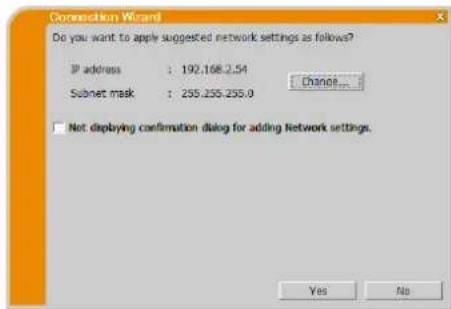
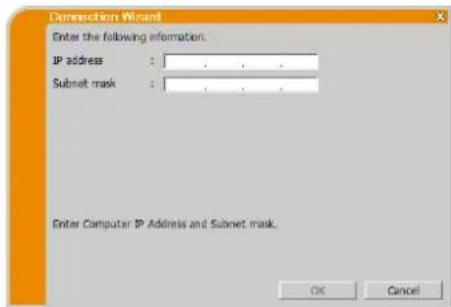
Viesti 7: An IP Address overlaps with the IP Address of the projector you are trying to connect to.
Viesti 8: Incorrect IP Address.
Viesti 9: A Network Configuration Conflict exists.
Viesti 10: There is a projector already connected with your computer.
Viesti 11: In order to connect to the selected projector, you need to disconnect from the current projector.
Viesti 12: This projector is currently in use (Presenting) by another user.
Viesti 13: A Slideshow is currently running on the projector that you are trying to display to. (PC-Less Presentation Mode).
Viesti 14: Are you sure you want to change the input channel of the Projector to 'LAN'?
Viesti 15: Are you sure that you want to turn on the network adapter?
Viesti 16: It cannot be connected because improper native resolution panel projector is selected.
Viesti 17: Since moderator control mode of connected projector (IP address: ***.***.***) becomes effective, Multi Projector mode is canceled.
Viesti 18: You can not operate while moderator control mode is activated.
The Software is being delivered to you "AS IS" and Christie Digital Systems USA, Inc. (CHRISTIE) make no warranty as to its use or performance. CHRISTIE AND ITS SUPPLIERS, INCLUDING BUT NOT LIMITED TO CHRISTIE, DO NOT AND CANNOT WARRANTY THE PERFORMANCE OR RESULTS YOU MAY OBTAIN BY USING THE SOFTWARE. EXCEPT TO THE EXTENT PROHIBITED BY LAW IN YOUR JURISDICTION, CHRISTIE AND ITS SUPPLIERS MAKE NO WARRANTY CONDITIONS, REPRESENTATIONS, OR TERMS (EXPRESS OR IMPLIED WHETHER BY STATUTE, COMMON LAW, CUSTOM, USAGE OR OTHERWISE) AS TO ANY MATTER IN CONNECTION WITH THE SOFTWARE, INCLUDING WITHOUT LIMITATION NONINFRINGEMENT OF THIRD PARTY RIGHTS, MERCHANTABILITY, INTEGRATION, SATISFACTORY QUALITY, OR FITNESS FOR ANY PARTICULAR PURPOSE.
You agree that the Software will not be shipped, transferred or exported into any country or used in any manner prohibited by the United States Export Administration Act or any other applicable export laws, restrictions or regulations (collectively the "Export Laws"). In addition, if the Software is identified as export controlled items under the Export Laws, you represent and warrant that you are not a citizen, or otherwise located within, an embargoed nation (including without limitation Iran, Iraq, Syria, Sudan, Libya, Cuba, North Korea, and Serbia) and that you are not otherwise prohibited under the Export Laws from receiving the Software. All rights to Use the Software are granted on condition that such rights are forfeited if you fail to comply with the terms of this Agreement.
Spis tresci
1 Funkcje 3
| Statusu | Ikona statusu |
| No computer is on screen | |
| One computer is on screen. | |
| Two computers are on screen. | |
| Three computers are on screen. | |
| Four computers are on screen. |
UWAGA
Komunikat 1: A network connection was not established.
Komunikat 2: The number of computer connection exceeds the limit (max. 50).
Komunikat 3: A network connection could not be established.
Komunikat 4: Are you sure you want to connect the selected projector?
Komunikat 6: Do you want to apply suggested network settings as follows?
Komunikat 7: An IP Address overlaps with the IP Address of the projector you are trying to connect to.
Komunikat 8: Incorrect IP Address.
Komunikat 9: A Network Configuration Conflict exists.
Komunikat 10: There is a projector already connected with your computer.
Komunikat 11: In order to connect to the selected projector, you need to disconnect from the current projector.
Komunikat 12: This projector is currently in use (Presenting) by another user.
Komunikat 13: A Slideshow is currently running on the projector that you are trying to display to. (PC-Less Presentation Mode).
Komunikat 14: Are you sure you want to change the input channel of the Projector to 'LAN'?
Click [No], then the projector remains as it is, and the VLC viewer main menu is displayed in the stand-by mode on your computer.
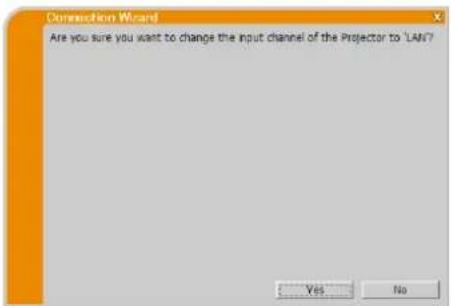
Komunikat 15: Are you sure that you want to turn on the network adapter?
Komunikat 16: It cannot be connected because improper native resolution panel projector is selected.
Komunikat 17: Since moderator control mode of connected projector (IP address: \*\*\*\*\*\*\*\*\*\* becomes effective, Multi Projector mode is canceled.
Komunikat 18: You can not operate while moderator control mode is activated.
The Software is being delivered to you "AS IS" and Christie Digital Systems USA, Inc. (CHRISTIE) make no warranty as to its use or performance. CHRISTIE AND ITS SUPPLIERS, INCLUDING BUT NOT LIMITED TO CHRISTIE, DO NOT AND CANNOT WARRANTY THE PERFORMANCE OR RESULTS YOU MAY OBTAIN BY USING THE SOFTWARE. EXCEPT TO THE EXTENT PROHIBITED BY LAW IN YOUR JURISDICTION, CHRISTIE AND ITS SUPPLIERS MAKE NO WARRANTY CONDITIONS, REPRESENTATIONS, OR TERMS (EXPRESS OR IMPLIED WHETHER BY STATUTE, COMMON LAW, CUSTOM, USAGE OR OTHERWISE) AS TO ANY MATTER IN CONNECTION WITH THE SOFTWARE, INCLUDING WITHOUT LIMITATION NONINFRINGEMENT OF THIRD PARTY RIGHTS, MERCHANTABILITY, INTEGRATION, SATISFACTORY QUALITY, OR FITNESS FOR ANY PARTICULAR PURPOSE.
You agree that the Software will not be shipped, transferred or exported into any country or used in any manner prohibited by the United States Export Administration Act or any other applicable export laws, restrictions or regulations (collectively the "Export Laws"). In addition, if the Software is identified as export controlled items under the Export Laws, you represent and warrant that you are not a citizen, or otherwise located within, an embargoed nation (including without limitation Iran, Iraq, Syria, Sudan, Libya, Cuba, North Korea, and Serbia) and that you are not otherwise prohibited under the Export Laws from receiving the Software. All rights to Use the Software are granted on condition that such rights are forfeited if you fail to comply with the terms of this Agreement.
目次
1 主機機能 3
1.1 表示一 3
丁才尔卜 SSID #1: wireless
徳才ルト SSID #2: WLANProjector1
3.2.3.6 3.2.3.6 3.2.3.6 3.2.3.6 3.2.3.6 3.2.3.6 3.2.3.6 3.2.3.6 3.2.3.6 3.2.3.6 3.2.3.6 3.2.3.6 3.2.3.6 3.2
Republic of South Africa
ph+27(0)115100094
Singapore
ph:+656877-8737
Spain
ph:3491633990
United Arab Emirates
ph:+97143206688
United Kingdom
ph:44(0)1169778000