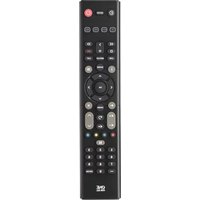
EazyClean URC 9290 - Remote control ONE FOR ALL - Free user manual and instructions
Find the device manual for free EazyClean URC 9290 ONE FOR ALL in PDF.



| Product type | Universal remote control |
| Brand | One For All |
| Model | EazyClean URC 9290 |
| Power source | 2 AA alkaline batteries (not included) |
| Compatibility | TV, set-top box, soundbar, audio receiver |
| Main functions | SimpleSet programming, code search, learning, audio volume control, mute mode |
| Antimicrobial protection | Biomaster silver ion technology (99.99% reduction of microbes) |
| Dimensions (L x W x H) | Approximately 21 x 4.5 x 2.5 cm |
| Weight (with batteries) | Approximately 120 g |
| Infrared range | Up to 10 meters |
| Number of keys | Approximately 40 |
| Color | Black |
| Manual languages | Multilingual (French included) |
| Manufacturer | Universal Electronics Inc. |
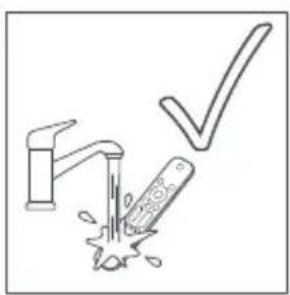
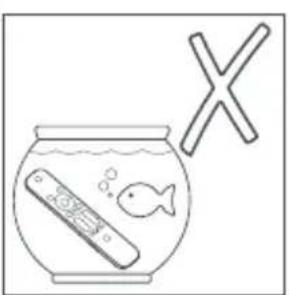
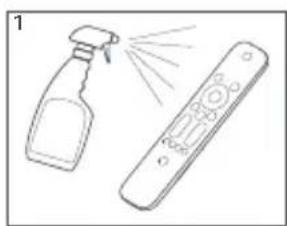
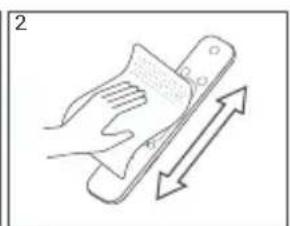
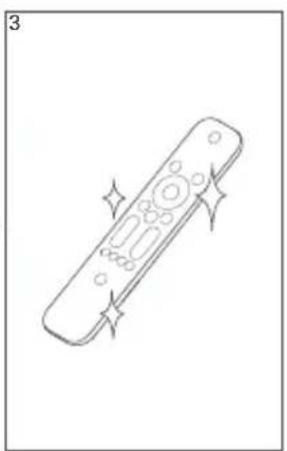
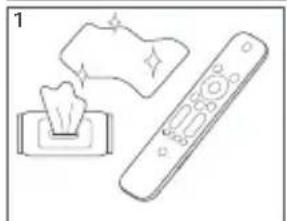
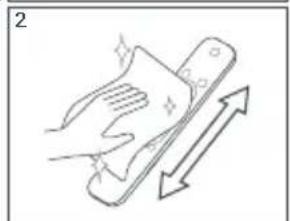
| Care and cleaning | Clean with a soft, dry cloth. Do not use abrasive products. |
| Safety | Use quality alkaline batteries. Risk of explosion if incorrect type. |
| Spare parts and repairability | Parts not available separately. At end of life, recycle according to local regulations. |
| General information | Product treated with Biomaster antimicrobial technology. Does not contain nanomaterials. |
Frequently Asked Questions - EazyClean URC 9290 ONE FOR ALL
User questions about EazyClean URC 9290 ONE FOR ALL
0 question about this device. Answer the ones you know or ask your own.
Ask a new question about this device
Download the instructions for your Remote control in PDF format for free! Find your manual EazyClean URC 9290 - ONE FOR ALL and take your electronic device back in hand. On this page are published all the documents necessary for the use of your device. EazyClean URC 9290 by ONE FOR ALL.
USER MANUAL EazyClean URC 9290 ONE FOR ALL

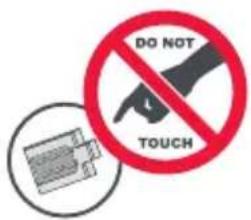
CAUTION: Risk of explosion if battery is replaced by an incorrect type. Use quality Alkaline batteries.
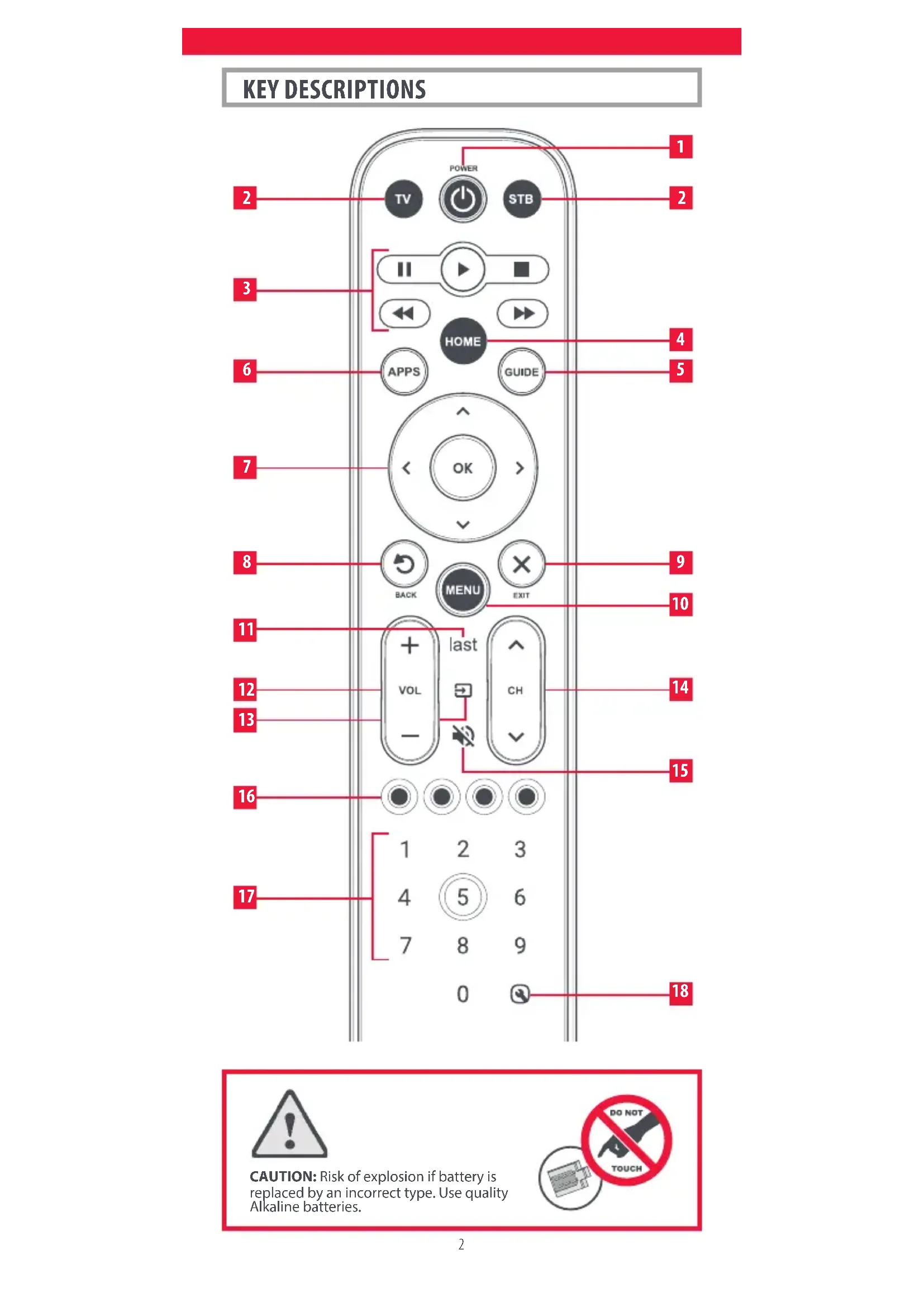
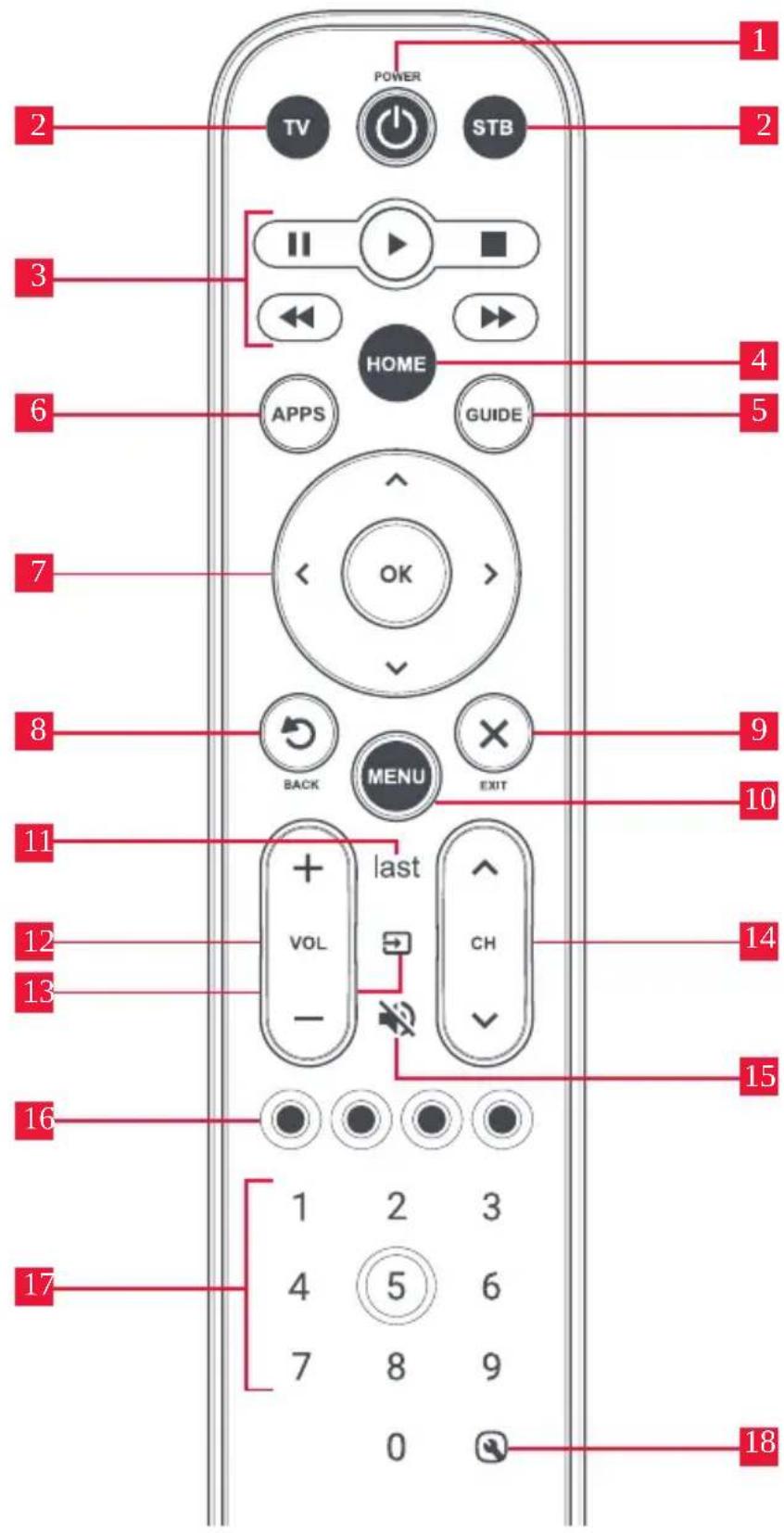
KEY DESCRIPTIONS
1 Power Switches your devices on and off.
Device keys These keys are used to select which device the EazyClean currently controls. After pressing the TV key, the remote will control your TV. To switch to controlling another device, simply press the appropriate key. The devices that can be programmed to each key are as follows:
TV:All televisions such as LED, LCD, Plasma, OLED etc.
STB: Set Top Boxes, including Satellite, Cable and Freeview.
3Playback Keys Control the playback of movies, music and TV.
4 Home Displays the Home Menu.
5 Guide TV Guide.
6 Apps Brings up the Applications menu on Smart Devices such as Smart TVs or Streaming boxes.
7 Menu Directions and OK
Control the menu of the current device.
8 Back Back one step in the Menu.
9 Exit Exits the menu.
10 Menu Access the installation menu of the current device.
11 Last Changes to the last channel viewed.
12 Volume Up and Down
Control the volume of the current device.
13 Input Used to select Input on devices.
14 Channel Up & Down
Change channels on the current device.
15 Mute Mutes the volume of the current device.
16 RGYB keys Quick access buttons for the menu of the current device.
17 Digits Select channels on the current device.
18 Setup This key is used to set up the EazyClean remote.
SETUP
The EazyClean Remote remote is pre-programmed to control some of the most popular devices out of the box. If you have one of the following devices try putting the batteries in and pressing the device key, and then press a few keys to see if the remote works your device:
Device Key To Press Device controlled
TV
TV Samsung TV
STB
STB Sky Q Box
If your device is not one of those listed above, or you have extra devices to set up, there are 2 ways to do this. The easiest is SimpleSet which is used for the common brands and devices.
SIMPLESET
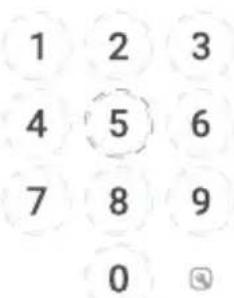
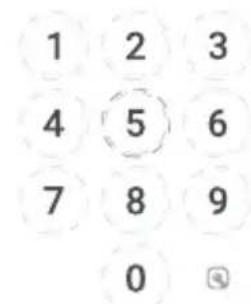
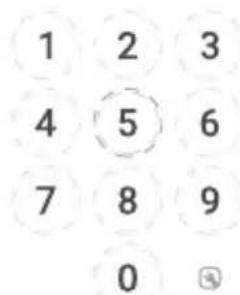
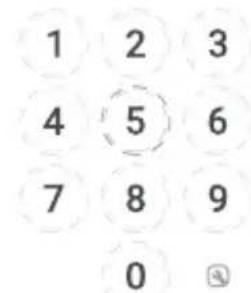
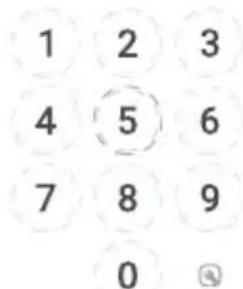
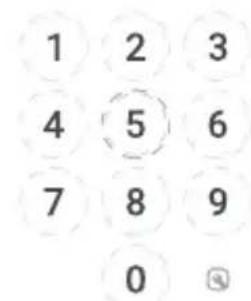
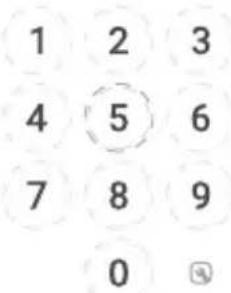
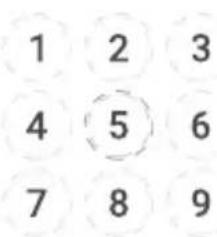
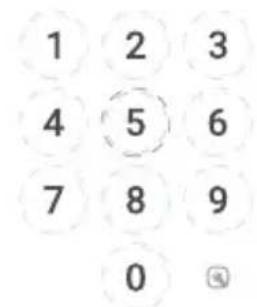
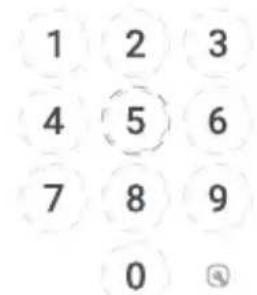
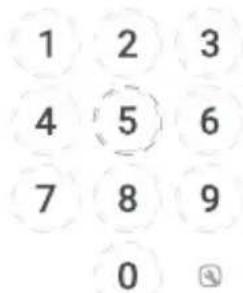
If the brand of your device is shown in the SimpleSet picture pointing to a key, you can use the SimpleSet system described in this section, please locate the brand of your device and note the key associated with it.
TV
Bush
2 Grundig
3 JVC
4 LG
5 Panasonic
6 Philips
Samsung
Sharp
9 Sony
0 Toshiba
1 2 3
4 5 6
7 8 9
0 ⑧
STB
Bi / Humax / TalkTalk / Tricolor TV
/YouView
Canal+/CanalSat/Deutsche
Telekom/Movistar/T-Home
DStv / Foxtel / Multichoice /
Sky New Zealand
1 2 3
456
7 8 9
0 ③
To set up your device:
- Turn on your device (not on standby) and point the EazyClean remote towards it.
- Pres TV Device key you wish to set up (for example TV).
- Hold down the Setup key until the LED will blink twice.
- Hold down the digit for your brand and device as listed in the tables above - e.g. 7 for a Samsung TV.
- The remote will send the Power key every 3 seconds.
- As soon as your device reacts by turning off release the digit.
- The LED will blink twice and the remote should now operate your device.
- If you find one or more keys do not work as you expect, start again at step 2 – the remote will start with the next code in the memory.
SETUP BY CODE
If the brand of your device is not listed in the SimpleSet feature, you can set up by trying codes individually. To do this firstly locate your brand in the Code List. Codes are listed by brand and device, and in order of popularity.
- Turn on your device (not on standby) and point the EazyClean remote towards it.
- Pres Device key you wish to set up (for example TV).
- Hold down the Setup key until the LED will blink twice.
- Enter the first 4 digit code listed for your brand (e.g. 1840 for LG).
- The LED will blink twice on the last digit of the code.
- Now, the remote towards your device and press the Power key.
- If the device turns off your remote is ready to use. If not, repeat steps 2-6 with the next code in the list.
SETUP
LEARNING
Your EazyClean remote control can learn any function from any other working remote control. This is a quick and easy one-time setup that allows to control any infrared controlled device you have in your living room. It also allows you to add a key or keys that may be missing to a spare key on the EazyClean.
To do this, firstly make sure you have all your original remote controls to hand, and that they have working batteries in.
To learn functions, the original remote should be approximately 3cm from the EazyClean remote, pointing towards it:
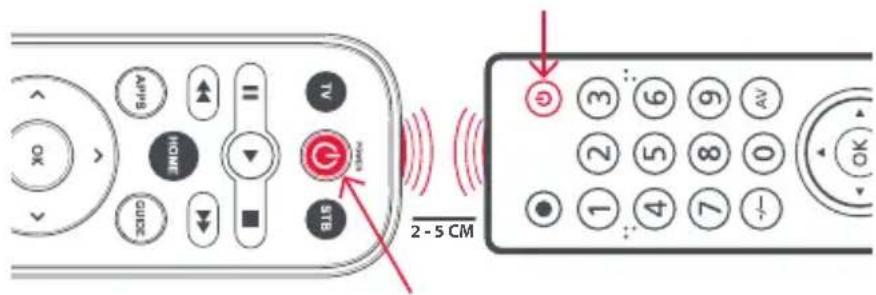
1.Pre Device key for the device you want to learn functions onto.
-
Hold down the Setup key until the LED will blink twice.
-
Pess 975-the LED should blink twice.
-
Press and release the key you want to learn a function onto (for example the TV Power key) - the LED will begin to flash rapidly.
-
Press and release* the corresponding key on the original remote, for example Power.
-
The LED will blink twice to indicate the key has been learned correctly.
-
Repeat steps 4 and 5 for each key you want to learn - remember you can learn from multiple remotes, but only one function per key.
-
When you have learned all the functions you require, press and hold Setup key until the LED blinks twice.
-
Some remotes send commands differently. If you find a function cannot be learned, try holding down the key on the original remote instead of pressing and releasing.
SETUP
Hints:
- If the LED shows one long blink at step 5, the function was not learned correctly, please try again from step 4.
- If you find one or more keys don't work properly after set up, you can re-enter the learning mode at any time by repeating the procedure from step 1.
- If one or more of your original remotes aren't working, you can still set up the EazyClean remote by SimpleSet or Code Set Up.
Deleting a learned function
If you want to delete a learned function and return that keys to its original state, you can use the following procedure:
- Press the Device key for the device you want to learn functions onto.
- Hold down the Setup key until the LED will blink twice.
- Press 976-6 the LED should blink twice
- Press the key you want to reset twice - the LED should blink twice and the learned function has been deleted.
SETUP
SOUND BAR / AUDIO RECEIVER VOLUME CONTROL
If you have your TV connected to a Sound Bar or Audio Receiver, it's possible to set up your One For All remote to control the Volume and Mute of this device. There are two ways to do this:
AUDIO SIMPLESET
If you have a Sound Bar or Audio Device from one of the brands listed in the table below, you can use the SimpleSet method to program your remote to control it. If you do not have one of the below brands, please proceed to the next section.
| Digit | Brand |
| 1 | Bose |
| 2 | Denon |
| 3 | Samsung / Harman/Kardon / JBL |
| 4 | LG / JVC |
| 5 | Marantz / Philips |
| 6 | Onkyo |
| 7 | Panasonic / Technics |
| 8 | Pioneer |
| 9 | Sony |
| 0 | Yamaha |
Note that each of the brands has a digit associated with it, for example 4 for LG (and JVC).
To set up your remote to control your Sound Bar / Audio Device, first make sure your TV and Sound Bar / Audio Device are both powered on, and that there is something playing that you can hear (this procedure will test the Mute function). Next:
1.
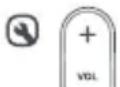
Hold down the SETUP and VOLUME UP buttons together until the LED blinks twice.
- Now point the remote towards your Sound Bar /
Audio Devices and hold down the digit key for your brand (for example 4 for LG). The remote will send the Mute function to your device every 3 seconds.
- As soon as your Sound Bar / Audio Device mutes the volume, release the digit key. The LED will blink twice.
4.
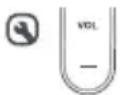
Next, hold down the SETUP and VOLUME DOWN keys until the LED blinks twice. The volume up, down and Mute keys should now control your Audio Device.
SETUP
AUDIO CODE SETUP
If your Sound Bar / Audio Device is not one of the brands listed above, you can also set up the remote to control it by entering a 4 digit code. The codes are listed in the Audio Codelist section of this manual, and are listed by brand and then popularity. Locate the brand of your Sound Bar / Audio Device in this code list and then the procedure is:
- Hold down the SETUP and VOLUME DOWN keys until the LED blinks twice.
- Hold down the SETUP and VOLUME UP keys until the LED blinks twice.
-
Enter the first 4 digit code for your Sound Bar / Audio Device. The LED should blink twice on the last digit.
-
Now try the Volume Up, Down and Mute and see if they control your Sound Bar or Audio Device.
- If they work, your remote is set up. If not try again from step 1 using the next code in the list.
RESET VOLUME CONTROL
To reset the volume control to the original setting:

SETUP and VOLUME DOWN keys until the LED blinks 4 times. Volume control is now reset.

Biomaster Product Protected
Independent laboratory testing demonstrated a 99.99% reduction in microbes after 24 hours.
- 24/7 antimicrobial product protection
Product is treated with Biomaster silver ion technology to provide antimicrobial product protection against unwanted microorganisms that could damage the remote - This Remote contains Biomaster silver-ion antimicrobial technology. It will be protected from the growth of unwanted microbes for its usable lifetime.
This product does not contain nanomaterials. Please scan the QR code or visit www.oneforall.com/biomaster for more information on antimicrobial product protection and Biomaster silver-ion technology.
DStv / Foxtel / Multichoice / Sky New Zealand
DStv / Foxtel / Multichoice / Sky New Zealand
1 2 3
4 5 6
7 8 9
0
DStv / Foxtel / Multichoice / Sky New Zealand
DStv / Foxtel / Multichoice / Sky New Zealand
1 2 3
4 5 6
7 8 9
0
RESET CONTROLLO VOLUME
DStv / Foxtel / Multichoice / Sky New Zealand
BESCHRIJVING KNOPPEN
DStv / Foxtel / Multichoice / Sky New Zealand
Biomaster Product Protected
DStv / Foxtel / Multichoice / Sky New Zealand
DStv / Foxtel / Multichoice / Sky New Zealand
DStv / Foxtel / Multichoice / Sky New Zealand
DStv / Foxtel / Multichoice / Sky New Zealand
1 2 3
456
7 8 9
0 ③
DStv / Foxtel / Multichoice / Sky New Zealand

DStv / Foxtel / Multichoice / Sky New Zealand
Biomaster Product Protected
He3aBncmbie na6opatopbIe nCbItanHn npoDmoHCTpnpobann CHNXeHne KOINueCTBa MkPo6OB Ha 99,99% uepez 24 uaca.
-24/7 aHTUMNKpo6Hna 3auNTa npOdyKta
Ipoodykt 6pa6oTaH TexHoJorneBiomaster Ha ochobe HHOHBcepe6pa dna oecneueHHaHTUMKpOboHoi 3auNTbI npOdykta OT HexeLaTeBbIX MUKPOopraHn3MOB, KOtOpbie MOryt NOBpeDntb NylbT DnCTAHUOnHOynpabHeHn
* 3OT nynbT nIcTaHnOHHo ynpabLeHn CoepKnt aHTmukp6HyTO texHOorIO Biomaster Ha oCHObe noHOB cepe6pa. OH 6ydt 3auuueen OT poCTa HeXeNaTeBbHbX MUKPO6OB B TeueHe BCero CpoKa CNX6bl. 3OT npOdyKT He COepKNT hAHOMATEpnaIOB. IoxaanyctA, OTCKaHpynte QR-koN niocetntwe www.oneforall.com/biomaster nIa NOnyuhenia dononHnTeBHO IHOpMaUN O 3auNTe aHTmukp6HO rpoDykta IN texHOorIO Biomaster Ha oCHObe noHOH cepe6pa.
TÜRKÇE
ANA AÇIKLAMALAR
DStv / Foxtel / Multichoice / Sky New Zealand
0
DStv / Foxtel / Multichoice / Sky New Zealand
DStv / Foxtel / Multichoice / Sky New Zealand
DStv / Foxtel / Multichoice / Sky New Zealand
DStv / Foxtel / Multichoice / Sky New Zealand
DStv / Foxtel / Multichoice / Sky New Zealand
DStv / Foxtel / Multichoice / Sky New Zealand
1 2 3
456
7 8 9
0
Alba 2676,3587,3810, 1585,0714,3005, 3067,2214,4132, 1523,2561,3589, 3964
Allview 3611
Altius 3611
Altus 0714,2663
Amoi 3047
AmTRAN 2127
Andersson 2676,1585,3719
Ankaro 3528
Antarion 3719,2676
AOC 2214,0625
Arcelik 3433
Arcelik 4212,3433,2663
Ardem 0714
Arena 2676,0714
Arielli 3528
Arise 4136
Aristona 0556
Art Mito 1585
AS 1585, 1523, 2676
Asano 4022
Audiosonic 0714,3067,1983
Audio-Technical 0653
Aukera 3572
Autovox 2676,1585
Awa 3296,2530,2457 3090
Axdia 2719,2530,3512 2457
Axxion 4155
Axxon 0714
Aya 2676,3719,1585
B&0 5295
Baird 3090
Bang&Olufsen 5295
Barco 0556
Basic Line 0556
Bauer 2197
Bauhn 3611
Baur 0195
BBK 2530,1523
Beko 0714,4212,2125 3433,2663
Belson 3296
BenQ 1523
Berthen 0556
Befred 2676,3719
Blaupunkt 3810,2426,0195
3611,4843
Blusens 4059
Blue Sky 0714,0556,0625
BlueDiamond 2426
Bluesky 0714,0556,0625
Bluetech 2561
bogo 2561,3512,3528
BPL 4136,4539
Brandt 0625,2676,3296 1585,4542,3434 3611,0714,3528 3983
BuBuGao 2530,1523
Bush 2676,3810,3719, 2214,3964,3005, 3589,0714,2530, 2888,4132,5201, 3983,2673,1585, 3587,3820,4346, 1983,0556,2125, 1523,2457,2719, 4136,2127
Cabletech 3296
Caixun 3528
Cameron 1523
Canox 3611
Caratec 3067
Celcus 2676,3719,1585
cello 3820,2673
Changhong 3434,3296
Chimei 1852,1666
CHL 3067
Chromex 1585
Clatronic 0714
Clayton 3719,2676
CMX 3296, 3067
Condor 4136
Conia 1523
Conrad 3719
Continental Edison 2676,3719,4022 2530,3983,2457 3512,1585,3528 4132
CPTEC 0625
Cranker 3719
TV
Crown 0714,2676,0653 3434,3719
Currys Essentials 2486
Daewoo 2275,0556,2125
Daewoo Display 2275
Dantax 2676,0714
Days 2561
Denver 3067,2197,3515 4155
DEXP3528,3434,3572 4539,4348,4136
Dqtec 2457
Dick Smith
Electronics 3296, 2457, 2530, 3572
Dicra 3528
Differo 2676
Digatron 2890
Digihome 3719,2676,3983, 4501,5201,1585
Digitrex 3067
Dikom 2676,2561,3719 3528
diVision 2197
DMTech 2676
DNS 3572,3528,3434, 4136
Doffler 3528,4539,4348 3434
Donghai 3611,3528,3067 3296
DSE 3296,2457,2530 3572
Dual 3719,2197,2676 1585,3067,3611 3820,0714
Durabase 2676,3719
Durabrand 1595,0714
D-Vision 2197,0556
DW Display 2275
DX Antenna 1817
Dyon 3512, 3525, 2457, 2530
Easy Living 1666,2005
ECG 2197,2125,3528, 3296,0714,3067, 3434
Eco-Star 3572
EGL 3611
Elbe 2676,0556
Elect 3067
Electriq 3719,5201
Electrolux 1585
Electronia 2676,3719
Element 4398
Elenberg 3512
Eletra 3719
Elite 1457
Emerson 1595,0714
e-motion 2426,3810,2106
Engel 3512
Enox. 2673, 3820
Envision 1506
Epworth 4542,3512,3434
Erisson 4542,3528,3047 3434,4136
ESA 1595
Essentials 2486
Essentielb2676,4306
e-Star 3528
Eternity 3810,2426
Everest 3528
Everline 3512,3528
Evesham Technology 1248
Evotel 2561,3589
Express Luck 3528
F&U 2530,2676,3719
FairTec 1585,2676,2561
Favi 2676
Fedders Lloyd 4136,4539
Felson 3719,2676
Ferguson 0625,2676,3005 0653,2426,0195 1585,3874
FFalcon 3047,4259
Finlux 3719,2676,3983 1585,0714,0556 5201,1248
Firstline 0714,0556
Fisher 1585
Fox 3528
Fujicom 3719,2676
Fujitsu Siemens 1666, 1248
Funai 1817,1595,3719 1666,0714
Funai United 2530,2676,3719
Fusion 3047,3528
Futronic 1585
Futura 3296
Galatec 3528
GE 0625
Gelhard 3719
General Electric 0625
Godrej 1585
GoGen 3719,2676,1585
GoldStar 3047,0714,3512 4542,3434,3572
Goodmans 3820,1585,2393
1523, 1983, 2223, 2676, 0714, 2125, 2127, 0556, 0625, 2005, 2426, 2214
Gorenje 1585,2676
Gradient 0653
Graetz 1585,3528,0714
4542
GranPrix 2197
TV
Grandin 3434,2676,0714, 3719,4306,0556, 1585,2125,3983
Grundig 4212,0195,3433 1223,2890,2663 2125,3296,0556 2127,1523,3067 2676,2561
Grunkel 3528,2676,3512 1523
GVA 3611,3296,2561, 3067
Haier 2888,1983,2214 2530,3719,4398 2457
Handic 2676
Hannspree 2786
Hanseatic 0714,0625,0556
Hantarex 2197
Harper 4542,3512,3528
Harrow 3719, 1585, 2676
HB 0714
HB Ingelen 0714
Helix 3528
Heran 1852
Hightong 4542
Hikona 1983
Hi-Level 3719
Hisawa 0714
Hisense 4539,2399,4348, 4136,4728,0556, 5370,4398,2197, 3296
Hitachi 2676,1576,2207 3719,5201,1585 1484,4398,2214 3611,2005,3512 2127,3983
HKC 3512
Hoher 2676,0714,2125 3434
Horizon 3719, 3528, 2676
Horizont 0714
Hugoson 1666
Hypson 0714, 0556
Hyundai 2676,3719,1585 3434,3528,4136 1523,3512,3611
iFFALCON 4259
i-INN 3528
i-Joy 3528,3512,3067 1523
Infiniton 3528
Ingelen 0714
Inno Hit 2676,1585,3528
Insignia 1423
Internal 0556
Inves 3528,3512
Isis 2676
ITT 3719,0714,2399, 2675,2125,2676, 1523
Izumi 3434, 3528
Jay-tech 3611,3067
Jinxing 0556
JMB 2676,3810,3719, 0556,2426,1585
JTC 3611,3067
Jubilee 0556
JVC 0653,2118,1818, 3719,2676,3874, 3802,2005,3296, 4398,3047,3983, 4244,3572
Kaisui 3528
Karcher 2125,0714
Kathrein 0556
Kendo 3719,1585,2676
Kenmark 2393
Kennex 3296
Kenstar 2548
Kioto 0556
Kneissel 0556
Kogan 3572,3296,4291, 3528,2888,3434
Koncar 3719
Konka 3572,0714
Krüger&Matz 3296,3802
Kunft 3434,3719
Küppersbusch 2676
L&S Electronic 0714
Laurus 2676
Lava 2197
Lazer 3719
Leiker 2676
Lenco 3515,4155,4346 1983,2676
LG 1840,1860,4397 1423,2182,5168 0714,4398,0556 1576
Liberton 2675,3047
Lifetec 0714
Linden 3296, 3528
Linetech 2676
Linsar 2676,3719,3611, 15
Listo 4306,2676,3719 4155.4542
Lloyd 4136,4539
Loewe 1884
Logik 3831,3005,3802 2486,3719,2673 1585,5201,2530
Luxor 2676,3719,3983 1585,5201
M&S 2673
TV
Magnavox 1506,1887,2800 2676,4398
Magnum 0714
Majestic 3611, 3512
Manata 3512
Manhattan 2676,3719
Manta 3528, 3512
Marantz 0556
Mark 0714
Marks & Spencer 2673
Mascom 2125, 2197, 2663
Master 4022
Mastro 0653
Matsui 0195,2486,2676 1585,1666,0714 0556,2561
Mediator 0556
Medion 2676,4447,4155 2719,1248,0714 1585,3067,3983 0556,3515
Meile 3047
Melectronic 0195,0714
Melody 3047
Memory 1983
Metronic 0625
Metz 1533,4289,0195
Micromax 3572
Micromaxx 0714
Miia 3512
Mikomi 1585
Minerva 1248,0195
Mirai 1666, 1852
Mitchell & Brown 3719
Mitsai 2676, 2106, 3434, 1585
Mitsubishi 0556
Mitsubishi Electric 0556
Mitsun 4136
Mivar 0609
Mobile Tv 3719
Moserbaer 1585
mp man 3067,3296
MTlogic 0714
Murphy 2676,2426,2673 2005,1585
Mx Onda 1983
My TV 3090
Myrica 1666
Myryad 0556
Mystery 3296,2530,3047 3528
Nabo 3719
Navon 3719
Naxoo 3515
NEC 0653,2461,1852
Neckermann 0556
NEI 3611,3983
NEO 2676,3528,3719
Neon 2673,3820
Nesons 3528
Neufunk 0556,0714
Nevir 3528,2676,3719
New Tech 0556
Next 2676
Nikkei 2676, 1585, 2197
3719,0714,5201
Nordmende 2676,2548,3512
0195, 1585, 3528, 0714
Novex 1523
Novita 1585
NPG 3434
Nu-Tec 3090
Ocean 3434
Oceanic 4022,3719,3611
Odds 2719, 2530, 3512, 2457
OK. 3802,2676,3434
3810, 3719, 3047
Okano 3168
Okeah 3434
OKI 2676,1585,2125 3434,2947
Onida 0653
Onimax 0714
Onn 4398,2125,1585
Opera 0714
Opticum 3611
Orava 3719,3296,3528 3512
Orima 3719
Orion 4346,2005,3874
2676,2108,0714
0556,3512,2197
3434,4136,4542
Osaki 0556
Otic 1983
Otto Versand 0556,0195
Pacific 0714,0556
Packard Bell 3630
Palladium 0714,0556
Palsonic 2461,3067,4155 4291
Panasonic 1636,3825,4501 0653,3719
Panavideo 3825
Pendo 3434,4291
Philips 0556,2800,3614, 4209,1887,1506, 4398
Philips Magnavox
Phocus 0714
Phonola 0556
Pioneer 1260,1457,1636
PJ 1506
Playsonic 0714
Polar 2197,3067
TV
Polaroid 1523,3296,2676, 2125,3611,4132, 5201,3719,4542, 3512,3589
Powerpoint 3296
Prima 2461
Princeton 3719, 3983
Pro Vision 0556,0714,2197
ProCaster 3719
ProLine 3434,0625,1585 2676,2223,2393 3528
Proscan 3512, 2561
Prosonic 2676,0714,2426, 2125,3719,2197, 2663,1523,1585, 2106
Pulier 3611
Pye 0556
Q.Bell 2561
Q.Media 3515
Qilive 3719
QONIX 3067
Quadro 2561, 2676, 3719, 3434, 1585, 2197
Quelle 0195
Radiola 0556
Radionette 0714
RCA 0625,4398
ReflexXion 3067,4155
Relisys 1585
Reoc 0714,2197
Roadstar 0714
Roku 4398
Rolsen 4136, 3067, 3434
Romsat 3719
Rowa 3047
Rubin 3528
Saba 0625,2676,3434 1585,2005,3528 3719,0714,2947
Saga 2197
Salora 2676, 2197, 3983, 3719, 3067, 2125
Samsung 2051,3131,3970, 4096,0556,0625
Samus 3434
Sandstrøm 3802, 2399, 3047, 2197
Sansui 0714, 1248
Sanyo 1585,2461,2676 3096
Saturn 3067
SBR 0556
ScanSonic 2676
Schaub Lorenz 4022, 2676, 0714, 2125, 1585, 3719, 2197
Schneider 2676,0714,0556 1585,3528,3611 4501
Schneider Electric 2676,0714,0556 1585,3528,3611 4501
Schontech 1585,2676
Scott 3090,1983
Seeltech 4022,3067
Seelver 0556
SEG 2673,2125,1523 3434,2719,3067 3719
Seiki 4346, 4132, 3964
Seizo 4132,4346
Selecline 3719,3296,3528
Sencor 2125,4132,4542, 3067,3296,2197, 3572,3434,0714, 3512
Sharp 1659,2951,3810, 3983,2676,4843, 2214,3719,0653, 4398,1423
Shinelco 2530
Shivaki 2197,3528,3067 2561
Siemens 0195
Siera 0556
Silva Schneider 3719,2197,2125 3067
SilverCrest 2676,1585
Sinotec 4542
Sinudyne 2676
Skantic 3719
Skyworth 4542
Smart Tech 3528
Snow 1585
Sogo 3067,4155,3611 3512
Sonic 3168
Soniq 3168,3572,3005
Sontech 1983
Sony 2778,1825,4396 0653
Soundmax 3528
Soundwave 2673
Sphere 3067
Stan Line 3611
Starlight 3528,3296
Straus 3434
Strazus 3434
Strong 4542
Sunfeel 2676
Sungoo 1248
Sungpo 1659,2951,3810, 3983,2676,4843, 2214,3719,0653, 4398,1423
TV
Sunkai 1523
Sunstech 2676,3719,3515 2530,3528
Superior 1585
SuperTech 0556
Supra 3512, 2947, 3434, 3047, 4542, 4348, 4136
Supratech 3067
Svan 3719
Swisstec 2106
Sylvania 1595, 1817
Symphonic 1595, 1817
Tatung 1248
Tauras 2197,3067
TCL 3047,4259,4398 2675,2530
TCM 0714
TD Systems 3719,2676,3512
Teac 3158,2168,0714, 3005,3572,1983, 1248,2457,3067
Tech Line 1585,2676,1636
Technica 2106, 2168, 2426, 2676
Technical 2676,3719,3983
Technics 0556
Technika 2426,3810,2106 2168,2676,2197 1585,1983,3005 3067,2125,2719
TechniSat 0556
Technisson 0714
Techno 1585
Technosonic 0556,0625
Techwood 2676,3719,1585 3983,5201
TecnImagen 0556
Teco 0653,1523
TELE System 2125, 2676, 3434, 2530, 1585
Telefunken 3719,2676,0625 3528,3983,4542 3296,1585,3047 3434,0714,3067 3589
Telestar 0556
Teletech 2676
Terra 2888
Terris 2530,3296
Tesco 2426
Tesla 4542,0556,0714
Tevion 0714, 1248, 2426, 2125, 2530, 0556, 1523, 1585, 2197, 2461
Thes 2947
Thomas 0625
Thomas America 0625
Thomson 0625,3047,4259 2675,0556
Tokai 3611,3528,3067 3296
Toshiba 1508,2775,2676 4213,2732,3296 2108,0195
Tosonic 1508
TRANS-continents 0556
Transonic 3528
Trevi 3528
Triad 0556
Trio 1248
Tristan Auron 3528
Triumph 0556
Tucson 2676,3719
TV Star 3528, 3512
TVE 3589
TVTEXT95 0556
Ultravox 1585
U-max 3434,3296
UMC 2106,2426,2168
Uniden 2676,1585,3047
United 3434,3515,0714
3296,2530,3512
4542,2663,0556
1523, 1585, 1983, 2125
Universal 0714
VNPT Technology 3090
Vortex 3528
Vortex View 3528
VOX 3719,2676
Voxson 2197
VR 3067
VU 4539,4136,2399
Walker 2676,1585,3719
Waltham 2676,3719
Watson 0714,1248
TV | STREAM
Watsvision 2676
WeCube 1860
Wellington 3719,2676,1585
Welltech 0714
Westinghouse 3067, 3964, 4132
Westline 3719,2676
Westwood 1585
Wharfedale 1983,2676,0556
Wilson 0556
Windsor 2676,3719,3983 1585
Windy Sam 0556
Wintel 0714
XCanvas 1840
XD 3719
Xenius 1585,2676
Xiahua 2461
Xiron 1983
Xoceco 2461
Xomax 3067, 3515
Xoro 3067
Xpeer 2051
Yamaha 1576
Yunta 3611
Zanussi 3434,3528
Zenith 1423
Zephyr 3611
Zepto 1585
Ziggo 1818
STREAM
30 3350
A.C.Ryan 3350
ABS 1272
Acer 1272
Alienware 1272
Apple 2615
ASRock 1272
Asus 1272
Asustek 1272
BSkyB 3061
Ceton 1272
Claritas 1272
Cloud Media 2260
CyberPower 1272
Daily Media 1272
Dell 1272
Digitech 2260
Digma 3350,4170
Dune 3230
DVICO 3350
DXtreme 3350
Econet 3061
Econet Media 3061
Elonex 1272
Eminent 3350,2260
Evolve 3350
Fantec 3350,4170
Ferguson 3350
Foxtel Now 5517
Fujitsu Siemens 1272
Gateway 1272
GigaTV 3350
Gmini 3350
Hewlett Packard 1272
hFX 1272
HiMedia 4170
Howard Computers 1272
HP 1272
Hush 1272
iBUYPOWER 1272
iconBIT 3350,2260
ICY Box 3350
iNext 3350
lomega 2558
irIS 4848
ISTAR 2260,4848
JadooTV 2260
Kartina TV 3230
KD Links 3350
KdLinks 3350
Kwesé 3061
Lenovo 1272
Linksys 1272
Mango Hi Q 4170
Mede8er 3355
Media Center PC 1272
Microsoft 4000,1272,2049
1805
Mind 1272
NiveusMedia 1272
Northgate 1272
Now TV by Sky 3061
NVIDIA 4918
Orion Telekom 3230
Packard Bell 1272
Philips 1272, 2558
PopBox 2260
Popcorn Hour 2260
Qwerty 3230
Redline 4848
Ricavision 1272
Roku 3061
Rombica 4170
Sky Austria 3061
Amstrad 1662,0847,1175 1693,2467,5315
AMTC 2738,2813
Anadol 4227,5377
Ansonic 2418
Apollo 3833
Arcadyan 2952
Arcadyan Technology 2952
Arris 6076,2437,6174, 3723,1582,1585, 6264,2952
AS 1284
ASA 0740
ASCI 1334
ASDA 1284
AstaNet 3855,4291
Astrell 4294,5259,2418, 3417
Astro 2026,1100,1351, 2928
AT&T 0099
Atemio 2928
Atevio 2928
Atlanta 2418,3320
Atom 1631
Audiola 2418
Audiosonic 5212
August 5552
Aurora 0879
AusIPTV 3698
Austar 0879
Austriasat 1195,1197,3190 2957,1232,1561 1631,2631
Auvisio 2738,2813
Avanit 3365,1631,4665
Awa 2418, 2813
AX 5328,4826,5038
Axil 2418,3148,1413
2738,2813,3424
AZ America 1631
B@ytronic 0740
Baltcom 3191
Balticum 1195, 1197, 4294
Bel Digital 2513
Belgacom TV 2047
Belson 2418
BENsat 2957,4657
Best 3749
Best Buy 3417,5552
Bevcomm 1898,1615
BGTCO 1898
BIOSTEK 2738
BiS Televisions 1232,4294
BiSTV1232,4294
Black Diamond 1284
blade 3749
Blow 3148
Blue Valley
Telecommunications 1898
Boca 2026, 2458, 2797, 1232, 2813
Bonus 3190
Boshmann 1413, 1631
Botech 2738,2418,2813, 3749
Bouygues Telecom 3185, 3007
Boxer 2443,1692,2429
4583
Brandt 2813,3833
Brantley Telephone
STB
Company 1898
British Telecom 4031
Brooke Telecom 1898
BSkyB 1662, 1175, 0847
4662
BT 4031
BT TV 4031
BT Vision 4031
Bulltech
2738
Burke's Garden
Telephone Company 1898
Burlington Telecom 1615
Bush 2376,3652,1935
2034, 2813, 1284
2738,3601,2418
3735,3827,4204
Butler Bremer
Mutual Telephone 1898
Cablecom 1582,2513,1195
1197
CableLink 2513,4665
Cabletech 3148
Cabovsão 2436
Cahors 3688
Caiway 2443, 2015, 2942
Canal Digaal 2631,4853,2466 2957
Canal Digital 2030, 1334, 4031
Canal+2657,4294,5761
1195, 1197, 2429
CanalSat 2657, 5761
CDE Lightband 1615
CGV 5145,2034,3751
1232, 1413, 3190
3753,4294
Chequamegon
Telephone Cooperative
1898, 1615
Chess 2026,1334
Signal 1631
Cisco 2047, 2401, 2589
1582,3337,3265
3270, 2742, 3451
Citycable 3451,3477
CityCom 1232,2957,4665
Clarke-Tech 3320
Classic 1284
Clatronic 1413,2738
Cloud-Box 4015
CMX 2205
Cobra 4294,5552
ColbaNet 3698
Com Hem 3662,4926,2357 2942,1915,4031 2015
Comag 2797,2026,2458
2813, 1232, 3993
4795,5752,0740
1413,2738,3855
4227,5552
Comfort TV 3698,4860
Comsat 1413
ComSpan
Communications 1898
Connect TV 2957
Consolidated
Communications 1898
Continent 3855,4294
CoolStream 2863
CoopTel 1898, 1615
Cosmo Sat 2540
Cosmote TV 3615
CP-Tel 1615,1898
Cristor 2257
Croner 2813
Crown 1284
Crypto 5212, 5552
css4you 4665
CST 2863
Cyfra+ 1409,3799
Cyfrowy Polsat 3829
D@tacom 2813,1413,1631
2738
Darty Box 2436
Dautkom 2638,4197
D-Color 3833
DCR 3517
Delcambre
Communications 1898
Delta 2443, 2015, 2942
Denver 2418, 2738
Deutsche Telekabel 1197, 1195
Deutsche Telekom 3270,1692
DEXP 3833
Dqtec 1631,2418
Dick Smith Electronics 2813, 2418
Dicra 2738,4294
Digenius 0740
DIGI 1195, 1197, 2443
2026
Diqiality 1334,2813
Digihome 2034,1284,1935
DigiLogic 1284,2034
DigiQuest 2738,4227,3833
5552,1631,3148
4331,2813
DqiSat 1232
Digital 1334
DiqitAlb 1197, 1195, 1232
DigitalBox 3419, 1631, 2540
3674,1100
Diqiturk 3517
Digiwave 1631
Dilog 2957
STB
Dion 3069
DIRECTV 0099
Dish TV Technologies 5831, 2738
DishTV 2738,2813,5831
Diveo 4853
Diverse
Communications 1898
Di-Way 1631,2957
DMTech 2738
Dmyco 3109
DNA 2357, 3917, 2144
2030
DNS 3833
Doffler 5212
DragonSat 2928
Dream 1237
Dream Multimedia 1237, 3628, 1652, 1923
Dreambox 1237, 3628, 1652, 1923
DSE 2813, 2418
DStv 4210,5103,2059
2060,0879
DTK Deutsche Telekabel
1197, 1195
DTVS 3073
du 2401
Dual 1232, 2034
Durabrand 1284, 2034
DVICO 5552
Dynavision 4197
Dyon 2738, 2813, 3688
3417
e Vision 3637
Easy-One 3688,4331
ECG 2813,2738
Echolink 2513
Echostar 2955,1409
Eco-Star 1413
Edison 5210,1631,5141 3191,4197
Eir 3637
Elap 1413,3190,5212 5552,2458
Elbe 2418
eLife TV 2443
Elion 3916, 1615
Elisa 3637
Elless 0740
Elta 2738
Eltax 3833
Eltrona 1195, 1197, 3440, 344
Emily Coop Telephone 1615
Empire Access 1898
EnergySistem 2418,1631,2813
Engel 3749,3148,5142 2418,2813,5212
Entertain 3270,1692
Entone 1615, 1898
Ergo 3833
esosAT 2797
Essentiel b 2813,4657,2738 3905
Etisalat 2443
Europhon 1334
Europsat 1413
Eurosky 0740
Eutra 0740,4665
Evesham Technology 2034
EVO 4197
Evo TV 4657
Evolveo 3148
F&U 5552,3833
Ferguson 2638, 2034, 1935
Fetch TV 5593
Fiber.nl 1615,2631
Finlux 1232, 2034
Finnet 2357,2030
FinnSat 4572,0740,1195 1197,1351
FlexBox 3148
FMD 1413
FoneStar 3148
Formuler 5038
Fortec Star 1631
Foxtel 1356,0879,6264 5517,2211
Fransat 2443,5259,3190 4657,4294
Free 1976,3455,6224
Freebox 1976,3455,6224
freenetTV 5052
Freesat 1692,4204,2928
3827,2376,3735 4294
Freesat+ 2443,3827
freeview 4204
Fte Maximal 1631, 3148, 5212
Fuba 2750,3726,4294 1195
Fuji Onkyo 5212,1631
Fulan 3649
Funai United 5552,3833
Gala 2437, 2030
Galaxis 0879
Galaxy 4294
Galaxy Innovations 3191, 3649, 4197
2928, 2799, 3458, 4826
Garant 3698,4860
GeneralSatellite 4626
Geser 1631,2738
Get 2494
Gi 3191,3649,4197
2928, 2799, 3458, 4826
GigaBlue 3663
STB
GigaTV 2738, 3148
Glandorf Telephone 1615, 1898
Glashart Media 1615, 1898
Globo 3855,2026,1334
0740,1429,2957 3191
GM Germany 3191, 3649, 4197
GoSAT3190
Godigital 5212
GoGen 2738
Gold Vision 1631
Golden Interstar 3749, 3191
Golden Media 3191, 3649, 4197
GoldMaster 4294,1334,2928 3148
Goodmans 1284, 2376, 3652
2034, 2738, 3601
GranPrix0740,4665
Grocos 1409
Grundig 0847,2376,2367 2034,1284,2813 2738,3424,0879 1429
GTeI 1898
GVA 2813
Haier 2418
Hailo 1631
Hanseatic 1100, 1351
Harper 5552
HD Box 2928
HD+ 2443,2797,1429 2569,3095,5052
HD-Line 5315
HDThunder 4291
Hevet 1334
HickoryTech 1898
Hightong 1631,4657
Hills 1232
Hirschmann 1232,3190,2026 4665,0740,2513
Hitachi 2034,1284
HNE 1232
Homebase 2030,2437
Huawei 2994, 2995
Humax 2443,4031,2357, 2754,4662,1915, 1808,2144,1981, 1983,3517,2889, 3514,5614,1631, 1232
HuronTel 1898
Hybroad 5593
Hyro 4331
Hyundai 3833,2418,2738, 2813
ibox 1652
i-CAN 2737,2367,3691, 3148,5212,1585
IceCrypt 3191,2928,3649 4197,2838
ID Digital 4294
ID Sat 1631, 1334
Illusion 2257,1631
Illusion Sat 2257
iM 4860,3698
Imagin 1195, 1197, 3440, 3441
Imperial 1195, 1197, 1334, 1429, 3419
Inea 4291,1195,1197
iNETBOX 1652,1237
Infomir 4860,3698
Innova 0099
Innovative Systems 1898
Inotel 2437
Interstar 3749,3191
Interzet 3698
Inverto 3095,1334
inVion 2418
Invitel 2437
InviTV 2437
iodronic 1413
IQ 2813,5552
IQ Prism 2813,5552
Irradio 3726
i-SET 4331,3417
ITT 2418
Jaeger 2797,1334
Jambox 3464,2030,3698, 4860
Jameson 2813
JP PTT 1615
JVC 1284
KabelBW 2889,1915,1981
1983, 3451, 3477
1195, 1197, 1429
KabelNoord 2015,2443
Kablo TV 4763,3190
Kamosonic 2738
Kaon 2821,2494,2889
3615,4853,2631
Kaon Media 2821,2494,2889
3615,4853,2631
Kathrein 1561,2569,4795
Kendo 1232
Kiss 3270
Kogan 3148
Kolin 1334
König 1631
KPN 2952,2437,4294 1545
KPU
Telecommunications 1615, 1898
Kreatel 2030
Kyostar 2026
L&S Electronic 1334
Labgear 3424
STB
Lake Connections 1898
Lans 3833
LaSAT 0740
Laser 5552
Lattelecom 2030,2437
Lava 1631
Lazer 2738
Lemon 1334
Lenson 4657
LG 3916,5761
Libertyview 3109
Linden 2813
Line@TECH 2813
LinkBox 2957
Linsar 1284
Listo 4657,2738,2813
Imt 5517
Locus 3833
Lodos 1284
Logik 2034,1284,3652 3735,4204
LogiSat 2797, 2026, 2813, 2458
LPC Connect 1898
Lumax 4294
Luxor 1935,2034
M7 2631,4853,2957
3190, 1195, 1197
1615,2466,2928
1232, 1545, 1561
2443,1631,4294
4657
Macedonian Telecom 3270,2401
MAG 4860,3698
Magnet 1615
Magyar Telekom 1692, 2367
Majestic 2738
Makedonski Telekom 3270,2401
Manhattan 4204,3827,3735
Manta 3833
Maplin 2034
Marubox 3833
Marusys 2799,3543,3458 3544
Mascom 2738, 2205, 2813
Maskatel 1898
Matsui 1284
MaxDigital 4015
Maximum 1334,2813,2957
4294
MAXplus 2928
Maxview 2797
Mediascape 1631
Mediaset 2750,4294,2367
Medion 1232,2797,0740 2026,1334
MegaSat 4665,1631,5262
2813, 2034, 2418
0740,5315,2738
Meo 2401,2466
Metronic 2738,4294,5259
2418, 1334, 1631
1413, 1935, 2026
2443,3726,5552
Micro 2797, 2458, 2813
Micro electronic 2458, 2797, 2813
Mid Century Telecom 1615
Miraclebox 2928
Mirage 3365
Mitsai 2738
MK Digital 4015
Morgan 1232,2026
Morgan's 1232, 2026
Motorola 2437,2030,2952
3464,3691,3723
3692,4926,2401
3916, 1585
Movistar 1585, 1692
Mtel 3855
MTS 1615,1898
Multichoice 0879,2059,2060
5103,4210
Multimedia Polska 4291
Murphy 2034
Mut@nt 5328
Mysat 2738,2797
MySky Italia 2467
MySky New Zealand 1356,2211
Mystery 2813
Nabo 4665
NanoXX 2513,1631
Naxa 3833
NC+3799,1409
NEMRTelecom 1898
NEO 3833
NEOTION 1334
NET 2466
Net+ 3637
netBox 3637
Netgem 3637
Netia 3637
Netsat 0099
NetTV.Plus 2437,3464,3698
Neuling 2458,1232,2026
New Line 3688
NexPRO 1631,3191,3148
Next 4763
NextGen
Communications 3191
NKTelco 1615,1898
Noos 2436
Northeast Nebraska
Telephone Company 1898
NOS 2437,2160
Not Only TV 5212
Nova 2475,0879
Nowo 2436
NPG 1631, 1413
NTL 3265
STB
NTV Plus 2443,1692,3190 2928
Numericable 2436
Octagon 2928,5038,4015 4976
Olin 1631
One Box Home 3833
OnLime 2821
Online.nl 2631,4853
Onn 2034,1284
Ono 3337
Open IPTV 1615
Openbox 2928,3109,3833
OpenFox 3833
Opensat 2957
Opentech 3190
Opentel 1232
Optex 1232, 1413, 2418, 2813, 5259, 5315
Optibox 3190,2928,2957
Opticum 3855,2957,3688, 3191,4227,2928, 4665,2797,4331, 3417,4795,5038, 5212
Optimus Clix 2437
Optimuss 3191
Optus 1356,0879
Orange 2407,3290
Orbis 1232, 1334
Orbitech 1195, 1100, 1197, 1351, 1334
Orchid 1631
Oriel 5552, 5212
Orion Express 3855,4294
Orton 3191, 3855, 2957
Osio 5552
OteTV 3615
P&TLuxembourg 3637
P/Sat 1232
Pace 0847,1356,2754, 1682,1175,1693, 2475,2467,2211, 2466,2631,2657, 1582,1662,2059, 2060,2494,2401, 3451,3477,2160, 2443
Pacific 1284
Palcom 1409
Palsonic 2813
Panasat 0879
Panasonic 3494,3504,0847
peeKTon 2418
Penki TV 2030
Petrus 3855,1195,1197
Philex 1409
Philips 0099,2561,1582 2466,1692,5377 2631,4657,2211 3615
Phoenix 2418
PHOENIX Apollo 3833
Pineland Telephone
Cooperative 1898, 1615
Pino 1334
Pioneer Long Distance1898
PLDT 1631
Pollin 4665
Polsat 3829
Portugal Telecom 2401, 2466
PostLuxembourg 3637
PostTV 3637
Prtelecom 4197
Preisner 2458
Premier 1429
Premiere 1429, 2754, 1195, 1197
Primacom 2889,1195,1197 2443
Primestar 2030
PrimeTel 2030,2437
PrimeTV 2030
Pro Video Instruments 3698
Project Mutual
Telephone 1898,2436
ProLine 1284
Promax 4291
Protek 4826
Proximus TV 2047
PSI 3190
PT 2401,2466
PVI 3698
Pyr 2889,1195,1197 2443
Qviart 4795
Qwerty 1898, 1615
Qwerty.TV 1898
Raduga TV 2957,4294
Ravo 5552
Rebox 2928
Renkforce 4387
Revez 4795
RiksTV 2367,1692,2429
RIO Media 2030
Rollmaster 1413
Rolsen 5212,5552
Ross 2540
Rostelecom 2821
Roxxs 2799
SAB 4197,1631,3649 3749
Saba 0740,2205
Samsung 3063,2942,1682, 5052,2407,2015, 3451,2467,3477, 2955,3662,2610, 2889,1662,4853, 3265,3514,2589, 3185,1693
Sansui 1545
Sappa 2957
Sasag 2821,3440,4665
SAT+ 1409
Satcom 3833
Satelco 1232
SatFilm 1195, 1197, 3855
SatHawk 3109
Satplus 1100
SAT-TN 5315
SatyCon 1631
Scarlet 1615, 1898
Schaub Lorenz 2034, 2418
Schwaiger 0740,2813,2928, 1429,4665,1631, 2458,2797,5752, 3688,1195,1334, 2957,3417,3749, 3993
Schwaiger CS 1631
Scientific Atlanta 2401, 2047, 2436
Scott 2738
SCS 0740
SCTV 2821
Sedea 5212
Sedea Electronique 5212
SEG 1284,4665,3688, 0740,2034,4331
Selectline 2813
Sencor 2738, 2813
Servimat 5259
Set-One 3688,4331
SFR 2436
Shark 1631
Sharp 1935,2034
Sherwood 1409
Shinelco 2738
Showbox 3165
Siemens 2418, 1429, 2737, 1334
Sigmatek 2418, 2813, 2738
Signal 3833
Silva Schneider 0740
SilverCrest 2026, 2458, 2797
SIMAX 3833
SimpliTV 4498,4657
SiOL 3637
SKT 4665
Sky Austria 2754, 2443, 4662, 1429, 2357, 1915, 1195, 1197
Sky Brasil 0099
Sky Deutschland 2754, 2443, 4662, 1429, 2357, 1915, 1195, 1197
Sky Ireland 1662, 1175, 0847, 4662
Sky Italia 1693,2467,4662
Sky New Zealand 2211, 1356, 5286
Sky Osterreich 2754, 2443, 4662, 1429, 2357, 1915, 1195, 1197
Sky Q 4662
Sky UK 1662, 1175, 0847, 4662
SkyCable 1631
Skylink 2957,3190,2928, 1545,2443,4853, 1195,1197,4294, 4657
Skymaster 1409,2205,3855 1545,1334,3165
Skymax 1413
Skynet 2437, 2030
Skypex 0740
Skyplus 1334,2026,0740 1175,1232
SkySat 1100
Skytec 2928
Skytech 5552
Skyvision 2797,4657,1334
SkyWay 2928
Skyworth 1631,4657 SL 0740,2026,4665
SM Electronic 1409
Smallworld Cable 2837
Smallworld Fibre 2837
Smart 1631,3365,3095 1413,0740,4665 1232,4227
Smile Content 2437
Sogno 2957
Sogo 5552
Solid 3749
Solomend 3109
Sonera 3723,2144,2030
Sony 0847,3202
SPC 3148,5212
SPCinternet 3148,5212
StarTrack 3191
Starcom 5259
Starman 2821
Starmax 2638
Steinner 2738
STB
Stipte 1615, 1898
Stofa 3692, 2015
Strong 3905,1409,4657 2813,2418,0879 3424,4498,5110 2738,1284,1682 3833,5212
Sungpo 1935,2034
Sunny 3165
Sunray 2799
Sunsat 3190
Sunstech 2738
Supra 5212
Supratech 1413
Sven 3833
Sveon 5552
SVT World 2957
Swisscom 4445
Sydantenn 2957
Synaps 3191,4197
Synoq 3749
Systec 1334
Sytech 2418
TalkTalk 2994, 2995
Tattelecom 2429
Tatung 3270
TBoston 2418
Teac 4386,2813
Technicolor 5517,3514,3185 5761,2994,2995 3615,3799
Technika 2034, 1284
TechniSat 1195, 1197, 1100, 3440, 3441, 1351, 2540, 2813
Technotrend 1429
Techwood 1284, 2034, 1935
Tecsat 4294,5259
TEKCOMM 2738,3905
Telasat 2466
TELE System 2750,3726,1409 2813,2738,4294
Tele2 2144, 1195, 1197
Telecifra 3833
TeleColumbus 2889
Teledigital 3833
Teledunya 4763,3190
Telefonica 1585, 1692
Telefunken 3833,3674,5212
Telekarta 3855,4294
Telenet 1582,3451,3477
TéléSAT 2631,2466,4853
Telestar 1100,2540,1351, 4387,1334,1195, 1197,3419
Televes 1334
Telewire 1232
Telfort 2952,1615
Telia 3723,6076,2030 3916,1615
TeliaSonera 6076
Telset 4197
Telsey 2738
TeISKY 2540
Telstra 3637,1356
Tempo 5315
TeNeT 1898
Teo 2437,2030
Tesler 3833,5212
Tevion 2205,1409,2026 2813
T-Home 3270,1692
Thomson 1582, 1935, 4657
1662,0847,1175
1981, 1983, 3905
3007,2160,2407
1693,5110
Thurcom 3494,2821
Tiger 3109
Titan 2205
Tiviar 2928
Tividi 1429
TiVo 3662,3265,3337
TivuSat 2737,4294,3726
4031,2750,2367
T-Mobile 2631, 1615, 2443, 3190, 1545
TNT SAT 4657,3190,4294
2443,1195,1692
2429,5259,1197
Tonna 3190,2458
Topfield 4294,1545,2837 2838
Toppro 2838
Topsham
Communications 1898
Toshiba 1284,2955,3688
1195, 1429
TP 2407
Transonic 4362
TrekStor 2738
Triax 4665,3190,4657
2443,4294,1351
1413, 1631, 2513
Tricolor TV 4626, 1915
TT-micro 1429
Turksat Kablo 4763,3190
TV Cabo 2160
TV Star 3191, 3649
TV Vlaanderen 2631,4853,2466
TVA Digital 1692
TVB 1615
TViX 5552
UEC 1356,0879
UfaNet 4294
STB
UltraPlus 2928
UNE 1692
United 2418
UniTV 3833
UnityDigital TV 2955,1429,2610 1915,2513,2889 3451,3477
Unitymedia 2955,1429,2610 1915,2513,2889 3451,3477
Universum 0740,1351
Univision 4227,5212
Unixbox 1652
UPC 1582,3451,2821 3477,2443
UPC Cablecom 1582,3451,3477 2513,1195,1197
UPC Direct 2443
UTStarcom 1232
ValueLine 2813
Vantage 2513, 2797, 5552, 3855, 5752
VEA 2418
Vector 2030
Vectra 4291, 1195, 1197
Venus Telephone
Cooperative 1898
VEON 5831
Vestel 1284, 2034, 3517
Vianet TV 1898
Viasat 1682, 1197, 2030, 1195
Videofutur 3637
Vietnam Television
Corporation 1413, 1631, 2443
ViewSat 1232
VikenFibernett2030,2437,3691
Viola Digital 1195, 1197
Virgin Media 3265,6174,3451, 3477
Vision Technology 3419
VisionNet 1631,3191,3649
Visiosat 1413
Vistron 4665,0740
Vitecom 1413
VivaCom 2429
Vivax 2418,2813,5212, 5552
Vivo 1692
Vodafone 3514,2401,5286
1615, 1981, 1983, 5517, 3337
Vodafone Iceland 1615,3917
Vodafone Kabel
Deutschland 3514,1981,1983 3688,2443,1195 1197,1915,2754
Volcasat 2418
Voo 2742
VTC 1413,1631,2443
VTC Digital 1413, 1631, 2443
VTVcab 2443
Vu+ 3458,3543,3544, 2799
Wabash Mutual
Telephone Company 1615, 1898
Walker 2034
Wavelength 1413, 1232
WayteQ 1631
Wbox 3917,2357
Welho 2357,3917
Wharfedale 1935,2034,1284
Wightman 1898
Winbox 3726
Wisi 4665,0740,1232 3190,2957,4572 4294,5259
World Vision 3191,3833,3688 3148
Woxter 2418,2813
WWiO 5111
Xcruiser 2928,4197
XDome 4294
XeBox 2928
Xoro 5111,3688,3501, 2813,3993,2738, 3165,2957,4331
XS4ALL 2952
Xsarius 2957
Xtreamer 3148
Xtrend 4826,3794,3320
Yakumo 1413
YouSee 5614
Youview 2994, 2995, 4031
ZapMaster 0740
Zehnder 1334, 1631, 1413, 3417, 3419, 3424, 2034, 0740, 1232
ZGemma 5101,4015
Ziggo 2443,2589,2015 3477,1582,3451 2942,2401
Zircon 2957
Zodiac 3726
Zon 2160
Zon Optimus 2160
ZTE 2952
ZyXEL 1585
AUDIO
AUDIO
A.V.International 0157
AH! 0157
Aiwa 0121, 1827, 0157, 0159
Akai 0609,1989
Anam 0609
Arcam 0157, 1189
Argos 4122
Atoll 0157
Atoll Electronique 0157
Audio Research 0157
Audiolab 0157, 1189
Audiomeca 0157
Audioton 0157
Audiotronic 1189
AVI 0157
Awa 1827
B&0 0799
Balanced Audio
Technology 0157
Bang & Olufsen 0799
BAT 0157
Bose 3708,4024,3832
5163
Bush 4122
Cairn 0157
Cambridge 0157, 1189
Cambridge Audio 1730, 1647, 0157
Canton 3000
Carver 0157,0121,1189
CCE 0157
Celcus 4146
Cyrus 0157
Denon 0004,1360,2857 3347,0771,0272 2516,3642,2820 3380,3639,4111 4551
DIKE 5070
DKK 0000
DMX Electronics 0157
Dual 0004
Dutch Originals 5070
Dynaco 0157
Epworth 0121, 1827, 0157, 0159
Fine Arts 1189
Fonmix 1360
Genexxa 0000
Goldmund 0157
Goodmans 4146,0609,2151
Grundig 0157,1189
Harman/Kardon 1304,0110,3320 2443,0157,3756 1189
HIFIAkademie 0157
Hitachi 4590,3050,5130
Insten 2151
Integra 1805,3860,1320 0135
Jay-tech 4146
JBL 3756,0110,5070, 1304
JTC 4146
JVC 0074,4411
Kenwood 1570,1027,0157 0712
Krell 0157
LG 3217,4043
Linn 0157
Loewe 0157
Logitech 2436,1408,3561
Magnat 4485
Magnavox 0157,1269,3282, 1189
Majority 4146
Marantz 0157,2114,2138 4121,1189,1269 3347
Matsui 0157
Maxell 3997
Melectronic 0609
Meridian 0157
Micromega 0157,1189
Miro 0000
Mission 0157
Musical Fidelity 0688
Myryad 0157,1189
NAD 0320,1989,1093 0609,0000
Naim 0157
New Acoustic
Dimension 0320,1989,1093 0609,0000
Nikko 0609
NSM 0157
Nubert 4331
Onkyo 1805,0135,1320 3860,3050,4533
Optimus 0823, 0000
Orbitsound 4098
Panasonic 3323,1518,1308
Philips 1269,0157,4105 1189,3282
Pioneer 1935,1123,4560, 0823
Polk Audio 0157
Primare 0157
Proficient 0609
Proson 0609
Proton 0157
QED 0157
Quad 0157
Radiola 0157
RCA 1123,0823
Restek 0157
AUDIO
Revox 0157
Rotel 0793,0157
SAE 0157
Samsung 2660,3320,2137 1304
Samsung
Harman/Kardon 3320
Sansui 0609,0157
Sanyo 3282
SAST 0157
Schneider 0110
Schneider Electric 0110
Sentra 0688
Sharp 5070,0771
Siemens 0157,0609
Silsonic 0176
Simaudio 0157
Sonic Frontiers 0157
Sonos 3919
Sony 0000,0159,1827 1058,1759,1441 1758,1158,3700 1454
Soundwave 0609
Sungpo 5070,0771
Sylvania 0157
T+A 2302
TAG McLaren 0157, 1189
TAG McLaren Audio 0157, 1189
TCstar 5070
Teac 0609,3860,0110
Technics 1308, 1518
TechniSat 4486
Techwood 0609
Teufel 3574,4159,4460
The Gryphon 0157
Thorens 1189,0157
Thule Audio 0157
Toshiba 3627,5070,1123
Universum 0157,0609
Victor 0074
Wards 0000,0157
Wharfedale 0609
Yamaha 0176, 1276, 3580, 2116, 2061, 2467, 0712, 3433, 0376, 0354, 0848, 1776, 1949, 3602, 2021
Zonda 0157
EAZYCLEAN

ONE FOR ALL DOCUMENTS
https://www.oneforall.com/documents
ENGLISH - For safety precautions, product disposal, recycling and warranty information please see the separate sheet included.
facebook.com/@oneforall.worldwide.linkedin.com/youtube/oneforallworldwidecompany—one-for-all-worldwide/user/foreallproducts