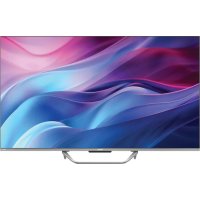
H65Q80FUX - TV HAIER - Free user manual and instructions
Find the device manual for free H65Q80FUX HAIER in PDF.



| Product Type | LED UHD TV |
| Screen Size | 164 cm (65 inches) |
| Resolution | 3840 x 2160 pixels (UHD) |
| TV System | PAL-B/G, SECAM-B/G |
| DTV Decoder | DVB-T, DVB-C, DVB-T2, DVB-S2 |
| Connectivity | 4 HDMI inputs, 2 USB ports, 1 LAN port, optical output, composite video input, L/R audio input, 2 RF inputs, headphone jack, CI slot |
| Wireless Network | Wi-Fi IEEE 802.11a/b/g/n/ac (2.4/5 GHz), Bluetooth v5.1 |
| Audio Power | 2 x 13.5 W RMS |
| Standby Power Consumption | ≤ 0.5 W |
| VESA Standard | 400 x 300 mm |
| Dimensions with Stand | 1446.4 x 904.7 x 313.8 mm |
| Dimensions without Stand | 1446.4 x 841.3 x 85.1 mm |
| Weight with Stand | 17.2 kg |
| Weight without Stand | 16.5 kg |
| Power Supply | 220-240 V ~ 50/60 Hz |
| Smart Functions | Google TV, Google Assistant, Chromecast built-in, Netflix, Prime Video, YouTube |
| Supported Audio/Video Formats | MPEG2, MPEG4, H.265, Dolby Vision, Dolby Atmos |
| Maintenance | Clean with a soft, dry cloth. Unplug before cleaning. Do not use chemical products. |
| Safety | Do not expose to water or humidity. Do not block ventilation openings. Use on a flat, stable surface. Wall mounting with UL-certified bracket. |
| Spare Parts and Reparability | Have any repairs done by a qualified technician. No user-serviceable parts inside. |
Frequently Asked Questions - H65Q80FUX HAIER
User questions about H65Q80FUX HAIER
0 question about this device. Answer the ones you know or ask your own.
Ask a new question about this device
Download the instructions for your TV in PDF format for free! Find your manual H65Q80FUX - HAIER and take your electronic device back in hand. On this page are published all the documents necessary for the use of your device. H65Q80FUX by HAIER.
USER MANUAL H65Q80FUX HAIER
Illustration in this guide are provided for reference only and may differ from actual product appearance. Product design and specification may be changed without notice.
TABLE OF CONTENTS
- IMPORTANT SAFETY INSTRUCTIONS 1
- PREPARATION 3
- PERIPHERAL CONNECTION AND CONTROLS 4
- MAKING CONNECTIONS 5
- OPERATING INSTRUCTIONS 6
- TROUBLESHOOTING 18
7.PRODUCT SPECIFICATION 19
1) Read these instructions.
2) Keep these instructions.
3) Heed all warnings.
4) Follow all instructions.
5) Do not use this apparatus near water.
6) Clean only with dry cloth.
7) Do not block any ventilation openings, install in accordance with the instructions.
8) Do not install near any heat sources such as radiations, heat registers, stoves, or other apparatus (including amplifiers) that produce heat.
9) Do not defeat the safety purpose of the polarized plug. If the provided plug does not fit into your outlet, consult an electrician for replacement of the obsolete outlet.
10) Protected the power cord from being walked on or pinched particularly at plugs, convenience receptacles, and the point where they exit from the apparatus.
11) Only use attachments/accessories specified by the manufacturer.
12) Unplug this apparatus during lighting storms or when unused for long periods of time.
13) Refer all servicing to qualified service personnel. Servicing is required when the apparatus has been damaged in any way, such as power-supply cord or plug is damaged, liquid has been spilled or objects have fallen into the apparatus, the apparatus has been exposed to rain or moisture, does not operate normally, or has been dropped.
14) Mains plug is used as the disconnect device, the disconnect device shall remain readily operable.
15) The ventilation should not be impeded by covering the ventilation openings with items, such as newspapers, table-cloth, curtains, etc.
16) No naked flame sources, such as lighted candles, should be placed on the apparatus.
17) Attention should be drawn to the environmental aspects of battery disposal.
18) The use of apparatus in moderate climate.
19) The apparatus shall not be exposed to dripping or splashing and that no objects filled with liquids, such as vases, shall be placed on the apparatus.
20) warning: To avoid any injury caused by lean of the product, please always ensure the whole product was placed within the table surface in horizontal.
Actual product may vary in appearance from above image
Where a plug on the power supply cord is used as the disconnect device, the installation instructions shall state that for pluggable equipment, the socket-outlet shall be easily accessible.

The symbol indicates that dangerous voltages constituting a risk of electric shock are present within this unit.
The symbol indicates that there are important operating and maintenance instructions in the literaturaccompanying this unit.
WARNING:
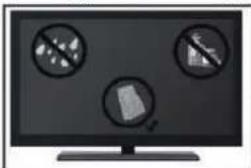
To reduce the risk of fire or electric shock, do not expose this apparatus to rain or moisture.
WARNING:
The batteries shall not be exposed to excessive heat such as sunshine, fire or the like.

This symbol indicates that this product incorporates double insulation between hazardous mains voltage and user accessible parts. When servicing use only identical replacement parts.

This marking indicates that this product should not be disposed with other household wastes. To prevent possible harm to the environment or human health from uncontrolled waste disposal, recycle it responsibly to promote the sustainable reuse of material resources. To return your used device, please use the return and collection systems or contact the retailer where the product was purchased. They can take this product for environmental safe recycling.
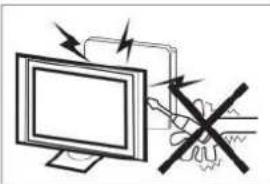
High voltages are used in the operation of this television receiver. Do not remove the cabinet back from your set. Refer servicing to qualified service personnel.
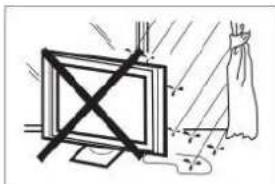
To prevent fire or electrical shock hazard, do not expose the television receiver to rain or moisture.
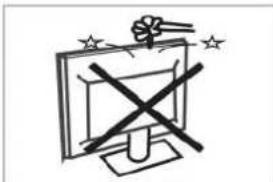
Do not drop or push objects into the television cabinet slots or openings. Never spill any kind of liquid on the television receiver.
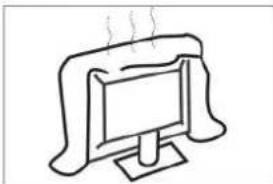
Do not block the ventilation holes in the back cover. Adequate ventilation is essential to prevent failure of electrical components.
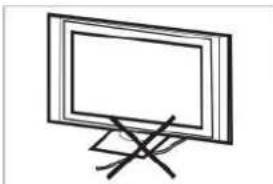
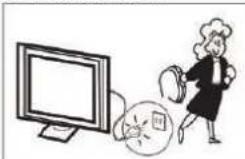
Do not trap the power supply cord under the television receiver.
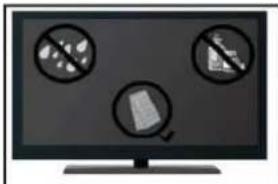
If you are going to clean the product, Unplug the TV, use soft fabric, no water, never chemicals.
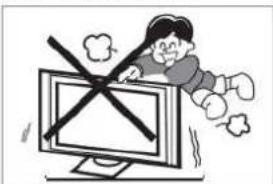
Never stand on, lean on, or suddenly push the television or its stand. You should pay special attention to children. Serious injury may result if it falls.

Do not place your television on an unstable cart, stand, shelf or table. Serious injury to an individual, and damage to the television, may result if it falls.
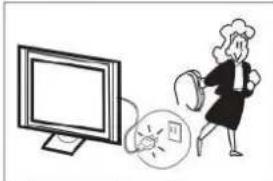
When the television receiver is not used for an extended period of time, it is advisable to disconnect the AC power cord from the AC outlet.
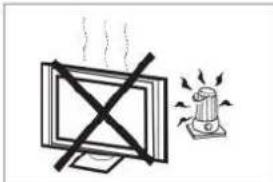
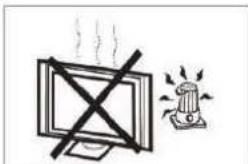
Avoid exposing the television receiver to direct sunlight and other sources of heat. Do not stand the television receiver directly on other products which give off heat, e.g. video cassette players and audio amplifiers. Do not place naked flame sources, such as lighted candles on the television.
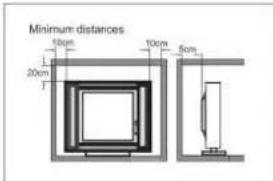
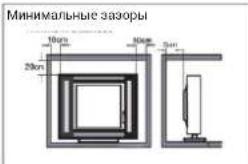
If the television is to be built into a compartment or similar enclosure, the minimum distances must be maintained. Heat build-up can reduce the service life of your television, and can also be dangerous.
Note:the use of apparatus in moderate climates.
Caution:
A television set may fall, causing serious personal injury or death. Many injuries, particularly to children, can be avoided by taking simple precautions such as:
ALWAYS use cabinets or stands or mounting methods recommended by the manufacturer of the televisionset.
ALWAYS use furniture that can safely support the television set.
ALWAYS ensure the television set is not overhanging the edge of the supporting furniture.
ALWAYS educate children about the dangers of climbing on furniture to reach the television set or its controls.
- ALWAYS route cords and cables connected to your television so they cannot be tripped over, pulled or grabbed.
NEVER place a television set in an unstable location.
NEVER place the television set on tall furniture (for example, cupboards or bookcases) without anchoring both the furniture and the television set to a suitable support.
NEVER place the television set on cloth or other materials that may belocatedbetween the televisionset and supporting furniture.
NEVER place items that might tempt children to climb, such as toys and remote controls, on the top of the television or furniture on which the television is placed.
If the existing television set is going to be retained and relocated, the same considerations as above should be applied.
IMPORTANT: Do not apply pressure to the screen display area which may compromise the integrity of the display. The manufacturer's warranty does not cover user abuse or improper installations.
ATTACHING THE STAND
IMPORTANT: The stand of the TV must be assembled prior to usage.
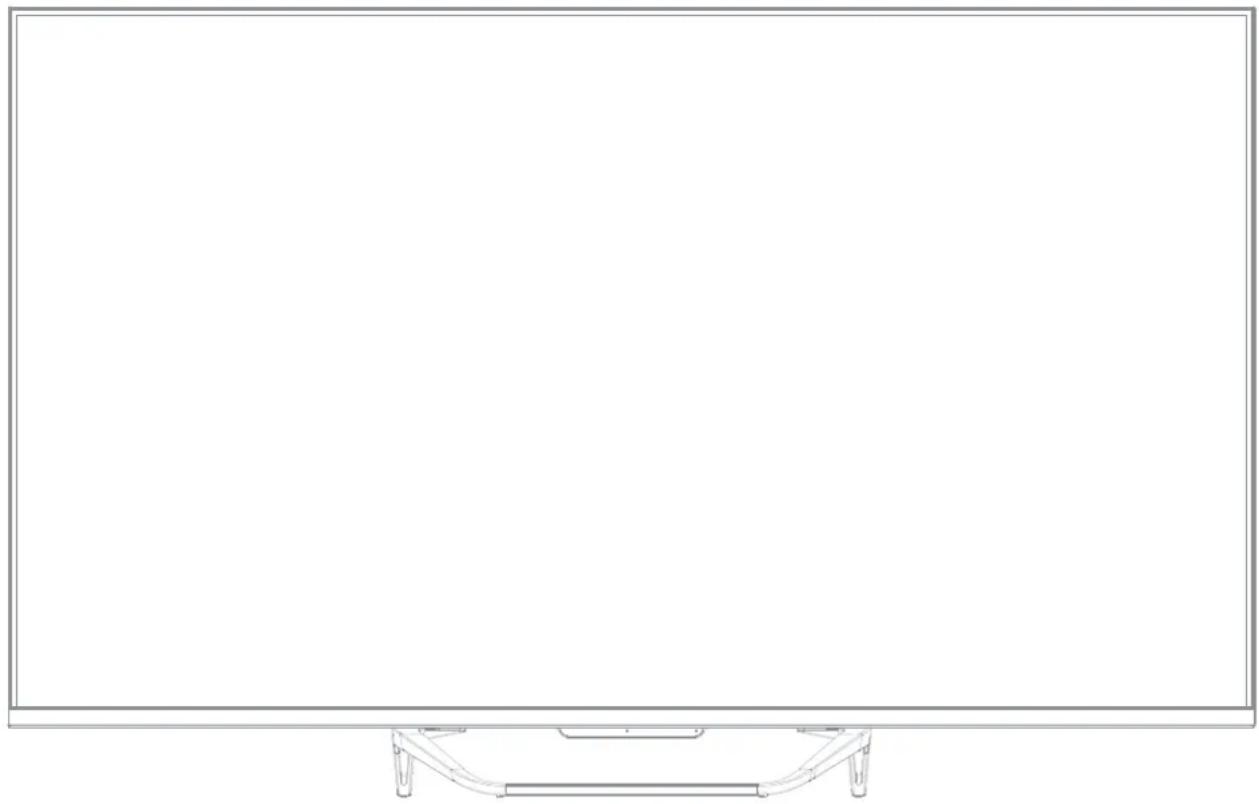
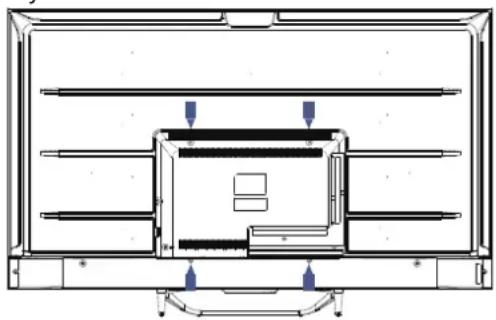
- Place TV unit face down on a soft and flat surface (blanket, foam, cloth, etc.) to Prevent any damage to the TV.
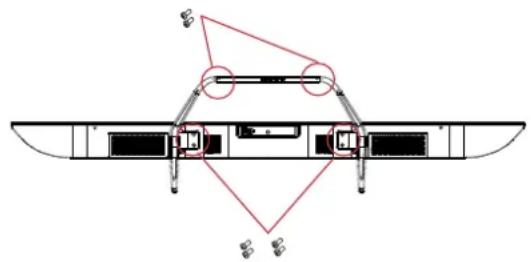
- Fix the stand to the bottom of the TV with the 6 screws.
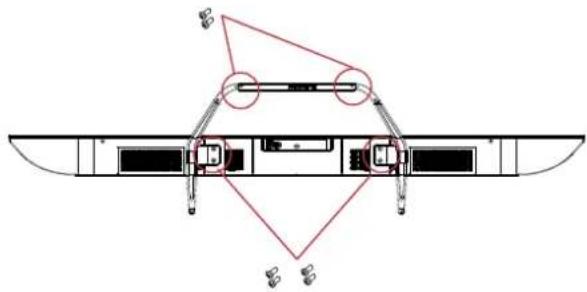

NOTE
The appearance of the product shall be in kind.
PREPARING YOUR LED TV FOR WALL MOUNTING
We suggest that you keep your TV at least 2.36 inches (60 mm) from the wall to prevent cable interference. Before mounting your TV on the wall, you need to remove the stand.
For your safety, please use only with a UL listed wall mount bracket with minimum weight of the TV without stand.
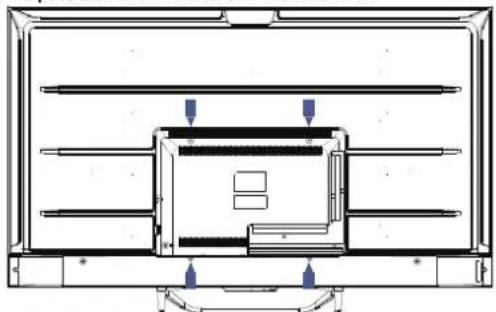
To attach a wall mount bracket to your TV:
- Remove the screws holding your TV to the stand.
- Remove the stand from your TV.
- Secure the wall mount bracket to the back of your TV using four screws. Follow the instructions of the user manual that came with the wall mount bracket to install.
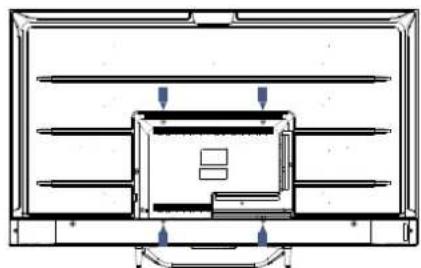

NOTE
The wall mount bracket are not included.
- Fix the wall mount screws (M6x12mm/4pcs) into the rear side of the LEDTV, using the torque of 12kgf, cm.
TURNING ON THE TV
- Install the stand and place the TV on a solid surface.
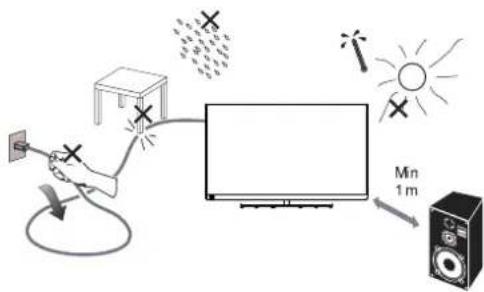
NOTE
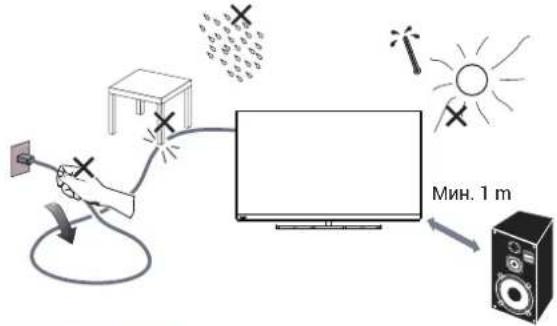
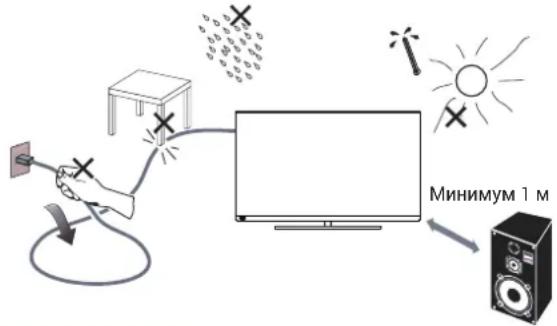
- Ensure that the TV is placed in a position to allow free flow of air. Do not cover the ventilation openings on the back cover.
- To prevent any unsafe situations, no naked flame sources, such as lighted candles, should be placed on or in the vicinity.
-
Avoid heat, direct sunlight and exposure to rain or water. The equipment shall not be exposed to dripping or splashing.
-
Connect the antenna cable or cable TV cable to the ANT IN aerial socket on the back of the TV set.
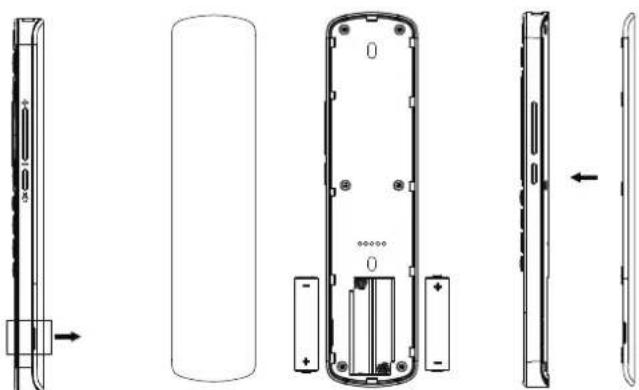
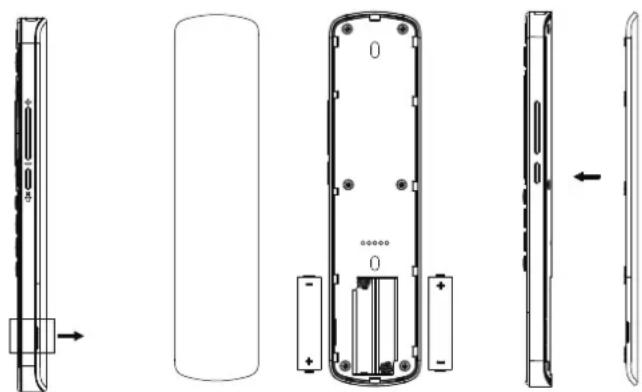
- Remote control:
Remove the cover of the battery compartment. Insert 2 batteries (Type AAA 1.5V).
CAUTION: Risk of fire explosion if the battery is replaced by an incorrect type.
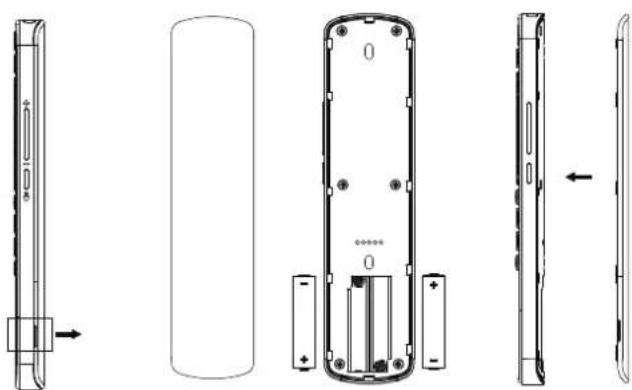
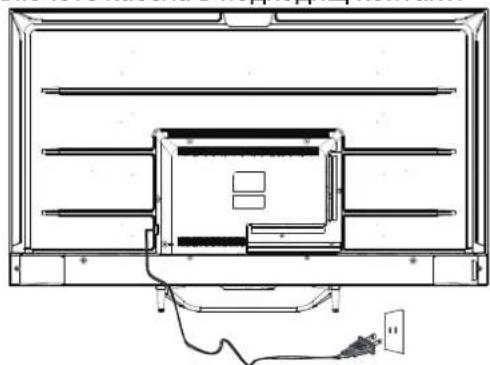
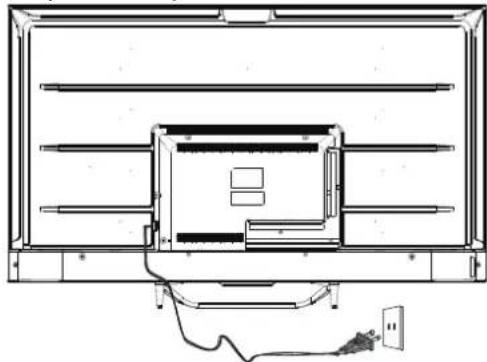
- Power:
Plug the cord into a working power outlet.
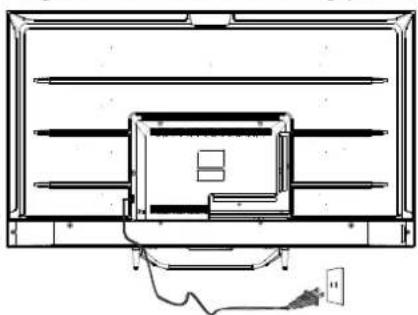
- Turn the TV on:
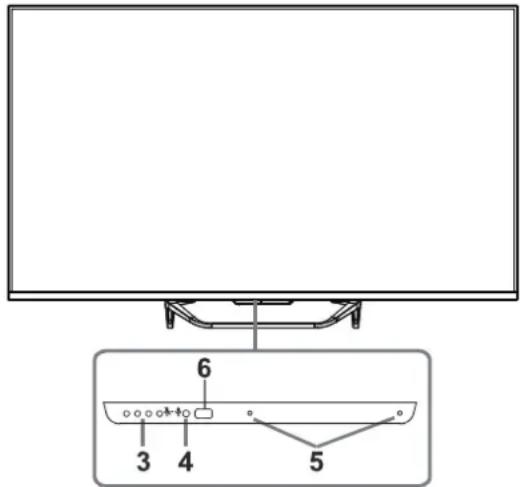
Press on the remote control or POWER button on the side control panel of the TV.
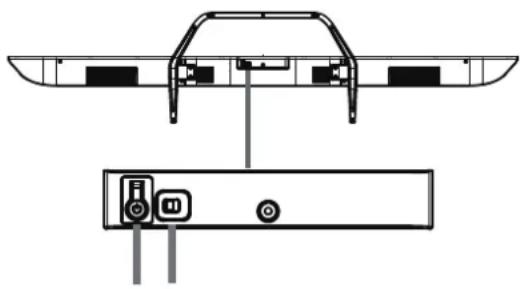
BUTTON CONTROL
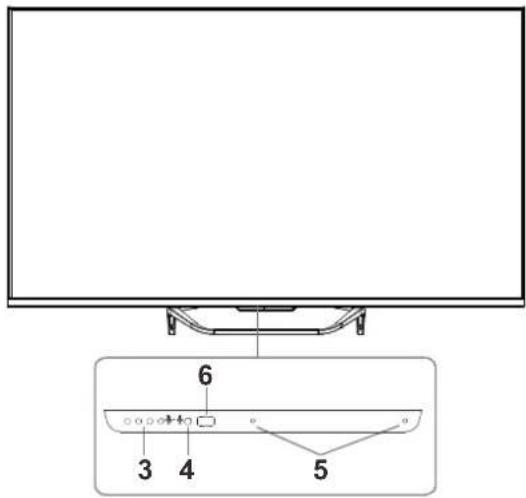
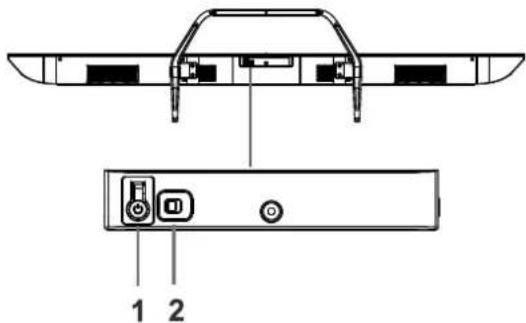
- Power On / Power Off
- Voice On/Voice Off
Enable Far Field Assistant
Disable Far Field Assistant
Turn it right to set it On, the indicator light will lighting and then go off, the voice function has been initiated. you can say "Ok Google" to use voice function, and the indicator will lighting when the TV receives the voice, then directly say your request. Turn it left to set it Off to exit voice function, indicator light will go to yellow.
- Far Field Assistant light
- Remote control signal receiver
- Voice signal receiver
- Power LED
NOTE
Make sure the TV is connected to the Internet before using Voice.
Please set it to On before using Voice.
Please log in to your GOOGLE account before using Voice.
ACCESSIONS
Remote Control - 1pcs
User's Manual - 1pcs
Screws - 6 pcs
Quick Start Guide - 1pcs
Warranty Card - 1pcs
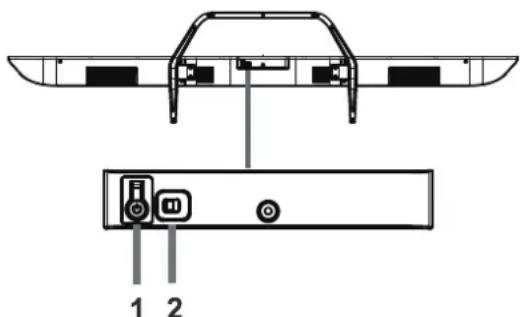
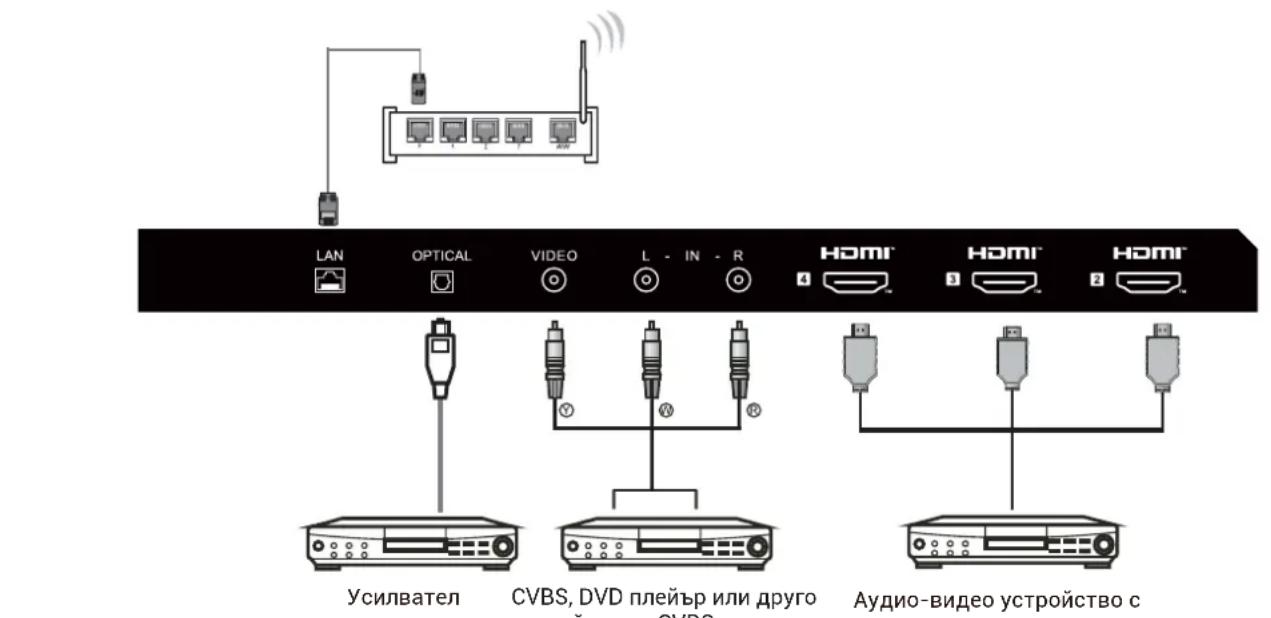
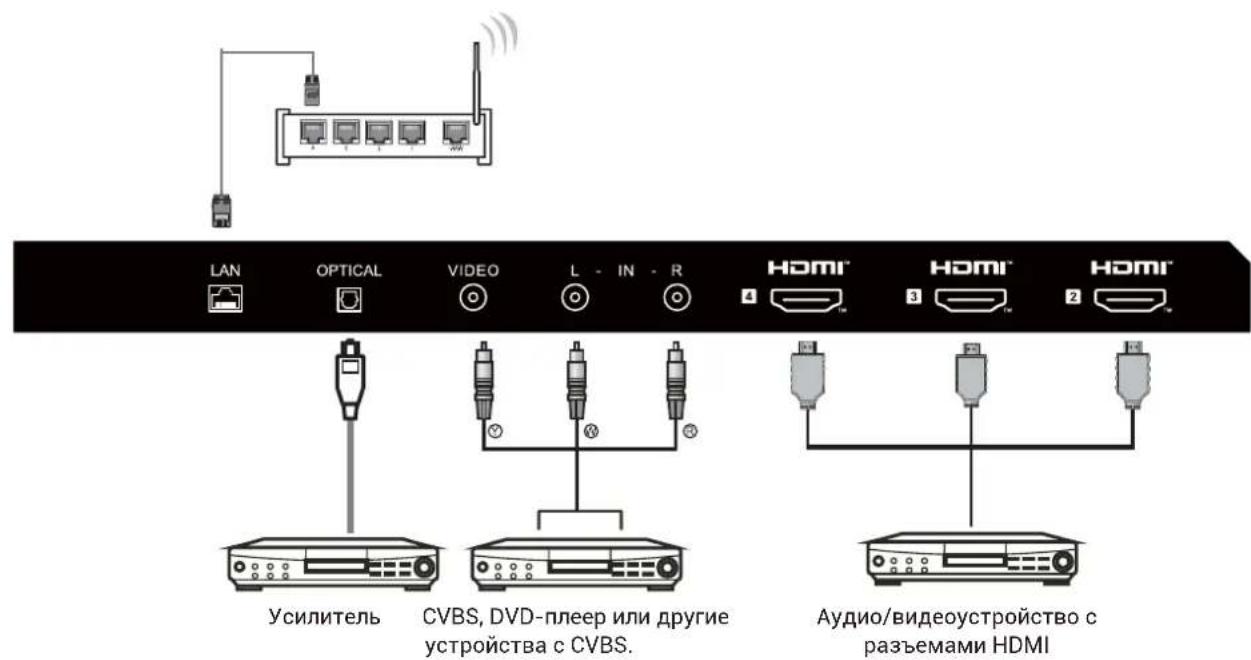
PERIPHERAL CONNECTION

All the terminals are(from left to right):
LAN, OPTICAL,VIDEO, L, R, HDMI4, HDMI3, HDMI2,

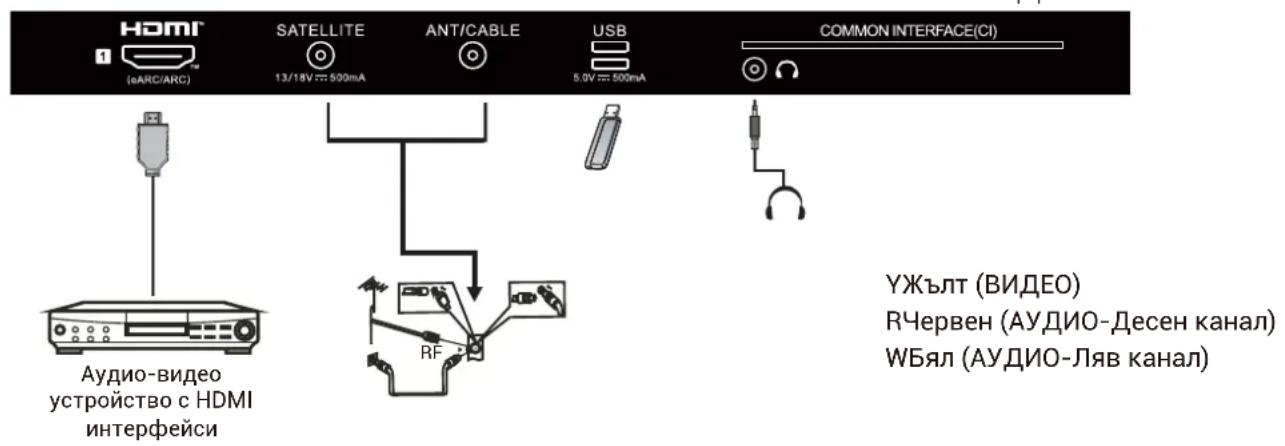
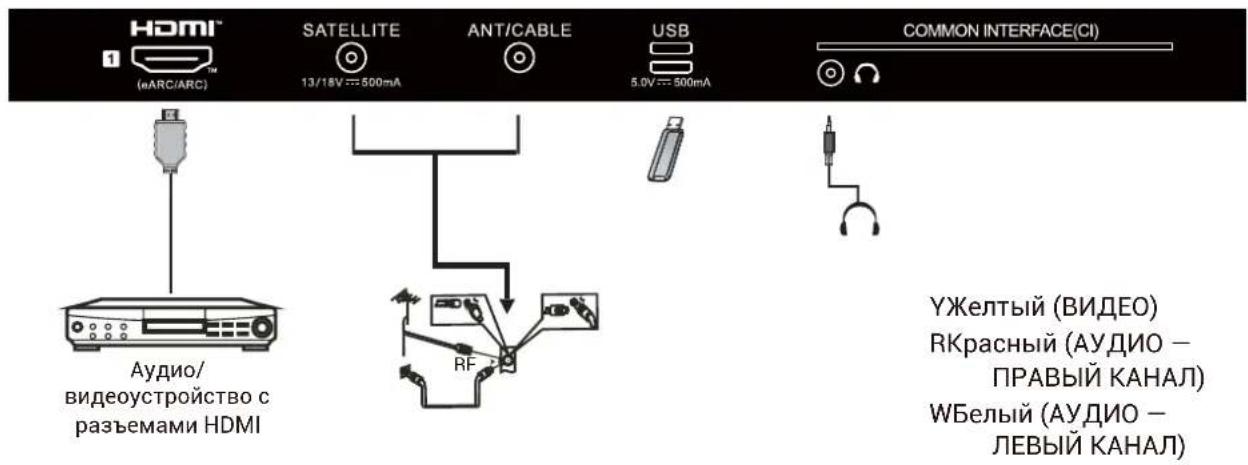
All the terminals are(from left to right):
HDMI1(eARC/ARC), LNB IN (SATELLITE), ANT IN (ANTENNA/CABLE), USB1, USB2, EARPHONE,CI.
AV EQUIPMENT
This TV provides one group of AV for convenient connection to VCR, DVD or other video equipment.
Please refer to the owner's manual of the equipment to be connected as well. You can use the input terminals on TV set rear as follows.
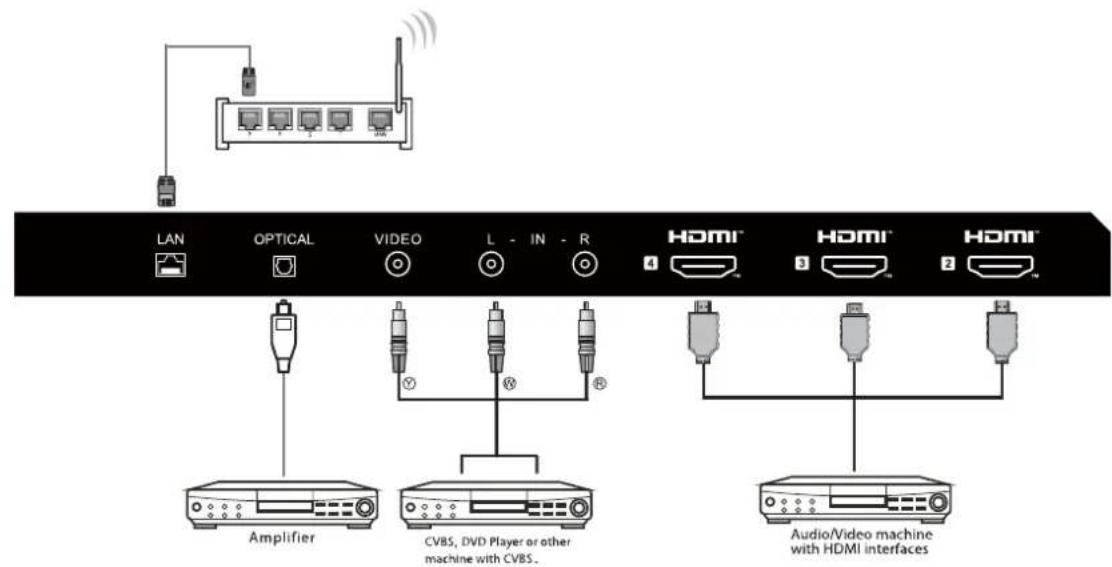
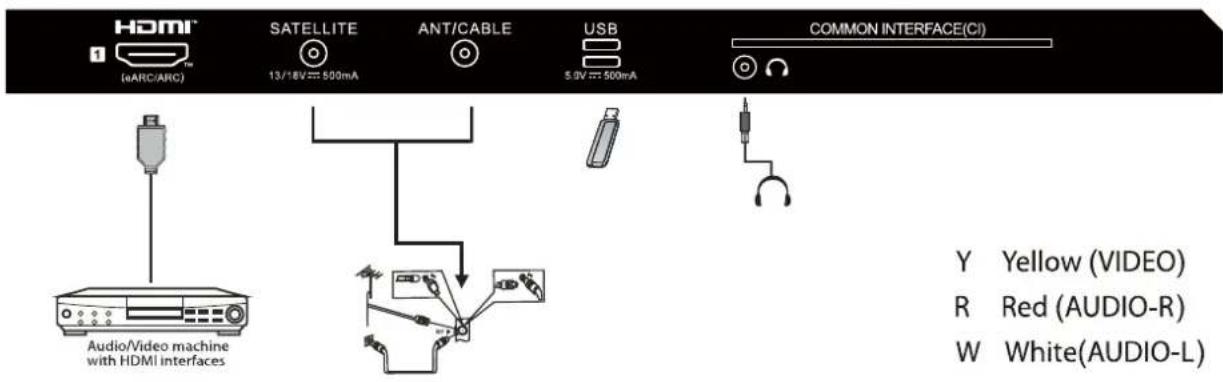
It can be connected to the following appliances: VCR, multi disc player, DVD, camcorder, video game or stereo system, etc....
Note:
Sometimes it will not support in different device because the device supply's nonstandard signal.
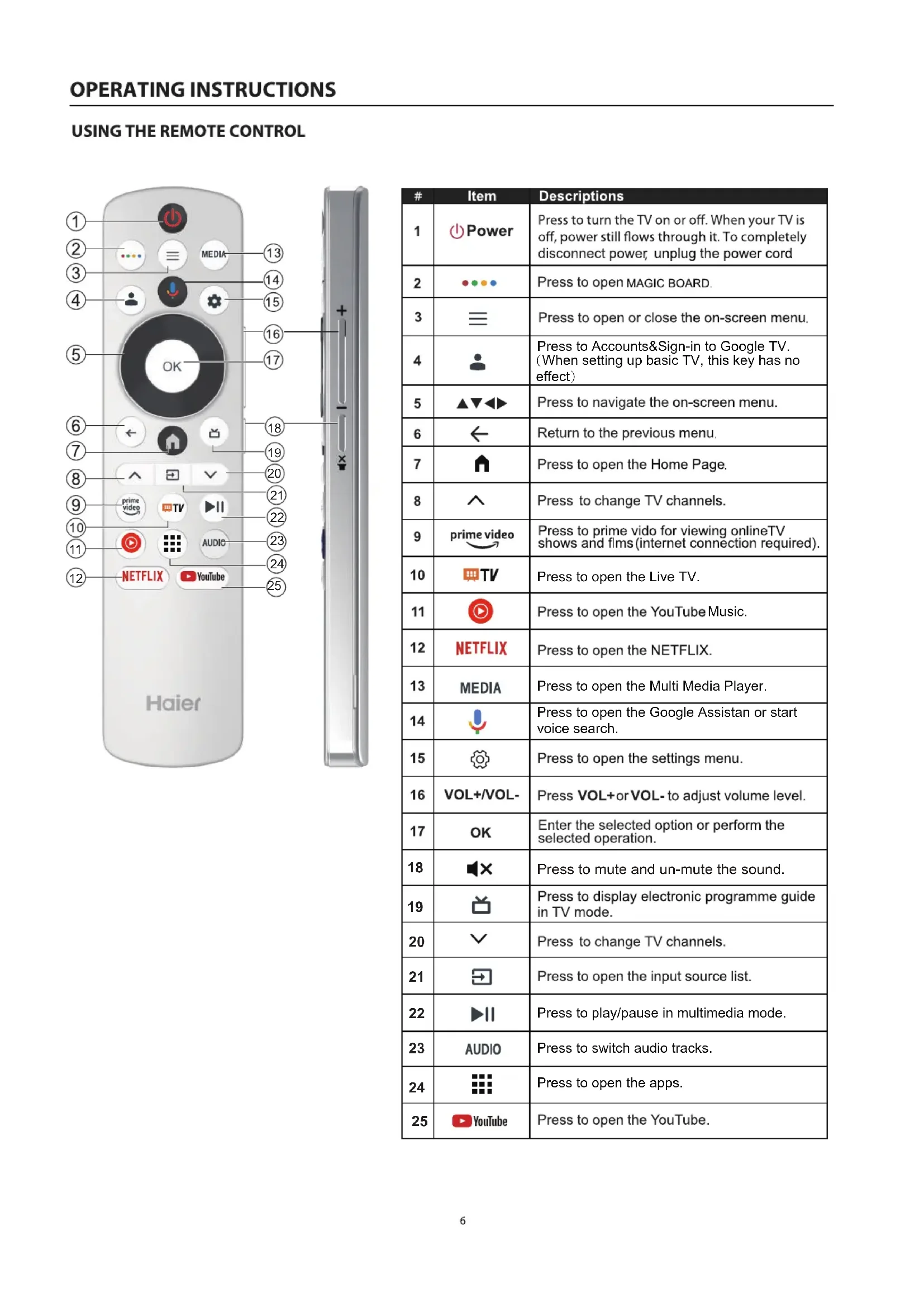
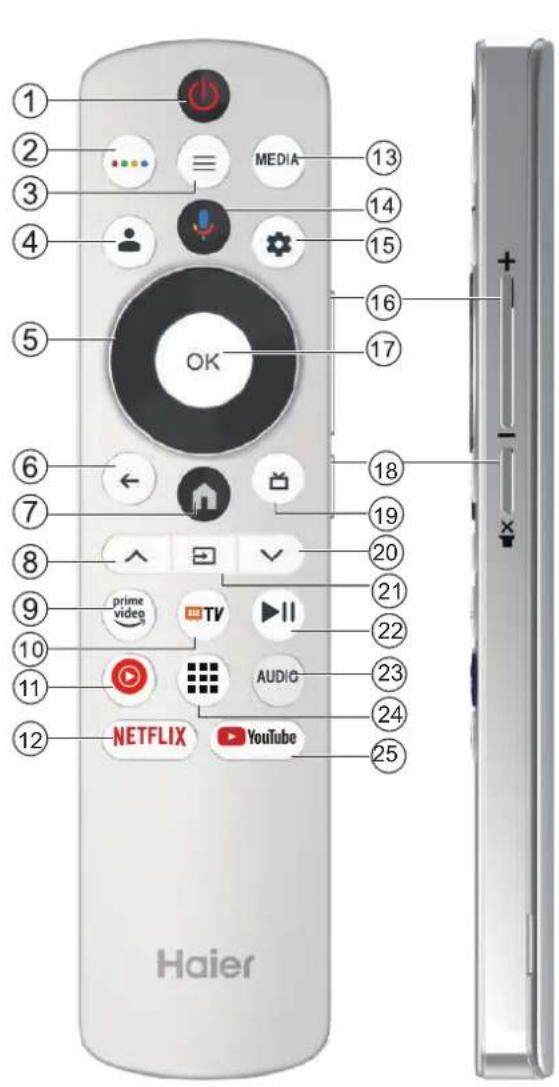
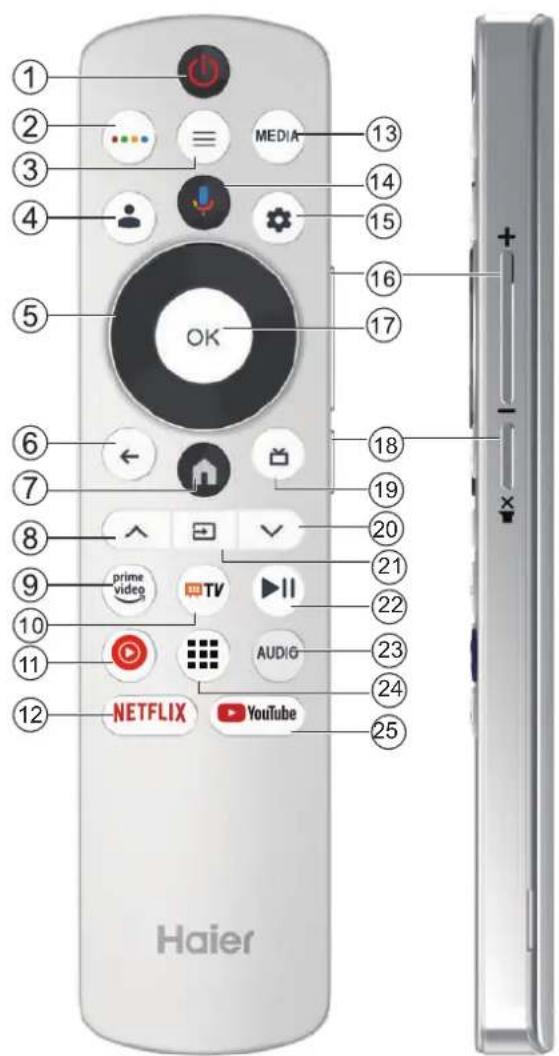
USING THE REMOTE CONTROL
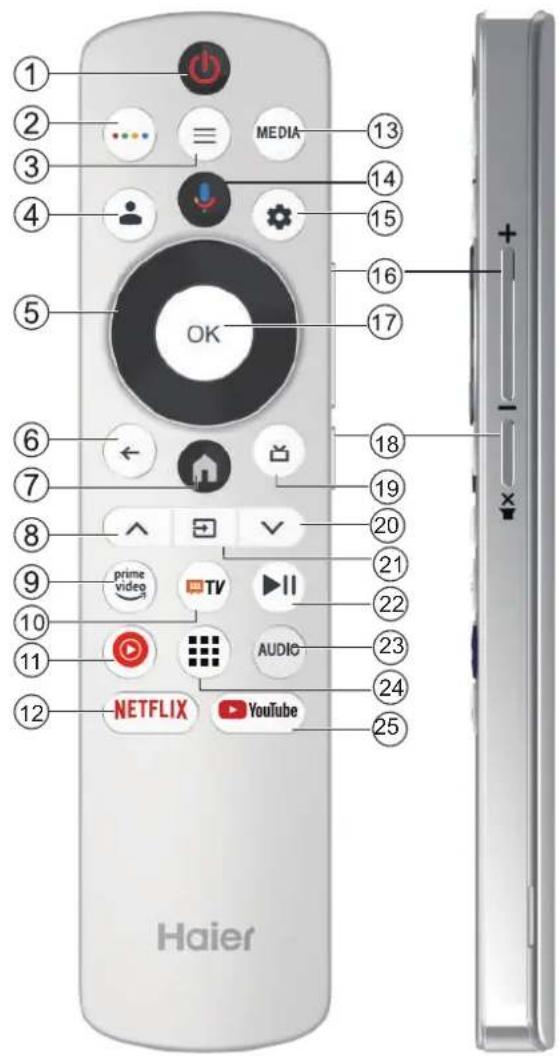
| # | Item | Descriptions |
| 1 | Power | Press to turn the TV on or off. When your TV is off, power still flows through it. To completely disconnect power, unplug the power cord |
| 2 | Press to open MAGIC BOARD. | |
| 3 | Press to open or close the on-screen menu. | |
| 4 | Press to Accounts&Sign-in to Google TV. (When setting up basic TV, this key has no effect) | |
| 5 | ▲▼▲ | Press to navigate the on-screen menu. |
| 6 | ← | Return to the previous menu. |
| 7 | Press to open the Home Page. | |
| 8 | Press to change TV channels. | |
| 9 | prime video | Press to prime video for viewing onlineTV shows and fims (internet connection required). |
| 10 | TV | Press to open the Live TV. |
| 11 | Press to open the YouTube Music. | |
| 12 | NETFLIX | Press to open the NETFLIX. |
| 13 | MEDIA | Press to open the Multi Media Player. |
| 14 | Press to open the Google Assistan or start voice search. | |
| 15 | Press to open the settings menu. | |
| 16 | VOL+/VOL- | Press VOL+or VOL- to adjust volume level. |
| 17 | OK | Enter the selected option or perform the selected operation. |
| 18 | Press to mute and un-mute the sound. | |
| 19 | Press to display electronic programme guide in TV mode. | |
| 20 | Press to change TV channels. | |
| 21 | Press to open the input source list. | |
| 22 | Press to play/pause in multimedia mode. | |
| 23 | AUDIO | Press to switch audio tracks. |
| 24 | Press to open the apps. | |
| 25 | YouTube | Press to open the YouTube. |
INITIAL SETUP
The first time you turn on your TV, the setup wizard will guide you through setting up basic settings. Please according to the Text Tip to First Time Setup.
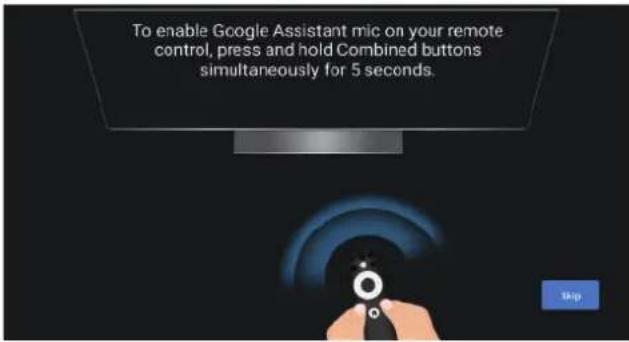
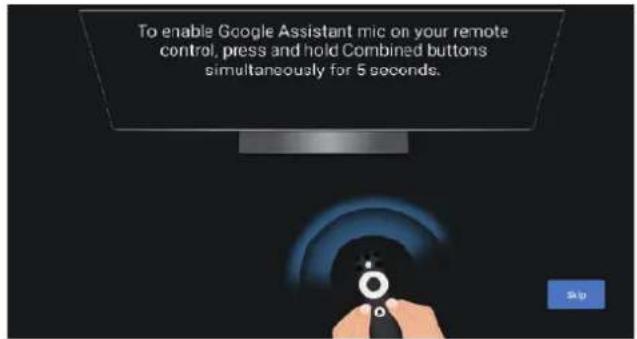
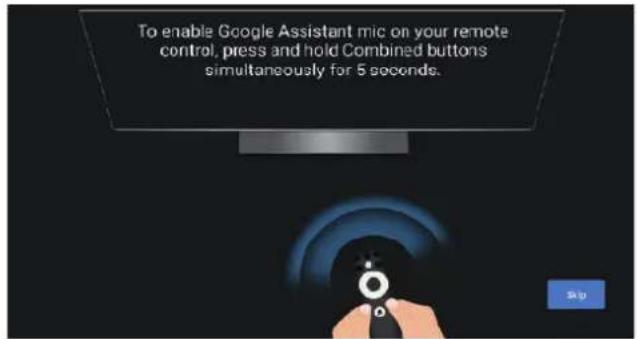
This function is used for the remote control pair code. After the code is successful, you can use the Bluetooth remote control to operate the TV.
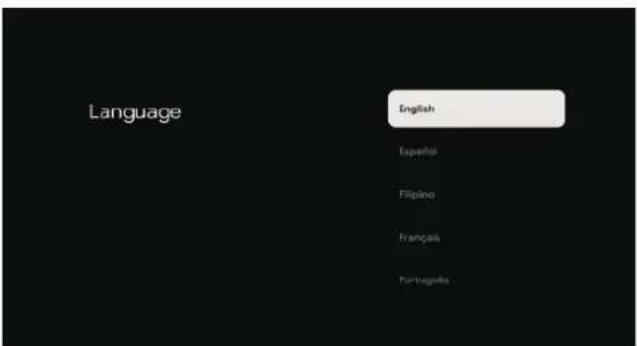
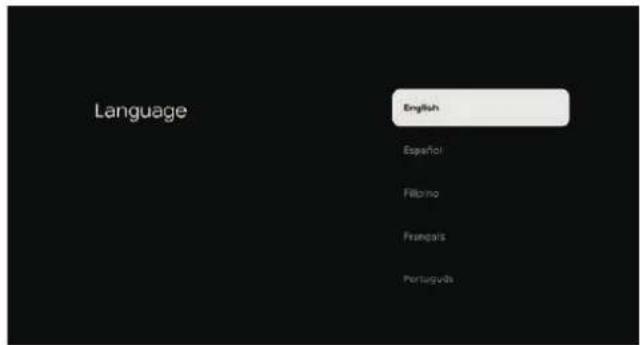
Press / to select the system language and press OK to confirm the language.
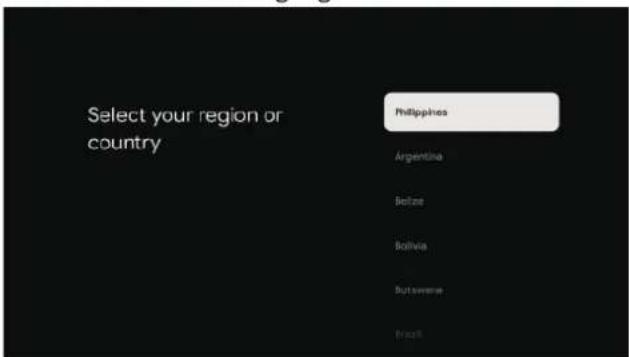
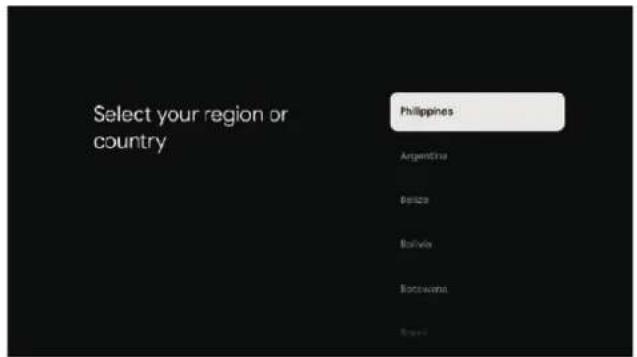
Press / to select the region/country of your device and press OK to confirm.
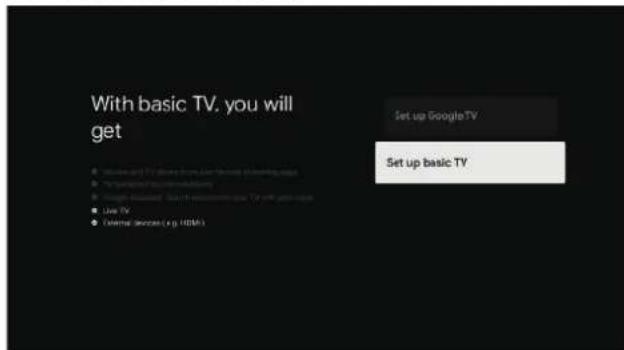
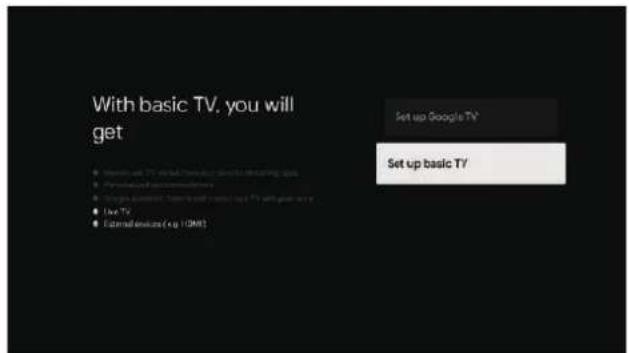
Press / to select the "Set up basic TV" of your device and press OK to complete the setup.
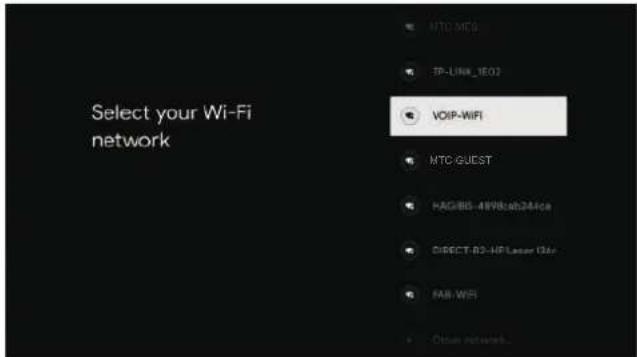
Press / to select the wifi to connect, press OK and enter the password to confirm the connection is successful.
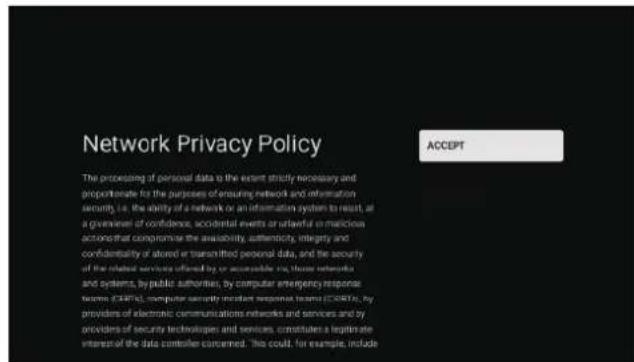
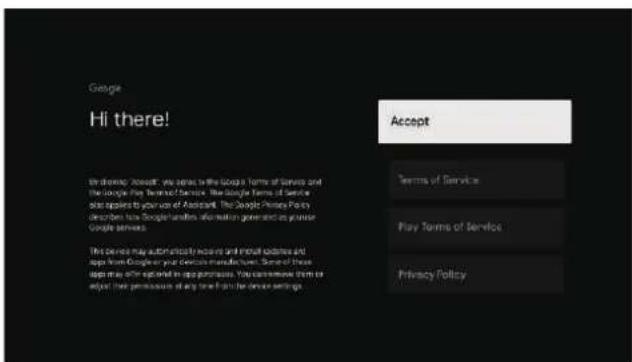
select "Accept" to accept this terms of the Network Privacy Policy.
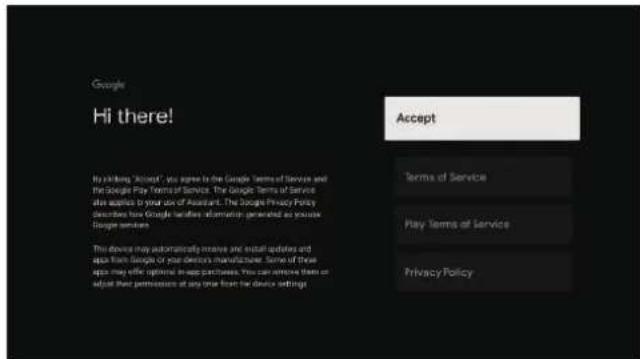
By accepting the Google Terms of Service to improve the product experience, select "Accept" to accept this condition.
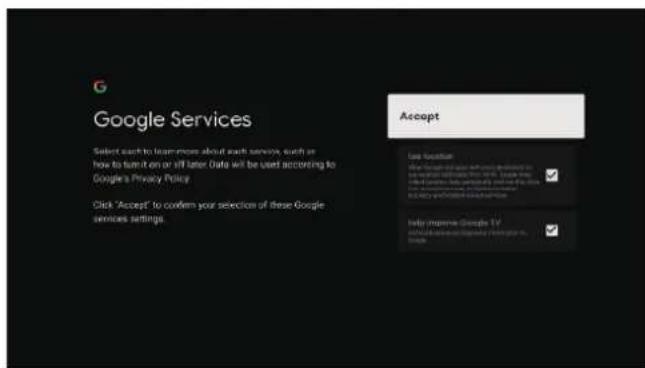
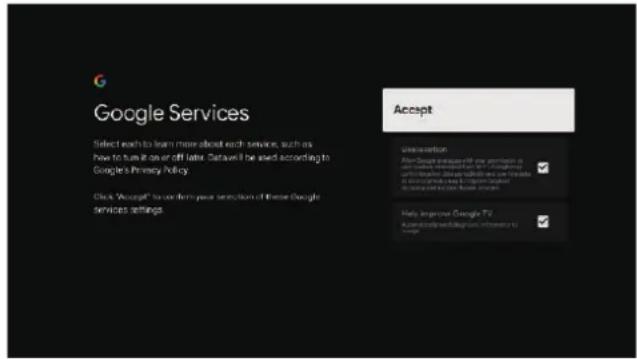
By accepting the Google Services to improve the product experience, select "Accept" to accept this condition.
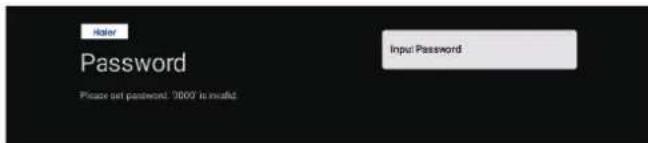
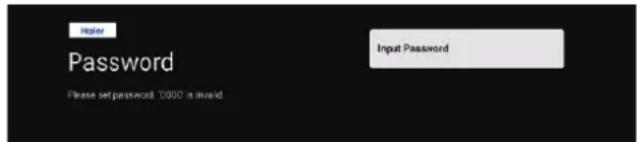
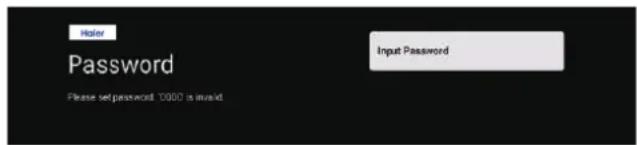
Used to set your device's password to ensure security and privacy.
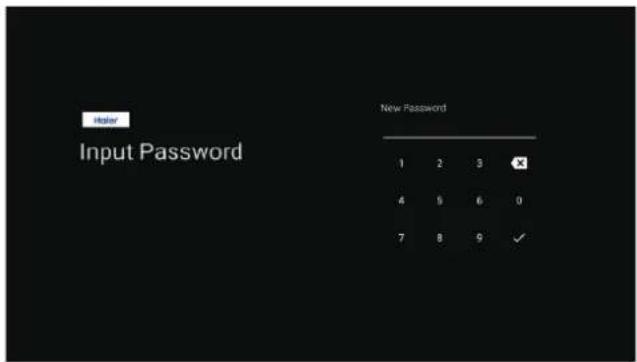
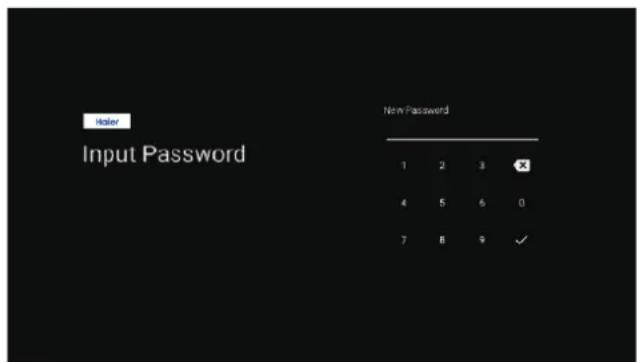
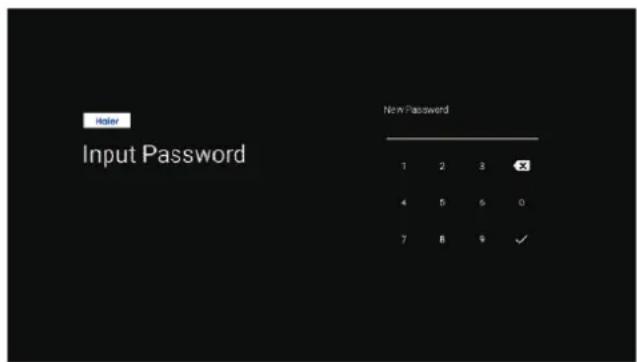
Use the remote control/soft keyboard to enter the 4-digit password automatically jump to the next interface.
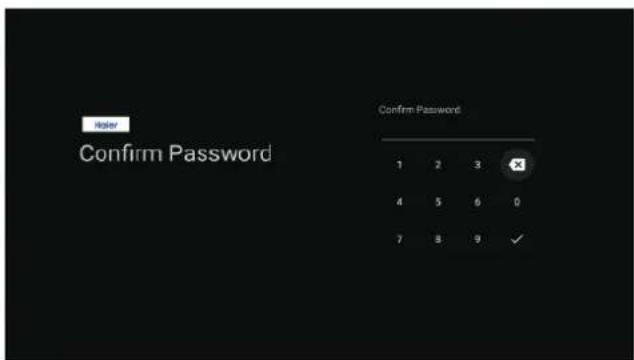
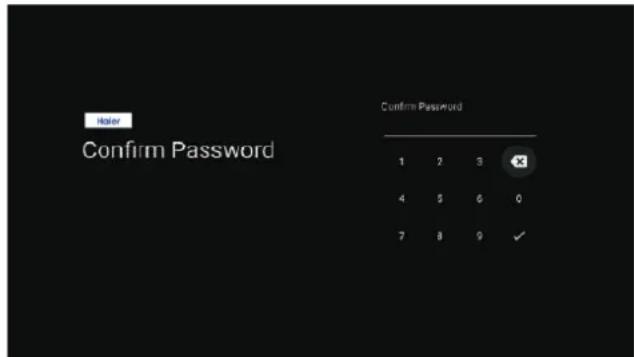
Confirm the password again and keep it consistent Use the remote control /soft keyboard to enter the password andcomplete the password.
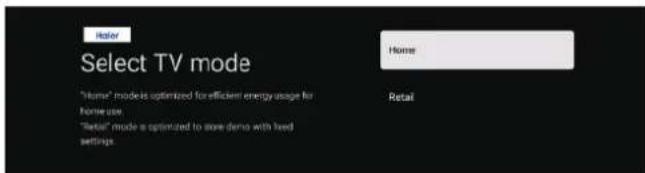
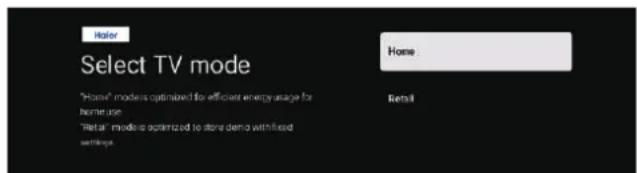
For selecting the mode, press / key to select Home mode and press OK.
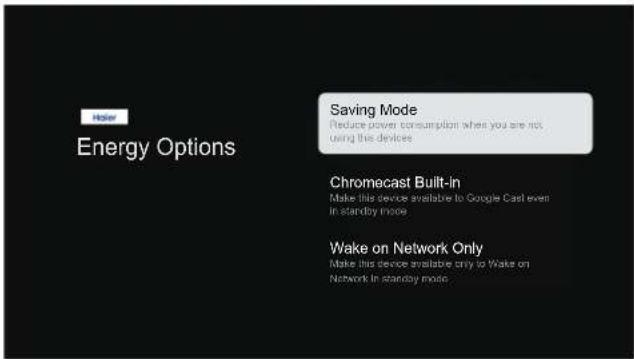
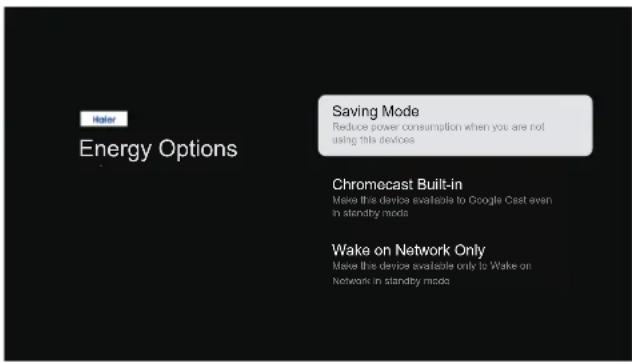
Select "Saving Mode" and proceed to the next step.
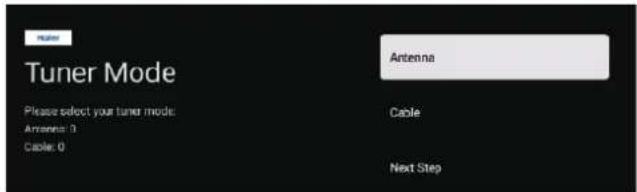
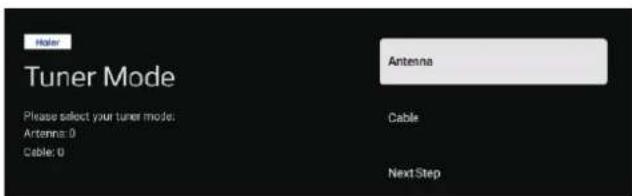
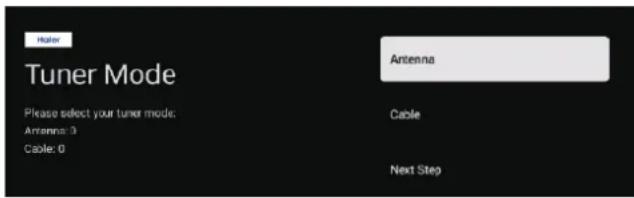
Select the Tuner mode for searching, press to select and press OK to confirm.
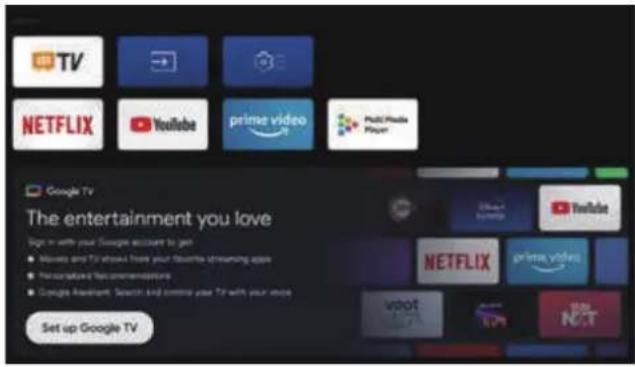
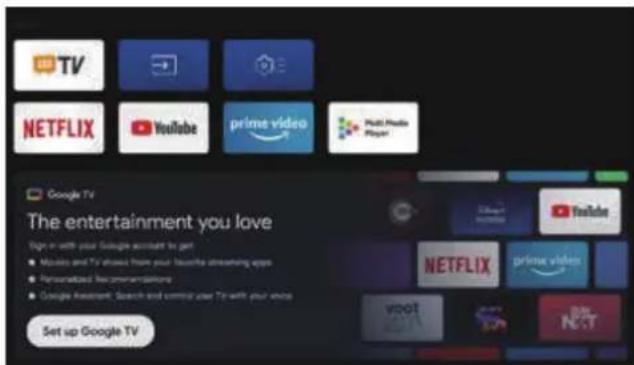
- Once in the user interface, you can switch from basic TV to Google TV settings.
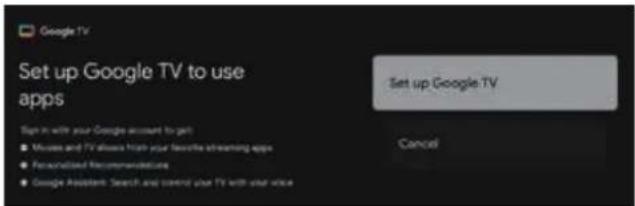
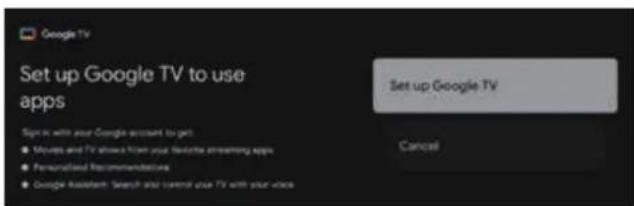
Press / to select the "Set up Google TV" of your device and press OK to complete the setup.
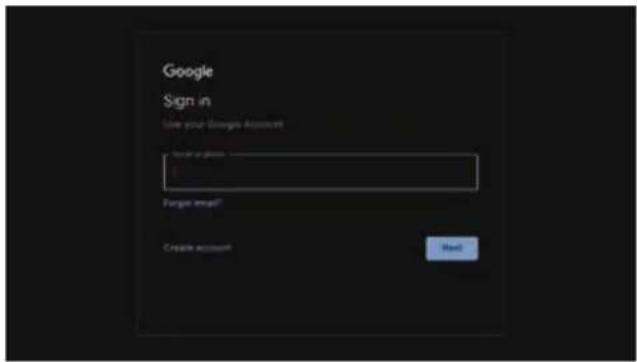
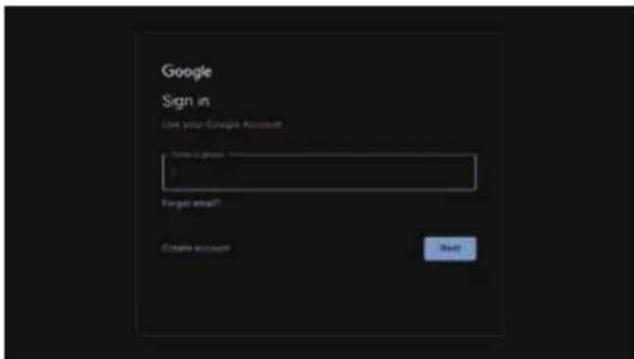
Use your Google Account Sign in
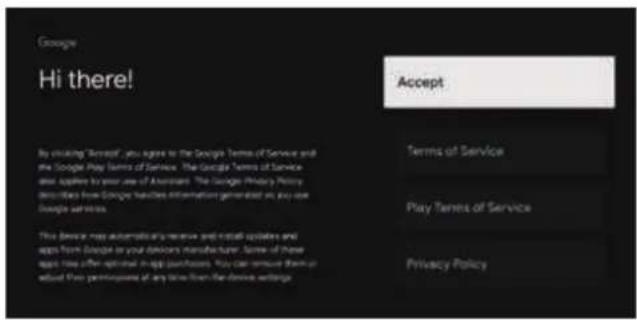
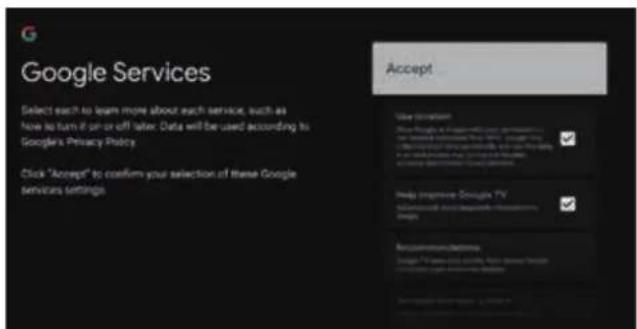
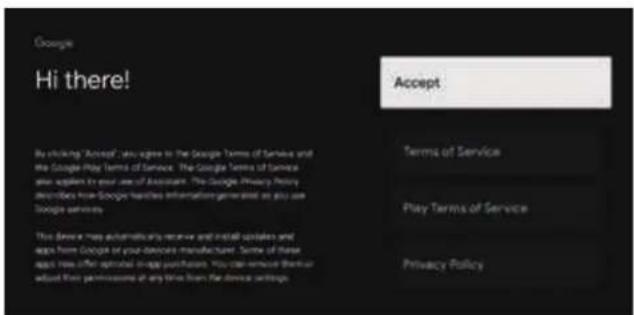
By accepting the Google Terms of Service to improve the product experience, select "Accept" to accept this condition.
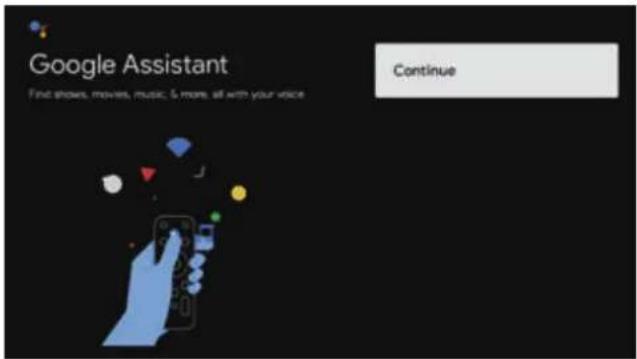
Press to select and press OK to continue.
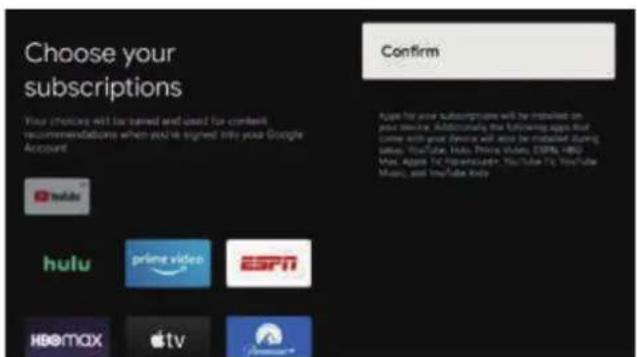
Press / to select the Choose your subscriptions and press OK.
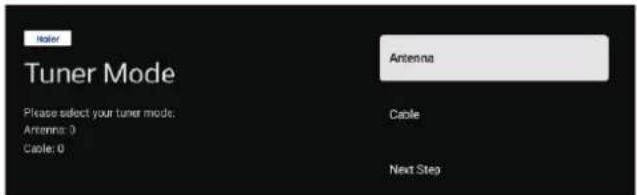

Your Google TV experience is ready and press OK to Start exploring.
HOME SCREEN
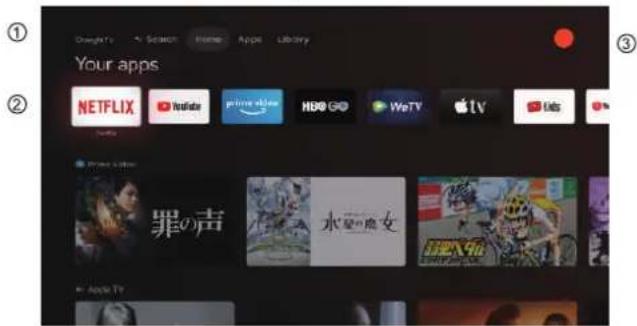
After completing the wizard Settings, you can watch TV and go to the home screen.

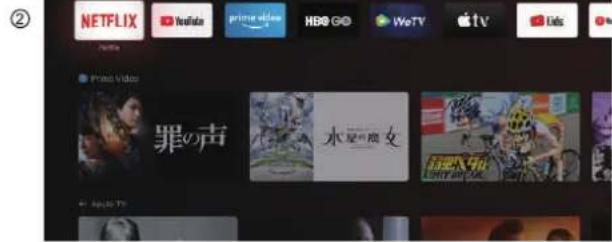
① Search Open the google assistant or start a voice search.
Home Open your TV homepage.
Apps Open the list of apps you've installed and add your favorite apps.
Library View the content purchased and leased under the user account.
② A list of applications you've installed and push content you've installed programs.
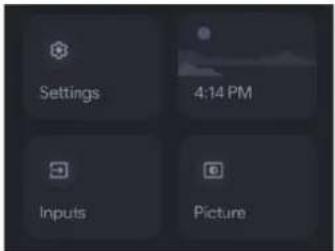
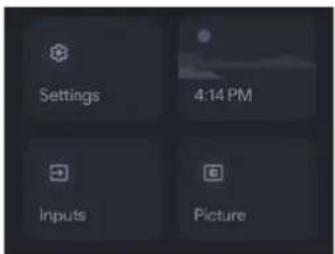
③ Open your account information, settings, time, inputs, and picture.
Settings:Various settings can be configured here For details on the settings,see the next explanation.
Inputs: Icon to select an input source.
Picture: The user can set the TV picture. See page 12 for detailed instructions on setup.
NAVIGATING THE ON-SCREEN MENU
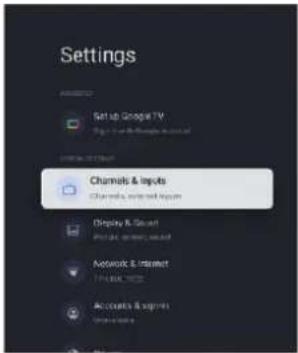
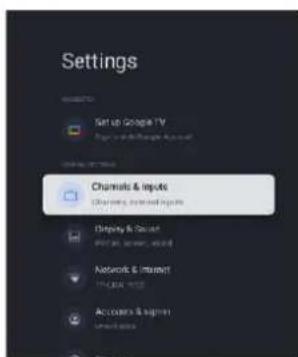
There are two ways to enter. First, in live TV, press the menu button to display TV options, press / to select the settings menu and press OK to confirm. Second, in the HOME interface, press the key to select the icon of the menu, press OK to confirm.

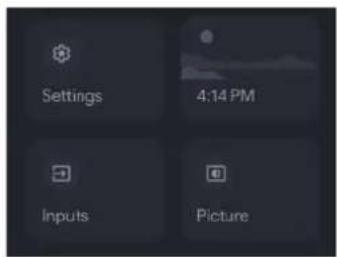
Press / button to select what you want set. Press OK to enter setting.
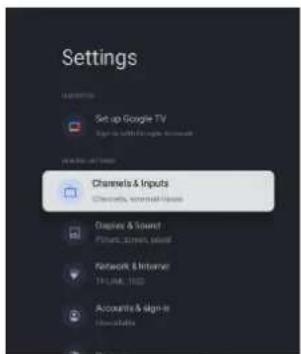
Press BACK to return to the previous menu. If the main menu is displayed, pressing BACK will close the onscreen menu.
CHANNELS
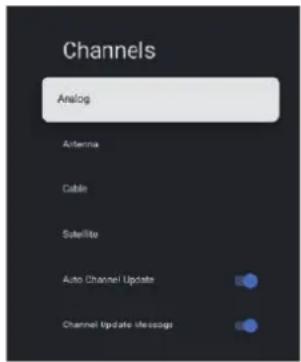
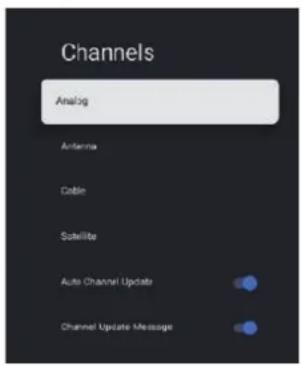
Menu->Settings->Channels & Inputs->Channels.
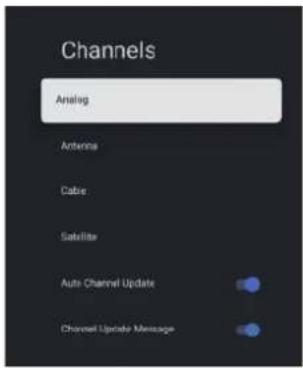
Analog/Antenna/Cable/Satellite - Press / button to select the option then press OK button to enter the sub-menu.
Auto Channel Update - Press OK button to choose ON/OFF. When selecting ON, the system will automatically scan and update channels after 5 minutes of standby. Channel Update Message - Press OK button to choose ON/OFF. When selecting ON, the system will show you the update message.
Note:The available source might differ depending on the model.
INPUTS
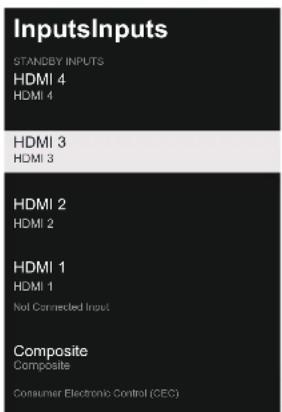
Menu->Settings->Channels & Inputs->Inputs
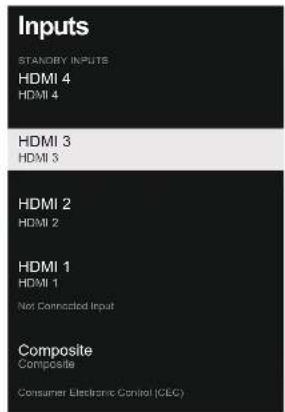
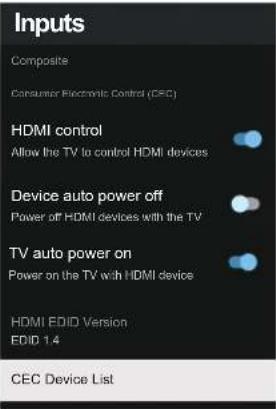
Inputs - Press / button to select the option then press OK button to enter the sub-menu.
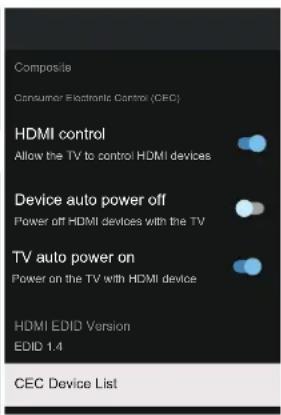
HDMI control - Press / button to select the option then press OK button to choose ON/OFF. Device auto power off - Press / button to select the option then press OK button to choose ON/OFF.
TV auto power on - Press / button to select the option then press OK button to choose ON/OFF. HDMI EDID Version - show EDID version.
CEC Device List - Press / button to select the option then press OK button to enter the sub-menu.
DISPLAY & SOUND
Menu->Settings->Display & Sound
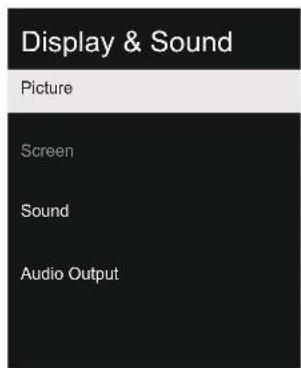
In this menu, you can set picture, sound and audio output of TV.
- Press / button to select what you want set.
- Press OK button to confirm.
- After finishing your adjustment, Press BACK button to return to the previous menu.
PICTURE
Menu->Settings->Display & Sound->Picture.
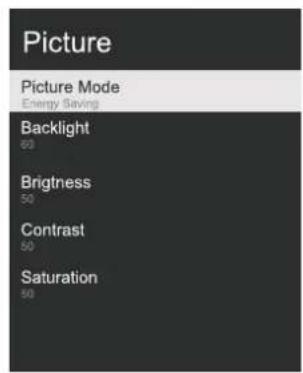
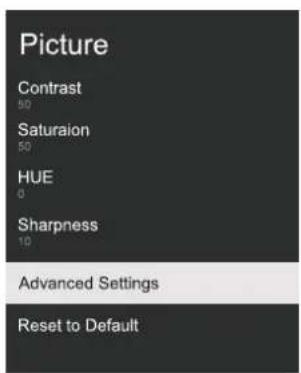
Picture Mode - Press / button to select the option then press OK button to enter the submenu. (Optional: user, Standard, Vivid, Sport, Movie, Game, Energy saving).
Backlight/Brightness/Contrast/Saturation/HUE/ Sharpness - Press / button to select the option then press OK button to enter.
Press to decrease the parameter. Press to increase the parameter.
Advanced Settings - Press / button to select the option then press OK button to enter the sub-menu.
Reset to Default - Reset all settings to the factory defaults.
SOUND
Menu->Settings->Display & Sound->Sound.
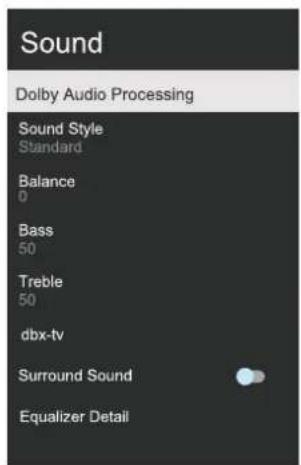
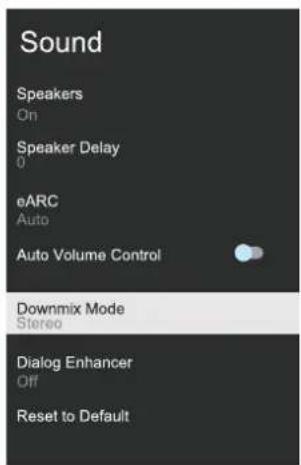
Dolby Audio processing-Press / button to select the option then press OK button to enter the sub-menu.
Sound style - Press / button to select the option then press OK button to enter the submenu. (Optional: user, Standard, Night, Sports, Movie, Music, News).
Balance/Bass/Treble - Press / button to select the option then press OK button to enter. Press to decrease the parameter. Press to increase the parameter.
dbx - tv - Press▲/▼button to select the option then press OK button to enter the sub-menu.
Surround Sound - Press / button to select the option then press OK button to choose ON/OFF.
Equalizer Detail - Press / button to select the option then press OK button to enter the sub-menu.
Speakers - Press / button to select the option then press OK button to choose ON/OFF.
Speaker Delay- Press / button to select the option then press OK button to enter.
Press to decrease the parameter. Press to increase the parameter.
eARC - Press / button to select the option, then press OK button to choose Auto/OFF.
Auto Volume Control - Press / button to select the option then press OK button to choose ON/OFF.
Downmix Mode- Press / button to select the option then press OK button to enter the submenu. (Optional: Stereo, Surround).
Dialog Enhancer- Press / button to select the option then press OK button to enter the submenu. (Optional: Off, Low, Medium and High).
Reset to Default - Reset all settings to the factory defaults.
AUDIO OUTPUT
Menu->Settings->Display & Sound->Audio Output.
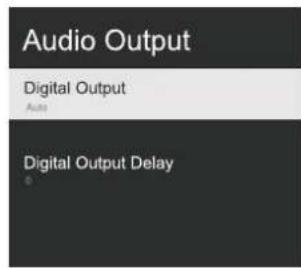
Digital Output - Press / button to select the option then press OK button to enter the sub-menu. (Optional:Auto, Bypass, PCM, Dolby Digital Plus and Dolby Audio-Dolby Digital).
Digital Output Delay -Press / button to select the option then press OK button to enter.
Press to decrease the parameter.
Press to increase the parameter.
NETWORK
Menu->Settings->Network & Internet
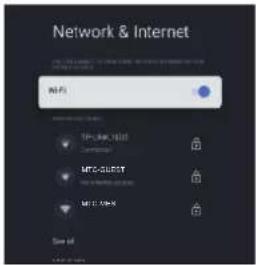
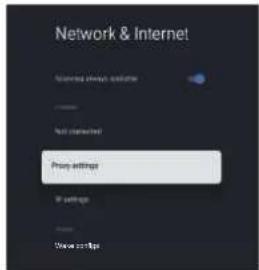
- Press / button to select what you want set.
- Press OK button to confirm.
- After finishing your adjustment, Press OK button save and return to the pervious menu.
ACCOUNTS & SIGN IN
- Menu->Settings->Accounts & sign-in.
- In the HOME interface, press the / button to Select "Set up Google TV" and proceed to the next step.
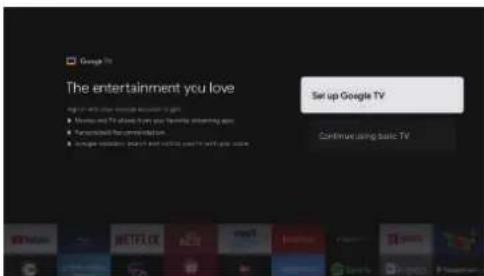
Select "Set up Google TV" and proceed to the next step, enter your account and password. And follow the prompts to complete the relevant settings.
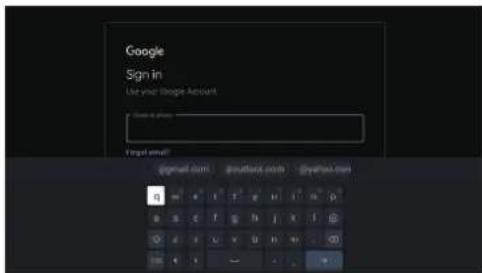
PRIVACY
Menu->Settings->Privacy.
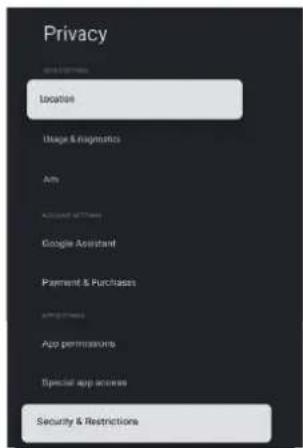
In this menu, you can set location, usage & diagnostics, etc of TV.
- Press / button to select what you want set.
- Press OK button to confirm.
- After finishing your adjustment, Press BACK button to return to the previous menu.
LOCATION
Menu->Settings->Privacy ->Location.
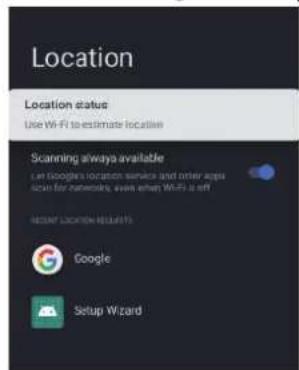
Location status - Press / button to select the option then press OK button to enter the sub-menu. (Optional: Use Wi-Fi to estimate location, Off)
Scanning always available - Press / button to select the option then press OK button to choose ON/OFF.
USAGE & DIAGNOSTICS
Menu->Settings->Privacy->Usage & diagnostics.
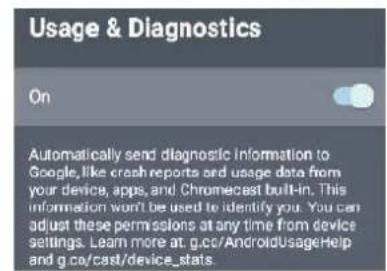
Usage & diagnostics - Press / button to select the option then press OK button to choose ON/OFF.
APPS
Menu->Settings->Apps.
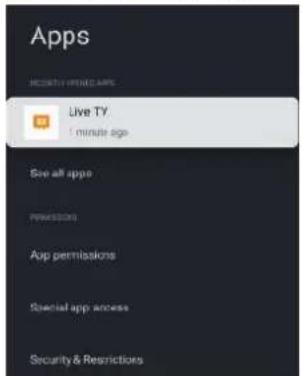
In this menu, you can set the APP permissions, and read the app lists
- Press / button to select what you want set.
- Press OK button to confirm.
- After finishing your adjustment, press BACK button to return to the previous menu.
SYSTEM
Menu->Settings->System.
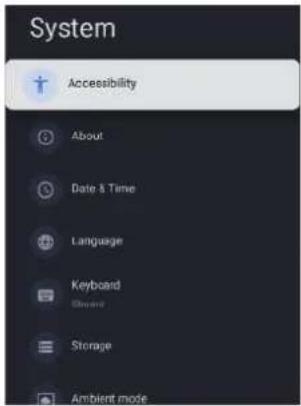
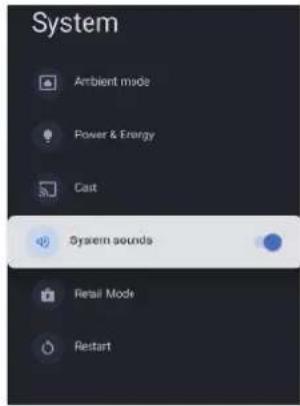
In this menu, you can read the information and settings of TV.
- Press / button to select what you want set.
- Press OK button to confirm.
- After finishing your adjustment, Press BACK button to return to the previous menu.
System sounds - Press / button to select the option then press OK button to choose ON/OFF.
For details on the system, see the next explanation.
ACCESSIBILITY
Menu->Settings->System->Accessibility.
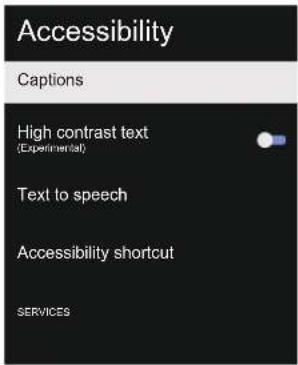
Captions - Press / button to select the option then press OK button to enter the sub-menu.
High contrast text - Press / button to select the option then press OK button to choose ON/OFF.
Text to speech - Press / button to select the option then press OK button to enter sub-menu.
Accessibility shortcut - Press / button to select the option then press OK button to enter sub-menu.
ABOUT
Menu->Settings->System ->About.
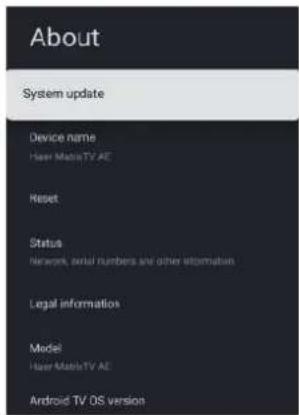
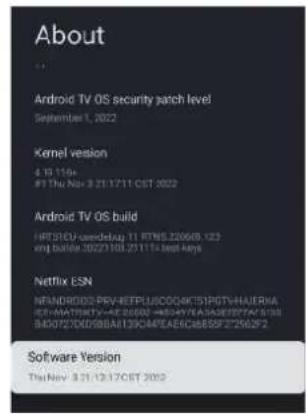
In this menu, you can System update, Reset and read the information of TV.
- Press / button to select what you want.
- Press OK button to confirm.
- After finishing your adjustment, Press BACK button to return to the previous menu.
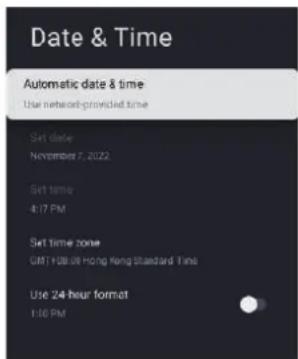
DATE&TIME
Menu->Settings->System->Date & Time.
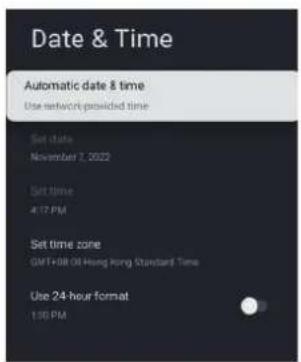
Automatic date & time - Press / button to select the option then press OK button to enter the sub-menu.
(Optional: Use network-provided time, Off)
NOTE
- When the Automatic date & time to OFF, you can use Manually adjusting date & time.
Set date - Press / button to select the option then press OK button to enter the sub-menu.
Set time - Press / button to select the option then press OK button to enter the sub-menu.
Set time zone - Press / button to select the option then press OK button to enter the sub-menu.
Use 24-hour format - Press / button to select the option then press OK button to choose ON/OFF.
LANGUAGE
Menu->Settings->System->Language.
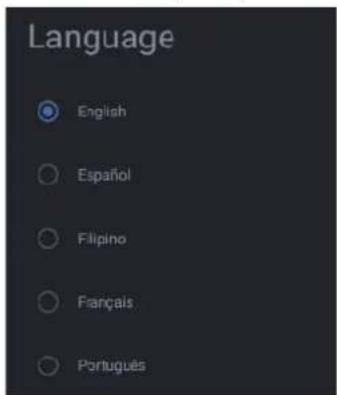
Language - Press / button to select the option then press OK button to enter the select language.
KEYBOARD
Menu->Settings->System->Keyboard.
Keyboard
Current keyboard Gboard
Gboard Settings
Manage keyboards
Current keyboard - Press / button to select the option then press OK button to enter the sub-menu.
Gboard Settings - Press / button to select the option then press OK button to enter the sub-menu.
Manage keyboards - Press / button to select the option then press OK button to enter the submenu.
STORAGE
Menu->Settings->System->Storage.
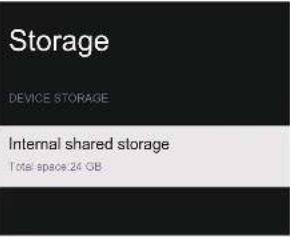
Internal shared storage - Press / button to select the option then press OK button to enter the sub-menu.
AMBIENT MODE
Menu->Settings->System->Ambient mode.
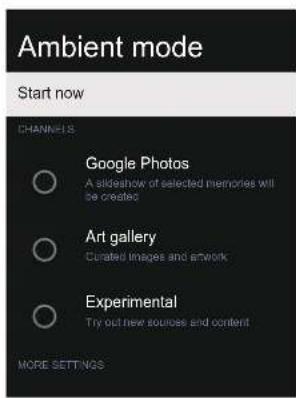
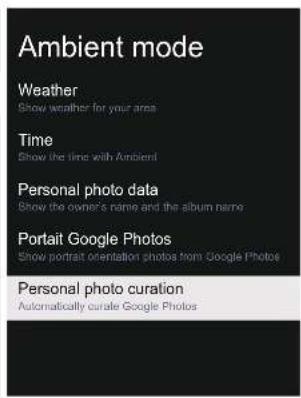
In this menu, you can set the ambient mode.
- Press / button to select what you want set.
- Press OK button to confirm.
- After finishing your adjustment, Press BACK button to return to the previous menu.
POWER & ENERGY
Menu->Settings->System->Power & Energy.
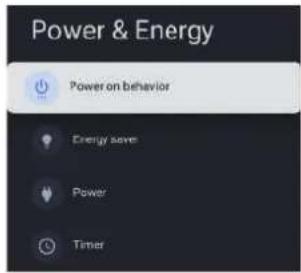
In this menu, you can set the power & energy. (power on behavior, energy saver, power and timer)
- Press / button to select what you want set.
- Press OK button to confirm.
- After finishing your adjustment, Press BACK button to return to the previous menu.
POWER ON BEHAVIOR
Menu->Settings->System->Power & Energy ->Power on behavior.
Power on behavior
When TV turns on display.

Google TV home screen

Last used input
Press / button to select the option then press OK button to confirm.
ENERGYSAVER
Menu->Settings->System->Power & Energy ->Energy saver.
Energy saver
When inactive
15 minutes
When inactive - Press / button to select the option then press OK button to enter the sub-menu.
(Optional:15 minutes,20 minutes,30 minutes, 1 hour,4 hours,8 hours,12 hours,24 hours, Never).
POWER
Menu->Settings->System->Power & Energy ->Power.
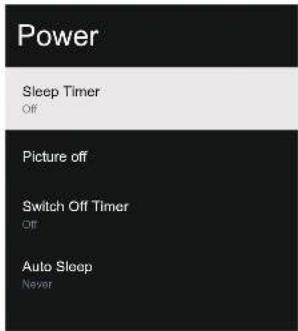
Sleep Timer - Press / button to select the option then press OK button to enter the sub-menu.
(Option:off,10 minutes,20 minutes,30 minutes, 40 minutes,50 minutes,60 minutes,90 minutes, 120 minutes)
Picture off- Press / button to select the option then press OK button to confirm.
Switch off timer-Press / button to select the option then press OK button to enter the sub-menu.
(Option:off,30 minutes,60 minutes,90 minutes, 120 minutes,150 minutes,180 minutes,210 minutes, 240 minutes)
Auto Sleep-Press / button to select the option then press OK button to enter the sub-menu.
(Optional:Never,4 hours,6 hours 8 hours)
TIMER
Menu->Settings->System->Power & Energy ->Timer.
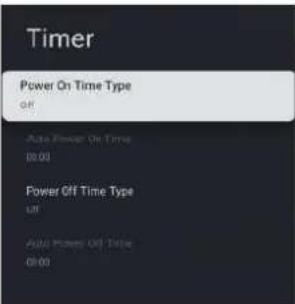
Power On Time Type - Press / button to select the option then press OK button to choose OFF/ON/ONCE.
Auto Power On Time - Press / button to select the option then press OK button to enter the sub-menu.
Power Off Time Type - Press / button to select the option then press OK button to choose OFF/ON/ONCE.
Auto Power Off Time - Press / button to select the option then press OK button to enter the sub-menu.
CAST
Menu->Settings->System->Cast.
Cast
1.2.3.4.5.6.7.8.9.10.11.12.13.14.15.16.17.18.19.20.21.22.23.24.25.26.27.28.29.30.31.32.33.34.35.36.37.38.39.40.41.42.43.44.45.46.47.48.49.50.51.52.53.54.55.56.57.58.59.60.61.62.63.64.65.66.67.68.69.70.71.72.73.74.75.76.77.78.79.80
Show a notification on all Avamid devices connected.
to your Wi-Fi and set them control media costing to this device .

Always

While casting

Never
- Press / button to select what you want set.
- Press OK button to confirm.
- Press BACK button to return to the previous menu.
RETAIL MODE
Menu->Settings->System->Retail Mode.
Retail Mode
Retail Mode
B
Retail Messaging
China
Retail mode - Press / button to select the option then press OK button to choose ON/OFF.
Retail messaging - Press▲/▼ button to select the option then press OK button to enter the sub-menu.(Note: Demo,e-POP,e-POP + Demo)
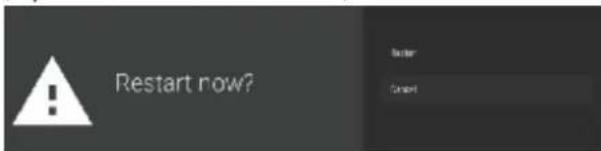
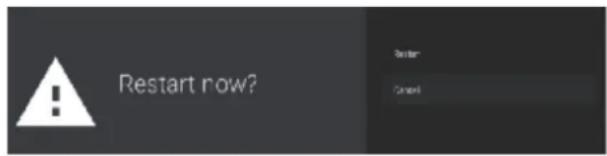
RESTART
Menu->Settings->System->Restart.
Press OK button to enter the sub-menu.
(Optional: restart and cancel)
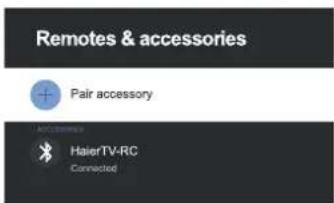
RENOTES & ACCESSORIES
Menu->Settings->Remotes & Accessories.
Remotes & accessories

Pair accessory

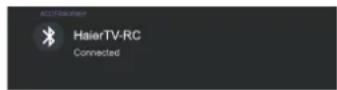
HaerTV-RC
Connected
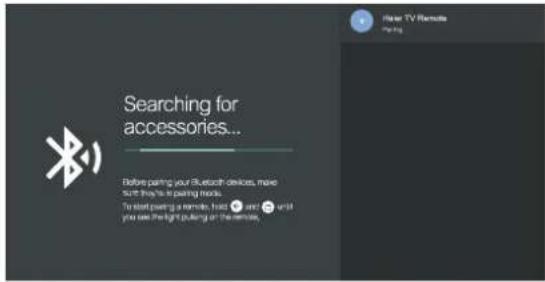
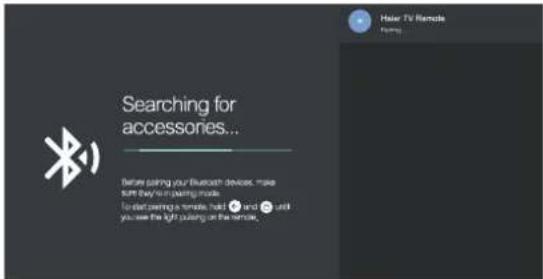
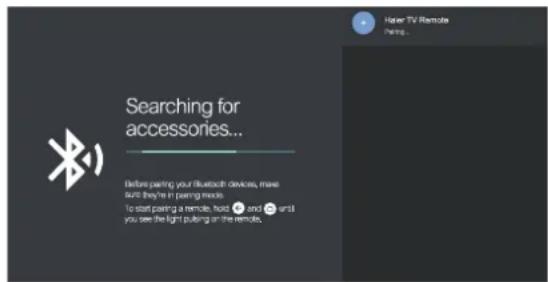
In this menu, you can pair Bluetooth devices.
- Press the " " and " " buttons at the bottom of the remote control for 5 seconds.
- When the LED starts to flash, release it. The remote controller will send the pairing signal to the TV and display the information of the remote control on the right side of the screen.
- Press the OK button to display the pairing. If the paired is displayed, the connection is successful.
4.If the couldn't pair appears, the connection fails. Wait 30 seconds and then press the "and " " buttons at the bottom of the remote control for 5 seconds to repeat the previous steps. - Press button return to the previous menu.
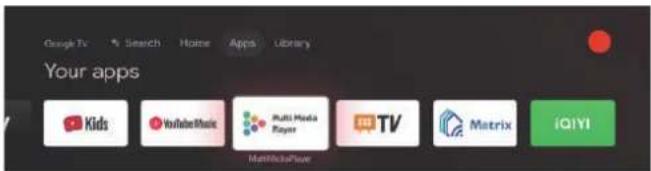
USE OF MULTI MEDIA PLAYER
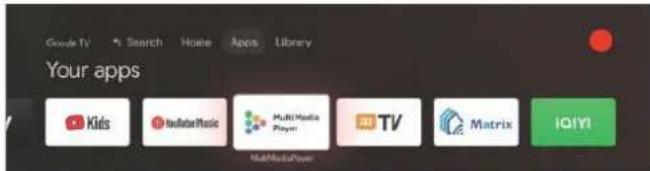
- In the HOME or APPS interface, press / to select the MultiMediaPlayer application
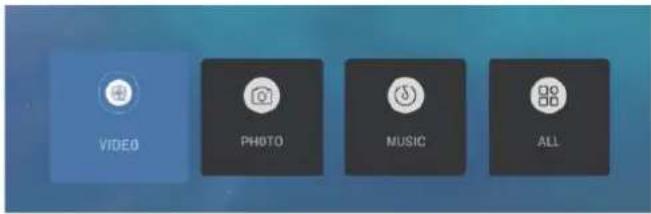
- Select OK key to enter Multi Media Player and display Video, Photo, Audio. After inserting the usb flash drive, you can view the corresponding files in the usb flash drive (FAT32 Format).
NOTE
The menu may be different depending on when you purchased the TV.
Please make these simple checks before calling service. These tips may save you time and money since charges for receiver installation and adjustments of customer controls are not covered under your warranty.
| Symptoms | Items to Check and Actions to Follow |
| "Ghost" or double image | ·This may be caused by obstruction to the antenna due to high rise buildings or hills. Using a highly directional antenna may improve the picture. |
| No power | ·Check if the TV's AC power cord is plugged into the outlet. ·Unplug the TV, wait for 60 seconds. Then reinsert plug into the outlet and turn on the TV again. |
| No picture | ·Check antenna connections at the rear of the TV to see if it is properly connected to the TV. ·Possible broadcast station trouble. Try another channel. ·Adjust the contrast and brightness settings. ·Check the Closed Captions control. Some TEXT modes could block the screen. |
| Good picture but no sound | ·Press the MUTE button on the remote control to ensure mute is off. |
| Good sound but poor color | ·Adjust the contrast, color and brightness settings. |
| Poor picture | ·Poor picture quality may occur when an activated S-VHS camera or camcorder is connected to your TV and other peripherals at the same time. Switch off one of the peripherals. |
| Snowy picture and noise | ·Check the antenna connection. |
| Horizontal dotted line | ·This may be caused by electrical interference (e.g. hair dryer, nearby neon lights, etc.) Turn off the equipment. |
| Television not responding to remote control | ·Check whether the batteries are working. Replace if necessary. ·Clean the remote control sensor lens on the TV. |
| Pixels (dots) that are always dark or always lit | ·Your TV is precision-manufactured using an extremely high level of technology. However, sometimes pixels may not display correctly. These types of occurrences are inherent to this type of product and do not constitute a defective product. |
NOTE
- This product uses a panel consisting of sub pixels which require sophisticated technology to produce. However, there may be a few bright or dark pixels on the screen. These pixels will have no impact on the performance of the product.

The terms HDMI, HDMI High-Definition Multimedia Interface, HDMI Trade dress and the HDMI Logos are trademarks or registered trademarks of HDMI Licensing Administrator, Inc.

Dolby, Dolby Vision, Dolby Atmos, Dolby Audio and the double-D symbol are trademarks of Dolby Laboratories Licensing Corporation. Manufactured under license from Dolby Laboratories. Confidential unpublished works. Copyright ©2012-2024 Dolby Laboratories. All rights reserved.
43" UHD LED TV
| Television picture quality: | UHD Integrated digital. Screen Size: 108 cm Resolution 3840x2160 pixels 60Hz. |
| TV System: | PAL-B/G,SECAM-B/G |
| DTV Tuner Decoder | DVB-T, DVB-C, DVB-T2, DVB-S2 16/32/64/128/256 QAM modulation MPEG2,MPEG4,H.265 |
| Connectivity: | 1 Optical port 2 USB ports 1 LAN 4 HDMI sockets 1 VIDEO socket 1 L socket 1 R socket 2 RF sockets 1 EARPHONE port 1 CI slot Supported Systems:PAL+SECAM Storage channel number: 1000(DTV),100(ATV) TV (RF) :75Ω Imbalance AVVideo-Input:75Ω,1V-P,RCA AV Audio-Input:20KΩ,500mV RMS HDMI Video Input: 480i, 480p, 720p, 1080i, 1080p,2160p WiFi : Standard: IEEE 802.11a/b/g/n/ac ,Frequency: 2.4GHz/5GHz Bluetooth:V5.1 |
| Sound quality: | Stereo sound system. 2 x 10 watts RMS power output. |
| Standby Power consumption | ≤0.5W |
| Digital features: | Digitally interactive. Digital text. Digital video broadcasting (DVB) subtitles available. Auto setup. Auto scan for new channels. Now and next programme guide. 7 day electronic programme guide (EPG). CI slot. Audio description compatible. |
| Additional features: | UHF/VHF tuner; Sleep timer; Parental Guidance; Picture and text Remote control batteries required 2 x AAA. VESA Mount Size: 300x300mm Package Size (WxHxD): 1075x652x142 mm Set Size (WxHxD) with Stand: 957.2x607.4x240.7 mm Set Size (WxHxD) without Stand: 957.2x566.7x86.6 mm Package weight: 10 kg Set weight with stand: 7.2kg Set weight without stand: 6.8kg |
- The part specifications of this TV set provided here are for reference only.
Differences may occur as product technology is updated.
Design and specifications are subject to change without notice.
50"UHD LEDTV
| Television picture quality: | UHD Integrated digital. Screen Size:126 cm Resolution 3840x2160 pixels 60Hz. |
| TV System: | PAL-B/G,SECAM-B/G |
| DTV Tuner Decoder | DVB-T, DVB-C, DVB-T2, DVB-S2 16/32/64/128/256 QAM modulation MPEG2,MPEG4,H.265 |
| Connectivity: | 1 Optical port 2 USB ports 1 LAN 4 HDMI sockets 1 VIDEO socket 1 L socket 1 R socket 2 RF sockets 1 EARPONE port 1 CI slot Supported Systems:PAL+SECAM Storage channel number: 1000(DTV),100(ATV) TV (RF):75Ω Imbalance AV Video-Input:75Ω,1V-P,RCA AV Audio-Input:20KΩ,500mVRMS HDMI Video Input: 480i, 480p, 720p, 1080i, 1080p,2160p WiFi: Standard: IEEE 802.11a/b/g/n/ac ,Frequency: 2.4GHz/5GHz Bluetooth:V5.1 |
| Sound quality: | Stereo sound system. 2 x 13.5 watts RMS power output. |
| Standby Power consumption | ≤0.5W |
| Digital features: | Digitally interactive. Digital text. Digital video broadcasting (DVB) subtitles available. Auto setup. Auto scan for new channels. Now and next programme guide. 7 day electronic programme guide (EPG). CI slot. Audio description compatible. |
| Additional features: | UHF/VHF tuner; Sleep timer; Parental Guidance; Picture and text Remote control batteries required 2 x AAA. VESA Mount Size: 300x300mm Package Size (WxHxD): 1250x760x144 mm Set Size (WxHxD) with Stand: 1111.2x710.5x277.2 mm Set Size (WxHxD) without Stand: 1111.2x651.8x88 mm Package weight: 13.5kg Set weight with stand: 10kg Set weight without stand: 9.5kg |
- The part specifications of this TV set provided here are for reference only.
Differences may occur as product technology is updated.
Design and specifications are subject to change without notice.
55" UHD LED TV
| Television picture quality: | UHD Integrated digital. Screen Size: 139 cm Resolution 3840x2160 pixels 60Hz. |
| TV System: | PAL-B/G,SECAM-B/G |
| DTV Tuner Decorder | DVB-T, DVB-C, DVB-T2, DVB-S2 16/32/64/128/256 QAM modulation MPEG2,MPEG4,H.265 |
| Connectivity: | 1 Optical port 2 USB ports 1 LAN 4 HDMI sockets 1 VIDEO socket 1 L socket 1 R socket 2 RF sockets 1 EARPHONE port 1 CI slot Supported Systems:PAL+SECAM Storage channel number: 1000(DTV),100(ATV) TV (RF) :75Ω Imbalance AVVideo-Input:75Ω,1V-P,RCA AV Audio-Input:20KΩ,500mV RMS HDMI Video Input: 480i, 480p, 720p, 1080i, 1080p,2160p WiFi : Standard: IEEE 802.11a/b/g/n/ac ,Frequency: 2.4GHz/5GHz Bluetooth:V5.1 |
| Sound quality: | Stereo sound system. 2 x 13.5 watts RMS power output. |
| Standby Power consumption | ≤0.5W |
| Digital features: | Digitally interactive. Digital text. Digital video broadcasting (DVB) subtitles available. Auto setup. Auto scan for new channels. Now and next programme guide. 7 day electronic programme guide (EPG). CI slot. Audio description compatible. |
| Additional features: | UHF/VHF tuner; Sleep timer; Parental Guidance; Picture and text Remote control batteries required 2 x AAA. VESA Mount Size: 300x300mm Package Size (WxHxD): 1350x837x144mm Set Size (WxHxD) with Stand: 1225.8x777.3x277.2mm Set Size (WxHxD) without Stand: 1225.8x719.4x88.1mm Package weight: 16.4 kg Set weight with stand: 11.9 kg Set weight without stand: 11.4 kg |
- The part specifications of this TV set provided here are for reference only.
Differences may occur as product technology is updated.
Design and specifications are subject to change without notice.
65" UHD LED TV
| Television picture quality: | UHD Integrated digital. Screen Size: 164cm Resolution 3840x2160 pixels 60Hz. |
| TV System: | PAL-B/G,SECAM-B/G |
| DTV Tuner Decoder | DVB-T, DVB-C, DVB-T2, DVB-S2 16/32/64/128/256 QAM modulation MPEG2,MPEG4,H.265 |
| Connectivity: | 1 Optical port 2 USB ports 1 LAN 4 HDMI sockets 1 VIDEO socket 1 L socket 1 R socket 2 RF sockets 1 EARPONE port 1 CI slot Supported Systems:PAL+SECAM Storage channel number: 1000(DTV),100(ATV) TV (RF) :75Ω Imbalance AV Video-Input:75Ω,1V-P,RCA AV Audio-Input:20KΩ,500mVRMS HDMI Video Input: 480i, 480p, 720p, 1080i, 1080p, 2160p WiFi : Standard: IEEE 802.11a/b/g/n/ac ,Frequency: 2.4GHz/5GHz Bluetooth:V5.1 |
| Sound quality: | Stereo sound system. 2 x 13.5 watts RMS power output. |
| Standby Power consumption | ≤0.5W |
| Digital features: | Digitally interactive. Digital text. Digital video broadcasting (DVB) subtitles available. Auto setup. Auto scan for new channels. Now and next programme guide. 7 day electronic programme guide (EPG). CI slot. Audio description compatible. |
| Additional features: | UHF/VHF tuner; Sleep timer; Parental Guidance; Picture and text Remote control batteries required 2 x AAA. VESA Mount Size: 400x300mm Package Size (WxHxD): 1600x960x164mm Set Size (WxHxD) with Stand: 1446.4x904.7x313.8mm Set Size (WxHxD) without Stand: 1446.4x841.3x85.1mm Package weight: 24 kg Set weight with stand: 17.2 kg Set weight without stand: 16.5 kg |
- The part specifications of this TV set provided here are for reference only.
Differences may occur as product technology is updated.
Design and specifications are subject to change without notice.
Haier
IJIIOCTPauNTe B TOBa pBKOBOdCTBO ca daJeHcMo 3a cnpaBka n MOKe Da ce pa3JIuHaBAt OT peaHnra IpoDyKT.
-HNKOFA He nocTabraIte IaToBe Nn npyMaTePm Mekdy TeneBn3opa NnDtpkaunTe ro MebeN.
-HNKORA He nocTabaTe ppeMeTu, KOTo MoRaT Da N3Kyuata DecaTa da Ce KaTeprT, KATO INrpaUKN IINCTaHcNoHHN ynpabLeHnR, Bbpxy TeNeBn3Opa nn Me6eJIte, Ha KOTo e NoCTaBeH.
Ako TeIeBn3OpbT Tp8Ba Da 6bJe npnbpaH 3a cbxpanHeHne IIN Da 6bJe npMeCteH, HmaTe npEdBnD n pinnaraTe ropeNoocOeHTe IHCTpyKcnn.
BAKHO: He npinaraTe HaTnCK Bbpxy ekpaHa, 3a Da He NOBpeNtTe cEnocTTa Ha nCnJe. FapAHnraTa Ha IPOIN3BOIDNTeJIr He NOKpNBa NOBpeNi NOPaDi HENpaBUNHa yIOTpe6a nn MoHTax.
IOCTABRHE HA CTOIKATA
BAKHO: Ppei Da n3non3BaTe TeJeBn3opa, Tp6Ba Da ro MOHTnpaTe Ha cToiKaTa.
- NocTabete TeIeBn3opa c ekpaHa HaIoNy Ha MeKa n paBa HOBbpxHOCT (OJeJIO, CTIpOnOp, MeKa TbKaHn Ip.), 3a Da n36erHeTe NOBpeJa.
- MoHTnpaTe cToiKaTa KbM DoJIHaTa YacT Ha TeJIeBn3Opa C 6-Te BnHTa.


3A6EJIEXKA
TeIeBn3OpbT C MOHTnpaHa cToiKa Tp6Ba Da n3rJexJaNo To3n HaunH.
ПОДГOTOBKA HA LED TEJIEBN3OPA 3A MOHTAXK HA CTEHA
PpeOpbUBaMe da ocHpynte pa3cToHne ot MmHmym 2,36 nHya (60 mm) MeKdy TeJeBn3opa nCTeHaTa, 3a da n36BerHeTe cBnpKoCHOBHeNe C Ka6eIInTe. PpeDn da MOHTnPate TeJeBn3Opa Ha CTeHaTa, Tp6Ba Da npEmaxHeTe cToiKaTa.
C cJIe630nachocT 3nOJ3BaIte caMo cToKu 3a cTeHa nO cTaHdapt UL, noXoJaU 3a MHHMaJIHOTo terNo Ha TeJeBn3opa 6e3 cToKa.
3a da MOHTnPate cToIka 3a cTeHa Ha TeIeBn3opa:
- Pa3BnIte BnHTOBeTe, KOnTO npNDbpXaT cToiKaTa Ha TeJIeBN3Opa.
- CbaTe cToKaTa oT TeJeBu3Opa.
- MoHTnpaTe CToKkTa 3a CTeHa KbM Tbp6a Ha TeJeBn3Opa, KaTO n3NoJ3BaTe YeTInpN BnHTa. 3a Da MOHTnpaTe CToKkTa KbM CTeHaTa, cJeDbAte INcTpyKuHnTe B pBkoOdCTBOTo 3a yNotpe6a Ha CToKkTa 3a CTeHa.

3ABEJIEXKA
CToikata 3a cTeHa He e BkNoyeHa BV KOMnJIeKTA.
- 3aBnTe BnHToBeTe 3a MoHTaX Ha CTeHa (M6 x 12 mm - 4 6p.) KbM 3aJHaTa CtpaHa Ha LED TeIeBn3opa, KaTo npInOxNtE MoMeHT Ha Hata RaHe 12 kgf,cm.
BKJIOUBAHE HA TEJEBN3OPA
- MoHTnpaIte cToIkaTaNIOCTaBeTe TeneBn3OpaHa cTa6NlHa OCHOBa.
ABEJIEXKKA
MrcToTO,Ha KoEtO 1e NoCTaBnTe TeJIeBn3Opa, Tp8Ba Da OcnIpyraBa 6e3npenrTCTBeH Bb3dyuWeH NotOK. He NOKPBAuTE BEHTINaUHOHHTe OTBOpN Ha 3aDnH KAnK.
3a da npedotbpaTne Oacn CNTyaun, He Tp8Ba da noCTabTe Bbpx ypeDa n3TOHnCn Ha oTKpnt PnaMbK, KaTo HapnPmep CBeu.
- N368BaIte Da n3naIate ypeDa Ha TOnnHa, npraKa cIbHueBa CBeTnHa, IbXd nnB Oda. He n3naIarTe ypeDa Ha KaIKu nn npbckn B0da.
2. CbpxTe KaBena 3a aHTeHaTa NIN TeLEBn3NoHEH KaBEN KbM rHe3dOTo 3a aHTeHa ANT IN OT 3aDnHa TcPaHa Ha TEleBn3opa.
3.ДиctaHIOHO ynpaBJIeHHe: CbaIeTe KanaKa Ha OTJeJIeHNeTo 3a 6aTePnnte. IocTaBeTe 2 6aTePnN (TIn AAA 1,5V).
BHIMAHHE:Pn noCTaBHe Ha HeNoDxoJaT Tn6BaTePN CbIeCTByBa PnCK OT NOXAP NNI EKCNIO3N.
- 3axpaHbAhe: BkIoute Ka6enaB noDxOJaKoHTaKT.
5.BKIOUeTe TeBn3opa: HaTncHeTe 6yToHa TaNCTaHcNOHOTO ynpabJIeHne Nn6 ByToHa BKJ./N3KJ. Ha NaHeJa 3a ynpabJIeHne Ha TeBn3opa.
БУTOH3A YYPABJIEHNE
1. BkIIOUBaHe / N3KJIIOUBaHe
- BkJIIOUbaHe /I3KJIIOUbaHe Ha IraC
AKTNBUPaHe Ha rJaoc aNCTeHT
DeaakTbBpaHe Ha rIacob acnteHT
ПльзHeTe HaЯсHo, 3a Да ВКЛIOчNTe -ИнДИКaTOpБТ ЧЕ CBETHe И СLEД TOВа ChEи 3rAChE, ГАСОВаТа ФУнкцЯ e ИнцuaIиЗИраHa. Можete Да Кжete "Ok Google", 3a Да ИЗПОЛЗВATE ГАСОВаТа ФУнкцЯ. ИнДИКaTOpБТ ChE CBETHe, KORATo TelenBn3OpБТ ПпЕма Глac, CLEД TOВa Kжete ГАСОВaТa KOMaHДa.
ПльзHeTe HaJIBO,3aДаИЗКЛIOчte ГЯСОВаТФункцЯ -ИнДиКaTOpBT 㣾сCBeTHe BЖБЛTO.
3.ИндikaTOp 3a rIacob acntTeHT
4.ПиемнкHa cHHaJa HaДИСТаHцоHHOTуправлесн
<|im_start|>assistant
5.Приемнк Ha rnaocB cnHaJ
6. LED INHДИKaTOp Ha 3aXpaHbAHeTo

3ABEJIEXKA
3a da n3no3BaTe rnaCobO ynpabHeHne, TeNeBn3OpbT Tp6Ba Da e Cbbp3aH KbM INHTepHET.
IpeNi Da n3noJ3BaTe rnaCObO ynpaBneHne, Tp6Ba Da noCTaBnTe npeBkIoUoBaTeIe BvB BKIOUeHa No3nIy.
3a da n3non3BaTe rnaCOb ynpabJeHne, Tp8bDa da BnE3eTe BCBOg GOOGLE akayHT.
AKCECOAPN
ДиctaHcnoHNo ynpaBneHne - 16p.
PbKOBOcTBo 3a ynoTpe6a - 1 6p.
BnHTObE-66p.
KpaTko HauaHno pBkoBOdCTBo - 16p.
TapaHcnoHHa KaPa - 1 6p.
CBbP3BAHE HA IEPNΦEPHN YCTPOICTBA
LAN

OPTICAL

VIDEO

- IN·B

HDMC

HDM

HMI"

BcnuKn nopToBe 3a Cbbp3BaHe ca KaKTo CneJaBa (OT JIABO HaJrACHO):
HDMI1 (eARC/ARC), LNB IN (CateiNT), ANT IN (AHTeHa/Ka6eI), USB1, USB2, EARPHONE (CnywaJkn), CI (ObucnHTepfneic).
AUYINO-BNDEO YCTPOICTBA
TeBn3OpT mHa eINH rpyno ayDnO-BnDeo nHTeppeic 3a yDobHo CBbp3BaHe Ha VCR, DVD nn npytn BnDeo ycToPocCTBA.
HanpaBete cnpaBka n BpbkoBOdCTBOTO 3a yNtpe6a Ha cBoTBeTHOTO yCTPOIcTBO.
MoxTe Da n3nol3BaTe BxOdHnTe nopToBe ot 3aDHaTa CtpaHa Ha TeJeBn3Opa, KaKTo e NocOueHo No-DoNy.
KbM Hero Morat da 6bdaT cBbp3aHn CneHIne YcTpoiCTBa: VCR, MyIITMeDneH nick nnep, DVD, Bndeokamepa, Bndeo irpa, cTepeo cnctema n np.
3a6eJekka:
Bb3MOxH0 e hKoN yCToPcTbA c HeCTaHdApTeH cHnHaJa He Ce NoDdbpxkA.
N3IIOJI3BAHE HA INCTAHUOHHOTO YIPABJIEHNE
| № | ElefmeNT OIINCAHHe | |
| 1 | 3AXPAHBAHE | HaTnCSHeTe 3a BKNIOUChBaHe iIi II3KJIIOUVAHe Na TeJIeBUN3Opa. KOraTo TcJIeBUN3OpbT e II3KJIIOUeH, ToI Bce OUsE e NOD HAppeJeuHne. 3a da I3KJIIOUChTe HaIbJIHO oT HAppeJeuHneTo, I3BaJeTe UeIeCenla OT KOHTaKtA. |
| 2 | ... | HaTnCSHeTe, 3a da OTBopnte MAGIC BOARD. |
| 3 | = | HaTnCSHeTe, 3a da OTBopnte iIi I3ATBOPNTe ekpaHHOTo MeHIO. |
| 4 | HaTnCSHeTe, 3a da BJIe3eTe B Google TV. (Прии HabTProYka Na OCHOBHa TeJIeBUN3NЯ TO3I 6byTOH He pa6OTN) | |
| 5 | ▲▼▲ | HaTnCSHeTe, 3a da ce npINDbWIXBaTe B ekpaHHOTo MeHIO. |
| 6 | ← | Врьшане КБМ преДишOTO MeHIO. |
| 7 | HaTnCSHeTe, 3a da OTBopnte NaIaIIHaTa cTpaHNiц. | |
| 8 | HaTnCSHeTe 3a CmЯнa Na TeJIeBUN3IOHNNTe KaHaJI. | |
| 9 | prime video | HaTnCSHeTe, 3a da OTBopnte prime video, KBДeTo DA rIeДaTe TeJIeBUN3IOHNNI pRogpAmN iФИЛMn (HeobXoIIMa E BpIb3Ka c INHTepHET). |
| 10 | TV | HaTnCSHeTe, 3a da OTBopnte Live TV. |
| 11 | HaTnCSHeTe, 3a da OTBopnte YouTube Music. | |
| 12 | HATnCSHeTe 3a Da | OTBopNTe NETFLIX. |
| 13 | MEDIA | HaTnCSHeTe, 3a da OTBopNTe MUYTIIMEdIneH ПLEIbP. |
| 14 | HaTnCSHeTe, 3a da OTBopNTe Google acIeCTeHT iIi Ia cTapTIpaTe rIaCoBO TbPcSeH. | |
| 15 | HaTnCSHeTe, 3a da OTBopNTe MeHIOTo C HAcTPOIKN. | |
| 16 | VOL+VOL- | HaTnCSHeTe VOL+ 3a yIbeIuYBaHne iIi VOL- 3a NaHamJIaYBaHne Na 3Byka. |
| 17 | OK | BbBexJaHne Na I3bpaHATA onZIy iIi I3BbRbWbAte Na I3bpaHATA onepaIzra. |
| 18 | HaTnCSHeTe, 3a I3KJIIOUChTe iIi Da bKJIIOUHTe 3Byka. | |
| 19 | HaTnCSHeTe, 3a da I3BeDeTe eIeKTPoHNNI cIpaBOvHNK Na pRogpAMITE B peKIM Na TeJIeBUN3NIA. | |
| 20 | √ | HaTnCSHeTe 3a CmЯнa Na TeJIeBUN3IOHNNTE KaHaJI. |
| 21 | HaTnCSHeTe, 3a da OTBopNTe cIpnCbKcA c I3TOUHNIzI Na cIgHaN. | |
| 22 | II | HaTnCSHeTe, 3a da npScheTe iIi IocTaNITe Na NaY3a B peKIM Na MylITIMeIy. |
| 23 | AUDIO | HaTnCSHeTe, 3a da npeBKLIOUHTe KbM ayDINO φaIIOBE. |
| 24 | HaTnCSHeTe, 3a da OTBopNTe npINLOJENIyTA. | |
| 25 | YouTube | HaTnCSHeTe, 3a da OTBopNTe YouTube. |
Пьрвоганчалнан actponka
Korato BKJIOHTe TeJIeBUN3Opa 3a NpBPbN Nt,Ha ekpaHa ce NOBBA CbBeTHNKbT 3a HAcTPOINKa, Ype3 KOITOMoKeTe Da 3aJaTe OCHOBHNTe HAcTPOIN. CJeBaIte TEKCTOBNTe CbBeTN 3a NpBPBOHauJHa HAcTPOINKa.
Ta3nФyHKUcceH3N0J3Ba3aBbBExJaHeHaKoJ 3a cDBoRABe Ha DCtAHuOHHO ynpabJeHne. CNeI yCneuHO cDBoRABe,MOKeTe Da H3NoJ3BaTe DnCTaHcNOHOTc Bluetooth 3a ynpabJeHne Ha TeJIeBN3Opa.
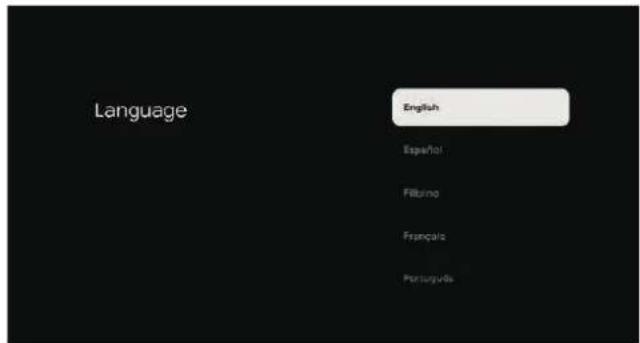
I3noI3BaIte 6yToHITe △/▼, 3a Ja I36peTe e3NK Ha CnCTeMaTα, n CneI TOBa HATNCHe OK 3a IOTBbPjXdAbaHe Ha e3Nka.
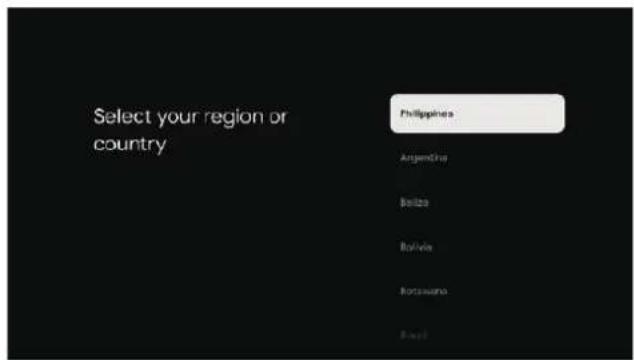
I3noI3BaIte 6yToHInTe △/▼, 3a Ja I36peTe IbpxkAba/perNoH, n CneT TOBa HATnCHeTe OK 3a IOTBbpxKdEHe.

N3noJIbAaTe 6yToHnTe ▲/▼, 3a Ja n36peTe Set up basic TV (OchOBHa HacTpOka Ha TeNeBn3Op), n CneI ToBa HaTnCHe TE OK 3a NOTBbPjXdHeH.
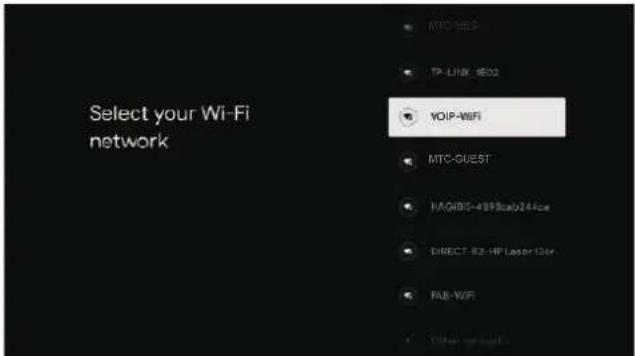
N3noJ3BaIte 6yToHnTe ▲/▼, 3a Ja n36peTe WiFi Mpexa 3a CBbp3BaHe, n CJIeT TOBa HATncHe T OK N BbBeJeTe npoJaTa, 3a Da NOTBbpDnTe n da ce CBbpXeTe KbM MpexaTa.
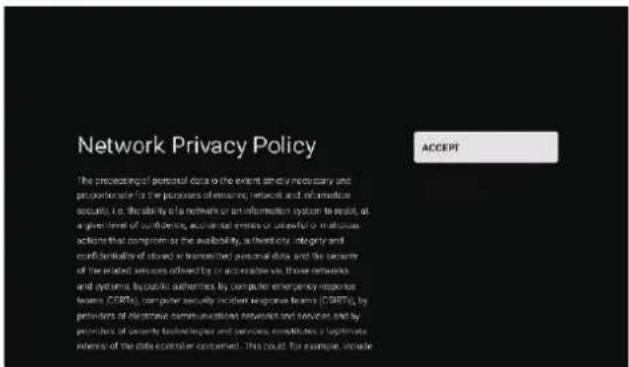
HaTnchete Accept (PpneMa), 3a da npneMeTe ycNoBnraHa Network Privacy Policy (POnntKata 3a NobepnteJIHOCT Bmpexkata).
HaTnchHeTe Accept (PpneMaM), 3a da npneMeTe O6uInTe yCIOBnHa Google c ceI noIOobpaVe Ha nOTpe6nteNcKTo n3XNBraVe.
HaTnchete Accept (PpneMaM), 3a da npneMeTe Ycnyrnte Ha Google c质量安全和安全的Ha Notpe6nteKOTO n3XnBraHe.
I3noJ3Ba ce 3a 3aJaBaHe Ha napola 3a yCTpoiCTBOTO C cEJ OcNrypRaHe Ha cnrypHocT nOBepuTeJIHOCT.
N3noJIbAaTe KlaBnAtypTa Ha nIcTahNoHOTO ynpabLeHne nnEkpaaHtA KlaBnAtypa, 3a da BBeJeTe 4-ncpeHa npoJa, cNei KoTo Ue npemHeTe aBTOMaTHUHO KbM CJIeDbaUINa ekpaH.
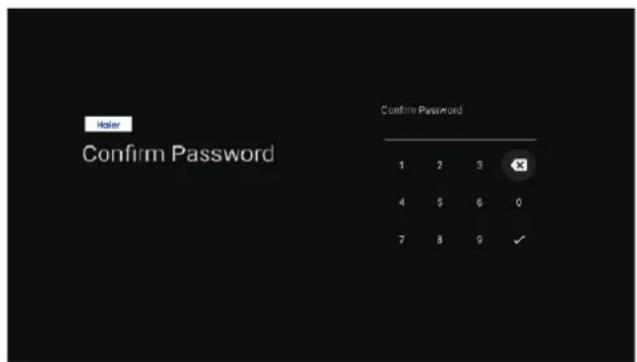
BbBeTe OTHO npoJaTa, 3a Da J
NOTBbpNTe, KaTO n3NoJ3BaTe KlaBnATypaTa
Ha NCTaHIOHHTO ynpABJIeHne IIN ekpaHHaTa
KlaBnATypa.
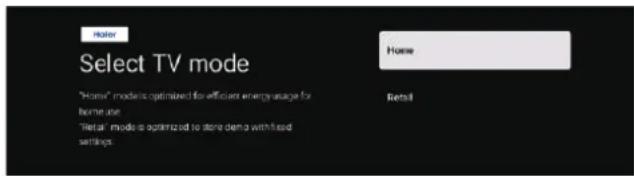
B ekpaHa 3a n36op Ha peXIM n3NoJ3BaIte 6byToHnTe / , 3a Ja n36peTe Home (OmaWeH) Mode, n cIeT TOBa HATNCHeTe OK.
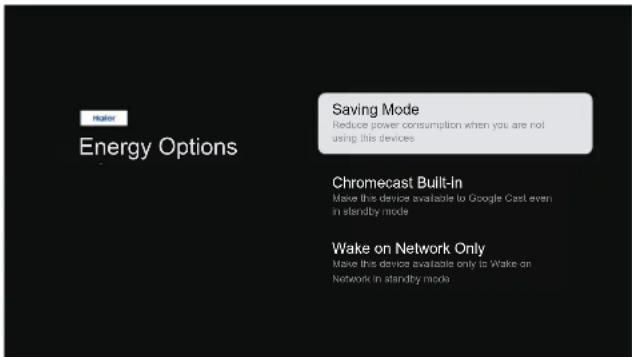
I36epete Saving Mode (KoHOMuEn peXm) npOdbJIKeTe KbM cJeBaaTa Ta CbNka.
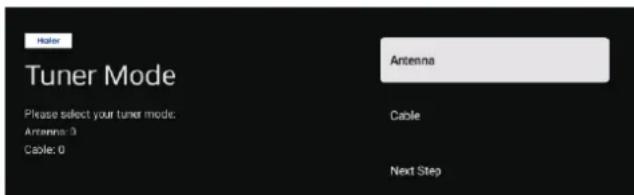
I36epTe Tuner Mode (PekmHa Tyhep), 3a Da OcbuectBnte TbpceHe, cJeToba HATncHete OK 3a NOTBbpxKeHne.
Bnptpe6nteKnI INTepeic MoKeTe Da npEbkNIOuBaTe HAcTPOkNTe Ha OCHOBHaTa TeJeBn3nI n Google TV.
N3noJ3BaIte 6yToHnTe ▲/▼, 3a Ja n3bepeTe Set up Google TV (HactpoJaHa Google TV) n cIeToba HaTncHeTe OK, 3a Da n3BbPunTe HAcTpOKnTe.
I36peTe cBor aKaynt B Google n Bne3e B Hero
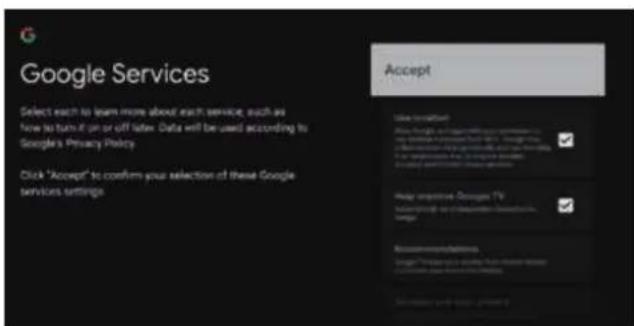
HaTnchHeTe Accept (PpneMaM), 3a da npneMeTe O6uHte ycNoBna Ha Google c cen noDoobpaHe Ha nOTpe6nteNcKTo N3XNBraHe.
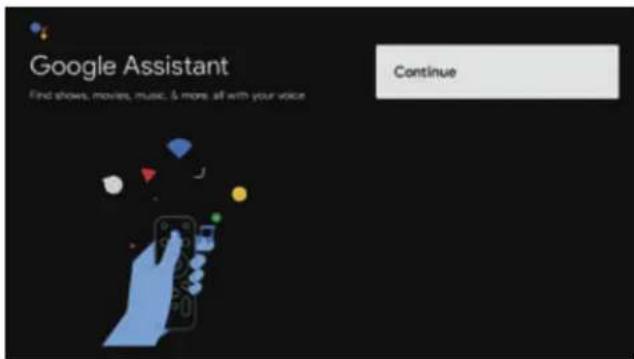
HaTnchTe,3a Da n36peTe,ncIeTobHaTnchTe OK,3a da npoBnKnte.
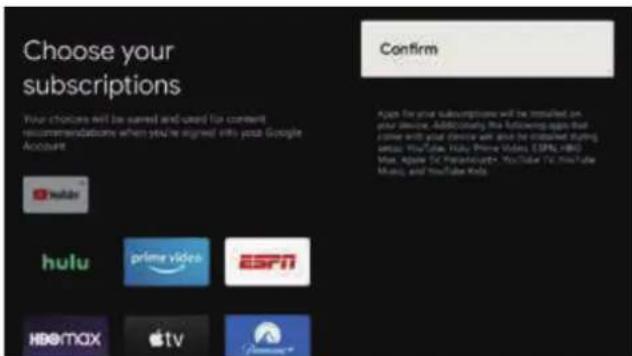
Изпольваи Te 6уToHnTe ▲/▼, за диЗбepeTe Choose your subscriptions (ИзбepeTe cBOnTe abOHaMeHTn), И haTnCheTe OK.

Hactpoiknte 3a Google TV ca HanpaBeHH, HATNCHeTe OK, 3a da pa3rJeNaTe Bb3MOxHOCTnTe.
HAUJIENEKPAH
CneI KaTo 3aBbPwITe CTbNkTte B CbBeTHnKa 3a HacTroKm, MoKeTe Da TneJaTe TeJeBn3n N da OTBOpTe HaayJHnE ekpaH.
① GraphTi 、 Graph 、name、App、Library ② TiO_2
① SearchИЗнолзВаиTe,заДаOTВорпTe Google acnteHTИДа CTapTnpaTe rJacoBO TbpeHe.
Hnme H3noJ3BaITe, 3a Da OTBOpIe HaayanHaTaCTpaHnca Ha TeJeBu3opa.
AppuN3noJ3BaIte,3a da OTBOpTe cncsbKa C HCTaJIpaHITe npINOxKeHnI Da do6abHTe JIO6MNI pINIOXKeHnI.
Library N3noJI3BaIte 3a npErJIeH Na cBbIpbXaHne, KOeTo e 3akynEHO HaeTo C nOTpe6nTeJcKn aKayHT.
CnncbKaHa HnctaInpaHnTe npnloKeHn nNoJyHeHOTo CbDbPkaHne OT HnCTaInpaHn nporpaMn.
3 N3noJ3BaITe, 3a da OTBOpNTe HhOpMaIgna, HacTpoKn, Yac, n3TOHnU n CHMka Ha Baun aKayHT.
HactpoKn: Tyk Morat da 6bDat KOHcnpurpaHn pa3JNUHN HAcTpOKn. 3a NOpO6HOCTN OTHOCHO HAcTpOKnTe BNXTe CJeBaUNTE NORCHEHNA.
N3ToUHn: NkoHa 3a N3bOp Ha N3ToUHnK Ha CnHaJ.
KaptnHa:Notpe6ntenT MoKe Da HacTppon KaptnHaTa Ha TeIeBn3opa. BnxTe cTpaHnua 123a NpOp6Hn INCTpykUn 3a HacTpOka.
ПИДВИЖBAHEВЕКPAHHOTO MEHIO
Ima IBa HauHa 3a OTBapAHe Ha ekpaHHO MeHIO. IIbpBnT - B pexKIM Live TV (TeJeBn3na Ha XINBO) HATncHeTe 6yToHa 3a MeHIO, 3a Da N3BeJeTe TV options (OnuN 3a TeJeBn3na), CneT ToBa N3NoJ3BaIte 6yToHNe / / / , 3a Da N3BepeTe MeHOTo Settings (HacTpoiKn), n HakpAra HATncHeTe OK 3a NOTBbpxDeHne. BTopnT - B HauJaHaTa CTpaHnCa HOME, N3NoJ3BaIte 6yToHa , 3a Da N3BepeTe NKoHaTa MeHOTO, n CneD TOBa HAITNCHeTe OK 3a NOTBbpxDeHne.

N3noJ3BaIte 6byToHnTe ▲/▼, 3a Ja n3bepeTe HacTpOJaT, KOrTO NCKaTe Da npOMeHnTe. HaTncHeTe OK, 3a da OTBOpHTe CbOTBeTHaTa HacTpOJa.
HaTnchHeTe 6yToHa BACK (Bpbuahe Ha3aI), 3a da ce BbphTe B npdeNshOTo MeHIO.
Ako CTe B OCHOBHOTo MeHIO, KOraTO HaTNCHeTe 6yToHa BACK (Bpbuahe Ha3aI), ekpaHHOTo MeHIO Ⅲe ce 3aTBOpN.
KAHAJI
Menu -> Settings -> Channels & Inputs -> Channels (Mehno -> Hactpoien -> KaHannn n 3ToHnnc -> KaHann).
Analog/Antenna/Cable/Satellite (AHaIorOBn/ EOpHn/Ka6eHN/CaTeHTN) - 3Anon3BaIte 6yToHnTe A, Ta Da n36peTe onCnraTaN CJIeD TOBa HATnCHete 6yToHa OK, 3a Da OTBOPnTe NOmEHOTO.
Auto Channel Update (ABToMaTHUHO aKTuAn3npaHe Ha KaHAnTe) - HaTnChTe 6yToHa OK, 3a da n36peTe ON/OFF (BKn./N3Kn.). Korato n36peTe ON (BKn.), cncTeMaTa aBTOMaTHUHO ige cKaHnpa I aKTuAn3npa KaHAnTe, cIeJ KaTo n3MnHaT 5 MNHTB pexm Ha rTOBHOCT.
Channel Update Message (Съобшени 3a akTuAnn3aun Ha KaHauNte) - HATncHeTe 6byToHa OK, 3a Да ИЗбepTe ON/OFF (ВкЛ./ИЗКЛ.). KoraTo n3bepTe ON (ВкЛ.), сиСтЕмТа щe пОka3Ba сьошениTo 3a akTuAnn3aun.
3a6eIeKka:HaIuHnTn3ToUHK MoKe Ja e pa3IuYeB 3aBNCmOcT OT MOnEJa.
N3TOUHNIU
Menu -> Settings -> Channels & Inputs -> Inputs (Mehno -> Hactpoien - -> KaHannn n3ToCHnCn -> N3ToCHnCn)
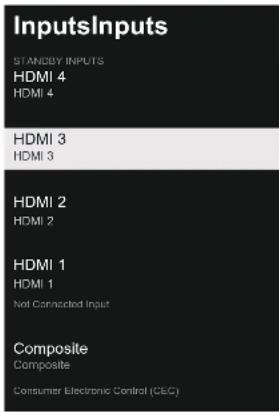
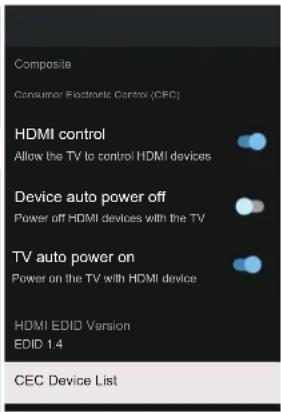
Inputs (N3TOUHnC) - N3NOJ3BaIte 6yToHnTe ▲/▼, 3a da n36peTe ONuTAt, n CNeI TOBa HATNCHeTe OK, 3a da OTBOpNTe CbOTBeTHOTo NOmEHIO.
Menu -> Settings -> System -> Accessibility (MeHIO -> Hactpoien -> Cntema -> DocTbnnoct).
Accessibility
Captions
High contrast text
Text to speech
Accessibility shortcut
SERVICES
Captions (HaIINcN) - I3nOJI3BaIte 6yToHITe ▲/▼, 3a da n36peTe OIuIraTa, IN CJIeI TOBa HAITNCHeTc OK, 3a da OTBOpNTe CbOTBeTHoTIOdMeHIO.
High contrast text (TeKCT C BnCOK KOHTpact) - N3noJ3BaIte 6byOHTe / , 3a da n36peTe onuTAt, n cJeT TOBa HATNCHeTe OK, 3a da n36peTe BKJI./N3KJI.
Text to speech (TeKCT B peu) -Използайт ebyToHnTe / ,3a Да ИЗбeрTe OПцЯТa,И СлЕД TOВаHaTиСнeTe OK,3a Дa OTBOpHTe CbOTBeTHOTO NOmEHIO.
Accessibility shortcut (KpaTbK nbT 3a DoCTbNHOCT) -ИзползВаит eБуТоHNTe / ,3a Да ИЗбере Te onцят,a,CneДToBaHaTиСHTe OK,3aДa OTBOPHTe CbOTBeTHOTO ПОДMeHIO.
HHΦOPMALI
Menu -> Settings -> System -> About (MeHIO -> HactpoKn -> Cntema -> INhOpMaunia).
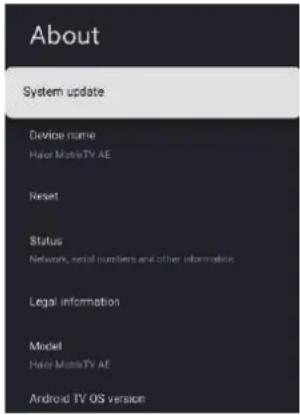
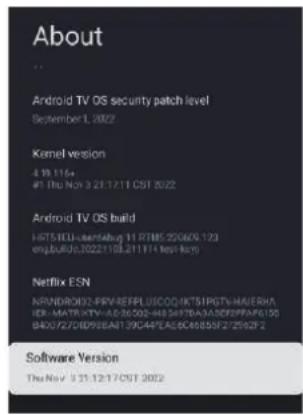
B ToBa MeHIO MoKTe Da n36peTe System update (AkTuJaIn3aUmaHa CnCTeMaTa), Reset (HyInpaHe) nDa BnDInTe HOpMaUra 3a TeJeBu3Opa.
1.ИзпольмTe 6byToHnTe △/▼,ЗаДа ИЗбepeTe HacTpOиKaTа,КоТо ИСКaTe Да npOMeHnTe.
2. HATINCHTe 6yToHa OK, 3a da NOTBbPdInTe.
3. CJIeI KaTo npKIOUHTe C HAcTpoKNTe, HAtncHeTe 6yToHa BACK (BpTaane Ha3aI), 3a Da Ce BbPHeTe KbM IpeDnHOTo MeHIO.
IATAHUC
Menu -> Settings -> System -> Date & Time (MeHIO -> Hactpoien --> Cnctema -> DaTa n yac).
Automatic date & time (АВТOMATУСHО зада ВЕндати уас) - ИЗПОЛЗВАЙТЕ 6БТОНИТЕ / , 3a ДИЗБЕРЕТЕ ONЦИТА, И СLEД TOВА HAТССЕТЕ OK, 3a ДА OTВОПТЕ CBOTBETHOTO NOДМEHIO.
(Onu: Use network-provided time (U3no13BaHe Ha BpeMeTo Ha MPexKaTa), Off (U3Kn.)
3A6EJIEXKA
Korato HacTpoiKaTa Ha Automatic date & time (ABTomaTuHo 3aJaBaHe Ha DaTa u Yac) e OFF (N3Kn.), MoKeTe Ja n3NoI3BaTe Manually adjusting date & time (PbUHO 3aJaBaHe Ha daTa u Yac).
Set date (3aabahe Ha daTa) - ⅢπoJ3BaIte 6byToHnTe ▲/▼, 3a Ja n36peTe onuTAt, n CJIeT TOBa HATnCHete OK, 3a Ja OTBOpHTe cBOTBeTHOTO NOdMeHIO.
Set date (3aДаВанe Ha yac) - ИЗпOLЗВаиTe 6byToHnTe / , 3a Дa ИЗбeрTe onцЯТa, И сLеД TOBa HATnCHeTe OK, 3a Дa OTBOPnTe CbOTBETHOTO ПОДМEHIO.
Set time zone (3aДаВаHe Na YacOba 30Ha) - Изпалзайт e bуToHnTe ▲/▼, 3a Д a nЗбeрTe onцяТа, И сеД TOВа HATиСнeTe OK, 3a Д a OTBOPHTe cBTBeTHOTоДмEнЮ.
Google TV home screen

Last used input
I3noJ3BaIte 6byOnHITe / , 3a Ja I36peTe onuTAt, n CJIeI TOBa HATncHete OK 3a NOTBbPjXdHHe.
NKOHOMNAHEHPNRA
Menu -> Settings -> System -> Power & Energy -> Energy saver (Mehio -> HacTpoiKu -> CnCTema -> 3axpaHbAe n eheprn -> IKoHOMna Ha eheprna).
Energy saver
When inactive 15 minutes
When inactive (Прилпса HaakTUBHOCT) -
ИзпальайтбуToHITe ▲/▼, 3a Да ИЗбереTe
Опцята, И сдд TOВа habис悔Те OK, 3a Дa
OTBOPHTe CBOTBETHOTO ПОДмEHO.
(ОпцИ: 15 мнуТи, 20 мнуТи, 30 мнуТи, 1 уac,
4 уaca, 8 уaca, 12 уaca, 24 уaca,
Never (HнКORA)).
3AXPAHBAHE
Menu -> Settings -> System -> Power & Energy -> Power (Mehio -> HacTpoiKn -> CnCTema -> 3axpaHbAne n eheprn -> 3axpaHbAne).
Power
Sleep Timer
Picture off
Switch Off Timer Off
Auto Sleep Never
Sleep Timer (Taimep 3a 3acnBahe) - N3noJ3BaIte 6byToHITe / , 3a Ja n36epTe OIuJaTa, I cJeTTOBa HaTNCHeTe OK, 3a Ja OTBOpHTe CbOTBeTHOTo IOdMeHIO.
(Onu: off (N3KJ.), 10 MNHyTN, 20 MNHyTN, 30 MNHyTN, 40 MNHyTN, 50 MNHyTN, 60 MNHyTN, 90 MNHyTN, 120 MNHyTN)
Picture off (ИЗКЛЮВане Ha KapТиHаТa) - Изпалзайт e 6уToHnTe / , 3a Д a ИЗбepeTe onцят,a n cIeД TOBa HATnCHeTe OK 3a NOTBbpxKdEHNe.
Switch off timer (TaMep 3a n3KIOUVAhe) - N3NoI3BaIte 6yToHITe ▲/▼, 3a da n3BepeTe ONuTAt, n CJIeD TOBa HAtncHete OK, 3a da OTBOpHTe CbOTBEtHOTo NOmHeIO.
Menu -> Settings -> Remotes & Accessories (MeHIO -> Hactpoien -> NcTaHcNoHHn ynpaBHeHn npHaDJIeXHOCTn).
B TOBA MEHIO MOXeTe Da cDBOBaTe Bluetooth yCTPOINCTBA.
- HaTnCHete eHOBpeMeHNO 3aApbXTe 3a 5ceKHyN6byToHtE BIOHaTa Yact Ha nCTaHcNoHHoY npabJIeHne.
- KoratoLED INHINKaTOpbT 3aNoUHe Da Mnra, OCBO6oJeTe 6byToHnte. NCTaHcNHOHHOTO ynpabLeHne 1e n3npaTu CnHaI 3a CDBoRABaHe KbM TeJIeBn3Opa I NHCOpMaunrTa Ha INCTaHcNHOHHOTO ynpabLeHne 1e ce NOKaKe OT JChHa T CTpHa H aekpHa.
- HatncheTe 6yToHa OK, 3a Da n3BeTeTe cbCToHHeTo Ha CDBoRAHe. Ako ce nokaxe CDBoRAHe, CBbp3BaHeTo e ycneuHO.
4.Ako ce nokajce cbo6eHne,Ye He MoKe Ja 6bJe OcbIeCTBeHO CDBoRAHe,CBbp3BaHeTo e HeycneuHo.N3ayakaTe 30 cekyHn i Cnei TOBaHaTNCHeTe eHOBpeMeHNO H3aDpbKTe 3a 5 cekyHn ByTOHnTe BIOJHaTa Yact Ha IInCTAHUHOHTo ynpaBHeHne,3a Da NOBTopNTe npednHnTe CTbKn. - HATnCHeTe 6yToHa, a Da ce BbPHeTe KbM PpeiNshOTo MeHIO.
N3NOJ3BAHE HA MYJTINMEHINHNAIJIENbP
- B haayanHaTa CtpaHua HOME nB CTpaHuaTa APPS (PpNIOXeHn) n3NOJ3BaIte 6yToHnTe △/V/4/, 3a Da n36peTe npINOxKeHneTo Multi Media Player (MyNTmEneH nnEynb)
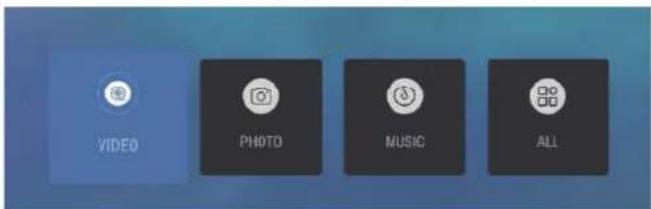
- Hatnche6byToHa OK, 3a da OTBOpnte MyTmEduHnna PneIbnp Da NycHeTe Video (Bndeo), Photo (ChmKn), Audio (Aydno). CKeI KaTO NoCTaBnTe USB naMeT, MoKeTe da pa3rIeXdTe faaiIOBeTe B NaMeTTa (FopMaT FAT32).
SAJEJEXKA
MeHIOTo MoKe Da ce pa3IuYaBa B 3aBnCmOcT OT nepNoJa, B KOTo CTe 3aKynJIn TeneBn3Opa.
Ipei Da ce obaHte Ha cHTbpa 3a obcnyXBaHe, HnpaBeTe Te3n leChn npOBepKn. Te3n CbBETMOrat Da Bn cneTAT BpeMe n napn, TbK KaTo TakCnTe 3a IHCTaJaunnaHa TeJeBn3Opa n N3BbPWBaHe HaNotpe6nteNk NaCTpOJKn He ce NOKpNBaT OT rapaHcNtTa.
Backlight/Brightness/Contrast/Saturation/HUE/ Sharpness (Baggrundslys/Lysstyrke/Kontrast/
Maetning/Farvetone/Skarphed)- Tryk pa knapperne
PRIVACY (DATENSCHUTZ)
Internal shared storage
Total space:24 GB
Internal shared storage (Internet Gemeinsamer
A slideshow of selected memories will
be created

Art gallery
Curated images and anatomy

Experimental
Try out new sources and content
MORE SETTINGS
Ambient mode
Weather
Show weather for your area
Time
Show the time with Ambient
Personal phot
Show the owner's name and the album name.
Portail Google Photos
Show portrait orientation photos from Google Photos
Personal photo curation
Automatically curate Google Photos
When TV turns on display:

Google TV home screen

Last used input
15 minutes (15 Minutes), 20 minutes (20 Minutes),
Backlight/Brightness/Contrast/Saturation/HUE/Sharpness (Luz de fondo/Brillo/Contraste)
Balance/ Bass/ Treble (Balance/Graves/Agudos):
ACCOUNTS & SIGN IN (CUENTAS E INICIO DE SESION)
USAGE & DIAGNOSTICS (USO Y DIAGNOSTICO)
Remotes & accessories

Pair accessory
HELPPOKÄYTTÖTOIMINNOT
When TV turns on display:

Google TV home screen

Last used input
(Option: Stereo, Surround)
Automatically send diagnostic information to Google, like crash reports and usage data from your device, apps, and Chromecast built-in. This information won't be used to identify you. You can adjust these permissions at any time from device settings. Learn more at: gco/AndroidUsageHelp and g.co/cast/device.stats.
When TV turns on display:

Google TV home screen

Last used input
(Option: 15 minutes, 20 minutes, 30 minutes, 1 hour, 4 hours, 8 hours, 12 hours, 24 hours, Jamaica).
ALIMENTATION
Hurtigstartguide-1stk
Garantikort - 1 stk
TILKOBLING AV PERIFERIUTSTYR

LAN

OPTICAL

VIDEO
L - IN - R

HOMR

HOMR

Home
Backlight/Brightness/Contrast/Saturation/HUE/
Surround Sound (Surroundlyd) - trykk pa
/ -knappen for a velge alternativet, og trykk deretter pa OK-knappen for a velge P/AV.
Equalizer Detail (Equalizer-detailj) -trykk pa
/ -knappen for a velge alternativet, og trykk deretter pKaK-knappen for a ginn i undermenyen.
Meny -> Innstillinger -> Personvern -> Plassering.
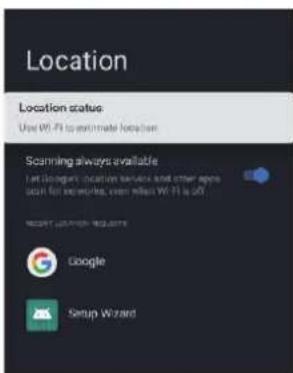
Location status (Plasseringsstatus) -trykk pa / -knappen for a velge alternativet, og trykk deretter pOK-knappen for a ginn i undermenyen. Valgfritt:Bruk Wi-Fi for a beregne plassering,av
Meny -> Innstillinger -> System -> Lagring.
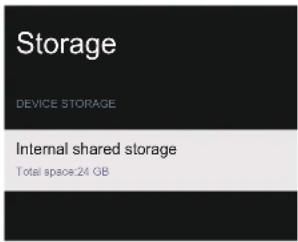
Internal shared storage (Intern delt lagring) - trykk pa / -knappen for a velge alternativeet og trykk deretter OK-knappen for a ginn i undermenyen.
AMBIENT MODE (AMBIENTMODUS)
Meny -> Innstillinger -> System -> Ambientmodus.
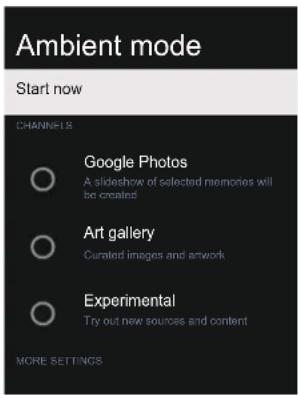

I denote menyen kan du stille inn ambientmodus.
- Trykk pa / -knappen for a velge hva du vil angi.
- Trykk pa OK-knappen for a bekrefte.
- Etter à ha fullfort justeringen, trykker du pa BACK-knappen for à gà tilbake til forrige meny.
STRØM OG ENERGI
Meny -> Innstillinger -> System -> Cast.
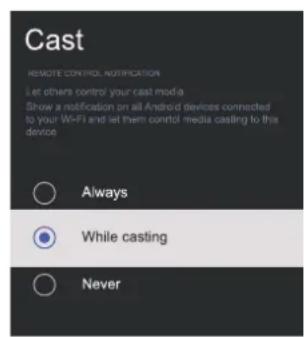
RETAIL MODE (FORHANDLERMODUS)
Meny -> Innstillinger -> System -> Forhandlermodus.
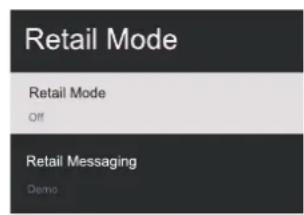
Retail mode (Forhandlermodus) -trykk pa
/ -knappen for a velge alternativet, og trykk deretter pa OK-knappen for a velge PAAV.
Retail messaging (Forhandlermeldinger) - trykk pa / -knappen for a velge alternativet og trykk deretter OK-knappen for a gai n i undermenyen.
(Merk: Demo, e-POP, e-POP + demo)
RESTART (OMSTART)
Meny -> Innstlinger -> System -> Start på nytt. Trykk på OK-knappen forå,gäinn i untermenyen. (Valgfritt: start på nytt og avbryt)
REMOTE & ACCESSORIES (FJERNKONTROLLER OG TILBEHØR)
Backlight/Brightness/Contrast/Saturation/HUE/ Sharpness (Retroiluminação/Brilho/Contraste/
(Optional: Nunca, 4 hours, 6 hours 8 hours)
TEMPORIZADOR
Backlight/Brightness/Contrast/Saturation/HUE/
Surround Sound (Sunet surround) - Apasati tasta
= 0 = 0 = 0 = 0 = 0 = 0 = 0 = 0 = 0 = 0 = 0 = 0 = 0 = 0 = 0 = 0 = 0 = 0 = 0 = 0 = 0 = 0 = 0 = 0 = 0 = 0
Digital Output Delay (Intarziere iesire digitala) - Apasati tasta / ),), a selecta optiunea si apoia apasati butonul OK ), a intra.
When TV turns on display:

Google TV home screen

Last used input
(Optiona: oprit, 10 minute, 20 minute,30 minute, 40 minute, 50 minute, 60 minute, 90 minute, 120 minute)
(Optiona: oprit, 30 minute, 60 minute, 90 minute, 120 minute, 150 minute, 180 minute, 210 minute, 240 minute)
EcIn WTeNceBnHa BnIka Ha npOBoJe NITaHn IcNoIb3yETcA DnA OTKJIoueHn yCTpoiCTBa,B
pyKOBOIDCTBe Nolb3OBaTeYyKa3bIBAeTcYTOIOCTyN K HeB CERda DOnJxH6bITcBO6OJeH.
m = 311 ;
3Ta OTMeTka O3HaayeT, YTO npOdyKT 3anpeuaetcBbIbpaCbIBaTb BmecTe C 6bITOBbIM NTXoJaMn. Yo6bl npedOTbPAntb BO3MOxHbI BpeDOKpyKaHOUeCpeDe NII INI 3IDOPOBbIO IIOJeIOTbe3yDEpXHO BbIBO3a OTXoDOB, CdaIteDaHHOE n3dJIne Ha nepepa60TK y OTdeJbHO OT6b1OBbIX OTXoDOB, Yo6bl o6ecNeuNT b NOBtOpHoeNCNOLb3OBAHne MaTePnaJIbHbIX pecypcoB. DnYtUN3aunO Tpa6oTabwero ycTpoiCTBaNCNOLb3yUte CnCTEmbl BO3BpTa n c6opa Nl6oOBpaNTecb K npOdaBuY, Y KOToPOrO pnpOBeTaIcNpOdyKT. PpOdaBeUc o6ecNeuHT yTInI3aUnOpOdyKTA be30NaChbIM Obpa3OM.
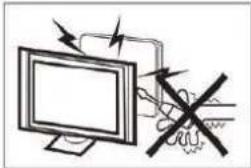
Дя pa6obtI TeBn30pa NcNoJb3yeTc Bblcokoe HnpanjxkeHne. He ChMaJIte 3aHIOO KpbIiKy yCTpoIcTa. TexHnCeCKeO bCnyKBaHme MoXeT BblONJIHcTBc TOnbKO KBaJIuΦmUnpOBaHHbIMn CneuaJIncTaMc cepBnCHo CnyXbI.

Bo n36exaHne noxapa n nopaxeHn 3neKtpnueckm TOKOM He donyckaTe BO3dEInCTBnHa TeNeBu3Op DOXJn IN BnaRn.
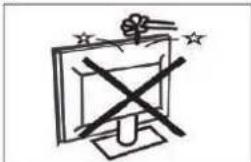
He poHnTe TeJeBn3Op n He BCTaBnIe NocToPOHHne npEIMeTb IB npopezN OTBepCTna Ha erO Kopnyce. He npOIuBaIe XnIKoCTb Ha TeJeBn3Op.
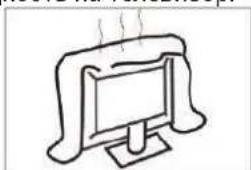
He 3aKpbIbA Te BEHTnJIauNoHHbIe OTBepCTNa Ha 3aDHeI NaHEn yCTpoCtBa. HApUWeHne BeHTnJIauu MoKeT npNBecTn K BbIXOy n3 CTpor 3JIeKTpuecknx KOMHOHETOB.
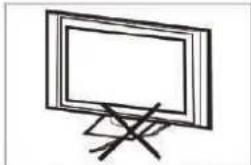
He pa3meaainTe npoBOID nHTaHnI NOI TeNEBUNOpOM.
Ipeje ouhctKoO tKJIouHte TeJeBn3Op O TJIeKtpocTeu IpoTpne erO MraKoT KaHbIO 6e3 BOdbI XIMNuecknx CpeDCTB.
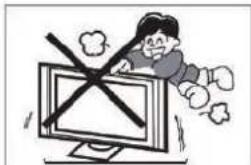
He BCTaBaIte Hr OINpaITecb Ha TeJIeBUNOp HIN NOCTaBky, He ToJkaIte Hx. He OCTaJIyTe DeTei 6e3 npICMOTpa. IaJeHne ycTpoNCTBa MOKe TpNBecTN K cepBe3HbIM TpaBMam.
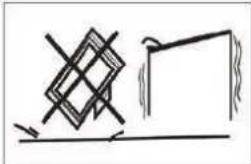
He donyckaeTc yctaHObKa TeJeBn3opa Ha TeJeKKn, cToiKN, nOJIKN INN cToIbl, eCNI OHN HeYCTOnuHBbl. Ipi naDeHIn yCTpOJcTBo MOKeT NOBpeINtbcr N TpaBMnPOBaTb NOJb3OBaTeJeN.
EcIn TeBn3Op He nCnoIb3yeTcA JInTeIbHoe BpeM, peKomeHnyeTcA OTKIOUHTb IPOBOD NITAHN O T 3JIeKTpopo3eTK.
He donyckaTe BO3deNCTBnHa TeNeBn3Op
npMbIX COJIHeuHbIX LyueN I DpyrNx NcTouHnKOB
Tenna. He yctaHaBnBaIe Tete BEmn3Op Ha dpyrIne
ycTpOncTBA, KOtOpBe I3nyauoT TepNo, HanpImep
BnDEOMarHTofohbl NnY cynlnten 3Byka. He
CTabbTe Ha TeJeBn3Op IcTOUHNk OTKpbIToro PnAmeHH,
HanpImep 3axxKeHHbe CBeHn.
PnBCTpaBaan TeJeBu3Opa B Me6eIb ocTabnTe MNHmAbhBié 3a3Opbl, NobbiweHHa TEmnepaTypa cokpaaaet cpoK cnYk6bl TeJeBu3Opa NABJAreTc nCTOuHnKOM ONACHOCTn. PImeuaHHe: yCtpoNCTBO npEHa3NaueHo dJa NCNoJIb3OBaHnB YMepeHHOM KInMaTe BHIMAHne!
OHMOKeTynacb,CTaBnPNuHOn cepbe3HbIX TpaBM, B TOM YNCLe CJeTaIbHbIM NCXODOM.MHOrNE TpaBMbl, OOCeHNO CpeDn DeTeN,MOXHO npeDoTbPaTNTb, PnHAB NPOcTBle MpeIpeOcTOPOxHOCTN,KOTOpBle nepeUcnJIHeH Hnke:
IcnoJIb3yUte WkaΦbl, cToKn mMeToJbMoHTaKa, peKoMeHDoBaHHbIe N3rOToBntEm TeBeBu3Opa.
Icnoj3yTe TOJIbKO taKyo Me6eJb, KOtOpa MoKeT CnyXHTb HaDeXHO ONOpO JIN TeJeBu3Opa.
YIOCTOBEPBTECB,TOTeJIeBn3OpHe BbICTynaET 3a KpaONOPHO NOBEXHOCTM Me6en.
IPOHΦOPMNPYNE Detey 60nacnoctn, KOtopoOn OHn NOBepraHOcTc, NbTaAcB3O6paTbcr No NOKam Me6eJI, YTO6bI DocTaTb Do KHONOK TeneBu3Opa.
IPOKIAbIBAHTe npoBoa n Ka6en, NOkJIIOueHHbe K TeJIeBn3Opy,TAKUM O6pa3OM, YTO6bIYepe3 HIX HeJIb36 b6IIO CNOTKHytbc, a TAKXe YTO6bI HeBO3MOxHO 6blIO B3rTb NIN NOTAHytb IX.
HEYCTAHABUNBAITE TeIeBn3Op Ha HeycTouBOM OCHOBaHn.
HE NCPOJb3yIte yra yctahOBK TeBn30pa BbICOKne npedMeTbI Me6eIN (uKaΦbl, KHNXHbIe noJKN) 6e3 oecneueHn HaJIexkaueonOpbl dJe Me6eIN nTeBn30pa.
HECTABbTE TeBn3Op HaTKaHb UINI Dpyrme MaTePnaJIbI, HaxOJaUneCer MExJy OCHOBaHNEM TeBn3Op aOnOpHO NOBepxHocTbIO Me6JI.
HE PA3MEUAAITE npedMeTBI, KOtOpbIe MOryT npBLeuB BHIMAHne DeTei (npyuKni, NylbTBI D), Ha TeJeBUN3ope HNI MeBeN, rDe OH paCNOJoxeH. Ecnn Bbl CHMaeTe TeneBn3Op INpeetabLnEteeroB DpyroE MeTO, Heo6xOaNMo TaKHe Co6JIOnDaTb Mepbl npedocToPOXHOCTN, nepeueNCHeHHbe Bblie.
BAKHHA INHΦOPMAU! He donyckaIte daBneHnHa 3KpaH, YTObI He nobpeDntb erO. TapaHTnI npOn3BOJNTeJI He pacnpocTpAnreTc Ha NOBpeXdEHHN BcJeCTBne He6pexHoRo o6paueHn IIN He npaBnBHO uCTaHOBKn.
MOHTAX IOCTABKN
BAKHAR INHOPMALU! Npeid nCnoJb30BaHNEm TeJeBn3Op Heo6xoDIMO yCTaHOBnTb Ha NoDCTaBky.
- NIOJXNTeTeJIeBn3Op 3KpaHOM BHN3 Ha pOBHOM MRAKyo NOBepxHOCTb (OJeAIO, KOByK, KycOK TKAHN I T. D.), YTO6bI He NoBpeDHTb yCTpOciCTBO.
- 3akpenTe noctabky Ha HnKHei nAheJI TeJeBn30pa c NOMOu6 BHTOB.

PIMMEUHNE
Ioka3aH npIMepHbI BHeuHn BnD yCTpoiCtBa.
ПОДГOTOBKA LED-TEЛЕВИЗОРAK YCTAHOBKE HA CTEHY
Bo n36eXaHne npo6nem c Ka6eJem Mejdy TeJeBn3Opom n CTeHOJdoJIxHO OCTaBaTbcra pacCToRHaHe MeHbSe 60 MM (2,36 IIOHa).Ipeed ycTaHOBKO TeJeBn3Opa Ha CTeHy Heo6xoDIMO cHrTb NOcTAbKy.
B ueJx 6eOanocCTn nCnoJIb3yIte TOnbKO
HaTeHHbIe KpePHeHn c MapKnIpOBKo UL,
paccHTaHHbIe Ha MmHMaJIbHbI BEc TeJeBn3Opa
6e3 NOCTaBKn.
YcTaHOBka HAcTeHHoro KpenJIeHnHa TeIeBn3Op:
- BbIKpyTnte BVHTbl, KOToPbIMn NOpCTaBka KpeNTcK TeneBn3opy.
- CHIMNTE NOCDaBky C TeJIeBn3opa.
- YeTbIPbMn BnHTaMn 3aKpeNITe HAcTeHHOe KpeNJIeHne Ha 3aIHeN NaHEn TeneBn3Opa. Ipn yCTaHOBKe HAcTeHHoro KpeNJIeHn C6JIIOJaIte YKa3aHnI N3 pyKOBoDcTBa NOJIb3OBATeJЯ K HeMy.

PIMMEUHNE
KpoHtTeH dJa HacteHHoro KpeNHeH He BXoNT B KOMnKeT TeJeBn3opa.
- 3akpyTne BnHbI HacTeHHoro KpeJIeHn (M6 x 12 MM, 4 wT.) Ha 3aJHei NaHei LEDTeJeBn30pa c yCunIeM 12 Kr/cm.
BKJIOUeyHNE TEJEBN3OPA
- YctaHOBNTe NOCTaBky I NOCTaBBTe TeneBn3Op Ha HAdexKHyIO NBepxHocTb.
PIMMEYAHNE
- y6eIntecb, yTO B03dyx MoKET CBO6oHOn
CINPKyIInPOBaTb BOKpy TeNeBu3opa. He
3aKpbIbaIte BeHTnJIaCNoHHbIe OTBepCTnHa
3aIHe INaHeJyycTpoNCTBa.
Bo n36exhaHne onacbix cTyaqni 3anpeaetcpa3MeaTaB pIOM C yCTpOiCTBOM NIN HaHEM nCTOuHNKIOKpbIToro OTHRA, HApPIMep3axxkeHHbIE CBeYNI.
He donyckaIte Bo3deIcTBnHa ycTpoIcTBO BbICOKnx Tempeatyp, npMbx COJIHeuHbIX lyuei,doJx nII BnArn.He donyckaIte nonaDaHnHa ycTpoIcTBo 6pbI3r XnIDKocTN.
2.ПоdkлioчnteKaбьbOTaHTeHHblnKabeJbHOroTeleBndeHnKpa3bemyANTINHa3aДнe nAHeJIn TeleBn3opa. - Пиьт ДУ:
Симпг Te Кршky 6aТаpeйHoro OTeKa.
YcTaHOBnTe 2 ЗлЕм enta ПИТаня (TIN AAA, 1,5 B).
BHIMAHNE! Pn yctahOBke 3neMeHTOB nTaHn HeOnyCTmOrTo Tnna cyueCTByeT pck B3pbIbA.
4.Питанne.
IOnKJIIOUHTe BnIKy yCTpoNCTBa K pa6oTaHOuSe IJIeKTPnueCKO p03eTKe.
- BkIIOUHTeTeJIeBUN3Op:
Haxmnte KhoNky Na nyIbTe Dy nn KhoNky POWER Ha 60koBo n aHeJI TeJeBn3opa.
KHONKUYPABJEHNA

12
-
BkIIOueHHe/BbIKJIIOueHHe yCTpoNCTBa
-
BkJIIOUeHHe/BBIKJIIOUeHHe rOJIOCOBrO NOnCKa
BkJIOHTb ydaJIeHHOro accnCTeHTa
BbIKHouHTb ydaJIeHHOro accnCTeHTa
IObepHnTe BnpaBO, YTO6bI BKlnOHTb. Korda
TOJIOCOBOI NONCK BKNHOHTCNAHINKATOP
chauana 3aropntcra 3aTeM noracHeT. TTo6bl BocNoJIb3OBAtbcra rIoIOCBbIM ynpabLeHnEM, cKaXnTe «Okei Google". Pocne 3TOro Ha
TeJIeBn3OpE DoJKeH 3aRopeTbCnHdNkAToP, N Bbl CMOKeTe POn3HeCTn CBoi 3anpoc.
IObepHnTe BNeBO, YTo6bI BBIKJIOUHTb cyHKcHOr roIocOBO rONcKa. INdNKaTOp 6yJeT ropeTb XeJIbIM CBeTOM.
PykoBOcTBO nonb3OBaTeIa -1 wT.
BnHTbI-6uT.
PykoBOcTBo no 6bIcTpO nHacTpOKe -1 wT.
TapaHTnHbI TaIOH -1 wT.
IOKJIIOUeyHNE IEPNΦEPINHBIX YCTPOIcTB

Bce pa3beMbI (cJIeBa HAnpaBO):
LAN, ONTNUECKNI, BUNDEO, JEBBI, INPABBI, HDMI4, HDMI3, HDMI2,

Bce pa3beMbI (cneBa HanpaBO):
HDMI1 (eARC/ARC), LNB IN (CNYTHNK), ANT IN (AHTEHHA/KABENBHOE), USB1, USB2, HAYUHNK, CI.
AUYINO-BNIDEOOBOPYIOBOAHNE
K TeJIeBn3Opy MoXHO NOJKNIOHTB BUNDeOMaHHToFOH, DVD- npOnrPbIBaTeIb Npyroe BUnDeooobopyoBaHne.
Pn IOKNIouHeHH TaKOrO O6OpYIOBaHnO3HaKOMbTecb C COOTBeTCTByIOUIM pyKOBOdCTBaMn.
BxoHNbIe pa3bEmbl Ha 3aDHeN pAnEIN TeJIeBn3Opa nCNOb3yOTc CNe dyUOUM o6pa3OM:
Moxho noKnHouaTb CneDyUOuue ycTpoiCTBa: BndeomarHHTofoH, My3bKaJIbHbI ueHtp, DVDnpOnrpbIbATEnb, BnDEOKaMEpa, IrgPOBa npNCTabK, CtepeocNcTeMa n T. d.
PpmeaHne:
HeKoTOpbIe yCTpOncBa MoRyTH He NoIDepXnBaTbcra 3-3a HecTaHApTHOro CnHaJa.
NcnoJb3OBAHNE NyJbTA Dy
№ 3JemeHT OINcHHe
| 1 | Питанne | НжмITE, чTOбы ВКЛЮЧИТБ ил ВыIKЛЮЧИТБ ТЕLEВИЗОР. ВыIKЛЮчEHньI ТелевИЗОР поТpeблгет ЗALEKTPOЗHEРПИ. ЧTOбы пOLHOCТБИО обECTOчITb УстюпCTBO, OTКЛЮЧITE пROВОД ПИТАПИ OT сETN. |
| 2 | ... | НжмITE, чTOбы OTКрblTБ ВИPTYAJLBYHUYO KJIABNATUPY. |
| 3 | = | НжмITE, чTOбы OTКрblTБ ил зakрblTБ экразнhoe меню. |
| 4 | ПepekлIOчЕнe учeTHbIX 3aПисeВ ВрахIME Google TV. (ДаHHЯ КнОпka He ИсpoЛьЗуETСЯ Ддя ОСHOВНОн НASTROK TELEVII3OPa) | |
| 5 | ▲▼▲ | НжмITE Ддя HabINrAцIN B ЗКраHнOM МEHLO. |
| 6 | ← | ВернтубсВ в рpebldUшee MeHю. |
| 7 | НжмITE, чTOбы OTКрblTБ ГАВ�н.I экразн. | |
| 8 | ^ | НжмITE Ддя пepekлIOчЕнe ТелЕКанAOB. |
| 9 | prime video | НжмITE prime video Ддя пrcSМоТра ТелЕпeредачи ФильмOB онлайн (Tpe6уETСЯ пОДКЛIOчЕнe K INTEPHTу). |
| 10 | TV | НжмITE, чTOбы OTКрblTb Live TV. |
| 11 | НжмITE, чTOбы OTKрblTb YouTube Music. | |
| 12 | NETFLIX | НжмITE, чTOбы OTKрblTb NETFLIX. |
| 13 | MEDIA | НжмITE, чTOбы OTKрblTb МульТIMЕДИНь I鞘ОгррБiBaTeь. |
| 14 | НжмITE, чTOбы OTKрblTb Google AccnCTeHTил NaHаТь TGOLOSOBI NOISCK. | |
| 15 | НжмITE, чTOбы OTKрblTb MeHIO HacTPOДКИ. | |
| 16 | VOL+VOL- | ИсpoьзУМе КнОнКИ VOL+И VOL-,чTOбы OTperулIpOBAtB ГOMKOCTb. |
| 17 | OK | ВвOD, ВьбpaHnOro ВариNTаи ПоДТВерЖдЕнe ВьбpaHnOro DeIcSTBIV. |
| 18 | × | НжмITE, чTOбы OTKЛIOчITь ил ВКЛIOчITь 3BYK. |
| 19 | НжмITE, чTOбы пOKa3aTb ЗaleKТрOHHyI прогамMyпeрдau В ржимe ТелEVII3Opa. | |
| 20 | √ | НжмITE Ддя пepekлIOчЕнe ТелЕКaHAnOB. |
| 21 | НжмITE, чTOбы OTKрblTb СпСОК ИСТочнКOB сИГИА. | |
| 22 | НжмITE, чTOбы начaTb/прIoСТановITb ВосрponЗВeDEнe МуьТIMЕДИ. | |
| 23 | AUDIO | НжмITE Ддя пepekлIOчЕнe aydINOДОрожeK. |
| 24 | НжмITE, чTOбы пepeйТи K прiloxeHnYAM. | |
| 25 | YouTube | НжмITE, чTOбы OTKрblTb YouTube. |
HAUJIbHAR HACTPOIKA
ПппрвOM BKЛЮЧЕнТ TeJIeBn3Opa MacTepe NaCTpoIKN NOMOKeT BaM BbIINHHTb BCE OCHOBHbIe NaCTpoIKN.
CM. TeKCTOBbIe NOdCKa3KN No HaayalbHoH NaCTpoiKe.
3TaФyHKUHcNoJIb3YeTcIJaCOnpJKeHnnyIbTaIY.PocIe CoPjKeHnBbICMOKeTeynpaBIArTB TeJeBn3OpOM cNOMOuIbIO NyIbTaIYcNoIepKkOblteo
C NOMOuBIO KHOJOK △/▼ BbI6epnte Ra3bIK n HaxMMTe KHOJky OK nna noTBepeKdEHHa.
C nOMOuBIO KHONoK ▲/▼ BbIbepuTe cTpaHy IIN pERNoH, a 3aTeM HaxMMte KHOnKy OK dJa IOndTBePjKeHnY.
C NOMOJIbHO KHOJOK ▲/V BbI6epNTe «Set up basic TV»(OCHOBHbIe HAcTpoiKn TeJIeBn3Opa)N HaxMnte OKДЯЗaBepSeHnHaCTpoiKn.
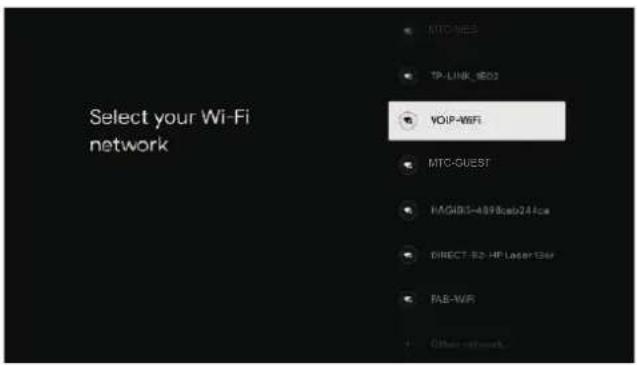
C NOMOUHO KHOONK △/V BbI6epNTe 6ecnpoBOHyO ceTb, K KOTOpOH XOTHTe NOIKNIOHTbcra, HAXMnTe OK n BBeINTE npoJIb.
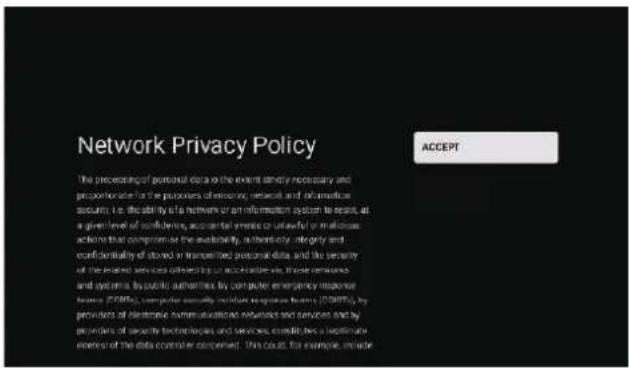
BbI6epnte 念 AcceptT (PunHrTb), TTO6bl npHrtb POnlntky cTeBOH KOHnHeHuaNbHoCTN.
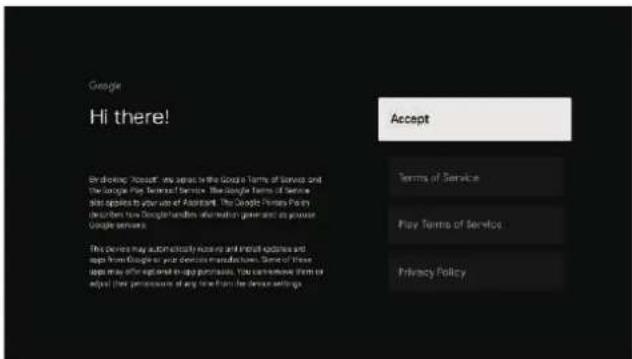
PpIMnTe UcNoBnI cNoJIb3OBAHnIg Google IyUyuWeHn pa6oTbI ycTpoiCTBa.IJn PoNTBepKdEHHN Bbl6epnTe «Accept» (PpHnTb).
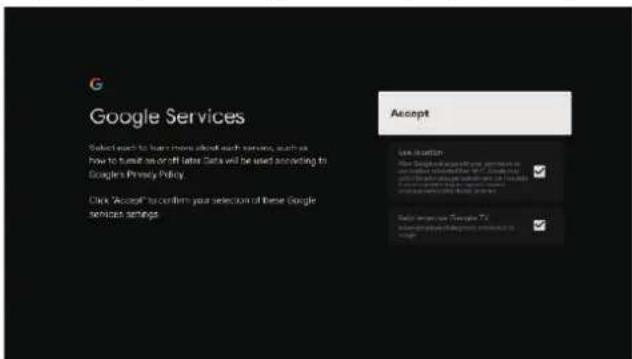
PoiKJIIOUHTe cepBnCbI Google InyuYyueHnra pa60tbl yCTpoiCTBa.ДлЯ NOITBepXJdeHnR BbI6epNTe «Accept» (PpInHrTb).
NcnoIb3yeTcIy TaHOBKn npOJa Ha yCTpoIcTBQ, Yo6bl ObecneuHTb 6e3oNaCHOCTb N KOHnEHHaJIbHOCTb.
Icnoj3ynte npbT dy nIn BnptyaJbHyo Knaatypy, yTo6bl ycTaHOBt 4-3Hauchn napoi. Iocne 3TOro Bbl aBTOMaTHeCKn nepeiDeTe K cNeDyUoEmy 3KpaHy.
NoTBePnTe npoJIb.ДЯ BBOJa N HacTpOKn npoJIaNcNoJIb3yIte pyJIbT DY nIN BnPTyaJIbHyO KlaBnaIatypy.
YTo6bI BbIbpaTbpexm,ncNoJIb3yIte KhoNKn △/▼.BbIbepnTe «Home» (DomaHn) n HaxMnte OK.
BbI6epnte «Saving Mode» (3koHOMhbl pexim) n nepeiDnTe K cneyuOuSeMy wary.
Google TV roTob K pa6oTe. HaxMMte OK, yTo6bI HaaytbpnpocMOTp.
ГЛАВьИ 3КРАН
Iocne 3aBepseHn pa6oTbI MaCTepa HAcTpoKmMOxHO pNtCyNaTb K npOCMTopy TeNeBn3Opa INpeeHTn Ha rnaBHbI 3KpaH.
① Search: OTKpbITb Google AccncteHT NIN Haatb ROJOCBOI NOCK.
Hmoe:OTKpbITbTnabHBn3KpaH TeJeBu3Opa.
Appst:OTKpbITb CnNcOK yCTaHOBJIeHHbIX npJIOKeHn IdoabNTb N36paHHbIe npJIOKeHn.
Library: npocmoTpeTb npno6peTeHHbI napeHdoBaHHbIKoHTeHT dJa BaWeyueTHOH 3aNNCU
Cnncok yctaHOBJeHHbIX npuIOKeHn n yBeDMJIeHnOyCTaHOBJeHHbIX nporpaMM.
OTKpbITb DaHHbIe yUeTHOJ 3aNNcN, HAcTpoiKN, BpeM, NCTOuHKn CnHaJa N npaMeTpbl N3o6paKeHna.
HactpoKn:B 3TOM pa3dene MOXHO MeHrTa pa3nHbIe HAcTpoKn. POp6Hoe OncaHne HAcTPOE npBOuNTcHxke.
NCTOCHNK CNHaJa: 3HaOH Bbl6opa NCTOCHKa CnHaJa.
N3o6paXeHne: HacTpoKa N3o6paXeHnHa TeLeBn3ope. POnpO6hIe yKa3aHnNo HacTpoKe npuBOJrTa Ha cTpaHnCe 12.
HABNΓALI B 3KPAHHOM MEHIO
OTkpblb MeHIO MOXHO DByM CnOCo6aMNI. NepBbI: B pexMe Live TV haxmTe KhoNky MeHIO, YTo6bl OTkpblb onuNB, nncnoJb3yJte / / / 1, YTo6bl BBpaTb MeHIO HacTpoek. HaxmTe OK dna NOdTBePckDeHra. BTopoi: Ha IJIABHOM 3KPAHE NcNoJb3yJte KhoNky , YTo6bl BBpaTb MeHIO HaxmTe OK dna NoDTBePckDeHra.

IcnoB3ynte KHONKn △/▼, qTo6bl Bb6paTb HxHbIn npaMeTp. qTo6bl OTKpbITb MeHIO HAcTpoKN, HaxMnte OK.
IINB03BpaTa B npeBbIyUeMeHIO HAXMNTe KhoNky HA3A.
Ecnn Bby yxe HaxoNTecb B rIaBHOM MeHIO, To npn Haxatnn Ha KhoNky HA3AД 3KpaHHoe MeHIO 6ydet 3aKpbITo.
KAHAJIbI
Menu -> Settings -> Channels & Inputs -> Channels (MeHIO->HaCTpoiKu->KaHaIbI IN BxO,IbI->KaHaIbI).
Analog/Antenna/Cable/Satellite (AHaIorOBbIe/ AnteHnKa6eBc/CnyTnK) - c NOMOuio KHOIOK A/BbI6epNTe BapnaHT, a 3aTeM HaxMMTe OK dIy nepexoDa B NOdMeHIO.
ABTomuCheKoe 6OBHeHne KaHaNoB (Auto Channel Update) - HaxMnte Ha KhoNky OK, TTo6bI Bb16paTb ON/OFF (BKJ./BblKJ).PnB bIope ON (BKJI.) CnCTema 6yJeT aBTomTuYeCKn cKaHnpoBaTb N 6OBnJaTb KaHaJIbI PocNe 5 MInHyT BpeXmE OxNdaHna.
Channel Update Message (ABTomaTneckoe obHOblHe NaHApOB) - HaxMMTe KhoNky OK, YTo6bl BbIbpaTb ON/OFF (BKJ./BbIKJ.). PnN BbIbope ON (BKJ.) cncTeMa oTo6pa3nt coo6uheHne ob OboHbJeHn.
PpmeaHHe: DocTynHbIe NcToUHNKMOrYTOJnuaTbCBA3BNCMOCtNOTMoJeN.
BXOДbl
MehIO->HacTpoNk->KaHaJIbI IN BxOdbI->BxoDbI
Inputs (Bxodbl) - NcnoJb3yUTe KhoNKn ▲/▼, yTo6bl Bbl6paTb 3TOT NyHKT MeHIO, a 3aTeM HaxMnte OK, yTo6bl OTKpbITb NOdMeHIO.
HDMI control (UnpaBleHne HMI) - NcnoJb3ynte KHOHNK ▲/▼, YTO6bl BbIbpaTb 3OT NyHKT MeHIO, a 3aTEM HAXMNTe OK dJIBA BKJIQUeHnB/BbIKNIOueHn.
Device auto power off (ABTomatneckoe
BbIKJIOUeHne)-IcnoJIb3yIte KHOKN △/▼,YTO6bl BbI6paTb 3OT NHyKT MeHIO, a 3aTeM HaXMITE OK JnB BKJIOUeHn/BBKJIOUeHn.
TV auto power on (ABTomatueckoe BKIOUeHne) - NcnoIb3yIte KhoIKN / ,YTO6bl BbIbpaTb 3TOT nyHKT MeHIO, a 3aTeM haxMITE OK IJIa BKIOUeHn/ BbIKIOUeHn.
Version (BepcnE EDID HDMI) - oTo6paXeHne Bepn EDID.
Cnncok yctpoicTB CEC - NcnoJb3ynte KhoNKn △/V, YTO6bl BbIbpaTb 3OT NyHKT MeHIO, a 3aTeM HaxmTe OK, YTO6bl OTKpbItb NoDMHeIO.
N306PAXHEHNE 3BYK
MeHIO->HaCToPouKn->N3o6paXeHne n 3ByK B 3TOM MeHNO MoKHO HaCToPOnTb N3o6paXeHne, 3ByK n ayDnOBbIXoD TeJeBn3opa.
- NcnoJb3yIte KhoIKNK ▲/▼, YTo6bl Bbl6paTb HxHbI napaMeTp.
- Haxmte OK Дя потверхденя
- По заBERшENHACTPOIKNHAXMNTe KHOKNKHA3AД,чTOБВepHyTbCByBпpeblduyee MEHIO.
Display & Sound
Picture
Screen
Sound
Audio Output
N306PAXEHNE
MeHIO->HaCtpoynKn->N3o6paXeHne n 3ByK-> N3o6paXeHne.
Picture
Picture Mode
Backlight
Brigthness
Contrast
Saturation
50
Picture
Contrast
50
Saturaion
HUE
Sharpness
Advanced Settings
Reset to Default
Picture Mode (Pexn m n3o6paKeHn) -
NcnoIb3yIte KHOIIK N A/ V, YTO6bl BbIbpaTb 3OT OYHKT MeHIO, a 3aTeM HAXMIte OK, YTO6bl OTKpbITb NOmEHIO. BapnaHTbl: User (NoIb3OBATeJIbckn), Standard (CTaHdaptHbI), Vivid (Rpkn), Sport (CnpT), Movie (KInHO), Game (Irpa), Energy saving (3heproScbepeKeHne).
Backlight (NoDCBETa) / Brightness (ApKocTb) / Contrast (KoHTpactHocTb) / Saturation (HacbIeHHocTb) / HUE (OTTeHOK) / Sharpness (Pe3KocTb) - IcnoJIb3yIte KHOKN / , qTO6bl BbIpaTB 3TOT NyHKT MeHIO, a 3aTeM HaXMITE OK dIyBXOda B HeRo. HaxMITE , qTO6bl yMeHbIuTb 3HaueHne npaMeTpA. HaxMITE , qTO6bl yBeJIuHTb 3HaueHne npaMeTpA.
Advanced Settings (PacunpeHHbIe HAcTpoKn) - NcnoJIb3yIte KHOIIK / , YTO6bl BbIbPaTb 3TOT nyHKT MeHIO, a 3aTeM HaXMMTe OK, YTO6bl OTKpbITb NOdMeHIO.
Reset to Default (C6poc HactpoeK) - C6poc Bcex HAcTpoE Kdo 3aBOdcknx 3HaueHn.
3BYK
MeHIO->HaCtpoN-K->H3O6paXeHne n 3ByK-> 3ByK.
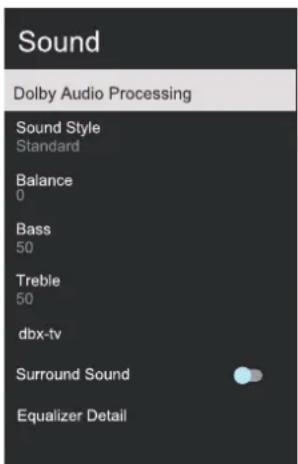
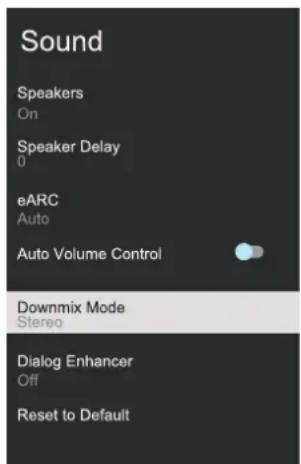
Dolby Audio processing (06pa6oTka Dolby Audio) -ИспοЛьзуИte КНОПК N /▼,ЧТОБы BBИбраТь 3ТOTpyнк MeHIO, a 3aTeM HaЖМЛTe OK, ChTOБы OTКрБТь ПОДмEHIO.
Sound style (CTnB 3Byka) - NcNoJIb3yIte KHOJKN ▲/▼, yTO6bl Bbl6paTb 3TOT NyHKT MeHIO, a 3aTeM HaXMMTE OK, yTO6bl OTKpbITb NOdMeHIO.
BapnaHTbI: User (POnb3ObaTeIbckn), Standard (CTaHdApTbI), Night (HouHo), Sports (Cnopt), Movie (KInHo), Music (My3bika), News (HoBOcTn).
Balance (BalaHc) / Bass (Hn3Kne yactotbl) / Treble (BbocKne yactotbl) - NcnoJIb3yIte KhoIKN △/▼, YTO6bl Bbl6paTb 3TOT NyHKT MeHIO, a 3aTeM HaxMMTE OK nla BXOJa B Hero.
HaxMnte ,yTo6bl yMeHbIHTb 3HaueHne napametpa.
HaxMnte ,yTo6bl yBeJIuHTb 3HaueHne napametpa.
dbx- tv - UcnoJb3yIte KhoNKn ▲/▼, yTo6bl Bbl6paTb 3OT NyHKT MeHIO, a 3aTeM haxMITE OK, yTo6bl OTKpbITb NOdMeHIO.
Surround Sound (Obemhbl 3Byk) - NcnoJIb3yIte KHOKNK ▲/▼, YTO6bl BbIbpaTb 3ToT NyHKT MeHIO, a 3aTeM HAXMNTe OK nla BKJIIOueHnB/BbIKIOueHn.
Equalizer Detail (3KbaJai3ep) - NcnoJIb3yIte KHOIIK N △/V, yTO6bl Bbl6paTb 3TOT NyHKT MeHIO, a 3aTeM HaXMMTE OK, yTO6bl OTKpbITb NOdMeHIO.
Speakers (Диhamнк) - Испожьут e KhoIGNK ▲/▼,чTOбы BbIbpaTb 3ToT pyHKT MeHIO, a 3aTeM haxmnte OK nBkJIIOUeHnBbIKJIIOUeHn.
Speaker Delay (3aepkka 3Byka dHaMaKa) - NcnoIb3yIte KhoIKN / , YTO6bl BB6paTb 3OT nyHKT MeHIO, a 3aTe m HaxMlTe OK JINB XOJa B Hero.
HaxMnte 一 ,yTo6bl yMeHbWNTb 3HaueHHe napaMeTpa.HaxMnte ,yTo6bl yBeInuHTb 3HaueHHe napaMeTpa.
Downmix Mode (PexnM noHxkaOuero
MKNKUnpoBaHn)-NcnoJb3yInTe KHOINK △/▼,YTO6bl BbIbpaTb 3OT NyHKT MeHIO,a 3aTeMHAXMNTe OK,YTO6bl OTKpbITb NOmEHIO.
(BapnaHTbI: Stereo (CTepeo), Surround (OsbemHbI)).
(BapnaHTbI: Off (BbIKl.), Low (Hn3Kn), Medium (CpeDn), High (BbOcKn)).
Reset to Default (C6poc hacTpoek) - C6poc Bcex HacTpoek Do 3aBoDcKnx 3HaueHn.
AUYIOBblXO
MeHIO->HaCtpoNkN-> N3O6paXeHne n 3ByK-> AyDnOBbIXOJ.
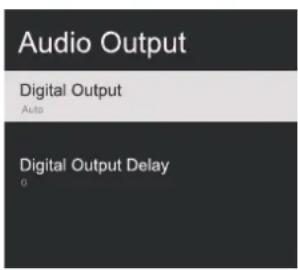
Digital Output (LHΦpOBoB BbIXoJ) - NcNoIb3yIe KHOKN ▲/▼, YTO6bl BbI6paTb 3OT TnyKt MeHIO, a 3aTeM Haxmnte OK, YTO6bl OTKpbITb IOpMeHIO. (BapnaTbI: Auto (ABTo), Bypass (BaINac), PCM, Dolby Digital Plus, Dolby Audio-Dolby Digital). Digital Output Delay (3aepXka ΚHΦpOBoRb XoJa) - NcNoIb3yIte KHOKN ▲/▼, YTO6bl BbI6paTb 3OT TnyKt MeHIO, a 3aTeM Haxmnte OK dJIra BXoJa B Hero.
Haxmnte ,YTo6bl yMeHbUHTb 3HaueHne napametpa.
HaxmTe ,yTo6bI yBEnuHTb 3HaueHne napaMeTpa.
CETb
MeHIO->HaCtpoiKn->CeTb n nHTepHET
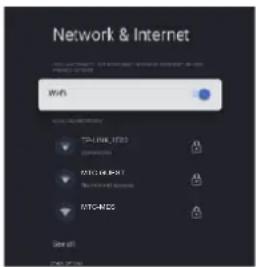
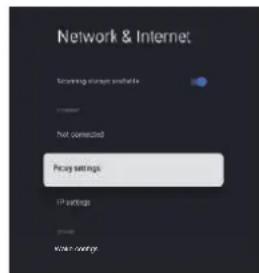
1.Используг Te Khoинк N △/▼,чTo6bl BbIbpaTb HxHbI npaMeTp.
2. Haxmte OK nnoTbepeXeHn.
3. После заBERSEня HabТpoин HabMnTe OK,уTOбы coxpaHnTb napaMeTpbl N BepHyTbcr BnpeMbI Nyuee MeHo.
yUETHbIE 3APINCH IN BXOД B CNTTEMY
Network, serial numbers and other information
Legal information
Model
HwiceMantaTVAE
Android TV OS version
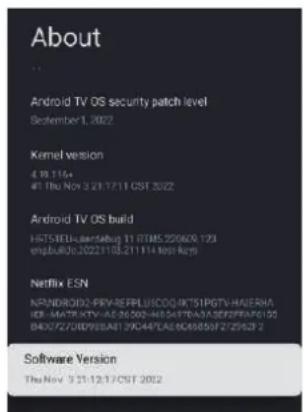
B 3TOM MEHIO MOXHO O6HOBHTb CnCTeMy, c6pocntb HAcTpoKIN NOJyHTb INDopMaUIO O TeJIeBUN3ope.
- Ncnoj3yTe KhoNkN ▲/▼, YTo6bl BbIbpaTb HyxHbI npaMeTp.
- HaxmTe OK Дя поТьержденя.
- По заBERшENHACTPOIKNHAXMNTe KHOJNKY HA3AД,чTObI BepHyTbcR B npeIbIyuee MEHIO.
DATA IN BPEM
MeHIO->HacTpoiKn->CnCTema->DaTaN BpeMa.
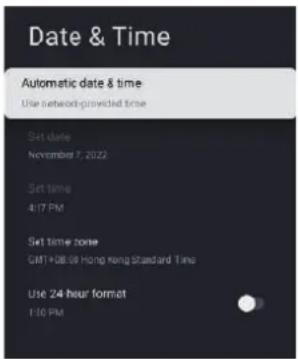
Automatic date & time (ABTomaTnecka yCTaHOBKa DaTbI N BpeMeHn) - IcnoJIb3yIe KHOJKN ▲/▼, UTo6bl BB16paTb 3TOT NYHKT MeHIO, a 3aTeM HaxMtE OK, UTo6bl OTKpbITb NOdMeHIO.
(BapnHaTbI: Use network-provided time (UcnoJIb3OBAHne ceTeBOro BpeMeH), Off (BbIKJ).
NPRIMEYAHNE
- EcInIyHKun aBToMaTuYeCKoYcTaHOBKn DaTbI IN BpeMeHN BBi6paHO 3NaueHne OFF (BblKJI.). Bbl MoKeTe yCTaHOBNb DaTy IN BpeMn BpyHyIO.
Set date (YcTahOBKa DaTbI) - NcNoJIb3yIte KHOJKN ▲/▼, YTO6bI BbIbpaTb 3OTN NyHKT MeHIO, a 3aTeM HaxMMTE OK, YTO6bI OTKpbITb NOdMeHIO.
Set time (YcTaHOBKa BpeMeH) - NcNoJIb3yIte KHOJKN ▲/▼, YTO6bl Bbl6paTb 3TOT NyHKT MeHIO, a 3aTeM HaXMMTE OK, YTO6bl OTKpbITb NOdMeHIO.
Set time zone (YctaHOBka yacoboro nora) - IcnoIb3yIte KHOIIK N ▲/V, YTO6bl BbIbpaTb 3OT TnyHKT MeHIO, a 3aTeM HaxMIte OK, YTO6bl OTKpbITb NODMHeIO.
Power on behavior (PexkIM BkJIIOUeHnI), Energy saver (3HeproScbepeKeHne), Power and timer (IITaHne n TaMep).
1.Испοльзуг Te Khoинк N △/▼,чTo6bl BbIbpaTb HxHbI napaMeTp.
2. HaxmTe OK nIy noTbeXdHnY.
3. По заBERшЕни HabТpoин NaхмTe KHOПКу HA3AД,чTOБы BepHyTbCЯВпpeДыduyee MeHIO.
PEKIM BKJIQUEHEN
MeHIO->HaCtpoKn->CnCTema->PiTuHne->PexuM BKJIouyeHnJ.
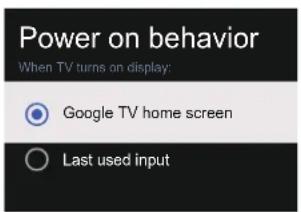
IcnoIb3yIe KhoIKe / ,YTO6bl Bbl6paTb 3TOT NyHKT MeHIO, a 3aTeM HaXMMte OK dIЯ NOdTBepXdEHHJ.
3HEPROC6EPEXKEHNE
MeHIO->HaCtpoKn->CnCTema->PiTaHne->3HePrc6epeKeHne.
Energy saver
When inactive
15 minutes
When inactive (Ipn otcytctBnn DeiCtBn) -
NcnoJIb3yIte KhoIKN ▲/▼, YTObI Bbl6paTb 3OT
nyHKT MeHIO, a 3aTeM HaxMNTe OK, YTObI OTKpbITb
NoDMEnHO.
(BapnaHTbI: 15 minutes (15 mHyT), 20 minutes (20 mHyT), 30 minutes (30 mHyT), 1 hour (1 vac), 4 hours (4 vac), 8 hours (8 vacoB), 12 hours (12 vacoB), 24 hours (24 vaca),
Never (HnkOrda)).
ПИТАНЕ
MeHIO->HacTpoiKN->CnCTeMa->PiTaHne->PiTaHne.
Power
Sleep Timer
Picture off
Switch Off Timer
On
Auto Sleep
Never
Sleep Timer (Taimep cnpaero pexnma) -
IcnoIb3yIte KhoNk / , YTO6bl BbIbpaTb 3OT
nyHKT MeHIO, a 3aTeM HaxMMTe OK, YTO6bl OTKpbITb
NoDMHeIO.
BapnaHTbI: Off (BbIKn.), 10 minutes (10 MNHyT),
20 minutes (20 MNHyT), 30 minutes (30 MNHyT),
40 minutes (40 MNHyT), 50 minutes (50 MNHyT),
60 minutes (60 MNHyT), 90 minutes (90 MNHyT),
120 minutes (120 MNHyT).
Picture off (BbIKNoUeHne n3o6paXeHnra) -
IcnoIb3yIte KhoNk / , YTO6bl BbIbpaTb
3OT NpHK T MeHIO, a 3aTeM HaxMMTe OK dJa
NoDTBePxxDeHnra.
Switch off timer (TaIMep otKNoUeHnra) -
IcnoIb3yIte KhoNk / , YTO6bl BbIbpaTb 3OT
nyHK T MeHIO, a 3aTeM HaxMMTe OK, YTO6bl OTKpbITb
NoDMHeIO.
BapnaHTbI: Off (BbIKn.), 30 minutes (30 MNHyT),
60 minutes (60 MNHyT), 90 minutes (90 MNHyT),
120 minutes (120 MNHyT), 150 minutes (150 MNHyT),
180 minutes (180 MNHyT), 210 minutes (210 MNHyT),
240 minutes (240 MInHyT).
Auto Sleep (ABToMaTHueckn NepexoB B cnaun pexum) -NcnoJIb3yIte KHOJKN A/V, YTO6bl BBb6paTb 3TOT NyHKT MeHIO, a 3aTeM HaxMMTE OK, YTO6bl OTKpbITb NOdMeHIO. (BapnaHTb: Never (HkoRda), 4 hours (4 yaca), 6 hours (6 yacOB), 8 hours (8 yacOB)).
TAIMEP
MeHIO->HacTpoiKN->CucTeMa->PiTaHHe->TaIeMep.
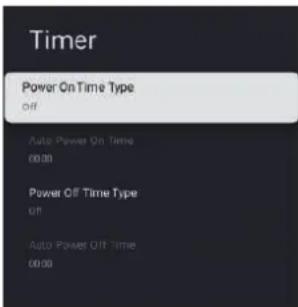
Power On Time Type (TIN TAI Mepa BKNIOUeHNA) - NcnoIb3yIte KHOKNA /▼, YTO6bl BbIbpaTb 3TOT nyHKT MeHIO, a 3aTeM HAXMNTe OK, YTO6bl BbIbpaTb OFF (BbIKN.) ON (BKn.) nII ONCE (OdINH pa3). Auto Power On Time (Taimep aBTOMaTHueckoro BKIOUeHNA) - NcnoIb3yIte KHOKNA /▼, YTO6bl BbIbpaTb 3OT NyHKT MeHIO, a 3aTeM HAXMNTe OK, YTO6bl OTKpbITb NOIMHeIO.
Power Off Time Type (Tin TaIepe BbIKNoeHn) -NcnoB3yIte KHOKNA/▼,YTO6bl BbIbpaTB 3OT NHyKT MeHIO, a 3aTeM HaxMMTe OK, YTO6bl BbIbpaTB OFF (BbIKL), ON (BKn.) nIN ONCE (OdIn pa3). Auto Power Off Time (TaIIeep abTomatueckoro BbIKNoeHn) -NcnoB3yIte KHOKN A/▼,YTO6bl BbIbpaTB 3OT NHyKT MeHIO, a 3aTeM HaxMMTe OK, YTO6bl OTKpbITb NOdMeHIO.
TPAHCLIIN
MehIO->HacTpoiKn->CnCTema-> TpaHcIaIyra.
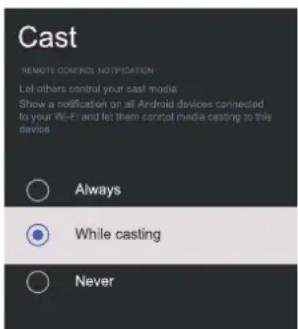
- NcnoIb3yIte KhoNkN ▲/▼, yTo6bl Bbl6paTb HxHbI npaMeTp.
- HaxmTe OK nIy noTBepxdHnA.
3.ДЯ Bo3BpaTaВ npeIbIyUe ee MeHIO HaxMnte KhoNky HA3A.I.
PEKIM MAFA3NHA
Meho->HactpoiKn->CnCTema->Pekm maraaHa.
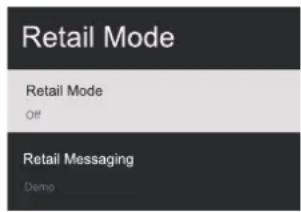
Retail mode (Pexm Mara3nHa) - NcnoB3ynte KHOKNA /▼, YTO6bI Bb16paTb 3OT NYHKT MeHIO, a 3aTeM hXMMTE OK nJa BkJIIOUeHNr/BbIKJIIOUeHNr. Retail messaging (Co06uEHHMa3nHa) - NcnoB3yIne KHOKNA /▼, YTO6bI Bb16paTb 3OT NYHKT MeHIO, a 3aTeM hXMMTE OK, YTO6bI OTKpbITb NOMeHIO. (PpIMeuaHne: Demo (DEmo), e-POP, e-POP + Demo (e-POP + DEmo).
NEPE3APY3KA
MeHIO->HacTpoiKn->CncTeMa->Ipee3aRpy3ka.
Haxmnte OKДЯперхoДВ noDMeHIO.
BapnaHbI: nepe3arpy3ntb N OTMHeHtB.
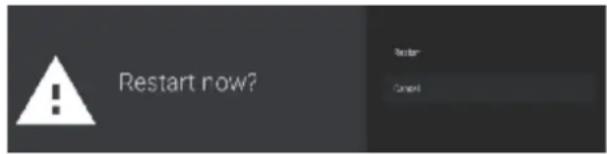
NYJbTbI DY IN IPNHAJIEXKHOCTN
MeHIO->HaCtpoKn->PnybTbI Dy n npHaJdNeJXHOCTN

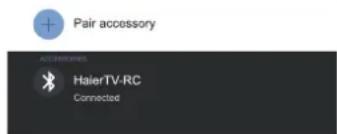
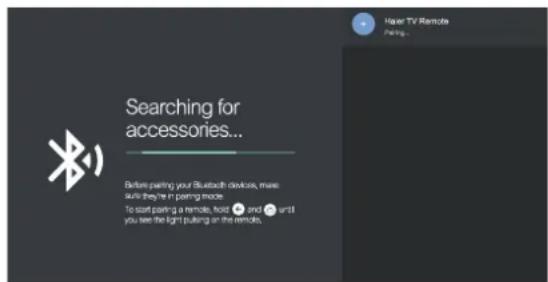
B 3Tom MeHIO MoXHO HacTpaNBaTb cOpJxKeHnC yCTpOncTBamn Bluetooth.
- HaxMMTe u ydepXnBaTc KhoNkB B HxHHe yactn nybTa b TeueHne 5 cekyHd.
- Korda cBeToIIOHbI INdkaTOp HaHcET MrgaTb, OTNcyTnTE KhoNk. NylbT DY OTnpaBNT B TeLEBu3Op 3anPoc COnpJxKeHn, n CBeJeHnO npyIbTe NoBByTCB npaBoYacTn ekpaHa.
- Haxmte OK, yTo6bI nokaTaB pe3yIbTaT coPraKeHn. Ecnn Ha 3KpaHe NoaBntc COoTBeTCTByIOOee COo6UeHne, 3HaHT, coPraKeHne yCTaHOBJIeHO.
4.EcIIN NOBITcOo6eHHe o6OTcyTCTBnCOnpJxHn,3HaHT,CopJxHne HeyCTaHOBJeHo.IoOxDnte 30 cekHy n CHObaHaxMTe N ydepXNBaTe KhoNk B HxHNe YacTn PylbTa Dv B TeueHne 5 cekHyd,UTo6bl NOBTopNTb IpOceDpy COnpJxHn.
5.ДЯ BO3BpaTa B npeIbIyUeem MeHIO HaKMnTe KHOKNy
NCHOJIb3OBAHNE MYJIbTUMEДИHOrO IPOINrPbIBATEJIa

FÖRBEREDA LED-TV-APPARATEN FÖR VAGGMONTERING
Vi foreslar att TV-apparaten monteras minst 60 mm (2,36 tum) fran vaggen for att ge utrymme for kablarna. Stativet maste tas bort innan TV-apparaten monteras pa vaggen.
Menu (Meny) -> Settings (Installingningar) -> System -> About (Om).
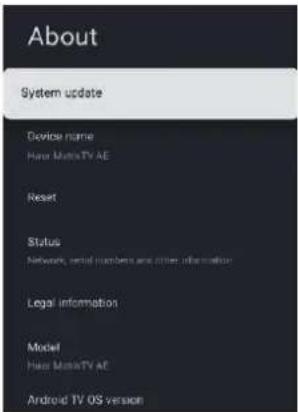
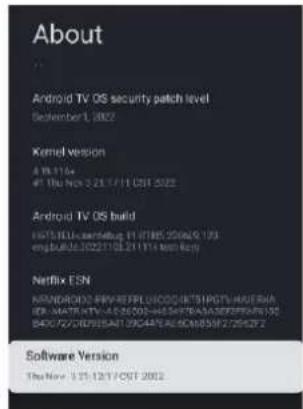
3ABXINBnKOpncToByTe KOpynC,PiCTaBKn Ta MeToN BCTaHOBHeHHpeKOMeHIOBaHI Bnpo6HnKOM TeJIb3Opa.
3ABXnBukopncTaHHrTiMe6nI,raKMOxyTb 6e3neuHO BnTpmyBaTN BCTaHOBJEHn Ha HNX TeneBisOp.
3ABXJIN 3a6e3neuYte,io6 TeJIeB1Op He BnCTynab 3a KpaM6JIIB,Ha JIKX Bih BCTaHOBHeHn.
3ABXJN NOIPOHTe IITM He63neky BuJIaHHHa Me6JI 3 MeTOO IOcraHHn Do TeJIeBI3opa a6o NOro oprAHIB KepyBaHH.
3ABXINpoklaaTeHypnTaKa6eNi,piKJIIOueHi DoBaWOroTeJIeBi3Opa,TakmYHOM,0o6yHNKHTN CNOTUKAHHO6HX.
HIKOJIHcTaBTe TeneBisOp Ha HectiKnx NOBepxHx.
HIKOJIH He BCTaHOBJIIOHe TeneBi3Op Ha BnCOKnx Me6Jx (Ha npNKlaI, Ha cepBaHTax a6o KHNKKOBNX waqax), He npKpiINBUN cnepeuyi Me6ni Ta TeneBi3Op Do HaNIIHOI ONOpN.
HIKOJIH He CTaBTe TeJeBi3Op Ha cKaTePtnHy a6o iHsi MaTepiAn, kKIMMOxTyb 6yTu HApnti Me6nI.
HIKOJIH He CTaBTe Ha TeIeBi3Op a6o Me6nI,Ha Jknx BIn CToITb, IpeMETn, IO MOxMyTb CNOHyKaTu DItei 3aIa3HTn Ha HIX, HApNkLAd, IrpaWKn Ta NylbTn DnCTaHcuiHoro KepyBaHHra.
IiJvac nepemieHHa TeneB3oPA BInHe Micue 06OB'raKOBO DToPmMyTecbNHeHaBeDeHx IHCTpyKui.
BAKJIbBO:HeHaTnCKaIeHaekpaHdncIe, OckIbKnCeMOKe cnpuHHITNoRO N0wKOJXeHHa. IapantBID Bnpo6HnKa HeNOKpNBae N0wKOJXeHHa, 0O BnHKnBhAcNiDOK HnPaBUNbHO RBNOPNCtAHNa aO HeHaJIeXHOro BCTaHOBJIeHHa.
PINKPINJIENHHIIDCTABKN
BAKJIIBO:ПiДСТаВКу TeJIeBI3Opa NOTpIbHo 3i6paTn nepei II BnKOpuCTaHHaM.
- Noklaɪt b TeJIeBɪ3Op ekpaHOM DoHn3y Ha M'ʌkY Ta nlaCky nobepxHNO (nOKpɪbʌno, niHɒnlaCT, TkaHnHy ToʊO, Ⅲob obepertn NiRo BiD 6yɒb- kɔrO nɒwkoŋdɛkHŋ.
2.ПикpiniTiB niДctaBkydo HxHbOi nAneJI TeJeBi3opa 3a DonoMoRoHO 6 rBnHTiB.
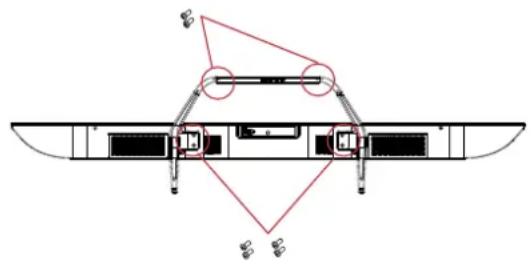

ПРИМITKA
3o6paKeHHBnpo6y BiINOBiJae iinChomy.
ПИДГOTOBKA BALJOTO LED TEJIEBI3OPA ДО MOHTAXY HA CTIHI
Uo6 yHnKHyTN BnHnKHeHHa nepeWkoJ Ka6JIb, peKOMeHNyEMO BCTaHOBnOBaTn TeJeBi3Op Ha BiCTaHI 0HaHmMeHwe 60 MM Bi d CTIn. Ipeed Tm JIK BCTaHOBnTn Baaw TeJeBi3Op Ha cTIHi, nOTpi6Ho 3HrTNIiCTaBky.
3 MeTOO 6e3NeKIN BnKOpNCToBvIe TIIbKn HAcTInHl KPOHHTeHH cepTnΦiKOBaHI opraHi3aciEo Underwriters Laboratories (UL), po3paxobani ha Bary, 6IbSy HIX Bara TeJIeBi3opa 6e3 NiCTaBKn. Uo npNKpInNTn HAcTIHHN KPOHHTeH Do BaWoTO TeJIeBi3opa:
- Bnkyitb rBnHTn, 0kpinTb BaW TeIeBi3Op Do nIdctaBKn.
- 3Himitb niDcTabKy 3 BaWOrO TeNeBi3opa.
3.ПикрiniTbHacTiHHOrO KpoHwTeiN Do 3aHboI naHeni BaWoRo TeleBizopa 3a DonomorO YoTnbpox TBnHTiB.ДЯ BCTaHOBJIeHHJ IOTpmyIteCb IHcTpkyu y noci6Hnky KopncTyBaUa, lo DoJaetbc Do HacTiHHOro KpoHwTeiHa.
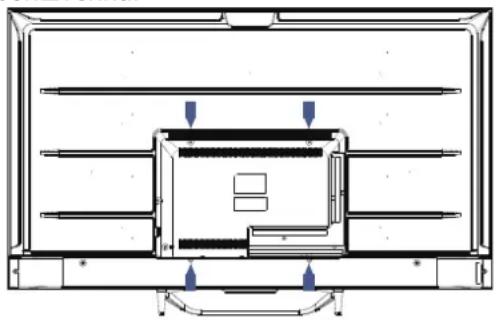

NPNMITKA
HactHHN KpoHsTeH He BXoDntb y KOMnJIeKT.
- 3akpyTiB rBuHTn HAcTIHHORo MOHTaKy (M6x12MM/4wT.) y 3aHIO nAHeNb LED TeIeBi3opa 3 kpyTHm MOMeHTOM 12 Krc:cm.
YBIMKHEHHI TEJIEBI3OPA
- BctaHOBIb IIcTcABky Ta nomictiB TeJIeBi3Op Ha HAIHy NOBepxHIO.
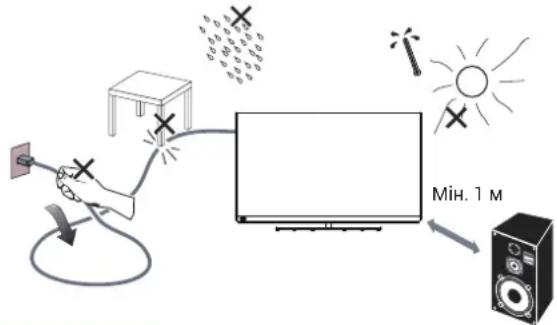
PIMITKA
3a6e3neuty HalekHy BeHTnlaIy o Myci I BCTaHOBHeHH TeIeBi3opa. He 3akpNBaTe BEHTnlaIyI Hi OTbOpH NaHni
Lio6 yHnKHyTN BuHnKHeHH He6e3neuHx cnTyaui, He CTaTe DkepeLa BiKpntoro noLyM' Taki JK 3ananeHi CBiuKN, Ha a6o 6iJa TeIeBi3opa.
- O6epiraTe BiD BucOKnx TeMnepaTyp, npraMOro coHryHoro npomIHnA, a TaKoX DoUy Ta BOiN. O6epiraTe uei npicTpiB iD KpaneJb Ta 6pn30K BOiN.
2.ПДКЛЮчITbKa6eIb aHTeHn a60 Ka6eIbHoro TeJe6aueHndoTHi3da aHTeHn ANT IN Ha 3aDiHni NaHeli TeJeBi3opa.
3.Пиьт ДИСТАнцИнHorO кЕрУВаHHЯ: 3HIMITb KPNUk KyБaTapeINHorO BiDcIKy.BCTaBTe 2батapeKn(Tny AAA 1,5B).
3ACTEPEXEHH:PiJvac 3aMHN 6aTapeNOK Ha 6aTapeKn HnPaBnBHO Tnny icHy pcNk Bn6yxy.

- NotyKHiCTb:
PiiknHcyt bHyp XnBHeHHa o po6ooyi eJeKtpnHoi p0eTKn.
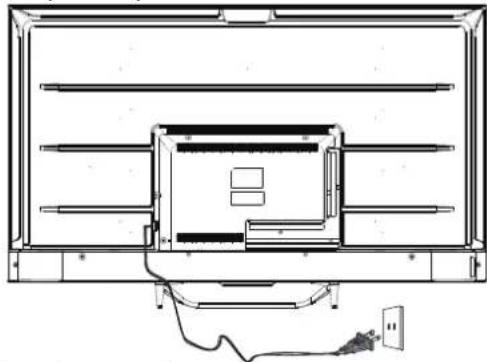
- YBIMKHITb TeJIeBi3Op:
HaTnchItbHa nyIbTi IncTaHciHoro KepyBaHHa 60KONky POWER Ha 6okobin naHeni KepyBaHHa TeneBi3opa.
KEPYBAHHKHOPIKAMN
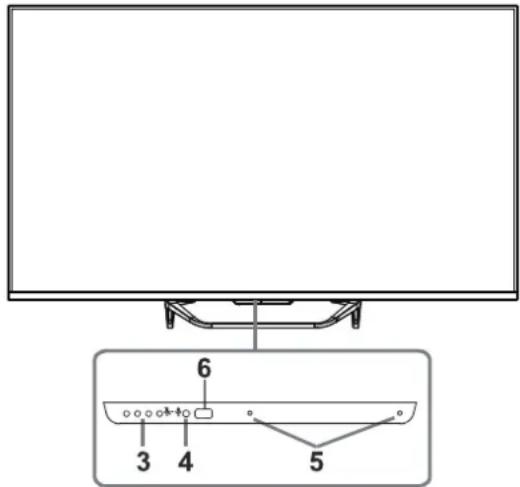
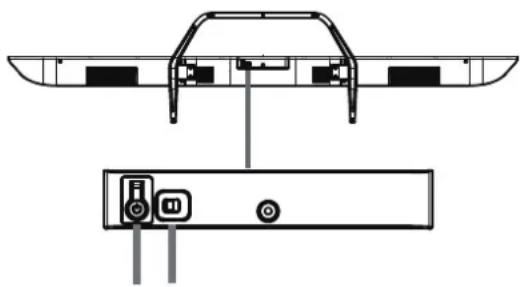
12
- XnBJIeHHa YbIMK./BIMK.
2.Функця rolocy yBIMK./BMK
YbIMKHyTn cyHKUHO dNCTaHcIHHoro NOMiYHnKa
BumKHyTn cyHKciIO dNCTaHciINHOro NOMiHuHaKa
Ipeemictb BnpaBO, 06yBIMKHyTN cyHKciIO rolocy,BoDnOvac 3aROpNTbcra Ta 3HOBy nOrache cBITNOBni iHdkaTOp, NOKa3yOuN, 0o cyHKciIO rolocy yBIMKHeHO. Tenep cKaXiTb "Ok Google" Ta 3auekaTe, DOKN 3aROpNTbcra CBITNOBni iHdkaTOp, a ToDi cKaXiTb BaW 3aNT.
IpeMeictb BJIBO.06 BUMKHyTu cyHKciIO rONoCy, BOHOuac CBITLOBNIHdNKaTOP 3MiHHTb KOJIp Ha XOBtN.
3.CbITNoBmIHnKaTOpDnCTaHcuiHoroNOMiHuHaKa
4.ПиIMaU cIHaJIb BiIpyJIbTa IuCTaHcIINHOKepyBaHHa
5. PnIMaU roIocOBx CnHaJIb
6. INdkaTOp KINBneHHA
I IPIPIMITKA
Ipeed BnKOpNCTaHHm fynKcii roNoCy niklouitb BaW TeNeBi3op Do iHTepHeTy. YbIMKhItb, Ipeed TMM k BnKOpNcTOBvBaTH fynKciio roNocy.
YbiinDb y Baw obnikobn 3annc GOOGLE, npeed TmK BnKOpncTOBByBaTn FyHKciio rolocy.
AKCECYAPN
IyblT dncTaHuiHoro KepyBaHHa-1 wT.
NocibHKKOpncTyBaay-1wT.
TBNHTN-6JT.
IOBIDHNI 3I WBNIKORO 3anycky-1 wT.
TapaantHnTaN0H-1wT.
IINKJIIOUeyHNEPNIΦEPII

Yci po3'emn (3JIbHa HanpaBO):
LAN, OPTICAL,VIDEO,L,R,HDMI4,HDMI3,HDMI2

Yci po3'emn (3JIbHa HappaBO):
HDMI1 (eARC/ARC), LNB IN (SATELLITE), ANT IN (ANTENNA/CABLE), USB1, USB2, EARPHONE, CI.
ABOBJAAHAHH
Lcien Tenebi3op ochaueHn Ondieo rpyno AB (ayioBiayabnX) po3'EMIB nIa 3pyuHoro nIKluueHH BideomarHiTOphOB, DVD Ta iHwO RiDeoo6naHaHH.
Будь lacka, o3HaHOMTeec TaKoX i3 noci6HnKOM KopncTyBaay OblaHannry,Яke 6yde NidkNoHuatncb.
Bn moxete BnKopncToBbAtn BxDiHpo3'Emu Ha 3aDHi NaHeI TeleBi3opa, k ONcaHo Hnxue.
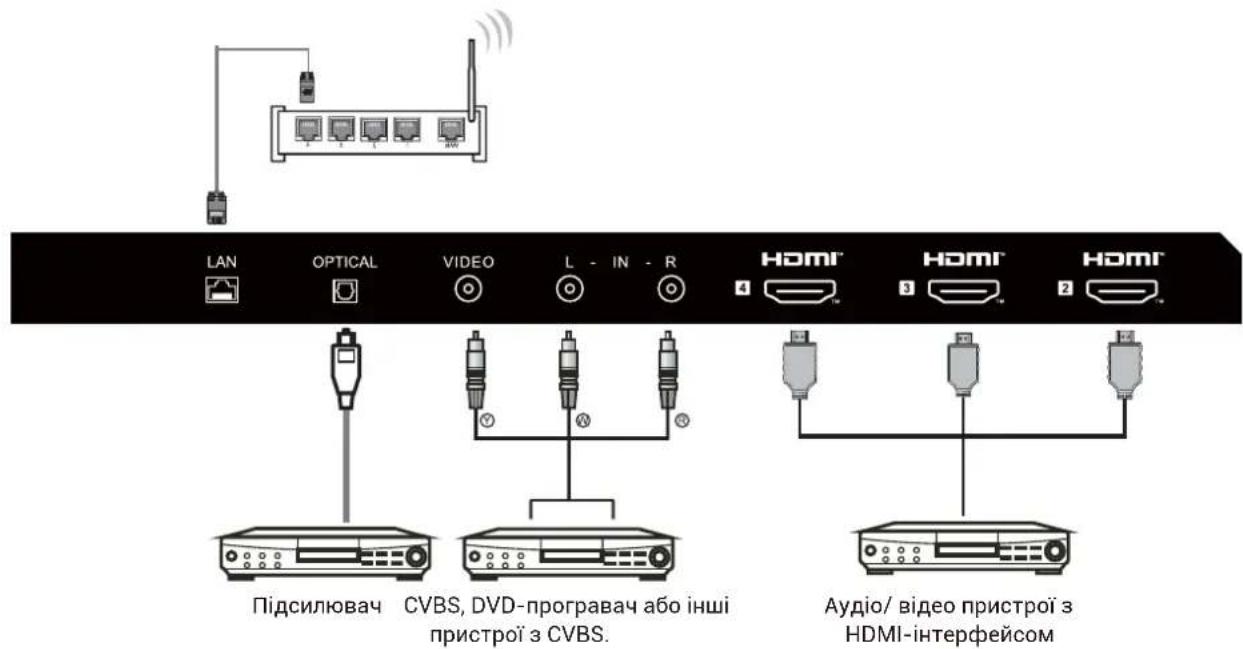
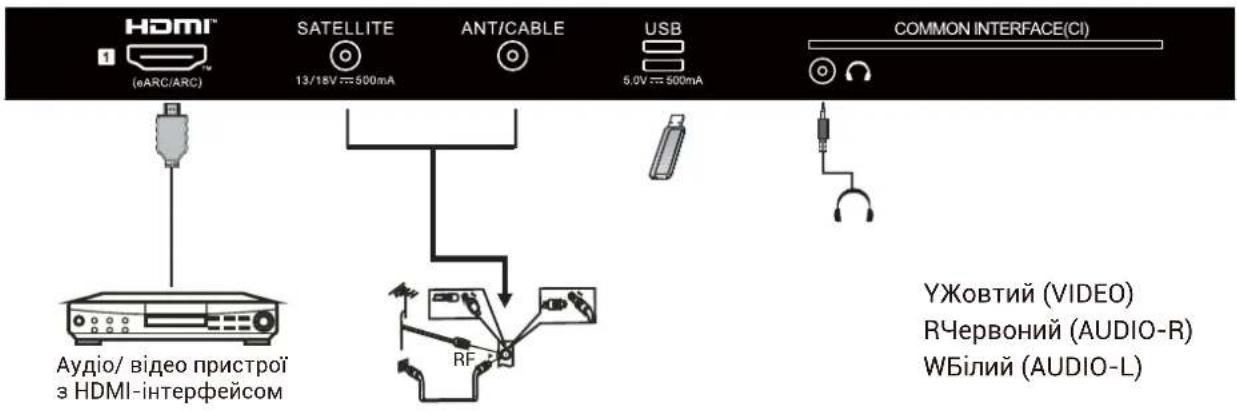
Ioro MoxHa NiiklouHTn Do TaKnx npncTpoiB: BiJeomarHITofoH, 6araToDnckOBI nporpaBaqi, DVD, BiJeokamepri, irpOBI npicTabKn, cTepeocNCTeMNI Toio.
PnmuTka:
Yacom TeIeB3Op He NiItpmUy EeKaI npncTpo, OckInbKn BOHn nepeaHTb HecTaHapTHn CnHaJ.
Apps BiKpnIe CnUCOK BCTaHOBJIeHnx 3aCTOCyHKIB Ta IdoaIte BaWi BN6paHi 3aCTOCyHKN.
Library IpeperlaaTe BaWi npu6aHi a6o B3aTi Ha npokat BiDeo3anncn B oBikOBomy 3anci KopucTyBaHa.
② CnncOK BCTaHOBNeHnx 3acTOcYHKIB Ta pushBMICTy BCTaHOBNeHnx nporpaM.
③Перглд Ваооi Иформачи npo obikobni 3aпс,налштуваимя,чac,BxODn Ta 30бражени.
HanaTyBaHHa: TyT MoxHa HanaTyBaTN p3Hi HAcToKn. DeTaJIbHIiJaHi 0do HanaTyBaHb DnB. y HAcTyNHOMy po3'JcHeHHI.
BxOuN:Bn MoKeTe Bn6paTn DxepeNa BXoNy.
306paKeHH: KopnctyBaM MoKe HanaTuBAtu 306paKeHH TeNeBi3opa. DnB. cTOp. 12 nIa OTpMaHnJeTaIbHiux IHCTpyKciI ODo HanaTuBaHH.
HABITALI B EKPAHHOMY MEHIO
EДВспocobn BxOy.CnepWbpeKIMi Tele6aueHnHaXNBO HATNCIb KHOKNy MeHOb, ⅢoB BiIO6pa3nTn OOnIO TeLEbi3Opa,HaNTCKaHTe △/V/,,0oB Bu6paTN HanaUTyBaHHaMeHOb,a ToDi HATNCIb KHOKNy OKДЯ NiITBepdKeHHa. Dani Ha cTOpIHci HOME (ToJOBHa) HATNCIb KlaBIwY ▷ДЯ Bn6Opy 3HaUka MeHOb TODi HAITNCIb OKДЯ NiITBepdKeHHa.

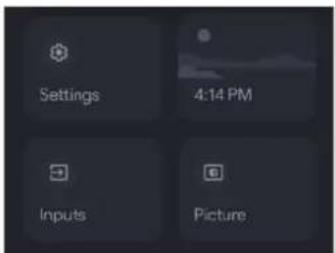
HaTnCKaTe KhoNky / ,06Bn6paTu eJeMeHT Ira HanaTuBaHHa. HaTncHtB OK, 06 BiDkPntu HanaTuBaHHa.
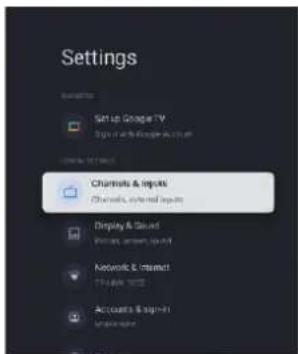
HaTnCHiB BACK (Ha3aI)ДЯ NOBepHeHHA Do
POnpeHbOro MeHIO.
KIo BiOobpaKaeTbcra roJIOBHe MeHIO,HaTnCKaHHa
KlAbiWi BACK 3akpne ekpaHHe MeHIO.
KAHAJIN
Menu -> Settings -> Channels & Inputs -> Channels (Mehno -> HanaTbVbHn -> KaHann Ta BXoN -> KaHann).
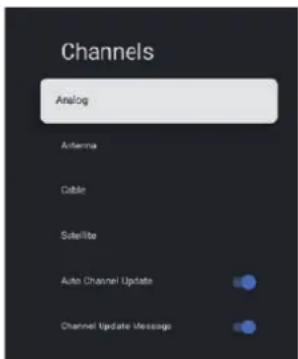
Analog/Antenna/Cable/Satellite (Ahaor./AHTeha/ Kaebb/CynyTHNK) - HATNCiTB KHOKNy ▲ Bn60py Heo6xioHoi ONci, a NOTIM HATNCiTB KHOKNy OK dny nepexody B niDMeHIO.
Auto Channel Update (ABTOMATNHE OHOBHeHH KaHany) - HATNCHTb KhoNky OK dIra Bn6opy ON/OFF (YBIMK./BIMK.). RaKIO Bu6paTu ON (YBIMK.), cncTeMa aBTOMaTHUcKaHyBaTMe I OHOBIOBAtMHe KaHaJI Nyepe3 5 XBNiH nepe6yBaHH y peKmI oOikyBaHH.
Channel Update Message (Повдомлени по овогенни Кану) - натус的高度 Na Конку OK дя вибopy ON/OFF(YBIMK./BMK.).Яков Вибрази ON (YBIMK.), состema рokаши Bavим подомлени по овогенни.
PnIMtKa: DocTyIne IxKepeJIO MoKe BiDpi3HrTncs 3aIeXHO BiM MoDeni.
BXO.
Menu (MeHoo) ->Settings (HaJauWtUbaHHa) ->Channels & Inputs (KaHann Ta BxOdi)
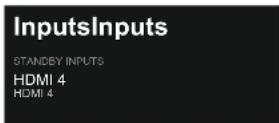
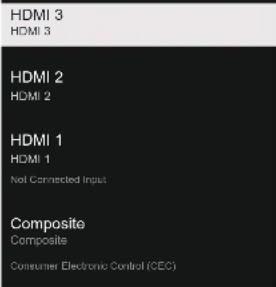
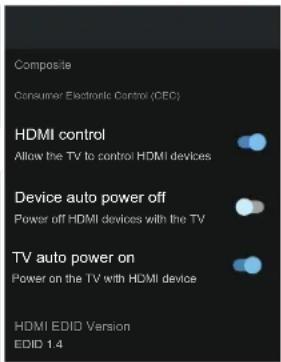
CEC Device List
Inputs (Bxodn) - Hatackai Te KnaBiwi ▲/▼, 06 Bn6paTn onciio, a ToDi HaTnciTb KHONky OK, 06 ybiInu B NiDMeHO.
HDMI control (HDMI-kepyBaHHa) - HaTnCKaIte KnaBisi ▲/▼, ξo6 Bn6paTu onuio, a ToDi HaTnCHiTB KhoNkOK, ξo6 Bn6paTu YBMK/BNMK.
Device auto power off (ABTOMaTnue BIMKHeHH npncToPO) - HATnCKaIte KnaBiWi / , 06 BNbpaTn onciu, a ToDi HATnCHiTb KhoNkO K, 06 BNbpaTn YBMK/BIMK.
TV auto power on (ABTOMaTnue yBIMKHeHH TeJIeI3opa) - HATnCKaIte KJIaBiWi / , 0o6 Bn6paTuOniIO, a ToDi HATnCHiTb KHOJKy OK, 0o6 Bn6paTu YBIMK/BIMK.
HDMI EDID Version (Bepcia HDMI EDID) - noka3ye Bepcio ID.
CEC Device List (Спсок пистоов СEC) -Натискайт eklaviш i △/▼, uo6 bivspa n onciio, a ToDi hatachitb khoNky OK, uo6 ybiTn B niDmeHIO.
306PAXHEHHTA 3BYK
Menu (MeHIO) ->Settings (HaJauTbyBaHHa) -> Display & Sound (3o6paXeHHa Ta 3ByK) B cIbOMy MeHIO MoXHa HaJauTbyBaTn 3o6paXeHHa,
3Byk Ta ayioBxix TeNebi3opa.
- HatnckaTe KhoNky / ,06BbpaTneJeMeHT nHaJauSTyBaHHr.
- HatncHtB kHONky OK, 06 niTbepdntn.
3.Писязавершенин Нааштуванн HaTисИть Kногу BACK(Ha3aД),иб поевруняdo nonepedhboRo MeHIO.
Display & Sound
Picture
Screen
Sound
Audio Output
306PAXEHH
Menu (MeHIO) ->Settings (HaJaWtYBaHHa) -> Display & Sound (3o6paXeHHa Ta 3ByK) -> Picture (3o6paXeHHa).
Picture
Picture Mode
Backlight
Brigthness
50
Contrast
50
Saturation
50
Picture
Contrast
Satraion
HUE
0
Sharpness
Advanced Settings
Reset to Default
Picture Mode (PexnM 306paXeHHa) -
HaTnCKaIte KlaBiWi ▲/▼, Μιοδ Bn6paTn onciu, a ToDi HATnCHiB KbONkU OK, Μιοδ yBiItn B πiDmEHO.
(DocTyHnnapaMeTpN:KopncTyBauchkN,
CTaHdapTHn,JaKpaBn,Cnopt,KiHoΦijbM,Γpa, EHepro36epexeHH).
Backlight(ПiДсВИЧУВАнHA)/Brightness(ЯСКРБICТБ)/
Contrast(KoHTpactHicTB)/Saturation(HacueneHn)
HUE(BiTiHK)/Sharpness(P3KicTb) - HaTnCKaTe KnaBisi ▲/▼, ΜοБ Bn6paTn onciH, a ToDi HATnCHITb KHONKY OK dny.
HaTnCiHb 4mJ3MeHWeHH npaMeTpTa.
HaTnchItb 36iNbweHHn npaMeTpTa.
Advanced Settings (Pozumpehi HanaawtybaHna) - HaTnCKaTe KJaBiWi / 一 / 7, 06 Bn6paTN onuio, a ToDi HATNCHTb KONkU OK, 06 yBiITN b NiDMHeIO.
Reset to Default (CKHHTN Do cTaHapTHNX) -CKnDaHHB BcIX HanaWtYBaHb DO 3aBODcbKnx HanaWtYBaHb 3a 3aMOBcYBaHHM.
3BYK
Menu (MeHIO) ->Settings (HaIaIHTyBaHHa) -> Display & Sound (3o6paJKeHHa Ta 3ByK) ->Sound (3ByK).
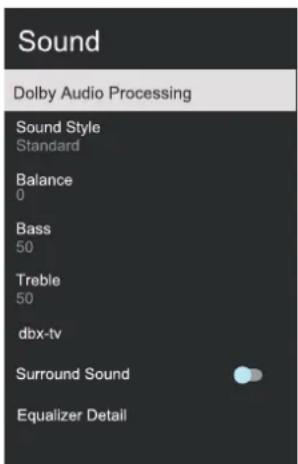
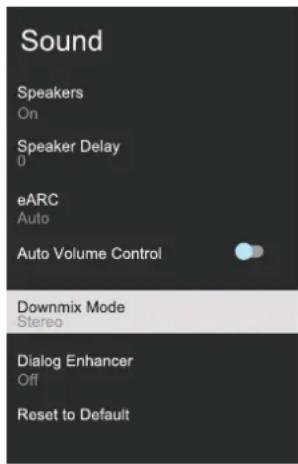
Dolby Audio processing (O6p06ka Dolby Audio) - HATNCKaIte KnaBiiwi / , 1o6 Bn6paTn onuio, a ToDi HATNCiTB KHOKNy OK, 1o6 yBIiTn B nIMMeHIO. Sound style (CTMb 3ByKy) - HATNCKaIte KnaBiiwi / , 1o6 Bn6paTn onuio, a ToDi HATNCiTB KHOKNy OK, 1o6 yBIiTn B nIMMeHIO.
(DocTynHi npaMeTpN: KopncTyBauchKni,
CTaHdapTHn, HiU, Cnopt, KInoΦijbM, My3nKa, HOBuHN).
Balance/Bass/Treble (BaJahc/HxHhi YacToTn/ BepXhi YacToTn) - HATNCKaIte KJIaBiIi ▲/▼, 06 Bu6paTN OpiIO, a ToDi HATNCHiTB KHOKNy OK, 06 yBiTIb N iDMeHIO.
HaTnCHiTb 4JnI 3MeHWeHH npaMeTpTa.
HaTnchItb 36iJbWeHHH npaMeTpTa.
dbx- tv - HATNCKaIte KlaBiWi ▲/▼, ΜΟБ Bn6paTOnciH, a ToDi HAITNCiTB KONKy OK, ΜΟБ yBiHTu BπiMeHo.
Surround Sound (06'EMHe 3ByaHn) - HaTnCKaTe Knaiwi / ,uOb Bn6paTu onciO, a ToDi HATNCHTb KhoNkOK, uOb Bn6paTu YBIMK/BIMK.
Equalizer Detail (Ekbala3ep)-HaTnCKaTe KlaBiIi ▲/▼, ΜΟБνΙΒαρΤη ΜΟιΙΟ, a ToDi HATNCHITb KHOπKy OK, ΜΟБ yBιΠΝ B πιДмΕΝι.
Speakers (DnHaMikn) - HaTnCKaTe KlaBiWiI ▲/▼, ΜΟБ Bn6paTn ΜιCIO, a ToDi HATNCHTb KHONKy OK, ΜΟБ Bn6paTn YBIMK./BIMK.
Speaker Delay (3aTpumka dHamika) - HATnCKaIte KnaBisi / , 06 Bn6paTn OnciIO, a ToDi HATnCHITb KhoNkY OK, 06 yBiTI N PiIMeHIO.
HaTnCiHb 3MeHWeHH npaMeTpTa.
HaTnCHiB 36iJIbWeHHH npaMeTpA.
eARC-HaTnckaTe KnaBiWi ▲/▼,Iio6 Bn6paTu onciu,a ToDi HaTnciThb KhONKy OK,Iio6 Bn6paTu ABTO/BIMK.
Auto Volume Control (ABTomatnue KepybaHHa ryhicto) - ▲/▼, Μοδ Bn6paTn onuio, a ToDi HATNCHTb KhoNky OK, Μοδ Bn6paTn YBMK./BIMK.
Downmix Mode (Pexm 3MeHuyBaIbHoro MIKyBaHH) - HATNCKaTe KlaBiWi △/▼, Κo6
Bn6paTn onciio, a ToDi HaTncHiTb KhoNky OK, iO6 yBiInTu B NiDMeHIO.
(DocTyHnI npaMeTpni: Ctepeo, 06'EmHe 3ByuHaHH).
Dialog Enhancer (Пдсиелня далorib) - NaTnCKaIte KnaBiiS / ,io6 Bn6paTn onuio, a ToDi NaTnCHiTB KhoNkO K,io6 yBiTu B niDMeHIO. (DocTyHi napameTpN: BmK., Hn3bKe, CepedHe Ta Bncoke)
Reset to Default (СкнHyТи До CTанДарТнИ) - CкнДаннЯ BCIX HaJaSTyBaHb ДО 3aBOДсБКИx HaJaSTyBaHb 3a 3aMOВЧУВаHHМ.
AUYIOBHXI
Menu (MeHIO) ->Settings (HaJaTuBaHHa) -> Display & Sound (3o6paKeHHa Ta 3ByK) -> Audio Output (AydioBxid).
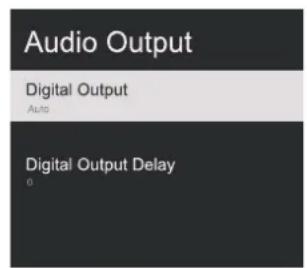
Digital Output (LHΦpOBn Bxid) - HATNcKaITe KnaBiiA /▼, 06 Bn6paTn ONUIO, a ToDi HAITNCiTB KHOKNy OK, 06b yBIaTN B NiDMHeO. (DocTyNHi napameTp: Auto (ABTo), Bypass (ObxiD), PCM, Dolby Digital Plus Ta Dolby Audio-Dolby Digital).
Digital Output Delay (LundpobaaTpaMka BxOy) -HaTnckaTe KnaBiwi / ,06Bn6paTu onuio,a ToDi HaTnCHiTB KhoNkOy OK, 06 yBiTu BPiMaHIO. HaTnCHiTB 4Jr3MeHweHH npaMeTpTa. HaTnCHiTB 36JIbWeHHn npaMeTpTa.
MEPEKA
Menu (MeHIO) ->Settings (HaJaTuBaHHa) ->Network & Internet (Mepexa Ta iHTepHeT)
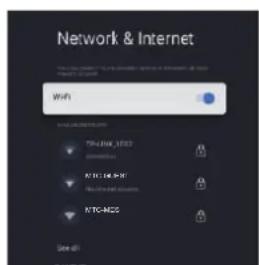
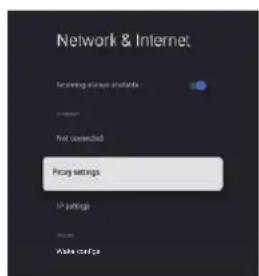
- HATnCKaIe KhoNky / ,IO6 Bn6paTneJeMeHENT nHaJauSTyBaHHr.
- HATNCHTb KONkOy OK, 06 niTBePdntn.
3.ПиязаВершнгнэHaJaWtBuHnHaTnCHITb KhoNky OK,иб 3бepertTu Na nobepHyTncrdo nonepdHbOro MeHIO.
ACCOUNTS & SIGN IN (OBJIKOBI 3APINCH TAPECCTPALI)
- Menu (MeHou) ->Settings (HaIaIHTyBaHHa) ->Accounts & sign-in.(O6JIkOBI 3aIncn Ta peecTpaia).
- Ha ctopiHci HOME (ToJbHa) HaTnCKaIte KnaBiiSi / 06 Bn6paTu «Set up Google TV» (HaNaWtYBaHnJa Google TV) Ta nepeuTn Do HAcTyPhHO KpOky.
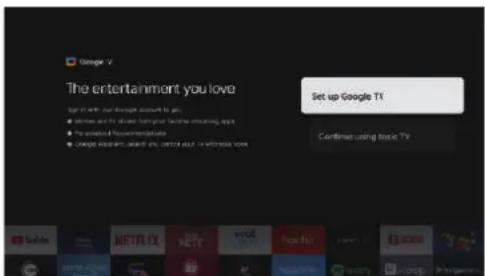
Bn6epiTb «Set up Google TV» (HaJauTsyBaHnna Google TV) ta nepeiDITb Do HacTyHoro KpOky: BBeiTb BaWe im'ra obliKOBOro 3aNcCy Ta napoiI. Picna 1bOro BnKoHaNe Te PiKa3Kn, 0o6 3aBepuHTn BiIDNoBiDiHi HaJaTuYBaHHa.
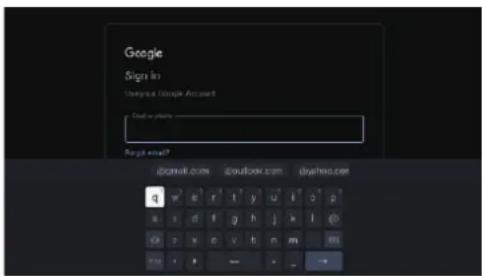
ПРИВATHICTb
Menu (MeHIO) ->Settings (HaJauTsyBaHHa) ->Privacy (PpNBaTHicTb).
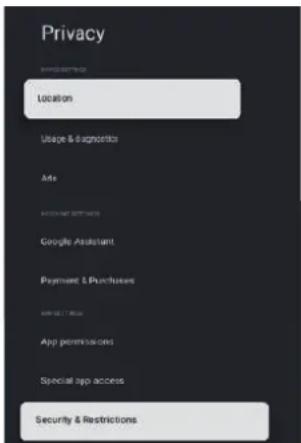
B cboMy MeHb BN MoKeTe HanaaTyBaTn Micue3HaXoJxHeHH, IHOpMaIIO npo BnKOpNCTaHH Ta DiarHOCTNky BaWoRo TeJIeBi3Opa Toio.
- HatnckaTe KhONky / ,IO6 Bn6paTneJeMeHrI HaJaTuBaHHr.
- HATnCHITb KhoNkOy OK, 0o6 niTBePdntu
Scanning always available (CkahyBaHHaBKnDIOCTynHe)-HaTnCKaIte KnaBiIi / ,06 Bn6paTn onciu, a ToDi HaTNCiTB KhoNkOK, 06 Bn6paTn YBIMK./BIMK.
BVKOPNCTAHHRAIAGHOCTNKA
Menu (MeHIO) ->Settings (HaJauTyrBaHHa) ->Privacy (PpNbAHTicTb). ->Usage & diagnostics (BnKOpncTaHH Ta diarHocTka)
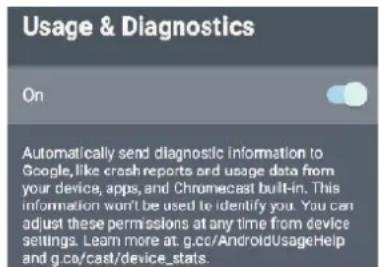
Usage & diagnostics (BnKOpncTahna DiarHoctnka) - HATNCKaTe KnaBiwi / , 0o6 Bn6paTu onuio, a ToDi HATNCHiTB KhoNky OK, 0o6 Bn6paTu YBIMK./BIMK.
3ACTOCYHKN
Menu (MeHIO) ->Settings (HaJaWtYBaHnHa) ->Apps (3aCTocyHKn).
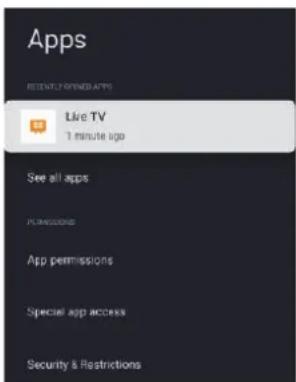
B Βbomy MeHIO Bn MoKeTe HanaWtYBaTn Do3BOJIN 3aCTocyHKiB Ta nepeRJIHyTn CnICOK 3aCTocyHKiB.
- HaTnCKaTe KhONky / ,B6paTu eIeMeHT nHaJauTyBaHHr.
- HATnCHITb KhoNkOy OK, 06 niTBePdntu
3.ПиязавершнгHaIaWtByBaHHHaTnCHITb KhoNky BACK(Ha3aJ,Иоб nobepHyTncЯdo nonepeHbOro MeHIO.
CNCTEMA
Menu (MeHIO) ->Settings (HaJaWtYBaHHa) ->System (CncTeMa).
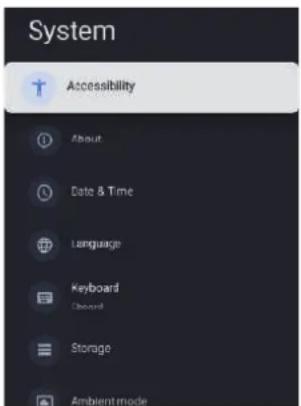
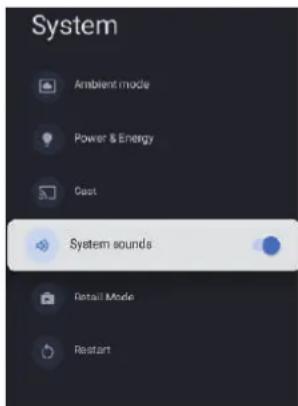
B zubomy MeHIO BN MoKeTe O3HaNoMnTnC8 3 iHOpMaIeIO Ta HanaHTyBaHHrMM BaWoOro TeJeBi3opa.
- HatackaiTe KhoNky / ,Bb6BpaTneJeMeHnHaJauTyBaHHa
- HatncHtB KhoNkO K, 06 niTbepdntn.
3.Писязавершенин Налаштуванн HaTисHTb KhoNKy BACK(Ha3a,I),I06 nobepHyTNcdo nonepedHbO MeHIO.
System sounds (CnCTemHi 3ByKn) - HAtnckaIte KnaBisi / ,io6 Bn6paTu onciIO, a ToDi HAtnCHITb KhoNkOK,io6 Bn6paTu YBMK./BMK.
IeTaJIbHIiI daHI OIO CnCTeMn dN.B. y HAcTyINHOMY nOraCHEHHi.
DOCTYNHICTb
Menu (Mehno) ->Settings (HajauTyaBHH) ->System (Cnctema) ->Accessibility (DocTyNHiCTb).
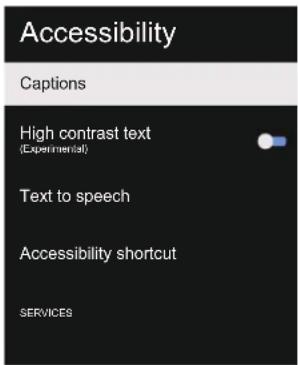
Captions (Cy6TnTp) -HaTnCKaIte KlaBiWi ▲/▼, ΜΟБ Bn6paTn onciHO, a ToDi HATNCHiTB KONKy OK, ΜΟБ yBInTn B niDMeHIO.
High contrast text (Bucoka KOHTpactThicTeKcty) -HaTnCKaIte KlaBiIi / , 06 Bn6paTu onuio, a ToDi HaTnCHiTb KhoNkOk OK, 06 Bn6paTu YBMK./ BMK.
Text to speech (TeKCT Ha MoBy) -HaTnCKaIte KnaBisi ▲/▼, οob Bn6paTn onciIO, a ToDi HaTnCHITb KhoNkO K, οob yBiIN T BπiDmEHO.
Accessibility shortcut (Rpnnkdoctynnocti) - HATNCKaIte KJIaBiWi / 巧 , 06 Bn6paTn onciio, a ToDi HATNCHITb KHONky OK, 06 yBiTN b NiDMeHO.
#
Menu (MeHIO) ->Settings (HaNaWtYBaHHa) ->System (CncTeMa) ->About (Ipo).
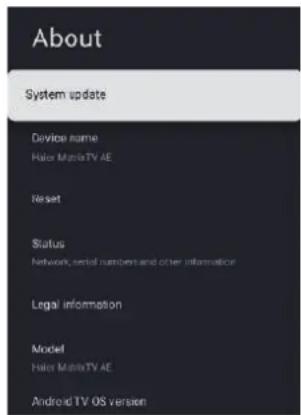
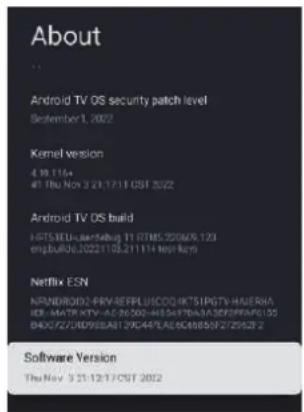
Bcmy MeHIO Bn MoKeTe OHOBTu CnCTeMy, cKHyTu Ta 03HaNoMTncb i3 daHIMN npo TeJIeBi3Op.
- HatnckaTe KhoNky / ,Bb6paTneJeMeENT nHaJauSTyBaHHr.
- HATNCHTb KONky OK, 06 niTBePdntn.
3.Пися заBERSEHнHaIaWtYBaHHЯHaTnCHITb KhoNky BACK(Ha3aД),иб noBepHyTncdo nonepeHbOTo MeHIO.
DATA TA YAC
Menu (MeHIO) ->Settings (HaJauTbAHnH) ->System (CncTeMa) ->Date & Time (DaTa Ta vac).
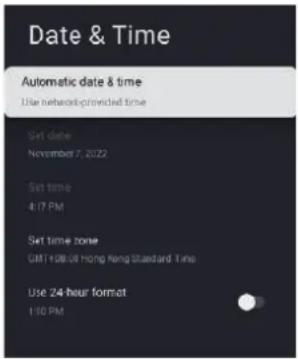
Automatic date & time (AbTomaTnHa TaTa Ta Yac) - HATNcKaIte KnaBiiSi / , 06 Bn6paTn Ongio, a ToDi HATNCHITb KhoNkOy OK, 06 yBiTu B NiDMeHo. (DocTyHi npaMeTpN: BnKOpncToBvBaTu Yac HaDaHm MepexKeo, BmK.)
PIMITKA
- Koln Automatic date & time (AbTomuHni daTa n yac) BCTaHOBNeHo Ha OFF (BIMK.), moxHa BnKOpNCToBvBaTn HalaWtYBaHHra DaTn N acy BpyHy.
Set date (Hajau TybaTn DaTy) - HATNCKaIte KnaBisi ▲/▼, ξo6 Bn6paTn onciIO, a ToDi HAtnCHITb KHONKy OK, ξo6 yBiIN Tn BiIMHeIO.
Set time (HaJaTuBaTn Yac) - HaTnCKaTe KlaBiWi ▲/▼, Μοδ BnBpaTn OπciHo, a ToDi HaTnCHiTB KhoNkY OK, Μοδ yBinitn B πiDmEHO.
Set time zone (HanaWtBAtu Yacobn noc) - HATNCKaIte KJIaBiIi / , 06 Bn6paTn OUciO, a ToDi HATNCHITb KHONky OK, 06 yBiTNb NiMeHIO.
Use 24-hour format (BukopncToByBaTn 24-roHHnnΦopMaT)-HaTnckaIte KnaBiwi / 106 Bn6paTn OOniO, a ToDi HaTnCHiTb KhoNky OK, 106 Bn6paTn YBMK./BMK.
MOBA
Menu (MeHIO) ->Settings (HaJaWtYBaHHa) ->System (CnCTema) ->Language (MoBa)..
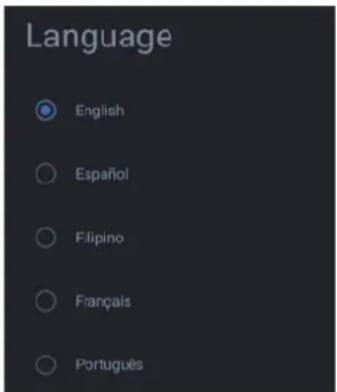
Language (Moba) - HataNcKaIe KnaBiiwi / ,uO6 Bn6paTn onciIO, a ToDi HataNCHiTb KHONKy OK, uO6 yBiITN B NiDMHeIO.
KJIABIATYPA
Menu (MehIO) ->Settings (HanaWtYBaHHa) ->System (CncTeMa) -> Keyboard.(KnaBiaTypa)
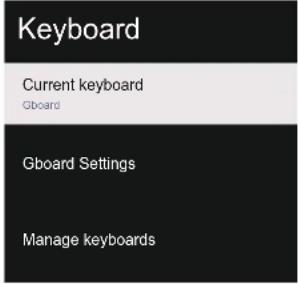
Current keyboard (ПOTOUHa KlaBiaTypa) - HATNCKaIte KlaBiWi 106 Bn6paTn ONUIO, a TODi HATNCHiTB KhoNkOy OK, 106 yBIHTN B NiDMeHIO. Gboard Settings (HanaWtYBaHNG Gboard) - HATNCKaIte KlaBiWi 106 Bn6paTn ONUIO, a TODi HATNCHiTB KhoNkOy OK, 106 yBIHTN B NiDMeHIO. Manage keyboards (KepyBaHnHa KnaBiaTypaMn) - HATNCKaIte KlaBiWi 106 Bn6paTn ONUIO, a TODi HATNCHiTB KhoNkOy OK, 106 yBIHTN B NiDMeHIO.
36EPIAHH
Menu (MeHIO) ->Settings (HaJaWtYBaHHa) ->System (CnCTema) ->Storage(36epirAHn).
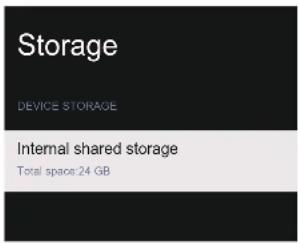
Internal shared storage (BHytpiwni Hocin Jn 36epirann) - HaTnckaTe KnaBiwi / ,o6 Bn6paTn onciH, a TOni HaTncHiTb KhoNky OK, o6yBiTu B NiDMeHIO.
AMBIENT MODE (PEXIM IOBKIIJI)
Menu (MeHIO) ->Settings (HaJaWtYBaHHa) ->System (CnCTema) ->Ambient mode (Pekm doBknna).
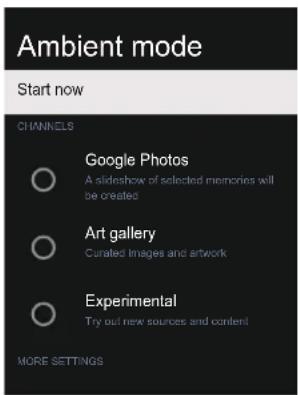
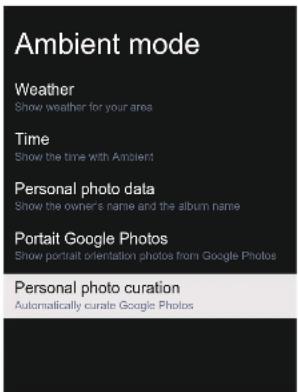
Bcmy MeHb BN MoKeTe HanaHTyBaTn peXm DOBkiJJIa.
-
HatnckaTe KnaBiWi / ,Bb6paTneJeMeHT nHaJaTuBaHHr.
-
HaTnCHITb KhoNkO K, 06 niIeBepdntn.
3.Писязавершенин Налаштуваимпатисг Кногу BACK(Ha3aД),иб поверрун сд до nonepeHbOrO MeHIO.
KINBJIeHHRA TAEHEPRO36EPEXJEHHA
Menu (MeHIO) ->Settings (HaJaWtYBaHHa) ->System (CnCTema) ->Power & Energy.(KnBJIeHHa Ta eHepro36epexehna)
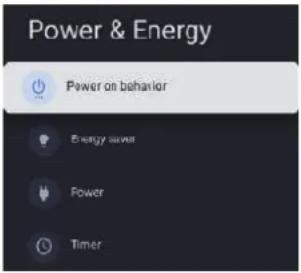
B Cbomy MeHOMoKHa HalaWtYBaTu XnBJIeHH Ta eHepro36epexehn.
(KNBnEHHa,3anexHo BID BNKOpncTaHHa, eHepro36bepekeHHa,TaMep KNBHeHHa)
- HatackaTe KhoNky / ,io6Bn6paTneJeMeHrJaHaJauTyBaHHr.
- HaTnCHITb KhoNkOy OK, Μοδ πιDtBepdntN.
3.ПияздершнгHaашТьаннHaTисИтБ Кногу BACK(Ha3aД),иб поверпунсdo по=npeньоMeHIO.
JKNBJIENHH,3AILEXHO BID BNKOPNCTAHH
Menu (MeHIO) ->Settings (HaJauTbAHn) ->System (CncTeMa) ->Power & Energy.(KnBLeHH Ta eHepri) ->Power on behavior (KnBLeHH, 3aIeXHO BiD BnKOpNCtAHn).
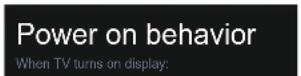


HaTnckaIte KnaBiiwi / ,IO6 Bn6paTu eJeMeHT nHaNaHTyBaHHaToi HaTnCHITb KHONKy OK nPiNTBepDxKeHH.
EHEPRO35EPEXKEHHA
Menu (MeHIO) ->Settings (HaJaWtYBaHHa) ->System (CnCTema) ->Power & Energy. (KnBHeHHa Ta eHepro36epeKeHHa) ->Energy saver. (EHepro36epeKeHHa).
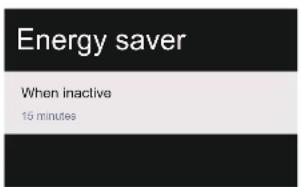
When inactive (KoJI HeaKTbHn) -HaTnCKaITe KnaBii ±b / ±b , uO6 Bu6paTH ONUO, a ToDi HaTnCHITb KhoNkOK, uO6 yBiTN B NiDMeHIO. (DocyHi npametpn: 15 XBUNH, 20 XBUNH, 30 XBUNH, 1 roDnHa, 4 roDnH, 8 roDnH, 12 roDnH, 24 roDnH, HikOni).
KINBJIeHHJ
Menu (MeHIO) ->Settings (HaJauTbVbaHHa) ->System (CnCTema) ->Power & Energy.(KuBJIeHHa Ta eHepro36epexehna) ->Power.(KuBJIeHHa).
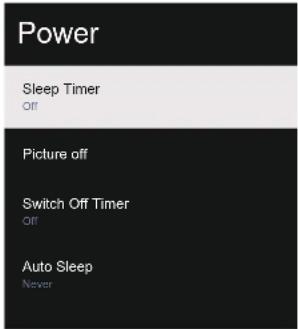
Sleep Timer (Taimep chy) - HaTnCKaIte KlaBiWi / , 06 BnBpaTN onciIO, a ToDi HaTnCHiTB KhoNkOY OK, 06 bYbiNTu B niDMeHIO. (DocTynni napamETpn: off (BmK.), 10 minutes, 20 minutes,30 minutes,40 minutes,50 minutes, 60 minutes,90 minutes,120 minutes) Picture off (3o6paXeHHra BmK.) - HATnCKaIte KnaBiWi / , 06 BnBpaTN onciIO, a ToDi HaTnCHiTb KhoNkOYOK, 06 ybiNTu B niDMeHIO. Switch off timer (BmKHyTu Taimep) - HATnCKaIte KnaBiWi / , 06 BnBpaTN onciIO, a ToDi HaTnCHiTb KhoNkOY OK, 06 bYbiNTu B niDMeHIO. (DocTynni napamETpn: off (BmK.), 30 minutes, 60 minutes,90 minutes,120 minutes,150 minutes, 180 minutes,210 minutes,240 minutes) Auto Sleep (ABTomatUHn coH) - HAtncKaIte KnaBiWi / , 06 BnBpaTN onciIO, a ToDi HaTnCHiTb KhoNkOY OK, 06 bYbiNTu B niDMeHIO. (DocTynni napamETpn: Never (HikOn), 4 hours (4 roDHH), 6 hours (6 roDHH) 8 hours (8 roDHH))
TAUMEP
Menu (MeHIO) ->Settings (HaIauSTyBaHHa) ->System (CnCTema) ->Power & Energy.(XnBJIeHHa Ta eHepro36epexeHHa) ->Timer (TaMep).
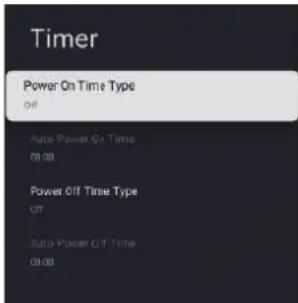
Power On Time Type (Tn yBIMKHeHHa YacOM) - HATNCKaIte KJIaBiWi / , 06 Bn6paTu onuio, a ToDi HAITCHiTB KHOKNy OK, 06 Bn6paTu BIMK./ YBIMK./OINH PA3.
Auto Power On Time (ABTomaTnueyBIMKHeHHa Yacom)-HATnCKaIte KnaBiIi / ,06Bn6paTN onciio,aToDi HATnCHITb KHONKy OK,06yBiTn B NiDMeHO.
Power Off Time Type (Tin BnMKHeHHa Yacom) - HATNCKaIte KJIaBiWi / , 06Bn6paTN onuio, a ToDi HATNCHiTb KHOKNy OK, 06Bn6paTN BIMK./ YBIMK./OINH PA3.
Auto Power Off Time (ABTOMATUHE BUMKHeHHa Yacom)-HaTnCKaIte KnaBiWi ▲/▼, 06bBn6paTN onciH, a ToDi HaTnCHiTb KHONKy OK, 06yBiITN B NiDMeHO.
TPAHCLIIEKPAHA
Menu (MeHIO) ->Settings (HaNaWtYBaHHa) ->System (CncTeMa) ->Cast (TpaHcIaIeKpHa).
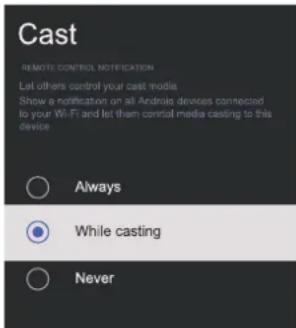
- HatnckaTe KhoNky / ,IO6 Bn6paTne enemeHT nHaJauTyBaHHa.
- Hatncihb KhoNky OK, uo6 niTBePdntn.
- Hatncihitb KHonky BACK (Ha3a,I) nIy noBepHeHHa Do nonpeHbOro MeHIO.
DEMOHCTPAUINHIN PEXMM
Menu (MeHIO) ->Settings (HaJauTbVaHnHa) ->System (CncTeMa) ->Retail Mode (dEmoHcTpauiHnI pexm).
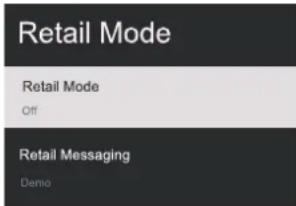
Retail mode (Демонстраций реким) -Натискайта Клавиши / ,шоб Вибрази onцio,а.ToDiНатисitiь кногку OK,шob Вибрази YBIMK/ВИМК.
43" UHD LED Telebi3op
50" UHD LED Telebi3op