
TLKR T81 Hunter - Radio MOTOROLA - Free user manual and instructions
Find the device manual for free TLKR T81 Hunter MOTOROLA in PDF.
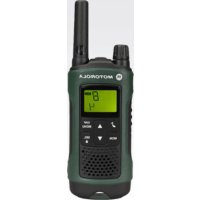



| Product type | Bi-directional PMR (Private Mobile Radio) |
| Brand and model | Motorola TLKR T81 Hunter |
| Dimensions (approx.) | 160 x 55 x 30 mm |
| Weight (approx.) | 120 g (without batteries) |
| Power supply | Rechargeable NiMH battery (included) or 4 AAA alkaline batteries |
| Battery life | Up to 16 hours in normal conditions |
| Number of channels | 8 PMR channels (446.00625 - 446.09375 MHz) |
| Sub-codes | 121 (38 CTCSS codes and 83 DCS codes) |
| Maximum range | Up to 10 km (varies depending on environment) |
| Main features | VOX, LED lamp, 10 call tones, backlit LCD screen, channel scanning, dual watch, keypad lock, auto power off, energy saving, ambient monitoring, silent mode, timer |
| IP protection rating | IPX4 (splash resistant) |
| Included accessories | 2 radios, 2 belt clips, charging station, mains adapter, 2 battery holders, 2 NiMH batteries, 1 headset, 1 strap, user guide |
| Maintenance and cleaning | Charge batteries every 3 months; store between -20°C and 35°C in a dry place; use a soft, dry cloth for cleaning |
| Safety | Read the safety and RF exposure guide before use; do not expose to excessive moisture; use only approved accessories |
| Spare parts and repairability | NiMH batteries (ref. IXNN4002), headsets (NNTN8870_R, NNTN8868_R, IXTN4011), adapters (IXPN4016, IXPN4017) available; repair by authorized dealer |
| Warranty | Limited warranty by the dealer; not covered: damage due to misuse, modification, drop or exposure to liquids |
| General information | Complies with European standards; copyright Motorola Solutions; manufactured under license |
Frequently Asked Questions - TLKR T81 Hunter MOTOROLA
User questions about TLKR T81 Hunter MOTOROLA
0 question about this device. Answer the ones you know or ask your own.
Ask a new question about this device
Download the instructions for your Radio in PDF format for free! Find your manual TLKR T81 Hunter - MOTOROLA and take your electronic device back in hand. On this page are published all the documents necessary for the use of your device. TLKR T81 Hunter by MOTOROLA.
USER MANUAL TLKR T81 Hunter MOTOROLA
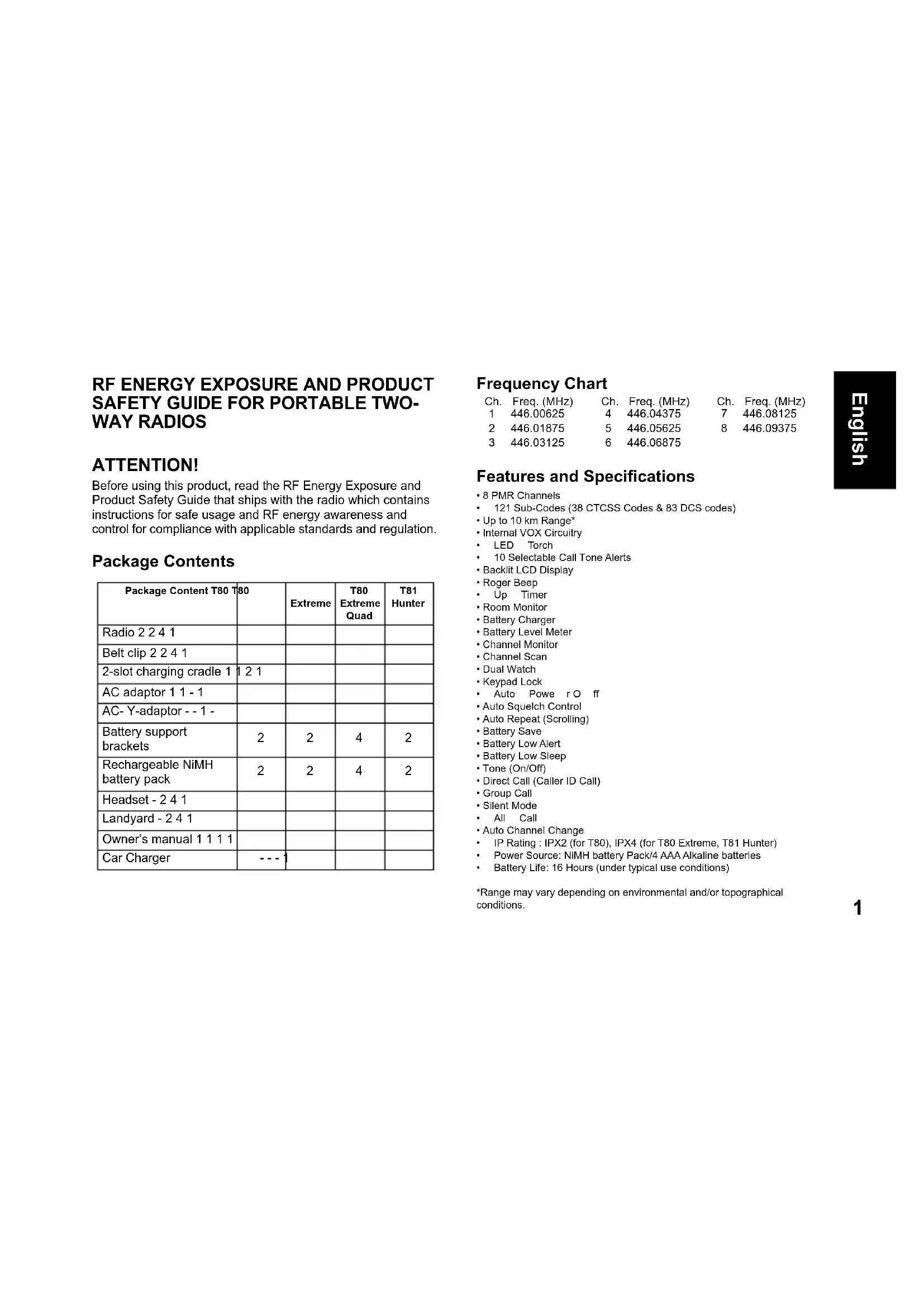
RF ENERGY EXPOSURE AND PRODUCT SAFETY GUIDE FOR PORTABLE TWO-WAY RADIOS
ATTENTION!
Before using this product, read the RF Energy Exposure and Product Safety Guide that ships with the radio, which contains instructions for safe usage and RF energy awareness and control for compliance with applicable standards and regulations.
Package Contents
| Package Content T80 T80 | Extreme | T80 Extreme Quad | T81 Hunter | |
| Radio 2 2 4 1 | ||||
| Belt clip 2 2 4 1 | ||||
| 2-slot charging cradle 1 | 1 2 1 | |||
| AC adaptor 1 1 - 1 | ||||
| AC- Y-adaptor - - 1 - | ||||
| Battery support brackets | 2 | 2 | 4 | 2 |
| Rechargeable NiMH battery pack | 2 | 2 | 4 | 2 |
| Headset - 2 4 1 | ||||
| Landyard - 2 4 1 | ||||
| Owner's manual 1 1 1 1 | ||||
| Car Charger | --- 1 | |||
Frequency Chart
Ch. Freq. (MHz) Ch. Freq. (MHz) Ch. Freq. (MHz)
1 446.00625 4 446.04375 7 446.08125
2 446.01875 5 446.05625 8 446.09375
3 446.03125 6 446.06875
Features and Specifications
8 PMR Channels, 121 Sub-Codes (38 CTCSS Codes & 83 DCS codes) - Up to 10 km Range* - Internal VOX Circuitry
LED Torch, 10 Selectable Call Tone Alerts - Backlit LCD Display - Roger Beep, Up Timer - Room Monitor - Battery Charger, Battery Level Meter - Channel Monitor - Channel Scan - Dual Watch - Keypad Lock, Auto Power Off - Auto Squelch Control - Auto Repeat (Scrolling) Battery Save - Battery Low Alert, Battery Low Sleep - Tone (On/Off) - Direct Call (Caller ID Call) - Group Call - Silent Mode, All Call - Auto Channel Change. IP Rating: IPX2 (for T80), IPX4 (for T80 Extreme, T81 Hunter). Power Source: NiMH battery Pack/4 AAA Alkaline batteries. Battery Life: 16 Hours (under typical use conditions)
*Range may vary depending on environmental and/or topographical conditions.
Control and Functions
Note: Radio depicted is T80 Extreme. Also applicable for T80, T81 Hunter radios.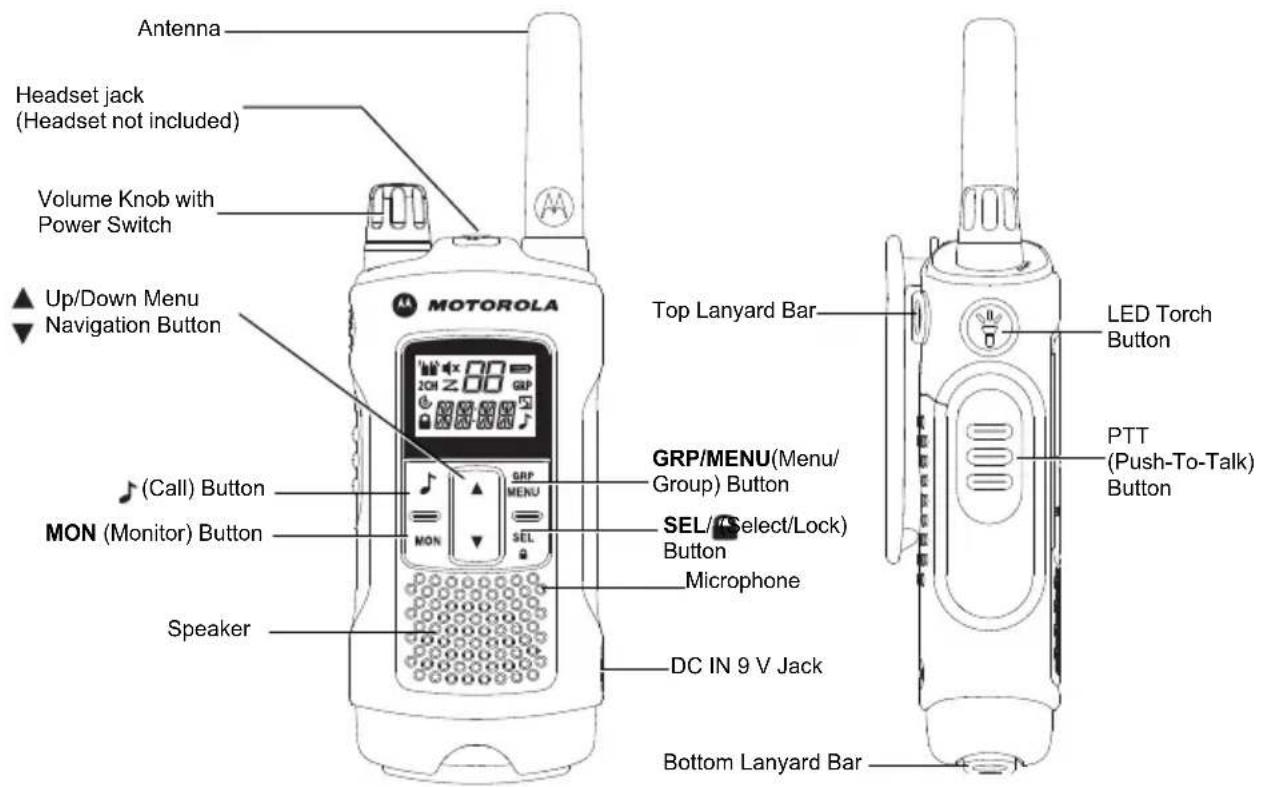
Display Installing the Battery
- Make sure your radio is turned OFF.
- For T80: To remove the battery compartment door, press the tab at the bottom of the compartment door.
For T80 Extreme and T81 Hunter: To remove the battery compartment door, use a coin to wedge the battery door open.
- Install the NiMH batteries into the battery compartment.
- Replace the battery compartment door.
Caution: Risk of explosion if battery is replaced by an incorrect type. Dispose used batteries according to the instructions.
Battery Level and Low Battery Alert
| Indicates that the battery is fully charged. | |
| Blinks when battery is low; charge the radio or replace batteries immediately. (The alert tone sounds every 5 seconds for 30 seconds when the battery is low.) |
Battery Capacity Maintenance
- Charge the batteries at least once every 3 months when not in use.
- Remove the battery from the radio after using for storage purpose.
- Store the batteries in temperatures between -20°C to 35°C and in low humidity. Avoid damp conditions and corrosive materials.
Charging the Radio
Direct Charging:
- Make sure your radio is turned OFF.
- Connect the AC adapter to the radio's DC IN 9 V. Connect the other end of the AC adapter to a vehicle accessory power outlet.
- Charge the battery pack for 14 hours.
Using the Charging Cradle:
- Make sure your radio is turned OFF.
- Connect the AC adapter to the DC IN 9 V of the charging cradle.
- Place the charging cradle on a stable surface.
- Place the radio in the charging cradle with the keypad facing forward.
- LED indicator will illuminate and remain illuminated as long as the radio is in the charger.
Note: Charge the battery pack for 14 hours.
Using the Battery Support Bracket :
- Remove the rechargeable NiMH battery pack from the radio.
- Place the battery support bracket into the charging cradle.
- Install the NiMH battery pack into the charging cradle. Ensure that the charging contacts are correctly aligned.
- The LED indicator will illuminate and remain illuminated as long as the radio is in the charger.
Note: Charge the battery pack for 14 hours.
Basic Radio Operations
Read this reference guide completely before attempting to operate the unit.
Turning your Radio On/Off
To turn your radio ON, turn the rotary knob clockwise. To turn your radio OFF, turn the rotary knob counterclockwise.
Adjusting the Volume
Increase volume by turning the rotary knob clockwise. To decrease volume, turn the rotary knob counterclockwise.
Adjusting the Sound (Key Beeps)
Your radio emits a beep each time one of the buttons is pressed (except the PTT and button).
Press and hold the button while turning the radio ON to switch the sound ON/OFF.
Navigating through the Menu
Your radio has two Menu functions: Select Menu and Common Menu.
- To enter the Select Menu, press the SEL/ button.
- To enter the Common Menu, press the MENU/GRP button.
- Additional presses of the SEL/ button or MENU/GRP button will advance you through the Menu.
- To exit the Menu function, do one of the following:
a. Press the MENU/GRP button, b. Press the PTT button c. Wait 10 seconds until the unit automatically returns to "Normal" mode.
Talking on Your Radio
- Hold your radio 5-8 cm from your mouth.
- Press and hold the PTT button while speaking. The icon appears on the display.
- Release the PTT button. You can now receive incoming calls. When you do, the icon appears on the display. To respond, repeat procedure from step 1.
Note: When you continue to transmit for 60 seconds, the radio emits TX Time Out tone and the icon flashes. The radio will stop transmitting.
In order to speak to someone, both your radios must be set to the same channel and Sub-Code. Refer to "Selecting a Channel and a Sub-Code".
Selecting a Channel and a Sub-Code
To select a Channel:
- Press SEL/ button to enter Select Menu. Advance until the Channel indicator blinks.
- Press to the required channel.
To select a Sub-code :
- Press SEL/ button to enter Select Menu. Advance until the Sub-code indicator blinks.
- Press to the required Sub-code.
- Press Exit to exit the Select Menu.
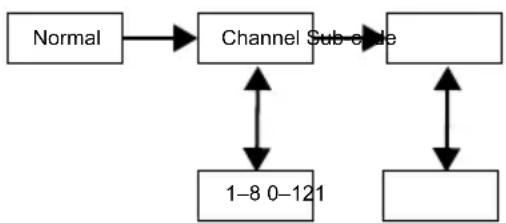
Select Menu
Your radio navigates through the Select Menu as follows:
Voice Operated Transmission (VOX)
Transmission is initiated by speaking into the microphone of the radio instead of the pushing the PTT button.
To select the VOX level:
- MENU/GRP button to enter Common Menu. Advance and select "VOX".
- Press SEL/ select.
- Press to the desired VOX sensitivity level.
- Press Exit to exit the Select Menu.
Note: Level "N" (OFF) disables VOX. Levels 1-5 set the sensitivity of the VOX circuit. Use level 1 in quiet environments, and use level 5 in very noisy environments. You can find the appropriate sensitivity level by speaking into the microphone. If the radio flashes, your voice is accepted.
Transmitting a Call Tone
Your radio is equipped with 10 selectable call tones.
To select a call tone:
- Press the MENU/GRP button to enter the Common Menu. Navigate to "TONE".
- Press SEL/ to select.
- Press to choose the desired call tone.
- Press Exit to leave the Common Menu.
To transmit the selected call tone:
- Press to transmit the selected call tone. The selected tone will automatically be transmitted for a fixed length of time.
- Press PTT to cancel the Call Tone.
Auto Power Off
The Auto Power Off feature allows you to set the time after which the radio turns off automatically.
- Press the MENU/GRP button to enter the Common Menu. Navigate until "PWR" and the current Auto Power Off time blinks.
- Press SEL/ to select.
- Press Ar to select the time from ON, 1H, 2H, and 3H.
- Press Exit to exit the Menu.

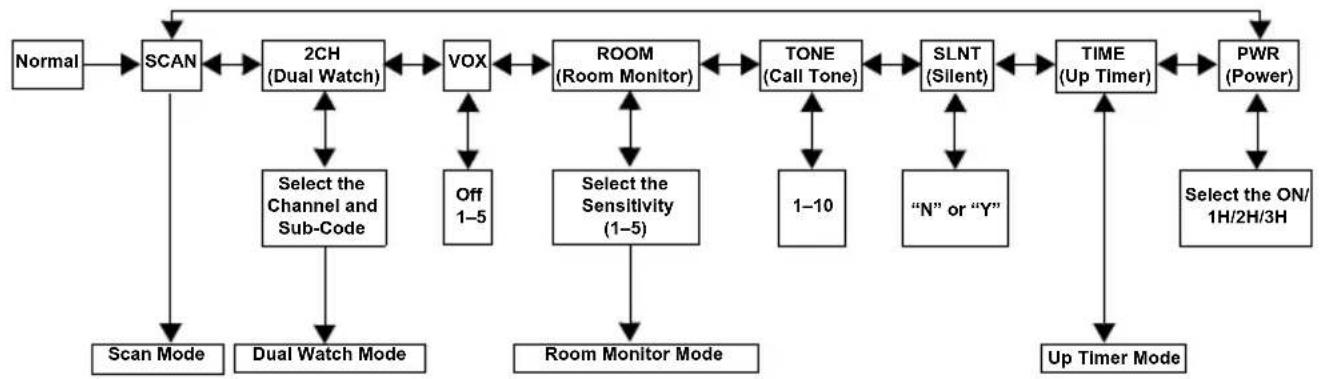
Common Menu
Your radio navigates through Common Menu as follows:
Group Menu
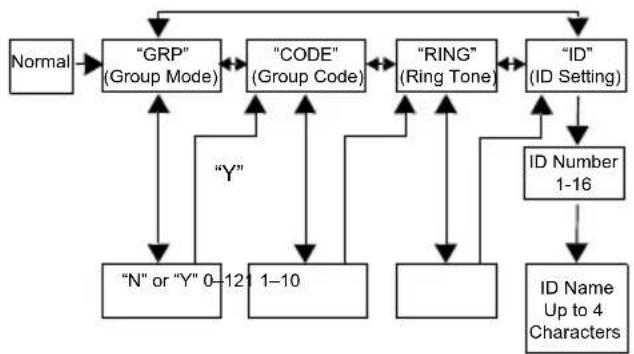
- Press and hold MENU/GRP to enter GROUP MENU.
- Press to proceed to each menu (GRP/CODE/RING/ID).
- Press SEL/ to select.
- Press ◄ to proceed to desired condition or number.
- Press SEL/ to select.
- Press MENU/GRP to exit.
Set Group Mode
- Press and hold MENU/GRP to enter GROUP MENU.
- Press SEL/ to control Group Mode.
- Press to Y". Press SEL/ to return to Group Menu and Group Code Setting.
- Press ◄ to N". Press SEL/ to remove it from Group Menu.
Set Group Code
- Press to choose the Group Code.
- Press SEL/ to complete Group Code setting.
- The radio enters "Ring Tone Setting Menu".
- Press MENU/GRP to go back to Group Menu.
Set Ring Tone
The user selects Ring Tone for a Direct Call. Ring Tones are the same as Call Tones.
- Press Ar to select a Ring Tone.
- The selected Ring Tone sounds.
Set ID
Each radio in the group needs to be set with an ID. The user can set an ID name of up to four (4) characters.
- Press to select an ID number.
- If the ID is already taken, USED is seen. If USED is not shown, then the ID is available.
- Press SEL/ to advance to setting ID Name.
Set ID Name
The ID Name appears on the other radio's display when you make an All Call or a Direct Call. The ID Name also appears on the other radio's display when they are placing a Direct Call. When no ID name is set, the unit number appears.
- Press to select a character that blinks on the display.
- Press SEL/ select and move to the next character.
- Press SEL/ register the ID number and ID Name.
Note: The radio cancels selected ID Number and entered ID Name, then exits from Group Menu when MENU/GRP button is pressed.
Channel Setting in Group Mode
To set Auto Channel Change in Group Mode: 1. Press MENU/GRP to enter Group Mode. 2. Press SEL/ enter Channel Setting. 3. Press Auto Channel Change Setting". 4. Press SEL/ select.
A channel number blinks and "ALL" is seen.
- Press to select the channel.
- Press SEL/ or to transmit Auto Channel Change command.
- Press MENU/GRP to return to Channel Setting in Group Mode.
To set Manual Channel in Group Mode: 1. Press MENU/GRP to enter Group Mode. 2. Press SEL/ enter Channel Setting. 3. Press Ar to Manual Channel Setting". 4. Press SEL/ select. A channel number blinks and "MY" is seen. 5. Press Ar to select the channel manually. 6. Press SEL/ exit from Manual Channel setting. 7. Press MENU/GRP to return to Channel Setting in Group Mode.
Set All Call
- Press MENU/GRP to enter Group Mode.
- Press to enter All/ Direct Call Setting.
- Press to select All Call Transmission. "SYNC" is seen.
- Press SEL/ or to exit this setting and transmit All Call. All Call Tone sounds, and binks while transmitting.

- MENU/GRP to exit.
Set Direct Call
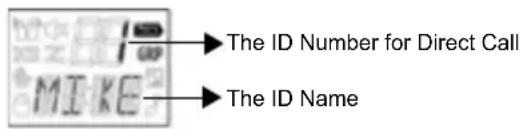
- Press MENU/GRP to enter Group Mode.
- Press to enter All/Direct Call Setting.
- Press Ar to select an ID Number.
- Press or SEL to transmit Direct Call Command. The selected Call Tone sounds. The display shows TX icon and CALL icon while transmitting.
- Press MENU/GRP to go back to All/Direct Call setting.
Features on Your Radio
Channel Scan Mode
Enables your radio to scan for active channels. When activity is detected, your radio lands (stays) on that channel for 2 seconds (5 seconds for VOX ON without headset). To transmit on that channel, press the PTT button. When activity on the landed channel ends, your radio continues scanning to other channels.
To turn the channel scan ON:
- Press MENU/GRP to enter Common Menu. Advance to "SCAN".
- Press SEL/ turn ON channel scan.
- Press MENU/GRP or PTT to turn OFF Scan mode.
Dual Watch Mode
Enables your radio to scan the current channel and another channel alternately.
To set another channel and start Dual Watch:
- Press MENU/GRP to enter Common Menu. Advance to "2CH".
- Press Ar to select the channel, then press SEL/
- Press or to select the Sub-code, then press SEL/
- The radio starts to Dual Watch.
Note: If you set the same channel and Sub-code as the current channel, Dual Watch doesn't work. 5. Press MENU/GRP to turn the Dual Watch mode OFF.
Room Monitor
Enables your radio to detect voice/noises (according to the sensitivity level set) and transmit back to the listening radio without pushing the PTT button. The monitoring radio is not able to receive any transmissions in this mode.
To turn Room Monitor ON:
- Press MENU/GRP to enter Common Menu. Advance to "ROOM".
- Press SEL/ to select.
- Press to the desired room monitor sensitivity level.
Note: Use level 1 in quiet environments. Use level 5 in very noisy environments.
- Press SEL/ turn ON room monitor.
Press MENU/GRP to turn OFF Room Monitor.
Note: When the voice/noise in the monitored room continues for more than 60 seconds, the monitoring radio stops monitoring for 5 seconds, and then resumes.
Silent Mode
Silent mode mutes all incoming calls. The backlight of the radio blinks when there's an incoming call. If the call is not answered, the backlight turns off and the 𝒫 blinks until there is no signal. The T80/T80 Extreme radio will vibrate when there is a missed call.
The silent mode is disabled for 15 seconds when you transmit, receive, or press any other buttons.
To turn silent mode ON: 1. Press MENU/GRP to enter Common Menu. 2. Select "SLNT". 3. Press SEL/ select. 4. Press to turn Silent Mode ON. "Y" is displayed on the Channel Indicator. Appears. 5. Press to turn Silent Mode OFF. "N" is displayed on the Channel Indicator. disappears.
Up Timer
Enables your radio to time up to 59 minutes 59 seconds. You then received incoming calls in this mode.
To use up timer:
- Press MENU/GRP to enter Common Menu. Advance to "TIME".
- Press SEL/ select the Up Timer.
- Press SEL/ n start the Up Timer.
- Press SEL/ pause the Timer.
Press SEL/ Go ON/OFF the Timer.
- Press MENU/GRP or PTT to stop or reset up timer.
Note: If a call is received, the ID Name is indicated and then the radio returns to timer mode and the Call Icon blinks.
Key Lock
Press and hold SEL/ until "OCK" appears to lock the keypad.
Press and hold SEL/ until "NLK" disappears to unlock the keypad.
LCD Backlight
The LCD display will automatically illuminate for 10 seconds after any button is pressed (except for PTT).
Monitor Mode
Enables your radio to listen for weak signals on the current channel.
To turn the Monitor Mode ON:
- Press the MON button for brief listening. The icon blinks.
- Press and hold the MON button for 2 seconds for continuous listening. The icon continues to blink.
To turn the Monitor Mode OFF:
Press the MON, MENU/GRP, or SEL button to return to "Normal" mode. The icon stops blinking.
Roger Beep
Sounds to indicate the end of a PTT or VOX transmission. It can be heard through the speaker when Key Beep is on. It cannot be heard through the speaker if Key Beep is turned off.
Press and hold the button while turning the radio ON to turn the Roger Beep ON. Repeat the step to turn Roger Beep OFF.
LED Torch
Your radio has a built-in LED Torch. The LED Torch indicator remains on until the button is released.
Approved Accessories
| NNTN8870_R Consumer Earbud |
| NNTN8868_R Consumer Headset |
| IXTN4011_XTR Headset |
Approved Accessories
| IXPN4016_UK Adapter | |
| IXPN4017_EU Adapter | |
| IXNN4002_NiMH | Battery |
Warranty Information
The authorized Motorola Solutions dealer or retailer where you purchased your Motorola Solutions two-way radio and/or original accessories will honour a warranty claim and/or provide warranty service.
Please return your radio to your dealer or retailer to claim your warranty service. Do not return your radio to Motorola Solutions.
In order to be eligible to receive warranty service, you must present your receipt of purchase or a comparable substitute proof of purchase bearing the date of purchase. The two-way radio should also clearly display the serial number. The warranty will not apply if the type or serial numbers on the product have been altered, deleted, removed, or made illegible.
What Is Not Covered By The Warranty
- Defects or damage resulting from use of the Product in other than its normal and customary manner or by not following the instructions in this user manual. Defects or damage from misuse, accident or neglect.
- Defects or damage from improper testing, operation, maintenance, adjustment, or any alteration or modification of any kind.
- Breakage or damage to aerials unless caused directly by defects in material or workmanship.
- Products disassembled or repaired in such a manner as to adversely affect performance or prevent adequate inspection and testing to verify any warranty claim. Defects or damage due to range.
- Defects or damage due to moisture, liquid or spills.
- All plastic surfaces and all other externally exposed parts that are scratched or damaged due to normal use.
- Products rented on a temporary basis. Periodic maintenance and repair or replacement of parts due to normal usage, wear and tear.
Copyright Information
The Motorola Solutions products described in this manual may include copyrighted Motorola Solutions programs, stored in semiconductor memories or other media. Laws in the United States and other countries preserve for Motorola Solutions certain exclusive rights for copyrighted computer programs, including the exclusive right to copy or reproduce in any form the copyrighted Motorola Solutions programs.
Accordingly, any copyrighted Motorola Solutions computer programs contained in the Motorola Solutions products described in this manual may not be copied or reproduced in any manner without express written permission of Motorola Solutions. Furthermore, the purchase of Motorola Solutions products shall not be deemed to grant either directly or by implication, estoppel, or otherwise, any license under the copyrights, patents, or patent applications of Motorola Solutions, except for the normal non-exclusive royalty-free license to use that arises by operation of law in the sale of a product.
MOTOROLA, MOTO, MOTOROLA SOLUTIONS and the Stylized M logo are trademarks or registered trademarks of Motorola Trademark Holdings, LLC and are used under license. All other trademarks are the property of their respective owners. © 2012 and 2016 Motorola Solutions, Inc. All rights reserved.
HANDBOOK ON RF ENERGY AND PRODUCT SAFETY FOR PORTABLE RADIOS
WARNING!
| Kan. | Freq. (MHz) | Kan. | Freq. (MHz) | Kan. | Freq. (MHz) |
| 1 | 446.00625 | 4 | 446.04375 | 7 | 446.08125 |
| 2 | 446.01875 | 5 | 446.05625 | 8 | 446.09375 |
| 3 | 446.03125 | 6 | 446.06875 |
Can. Freq. (MHz) Can. Freq. (MHz) Can. Freq. (MHz)
1 446.00625 4 446.04375 7 446.08125
2 446.01875 5 446.05625 8 446.09375
3 446.03125 6 446.06875
Specific functions
1 446.006254 446.043757 446.08125
2 446.018755 446.056258 446.09375
3 446.031256 446.06875
\section*{Characteristics and specifications}
8 channels PMR
Kan. freq. (MHz) Kan. freq. (MHz) Kan. freq. (MHz)
1 446.006254 446.043757 446.08125
2 446.018755 446.056258 446.09375
3 446.031256 446.06875
VOX (Voice Operated Transmission)
Transmission is initiated by speaking into the radio's microphone instead of pressing the PTT button.
To select the VOX level:
- MENU/GRP to open the Group mode.
- to open the All/Direct Call setting.
- or to select All Call Transmission. The message "SYNC" is displayed.

- MENU/GRP to open the Common menu. Continue to "SCAN".
- SEL/ to ACTIVATE channel scanning.
- MENU/GRP or PTT to DEACTIVATE the scanning state.
Dual watch mode
Allows you to alternately scan the current channel and another channel.
- SEL/ to ACTIVATE dual watch. MENU/GRP to DEACTIVATE dual watch.
- to DEACTIVATE the mute mode. "N" is displayed on the
channel indicator. disappears.
Optimizer
Battery capacity maintenance
- Call tone (NO on call indicator)
-tone call
-silent mode
- call tone
-auto channel lock
- Degree of protection: IPX2 (T80), IPX4 (T8 T80 Extreme, T81 Hunter)
Power source: set of nickel-metal hydride rechargeable batteries / 4 AAA batteries
Battery operating time: 16 hours (under standard conditions of use)
*The operating time may vary depending on the environment and/or topographic conditions

Control and functions: The image shows the T80 Extreme model. Also applicable to models T80, T81 Hunter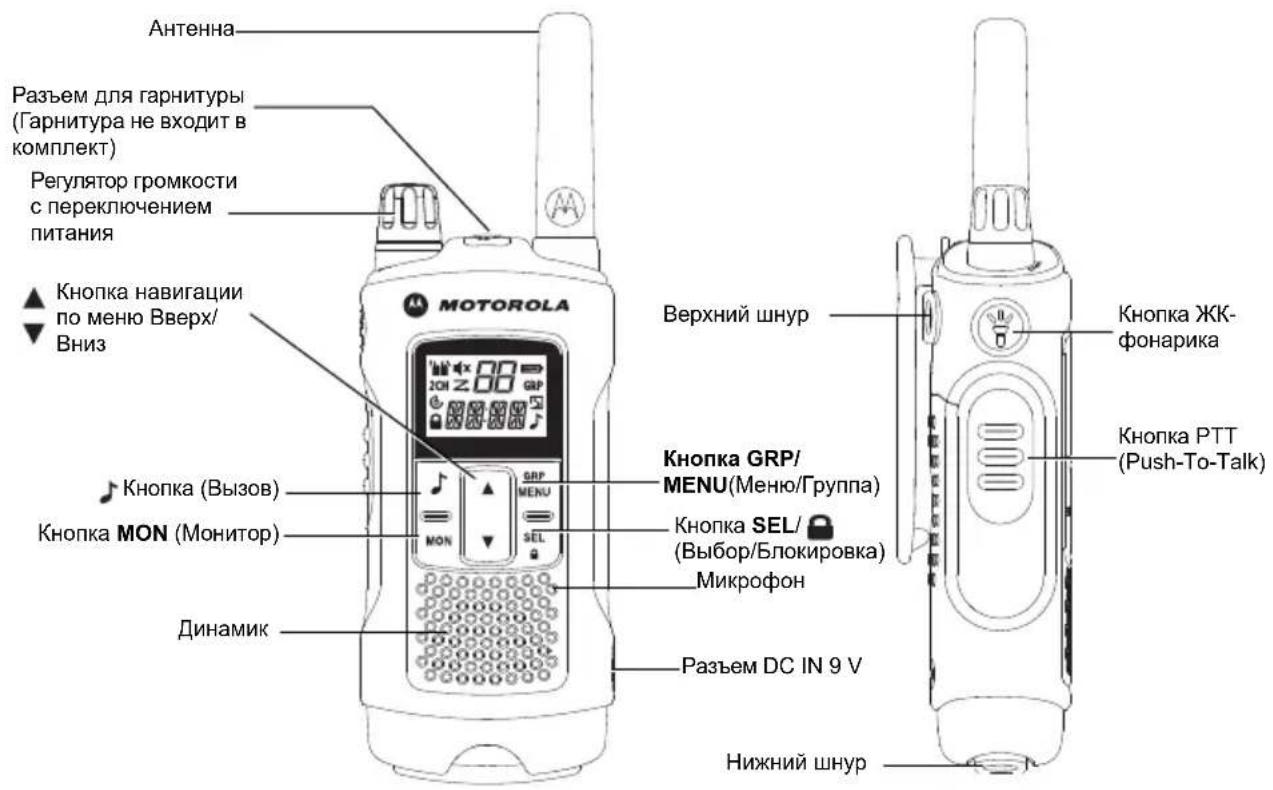
After installing the battery
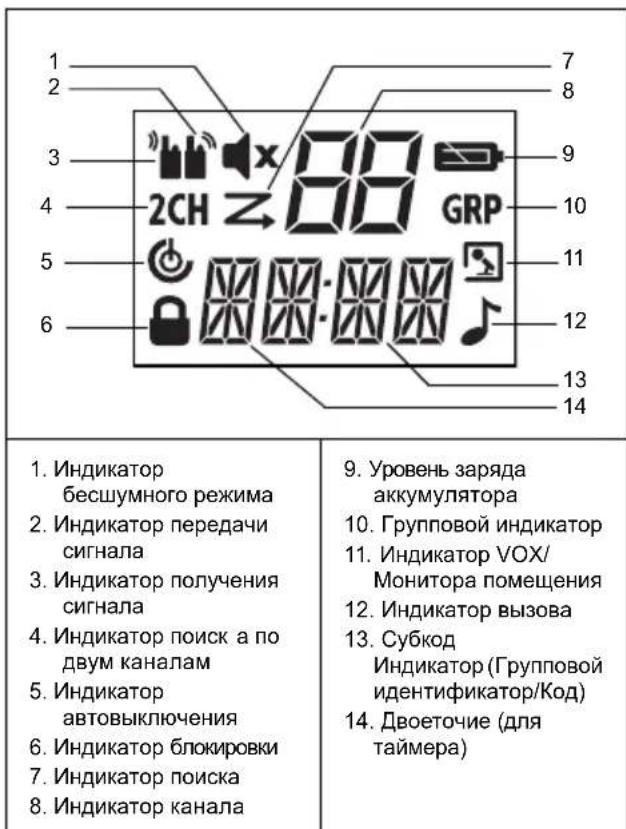
- Make sure the radio is turned off. 2. For model T80: To open the battery compartment cover, press on the lower part of the cover. For models T80 Extreme and T81 Hunter: To open the battery compartment cover, pry it up with a coin.
- Insert the nickel-metal hydride batteries into the battery compartment.
- Replace the battery compartment cover.
Warning! If a battery of an incompatible type is installed, there is a risk of explosion. Dispose of used batteries in accordance with the instructions.
Battery charge level and low battery indication
Setting the group code
- Press the group code selector buttons.
- Press SEL to confirm the selected group code.
- The radio will switch to the setup menu for the ringtone.
- Press MENU/GRP to enter the group menu.
Setting the ring tone
The user can select the ring tone for a direct call. The ring tones are the same as the call signals.
- Press ▲ or ▼ to select the ring tone.
- The selected ring tone sounds.
Setting the identifier
For a local radio in a group, an identifier must be set. The user can set an identifier name of up to four (4) characters.
- Press ▲ or ▼ to select the identifier number. 2. If the name is already in use, the identifier shows USED (IN USE). The absence of the USED label means that the identifier name is free.
- Press SEL/ to proceed to setting the identifier name.
Setting the identifier name
The identifier name is displayed on the screen of the radio in the group during a direct call. The identifier name is also displayed on the screen of the group radio during a direct call. If no identifier name is set, the device name is shown.
- Press ▲ or ▼ to select the character that will be displayed on the screen.
- Press SEL/ to select and move to the next character.
- Press SEL/ to register the number and name of the identifier. Note: Pressing the MENU/GRP key cancels the selected identifier number and the entered identifier name, and then exits the group menu.
Setting channels in group mode
Note: Search on two channels is not performed if the same channel and subcode as the current channel is set.
Channel 1, Channel 2, Channel 3
1446.00625 446.04375 446.08125
2446.01875 446.05625 446.09375
3446.03125 6 446.06875
Interruption and technical
Characteristics
8 channels PMR 121 subcodes (38 subcodes and 83 DCS subcodes) Range 10 km* VOX function support Headset 10 pins Tone call signal on selection PK-display with backlight Signal reception direct amplifier Battery monitor Surrounding sounds charger - Battery level indicator - Channel transmission monitor
- Channel scanning Channel monitor indicator Two channels Receiver volume control
- Automatic shutdown
- Automatic control of the lock function
- Automatic repeat (scrolling)
- Battery charging economy mode Low battery level warning
- The device is turned on at a low battery level with a tonal signal (on/off). Direct activation (activation by identifier)
- Group activation without sound mode: activation of all group members
- Automatic channel change: IPX2 (T80), IPX4 (T80 Extreme, T81 Hunter) - Power source: NiMH battery / 4 AAA batteries
- Battery life: 16 hours (under standard operating conditions)
*Battery life may vary depending on environmental conditions and/or topographic conditions.
Functions and control elements: The image above shows the T80 Extreme radio. It also corresponds to the T80 and T81 Hunter models.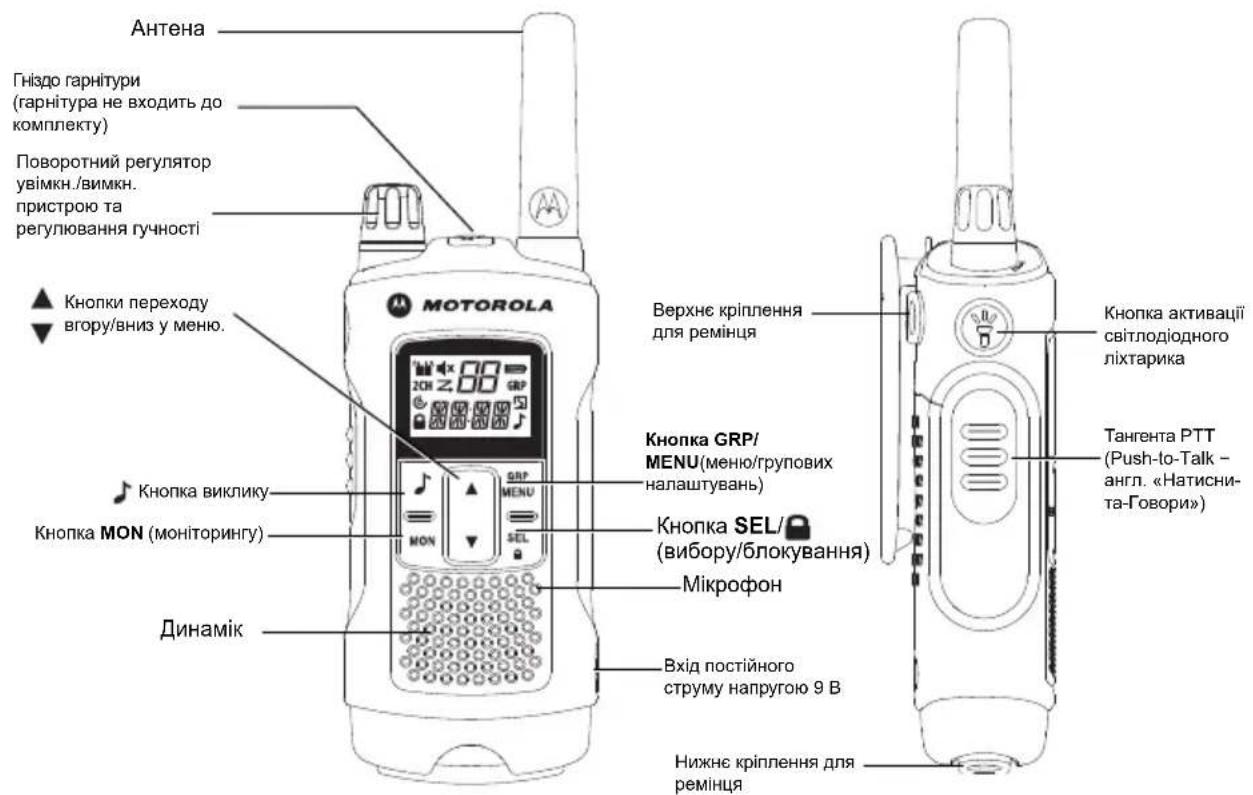
Battery installation
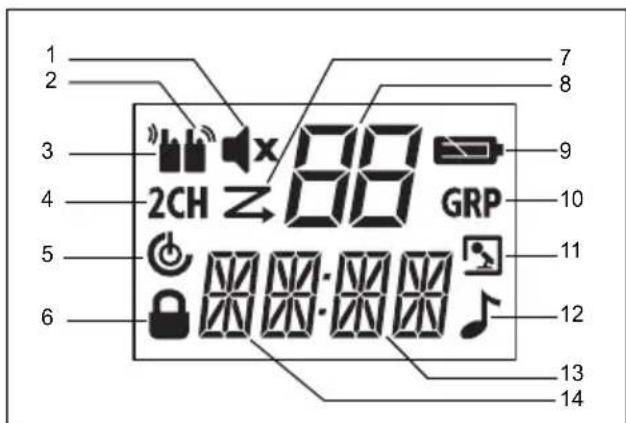
- Indicator for silent mode
- Indicator for incoming call
- Indicator for outgoing call
- Indicator for monitoring two channels
- Indicator for automatic activation function
- Indicator for keypad lock
- Scan indicator
- Channel indicator
- Battery cover latch
- Group radio indicator
- Indicator of battery charge and functions of monitoring ambient sounds
- Indicator on
- Group code indicator (identifier/group radio code) 14. Disposal of the device through recycling
- First, turn off the radio. 2. For model T80: to remove the battery cover, press the latch at the bottom of the cover.
T80 Extreme and T81 Hunter: to remove the battery cover, use a coin to turn the lock and then remove the cover.
3. Install the battery and close the cover. 4. Return the cover to its place.
Warning. Using a battery of the wrong type may cause an explosion. Use batteries in accordance with the corresponding instructions.
Battery charge level and low battery warning
Each press of the radio buttons is accompanied by an audible signal (except when pressing the PTT)
To make a call, press and hold the PTT key.
Menu navigation
The radio is equipped with two menu functions: the settings menu and the main menu.
- To open the settings menu, press the SEL/ key.
- To open the main menu, press the MENU/GRP key. To navigate through the menu parameters, press the SEL/ or MENU/GRP key.
- To exit the function menu, do one of the following: a. Press the MENU/GRP key b. Press the PTT key
c. Wait 10 seconds, the radio will automatically return to the normal operating mode.
Radio call
- Hold the radio at a distance of 5-8 centimeters from your mouth.
- Press and hold the PTT key while speaking, the transmission indicator will appear.
- Release the PTT key. Now the radio is ready to receive messages. When a message is received, the indicator will light up and the transmission indicator will be displayed. To respond to the message, repeat step 1.
Note: During transmission, after 60 seconds of continuous transmission, the transmission will be interrupted and the transmission indicator will be displayed. The transmission will be terminated.
To make a radio call with a correspondent, both radios must be set to the same channel and the same CTCSS code. See the instructions "Selecting the channel and CTCSS code".
Selecting the channel and CTCSS code
To select a channel, perform the following actions:
- Press the SEL/ button to enter the channel selection menu. Hold it until the channel indicator starts blinking.
- Or, to select the desired channel.
To select the feedback channel, perform the following actions:
- Press the SEL/ 0 button to enter the feedback channel selection menu. Hold it until the feedback channel indicator starts blinking.
- Or, select the feedback channel.
- Exit the selection menu.
Selection menu
Transition between selection menu elements is carried out in the following order:
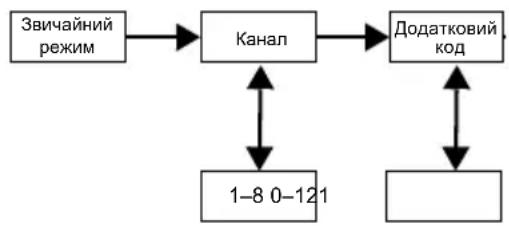
Setting the group code
- Or, to select the group code.
- Press the SEL/ button to confirm the group code setting. 3. The display shows the selected channel number.
- Press the MENU/GRP button to exit the group menu.
Selecting the input channel
Use the rotary knob to select the input channel. The selection of input channels is the same as the selection of the main channel.
- If the incoming call signal is not needed, turn it off. 2. Programming the transceiver.
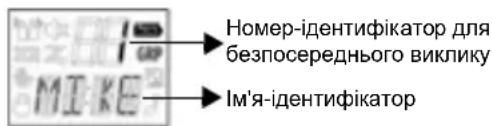
Assigning an ID
Each radio in the group must be assigned an ID. The user can enter an ID of no more than four (4) characters.
- If the ID is not needed, turn off the ID number.
- If such an ID is already registered, a corresponding message will appear on the display. If such a message does not appear, the ID can be used.
- Press the SEL/ key to proceed to assigning the name-ID.
Assigning the name-ID
The name-ID is displayed on the screen of another radio when the user makes a call to all group members or a direct call. When a group member makes a direct call, the name-ID is also displayed on the screen of that radio. If the ID is not assigned, the radio number is displayed on the screen.
- If the symbol is not needed, press the symbol to delete it from the display.
- Press the SEL/ key to move to the selection of the next symbol.
- Press the SEL/ key to register the ID number and name.
Note: The ID number and name are displayed on the screen. After pressing the MENU/GRP key, the group menu will be displayed on the screen.
Selecting a channel in group mode
To enable the function of changing the channel in group mode, perform the following actions:
- Press the MENU/GRP key to switch to group mode.
- Press the SEL/ button to enter the channel setting menu.
- or to activate the automatic channel change function.
- Press the SEL/ button to confirm the selection. The channel number will be displayed on the screen and the inscription "ALL" ("ALL") will appear.
- or to select a channel.
- Press the SEL/ or button to send the automatic channel change command.
- Press the MENU/GRP button to return to channel selection in group mode.
To select a channel number manually in group mode, perform the following actions:
- Press the MENU/GRP button to switch to group mode.
- Press the SEL/ button to enter the channel setting menu.
- or to go to the manual channel number selection menu.
- Press the SEL/ button to confirm the selection. The channel number will be displayed on the screen and the inscription "MY" ("MY") will appear.
- or to select a channel manually.
- Press SEL/ to exit the manual channel number selection menu.
- Press the MENU/GRP key to select a channel in group mode.
Transmit to all group members.
- Press the MENU/GRP key to switch to group mode. 2. To go to the selection menu, transmit to all group members/direct transmission.
- or ▼ to set the transmit parameter to all group members. The display shows "SYNC" (Sync).
- Press the SEL/ key or ▼ to exit this menu and start working with all group members. The radio will emit a tone to indicate transmission to all group members. The display will blink.
- Press the MENU/GRP key to exit the menu.
Direct transmission.
- Press the MENU/GRP key to switch to group mode. 2. To go to the selection menu, transmit to all group members/direct transmission.
- or ▼ to select the required pre-emphasis.
- or SEL/ to activate the direct transmission function. The radio will emit a tone for direct transmission. The display will show the TX icon and the transmission icon, which will be displayed during operation.
- Press the MENU/GRP key to go back to the parameter selection for transmitting to all group members/direct transmission.
Radio functions
Channel scanning mode
Scanning resumes and checks for activity on the channels. If activity is detected on a channel, the radio switches to that channel and transmits a beep for 2 seconds (5 seconds if the VOX function is activated without using the PTT). To switch to your own channel, press the PTT key. When the activity on the active channel is finished, the radio resumes scanning the channels.
To activate scanning, do the following:
- Press the MENU/GRP key to enter the main menu. Navigate to the scan parameter.
- Press the SEL/ key to activate channel scanning.
- To end channel scanning, press the MENU/GRP key or PTT.
Dual watch mode
The radio allows scanning of the current channel and a preset additional channel.
To assign an additional channel and activate dual watch mode, do the following:
- Press the MENU/GRP key to enter the main menu. Navigate to the "2CH" (2 ch.) parameter.
- Or, to select a channel, press the SEL/ key after selecting it.
- Or, to select an additional channel, press the SEL/ key after selecting it.
- Dual watch mode will be activated.
Note: When assigning the current channel and the code as additional channels, dual watch mode will be impossible.
- Press the MENU/GRP key to exit dual watch mode.
Monitoring of surrounding sounds
You can adjust the volume level (depending on the reverse side) and transmit them to the correspondent without the need to press the PTT key. In the monitor mode of surrounding sounds, the radio does not accept transmissions.
To activate the monitor mode of surrounding sounds, perform the following steps:
- Press the MENU/GRP key to enter the main menu. Navigate to the "ROOM" parameter.
- Press the SEL/8 key to select it.
- Or, to set the required volume level.
Note: Volume level 1 is intended for use at the minimum level of surrounding noise. Volume level 5 is intended for use at a very high level of surrounding noise.
- Press the SEL/0 key to activate the monitor of surrounding sounds.
Press the MENU/GRP key to edit the monitor of surrounding sounds.
Note: Sounds/voices are continuously heard for more than 60 seconds, the radio stops monitoring for 5 seconds, and then continues it.
Silent mode
In silent mode, the signals of all incoming calls are not reproduced. During an incoming call, the radio beeps. In the absence of a response to
the incoming call, the beeping stops, and the program will beep until the call is completed. If a call is missed, the T80/T80 Extreme model will beep.
For transmission or reception of a message, as well as pressing any key in silent mode, the beep sounds for 15 seconds.
To enable silent mode, perform the following steps:
- Press the MENU/GRP key to enter the main menu.
- Set parameter "SLNT" (silent mode).
- Press the SEL/ button to confirm the selection. 4. To enable silent mode, the channel indicator will show the symbol "Y". It will appear on the display.
- To disable silent mode, the channel indicator will show the symbol "N". It will disappear from the display.
Timer with delay
Maximum timer delay time is 59 minutes and 59 seconds.
In any mode, the radio receives incoming calls.
To use the timer, do the following:
- Press the MENU/GRP button to go to the main menu. Navigate to the parameter "TIME" (time).
- Press the SEL/ button to select the timer parameter.
- Press the SEL/ button to start the timer.
- Press the SEL/ button to stop the timer.
Press the SEL/ button to enable/disable the timer.
- Press the MENU/GRP or PTT button to exit the menu or start a conversation.
When the input voltage is present at the input, the display will show the ID identifier, and after its assignment, the timer mode will be restored, and the display will show the output power indicator.
Blocking
Press and hold the SEL/ button until the display shows the "LOCK" (blocking) indicator.
Press and hold the SEL/ button until the display shows the "UNLK" (unblocking) indicator.
RC display with backlight
After each press of any button on the RC display, it turns on for 10 seconds (except for pressing the PTT tangent).
Monitoring mode
Allows monitoring of weak signals in the current channel.
To activate monitoring mode, do the following:
- Press the MON button to enable monitoring. The indicator will blink.
- Press and hold the MON button for 2 seconds for continuous monitoring. The indicator will blink on the display.
To exit monitoring mode, do the following:
Press the MON, MENU/GRP, or SEL/ button to return to normal operation mode. The indicator will stop blinking.
Pressing this button again means ending the call using the PT button or the VOX headset. The button is activated through the radio's dynamic, if the button was not pressed. The button is activated through the radio's dynamic, if the button was pressed.
To turn off or turn on the button activation of the call confirmation, press and hold the button while the radio is turned on. Repeat this step according to the instructions for turning on or off the button activation of the call confirmation.
LED indicator
This radio is equipped with a built-in LED indicator.
The LED indicator operates under the conditions of pressing and holding according to the instructions.
Included accessories
Not covered by warranty
- Defects or damage resulting from improper use of this product or non-compliance with the instructions provided in this user guide.
- Defects or damage caused by improper use, resulting from accidents or improper handling.
- Defects or damage resulting from improper testing, operation, maintenance, adjustment, as well as any modifications or alterations. Damage or defects, except for those directly caused by material or manufacturing defects. Products that have been disassembled or modified in a way that affects their operational characteristics or prevents proper inspection and testing of the device to confirm warranty obligations.
- Defects or damage due to improper installation or use.
- Defects or damage caused by exposure to rain or moisture on the device. Damage or defects to any plastic surfaces and other external components of the product that occur during normal operation. Products that have been submerged in water. Improper maintenance, repair, or replacement of components in connection with normal operation and wear.
Copyright information
The products described in this guide may include software stored in memory or on other media. The laws of the USA and other countries provide certain exclusive rights to Motorola Solutions for protected computer programs, including the right to copy or reproduce in any way the protected computer programs of Motorola Solutions.
This manual is protected by copyright and may not be reproduced or copied in whole or in part without the prior written consent of Motorola Solutions, Inc. The software programs described in this manual are copyrighted and are the property of Motorola Solutions, Inc. Any unauthorized use or reproduction of the software is prohibited. Furthermore, the purchase of Motorola Solutions products shall not be deemed to grant either directly or by implication, estoppel, or otherwise, any license under the copyrights, patents, or patent applications of Motorola Solutions, except for the normal non-exclusive license to use the software that arises by operation of law in the sale of a product.
MOTOROLA, MOTO, MOTOROLA SOLUTIONS and the Stylized M Logo are trademarks or registered trademarks of Motorola Trademark Holdings, LLC and are used under license.
All other trademarks are the property of their respective owners.
© 2012 and 2016 Motorola Solutions, Inc. All rights reserved.

MOTOROLA SOLUTIONS

68015000918-DA




- RF ENERGY EXPOSURE AND PRODUCT SAFETY GUIDE FOR PORTABLE TWO-WAY RADIOS
- ATTENTION
- FREQUENCY CHART
- FEATURES AND SPECIFICATIONS
- BATTERY CAPACITY MAINTENANCE
- CHARGING THE RADIO
- NOTE: CHARGE THE BATTERY PACK FOR 14 HOURS
- BASIC RADIO OPERATIONS
- TURNING YOUR RADIO ON/OFF
- ADJUSTING THE VOLUME
- ADJUSTING THE SOUND (KEY BEEPS)
- NAVIGATING THROUGH THE MENU
- TALKING ON YOUR RADIO
- SELECTING A CHANNEL AND A SUB-CODE
- SELECT MENU
- VOICE OPERATED TRANSMISSION (VOX)
- TRANSMITTING A CALL TONE
- AUTO POWER OFF
- COMMON MENU
- GROUP MENU
- SET GROUP MODE
- SET GROUP CODE
- SET RING TONE
- SET ID
- SET ID NAME
- CHANNEL SETTING IN GROUP MODE
- SET ALL CALL
- FEATURES ON YOUR RADIO
- CHANNEL SCAN MODE
- DUAL WATCH MODE
- ROOM MONITOR
- SILENT MODE
- THE SILENT MODE IS DISABLED FOR 15 SECONDS WHEN YOU TRANSMIT, RECEIVE, OR PRESS ANY OTHER BUTTONS
- UP TIMER
- KEY LOCK
- LCD BACKLIGHT
- MONITOR MODE
- ROGER BEEP
- LED TORCH
- APPROVED ACCESSORIES
- WARRANTY INFORMATION
- WHAT IS NOT COVERED BY THE WARRANTY
- COPYRIGHT INFORMATION
- HANDBOOK ON RF ENERGY AND PRODUCT SAFETY FOR PORTABLE RADIOS
- WARNING
- SPECIFIC FUNCTIONS
- SECTION*{CHARACTERISTICS AND SPECIFICATIONS}
- VOX (VOICE OPERATED TRANSMISSION)
- OPTIMIZER
- AFTER INSTALLING THE BATTERY
- BATTERY CHARGE LEVEL AND LOW BATTERY INDICATION
- SETTING THE GROUP CODE
- SETTING THE RING TONE
- SETTING THE IDENTIFIER
- SETTING THE IDENTIFIER NAME
- SETTING CHANNELS IN GROUP MODE
- INTERRUPTION AND TECHNICAL
- CHARACTERISTICS
- BATTERY INSTALLATION
- BATTERY CHARGE LEVEL AND LOW BATTERY WARNING
- MENU NAVIGATION
- RADIO CALL
- SELECTING THE CHANNEL AND CTCSS CODE
- SELECTION MENU
- SELECTING THE INPUT CHANNEL
- ASSIGNING AN ID
- ASSIGNING THE NAME-ID
- SELECTING A CHANNEL IN GROUP MODE
- TRANSMIT TO ALL GROUP MEMBERS
- DIRECT TRANSMISSION
- RADIO FUNCTIONS
- CHANNEL SCANNING MODE
- NOTE: WHEN ASSIGNING THE CURRENT CHANNEL AND THE CODE AS ADDITIONAL CHANNELS, DUAL WATCH MODE WILL BE IMPOSSIBLE
- MONITORING OF SURROUNDING SOUNDS
- NOTE: VOLUME LEVEL 1 IS INTENDED FOR USE AT THE MINIMUM LEVEL OF SURROUNDING NOISE. VOLUME LEVEL 5 IS INTENDED FOR USE AT A VERY HIGH LEVEL OF SURROUNDING NOISE
- NOTE: SOUNDS/VOICES ARE CONTINUOUSLY HEARD FOR MORE THAN 60 SECONDS, THE RADIO STOPS MONITORING FOR 5 SECONDS, AND THEN CONTINUES IT
- TIMER WITH DELAY
- BLOCKING
- RC DISPLAY WITH BACKLIGHT
- MONITORING MODE
- LED INDICATOR
- INCLUDED ACCESSORIES
- NOT COVERED BY WARRANTY
Brand : MOTOROLA
Model : TLKR T81 Hunter
Category : Radio