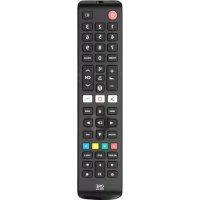
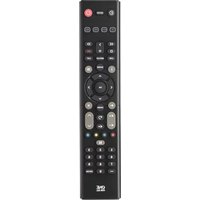
USER MANUAL URC 4910 ONE FOR ALL
AUTION: Risk of explosion if
battery is replaced by an incorrect type. Use quality Alkaline batteries.
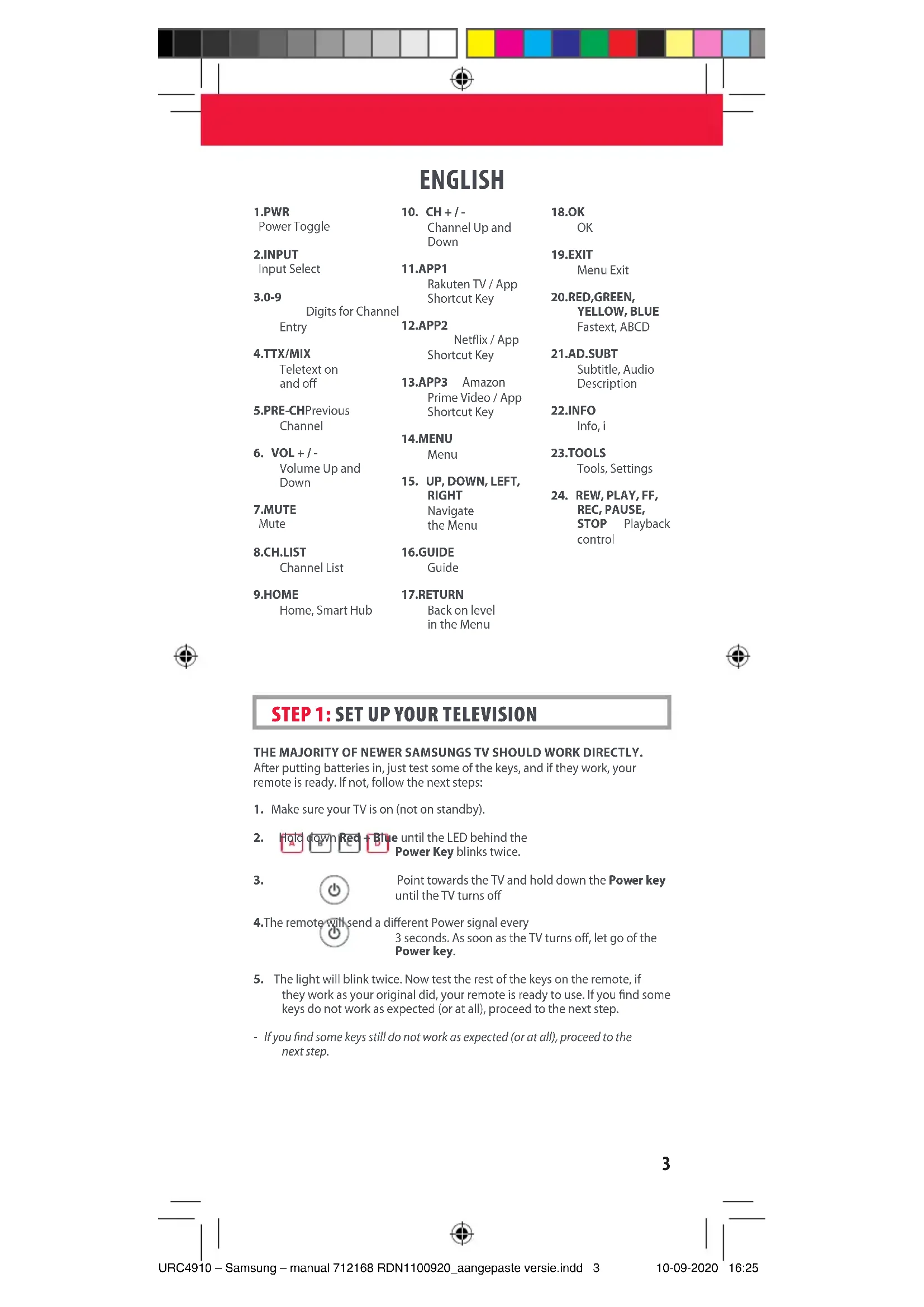
STEP 1: SET UP YOUR TELEVISION
THE MAJORITY OF NEWER SAMSUNGSTV SHOULD WORK DIRECTLY.
After putting batteries in, just test some of the keys, and if they work, your remote is ready. If not, follow the next steps:
- Make sure your TV is on (not on standby).


the LED behind the
Power Key blinks twice.
3.

Point towards the TV and hold down the Power key
until the TV turns off
- The remote will send a different Power signal every
3 seconds. As soon as the TV turns off, let go of the
Power key.
-
The light will blink twice. Now test the rest of the keys on the remote, if they work as your original did, your remote is ready to use. If you find some keys do not work as expected (or at all), proceed to the next step.
-
If you find some keys still do not work as expected (or at all), proceed to the next step.
ENGLISH
STEP 2: IF STEP 1 DOES NOT WORK AS EXPECTED
ARE SOME KEYS NOT WORKING AS EXPECTED?
If you find some keys do not work as expected (or at all), proceed to the next step.
- Make sure your TV is on (not on standby).
- Hold down RED & BLUE until the LED behind the Power Key blinks twice
3.Point towards the TV and hold one of the keys that is not working correctly (for example Menu).
- The remote will send a signal every 3 seconds.
- When the correct function is shown on the screen (in this case the Menu), let go of the key.
- The LED will blink twice - your remote is ready to use.
LEARNING
LEARN A NEW FUNCTION TO YOUR REMOTE
Your One For All remote can learn any function from your original (working) remote.

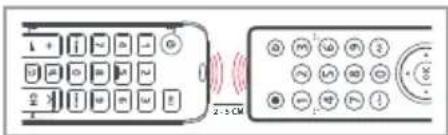

- Place the original remote facing the One For All remote on a flat surface.
- To learn: Hold down GREEN + YELLOW until the LED blinks twice.
- Press 375 The LED will blink twice.
- Press the key on the One For All remote you want to learn on, for Example: the VOL + key. The LED will blink rapidly.
- Press the key on the Original remote you want to learn, for Example: the VOL + key of your Audio Device
6.Twoblinks:ok. Repeat from step 4 for any more keys to learn. Long blink: try again from step 4.
- When you have learned all the keys you need, press and hold the OK key for 3 seconds. The LED will blink twice.
HOW TO DELETE A LEARNED FUNCTION
- Hold down GREEN + YELLOW until the LED blinks twice.
- Press 976
- Press the key to reset twice.
- The LED flashes twice and the key will revert to the original function.
4
ENGLISH
SOUND BAR / AUDIO RECEIVER VOLUME CONTROL
SOUND BAR / AUDIO RECEIVER VOLUME CONTROL
If you have your TV connected to a Sound Bar or Audio Receiver, it's possible to set up your One For All remote to control the Volume and Mute of this device. There are two ways to do this:
AUDIO SIMPLESET
If you have a Sound Bar or Audio Device from one of the brands listed in the table below, you can use the SimpleSet method to program your remote to control it. If you do not have one of the below brands, please proceed to the next section.
| Digit | Brand |
| 1 | Bose |
| 2 | Denon |
| 3 | Samsung / Harman/Kardon / JBL |
| 4 | LG / JVC |
| 5 | Marantz / Philips |
| 6 | Onkyo |
| 7 | Panasonic / Technics |
| 8 | Pioneer |
| 9 | Sony |
| 0 | Yamaha |


Note that each of the brands has a digit associated with it, for example 4 for LG (and JVC).
To set up your remote to control your Sound Bar / Audio Device, first make sure your TV and Sound Bar / Audio Device are both powered on, and that there is something playing that you can hear (this procedure will test the Mute function). Next:
- Hold down the VOLUME UP and VOLUME DOWN buttons together until the LED under the POWER key blinks twice.
- Now point the remote towards your Sound Bar / Audio Devices and hold down the digit key for your brand (for example 4 for LG). The remote will send the Mute function to your device every 3 seconds.
- As soon as your Sound Bar / Audio Device mutes the volume, release the digit key. The LED under the Power key will blink twice, and the Volume Up, Down and Mute keys should now control your Sound Bar / Audio Device.
AUDIO CODE SETUP
If your Sound Bar / Audio Device is not one of the brands listed above, you can also set up the remote to control it by entering a 4 digit code. The codes are listed in the Audio Codelist section of this manual, and are listed by brand and then popularity. Locate the brand of your Sound Bar / Audio Device in this code list and then the procedure is:
ENGLISH
- Hold down the VOLUME UP and VOLUME DOWN keys until the LED under the Power key blinks twice.
- Enter the first 4 digit code for your Sound Bar / Audio Device. The LED should blink twice on the last digit.
- Now try the Volume Up, Down and Mute and see if they control your Sound Bar or Audio Device.
- If they work, your remote is set up. If not try again from step 1 using the next code in the list.
POWERMACRO
If you have set up your Sound Bar or Audio Device using SimpleSet or Code Setup, you can now turn your TV and Audio Device both on and off using a single key. Simply hold down the Power key for 3 seconds and the remote will send the Power function to both the TV and the Audio Device / Sound Bar. If you press and release the key, it will only control the TV.
APP SHORTCUT KEYS


The One For All remote features three App Shortcut Keys which can be used to open apps on your TV. If your original remote control has a Rakuten TV, Netflix, or Amazon Prime Video key, these keys will perform the same function.
However if you try these keys and they do not work, but your TV still has the ability to watch a streaming service, you can use this key as a shortcut by programming a macro (a series of button presses) on it. You could also program the keys to access other apps on your TV.
To program the macro, you first need to know the sequence keys you use to access the service. For example, some TVs will start Netflix by pressing the Home key, then Menu Right twice, and finally the Enter key. Once you have determined the sequence for the app you want on your TV, follow these steps:
- Sit in front of your device with It switched on (not on standby)
- Hold down the App Shortcut key until the LED blinks twice.
- Now perform the sequence of keys exactly as would normally. The remote will operate your TV and the macro is recorded in real time - so if it normally takes a few seconds for your device to react don't worry.
- Once you have finished the sequence - and the Streaming Service has started on your device - hold down the App Shortcut key until the LED blinks twice and goes out. The macro is now stored.
Tips
Make sure the OFA remote is operating the TV before programming
- If you find the Macro doesn't work as expected, you can just repeat the same sequence to reprogram
- When programming, wait for your TV to respond first, the remote will remember the timing
RESET
If you would like to reset your remote back to its default settings, please do the following:
- Hold down the Green and Yellow keys until the LED blinks twice
- Press 977
- The LED will blink 4 times and the remote is now reset.
DEUTSCH
- POWER
Ein/Aus
- EINGANG
Eingangs-auswahl
- 0-9
Ziffern fur Kanaleingabe
- TTX/MIX
m = 311 ;
- Pointez la


telévisueur et


nfoncé le bouts
on d'alimentation


e la télévisaur
teteigne


d'alimentation


1 + u8 = 8


thez le bouton


FRANÇAIS
ÉTAPE 2 : DANS LE CAS OÜ L'ÉTAPE 1 NE FONCTIONNE PAS COMME PREVU
CERTAINES TOUCHES NE FONCTIONNENT-ELLES PAS COMME PREVU?
MACRO ASSOCIÉE AU BOUTON D'ALIMENTATION
- REW, PLAY, FF, REC, PAUSE, STOP
Controlo de reproducao


24.REW,PLAY,FF,REC, PAUSE, STOP
Afpelen beheren


STAP 1: UW TELEVISIE INSTELLEN
DE MEESTE NIEUWE SAMSUNG-TV'S WERKEN DIRECT.
SNELTOETSEN VOOR APPS

INDSTILLING AF LYDKODE
- RØD, GRØNN, GUL, BLÅ
Tekst-TV, ABCD
- 0-9
Tallknapper for val3. APP 3
avkanal
Amazon Prime
Video / app-snarvei
21.AD.SUBT
TRINN 1: SETTE OPP TV-APPARATET
FLESTEPARTEN AV NYERE TV-APPARATER FRA SAMSUNG VIL VIRKE DIREKTE.
Lyset blinker to ganger.
4.

Trykk pa knappen pa One For All-fjernkontrollen du vil laere noetil, for eksempeI knappen VOL ^+ . Lyset blinker raskt.
5.

Evpyooinon kauanevpyooinon teletext 1
ouvtóueuocεapooync
- KOKKINO, IPA
ZINO,KITPINO, MNAE
Fastext, ABCD
- PRE-CH
Pponyouevo kavali
- APP 3
Amazon Prime Video/Anktpo ouvtoucn c
- AD.SUBT
Ynotitloi,Piypa-
qniXou
- VOL +/ -
AuEnon kai eiwomevou evtaonxou
- MENU
you
- MUTE
Sigma
- EIANΩ, KATΩ, APIΣTEPA, ΔΕΙΑ
PAnyon oTo uevou
- INFO
πηροφορεις, i
- CH. LIST
Aiota kavaaivv
- GUIDE
O8nyoc
- TOOLS
Epyaia, PuOmuoic
- REW, PLAY, FF, REC, PAUSE, STOP
Eaeyooc,avanapaa

BHMA 1: PYOMIISH THS THAEOPAESH ZA
OI INPEIENEOTEPE ANIO TIE NIO NEE THAEOPASEE SAMSUNG A IPNENEI NA AEITOYPRHOYN ANEYOEGIAZ.
Apoou tonotheetae e natapiec, apke va eleyeete mepiakanto taanktpa kai, av aeitoupyouv, to tnaleepiotnpioac evai etoiu. Seavntetn nepintwn, akoloutheta t a npakatw bieta:
- Bebaaitheite ottn tnaeopaon oac eival avaumevn (oxi oe avauovn).


aπλnKtpa Kokkivo +Mnλε,
éxpi va avaobnoei duo opec n qwteivn evdiq LED niaw ano to nktpo tpoosooiac.
- Στρεύτει

Aey

Lo npoc Tnv TnaEopaon kai
Kpatnote natmuevo to nAnktpo Tpoopodooiac,expu va obae i n tneopaoon
- To nAEx

nio 0
aTeλeileiaopopetikoσnua
Rakuten TV/
Tka BkIoueHn
TOKeHn
- EXIT
BbXoIu3 MeHIO
- 0-9
LcnpbI DnB B0a2. APP 2
na Netflx / KhoNka
VMIX BKIOueHn npNo- XeHn
- TTX/MIX
BknioueHne nOTKIOUeHne TeTeKeCTa
- APP 3
Amazon Prime Video/Khonka BkHoueHn npuKeHHa
20.KPACHAR,3EJI HAR, KEJTAR, CMHAR Fastext, ABCD
- AD. SUBT
Cy6TnTpbl,OnncaHne aydno
- PRE-CH
Ppebdyuynn
- MENU
MeHIO
- INFO
HΦo,i
- VOL + / -
YBeJIuHHeNmUMeHbWeHnE rPOMKoCTn
15.CTPEIKMBBEPX, BH3,BJEBO, BIPABO
Habiragun no MeHIO
- TOOLS
HCTpyMeHTbl, HactpoiKn
- MUTE
OTKJIIOUeHnE3Byka
- GUIDE
PykoBoDCTBO
24.NEPEMOTKA
HA3AD,BOCNP, INPEPMOTKA BINEPED,3ANNCb, NAY3A,CTON
- CH. LIST
CnncokKaHaIOB
- RETURN
Bo3BpaT Ha OINH ypoBeHb B MeHIO
YnpabneHne
BOCnpon3BedeHnEM


WAR1.:HACTPOIKA TELEBN3OPA
C BOLbHCTBOM HOBbIX TEJIEBN3OPOB SAMSUNG YCTPOINCTBO DOLXHO 3APABOTATb CPA3Y.
Bctabte 6atapeKn npocTo npoBepbte Hekotopble KnaBnH. Ecn OH pa6otaIOT,nybT roTOB K nCnObl3OBaHIO.EcH HET,BbinOHIne OINcaHHbte HNKe DeIcTBnI.
- 16eHntecb TOM,HTO TEENBUN3Op BKIOUeyn (He HaxoDITcB Pekmme OJN - daHna).

E KpaChyIO CnHIOI KOHNKIN
NOKa INHINKATOP PADOM C KHONKO NITAHNAHE MNRHT DBaXDbI.
3.HabeJeIte

HaTeJIeB
3n3Op uydepKuBaIeT
KHONKY NITAHIN, NOKA TENEBUN3OP He BbIKIOHNTCA.
4.Пунъно

pa3n4u
bile CnHaJIbI OTKNIQUeHNA
NITAHNA KAKDBe Tpu CekyHdbi. KaT OJIbKO TeJeBH3Op BbIKIOHTCA,OTNYCTATE KHONKY NITAHNA.
- INHnKaTOp MNrHET DbAaBbI. PIOBepbTe OCTaJIbHbIe KlaBnUH. EcIn Bce OHn pa6OtaIOT, KaK Ha CTApOM NylbTe, To pN6Op rTOB K IcNoIb3OBAHIO. EcIn HeKOToPbIE KlaBnUH pa6OtaIOT HnPabUNbHO (uIN He pa6OtaIOT BOo6Ue), nepeJnte K cNeDyUoIeMy 3Tany.
Ecnu hekomopbke knabuu no-npexhemy pa6omam HnpeabunbHo (uH npabomam 806we), nepeudume K cnedyouemy 3many.
Pycckn
WAR2.: YTOДELATb, ECIN YCTPOICTBO HEBEPHO HACTPONIOCb HA 3TANE 1?
HEKOTOPBIE KJABUNI PABOTAOT HENPABNJbHO?
Ecn HeKOTOpBle KnaBnIpaOtaIe HnPaBnIbHO (nn He paOtaIcT Boo6Ie), nepeiDte K cndyUoemy 3any.
- y6eINTecbBTOM,HTO TeneBUN3OP BKNIOUeH (He HAXOINTCB PEXIMNE OXINADHIA).
2.HaKmte yndepKaBnE KPACHYIO CNIHIO Kna-BuIN, NOKA HNkATOp pRDOM CKHONKOI NHTAHHE MIRHT DaXkbbl.
3.HabeTe nIbHa TeLeBnOp u yepKnaIte OndHy HnPaBnHo paOtaIOx KnaBn, HanpMep MEnu (MeH0).
- NytncbnaetnHanKaJdbtePncyHdbi.
- Iocne TOrO KaK HyKHaJyHKUaB (B daHHOM cnyuae MENU (MeHIO) OTO6pa3nTc Ha 3kPaHe, OTNyCTnTE KnaBnHy.
- Korda nHnDnKaTOp MURHeT DBAKDbI, Nylb7 6yEeT rOToB K pa6ote.
HACTPOIKA OYHKU
HACTPOIKA HOBbIX ΦYHKUIM HA NylbTE
One For All MoKet BbINONHrTb FyHKmIpyRnx PyJbTOB y.

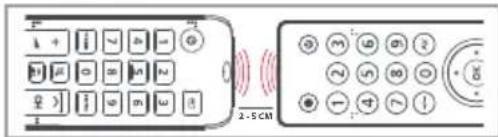

- IIOXkTe CTapbIyIbHT ha pOBHyIOBepxHocTb IueBoi CTOPOHOI K One For All.
-
HactpoKa fynKuHn.HaxMnte u ydepXnBaIte 3EJIeHyIO n KEJITyIO KlaBnU, noka nHdNkAToP He MURHT DaXkbI.
-
- HndkaTop MmHet daa
-
Haxmte KnaBny Ha nynbTe One For All, dny KOTopoHyKHO hactpoNTb HOBbIe yHKun, Hanpumep, VOL + (Pomk. +). Hdkatop KpatKOBpeMeHHo MHTET.
- HaxMMTe KlaBnUHa CTapOM NylbTe, yHKUNo KOTopoH NyKHO HaCTPOuTb Ha HOBOM, HApnmep VOL+ (PpOMk.+) Ha NylbTe ayDnOyCTpoiCTBa.
- 100HoeMnraHne: npoueDpya BbINONHeHa. NOBTOPrte, HauHnHa cIura4, dna CNeDyUoSeH NaCTpaNBAEMO KNOHKn. DOnroe MmraHne: NOBTOPTe ONcaHHBe DeMCTBnA, HauHnA cIura4.
- HactponB BCE HyKbIe FyHKUIM, HaxMNTe KHNkOY OK uJdepKnBaTee ee B TeueHne 3 cekyHd. INHdkaTOp MmHET DaXkbI.
YDAJIEHHEHACTPOEHHbIXΦYHKUIM
- Haxmte u yepknaBte 3EHEHIO XENTYIO KhoNKn, noka nnkaTOp He MnrHET DaXkbl.
- Haxmte 976.
3.ДыхдьнхмteKnabNHy,ФункuIO KOTopoHyxHo C6pocntb.
- Hnukatop MmHET DbaKdb, n KJIaBnwe 6ydet Ha3HaueHa NCxOHaH aYHKnA
HnfoMaio O dononHnteBbix FyHKunx, TaKnx KaKdoCTyn K npMOXeHmO, ynpabEnHe 3ByKOBo nAhenBo, cTao 3aadaBaemble BONpOcbI, BNoE MoHORe DpyroE, BB MoXeTe npOuMTaB BHTepHete.
52

TÜRKÇE
1.GUC
Açma/Kapatma
- KANAL + /-
Kanal Yukari ve Asagi
18.OK
Tamam
2.GIRIS
Giriş Secimi
11.UYGULAMA1
19.CIKIS
Menüden Çişi
3.0-9
Kanal Girisi Sayilar
Rakuten TV / Uyguluama Kisayol Tuşu
20.KIRMIZI,YESIL
SARI, MAVI
Fastext, ABCD
4.TTX/MIX
- REW, PLAY, FF, REC, PAUSE, STOP
Zapnuti/vypnuti teletextu
13.APP3
Amazon Prime Video / tlacitko applikace
22.INFO
Info
5.PRE-CH
Predchozikanal
14 MENU
Menu
23.TOOLS
Nastroje, nastaveni
- VOL + / -
Zvyşeni/snizeni hlasitosti
15.NAHORU,DOLU, VLEVO,VPRAV
Navigace v menu
- REW, PLAY, FF, REC, PAUSE, STOP
Tlacitka prehravani
7.M
Ztylumenizvuku
8.CH.LIST
Seznam kanalu
16.GUIDE
TV program
9.HOME
Domù, Smart Hub
- RETURN
Vrát se o uroven zpét v menu

KROK 1: NASTAVENI TELEVIZORU
VETSINA NOVEJSICH TELEVIZORU SAMSUNG BY MELA ROVNOU|SPOLUPRACOVAT.
NEHANY GOMB NEM A VART MODON MUKODIK?
BKnIOUBaHe/M3-KIOUbaHe
2.INSUT
N36op Ha BxOJ (N3TOUHNK)
3.0-9
LüΦp n 3a BbBexJa-He Ha KaHaJI
4.TTX/MIX
BKn./N3Kn. Ha TeNeTeKCT
5.PRE-CH
PpeDnien KaHAn
- VOL+/-
YbenvuabaH/ HamajlaBaHe Ha cnataHa 3Bvka
7.MUTE
U3KJIOUBaHeHa 3Byka
8.CH.LIST
CnncbKaHaJIITe
9.HOME
Haayano, INTENIReHTeH KOM6BnHpuH 6yTOH
- CH + / -
OtnBaHe Na CneD-BaHn Nn npednWeH KaHAn
11.APP1
Rakuten TV / 5bp3 6byto3a npuno-kehne
12.APP2
Netflix/BbP36yToH 3a npnIOKeHne
13.APP3
Amazon Prime Video /БьрзБутон 3a риложене
<|im_start|>assistant
14.MENU
MeHIO
15.CTPEJIKUNHAROPE, HADJOY, HAJIBO, HADCHO
ByTOHn 3a npuD-BNKBaHe B MeHOTO
16.GUIDE
TV cnpaBOUHMK
- RETURN
Bpblaane eoHbNOHa3aDMBeHIO
18.OK
NotBbpxKeHne
19.EXIT
U3n3aHeOT MEHIOTO
20.ERYBEH,3EJIENKbJITN CINBYTOHN
Bbp3 TeKCT, ABCD
21.AD.SUBT
Cy6TnTp, Aynno OncacHne
22.INFO
HOpMaun
23.TOOLS
HnCTpymEnTHn, NaCTpOKN
- REW, PLAY, FF, REC, PAUSE, STOP
UnpaBneHHe Ha Bb3- npOu3BExdHaHTo


CTbIKA 1: HACTPOIKA HA TENEBU3OPA
IIO-ronmaT aCt OT HOBnTe TeneBn3Opn Samsung ue pa6oT HnpaBO, 6e3. DonbHntHa HaCTpoKa.
CneI kato noctabnte 6atepnnte, npocTo npOBepTe HkON OT 6yTOHnTe, n Ako Te pa6oTt, 3NauN dntaHcUNOHHTO e rTOBO 3a pa6oTa. Ako He pa6oTt, N3NbHHeTe CneBaunTe CTbKN:
1 YBepTeCe,Ye TeIeBn3OpbTe BkIIOueH (He e BpeXIM Ha rTOOBHOCT- cTe6aI).
2 HATNCHTe 3aBck eepBeHn+ CnHn6yToH, DOKATO CBTeOAnoBt NOD 6yToHa 3a BKn./u3Kn. He npemira 2 nTn
3 Hacouete nHCTaHIOHHOTo KbM TeNEBn3Opa N HaTNCHeTe n 3aIpbXte 6yToHa 3a BkN./n3Kl,doKaTO TeNEBn3OpbT He Ce n3KnOuN.
4IinCTaHIOHHOTO 3npa pa3nueH cHraH3a N3KIOUbaHe Ha BCEKn 3cekyHn BeHara oom KaTo TeNEBn3OpbT ce n3KIOUHy, OTnycHete 6yToHa 3a BkN./n3Kn.
5 CBeToIIOBtIe npemra IBa IbTn Cera npobepete octaHAnite 6ytoHn Ha nCTaHUnOHHTO. Ako Te pa6oTAT KaTO Te3n Ha opuHnHaHOTo, Toraba nCTaHUnOHHTO e rTOBO 3a yNtpe6a. Ako OTKpneTe, ye HkON 6yTOHn He pa6oTAT cnopeO uokBaHnTa (mnn Bbo6ue He pa6oTAT), npemHeTe KbM cIeDaWaaTa CTbIIka.
Ako omkpueme, ye hakou bmyohu He paobomm cnopeo oukaehma (nu Bbo6ue He paobomm), npemuheme kblcnebaaama cmbnka.
БытAPСКИ
CTbIIKA 2: AKO CTbIIKA 1 HE PABOTN IO OYAKBAHNAUH
IMAAIByTOH,KOITHOPEPAOTRCTNOPEOYAKBAHNA?
Ako otKpneTe,Ye hankon 6yToHn He pa6oTAT cnopeOn oukaBaanrTa (nnn Bbo6ue He pa6oTAT), npemHHe T KbM CnEaBaata CTbNk.
- yBepete Ce,ye TeneBn3OpBt E BKNIOueH (He e BpeXUM Ha rTOOBHOCT-CTe6bai).
- HnHre 3a npBte YEPBEHn+ CnHn6ytoH, DOKaTO CBeTOnoDbT NOd 6yToHa 3a BKn./n3Kn. He npemrA DBa Tn
3.Hacouhe taHIOHOTo KbM TeIeBn3Opa HATCHETu 3aApKTe eINH OT 6yTOHtE, KOITOp He paBOTn npabINHO (Haipmep 6yToHa Menu).
4.ДИCTAHUNHHTO ue n3npaauca cunha Hbcekn 3cekydn.
- Korato Ha ekpaHa ce nokae npabnHata fynkun (B Hauin Cnyaia Menu), otnyche 6ytoHa.
- CBeToaNoDbT Ue npemrA TaBnT -DuctaHNOHHTO e rTOBO 3a ynoTpe6a.
OByeHne
HAYETE BAWETO DUCTAHMOHHO HA HOBA FYHKU
ДиctaHIOHOTOn One For All Moke Da ce 6yH Na BcKaФyHKUry OTo opunHaHnO (pa6oteo) nCTaHIOHNO.

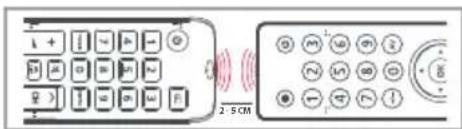

- NocTabete opnHAnHOTo nCTaHNoHHO cpeuy nctaHNoHHOTo One For All ha paBaHa nobbpxHOCT.
- 3a da obyute:HaTncHete n3a npbXte 3EJIeHHn+KbIINr6yToHn,doKaTOcBToNDtHe npemirraBaTn.
- Hntnche975.CBtoDnOdbTue npemrra Dba nbtn.
- HaTnCHete 6yToH Ha nCTaHcHnOHTO One For All, yHrTo yHKuNCKate da o6yHTe, HAnpMep: 6yToHbT VOL + CBeToDnOJbT ue npemira 6bp30.
- HaTNCheTe 6yToHa HaOpuHaHJHOTo DnCTaHIOHHO,HaYrTO
4yHKUNI NCKATE Da HayHTe HOBOTO DnCTAHIOHHO,HanpIMep: 6yTOhT VOL+HaayNo yCTPOINCTBOTO
- 1BBe npemrBaHn: NtBbpxdHne. NobTopeTe oT cTbnKa 4 3a Oue 6yToHn 3a 06yHeHne Dblro npemrBaHe:OnntaIte OTHOBO oT cTbnKa 4.
- Korato CTe 6bUHN BCNUK XeJAHN 6yTOHn, HATNCHE Tn 3aDpX- Te 6yToHa OK 3a 3 cekyHn.CBetOpNDt ue npemra Dba nTn.
KAK CETPNE OBOYEHA OYHKU
- Hatnche n 3aapbXte 3EHEHn + XbNTn8 6yToHn,doKATO CBeTOmOdBt He npemrra Dba nTn.
- Hatnchete 976.
- Hatnche6yToHa c yHKunraTa 3a n3TpnaHe Dba nbTN.
4.CBToaIOoTtue npemra Ta BnNbTOHbTue cN BbpHe NpboHaayan HatayHKU.
OTKPMTNEOBUEeFyHKUHmOHnAH,KATO CneuaHnHO Mo6nHnOpnIOKeHHe,KoHTpOHaayH6pa, YecTo cpeaAHNbPnOc,BnaEaHpyr.
62
ROMÁNA
1.PWR
Buton de pornography/ oprire
10. CH + / -
Derulare canale in sus si in jos
17. return
Inapoi un nivel
in menu
2.INSUT
Selectare intrare
11.APP1
Rakuten TV / buton comanda rapida aplicaiti
18.OK
OK
3.0-9
24.VRATI,REPRODU CIRAJ,PREMOT
UNAPRIJED, SNIMI, PAUZIRAJ, ZAUSTAVI
Kontrola reproduckije


1. KORAK: POSTAVITE SVOJ TELEVIZER
VEcINA NOVIJIH TELEVIZORA SAMSUNG TREBALA BI IZRAVNO FUNKCIONIRATI.
The crossed out wheeled bin symbol on this product ensures that this product is manufactured using high quality components that can be recycled and reused according European Directive 2012/19/EU. Please do not dispose of this product with your normal household waste, refer to local regulations for the proper collection or disposal of electrical and electronic products. This will help this will help in preventing negative effects on the environment and/or human health.
BATTERY DISPOSAL (EUROPEAN DIRECTIVE 2006/66/EC)
Please do not dispose of your batteries with your normal household waste, refer to local regulations for the proper collection or disposal. This will help preventing potential negative effects on the environment and/or human health.
GUARANTEE TERMS AND CONDITIONS UNIVERSAL ELECTRONICS warrants to the original purchaser that this product will be free from defects in materials and workmanship under normal and correct use for a period of two (2) years from the date of original purchase. This product will be repaired or if necessary, replaced free of charge if it has been proven to be defective within the two(2) year warranty period. The forwarding costs are on the account of the owner; the costs of returning the product are on the account of UNIVERSAL ELECTRONICS.
This warranty does not cover damage or failures caused by products or services not supplied by UNIVERSAL ELECTRONICS, or which result from not mounting the product according to manual instructions. This also applies when the product has been modified / repaired by others than UNIVERSAL ELECTRONICS or if a fault is the result of accident, misuse, abuse, neglect, mishandling, misapplication, faulty installation, improper maintenance, alteration, modifications, fire, water, lightning, natural disasters, wrong use or carelessness.
To obtain warranty service during the warranty period contact [...] and please note that we need your original purchase receipt so that we may establish your eligibility for service. If you have bought this product for purposes which are not related to your trade, business or profession, you may have legal rights under your national legislation governing the sale of consumer goods. This guarantee does not affect those rights. www.oneforall.com
UTYLIZACJA BATERII (DYREKTYWA EUROPEJSKA 2006/66/WE)
Arcam 0641,0269,0189
Argos 4122
AS 1501, 1470
AudioAgile0269
Audio Pro 3264
Audiolab 0269,0189
Auvisio 3654
AVI 0269
B&0 0799
Bang & Olufsen 0799
Bauhn 4242
Blaupunkt 3654
Bose 1229,3708,3079 4024,3832
Bush 4122
Cairn 0189
Cambridge Audio 1730, 1647, 4157, 4222
Canton 3000
Carver 0189,0269
Celcus 4146
Coby 3654
Copland 0269
Curtis Mathes 0039
Denon 0004,1360,2857 3347,2516,0272 1260,3380,3639 3947,4111,2681 4551,2502,4025
Dicra 3654
DIKE 5070
Dual 4134
Dutch Originals 5070
Energy Sistem 3654
Epworth 0121,0406,0158, 0159
Goodmans 4146,0609,2151, 1199
Grundig 0189,0269,5174, 1199
Harman/Kardon 1304,0110,1004, 3756,4197,0189, 0269
HIFIAkademie 0269,0189
Hitachi 4590,3050,5130 1199
Horizon 4411
IKEA 4050
Inkel 0027
Insten 2151
Integra 1805,2989,2993 1320,3992,0135
Jay-tech 4146
JBL 3756, 4575, 5070, 0110
JTC 4146
JVC 1400,0074,0464 4411,1199
Kenwood 0313,0027,1400
Kogan 3654
LG 2676,4043,4667
Linn 0269,0189
Loewe 0269,0189
Logik 4242
Logitech 2436,1408,3561
Magnat 4485
Magnavox 0189,1269,3282 0269
Majority 4146
Marantz 2117,0189,0269, 4673,0039,0641, 1269,3347,4556
Maxell 3997
MCS 0039
Medion 4242
Meridian 0715
Micromega 0269,0189
Musical Fidelity 0688
Myryad 0189,0269
NAD 0320,1093,1743
0609
Naim 1895
Nakamichi 3296
New Acoustic
Dimension 0320,1093,1743 0609
Nikko 0609
Nubert 4331
Onkyo 1805,0135,1320, 2989,2993,3050, 4533,3992
Optimus 0300,0013
Orbitsound 4098
Otone 4242
Panasonic 0309,1779,4007 3425,0308,0367 0039
Philips 1269,0189,2459, 4105,3289,2986, 1673,0269,3282, 0641
Philips Magnavox 0189
Pioneer 1935,0013,1459 3742,0300,1284 3629,3631
Polk Audio 0269,0189
Proficient 0609
Proson 0609

AUDIO CODELIST
Pyle 4242
Quasar 0039
RCA0300,1459,0082
Restek 0189
Revox 0140,0189,0269
Rotel 0793
Samsung 2660, 2809, 1199
2137,3822,1304
Sansui 0189, 0609
Sanyo 3282
Schaub Lorenz 4242
Sentra 0688
Sharp 3096, 5070
Siemens 0609
Sonos 3919
Sony 0158,0159,2522
1758
Soundwave 0609
Sunfire 0313
Sungpo 3096,5070
T+A 2302,1270
Teac 0609,1199,3253
4242
Technics 0309,0308,0039
0208
TechniSat 4134,4486
Techwood 0609
Teufel 4051,3296,3574
4477,2322,4159
4460,4559
Thomson 1194,3654
Thorens 0269,0189
Toshiba 3627,5070
Universum 0609,0269,0189
Victor 0074
Wards 0013,0158,0189
Yamaha 0176,1276,2061
2467,3283,2469
0082.0848.1176
1949,0354,3267
3602,2342


Connect with us


facebook.com/@oneforall.worldwide.linkedin.com/youtube.com/
oneforawlwide companyfare-for-all-worlddvice/ uerscereforallroducts

712168
RDN 1100920
Universal Electronics BV - Europe & International
P.O.Box 3332,7500 DH Enschede The Netherlands
URC 4910 Samsung:
SAMSUNG is a registered trademark of Samsung Electronics Co., Ltd.