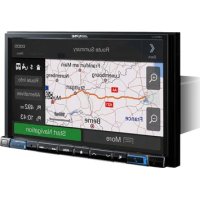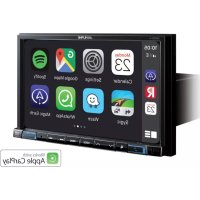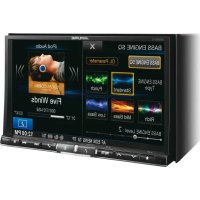
X800DU - GPS device ALPINE - Free user manual and instructions
Find the device manual for free X800DU ALPINE in PDF.



| Product type | GPS device with DVD player, radio, Bluetooth |
| Brand | Alpine |
| Model | X800DU |
| Screen size | 8,0 inches |
| Display type | Active matrix TFT LCD, LED illumination |
| Screen resolution | 800 × 480 pixels |
| GPS navigation | Frequency 1575.42 MHz, sensitivity -130 dB max |
| FM tuner | Range 87.5-108 MHz, sensitivity 8.1 dBf, S/N ratio 65 dB |
| MW/LW tuner | MW 531-1602 kHz, LW 153-281 kHz |
| CD/DVD player | Response 5-20000 Hz, distortion 0.008%, S/N ratio 100 dB |
| Bluetooth connectivity | Profiles HFP, A2DP, AVRCP, OPP, PBAP |
| USB port | USB 1.1/2.0, 1000 mA, FAT12/16/32 |
| Output power | 50 W × 4 (max) |
| Preamp output voltage | 4 V/10 kohms (front, rear, subwoofer) |
| Power supply | 11-16 V DC, negative ground |
| Operating temperature | -20°C to +60°C |
| Chassis dimensions | 178 × 100 × 164 mm |
| Fascia dimensions | 190 × 120 × 10 mm |
| Weight | 2.85 kg |
| Main functions | GPS navigation, RDS radio, CD/DVD/MP3/WMA/AAC player, hands-free Bluetooth, MirrorLink, HDMI input, dual screen |
| Care and cleaning | Clean with a soft dry cloth; do not use solvents |
| Safety | Follow instructions: do not obstruct air vents, use appropriate fuses, installation by a professional |
Frequently Asked Questions - X800DU ALPINE
User questions about X800DU ALPINE
0 question about this device. Answer the ones you know or ask your own.
Ask a new question about this device
Download the instructions for your GPS device in PDF format for free! Find your manual X800DU - ALPINE and take your electronic device back in hand. On this page are published all the documents necessary for the use of your device. X800DU by ALPINE.
USER MANUAL X800DU ALPINE
KPATKOE CIIPABOuHOE PYKOBOCTBO
SKROCONA INSTRUKCJA DLA UZYTKOWNIKA
Made for

iPod iPhone

HOMI
HIGH-DEFINITION MULTIMEDIA INTERFACE

Digital Audio Broadcasting
MirrorLink


PLAYBACK

(INE-W987Donly)
Bluetooth
Contents
WARNING 2
CAUTION 2
Getting Started 3
Detaching and Attaching the Screen (INE-W987D Only) 4
About Dual Screen. 6
User Registration 7
Radio Operation 8
DAB/DAB+/DMB Operation 8
MP3/WMA/AAC Operation 9
DVD Operation 9
iPod/iPhone Operation (Optional) 10
USB Memory Operation (Optional) 11
Hands-Free Phone Control 12
MirrorLinkTM Operation (Optional) 13
HDMI Device (Optional) 13
Installation 14
Connections 16
Specifications 18
IMPORTANT
Please record the serial number of your unit in the space provided below and keep it as a permanent record.
SERIAL NUMBER:
ISO SERIAL NUMBER: AL
INSTALLATION DATE:
INSTALLATION TECHNICIAN:
PLACE OF PURCHASE:
For details on all functions, refer to the Owner's Manual stored in the supplied CD-ROM. (As it is data CD, the CD cannot be used for playing back music and images on the player.) If required, an ALPINE dealer will readily provide you with a print out of the Owner's Manual contained in the CD-ROM.

WARNING
This symbol means important instructions. Failure to heed them can result in serious injury or death.
DO NOT OPERATE ANY FUNCTION THAT TAKES YOUR ATTENTION AWAY FROM SAFELY DRIVING YOUR VEHICLE.
Any function that requires your prolonged attention should only be performed after coming to a complete stop. Always stop the vehicle in a safe location before performing these functions. Failure to do so may result in an accident.
KEEP SMALL OBJECTS SUCH AS SCREWS OUT OF THE REACH OF CHILDREN.
Swallowing them may result in serious injury. If swallowed, consult a physician immediately.
KEEP THE VOLUME AT A LEVEL WHERE YOU CAN STILL HEAR OUTSIDE NOISES WHILE DRIVING.
Excessive volume levels that obscure sounds such as emergency vehicle sirens or road warning signals (train crossings, etc.) can be dangerous and may result in an accident. LISTENING AT LOUD VOLUME LEVELS IN A CAR MAY ALSO CAUSE HEARING DAMAGE.
DO NOT DISASSEMBLE OR ALTER.
Doing so may result in an accident, fire or electric shock.
USE ONLY IN CARS WITH A 12 VOLT NEGATIVE GROUND.
(Check with your dealer if you are not sure.) Failure to do so may result in fire, etc.
USE THE CORRECT AMPERE RATING WHEN REPLACING FUSES.
Failure to do so may result in fire or electric shock.
DO NOT BLOCK VENTS OR RADIATOR PANELS.
Doing so may cause heat to build up inside and may result in fire.
USE THIS PRODUCT FOR MOBILE 12V APPLICATIONS.
Use for other than its designed application may result in fire, electric shock or other injury.
DO NOT PLACE HANDS, FINGERS OR FOREIGN OBJECTS IN INSERTION SLOTS OR GAPS.
Doing so may result in personal injury or damage to the product.
MAKE THE CORRECT CONNECTIONS.
Failure to make the proper connections may result in fire or product damage.
BEFORE WIRING, DISCONNECT THE CABLE FROM THE NEGATIVE BATTERY TERMINAL.
Failure to do so may result in electric shock or injury due to electrical shorts.
DO NOT SPLICE INTO ELECTRICAL CABLES.
Never cut away cable insulation to supply power to other equipment. Doing so will exceed the current carrying capacity of the wire and res in fire or electric shock.
DO NOT DAMAGE PIPE OR WIRING WHEN DRILLING HOLES.
When drilling holes in the chassis for installation, take precautions so as not to contact, damage or obstruct pipes, fuel lines, tanks or electrical wiring. Failure to take such precautions may result in fire.
DO NOT USE BOLTS OR NUTS IN THE BRAKE OR STEERING SYSTEMS TO MAKE GROUND CONNECTIONS.
Bolts or nuts used for the brake or steering systems (or any other safety-related system), or tanks should NEVER be used for installations or ground connections. Using such parts could disable control of the vehicle and cause fire, etc.
DO NOT INSTALL IN LOCATIONS WHICH MIGHT HINDER VEHICLE OPERATION, SUCH AS THE STEERING WHEEL OR SHIFT LEVER.
Doing so may obstruct forward vision or hamper movement etc., and results in serious accident.
DO NOT FOLLOW ROUTE SUGGESTIONS IF THE NAVIGATION SYSTEM INSTRUCTS YOU TO PERFORM AN UNSAFE OR ILLEGAL MANEUVER, OR PLACES YOU IN AN UNSAFE SITUATION OR AREA.
This product is not a substitute for your personal judgment. Any route suggestions by this system should never supersede any local traffic regulations or your personal judgment or knowledge of safe driving practice.

CAUTION
This symbol means important instructions. Failure to heed them can result in injury or material property damage.
HALT USE IMMEDIATELY IF A PROBLEM APPEARS.
Failure to do so may cause personal injury or damage to the product. Return it to your authorized Alpine dealer or the nearest Alpine Service Centre for repairing.
HAVETHEWIRINGANDINSTALLATIONDONEBYEXPERTS.
The wiring and installation of this unit requires special technical skill and experience. To ensure safety, always contact the dealer where you purchased this product to have the work done.
USE SPECIFIED ACCESSORY PARTS AND INSTALL THEM SECURELY.
Be sure to use only the specified accessory parts. Use of other than designated parts may damage this unit internally, or may not securely install the unit in place. This may cause parts to become loose resulting in hazards or product failure.
ARRANGE THE WIRING SO IT IS NOT CRIMPED OR PINCHED BY A SHARP METAL EDGE.
Route the cables and wiring away from moving parts (like the seat rails) or sharp or pointed edges. This will prevent crimping and damage to the wiring. If wiring passes through a hole in metal, use a rubber grommet to prevent the wire's insulation from being cut by the metal edge of the hole.
DO NOT INSTALL IN LOCATIONS WITH HIGH MOISTURE OR DUST.
Avoid installing the unit in locations with high incidence of moisture or dust. Moisture or dust that penetrates into this unit may result in product failure.
KEEP FINGERS AWAY WHILE THE MOTORIZED FRONT PANEL OR MOVING MONITOR IS IN MOTION.
Failure to do so may result in personal injury or damage to the product.
Getting Started
Touch operation
You can operate the system by using the touch panel on the screen.
Common onscreen buttons

: Returns to the previous screen. Depending on the function, this button may cancel the operations performed on the screen.

Closes the window.
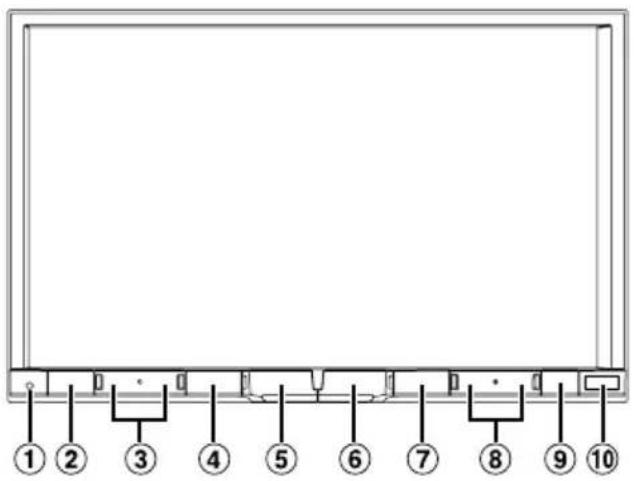
Location of Controls
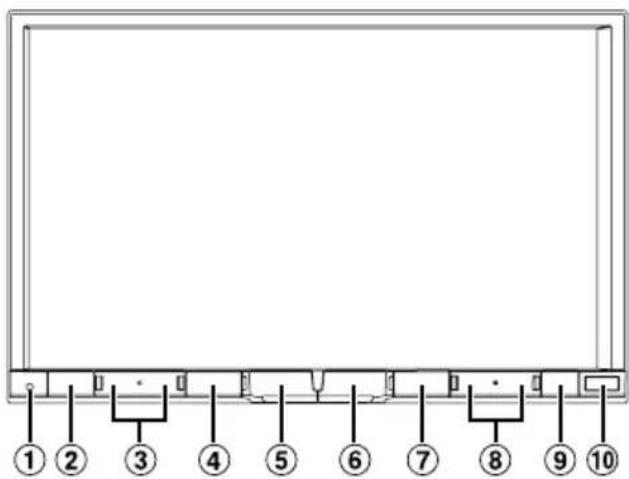
The illustration is for X800D-U.
① RESET switch
The system of this unit is reset.
(2) ★ (My Favourites)/Button
The My Favourites screen for registered User1 or User2 is displayed.
Press and hold this button at least 3 seconds to switch to climate screen. You can check the air condition, etc., when this unit is connected to the car's CAN Interface box.
③ / (DOWNUP) button
Press to adjust the volume.
MUTE/按钮
Press to activate/deactivate the mute mode. Press and hold this button for at least 3 seconds to turn the power off.
5 /AUDIO button
Displays the Audio/Visual screen. If the Audio/Visual screen is already displayed, changes the source. Press and hold this button for at least 3 seconds to activate the "Easy Sound Setup" mode.
Turning Power On or Off
(6) (MAP) button
Recalls the navigation map screen.
Press again to switch to Navigation menu screen.
Press and hold this button for at least 3 seconds to change to Go Home route screen. If the Home is not set yet, it will change to Home setting screen.
(Phone) button
Recalls the Telephone Menu screen.
When a hands-free phone with Voice Recognition is connected, press and hold for at least 3 seconds to recall the Voice Recognition mode.
按钮
Press to seek down/up station in radio mode or down/ up track, chapter, etc., in other audio/visual source.
(9) (Eject) button
Recalls the Open/Tilt screen.
If the disc does not eject after touching [▲] of DISC, press and hold this button for at least 5 seconds.
Remote Sensor
Point the remote control transmitter towards the remote sensor within a range of 2 metres.
1 Turn the ignition key to the ACC or ON position.
The system is turned on.
2 Press and hold the MUTE/按钮 for at least 3 seconds to turn the power off.
Detaching and Attaching the Screen (INE-W987D Only)
Detaching
1 Press (Eject).
The Open/Tilt screen is displayed.
2 Touch[Remove Screen].
A confirmation message is displayed.
3 Touch [OK] to confirm.
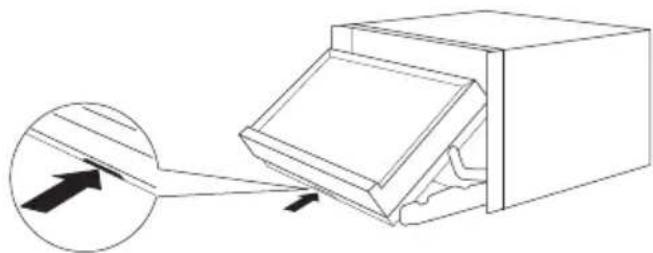
4 Press the Release Lever on the bottom of the screen panel within the 30 seconds count down.
The screen panel is unlocked.
- After the Release Lever is pressed, the front panel will close in 15 seconds, whether the screen panel is detached or not.
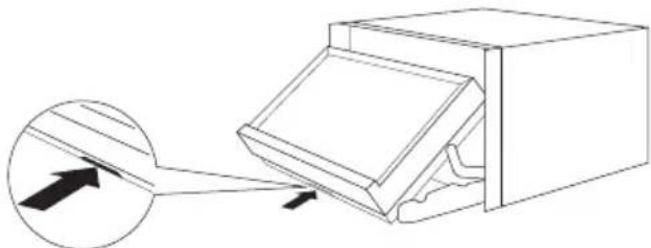
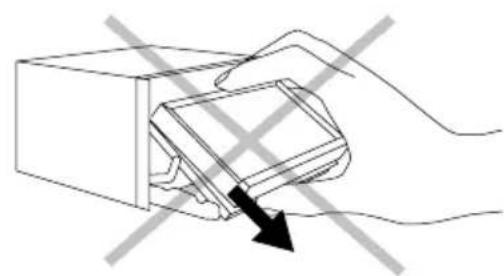
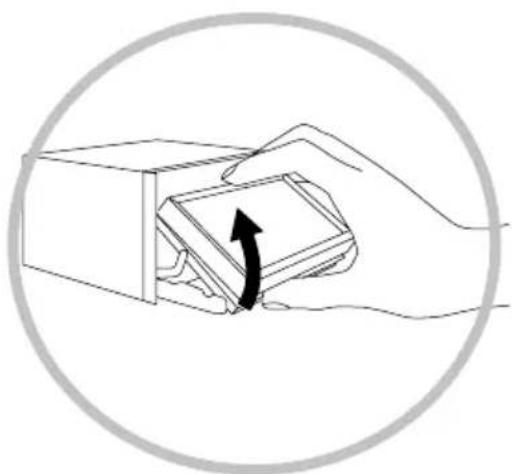
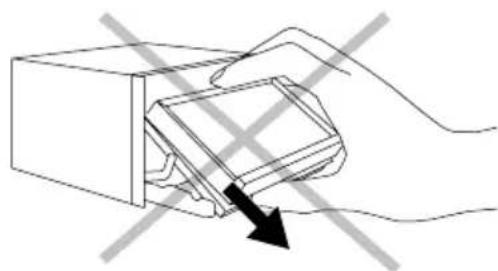
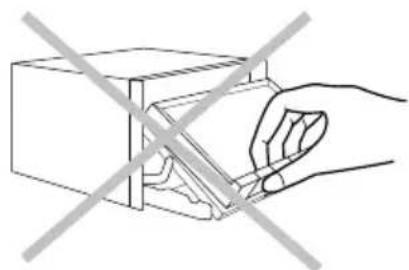
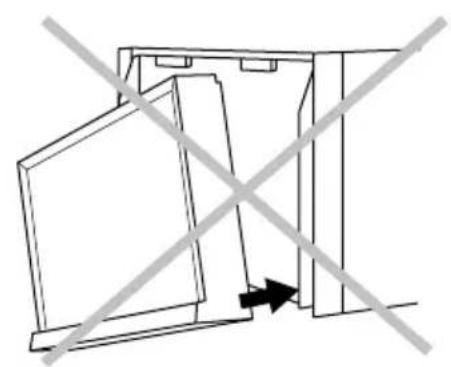
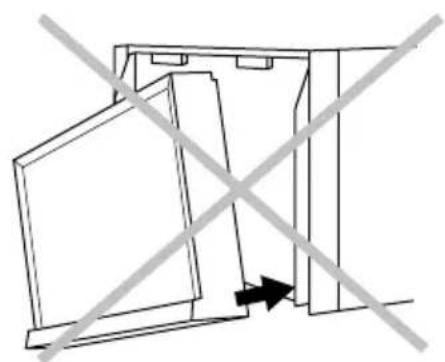
5 Grasp the screen panel firmly, and then force the bottom of the screen panel outward to make it depart from the main unit.
CORRECT
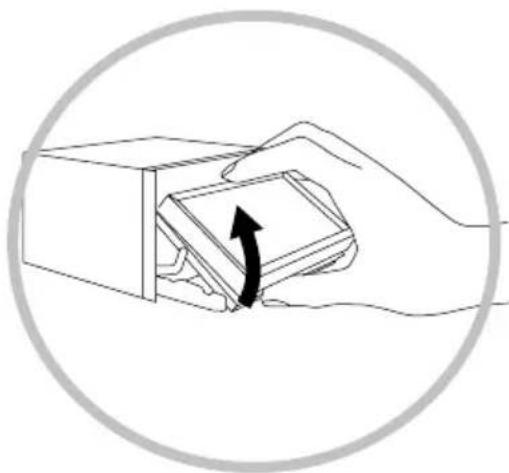
INCORRECT
- Pull it as the direction of arrowhead
- Grab the Hard key
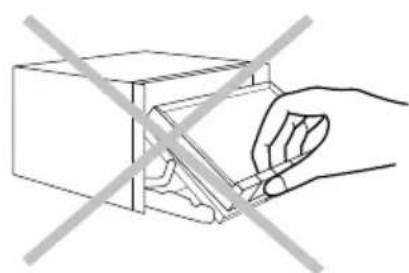
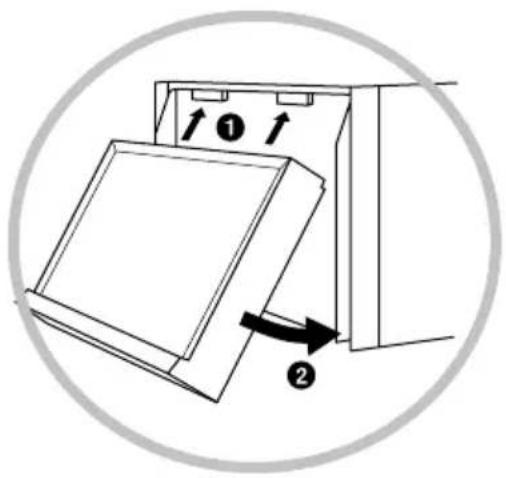
Attaching
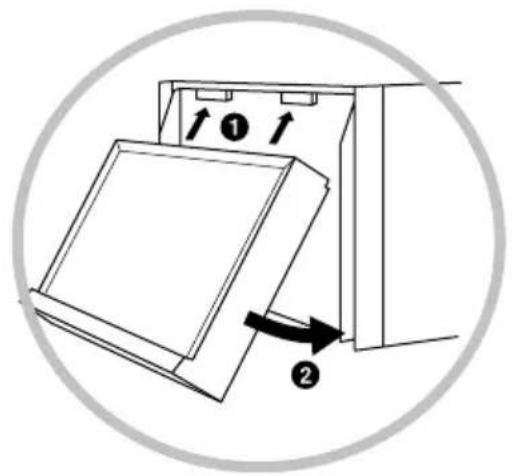
1 Insert the upside of the screen panel into the main unit. Align the groove on the screen panel with projections on the main unit.
2 Push the downside of the screen panel until it locks firmly into the main unit.
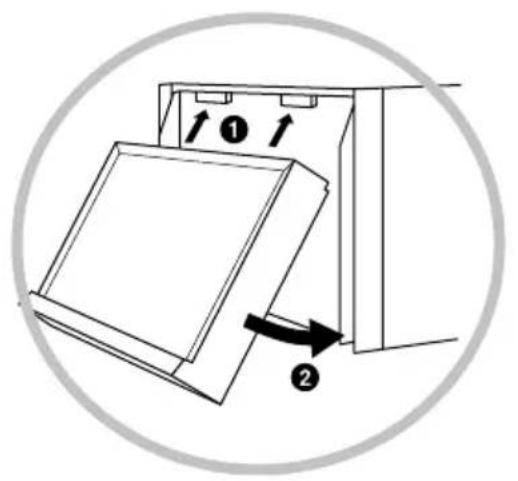
CORRECT INCORRECT
Install from the downside
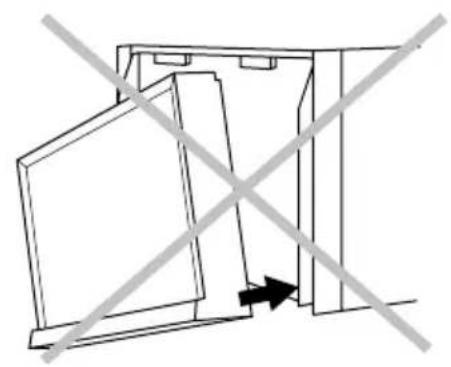
In Case of Difficulty
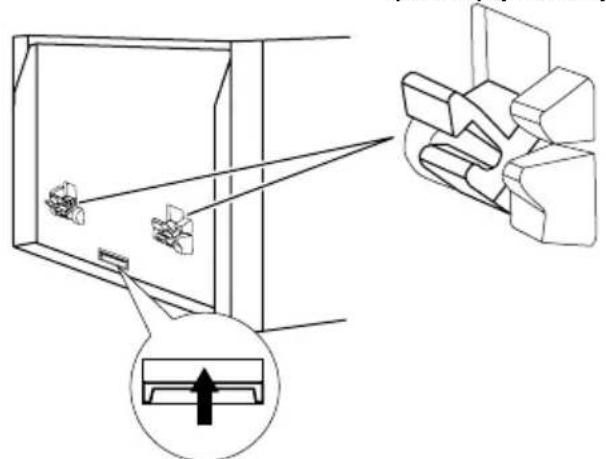
Screen panel cannot be attached
-
Attaching method is not correct.
The lock catch of main unit is in lock state. -
Slide the Release Lever upward to unlock the lock catch.
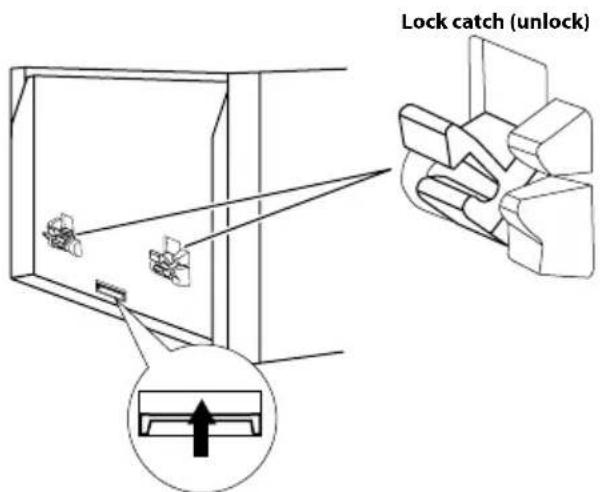
Release Lever
About Dual Screen
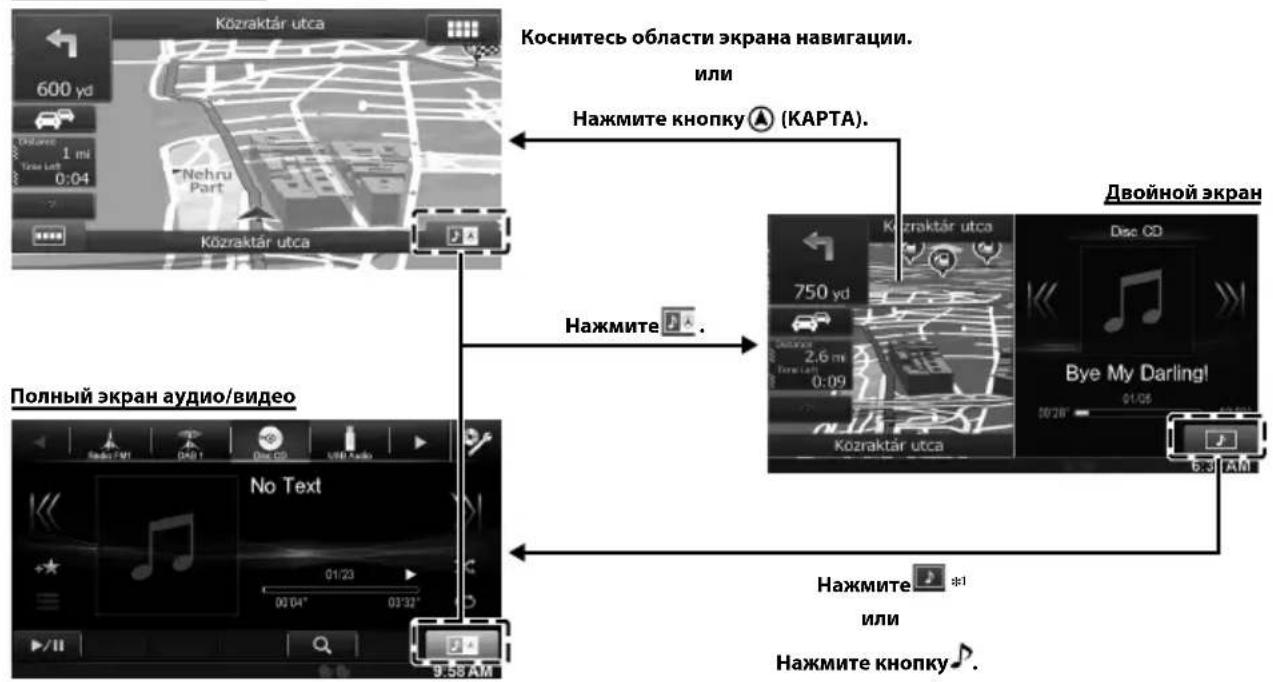
If you want to display the music playback screen while route guidance is displayed, etc., you can display the Navigation and Audio/Visual screens simultaneously.
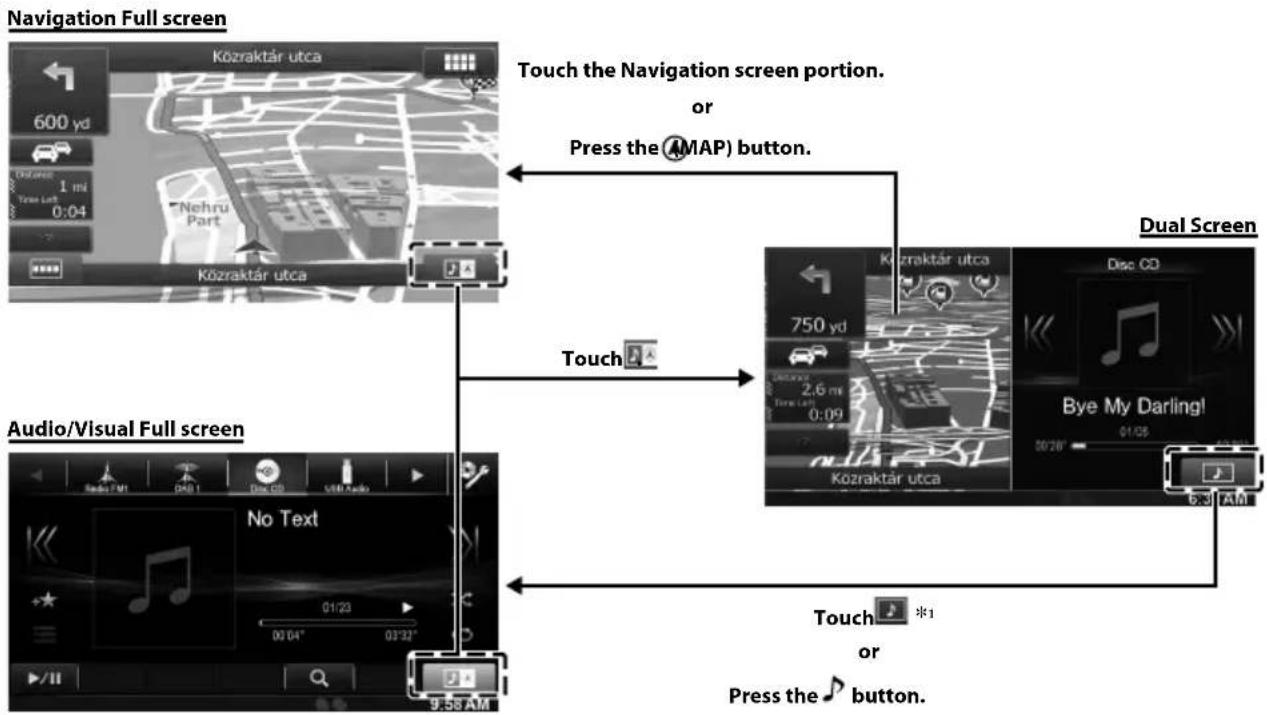
*1 During video playback, [Dual Wide], [Dual Full] and [Full Screen] appear on the screen for selecting the screen size.
Dual Screen Display Position
You can switch the Audio/Visual and Navigation screens using drag & drop.
To switch the screens, touch the middle of the Audio/Visual screen and drag it to the navigation screen. The screens will switch positions when you remove your finger.
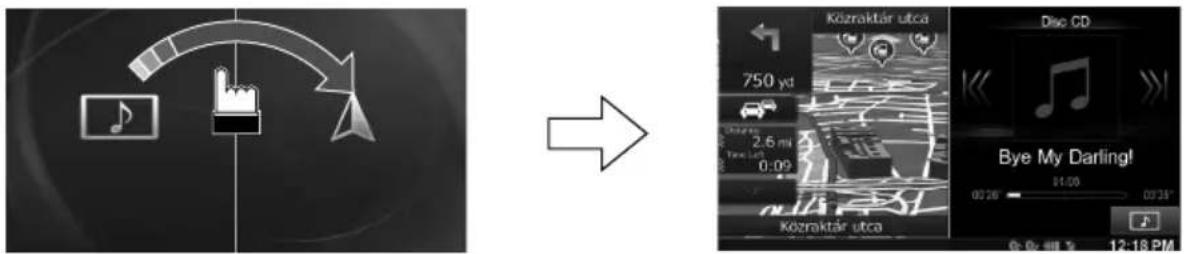
Drag and drop the navigation screen will change to navigation full screen.
User Registration
You can register up to two users. Configure the User1 and User2 settings for each user.
1 Press the (My Favourites) button.
The My Favourites screen is displayed.
- You cannot access My Favourites screen while driving.
2 Touch [Start].
![ALPINE X800DU - Touch [Start]. - 1](/content/2026/03/518593/images/fed2db38aabaee612d05ef296e4531b55fbd71836330be9a9eaa5e21effa5194.jpg)
The user name input screen for the first user is displayed.
After registering the first user, touch [USER2] to access to USER2's registration screen.
- Touching [Skip] registers the user name as "USER1" or "USER2" and no BLUETOOTH device is registered. In this case, the users will not be switched automatically.
- Touching [Cancel] or pressing the ★ (My Favourites) button returns to the original screen without registering a user.
3 Input the user name from the keypad and touch [OK].
![ALPINE X800DU - Input the user name from the keypad and touch [OK]. - 1](/content/2026/03/518593/images/235531206c99634eae033ed78c76735ebcb4d81027a88f431c3ee2fbd5ccd713.jpg)
The BLUETOOTH Device Setup screen is displayed.
- Touch [ ] to edit the name. For details of how to input characters from the keypad, refer to "How to Input Characters and Numbers (Keypad)" (page 27).
4 Touch [Link], then touch [OK].
The BLUETOOTH Device List is displayed.
- The BLUETOOTH devices registered here are used to automatically identify the user. Also, a cellular phone can be used as a hands-free phone. For details, see "BLUETOOTH Setting" (page 66).
- Touching [Do not Link] exits user registration without registering a BLUETOOTH device.
5 Touch [Search].
![ALPINE X800DU - Touch [Search]. - 1](/content/2026/03/518593/images/0fab09560073e9ef3d4fe5f696be756481b5d98c08e72e6504d4c0dd3f89f7db.jpg)
The system starts searching for BLUETOOTH devices.
When the search is completed, the BLUETOOTH Device List is displayed.
- Set the BLUETOOTH setting on the preregistered BLUETOOTH device side to [ON].
6 Touch a registered BLUETOOTH device and touch [OK].
My Favourites screen for USER1 or USER2 is displayed.
![ALPINE X800DU - Touch a registered BLUETOOTH device and touch [OK]. - 1](/content/2026/03/518593/images/367dad168ff19ad64ff8eeba9747cd689f4684fb32e97377c2f5fe2f8ba5ca5c.jpg)
- You can edit My Favourites icons. For details of how to add, edit, delete or set My Favourites icons, refer to "Adding My Favourites" (page 23).
7 Press the (My Favourites) button.
The My Favourites screen is exited and the display returns to the original screen.
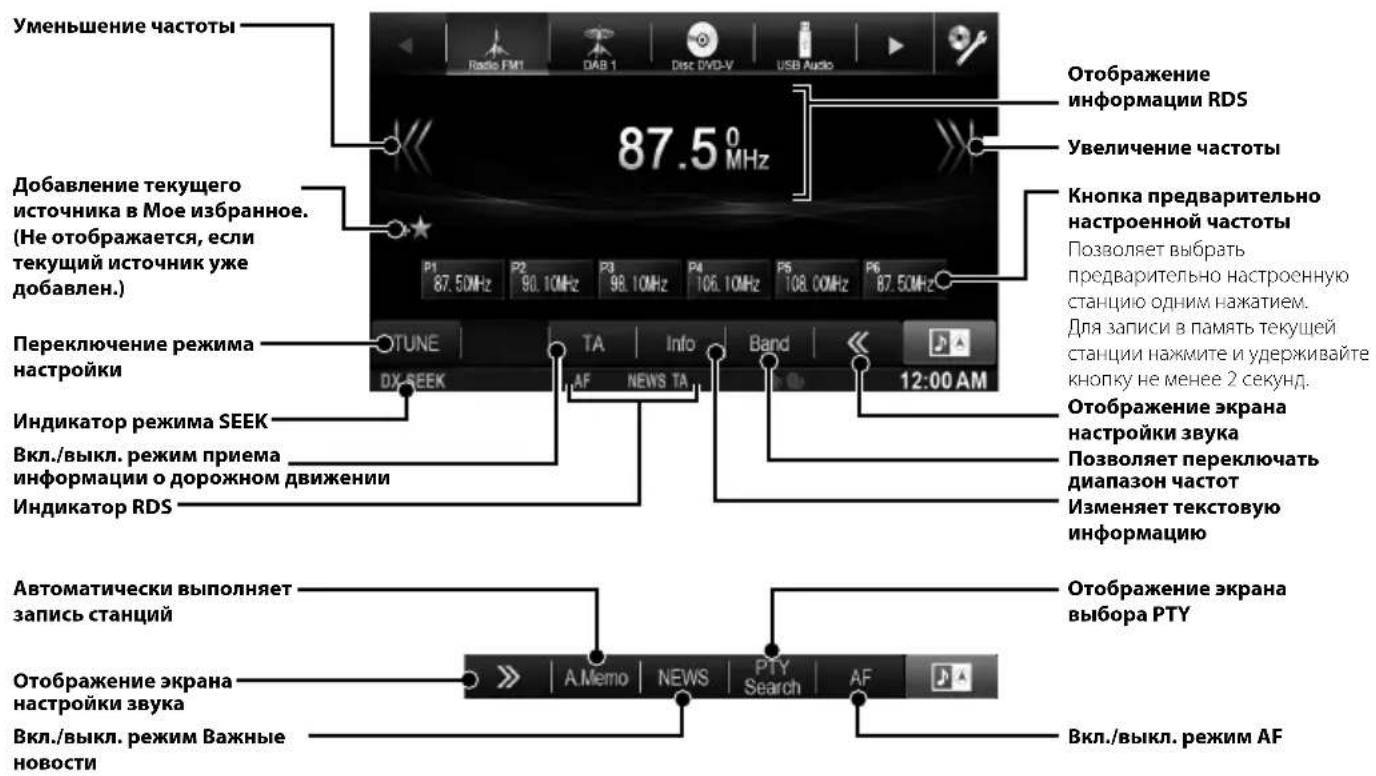
Radio Operation
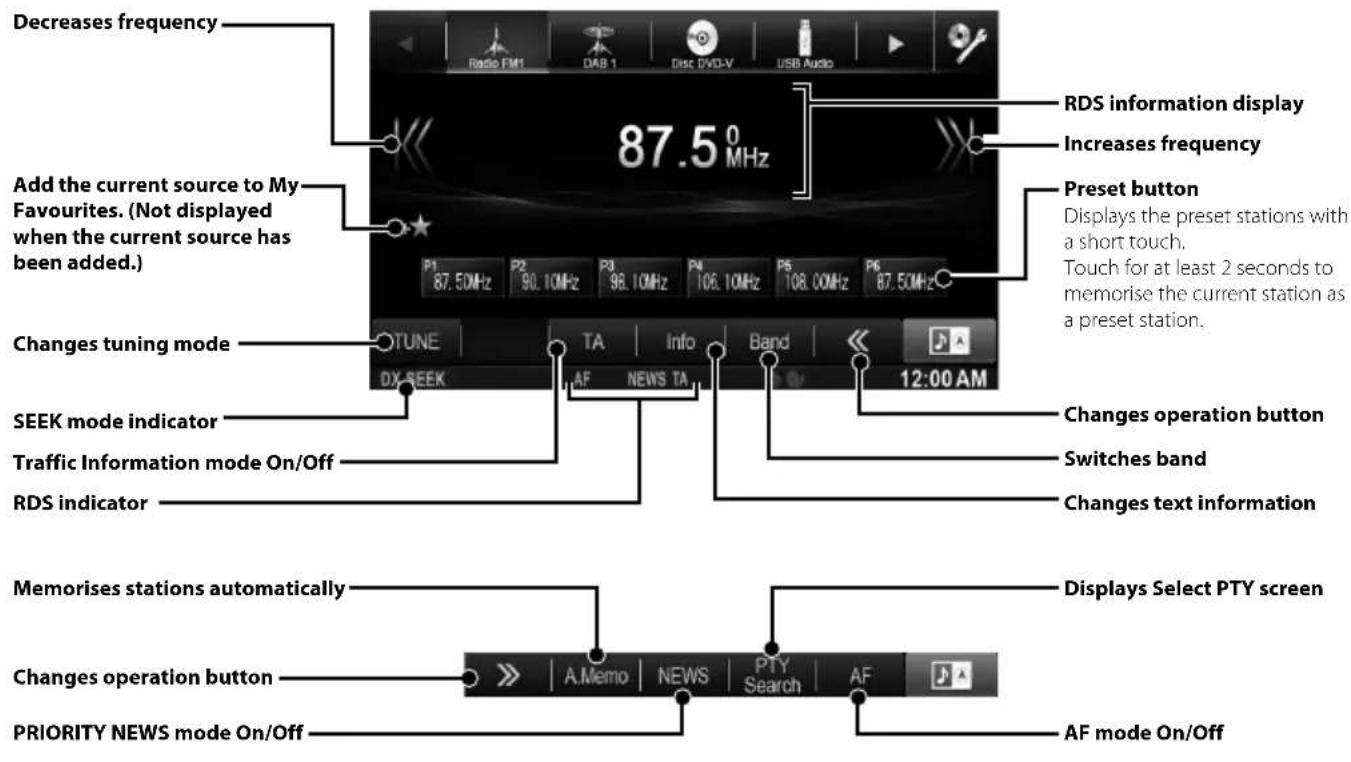
Owner's manual DAB/DAB+/DMB
DAB/DAB+/DMB Operation

MP3/WMA/AAC Operation
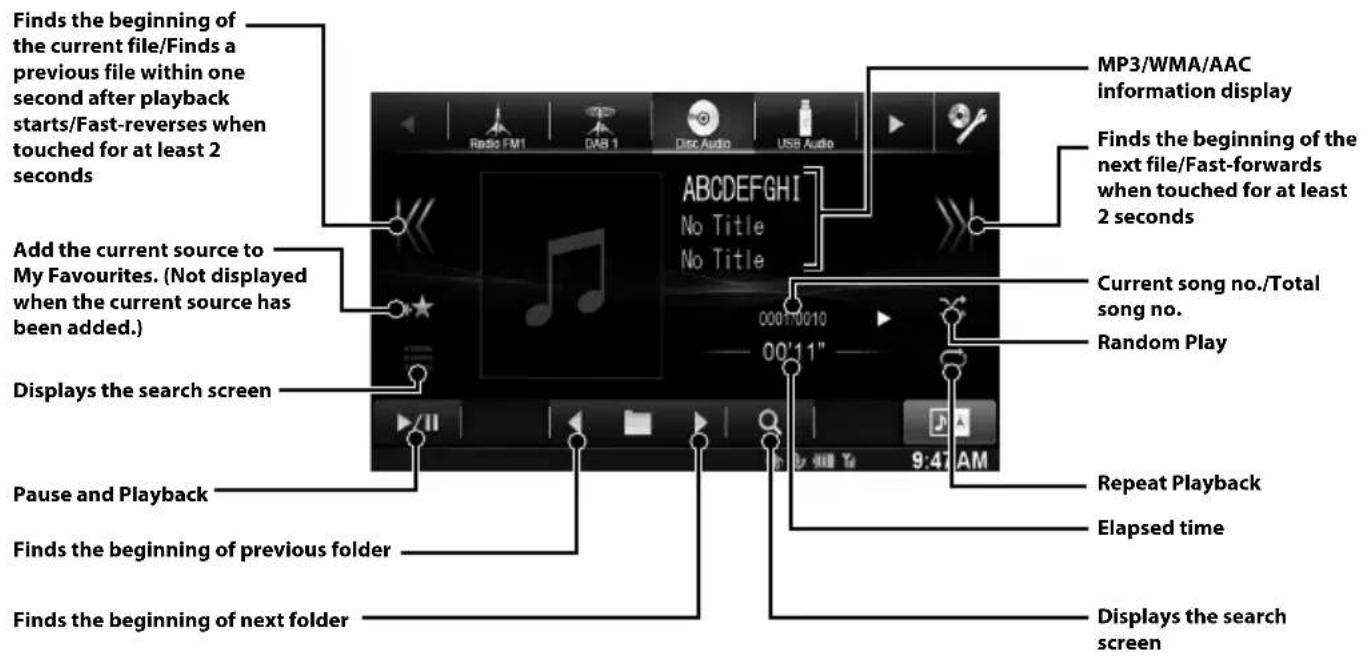
Owner's manual DVD
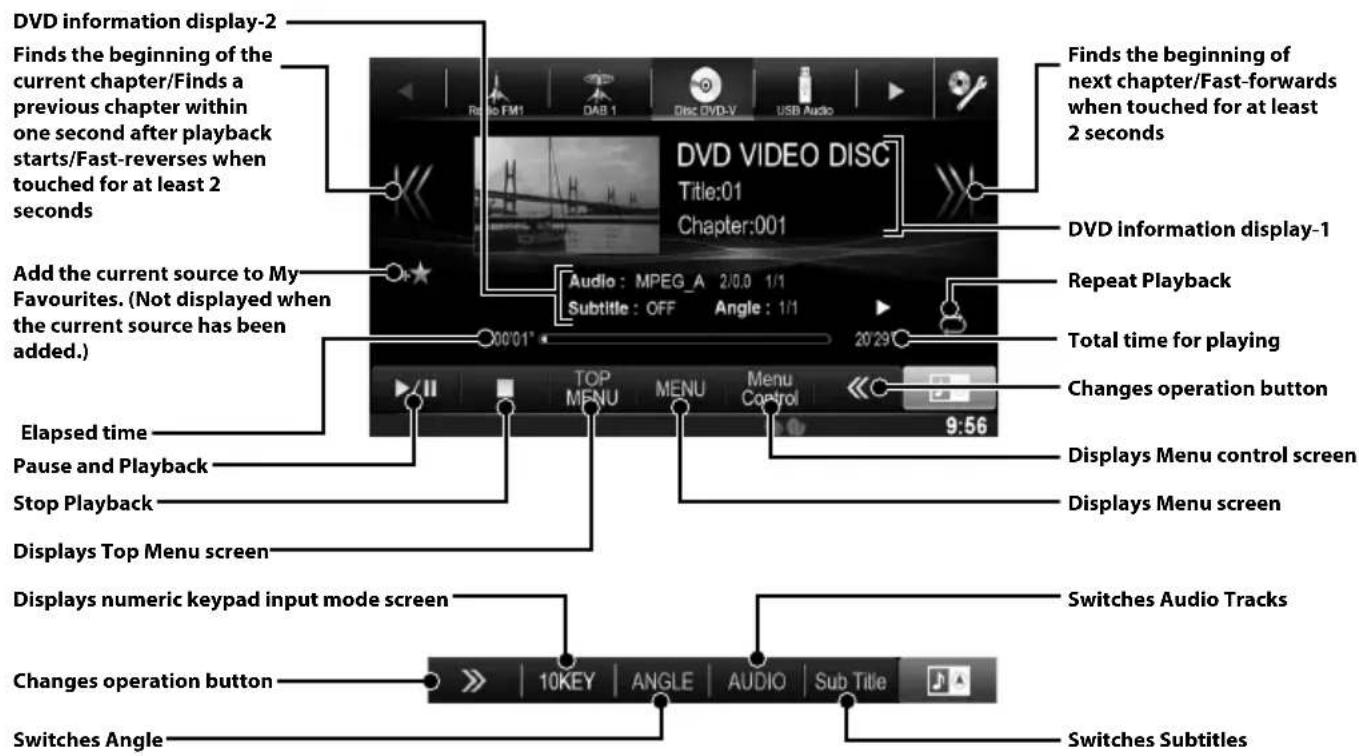
DVD Operation
When you touch the DVD playback screen, the DVD operation screen is displayed. The following is an example of the DVD-VIDEO operation screen.
iPod/iPhone Operation (Optional)
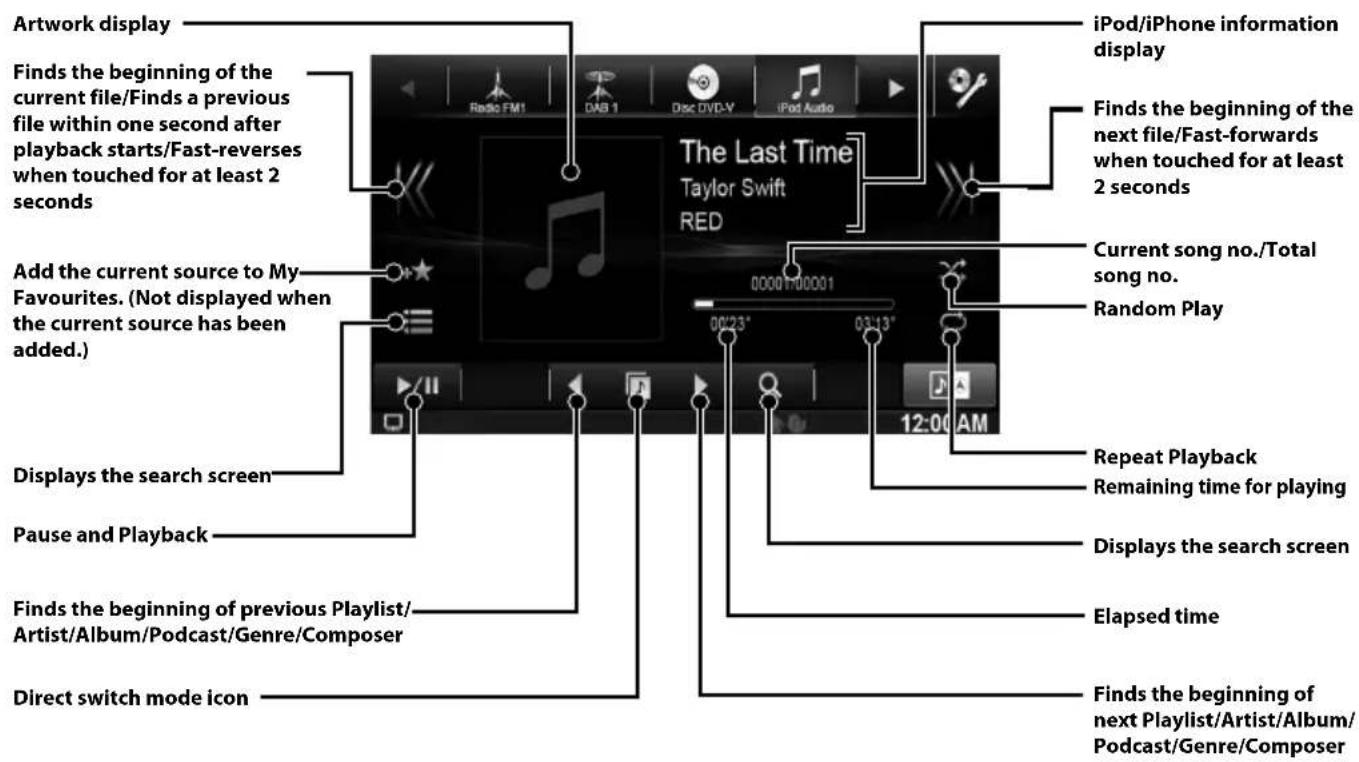
An iPod/iPhone can be connected to this unit by using the cable (KCU-461iV) (sold separately). You can connect a video-capable iPod to enjoy not only Music but also Video files.
This unit does not support video playback from iPhone 5, etc., which with Lightning Connector.
Audio mode
Searching for a Music File
For example: Searching by Artist name
1 Touch Q (Search)] during playback.
2 Touch [Music].
3 Touch [Artists].
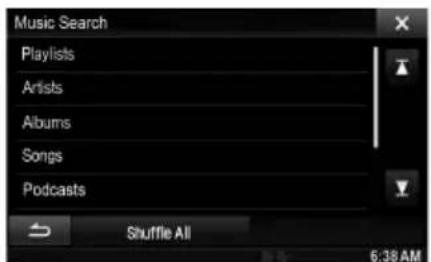
4 Touch the selected artist's name.
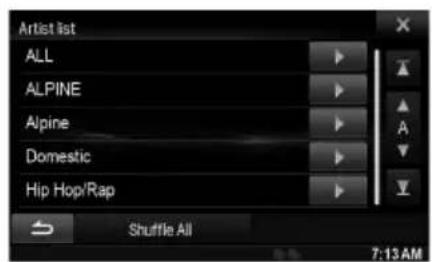
The Albums search screen of the selected artist is displayed.
Touching [▶] of the desired artist will play back all songs of the selected artist.
5 Touch the desired album's name.
All songs of the selected album are displayed. Touching [▶] of the desired album will play back all songs of the selected album.
6 Touch the desired song's name.
The selected song is played back.
- Touching [▶] of "ALL" will play back all songs in the list.
USB Memory Operation (Optional)
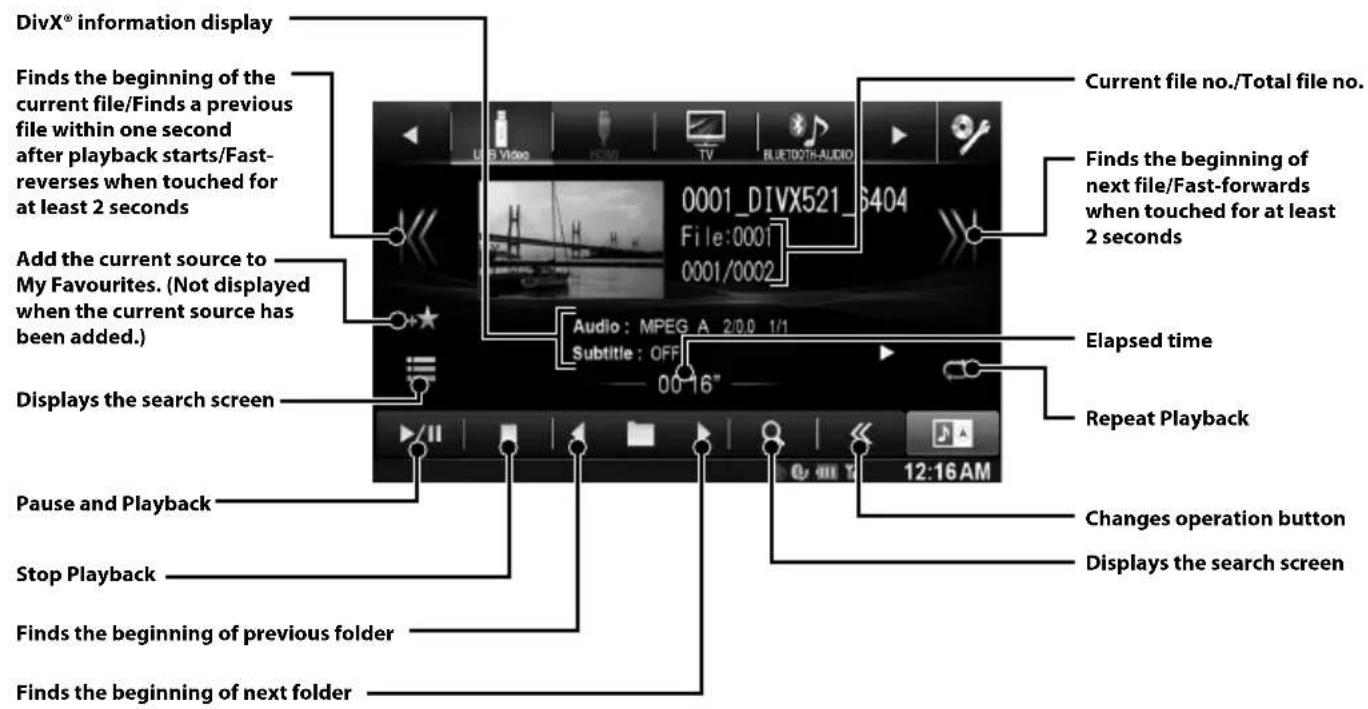
You can play back music files (MP3/WMA/AAC) and video files (DivX®) stored in a USB memory device on the internal player of this system.
Refer to the "MP3/WMA/AAC Operation" (page 9) for information on music.
Video mode

Hands-Free Phone Control
Hands-free calls are possible when using an HFP (Hands-Free Profile) compatible mobile phone with the X800D-U/INE-W987D.
How to connect to a BLUETOOTH compatible device (Pairing)
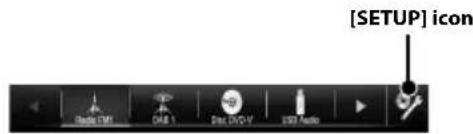
1 Touch [Setup] icon of Top banner.
2 Touch ] (BLUETOOTH).
3 Touch [BLUETOOTH].
4 Touch [or] of "BLUETOOTH" to set to "On".
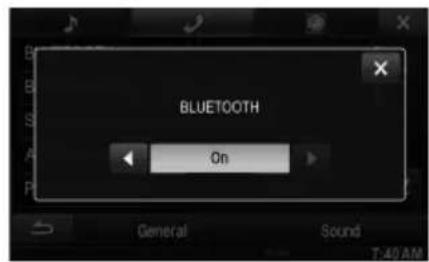
5 Touch X [ ]
6 Touch [Set BLUETOOTH Device].
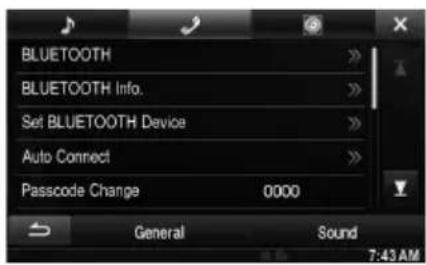
7 Touch [Search] of "No Device".
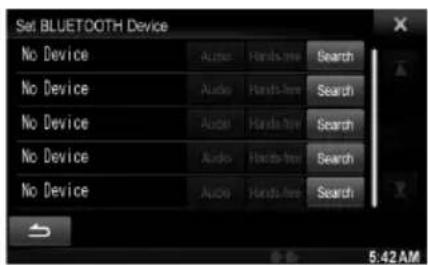
The Device list displays up to 10 items.
8 Touch [Audio] or [Hands-free] of the device you want to connect from the list.
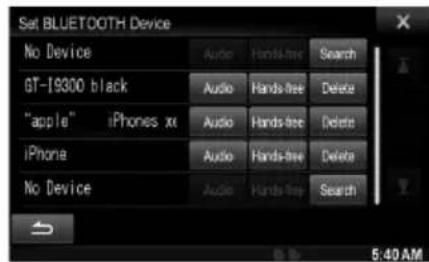
Audio: Sets for use as an Audio device.
Hands-free: Sets for use as a Hands Free Device.
9 When the device registration is complete, a message appears and the device returns to normal mode.
- The BLUETOOTH registration process differs depending on the device version and SSP (Simple Secure Pairing). If a 4 or 6 character Passcode appears on this device, enter the Passcode using the BLUETOOTH compatible device. If a 6 character Passkey appears on this device, make sure the same passkey is displayed on the BLUETOOTH compatible device and touch "Yes".
Answering a Call
1 An incoming call triggers the ringtone and an incoming call display.
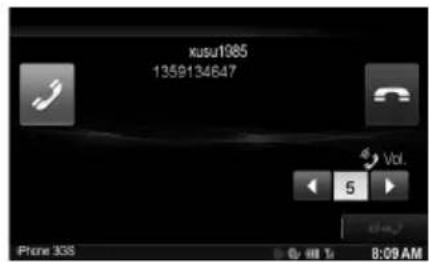
2 Touch [or press (PHONE) button.
The call starts.
Hanging up the Telephone
1 Touch ]
The call finishes.
MirrorLink™ Operation (Optional)
MirrorLink is a standard for connecting provides for a connection between an X800D-U/INE-W987D and a smartphone.
Using MirrorLink, you can display a display smartphone screen and allows you to operate your smartphone applications via this unit.
When a smartphone with applications for MirrorLink is connected via USB, the Mirror Mode and/or Car Mode source icon will display on the Top banner. The icon will become invalid if the smartphone is disconnected from this unit.
1 Press tHe button.
The Audio/Visual screen is displayed.
2 Touch [Mirror Mode] or [Car Mode] on the Top banner.
The screen for the selected mode is displayed.
3 Press (My Favourites) button during the full screen mode.
The Media Control buttons will display.
4 Touch the Media Control buttons to operate the unit.
- The Media Control buttons differ, depending on the mode.
- Operable modes on this unit may differ from operations on your smartphone, depending on the connected smartphone.
Owner's manual HDMI Device (Optional)
HDMI Device (Optional)
The device can connect with electronic device supporting HDMI output by HDMI interface and fulfill the play of audio and video with HD signal. But, the unit only displays the electronic device interface by mirror image, you cannot operate the electronic device by this unit.
1 Press the button.
2 Touch [HDMI] of top banner.
- When disconnecting with HDMI device, the source icon of HDMI is grey.
3 In HDMI player mode, the screen of the device displays the content of electronic equipment by mirror image.
- Not all devices with HDMI output interface can be recognised by this unit.
Installation
X800D-U users
To install the X800D-U, refer to the manual in the separately purchased installation kit for each cartype.
- When making connections to the vehicle's electrical system, be aware of the factory installed components (e.g. on-board computer). Do not tap into these leads to provide power for this unit. When connecting the X800D-U/INE-W987D to the fuse box, make sure the fuse for the intended circuit of the X800D-U/ INE-W987D has the appropriate amperage. Failure to do so may result in damage to the unit and/or the vehicle. When in doubt, consult your Alpine dealer.
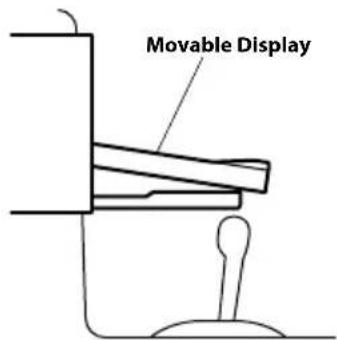
- The Display must be completely retracted in the casing when installing. If it is not, problems may occur.
1 Before installing, make sure that the opening and closing of the display will not interfere with operation of the gear shift.
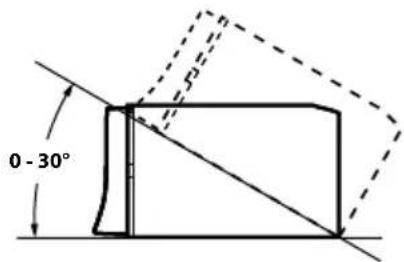
2 Install at an angle between horizontal and 30^ . Note that installing at an angle outside of this range will result in a loss of performance and possibly damage.
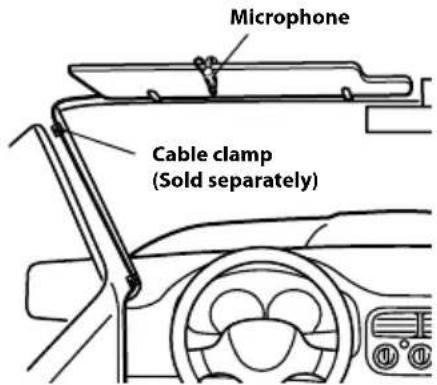
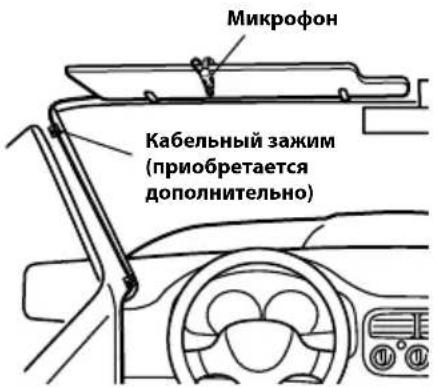
3 Mounting the Microphone.
For safe use, make sure of the following:
- location is stable and firm.
- driver's view and operations are not obstructed.
- microphone is located where the driver's voice can be easily picked up (on the sun visor, etc.).
When you speak into the microphone, you should not have to change your driving posture. This may cause a distraction, taking your attention away from safely driving your vehicle. Carefully consider direction and distance while mounting the microphone. Confirm that the driver's voice can be easily picked up at the selected location.
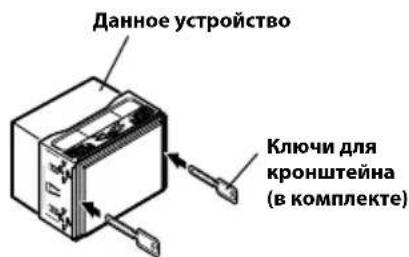
4 Remove the mounting sleeve from the main unit.
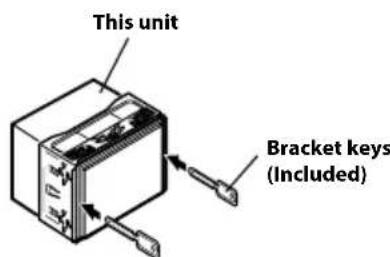
Slide the unit into the mounting sleeve and secure it.
CormkEwDpeCleadsof the INE-W987D
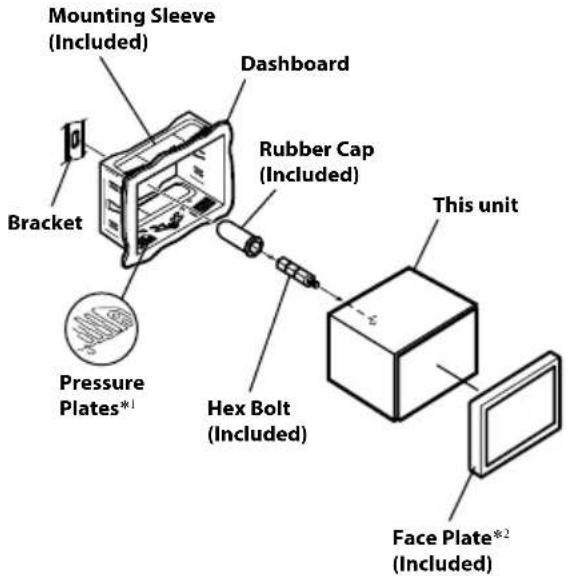
1 If the installed mounting sleeve is loose in the dashboard, the pressure plates may be bent slightly to remedy the problem.
2 The supplied face plate may be mounted.
5 When your vehicle has the Bracket, mount the long hex bolt onto the rear panel of the INE-W987D and put the Rubber Cap on the hex bolt. If your vehicle does not have the Mounting Support, reinforce the head unit with the metal mounting strap (not supplied). Secure the ground lead of the unit to a clean metal spot using a screw (*1) already attached to the vehicle's chassis.
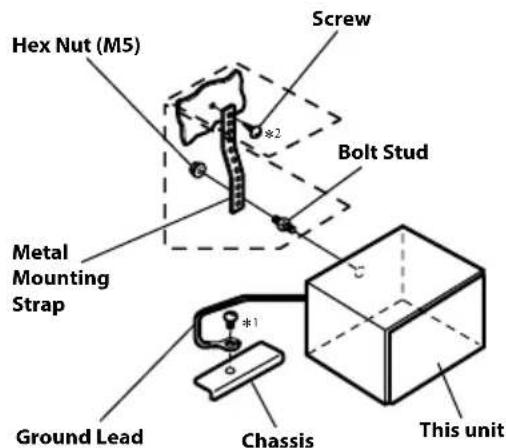
according to details described in the CONNECTION section.
- For the screw marked “*2”, use an appropriate screw for the chosen mounting location.
6 Slide the INE-W987D into the dashboard until it clicks. This ensures that the unit is properly locked and will not accidentally come out from the dashboard.
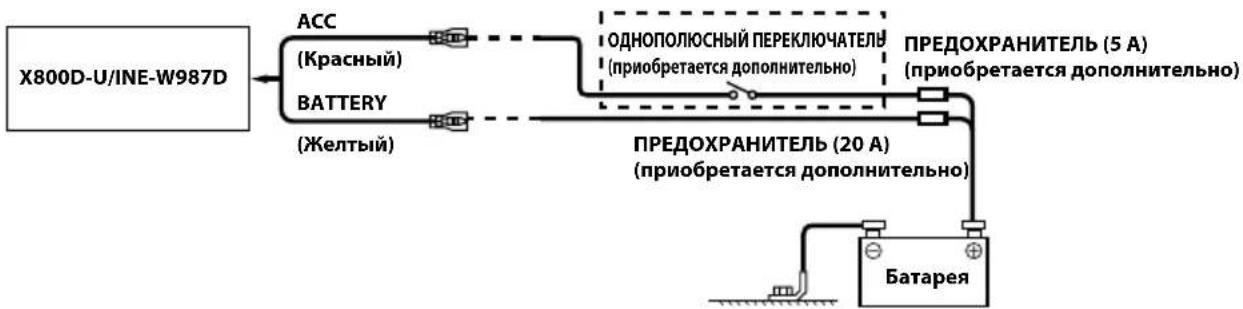
Connection Diagram of SPST Switch (sold separately)
(If the ACC power supply is not available)
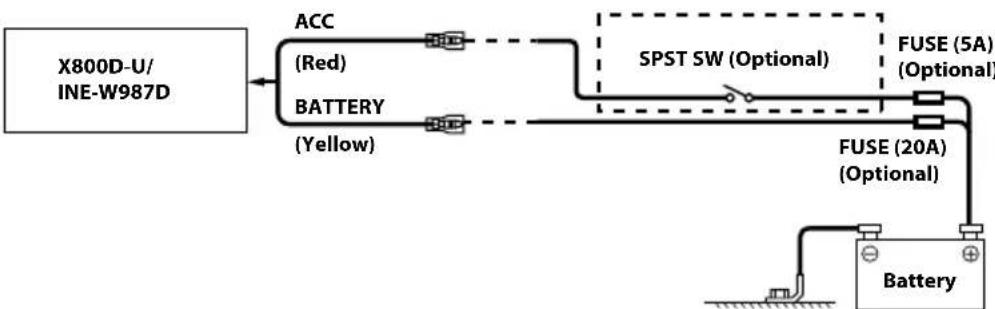
If your vehicle has no ACC power supply, add an SPST (Single-Pole, Single-Throw) switch (sold separately) and fuse (sold separately).
The diagram and the fuse amperage shown above are in the case when X800D-U/INE-W987D is used individually.
- If the switched power (ignition) lead of the X800D-U/INE-W987D is connected directly to the positive (+) post of the vehicle's battery, the X800D-U/INE-W987D draws some current (several hundred milliamperes) even when its switch is placed in the OFF position, and the battery may be discharged.
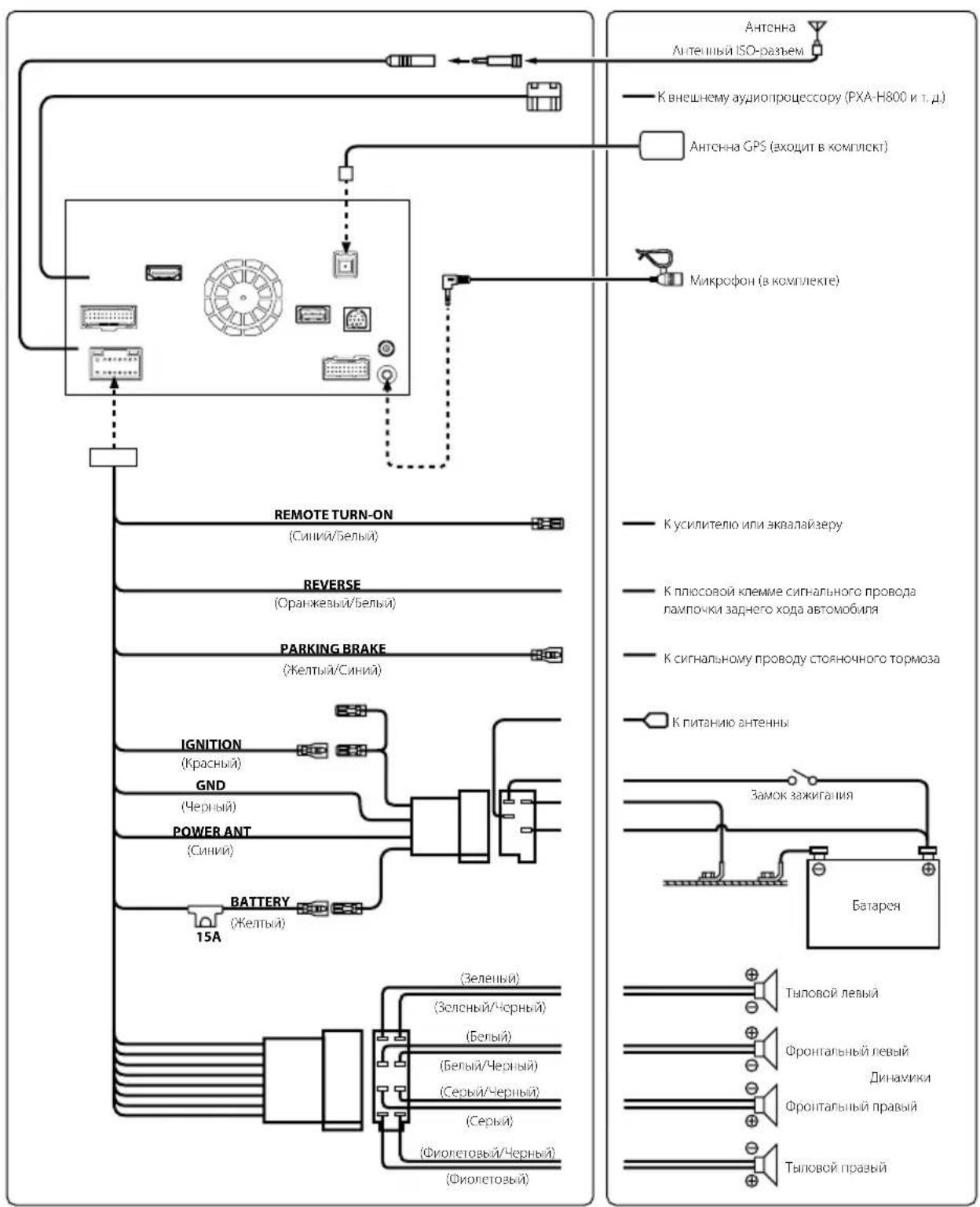
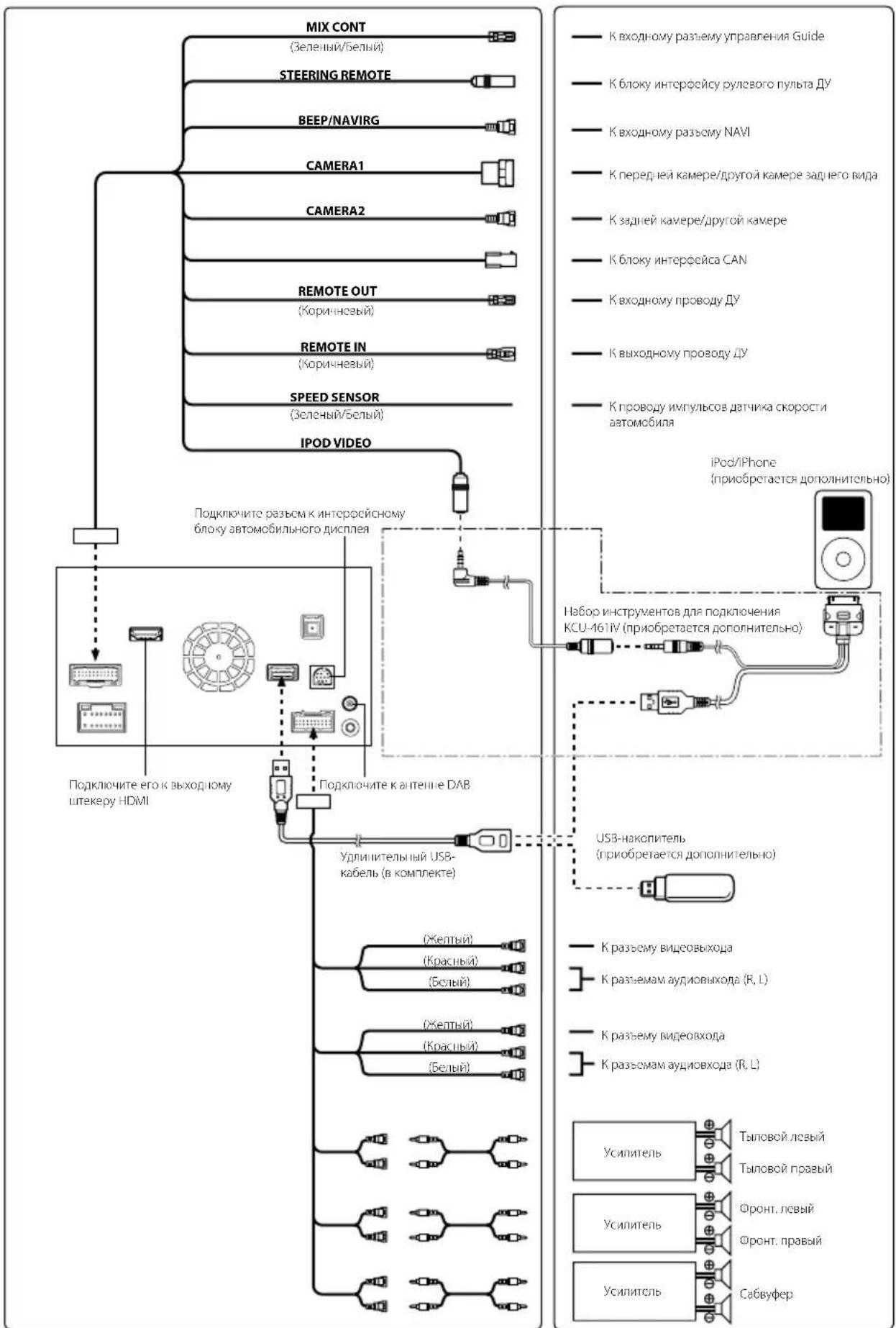
Connections
Connections 1/2
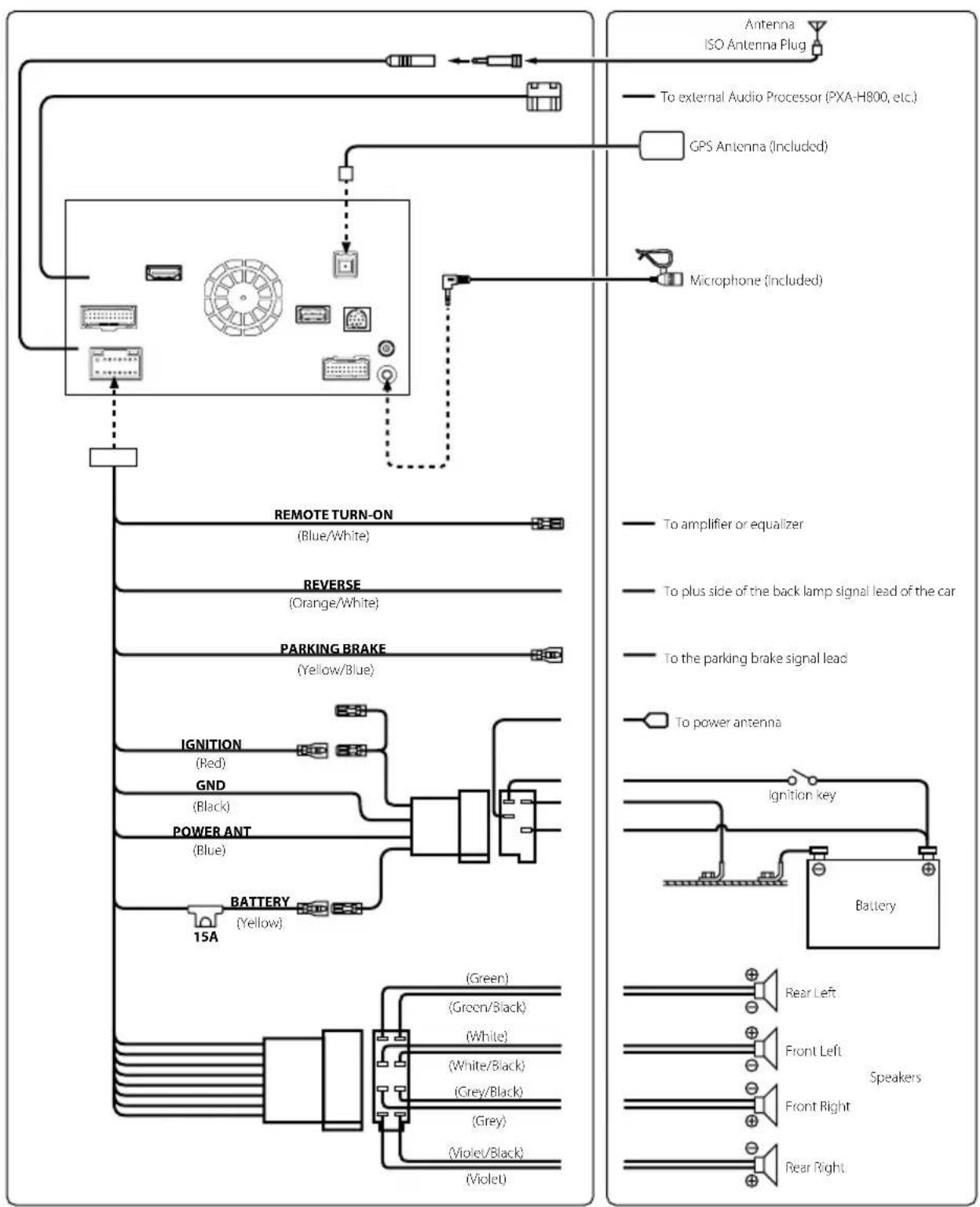
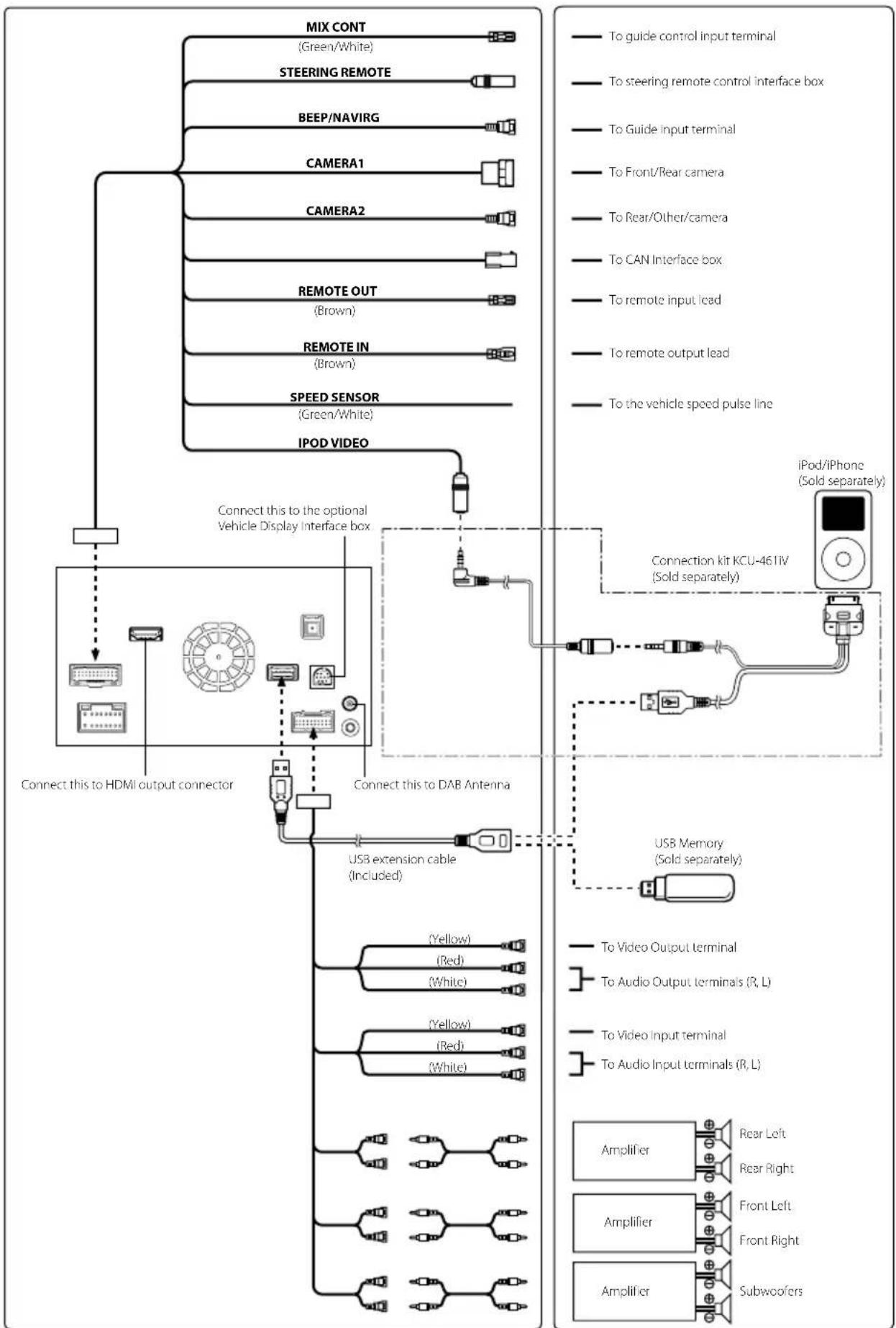
Specifications
MONITOR SECTION
Screen Size 7.0" (INE-W987D)
8.0" (X800D-U)
LCD Type Transparent type TN LCD
Operation System TFT active matrix
Number of Picture Elements 1,152,000 pcs. (800× 480× 3 RGB))
Effective Number of Picture Elements 99% or more
Illumination System LED
FM TUNER SECTION
Tuning Range 87.5 - 108.0 MHz
Mono Usable Sensitivity 8.1 dBf (0.7 μV/75 ohms)
50 dB Quieting Sensitivity 12 dBf (1.1 V/75 ohms)
Alternate Channel Selectivity 80 dB
Signal-to-Noise Ratio 65 dB
Stereo Separation 35 dB
Capture Ratio 2.0 dB
MW TUNER SECTION
Tuning Range 531-1,602 kHz
Usable Sensitivity 25.1 V / 28 dBf
LWTUNERSECTION
Tuning Range 153-281 kHz
Sensitivity (IEC Standard) 31.6 V/30 dBf
USB SECTION
USB requirements USB 1.1/2.0
Max. Power Consumption 1,000 mA
USB Class USB (Play From Device)/
USB (Mass Storage Class)
File System FAT12/16/32
MP3 Decoding MPEG-1/2 AUDIO Layer-3
WMA Decoding Windows Media™ Audio
AAC Decoding AAC-LC format "m4a" file
Number of Channels 2-Channel (Stereo)
Frequency Response* 5-20,000 Hz (±1 dB)
Total Harmonic Distortion 0.008% (at 1 kHz)
Dynamic Range 95 dB (at 1 kHz)
Signal-to-Noise Ratio 100 dB
Channel Separation 85 dB (at 1 kHz)
- Frequency response may differ depending on the encoder software/bit rate.
CD/DVD SECTION
Frequency Response
Wow & Flutter (% WRMS)
Total Harmonic Distortion
Dynamic Range
Channel Separation 85 dB (at 1 kHz)
Horizontal resolution 500 lines or greater
Video output level 1Vp-p (75 ohms)
Video S/N ratio DVD:60 dB
Audio S/N ratio 100 dB
5-20,000 Hz (±1 dB)
Below measurable limits
0.008% (at 1 kHz)
95 dB (at 1 kHz)
kHz)
500 lines or greater
1Vp-p (75 ohms)
DVD:60 dB
100dB
PICKUP
Wavelength
CD:785 nm
Laser power
DVD:666 nm
CLASS II
GPS SECTION
GPS Reception frequency
1,575.42±1MHz
GPS Reception sensitivity
-130 dB max.
BLUETOOTH SECTION
BLUETOOTH Specification
Bluetooth V2.1+EDR
Output Power
+4 dBm Max. (Power class 2)
Profile
HFP (Hands-Free Profile)
OPP (Object Push Profile)
PBAP (Phone Book Access Profile)
A2DP (Advanced Audio
Distribution Profile)
AVRCP (Audio/Video Remote
Control Profile)
GENERAL
Power Requirement 14.4V DC
(11-16 V Allowable)
Operating temperature
-4°F to +140°F
(-20^ to +60^)
Maximum Power Output
50W×4
Output Voltage
4,000 mV/10k ohms
Weight
2.86 kg (INE-W987D)
2.85 kg (X800D-U)
Audio output level
Preout (Front, Rear):
4V/10k ohms (max.)
Preout (Subwoofer):
4V/10k ohms (max.)
AUX OUT:
1.2V/10k ohms (max.)
CHASSIS SIZE
Width
178mm
Height
100mm
Depth
164 mm
NOSE SIZE
Width 171 mm (INE-W987D)
190 mm (X800D-U)
Height
96 mm (INE-W987D)
Depth
120 mm (X800D-U)
25 mm (INE-W987D)
10 mm (X800D-U)
- Due to continuous product improvement, specifications and design are subject to change without notice.
The LCD panel is manufactured using an extremely high precision manufacturing technology. Its effective pixel ratio is over 99.99% . This means that there is a possibility that 0.01% of the pixels could be either always ON or OFF.
- This item incorporates copy protection technology that is protected by U.S. patents and other intellectual property rights of Rovi Corporation. Reverse engineering and disassembly are prohibited.
- Manufactured under licence from Dolby Laboratories. Dolby and the double-D symbol are trademarks of Dolby Laboratories.
- Windows Media, and the Windows logo are trademarks, or registered trademarks of Microsoft Corporation in the United States and/or other countries.
- iPhone, iPod, iPod classic, iPod nano, iPod touch, and iTunes are trademarks of Apple Inc., registered in the U.S. and other countries.
- "Made for iPod," and "Made for iPhone," mean that an electronic accessory has been designed to connect specifically to iPod, or iPhone, respectively, and has been certified by the developer to meet Apple performance standards. Apple is not responsible for the operation of this device or its compliance with safety and regulatory standards. Please note that the use of this accessory with iPod, or iPhone may affect wireless performance.
DivX, DivX Certified and associated logos are trademarks of Rovi Corporation or its subsidiaries and are used under licence. - The Bluetooth® word mark and logos are registered trademarks owned by the Bluetooth SIG, Inc. and any use of such marks by Alpine Electronics, Inc. is under licence.
- The terms HDMI and HDMI High-Definition Multimedia Interface, and the HDMI Logo are trademarks or registered trademarks of HDMI Licensing LLC in the United States and other countries.
Android is a trademark of Google Inc. - MPEG Layer-3 audio coding technology licenced from Fraunhofer IIS and Thomson. Supply of this product only conveys a licence for private, non-commercial use and does not convey a licence nor imply any right to use this product in any commercial (i.e. revenue-generation) real time broadcasting (terrestrial, satellite, cable and/or any other media), broadcasting/streaming via internet, intranets and/or other networks or in other electronic content distribution systems, such as pay-audio or audio-on-demand applications. An independent licence for such use is required. For details, please visit http://www.mp3licensing.com
©1993-2014 NAVTEQ. All rights reserved. Portions ©2014, Microsoft Corporation. All Rights Reserved.
About the Rules of Bluetooth Electromagnetic Radiation Regulation

Declaration of Conformity
Inhalt
(INNEWIDE)nge DVD:666nm
CD:785 nm
PBAP (Phone Book Access Profile)
A2DP (Advanced Audio
Distribution Profile)
AVRCP (Audio/Video Remote
Control Profile)
ALLGEMEINES
AUX OUT: 1,2 V/10k Ohm (max.)
GEHAUSEGRösSE
Breite 178mm
Höhe 100 mm
Tief 164 mm
VORSPRUNGGRösSE
Breite 171 mm (INE-W987D)
190 mm (X800D-U)
Höhe 96 mm (INE-W987D)
120 mm (X800D-U)
Tief 25 mm (INE-W987D)
10 mm (X800D-U)
About the Rules of Bluetooth Electromagnetic Radiation Regulation

Declaration of Conformity
Contenu
Plaged'accord 87,5-108,0 MHz
Specifications BLUETOOTH
Puisance de sortie
Profil
Bluetooth V2.1+EDR
+4 dBm max. (classe 2)
HFP (profil mains libres)
About the Rules of Bluetooth Electromagnetic Radiation Regulation

Declaration of Conformity
Indice
PBAP (Phone Book Access Profile)
A2DP (Advanced Audio
Distribution Profile)
AVRCP (Audio/Video Remote
Control Profile)
GENERAL
About the Rules of Bluetooth Electromagnetic Radiation Regulation

Declaration of Conformity
#
① Interru tture RESET
A这对于 you to be a good listener, it is important to understand the differences between the two types of music. It is important to understand that there are some differences in the way that people use their devices.
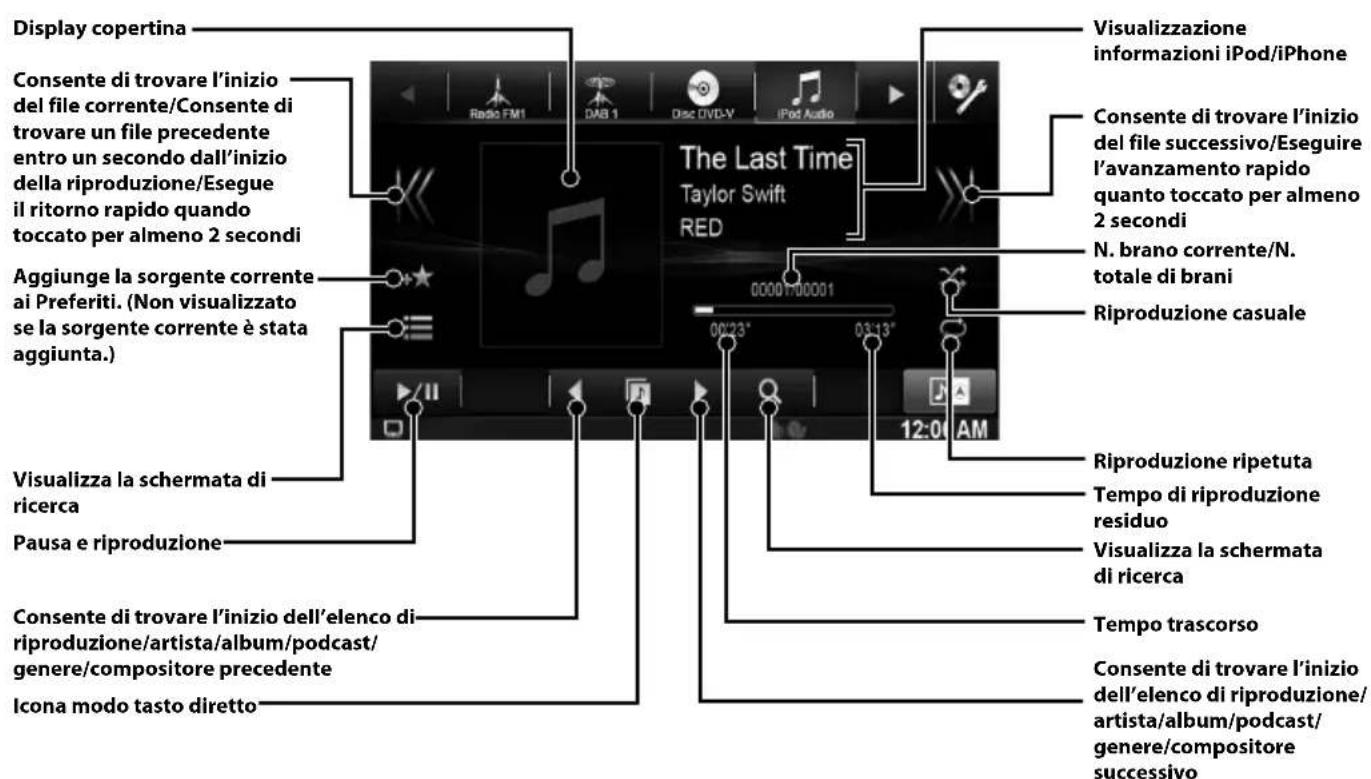
- Questa unità non supporta la riproduzione video da iPhone 5 ecc., anche se si utilizes un connettore Lightning.
Modo Audio
File System FAT12/16/32
Decodifica MP3 MPEG-1/2 AUDIO Layer-3
Decodifica WMA Windows Media Audio
Decodifica AAC File .m4a" formato AAC-LC
PBAP (Phone Book Access Profile)
A2DP (Advanced Audio
Distribution Profile)
AVRCP (Audio/Video Remote
Control Profile)
GENERALI
Pre-out (subwoofer): 4 V/10K ohm (max.)
AUX OUT: 1,2 V/10K ohm (max.)
DIMENSIONI DEL TELAIO
Ampiezza 178 mm
Altezza 100 mm
Profondita 164 mm
About the Rules of Bluetooth Electromagnetic Radiation Regulation

Declaration of Conformity
Innehäll
Se "BLUETOOTH-installing" (sidan 66) for mer information.
About the Rules of Bluetooth Electromagnetic Radiation Regulation

Declaration of Conformity
Inhoudsopgave
③ / (OMILAAG/OMHOOG)-knop
About the Rules of Bluetooth Electromagnetic Radiation Regulation

Declaration of Conformity
CopepxaHne
PPEyIeHNE 2
BHIMAHINE 2
PpncTynpaKa6ote 3
ChTne u yctaHOBka 3KpaHa IOTaHHTe B HnPaBHeHH cTeJIKN 4
O BoHOM KpaHe. 6
Pernctraun noIb3OBateJ 7
IcnojB3OBaHne padio. 8
IcnojB3OBaHne npoirpbiBaTeJRA DAB/DAB+/DMB. 8
IcnojB3OBAHne npoirpbiBaTeJI MP3/WMA/AAC 9
IcnojB3OBaHne npoirpbiBaTeiya DVD 9
IcnoJb3OBAHne iPod/iPhone (npno6peTaetc donoHNHTeJbHO) 10
Pa6ota USB-hakonntela (npno6peaetcdoonHntelbHo) 11
Функця телфona Hands-Free 12
MirrorLinkTM (npno6peTaetcdoonHnTeJbHo) 13
UcTpoiCTBOHDMI (npno6peTaetcdoonohntelbHo) 13
YctaHOBka 14
CoedinHeHn 16
Texnueckne xapaKTepeNCTNUK 18
BAKHO
3aHHTe cepHbHn Hmep cBOero yCTPOcTBa B IpeIOCTaBHeHHOM daIee MeCte N COxpaHITe erO 1Iy dJIbHcHrero nCIOJIb3OBAHn.
CEPNHbI HOMEP:
CEPNHbH HOMEP ISO: AL
IATA YCTAHOBKN:
KTOYCTAHABJIIBAJI:
MECTO IIPNOBPEHNI:
IoppoHyIO INphiOpMaIIO O Bcex FyHKUHX CM. BPyKOBODCTBe NOnb3ObaTeJIa, 3aNcaHHOM Ha npnlaeMOM KOMNaKT-DINCKE. (Tak KaK 3TO INphiOpMaIIOHbI KOMNaKT- DnCK, eTo HeJIb3r IcNoB3OBAb TnB BOCpON3BeHnMy3bIK NnN 3o6paXeHn Ha npOnrpbBaTeNe.)
Ipn Heo6xOaMocTn dInep ALPINE Bcerda CMOKet npedocTabtB Bam neaTHyIO BepCnIO "PykoBODCTBa nolb3OBaTeJIa, 3aINcAHHOrO Ha KOMNaKT-DINCKe.

ПЕДУПЕЖДEHNE
3TOT CUMBOJ 06O3Naayet BaXHbIe INHCTpyKcUH.
IX HecO6JIIOJeHne MoXeT npINBcTe N TpaBMe Inn
CmeptelbHomy IcxOy.
HE INPENEINPHNMAIHTE HUKAKNX DEICTBNI, KOTOPBIE MOYT OTBJIeYb BAC OT 630NACHOBOXDEHNA ABTOMOBIIJRA.
JIIO6bIeJeTcBnA,OTBNeKaONHHe BHNMaHHe Ha IPOJOnJXHTeNBHbI cPoK,IOJIKHbI BbIIIOHNITbCg TOIbKO IIOSe IIOHO OCTaHOBKn.IpeEi BbIIIOJIHEHEM TaNX DeCTBnBCERda OCTaHaBINBaIte aBTOMo6NtB 6eO1aHOM MeTe. HecO6JIOpENHe 3TOr Tpe6ObaHHn MoKeT IIpuBeCN K aBapHN.
XPAHNTE HEBOLbIWE OBeKtbl, TAKNE KAK BATAPEN, B HEIOCTYINbIX DnA DETEN MECTAX.
IToaHHe TaKHX 06bKeTbOM MoKet HaHeCTn cepe3HyTO TpaBMy.EcHH pe6eHOK IIPOITIOH IOO6bHb IO6bKeT, HEmeJUHeHO O6paHTecb K Bpay.
IOIADEPXNBAYTE IPOMKOCTb HA YPOBHE,IO3BOJIAOUCEM CJIbIaTb BHEUHNE 3BYKU BO BPEMr DBNXEHn.
Ipe3mepHO BbCOKn ypoBeHb IpOMKCTn, 3aIyIIaIOuNn TaKHe 3ByKn, Kau CpeHb ABTOMO6HJIe ABAPHIHOJ CnyK6bl N DOPOXKHe IpeDuIpeIeBHLme CNHAIJI (Pi np IpeceueHHn J/II nyTe H T.I), MoKeT 6bl OAnChBM IN PnBecTH K aBPHN. NCIIOJIb3OBAHNE BBICOKOTO YPOBHJ TPOMKCTN B ABTOMOBJIE MOKET TAKKE Bb3HBATb DEΦEKT CJYXA.
HE PA36NUPATb IN HE U3MEHRTb.
3TO MOKET BIM3bIBaTb aBapHMyHO CHTyauHIO, BO3rOpAHne HnYdAp 3NEKTpHueckHM TOKOM.
NCIOb3OBATb TOIbKO B ABTOMO6NJAX C 3A3EMJIeHHEM OTPUATEJbHOrO NOJIoCA HA 12 BOJbT.
(Bcnyae comHeHnI pOKoHcyIbIpyIteCb y cBOero Iupea.) Heco6IOJIeHne 3TOrTOpe6OBAHHMOKeTIIpNBecTH K BO3HIKIOBEHHIO OIIH N T.II.
INP3AMEHE INPEIOXPAHNTEJIENICIOJIb3YJTE TOJIbKO AHANOHTNHBE IIO HOMUHAJY.
Hec60JIIOENIE 3TOI Tpe6OBAHHMOKET PnPBcCTN K Bo3RopaHHIO HopaeHHIO 3JIeKTpueckHM TOKOM.
HE 3AKPbIBAIe BEHTNJIaUNHOHbIE OTBEPCTnI IIN IAHENI PAIATOPA.
B IPOTHBHOM CNYae BO3MOKeH HArpeB BHyTpEHHX DeTaJIe, KOToPbI MOKe TIPNBecTn K BO3rOpaHHIO.
NCIOb3VITE 3OT IPOyKT TOJbKO IIN ABTOMOBNIEN C BOPTOBO CETbIO HANPRAXHEHEM 12 B.
HeipabHbIbHOe HcIOJIb3OBAHHe MoKe IpHBeCTn K BO3rOpaHHo, IopaaKeHHIO 3IeKTpueckHM TOKOM HINpyHM TpaBMam.
HE NOMEUAIETPYKINIAJIbUINIIOCTOPOHHNE OBeKtBI BO BXOHNBIE PA3bEMbl.
3TO MOXKET HINBECTN K IIOJYueHIO TpaBMb NIM HOBpeXeHNIOIPOdykTA.
BbINOJIHARTE INPABINbHbIE NOKIIIOUEHNA.
HeipabHbIbHoeIOKIIIOueHHe MoKe TpNBeCTK BO3rOpAHIO HIN IOBpeKdEHNO IPOdyKta.
IPEEDIOKJIIOYEHEMIPOBOIDOBOTCOEINHHTE KABEBOT OTPUATEJIbHOI NOJIOCA BATAPEI.
Heco6HIOeHHe 3TOI Tpe6OBAHHMOKET IINBECHT K IIOPAKeHHIO 3JIeKTPnueckHM TOKOM HNI K TpaBMc BcNECTBNE KOPOTKOHO 3aMbKaHHN.
HE CPAUBAIte C 3JIeKTPuYECKUMN KABENAMN.
HnKOrDa He cpe3aIte Ka6eBHyIO hOLOHIO IJI IOOkIIOueHHe IITAHnH Kpyrtoy O6OpOyOBaHIO. B IpoTbHOM CInyue 6JET IpeBbHHeA DOIIYCTHM AHPy3A IO TOK JIN DAHHOT IOPOBOA, IN B pe3yIbTaTe BO3MOxHO BO3rOpAHNIE N IopApKeHne IJIeKTPuYeCKM TOKOM.
HE IOBPEI NT PUY60NPOBOObl NIN PPOBOKU PNCBEPJIEN OTBEPCTNI.
Ipn CbepeHnn yctahOBouHbX OTBepCTn B KopNcpePmnte Mepb IpEoTOPOKHOCTn, YTO6b N36EkaTb KOHTAKrTa, IOBpeKeHenn HnI 3aKyIOPiOpBaHn Tpy60k TOINIOBOHOBoOHN b ENEKTPoIPoBOKn. HecO6IOJIeHne 3TOI TOpe6OHaHn MOKeT IPuBeCTn K Bo3OpaHIno.
HE NCIPOJIb3yIte BOJITbI IINI TAIKNI TOPMO3HOI CNTEMbl IIN CNTEMbl PYJEBOTO YIPABJIEHNIA 3A3EMJIEHNIA.
BoITbI HIN RaIKH N3 TopMO3HO CHCTeMbI HIN CnCTeMbI pyIEBOTo yIpaJIeHnII (HIN IIO60IpyTO CB3AAHO C 6eOIIaCHOCTbO ChCTeMbI) HIN 6aKOB HNKOTIA He cHyder HcIOIb3OaBt II pN yCTaHOBKe HIN 3aEMeHnII. IcIOJIb3OaHHe TaHXJ DetAJIe MOKeT bIOKnPOBaT yIpaJIeHne ABtOMo6HlEM n CTaT II pNHHHO Bo3rOpAHn
HE YCTAHABJNAIte YCTPOINCTBO B MECTAX, IDE OHO MOXET MEWATb PABOTE ABTOMOJIJA, HAPPUMEP, PRDOM C PYJEBBIM KOJECOM JIN PbIaTOM PEPEKJIQUEHNCKOPOCTEi.
B IIOPTHOBOM CNYae yCTPOIeTBO MOKET CO3aTb IIOMeXn IIN HepeJHeRo 0630pa HNN 3ATpyDHHb DnKHeH, YTO MOKET IIINBeCTH K cepE3HOI abAPHN.
HE CJEYIIE PEPLOXEHNMR MAPPYTA, ECNIHABITAUHOHHA CNCTEMA IPELOXINT BblIOJIHTB HEBE3ONAPCHBI NII 3ANPEUeHHBI MAHEBP, A TAKKEXB C JCNAX, ECNI PEPLOXEHNBI MAPIUPYT OKAXKETCNPOTEHUMJIbHO ONAPCHIMINIPMBEDT ONACHYIO 3OHV.
He cIeYer IOJIHOCTbO IIOJARATbHa JdHnHOE YcTPOIcTBO,3aMeHHN M co6cTBHHepeHHN. IIIOBHe IIpeIOKeHHm MappyTa DAHHo CnCTeMH HeIOJIHHaAMeIIATbIOBHe MeCHThn IIpaBnla IOpOxHOTOBINKHeHH NIOc6tBeHHoe peHHne H/nn 6eONaChyIO MaHepy BoXKeHHN

BHIMAHHE
3TOT CUMBOI 603Haayet BaxHbIe MHCTpyKcII. IX Heco6nOJeHne MoXeT npUBeCTN K TpaBMe IIN BbIXOy N3 CTpoA BaWero yCTpOietBa.
IPN BO3HNIKHOBEHNIIPO6JIEM,HEMEJIIEHNO IPEKPATNTE NCIIOJIb3OBAHNE IPOJyKTA.
B IpoTHHOM Cnyae 3O To MoKeT npHEcTN K NoNpyeHIO TpaBMn HIN IOBpeKHeHIO pOpykTA. BepHTe pOpyKT cBOcMy aBTOpH3oBaHOMy DJIlepy Alpine NnB B 6IbKaHnnepCbeHn CieHrP Alpne dI pemOnHa.
IPOKJIADKA IPOBOIOB N YCTAHOBKA IOJXHbI BbITb BbIIOJIHEHbI CIELUJIINCTAMN.
ДлпрoklaДКИ ПОВIOJB И yctaHOBKN ДАнHOrO ycTpoHCTBa Tpe6yIOTc Сппддьгы ТЕСТИСССНЕ ВАБКИ N OПБТ. BДЕЛХОБСССЕЧЕ 6ЗоIЯнСоCTN ДД BьИОнEHIN paBOTB CERdA obpaaJauTecb K IINJIepy, Y KOTOPORO 6bln pIno6peTeI 3TOI pOnIyKT.
NCIOJIb3YyTE TOJbKO CNEUJAIN3NPOBAHHbIE YCTAHOBOuHbIE KOMTOHEHTbI N TtATEJbHO IN 3AKPENJIYTE.
VcIOIb3yIte ToIbKO cIeIHcHIIHPOBaHHbIe BCIOOMoTaJIbHbIE KOMIOHEHTbI. IVcIOIb3OBAHHe HeIpeYCMOTpeHHbx KOMIOHOHTOB MOKET Bb3BaTb BVHTpeHHNE IOBpEJKeHHa YcTPOCTBa HIN CTaTB IIpuHHoE eTO HeHaJeKHO YcTAIOBKn. B pe3yIbTaTe MOKET HApYHNTbc KpeJIeHNr TAKHX KOMIOHETOB, IPNBOiK BO3HNIKHOEBEHIO OIAChOCTn HIN C60IO IpoIyKtA.
IPABINbHO IPOJIOXEHHAR IPOBODKA HE JOJKHAN3IbATbCRAJN3AUEMJIaTbCROCTPbIMM METALINHECKMMKPARMI.
IpoklaibBaTe KabenH IIpoBOKy daKeOOT dNkUxxC chaTei (Haipmep, HappaJIIOHIX CNHeHb) IV OCTbX NII 3aOcTpeHHIX KpaEB.
3To IO3BOHET IpeDTbPAITb 3aemLeHne HIN 3aKaTHe IIpoBOOB.
Ecln IIPOOJA IpoxoJNT Ype3 MeAIIINYeCKoe OTBepCTme, HIOJIb3yIte pe3HIOBOe yIIOHTNHTHE BHOe KOJIua, YTO6b IIpeOITbPAITb IOBpeKdHeH e H3OJIaHNI MTAJIINYeCKM KpaeMTBepCTHn.
HE YCTAHABINBAIYE YCTPOIcTBO B MECTAX C BbICOKM YPOBHEMBJAXHOCTUNI 3ANbILEHHOCTN.
136eraIte yCTaHaBnBaTb yCTPOHCTBO B MecTx C BHCOKHM yPOBHE BIAJXHOCTH HIN 3AIIbIeHHOCTH. IPOHNAIOHne B yCTPOHCTBO BIAra H IIbIb MOYr BB3BaTb eTO HeHCIIpaBHOCTb.
BEPERNTI PAJIbci BO BPEM IPEMEUHMA MOTOPIN3OBAHHOI PEPEDHEI NAHEIN NIMMOHTOPA.
HeocToPOKHOCTb MoKeT IINBecTH K NOJyEHNIO TpaBMbl NIOBpeKJeHNOI pOJyKTa.
Пристуная Кработе
YnpabIeHne KacaHnem
CnCTeMoN MOxHNO ynpaBJIaTb npn NMOOu cEHcOpHO nHaHeJn Ha 3KpaHe.
OchOBhIe ceHcOpHbIe KhONKn

: NcnoIb3yETCA DnB O3Bpata K npdeIbIyIeMy 3KpaHy. B 3aBNCUMOCTN OT yHKuIN DaHHoN KHONKO MOXHO OTMeHHTb BInONHeHHbIe Ha 3KpaHe OIepaun.

:NcnoB3yETCnIa3aKpbTINOKHa.
PacnoJoxKeHne 3JeMeHTOB ynpabHeHn
Ha nllnoctpaun moenb X800D-U.
① Khonka RESET
BOcCTaHOBJIeHHe CNCTeMbI 3TOI YoCTPOINCTBa.
② Khonka (Moe u36paHHoe)/
OrkpbTne 3KpaHa "Moe n36paHHe" dIa3aperncptpObaHOro PnB30BaTeIe InnI PnB30BaTeIe 2.
HaKMTe n yIepKnBaIte 3Ty KONky He MeHee 3 cKeYH, T06bI OTO6pa3NTb 3kpaH KNIMMaT. KorJa 3To yCTpoiCTBO NOKNIOHcKO BLOKY INTEPpeCa CAN aBtOMoBNIA, MOXHO npOBepuH HAcTPOUKN KOHNIOHINPOBAHn BO3Nyxa.
③ KHonka / (BHM3/BBEPX)
Perynipobkara pomkoctn.
(4) KhoNka MUTE/
HaxMMTE, yTO6bB KJIIOHTb/BbIKIIOHTb pEXIM OTKIOUeHn 3Byka. HaxMMTE uYepKINBaIte 3Ty KHONKy He MeHee 3 CekyH, yTO6b BbIKIOHTb NITAHNC.
⑤ Khonka/P AUDIO
Otkpblte 3kpaHa aydno/BuJeEO. Ecn 3KpaH ayDnO/ BuJeo yke OTobpaKaetc, 6yET BbIOnHeHa CMeHa nCTouHnka.HaxMnte uYdePknBaIte 3Ty KHONKy He MeHee 3 cekyH, YTO6blakTNBupOBaTbpexm "IpocTaHacToPiKa".
⑥ KHonKa (KAPTA)
OTkpbltne ekpaHa c KapToH HABrAciu.
aKMTe eep pa3,HTO6bI nepeTn K 3KpaHy MeHIO
HabrAciu.HaKMTe u ydepKINBaTe 3Ty KHONky He
MeHee 3ceKyHd,HTO6bI nepeTn Ha 3KpaH MapUpyTOB "Domoi".Ecn npametp"om"eue He HAcTpoH,
OTkpoETc hKpaH HAcTpoKn npametpa"om".
⑦ Khonka (TEJIΦOH)
OrkpbTne 3KpaHa MeHIO TenefoHa.
EcnnoNpKnIOeH TeneoH C yHKnueh hands-free
npeXMMOM paCNO3HaBaHNr rIoCa, HaxMITE u
ydepXnBaIte He MeHee 3 cekHy dnn BKnIOyeHn 3TOrO
peXmMa.
⑧ Khonka
HaKMTe,HTO6bI NpeEITN NO CNTCKy paAIOCTAHcIN BHN3/BBepx B peKIMpeAIO No HTO6bI NpeEITN BHN3/BBepx NO CNTCKy DOPOXEK, TnAB IN T.D. B IpyROM nCTOHHKe ayDNO/BnDEo.
9 Khonka (N3BneHne)
OTo6paXaETKpaHOTKpbTnHaKnHOHa.
EcnI nCK He n3BnEkaETcNocNe HxatnKHONKn [A]
HaxMTe N yepKnBaNTe ee He MeHee 5 cekyHd.
10 DaTnK Dv
HanpaBbTe nepeDaTnK nybTa nctaHnHOHHORO ynpabneHnHa 3OT DaTnK c paCCToHnDo 2 MetpoB.
BkIIOyeHne N BbIKIOueHne NITaHnA
1 NobepnTe KIOU 3aXnraHnB nOIOxKeHne ACC nIOn ON.
CnCTema BKNIOUHTCA.
2 HaxmTe u yepxnbte KhoNky MUTE/0 B teueHne He MeHee 3 ckyH, YTO6bl BBIKIOHTb ycTpoIcTBO.
Сятын установka захара (Толбко INE-W987D)
Charme
1 HaxmTe (U3BneueHne).
OTo6pa3ntc3KpaH Open/Tilt.
2 KocHTecb [CHaTb dncnnei].
OTo6pa3ntc coo6ueHne c 3aIpocom nOITBepKdEHHA.
3 Iy noTBeHnKochntecb [OK].
4 B TeueHne 3nX 30 cekyHd haxMnte pbiXok pa36nOKnpOBKn, KOtOpbI HaxoNTcHa HnxHei CTopoHne 3KpaHHo nHaHenn.
3KpaHna naHeIb pa36JIOkpyeTc.
Iocne hakampu bpaakka pa36lokupobku nepehna naheb 3akpoemca uee3 15 ckyhd He3aucmo om mozo, chma ekpanha naheb uHem.
5 Kpenko BO3bMITEcb 3a 3KpaHHyIO naHelb I NOTAHITE HIXKHIO CTOPOHy naHEnI HApJy, TaK 706bl OHa OTdennlacb OT OCHOBHOrO 6loka.
PABINJIbHO
TOnHnTe B HappaBHeHn CtpeJIKn
HEINPABUNbHO
1 BcTaBbTe BepXHIO CTOpOHy 3KpaHHoN paHIn B OCHOBHO 6Iok. CoBmectHTe Na3 Ha 3KpaHHoN paHIn C BblCTyNamn Ha OCHOBHom 6Ioke.
2 HaxmuTe Ha HxHIOU CTOpOHy 3KpaHHo NaeHn, Noka OHa HaJeXHO He 3aΦHKcUpyeTcB OCHOBHOM 6Ioke.
PABINJIbHO
HENPABUNbHO
YCTaHaBnBaIe C HNKeHcTOpObbl
Bo3moXhble HenoJaKn n cnocO6blnx yctpaHnna
Hebo3MOxHO yCTaHOBmTb 3KpaHHyO naHEnb.
HeBepHbI cNooc6 yCTaHOBKn.
-ΦHKCaTOp OCHOBHOrO 6IOKa HxOJNTcB 3a6IOKIpOBaHHOM NIOJOKeHN.
- YTo6bI pa36JokupoBaTb 0HKCaTOp, CdBnHbTe pbiuaKo pa36JokupOBKn BBepx.
ΦHKcaTOp (pa36nOKnpoBaHne)
PbIaXoK pa36nokupOBKn
OДВОИHOMэКранe
Ipn Heo6xOaIMOCn OTo6paKeHn EKpaHa BocnpOn3BedeHn My3bIKn Ipn NOKa3e HABnraCn K cEiN NOe3dkn IN T.D. MoJHO OTo6pa3ntb EKpaHbI HABnraCn n aydno/BnDeo OndOBpeMeHHO.
Habiruaqna Ha Bebc 3Kpan
*1 Bo BpemB Bocnpoun3BeHnB nDeo Ha 3KpaHe oTo6paKaOTcnyHkTb [Dual Wide], [Dual Full] n [Full Screen] nla Bb6opa pa3Mepa 3KpaHa.
1 Haxmte KhoN (Moe n36paHoe).
OTo6pa3ntc3KpaH My Favourites.
Bnpocce BokdeneHn HeTdoctyna K ekpaHy "Moe n36paHHoe".
2 KocHTecb [Start].
![ALPINE X800DU - KocHTecb [Start]. - 1](/content/2026/03/518593/images/f5e1a09e23f6c89ccda89445a1a89285767d292c4d386814f3baa22819bee2a5.jpg)
OTo6paNTcA KpaH DnB BBOda IMeHN NepBoro NOb3OBaTeIa.
- Pocne pernctpaun nepBoro nonb3oBaTeIa KocnTeCb KHONK [Ponb3oBaTeIb2], yTO6bl NOnyUHTb DOCTyn K ekpaHy pernctpaun 3TOrO nNoB3oBaTeIa.
-Пинжати KHONKn [Skip] 6ydeT 3apernctpnpoBaHO IMMa NOIb3OBaTeJIa "POnb3OBaTeJIb1"nn "POnb3OBaTeJIb2", ycToiCTBO BLUETOOTH 3apernctpnpoBaHo He 6ydeT. B 3tOM cnyae NOIb3OBaTeJIH He 6ydyT IpeekJIOuHaTbC aBTOMaTnueckn.
-Пинжатиn [Cancel] nii KhoNkn ★ (Moe n36paHHoe) 6yndet BbINOHEN BO3Bpat K NcXoHOMy 3KpaHy 6e3 perNCTpaCn INb3OBaTeI.
3 BBeHNTe NMa NOb3ObaTeIa C nOMoucbIO KnaBHaTpybI HaxMMTe [OK].
![ALPINE X800DU - BBeHNTe NMa NOb3ObaTeIa C nOMoucbIO KnaBHaTpybI HaxMMTe [OK]. - 1](/content/2026/03/518593/images/153edc2deae61eb1ca399277d2d38e5342568951e45352f3c839adade2c1298e.jpg)
OTo6paNTcTcKpaH HAcTpoE KyCTpOiCTBa BLUETOOTH.
Haxmte[]peaKpOBaHnIMeHN.ⅡIPOUyeHnIOnOHTeNbHOINHOpMaunO BBOe CmBONOB CKnabNaTpyb CM.KaK BBOuNTb CmBOnbl NcΦpb(KnabNaTpa)(CTp.27).
4 Haxmte [IopKnIOuATb], 3aTeM haxmte [OK].
OTo6pa3ntc cnncok ycTpoinCTB BLUETOOTH.
-
UcTpoiCTBa BLUETOOTH, 3apeRncTpnpoBaHHbIe 3decb, INCNoJIb3yIOTc Inra ABTomTuYeCKOrO paCnO3HaBaHnI NOnB3OBaTeJIa. KpOme TOrO, COTOBII TElefoH MOxHO INCNoJIb3OBaTb B KaueCTBe TenefoHa C cyHKuIne "CBo6OdHbIe pyKn",ДЯ NOlyuEHHa IDONOHHTeJIbHO INHOpMauIN CM. "HaCTpoiKa BLUETOOTH" (ctp. 66).
-
Pn Haxatnn [Do not Link] 6ydt BbnoJHeN BbIXoB 6e3 perncpaun yctpojCTBa BLUETOOTH.
5 Haxmute [Search].
![ALPINE X800DU - Haxmute [Search]. - 1](/content/2026/03/518593/images/c52168f9d888174ec306ecb79ffaf440dd0680d059cc1551904fd455b32f0093.jpg)
CnCTemaHaHHeTNONCKyCTpoiCTBBLUETOOTH.
No3aBepseHNNONCKAOTOBpa3NTcCNCOK
yCTpoiCTB BLUETOOTH.
- YctaHOBNTe nI HaCTpoKn BLUETOOTH Ha npEdbapnteJIbHO 3apeHCTpnpoBaHHOM yCTPOINCTBe BLUETOOTH 3haueHne [ON].
6 HaxMMTe 3apernctpnpoBaHHoe yctpoiCTBO BLUETOOTH n haxMMTe [OK].
OTo6paTc3KpaH"Moe n36paHHoe"JnI IOnb3OBaTeJIaI nnI nnB3OBaTeJIa2.
![ALPINE X800DU - HaxMMTe 3apernctpnpoBaHHoe yctpoiCTBO BLUETOOTH n haxMMTe [OK]. - 1](/content/2026/03/518593/images/fc49b32cd2feeeae763a1c672f4010bc54fb89fc3f3cb8e0ff00134231054520.jpg)
- MoXHo OTopeaKtnpoBaTb 3HaUKn My Favorites. Дя полученя дононтельноги Ифорmaци n o Do6abNeHn, peaKtnpoBaHn, ydaIeHn nIy uCTaHOBke 3HaUkOB My Favorites cm. "DobabneHne My Favorites" (cTp. 23).
7 Haxmute KhoNky (Moe n36paHHoe).
Byedet3akpbT 3KpaH My Favorites,CHOBa OTO6pa3NTcN CXOHN KpaH.
IcnoIb30BaHne paIIO
PykoBODTO NO kCnnyatauIN DAB/DAB+/DMB
IcnoIb30BaHne npOnrpbIbAteTЯ DAB/DAB+/DMB
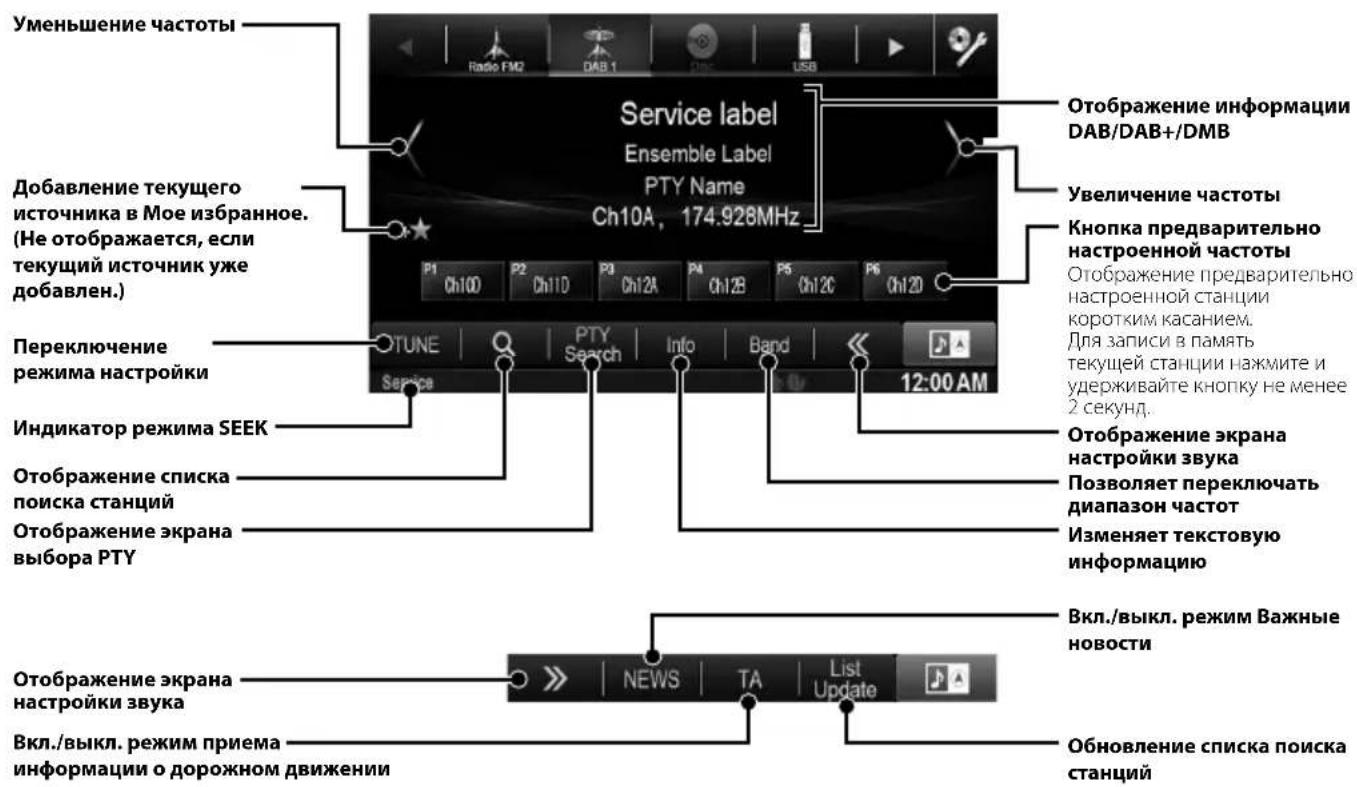
IcnoIb30BaHne npoIrpblBaTeIaMP3/WMA/AAC
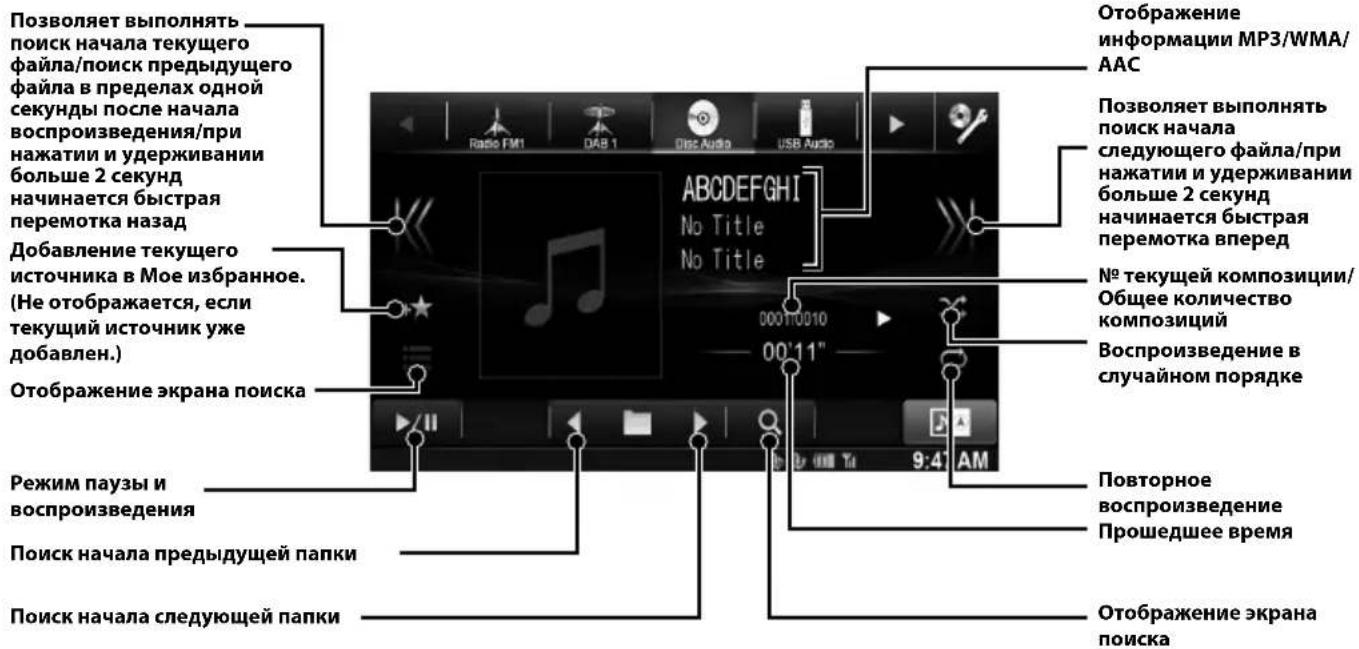
PykoBoCTBO IO EKcIpyataun DVD
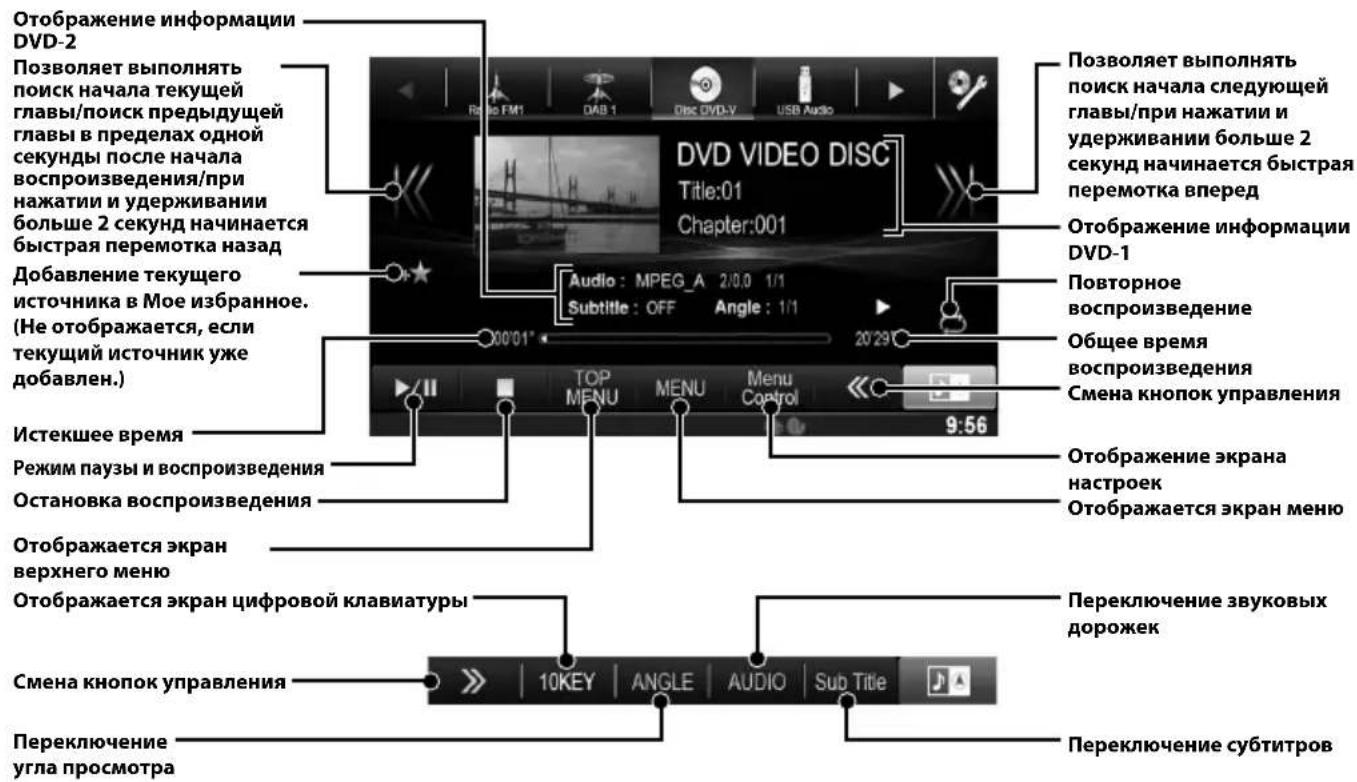
IcnoIb30BaHne npomrpbivaTeTJ DVD
Iocne haxatna Ha 3kpan Bocnpo3BedeHnra DVD oTo6paxaetc 3kpan Bocnpo3BedeHnra DVD. Hxke npnbdeH npimep 3kpaHa Bocnpo3BedeHnra DVD-Bnpeo.
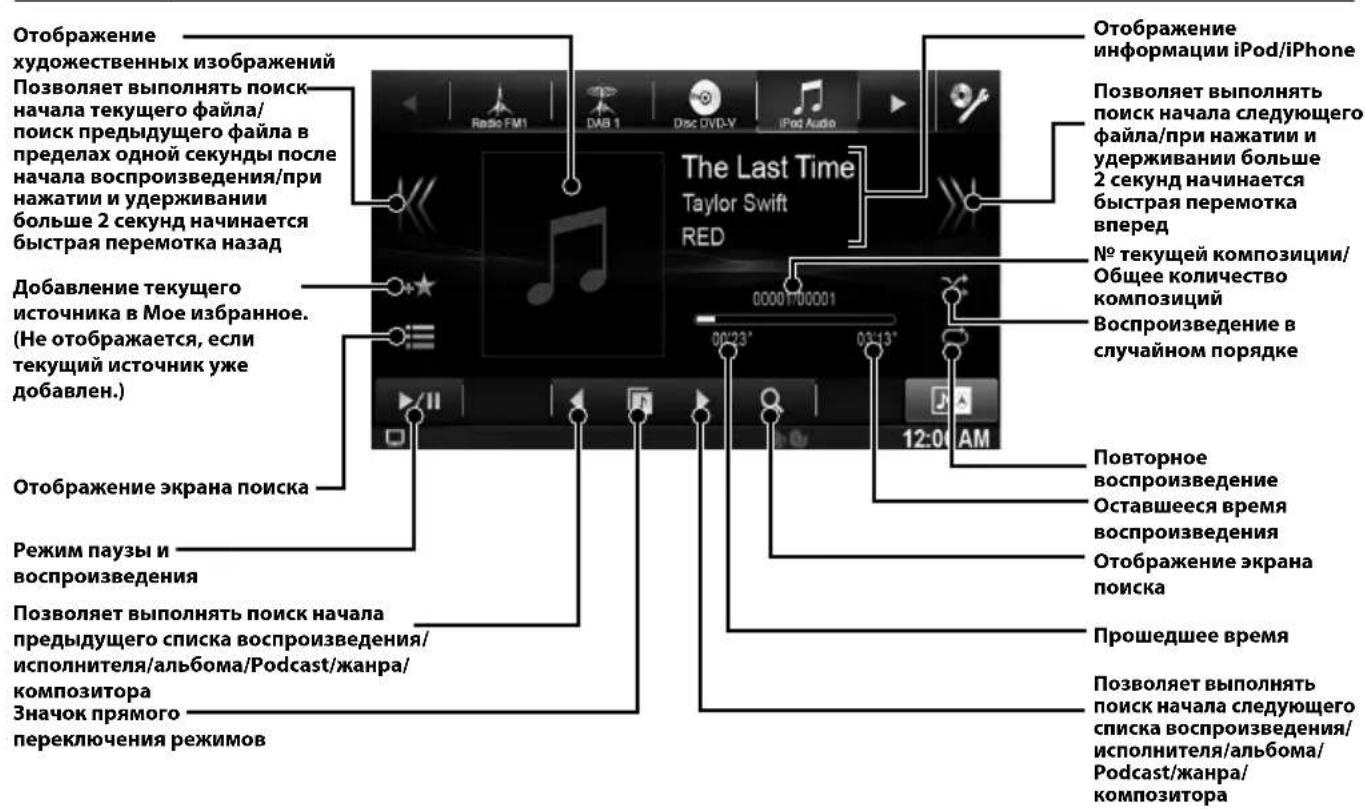
IcnoIb3OBAHne iPod/iPhone (npno6peTaetcyaDonoIhnteBHO)
Bb moxete nooknouhtb iPod/iPhone c nomoubu npno6petaemoro otdeIbHo ka6enra (KCU-461IV).Moxho nooknouHTb iPod c yHKuue Bocnpoun3BeHnRA BIDeO dna npocnyuBaHnHe ToIbKO My3bIKN, HO n da npocmotpa BIDeOaIIIOB.
- 3TO yctpoiCTBO He noDpeKnBaET BocnpoI3BeHe NHe iPhone 5 n npOuH xycptpoIcTBax c pa3bEMOM Lightning.
Pekm aydno
Ponck aydnofoaJa
PpIMep: PONCK NO IMEHN INCNOHNTeIa
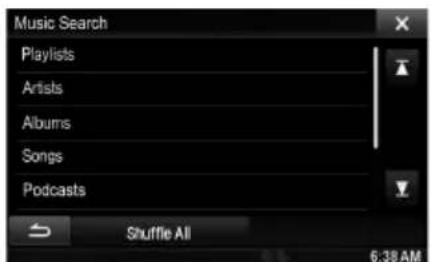
1 Bo BpemB BocnpOn3BeDeHnKochHTecb [search]).
2 Haxmute [Music].
3 Haxmnte [Artists].
4 KocHTecb IMeH N Bbl6paHHoro nCnOJIHntTeJ.
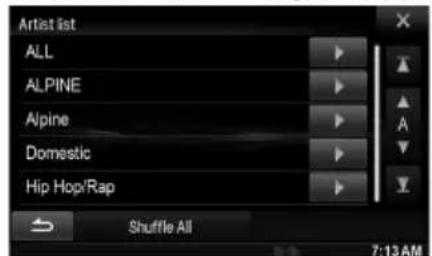
OTKpoetc 3KpaH noncKa anb6oma BbIbpaHHoro NCNOHNHTeN.
EcnKoCHyTbC KHONKn [ ] HAnpOTnB HeO6xOaMOrO nCNOHNHTeN,To 6yDyT BOCPOn3BOaNTbCk KOMNo3uNN Bb6paHHORO NCNOHNHTeN.
5 Haxmte Ha3BaHne HxKHoro anb6oma.
BydyT OTO6paXeHb BCE KOMN03nINn N3 Bb6paHHOrO aIb6oma.
EcnKoCHyTbC KHONKn [ ] HAnpOTnB HeO6xOIMORo aIb6oma,To 6ydyT BOCIpOn3BOiNTbcKOMIO3uyn Bbl6paHHoro aIb6oma.
6 HaxmTe Ha3BaHne HyxHoi KOMno3n.
HaHHeTcBocnpoun3BeDeHne BbI6paHHo KOMnO3nU.
Kochumecb [▶] ha "ALL", umobbi bocnpou3becmu BCE komno3u4uu u3 cnuca.
Pa6ota USB-hakonntela (npno6peetaetcdoonnHtbelho)
Ectb Bo3MOxHOCtB BocpOu3BOuNTb ayDnO (MP3/WMA/AAC) n BvJeO (DivX@) faiNb, 3aIncHbIe Ha USBHaKoPntTeJx, Ha BCToeHHOM PJIeepe DaHHOcCTEmbl.
OT6pa3rTcKHOKNMmblTMMeMa.
4 ynpabnayTe 3Tm yctpoiCTBOM c nomoou KhoNOK MynbTmMedna
- Khonku Mylbummedua bapbupyomc 6 3aebucumocmu om pekuma.
- Paoboue peKumbl ha 3omom ycmpoicmbe mozym omluuambcn om mex, ymo docmynbHa cMapmfohe, 3abucumocmu om modenu noKDkuoyenHNOc mCapmfoha.
PykoBODCTBO no 3KcnnnyatauynyctpoiCtBO HDMI (npno6peTaetdnonnntelbHO)
YcTpoIcTBoHDMI (npno6peTaetcJdoNolHnTeJIbHO)
3TO yCTpoINCTBO MOKET NOKNIOHTBCRA K DpyROMy 3NEKTOPHOMY yCTPOINCTBY, NOIDepKINBAIOUeMy BIXOHOI CnHAnBΦopMaTe HDMl, c NOMOuio INTEPpeiCa HDMl N BOCNPOIN3BOIDtB ayDIO N BVDeo C cnHAnOM HD (BbICOKOI YETKOCtN). Ondako C kpaH rONOBHOrO yCTPOINCTBa HE N03BOJAE T OCUeCTBJIaTb ynpabJIeHne IOKNIOUeHHbIM yCTPOINCTBOM, a NIIsb OTObpaxaet erO rpaOnueckn INTEPpeic.
1 Haxmnte KhOnKy
2 HaxmTe KhoNky [HDMI] B BepxHem 3arOIOBKe. Ipu omKluenu ycmpoicmba c HDMI uBem 3naUka ucmouHnka HDMI u3menumc na cepbui.
3 BpeKIMe BocnpOn3BeDeHnHa Ha 3KpaHe yCTpoiCTBa coepKIMoe 3NeKTPoHHoro yCTpoiCTBa 6yJeT npEcdTaBHeO B 3epKaJIbHOM OTPaKeHn.
- 3mo ycmpoicmbo He pacno3haem BCE ycmpoicmba c unhmepeuecom bixodnozo cu2hana HDMI.
yctahOBka
Ponb30BaTeNb X800D-U
CbeHnO6 yCTaHOBKe X800D-U cm. B pyKOBOdCTBe, KOtOpoe npJlraeTcB OTdJIbHo npNo6peTaEMOM KOMJIeKTe DnI yCTaHOBKn DnI KaJIOTO TnPa MaINH.
Ipu nodknoeenu K 3neKmpoobopyoanu o
aBmomobnna Heo6xodmo umemb npedcmabeneue 06
ycmaHOBnBnHex Ha 3abode Komnonenmax (hanpumep,
6opmOBOMKomnbomepe).He nodknouaumecb K 3muM
npoBdAm dR naDau nu manua daHOnmy ycmpoucmy.
Ipu nodKnoueenu ycmpocmbxa X800D-U/
INE-W987D K 6nOky nnabkux npedoxpanumeneu
y6edumecb, uMo npedoxpanumenu, npedha3naeHHbte
dR konmypob ycmpocmbxa X800D-U/INE-W987D,
pacchumahbHa coombemcmbyouuyo mokoyio
haepy3ky. Hec6nlodeHue 3mozo mpeboBanu
moKem npueecmu K nobpeKdenuo ycmpoucmba
u/uNu abmomoBnA. Ipu noBnHu comHeu
obpaauaimecb K cboemy duepy Alpine.
Ipu ycmaHOke ycmpoAcmba ducnneu doonken 6bmb noHocmby6panbKopnyc.B npomubHom cnyae 803MOJHO 803HuKHObeHe npobem.
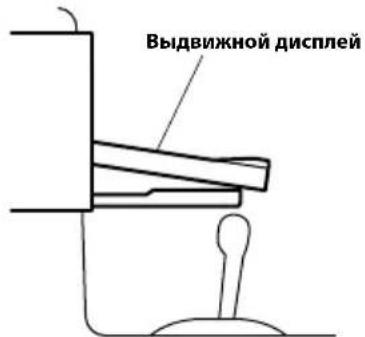
1пегуctaHOBkoY6eNTecb,чTo OTKpbITNeиЗakpbITNeДUCNJIeЯ He 6ydeT npenTCTBOBaT nepemeueHIO pbIyara nepeKluoyehnnepepa.
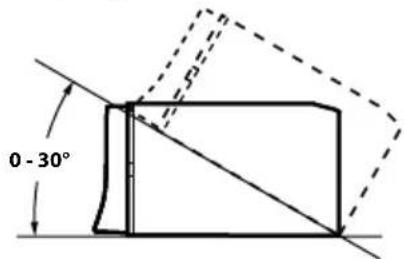
2 YrOJ yCTaHOBKn UcTaHabnBaIte NOd YrIOM OT NOLHOCTbIO rOpN3OHTaJIbHOrO NOLOXeHNrdo 30^ .IMeIe B BVdu, YTO yCTaHOBKa NOd YrIOM,BbIXoJaUIM 3a npeJeIbYka3aHHoro dmana3OHa,yxuJaet EKcnNyatauONHbIe XapaKTepNCnN MoXeT npNBecTN K NOBpeKdEHIIO.
3 yctaHOBka MmKpOoHa.
IЯ obecneueHna 6eONacHOCTn y6eNTecb B cnedyuouem:
- MECTOДЯ yCTaHOBKN yCTOYINBOE INPPOUHOe;
-yCTaHOBka He CO3daCT NOMEXIINO630pa BODNTELN BbIOJIHeHn DeIcTBn;
MnKpOoH paCIOJoxKe H MeCTe, IeXopoUH npIeM rOIOca BODITeN (Ha cONHcEaHTOM KO3bIPbKe n T.n.).
Korda roBOpTe B mKnpofoH, He cNeJeT MeHrTa CBOe obuHoe nOIOKeHne TeNa, npnHaToe dJa BOxdeHnA aBTOMo6nJI. TaKne DeNCTBnA OTBnEkaOT BHMaHHe N MOrTy NOMEuATb 6eOnaChomy DBNKHeHIO aBTOMo6nJI. Korda yCTaHaBnBaTe MknpofoH, TuaTeNbHO OueHnBaIte HAnpaBLeHne I paCCToHHe. Y6eINTEcB, qTO B BblpaHHom MeCTe rONOC BoDInTeJXopoWIO pRHNMaETcra.
4 CHIMITE MOHTaXHyOp pamky cOCHOBHoro 6noka.
BCTaBbTe yCtpoiCtBO B MOHTaxHyIO paMKy n 3aKpennte.
PpHw8Bemnauoui npoBOd
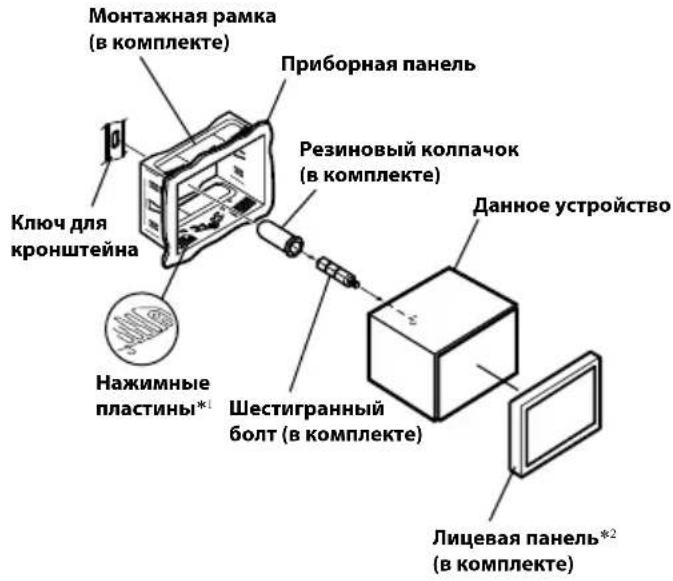
*1 Ecny yctahOBHeHHb MOHTaXHnApaMka He 3akpenH B npio6OpHo nAHeN,TO 3Ty npo6IeMy MOxHO yCTpaHnTb 3a Cuet He6OJbWOro paCUnpeHn HaxmHbIX PnactNH.
*2 MoKHO yCTaHOBnTB BXOJryu B KOMJIeKT NIIueByIO naHeIb.
5 Ecnn aBTOMo6nIb 6OpdyoBaH KPOHTeHOM, BCTaBbTe dINHHbI 6OHT C WeCTuRpaHHoI rOIOBkoB 3aDHOU NaHeNb ycTpoiCTBa INE-W987D n HaJeHbTe Ha 6OHT pe3uHOBbl KOJINaQOK. Ecnn aBTOMo6nIb He o6OpdyoBaH KPOHTeHOM, yKpeNITe Ha rIaNBHOM 6IoKe MeTaJIInueckyIO MOHTaXHyIO NOLOcy (He BXODNT B KOMnIeKT).
yctpoiCTBa K 3aunueHHoT OKpaCKn MeTalnnuecko NOBepxHocTn C NOMOsbU BnHTa (*1), yke 3akpenHeHHoro Ha Kopnyce ABTomO6nla. IodKnIOuHTe BCE BbIBOdbI yctpoiCTBa INE-W987D B COOTBeTCTBmC onncAHneM, npedctabIeHHbIM B pa3dJe IODKNIOUeyHNE.
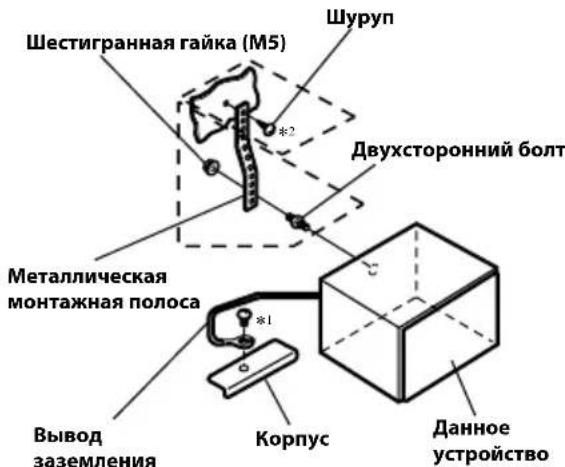
BuHmblcMapkupo6koj *2":ucnoIb3yUme coombemcmbyouue BuHmbldya bIbpaHNOZo Mecma ycmaHO6ku.
6 BcTaBbTe yCtpoiCTBO INE-W987D B MOHTaXHyIO paMKy do ueLyu.3To rapaHTnpyet npaBnIbHyIO fNkcauio yCtpoiCTBa n He no3BoJare Emy cnUaHOB bICKOHTb n3 Hee.
Cxema nodkloucheHna ODHONOLIOCHOROBbIKLIOaTeHn (npno6peTaetcdoonHHTelbHo)
(Ecnn nctouhNk nntaHnA ACC HeoctyneH)
Ecuabomomobune he ycmahoben ucmouhuk numaunr ACC, ycmanohume npuopemaembe donohumelbno odnonochoi nepekquamel u npedoxpanumeb.
- Iokaahnhe biiue cxema nodknoeueu u cua moka npedoxpanumen npumehomc b cyuae unduubuyabho2o uonb30baun ycmpoucmba X800D-U/INE-W987D.
- Ecnu nepeknioaemb bboo numahn (3aKuzaue) ycmpoucma X800D-U/INE-W987D hnpmyo nodKnouen K noIokumelbHomy (+) nonocy aBmomobunbno 2kKymnaop, ycmpoucmeo X800D-U/INE-W987D nompebnem Heobluou mok (HeckoBko comeh Muannamnp) daKe npu bkiHueHu nepeknouame naumanu, u akKymnaop Moem pa3pndumbca.
CoeHHHeHn
Coednene 1/2
TexHnueckneXapaKTepeNCTnKN
MOHHTOP
Pazemep 7,0" (INE-W987D)
8,0" (X800D-U)
TnLCD PpOzpaHbTnTNLCD
OnepaONHHa CNTeMa AKTNBHAR MaTPuTa TFT
KoIueCTBO 3nEMeHTOB 1152000 nIKcenei
m3o6paXeHn(800×480×3(RGB))
DakTnueckoe KOnnueCTBO 3JeMeHToB n3O6paXeHHa
HE MEHee 99%
CnTeMa nOcBETKn LED
FM-TIOHEP
Диаэзн Настpoи 87,5-108,0 MФ
Ipororbaa yBCTBnTebHOCTb ODHOrKaHaJa
8,1BΦMBT(0,7MKB/75OM)
Poporobar yBCTBntbHocTb 50 d
12DΦMBT(1,1MKB/75OM)
U36bpaTeNbHOCTbaTepHaTNBHO KaHana
80d5
OTHoWeHne cunHan/7yM 65 nD
IpepeoHoe 3aTyxHaHne MeKJy CtepeKaHaHaAMN
35
Ko3ΦΦHmEHT 3axbata 2,0n6
MW-TIOHEP
Dnana3oHnaCTpoKn531-1602K
IoporobaryyBCTBnTeJbHocTb25,1MKB/28D
LW-TIOHEP
DuaanaohnHaCtpoKn153-281 K
UyBCTBNTeJIbHOCTb (CTaHapT M3K)
31,6MKB/30D
USB-PA3bEM
Tpe6oBaHnK USB USB 1.1/2.0
MaKcNMaJIbHnIaITpe6HnEmaM OuHOCtB
1000 mA
Knacc USB USB (Bocnpon3BcdeHne c
yctpoiCTBa)/
USB (Klacc MaccBOO NAMrT)
Фанлобая систema FAT12/16/32
Декорpoване MP3 MPEG-1/2 AUDIO Layer-3
KoHueCTBO KaHAnOB 2-KaHaJIbHbI 3Byk (CTepeO)
YactoTHaXapakTepeNtka* 5-20000T(±1δ5)
CymMaHbI KO3ΦΦNueHT rapMOHNueCKnX nCKaKeHm
0.008% (npu 1 KfU)
DnHaMueeckn Dnana3OH 95 db (npn 1Kt)
OTHOWeHne CnHnA/7yM 100D6
Pa3deneHne KaHaoB 85 db (npn1 KfU)
* YactotHaXapaKTePncTnKa MoKeT OTnnuTaBc B 3aBnCmOCTNOT IporpaMMHOro o6ecneueHry yctpoiCTBa KOnIpObaHn/CKOpocTHIpepaHn 6nt.
CD/DVD Yactotha
YpOBeHb BbIXoHOro BnDEOCrHaHa
1 B (75 OM)
OTHOWEHNE CUNHAN/WHM BNDEOOHNHNA
DVD:60dB
OTHOWEHNE CINHAN/WHM ayDIOOCIHHLA
100
Ontnueckn 3ByKoCHMaTeIb
ДИHA BOJIHBI DVD:666 HM
CD:785HM
Mouhoctb na3epa CLASS II
GPS
Yactota npema GPS 1575,42 ±1 Mf
YyBCTBNTeNbHOCTb npnema GPS
Makc.-130 db
PA3DEI BLUETOOTH
Texnueckne xapaKTePncTmKu BLUETOOTH
Bluetooth V2.1+EDR
BbIXOHaMouHOCtB
+4Dm(MaKc.(KnaccMOHIOCTn2)
PpoΦnB
HFP (npoΦnIb rapHnTpyb)
OPP(npoΦnIbIynepeaH
aainoB)
PBAP (npoФиьдя омemaHa
3aINcMnBTeNefoHHbIXKHInrAX)
A2DP(pacunpeHHn npoФnbl
pacnpoctpaehnaydno)
AVRCP (npoofnlb nctahHNOHHORO
ynpabneHnaydno/Bnudeo)
OblnE
Питанne 14,4В noctoHHOrH HapryKeHH
(donyckaeTc11-16B)
PA3MEP BbICTyIaIOUeI YACTN
UmpHa 171MM (INE-W987D)
190 MM (X800D-U)
BbICota 96 MM (INE-W987D)
120 MM (X800D-U)
IpybHa 25MM (INE-W987D)
10 MM (X800D-U)
Cpok cnxy6bi daHHoro n3deJnna -Tpr rOda.
H3-3aHenpebibnozo coobepuencmboabun npodykma e20 mexnueeckue xapakmepucmuu du3aun Mozym u3menhambc63 npedabapumelbnozo ybebomlenua.
PiHEnb LCD u3zomobHeHa no c6epxmouHou mexHoIoo. KOnuecmBo 0f6ekmuBbIX nuKcenOB npeBbuaem 99,99%. 3mo o3nauaem, uMo cyuecmoyem bepoarnocmb 0,01% hauuur nuKcenOB, komopbte bceda 6kNoeHb uu bceda bblKnOeuHb.
B 3TOM yCTpOJCTBe npIMeHReTc CnCTema 3aUHTbI OT KOnIpOBaHn, 3aUuIeHHa NateHTAm B CIIA uDpyrUmnpabAM Ha INHTeJIeKTyAJbHyo co6CTBeHHocTb Kopnpaun Rovi. BocPon3BeJeHne pa36OpKa yCTpOJCTBa 3aIpeJeHbl.
I3rTOBHeHO NO IINeH3N KOMnAHn Dolby Laboratories.Dolby IN BOHOn CmBOn D ABnIOCTa TOBaHPbIMn 3HaKaAMn Dolby Laboratories.
Windows Media n Iorotn Windows ABJIOCTC TOBapHbIMN 3HaKaMn NIN 3apeTnCTpnpoBaHHbIMN TOBapHbIMN 3HaKaMn Microsoft Corporation B CLIJA N/nn dpynx ctpaHax.
- iPhone, iPod, iPod classic, iPod nano, iPod touch i iTunes
- JBIIHOTCT TOBAPHBIM 3HaKaMn KOpIopaCm Apple Inc.,
- 3apeRNCTpPPOBaHHbIMN B CUSA IN DpyRx CTpaHax.
"Made for iPod" and "Made for iPhone" 03haiaot, yto 3neKtpoHHbI akceccyap pa3pa6oTaH cneuaJIbHO IaI noKIIIOUeHRA K yCTPOiCTBy iPod nn iPhone COOTBETCTBEHHO n cepTuuNcIupOBaH pa3pa6oTcuKOM KaK yIDOBNETBOPAOUI N EKCIpyATAUONHbIM CTaHdApTaM Apple. Kopnpaunr Apple He Hecet OTBeTCTBeHHocTn 3a pa6Oy daHHORO yCTPOICTBa II INI erO COOTBETCTBHe CTaHdApTaM be3ONaCHOCTHn IN peryIaTNIBHbIM HopMaM. ImeTe B BVdu, YTO NCINb3OBAHne DAHHoro akceccyapa c iPod nn iPhone MoKet NOBInraTb Ha pa6Oy 6ecnpoBOHOH CBa3N.
DivX,DivXCertifiednCB3aHHbIe IOROTnblAIBIAOTc TOBAPbIMN3HaKaAMIKOPnpaUNRovi nn ee DOuePHNXKOMNaHNIICNOJb3yIOCTNOINUEH3NN.
CIOBecHbI 3HaK n IJorOTnbl Bluetooth ABAJIOTcAzerncTpnpOBaHHbIMN TOBapHBIMN 3HaKaMnKopPiopaunu Bluetooth SIG, Inc. n cnoJIb3yOTcKopnpopauei Alpine Electronics, Inc. no liueh3nn
- TepMHbH HDMI n HDMI High-Definition Multimedia Interface, a Takke Jorotn HDMI ABJIOrTOBapHbIMn 3HaKaAMn KOMNaHmH HDMI Licensing LLC, 3apeRNCtpnpoBaHHbIMn B CUSA nDpyrnx cTpaHax.
Android JbIeTcTOBapHbIM 3HaKoM Google Inc.
- liuhen3na HaTexHONIOKOJINPOBaHn 3Byka MPEG Layer-3 noyuenaHaOTraunhofer IIS and Thomson. PnpnoCTabKe 3TOrO ppojKTa npedOCTaJIeTcR liueh3na Ha acTHOE, HeKOMMepueckoe nCNoIb3OBaHne n He npedeOCTaJIeTcR liueh3na nHe NoDpa3yMeBAOTcR kaKne-ln6o npaba Ha nCNoIb3OBaHne daHHoro npoykTa B cENJX KOMpeCKoR (T.e. dNpNOyUeHn np6blnn) paINOBEuaHn B pealbHom BpeMeHN (Ha3emHOe, CNYTHIKOBoE, Ka6elbHOe n/Inn INHOro Tnna), uipOKOBeeHn nn NotOKOBn nepeDayn daHHbx UheP3 NHTepHET, INTPacEt n/Inn INHle CETn, a TaKke Upe3 DpyTne CNCTEmbl paCnpocTpaeHn 3JeKtpOHHO rCOdEJKIMOrO, TaKne KaN ppiIOxKeHn 3BykoBocpn23BeDeHn 3a nIATy nII NO Tpe6oBaHn. Dnra Takoro nCNoIb3OBaHn Tpe6yETcN OTdeNBn Hnue Hn. PoDPo6Na nHfOpMaZn npedCTabNeHa Ha Be6-caTe http://www.mp3licensing.com
©1993-2014 NAVTEQ. Bce npaba 3aunuenebl. OtdelbHbIe fpaarmEnbl: ©2014, Microsoft Corporation. Bce npaba 3aunuenebl.
OOO «KoMaHnBaBoHaH3a»
HΦopMaunOceBnChbIX ΒeHTpax
About the Rules of Bluetooth Electromagnetic Radiation Regulation

Declaration of Conformity
Spistresci
PRAWIDŁOWO NIEPRAWIDŁOWO
Montowanie od spodu
About the Rules of Bluetooth Electromagnetic Radiation Regulation

Declaration of Conformity
Declaration of Conformity
We, the undersigned,
Authorized representative in Europe Alpine Electronics (Europe) GmbH
Address, City Wilhelm-Wagenfeld-Strasse1-d, D-8086
Country Germany
certify and declare under our sole responsibility that the following apparatus :
Description 7-INCH/8-INCH ADVANCED NAVI STATION
Manufacturer Alpine Electronics, Inc.
Brand ALPINE
Identification INE-W987D(7-INCH),X800D-U(8-INCH)
Installed BlueTooth module UGZZC-G
TestReportNo. Radio:T36209-00-01TK(DAkkS)
EMC:T36209-00-02TK (DAkkS)
LVD :S36208-00-00JK(DAkkS)
conforms with the essential requirements of the Radio and Telecommunications Terminal Equipment Directive 1999/5/EC, based on the following specifications applied:
Radio: EN300328 V1.7.1
EMC: EN301489-1 V1.9.2 EN301 489-17 V2.1.1
LVD:EN60950-1:2006+A1:2010+A11:2009+A1:2010+A12:2011
and therefore complies with the essential requirements and provisions of the R&TTE Directive.
The Technical documentation is kept at the following address:
Company Alpine Electronics, Inc.
Address, City : 20-1 Yoshima-Kogyodanchi Iwaki-City Fukushima 970-1192 Japan.
Country JAPAN
Phone number (+81) 246-36-4111
Fax number (+81) 246-36-6090
Name and position of person KenjiKuroda
binding the manufacturer or his – Global Engineering Strategy Office
authorized representative Alpine Electronics, Inc.
Signature of the authorized person: b. buroda
ALPINE
ALPINE ELECTRONICS MARKETING, INC.
1-7, Yukigaya-Otsukamachi, Ota-ku,
Tokyo 145-0067, JAPAN
Phone: 03-5499-4531
ALPINE ELECTRONICS OF AMERICA, INC.
19145 Gramercy Place, Torrance,
California 90501, U.S.A.
Phone 1-800-ALPINE-1 (1-800-257-4631)
ALPINE ELECTRONICS OF AUSTRALIA PTY. LTD.
161-165 Princes Highway,
Hallam Victoria 3803, Australia
Phone 03-8787-1200
ALPINE ELECTRONICS GmbH
Alpine House Fletchamstead Highway,
Coventry CV4 9TW, U.K.
Phone 0870-33 33 763
ALPINE ELECTRONICS FRANCE S.A.R.L.
(RCS PONTOISE B 338 101 280)
98, Rue de la Belle Etoile, Z.I. Paris Nord II
B.P. 50016, 95945 Roissy Charles de Gaulle Cedex,
France
Phone 01-48638989