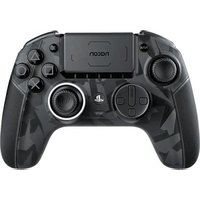
USER MANUAL Revolution Pro Controller 3 Nacon
natural_image
Two Nacon gaming controllers displayed against a dark background, no visible text or symbols on the devices themselves.
REVOLUTION
UNLIMITED
PRO CONTROLLER
“”, “PlayStation”, “PS4” and “ΔOXO” are registered trademarks of Sony Interactive Entertainment Inc. All rights reserved.
NACON™. "REVOLUTION UNLIMITED Pro Controller" is a product distributed by Bigben.
©2019 Bigben Interactive RCS Lille B320992977 - 59814 Lesquin Cedex.
Complies with IMDA Standards DB102988
BB4462 SLEH-00562
PSA Revolution Unlimited Pro Controller
Input/Entrée DC 5V = 500mA
- Exporters in China made in China


Thank you for purchasing the NACON REVOLUTION Unlimited Pro Controller
This product has been designed to enhance your video gaming experience. Please keep this instruction manual for future reference.
Warranty
This product, bearing the NACON trademark, is guaranteed by the manufacturer for a period of 2 years from the date of purchase, and will, during this period be replaced with the same or a similar model, at our option, free of charge, if there is a defect due to faulty material, or workmanship.
For any warranty request or claim, please keep your proof of purchase for the duration of the warranty. Without this document, we will not be able to process your request. The original packaging must be kept for all distance purchases (mail order & Internet).
This guarantee does not cover defects arising from accidental damage, misuse or wear and tear. This guarantee does not cover the loss of the parts (dongle / cable / stick heads / stick shafts / weights / storage case). This does not affect your statutory rights.
To access the declaration of conformity, please visit: www.nacongaming.com/support/
Content
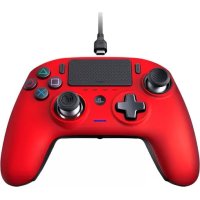
1 x REVOLUTION Unlimited Pro Controller
1 x 3m connection cable
1 x instruction manual
2 x 10g weights
2 x 14g weights
2 x 16g weights
1 x USB Bluetooth® receiver
2 x extra convex stick heads
1 x set of metal shafts (30°)
1 x set of metal shafts (38°)
1 x set of metal shafts (46°) - already fitted on the controller
1 x storage case
1 x cleaning cloth
Description of elements
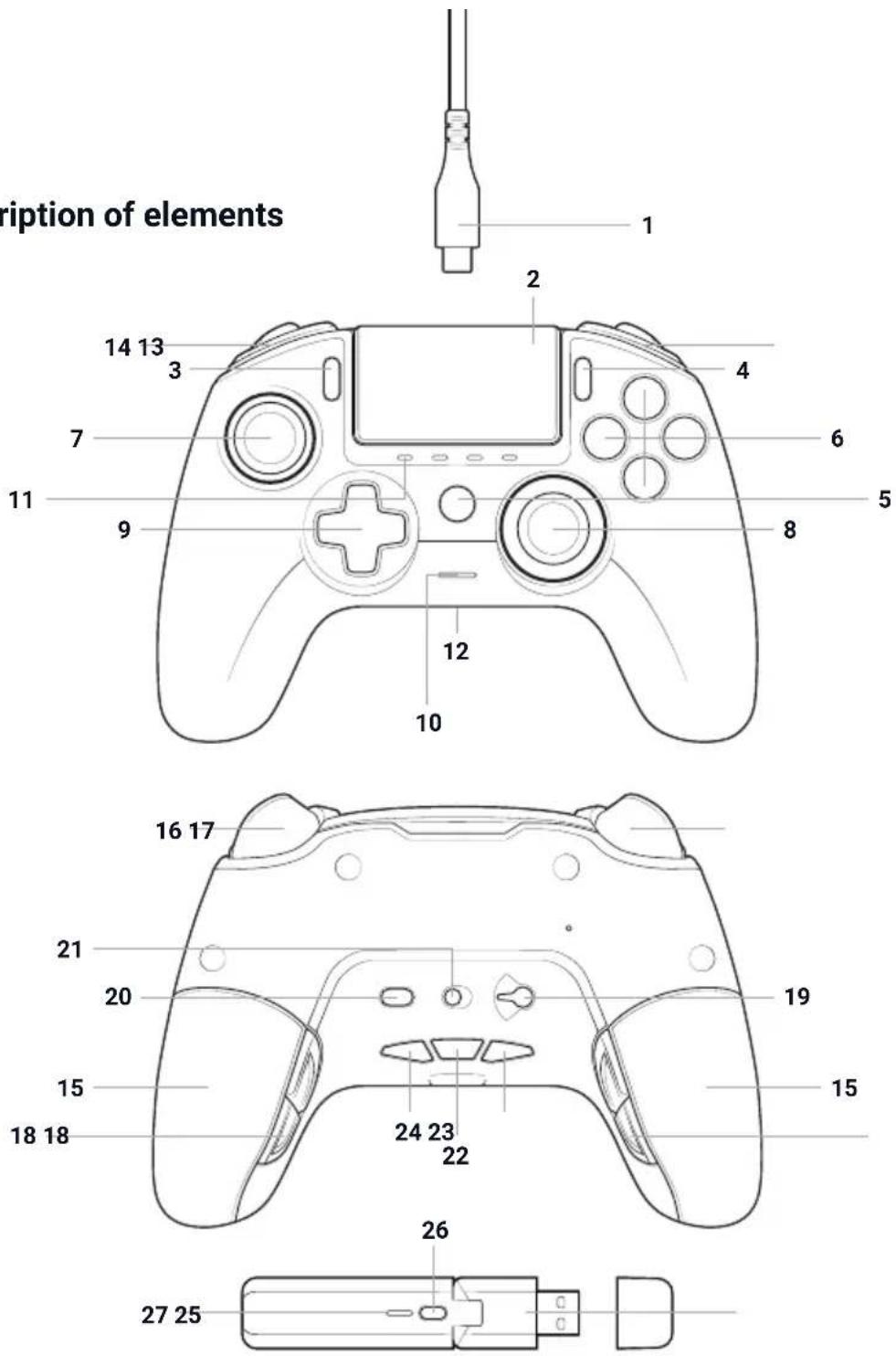
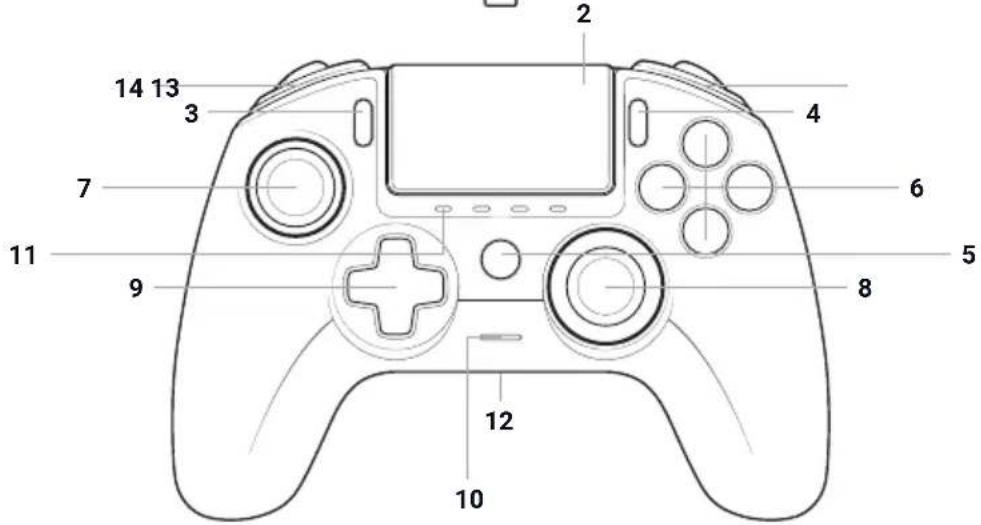
1/ 3m Braided cable with USB-A to USB-C connector
2/ Touch pad
3/ SHARE button
4/ OPTIONS button
5/ PS button
6/ Action buttons
7/ Left stick with L3 button and 46° of amplitude
8/ Right stick with R3 button and 46° of amplitude
9/ Directional pad
10/ LED player status indicator
11/ 4x Profile LEDs / Microphone, Mute and Battery level indicator
12/ Headset connector (3.5mm jack)
13/ R1 Shoulder button
14/ L1 Shoulder button
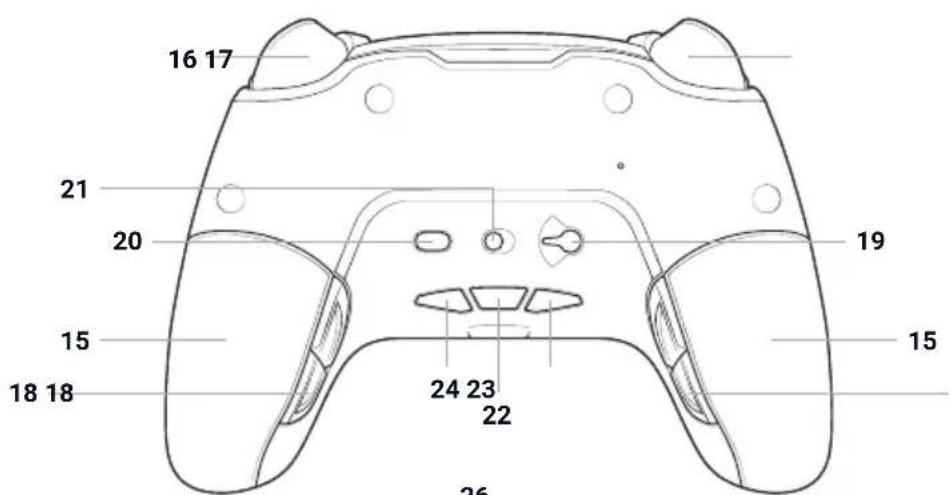
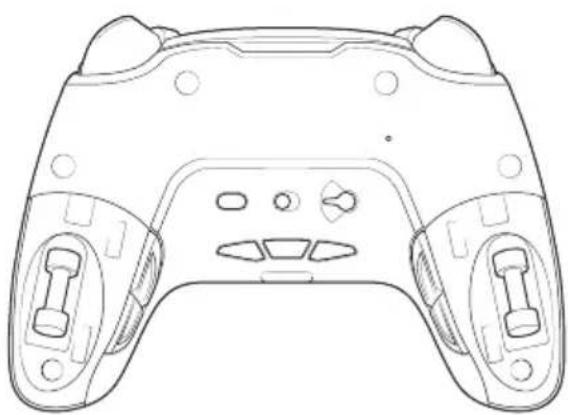
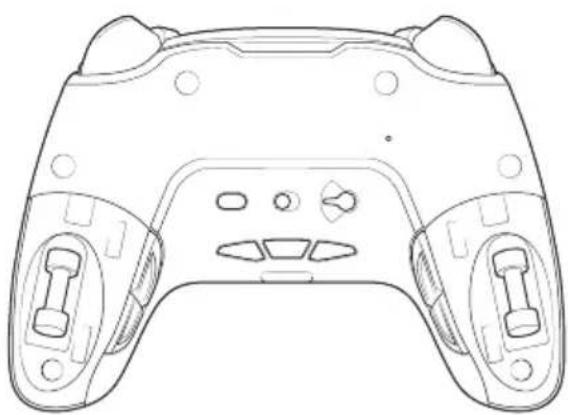
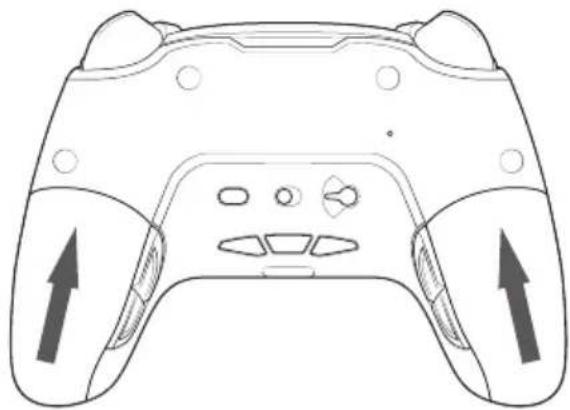
15/2x Weight compartments
16/ R2 Analogue trigger
17/ L2 Analogue trigger
18/ Rear shortcut buttons
S1/S2/S3/S4
19/ Mode selection:
- PS4™ Normal mode
- PS4™ Advanced Mode
- PC Advanced Mode*
20/ Profile selection button
21/ Communication Mode
-
Wired
-
Wireless
22/ Microphone mute button/Battery level (hold)
23/ Volume DOWN
24/ Volume UP
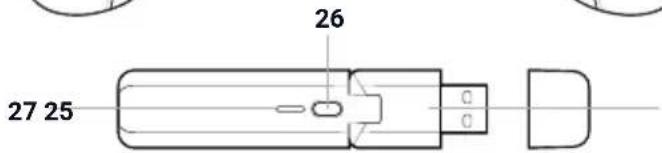
25/ USB Plug & Play Wireless receiver
26/ Sync button
27/ Sync LED
Features
The REVOLUTION Unlimited Pro controller can be used in wired and wireless modes (see section 1).
This controller has 3 x modes:
Mode 1 = PS4 ^TM Normal Mode (see section 2).
Mode 2 = PS4 ^TM Advanced Mode (see section 3).
Mode 3 = PC Advanced Mode* (see section 4).
Built-in 1300mAh Li-Polymer rechargeable battery.
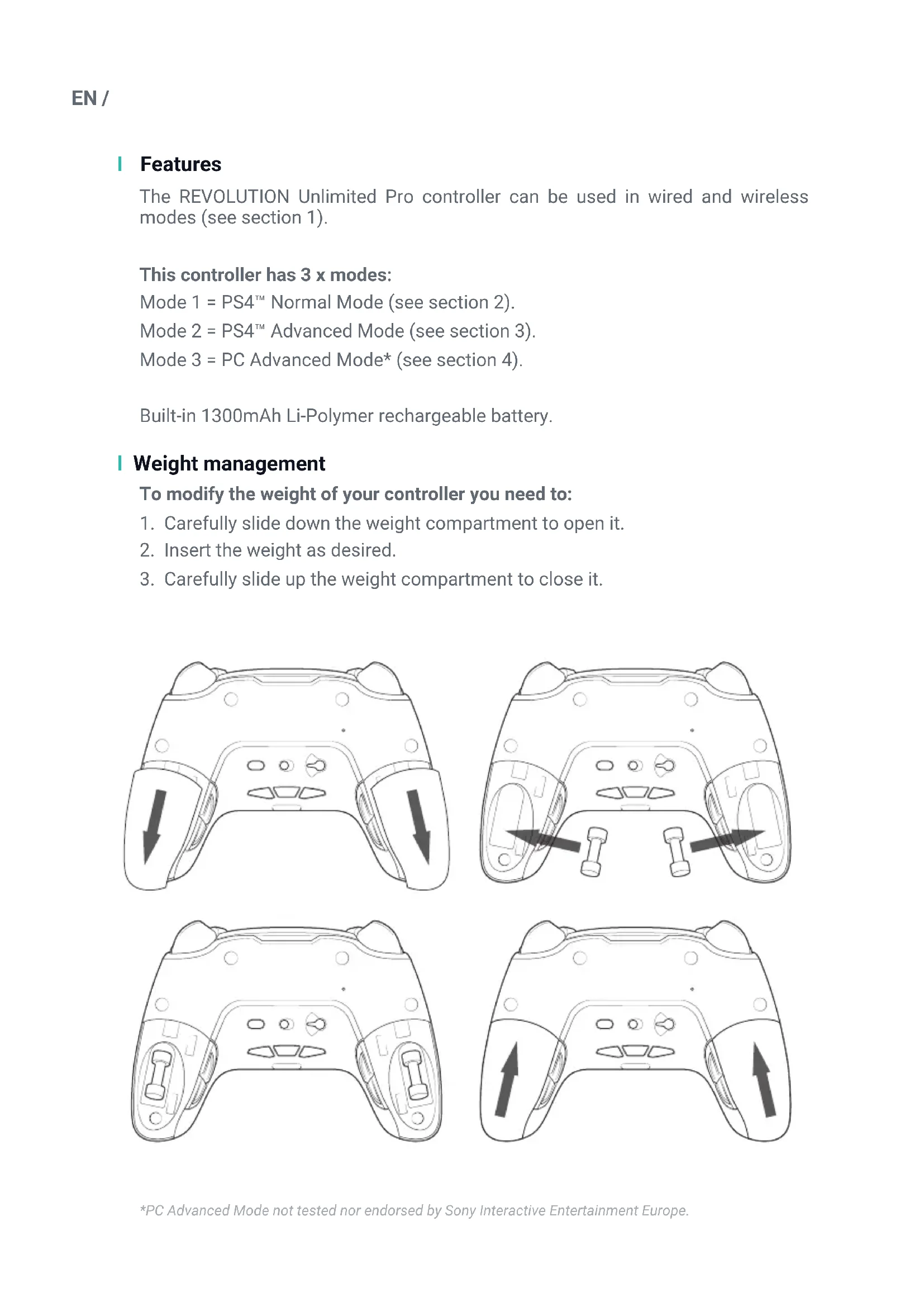
Weight management
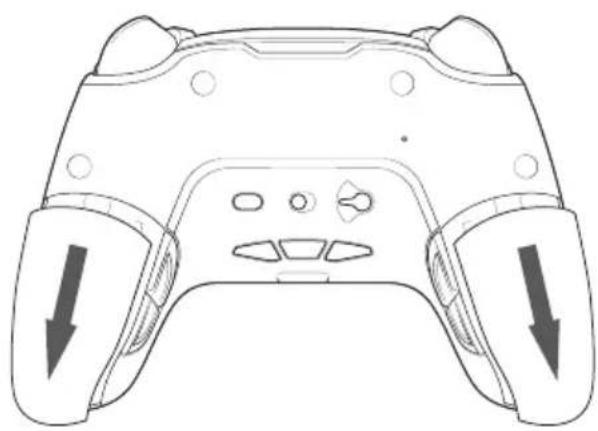
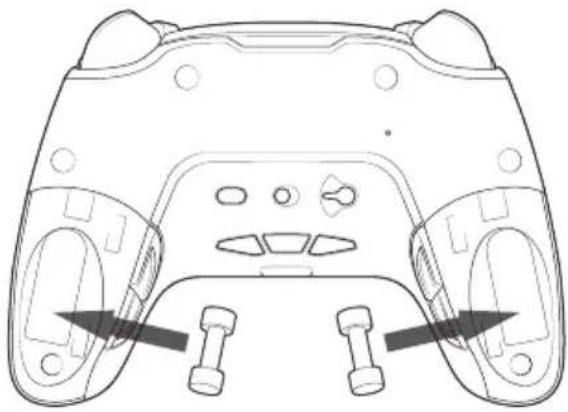
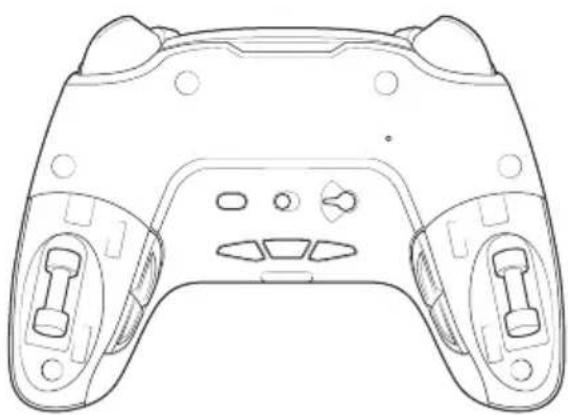
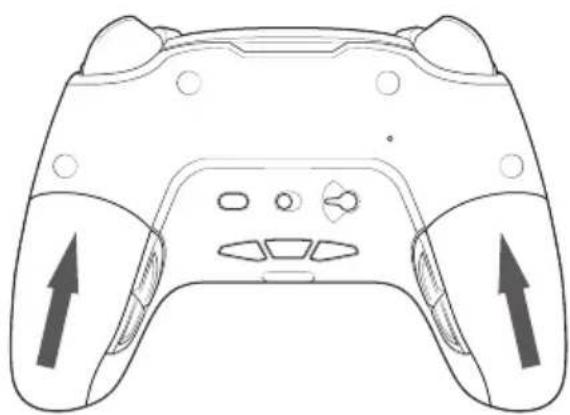
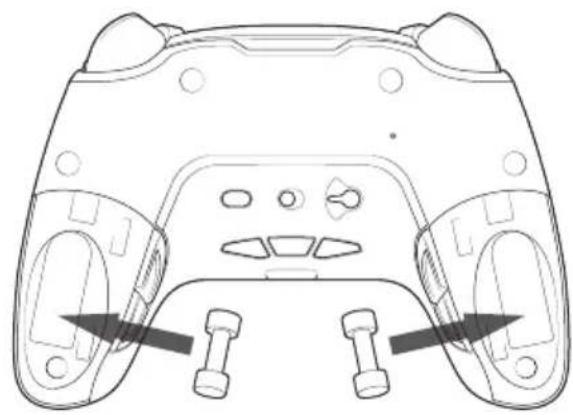
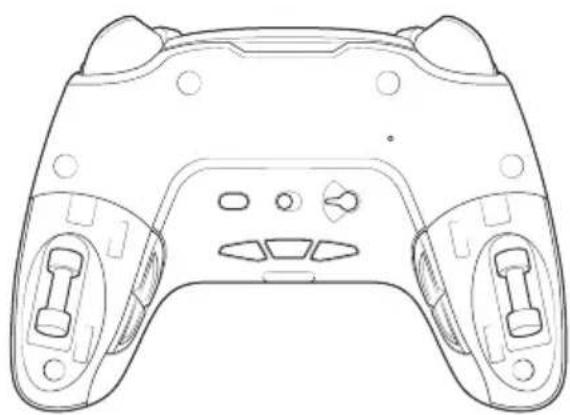
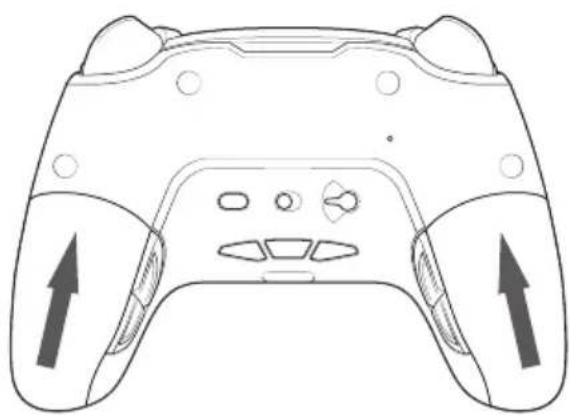
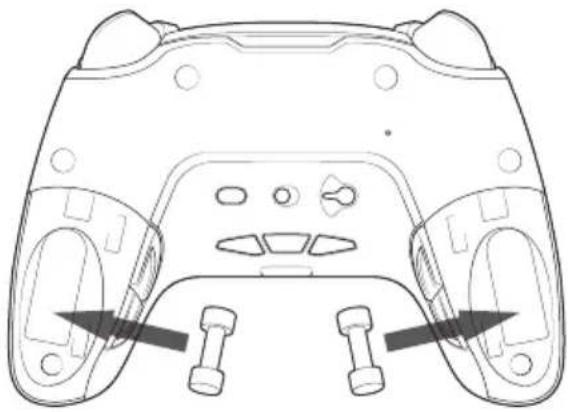
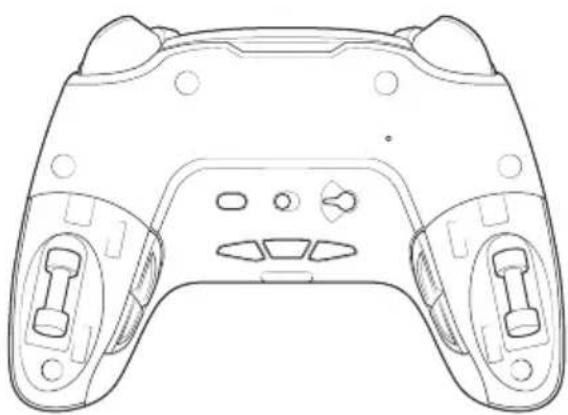
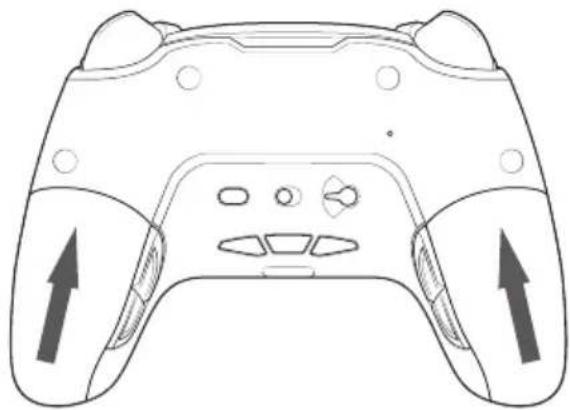
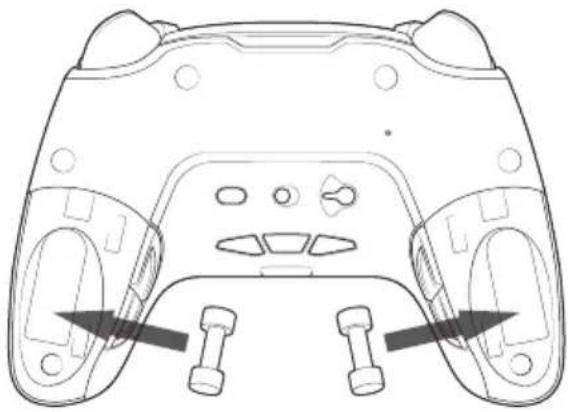
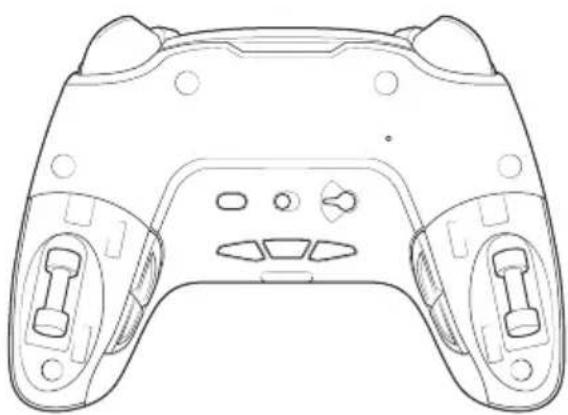
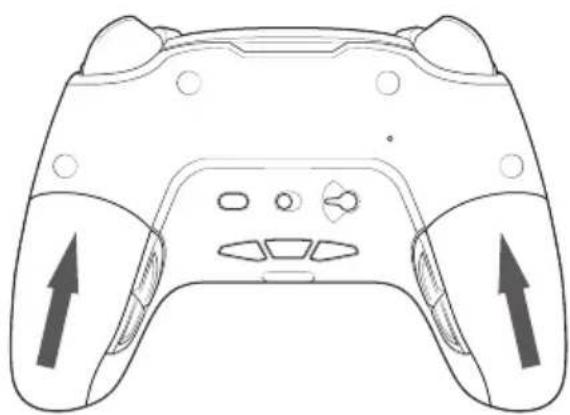
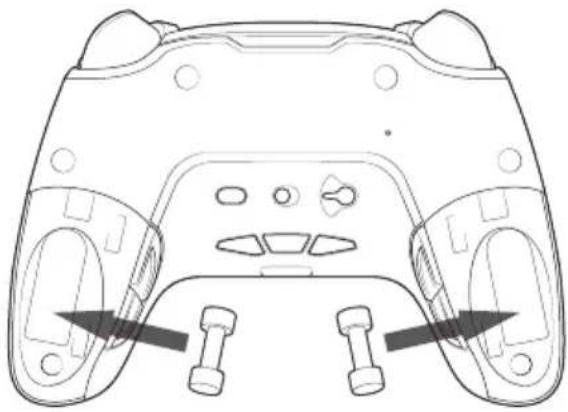
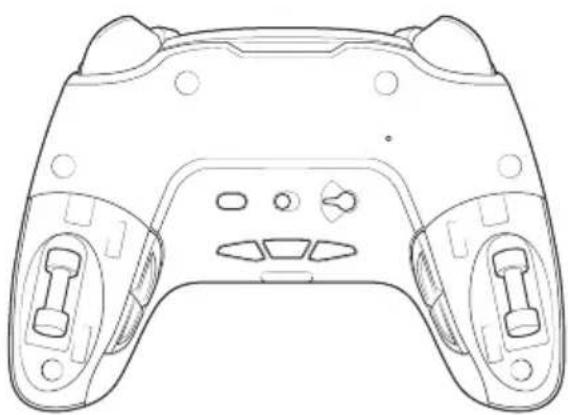
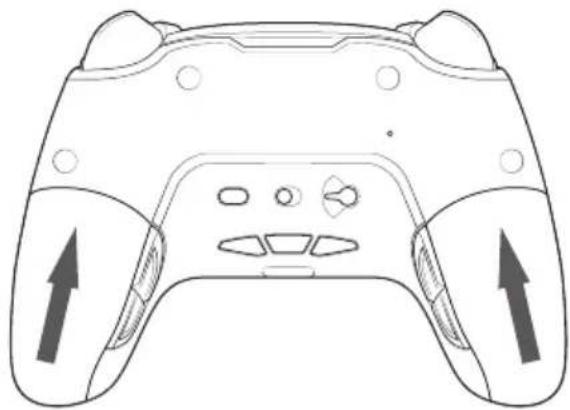
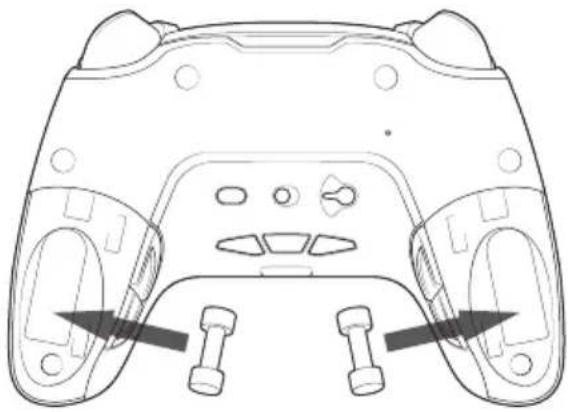
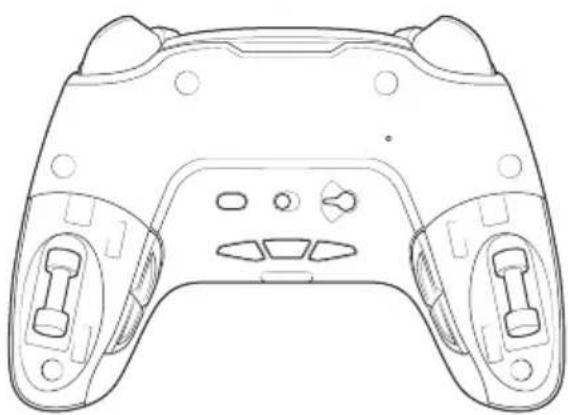
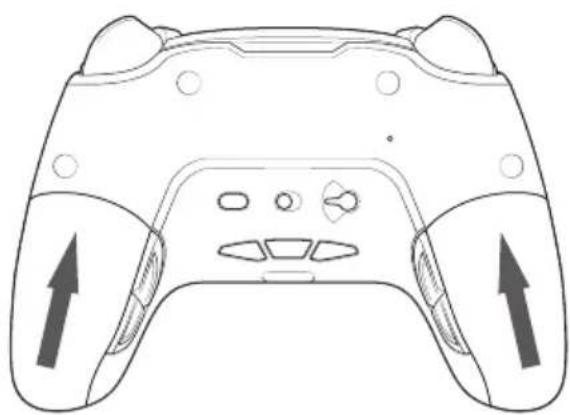
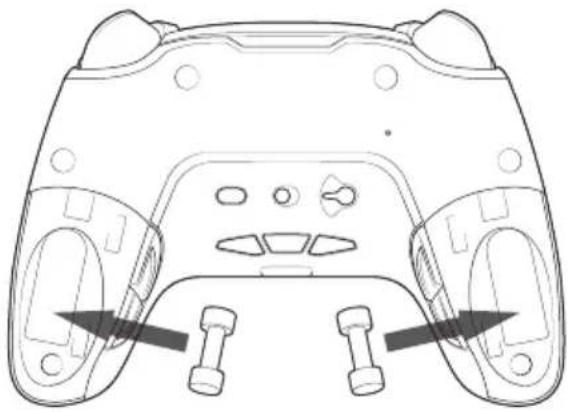
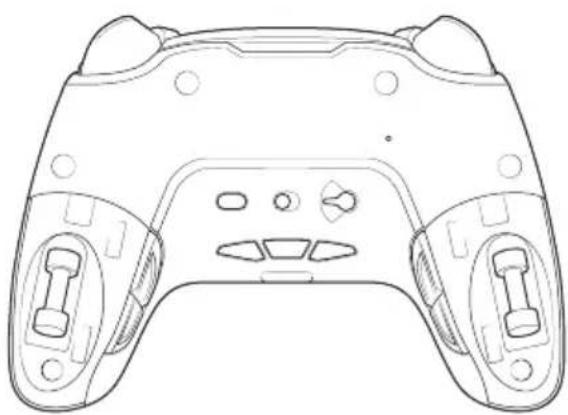
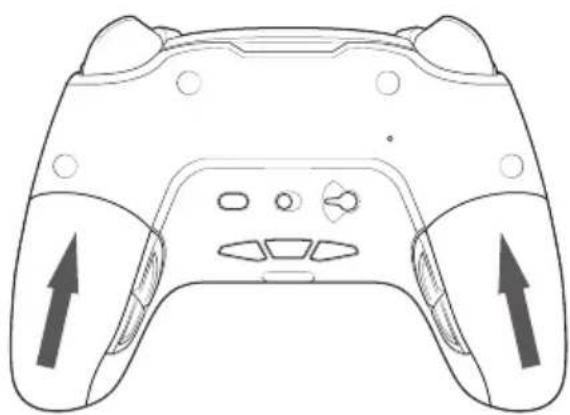
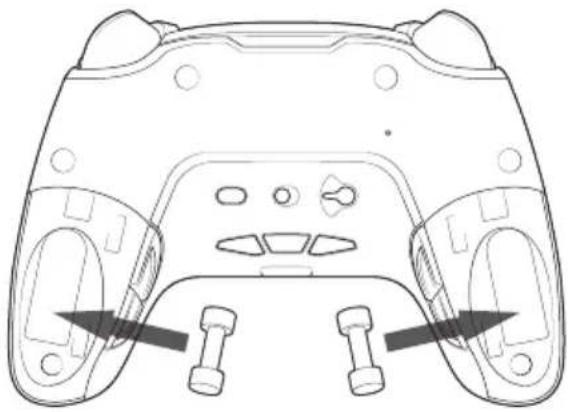
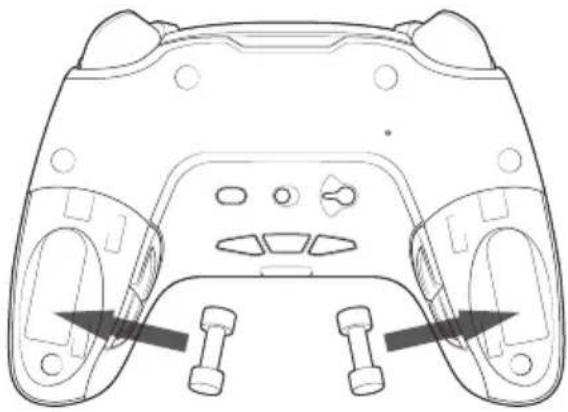
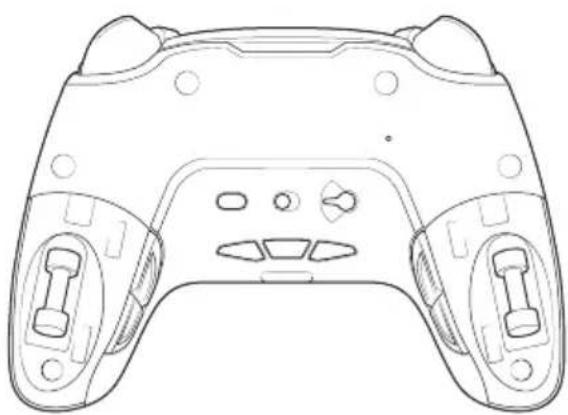
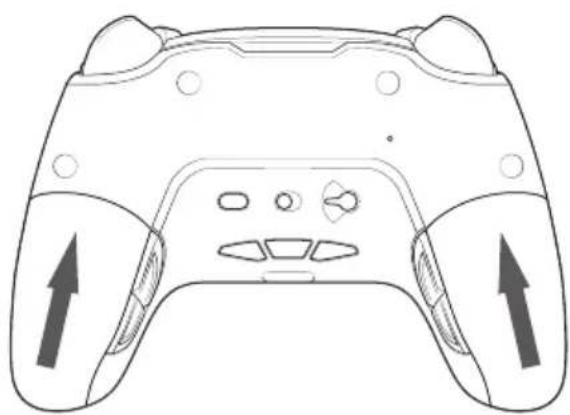
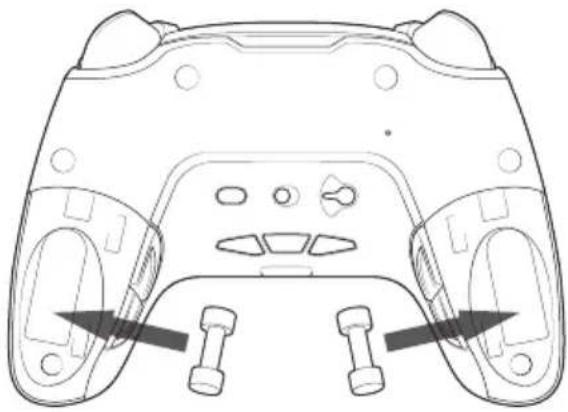
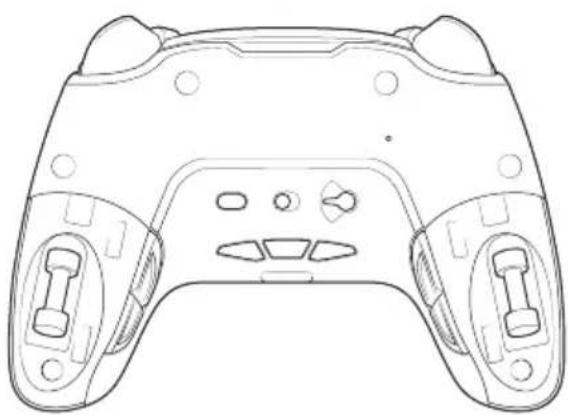
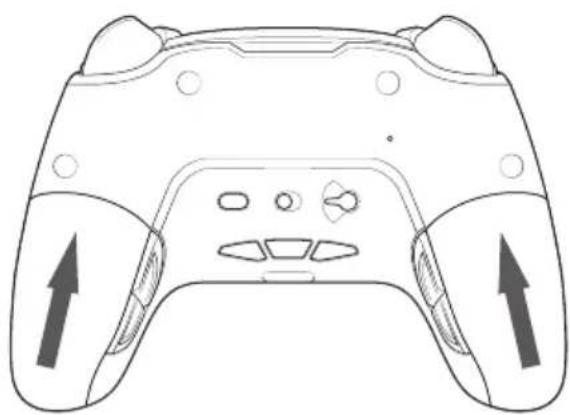
To modify the weight of your controller you need to:
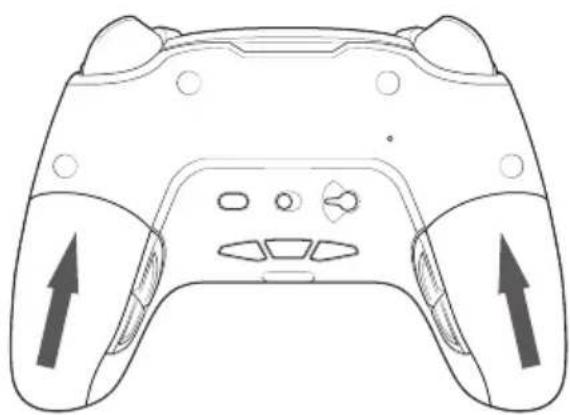
- Carefully slide down the weight compartment to open it.
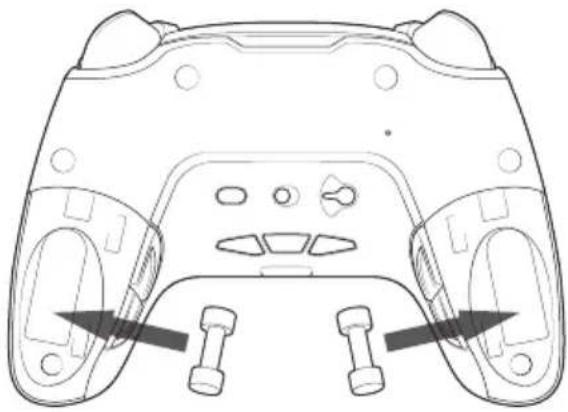
- Insert the weight as desired.
- Carefully slide up the weight compartment to close it.
natural_image
Line drawing of a game controller with two side buttons and directional arrows indicating left and right sides (no text or symbols)
natural_image
Line drawing of a game controller head with two buttons and control buttons (no text or symbols)
natural_image
Line drawing of a game controller with front and back panels (no text or symbols)
natural_image
Line drawing of a game controller with two side buttons and directional arrows indicating left and right sides (no text or symbols)
1/ How to use the REVOLUTION Unlimited Pro Controller
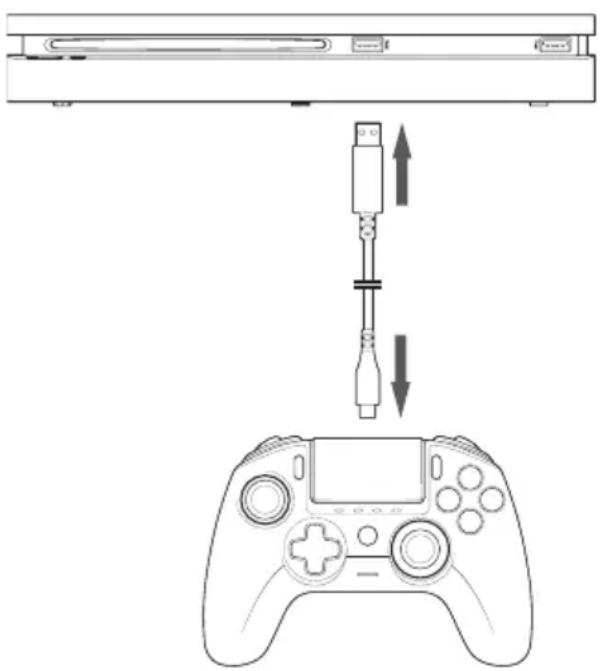
You have the choice to use the controller in wired mode (via the cable provided), or wirelessly via the USB Bluetooth® receiver.
Note: do not touch the sticks or triggers when you connect your controller to any PS4 ^™ system.
a. Wired communication
Ensure that the wired mode is selected on the 'Communication Mode' switch, located on the underside of the controller ('wired' mode is on the left and 'wireless' mode on the right):
- Connect the cable to the back of the controller and ensure it is securely fastened.
- Plug the cable connector into a free USB port on your PS4 ^™ system, ensuring that you do not touch the sticks or triggers.
- Press the PS button. The LED player status indicator will light up. Please note the player status indicator can react to in-game action, if supported by the software.
- You are now ready to play.
- The controller will power off as soon as it is disconnected from the cable or PS4 ^™ system.
Note: in the wired mode, the communication of the controller is only made through the USB cable.
NOTES:
- The 'Mode Selection' switch on the back determines if the controller is working in PS4™ Normal Mode (Position 1) or PS4™ Advanced Mode (Position 2).
- The PC Advanced Mode (Position 3) allows to switch your controller into the X-Input Mode for PC* use.
b. Wireless communication
Ensure that the wireless communication mode is selected and follow these steps:
- Connect the USB Bluetooth ^ receiver into a free USB port on PS4 ^TM system.
- The receiver LED will flash to show that it is searching for a controller.
- Press the PS button on your controller. The LED player status indicator will light up. Please note the player status indicator can react to in-game action, if supported by the software.
- The receiver LED will stop flashing when connected to the controller and will display the same colour as the LED player status indicator on the controller.
- You are now ready to play.
Multi player mode
When playing with 2 controllers there can be some interference between them.
If you experience some problems, during your gaming session, we recommend you to check these different points:
- Ensure that you are at least 60 cm apart from the next player.
- Ensure than you are not too far away from your wireless receiver. We recommend you to be at less than 5 meters for your multi player session.
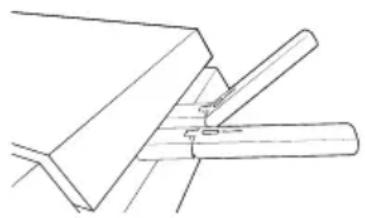
- Ensure that the antenna of each wireless receiver is angled in a different direction.
natural_image
Technical line drawing of a mechanical joint or bracket (no text or symbols)
Note: In rare situations the signal can affect, or be affected by, other wireless devices such as WiFi routers, WiFi repeaters or other Bluetooth products.
NOTES:
- If the controller is not connecting, to the USB Bluetooth ^ receiver, you may have to synchronise the controller to the receiver. The process is:
- ensure that the controller is OFF or turn it OFF,
- press and hold 'Share' + 'PS' buttons, on your controller, until the LED player status indicator starts to flash,
- press the SYNC button on the USB Bluetooth® receiver (the sync LED will flash).
- If you are connecting a 2nd controller, to a free USB socket, then connect 1x controller and 1x USB Bluetooth® receiver first followed by the 2nd.
- To switch off your controller, press and hold the 'PS' button, for 6 seconds, until the controller powers OFF.
- When switching from Wireless mode to Wired mode you will see the on-screen message: 'Controller was disconnected'. Press the 'PS' button to re-connect.
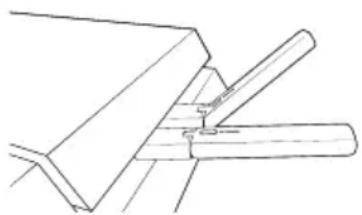
- If, during gameplay, you experience any latency or deactivation then please adjust your USB receivers in the way shown below:
natural_image
Technical line drawing of a mechanical assembly with no visible text or symbols
- The 'Mode Selection' switch on the back determines if the controller is working in PS4™ Normal Mode (Position 1) or PS4™ Advanced Mode (Position 2).
- The PC Advanced Mode (Position 3) allows you to switch your controller into the X-Input Mode for PC* use.
c. How to charge your controller
Your controller will charge the internal battery, in the following ways:
1/ When connected to the PS4 ^™ system as a wired controller
2/ When being used as a wireless controller and the cable is connected to the PS4 ^™ system. In this option the internal battery will 'trickle' charge as the battery is still being used to power the controller;
3/ When connected to the PS4 ^™ system, with the cable, as a wired or wireless controller but the controller is in 'Sleep' mode or 'Powered' off.
To check the battery level, in any mode simply press and hold the 'Mic mute' button on the underside of the controller (for more than 1 second). The profile LEDs will then light up, as described above. You can now release the mic mute button.
The profile LEDs will show you the battery level as below :
- 75% < Battery level ≤ 100%: 4 profile LEDs are ON
- 50% < Battery level ≤ 75%: 3 profile LEDs are ON (1st, 2nd and 3rd LEDs)
- 25% < Battery level ≤ 50%: 2 profile LEDs are ON (1st and 2nd LEDs)
- 10% < Battery level ≤ 25%: 1 profile LED is ON (1st LED)
- Battery level ≤ 10%: selected profile LED is flashing permanently
To preserve battery life please Power Off your controller after use. To do this press the 'PS' button until the Player LED turns off. To wake up the controller press the 'PS' button.
To preserve battery integrity, we recommend that you always re-charge when the LED is RED or is flashing RED.
Note: ensure that your USB ports, of your PS4 ^™ system, are still activated even when the system is in sleep mode. This way you can charge the controller.
d. How to use the headset controls of your controller?
On the underside of your controller you have 3x buttons that will function when a headset is connected to the controller:
- Volume UP: increase the sound volume of your headset.
- MUTE: Press to switch on the microphone mute. The profile LEDs will turn Red to show that the Mute is activated. Press the Mute button again to switch off the Mute feature.
- Volume DOWN: decrease the sound volume of your headset.
e. How to change the Joystick heads?
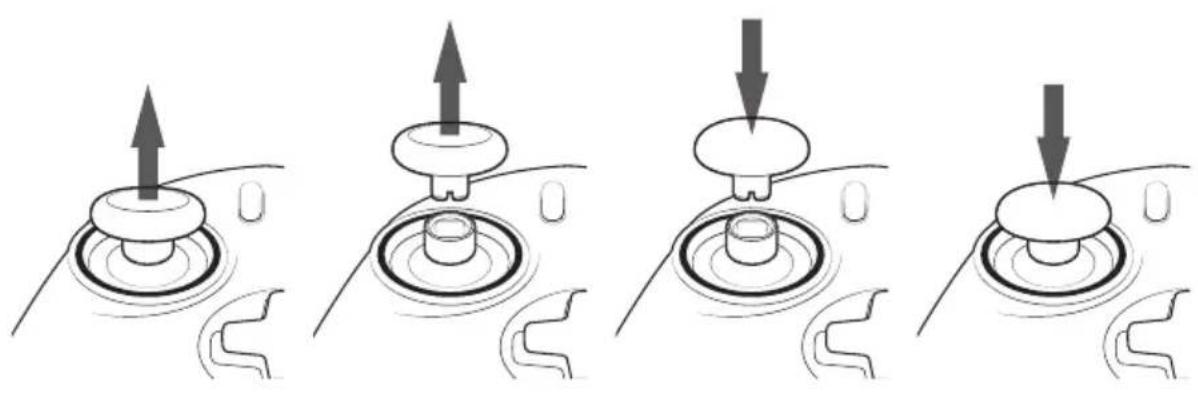
You have the possibility to change your joystick head and choose a concave or a convex shape. Take care when removing and replacing the joystick heads. Do not use too much force or they could become damaged.
To change the joystick head, you must:
- Remove the joystick head by pulling on it gently;
- Select your desired joystick head;
- Check the underside of the joystick head and match the shape with the shape in the top of the shaft. Press gently until you feel the joystick head 'click' in to position.
natural_image
Four-panel diagram showing a hand pressing down on a circular component, with arrows indicating upward and downward motion (no text or symbols)
Now you are able to use your controller with the new joystick head.
f. How to change the joystick shaft?
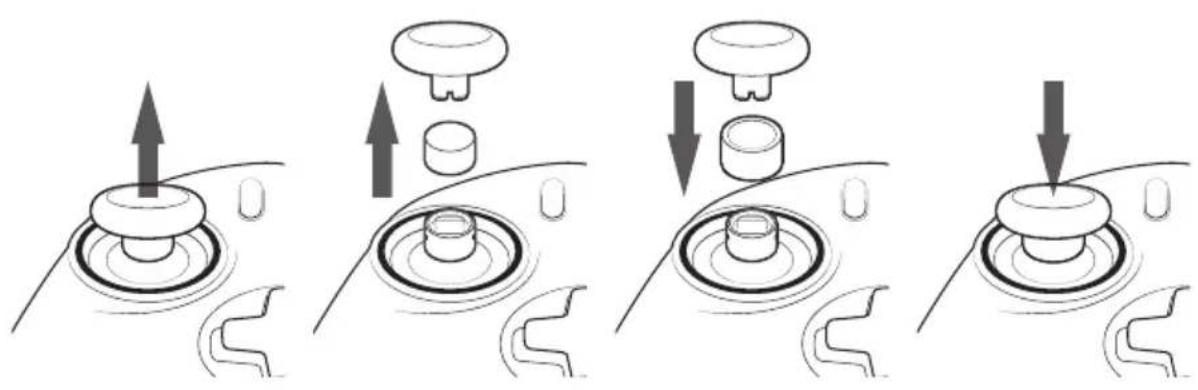
Changing the shaft on your left or right joystick allows you to get a more reactive or precise response on certain games. To change the joystick shaft, you must:
- Remove the joystick head by pulling on it gently;
- Remove the joystick shaft by pulling it;
- Put the desired joystick shaft in place;
- Fit the underside of the joystick head and match the shape with the shape in the top of the shaft. Press gently until you feel the joystick head 'click' in to position.
natural_image
Four-panel diagram showing a hand operating a mechanical knob with arrows indicating motion (no text or symbols)
2/ Mode 1: PS4 ^TM Normal mode
PS4 ^™ Normal mode is selected by moving the 'Mode' switch to position 1.
In this mode the controller supports the following features:
- Motion sensors
- Touch pad
- Dual vibrations
- 3.5mm headset jack
- PS, SHARE and OPTIONS buttons
- L1 and R1 shoulder buttons
- L2 and R2 analogue triggers
- Left stick with L3 button
- Right stick with R3 button
- 8-way directional pad
- Action buttons
- Shortcut buttons
You can remap any button (excluding PS, SHARE, OPTIONS and touch pad buttons) to the shortcut buttons as follows:
- Press and hold the Profile button for 3 seconds. The Blue halo around the right stick will pulse
- Press on the shortcut button you want to assign. The corresponding LED will turn ON. LED1 for S1 / LED2 for S2 / LED3 for S3 / LED4 for S4
- Then press on the button that you want to assign to the Shortcut button. The LED will flash 3 times to confirm the mapping is successful
- Press and hold the Profile button for 3 seconds to confirm and quit the remapping function
NOTE: The REVOLUTION Unlimited Pro Controller does not feature a built-in speaker or light bar.
3/ Mode 2: PS4 ^™ Advanced Mode (via PC/Mac companion app)
PS4 ^™ Advanced mode is selected by moving the 'Mode' switch to the position 2.
In this mode, in addition to supporting all the PS4™ Normal Mode features you can also personalise your settings. To do so you will need to download, and install, the PC / Mac companion app, which is compatible with Windows®7/8/10, macOS X 10.11 (El Capitan), macOS 10.12 (Sierra), macOS 10.13 (High Sierra) and macOS 10.14 (Mojave) operating systems. It can be downloaded at the following link: www.nacongaming.com
Once you have downloaded the companion app and launched it, follow the onscreen instructions for the installation (registration required to download the software).
After installing the PC / Mac companion app you will be able to do the following:
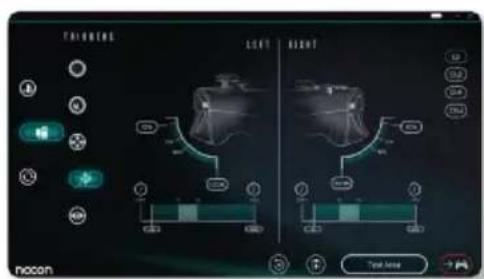
- Adjust the settings of the left and right sticks
- Reverse Y-axis of the sticks
- Select 4 or 8 way movement of the directional pad
- Re-map all buttons (excluding PS, SHARE, OPTIONS and touch pad buttons)
- Map buttons to the 4 x shortcut buttons
- Create and load up to 4 x custom profiles onto your controller, then switch between them during game play
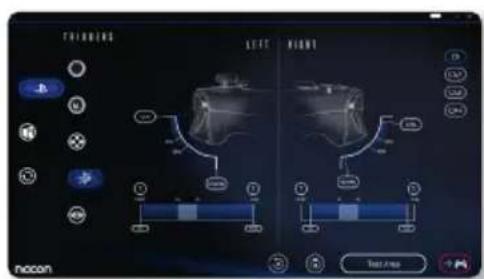
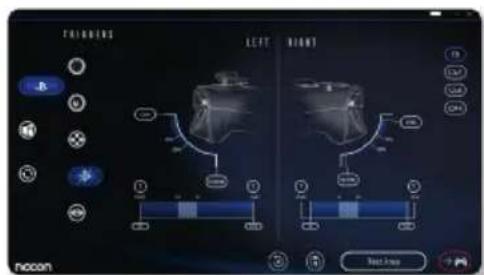
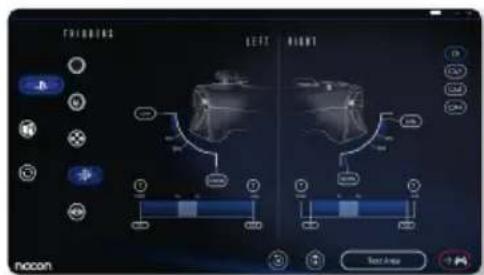
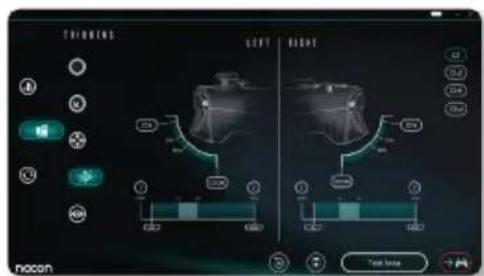
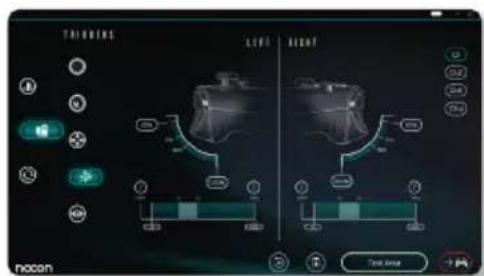
- Adjust the dead-band on the L2 and R2 triggers
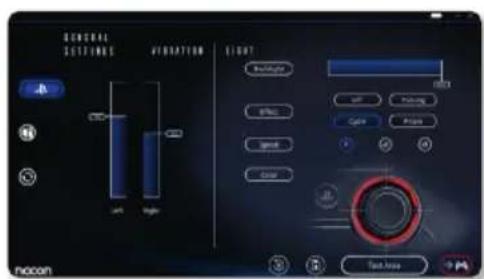
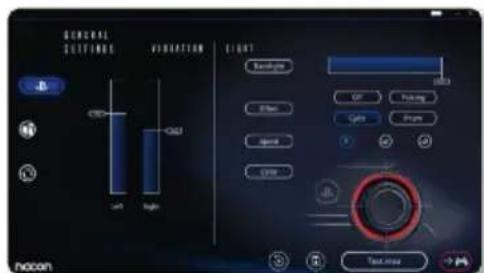
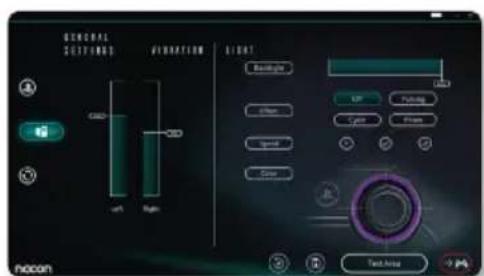
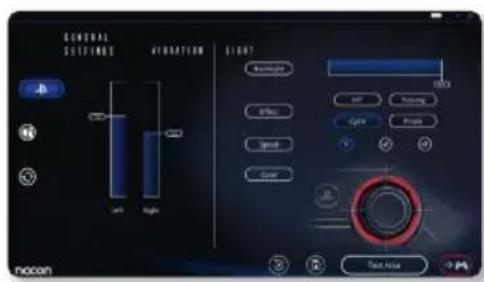
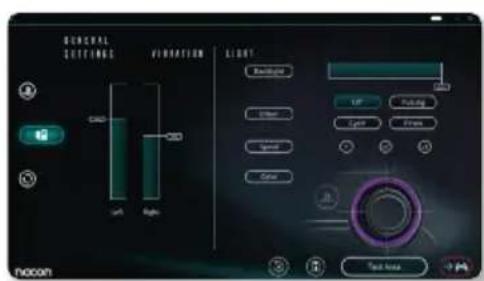
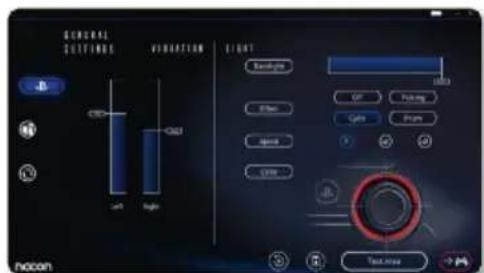
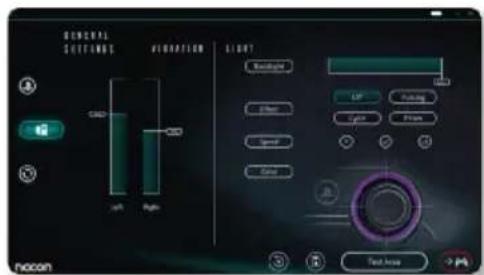
- Independently adjust the vibration intensity on the left and right-hand grips
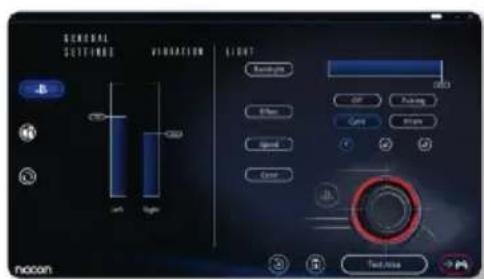
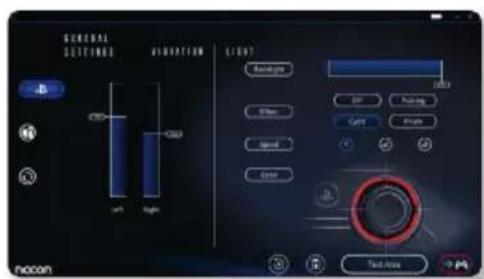
- Adjust the backlight around the right stick
4/ Mode 3: PC Advanced Mode\* (via PC/Mac companion app)
PC Advanced Mode is selected by moving the 'Mode' switch to position 3.
In this mode you can use your controller to play PC games. To do so you will need to download, and install, the PC / Mac companion app, which is compatible with Windows®7/8/10, macOS X 10.11 (El Capitan), macOS 10.12 (Sierra), macOS 10.13 (High Sierra) and macOS 10.14 (Mojave) operating systems. It can be downloaded at the following link: www.nacongaming.com
Once you have downloaded the companion app and launched it, follow the onscreen instructions for the installation (registration required to download the software).
After installing the PC / Mac companion app you will be able to do the following:
- Adjust the settings of the left and right sticks
- Reverse Y-axis of the sticks
- Re-map all buttons (excluding PS, SHARE, OPTIONS and touch pad buttons)
- Map buttons to the 4x shortcut buttons
- Select 4 or 8 way movement of the directional pad
- Create and load up to 4 x custom profiles onto your controller, then switch between them during game play
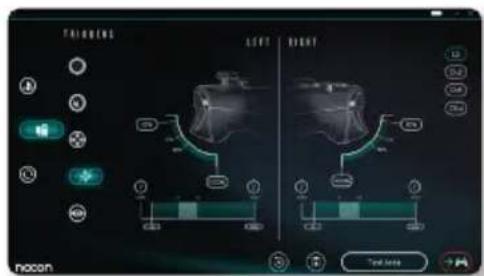
- Adjust the dead-band on the L2 and R2 triggers
- Independently adjust the vibration intensity on the left and right hand grips
- Adjust the backlight around the right stick
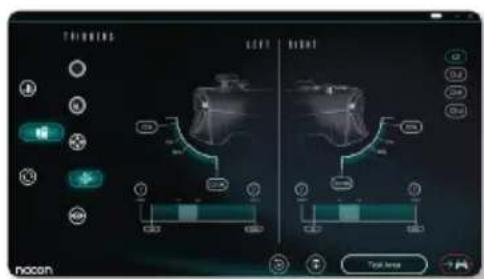
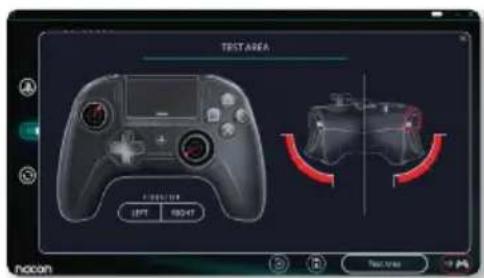
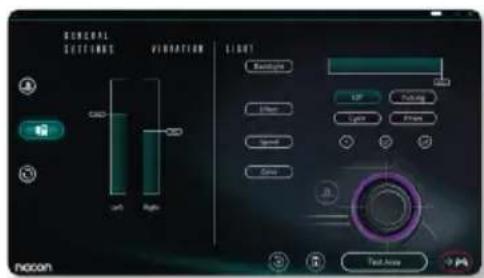
5/ PC / MAC companion app \*
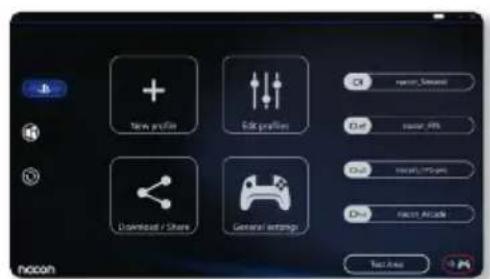
To access all the features of the 'Advanced mode' you will require the PC / Mac companion app*.
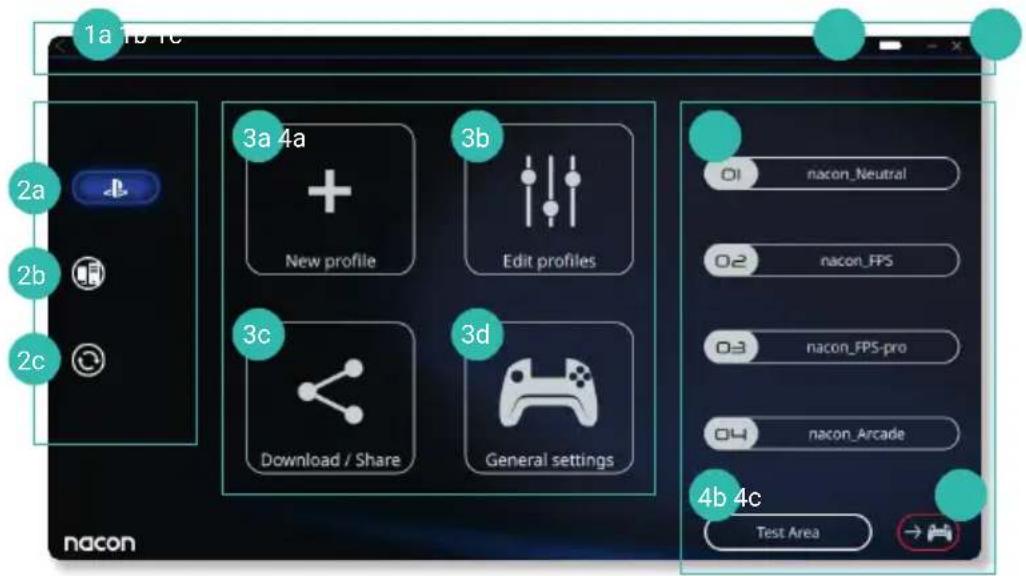
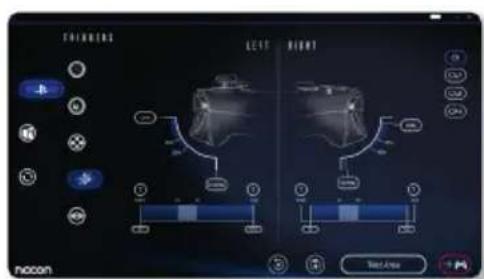
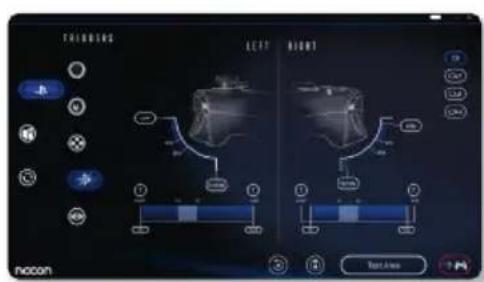
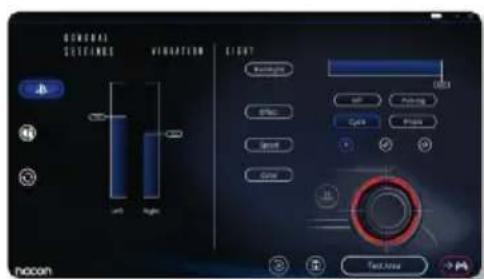
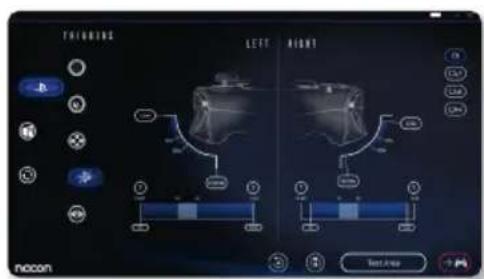
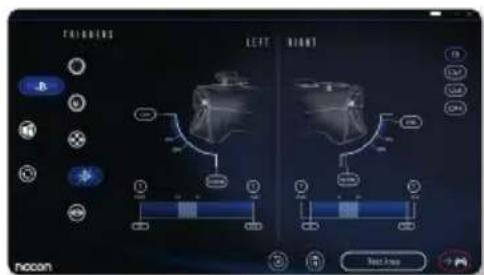
The main screen of the companion app will allow you to switch between the different settings.
a. Return to the main menu
b. Battery level indication
c. Minimise or close the companion app
2. Settings mode
a. PS4 ^™ Advanced Mode: modify the profiles for the PS4 ^™ Advanced Mode
b. PC Mode: modify the profiles for the PC Advanced Mode
c. Firmware, software and dongle updates: advises if a new firmware or software update is available
3. Functions
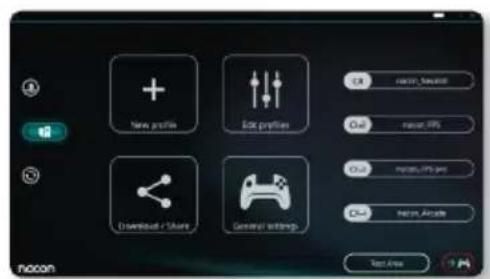
a. New profile: create a new profile and to select its position in the controller
b. Edit profiles: modify the setups of your controller
i. Left stick: change the response curve and the dead zone of the left stick, possibility to reverse the Y-axis
ii. Right stick: change the response curve and the dead zone of the right stick, possibility to reverse the Y-axis
iii. Mapping: define the mapping button of your controller and select 4 or 8 way movement of the directional pad
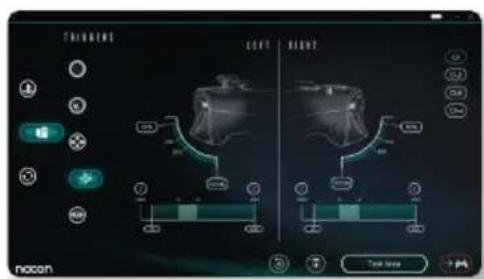
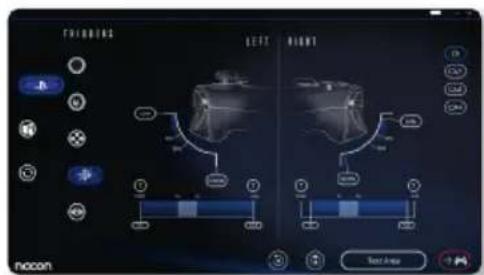
iv. Trigger: define the reactivity of the L2 and R2 triggers
v. Overview: show an overview of the selected profile
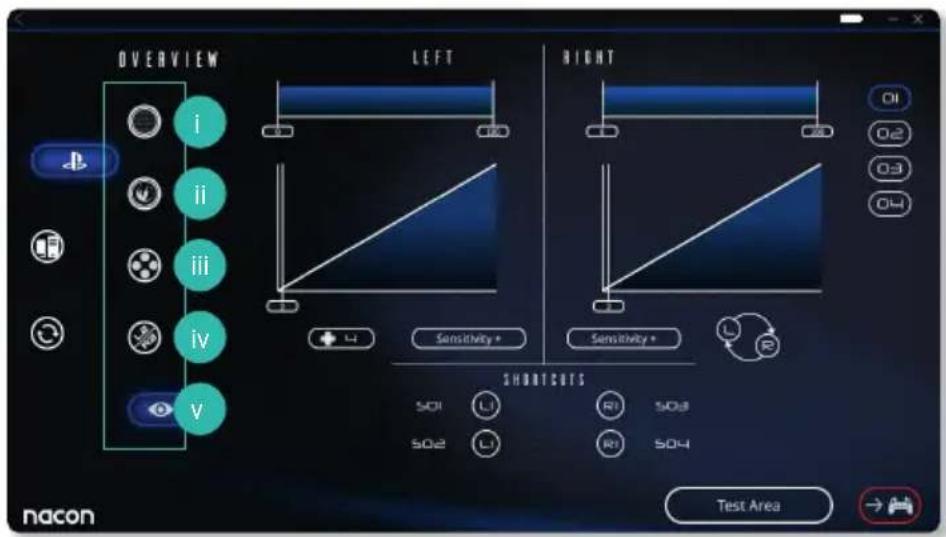
c. Download / Share: download NACON profiles or access to the community website
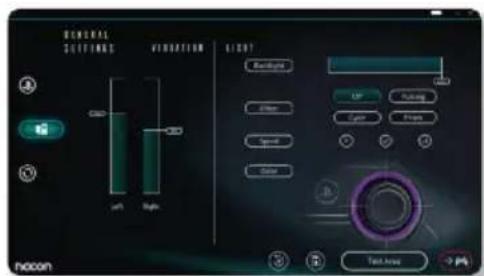
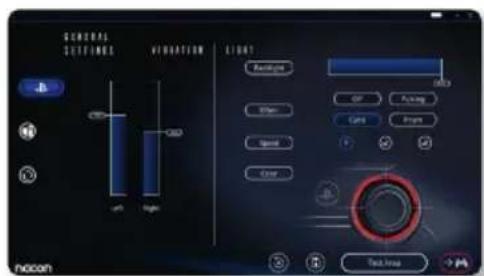
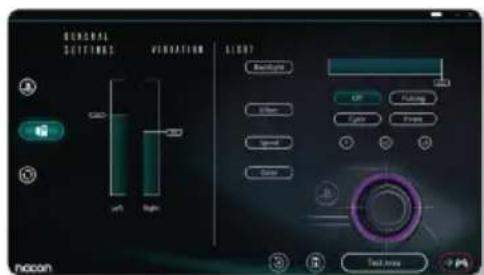
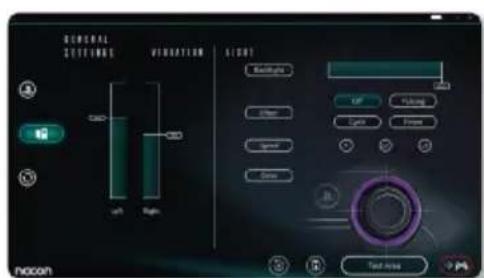
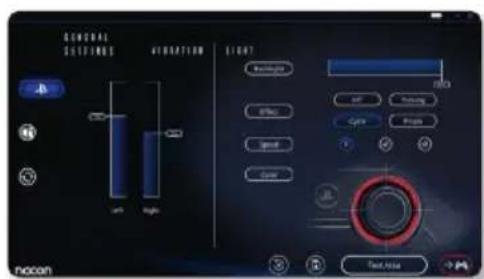
d. General settings: modify the vibration level and the light effect around the right stick
4. Controller profiles
a. Profiles: Displays the name of the profile stored in the controller for the current mode. You have the possibility to modify them directly or to download another profile stored on your computer
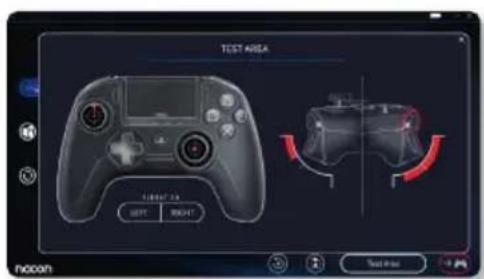
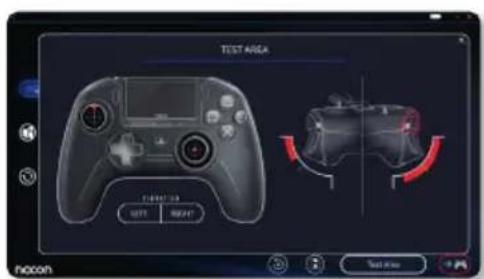
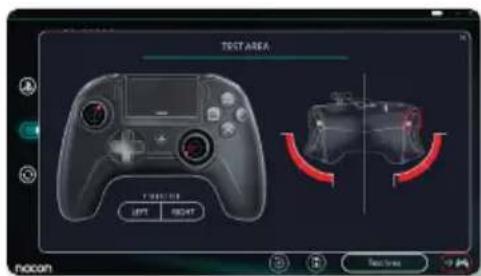
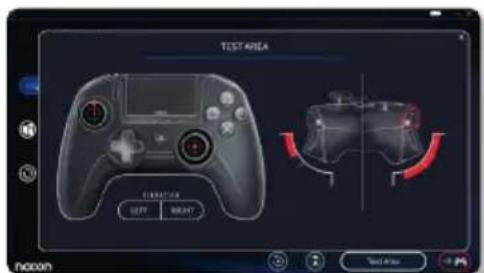
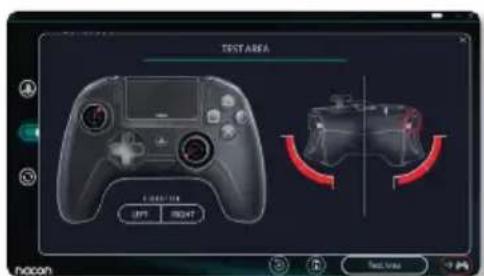
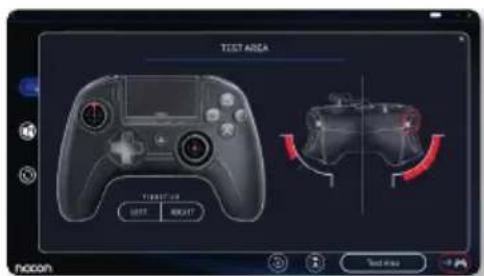
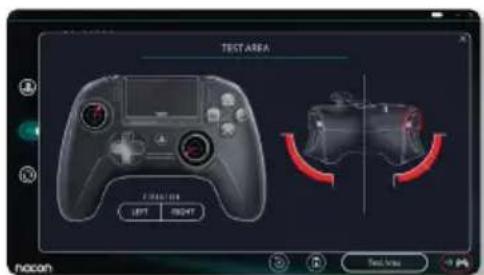
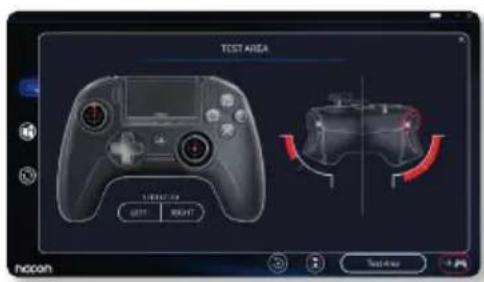
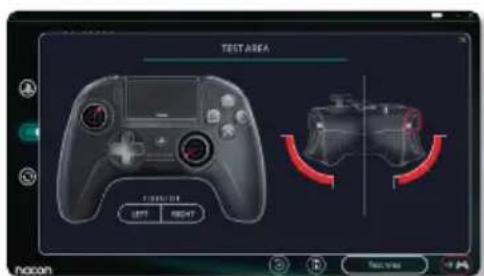
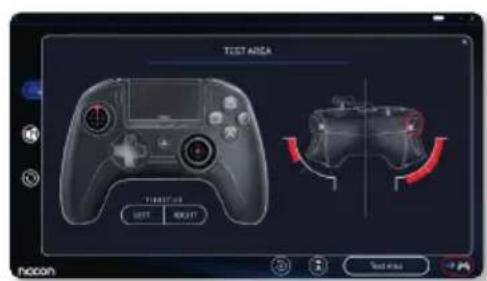
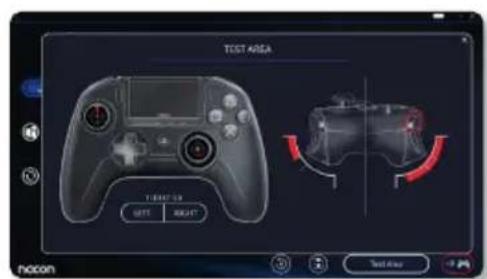
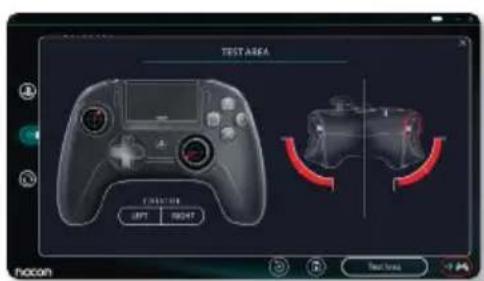
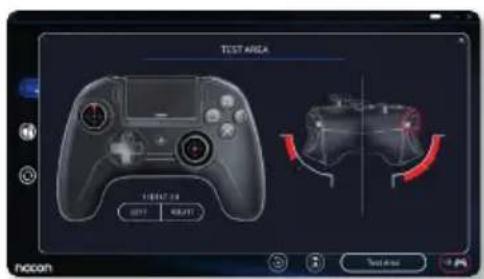
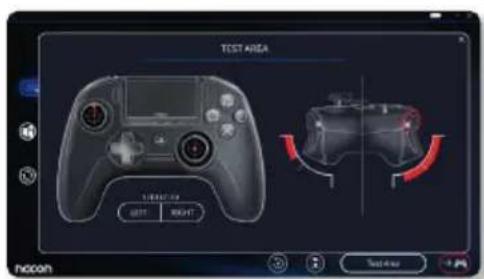
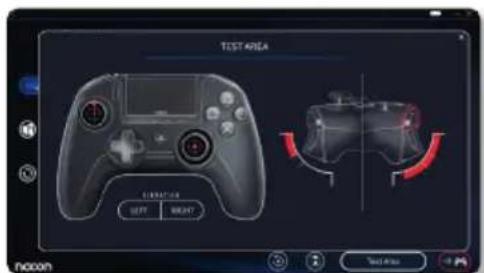
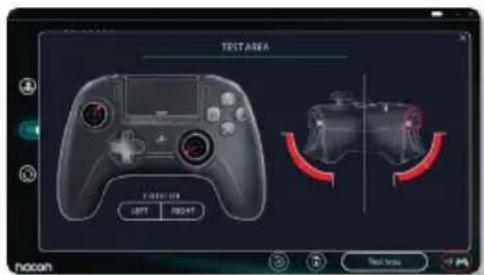
b. Test Area: displays a screen to test the settings of the profile selected on the controller
c. Activate profiles: sent the charged profiles to the controller
NOTE: The controller comes with 4x pre-loaded custom profiles to suit a range of games:
- Neutral (sticks like Normal Mode, L1/R1 & L2/R2 mapped to back buttons)
- FPS (right stick more responsive)
- FPS Pro (right stick highly responsive)
- Arcade (immediate stick response)
Recycling
This product should not be disposed of in normal household rubbish. Please take it to a nominated collection point. Recycling is important and will help to protect our environment reduced landfill waste. EU and Turkey only.
I Important Safeguards & Precautions
1/ This controller is for indoor use only. Never expose to direct sunlight or wet weather conditions.
2/ Do not expose the controller to splashing, dripping, rain or moisture. Do not immerse in liquid.
3/ Do not expose to dust, high humidity, high temperatures or mechanical shock.
4/ Do not use if the equipment is damaged.
5/ For external cleaning, use a soft, clean, damp cloth only. Use of detergents may damage the finish and leak inside.
6/ Never carry the product by its cable.
7/ This device is not designed to be used by anyone (including children) with impaired physical, sensory or mental capacity, or by anyone without appropriate experience or knowledge unless they have received prior guidance or instructions related to the use of this device from someone who is responsible for their safety. Do not leave the REVOLUTION Unlimited Pro Controller unattended, keep this device out of the reach of children.
Ergonomics
Holding your hand in the same position for a long period of time can lead to aching and pain. If this occurs repeatedly please consult your doctor. As a preventive measure, we recommend that you take a 15-minute break every hour.
Email: support@nacongaming.com
Website: www.nacongaming.com
natural_image
Line drawing of a game controller with two side buttons and directional arrows indicating left and right sides (no text or symbols)
natural_image
Front view diagram of a game controller with two buttons and control buttons (no text or symbols)
natural_image
Line drawing of a game controller with front and back views (no text or symbols)
natural_image
Line drawing of a game controller with two side buttons and directional arrows indicating left and right sides (no text or symbols)
REMARQUES :
natural_image
Technical line drawing of a mechanical joint or bracket (no text or symbols)
natural_image
Technical line drawing of a mechanical joint or bracket assembly (no text or symbols)
natural_image
Four sequential diagrams showing a hand pressing a circular component with arrows indicating upward and downward motion (no text or symbols)
natural_image
Four-step diagram showing a hand turning a knob with arrows indicating motion (no text or symbols)
2/ Mode 1 : Mode PS4™ Normal
4/ Mode 3 : Mode PC Advanced\* (via l'application PC/Mac)

5/ Application PC / Mac \*
Adresse e-mail : support.fr@nacongaming.com
Site Internet : www.nacongaming.com
natural_image
Simple line drawing of a laboratory pipette with a labeled end (no text or symbols on the object itself)
DE/
natural_image
Line drawing of a game controller with two side buttons and directional arrows indicating left and right sides (no text or symbols)
natural_image
Line drawing of a game controller head with two buttons and control buttons (no text or symbols)
natural_image
Line drawing of a game controller with front and back panels (no text or symbols)
natural_image
Line drawing of a game controller with two directional arrows indicating left and right sides (no text or symbols)
natural_image
Diagram showing a game controller connected to a CD-ROM via cable and screwdriver, with an analog PC shown below (no text or symbols)
HINWEISE:
natural_image
Technical line drawing of a mechanical component with no visible text or symbols
natural_image
Technical line drawing of a mechanical joint or bracket assembly (no text or symbols)
natural_image
Four sequential diagrams showing a mechanical or fluidic device with upward and downward arrows indicating motion (no text or symbols)
natural_image
Four-step diagram showing a hand turning a knob with arrows indicating motion (no text or symbols)
2/ Modus 1: Normalmodus PS4 ^™
5/ PC/MAC Companion App \*
Website: www.nacongaming.com
Description of elements

natural_image
Line drawing of a game controller with two side buttons and directional arrows indicating left and right sides (no text or symbols)
natural_image
Line drawing of a game controller head with two buttons and control buttons (no text or symbols)
natural_image
Line drawing of a game controller with front and back views (no text or symbols)
natural_image
Line drawing of a game controller with two side buttons and directional arrows indicating left and right control points (no text or symbols)
OPMERKINGEN:
natural_image
Empty rectangular frame with black border on white background (no text or symbols)
OPMERKINGEN:
natural_image
Technical line drawing of a mechanical joint or bracket (no text or symbols)
natural_image
Four sequential diagrams showing a mechanical or fluidic device with upward and downward arrows indicating motion (no text or symbols)
natural_image
Four-step diagram showing a hand turning a knob with arrows indicating motion (no text or symbols)
2/ Stand 1: Normale PS4™-stand
5/ PC/MAC Companion app \*
Website: www.nacongaming.com
www.nacongaming.com/support/
Contenido
natural_image
Line drawing of a game controller with two side buttons and directional arrows indicating left and right sides (no text or symbols)
natural_image
Line drawing of a game controller head with two buttons and control buttons (no text or symbols)
natural_image
Line drawing of a game controller with front and back views (no text or symbols)
natural_image
Line drawing of a game controller with two directional arrows indicating left and right sides (no text or symbols)
1/ Cómo usar el REVOLUTION Unlimited Pro Controller
natural_image
Diagram showing a game controller connected to a device via cable and screwdriver (no text or symbols)
ATENCIÓN:
natural_image
Technical line drawing of a mechanical assembly with no visible text or symbols
natural_image
Technical line drawing of a mechanical joint or bracket (no text or symbols)
natural_image
Four sequential diagrams showing a mechanical or fluidic device with upward and downward arrows indicating motion, no text or symbols present.
natural_image
Four-step diagram showing a hand turning a knob with arrows indicating motion (no text or symbols)
2/ Modo 1: modo normal para PS4™

Email: support.es@nacongaming.com
Página web: www.nacongaming.com
natural_image
Line drawing of a game controller with two side buttons and directional arrows indicating left and right sides (no text or symbols)
natural_image
Line drawing of a game controller head with two side buttons and control buttons (no text or symbols)
natural_image
Line drawing of a game controller with front and back panels (no text or symbols)
natural_image
Line drawing of a game controller with two side buttons and directional arrows indicating left and right sides (no text or symbols)
natural_image
Diagram showing a game controller connected to a device via cable, with an upward and downward arrow indicating assembly or connection (no text or symbols present)
NOTE:
natural_image
Technical line drawing of a mechanical component with no visible text or symbols
natural_image
Technical line drawing of a mechanical joint or bracket (no text or symbols)
natural_image
Four sequential diagrams showing a mechanical or fluidic device with upward and downward arrows indicating motion (no text or symbols)
natural_image
Four-panel diagram showing a hand operating a circular device with arrows indicating motion or movement (no text or symbols)


5/ Companion app per PC/Mac \*
Sito Web: www.nacongaming.com
Obrigado por comprar o NACON REVOLUTION Unlimited Pro Controller
natural_image
Line drawing of a game controller with two side buttons and directional arrows indicating left and right sides (no text or symbols)
natural_image
Line drawing of a game controller head with two buttons and control buttons (no text or symbols)
natural_image
Line drawing of a game controller with front and back panels (no text or symbols)
natural_image
Line drawing of a game controller with two side buttons and directional arrows indicating left and right sides (no text or symbols)
1/ Como usar o REVOLUTION Unlimited Pro Controller
NOTAS:
natural_image
Technical line drawing of a mechanical joint or bracket (no text or symbols)
natural_image
Technical line drawing of a mechanical joint or bracket assembly (no text or symbols)
natural_image
Four sequential diagrams showing a mechanical or fluidic device with upward and downward arrows indicating motion (no text or symbols)
natural_image
Four-step diagram showing a hand turning a knob with arrows indicating motion (no text or symbols)
2/ Modo 1: modo PS4™ Normal
Email: support@nacongaming.com
Website: www.nacongaming.com
www.nacongaming.com/support/
Content
1 REVOLUTION Unlimited Pro Controller
natural_image
Line drawing of a game controller with two side buttons and directional arrows indicating left and right sides (no text or symbols)
natural_image
Line drawing of a game controller head with two side buttons and control buttons (no text or symbols)
natural_image
Line drawing of a game controller with front and back panels (no text or symbols)
natural_image
Line drawing of a game controller with two side buttons and directional arrows indicating left and right sides (no text or symbols)
1/ Korzystanie z kontrolera „ REVOLUTION Unlimited Pro Controller”
natural_image
Diagram showing a game controller connected to a CD via USB cable, with an analog game controller below (no text or symbols)
natural_image
Technical line drawing of a mechanical assembly with no visible text or symbols
natural_image
Technical line drawing of a mechanical joint or bracket assembly (no text or symbols)
natural_image
Four sequential diagrams showing a mechanical or fluidic device with upward and downward arrows indicating motion (no text or symbols)
natural_image
Four-panel diagram showing a hand operating a knob with arrows indicating movement or force (no text or symbols)
2/ Tryb 1: PS4 ^TM Normal
natural_image
Line drawing of a game controller with two side buttons and directional arrows indicating left and right sides (no text or symbols)
natural_image
Line drawing of a game controller head with two side buttons and control buttons (no text or symbols)
natural_image
Line drawing of a game controller with front and back panels (no text or symbols)
natural_image
Line drawing of a game controller with two directional arrows indicating left and right sides (no text or symbols)
natural_image
Diagram showing a game controller connected to a CD-ROM via cable and screwdriver, with no text or symbols present.
ПРИМЕЧАНИЯ:
natural_image
Technical line drawing of a mechanical joint or bracket (no text or symbols)
natural_image
Technical line drawing of a mechanical joint or bracket assembly (no text or symbols)
natural_image
Four sequential diagrams showing a mechanical component with upward and downward arrows indicating motion, no text or symbols present.
natural_image
Four-step diagram showing a hand turning a knob with arrows indicating motion (no text or symbols)
2/ Режим 1: Режим PS4™ Normal
natural_image
Line drawing of a game controller with two side buttons and directional arrows indicating left and right sides (no text or symbols)
natural_image
Line drawing of a game controller head with two side buttons and control buttons (no text or symbols)
natural_image
Line drawing of a game controller with front and back panels (no text or symbols)
natural_image
Line drawing of a game controller with two side buttons and directional arrows indicating left and right sides (no text or symbols)
natural_image
Diagram showing a device being inserted into a game controller, with no text or symbols present.
POZNÁMKY:
natural_image
Technical line drawing of a mechanical joint or bracket assembly (no text or symbols)
natural_image
Technical line drawing of a mechanical joint or bracket assembly (no text or symbols)
natural_image
Four sequential diagrams showing a mechanical or fluidic device with upward and downward arrows indicating motion (no text or symbols)
natural_image
Four-panel diagram showing a hand operating a knob with arrows indicating movement, no text or symbols present.
Web: www.nacongaming.com
natural_image
Line drawing of a game controller with two side buttons and directional arrows indicating left and right sides (no text or symbols)
natural_image
Line drawing of a game controller head with two side buttons and control buttons (no text or symbols)
natural_image
Line drawing of a game controller with front and back panels (no text or symbols)
natural_image
Line drawing of a game controller with two side buttons and directional arrows indicating left and right sides (no text or symbols)
natural_image
Diagram showing a game controller connected to a device via cable, with an arrow indicating the cable's direction (no text or symbols present)
POZNÁMKY:
natural_image
Technical line drawing of a mechanical component with no visible text or symbols
natural_image
Pure technical line drawing of a mechanical component without any text, numbers, or symbols
natural_image
Four sequential diagrams showing a mechanical or fluidic device with upward and downward arrows indicating motion (no text or symbols)
natural_image
Four-step diagram showing mechanical assembly or assembly process with arrows indicating direction (no text or symbols)
natural_image
Abstract black and white circular logo with stylized bird-like shape (no text or symbols)
nacon
WWW.NA CONGAMING.COM

@NaconGaming
fNacongaming
Icon International