
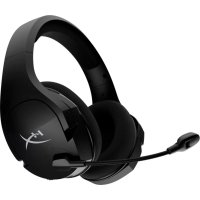
Cloud Flight S - Headphones HYPERX - Free user manual and instructions
Find the device manual for free Cloud Flight S HYPERX in PDF.
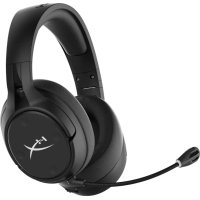



| Product Type | Wireless Audio Headset |
| Brand | HyperX |
| Model | Cloud Flight S |
| Connection Type | 2.4 GHz Wireless via USB Adapter |
| Wireless Range | Up to 20 m |
| Speakers | Dynamic, 50 mm with neodymium magnets |
| Frequency Response (Headset) | 10 Hz - 20 kHz |
| Impedance | 32 Ω |
| Sound Pressure Level | 99.5 dB SPL/mW at 1 kHz |
| Total Harmonic Distortion | Less than 1% |
| Microphone | Electret Condenser, Detachable |
| Microphone Polar Pattern | Bidirectional with Noise Cancellation |
| Frequency Response (Microphone) | 50 Hz - 18 kHz |
| Microphone Sensitivity | -40.5 dBV (1 V/Pa at 1 kHz) |
| Battery Life | 30 hours (tested at 50% volume) |
| Battery Type | Rechargeable Lithium-Ion |
| Wireless Charging | Yes, Qi-compatible |
| Wired Charging | Via included USB cable (1 m) |
| Weight (without microphone) | 310 g |
| Weight (with microphone) | 320 g |
| Surround Sound | 7.1 Virtual (on/off) |
| Software Features | HyperX NGENUITY: EQ profiles, programmable buttons, battery status |
| Compatibility | PC, PlayStation 4 |
| Box Contents | Headset, detachable microphone, wireless USB adapter, USB cable |
| Care and Cleaning | Clean with a soft, dry cloth. Avoid liquids. |
| Safety | Avoid prolonged exposure to high sound levels. |
Frequently Asked Questions - Cloud Flight S HYPERX
User questions about Cloud Flight S HYPERX
0 question about this device. Answer the ones you know or ask your own.
Ask a new question about this device
Download the instructions for your Headphones in PDF format for free! Find your manual Cloud Flight S - HYPERX and take your electronic device back in hand. On this page are published all the documents necessary for the use of your device. Cloud Flight S by HYPERX.
USER MANUAL Cloud Flight S HYPERX
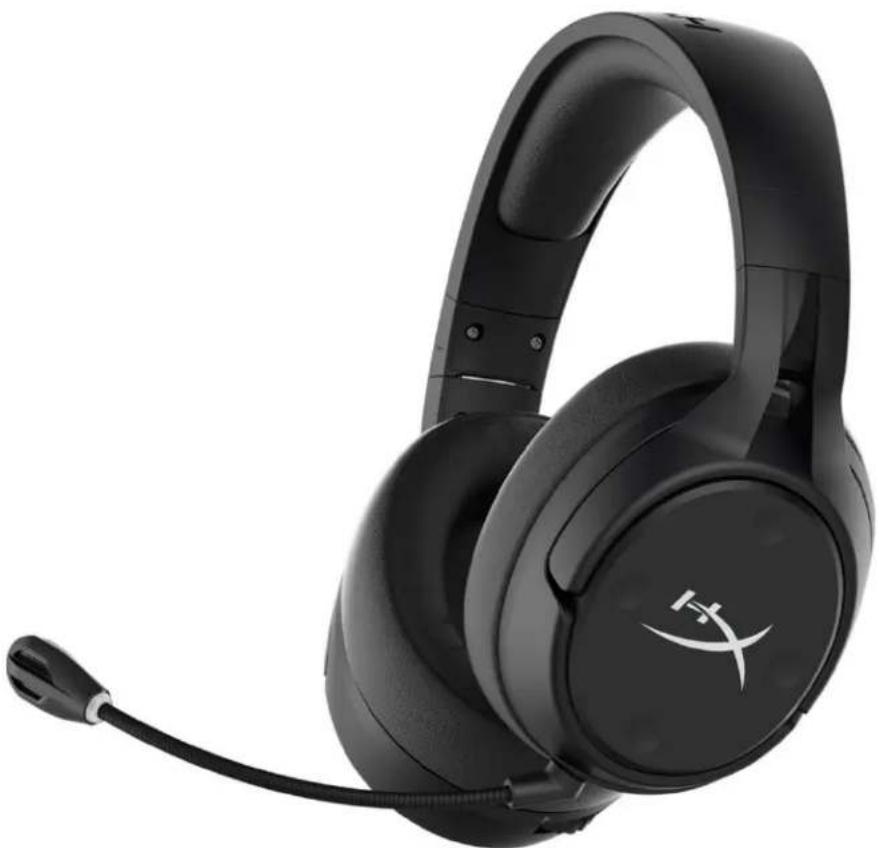
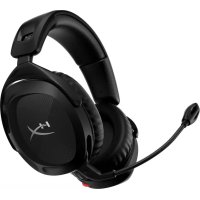
HyperX Cloud Flight S
Find the language and latest documentation for your HyperX Cloud Flight S here.
HyperX Cloud Flight S Installation Guide
For instructions in English, Spanish, German, French, Italian, Portuguese, Polish, Russian, Turkish, Japanese, Korean, Thai, and Vietnamese.
Simplified Chinese ..... 简体中文说明书
Traditional Chinese ....繁體中文說明
Part Numbers
HX-HSCFS-SG/WW
TABLE OF CONTENTS
Overview....3
Specifications 4
Setting up with PC 5
Setting up with Discord....9
Setting up with PlayStation 4 .... 10
Controls....11
Mic monitoring toggle....11
Game/Chat balance 11
Microphone mute toggle....11
Status LED 12
Power button....12
7.1 Surround Sound * ..... 12
Volume Wheel....13
Charging the Headset.... 14
Qi wireless charging 14
Wired charging 14
HyperX NGENUITY Software 15
Overview
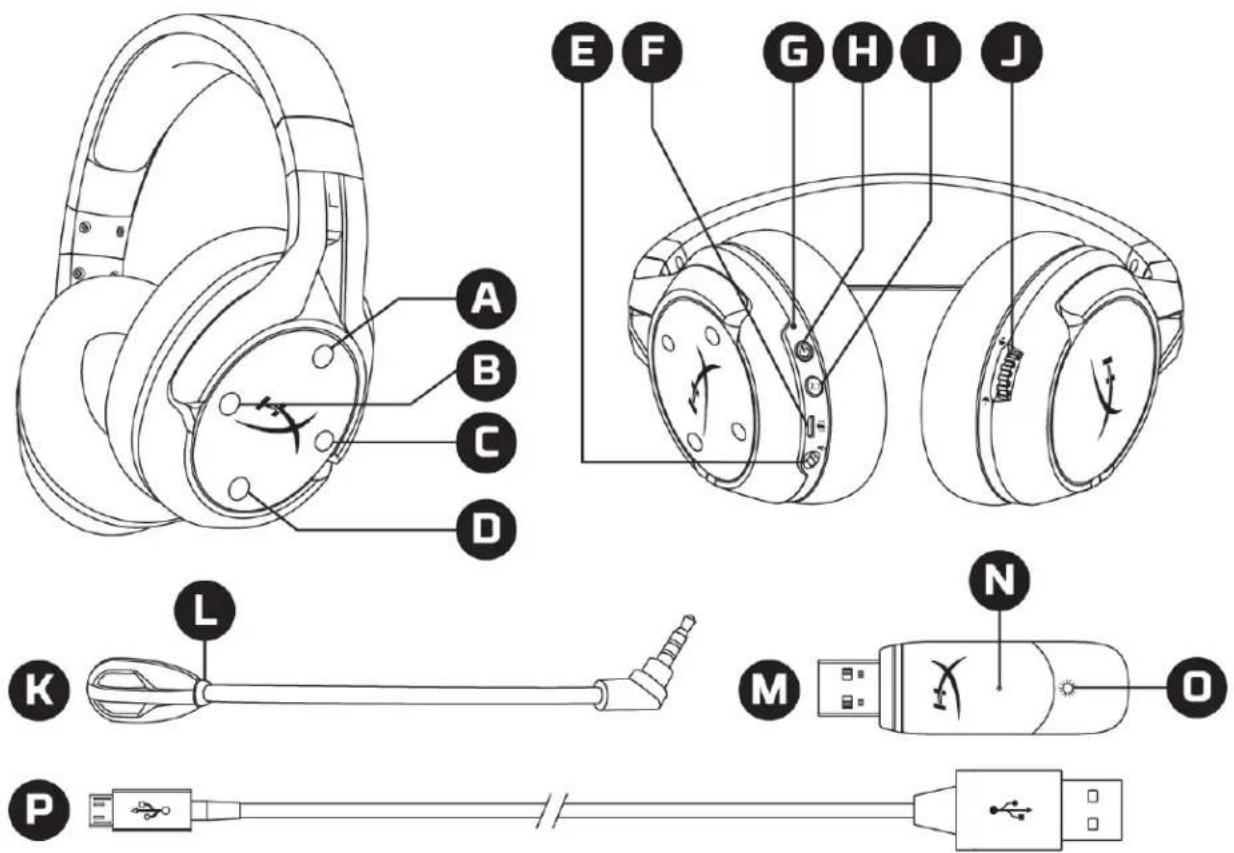
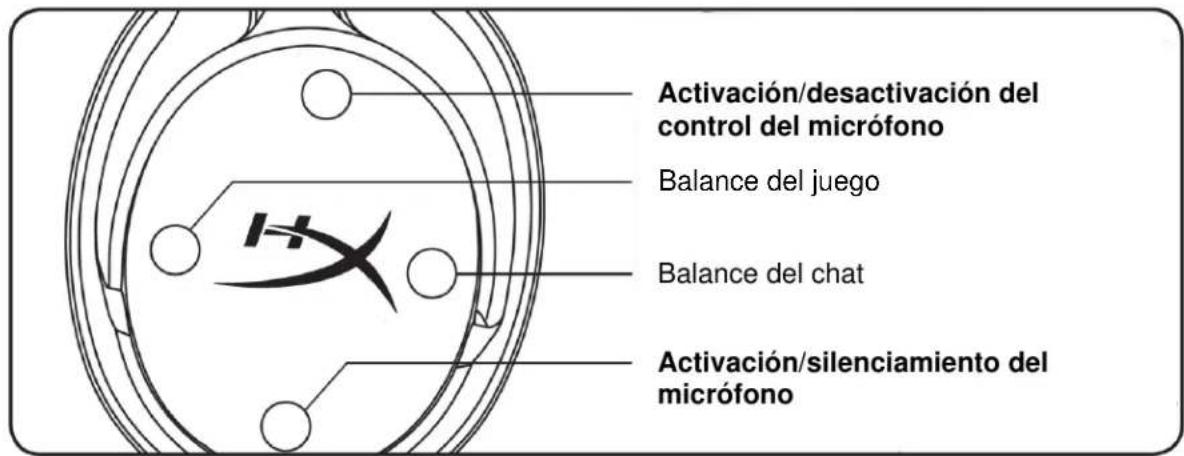
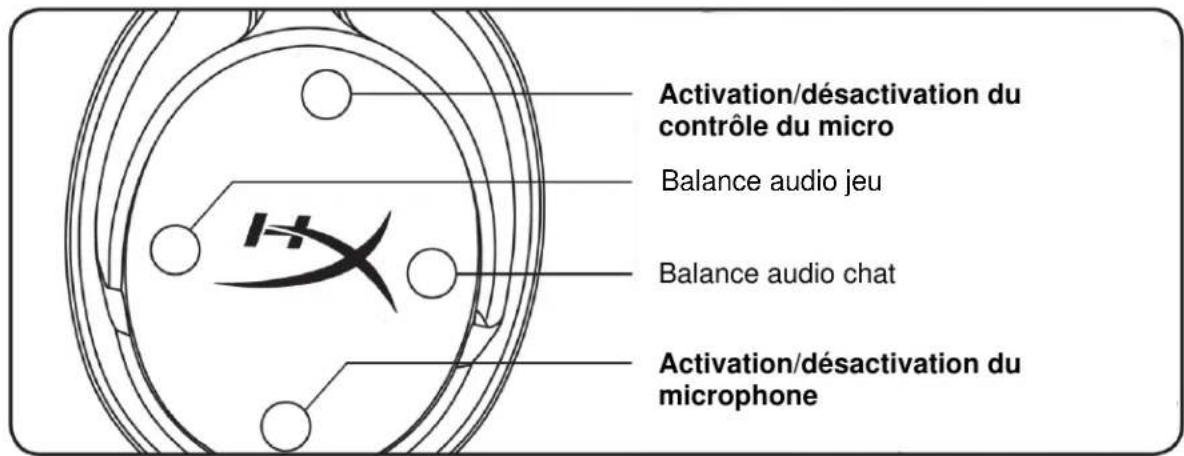
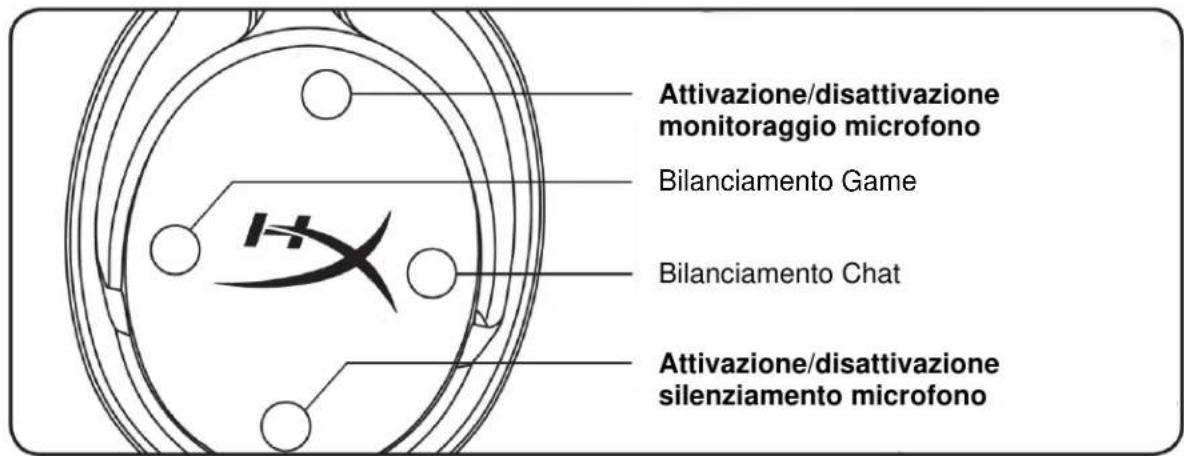
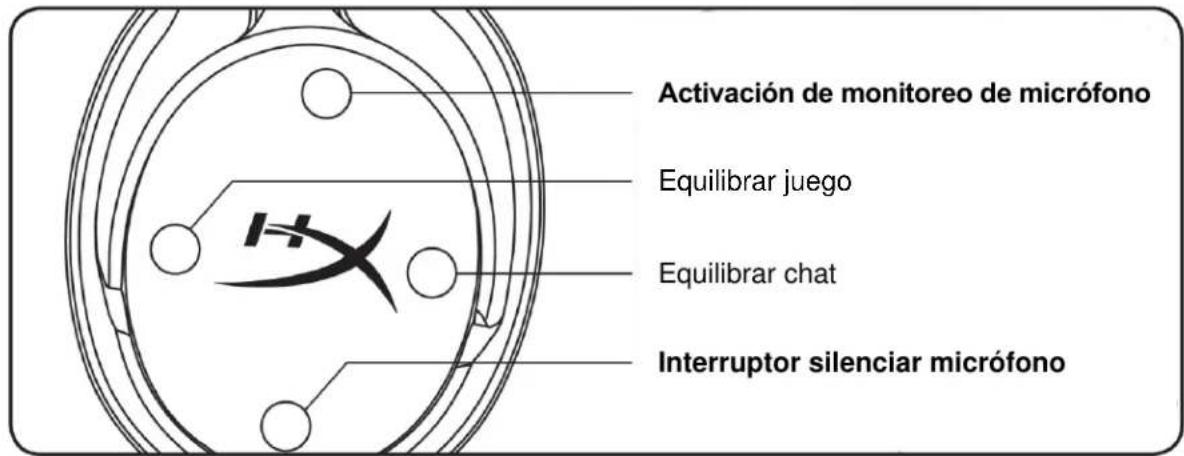
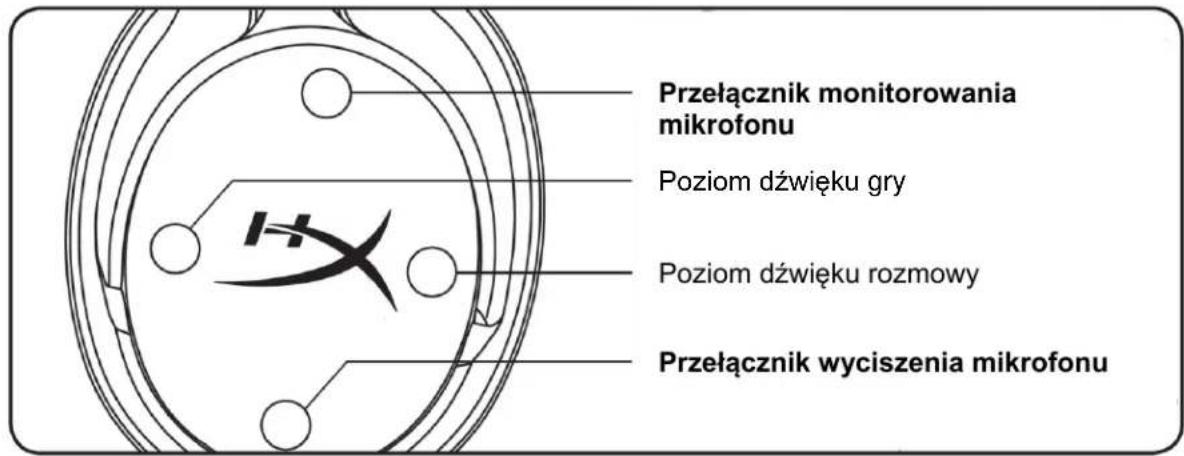
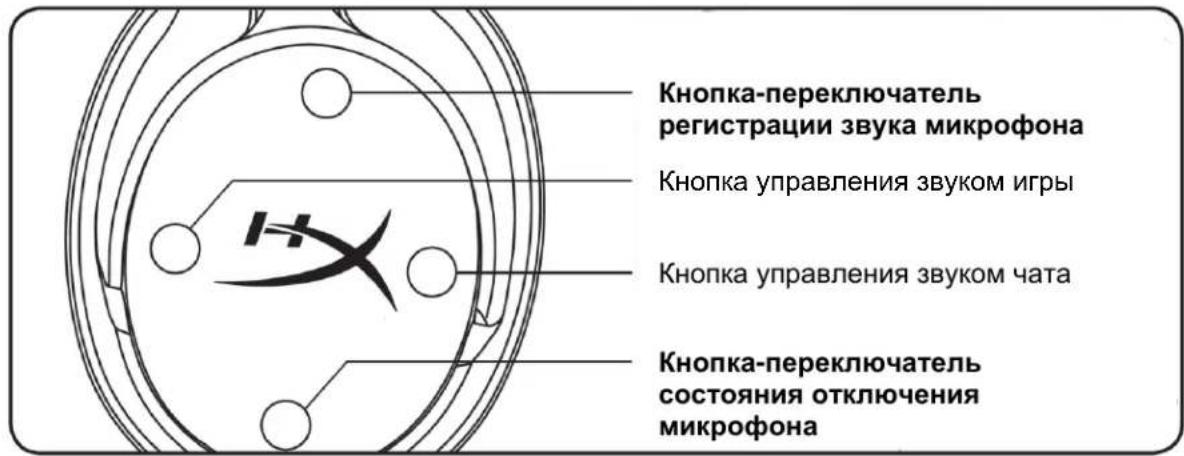
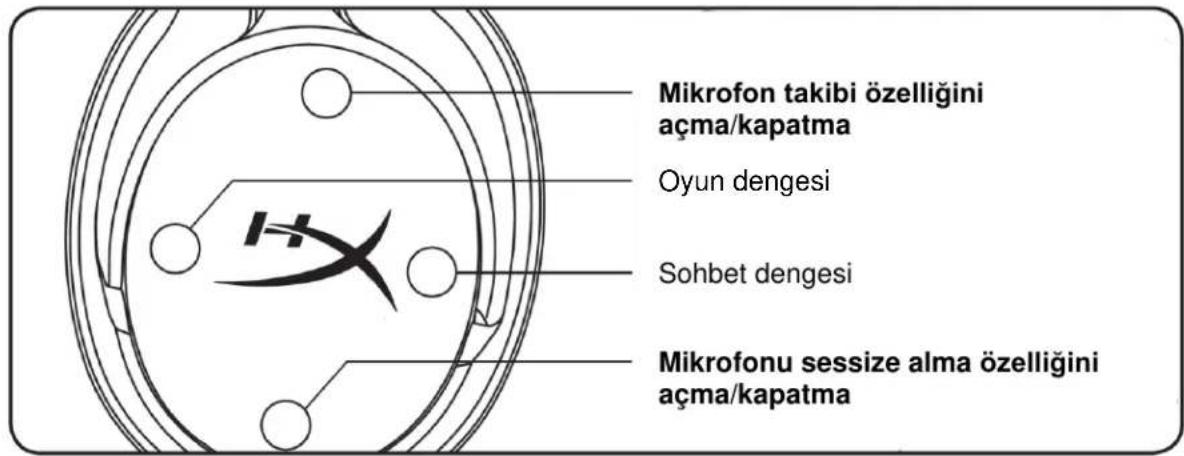
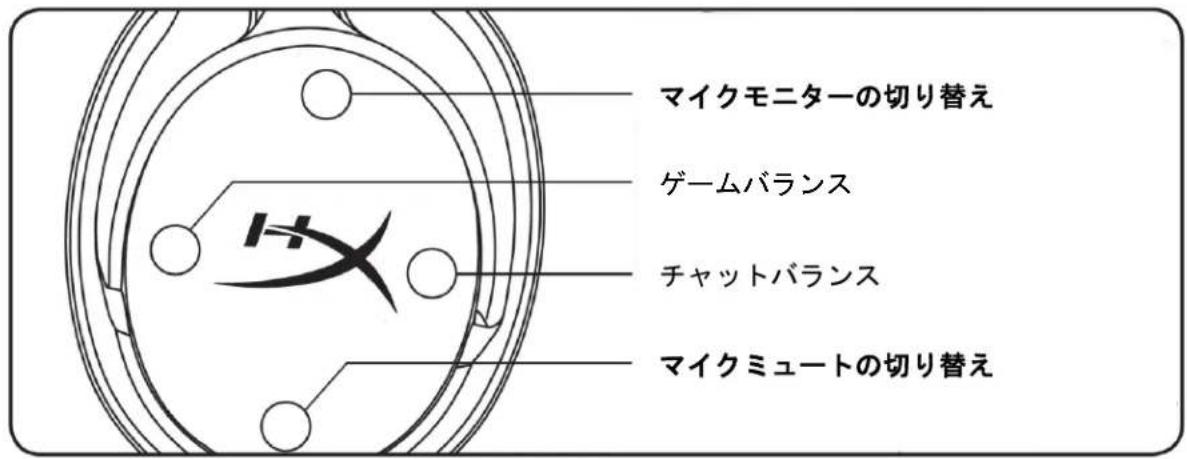
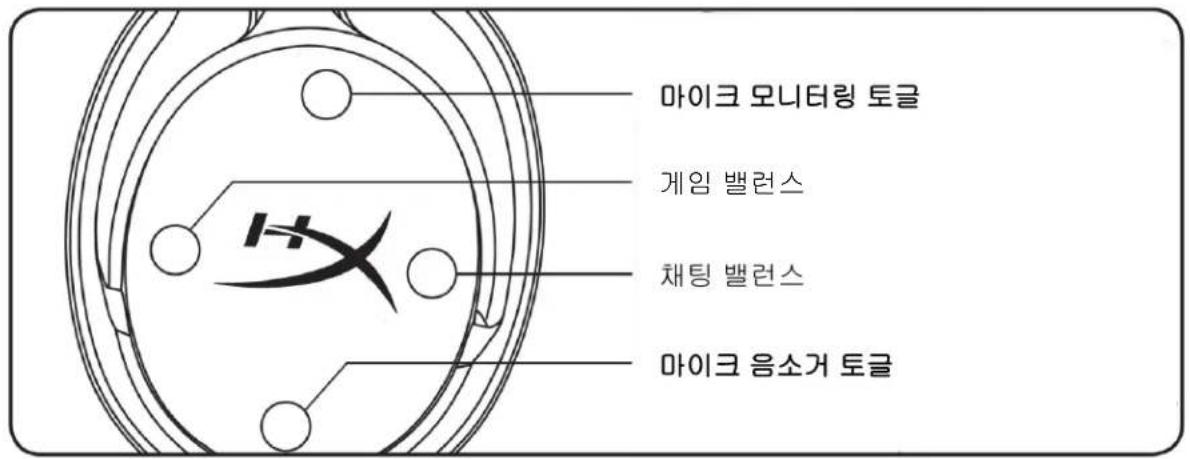
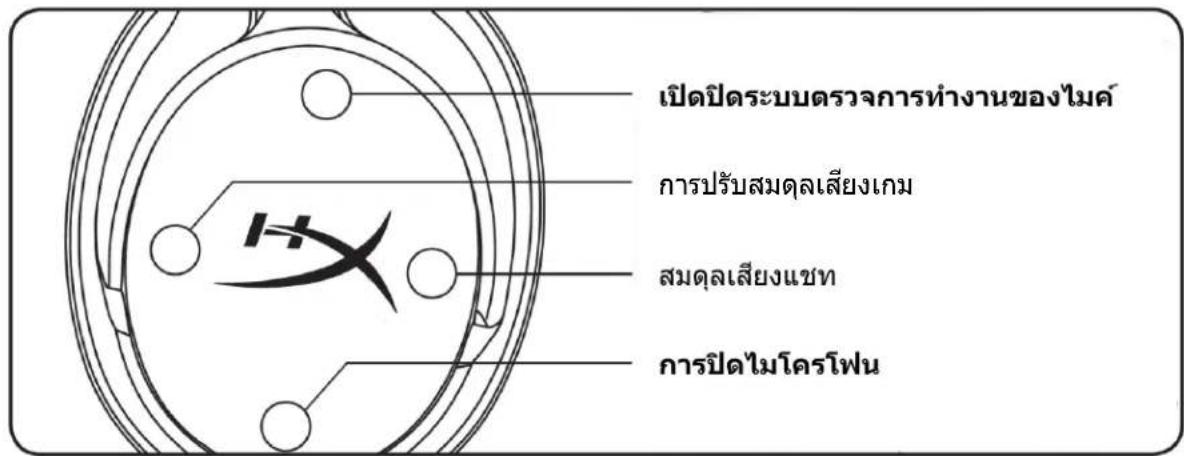
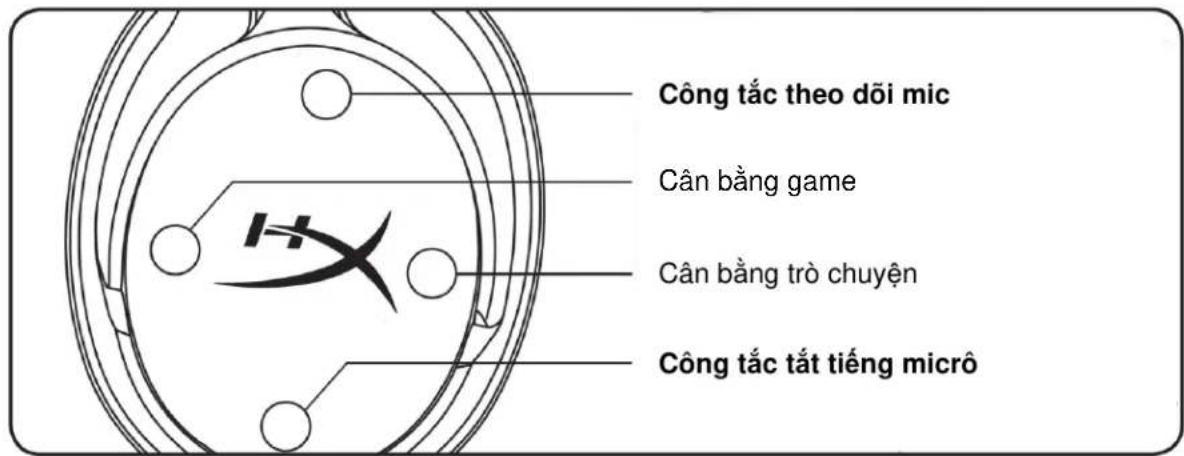
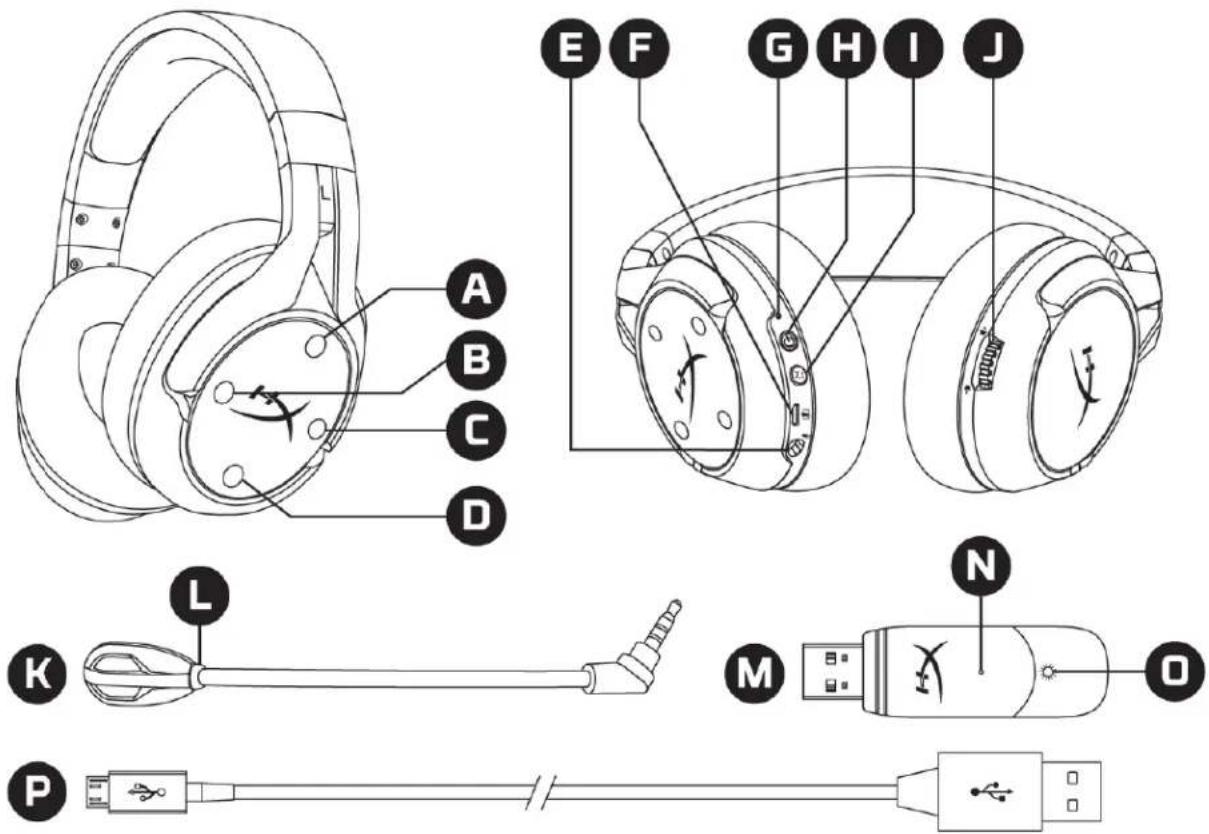
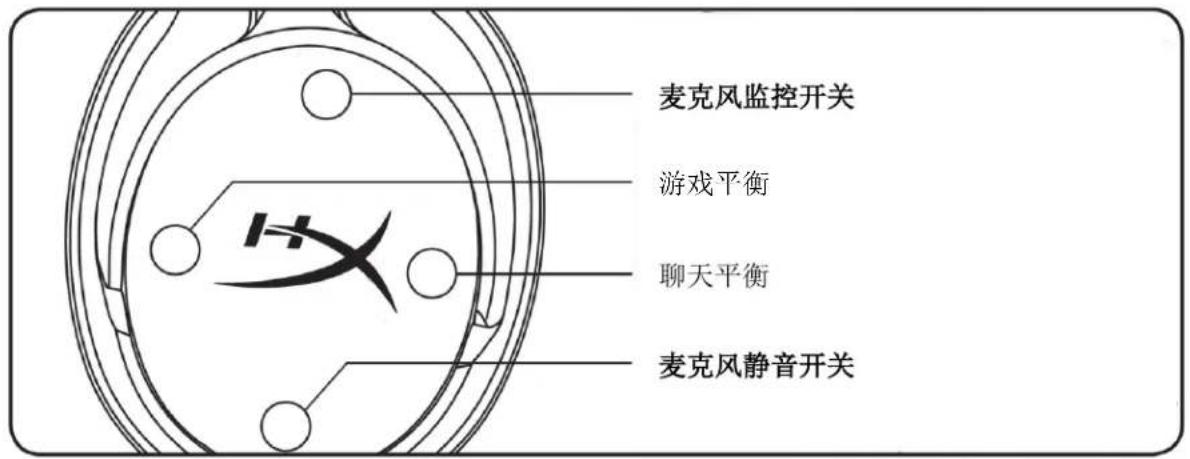
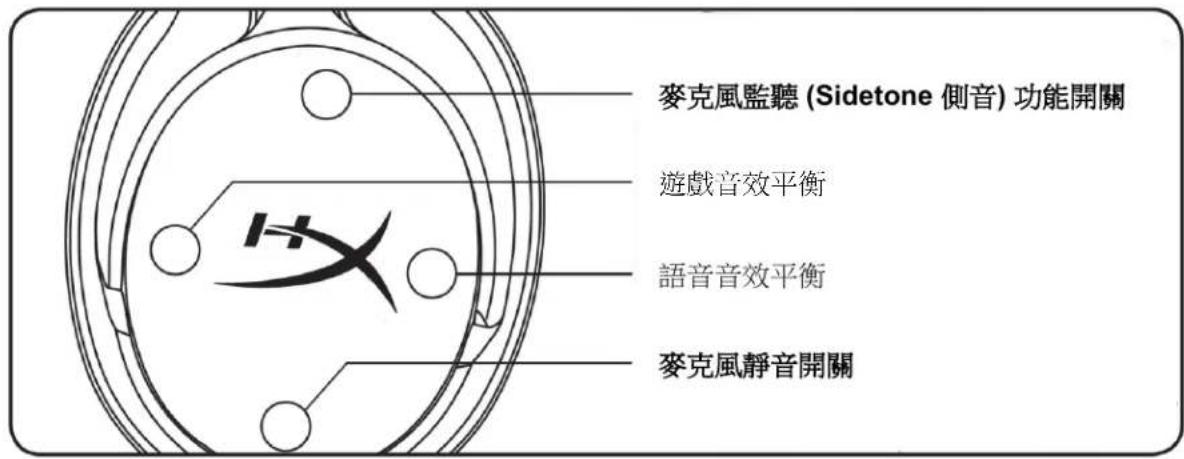
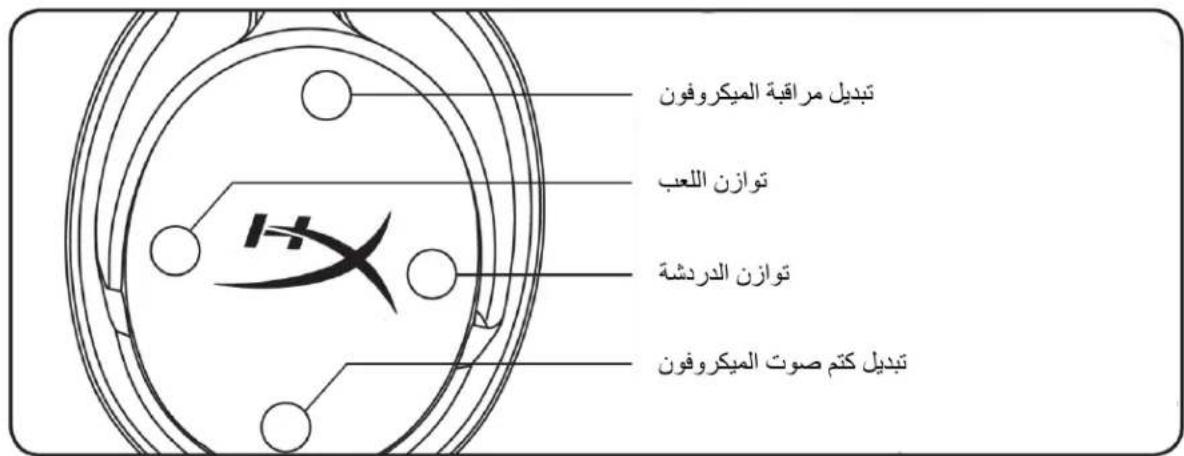
A. Up button – Mic monitoring toggle B. Left button – Game balance C. Right button – Chat balance D. Down button – Mic mute toggle E. Microphone port F. USB charge port G. Status LED H. Power button
I. 7.1 Surround Sound button J. Volume wheel K. Detachable microphone L. Microphone mute LED M. USB adapter N. Wireless pairing pin hole O. Wireless status LED P. USB charge cable
Specifications
Headphone
Driver: Dynamic, 50mm with neodymium magnets
Type: Circumaural, Closed back
Frequency response: 10Hz–20kHz
Impedance: 32 Ω
Sound pressure level: 99.5dBSPL/mW at 1kHz
T.H.D.: < 1%
Weight: 310g
Weight with mic: 320g
Cable length and type: USB charge cable (1m)
Microphone
Element: Electret condenser microphone
Polar pattern: Bi-directional, Noise-cancelling
Frequency response: 50Hz-18kHz
Sensitivity: -40.5dBV (1V/Pa at 1kHz)
Battery life*
30 hours
Wireless Range**
2.4 GHz
Up to 20 meters
*Tested at 50% headphone volume
**Wireless range may vary due to environmental conditions
Setting up with PC
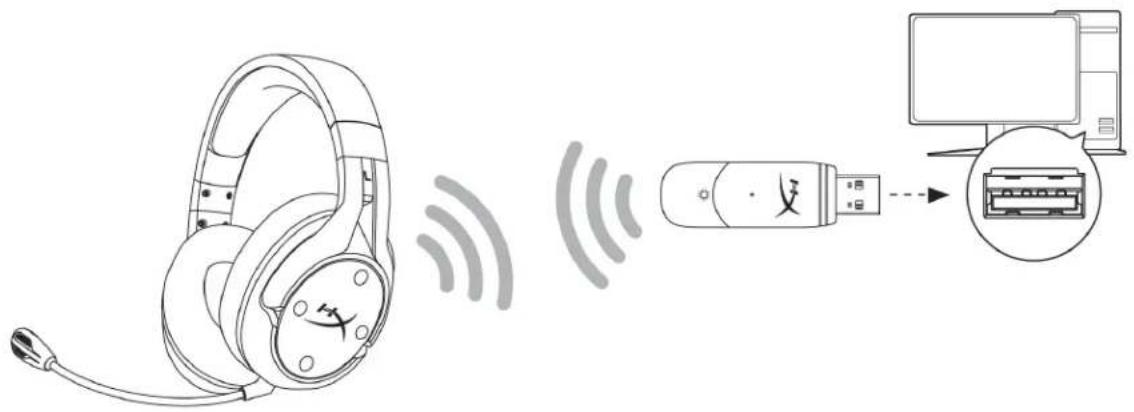
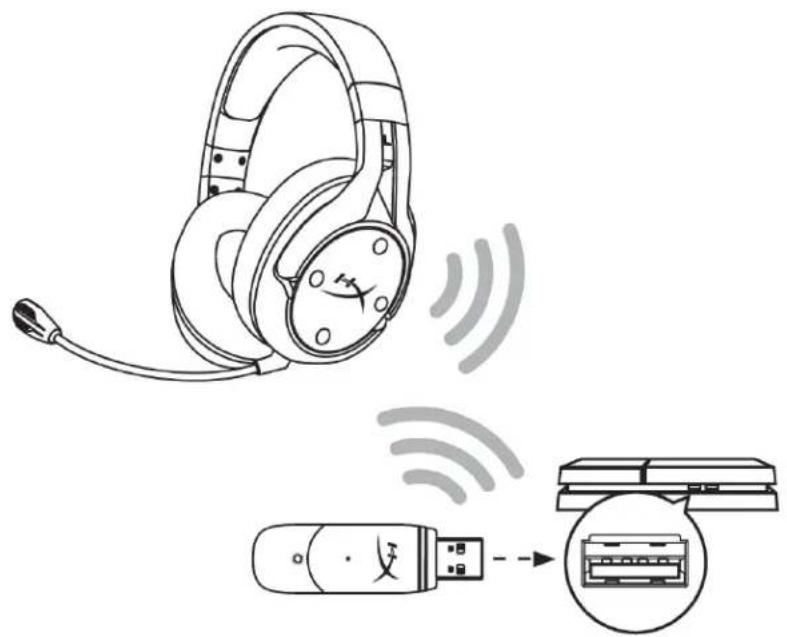
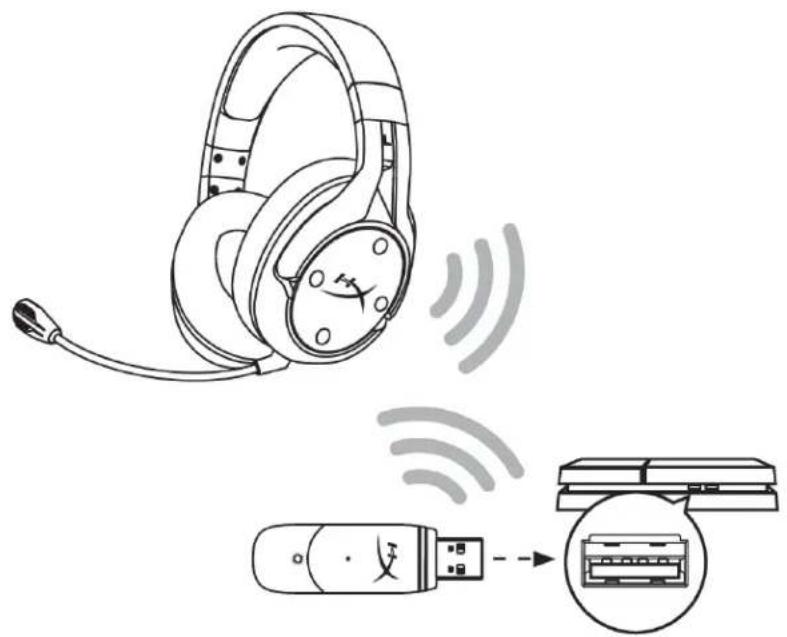
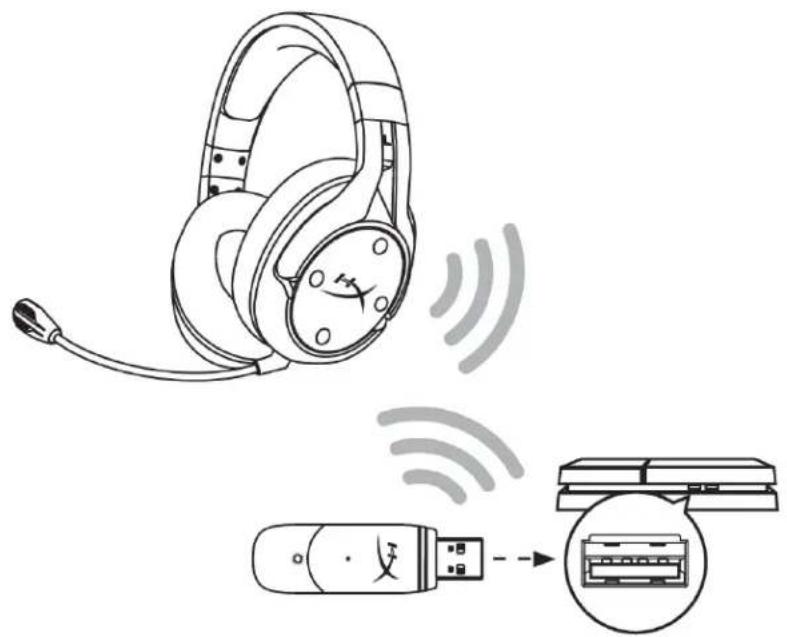
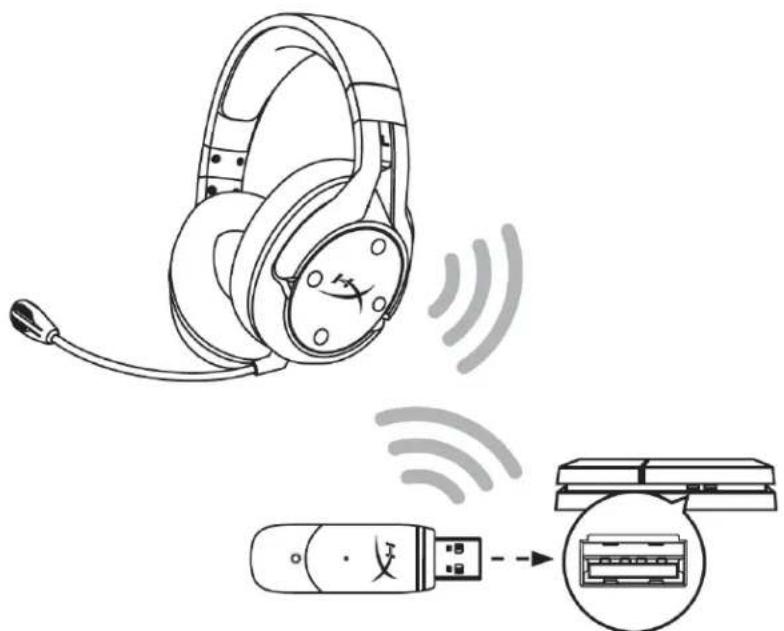
- Connect the wireless USB adapter to the PC.
- Power on the headset.
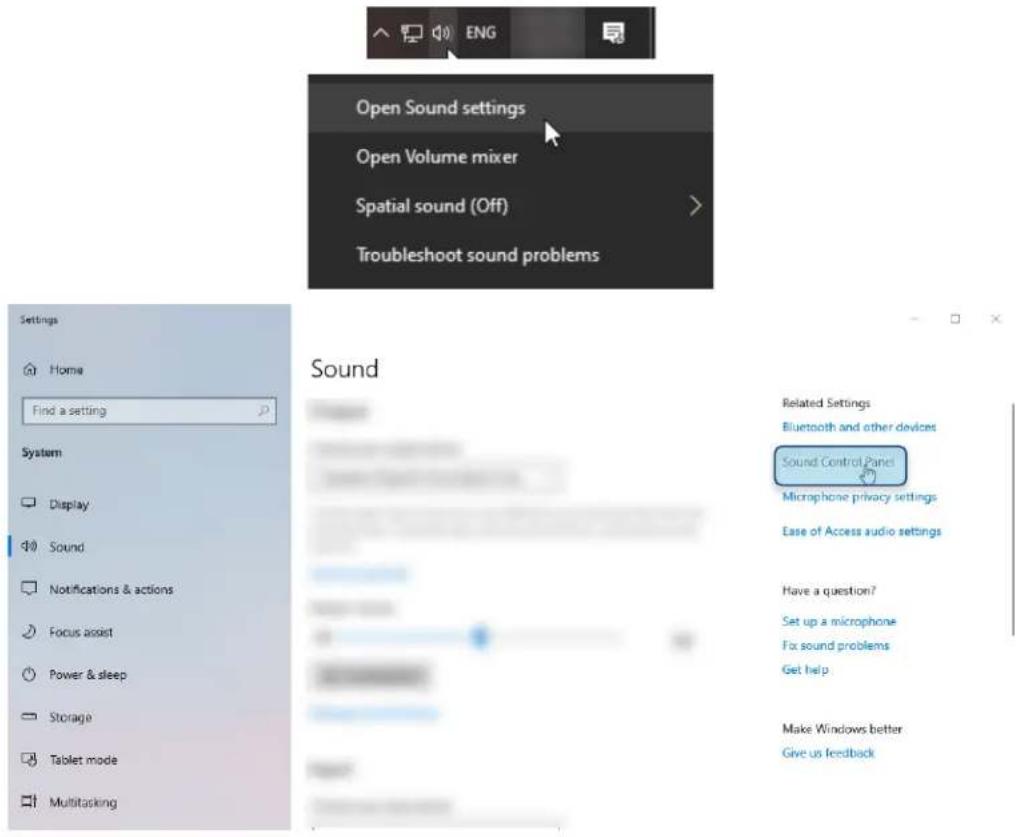
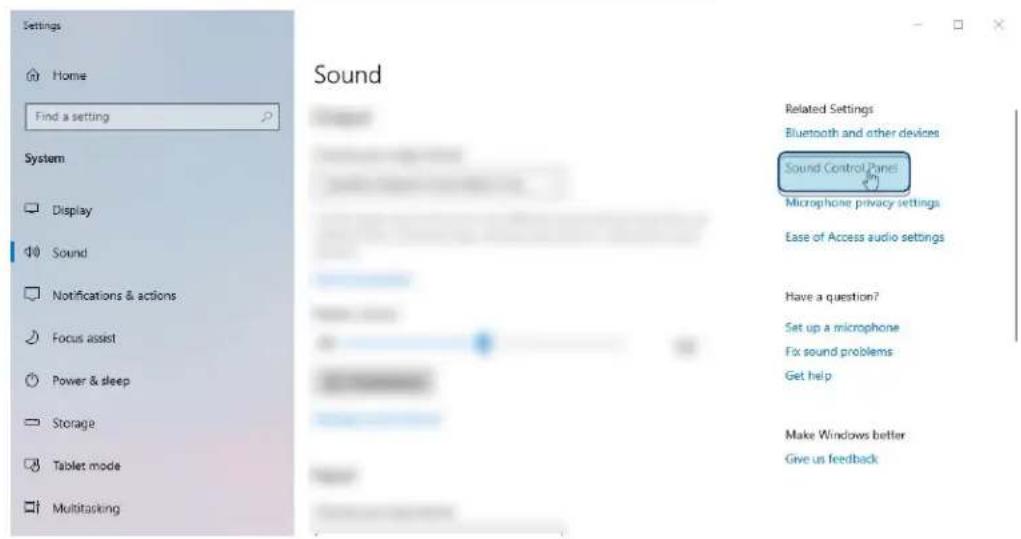
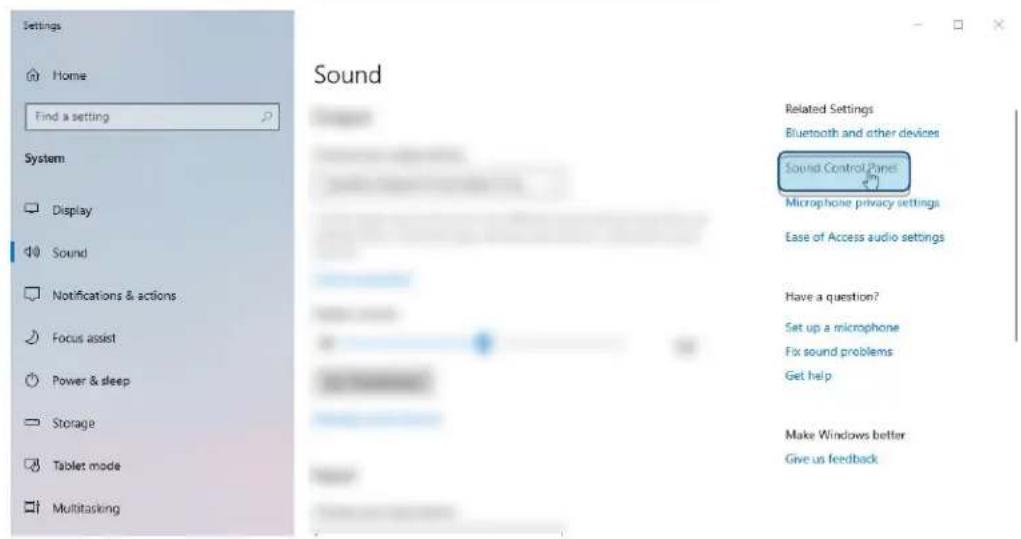
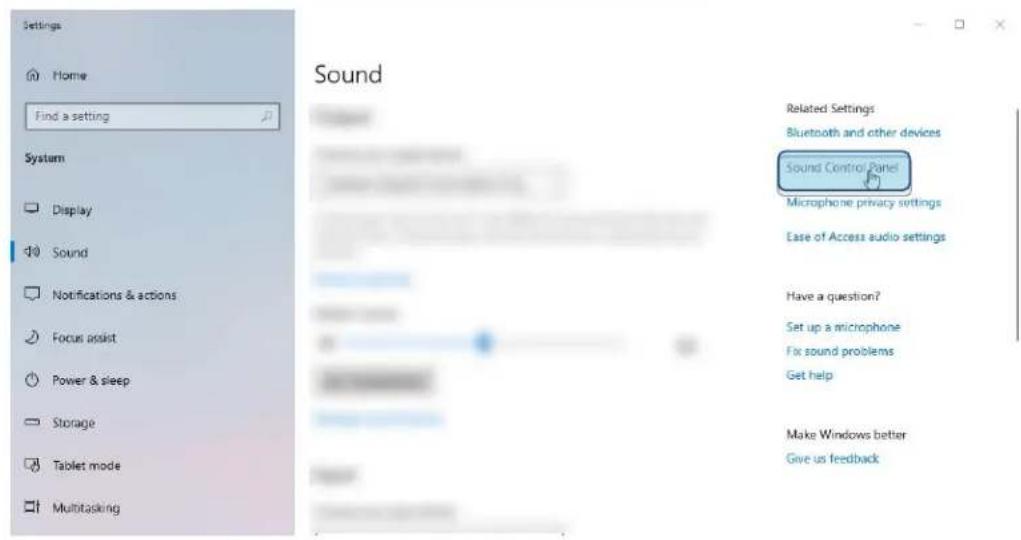
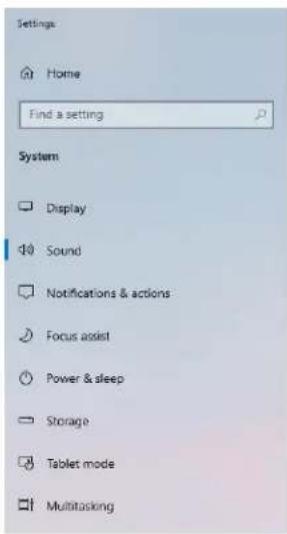
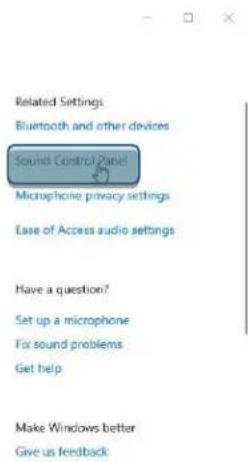
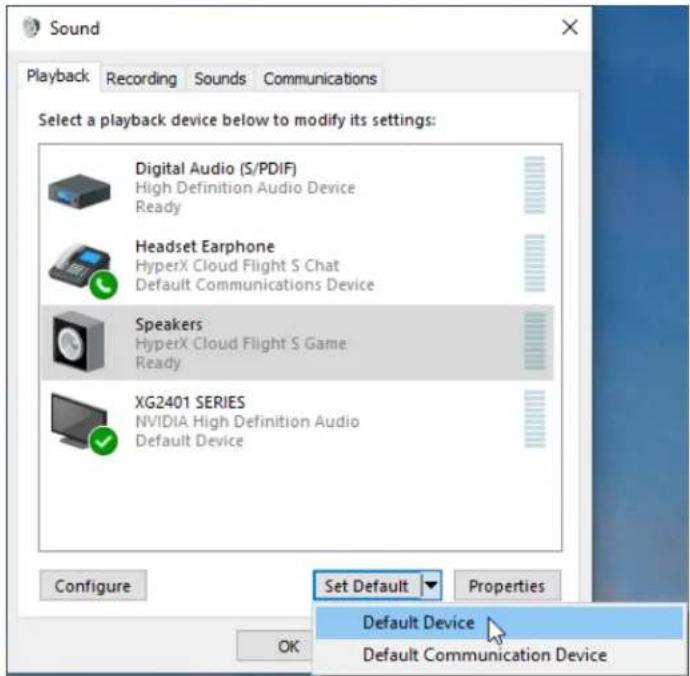
- Right click speaker icon > Select Open Sound settings > Select Sound Control Panel
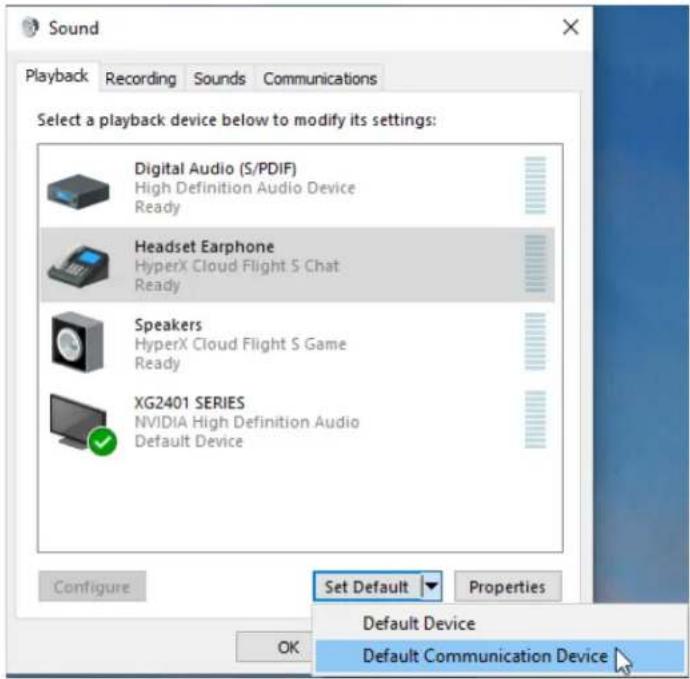
- Under the Playback tab, click on "HyperX Cloud Flight S Chat". Then click on the down arrow next to Set Default and select Default Communication Device.
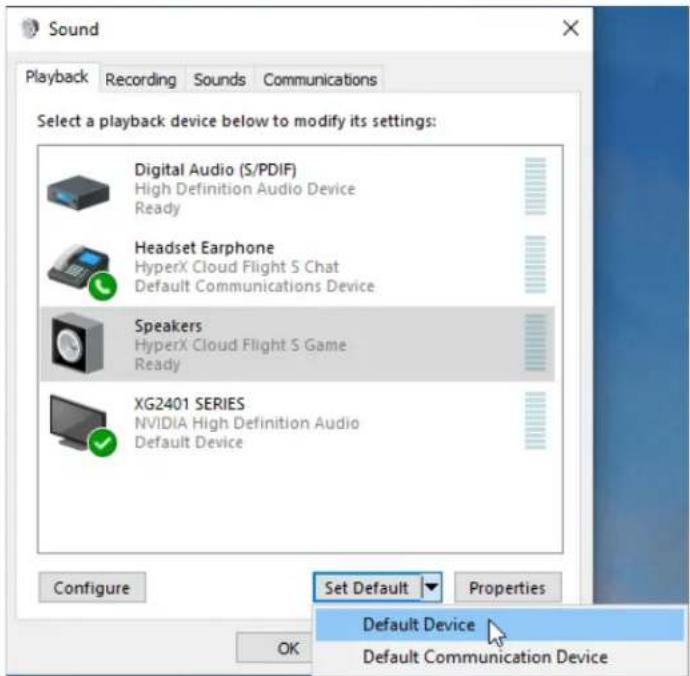
- Click on "HyperX Cloud Flight S Game". Then click on the down arrow next to Set Default and select Default Device.
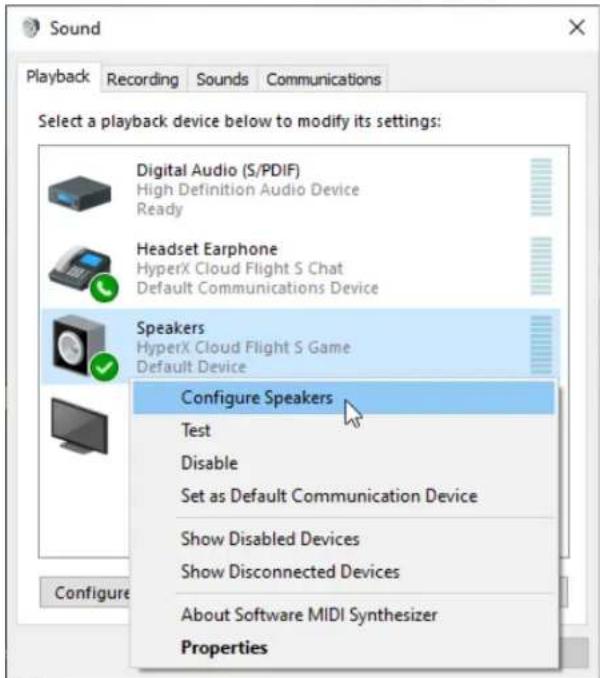
- Right click on "HyperX Cloud Flight S Game" and click on Configure Speakers.
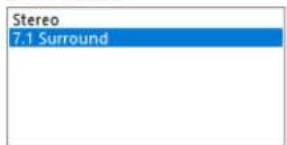
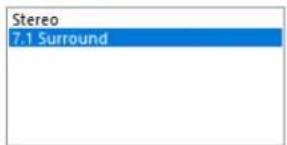
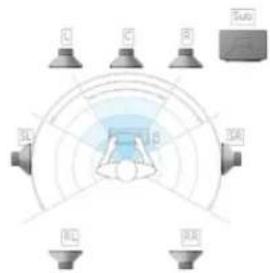
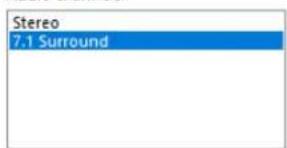
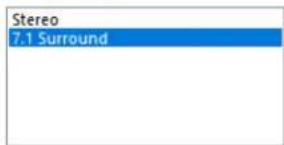
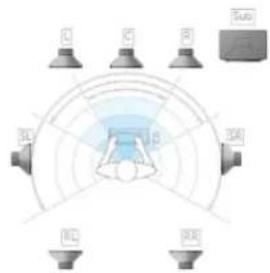
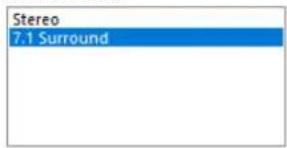
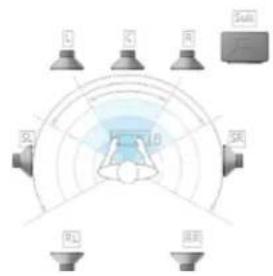
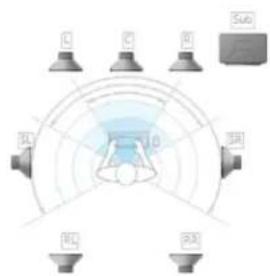
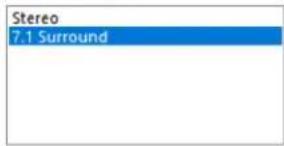
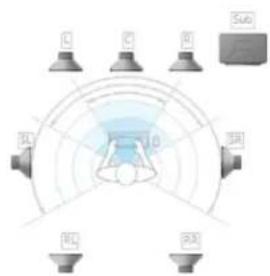
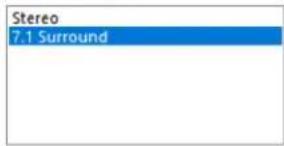
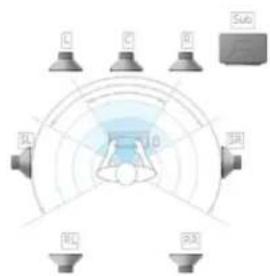
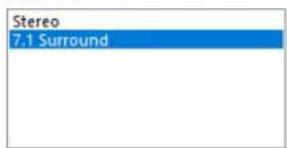
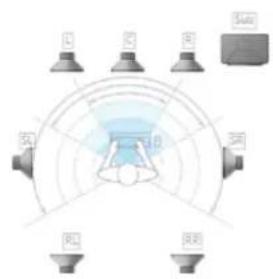
- Select 7.1 Surround as the speaker configuration and click next.
×
← Speaker Setup
Choose your configuration
Select the speaker setup below that is most like the configuration on your computer.
Audio channels:
Test
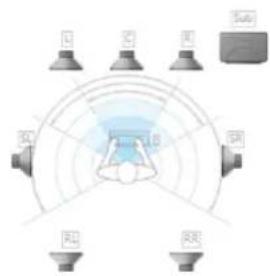
Click any speaker above to test it.
Next Cancel
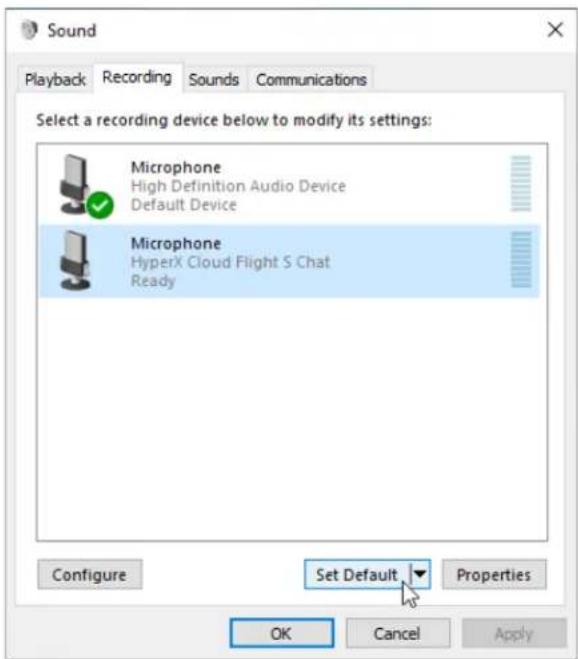
- Under the Recording tab, click on "HyperX Cloud Flight S Chat" and click on the Set Default button.
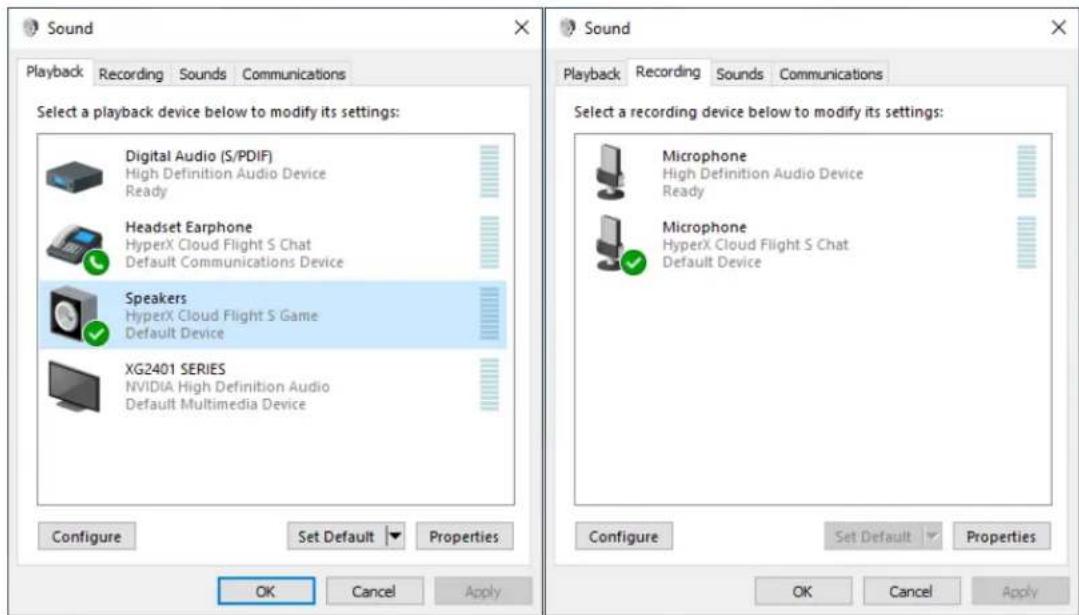
- Under the Playback tab, verify that "HyperX Cloud Flight S Game" is set as Default Device and "HyperX Cloud Flight S Chat" is set as Default Communication Device. Under the Recording tab, verify that "HyperX Cloud Flight S Chat" is set as Default Device.
Setting up with Discord
- In Discord settings, select Voice & Video.
- Under Voice Settings, set Input Device to "Microphone (HyperX Cloud Flight S Chat)".
- Set Output Device to "Headset Earphone (HyperX Cloud Flight S Chat)".
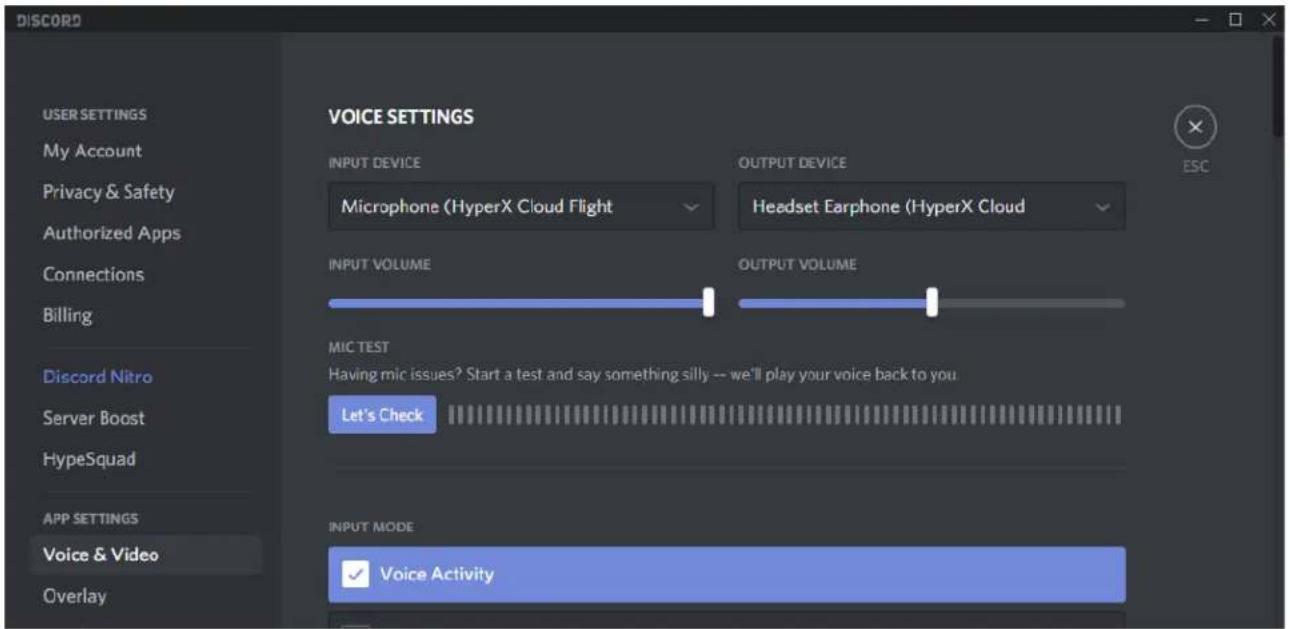
Setting up with PlayStation 4
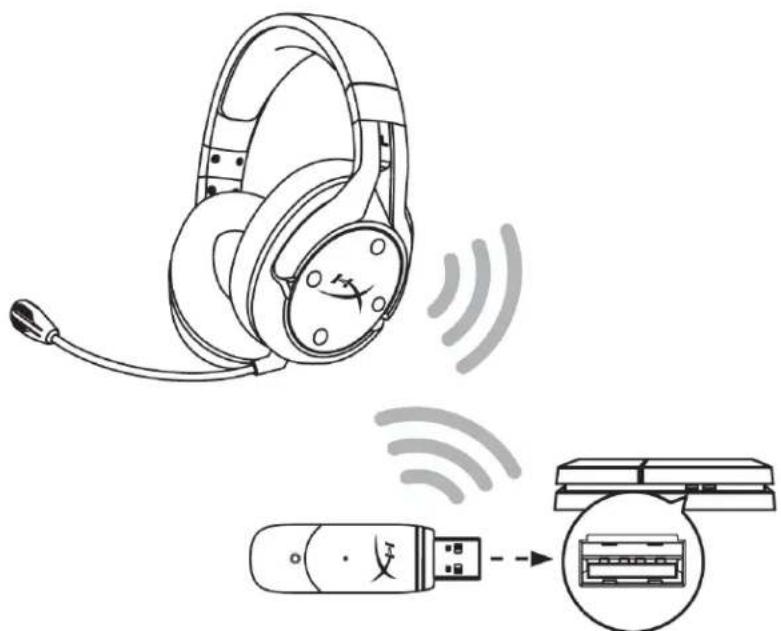
- Set Input Device to USB Headset (HyperX Cloud Flight S)
- Set Output Device to USB Headset (HyperX Cloud Flight S)
- Set Output to Headphones to All Audio
- Set Volume Control (Headphones) to maximum.
Audio Devices

Input Device
USB Headset (HyperX Cloud Flight S)

Output Device
USB Headset (HyperX Cloud Flight S)

Adjust Microphone Level

Volume Control (Headphones)



Output to Headphones
All Audio

Switch Output Device Automatically

Controls
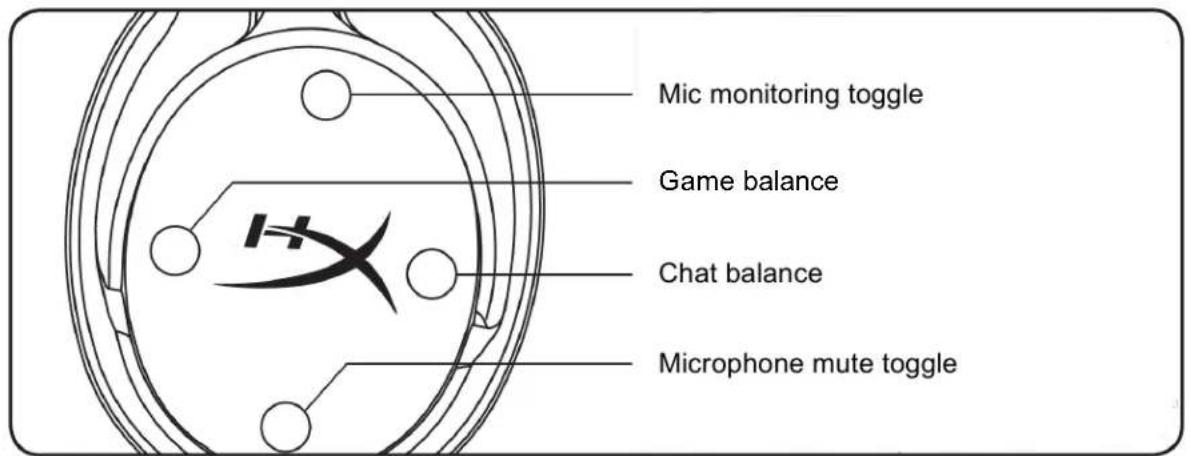
Mic monitoring toggle
Press to toggle mic monitoring on/off.
Game/Chat balance
Press to adjust mix between game audio and chat audio. 1

The game/chat balance functionality operates independently from the overall headset audio volume.
1 Game/chat balance function is unavailable when using headset on PlayStation 4.
Microphone mute toggle
Press to toggle microphone mute on/off. The microphone mute LED will indicate the current mute status.
| Microphone Mute LED | Mute Status |
| Red | Mute on |
| Off | Mute off |
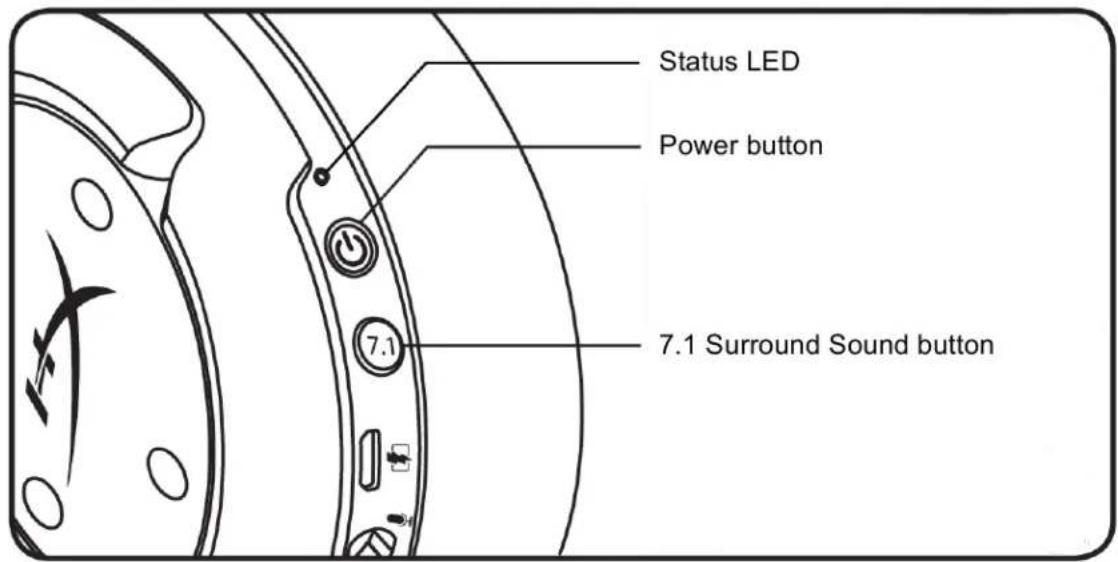
Status LED
| Status | Battery Level | LED |
| Pairing | - | Flash green and red every 0.5s |
| Searching | - | Slow breathing green |
| Connected | 90% - 100% | Solid green |
| 15% - 90% | Blinking green | |
| < 15% | Blinking red |
Power button
Hold for 3 seconds to power the headset on/off.
7.1 Surround Sound*
Press to toggle 7.1 Surround Sound on/off.
*Virtual 7.1 surround sound outputs as a 2 channel stereo signal to be used with stereo headphones.
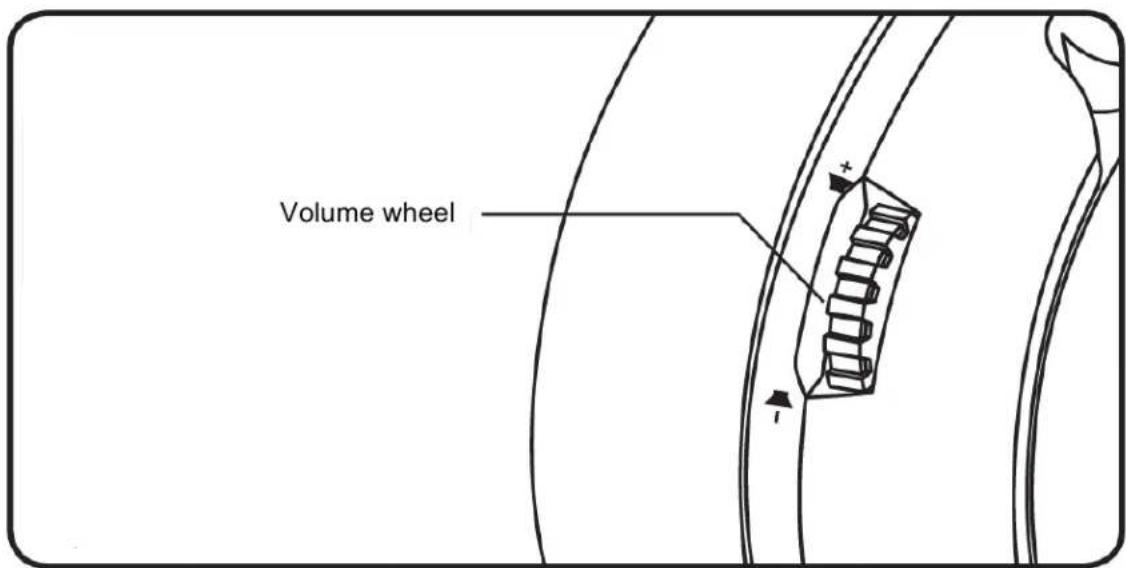
Volume Wheel
Scroll up and down to adjust volume level.
WARNING: Permanent hearing damage can occur if a headset is used at high volumes for extended periods of time.
Charging the Headset
It is recommended to fully charge your headset before first use.
When charging the headset, the headset status LED will indicate the current charge status.
| Status LED | Charge Status |
| Solid green | Fully charged |
| Breathing green | 15% - 99% battery level |
| Breathing red | < 15% battery level |
Qi wireless charging
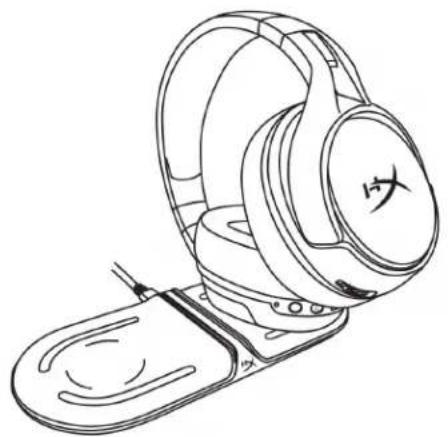
To charge the headset via Qi wireless, place the left earcup onto a Qi wireless charging base.
Wired charging
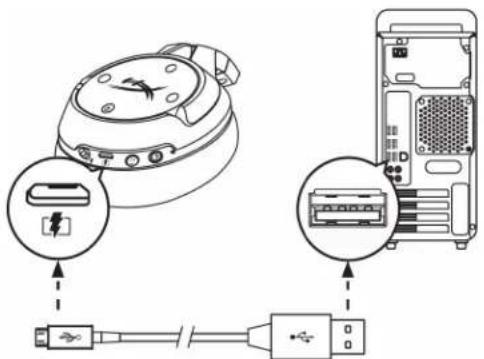
To charge the headset via wired, plug the headset to a USB port with the USB charge cable.
HyperX NGENUITY Software
To customize EQ profiles, programmable buttons, and check battery status, download the HyperX NGENUITY software at: hyperxgaming.com/ngenuity
Questions or Setup Issues?
Contact the HyperX support team at: hyperxgaming.com/support/
HyperX Cloud Flight™ S
Choose your configuration
Select the speaker setup below that is most like the configuration on your computer.
Audio channels:

Click any speaker above to test it.

Adjust Microphone Level

Volume Control (Headphones)



Output to Headphones
All Audio

Switch Output Device Automatically

Controls
Part Numbers
HX-HSCFS-SG/WW
TABLE OF CONTENTS
Overview....3
Specifications 4
Choose your configuration
Select the speaker setup below that is most like the configuration on your computer.
Audio channels:

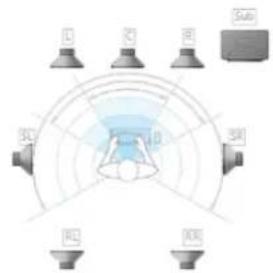
Click any speaker above to test it.

Adjust Microphone Level

Volume Control (Headphones)



Output to Headphones
All Audio

Switch Output Device Automatically

Control
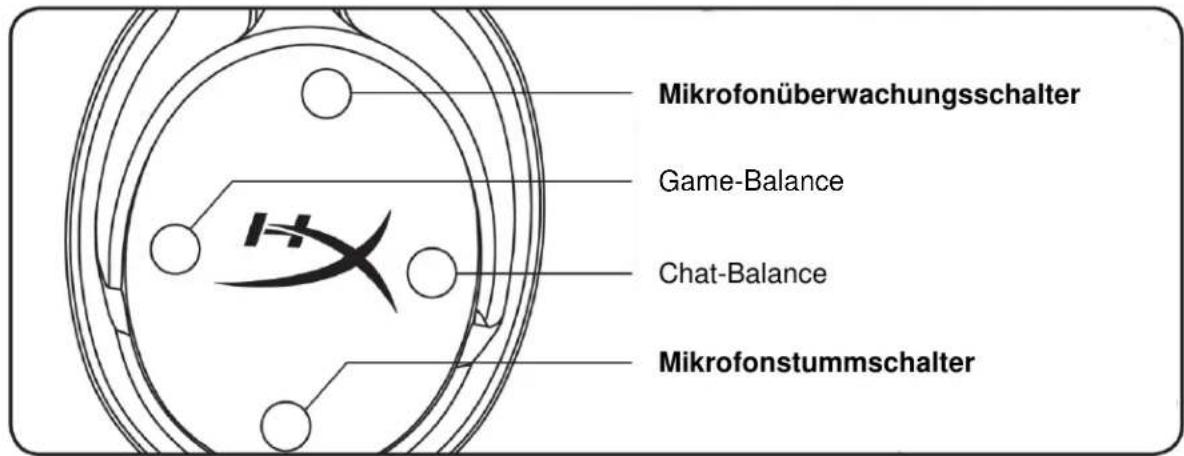
7.1 Surround Sound*
Microphone activation/deactivation....11
Choose your configuration
Select the speaker setup below that is most like the configuration on your computer.
Audio channels:
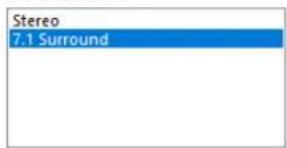
Test
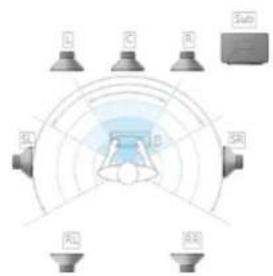
Click any speaker above to test it.
Next Cancel
Adjust Microphone Level

Volume Control (Headphones)



Output to Headphones
All Audio

Switch Output Device Automatically

Commands
Part Numbers
HX-HSCFS-SG/WW
INDEX
Qi Wireless Charging....14
Choose your configuration
Select the speaker setup below that is most like the configuration on your computer.
Audio channels:

Click any speaker above to test it.

Controls
Surround Sound 7.1*
Part Numbers
HX-HSCFS-SG/WW
TABLE OF CONTENTS
Summary 3
Choose your configuration
Select the speaker setup below that is most like the configuration on your computer.
Audio channels:

Click any speaker above to test it.

Adjust Microphone Level

Volume Control (Headphones)



Output to Headphones
All Audio

Switch Output Device Automatically

Controls
Catalog Numbers
HX-HSCFS-SG/WW
TABLE OF CONTENTS
Presentation.... 3
Technical Data 4
Adjust Microphone Level

Volume Control (Headphones)



Output to Headphones
All Audio

Switch Output Device Automatically

Operation
Catalog Numbers
HX-HSCFS-SG/WW
CONTENTS
Overview 3
Adjust Microphone Level

Volume Control (Headphones)



Output to Headphones
All Audio

Switch Output Device Automatically

Controls
Part Numbers
HX-HSCFS-SG/WW
CONTENTS
General View 3
Technical Specifications 4
PC Settings 5
Discord Settings 9
Discord settings
Adjust Microphone Level

Volume Control (Headphones)



Output to Headphones
All Audio

Switch Output Device Automatically

Controls
Product Number
HX-HSCFS-SG/WW
Table of Contents
Overview 3
Specifications 4
When using with a PC....5
Choose your configuration
Select the speaker setup below that is most like the configuration on your computer.
Audio channels:
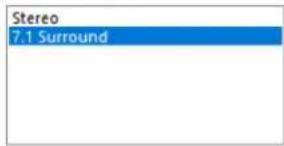

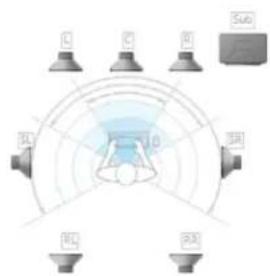
Click any speaker above to test it.
Next Cancel
When used with Discord
Adjust Microphone Level

Volume Control (Headphones)



Output to Headphones
All Audio

Switch Output Device Automatically

Controls
Part number
HX-HSCFS-SG/WW
Table of Contents
Overview 3
Specifications 4
PC settings....5
Choose your configuration
Select the speaker setup below that is most like the configuration on your computer.
Audio channels:
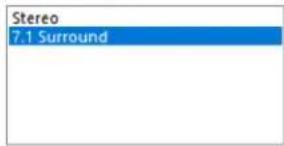

Click any speaker above to test it.
Next Cancel
Set up using Discord
Set up on PlayStation 4
Adjust Microphone Level

Volume Control (Headphones)



Output to Headphones
All Audio

Switch Output Device Automatically

Control
Part number
HX-HSCFS-SG/WW
Table of Contents
Overview 3
Choose your configuration
Select the speaker setup below that is most like the configuration on your computer.
Audio channels:
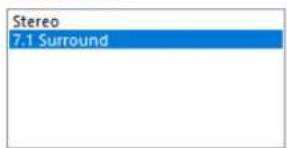

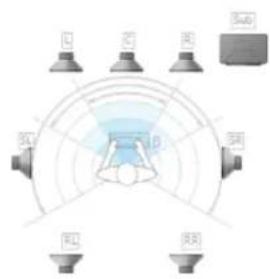
Click any speaker above to test it.

Adjust Microphone Level

Volume Control (Headphones)



Output to Headphones
All Audio

Switch Output Device Automatically

Controls
Product code
HX-HSCFS-SG/WW
Table of Contents
Overview 3
Controls
Model
HX-HSCFS-SG/WW
Table of Contents
Overview 3
Specifications 4
PC Setup 5
Discord Setup....9
PlayStation 4 Setup....10
Controls 11
Microphone Monitoring Switch 11
Game/Chat Balance 11
Microphone Mute Switch 11
Status LED 12
Power button 12
7.1 Surround Sound 12
Volume wheel 13
Headset charging....14
Qi wireless charging....14
Wired charging 14
HyperX NGENUITY software 15
Overview
A. Up button - microphone monitor toggle
B. Left button - game balance
C. Right button - chat balance
D. Down button - microphone mute toggle
E. Microphone port
F. USB charging port
G. Status LED
H. Power button
- I. 7.1 surround sound button
J. Volume wheel
K. Detachable microphone
L. Microphone mute LED
M. USB adapter
N. Wireless pairing pinhole
O. Wireless status LED
P. USB charging cable
Specifications
Headset
Driver unit: Dynamic, 50 mm, with neodymium magnets
Type: Over-ear, closed-back
Frequency response: 10Hz-20kHz
Impedance: 32Ω
Choose your configuration
Select the speaker setup below that is most like the configuration on your computer.
Audio channels:

Click any speaker above to test it.
Next Cancel
Discord Setup
PlayStation 4 Setup
Adjust Microphone Level

Volume Control (Headphones)



Output to Headphones
All Audio

Switch Output Device Automatically

Controls
hyperxgaming.com/ngenuity
Questions or setup issues?
Product Model
HX-HSCFS-SG/WW
Table of Contents
Overview 3
Specifications 4
Setup on your computer....5
Discord Setup....9
PlayStation 4 Setup....10
Control Functions 11
Choose your configuration
Select the speaker setup below that is most like the configuration on your computer.
Audio channels:

Click any speaker above to test it.
Next Cancel
Discord Settings
PlayStation 4 Settings
Adjust Microphone Level

Volume Control (Headphones)



Output to Headphones
All Audio

Switch Output Device Automatically

Controls
hyperxgaming.com/ngenuity
Any installation or usage issues?
Part Numbers
HX-HSCFS-SG/WW
Table of Contents
Choose your configuration
Select the speaker setup below that is most like the configuration on your computer.
Audio channels:

Click any speaker above to test it.

Setup with PlayStation
Adjust Microphone Level

Volume Control (Headphones)



Output to Headphones
All Audio

Switch Output Device Automatically

Controls
hyperxgaming.com/ngenuity
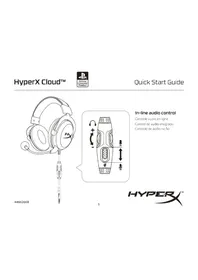
- HYPERX CLOUD FLIGHT S
- HYPERX CLOUD FLIGHT S INSTALLATION GUIDE
- PART NUMBERS
- TABLE OF CONTENTS
- OVERVIEW
- SPECIFICATIONS
- HEADPHONE
- MICROPHONE
- BATTERY LIFE
- WIRELESS RANGE
- SETTING UP WITH PC
- CHOOSE YOUR CONFIGURATION
- SETTING UP WITH DISCORD
- SETTING UP WITH PLAYSTATION
- AUDIO DEVICES
- CONTROLS
- MIC MONITORING TOGGLE
- GAME/CHAT BALANCE
- MICROPHONE MUTE TOGGLE
- POWER BUTTON
- SURROUND SOUND
- VOLUME WHEEL
- CHARGING THE HEADSET
- QI WIRELESS CHARGING
- WIRED CHARGING
- HYPERX NGENUITY SOFTWARE
- QUESTIONS OR SETUP ISSUES
- HYPERX CLOUD FLIGHT™ S
- CONTROL
- COMMANDS
- INDEX
- CATALOG NUMBERS
- OPERATION
- CONTENTS
- DISCORD SETTINGS
- PRODUCT NUMBER
- WHEN USED WITH DISCORD
- SET UP USING DISCORD
- SET UP ON PLAYSTATION
- DISCORD SETUP
- PLAYSTATION 4 SETUP
- PLAYSTATION 4 SETTINGS
Brand : HYPERX
Model : Cloud Flight S
Category : Headphones