Imageview 118323 - Binoculars BUSHNELL - Free user manual and instructions
Find the device manual for free Imageview 118323 BUSHNELL in PDF.



| Product Type | Digital binoculars with still camera and video camera |
| Brand | Bushnell |
| Model | Imageview 118323 (Compact Instant Replay) |
| Magnification | 8x |
| Objective Diameter | 30 mm |
| Exit Pupil | 3.7 mm |
| Field of View at 1000 m | 97 m |
| Eye Relief | 13 mm |
| Minimum Focus (Binoculars) | 5.5 m |
| Minimum Focus (Camera) | Approximately 18 m |
| Sensor | 3.2 Megapixel CMOS |
| Max Photo Resolution | 2048 x 1536 pixels |
| Max Video Resolution | 640 x 480 pixels at 30 fps |
| Internal Memory | 16 MB (Flash) |
| Memory Card Support | SD (Secure Digital) card up to 1 GB |
| LCD Screen | 3.8 cm (1.5 inches), 120,480 pixels, tiltable |
| Power Source | 2 AAA batteries (alkaline, lithium or NiMH) |
| Weight | 406.5 g |
| Main Functions | Still photo, normal video, Replay video (8-60 s loop), 6x digital zoom |
| Care and Cleaning | Use a soft, dry cloth; do not use solvents. Protect from moisture and impact. |
| Safety | Do not look directly at the sun with the binoculars. Remove batteries if not in use for extended periods. |
| Spare Parts and Repairability | AAA batteries, SD card, USB cable. Limited 2-year warranty. Repair by Bushnell. |
| General Information | Made for Bushnell Performance Optics. Compatible with Windows 98/2000/XP/Mac. USB connection. |
Frequently Asked Questions - Imageview 118323 BUSHNELL
User questions about Imageview 118323 BUSHNELL
0 question about this device. Answer the ones you know or ask your own.
Ask a new question about this device
Download the instructions for your Binoculars in PDF format for free! Find your manual Imageview 118323 - BUSHNELL and take your electronic device back in hand. On this page are published all the documents necessary for the use of your device. Imageview 118323 by BUSHNELL.
USER MANUAL Imageview 118323 BUSHNELL
natural_image
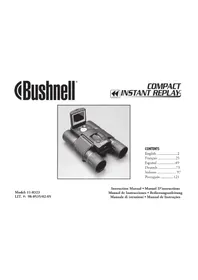
Black business binoculars with a display screen, no visible text or symbols on the device itself.CONTENTS
English 2
Français ......25
Español .....49
Deutsch .....73
Italiano 97
Português .....121
Model: 11-8323
LIT. #: 98-0535/02-05
Instruction Manual • Manuel D'instructions Manual de Instrucciones • Bedienungsanleitung Manuale di istruzioni • Manual de Instruções
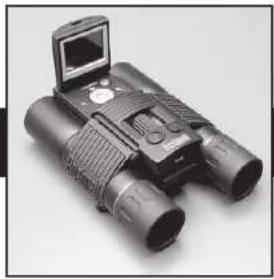
Congratulations on your purchase of the Bushnell Compact Instant Replay ^™ ! The Compact Instant Replay is ideal for all sporting events and nature observation, as it combines a high quality 8 power compact binocular with a versatile 3.2 megapixel digital camera featuring amazing video capability. The Compact Instant Replay has a “dual personality”, capable of taking high resolution digital still photos as well as shooting video clips that automatically “loop”, or refresh, every 8 to 60 seconds (depending on quality settings). This ensures that you will always capture the peak of the action. The photos and videos are both automatically stored in the internal memory, or on an optional SD (Secure Digital) card, and can be instantly reviewed on the flip-up LCD, played back on a TV set, or downloaded to your computer without the need to install any special software (With Windows 2000, XP or Mac. Software is provided for Windows 98/98SE).
Before using your new Compact Instant Replay, please read the instructions contained in this manual and take time to familiarize yourself with the camera's operation and many great features.
QUICK GUIDE: BUSHNELL COMPACT INSTANT REPLAY 11-8323
| 1 | Install Batteries & (optional) SD Card | Insert 2.AAA batteries (see "Specifications") into the battery compartment on the bottom of the camera pod (Note polarity indication inside). An SD memory card (optional) for increased photo storage capacity may also be installed in the card slot, located at the back of the camera pod (Pull the rubber card slot over down. Insert card with label side facing down until it clicks, and replace the rubber cover). |
| 2 | Turn On the Camera | Raise the LCD display, using the tab at the rear. Press and release the POWER button. The display start screen will flash on, then go out, and the red power LCD stays on. Press "LCD/Mode" to turn the display back on -you will see a "live" preview of the image from the camera lens, located between the binocular objective lenses. The display will automatically turn off after 2 minutes to conserve battery power when the camera is inactive. You can also manually turn the display off by pressing the LCD/ Mode button-it does not need to be on to take a photo. The entire camera will automatically turn off after 5 minutes if it has been inactive (no buttons pressed). To turn power off manually, press and release the POWER button. The default camera setting will provide optimum quality under most conditions. However, we recommend reading the full manual to take advantage of the many available options available in the various menus for different planographic situations and personal preferences. |
| 3 | Format the SD Card (optional) | If you inserted an SD card earlier, format is before using the camera. Press the Menu/OK button in the center of the silver keypad. Press the Down arrow key 4 times to select "Format". Press the Right arrow key, then Left arrow key to select "Yes". Press Menu/OK, you will see a warning that all images will be deleted, select "Yes" and press OK again. Use the Down arrow key to select "Exit" and press OK. |
| 4 | Set the Binocular Optics for Your Eyes | Roll down the rubber eyecups if you are wearing glasses. Adjust the spacing between the left and right binocular tubes while looking through the binocular until she view appears as a single circular image. Then, find a distant object with fine detail, and adjust the center focus knob until the objects appears sharp through the left eyepiece . Now look through the right eyepiece only. If the object does not appear equally sharp, rotate the right eyepiece (diopter adjustment) until it is also sharp. Once set, you no longer need to move this diopter adjustment, and may simply focus using the center focus knob. |

QUICK GUIDE: BUSHNELL COMPACT INSTANT REPLAY 11-8323
| 5 | Take A Photo or Shoot A Video Clip | Hold the camera steadily with both hands and press the SNAP button to take a still photo. You will hear a "beep" (this can be turned off), followed by a brief pause (file icon displayed) as the camera stores the photo in memory. To shoot a video, press Menu/OK once, then the Right arrow key, to see the Camera menu video options. Use the Up & Down keys to select either Replay (loop) or Normal (continuous) video, then press Menu/OK. You will be back to the live preview display, and can start shooting the video at any time by pressing SNAP. To stop recording video, press SNAP again. Please read the revision "Video Mode" for a detailed explanation of how Normal and Replay video modes differ, including how the video recording time is determined. |
| 6 | Review and Delete Photos/ Videos | To review or playback a still photo or video, press the LCD/Mode button (press twice if the display was not already active). You will see the most recent still photo or video (first frame). To review previous photos or videos one at a time, press the Left arrow key. The icon at the bottom right contact of the display will indicate whether the current review file is a still photo, normal or "instant replay" video. The numbers above this icon show the current file number/total files (2 of 3, each). To play back a stored video, press the Down arrow key (press again to stop playback). To see "chumbinal" images of several stored photos/videos at once, press the Up arrow key after catering review mode. Use the arrow keys to select an individual file, then press up again to see it full frame. To delete a photos/videos, press Menu/ OK, then the Down arrow once (Trash icon). Press the Right arrow key, select Delete One or Delete All then press the Right key and select Yes. Go back to the Menu column, select Exit and press Menu/OK to return to the Review display. |
| 7 | Connect To A Computer & Transfer Photos | Before connecting the camera, install the driver from the CD-ROM if you use Windows 98/98SE, and install PhotoSuite if you do not already have photo editing software. Connect the supplied USB cable from the camera's USB socket (on the back of the camera pod) to a USB port on your PC. If you have Windows XP, just follow the on-screen instructions/options that automatically appear. If you have Win 98 or 2000, open "My Computer" on your PC. The camera is identified as a "Removable Disk" -your photos are in the folders inside; simply drag them or copy/paste into any folder on your hard drive. Refo to the "Transferring Photos" section of this manual. |
Technical Specifications
| Magnification & Size | Phone File Size (Resolution) 2018x1558, 1600x1200, 6/30x180 | ||
| Objective Character | 30ms F | File Compression Ratio (Quality) 14 (FQ), 1.8 (INQ), 1.16 (EQ) | |
| Exit Popul 3.751 | Internal Memory 16MB Flash Memory | ||
| Field of View 3201 | 2 1000 yds Memory Exp | Session Secure Digital | CZd. up to 1 GB capacity |
| Eye Relief | 15mm F | File Format (Shill/Video) JPCG /M | PEG (.AVI) |
| Lens Coating F | fully Coated | File Management | DCF (version 1.0), FAT 16 Format |
| Prism Type | Roof, BK, 7 | LCD | 1.5" 11/9, 128,480 pixels |
| Receiving Range (inocular) | 18" - infinity | Video Resolution/Frame Baris | 620x380 or 520x290 pixels per frame / 30 or 15 fps. Replay mode loop length: 8/15/20/60 seconds (per resolution/lps selected) |
| Weight | 14.3 to 406.5 g | Video Out | NTSC/PAL, via 8-pin USB port with special cable (included) |
| Sensor Type | CMOS | Exposure Value Range | +/- 2.1V in 0.5 EV steps |
| Effective Pixels | 3.2 Megapixels | White Balance Options | Auto, Daylight, Cloudy, Fluorescent, Incandescent |
| Color | 24-bit color | Power Scenes | Program, Sports, Landscape, Portrait, Night |
| Shutter | Electronic, 1/16 to 1/1000 seconds | Mono Languages | English, Spanish, French, German, Italian, Portuguese, Japanese |
| Receiving Range (Gamma) | Fixed, approx 60° - infinity | Auto Power OF (after inactivity) | LCD Display: 2 Min. / All Power OFE 5 Min. |
| Lens Aperture PS6 | P | Power Supply | 2mA A(lameries, Alcaline/Linhans/NIMb type |
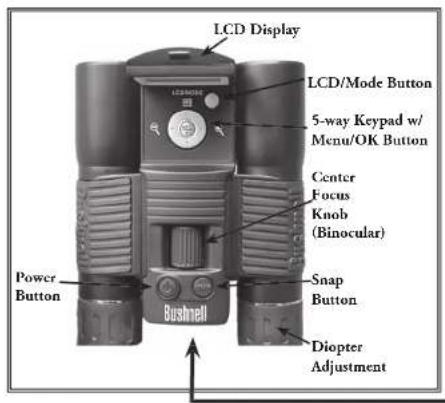
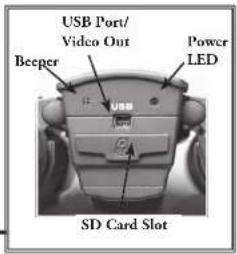
Parts Identifi cation
LCD Preview Display Icons
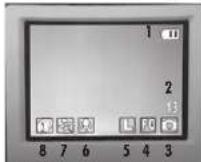
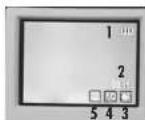
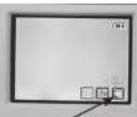
Normal Video
Replay Video
Movie (Video)Display
Still Photo Preview Display
| # | Icon |
| 1 | Battery Indicator (2/3 power shown) |
| 2 # | of P hotos Remaining (based on available memory) |
| 3 | Still Photo Mode |
| 4 | Quality (File Compression) FineNormalRecovery |
| 5 | Resolution (File Size) LargeMediumSmall |
| 6 | White Balance Not displayed unless changed from default "Auto" in Exposure |
| 7 | Scene Not displayed unless changed from default "Program" in Mode menu |
| 8 | Sequence Shooting Mode Not displayed unless selected in Mode menu |
| # | Icon |
| 1 | Battery Indicator (full) |
| 2 | Total Seconds of Video Available (based on available memory) |
| 3 | Movie Mode |
| 4 | Resolution ( J^1Q=640x480 NQ=320x240 ) |
| 5 | Frame Rate (30 or 15 fps) |
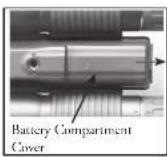
Loading Batteries
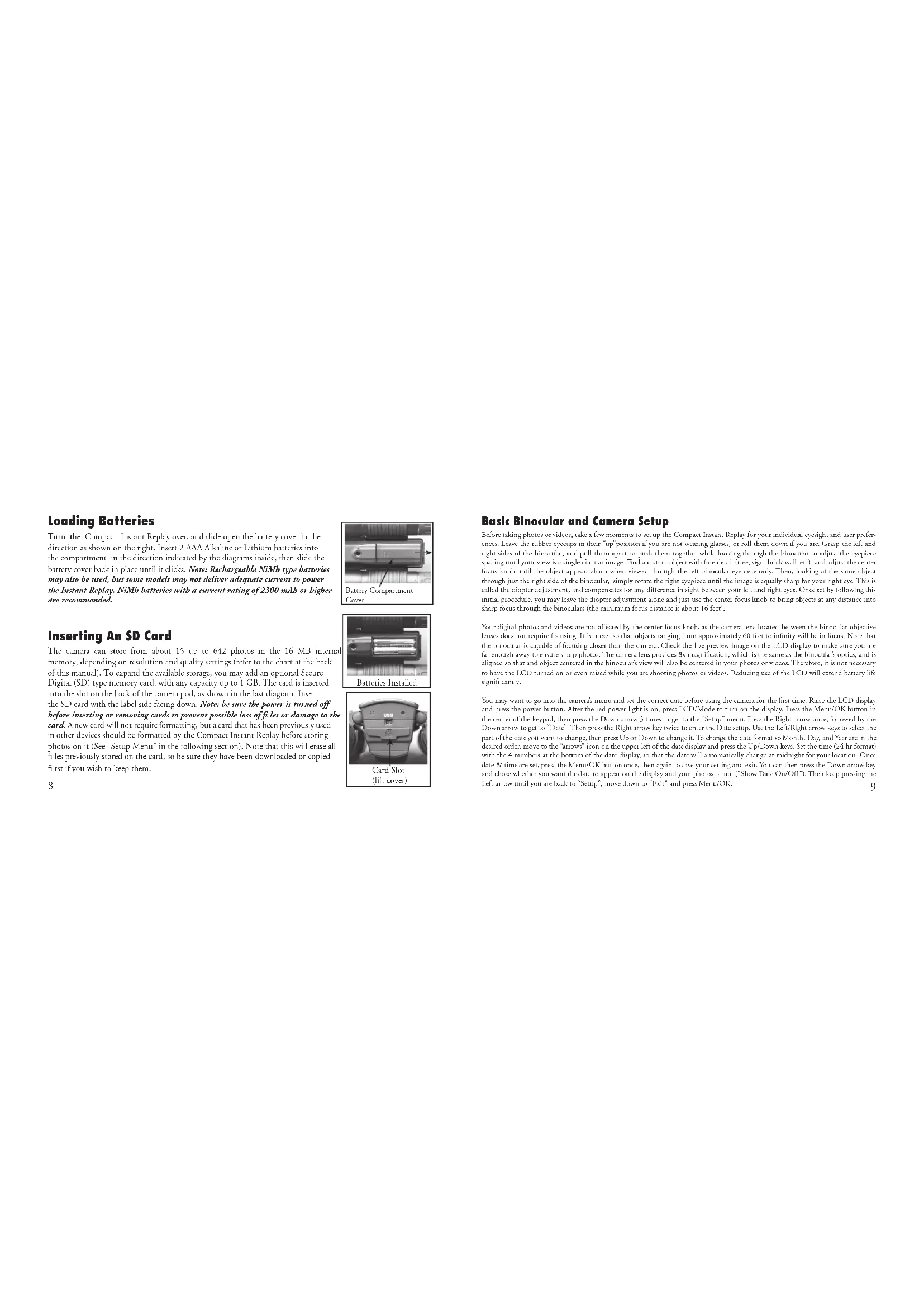
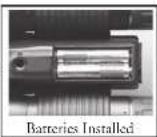
Turn the Compact Instant Replay over, and slide open the battery cover in the direction as shown on the right. Insert 2 AAA Alkaline or Lithium batteries into the compartment in the direction indicated by the diagrams inside, then slide the battery cover back in place until it clicks. Note: Rechargeable NiMh type batteries may also be used, but some models may not deliver adequate current to power the Instant Replay. NiMb batteries with a current rating of 2300 mAh or higher are recommended.
Inserting An SD Card
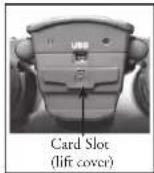
The camera can store from about 15 up to 642 photos in the 16 MB internal memory, depending on resolution and quality settings (refer to the chart at the back of this manual). To expand the available storage, you may add an optional Secure Digital (SD) type memory card, with any capacity up to 1 GB. The card is inserted into the slot on the back of the camera pod, as shown in the last diagram. Insert the SD card with the label side facing down. Note: be sure the power is turned off before inserting or removing cards to prevent possible loss of fit les or damage to the card. A new card will not require formatting, but a card that has been previously used in other devices should be formatted by the Compact Instant Replay before storing photos on it (See "Setup Menu" in the following section). Note: that this will erase all fit les previously stored on the card, so be sure they have been downloaded or copied fit rest if you wish to keep them.
Basic Binocular and Camera Setup
Before taking photos or videos, take a few moments to set up the Compact Instant Replay for your individual eyesight and user preferences. Leave the rubber eyecups in their "up" position if you are not wearing glasses, or roll them down if you are. Grasp the left and right sides of the binocular, and pull them apart or push them together while looking through the binocular to adjust the eyepiece spacing until your view is a single circular image. Find a distant object with fine detail (treu, sign, brick wall, esc), and adjust the center focus knob until the object appears sharp when viewed through the left binocular eyepiece only. Then, looking at the same object through just the right side of the binocular, simply rotate the right eyepiece until the image is equally sharp for your right eye. This is called the diopter adjustment, and compensates for any difference in sight between your left and right eyes. Once set by following this initial procedure, you may leave the diopter adjustment alone and just use the cancer focus knob to bring objects at any distance into sharp focus through the binoculars (the minimum focus distance is about 16 feet).
Your digital photos and videos are not affected by the center focus knob, as the camera lens located between the binocular objective lens does not require focusing. It is present so that objects ranging from approximately 60 feet to infinity will be in focus. Note that the binocular is capable of focusing closer than the camera. Check the live preview image on the LCD display to make sure you are far enough away to ensure sharp photos. The camera lens provides 8x magnification, which is the same as the binocular's optics, and is aligned so that and object centered in the binocular's view will also be centered in your phones or videos. Therefore, it is not necessary to have the LCD turned on or even raised while you are shooting photos or videos. Reducing use of the LCD will extend battery life signifi candy.
You may want to go into the camera's menu and set the correct date before using the camera for the first time. Raise the LCD display and press the power button. After the red power light is on, press LCD/Mode to turn on the display. Press the Menu/OK button in the case of the keypad, then press the Down arrow 3 times to get to the "Setup" menu. Press the Right arrow once, followed by the Down arrow to get to "Date". Then press the Right arrow key twice to enter the Date setup. Use the Left/Right arrow keys to select the part of the date you want to change; then press Up or Down to change it. To change the date format so Monthly, Day, and Year are in the desired order, move to the "arrows" icon on the upper left of the date display and press the Up/Down keys. Set the time (24 hr format) with the 4 numbers at the bottom of the date display, so that the date will automatically change at midnight for your location. Once date & time are set, press the Menu/OK button once, then again to save your setting and exit. You can then press the Down arrow key and chose whether you want the date to appear on the display and your photos or not ("Show Date On/Off"). Then keep pressing the Left arrow until you are back to "Setup", move down to "Exit" and press Menu/OK.
Taking Still Photos
After following the initial setup as described in the previous pages, you are ready to take a photo:
1) Raise the LCD and press the Power button briefly (red LED lights). Press the LCD/Mode button to turn on the LCD display if you want to see a preview of the image or clock menu settings, battery condition, etc.
2) The Compact Instant Replay will default to the highest resolution and quality settings, as well as "everything on automatic" when it is turned on for the first time; so you can take excellent photons night away. If you prefer to use different settings, refer to the section "Using the Main Menu" for directions regarding how to find and change settings such as resolution and exposure, using scene presets for common subjects and other options.
3) You may compose your photo while looking through the binocular (the LCD does not need to be on to take a photo). However, for the most accurate framing, checking the LCD preview is recommended.
4) Be sure you are not closer than approximately 60 feet from your subject. The binocular optics will focus closer than this, but the camera focus is preset for best results with distant subjects (no focusing is necessary for the camera). The LCD may be used to verify that the subject is not too close for sharp results.
5) Hold the camera as easily as possible with both hands and slowly squeeze the SNAP button. The display will go dark briefly while the file is stored (folder icon is displayed), then you are ready to take another photo. The counter in the lower right corner will change to display the remaining photo capacity, which depends on the amount of internal or card memory available, as well as the resolution and quality settings (you may switch to lower settings at any time to "fi" more photos in the remaining memory). Note the counter will not always go down by one another after each photo is taken, depending on these settings and actual file content per photo. When the counter reaches "000", you are out of memory (storage space) and should download photos you with to keep so they may be deleted, or you may remove and install another SD card.
6) Digital zoom up to 6x is available. Press the Right arrow key to zoom in (you will see the result on the LCD). Press the Left arrow key to zoom back out.
7) Press the LCD/Mode button if you wish to check the photo after you take it, then press it again to return to a live preview. See the section "Review Menu" for more regarding reviewing and deleting previously taken photos.
Shooting Normal or "Instant Replay" Videos
1) Follow steps 1-4 on the previous page, "Taking Still Photos"
2) To change from still photo to either video mode, press the Menu/OK button. The first menu group is "Camera"-press the Right arrow key, the use the Up or Down arrow keys to select Normal or Replay video mode (the camera will return to the live preview display after selecting a video mode, so you are ready to shoot immediately. In either mode, press SNAP to start recording a new video clip, and press it again to stop recording and store the video in memory. Here is how the two video modes differ:
Normal video mode will simply shoot a continuous video clip beginning when you press the Snap button, and ending when you press it again. The recording time is limited only by the amount of internal or card memory currently available. You may record a single long video until you run out of memory, or multiple shorter videos by stopping and starting recording whenever you wish by pressing Snap. The counter shows the approximate available remaining recording time (in seconds) when stopped, and counts down the remaining time when a Normal video recording is started.
Replay video mode operates differently-at the end of a predetermined time limit (determined by the video resolution and frame rate set in the Setup menu), the video clip begins to "loop", or re-record, erasing and replacing the previous events. This is ideal for capturing sports action, as you may begin recording at anytime; then just stop recording right after a touchdown, goal or other highlight. You'll be sure you got the peak moment, and won't have to search through a lot of previous video or keep revinding to see it again and again. The available loop lengths are 8, 15, 30 or 60 seconds—the higher the resolution and frames per second, the shorter the loop. In Replay mode, the counter shows available total recording time (in seconds) when cropped, and counts up from zero to the end of the loop time limit when recording starts. At the end of the loop, when re-recording begins, the counter automatically receives and starts over at zero again. Note that if you stop recording part way through a "fresh" loop, your video will contain the last part of the previous loop segment and the first part of the new one—the camera always saves a full 8, 15, 30 or 60 seconds worth of the most recent events. Practice a little and experiment with the replay mode to get the feel of how this words before you go to the big game.
3) Press the LCD/Mode button if you wish to check a video after you shoot it. Press the Down arrow loy to begin playback, press it again to stop playback. Press the Left or Right arrow keys to review your previous video or still phorn files. Pressing the top arrow key will display a "thumbnail" review of multiple files-use the arrow keys to highlight the file you wish to review, then press Menu/OK to select and view it. When you are ready to return to the live preview display to shoot more videos (or stillk), press the LCD/Mode button.
① See the section "Review Menu" for more regarding reviewing and delaring previously taken videos.
Using The Main Menu
As mentioned earlier in this manual, the Compact Instant Replay is already set for its highest available resolution and quality right out of the box. Exposure, white balance, and other variables are set automatically. This means that you will get good results for most subjects and lighting without the need to go into the menus and change any settings. However, we recommend that you become familiar with the available options so that you can improve your photos if, for example, you decide they are coming out too dark (common for snow scenes with most cameras), or too green (under some fl uorescent lights). The main, or recording, menu is organized into six groups. Press the "Menu/OK" button to see these groups. Use the up and down arrow buttons to select a group, then use the Right arrow key and Up/Down keys to see the items or options that are available within the group. Here is a general description of the menu groups and their functions:
| Menu Group Icon Purpose | |
Camera Mode Allows  | I eat still photo or one of two video (movie) modes of operation. The menu options here always show the two modes that are not currently being used. For example, if you are already in "Replay" video mode, the other options will be displayed in the Camera menu: Still Photo mode (camera icon) or Normal Video mode (movie camera w/straight arrow icon). |
Exposure Provides opt  | ecting WB (White Balance) and EV (Exposure Value) to if ne tune color rendition and exposure for different conditions if the standard automatic settings do not produce the desired quality or results. |
Mode Allows choice of  | ScenesTM which optimize camera settings for sports action, landscape and other common photo subjects. Self Timer and Rapid Sequence still photo options are also provided in this menu group. |
Using The Main Menu continued
| Menu Group Icon Purpose | ||
| Setup Provides option [TACE] | tanging | Resolution (fi lc size), Quality (fi lc compression),FV (exposure value), WB (white balance), and ISO (light sensitivity). |
| Format Prepares a rev [ADTY] | eviously used SD memory card for use. Erases (deletes)all fi lc contained on the card. Can also be used to quickly delete all internalmemory contents if an SD card has not been inserted. | |
| Exit Exits the main m [AWTO] | d returns to the live preview image. | |
The next few pages provide a complete list of all the items and settings available in the Main Menu groups, along with descriptions of their function. Follow the same procedures you used in the example above to move around in the menu screens to highlight and change any of these settings to suit your personal preferences or needs. The Review menu is different, but simpler, with only four groups (Slide Show, Delete, Editor, and Exit). See the "Review Menu" section later in this manual for a complete description.
Main Menu System (Default Settings in Bold)
*Scene and Sequence settings in "Mode" are not available when "Camera" is set for Normal or Replay Video
| Group Settings Description | ||
| CAMERA Still | Photo Camera Icon Photographs 3.2 meg pixel still frames | |
| Video Clip Normal Video (Movie icon w/ straight arrow) | Shoots standard continuous video, with time limited only by available remaining internal or SD card memory | |
| Replay Video (Movie icon w/circling arrow) Shoots video "loops", rerocording over earlier video. Loops are fixed length (from 8 to 60 seconds), as determined by video resolution and frame rate (FPS). | ||
| EXPOSURE WB | ( White Balance) | Auto White Balance is automatically set for correct color reproduction |
| Daylight Manual setting for outdoor sunny conditions | ||
| Light B | nlb Manual setting for indoor tungaren (light bulb) lighting | |
| Fluorescent Manual setting for indoor fluorescent lighting | ||
| Cloudy M anual setting for outdoor overcast or shade conditions | ||
| EV -2.0 - +2.0 I | rovides manual under/over exposure adjustment in 0.5 EV steps. Minus values produce darker photos, plus values lighter. | |
Main Menu System continued
| Group | Item | Settings | Description |
| MODE | Scene * | Program | Standard auto sequence for most subjects or general purpose |
| Sports | Uses higher shutter speeds to help freeze motion | ||
| Landscape | Desper zone of focus for extended sharpness from foreground to background | ||
| Fortair | Shallow zone of focus for photos of people-help isolate subject from background | ||
| Night | Uses lower shutter speeds for better low light exposures | ||
| Self Timer Yes / No Phone taken after a delay time when Snap button is pressed | |||
| Sequence, * | 3 or 5 Shot | 3 or 5 frames taken in rapid sequence when Snap is pressed | |
| SETUP S | bit/Quality(Still Photo) | Image Size(Resolution) | 2 options for image size L(2048x1536 pixels), M (1600x1200 pixels), or S (640x480 pixels)Higher resolution settings produce sharper/larger prints but reduce tidal storage space available. Use lower settings to store more in memory, or for email,e.g. T=3.1MP / M=2.1MP / S=0.3MP |
| Quality(File Compression Ratio) | Xen amount of jpg file compression. Settings are: Fine-EQ (1-1 compression), Normal N-Q (1-8) and Economy-EQ (1-16). This can be used independently of Image. Size to help store more photos in exchange for slightly reduced quality. | ||
| In NormalVideo Modeonly | Quality(Resolution& FPS) | 640x480 pixels per frame (Resolution) = 20 or 15 frames per second (Frame Rate)320x2/40 pixels per frame set 30 or 15 frames per secondAfter splitting resolution, press Rights arrow key to select frame rate (bits) | |
| In Replay Video/Mode only | Quality(Resolution& FPS) | 640x480 pixels per frame (Resolution) = 20 or 15 frames per second (Frame Rate)320x2/40 pixels per frame set 30 or 15 frames per second8, 15, 30 or 60 seconds loop duration dependant on resolution/lips | |
Main Menu System continued
| Group Item | Settings Description | ||
| Date Setup, | On/Off | Allows setting the correct date/time for your area. If "On" is selected, the date will appear on the display and be imprinted on all photos. | |
| Storage Antu Files are stored on SD card if inserted, internal RAM if not | |||
| SD | Files are stored on the SD card only (must be inserted) | ||
| Internal Files are stored in internal memory only, never on card | |||
| Language 7 av | alable Selects preferred language for all menu display screens | ||
| Rec View Off | -3 soc Selects time limit of automatic review display after photo is taken | ||
| File Name | Reser/Series | Sets file numbering system. If Reset is selected, after all files in internal or card memory are deleted, if le numbers for new photos will start over at "000". If Series is selected, the file numbers for new photos will resume at the next number after the last number used for previous files. | |
| Beep | On / Off | Turns beep alert sound on or off | |
| Reset All | Yes / No | Selecting "Yes" restores all settings to original defaults (shown in Bold) | |
| FORMAT | Format | Yes / No | Formats card for Compact Instant Replay files. Erases all contents. |
| EXIT | Exits menu system and returns to live preview | ||
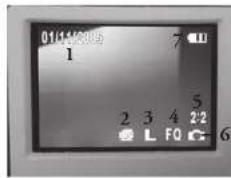
Review Display Icons
| # | Icon |
| 1 | Date of photo or video file (Date feature must be setup and turned on) |
| 2 | Location of current review file (Normal memory or SD Card) |
| 3 | Resolution of current review file |
| 4 | Quality (File Comparison) of current review file |
| 5 | Current file number (left numeral): Total files in memory (right numeral) |
| 6 | Indicates file type (Still Photo, Normal Video, Replay Video) |
| 7 | Battery Indicators |
Review Menu
Reviewing and Deleting Your Photos and Videos
Press "I.CD/Mode" to enter Review mode. Use the Left/Right arrow buttons to cycle through the stored photos/videos. Once you are in review mode, pressing the Menu/OK button will enter the review set of menus. These operate in the same way previously described in the main menu system instructions (use the arrow keypad to navigate to the desired menu group and options, press OK to confirm a setting), but with different menu items as shown here:
| Group | Item | Settings | Description |
| SLIDE SHOW | Yes / No | Selecting “Yes” will begin to show a review of all images currently in the internal or card memory, automatically changing to the next image every few seconds. |
Review Menus continued
| Group Item Setting Description | ||
| DELETE Delete One | Yes / No Deletes the currently displayed photo or video from memory. Use Up/Down arrows to find the file you want to delete. To delete, highlight the "Delete One" icon and press "OK". Then highlight "Yes" and press "OK" to delete the file. | |
| Delete All | Yes / No Deletes all stored files. To delete all files, (except locked-see below) highlight the "Delete All" icon and press "OK". Then highlight "Yes" and press "OK" to delete all files currently in memory. | |
| EDITOR Protect Lock / | Unlock | Locking a photo or video file prevents accidental erasure. Can be used together with "Delete All" to quickly delete all but one or two photos. To lock the currently displayed photo or video, highlight the "Lock" icon and press "OK". To unlock a previously locked file, select it using the Up/Down arrows, highlight the "Lock" icon again, and press "OK". |
| Rotate -90 Degree or +90 Degree | Rotates view of the current image by 90 degrees in either direction. | |
| EXIT Exit Exits the review menu and returns to the last selected review image. | ||
System Requirements (Minimum)
OS: Windows® 98/98SE/2000/ME/XP
CPU: MMX Pentium® 200MHZ equivalent or faster (Pentium® III 500 MHz for PhotoSuite5TM) Memory: 32MB minimum (64MB recommended for PhotoSuite)
SVGA video card w/2MB VRAM, 800x600 screen display, 16 bit High color 200 MB available hard disk space (if installing PhotoSuite)
Internal USB Port
Software Installation
If you are using Windows 98, you must install drivers before connecting the camera to your PC. Insert the CD-ROM into your computer's CD drive; it will auto-run and the install screen will be displayed. Select "Install Driver", then follow the directions. After installation, restart your computer. Windows 2000, ME, and XP do not require drivers, as the camera uses the USB mass storage standard, allowing the photo files to be accessed as if they were stored on an external hard drive. For any Windows OS, if you are not already using photo editing software you prefer, you may install Roxio PhotoSuite® from the CD-ROM. Be sure to read the "Release Notes" completely, noting any tips or potential issues relevant to your PC configuration and OS.
Transferring The Photos & Videos to Your PC - Step by Step
- Be sure the driver has been installed first if you are on Windows 98/98SE.
- Make sure the Instant Replay power is on and connect the supplied cable to the camera's USB port (open the connector cover on the left side of the Replay), then directly to a main USB port on your computer-do not use front panel/keyboard USB ports or unpowered "hubs".
- The LCD display will turn off to conserve battery power, and the Instant Replay will be recognized as a standard "USB Mass Storage" device. This means that the camera files can be easily viewed, edited, or copied to your hard drive, just as if they were stored on an external hard drive or a CD-ROM.
Transferring The Photos & Videos to Your PC continued
-
(This step is not required with Windows XP, simply use the on-screen options to view, copy or edit your photos). Open My Computer or Windows Explorer. The camera will be seen as a new "Removable Disk" with an unused drive letter assigned to it. Double click this new "Disk" icon, open the "DCIM" folder inside, then the folder(s) inside that ("100BNxx", etc.). Your photos/videos are the files inside-they have the prefix "PICT"—followed by a number, same as seen earlier on the camera's display when you review photos. Single clicking any file should show a small preview image.
-
Click "Edit>Select All" (or click on one photo, control+click to select multiple photos), then "Edit>Copy to Folder" (in Windows menus). Select an existing folder on your hard drive, such as "My Pictures", or create a new folder ("Hawaii Vacation", etc), then click "OK" to transfer copies of the photo files you want.
-
After the photos are transferred to your hard drive, you can disconnect the camera. Windows 2000 may produce a screen warning that you have disconnected a USB device without stopping or ejecting the "disk" first (your photo files will not be harmed). If so, check the box that adds an icon to your system tray or taskbar. Then next time you finish transferring photos, you can click that icon first, and "Stop the USB Mass Storage Device" before disconnecting the camera.
Note: If your PC will not play the .axi movie files in Windows Media Player, you may need to download a newer version of Media Player or Direct X from Microsoft.com. The movie files can also be played back with the QuickTime Player, included with many computers, or available as a free download from Apple.com.
Transferring The Photos & Videos to Your PC continued
-
You're now ready to open the photo files in any photo editing software. Just use File>Open and go to the folder where you stored the photos earlier. If you are using PhotoSuite, select File>Open Photo, then use the "Look in" pull down menu at the top of the Open window, select "My Computer", select your hard drive, and double click any photo in the folder where you copied the files from the camera. It is also possible to open and work with your photos directly from the Instant Replay while it is still connected. To do this with PhotoSuite, first follow steps 1-3, then open PhotoSuite, select File>Open Photo and use the "Look in" menu to select My Computer, then select the "Removable Disk", and open the folders inside until you get to the JPEG photo files. If you choose to work this way, from a connected camera, be sure that you save the photo (when you are done editing) to your hard drive, and not the camera's memory or card. To do this in PhotoSuite, after clicking "Done", answer "Save Changes!" with "Yes", but then answer "Replace Existing File"? with "No" and use the "Save As" dialog box to save the edited photo in a folder on your hard drive ("Save Int>Local Disk"), not the "Removable Disk" (camera).
-
If you are new to photo editing on a computer, consult your software's Help menu (PhotoSuite has extensive built-in help) for tips on using its features. Along with adjusting the brightness, contrast, sharpness and color of your photos, you can resize the photo to fit the paper if you are printing, or save a smaller, low or medium resolution version for email or inserting into documents. When you are ready to save your edited file, you may want to use "Save As" and give it a more descriptive name than "100BN____". Doing this also preserves the original file as a backup to reopen and re-edit later. Make sure you have successfully transferred all the photos you wanted to save before using "Delete All" on your camera to make room for new images.
Photo Storage Capacity Reference (max capacity, +/- 2 photos)
| Image Size Megapixels (approx) | Quality * Internal Memory** | 64 MB SD Card | |
| L 2048x1536 3.1 FQ 15 photos 60 | photos | ||
| NQ 31 124 | |||
| EQ 62 248 | |||
| M 1600x1200 2.1 FQ 25 100 | |||
| NQ 51 204 | |||
| EQ 102 408 | |||
| $ 640x480 0.35 FQ 160 640 | |||
| NQ 321 1284 | |||
| EQ 642 2568 | |||
* Selects amount of file compes-
sion (ng ratio)
(FQ:low/EQ:high) bO: king. Ouelim (1x)
NO: Normal Quality (1:8)
EQ Economy Quality (1:16)
^48 Internal RAM available for
photo files: 16 MB
Image Size refers to the pixel
dimensions, or resolution, of the
Actual storage capacity will vary
based on content of each photo
ble. You may be able to take a few
(请注明)如图1
Use large size and high quality settings for photos you may want to encourage or crop later. If required, they may also be reduced to a smaller file size using your photo software. Use small size and/or low quality settings if you will only create, enter into documents, or make small prints, and do not want to resize the file lane.
TWO-YEAR LIMITED WARRANTY
| Your flushwell® product is warranted to the free of defects in materials and workmanship for two years after the due of purchase. In the event of a defect under this warranty, we will, at our option, repair or replace the product, provided that you return the product postage prepaid. This warranty does not cover damages caused by misuse, improper handling, installaries, or maintenance provided by someone other than a Bushnell Authorized Service Department. |
Any return made under this warranty must be accompanied by the items listed below:
1) A check/money order in the amount of \$10.00 to cover the cost of postage and handling
2) Name and address for product return
31 An explanation of the defect
4) Product should be well available in a range outside shipping center, to prevent drivers in trans.
(3) Return amount to fair purchase in a specialty outside shipping room, to prevent damage in the case, with return price prepaid to the address listed below.
IN U.S.A. Send To:
| Bushnell Performance Optics | Bushnell Performance Optics |
| Auric Repairs | Auric Repairs |
| 8500 Marshall Drive | 25A last Pearce Street, Unit 1 |
| Leneta, Kansas 66214 | Richmond Hill, Ontario 14B 2M9 |
For products purchased outside the United States or Canada please contact your local dealer
for applicable warranty information. In Europe you may also contact Busnell at:
BUSINESS PERFORMANCE OPTICS Gmbh
European Service Centre
MORSESTICASS D. 50769 KOLN
17-50/49 KOHN GERMANY
18-49(0)2217049393
Fax: -49 (0) 221 709 839.8
This warranty gives your specific legal rights.
You may have other rights which vary from country to country.
©2005 Bushnell Performance Optics
FCC Note
This equipment has been tested and found to comply with the limits for a Class B digital device, pursuant to Part 15 at the FCC Rules. These limits are designed to provide reasonable prosecution against harmful interference in a residential installation. This equipment generates, uses and can advise radio frequency energy and, if not installed and used in accordance with the instructions, may cause harmful interference to radio communications. However, there is no guarantee that interference will not occur in a particular installation. If this equipment does cause harmful interference to radio or television reception, which can be determined by turning the equipment off and any, the user is encouraged to try to correct the interference by one or more of the following measures:
- Reorient or relocate the receiving antenna.
- Increase the separation between the equipment and receiver.
- Connect the equipment into an outlet on a circuit
different from that to which the receiver is connected. Consult the dealer or an experienced radio ^1 V
• Current the dealer at the experienced nurse's technician for help.
The shielded interface cable must be used with the equipment in order to comply with the limits for a digital device pursuant to Subpart B of Part 15 of FCC Rules.
Specifications and designs are subject to change without any notice or obligation on the part of the manufacturer.
natural_image
Black-and-white photo of a binoculars with a mounted screen (no visible text or symbols)COMPACT INSTANT REPLAY
FRANÇAIS
2) 1.0 mm x [mm] of the product
25A East Peery Street, Unit 1
Richmond Hill, Online LAB 2019
European Service Centre
MORSESTRASSE 4
D 50.69 Collegiate
Allemagne
Tel: -49 102 221 709 939 3
Fax: +491012217099998
©2005 Bushnell Performance Optics
natural_image
Black-and-white photo of a binoculars with an open screen (no visible text or symbols)COMPACT INSTANT REPLAY
ESPAÑOL
Tomar videos Normal o "Instant Replay"
En CANADA, ceyan a:
Bushnell Performance Optics
Auto: Repairs
25A East Pearce Street, Unit
Richmond Hill, Ontario 14th 2M9
natural_image
Black-and-white photo of a binoculars with a mounted screen (no visible text or symbols)COMPACT INSTANT REPLAY
DEUTSCH
Using The Main Menu continued
Überprüfungsmenü
Endral Performance Opics
\$500 Mariah Dairy Lemon Kanna 06214
Johnson Hill, Washington, Unit 1 Buckwell Performance Opera Arm.: Repairs 25A East, Power Switch, Unit 1 Richmond Hill, Ontario, L45-2310
The quick brown fox jumps over the lazy dog.
natural_image
Black-and-white photo of a binoculars with an open screen (no visible text or symbols)COMPACT INSTANT REPLAY
ITALIANO
23A East Pearl Street, Unit Richmond Hill, Ontario L/H
Richmond, Inc., Chicago, IL 2017
6201 by Hashnell Performance Optics
natural_image
Black-and-white photo of a binoculars with an open screen (no visible text or symbols)COMPACT INSTANT REPLAY
PORTUGUÊS
Review Display Icons
NQ: Qualitative annual (1-8)
EN: Quandate economic (1.10)
**RAM income discounted was
8500 Marshall Drive 25A East Peace Street, Unit
Lecena, Kansas 66214 Richmond Hill, Ontario L4B 2M9
European Service Centre
MORSESTRASSE 4
D 50769 KOLN
Alemanha
- 代:062317049393
Fax: -49 (0) 221 700 930 8
102: -13 (9) 221/95/33:5
©2005 Bushnell Performance Optics
Nota da FCC:
©2005 Bushnell Performance Optics
www.bushnell.com

- CONTENTS
- Loading Batteries
- Inserting An SD Card
- Basic Binocular and Camera Setup
- Taking Still Photos
- Shooting Normal or "Instant Replay" Videos
- Using The Main Menu
- Review Menu
- Reviewing and Deleting Your Photos and Videos
- System Requirements (Minimum)
- Software Installation
- Transferring The Photos & Videos to Your PC - Step by Step
- Transferring The Photos & Videos to Your PC continued
- FCC Note
- Tomar videos Normal o "Instant Replay"
- Überprüfungsmenü
- Nota da FCC:
Brand : BUSHNELL
Model : Imageview 118323
Category : Binoculars