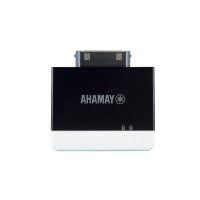
YITW12 - Wireless audio transmitter YAMAHA - Free user manual and instructions
Find the device manual for free YITW12 YAMAHA in PDF.



| Product Type | Wireless Audio Transmitter |
| Brand | YAMAHA |
| Model | YITW12 |
| Dimensions (L x H x D) | 40 x 38.5 x 10 mm |
| Weight | 10.3 g |
| Power Supply | iPod battery or USB (5 V) |
| Power Consumption | 0.3 W max |
| Rated Current | 2.1 A max |
| Frequency Band | 2.4 GHz |
| Connectors | Dock connector, Micro USB |
| iPod Compatibility | iPod touch (1st-4th gen), iPod nano (3rd-6th gen), iPhone 4S/4/3GS/3G, iPad (3rd gen/2/1) |
| PC Compatibility | Windows 7/Vista/XP, Mac OS X 10.6 or later |
| Sampling Frequency | 48 kHz (iPod), 32/44.1/48 kHz (PC) |
| Wireless Technology | AirWired |
| Main Functions | Wireless audio playback, iPod charging via USB, streaming from PC |
| Included Accessories | USB cable (0.3 m) |
| Care and Cleaning | Clean with a dry, clean cloth, do not use chemical solvents |
| Safety | Do not expose to rain or moisture; do not open the case; keep more than 22 cm away from pacemaker wearers |
| Repairability | Refer to Yamaha service; do not attempt to repair yourself |
| Compatible Devices | AirWired compatible Yamaha devices |
Frequently Asked Questions - YITW12 YAMAHA
User questions about YITW12 YAMAHA
0 question about this device. Answer the ones you know or ask your own.
Ask a new question about this device
Download the instructions for your Wireless audio transmitter in PDF format for free! Find your manual YITW12 - YAMAHA and take your electronic device back in hand. On this page are published all the documents necessary for the use of your device. YITW12 by YAMAHA.
USER MANUAL YITW12 YAMAHA
Wireless Transmitter for iPod
Caution: Read this before operating this unit.
1 To assure the finest performance, please read this manual carefully. Keep it in a safe place for future reference.
2 Locate this unit away from other electrical appliances, motors, or transformers to avoid humming sounds.
3 Do not expose this unit to sudden temperature changes from cold to hot, and do not locate this unit in an environment with high humidity (i.e. a room with a humidifier) to prevent condensation inside this unit, which may cause an electrical shock, fire, damage to this unit, and/or personal injury.
4 Avoid installing this unit where foreign object may fall onto this unit and/or this unit may be exposed to liquid dripping or splashing. On the top of this unit, do not place:
- Other components, as they may cause damage and/or discoloration on the surface of this unit.
- Burning objects (i.e. candles), as they may cause fire, damage to this unit, and/or personal injury.
- Containers with liquid in them, as they may fall and liquid may cause electrical shock to the user and/or damage to this unit.
5 Do not cover this unit with a newspaper, tablecloth, curtain, etc. in order not to obstruct heat radiation. If the temperature inside this unit rises, it may cause fire, damage to this unit, and/or personal injury.
6 Do not use force on switches, knobs and/or cords.
7 Do not clean this unit with chemical solvents; this might damage the finish. Use a clean, dry cloth.
8 Do not attempt to modify or fix this unit. Contact qualified Yamaha service personnel when any service is needed. The cabinet should never be opened for any reasons.
9 Be sure to read the "Troubleshooting" section on common operating errors before concluding that this unit is faulty.
WARNING
TO REDUCE THE RISK OF FIRE OR ELECTRIC SHOCK, DO NOT EXPOSE THIS UNIT TO RAIN OR MOISTURE.
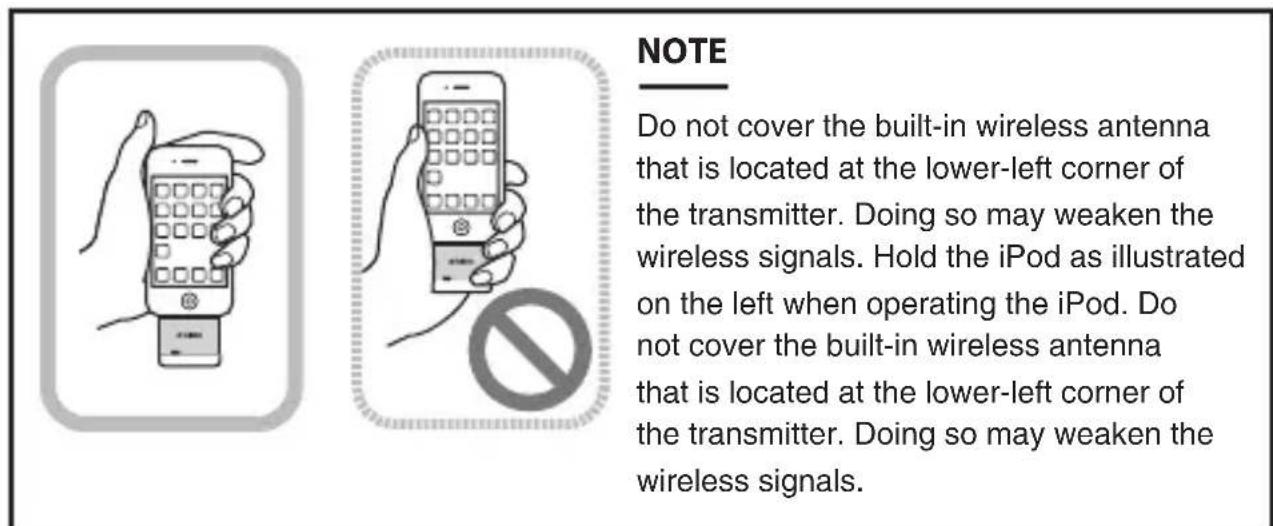
Radio waves may affect electro-medical devices.
Do not use this unit near medical devices or inside medical facilities.
Do not use this unit within 22cm (9 in) of persons with a heart pacemaker implant or defibrillator implant.
About this manual
- This manual describes all the "iPod", "iPhone" and "iPad" as the "iPod". "iPod" refers to "iPod", iPhone and iPad, unless otherwise specified.
- Marks used in this manual
NOTE
This indicates precautions for use of the product and its feature limitations.
HINT
This indicates supplementary explanations for better use.
Wired
The " and "AirWired" are trademarks of Yamaha Corporation.
Wate for iPodiPhoneiPad
"Made for iPod," "Made for iPhone," and "Made for iPad" mean that an electronic accessory has been designed to connect specifically to iPod, iPhone, or iPad, respectively, and has been certified by the developer to meet Apple performance standards.
Apple is not responsible for the operation of this device or its compliance with safety and regulatory standards.
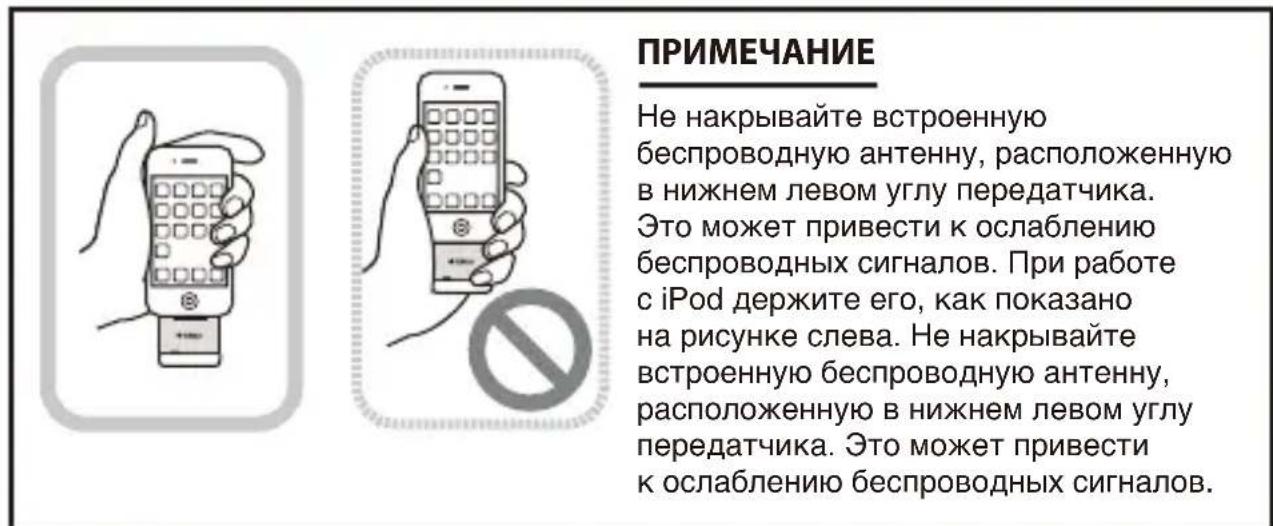
Please note that the use of this accessory with iPod, iPhone, or iPad may affect wireless performance.
iPad, iPhone, iPod, iPod nano, and iPod touch are trademarks of Apple Inc., registered in the U.S. and other countries.
WindowsTM
Windows is a registered trademark of Microsoft Corporation in the United States and other countries.
Windows XP, Windows Vista, and Windows 7 are either registered trademarks or trademarks of Microsoft Corporation in the United States and/or other countries.
Introduction
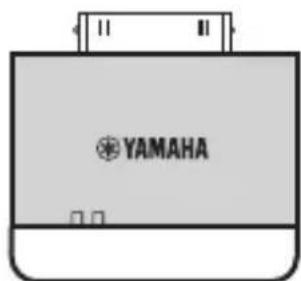
YIT-W12 consists of YIT-W12TX and a dedicated USB cable. YIT-W12TX is a wireless transmitter designed for iPod series and PCs. YIT-W12TX employs the Yamaha "AirWired" technology to establish a wireless connection with another Yamaha product that supports "AirWired" and enables playback of the iPod or PC on your Yamaha product.
Also the supplied USB cable can be used for charging the iPod connected to the transmitter, or to play music or videos for an extended time.
For information on iPod and PC operating systems supported by YIT-W12TX, see "Specifications" (p.10).
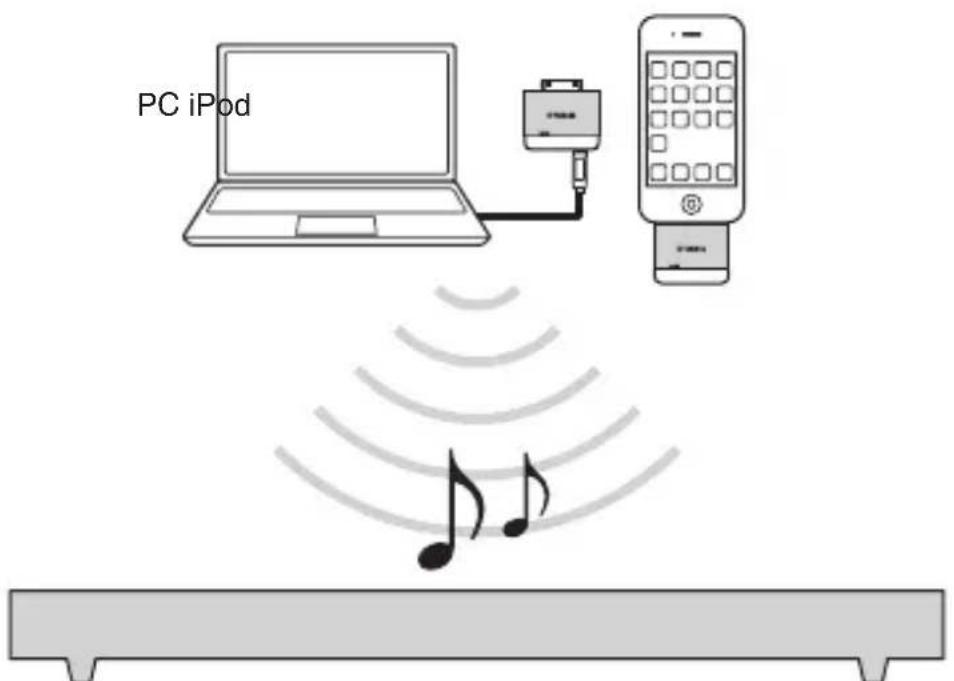
Yamaha product that supports "AirWired"
Supplied items
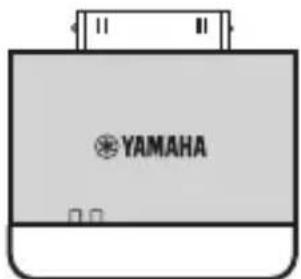
Wireless transmitter (YIT-W12TX)
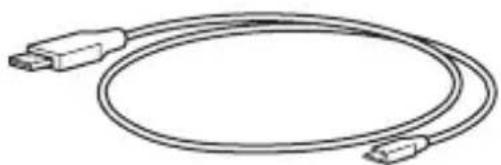
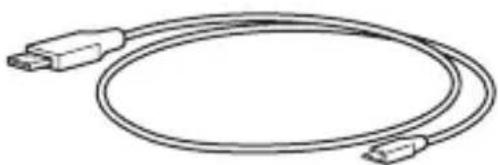
USB cable (0.3 m [1 ft])
* For connecting the transmitter to a PC (Be sure to use the supplied USB cable when connecting the transmitter to a PC.)
Setting the group ID
To establish a wireless connection (AirWired) between the transmitter and another Yamaha product, you need to set both the products to the same group.
Change the group ID of the transmitter or your Yamaha product if their group IDs are not same.
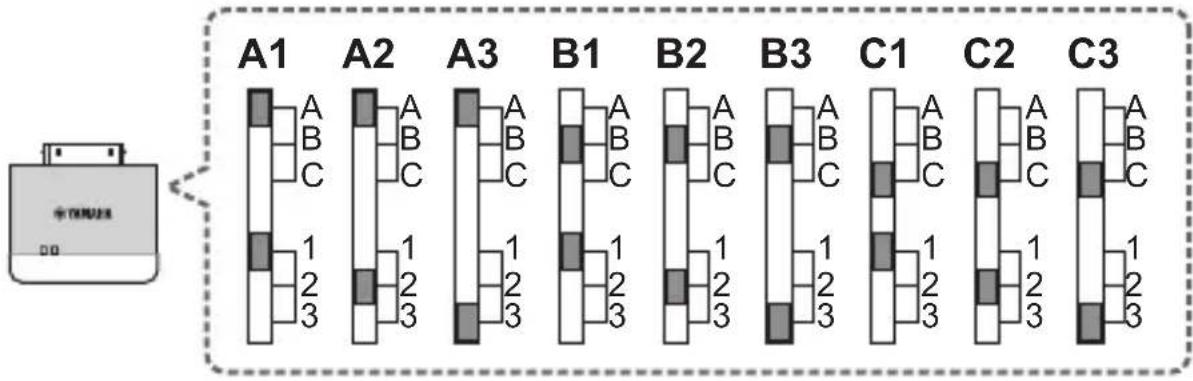
Group ID switches (on the side of the transmitter)
Use set C1-C3 when playing music stored on a computer via the transmitter. In all other cases, select a group ID from set A1-A3, B1-B3, or C1-C3 to achieve a stable wireless connection.
NOTE
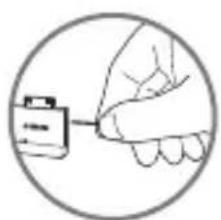
- Use a blunt-tip metal tool (such as tweezers) to switch the group ID. Be careful not to get injured.
Playing back iPod music
1 Check that the transmitter and your Yamaha product are set to the same group ID.
2 Connect your iPod to the transmitter.
A wireless connection between the transmitter and your Yamaha product will be established.
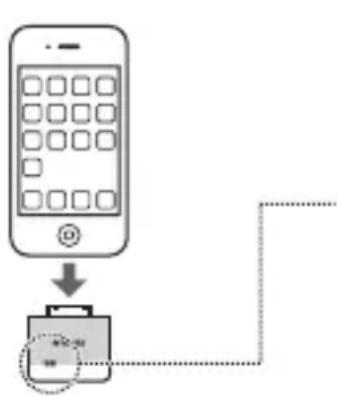

(Flashes green rapidly) iPod recognition in progress

(Flashes green slowly) preparing for a wireless connection

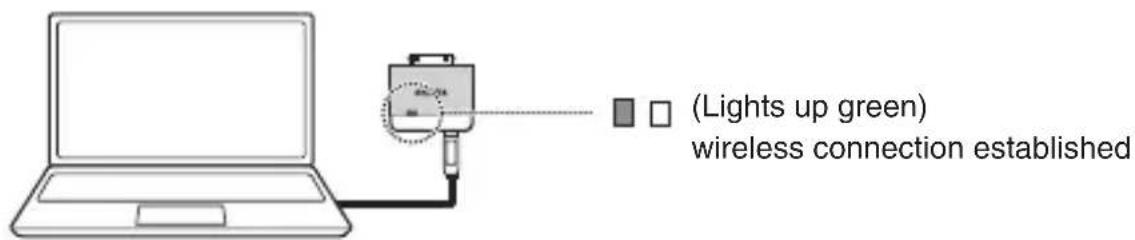
(Lights up green) wireless connection established
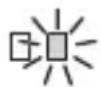
(Flashes red) iPod low battery or error indication (p.7)
3 Start playback on your iPod.
Your Yamaha product automatically selects the transmitter (YIT) as the input source and starts to play the iPod audio.
NOTE
- When disconnecting the iPod from the transmitter, pull the iPod upward slowly.
- The transmitter uses the battery of the iPod as the power source. Charge the battery of the iPod if it runs out. Also, disconnect the iPod from the transmitter when the transmitter is not in use. Otherwise, the battery may drain faster.
HINT
- Your Yamaha product automatically turns on if you start playback on your iPod.
- Some Yamaha products will terminate the wireless connection and turn off automatically if a certain period of time elapses after iPod playback is stopped.
- To adjust the volume, use the volume controls on your Yamaha product or iPod. (Volume adjustments will be reflected on one another.)
- You can enjoy videos on the iPod screen.
Charging an iPod
You can charge the iPod by connecting the transmitter to your PC using the supplied USB cable. Also, you can enjoy iPod music on your Yamaha product while charging the iPod.
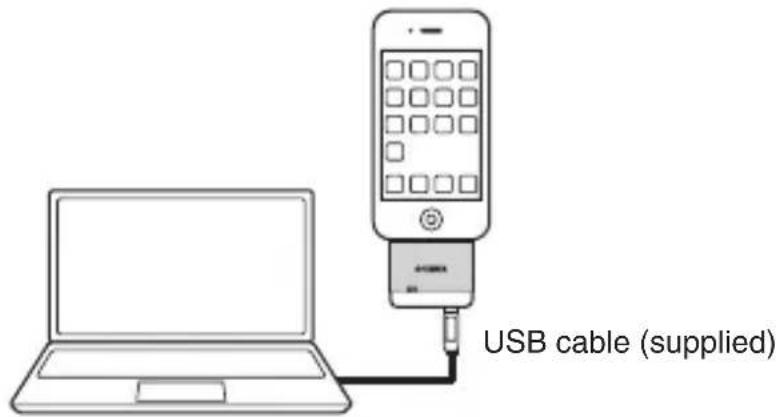
NOTE
- Charging may not be possible depending on the USB power supply capability of your PC.
- Data synchronization between the iPod and PC may start automatically when they are connected. You cannot play back iPod audio on your Yamaha product during data synchronization. Please wait until data synchronization is completed, or cancel it as necessary.
Playing back PC music
1 Check that the transmitter and your Yamaha product are set to the same group ID (C1, C2 or C3).
2 Connect the transmitter to your PC with the supplied USB cable.
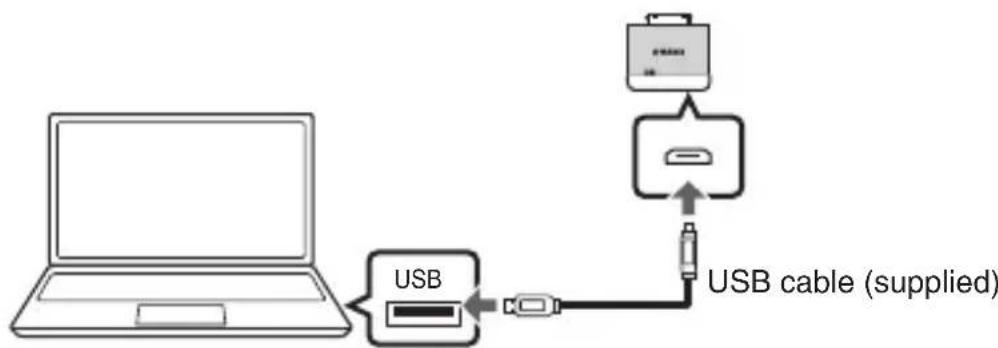
The USB driver software will be automatically installed on your PC (only the first time the transmitter is connected to the PC).
3 Start playback on your PC.
After a wireless connection between the transmitter and your Yamaha product is established, the Yamaha product automatically selects the transmitter (YIT) as the input source and starts to play the PC audio.
NOTE
- The transmitter automatically stops if your Yamaha product is turned off or if an input source other than the transmitter is selected. To play back the PC audio again, disconnect the transmitter from the PC and then reconnect them.
- If PC audio is not available on your Yamaha product, the transmitter may not be selected as the audio playback device on your PC. Check the audio device settings on your PC. For details, refer to the manuals of the PC.
- Do not use a USB hub when connecting the transmitter to a PC.
- You cannot play back PC audio on your Yamaha product when an iPod is connected to the transmitter.
HINT
- Your Yamaha product automatically turns on if you start playback on your PC.
- Some Yamaha products will terminate the wireless connection and turn off automatically if a certain period of time elapses after PC playback is stopped.
- You can enjoy videos on the PC monitor.
Updating the firmware of the transmitter
New firmware that provides additional features or product improvements will be released as needed. Updates can be downloaded from our website. Please check our website regularly for Information.
Troubleshooting
Refer to the table below when the unit does not function properly. If the problem you are experiencing is not listed below or if the instructions below do not help, contact the nearest authorized Yamaha dealer or service center.
First, check the following:
① The power cable of your Yamaha product is connected to an AC wall outlet securely.
The latest firmware is installed on the transmitter or your iPod.
| Problem/Cause Remedy | |
| A wireless connection cannot be made. (The green indicator is off.) | |
| Your iPod is not connected to the transmitter firmly. | Reconnect the iPod to the transmitter. |
| The battery of your iPod is low or run out. | Charge the iPod (p.5). |
| The supplied USB cable is not connected to the transmitter (or PC) firmly. | Reconnect the USB cable. |
| The USB driver software is not installed on your PC because the PC (operating system) is not supported by the transmitter. | Use a PC (operating system) supported by the transmitter (p.10). |
| A wireless connection cannot be made. (The green indicator flashes.) | |
| The group IDs of the transmitter and your Yamaha product are not same. | Set both the products to the same group (p.3). |
| iPod recognition has failed because your iPod is not supported by the transmitter. (In this case, the red indicator starts flashing 30 seconds after an iPod connection.) | Use an iPod supported by the transmitter (p.10). If you are using a supported iPod, but still cannot establish a wireless connection, reconnect the iPod to the transmitter. If the problem happens frequently, disconnect the iPod from the transmitter, restart the iPod, and reconnect the iPod. |
| There is a communication error between the transmitter and your iPod. (In this case, the red indicator starts flashing 30 seconds after an iPod connection.) | Reconnect the iPod to the transmitter. If the problem happens frequently, disconnect the iPod from the transmitter, restart the iPod, and reconnect the iPod |
| There is a device using 2.4-GHz band range (such as microwave ovens, cordless phones and Wi-Fi devices) nearby. | Move those devices away from the transmitter and your Yamaha product, or turn off the power of the wireless devices. If you are using a wireless router, change the wireless channel to the highest one. Refer to documentation provided with the wireless router. |
| Specify another group ID (p.3). | |
| No sound is coming from the Yamaha product although a wireless connection is established. | |
| The volume of your Yamaha product is too low. | Turn up the volume. |
| The mute function is activated on your Yamaha product. | Cancel the mute function. |
| An input source other than the transmitter (YIT) is selected on your Yamaha product. | Select the transmitter (YIT) as the input source. |
| Headphones are connected to your iPod. | Disconnect the headphones from the iPod. |
| The transmitter is not selected as the audio playback device on your PC. | Check the audio device settings on your PC and select the transmitter as the audio playback device. (The name of the transmitter displayed on your PC varies depending on its operating system.) |
| The sound is interrupted. (The green indicator flashes.) | |
| The transmitter is too far from your Yamaha product. | Move the transmitter closer to your Yamaha product. |
| The signal from the transmitter is blocked by your body, metallic objects or walls. | Move the transmitter to another position so that the signal from the transmitter is not blocked. |
| There is a device using 2.4-GHz band range (such as microwave ovens, cordless phones and Wi-Fi devices) nearby. | Move those devices away from the transmitter and your Yamaha product, or turn off the power of the wireless devices. If you are using a wireless router, change the wireless channel to the highest one. Refer to documentation provided with the wireless router. |
| Specify another group ID (p.3). | |
| No sound is coming from the Yamaha product when playing back music stored on an iPod. | |
| Your iPod is not connected to the transmitter firmly. | Reconnect the iPod to the transmitter. |
| The volumes of the iPod and Yamaha product are not reflected one another. | |
| Your iPod is not connected to the transmitter firmly. | Reconnect the iPod to the transmitter. |
| No sound is coming from the Yamaha product when playing back music stored on a PC. | |
| The group ID is assigned to the A1-A3 set or B1-B3 set. | Change the group ID of the Yamaha product and transmitter to the C1-C3 set (p.3). |
| Ring tone for iPhone is output from the Yamaha product. | |
| Your iPhone received a call while it is connected to the transmitter. | As necessary, disable the ringtone output on your iPhone. |
| The communication between Wi-Fi devices becomes unstable. | |
| There are signal interferences between the transmitter and your Wi-Fi devices. | Move the transmitter away from your Wi-Fi devices. If the problem happens frequently, disconnect the iPod (or the USB cable connected to the PC) from the transmitter and reconnect it after a while. |
| Specify another group ID (p.3). | |
Specifications
| Item Transmitter (YIT-W12TX) | |
| Supported iPod/iPhone/iPad (as of June 2012) | iPod touch (1st, 2nd, 3rd and 4th generation) iPod nano (3rd, 4th, 5th and 6th generation) iPhone 4S, iPhone 4, iPhone 3GS, iPhone 3G, iPhone iPad (3rd generation), iPad 2, iPad |
| PC (Operating System) (as of June 2012) | Windows 7, Windows Vista, Windows XP Mac OS X (10.6 or later) |
| Power Consumption 0.3 W or less | |
| Allowable Current 2.1 A or less | |
| Connector Dock connector, Micro USB | |
| Sampling Frequency | 48 kHz (iPod/iPhone/iPad) 32 kHz, 44.1 kHz, 48 kHz (PC) |
| Frequency Band 2.4 GHz | |
| Transmission Range | Refer to the manual of your Yamaha product connected to the transmitter. |
| Dimensions (W x H x D) 40 x 38.5 x 10 mm (1-5/8” x 1-1/2” x 3/8”) | |
| Weight 10.3 g (0.36 oz) | |
- Specifications are subject to change without notice.
AVEEA11102A
| Important Notice: | English |
| Warranty policy for European Economic Area (EEA) and Switzerland, Australia customer. In the unlikely event that your Yamaha product needs guarantee service, please contact the dealer from whom it was purchased. If you experience any difficulty, please contact Yamaha representative office in your country. You can find full details on our website | |
| EEA and Switzerland: http://europe.yamaha.com/warranty/ | |
| Australia: http://au.yamaha.com/ | |
CE
This unit may affect radio waves of iPhone when iPhone is charged by using this unit. In addition, radio waves of this unit and iPhone may interfere with each other. If you have a problem with your telephone call, disconnect your iPhone from this unit.
Information for Users on Collection and Disposal of Old Equipment
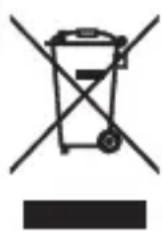
This symbol on the products, packaging, and/or accompanying documents means that used electrical and electronic products should not be mixed with general household waste.
For proper treatment, recovery and recycling of old products, please take them to applicable collection points, in accordance with your national legislation and the Directives 2002/96/EC.
By disposing of these products correctly, you will help to save valuable resources and prevent any potential negative effects on human health and the environment which could otherwise arise from inappropriate waste handling.
For more information about collection and recycling of old products, please contact your local municipality, your waste disposal service or the point of sale where you purchased the items.
[Information on Disposal in other Countries outside the European Union]
This symbol is only valid in the European Union. If you wish to discard these items, please contact your local authorities or dealer and ask for the correct method of disposal.
We, Yamaha Music Europe GmbH hereby declare that this unit is in compliance with the essential requirements and other relevant provisions of Directive 1999/5/EC.
Make for iPod iPhone iPad
Vae for iPod iPhone iPad
«Made for iPod», «Made for iPhone» «Made for iPad» 03haaOT, чTo јлктpoHoe yctpoiCTBO 6bIIO сециально pa3pa6OtaHO ДЯ NOДКЛЮЧЕня K iPod, iPhone Ип iPod и 6bIIO ceTpncpnsuropoBaHO pa3pa6OtuNKOM Ha COOTBETCTBNE CTaHdApTAM npOn3BOIDNTeJIbHOCtN KOMпаниApple.
KOMnHaApple He HeceT OTBeTCTBHeHOctTu pa6Otu 3TOrO yCTpoiCTBa IIN erO COOTBeTCTBnE CTaIapTaM 6e30NaCHOCTu N peYJrTNBbIM HopMaM.
YuTnTe, YTO nCNoJIb3OBAHne 3TOrO yCTpOJcTBa c iPod, iPhone nn iPad moKet noBnIaTb Ha pa6oTy beCnpoBOdHOn ceTI.
iPad, iPhone, iPod, iPod nano i iPod touch rabnIOrTc TOBapHbIMN 3HaKaAMn Apple Inc., 3apernctpnpoBaHHbIMN B CUSA n npynx cTpaHax.
WindowsTM
Windows ABJIeTc TOBapHbIM 3HaKOM Microsoft Corporation B CUSA n dpyrnx cTpaHax. Windows XP, Windows Vista n Windows 7 ABJIaOTc 3aperncTpnpoBaHHbIMn TOBapHbIMn 3HaKAMn INI TOBAPHbIMn 3HaKAMn Microsoft Corporation B CUSA n dpyrnx cTpaHax.
Bveedenne
YIT-W12 coctoNT n3 nepeaTnka YIT-W12TX n cneuaIbHoro USB-ka6eJIy. YIT-W12TX - 6ecnpoBOdHOJ nepeaTnK, npedHa3NaueHbI yCTaHOBKn coeINHeHc iPod n nepcoHaJIbHbIMN KOMNbIoTepaMn. YIT-W12TX nCnoJIb3yeT texHOJrIO «AirWired» dny uCTaHOBKn 6ecnpoBOdHOro coeINHeHnK dpyrOmy o6OpyIDOBAHIO Yamaha, kOTOpoe noDepxuBaET «AirWired» n obecneuBaET BO3MOXHOCTb BOCpON3BeDEHnKoHTeHTa c iPod nIi KOMNbIoTepa Ha n3DeJIIn Yamaha.
Kpome TOrO,ДЯЗAPДКИ NOДКЛЮЧЕНО R ПЕPEDaTчИКу iPod nnpoДOLЖИTeMbHOrO BOCnPOn3BEdeHnMy3bIKN BnDeO3aIncEIMoKET NcNoJIb3OBaTbcr IdUyniB KOMnJIeKTe USB-Ka6eJb.
CbeHn o6 iPod n KOMbIOTephIx OepaunOHbIX CnCTeMax, PoadepKNaembIX YIT-W12TX, cm. B pa3dene «TexHnueckne XapaKTepnCTnKn» (c. 10).
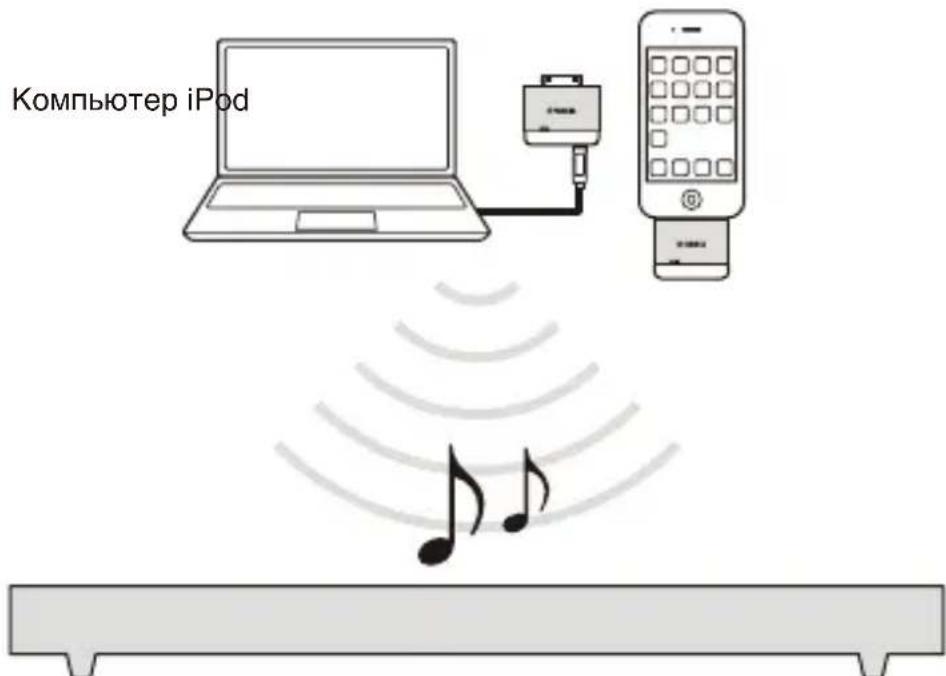
I3deneYamaha, noDepknaouee TexHoioruO «AirWired»
Прилары KMноненты
BecnpoBoNDH nopeaTun (YIT-W12TX) USB-ka6eJb (0,3 M)
*IINIOKNIUOeHnNEpeaTUnKa K KOMNbOTepy (IINIOKNIUOeHnNEpeaTUnKa K KOMNbOTepy 063aTeNbHO NCNOJb3yInTe NOCTaBnEMy B KOMNJIeKe USB-Ka6eNb.)
YcTaHOBKa NdeHTnΦnKaTopa rpynnbl
- Caution: Read this before operating this unit.
- WARNING
- About this manual
- NOTE
- HINT
- Wired
- Wate for iPodiPhoneiPad
- WindowsTM
- Introduction
- Supplied items
- Setting the group ID
- Playing back iPod music
- Check that the transmitter and your Yamaha product are set to the same group ID.
- Connect your iPod to the transmitter.
- Start playback on your iPod.
- Charging an iPod
- Playing back PC music
- Start playback on your PC.
- Updating the firmware of the transmitter
- Troubleshooting
- CE
- Information for Users on Collection and Disposal of Old Equipment
- [Information on Disposal in other Countries outside the European Union]
- Make for iPod iPhone iPad
- Vae for iPod iPhone iPad
- Bveedenne
- Прилары KMноненты
- YcTaHOBKa NdeHTnΦnKaTopa rpynnbl
Brand : YAMAHA
Model : YITW12
Category : Wireless audio transmitter