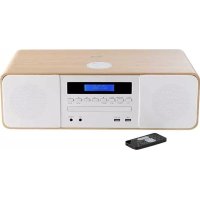
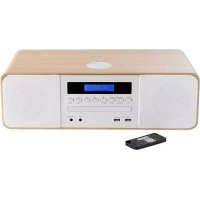
RK203DABCD - Hi-Fi System THOMSON - Free user manual and instructions
Find the device manual for free RK203DABCD THOMSON in PDF.


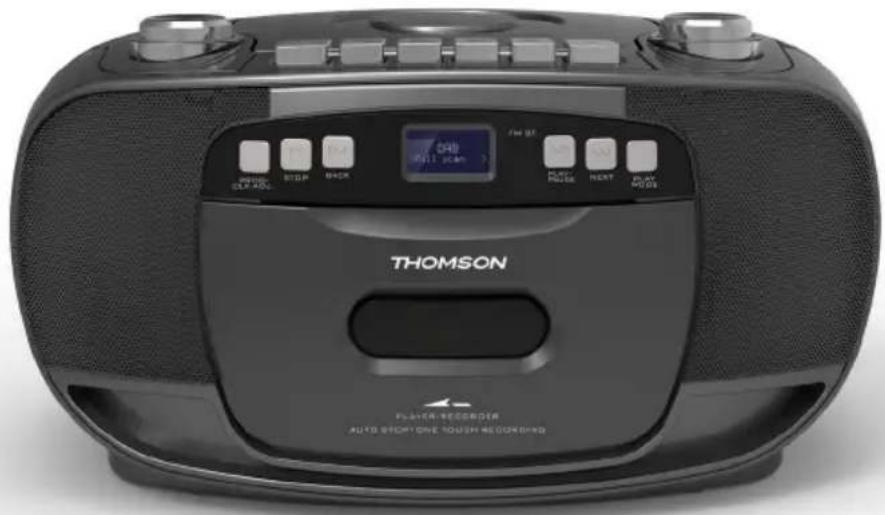
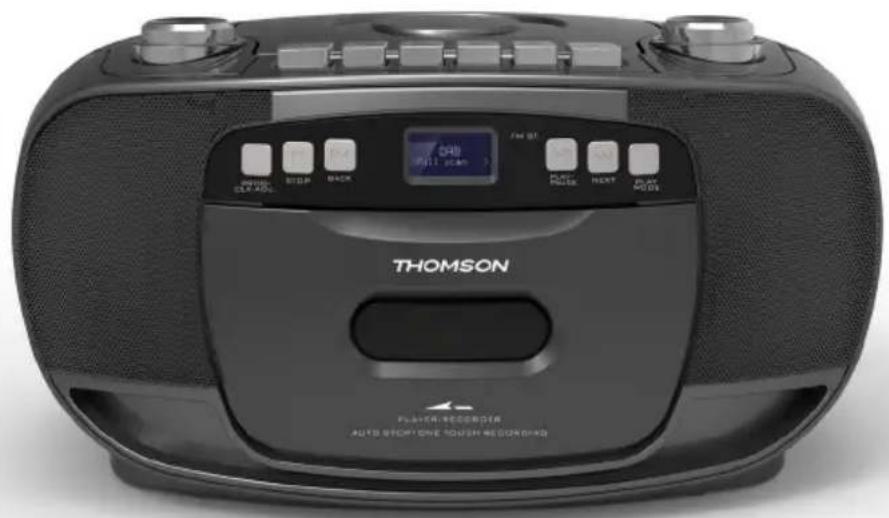
| Product Type | Hi-Fi System |
| Brand | Thomson |
| Model | RK203DABCD |
| Power Supply | 230 V AC, 50 Hz, 0.3 A |
| Backup Batteries | 6 UM-2 batteries (size C) |
| Radio | DAB/DAB+ (174.928-239.200 MHz) and FM (88.8-108 MHz) |
| CD Player | Audio CD and MP3 |
| Cassette Player | Yes, with recording |
| Bluetooth Connectivity | Yes, range up to 10 m |
| Auxiliary Input | AUX IN jack (3.5 mm) |
| USB Port | Yes, for playback and charging |
| Clock Functions | Clock, alarm, snooze, timer |
| Output Power | 1.5 W x 2 (8 ohm speakers) |
| Display | LCD |
| Antenna | Telescopic antenna |
| Maintenance | Clean with a soft, dry cloth; unplug before cleaning |
| Safety | Do not expose to water, fire, or drops; do not open the casing |
| Spare Parts and Repairability | Use only parts specified by the manufacturer; repair by a qualified professional |
| General Information | Manufactured in China by Bigben Interactive; customer service: 09 69 32 59 62 |
Frequently Asked Questions - RK203DABCD THOMSON
User questions about RK203DABCD THOMSON
0 question about this device. Answer the ones you know or ask your own.
Ask a new question about this device
Download the instructions for your Hi-Fi System in PDF format for free! Find your manual RK203DABCD - THOMSON and take your electronic device back in hand. On this page are published all the documents necessary for the use of your device. RK203DABCD by THOMSON.
USER MANUAL RK203DABCD THOMSON
CLASS 1 LASER PRODUCT
CLASS 1 LASER PRODUCT APPAREL LASER DE CLASSE 1 PRODUCTO LASER DE CLASE 1
CAUTION ISIBLE LASER RADIATION IN OPEN AND INTERLOCKS DEFEATED. OID EXPOSURE TO BEAM

This product contains a low power laser device.

| PRODUIT DE CLASSE II | |
| COURANT CONTINU | |
| COURANT ALTERNATIF | |
| POUR USAGE INTÉRIEUR UNIQUÉMENT |
$$ C C: 9 V (6 \times 1, 5 V L R 1 4 / " C" / U M 2) $$
Consummation max.:10 W
Waterloo Office Park/Batiment H
Dreme Richelle 161 bte 15 1410 Waterloo, Belgium
Bigben Interactive NEDERLAND b.v.
BELGIQUE, customerservice@bigben-interactive.be
NEDERLAND, customerservice@bigben-interactive.nl
ESPANA, sat@bigbeninteractive.es
ITALIA, support@bigbeninteractive.it
www/bigben.eu
THOMSON
RK200DABCD
RK203DABCD
DAB/FM/CD/CASSETTE/AUDIO IN

OPERATING INSTRUCTIONS
PLEASE READ THIS USER MANUAL CAREFULLY BEFORE
OPERATING THIS UNIT AND RETAIN FOR
FUTURE REFERENCE
Contents
Getting Started 1
Safety and Notice 1
Care for your product 2
Care of the environment 3
What's in the box 3
Description of Parts 4
Power
Clock and Timers 6
DAB Radio Mode 7
FM Radio 9
Manual Scan 9
Playing a Compact Disc (CD) 10
Remarks 14
5
Getting Started
- Remove the appliance from the box.
- Remove any packaging from the product.
- Place the packaging inside the box and either or dispose of safely.
Safety and Notice
Read and understand all instructions before you use this product. If damage is caused by failure to follow the instructions, the warranty does not apply.
Safety
Warning
- Never remove the casing of this apparatus.
- Never lubricate any part of this apparatus.
- Never place this apparatus on other electrical equipment.
- Keep this apparatus away from direct sunlight, naked Fames or heat.
- Never look into the laser beam inside this apparatus.
- Ensure that you always have easy access to the power cord, plug or adaptor to disconnect this apparatus from the power

- The apparatus shall not be exposed to dripping or splashing and no liquid-filled objects, such as vases, shall be placed on the apparatus.
- To ensure complete disconnection from the power input, the mains plug of the apparatus shall be disconnected from the mains.
- The mains plug of the apparatus must not be obstructed OR must be easily accessed during intended use.
- Minimum distances 10 cm around the apparatus for sufficient ventilations
- The ventilation should not be impeded by covering the ventilation openings with items, such as newspapers, table-cloths, curtains, etc.
- No naked flame sources such as lighted candles should be placed on the apparatus
- Attention should be drawn to environmental aspects of battery disposal
-
The use of apparatus in moderate climates.
-
Read these instructions.
- Keep these instructions.
- Heed all warnings.
- Follow all instructions.
- Do not use this apparatus near water.
- Clean only with dry cloth.
-
Do not block any ventilation openings. Install in accordance with the manufacturer's instructions.
-
Do not install near any heat sources such as radiators, heat registers, stoves, or other apparatus (including amplifiers) that produce heat.
- Protect the power cord from being walked on or pinched, particularly at plugs, convenience receptacles, and the Point where they exit from the apparatus.
- Only use attachments/accessories specified by the manufacturer.
- Use only with the cart, stand, tripod, bracket, or table specified by the manufacturer or sold with the apparatus. When a cart is used, use caution when moving the cart/apparatus combination to avoid injury from tip-over.
- Unplug this apparatus during lightning storms or when unused for long periods of time.
- Refer all servicing to qualified service personnel. Servicing is required when the apparatus has been damaged in anyway, such as power-supply cord or plug is damaged, liquid has been spilled or objects have fallen into the apparatus, apparatus has been exposed to rain or moisture, does not operate normally, or has been dropped.
- Apparatus shall not be exposed to dripping or splashing.
- Do not place any sources of danger on the apparatus (e.g. liquid filled objects, lighted candles).
- Where the MAINS plug (or AC/DC adaptor) or an appliance coupler is used as the disconnect device, the disconnect device shall remain readily operable.
- Make sure there is enough free space around the product for ventilation.
- Batteries (battery pack or batteries installed) shall not be exposed to excessive heat such as sunshine, fire or the like.
- The rating label is placed on the back side of apparatus.
CAUTION
Danger of explosion if battery is improperly replaced.
Replace only with the same or equivalent type.

WARNING
Do not ingest the battery (chemical burn hazard)
The remote control supplied with this product contains a coin/button cell battery. If the coin/button cell battery is swallowed, it can cause severe internal burns in just 2 hours and can lead to death.
Keep new and used batteries away from children.
If the battery compartment does not close securely, stop using the product and keep it away from children.
If you think batteries may have been swallowed or placed inside any part of the body, seek immediate medical attention.
Care for your product
- Always unplug the appliance when not in use and before cleaning.
- Do not play music at excessive volume levels as damage to hearing and or the equipment may occur.
- Do not use this unit in wet or damp conditions.
- Always disconnect the unit from the mains power supply before cleaning. Clean the appliance with a soft, damp, lint free cloth. Do not use abrasives or harsh cleaners.
Care of the environment

Your product is designed and manufactured with high quality materials and components, which can be recycled and reused.
Your product contains batteries covered by the European Directive 2006/66/EC, which cannot be disposed with normal household waste. Please inform yourself about the local rules on separate collection of batteries because correct disposal helps to prevent negative consequences for the environmental and human health.
When this crossed-out wheeled bin symbol is attached to a product it means that the product is covered by the European Directive 2002/96/EC. Please inform yourself about the local separate collection system for electrical and electronic products. Please act according to your local rules and do not dispose of your old products with your normal household waste. Correct disposal of your old product helps to prevent potential negative consequences for the environment and human health.
CLASS 1 LASER PRODUCT
CLASS 1 LASER PRODUCT APPAREL LASER DE CLASSE 1 PRODUCTO LASER DE CLASE 1
CAUTION
INVASIBLE LASER RADIATION WHEN OPEN AND INTERLOCKS DEFECTED AVOID EXPOSURE TO BEAM

This product contains a low power laser device.

| CLASS II MATERIAL | |
| DIRECT CURRENT | |
| ALTERNATING CURRENT | |
| FOR INDOOR USE ONLY |
The lightning symbol inside an equilateral triangle warns the user of the presence inside the product of uninsulated hazardous electric voltages powerful enough to represent an electrocution risk.
What's in the box
Check and identify the contents of your package:
- Main unit
- AC power cable
- User manual
Description of Parts
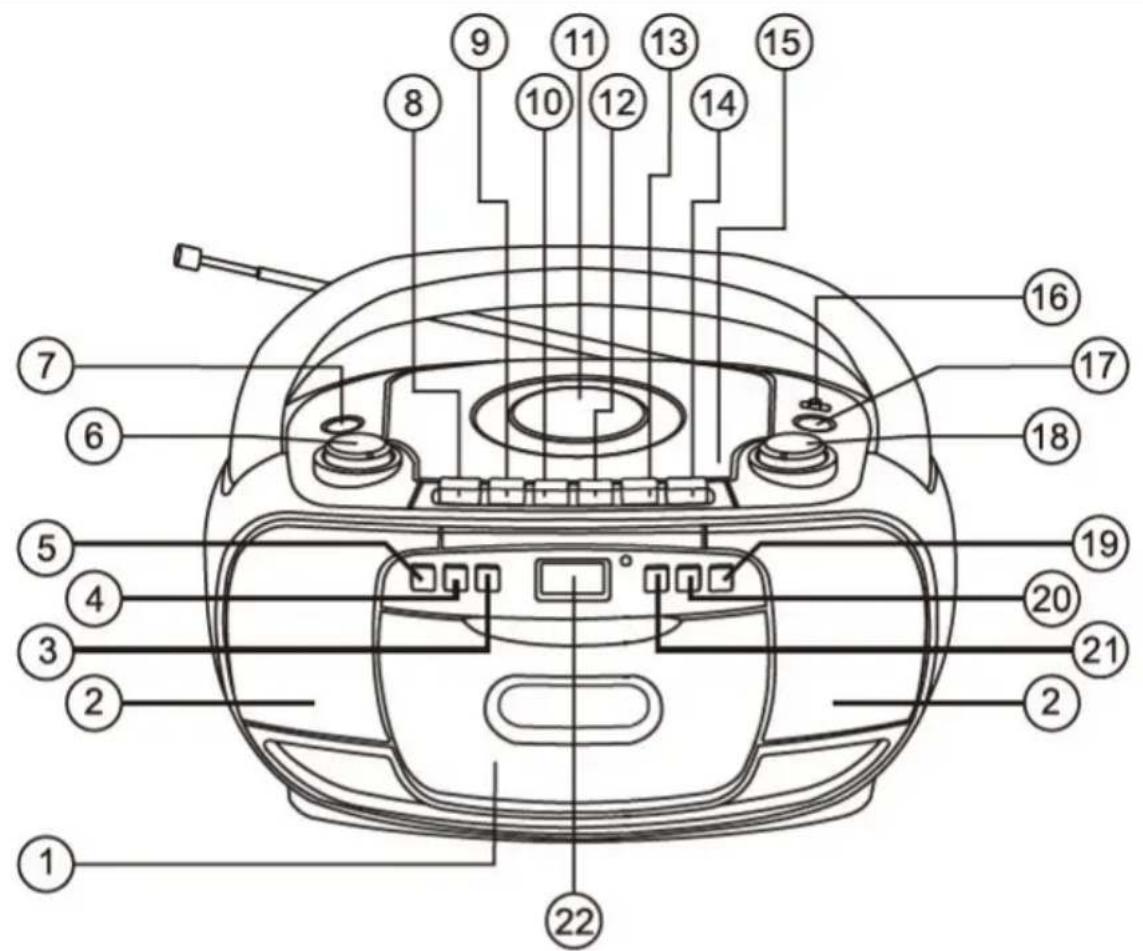

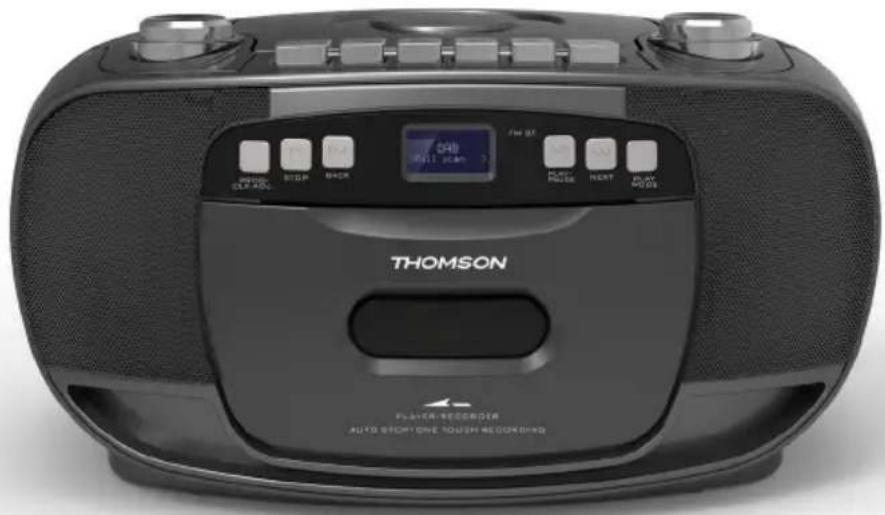
- Cassette door
- Speaker
- BACK button
- STOP button / snooze
- CD PROGRAMME / MENU / TIME button
- VOLUME control knob
- POWER button
- Cassette PAUSE
-
Cassette STOP/EJECT
-
Bissette F.FWD
- CD DOOR
- Cassette REWIND
- Cassette PLAY
- Cassette RECORD
- OPEN/CLOSE CD button
- Mute ON/OFF
- Function button
- Radio TUNING control
-
REPEAT / INFO / ALARM button
-
NEXT button
- CD PLAY/PAUSE/ENTER button
- LCD display
-
Carrying handle
-
Telescopic antenna
- AUX in jack
- AC socket
- Battery compartment
Power
CAUTION
- Risk of product damager! Make sure that the power voltage corresponds to the voltage printed on the back label.

- Risk of electric shock! When you unplug the AC power cord always pull the plug from the socket. Never pull the cord.
- Before connecting the AC power cord, ensure you have completed all other connections.

Using Mains Electricity
Place the unit in the desired position and unravel the mains cable.
Insert the cable into the supply socket and switch on if applicable.
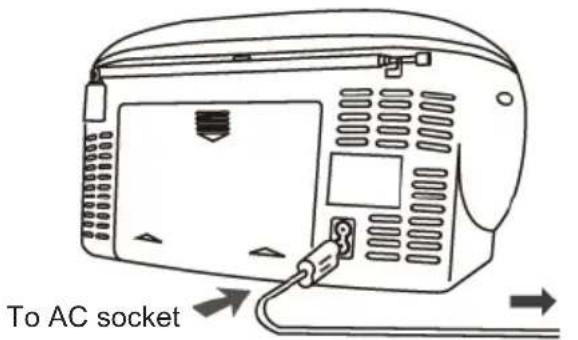
To AC outlet
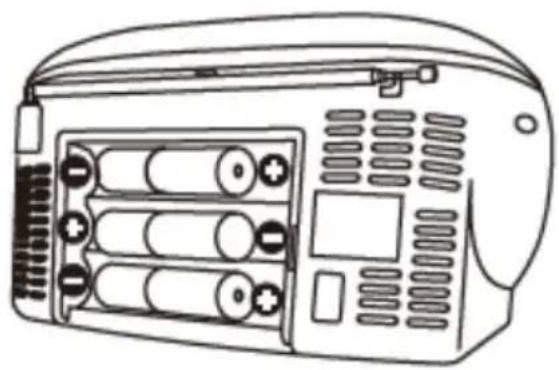
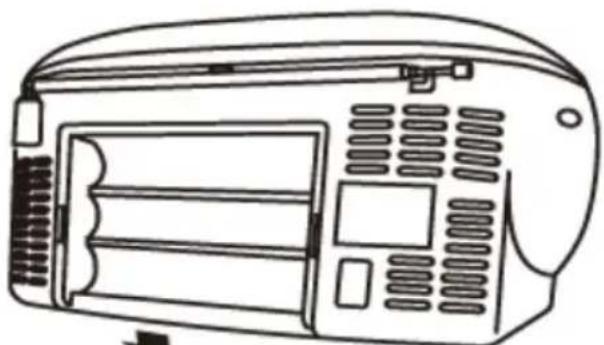
Using Batteries
Disconnect the AC power cord from the unit's AC power inlet.
While the cord is connected, battery power is automatically cut.
Note:
When the volume decreases, or the sound decreases.
Insert six UM-2 (size C) batteries.

Auto standby
When playing media from a connected device, the Tower automatically switches to standby if:
- No button is pressed for 10 minutes,
No audio from a connected device for 10 minutes.
Battery Power
- Be sure that the batteries are inserted correctly to avoid damage to the appliance. Always remove the batteries when the appliance will not be used for a long period of time, as leaving them in will cause leakage and subsequent damage to your set.
- Use batteries of the same type. Never use different types of batteries together.
- Do not throw the battery into a fire, or expose it to sunshine or the like.
- If the liquid contained in the batteries comes in contact with eyes or skin, wash the area immediately and thoroughly with clear water and seek medical attention.
Unit power supply (mains 230V/50Hz)
Connect the mains cable plug to the 230V wall outlet.
Warning:
- Before using the unit, check that the local mains supply is compatible with the unit (230V/50Hz).
- Do not plug or unplug the mains cable when your hands are wet.
- When planning not to use this unit for long periods of time (i.e., holidays, etc.), disconnect the plug from the wall outlet.
- When disconnecting the mains cable from the wall outlet, take hold of the plug; do not pull the cord in order to avoid shock risks caused by the damaged cable.
Operation
Press the POWER button to turn the unit ON/OFF.
Adjusting the Volume
Rotate the volume knob clockwise to increase the volume.
Rotate the volume knob anti-clockwise to decrease the volume.
Check the display, which will confirm the volume setting.
Mute
Press the MUTE button to the ON position, then the volume is muted and the message "volume muted" will appear on the LCD display. Press this button to the OFF position to cancel the MUTE function.
(Note: the Volume knob cannot cancel the MUTE function)
Clock and Timers
Setting the Clock and Date
After the unit is plugged into a mains supply or following a mains power failure, the display will show the current time and date on the LCD display. The unit should be in standby mode to set the current clock.
- Press the CLOCK button, and "Time Setup" is displayed; press ENTER to confirm, and "Time Wizard Interval" is displayed.
- Press / to select "24H" or "12H", then press ENTER to confirm. The "Hour" digits on the display will blink.
- Press / to set the hour, press ENTER to confirm; the "Minutes" digits on the display will blink.
- Press 1 / 2 to set the minutes, then press ENTER to confirm; the "Year" digits on the display will blink.
- Press / to set the Year, then press ENTER to confirm; the "Month" digits on the display will blink.
- Press I / to set the Month, press ENTER to confirm; the "Day" digits on the display will blink.
- Press / to set the Day, press ENTER to confirm. Press / "YES/NO" to select and save.
Setting the Alarm
Note: Check that the radio has the correct time and date before you set an alarm.
This unit may be used as an alarm clock. The Bluetooth device, USB device or FM radio is activated to play at a preset time.
- Press POWER to switch the unit to standby mode.
- Make sure that you have set the clock correctly.
- Press ALARM button in shutdown state;
-
"Alarm 1 (or 2) Setup" is displayed. Press the ENTER button to select.
-
"Alarm 1 (or 2) Wizard On Time" is displayed and the hour digits for the alarm will flash.
- Press I repeatedly to set the hour. Press ENTER to confirm.
- Press I to set the minutes, and press ENTER to confirm.
- Press / to select the Alarm volume from 0 to 30, and press ENTER to confirm.
- Press | / to scroll to the OFF/CD/DAB/FM/BUZZER status. Press ENTER to confirm.
- Press the | / | button to scroll to the duration for the alarm. You can choose from 15, 30, 45 or 60 minutes. Press the ENTER button to select. Press | / | to select YES and press ENTER to save the alarm,
- The display will show the current time and the alarm time.
Snoopze
- Whenever the alarm comes on, it can be temporarily suspended for a short period of approximately 9 minutes, by pressing the "SNOOZE" key once.
- The alarm will then automatically come on again after the approximately 9-minute long “ Z_z ” period has ended.
- The "Zsymbol will appear on the display to remind you that the snooze function is active.
- To deactivate the snooze function, press and release the "POWER" key once.
DAB Radio Mode
Carefully extend the telescopic aerial.
Press the POWER button to turn on the unit, which will automatically be in DAB mode.
Auto Scan
- Press the FUNCTION button to select "DAB Mode" (if the unit is not in DAB mode) If this is the first time the unit has entered DAB Mode, it will automatically start an 'Auto Scan' to search for available stations. (Once DAB Mode has been used at least once, the unit will automatically first select the last previously played station)
- Press [ENTER] button to automatically start auto scan to search for available stations. During the scanning process, the lower line of the display shows a bar graph indicating the progress of the scan.

- Rotate RADIO TUNING to listen to the available stations
Manual Scan
- Press the FUNCTION key on the main unit to select "DAB MODE".
- Press the [▶] or [▶] button to select "Manual Tune", then press the [ENTER] button to enter the service menu.
- Press [ ] or [ ] to tune in the desired channel. The graph will indicate the signal strength.
- Press [MENU] or [ ] exit scan.
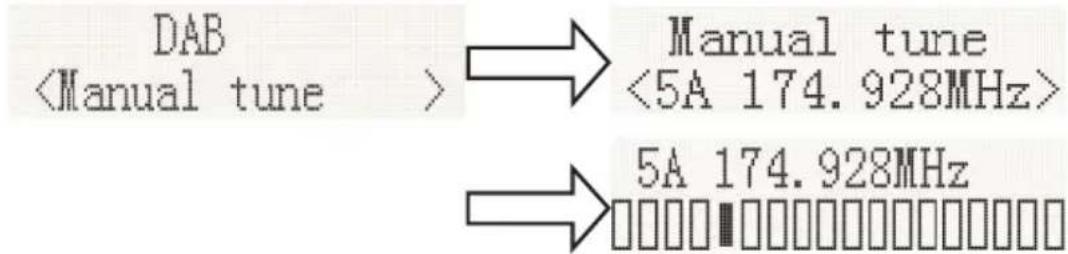
- If no stations are found, please ensure that the aerial is extended and test the reception by doing another auto scan in a different location.
- Rotate the RADIO TUNING to listen to the available stations.
DRC (Dynamic Range Control)
Dynamic Range Control (also known as DRC) is a technology used to help make quieter sounds easier to hear in a noisy environment.
- In DAB mode, press the [▶] or [▶] button to select "DRC", press the [ENTER] button to display "*" to the top right.
- Press MENU to confirm the setting. The display will return to normal.
DRC OFF - DRC is switched off, broadcast DRC will be ignored.
DRC LOW - DRC level is set to 1/2 that sent by broadcaster.
DRC HIGH - DRC level is used as sent by broadcaster.
Prune (To Remove Stations That are Listed But Unavailable)
In DAB mode, press [ ] display the "Prune" submenu, then press the ENTER button to select the Prune option.

System (DAB)
In DAB mode, press to view the "SYSTEM" submenu, then press the ENTER button to go to the system setting submenu.
1. Language
Press ENTER to go to the language selection; the default source language is English. The selected language will have **" displayed at the top right.
Users may choose between "Deutsch", "Italiano" and "Français".

2. Factory Reset
Press ENTER to go to factory reset. If you wish to perform the reset operation, push the or button until "YES" is highlighted on the display, and press to confirm. A full reset of your radio will be performed. All presets and station lists will be erased.

3. SW Version
Press ENTER to view the DAB software version. Press Menu or . The display will return to normal.

*If there are no operations after 30 seconds, the display will return to normal.
Preset
1. Preset Recall
In DAB mode, press to select "Preset Recall", then press [ENTER] to tune to the station stored in preset memory.

Note: If you have not previously stored a preset station and the preset button is pressed, "Empty Preset" will be displayed.
2. Saving Presets
You may save your preferred DAB stations to the preset station memory. There are 20 memory presets in your radio. In the event of a power failure, presets are retained by your radio.
The procedure for setting presets and using them to tune stations is the same for DAB modes: In DAB mode, select the desired wave band, rotate RADIO TUNING to view the stored stations, then press to to the required station as previously described, and then press [ENTER] to select the desired preset number under which you will store the station. Press [ENTER] to confirm.
Preset Store Preset 1 <1:01DBC1 stored
FM Radio
Carefully extend the telescopic aerial to its full length.
Auto Scan
- Press the FUNCTION button to select "FM Mode".
- Long press the button, and your radio will scan and stop automatically when it finds a station of sufficient signal strength.
- After a few seconds, the display will update. The display will show the station frequency. If the signal is strong enough and the station signal contains RDS data, then the radio will display the station name.
- To find other stations, press and hold the button as before.
- To scan the FM band in the opposite direction (high frequencies to low frequencies), press the button and hold for 2 seconds.
- When the waveband end is reached, your radio will recommence tuning from the opposite waveband end.
90.50MHz 19 Memory Auto scanning.. Auto End
- Rotate RADIO TUNING to listen to the available stations
Manual Scan
- Press the [FUNCTION] knob on the main unit to select "FM Mode".
- Select FM mode as previously described, if required.
- Press or to tune to a station. Each press of the tuning button will change the frequency up or down by 100kHz
- When the waveband end is reached, the radio will recommence tuning from the opposite waveband end. If no stations are found, please ensure that the aerial is extended and test the reception by doing another auto scan in a different location.
- Rotate the RADIO TUNING to listen to the available stations.
Menu
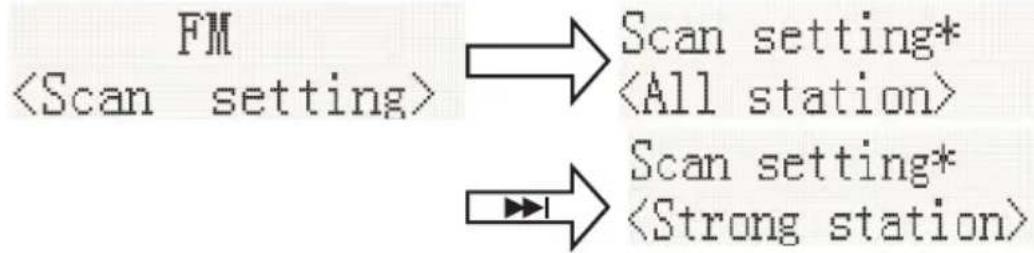
- Scan Setting
In FM mode, press MENU, enter the FM menu setting, then press or to select [Scan setting], then press ENTER to select the sensitivity setting:
1.1. All stations: 15dB
FM Scan setting*
1.2. Strong stations only: 19dB

2. Audio Setting
2.1. Stereo allowed:

2.2. Forced mono

2.3. System (FM system), same DAB system setting.
3. PRESET:
3.1. Preset Recall (Choose the Station):
Press ENTER, tune to the station stored in preset memory.

3.2. Preset Recall (Choose the Station):
You may store your preferred FM stations to the preset station memories. There are 20 memory presets in your radio. In the event of a power failure, presets are retained by your radio.
The procedure for setting presets and using them to tune stations is the same for DAB modes:
In FM mode, select the desired wave band. Rotate RADIO TUNING to view the stored stations, press to to the required station as previously described, and then press [ENTER] to select the preset number under which you will store the station. Press [ENTER] to confirm.

Playing a Compact Disc (CD)
NOTE: Never touch the laser lens inside the CD compartment. Clean the laser lens using a CD cleaner disc if it becomes dirty.
- Press the POWER button to turn on the unit.
- Press the FUNCTION button to select the CD function.
- Press the button to open the CD door and insert a disc with the label side facing up.
- Close the CD DOOR and the disc will rotate for a few seconds, then play the 1st track automatically.
- To temporarily stop playback, press the button and to resume playback, press it again.
- Press the button to STOP play.
REVERSE/FORWARD
- The and buttons are used to jump to a different track number or to scan disc tracks at high speed.
- Press the button once to hear the beginning of the current track. Press it two or more times to hear previous tracks on the disc.
- Press the button to hear the next tracks on the disc.
- Press and hold the button. The current track will be scanned and move backwards to the previous track(s); when the desired track section is found, release the button and normal play will resume.
- Press and hold the button, and the current track will be scanned and move forward to the next track(s). When the desired track section is found, release the selected button and normal playback will resume.
REPEAT FUNCTION
The CD REPEAT button may be used to repeat a single track or repeat all tracks on a compact disc.
- Press the REPEAT button once during playback, the "REPEAT ONE" sign will appear on the LCD display for about 2 seconds. The same track will be repeated over and over.
- Press the REPEAT button a second time to repeat all tracks. The "REPEAT ALL" sign will appear on the LCD display for about 2 seconds.
- To cancel REPEAT PLAY, press the REPEAT button repeatedly until "REPEAT OFF" appears on the LCD display for about 2 seconds.
PROGRAM FUNCTION
The Program feature may be used to program up to 20 tracks to play in a selected order.
- While in the stop mode only (CD is not playing), press the PROG button, and the LCD display will show the wording "P 01" and "T 01" Prog starts to flash.
- Press the but to allocate the desired track.
- Press the PROG button to select and store the track into memory.
- Repeat steps 2 to 3 to select up to 20 tracks.
- To play the selected tracks (in the program mode), press the button.
- Press the button to hear the previous program track or press the button to hear the next program track.
Note: After all programmed tracks have been played, the CD player will return to the stop mode.
- Press the button to exit the PROGRAM PLAY mode.
MP3 DISC SECTION
- Press the POWER button to turn on the unit.
- Press the FUNCTION button to select "CD Mode".
- Close the CD door and the disc will rotate for a few seconds and then play the 1st track automatically.
- Press the but to choose a track.
- To temporarily stop playback, press the button; to resume, press the button again.
- Press the button to stop play.
Note: Because MP3 discs have a large capacity, disc access times are a little longer.
REPEAT PLAYING FUNCTION
Single track repeat
Press the REPEAT button once to repeat a single track. The words "Repeat one" appear on the display.
Repeating All Tracks on a Disc
In Play mode, press the REPEAT button twice to repeatedly play all tracks on the disc. The display will show "Repeat All".
To cancel repeat play, press the REPEAT button repeatedly until the "Repeat off" sign appears.
PROGRAM PLAY
The tracks on the disc can be programmed to play in any order (up to 20 tracks can be programmed). Note: this can only be done while in Stop mode
- Press the PROG button while in Stop mode. "P01" "F01" will appear on the display and "T001" will be displayed.
- Press either the or button to select the desired tracks in the album, then press the PROG button to store in the memory.
- The first track number is now stored in memory, and the program number changes to "P02", waiting for your next selection.
- Repeat steps 1-3 to program additional tracks.
After programming is finished, press the button, and programmed play begins from the first programmed track. The player stops automatically after all programmed tracks have been played. (Press the button twice to cancel the programmed tracks memory).
Tape Playback
- Press the POWER button to turn on the unit.
- Press the FUNCTION button to select the Tape mode; 'Tape Mode' appears on the display.
- Insert the cassette.
- Press the key to play the cassette.
- Press the key to stop playback
- Press the key to interrupt playback
- Press the ke fast wind
Tape Record
- Inset the cassette tape
- Press the key
- Press the O key
- Prepare to play source to be recorded and play it, press the FUNCTION button to select CD or Radio.
- Press the key
- Press the key to stop the recording
- Press the II key to interrupt recording; to resume recording, press the II key again
To erase a recorded tape
- Press the FUNCTION button to select Tape Mode
- Insert a tape with the side you want to erase facing you
- Press the RECORD button to start erasing
AUX INPUT JACK
- Press the POWER button to turn on the unit.
- Rotate the FUNCTION knob to select the Aux In mode. 'Aux-Input' will appear on the LCD display.
- Connect the AUX connect wire from the AUX out jack of your personal player (e.g. portable MP3 player) to the AUX input jack.
- Start playback from your personal player.
Specification:
Power: AC 230V~50Hz 0.3A
DC: 9V (6 x 1.5V LR14/ "C"/UM2)
Frequency Ranges: FM 88.8 - 108MHz
DAB/DAB+ 174.829 - 239.200MHz
Max. consumption: 10W
Speaker impedance: 8 ohms
Total music output: 1.5W × 2
Remark: The maximum connection distance is around 10 meters. Please place your Bluetooth speaker as close as possible to this device to prevent disturbances to this connection.
About the disks
| Handling Do not touch the underside of disks. Hold disks by the edges to avoid leaving fingerprints on the surface. Any dust, fingerprints or scratches may cause a malfunction. Never affix a label or sticky tape to the disk. | |
| Storage Put disks back in their case after use. Never expose disks to direct sunlight or heat sources. Never leave disks inside a car parked in full sunlight. | |
| Cleaning Use a clean, soft, lint-free cloth to clean the disk, working from the centre outwards in a straight line. Do not use solvents such as petrol, thinners, commercially available cleaners or antistatic sprays for vinyl disks. |
Remarks:
Don't discard the electrical and electronic appliances in the regular waste disposal.
- Take them to a collection point.
- Some components in these appliances may be hazardous to health and the environment.
- In order to save energy when the unit has no sound output for a while, the unit will be switched to stand-by automatically. It can be switched ON by using the POWER selector again.
- If there is an incoming call while RK200ABCD/ RK203DABCD is connected to your cell phone for music playback, it will pause at once when you answer the call and resume after the call ended (sometimes it will pause after end the call, it depend on your cell phone).
- The Bluetooth® word, mark and logo are registered trademarks owned by Bluetooth SIG, Inc. and any use of such marks by Bigben Interactive is under license.
- THOMSON is a trademark of TECHNICOLOR SA or its affiliates used under license to Bigben Interactive.
DECLARATION OF CONFORMITY
The undersigned, Bigben Interactive declares that the radio equipment of the RK200DABCD / RK203DABCD type complies with the 2014/53/EU directive.
The complete text is available at https://www/bigben-interactive.co.uk/support/
Made in China
Manufactured by BIGBEN INTERACTIVE SA
396, Rue de la Voyette
CRT2-FRETIN
CS 90414
59814 LESQUIN Cedex - France
www/bigben.eu







Fabricant: Bigben Interactive FRANCE
396, Rue de la Voyette, C.R.T. 2, Fretin, CS90414 - 59814 Lesquin Cedex, France
Waterloo Office Park/Batiment H
Dréve Richelle 161 bte 15 1410 Waterloo, Belgium
Bigben Interactive NEDERLAND b.v.
BELGIQUE, customerservice@bigben-interactive.be
NEDERLAND, customerservice@bigben-interactive.nl
ESPANA, sat@bigbeninteractive.es
ITALIA, support@bigbeninteractive.it
www/bigben.eu
THOMSON
RK200DABCD
RK203DABCD
DAB/FM/CD/CASETE/ENTRADA DE AUDIO

CLASS 1 LASER PRODUCT
CLASS 1 LASER PRODUCT APPAREL LASER DE CLASSE 1 PRODUCTO LASER DE CLASE 1
This product contains a low power laser device.
CAUTION
INVASIBLE LASER RADIATION WHEN OPEN AND INTERLOCKS DEFEATED AVOID EXPOSURE TO BEAM

| MATERIAL DE CLASE II | |
| CORRIENTE CONTINUA | = = = |
| CORRIENTE ALTERNA | ~ |
| SOLO PARA USO EN INTERIORES |
$$ D C: 9 V (6 \times 1, 5 V L R 1 4 / " C " / U M 2) $$
Waterloo Office Park / Batiment H
Drève Richelle 161 bte 15 1410 Waterloo, Belgium
Bigben Interactive NEDERLAND b.v.
BELGIQUE, customerservice@bigben-interactive.be
NEDERLAND, customerservice@bigben-interactive.nl
ESPANA, sat@bigbeninteractive.es
ITALIA, support@bigbeninteractive.it
www/bigben.eu
THOMSON
RK200DABCD
RK203DABCD
DAB/FM/CD/MUSICASSETTE/INGRESSO AUDIO
ISTRUZIONI D'USO
PRIMA DI UTILIZZARE L'APPARECCHIO, LEGGERE PER INTERO IL PRESENTE MANUALE E CONSERVARLO PER CONSULTAZIONI FUTURE.
Index
CLASS 1 LASER PRODUCT
CLASS 1 LASER PRODUCT APPAREL LASER DE CLASSE 1 PRODUCTO LASER DE CLASE 1
CAUTION
INVASIBLE LASER RADIATION WHEN OPEN AND INTERLOCKS DEFECTED AVOID EXPOSURE TO BEAM

This product contains a low power laser device.

| MATERIALIALE DI CLASSE II | |
| CORRENTE CONTINUA | |
| CORRENTE ALTERNATA | |
| UTILIZZARE SOLO IN AMBIENTI CHIUSI |
Waterloo Office Park / Batiment H
Drève Richelle 161 bte 15 1410 Waterloo, Belgium
Bigben Interactive NEDERLAND b.v.
BELGIQUE, customerservice@bigben-interactive.be
NEDERLAND, customerservice@bigben-interactive.nl
ESPANA, sat@bigbeninteractive.es
ITALIA, support@bigbeninteractive.it
www/bigben.eu
THOMSON
RK200DABCD
RK203DABCD
DAB/FM/CD/CASSETE/ENTRADA DE ÁUDIO
CLASS 1 LASER PRODUCT
CLASS 1 LASER PRODUCT APPAREL LASER DE CLASSE 1 PRODUCTO LASER DE CLASE 1
This product contains a low power laser device.
CAUTION
INVASIBLE LASER RADIATION WHEN OPEN AND INTERLOCKS DEFEATED AVOID EXPOSURE TO BEAM


CAUTION
RISK OF ELECTRIC SHOCK DO NOT OPEN
CUIDADO
Waterloo Office Park / Batiment H
Drève Richelle 161 bte 15 1410 Waterloo, Belgium
Bigben Interactive NEDERLAND b.v.
BELGIQUE, customerservice@bigben-interactive.be
NEDERLAND, customerservice@bigben-interactive.nl
ESPANA, sat@bigbeninteractive.es
ITALIA, support@bigbeninteractive.it
www/bigben.eu
THOMSON
RK200DABCD
RK203DABCD
DAB/FM/CD/CD/KASSETTE/AUDIO IN
BEDIENUNGSANLEITUNG
CLASS 1 LASER PRODUCT
CLASS 1 LASER PRODUCT APPAREL LASER DE CLASSE 1 PRODUCTO LASER DE CLASE 1
This product contains a low power laser device.
CAUTION ISIBLE LASER RADIATION IN OPEN AND INTERLOCKS DEFEATED. OID EXPOSURE TO BEAM


CAUTION
RISK OF ELECTRIC SHOCK DO NOT OPEN
VORSICHT
$$ D C: 9 V (6 \times 1, 5 V L R 1 4 / " C" / U M 2) $$
Waterloo Office Park / Batiment H
Drève Richelle 161 bte 15 1410 Waterloo, Belgium
Bigben Interactive NEDERLAND b.v.
BELGIQUE, customerservice@bigben-interactive.be
NEDERLAND, customerservice@bigben-interactive.nl
ESPANA, sat@bigbeninteractive.es
ITALIA, support@bigbeninteractive.it
www/bigben.eu
THOMSON
RK200DABCD
RK203DABCD
DAB/FM/CD/CASSETTE/AUDIO IN

HANDLEIDING
GELIEVE DEZE GEBRUKSAANWIJZING GOED DOOR TE NEMEN VOOR U HET TOESTEL IN GEBRUK NEEMT EN BEWAAR HET ZODAT U HET LATER NOG KAN RAADPLEGEN.
Inhoud
Aandeslag1
CLASS 1 LASER PRODUCT
CLASS 1 LASER PRODUCT APPAREL LASER DE CLASSE 1 PRODUCTO LASER DE CLASE 1
This product contains a low power laser device.
CAUTION ISIBLE LASER RADIATION IN OPEN AND INTERLOCKS DEFEATED. OID EXPOSURE TO BEAM


| BESCHERMINGSKLASSE II | |
| GELIKSTROOM | |
| WISSELSTROOM | |
| UITSLUITEND BESTEMD VOOR GEBRUK BINNENSHUIS |
Voeding (netstroom 230V/50Hz)
$$ D C: 9 V (6 \times 1, 5 V L R 1 4 / " C" / U M 2) $$
Frequeniebereiken: FM 88.8 - 108MHz
$$ \mathrm {D A B / D A B + 1 7 4 . 8 2 9 - 2 3 9 . 2 0 0 M H z} $$
Max. verbruik: 10W
Waterloo Office Park/Batiment H
Drive Richelle 161 bte 15 1410 Waterloo, Belgium
Bigben Interactive NEDERLAND b.v.
BELGIQUE, customerservice@bigben-interactive.be
NEDERLAND, customerservice@bigben-interactive.nl
ESPANA, sat@bigbeninteractive.es
ITALIA, support@bigbeninteractive.it
www/bigben.eu
THOMSON
RK200DABCD
RK203DABCD
DAB/FM/CD/KASSETT/LJUD IN

ANVÄNDARMANUAL
LÄS DENNA ANVÄNDARMANUAL NOGA INNAN PRODUKTEN TAS I BRUK OCH SPARA DEN FÖR FRAMTIDA BRUK
Innehäll
Komma igang 1
CLASS 1 LASER PRODUCT
CLASS 1 LASER PRODUCT APPAREL LASER DE CLASSE 1 PRODUCTO LASER DE CLASE 1
This product contains a low power laser device.
CAUTION
INVASIBLE LASER RADIATION WHEN OPEN AND INTERLOCKS DEFATED AVOID EXPOSURE TO BEAM


| KCLASS 2-MATERIAL | |
| LIKSTRÖM | |
| VÄXELSTRÖM | |
| ENDAST FÜR INOMHUSBRUK |
Waterloo Office Park/Batiment H
Dreve Richelle 161 bte 15 1410 Waterloo, Belgium
Bigben Interactive NEDERLAND b.v.
BELGIQUE, customerservice@bigben-interactive.be
NEDERLAND, customerservice@bigben-interactive.nl
ESPANA, sat@bigbeninteractive.es
ITALIA, support@bigbeninteractive.it
www/bigben.eu
THOMSON
RK200DABCD
RK203DABCD
DAB/FM/CD/KASSETTE/AUDIO IN
BETJENINGSVEJLEDNING
LAES VENLIGST DENNE BRUGERVEJLEDNING OMHYGGELIGT, FØR DU BETJENER ENHEDEN, OG GEM DEN TIL EVT. SENERE BRUG.
Indholdsfortegnelse
CLASS 1 LASER PRODUCT
CLASS 1 LASER PRODUCT APPAREL LASER DE CLASSE 1 PRODUCTO LASER DE CLASE 1
CAUTION
INVASIBLE LASER RADIATION WHEN OPEN AND INTERLOCKS DEFEATED AVOID EXPOSURE TO BEAM
This product contains a low power laser device.


CAUTION
RISK OF ELECTRIC SHOCK DO NOT OPEN
FORSIGHTIG
RISIKOFOREELEKTRISKSTOD MAIKKE ABNES

MATERIALE KLASSE II
JAEVNSTRØM
VEKSELSTRØM
KUN TIL INDENDORS BRUG




90.50MHz Auto scanning..

19 Memory Auto End
- Drej på RADIO TUNING for at lytte til de disponible stationer
Manuel scanning
- Indstilling for scanning
IFM-funktiontrykkespAMENU,gaiindimenfor indstillingafFM,tryk derefterpaI
1.1. Alle stationer: 15dB

1.2. Kun kraftige stationer: 19dB
- Lydindstilling
2.1. Stereo mulig:

2.2. Tvungen mono

2.3. System (FM-system), samme indstilling som for DAB-system.
- FORINDSTILLING:
3.1. Annullering forindstilling (vaelg stationen):
Waterloo Office Park/Batiment H
Drive Richelle 161 bte 15 1410 Waterloo, Belgium
Bigben Interactive NEDERLAND b.v.
BELGIQUE, customerservice@bigben-interactive.be
NEDERLAND, customerservice@bigben-interactive.nl
ESPANA, sat@bigbeninteractive.es
ITALIA, support@bigbeninteractive.it
www/bigben.eu
THOMSON
RK200DABCD
RK203DABCD
DAB/FM/CD/KASSETT/LYD
BRUKSANVISNING
LES DENNE BRUKSANVISNINGEN NØYE FØR DU BETJENER APPARATET, OG OPPBEVAR DEN TIL SENERE BRUK
Innhold
| Komme i gang 1 | Klokke og tidsur | 6 |
| Sikkerhet og Merknader 1 | DAB-radiomodus | 7 |
| Ta vare på produitet ditt 2 | FM-radio | 9 |
| Ta vare på miljøet 3 | Manuelt sørk | 9 |
| Dette er i boksen 3 | Spille av en CD | 10 |
| Beskrivelse av deler 4 | Merknader | 14 |
| Strømbryter 5 |
Komme i gang
CLASS 1 LASER PRODUCT
CLASS 1 LASER PRODUCT APPAREL LASER DE CLASSE 1 PRODUCTO LASER DE CLASE 1
CAUTION
INVASIBLE LASER RADIATION WHEN OPEN AND INTERLOCKS DEFECTED AVOID EXPOSURE TO BEAM

This product contains a low power laser device.

CAUTION
RISK OF ELECTRIC SHOCK DO NOT OPEN FORSIKTIG
FARE FOR ELEKTRISK STØT IKKE APNE

KLASSE II-MATERIALALE
LIKESTRØM
VEKSELSTRØM
KUN TIL INNENDORS BRUK




FM Scan setting*
2.3. System (FM-system), samme innstilling for DAB-system.
- FORHÄNDSINNSTILLING:
$$ D C: 9 V (6 \times 1. 5 V L R 1 4 / " C" / U M 2) $$
Frekvensområder: FM 88,8 - 108 MHz
$$ \mathrm {D A B / D A B + 1 7 4 . 8 2 9 - 2 3 9 . 2 0 0 M H z} $$
Strømforbruk: 10W
Hoyttalerimpedanse: 8 ohm
Total musikkutgang: 1.5W × 2
Waterloo Office Park/Batiment H
Dreve Richelle 161 bte 15 1410 Waterloo, Belgium
Bigben Interactive NEDERLAND b.v.
BELGIQUE, customerservice@bigben-interactive.be
NEDERLAND, customerservice@bigben-interactive.nl
ESPANA, sat@bigbeninteractive.es
ITALIA, support@bigbeninteractive.it
www/bigben.eu
THOMSON
RK200DABCD
RK203DABCD
DAB/FM/CD/KAZETOVA MECHANIKA/AUDIO IN

NAVOD K POUZITI
PRED POUZITIM SI PECLIVE PRECTETE TUTO UZIVATELSKOU PRIRUCKU A USCHOVEJTE JI PRO POZDEJSI POUZITI.
Obsah
Zaciname 1
CLASS 1 LASER PRODUCT
CLASS 1 LASER PRODUCT APPAREL LASER DE CLASSE 1 PRODUCTO LASER DE CLASE 1
CAUTION
INVASIBLE LASER RADIATION WHEN OPEN AND INTERLOCKS DEFEATED AVOID EXPOSURE TO BEAM

This product contains a low power laser device.

| MATERIALIÁL TRÍDY II | |
| STEJNOSMÉRNÍ PROUD | |
| STRÍDAVÍ PROUD | |
| POUZE PRO VNITRNI POUŽITÍ |
Waterloo Office Park/Batiment H
Drive Richelle 161 bte 15 1410 Waterloo, Belgium
Bigben Interactive NEDERLAND b.v.
BELGIQUE, customerservice@bigben-interactive.be
NEDERLAND, customerservice@bigben-interactive.nl
ESPANA, sat@bigbeninteractive.es
ITALIA, support@bigbeninteractive.it
www/bigben.eu
THOMSON
RK200DABCD
RK203DABCD
DAB/FM/CD/CASSETTE/AUDIO IN

HASZNÁLATI UTMUTATÓ
KÉRJÜK, A KÉSZÜLEK MÜKÖDTETÉSE ELOTT OLVASSA EL FIGYELMESEN EZT AZ UTMUTATÖT, ES ÖRIZZE MEG KÉSÖBBI TAJÉKOZÓDÁS CéljÁBOL
Tartalomjegyzék
Elsó lépések 1
CLASS 1 LASER PRODUCT
CLASS 1 LASER PRODUCT APPAREL LASER DE CLASSE 1 PRODUCTO LASER DE CLASE 1
This product contains a low power laser device.
CAUTION LASER RADIATION GEN AND INTERLOCKS DEFECTED. EXPOSURE TO BEAM


CAUTION
RISK OF ELECTRIC SHOCK DO NOT OPEN
VIGYAZAT
ARAMUTES Veszelye NE NYISSA KI

II. OSZTÁLYU ANYAG
EGYENÁRAM
VÁLTAKOZÓ ARAM
CSAK BELTERI HASZNÁLATRA




Waterloo Office Park/Batiment H
Dréve Richelle 161 bte 15 1410 Waterloo, Belgium
Bigben Interactive NEDERLAND b.v.
BELGIQUE, customerservice@bigben-interactive.be
NEDERLAND, customerservice@bigben-interactive.nl
ESPANA, sat@bigbeninteractive.es
ITALIA, support@bigbeninteractive.it
www/bigben.eu
THOMSON
RK200DABCD
RK203DABCD
DAB/FM/CD/MAGNETOFON/AUDIO IN
INSTRUKCJA OBSŁUGI
PRZED UZYCIEM URZADZENIA NALEZY UWAZNIE PRZECZYTAÇ NINIEJSZA INSTRUKCJE OBSLUGI. INSTRUKCJE NALEZY ZACHOWAÇ NA PRZYSZŁOSC.
Spis tresci
Pierwsze kroki 1
CLASS 1 LASER PRODUCT
CLASS 1 LASER PRODUCT APPAREL LASER DE CLASSE 1 PRODUCTO LASER DE CLASE 1
This product contains a low power laser device.
CAUTION ISIBLE LASER RADIATION IN OPEN AND INTERLOCKS DEFEATED. OID EXPOSURE TO BEAM


CAUTION
RISK OF ELECTRIC SHOCK
DO NOT OPEN
OSTROZNIE
RYZYKO PORAZENIA PRADEM NIE OTWIERAC

MATERIAL KLASY II
PRAD STALY
PRAD PRZEMIENNY
TYLKO DO UZYTKU W POMIESZ-CZENIACH




Waterloo Office Park/Batiment H
Drève Richelle 161 bte 15 1410 Waterloo, Belgium
Bigben Interactive NEDERLAND b.v.
BELGIQUE,customerservice@bigben-interactive.be
NEDERLAND, customerservice@bigben-interactive.nl
ESPANA, sat@bigbeninteractive.es
ITALIA, support@bigbeninteractive.it
www/bigben.eu
- CLASS 1 LASER PRODUCT
- THOMSON
- DAB/FM/CD/CASSETTE/AUDIO IN
- OPERATING INSTRUCTIONS
- Contents
- Getting Started
- Safety and Notice
- Safety
- Warning
- CAUTION
- Care for your product
- Care of the environment
- What's in the box
- Description of Parts
- Power
- Using Mains Electricity
- Using Batteries
- Auto standby
- Battery Power
- Unit power supply (mains 230V/50Hz)
- Warning:
- Operation
- Adjusting the Volume
- Mute
- Clock and Timers
- Setting the Clock and Date
- Setting the Alarm
- Snoopze
- DAB Radio Mode
- Auto Scan
- Manual Scan
- DRC (Dynamic Range Control)
- Prune (To Remove Stations That are Listed But Unavailable)
- System (DAB)
- Language
- Factory Reset
- SW Version
- Preset
- Preset Recall
- Saving Presets
- FM Radio
- Menu
- Audio Setting
- PRESET:
- Playing a Compact Disc (CD)
- REVERSE/FORWARD
- REPEAT FUNCTION
- PROGRAM FUNCTION
- MP3 DISC SECTION
- REPEAT PLAYING FUNCTION
- Single track repeat
- Repeating All Tracks on a Disc
- PROGRAM PLAY
- Tape Playback
- Tape Record
- To erase a recorded tape
- AUX INPUT JACK
- Specification:
- About the disks
- Remarks:
- DECLARATION OF CONFORMITY
- DAB/FM/CD/CASETE/ENTRADA DE AUDIO
- DAB/FM/CD/MUSICASSETTE/INGRESSO AUDIO
- ISTRUZIONI D'USO
- Index
- DAB/FM/CD/CASSETE/ENTRADA DE ÁUDIO
- CUIDADO
- DAB/FM/CD/CD/KASSETTE/AUDIO IN
- BEDIENUNGSANLEITUNG
- VORSICHT
- HANDLEIDING
- Inhoud
- Voeding (netstroom 230V/50Hz)
- ANVÄNDARMANUAL
- Innehäll
- DAB/FM/CD/KASSETTE/AUDIO IN
- BETJENINGSVEJLEDNING
- Indholdsfortegnelse
- FORSIGHTIG
- Manuel scanning
- BRUKSANVISNING
- Innhold
- Komme i gang
- DAB/FM/CD/KAZETOVA MECHANIKA/AUDIO IN
- NAVOD K POUZITI
- Obsah
- HASZNÁLATI UTMUTATÓ
- Tartalomjegyzék
- VIGYAZAT
- DAB/FM/CD/MAGNETOFON/AUDIO IN
- INSTRUKCJA OBSŁUGI
- Spis tresci
- OSTROZNIE
Brand : THOMSON
Model : RK203DABCD
Category : Hi-Fi System