
SBCRU885 - Remote control PHILIPS - Free user manual and instructions
Find the device manual for free SBCRU885 PHILIPS in PDF.
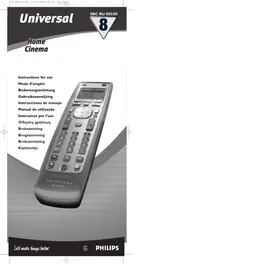


| Product type | Universal remote control |
| Brand | Philips |
| Model | SBC RU885 |
| Power supply | 3 batteries 1.5V (type AA / LR6 / UM3) |
| Display | Liquid crystal display with backlight |
| Number of modes | 8 device modes (TV, VCR, DVD, AMP + 4 customizable among 18 types) |
| Transmission | Infrared (IR) and radio frequency (RF) with optional receiver SBC LI805 |
| Main functions | Automatic programming, code copying, macros, timer, Home Cinema mode, backlight |
| Backlight | Yes, adjustable (5 s, 15 s or off) motion-activated |
| Preprogrammed for | Philips devices and many other brands (TVs, VCRs, DVD players, amplifiers) |
| Maintenance | Clean with a dry cloth; avoid liquids |
| Batteries | Use Philips long-life batteries; replace at least once a year |
| Memory | Retains programmed codes even without batteries |
| Optional accessories | RF receiver SBC LI805 |
Frequently Asked Questions - SBCRU885 PHILIPS
User questions about SBCRU885 PHILIPS
0 question about this device. Answer the ones you know or ask your own.
Ask a new question about this device
Download the instructions for your Remote control in PDF format for free! Find your manual SBCRU885 - PHILIPS and take your electronic device back in hand. On this page are published all the documents necessary for the use of your device. SBCRU885 by PHILIPS.
USER MANUAL SBCRU885 PHILIPS
Instructions for use
Mode d'emploi
Bedienungsanleitung
Gebruiksaanwijzing
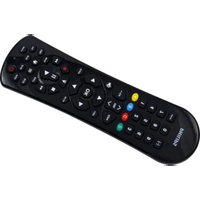
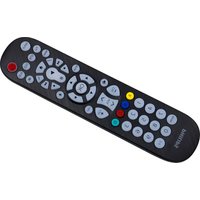
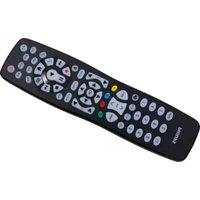
You have made a great choice by buying this Philips universal remote control! It replaces up to eight separate remote controls and is pre-programmed to operate with almost any brand of TV, VCR, satellite tuner, cable decoder, CD-player, DVD-player, tuner, amplifier and home cinema system. It can even learn the codes of other remote control units that are not pre-programmed. Best of all, the SBC RU885 is quick to set up and easy to use and with the back-lighting of keys and display, it can even be used in the dark! To take full advantage of all RU885 possibilities it should be used in combination with the (optional) RF receiver SBC LI805. Used together they allow you to operate any IR driven equipment from anywhere in your house without actually seeing the equipment or aiming the remote control at it.
Controls
① SET UP gives access to the set-up menu of the SBC RU885
② Display
③ CINEMA home cinema mode, toggles on/off
④ Device Selection keys toggle between device modes
⑤ (SEND) activates the selected smart control function
⑥ Smart Controls scroll between special functions of a selected device
⑦ MENU switches menu on (and off, if this is the case on your original remote)
⑧ Cursor up/down/left/right scrolls through the menu
⑨ selects video input
10 Volume Up/Volume Down turns volume up/down
(1) Keypad for direct channel selection and other functions
Shift: hold this key while pressing other keys to access additional functions (if available on your equipment). For instance: TV: Shift + Menu - Menu Off; Shift + 8 - for brightness and color adjustment. Try these and other combinations on your equipment to discover what functions are available.
(13) (STANDBY) switches your device off (and on, if this is the case on your original remote)
OK confirms selections in the menu
(15) P4P switches to previous program
16 Channel Up/Channel Down changes to next/previous channel
(17) (MUTE) switches sound on and off
18 switches between one and two-digit channel selection and display
19 for TV FastText
for DVD/VCR
| red | ← | Rewind |
| green | ■ | Stop |
| blue | → | Forward |
| yellow | || | Pause |
| white | ▶ | Play |
| ● | Record |
Don't forget the batteries!
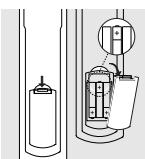
To operate the SBC RU885 you'll need three 1.5V batteries, type UM3, LR6 or AA only.
Remember to replace the batteries at least once a year.
The RU885 has the unique feature of not losing the programmed or learned codes when the batteries are empty. We recommend to use Philips Longlife or Powerlife batteries.
At a glance
Once you've installed the batteries, the SBC RU885 is ready to operate most Philips TVs, VCRs, DVDs, and amplifiers. Just press the Select Device keys (as indicated below) for the Philips device you wish to operate. If you want to operate other equipment brands, you need to set up the SBC RU885 first - see chapter 1, 'Setup'.
The SBC RU885 has eight operating modes for operating eight different devices. TV, VCR, DVD, and AMP are default device modes. The other 4 can be installed from a choice of 18 devices. To create your personal list of device modes, just add and remove devices and make any combination of eight devices from its library. The LCD display shows you which device mode is activated. To switch between device modes, simply press the Select Device keys. With the programmable SMART CONTROLS, any function can be added to each installed device.
In HOME CINEMA MODE, the major functions of TV, DVD, and Amplifier are at hand. Just press the CINEMA key and without the need of changing device mode, basic key functions of your home cinema devices can be operated. For more information, see chapter 3, 'Home Cinema mode'.
1. Getting started
Set time and day
Before setting up the SBC RU885, you must first set time and day.
Once the batteries are inserted, the Setup menu will be activated automatically.
The display shows:
TIME (first line) → EH (second line)
1. Use SMART CONTROLS to select 24-hour or 12-hour (AM/PM) time display.
2. Confirm with SEND.
→ TIME (first line) → -: (second line)
3. Use the Numeric keys to enter the time.
The SMART CONTROLS can be used to move to a previous (←) or next (▶) position.
4 Confirm with SEND.
DAY (first line) TUE (for example - second line)
5 Use SMART CONTROLS to select the day. 6 Confirm with SEND.
STORED (second line)
Note: You can always reset time and date via the Setup menu. To enter the Setup menu simply press Setup until SETUP lights up in the display. Then select Time using the SMART CONTROLS.
2. Setup
The SBC RU885 is ready to operate most Philips TVs, VCRs, satellite tuners, DVD-players,
CD-players, tuners, amplifiers and home cinema systems.
For other brands of equipment, it first needs to be set up.
This only takes a couple of seconds, thanks to Philips' 'Simple System Set-up!
There are two setup modes:
- normal setup mode: to set up basic key functions of each installed device;
- home cinema setup mode: to set up basic key functions of your home cinema system.
Add device
1 Look up the brand name of the device you wish to operate in the code list (centre of this manual). 2 Switch on the device you wish to add. 3 Press and hold SETUP until SETUP lights up in the display.
→ DEP (first line) → RDD (second line)
4 Confirm with SEND.
→ SAT (second line)
5 Use SMART CONTROLS to select the device to be added.
→ CABLE (for example - second line)
6 Confirm with SEND.
→ CODE (first line)
7 Use the Numeric keys to enter the code.
→ 1234 (for example - second line)
8 Confirm with SEND.
STORED (second line)
9 Press any key to check if the code is correct and your device responds.
If the device does not respond or if not all keys function properly the code is not correct. In this case see 'Change device code' hereafter.
Remove device
-> DEV (first line) -> HDD (second line)
1 Press and hold SETUP until SETUP lights up in the display. 2 Use SMART CONTROLS to select REMOVE. -> REMOVE (second line) 3 Confirm with SEND. -> T (second line) 4 Use SMART CONTROLS to select the device to be removed. -> LR (for example - second line) 5 Confirm with SEND. -> REMOVED (second line)
Change device code
1 If the entered code is not correct look up the next code in the code list (centre of this manual). 2 Press and hold SETUP until SETUP lights up in the display.
-> DEV (first line) -> ADO (second line)
3 Use SMART CONTROLS to select CODE. -> CODE (second line) 4 Confirm with SEND. -> T (second line) 5 Use SMART CONTROLS to select the device for which you wish to change the code. -> PCR (for example - second line) 6 Confirm with SEND. -> CODE (first line) 7 Use the Numeric keys to enter the new code. -> 1234 (for example - second line) 8 Confirm with SEND. STORED (second line) 9 Press any key to check if the code is correct and your device responds.
If the device still does not respond or if not all keys function properly repeat the steps above using the next code in the code list.
If the correct code cannot be found in the code list see chapter 'Autosearch' hereafter.
Autosearch
If you cannot find the code of the device Philips' patented Autosearch tests all the codes one after another and finds the right one for you! Make sure your device is switched on. You will know the correct code has been found when the equipment switches off.
1 Switch on the device you wish to add.
If you wish to add a VCR make sure a tape is inserted and playing. As soon as the correct code has been found the tape will stop playing.
2 Press and hold SETUP until SETUP lights up in the display.
-> DEP (first line) -> ADD (second line)
3 Use the SMART CONTROLS to select SEARCH.
→ SEARCH (second line)
4 Use the SMART CONTROLS to select the device for which you wish to search the code for.
→ TI¹ (for example second line)
5 Confirm with SEND.
→ Each time a code is transmitted it is displayed on the LCD. There is a 1.5 second period between each transmission. When the right code is found, the TV switches off.
6 Immediately press SEND to stop the search.
→ The LCD displays the selected equipment and its code.
If you missed the correct code because the search went too far, switch the TV back on, then press SMART CONTROLS to send the previous code again. Keep pressing
SMART CONTROLS down repeatedly until the equipment switches off again.
7 When you've found the correct code, press SEND to lock the code in the SBC RU885's memory.
If none of the codes works or if you are still missing certain functions of your original remote control, try our solution in chapter 'Learn codes from original remote control' hereafter, or call our help-line.
Note that code!
Make a note of the correct code inside the battery case and in the back of this booklet; it will save you time if you ever need to set up again. If you have forgotten to note the code you can still 'read out' the code from the SBC RU885.
For this, see chapter 'Read device code' hereafter.
Read device code
1 Press and hold SETUP until SETUP lights up in the display.
→ DEV (first line) → ADD (second line)
2 Use SMART CONTROLS to select CODE. → CODE (second line) 3 Confirm with SEND. 4 Use the SMART CONTROLS to select the device of which you wish to read the code. → TI (for example - second line) 5 Confirm with SEND. The code is displayed on the screen. 6 Confirm with SEND. STORED (second line)
Set RF (Radio Frequency) or IR (Infra-Red) transmission
The RU885 is able to transmit both RF (Radio Frequency) and IR (Infra-Red) signals. When the RF functionality of the RU885 is enabled it will send RF signals that go through walls or, if your equipment is located in a cabinet, through the cabinet door. To operate your equipment via RF transmission you will need the optional RF receiver SBC LI805. When receiving a signal from the RU885 the receiver will convert the RF signal to an appropriate IR signal and sends it to the equipment you wish to operate. The RU885 is standard set to IR transmission. For equipment that cannot be operated via IR transmission:
1 Press and hold SETUP until SETUP lights up in the display.
→ DEV (first line) → ADD (second line)
2 Use SMART CONTROLS to select RF-IR.
3 Confirm with SEND.
→ CABLE (for example - first line) → RF or IR (second line)
4 Use the Device selection keys to select the device you wish to operate via RF transmission.
→ T (for example - first line) → F (second line)
5 Use SMART CONTROLS to select RF or IR. 6 Confirm with SEND.
SET (second line)
Learn codes from original remote control
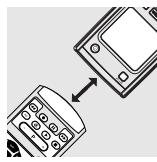
If your equipment is not included in the code list, or if specific codes on your remote control are missing, the SBC RU885 has the solution. It can copy and replicate codes from your original remote control. Here's how...
Place your original remote control facing the infra-red sensor window of the SBC RU885. Place both remote controls on a flat surface, 3-8 centimetres apart.
Make sure that both remote controls have new batteries.
1 Press and hold SETUP until SETUP lights up in the display.
-> DEV (first line) -> ADO (second line)
2 Use the Device Selection keys to select KEY.
-> KEY (first line)
3 Use SMART CONTROLS to select LEARN.
-> LEARN (second line)
4 Confirm with SEND.
-> LEARN (first line)
5 Use SMART CONTROLS to select the device to be learned.
-> T_L^d (for example - second line) The SBC RU885 is now in learning mode and the LCD displays the selected equipment.
6 Confirm with SEND.
7 Press a learnable key on your remote.
(The keys below the part-line, Standby key, and the SMART CONTROLS are learnable.)
-> ORIGIN (second line)
8 Press the key on the original remote control you want to learn from.
-> STORED (second line)
You have learned your SBC RU 885 a new code. If you want to copy more functions from your original remote control, start again from step 7. Press SETUP to exit the menu.
Tip: Choose keys that correspond with the keys on your original remote control, so that you can remember them easily.
If the SBC RU885 displays ERROR for a second, followed by ORIGIN the SBC RU885 did not receive the signal correctly. In this case you should:
- Vary the distance slightly between both remote controls and try again from step 1 (try this several times).
- This time you should press and immediately release the function key on your original remote control. The LCD should display STORED, indicating that the RU885 received the signal. Make sure that both remote controls have new batteries.
- Try to copy your codes under different lighting conditions. Light from TL-tubes may influence the signal you are copying.
The SBC RU885 is designed and tested extensively and is ready to copy almost all infrared remote control signals. In some rare instances manufacturers use infra-red signals that cannot be copied to any remote control. You should of course always try the Autosearch to see if such a code is included in our pre-programmed library.
Copy key functions
It is possible to copy key functions from keys in one device mode (e.g.TV mode) to keys in another device mode (e.g. DVD mode) so you can operate different devices without changing mode. For example: you can put the TV in Standby while being in DVD mode.
1 Press and hold SETUP until SETUP lights up in the display.
→ DEI (first line) → ADO (second line)
2 Use the Device Selection keys to select KEY. → KEY (first line) 3 Use SMART CONTROLS to select COPY. → COPY (second line) 4 Confirm with SEND. → FROM (first line) 5 Use SMART CONTROLS to select the device you wish to copy key functions from. → TI (for example - second line) 6 Confirm with SEND. 7 Press a key to copy from.
(The keys below the part-line, Standby key, and the SMART CONTROLS can be copied.)
Note: Select a Smart Control with the SMART CONTROLS and press SEND to copy.
→ TO (first line)
8 Use SMART CONTROLS to select the device you want to copy the key function to. → □\□ (for example - second line) 9 Confirm with SEND. 10 Press the key you want the function to be copied to.
STORED (second line)
Note: Select a Smart Control with the SMART CONTROLS and press SEND to copy.
Macro keys
With a macro key you can operate a series of functions by pressing one single key.
E.g. switching on all devices installed with one key.
1 Press and hold SETUP until SETUP lights up in the display.
→ DEI (first line) → ADO (second line)
2 Use the Device Selection keys to select KEY.
→ KEY (first line)
3 Use SMART CONTROLS to select MACRO.
MACRO (second line)
4 Confirm with SEND.
5 Use SMART CONTROLS to select the device on which you want to install the Macro.
→ TI (for example - second line)
6 Confirm with SEND. 7 In TV mode, press a key where the macro should be stored.
→MACRO (first line) → START (second line)
Notes: - Press the keys in the sequence that you want your equipment to respond.
- The keys below the part-line, STANDBY key, and the SMART CONTROLS can be macro keys.
- Select a smart control with the SMART CONTROLS and press SEND to select as macro key.
- After every key press SMART HOOED is displayed.
8 Start pressing the keys you want to store in the macro. If necessary by navigating through different device modes and smart controls.
Note: Press SHIFT + SEND to store a Smart Control into the macro.
9 Press SEND.
STORED (second line)
3. Smart controls
With the programmable SMART CONTROLS you can add up to eight special features in each device mode. E.g. Dolby Surround, EPG, ShowView, Subtitle, etc.
For example: if you have installed an amplifier with Dolby Surround, you can control that feature via a SMART CONTROL on the RU 885. A number of features has already been pre-installed in the RU 885 memory. These features can be removed or replaced by features of your own choice.
Add key
1 Press and hold SETUP until SETUP lights up in the display.
→ DEV (first line) → ADD (second line)
2 Use the Device Selection keys to select KEY.
→ KEY (first line)
3 Use SMART CONTROLS to select ADD.
→ ADD (second line)
4 Press SEND. 5 Use SMART CONTROLS to select the device to add a Smart Control function to.
→ HMP (for example - second line)
6 Press SEND to confirm. 7 Use SMART CONTROLS to select a Smart Control label from the library (e.g. ADD Dolby). 8 Press SEND to confirm.
Notes: - The code for a function can be learned from another remote control or copied from another device mode.
- With the library of specific Home Cinema and other labels you are able to label the more exotic functions and store them as Smart Controls.
1 Press and hold SETUP until SETUP lights up in the display.
→ DEV (first line) → ADO (second line)
2 Use the Device Selection keys to select KEY. → KEY (first line) 3 Use SMART CONTROLS to select REMOVE. → REMOVE (second line) 4 Press SEND to confirm. 5 Use SMART CONTROLS to select the device you want to remove a Smart Control function from.
→ HMP (for example - second line)
6 Press SEND to confirm. 7 Use SMART CONTROLS to select the Smart Control Key to be removed. 8 Press SEND to confirm.
Reset key(s)
→ DEV (first line) → ADO (second line)
4 Press SEND to confirm. 5 Use SMART CONTROLS to select the device of which you want to reset keys.
1 Press and hold SETUP until SETUP lights up in the display. 2 Use the Device Selection keys to select KEY. → KEY (first line) 3 Use SMART CONTROLS to select RESET. → RESET (second line) → TIP (for example - second line) 6 Press SEND to confirm. 7 Pressing a key in the selected device mode will reset the key to the factory settings. (The keys below the part-line, Standby key, and the SMART CONTROLS can be reset) Note: Select a Smart Control with the SMART CONTROLS and press SEND to reset.
To reset all keys of a device:
7 Use SMART CONTROL to select ALL.
→ ALL (second line)
8 Use SMART CONTROLS to select the device of which you want to reset all keys.
→ SAT (for example - second line)
9 Press SEND to confirm.
→ SURE ? (second line)
10 Press SEND again to confirm.
Note: All programming will be erased and the RU885 will return to its default set-up.
To reset all keys of all devices:
5 Use SMART CONTROL to select All DEVICES.
→ ALL DEVICE (second line)
6 Press SEND to confirm.
→ SURE?
7 Press SEND again to confirm.
Note: All programming will be erased, and the RU885 will return to its default set-up.
4. Home Cinema mode
Home Cinema is an integrated A/V system that offers the best in sound and vision entertainment. To control more devices of your Home Cinema system with your remote control, the SBC RU885 features the Home Cinema mode.
Note: You should only program the SBC RU885's CINEMA key after you have programmed all the rest of your devices.
The SBC RU885 is already factory preset to operate TVs, VCRs, DVD and Amplifiers under CINEMA. To program your set of devices in the Cinema mode all you have to do is the following:
Add device
1 Look up the brand name of the device you wish to add in the code list (centre of this manual). 2 Press CINEMA to enter the Home Cinema mode.
HOME CINEMA
-> DEV (first line) -> ADO (second line)
3 Press and hold SETUP until SETUP lights up in the display. 4 Press SEND to confirm. -> PCR (for example - second line) 5 Use SMART CONTROLS to select the device to be added. -> SAT (for example - second line) 6 Press SEND to confirm. -> CODE (first line) 7 Use the Numeric keys to enter the code. -> 1234 (for example - second line) 8 Press SEND to confirm. STORED (second line)
Remove device
HOME CINEMA
-> DEI (first line) -> ADO (second line)
1 Press CINEMA to enter the Home Cinema mode. 2 Press and hold SETUP until SETUP lights up in the display. 3 Use SMART CONTROLS to select REMOVE. -> REMOVE (second line) 4 Press SEND to confirm. 5 Use SMART CONTROLS to select the device to be removed. -> PCR (for example - second line) 6 Press SEND to confirm. -> REMOVED (second line)
12 ENGLISH
Define Home Cinema Keys
To assign different hard keys on your SBC RU885 for different devices in the Home Cinema mode simply do the following:
1 Press CINEMA to enter Home Cinema mode.
HOME CINEMA
2 Press and hold SETUP until SETUP lights up in the display.
→ DEV (first line) → ADD (second line)
3 Use the Device Selection keys to select KEY. → KEY (first line) 4 Use SMART CONTROLS to select DEFINE. → DEFINE (second line) 5 Use the SMART CONTROLS to select the device you wish to copy keys from in Home Cinema mode. → TI (for example - first line) 6 Press the keys you want to copy to Home Cinema mode.
Notes: - You can repeat this for all keys of any of the installed devices.
- Every key press is confirmed with OK in the display.
7 To finish the definition of Home Cinema Keys press SEND.
STORED (second line)
Reset Home Cinema Keys
To reset different hard keys on your SBC RU885 to the original Home Cinema function do the following:
1 Press CINEMA to enter Home Cinema mode.
HOME CINEMA
2 Press and hold SETUP until SETUP lights up in the display.
→ DEP (first line) → ADO (second line)
3 Use the Device Selection keys to select KEY.
→ KEY (first line)
4 Use SMART CONTROLS to select RESET.
→ RESET (second line)
5. Confirm with SEND.
6. Press the key or keys to be reset.
7. Confirm with SEND.
→ DONE (second line)
Note: Every key press is confirmed with OK in the display.
5. Extra functions
Set-up backlighting
If you select a backlighting time, the display and all keys will light up as soon as the RU885 is lifted up. Backlighting will stay on for the selected time.
1. Press and hold SETUP until SETUP lights up in the display.
→ DEP (first line) → ADO (second line)
2. Use the Device Selection buttons to select LIGHT. → LIGHT (first line) 3. Use SMART CONTROLS to select either OFF, 5 or 15 seconds to set Backlighting. → OFF (for example, second line) 4. Press SEND to confirm.
Note: When you use backlighting continuously, the batteries will run short more quickly.
Set timer
The RU885 has built-in timers that can be used for setting start times for automatically operating certain functions of your equipment. For example, you can automatically switch on your TV at a certain time. You can set up to 8 timers, programmable for any device.
1 Press and hold SETUP until SETUP lights up in the display.
→ DEP (first line) → ADO (second line)
2 Use the Device Selection keys to select TIMER.
→ TIMER (first line) → ADO (second line)
3 Confirm with SEND.
4 Use SMART CONTROLS to select the Timer number. → TIMER1 (for example second line) 5 Confirm with SEND. 6 Use SMART CONTROLS to select the Timer frequency (OFF, ONCE, DAILY, WEEKLY).
WEEKLY (for example - second line)
7 Confirm with SEND.
→ DAY (first line) TUE (for example - second line)
8 Use SMART CONTROLS to select the day. 9 Confirm with SEND.
STORED (second line)
10 Use the Numeric keys to enter the required start time → IB.00 (for example - second line)
If required, select AM or PM with the SMART CONTROLS.
11 Confirm with SEND. 12 Use the Device selection keys to select the device for which you want to set the timer.
→ T[·] (for example second line)
13 Confirm with SEND. 14 Press the key for which you want to set the timer.
Notes:
- The keys below the part-line, STANDBY key, and the SMART CONTROLS can be Timer keys.
- Select a smart control with the SMART CONTROLS and press SEND to select as Timer key.
- When entering the time, the SMART CONTROLS can be used to move to a previous (←) or next (→) position.
Edit timer
1 Press and hold SETUP until SETUP lights up in the display.
→ DEV (first line) → ADO (second line)
2 Use the Device Selection keys to select TIMER.
→ TIMER (first line) → EDIT (second line)
3 Use SMART CONTROLS to select EDIT. 4 Confirm with SEND. 5 Use SMART CONTROLS to select the Timer number.
→ TIMER2 (for example second line)
6 Confirm with SEND.
7 Use SMART CONTROLS to select the Timer frequency (OFF, ONCE, DAILY, WEEKLY). → WEEKLY (for example second line) 8 Confirm with SEND.
9 If required, edit the Timer day. 10 Use the Numeric keys to edit start time.
→ 17.30 (for example second line) required, select AM or PM with the SMART CONTROLS.
11 Confirm with SEND. 12 Use the Device selection keys to select the device for which you want to set the timer.
→ □ \ □ (for example second line)
13 Confirm with SEND. 14 Press the key for which you want to set the timer.
Notes:
- The keys below the part-line, STANDBY key, and the SMART CONTROLS can be Timer keys.
- Select a smart control with the SMART CONTROLS and press SEND to select as Timer key.
- When entering the time, the SMART CONTROLS can be used to move to a previous (←) or next (→) position.
Remove timer
1 Press and hold SETUP until SETUP lights up in the display.
→ DEV (first line) → ADO (second line)
2 Use the Device Selection buttons to select TIMER.
→ TIMER (first line)
3 Confirm with SEND. 4 Use SMART CONTROLS to select REMOVE.
5 Confirm with SEND. 6 Use SMART CONTROLS to select the Timer number to be removed.
→TIFIER(first line) → TIMER3 (for example second line)
7 Confirm with SEND.
→ REMOVED (second line)
Need Help?
If you have questions about the SBC RU885, please call our help-line or send an e-mail for assistance! You can find the number/address in the code list section of this booklet.
Before you call or send an e-mail, please read this manual carefully. You will be able to solve most of your problems.
If you don't find an answer to your questions, make a note of your equipment at the back of the code list section of this booklet. (Include the information in your e-mail) This makes it easier and faster for our operators to help you.
Look for the model numbers in the equipment instruction manual, or on the back of your equipment.
When calling our help-line please have your equipment close by, so our operators can help you verify the functionality of your remote control.
The model number of your Philips universal remote control is:
SBC RU885
Date of purchase: / /
Day/month/year
Introduction
SBC RU885
In HOME CINEMA MODE the major functions of TV, DVD and Amplifier are at hand. Just press the CINEMA key and without the need of changing device mode, basic key functions of your home cinema devices can be operated. For more information see chapter 3. 'Home Cinema mode'.
1. First steps
J JVC.0100 S Sony. .0186,0037
SETUP CODES FOR RECEIVERS
A Aiwa. .0148 Akai .0467,0373 Amstrad .0771 B Bang & Olufsen. .0826 Bush. .0416 D Denon. .0031,0300 E Elta. 0771 F Fisher. .0069 G GoldStar. .0308 Goodmans. .0636,0373,0467,0771 Grundig. .0308 H Harman/Kardon. .0137 Harwood. .0771 Intersound. 0771 VC. 0101 K Kenwood. .0341, 0340, 0054 M Matsui. .0771 Mitsubishi. .0467 Mx Onda. .0771 NAD. 0636 Okano. .0467 Onkyo. .0162,0127
CODE LIST FOR PHILIPS SBC RU885
P
Panasonic. 0336, 0394, 0545
Philips. 0001, 0002
Pioneer .0041,0107,0316,0271
R
Roadstar. 0373
s
Saisho .0373
Sansui. 0373, 0636
Sanyo. 0069, 0771
Sharp. 0213
Siemens. 0636
Sony. 0185
Soundwave. 0636
T
Teac .0636
Technics. 0336, 0545, 0235
Thorn .0771
U
Uher. 0373
Universum. 0308, 0636, 0771
W
Wharfedale .0467
Y
Yamaha. 0203
SETUP CODES FOR SATELLITE
A
ABsat. .0150,0859
AST. 0348, 0378
Akai. .0542
Alba.0448,0482,0389,0542,0640
Aldes. 0315
Allantide. 0360
Amstrad.0488, 0107, 0279, 0365, 0372
0240,0528,0702,0716,0874
Channel Master. 0389
CityCom. 0845, 0142, 0421
Commlink. 0315
Connections. .0423, 0485
Conrad. .0142, 0634
Contec. 0393
Crown. 0270
D
DDC. 0389
DNT. .0423,0485
Daewoo. 0400
Diskpress 0244
Distratel. 0111, 0912
E
EIF. .0444
Echostar.0898,0740,0194,0423
Elta .0391
Emanon. 0448
Eurodec. 0551
Eurostar. 1053, 1052
Eutra. 0825
F
FTE. 0358, 0438, 0890
Ferguson. 0363, 0210, 0094, 0641
Fidelity. 0279, 0702
Finlux. 0424, 0441, 0135, 0482
Fracarro. 0898
Freedom. 0362, 0448, 0761
Fuba. 0423, 0199, 0244,
0448, 0396, 0441, 0444
G
G-Sat. 0210
Galaxis. 0861, 0890, 0683, 1138, 0310
10315, 0391, 0393, 0840, 0860
Galaxisat 0348
Gardiner. 0845
GoldStar. 0362
Gooding. 0598
Gradient. 0914
Grandin. 0872
Grothusen. 0362
Grundig. 0200, 0874, 0167, 0166
0777, 0355, 0598, 0832
H
Hirschmann. 0200, 0424, 0314, 0909
0360, 0423, 0522, 0528
0529, 0600, 0825
Hitachi. 0482
Houston. 0695
Humax. 0890, 1075
Huth. 0247, 0270, 0315
0373, 0391, 0616, 0821
1
ITT. 0135, 0199
Ikusi Allsat. 0395
InVideo. 0898
Intervention. 0619
Italtel. 0898
J
JOK. 0737
ISR. 0391
JVC. 0542, 0598
Johansson. 0359
K
Kathrein. 0685, 0200, 0119, 0385
0150, 0358, 0469, 0531
0649, 0421, 0507, 1084, 1085
KeyWest. 0821
Kosmos. 0358, 0362
Kreiselmeyer. 0200
Kyostar. 0448
L
La Sat. 0634, 0540, 0547
Lemon. 0147
Lenco. 0362, 0400, 0438, 0448
Lennox. 0619
Lupus. 0396
Luxor. 0135, 0199, 0600
M
Macab. 0551, 0878, 0908
Manhattan. 1110, 0547, 0619, 0482
Maspro. 0119, 0777, 0522, 0355, 0363
Matsui. 0598
CODE LIST FOR PHILIPS SBC RU885
Mediamarkt. 0270
Memphis. 0393
Metronic. 0111
Micro Technology. 0360, 0566
Micronik. 1030
Minerva. 0598
Morgan's. 0270, 0710, 0159, 0540, 0856, 1130
Multichoice. 0906, 0669
Multistar. 0358
Muratto. 0362
N Navex. 0359
Neuhaus. .0247, 0528
Neusat. .0719, 0861
NextWave. 0759
Nikko. 0740
Nokia.0135,0600,0900,1050,0778
.0199, 0355, 0424, 0482, 0848
Nordmende. .0641, 0389
Orbitech .0528
P Pace.0482,0268,0355,0818,0210 0363,0094,0266,0524 0914,0747,0822,0874
Palladium. 0598
Palsat. 0528
Panasat. .0642,0906
Panasonic. 0874
Panda. 0482
Patriot. 0542
Philips. 0160, 0482, 0777, 0832, 1145, 0161, 0355, 0598, 0694, 0737, 0925
Phoenix. 0393
Phonotrend. 0315, 0619, 0815
Polytron. 0421
Premiere. 0319, 0900
Promax. 0482
Prosat. 0315
Pyxis. 0858
Q Quadral. 0389, 0546, 0655
R RFT. 0568, 0247, 0315
Radix. 0423, 0909
S SAT. 0378, 0348, 0488 SEG. 0448, 0396, 0545, 0566, 0769 SKY. 0883
Sky Digital 0874
SM Electronic 0740
STVI 0444, STREAM 0898
Saba 0363, 0547, 0717, 0737, 0761, 0912
Sabre 0482
Sagem 0847
Sakura 0393
Salora 0135, 0199
Samsung 0314
SatPartner 0359, 0448, 0362, 0529, 0547, 0719, 0761
Satcom 0240, 0373, 0632
Satec 0355, 0210
Satmaster 0373
Satstation 1110
Schneider 0832
Schwaiger.....1138,0210,0421,0531,0579
Seemann .0423,0557
Siemens. .0200, 0710
Skymaster. .0546,0315,0632 0655,0740,0907
Smart .0159
Sony .0731,0874
Strong .0899, 1132, 0152, 0159, 0906
Sunstar .0821,0540
TPS .0847
Tantec .0363,0482
TechniSat .0289, 0528, 0485, 0568
Techniland .0373
Teco 0400
Telefunken 0448
Teleka .0270, 0640, 0825
Tele+ .0853
Telesat .0632
Telestar .0141, 0528
Thomson .0482,1073
Tonna .0373,0695
Toshiba 0164
Triad .0362,0378,0348,0360
TPG Telecom .0240
Triasat .0528,0441
Triax .0142
Twinner .0163
U
Uniden .0221,0819,0858
Unisat .0393
Unitor .0244,0359
Universum .0200,0598
VTech 0378,0717
Vector .0360, 0545
Vortec .0448
W
Wevasat .0360
Winersat .0359
Wisi .0200,0348,0717,0378 0399,0423,0482,0665
X
XSat .0150,0916
Xcom Multimedia .0916
Zehnder .0358,0579,0845 0141,0348,0547
Zenith .0883
Zwergnase .0821
SETUP CODES FOR TELEVISION
AGB .0543
ASA .0114,0131,0322
Acura 0036
Admiral .0114,0190,0240
Adyson .0059,0244
Akai .0388,0378,0235,0543
Akito .0299
Akura 0396,0245
Alba .0036,0245,0063,0262,0398
Allorgan .0321
Amplivision .0244,0427
Amstrad .0204,0398,0036,0381 0389,0396,0439,0543
Anitech .0036,0103
Arc En Ciel .0528
Arcam .0244
Asberg .0103
Asuka .0245
Atlantic .0233
Audiosonic .0136
CODE LIST FOR PHILIPS SBC RU885
Autovox .0233,0264,0114 0571,0103,0322,0363
B
BPL .0309
BSR .0321
BTC .0245
Baird .0370,0584
Bang & Olufsen .0114
Barco .0579
Basic Line .0036, 0245
Baur ....0539, 0388, 0037, 0376, 0571, 0581
Beko .0513,0397
Binatone .0244
Blaupunkt .0354,0355,0222 0581,0240,0218,0227
Blue Sky .0245
Blue Star .0309
Bondstec .0274
Boots 0244
Brandt .0225, 0360, 0223, 0136, 0362
Brandt Electronic .0528
Brionvega .0114,0389
Bruns .0114
Bush .0398,0245,0036,0376,0579 0063,0299,0309,0321,0390,0401
C
CGE .0101, 0111, 0274, 0103, 0579
CTC .0274
Carrefour .0063
Cascade 0036
Century .0114,0240
Cimline .0036
Clatronic .0103, 0274, 0397
Condor .0347,0397
Contec .0036,0063
Continental Edison .0225,0223 0528,0360,0426
Crosley .0101,0111,0114 0103,0240,0374
Crown .0397,0036,0103,0445
Crystal .0458
Cybertron .0245
D
Daewoo .0526,0401,0036
Dainichi .0242, 0245
Dayton .0036
De Graaf .0235,0390,0575
Decca .0543,0099,0299,0276
Dixi 0036
Dual .0363,0379,0571
Dual Tec .0244
Dumont .0114,0097,0322,0374
E
Elbe .0286
Elin .0575
Elite .0245,0347
Elta .0036
Emerson .0114,0240,0388
Erres .0039
Europhon .0543
Expert .0233
F
Ferguson .0100,0265,0136 0217,0314,0362,0370
Fidelity 0388,0390,0571
Finlandia .0373,0386,0235,0390
Finlux .0114,0373,0131,0132 0097,0099,0206,0322 0374,0438,0543
Firstline .0348,0036,0244,0274,0321
Fisher .0571, 0244, 0235, 0131, 0397, 0582
Flint .0482
Formenti ....0347, 0374, 0579, 0114, 0240
Frontech .0458, 0190, 0274, 0390, 0475
Fujitsu .0099,0233
Funai .0321,0206
G
GBC .0579
GEC .0070,0099,0244,0543,0584
GPM .0245
Geloso .0036,0240,0374
Genexxa .0190,0245
GoldStar .0404, 0244, 0390, 0136, 0317
Goodmans .0099, 0206, 0398, 0526, 0063, 0244, 0262, 0344, 0370, 0401
Gorenje .0397
Graetz .0388,0584,0374,0190
Granada .0386,0099,0235,0378
0390,0543,0244,0366
Grandin .0309,0637
Grundig .0097,0222,0581 0218,0264,0514,0614
H
HCM .0036,0309,0439
Hanseatic .0388, 0347, 0455, 0571
Hantarex .0543
Hifivox .0528
Hinari .0036,0063,0245,0206
Hisawa .0309, 0427, 0482
Hitachi .0190,0252,0070,0376 0383,0136,0071,0059 .0244,0063,0223,0225 0584,0132,0374,0390,0575
Huanyu .0401
Hypson .0309
ICE .0244,0398
ICeS .0245
ITC 0579
ITS 0398
ITT .0584,0374,0388
0378,0190,0571,0575
Imperial .0274,0101,0111
0445, 0579, 0103, 0397
Indesit 0264
Ingelen .0584,0190
Inno Hit .0099, 0543
Interfunk 0388,0584,0539
0190,0274,0528
Intervention .0129, 0244, 0404
Isukai .0245
J
JVC .0080,0121,0063,0217 0398,0633,0680
K
Kaisui .0245, 0244, 0036, 0309
Kapsch .0584,0190,0233
Karcher .0637
Kendo .0262,0389
Kennedy .0579
Kneissel .0286, .0462
Korting .0114
Koyoda .0036
L
Leyco .0099, .0321
Lloytron .0059
Loewe .0539, .0114, .0102, .0316
Luma .0233, .0390, .0332
Luxor .0264, .0388, .0390, .0384
.0221, .0376, .0383
CODE LIST FOR PHILIPS SBC RU885
M
M Electronic .0373, .0132, .0131, .0244, .0036, .0136, .0190, .0314, .0401, .0507
MTC .0376, .0539 Magnadyne .0114, .0374, .0129, .0274, .0543, .0571
Magnafon .0129, .0543, .0103, .0240
Manesth .0347,0244,0262
Marelli .0114
Matsui .0036,0262,0204,0470 0235,0244,0390,0398,0571 0038,0062,0063,0099,0299 0321,0381,0514,0543
McMichael .0070
Mediator .0039
Memorex .0036
Memphis .0364
Metz .0302, 0266, 0114, 0394, 0240
Minerva .0514,0097,0264,0581
Minoka .0396,0439
Mitsubishi .0063,0539,0135,0381 0114,0264
Mivar .0317,0318,0319,0543
Motion .0103
Multitech 0036,0103,0129,0390
N
NEC .0197
NEI .0364,0458
National .0264
Neckermann .0376,0390,0114 0218,0240,0581
Nesco .0206
Nicam .0571
Nikkai .0062,0245,0364,0059,0099
Nobliko .0103,0129
Nogamatic .0528
Nokia .0507,0575,0388,0500 0633.0658
Nordmende .0223,0136,0225 0370,0528,0314,0240
0
Oceanic .0388,0242,0374,0190
Orion .0204,0321,0543,0262 0571,0347,0348,0470
Osaki .0439,0059,0099,0244,0245
Oso .0245
Osume .0059,0099
Otake .0344
Otto Versand .0370,0539,0374 0376,0037,0063,0218,0240 0244,0347,0579,0581
P
Palladium .0397,0390,0445
Panama 0244
Panasonic .0253,0277,0153,0264 0677,0190,0240,0367 0374,0394,0584
Pathe Cinema .0347, 0240, 0265, 0579
Pathe Marconi .0223, 0225, 0528, 0360
Pausa .0036
Perdio .0347
Phase 0059
Philco .0114,0101,0111,0274 0579,0103,0240
Philex .0378
Philips .0001,0039,0350,0070 0114,0401,0581
Phoenix .0114
Phonola .0039,0114
Pioneer .0136,0193,0314,0190
Prandoni Prince .0543
Profex .0036,0103,0388,0390
Proline 0348
Protech 0129,0036,0458,0244 0274,0364,0445,0579
Pye .0039
Q
Quelle .0097,0539,0101,0037 0111,0038,0227,0279,0354 0388,0579,0131,0240,0322 0355,0571,0581
Questa .0063
R
RBM .0097
RFT .0455,0114
Radiola 0350,0039
Radiomarelli 0114, 0543
Rank Arena 0063
Rediffusion 0388,0378
Rex 0332,0233,0190,0286
Roadstar 0036,0245,0445
S
SBR 0039,0070
SEG 0244,0063,0103,0579
SEI 0571,0543,0129,0374,0037, 0114,0204,0240,0321
Saba 0136,0528,0370,0114,0190, 0240,0223,0314,0225,0362, 0102,0374,0584
Saccs 0265
Sagem 0637
Saisho 0038,0543,0204,0571, 0036,0262,0381,0458
Salora 0388,0376,0390,0575, 0190,0221,0383,0386
Sambers .0129, 0103, 0543, 0240
Samsung .0244,0317,0397,0036 0515,0614,0671
Sanyo .0063,0235,0038,0099 0131,0240,0366
Schaub Lorenz .0388,0374,0584
Schneider .0363,0350,0571,0421 0245,0274,0379,0398
Seleco .0233,0286,0190 0332,0389,0438
Sentra .0062
Sharp .0120,0063
Shorai .0321
Siarem .0114, 0543, 0129, 0240, 0374
Siemens .0227,0354,0222,0218 0355,0240,0581,0374
Silver .0063
Singer .0114
Sinudyne .0571,0543,0129,0037 0114,0204,0240,0262 0321,0374
Skantic .0384,0383
Solavox 0378,0059,0190
Sonitron .0235
Sonoko .0036
Sonolor .0190,0235,0242
Sony .0038,0037,0063,0256
Soundwave .0445
Standard 0244,0245,0036
Stern .0233,0190,0286,0332
Sunkai .0321,0348
Susumu .0245
CODE LIST FOR PHILIPS SBC RU885
T
Tandberg .0322
Tandy .0190,0245,0099,0244
Tashiko .0063,0070,0244,0386,0390
Tatung .0276,0099,0543,0244
Tec .0579,0244,0274
Technema 0347
Technics .0277, 0677
Technol Ace .0206
Teleavia .0360, 0528, 0370, 0517
Telefunken .0370,0136,0279,0128 0528,0289,0498,0593 0101,0111,0240,0362
Telemeister .0347
Teletech 0036
Teleton .0233,0063,0244,0376,0390
Tensai .0245,0321,0344,0347
Texet .0245
Thomson .0528,0370,0136,0225 0360,0223,0314,0264 0426,0376,0517
Thorn .0062,0101,0217,0526 0580,0099,0111,0131 0370,0388,0539
Tomashi .0309
Toshiba .0062, 0580, 0063, 0270. .0097, 0472
Towada 0579
Triumph .0204,0270,0543
U
Uher .0233,0347
Ultravox .0129,0378
Universum .0132,0373,0579,0131 0397,0448,0519
V
Videosat .0274
Videotechnic 0244
Vision 0347
Voxson .0114, 0190
W
Waltham .0383,0244
Watson .0347
Watt Radio .0129, 0571, 0579
Wega .0114, 0063
White Westinghouse 0347
Y
Yoko .0244,0458
Z
Zanussi .0332,0233,0390
SETUP CODES FOR VCR
A
ASA .0108,0064
Aiwa .0334,0027,0375,0379
Akai ... 0133, 0342, 0080, 0308, 0068, 0312
Akiba .0099
Alba .0047,0305,0379,0099,0236 0320,0322,0342,0360,0361
Ambassador .0047
Amstrad .0027,0352,0359,0305
Anitech 0099
Asuka 0064
B
Baird .0131,0027,0068,0134
Basic Line .0305, 0047, 0099
Blaupunkt .0253, 0181, 0222, 0033
0189,0030,0061,0254
Blue Sky 0305
Brandt .0520, 0214, 0347, 0348
Brandt Electronic 0068
Bush .0099,0360,0361 0379,0236,0305,0320
C
CGE .0027
Catron 0047
Cimline .0099
Clatronic .0047
Combitech 0379
Condor .0047
Crown .0047,0099,0305
Cyrus .0108
D
Daewoo .0305,0047
Dansai .0099
Dumont .0108,0027,0131,0132
E
ESC .0267,0305
Elbe 0065
Elcatech .0099
F
Ferguson ....0347, 0134, 0348, 0068, 0520
Fidelity .0027
Finlandia .0108,0131
Finlux .0069,0108,0027,0131,0132
Firstline 0099,0064,0070,0072,0236
Fisher .0073, 0074, 0081, 0131
Frontech .0047
Funai 0027
G
GEC 0108
General 0047
GoldHand 0099
GoldStar .0064, 0252
Goodmans .0099,0305,0027 0089,0047,0064
Graetz .0131,0068,0267
Granada .0108, 0312, 0073, 0131
Grandin .0027,0064,0099
Grundig 0374,0034,0033,0030,0222
.0376,0108,0099,0253,0320
H
HCM .0099,0320
Hanseatic .0064
Hinari .0320,0099,0031 0235,0267,0379
Hitachi .0069,0132,0193,0068 0312,0267,0027,0031
Hypson 0099
1
ITT ....0131, 0133, 0411, 0068, 0073, 0267
ITV .0047,0064,0305
Imperial .0027
Ingersol 0031
Interfunk .0108
J
JVC .0068,0094,0411,0035,0233
K
Kaisui .0099
Kendo .0133,0236
Kenwood 0068
Korpel 0099
L
Lenco .0305
Leyco .0099
Loewe .0108,0481,0033,0189 1189,0031,0064
CODE LIST FOR PHILIPS SBC RU885
Logik .0031,0267
Luxor .0073, 0133, 0070, 0075, 0089, 0131
M
M Electronic .0027, 0065
Manesth .0072, 0099
Marantz .0108, 0173, 0033, 0030, 0089, 0322
Matsui .0236, 0031, 0375, 0379, 0063, 0115, 0235, 0322
Medion .0375
Memorex .0131, 0027, 0064, 0073
Memphis .0099
Metz .0033, 0030, 0374, 0222, 0481, 0064, 0189, 0254, 1189
Minerva .0222, 0033
Mitsubishi .0070, 0094, 0108
Multitech .0027, 0099
Murphy 0027
Myryad .0108
N
NEC .0065,0068,0094
Neckermann .0108
Nesco 0099
Nokia .0131, 0133, 0068, 0073, 0267
Nordmende .0068,0411,0521
.0347,0348
0
Oceanic .0027, 0068
Okano .0342,0375
Orion .0235,0236,0322,0031 0360,0379,0063,0115 0361.0375
Osaki .0027,0064,0099
Otto Versand 0108
P
Palladium 0033,0064,0068,0099
Panasonic.....0253,0189,0481,0254,1189
Pathe Cinema 0063
Pathe Marconi .0068
Pentax .0069, 0132
Perdio .0027
Philco .0065
Philips .0108,0173,0411
Phonola .0108
Pioneer .0108,0094
Portland .0047
Profex .0349
Profitronic .0267
Proline .0027.0320
Pye .0108
Q
Quartz .0073
Quelle 0108
R
Radiola .0108
Rex .0068,0411
Roadstar .0064, 0099, 0267, 0305
S
SBR .0108,0173
SEG .0267,0349
SEI .0031,0108
Saba .0068,0411,0521
0233,0347,0348
Saisho .0236,0031,0063,0115,0235
Salora .0073,0070,0133
Samsung .0267,0459
Sansui .0068, 0094
Sanyo .0073,0131
Saville .0379
Schaub Lorenz .0027,0068,0131
Schneider .0108,0027,0099
Seleco 0068
Sentra .0047
Sharp .0089, 0075
Shintom .0099,0131
Shorai .0031
Siemens .0033, 0030, 0131, 0222
0064,0081,0108,0173
Silva .0064
Singer .0072
Sinudyne .0031,0108
Solavox .0047
Sonolor .0073,0089
Sontec .0064
Sony .0061,0060,0059,0038,1059
Sunkai 0375
Sunstar .0027
Suntronic .0027
T
Tashiko 0027
Tatung .0108,0027,0068
Tec .0047
Technics .0189,0253
Teleavia .0068, 0520
Telefunken 0068,0520,0411,0347
0348,0214,0521
Tenosal .0099
Tensai .0027,0349
Thomson .0068, 0411, 0348, 0521
0094,0347,0520
Thorn .0068,0063,0131
Toshiba .0072, 0068, 0411, 0070, 0108
Towada 0349
Triumph 0235
U
Uher .0267
Universum 0033,0027,0108,0133
0064,0222,0267,0352
Y
Yamishi .0099
Yokan 0099
Yoko .0267,0047
CODE LIST FOR PHILIPS SBC RU885
SETUP CODES FOR DIGITAL VERSATILE DISC
A
Akai .0638 Alba .0744
D
Denon .0517 DiViDo .0732
G
Grundig .0732
J
JVC .0650,0585
K
Kenwood .0517, 0561
L
Leccson .0723
0
Onkyo .0530,0639 Oritron .0678
P
Panasonic .0517 Philips. 0001 Pioneer .0552,0598
s
Samsung .0600 Sharp .0657 Sony .0560
T
Technics .0517 Thomson .0578 Toshiba .0530
W
Wesder .0726 Wharfedale .0723
Y
Yamaha .0572 Yamakawa .0692
CODE LIST FOR PHILIPS SBC RU885
Note your codes!
TV
Equipment
Brand
Model number
Number of original remote
Code
VCR
Equipment
Brand
Model number
Number of original remote
Code
SAT
Equipment
Brand
Model number
Number of original remote
Code
DVD
Equipment
Brand
Model number
Number of original remote
Code
Helpline
C
Timer setting
19 for TV FastText for DVD/VCR
Guarantee certificate
Guarantee certificate
Dealer's name, address and signature
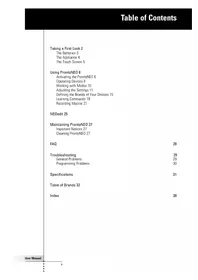
- CONTROLS
- FOR DVD/VCR
- DON'T FORGET THE BATTERIES
- AT A GLANCE
- GETTING STARTED
- SET TIME AND DAY
- SETUP
- ADD DEVICE
- REMOVE DEVICE
- CHANGE DEVICE CODE
- AUTOSEARCH
- NOTE THAT CODE
- READ DEVICE CODE
- SET RF (RADIO FREQUENCY) OR IR (INFRA-RED) TRANSMISSION
- LEARN CODES FROM ORIGINAL REMOTE CONTROL
- TIP: CHOOSE KEYS THAT CORRESPOND WITH THE KEYS ON YOUR ORIGINAL REMOTE CONTROL, SO THAT YOU CAN REMEMBER THEM EASILY
- COPY KEY FUNCTIONS
- MACRO KEYS
- SMART CONTROLS
- ADD KEY
- RESET KEY(S)
- TO RESET ALL KEYS OF A DEVICE
- TO RESET ALL KEYS OF ALL DEVICES
- HOME CINEMA MODE
- HOME CINEMA
- ENGLISH
- DEFINE HOME CINEMA KEYS
- RESET HOME CINEMA KEYS
- EXTRA FUNCTIONS
- SET-UP BACKLIGHTING
- SET TIMER
- EDIT TIMER
- REMOVE TIMER
- NEED HELP
- INTRODUCTION
- SBC RU
- FIRST STEPS
- SETUP CODES FOR RECEIVERS
- CODE LIST FOR PHILIPS SBC RU
- P
- R
- S
- T
- U
- W
- Y
- SETUP CODES FOR SATELLITE
- A
- D
- E
- F
- G
- H
- J
- K
- L
- M
- SETUP CODES FOR TELEVISION
- B
- C
- N
- Q
- V
- Z
- SETUP CODES FOR VCR
- SETUP CODES FOR DIGITAL VERSATILE DISC
- NOTE YOUR CODES
- TV
- VCR
- SAT
- DVD
- HELPLINE
- TIMER SETTING
Brand : PHILIPS
Model : SBCRU885
Category : Remote control