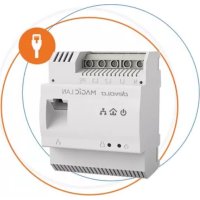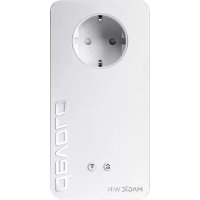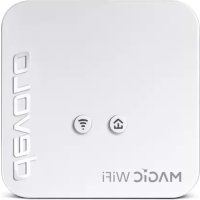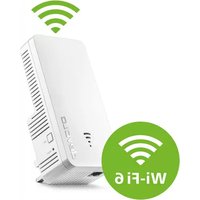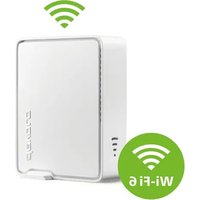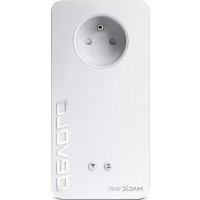
Magic 1 WiFi - Powerline Adapter DEVOLO - Free user manual and instructions
Find the device manual for free Magic 1 WiFi DEVOLO in PDF.


User questions about Magic 1 WiFi DEVOLO
0 question about this device. Answer the ones you know or ask your own.
Ask a new question about this device
Download the instructions for your Powerline Adapter in PDF format for free! Find your manual Magic 1 WiFi - DEVOLO and take your electronic device back in hand. On this page are published all the documents necessary for the use of your device. Magic 1 WiFi by DEVOLO.
USER MANUAL Magic 1 WiFi DEVOLO
© 2022 devolo AG Aachen (Germany)
m = 311 ;
Senden (Mbit/s): Datensenderate
Dynamic Frequency Selection 12
E
Entsorgung 52
© 2022 devolo AG Aachen (Germany)
The reproduction and distribution of the documentation and software supplied with this product and the use of its contents is subject to written authorization from devolo. We reserve the right to make any alterations that arise as the result of technical development.
Trademarks
Android™ is a registered trademark of Open Handset Alliance.
Linux is a registered trademark of Linus Torvalds.
Ubuntu *is a registered trademark of Canonical Ltd.
Mac* and Mac OS X* are registered trademarks of Apple Computer, Inc.
iPhone*,iPad* and iPod* are registered trademarks of Apple Computer, Inc.
Windows and Microsoft are registered trademarks of Microsoft, Corp.
Wi-Fi, Wi-Fi Protected AccessTM, WPA™, WPA2™ and Wi-Fi Protected SetupTM are registered trademarks of the Wi-Fi Alliance*.
devolo and the devolo logo are registered trademarks of devolo AG.
The firmware package from devolo contains files which are covered by different licenses, in particular under devolo proprietary license and under open source license (GNU General Public License, GNU Lesser General Public License or FreeBSD License). The source code which is available for Open Source distribution can be requested in writing from gpl@devolo.de.
All other names mentioned may be trademarks or registered trademarks of their respective owners. Subject to change without notice, No liability for technical errors or omissions.
This product has been manufactured and is sold under a licence granted to devolo AG by Vectis One Ltd for patents concerning WiFi-technology and owned by Wi-Fi One, LLC ("Licence"). The Licence is limited exclusively to finished electronics for end-use and does not extend rights to any third party device or process used or sold in combination with this product.
devolo AG
Charlottenburger Allee 67
52068 Aachen
Germany
www.devolo.global
Version 1.3_8/22
Contents
1 Preface 7
1.1 About this manual 7
1.2 Safety 7
1.2.1 About the flyer "Safety and service" 7
1.2.2 Description of the icons 8
1.2.3 Intended use 9
1.2.4 CE conformity 9
1.2.5 UKCA conformity 10
1.3 devolo on the Internet 10
2 Introduction 11
2.1 devolo Magic 11
2.2 Introduction to the devolo magic adapter: 12
2.3 Pairing - Establishing a PLC connection 14
2.3.1 Reading the PLC indicator light 16
2.3.2 Wi-Fi button 19
2.3.3 Reading the Wi-Fi indicator light 20
2.3.4 Reset button 21
2.3.5 Network jacks 22
2.3.6 Wi-Fi antennas 22
2.3.7 Integrated electrical socket 22
3 Initial use 23
3.1 Package contents 23
3.2 System requirements 23
3.3 Important notes 24
3.4 Connecting the devolo Magic 1 WiFi 25
3.4.1 Starter Kit - Automatic set-up for a new devolo Magic PLC network 25
3.4.2 Addition - Expanding an existing PLC network by adding another devolo Magic 1 WiFi 25
3.4.3 Changing the network password 26
3.4.4 Establish a Wi-Fi connection with the devolo Magic 1 WiFi 26
3.5 Installation of devolo software 27
3.6 Removing the devolo Magic adapter from a PLC network 28
4 Network configuration 29
4.1 Calling up the built-in web interface 29
4.2 General information about the menu 29
4.3 Overview 32
4.3.1 System 32
4.3.2WiFi 32
4.3.3 Powerline 32
4.3.4 LAN 33
4.4WiFi 33
4.4.1 Status 33
4.4.2 WiFi networks 34
4.4.3 Guest network 36
4.4.4 Mesh 37
4.4.5 Schedule control 38
4.4.6 Parental control 39
4.4.7 Wi-Fi Protected Setup (WPS) 40
4.4.8 Neighbour networks 41
4.5 Powerline 42
4.5.1 Powerline network 42
4.5.2 Compatibility mode 43
4.6 LAN 44
4.6.1 Status 44
4.6.2 IPv4/IPv6 configuration 45
4.7 System 45
4.7.1 Status 45
4.7.2 Management 46
4.7.3 Configuration 47
4.7.4 Firmware 48
4.7.5 Config Sync 49
5 Appendix 50
5.1 Bandwidth optimization 50
5.2 Warranty conditions 50
1 Preface
Welcome to the fantastic world of devolo Magic!
In no time at all, devolo Magic transforms your house into a multimedia home that is ready for the future today. devolo Magic gives you noticeably higher speeds, more stability and greater range, providing the perfect Internet experience as a result!
1.1 About this manual
Chapter 1: Preface - covers safety-related product information as well as general information on this document.
Chapter 2: Introduction - gives a brief introduction of "devolo Magic" and a presentation of the devolo Magic 1 WiFi adapter
Chapter 3: Installation - shows how to successfully start using the adapter in your network and describes the devolo software as well as the reset of a devolo Magic adapter.
Chapter 4: Configuration - describes in detail the setting options of the built-in devolo Magic configuration interface.
Chapter 5: Appendix - includes tips for bandwidth optimisation and our warranty terms.
1.2 Safety
It is essential to have read and understood all safety and operating instructions before the device is used for the first time; keep this manual and/or installation guide as well as the flyer "Safety and service" safe for future reference.
1.2.1 About the flyer „Safety & service"
The flyer "Safety & service" provides cross-product and conformity-relevant safety information e.g. general safety notes, data of frequency range and transmitting power as well as channels and carrier frequencies details of Wi-Fi products and disposal information.

Printouts of the flyer and the installation guide are included with each product; this product manual is provided digitally.
Furthermore, these and other relevant product descriptions are available to you in the download area of the respective product page on the Internet at www.devolo.global.
1.2.2Description of the icons
This section contains a brief description of the icons used in this manual and/or on the rating plate, the device connector.
| Icon Description | |
| Very important safety symbol that warns you of hazardous electrical voltage which if not avoided can result in serious injury or death. | |
| An important safety symbol that warns you of a potentially dangerous situation involving a tripping hazard which can result in injuries. | |
| An important note that should be observed which can potentially lead to material damages. | |
| The device may only be used in-doors in dry conditions. | |
| Icon Description | |
| Only applicable for devices with Wi-Fi in the 5 GHz band:Wi-Fi connections in the 5 GHz band from 5.15 to 5.35 GHz are intended exclusively for operation inside closed rooms. | |
| The device is a Class I product. All electrically conductive (made of metal) housing parts where a voltage can be applied during operation or maintenance in the event of an error must be continuously connected to the earth wire. | |
| CE | The manufacturer/distributing company uses the CE marking to declare that the product meets all applicable European regulations and has been subjected to the prescribed conformity assessment procedures. |
| UKCA | The manufacturer/distributing company uses the UKCA marking to declare that the product meets all applicable regulations of Great Britain and has been subjected to the prescribed conformity assessment procedures. |
| i | Additional information, background material and configuration tips for your device. |
| ✓ | Indicates a completed course of action |
1.2.3 Intended use
Use the devolo devices as described to prevent damage and injury.
devolo Magic 1 WiFi
The device is a communication device only designed for indoors and is equipped with a PLC - (PowerLine Communication) and a Wi-Fi module. The devices communicate with each other by means of PLC and Wi-Fi.
The device enable transmission of the existing Internet/data signal over the in-house wiring and via Wi-Fi and integrate Internet-compatible terminal devices into the home network.
devolo Magic 1 LAN
The device is a communication device only designed for indoors and is equipped with a PLC (PowerLine Communication) module. The devices communicate with each other by means of PLC.
The device enable transmission of the existing Internet/data signal over the in-house wiring and integrate Internet-compatible terminal devices into the home network.
The delivered products are intended for operation in the EU, EFTA and UK.
1.2.4CE conformity
A printout of the simplified CE declaration of this product is separately included. The complete CE declaration can be found under www.devolo.global/support/ce.
1.2.5UKCA conformity

A printout of the simplified UKCA declaration of this product is separately included. The complete UKCA declaration can be found at www.devolo.global/support/UKCA.
1.3 devolo on the Internet
For detailed information on our products, visit www.devolo.global.
There you will find product descriptions and documentation, and also updates of devolo software and your device's firmware.
If you have any further ideas or suggestions related to our products, please don't hesitate to contact us at support@devolo.global!
2 Introduction
2.1 devolo Magic
Home is where devolo Magic is – in no time at all, devolo Magic transforms your house or flat into a multimedia home of the future with noticeably higher speed, more stability and greater range, providing the perfect Internet experience as a result!
Be inspired by products that are astonishingly easy to install, with impressive, innovative technology and unbeatable performance.
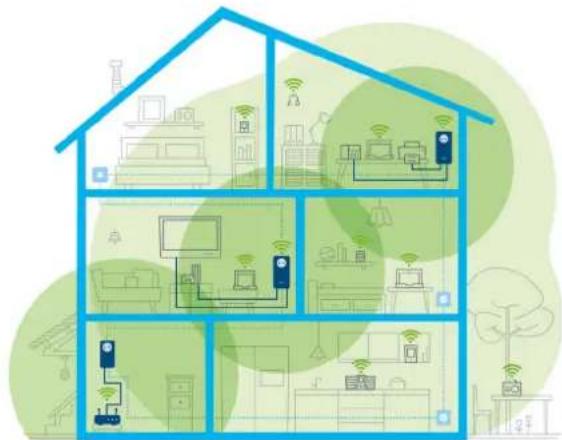
Fig. 1 devolo Magic throughout the home
Be ready for the technology of the future today
devolo Magic embodies the new generation of the tried-and-tested Powerline technology (PLC) based on the cutting-edge G.hn architecture. G.hn was developed by the International Telecommunication Union (ITU) with ongoing development provided primarily by the HomeGrid Forum industry association. devolo Magic products are certified according to HomeGrid standards and are compatible with other HomeGrid-certified products.
Like the HomePlug AV technology used in established devolo dLAN devices, devolo Magic uses the household mains supply for data transmission and secures ideal performance and stability in locations where network cables are not viable or desired and/or the Wi-Fi frequently falls short due to ceilings and walls.

To set up a devolo Magic network, you need at least two devolo Magic devices. For technical reasons, devices from the devolo Magic series are not compatible with dLAN devices.
2.2 Introduction to the devolo magic adapter:
Unpack- plug in - get started and be prepared for the new generation of the tried-and-tested Powerline technology and innovative mesh WiFi with swiftness and stability:
Powerline
At speeds up to 1200 Mbps
Over distances up to 400 metres
Security - with 128-bit AES Powerline encryption
Mesh WiFi
At speeds up to 1200 Mbps
Four antennas cover the 2.4 and 5 GHz Wi-Fi frequencies at the same time and use the full extent of the entire 5 GHz frequency band (Dynamic Frequency Selection, DFS).
Air-time fairness - Quicker Wi-Fi devices take priority in the network.
Band steering - Use of the optimum frequency band (2.4 and 5 GHz frequency band)
Roaming - Quickly and seamlessly connect to the strongest Wi-Fi access point
Security - with WPA2 for wireless ac ("IEEE 802.11a/b/g/n/ac" Wi-Fi high-speed standards)
- Convenient additional functions such as parental controls, guest WiFi, time control and Config Sync are integrated in the devolo Magic 1 WiFi.
- Efficiency- The integrated PowerSave mode reduces energy consumption automatically at low data traffic.
The 2 network connectors on the devolo Magic 1 WiFi let you connect stationary network devices—such as a game console, TV or media receiver—to your Internet access
13 Introduction
point over the Powerline network (e.g. Internet router).
Its integrated electrical socket can be used like a normal wall socket to supply power to an additional network device or a power strip.
The devolo Magic 1 WiFi features
An integrated electrical socket,
A PLC button with LED status display,
A Wi-Fi button with LED status display,
Four internal WiFi antennas,
Two network connectors
A reset button (next to the network connectors).

The LED status displays can be disabled. You can find more information about this in Chapter 4 Network configuration or in the product manual for the devolo Cockpit software available online at www.devolo.global/devolo-cockpit.
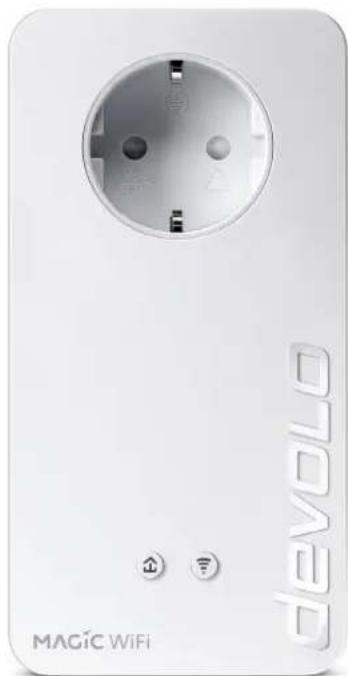
Fig. 2: devolo Magic 1 WiFi ^2-1 with country-specific connector and power socket
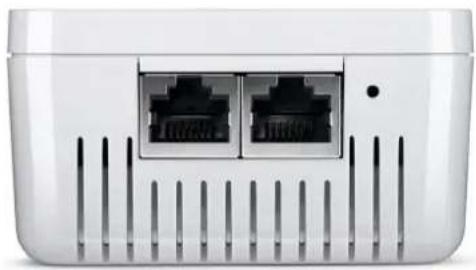
Fig. 3 Network connectors
2.3 Pairing - Establishing a PLC connection
devolo Magic adapters that are in the factory default condition, i.e. have been recently purchased or successfully reset (see Chapter 3.6 Removing the devolo Magic adapter from a PLC network), automatically start to attempt to pair (establish a PLC connection) with anotherdevolo Magic adapter when reconnected to the mains supply.
Starting up a new devolo Magic PLC network
After plugging the devolo Magic adapters into available power sockets, a new devolo Magic network is established automatically within 3 minutes.
Expanding an existing devolo Magic PLC network by adding another devolo Magic adapter
In order to use a new devolo Magic 1 WiFi in your devolo Magic network, first you have to connect it to your existing devolo Magic adapters devices as a network. This is accomplished by using a shared PLC password, which can be assigned in various ways:
Using devolo Cockpit or the devolo Home Network App (see Chapter 3.5 Installation of devolo software)
Using the web interface (see Chapter 4.5 Powerline)
Using the PLC button as described below.
To do so, plug the new devolo Magic adapter into an available power socket and, for approximately 1 second, press the PLC button on a devolo Magic adapter in your existing devolo Magic network. The LED of this adapter now also flashes white.
The new devolo Magic adapter pairs automatically so no button needs to be pressed. The LED of this adapter now also flashes white.
15 Introduction

After a short time, the flashing LED becomes a steady white light. The devolo Magic adapter has been successfully integrated into your existing devolo Magic network.

For each pairing operation, only one additional devolo Magic adapter can be added at a time.
You can find detailed information about installing devolo Magic adapters in Chapter 3.4 Connecting the devolo Magic 1 WiFi.
2.3.1 Reading the PLC indicator light
The integrated PLC indicator light (LED) shows the status for the devolo Magic 1 WiFi by illuminating and/or flashing:
| LED Flashing behaviour | Meaning LED status display | (web interface*) | |
| 1 Red LED | Lights up for up to 75 sec. | Start-up process Cannot be disabled | |
| 2 Red LED Flashes at intervals of 0.5 sec. (on/off) | Status 1: The reset of the devolo Magic adapter was successful. The PLC/reset button has been pressed and held for 10 seconds.Status 2: The devolo Magic adapter (once again) has the factory default settings. Since the last reset, no pairing with another devolo Magic adapter has taken place.Connect the adapter with another devolo Magic adapter to create a full-fledged PLC network as described in Chapter 2.3 Pairing - Establishing a PLC connection. | Cannot be disabled |
17 Introduction
| LED Flash hinging behaviour | Meaning LED status display | (web interface*) | ||
| 3 Red LED Lights up steady | Status 1: The other network nodes are in standby mode and cannot currently be accessed over the mains supply. The PLC LEDs of the other devolo Magic adapters flash white only for a short time.Status 2: The connection to the other network nodes has been interrupted. There may be electromagnetic or radio frequency interference on the power line. In this case, put the devolo Magic adapters closer to each other or try to shut off the source of interference. | Can be disabled | ||
| 4 | R e white LED | dFlashes atnin- tervals of 0.1 sec. red/2 sec. white | dData transmission rate not in optimum range** | Can be disabled |
| 5 | W h LED | Status 1: e Flashes at intervals of 0.5 sec. (on/off) Status 2: Flashes at intervals of 1 sec. (on/off) | Status 1: This devolo Magic adapter is in pairing mode and the system is searching for new devolo Magic adapters.Status 2: Someone has triggered the "Identify device" function on the web interface or in the devolo Home Network App. This function identifies the devolo Magic adapter being sought. | Cannot be disabled |
| 6 | W h LED | Lights upsteady | The devolo Magic connection does not have any issues and the devolo Magic adapter is ready to operate. | Can be disabled |
| 7 | W h LED | Flashes at intervals of 0.1 sec. on / 5 sec. off | The devolo Magic adapter is in standby mode.*** | Can be disabled |
| 8 | R e white LED | dFlashes atnin- tervals of 0.5 sec. red/ 0.5 sec. white | dThe devolo Magic adapter is carrying out a firmware update. | Cannot be disabled |
- Information about the web interface can be found in Chapter 4 Network configuration.
** Information on improving the transmission rate can be found in Chapter 5.1 Bandwidth optimization.
***A devolo Magic adapter switches to standby mode after approximately 10 minutes if no active network device (e.g. computer) is connected to the network interface and the Wi-Fi is switched off. In this mode, the devolo Magic adapter cannot be accessed over the electrical wiring. As soon as the network device (e.g. computer) connected to the network interface is switched on again, your devolo Magic adapter can also be accessed over the electrical wiring again.

Check whether the adapter is connected to the mains supply correctly and whether the pairing operation has been carried out successfully. For more information about this, refer to 3.4 Connecting the devolo Magic 1 WiFi.
2.3.2Wi-Fi button

This button controls the following functions:
Wi-Fi on/off
In the factory default settings, the Wi-Fi setting is already enabled and the Wi-Fi encryption is set to WPA2. The default Wi-Fi key for the initial installation of the devolo Magic 1 WiFi is the device's Wi-Fi key.
You can find the device's unique key on the label on the rear side of the housing. Before the networking procedure, write down the WiFi key of the devolo Magic 1 WiFi.

Fig. 4: WiFi key on the country-specific type plate
In order to connect the devolo Magic 1 WiFi with your laptop, tablet or smartphone later via WiFi, enter the noted WiFi key as the network security key.
In order to switch WiFi off, press and hold the WiFi button longer than 3 seconds.
In order to switch WiFi back on, briefly tap the WiFi button.
Connecting WiFi devices via WPS
If the device is still on factory defaults, tap the WiFi button in order to activate WPS.
- If the WiFi connection was switched off and you would like to activate WPS, press the WiFi button twice; once to switch WiFi on, and again to activate WPS.
- If the WiFi connection is switched on and you want to copy these settings to another devolo Magic adapter, continue reading with the Chapter 4.7.5 Config Sync.

WPS is one of the encryption standards developed by the WiFi Alliance. The objective of WPS is to make it easier to add devices to an existing network. For more detailed information, refer to Chapter 4.4.7 Wi-Fi Protected Setup (WPS).
2.3.3Reading the Wi-Fi indicator light
The integrated Wi-Fi indicator light (LED) shows the status of the devolo Magic 1 WiFi by illuminating and/or flashing
| Wi-Fi-LED Flashing behavior Meanings | led status display | (web interface*) | |
| 1 White LED Flashes at intervals of 0,1 sec. on / 5 sec. off | The devolo Magic adapter is in WPS mode to integrate Wi-Fi-enabled devices via WPS. | Cannot be disabled | |
| 2 White LED Lights up steady | Wi-Fi is switched on and active. | Can be disabled |
21 Introduction
| Wi-Fi-LED Flashing behavior Meaning | LED status display | (web interface*) | |
| 3 W | White LED Off Status 1: | The Wi-Fi LED is switched off and the devolo magic adapter is still ready for use.Status 2:The Wi-Fi function ist disabled. | Can be disabled |
- Information about the web interface can be found in Chapter 4 Network configuration.
2.3.4Reset button
The reset button (next to the network jacks) has two different functions:
Restart
The device restarts if you press the Reset button for less than 10 seconds.
Factory default settings
To remove a devolo Magic adapter from your devolo Magic network and successfully restore its entire configuration to the factory defaults, press and hold the reset button longer than 10 seconds.

Keep in mind that all settings that have already been made will be lost!
Wait until the LED flashes white and then disconnect the devolo Magic adapter from the mains supply.

The devolo Magic adapter has been successfully removed from your existing devolo Magic network.
2.3.5 Network jacks
You can use the network jacks on the devolo Magic adapter to connect it to stationary devices such as computers, game consoles, etc. using a standard network cable.
2.3.6Wi-Fi antennas
The internal Wi-Fi antennas are for connecting to other network devices wirelessly.
2.3.7 Integrated electrical socket
Always use the integrated electrical socket on the devolo Magic adapter when connecting other consumers to the mains supply. In particular, electronic devices with mains adapter can negatively affect PLC performance.
The integrated mains filter in the devolo Magic adapter filters any such external interference and reduces any impairment of PLC performance.
3 Initial use
This chapter tells you everything you need to know to set up and use your devolo Magic 1 WiFi. We describe how to connect the device and briefly describe the devolo software. For more information, please visit our website www.devolo.global.
3.1 Package contents
Please ensure that the delivery is complete before beginning with the installation of your devolo Magic 1 WiFi:
Single Kit:
1 devolo Magic 1 WiFi
Printed installation guide
Printed flyer "Safety & Service"
Printed simplified UKCA/CE declaration
Online manual
or
- Starter Kit:
1 devolo Magic 1 WiFi
1 devolo Magic 1 LAN
1 network cable
Printed installation guide
Printed flyer "Safety & Service"
Printed simplified UKCA/CE declaration
Online manual
or
Multiroom Kit:
2 devolo Magic 1 WiFi
1 devolo Magic 1 LAN
1 network cable
Printed installation guide
Printed flyer "Safety & Service"
Printed simplified UKCA/CE declaration
Online manual
devolo AG reserves the right to change the package contents without prior notice.
3.2 System requirements
- Operating systems supported by devolo Cockpit:
from Windows 7 (32-bit/64-bit),
from Ubuntu 13.10 (32-bit/64-bit),
from Mac (OS X 10.9)
Gigabit network connection
Network connection

Please note that your computer or other device must have a network card or network adapter with a network interface.
To set up a devolo network, you need at least two devolo adapters.
3.3 Important notes
Use the devolo devices, the devolo software and the provided accessories as described to prevent damage and injury.
It is essential to have read and understood all safety and operating instructions before the device is used for the first time.

In this context, please read the chapter 1.2 Safety as well as the supplied flyer "Safety and service".
The flyer is also available in the download area of the respective product page on the Internet at www.devolo.global.

CAUTION! Damage to the device caused by ambient conditions
Only use device indoors in dry conditions

DANGER! Electric shock caused by electricity
Device must be plugged into a power socket with a connected earth wire (PE)

CAUTION! Damage to the device caused by unpermitted voltage range
Only operate devices on mains power supply as described on the rating plate.
Technical data

For the permitted voltage range for operating the device and the power consumption, refer to the type plate on the rear of the device.
For further technical data of this product, please refer to the data sheet in the download area of the respective product page on the Internet at www.devolo.global.
3.4 Connecting the devolo Magic 1 WiFi
In the following sections we describe how to connect the devolo Magic 1 WiFi and integrate it into a network. We clarify the exact procedures based on potential network scenarios.
3.4.1 Starter Kit – Automatic set-up for a new devolo Magic PLC network
- Connect one devolo Magic 1 LAN to your Internet access device's network connection (e.g. your Internet router).

CAUTION! Tripping hazard
Lay the cable in a barrier-free manner and ensure that the electrical socket and the connected network devices are easily accessible
Plug both devolo Magic adapters into available power sockets within 3 minutes. As soon as the LEDs on both adapters flash white at regular intervals of 0.5 sec., they are ready to operate and automatically start the process of establishing an encrypted connection to each other (see Chapter 2.3.1 Reading the PLC indicator light).

If the LEDs on both devolo Magic adapters light up in white, then your devolo Magic network has been set up according to your individual specifications and is protected from unauthorised access.
3.4.2Addition - Expanding an existing PLC network by adding another devolo Magic 1 WiFi
Plug the devolo Magic 1 WiFi into an available power socket. As soon as the LED flashes white at regular intervals of 0.5 seconds, the adapter is ready to operate but not yet integrated into a devolo Magic network (see Chapter 2.3.1 Reading the PLC indicator light).
Pairing - Establishing a PLC connection

Before you can use the new devolo Magic 1 WiFi in your devolo Magic network, first you have to connect it to your existing devolo Magic adapters as a network. This is accomplished by using a shared password:
Within 3 minutes, press the PLC button on a devolo Magic adapter in your existing devolo Magic network for approximately 1 sec.
The new devolo Magic adapter pairs automatically so no button needs to be pressed. The LED of this adapter now also flashes white.
If the LEDs light up white on both devolo Magic adapters, the new adapter has been successfully integrated into your existing devolo Magic network.
For each pairing operation, only one additional adapter can be added at a time.
3.4.3 Changing the network password
A network password can also be changed in the following ways:
Using the web interface of the devolo Magic adapter (see Chapter 4.5 Powerline)
or
Using devolo Cockpit or the devolo Home Networking App. For more information, refer to the chapter 3.5 Installation of devolo software.
3.4.4Establish a Wi-Fi connection with the devolo Magic 1 WiFi
Establish the WiFi connection with your laptop, tablet or smartphone by entering the previously noted WiFi key as the network security key.
Integrating the Wi-Fi adapter into an existing Wi-Fi network
To ensure that the devolo Magic 1 WiFi has the same Wi-Fi configuration as your Wi-Fi router, you can apply the Wi-Fi access data at the touch of a button using the WiFi Clone function. This can be enabled in different ways:
Activating WiFi Clone:
- Activating WiFi Clone by pressing a button: Briefly press the PLC button on your devolo Magic WiFi adapter. After the button is pressed, the LED flashes white. Press the WPS button on your router within 2 minutes. Please consult your router's instruction for use to find out how long to press the button for.
or
- Activating WiFi Clone from the web interface. More information about this function can be found in Chapter WiFi Clone.
3.5 Installation of devolo software
Installing devolo Cockpit software
devolo Cockpit finds all accessible devolo Magic adapters in your devolo Magic network, displays information about these devices and encrypts your devolo Magic network individually. You can use the software to navigate to the integrated web interface.
Operating systems supported by devolo Cockpit (Version 5.0 or later):
from Windows 7 (32-bit/64-bit) or later,
from Ubuntu 13.10 (32-bit/64-bit),
from Mac (OS X 10.9)
You can find the product manual, software and additional information on devolo Cockpit online www.devolo.global/devolo-cockpit.
Downloading the devolo Home Networking App
The devolo Home Networking App is devolo's free app also for checking and configuring WiFi, PLC and LAN connections for the devolo Magic adapter (using a smartphone or tablet). The smartphone or tablet connects to the devolo Magic adapter at home over Wi-Fi.
Download the devolo Home Networking App to your smartphone or tablet computer from the corresponding store.
The devolo Home Networking App is placed in your smartphone's or tablet's app list as usual. Tapping on the devolo Home Networking App icon brings you to the start menu.
You can find more information about the devolo Home Networking App online at www.devolo.global/home-network-app.
3.6 Removing the devolo Magic adapter from a PLC network
To remove a devolo Magic adapter from your network and successfully restore its entire configuration to the factory default settings,
press the reset button longer than 10 seconds.
Wait until the LED flashes white and then disconnect the adapter from the mains supply.
Keep in mind that all settings that have already been made will be lost!
To integrate the mains supply into another network, proceed as described in Chapter 3.4.2 Addition - Expanding an existing PLC network by adding another devolo Magic 1 WiFi.
4 Network configuration
The devolo Magic 1 WiFi has a built-in web interface that can be called up using a standard web browser. All settings for operating the device can be modified here.
4.1 Calling up the built-in web interface
You can access the built-in online web interface for the devolo Magic 1 WiFi in different ways:
Using the devolo Home Network App on your smartphone or tablet, you can access the device's web interface by tapping on the corresponding adapter symbol for the devolo Magic 1 WiFi.
or
Using the Cockpit software, you can get to the device's web interface by clicking on the corresponding tab for the devolo Magic 1 W. Then the program determines the current IP address and starts the configuration in the web browser.

By default, the web interface will open directly. However, if an access password has been set via the option System Management, you have to enter that password first. Read more about this under 4.7 System.

You can find more information on devolo Home Network App and Cockpit software in Chapter 3.5 Installation of devolo software.
4.2 General information about the menu
All menu functions are described in the corresponding interface as well as in the associated chapter in the manual. The sequence of the description in the manual follows the structure of the menu. The figures for the device interface serve as examples.
Logging in
The web interface is not password protected. Assigning a login password is mandatory when logging in for the first time to prevent unauthorised access by third parties.
Enter your existing password each time you login again and confirm by pressing Log in.

Login
Welcome to your Magic 1 WiFi 2-1
Please log in with your password!
Password
Login
Logging out

Log out of the web interface by clicking Log out.
Language selection

Select the desired language in the language selection list.
The central areas of the web interface and their sub-categories are listed on the left edge. Click the entry for an area to move directly into it.
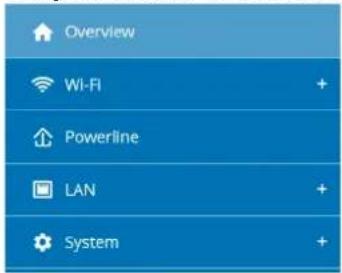
Making changes
Once you make a change, two icons are shown on the corresponding menu page:
- Disk icon: Your settings are being saved.
- X icon: The operation is being cancelled. Your settings are not being saved.
Required fields
Fields with a red border are required fields. This means entries must be made in these fields to continue with the configuration.
Help text blank fields
Fields that have not been filled in yet contain greyed out help text, which indicates the required con
devolo Magic 1 WiFi 2-1
31 Network configuration
tent for the field. This help text disappears immediately once content has been entered.
Default settings
Some fields contain default settings which ensure the greatest amount of compatibility and ease of use. Default settings are identified with an * in drop-down menus.
Default settings can of course be replaced with customised information.
Recommended settings
Some fields include recommended settings.
Recommended settings can of course be replaced with customised information.
Tables
You can make changes within a table by clicking the corresponding table row in Time Control and Parental Control. In edit mode, the corresponding table rows have a blue background. In edit mode, the corresponding table rows have a blue background.
Invalid entries
Entry errors are either highlighted by a red border or error messages are shown.
Buttons
Click the Disk icon to save the settings for the respective web interface area.
Click the X icon or use the Menu path above the buttons to exit the respective web interface area.
Click the Recycle bin icon to delete an entry.
Click the Arrow icon to refresh a list.
4.3 Overview
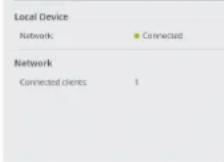
The Overview area shows the status of the devolo Magic 1 WiFi and the connected LAN, PLC and WiFi devices.
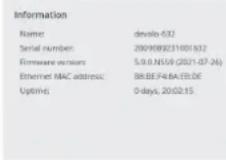
System
a4 = a1 + 3
Powerline
LAN
4.3.1System
Name: Device name
Serial number: Device serial number
Firmware version: Firmware version of the device
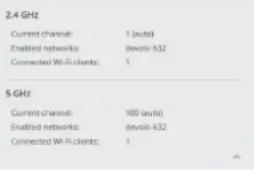
4.3.2WiFi
2.4 GHz
Current channel: used frequency channel in the 2.4-GHz frequency range
Enabled SSID: name of the enabled WiFi network
Connected WiFi clients: number of devices connected to the network.
5 GHz
Current channel: used frequency channel in the 5-GHz frequency range
Enabled SSIDs: Name of the enabled WiFi networks
Connected WiFi clients: number of devices connected to the network.
4.3.3Powerline
Local device
Network: status information "connected" or "not connected"
Network
Connected clients: number of devices connected to the Powerline network
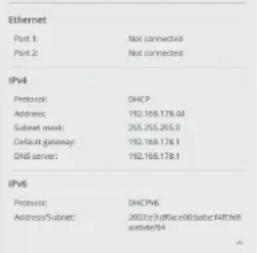
4.3.4LAN
IPv4
Protocol: Display indicating whether DHCP is switched on or switched off
Address: IPv4 address in use
Subnet mask: IPv4 network mask in use
Default gateway: IPv4 gateway in use
Name server: DNSv4 server in use
IPv6
Protocol: Display indicating whether DHCPv6 is switched on or switched off
Address/subnet: Address/subnet mask in use
4.4WiFi
Make all changes to your wireless network in the WiFi area.
4.4.1Status
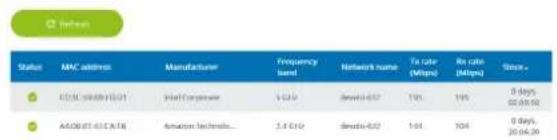
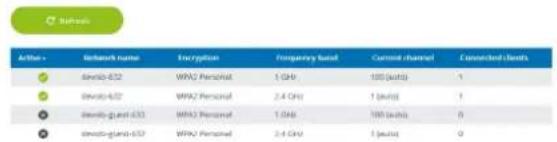
You can see the current status of your WiFi network configuration here, e.g. the connected WiFi stations, the MAC address, the selected frequency band, the SSID, the transfer rates and the connection duration.

Wi-Fi Network
4.4.2WiFi networks
You can make all necessary changes to your WiFi network here.
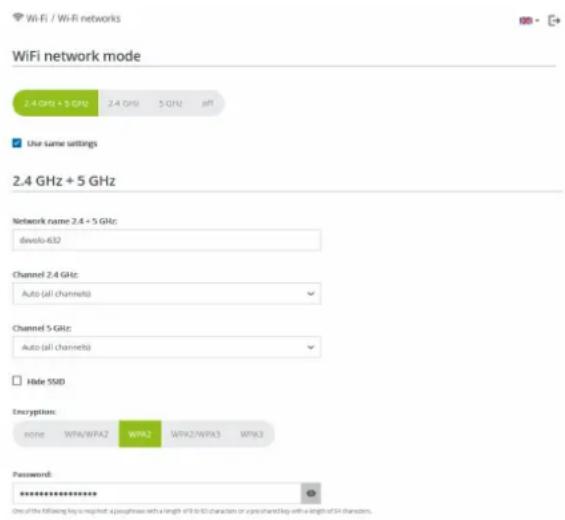
WiFi network mode
The devolo Magic 1 WiFi supports both the parallel operation of the WiFi frequency bands and their separate use.
The WiFi network mode field lets you define your preferred setting by clicking the respective field:
2.4 GHz + 5 GHz - Both frequency bands are used
2.4 GHz - Only the 2.4 GHz frequency band is used
- 5 GHz - Only the 5 GHz frequency band is used
- Off - If desired, you can completely switch off the WiFi section of your devolo Magic 1 WiFi here.
Keep in mind that after saving this setting, you will be disconnected from any existing wireless connection to the devolo Magic 1 WiFi. In this case, configure the device over Ethernet.
Network name
The network name (SSID) determines the name of your wireless network. You can see this name when logging onto the WiFi, allowing you to identify the correct WiFi network.
Channels
There are 13 channels available in the 2.4 GHz frequency band. The channels recommended for Europe are channels 1, 6 and 11. This ensures the frequency bands of the channels do not overlap and any connection problems are avoided.
There are 19 channels available in the 5 GHz frequency band.
The channel selection default setting is Automatic. The devolo Magic 1 WiFi regularly and automatically executes the channel selection in this setting. In other words, if the last connected station logs out, a search for a suitable channel is carried out immediately. If no stations are connected, the device automatically selects a channel every 15 minutes.
It is worth noting that connected devices also have to support the increased frequency band of 5 GHz. From channel 52 onward you go into the radar range. When accessing the device for the first time, a radar detection phase (DFS) starts automatically, during which time the devolo Magic 1 WiFi cannot be accessed via WiFi. This can take up to 10 minutes.
In the Channel field, you can manually select a 2.4 GHz and a 5 GHz channel. If you are not sure which wireless channels are used by nearby devices, select the Automatic option.
Hide SSID:
The SSID specifies the name of your wireless network. You can see this name when logging onto the WiFi, allowing you to identify the correct subnet.
If the Hide SSID option is disabled, your network name is visible. If this option is disabled, potential network users must know the exact SSID and enter it manually to be able to set up a connection.
Some WiFi stations have difficulty connecting to hidden wireless networks. If the connection to a hidden SSID poses problems, first try to set up the connection with a visible SSID and only then try to hide it.
Security
The WPA/WPA2/WPA3 Personal (WiFi Protected Access) security standard is available for securing data transmission in your wireless network. This method allows for individualised keys consisting of letters and numbers and the depicted special characters with a length of up to 63 characters. You can simply enter them into the Key field via the keyboard.
4.4.3 Guest network
If you have friends or acquaintances visiting and you want to provide them with Internet access but without giving away the password for your WiFi, you can set up a separate guest account in addition to the main Internet connection. The guest account can have its own network name, time limit and WiFi password. This way your visitors can browse the Internet without having access to your local network.

The guest network does only allow access to the internet.
Frequency band:
2+GHR+5GHR
Encryption:

Password:
The QIR-Code gives you easy access to the guest network using mobile devices. The QIR-Code also provides a way to establish your credentials, and the guest network will be transferred to your mobile device.

Automatic Shutoff

Disable guest network in 2 hours
Select a time period. The guest Wi-Fi network is automatically switched off after this period has elapsed.
Selected time period:
2h
To set up a guest account, activate the Enable option.
The guest account has an Automatic shutoff feature. This feature automatically disables the guest network once the selected time period ends.
You can use the Enable option to activate the shut-off feature.

You can also enable or disable the guest account in the devolo Home Network App using the Guest account button.
Frequency band
In the Frequency band field, you select the frequency band mode you are using (see Chapter WiFi network mode).
Network name
Define the name of the guest network in the Network name field.
Key
You should also encrypt the guest account to prevent anyone in signal range from intruding into your network and, for example, sharing your Internet connection. The WPA/WPA2/WPA3 (WiFi Protected Access) security standard is available for this.
This method allows for individualised keys consisting of letters and numbers with a length of up to 63 characters. You can simply enter them via the keyboard.
To do so, enter a corresponding number of characters into the Key field.
QR code
Using the QR code, you can conveniently set up the connection to the guest network for mobile devices. Scanning the QR code automatically transfers the credentials for the guest network to the respective mobile device. The QR code is visible only if the guest network has been enabled.
4.4.4Mesh
Mesh
All devolo Magic series WiFi adapters offer mesh WiFi, which entails completely new and improved WiFi functions:
Mesh WiFi
Enabling the Mesh functionality features will optimize your infinite WiWi network experience while using your mobile devices. Inroom Vooting and Wi-Fi access, Wi-Fi connection and Wi-Fi streaming and streaming and streaming and streaming.
Enable
Features
4.1.2.2.1. (a) Ratio called "Fair floating" incorporates the sign of a RRH device to this WIR access pose. Requirement: The device was already running on a Wi-Fi device with a 300 MHz bandwidth and a 1000 MHz MAC address. Unfortunately, B22 is not compatible with every WIR device. If you experience problems with any of your devices, please disable this option.
□E202.11r
WiFi Core
WI F i t t t.
Start Configuration
- Fast roaming (IEEE 802.11r) streamlines the registration process for WiFi end devices, such as smartphones or tablets, when switching to another WiFi hotspot.
The feature Fast roaming is not compatible with all WiFi clients. If there will be connection problems with one of your devices, please deactivate these option.
In factory default condition of the devolo Magic 1 WiFi Fast roaming is turned off by default.
In addition, the new air-time fairness feature processes the requests of high-speed WiFi clients at higher priority. This prevents older devices, which may require more time for a download, from creating WiFi bottlenecks.
- Integrated band steering ensures that all WiFi stations automatically switch to the optimum frequency band (2.4 and 5 GHz frequency band) in order to use the best WiFi connection at all times.
In order to turn the mesh functions on, activate the Enable option.
The mesh function of the devolo Magic 1 WiFi is switched on by default.
WiFi Clone
WiFi Clone makes it possible to simply copy the WiFi configuration data of an existing WiFi access point (e.g. your WiFi router) to all WiFi access points (SingleSSID). Start the procedure with the Start Configuration option and then press the WPS button of the device with the WiFi access data (SSID and WiFi password) to be applied.
4.4.5Schedule control
The Schedule control area lets you define when and if your WiFi is switched on and off.
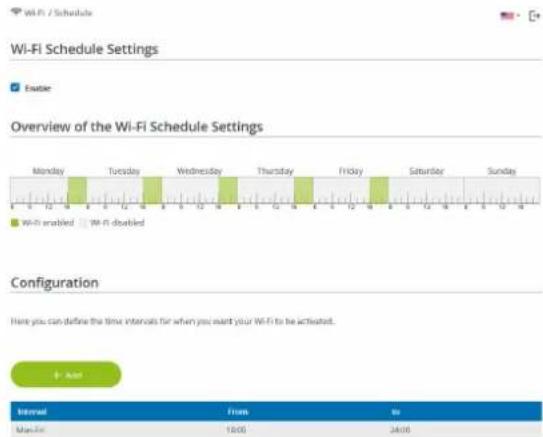
Enabling WiFi schedule control
In order to be able to use time control, activate the Enable option.
Configuration
You can define multiple time periods during which your wireless network is to be enabled for each weekday. Then the time control automatically switches the wireless network on or off.
Automatic disconnection
If you enable the Automatic disconnection option, the wireless network is not switched off until the last station has logged off.

Manually switching the device on and off (using a button) always has priority over automatic time control. The configured time control then takes effect automatically during the next defined time period.
4.4.6Parental control
You can regulate WiFi access for specific devices based on time using this function. For instance, to prevent your children from using the Internet excessively, you can define how long they may use the WiFi per day. Synchronisation with an (Internet) time server is necessary to be able to use the parental control. In this case, the time server (System Management Time Server (NTP)) for the devolo Magic 1 WiFi ac has to be enabled and an active Internet connection is also required.

The time server pool.ntp.org is enabled by default. You can find more information in Chapter 4.7.2 Management
If you would like to set up a time quota (usage time in hours) or a time period (active from/to), ac
tivate the Enable option. Now enter the MAC addresses of the devices you want to set up parental control for.
Under Type, define either a time quota (time limit) or a time period for when you want the MAC addresses entered to receive Internet access. Under Select interval, select the desired time frame.
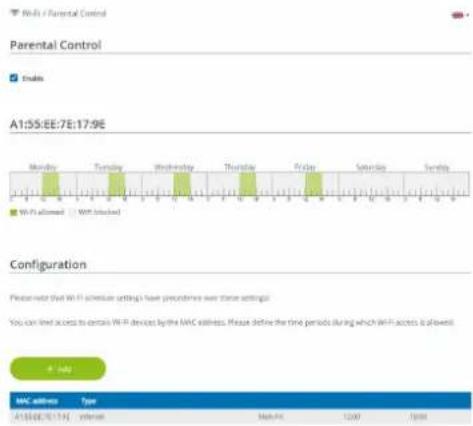
Setting the time quota
Under Time Quota, the time limit can be selected. Confirm your settings by clicking the Disk icon.
Setting the time period
Under Time Period, the desired time period can be selected. After entering the interval, enter the desired start and end times in hour and minute format.
Confirm your settings by clicking the Disk icon.
If you want to delete a time quota (time limit) or a time period from the list, click/touch the dustbin icon.
4.4.7Wi-Fi Protected Setup (WPS)
Wi-Fi Protected Setup (WPS) is one of the international encryption standards developed by the Wi-Fi Alliance for easily and quickly setting up a secure wireless network. The encryption keys of the respective WiFi devices are transmitted automatically and continuously to the other WiFi device(s) in the wireless network.
Enabling WPS encryption
In order to be able to use WPS encryption, activate the Enable option.
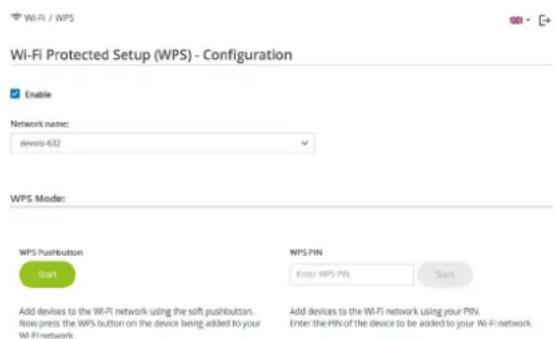
The devolo Magic 1 WiFi offers two different variants for transmitting these encryption keys:
WPS using WPS pushbutton
Start the encryption process on the devolo Magic 1 WiFi
By pressing the WiFi button on the front side of the device or
By pressing the corresponding Start button on the user interface under WiFi WPS Pushbutton.
- Then either press the WPS key of the WiFi device you are adding or enable the WPS mechanism in the WiFi settings of the WiFi
devolo Magic 1 WiFi 2-1
device. Now the devices exchange their encryption keys and establish a secure WiFi connection. The WiFi LED on the front panel indicates the synchronisation process by flashing.
WPS via PIN
To interconnect WiFi devices in your wireless network securely using a PIN variant, go to the web interface and, under WiFi WPS WPS PIN, enter the WPS PIN generated by your Android smartphone or tablet and start the encryption process by pressing the corresponding Start button.
Use of the WPS method implies the use of the WPA/WPA2 encryption standard. Therefore take note of the following automatic settings:
- If under WiFi WiFi networks, the No encryption option is selected in advance, WPA2 is set automatically. The newly generated password is displayed under WiFi WiFi networks in the Key field.
- If under WiFi WiFi networks, the WPA/WPA2 option is selected in advance, this setting remains with the previously assigned password.
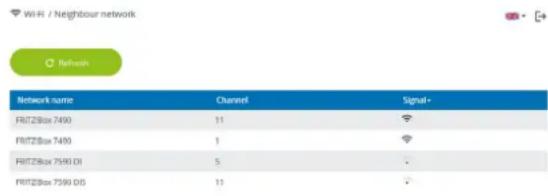
4.4.8Neighbour networks
The Neighbour networks area displays visible wireless networks in your surroundings.
4.5 Powerline
Make all changes to your PLC network in the Powerline area.
Powerline Network
To form one Powerline network, all devices need to receive a common encryption password.
This happens automatically if you initiate pairing by pressing the Powerline button on two or more devices in succession. The automatically generated password of the first device will be assigned to all other devices.
Instead of pressing the physical button on the device itself, you can also activate the following button.
Start paring
When you activate the following button, the current password will be deleted.
see Powerline.
Instead of the auto-generated password, you can also assign your own password for encryption. The same password must be entered for all devices which should be part of the same Powerline network. Note that if you change the password, the Powerline connection to the device will be changed.
Powerline password
P
Powerline domain name:
4.5.1Powerline network
In order to use a new devolo Magic 1 WiFi in your devolo Magic network, first you have to connect it to your existing devolo Magic adapters devices as a network. This is accomplished by using a shared password. This can be assigned in different ways:
Using devolo Cockpit or the devolo Home Network App (see Chapter 3.5 Installation of devolo software),
- Only using the PLC button (see Chapter 2.3 Pairing - Establishing a PLC connection and 3.4 Connecting the devolo Magic 1 WiFi)
Using the web interface, in the PLC menu; as described below:
Pairing - Using on-screen button
Click Start pairing to start the pairing operation. This may take some time.
As soon as the new devolo Magic adapter is integrated into your existing network, it appears in a list of available and established connections.
Unpairing - Removing an adapter from a network
To remove a devolo Magic adapter from your devolo Magic network, click Leave Powerline network.
Wait until the LED flashes red and then disconnect the devolo Magic adapter from the mains supply.
Pairing - Using custom password
You can also assign your network a custom PLC password you pick yourself. Enter this password for each devolo Magic adapter in the Network password field and confirm your settings by clicking the Disk icon.
Note that the custom password is not assigned to the whole PLC network automatically. Instead, you must assign it separately to each of your devolo Magic adapters.
Powerline domain name
The Powerline domain name specifies the name of your PLC network.
Master selection
The function can be used to improve the quality of the network.
- Preferred at gateway: (default setting) defines the devolo Magic adapter connected directly to the router; this option is useful if the main task of this devolo Magic adapter is to connect to the router/internet while any other devolo Magic adapter in the PLC network communicates directly with it. Each adapter of the PLC network must be within the range of the adapter on the router.
Automatic: master mode is assigned spontaneously depending on the current connection quality; the devolo Magic adapter with the strongest connection is selected.
4.5.2Compatibility mode
Using as VDSL connection may negatively impact the performance of the bandwidth connection by crosstalk of the signal.
Compatibility Mode
To rare cases, kISS, connection problems can be caused with crosstalk with the powerline signal. If automatic compatibility mode is enabled, the powerline connection problem will be solved in this situation and adjust its output signal accordingly, which should provide the best balance between performance and mitigation of crosstalk.
Automatic compatibility mode (recommended)
If automatic mode is disabled, or cannot reliably direct crosstalk, a static mitigation profile will be used instead. Select the profile which matches the type of your VDSL connection, or select "Full Power" for no mitigation at all.

* Changes will have effect after system reboot.
In order to mitigate any potential negative effects the device provides the following options:
Automatic compatibility mode
If the option Automatic compatibility mode (recommended) is enabled, the device can automatically adjust the output signal to avoid interference as much as possible. This option is config default.
Manual compatibility mode
If an interference has not been eliminated despite
activating the automatic setting, please disable it and set the compatibility mode as well as the signal transmission profile manually:
SISO
Full power
VDSL 17a (default)
VDSL35b

Get in touch with your internet provider to find out which signal transmission profile is the best option for your internet connection.
The SISO operating mode and the VDSL 17a signal transmission profile are configured by default.
4.6 LAN
You make changes to the network settings in the LAN area.
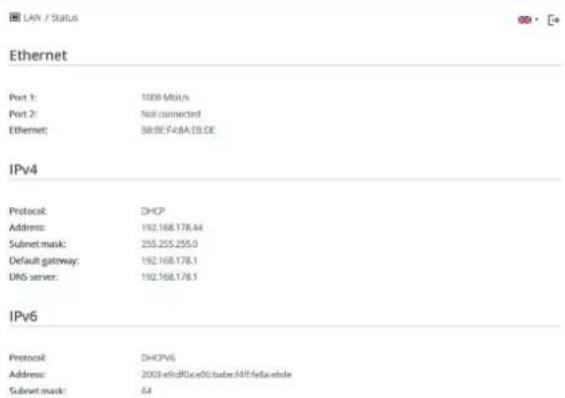
4.6.1 Status
You can see the current LAN status of the devolo Magic adapters here. The Ethernet area shows the network devices connected to the two network connectors Port 1 and Port 2 (e.g. PC, NAS, etc.).
IPv4/IPv6
Depending on how the devolo Magic 1 WiFi is connected to the Internet (IPv4 or IPv6), current
devolo Magic 1 WiFi 2-1
network information is displayed, such as Address, Subnet mask, Standard gateway and DNS server.
4.6.2IPv4/IPv6 configuration
In the factory default settings, only the Retrieve network settings from a DHCP server option for IPv4 is enabled. This means that the IPv4 address is retrieved automatically from a DHCP server. The currently assigned network data are visible (greyed out).
If a DHCP server is already present on the network for assigning IP addresses (e.g. your Internet router), you should leave the Retrieve network settings from a DHCP server option enabled so that the devolo Magic 1 WiFi automatically receives an address from it.
If you want to assign a static IP address, make entries accordingly for the Address, Subnet mask, Default gateway and DNS server fields.
Confirm your settings by clicking the Disk icon.
Then, restart the devolo Magic adapter (see Chapter 4.7.3 Configuration) to ensure that your changes take effect.
IPv6 configuration
If you want automatic IP address assignment and there is already a DHCP server present on the network for assigning IP addresses (e.g. your Internet router), enable the Retrieve network settings from a DHCP server option to ensure that the devolo Magic 1 WiFi automatically receives an address from it.
If you want to assign a static IP address, make entries accordingly for the Address, Subnet mask, Default gateway and DNS server fields.
Confirm your settings by clicking the Disk icon.
4.7 System
In the System area, you can configure the settings for security and other devolo Magic adapter device functions.
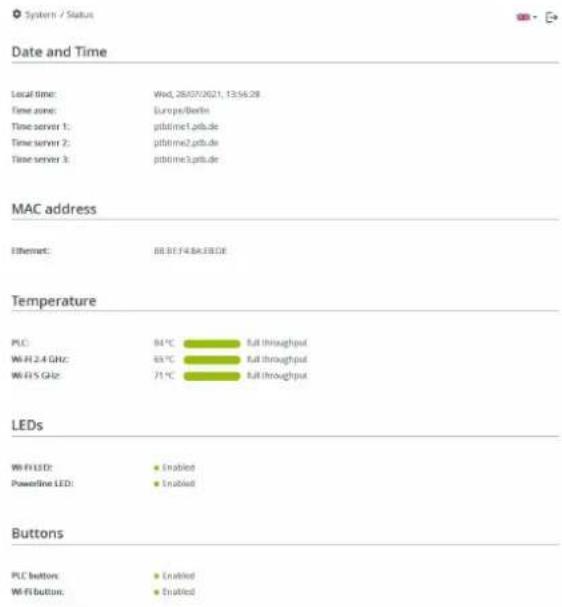
4.7.1Status
Here you can view the most important information on the devolo Magic adapter, including the current date and time, time zone, MAC address of the
adapter, status of the WiFi and Powerline LEDs and the two operating buttons.
4.7.2 Management
System information lets you enter user-defined names in the Device name (hostname) and Device location fields. Both pieces of information are particularly helpful if multiple devolo Magic
adapters are to be used and identified in the network.
Under Change access password, a login password can be set for accessing the web interface.
By default, the built-in web interface of the devolo Magic 1 WiFi is not protected by a password. We recommend assigning a password when the installation of the devolo Magic 1 WiFi is complete to protect it against tampering by third parties.
To do so, enter the desired new password twice. Now the web interface is protected against unauthorised access with your custom password!
In Power Management, you can enable Powersave mode and Standby mode on the devolo Magic 1 WiFi.
If Powersave mode has been enabled, the devolo Magic 1 WiFi switches to PowerSave mode automatically whenever reduced data transmission over ethernet is detected.
The latency (time for transmitting a data packet) may be negatively affected.
If Standby mode is enabled, the devolo Magic 1 WiFi automatically switches Standby mode if no ethernet connection has been enabled, i.e. if no network device (e.g. computer) is switched on and connected to the network interface and if WiFi is disabled.
In this mode, the devolo Magic 1 WiFi is n accessible over the Powerline network. As soon as the network device (e.g. computer) connected to the network interface is switched on again, your adapter can also be accessed over the electrical wiring again.
Powersave mode is disabled in the devolo Magic 1 WiFi factory default settings.
Standby mode is enabled in the devolo Magic 1 WiFi factory default condition.
The LED settings let you disable the LED status display of the WiFi and Powerline LEDs.
An error status is indicated by corresponding flashing behaviour regardless of this setting.

For information on the LED behaviour of the devolo Magic adapter in standby mode, refer to Chapter 2.3.1 Reading the PLC indicator light.
You can completely disable the operating buttons on the devolo Magic adapter in order to protect yourself against possible changes. Simply disable the Enable PLC button or Enable WiFi button option.
The operating buttons are enabled in the notdevolo Magic 1 WiFi factory default settings.
Under Time zone, you can select the current time zone, e.g. Europe/Berlin. The Time server (NTP) option lets you specify a time server. A time server is a server on the Internet whose task consists of providing the exact time. Most time servers are coupled with a radio clock. Select your time zone and time server; the devolo Magic 1 WiFi automatically switches between standard time and summer time.
4.7.3 Configuration
Saving the device configuration
To save the enabled configuration to your computer as a file, select the corresponding button in the System Configuration Save Configuration to File area. The system starts downloading the current device configuration.
Restoring the device configuration
An existing configuration file can be sent to the devolo Magic 1 WiFi in the System Configuration area and enabled there. Select a suitable file via the Select file ... button and start the operation by clicking the Restore button.
Factory Settings
The devolo Magic 1 WiFi is reset to the original factory defaults in the System Configuration area with the Factory Reset option.

Doing so causes you to lose your personal WiFi and PLC settings. The last-assigned passwords for the devolo Magic 1 WiFi are also reset.
For backup purposes, all active configuration settings can be transmitted to your computer, stored there as a file and reloaded into the devolo Magic 1 WiFi. This function can be useful for creating a variety of configurations that will let you quickly and easily set up the device for use in different network environments.
Reboot device
In order to reboot the devolo Magic 1 WiFi, select the Reboot button in the System Configurati-on area.
4.7.4Firmware
The firmware of the devolo Magic 1 WiFi includes the software for operating the device. If necessary, devolo offers new versions on the Internet as a file download, for example to modify existing functions.
Current firmware
The currently installed firmware of the devolo Magic 1 WiFi is displayed here.
Searching for and updating firmware automatically
The adapter can also look for up-to-date firmware automatically. To do this, enable the Regular check for firmware updates option.

The devolo Magic 1 WiFi lets you know when a new firmware version becomes available. The option is enabled by default.
The Automatically install firmware updates option allows the adapter to automatically install the firmware it has found.

The devolo Magic 1 WiFi automatically updates its firmware. The option is enabled by default.
Download updated firmware
- If you have downloaded an updated firmware file for the devolo Magic 1 WiFi to your computer, navigate to the System → Firmware → Update firmware area. Click Browse ... and select the downloaded file.
- Confirm the update procedure with Update firmware. After a successful update, the devolo Magic 1 WiFi restarts automatically.
Ensure that the update procedure is not interrupted.
4.7.5Config Sync
Config Sync allows settings to be configured uniformly for all devolo Magic devices in the network. This includes the following settings e.g.:
WiFi network
Guest network
Mesh WiFi
- Time control and time server settings. In order to switch Config Sync on, activate the Enable option.

Please note that the WiFi is always switched on or off for the entire network. Therefore, stop Config Sync first on a device that you want to configure or switch separately.
5 Appendix
5.1 Bandwidth optimization
To significantly improve the transmission capacity of the network, we recommend that you comply with the following "connection rules":
Plug the devolo Magic 1 WiFi directly into a wall socket. Avoid using power strips. This may impair the transmission of the PLC signals.
- If there are several sockets in the wall directly next to each other, they behave like a power strip. Individual sockets are optimal.
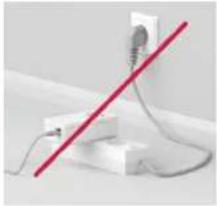
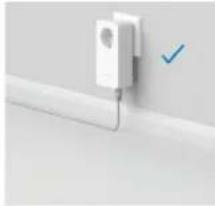
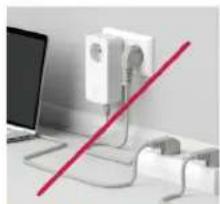
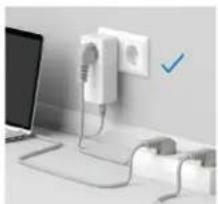
Fig. 5: Bandwidth optimization
5.2 Warranty conditions
If your devolo device is found to be defective during initial installation or within the warranty period, please contact the vendor who sold you the product. The vendor will take care of the repair or warranty claim for you. The complete warranty conditions can be found at
www.devolo.global/support.
Index
A
Adapter equipment 13
C
CE declaration 9
Changing/assigning the network password 14, 26
Channels and frequencies in the 2.4-GHz band 7
Channels and frequencies in the 5-GHz band 7
Config Sync 49
D
Default WiFi key 19
devolo App 27
devolo Cockpit 27
devolo Magic 11
devolo software 27
DHCP server 45
Disposal 7
Dynamic Frequency Selection 12
E
Expanding an existing devolo Magic network 14
F
Factory default settings 21, 28
Integrated electrical socket 22
Intended use 9
IPv4 45
L
LAN (network connection) 22
LED status display 13
Login password 29
N
Network connection 22
0
Operating buttons 47
P
Package contents 23
Pairing (establishing a PLC connection) 14
PLC 11
PLC status display 16
Powerline 11
R
Reset 13, 21
S
Safety information 7
SSID 35
Starting up a new devolo Magic network 14
Symbol description 8
System requirements 23
T
Time server 47
Transmitting power in the 2.4-GHz band 7
Transmitting power in the 5-GHz band 7
U
UKCA declaration 10
W
Warranty 50
WiFi antenna 22
WiFi key 19
WiFi status display 20
WPA/WPA2/WPA3 35, 36
devolo Magic 1 WiFi ^2-1
© 2022 devolo AG Aachen (Germany)
Fable in commences OY
WPA/WPA2/WPA3 35, 36
devolo Magic 1 WiFi ^2-1
© 2022 devolo AG Aachen (Germany)
A工程技术 of the adaptation of a device is a process of modifying its design, including:
- A description of the device's design, including the design of the device and its components.
- A description of the device's functions, including the description of the device's capabilities.
- A description of the device's performance, including the description of the device's characteristics.
- A description of the device's operation, including the description of the device's operating conditions.
- A description of the device's maintenance, including the description of the device's maintenance requirements.
2.3.6Antenas WLAN
Mesh functionality optimise su red WIH & facilitu de un es-topec para dispositives. WIF multilayers, EI roaming, solutacion et probleme de los dispositives. WIF multi layering, EI toming, EI toting, EI toing, EI toing, EI toing, EI toing, EI toing, EI toing, EI toing, EI toing, EI toing, EI toing, EI toing, EI toing, EI toing, EI toing, EI toing, EI toing, EI toing, EI toing, EI toing, EI toing, EI toing, EI toing, EI toing, EI toing, EI toing, EI to ing, EI to ing, EI to ing, EI to ing, EI to ing, EI to ing, EI to ing, EI to ing, EI to ing, EI to ing, EI to ing, EI to ing, EI to ing, EI to ing, EI to ing, EI to ing, EI to ing, EI to ing, EI to ing, EI to ing, EI to ing, EI to ing, EI to ing, EI to ing, EI to ing, EI to ing, EI to ing
Activar
Funciones
Dynamic Frequency Selection 11
E
WPA/WPA2/WPA3 35, 37
devolo Magic 1 WiFi ^2-1
© 2022 devolo AG Aachen (Germany)
WPS tramite pulsante WPS
Dynamic Frequency Selection 11
F
Factory Reset 21
G
Garanzia 52
1
WPA/WPA2/WPA3 34, 36
devolo Magic 1 WiFi ^2-1
© 2022 devolo AG Aachen (Germany)
100 code is vericn 8 xx ft reers gaaqphase(s of 4+ terees p=snred)ey

Mesh (Multiroom WiFi)
IEEE 802.11 (lock well "faith Raizing" generically) reserved if it hovers an even WIFI-approximate applet on dit WIFI-mentation. Voevoaraal: He
□本报记者赵2.11r
WiFi Clone
Networks and Networks
dvolo-632
WPS-modulus:

Dynamic Frequency Selection 11
F
Factory Reset 21
Flyer "Veiligheid en service" 6
Mesh (Multiroom WiFi) 36
N
WPA/WPA2/WPA3 35, 36
devolo Magic 1 WiFi ^2-1
© 2022 devolo AG Aachen (Germany)
Tn 100000000000000000000000000000000000000000000000000000000000000000000000000000000
Incliar a configuração:
WiFi Clone
Dynamic Frequency Selection 11
E
Emparelhamento (estabelecer ligaçao PLC) 13
Equipamento de adaptor 12
Estado de entrega 22, 28
F
Factory Reset 22
Folheto "Segurarca & service" 6
G
WPA/WPA2/WPA3 36, 37
devolo Magic 1 WiFi ^2-1
© 2022 devolo AG Aachen (Germany)
Connected Wi-Fi clients
5 GHz
Connected Wi-Fi clients
4.3.3Powerline
Local device
Enabling the Mesh functionality features will optimize your income Wi-Fi network experience while using your mobile devices. In these months, you'll have your monthly client problem. AP Steering, Band Steering and Dynamic Frequency Selection provides Wi-Fi access even with many clients and a variety of devices.
Enable
F. 无法判断
EEE 802.11a also called "Fast Reaming" accelerates the logs of a Wi-Fi device to this Wi-Fi access point. Requirement: The device was already running on a Wi-Fi device with a Wi-Fi access point. The device was able to run on a Wi-Fi device with a Wi-Fi access point. Hence, it is not compatible with any Wi-Fi devices. If you experience problems with any of your devices, please disable this option.
IEEE802.11r
WiFi Clone
WIF Close allows you to apply the WIF access data (network name and WIF password) of another WiF access guide to this device automatically. This requires that you start the configuration process and then press the WIF factors on the device containing the WIF access data (250 and 400 MHz) in the following steps:
Start Configuration
WiFi Clone
4.4.5Schedule control
WiFi schedule settings
WIFI-schedule control
WiFi convenience function
When the Wi-Fi connection function is activated, the Wi-Fi network
a
Prrnne rnrnnnne nnnnne nnnnne nnnnne nnnnne
Overview of the wifi schedule settings

mif erated With disabled
Configuration
Here you can define the time intervals for when you want your HW to be answered

Enabling Wi-Fi schedule control
Automatic disconnection
4.4.8Neighbour networks
To form one Powerline network, all devices need to receive a common encryption password.
This happens automatically if you initiate pairing by pressing the Powerline button on two or more devices in succession. The automatically generated password of the first device will be assigned to all other devices.
reased at pressing the physical button on the device itself, you can also activate the following button.
Start pairing
When you activate the following button, the current pass-through will be deleted.
Leave Powerline network
Instead of the auto-generated password, you can also assign your own password for encryption. The same password must be entered for all documents which belong to a set of unique identifiers.
Powerline password
Powerline domain name
In some cases, VSDL connection problems cannot be caused by crosswall with the powerline signal. If automatic compatibility made it enabled, the system would be able to detect this situation and adjust its output signal accordingly, which should provide the best balance between performance and mitigation of crosswall.
Automatic compatibility mode (recommended)
If automatic mode is disabled, or cannot reliably direct crossstalk, a static mitigation profile will be used instead. Select the profile which matches the type of your V52I connections, or select "Vul Power" for no mitigation at all.

Port 1: Not connected
Port 2: Not connected
Ethernet 30:D3:2D:A:F:8B:B9
IPv4
Protocol: DHCP
Address: 172.25.201.89
Subnet mask: 255.255.0.0
DNS server: 172.25.1.12
IPv6
Protocol: DHCPV6
Address: 2a00:fe0:313:25:32d3:2dfef8bb9
Subnet mask: 64
Regulatory check for firmware updates.

Dynamic Frequency Selection 14
F
Factory Reset 24
G
Gwarancja 56
H
Haslo logowania 30
1
IPv4 47
K
Klucz Wi-Fi 21