EasyManual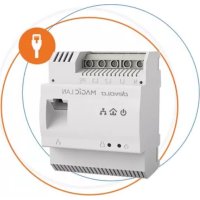
Magic 2 LAN dinrail - Powerline Adapter DEVOLO - Free user manual and instructions
Find the device manual for free Magic 2 LAN dinrail DEVOLO in PDF.


User questions about Magic 2 LAN dinrail DEVOLO
0 question about this device. Answer the ones you know or ask your own.
Ask a new question about this device
Download the instructions for your Powerline Adapter in PDF format for free! Find your manual Magic 2 LAN dinrail - DEVOLO and take your electronic device back in hand. On this page are published all the documents necessary for the use of your device. Magic 2 LAN dinrail by DEVOLO.
USER MANUAL Magic 2 LAN dinrail DEVOLO
Verwendete Symbole 6devolo Magic 2 LAN DINrail© 2024 devolo solutions GmbH Aachen (Germany) The reproduction and distribution of the documentation and software supplied with this product and the use of its contents is subject to written authorization from devolo. We reserve the right to make any alterations that arise as the result of technical de- velopment. Trademarks Android
is a registered trademark of Open Handset Alliance. Linux
is a registered trademark of Linus Torvalds. Ubuntu
is a registered trademark of Canonical Ltd. Mac
are registered trademarks of Apple Computer, Inc. iPhone
are registered trademarks of Apple Computer, Inc. Windows
1.1 About this manual
Carefully read all instructions before setting up the device and store the manual and/or installation guide for later reference. After a brief introduction to „devolo Magic“ and to the devolo Magic 2 LAN DINrail in Chapter 2,
Chapter 3 tells you how to set up the
devolo Magic 2 LAN DINrail successfully while taki- ng into account the safety instructions. For infor- mation on configuring the dLAN network, please see Chapter 4. Chapter 5 describes in detail the setting options of the built-in configuration inter- face. Tips for bandwidth optimisation, information about environmental compatibility of the device, as well as our warranty terms, can be found in
Chapter 6 at the end of the manual.
Description of the icons This section contains a brief description of the icons used in this manual and/or on the rating pla- te, the device connector, as well as the icons used on the package: Icon Description Very important safety symbol that warns you of hazardous electrical voltage which if not avoided can re- sult in serious injury or death. Very important safety symbol that warns you of a potentially dange- rous situation which if not avoided can result in serious injury or death. An important safety symbol that warns you of a potentially dange- rous situation involving a tripping hazard which can result in injuries.7 Preface devolo Magic 2 LAN DINrail The installation may be performed by a qualified electrician only. Installations to the house wiring (230V) are only permitted to be car- ried out by an installation company registered in an installation directo- ry of the network operator. An important note that should be observed which can potentially lead to material damages. The device may only be used in- doors in dry conditions. The manufacturer/distributing company uses the CE marking to declare that the product meets all applicable European regulations and has been subjected to the pres- cribed conformity assessment procedures. Icon Description The manufacturer/distributing company uses the UKCA marking to declare that the product meets all applicable regulations of Great Bri- tain and has been subjected to the prescribed conformity assessment procedures. It is used to prevent the occurrence of waste electrical and electronic equipment and to reduce this type of waste through reuse, recycling and other forms of utilisation. The WEEE Directive establishes mini- mum standards for handling waste electrical and electronic equipment in the EU, EFTA and UK. Additional information, background material and configuration tips for your device. Indicates a completed course of ac- tion Icon DescriptionPreface 8 devolo Magic 2 LANDINrail
Use devolo products, devolo software and the pro- vided accessories as described to prevent damage and injury. Products devolo products are communication devices desi- gned for indoors.* Depending on the product, they are equipped with a PLC- (PowerLine Communica- tion) and/or a Wi-Fi module. Computers, laptops, smartphones, tablets, smart TVs and other devices connected this way are integrated into a home network over the existing electrical wiring and/or Wi-Fi without any complicated wiring. devolo de- vices must never be used outdoors because the high temperature fluctuations and moisture can damage both the product and the power line. de- volo products may not be installed at a height abo- ve two metres unless an additional fas-tening mechanism is available. The products are intended for operation in the EU, Switzerland and Norway.
- The only exceptions are devolo outdoor products, which are suited for the outdoor use thanks to their IP certification. devolo Magic 2 LAN DINrail The intended use of the devolo Magic 2 LAN DINrail is connecting devices in the installation area (e.g. Internet access device) to the household dLAN network for data transmis- sion (e.g. Internet data). The devolo Magic 2 LAN DINrail is intended for in- stallation on the top-hat rail in the installation area of overvoltage category 3 or lower. Software devolo devices can be used only with the free, downloadable programs approved and available on devolo's website (www.devolo.global) and in app stores (iOS and Google Play). Any modifications to the product-specific firmware or software could damage the products and, in the worst-case scenario, render them unusable and negatively affect conformity. Always use the most up-to-date software version to make sure you have the latest security functions and device updates. The installed devolo software notifies you automatically if a new software versi- on is available. Accessories Use only the provided accessories.9 Preface devolo Magic 2 LAN DINrail
This product complies with the technical requirements of the directives 2014/35/ EU, 2014/30/EU, 2011/65/EU und 2009/ 125/EC. This product is designed for use in the EU, EFTA and Northern Ireland. A printout of the simplified CE declaration of this product is separately included. The CE declaration and can also be found under www.devolo.global/support/ce
This product complies with the technical requirements of the following regulations: b Electromagnetic Compatibility Regulations 2016 (SI 2016 No. 1091) b Electrical Equipment (Safety) Regulations 2016 (SI 2016 No. 1101) b Ecodesign for Energy-Related Products and Energy Information (Amendment) (EU Exit) Regulations 2010 (2010 No. 2617) b Restriction of the Use of Certain Hazardous Substances in Electrical and Electronic Equip- ment Regulations 2012 (SI 2012 No. 3032) This product is designed for use in UK. A printout of the simplified UKCA declaration of this product is separately included. The UKCA declaration and can also be found under www.devolo.global/support/UKCA
For detailed information on our products, visit www.devolo.global. There you will find product descriptions and docu- mentation, and also updates of devolo software and your device's firmware. If you have any further ideas or suggestions related to our products, please don't hesitate to contact us at support@devolo.global !Introduction 10 devolo Magic 2 LANDINrail 2 Introduction
Home is where devolo Magic is – in no time at all, devolo Magic transforms your house or flat into a multimedia home of the future with noticeably higher speed, more stability and greater range, providing the perfect Internet experience as a result! Be inspired by products that are astonishingly easy to install, with impressive, innovative technology and unbeatable performance. Be ready for the technology of the future today devolo Magic embodies the new generation of the tried-and-tested Powerline technology (PLC) ba- sed on the cutting-edge G.hn architecture. G.hn was developed by the International Telecommuni- cation Union (ITU) with ongoing development pro- vided primarily by the HomeGrid Forum industry association. devolo Magic products are certified according to HomeGrid standards and are compa- tible with other HomeGrid-certified products. Fig. 1: devolo Magic throughout the home11 Introduction devolo Magic 2 LAN DINrail Like the HomePlug AV technology used in establis- hed devolo dLAN devices, devolo Magic uses the household mains supply for data transmission and secures ideal performance and stability in locations where network cables are not viable or desired and/or the Wi-Fi frequently falls short due to cei- lings and walls. To set up a devolo Magic network, you need at least two devolo Magic devices. For tech- nical reasons, devices from the devolo Magic series are not compatible with dLAN devices.
2.2 Introduction to the
devolo Magic adapter: The devolo Magic 2 LAN DINrail is the G.hn-based Powerline adapter for the central integration of Powerline technology in control cabinets and dis- tribution boxes. It is a high-performance networker directly from a DIN rail. The Gigabit LAN port on the devolo Magic 2 LAN DINrail lets you connect to your Internet router. b Speed and stability – thanks to consistent data transmission speed at up to 2400 Mbps over distances of up to 500 meters, the devolo Magic 2 LAN DINrail promises enterta- inment at the highest level. b Security – with 128-bit AES Powerline encryp- tion b Energy-efficiency – the integrated PowerSave mode cuts energy consumption automatically during low data traffic.Introduction 12 devolo Magic 2 LANDINrail Line connections Indicator lights PLC button Ethernet Fig.2 Reset button13 Introduction devolo Magic 2 LAN DINrail
2.3 The devolo Magic adapter fea-
tures b Five line connections b One Gigabit network connection b Three indicator lights a Power a PLC a Ethernet The LED status display can be disabled. You can find more information about this in
Chapter 5 Configuration or in the product
This is where you connect the conductors to the corresponding line connections. Single-phase connection: Neutral conductors and external conductors are connected to terminals N and L1. Three-phase connection: Neutral conductors and three external conductors are connected to termi- nals N, L1, L2 and L3. The device is supplied with power via terminals N and L1. PE connection: Connecting the earth wire to the PE terminal The permitted conductor cross-section for connection to the terminals is 0.18 mm² to 6 mm².
2.3.2Network connection
You can use the network connection (Fig. 2) on the devolo Magic adapter to connect it to your inter- net router using standard network cables.Introduction 14 devolo Magic 2 LANDINrail
2.3.3Reading the indicator light
The integrated indicator lights (LED) show the sta- tus for the devolo Magic 2 LAN DINrail by illumina- ting and/or flashing: Power (Fig. 2) *Information about the web interface can be found in Chapter 5 Configuration. Power- LED Flashing be- haviour Meaning LED status display (web interface*) 1White LED Lights up devolo Magic adapter is ready to operate Can be disabled15 Introduction devolo Magic 2 LAN DINrail PLC (Fig. 2) PLC-LED Flashing be- haviour Meaning LED status display (web interface*) 1 Red LED Lights up for up to 2 sec. Start-up process Cannot be disabled 2 Red LED Flashes at in- tervals of 0.5 sec. (on/off) Status 1: The reset of the devolo Magic adapter was successful. The reset button has been pres- sed and held for 10 seconds. Status 2: The devolo Magic adapter (once again) has the factory default settings. Since the last re- set, no pairing with another devolo Magic adapter has taken place. Connect the adapter with another devolo Magic adapter to create a full- fledged PLC network as described in Chap- ter 4 Initial use. Cannot be disabledIntroduction 16 devolo Magic 2 LANDINrail 3 Red LED Lights up stea-
Status 1: The other network nodes are in standby mode and cannot currently be accessed over the mains supply. The PLC LEDs of the other devolo Magic adapters flash white only for a short time. Status 2: The connection to the other network nodes has been interrupted. There may be electro- magnetic or radio frequency interference on the power line. In this case, put the devolo Magic adapters closer to each other or try to shut off the source of interference. Can be disabled 4Red and white LED Red: flashes at intervals of
2sec. off. White: flashes at intervals of 2sec. on/
(on/off) Status 2: Flashes at in- tervals of 1 sec. (on/off) Status 1: This devolo Magic adapter is in pairing mode and the system is searching for new devolo Magic adapters. Status 2: Someone has triggered the "Identify device" function on the web interface or in the devolo Home Netwok App. This function identifies the devolo Magic adapter being sought. Cannot be disabled 6White LED Lights up stea-
The devolo Magic connection does not have any issues and the devolo Magic adapter is ready to operate. Can be disabled 7White LED Flashes at in- tervals of
3sec.off The devolo Magic adapter is in standby mo- de.** Can be disabled 8Red and white LED Flashes at in- tervals of
- Information about the web interface can be found in Chapter 5 Configuration. **A devolo Magic adapter switches to standby mode after approximately 10 minutes if no active network device (e.g. computer) is connected to the network interface. In this mode, the devolo Magic adapter cannot be accessed over the electrical wi- ring. As soon as the network device (e.g. computer) connected to the network interface is switched on again, your devolo Magic adapter can also be ac- cessed over the electrical wiring again. Check whether the adapter is connected to the mains supply correctly and whether the pairing operation has been carried out suc- cessfully. For more information about this, refer to 3 Electrical installation.19 Introduction devolo Magic 2 LAN DINrail Ethernet (Fig. 2) *Information about the web interface can be found in Chapter 5 Configuration.
devolo Magic adapters that are in factory default condition, i.e. have been purchased or successfully reset, automatically start to attempt to pair with another devolo Magic adapter when reconnected to the mains supply. Expanding an existing devolo Magic network by adding another devolo Magic adapter In order to use a new devolo Magic 2 LAN DINrail in your devolo Magic network, first you have to connect it to your existing devolo Magic adapters devices as a network. This is accomplished by using a shared password, which can be assigned in va- rious ways: b Using devolo Cockpit or the devolo Home Netwok App (see Chapter 4.2 Installation of devolo software) Ether- net-LED Flashing beha- viour Meaning LED status display (web interface*) 1White LED Lights up steady Connection to the Ethernet network Cannot be disabled 2White LED Flashes Data transmission Cannot be disabled 3White LED Off Standby mode Cannot be disabledIntroduction 20 devolo Magic 2 LANDINrail b Using the web interface (see Chapter 5.2.2 Powerline) b Using the PLC button (see Fig. 2) Detailed information to install the devolo Magic adapter can be found in chap- ter 3 Electrical installation. Resetting a devolo Magic adapter or removing it from a devolo Magic network All safety and operating instructions in
chapter 3.3 Important safety instructions
should be read and understood before car- rying out an electrical uninstall of the device. To remove a devolo Magic adapter from your devolo Magic network and successfully restore its entire configuration to the factory default settings, press and hold the PLC button longer than 10 seconds. The LEDs remain enabled. Wait until the PLC LED flashes white and integrate the device into another network; proceed as described in
chapter 4.1 Expanding an existing network.
Keep in mind that all settings that have already been made will be lost!
Rebooting the devolo Magic adapter The device is restarted by pressing the reset button (Fig. 2). The LEDs switch off in the meanwhile.21 Electrical installation devolo Magic 2 LAN DINrail 3 Electrical installation In this chapter we describe the electrical installati- on of the devolo Magic 2 LAN DINrail on the top- hat rail in the power distribution box.
3.1 Package contents
Please ensure that the delivery is complete before beginning with the installation of your devolo Magic 2 LAN DINrail: b 1 devolo Magic 2 LAN DINrail b 1 Network cable b Hard copy of installation guide b Hard copy of security flyer b Hard copy of simplified CE/UKCA declaration devolo reserves the right to change the package contents without prior notice.
3.2 System requirements
b Operating systems supported by devolo Cockpit: a from Windows 7 (32-bit/64-bit), a from Ubuntu 13.10 (32-bit/64-bit), a from Mac (OS X 10.9) b Gigabit network connection b Network connection Please note that your computer or other de- vice must have a network card or network adapter with a network interface. To set up a devolo network, you need at least two devolo adapters.Electrical installation 22 devolo Magic 2 LANDINrail
3.3 Important safety instructions
All safety and operating instructions should be read and understood before using the device, and should be kept for future reference. DANGER! Shock hazard Installations to the house wiring (230V or 400V) (*according to the German Low- Voltage Connection Ordinance— NAV § 13) are only permitted to be carried out by an installation company registered in an installation directory of the network operator. The work must be performed by a suitably qualified electrician (according to DIN VDE 0105-100). The accepted rules of electrical engineering (pursuant to the German Ener- gy Act § 49 and DIN VDE 0100) must be complied with. It is essential that the mains power supply (main switch/circuit breaker/ switch off fuse) is disconnected and se- cured against being switched back on to avoid an electrical shock from the device. Use a suitable measuring instrument to ver- ify safe isolation from the power supply be- fore work is commenced. DANGER! Shock hazard Components powered by the mains supply have to be secured with a circuit breaker. An easily accessible disconnecter (such as a circuit breaker) must be available for each connected external conductor. b The device is intended for installation on the top-hat rail in the installation area of overvol- tage category 3 or lower. b Never open the device. There are no user-servi- ceable parts inside the device. b Use the device in a dry location only. b Do not insert any objects into the openings of the device. b Slots and openings on the case serve as ventila- tion. Never block or cover them. b Do not keep the device in direct sunlight. b Never set up the device near a heater or radia- tor. b The device should be located only where suffi- cient ventilation can be ensured. b Never use the device with a power supply that does not meet the specifications provided on the rating plate. b In the event of damage, contact customer ser- vice. This applies, for example, if23 Electrical installation devolo Magic 2 LAN DINrail a liquid has been spilled on the device or objects have fallen into the device. a the device has been exposed to rain or water. a the device does not work, even though the operating instructions have been followed properly. a the device’s case is damaged.
1 Install the devolo Magic 2 LAN DINrail properly on the top-hat rail. Take into account the vertical installation ali- gnment of the device, so that the mains po- wer supply comes from above. 2 Now connect the conductors according to the line connections. When connecting to the sockets, make sure the conductor cross-section is 0.18 mm² to 6 mm². DANGER! Risk of fire caused by incorrect conductor cross-section and improper in- stallation of the power supply Comply with the specified conductor cross- sections and ensure the power supply is correctly installed a Single-phase connection: Neutral conduc- tors and external conductors are connected to terminals N and L1 (see Fig. 3). a Three-phase connection: Neutral conduc- tors and three external conductors are connected to terminals N, L1, L2 and L3. The device is supplied with power via ter- minals N and L1 (see Fig. 4). a PE connection: The earth wire must be connected to the PE terminal.Electrical installation 24 devolo Magic 2 LANDINrail Single-phase connection without residual cur- rent circuit breaker In general, connection of the devolo Magic 2 LAN DINrail to one phase and to one neutral conductor is adequate, even for communicating over multiple pha- ses. To optimise the data transmission, ho- wever, we recommend a connection with all three-phases and earth wire (PE). Three-phase connection without residual cur- rent circuit breaker 3 After installing the protective cover, the devolo Magic 2 LAN DINrail can be connected via Ethernet to the desired network device (e.g. Internet router). As soon as at least one other devolo Magic device has been connected and plugged into the mains supply, a PLC network is set up. For information on how to proceed, refer to Chapter 4 Initial use. Fig. 3 Fig. 425 Initial use devolo Magic 2 LAN DINrail 4Initial use This chapter tells you how to integrate the devolo Magic 2 LAN DINrail into an existing devolo Magic network. We briefly describe the de- volo software. For more information, please visit our website www.devolo.global
work Before you can use the devolo Magic 2 LAN DINrail in your devolo Magic network, first you have to connect it to your existing devolo Magic adapters as a network. This is accomplished by using a shared password. 1 You installed the devolo Magic 2 LAN DINrail properly on the top-hat rail and connected it to the desired network device (e.g. Internet rou- ter) as described in Chapter 3 Electrical instal- lation. 2 Within 3 minutes, press the PLC button on a devolo Magic adapter in your existing devolo Magic network for approximately 1 sec. The new devolo Magic adapter pairs auto- matically so no button needs to be pressed. The LED of this adapter now also flashes white. If the LEDs light up white on both devolo Magic adapters, the new adapter has been successfully integrated into your existing devolo Magic network. For each pairing operation, only one addi- tional adapter can be added at a time.
4.1.1Changing the network password
A network password can also be changed in the following ways: b Using the web interface of the devolo Magic adapter (see Chapter 5.2.2 Powerline) b Using devolo Cockpit or the devolo Home Network App. For more infor- mation, refer to the following chapter.Initial use 26 devolo Magic 2 LANDINrail
4.2 Installation of devolo soft-
ware Installing devolo Cockpit software devolo Cockpit finds all accessible devolo Magic adapters in your devolo Magic network, displays information about these devices and encrypts your devolo Magic network individually. You can use the software to navigate to the integrated web in- terface. Operating systems supported by devolo Cockpit (Version 5.0 or later): b from Windows 7 (32-bit/64-bit) or later, b from Ubuntu 13.10 (32-bit/64-bit), b from Mac (OS X 10.9) You can find the product manual, software and additional information on devolo Cockpit online at www.devolo.global/devolo-cockpit
Downloading the devolo Home Network App The devolo Home Network App is devolo's free app also for checking and configuring WiFi, PLC and LAN connections for the devolo Magic adapter (using a smartphone or tablet). The smartphone or tablet connects to the devolo Magic adapter at home over Wi-Fi. 1 Download the devolo Home Network App to your smartphone or tablet computer from the corresponding store. 2 The devolo Home Network App is placed in your smartphone's or tablet's app list as usual. Tapping on the devolo Home Network App icon brings you to the start menu. You can find more information about the devolo Home Network App online at www.devolo.global/home-network-app
adapter from a network To remove a devolo Magic adapter from your net- work and successfully restore its entire configurati- on to the factory default settings, press the reset button longer than 10 seconds. The LEDs remain enabled. Wait until the PLC LED flashes white and integrate the device into another network. Keep in mind that all settings that have already been made will be lost!27 Initial use devolo Magic 2 LAN DINrail To integrate the mains supply into another net- work, proceed as described in Chapter 4.1 Expan- ding an existing network. All safety and operating instructions in
chapter 3.3 Important safety instructions
should be read and understood before car- rying out an electrical uninstall of the device.Configuration 28 devolo Magic 2 LANDINrail 5 Configuration The devolo Magic 2 LAN DINrail has a built-in web interface that can be called up using a standard web browser. Here, you can read out device infor- mation and configure some settings for operating the devolo Magic adapter.
5.1 Calling up the built-in web
interface You can access the built-in web interface for the devolo Magic 2 LAN DINrail in different ways: b Using the devolo Home Network App on your smartphone or tablet, you can access the device's web interface by tapping on the corre- sponding adapter symbol for the devolo Magic 2 LAN DINrail. b Using the devolo Cockpit software, you can access the web interface of the devolo Magic adapter by clicking on the tab for the device's configuration page. Then the program determines the current IP address and starts the configuration in the web browser. You can find more information on devolo software in Chapter 4.2 Installation of de- volo software.
5.2 Menu description
All menu functions are described in the correspon- ding interface as well as in the associated chapter in the manual. The sequence of the description in the manual follows the structure of the menu. The central web interface areas are displayed at the edge of the screen. Click a menu to switch di- rectly to that menu. Logging in The web interface is not password protected. As- signing a login password is mandatory when log-29 Configuration devolo Magic 2 LAN DINrail ging in for the first time to prevent unauthorised access by third parties. You can find more information on the login process in Chapter 5.2.4 System. Enter your existing password each time you login again and confirm by pressing Log in. Logging out Log out of the web interface by clicking Log out. Language selection Select the desired language in the language selection list. Making changes Once you make a change, two icons are shown on the corresponding menu page: b Disk icon: Your settings are being saved. b X icon: The operation is being cancelled. Your settings are not being saved. Required fields Fields with a red border are required fields. This means entries must be made in these fields to con- tinue with the configuration. Help text blank fields Fields that have not been filled in yet contain grey- ed out help text, which indicates the required con- tent for the field. This help text disappears immediately once content has been entered. Default settings Some fields contain default settings which ensure the greatest amount of compatibility and ease of use. Default settings are identified with an * in drop-down menus. Default settings can of course be replaced with cu- stomised information. Recommended settings Some fields include recommended settings. Recommended settings can of course be replaced with customised information.Configuration 30 devolo Magic 2 LANDINrail Invalid entries Entry errors are either highlighted by a red border or error messages are shown. Buttons Click the Disk icon to save the settings for the respective web interface area. Click the X icon or use the Menu path above the buttons to exit the respective web interface area. Click the Recycle bin icon to delete an entry. Click the Arrow icon to refresh a list.
In the Overview area, you will find information on hardware and software for the devolo Magic ad- apter and network details. System Name: Device name MT number: Device type number Serial number: Device serial number MAC address: MAC address of the device31 Configuration devolo Magic 2 LAN DINrail Firmware version: Firmware version of the device System uptime: Operating time since the last re- start LAN – Ethernet LAN port: network connection; if a connection has been detected, the speed (10/100/1000 Mbps) and the mode (half/full duplex) are specified; otherwise, the status "unconnected" is specified. LAN – IPv4 DHCP: Display indicating whether DHCP is swit- ched on or switched off Address: IPv4 address in use Netmask: IPv4 network mask in use Default gateway: IPv4 gateway in use Name server: DNSv4 server in use LAN – IPv6 Link-local address: Link-local address in use SLAAC address: SLAAC address in use Name server: DNSv6 server in use Powerline Local device: Status information „connected“ or „not connected“ Network: Number of devices connected to the network Connections The table lists all available and connected devolo Magic adapters for your network along with displaying the following details: Device ID: number of the respective devolo Magic adapter in the devolo Magic network MAC address: MAC address of the respective devolo Magic adapter Transmit (Mbps): Data transmission rate Receive (Mbps): Data reception rate You can find more detailed information on the displayed network details in Chapter
In the Powerline area, you will find functions and information on the topic of Powerline and adapter pairing. In order to use a new devolo Magic 2 LAN DINrail in your devolo Magic network, first you have to connect it to your existing devolo Magic adapters devices as a network. This is accomplished by using a shared password. This can be assigned in diffe- rent ways: b Using devolo Cockpit or the devolo Home Network App (see Chapter 4.2 Installation of devolo software), b Only using the PLC button (see Chapter 2.3.4 PLC button and 4.1 Expanding an existing network) b Using the web interface, in the Powerline menu; as described below: Pairing – Using on-screen button 1 Click Start pairing to start the pairing opera- tion. This may take some time. 2 As soon as the new devolo Magic adapter is integrated into your existing network, it appears in a list of available and established connections (see Chapter Connections). Pairing – Using custom password You can also assign your network a custom PLC password you pick yourself. Enter this password for each devolo Magic adapter in the Powerline password field and confirm your entry with OK. Note that the custom password is not assigned to the whole PLC network automatically. In- stead, you must assign it separately to each of your devolo Magic adapters.33 Configuration devolo Magic 2 LAN DINrail Powerline domain name The Powerline domain name determines the name of your PLC network. Unpairing – Resetting or removing an adapter from a network 1 To remove a devolo Magic adapter from your devolo Magic network, click Leave Powerline network. 2 Wait until the PLC LED flashes white and then disconnect the devolo Magic adapter from the mains supply. Compatibility mode Using as VDSL connection may negatively impact the performance of the bandwidth connection by crosstalk of the signal. In order to mitigate any potential negative effects the device provides the following options: Automatic compatibility mode If the option Automatic compatibility mode (re- commended) is enabled, the device can automati- cally adjust the output signal to avoid interference as much as possible. This option is configured by default. Manual compatibility mode If an interference has not been eliminated despite activating the automatic setting, please disable it and set the compatibility mode as well as the signal transmission profile manually:Configuration 34 devolo Magic 2 LANDINrail b MIMO a Full power a VDSL 17a (default) a VDSL 35b b SISO a Full power a VDSL 17a (default) a VDSL 35b Get in touch with your internet provider to find out which signal transmission profile is the best option for your internet connection. The MIMO operating mode and the VDSL 17a si- gnal transmission profile are configured by default.
You make changes to the network settings in the LAN area. You can access the web interface for the devolo Magic 2 LAN DINrail using its current IP ad- dress. This may be an IPv4 and/or IPv6 address, which is either entered manually as a static address or automatically retrieved from a DHCP server. IPv4 Configuration In the factory default settings, only the DHCP enabled option for IPv4 is enabled. This means that the IPv4 address is retrieved axiomatically35 Configuration devolo Magic 2 LAN DINrail from a DHCP server. The currently assigned net- work data is visible (greyed out). If a DHCP server is already present on the network for giving out IP addresses (e.g. your Internet rou- ter), you should enable the DHCP enabled option so that the devolo Magic2LANDINrail automati- cally receives an address from it. If you want to assign a static IP address, make entries accordingly for the Address, Subnetmask, Default gateway and Name server fields. Confirm your settings by clicking the Disk icon. Then, restart the devolo Magic adapter (see Chap- ter Reboot) to ensure that your changes take ef- fect. IPv6 Configuration If you want automatic IP address assignment and there is already a DHCP server present on the net- work for giving out IP addresses (e.g. your Internet router), enable the DHCPv6 enabled option to en- sure that the devolo Magic 2 LAN DINrail automa- tically receives an address from this device. If you want to assign a static IP address, make entries accordingly for the Address, Prefix, De- fault gateway and Name server fields. Confirm your settings by clicking the Disk icon. Then, restart the devolo Magic adapter (see Chap- ter Reboot) to ensure that your changes take ef- fect.
In the System area, you can configure the settings for security and other devolo Magic adapter device functions. System Information System information lets you enter an user-defi- ned name in the Device name (hostname) field. This information is particularly helpful if multipleConfiguration 36 devolo Magic 2 LANDINrail devolo Magic adapters are to be used and identi- fied in the network. Password. You can set a login password for accessing the web interface. By default, the built-in web interface of the devolo Magic 2 LAN DINrail is not protected by a password. We recommend assigning a password when the installation of the devolo Magic 2 LAN DINrail is complete to protect it against tampering by third parties. To do so, enter the desired new password twice. Now the web interface is protected against un- authorised access with your custom password! Identify Device The devolo Magic adapter can be located using the Identify device function. Click Identify to make the white PLC LED for the corresponding adapter flash for 2 minutes to make it easier to identify by sight. LED Enable the LED disabled option if the LEDs on the devolo Magic adapter are intended to be switched off for normal operation. An error status is indica-37 Configuration devolo Magic 2 LAN DINrail ted by corresponding flashing behaviour regard- less of this setting. Powersaving If Powersave mode has been enabled, the devolo Magic 2 LAN DINrail switches to Powersave mode automatically whenever reduced data trans- mission over ethernet is detected. The latency (time for transmitting a data packet) may be negatively affected. Powersave mode is disabled in the devolo Magic 2 LAN DINrail factory default settings. Standby If Standby mode is enabled, the devolo Magic 2 LAN DINrail automatically swit- ches to Standby mode if no ethernet connection has been enabled, i.e. if no network device (e.g. computer) is switched on and connected to the network interface and if Wi-Fi is disabled. In this mode, the devolo Magic 2 LAN DINrail is not accessible over the Powerline network. As soon as the network device (e.g. computer) connected to the network interface is switched on again, your adapter can also be accessed over the electrical wiring again. Standby mode is enabled in the devolo Magic 2 LAN DINrail factory default condi- tion. Firmware update The currently installed firmware of the devolo Magic adapter is displayed on the overview page (see 5.2.1 Overview).Configuration 38 devolo Magic 2 LANDINrail The firmware of the devolo Magic 2 LAN DINrail includes the software for operating the device. If necessary, devolo offers new versions on the Internet as a file download. The firmware update can be initiated automatically or manually. Regularly check for firmware updates The devolo Magic 2 LAN DINrail can look for up-to- date firmware automatically. To do this, enable the option Regularly check for firmware updates. The devolo Magic 2 LAN DINrail lets you know when a new firmware version becomes available and asks if firmware should be updated. Automatically install firmware updates With the option Automatically install firmware updates enabled, the devolo Magic 2 LAN DINrail automatically installs the firmware it has found. Manually initiate a firmware update 1 In order to manually update the firmware, visit the devolo website. 1 Download the appropriate file for the devolo Magic 2 LAN DINrail to your computer. 2 Next, click on Browse for firmware file… and select the downloaded firmware file. 3 Confirm your settings by clicking the diskette icon. After a successful update, the devolo Magic 2 LAN DINrail restarts automati- cally. Ensure that the update procedure is not inter- rupted. Reboot To restart a devolo Magic adapter, click Reboot.39 Configuration devolo Magic 2 LAN DINrail Factory Settings 1 To remove a devolo Magic adapter from your devolo Magic network and successfully restore its entire configuration to the factory default settings, click Factory reset. 2 Wait until the PLC LED flashes white and then disconnect the devolo Magic adapter from the mains supply. Keep in mind that all settings that have al- ready been made will be lost!Appendix 40 devolo Magic 2 LANDINrail 6 Appendix
6.1 Technical specifications
6.2 Disposal of old devices
To be used in the countries of the European Union and other countries with a separate collecting sy- stem: The icon with crossed-out wastebasket on the device means that this product is an electrical or electronic device that falls within the scope of application of the WEEE Directive. These types of devices may no longer be disposed of with house- hold waste. Rather they can be given to a municipal collection point free of charge. Contact your municipal government to find out the address and hours of the ne- arest collection point.
6.3 Warranty conditions
If your devolo device is found to be defective du- ring initial installation or within the warranty peri- od, please contact the vendor who sold you the product. The vendor will take care of the repair or warranty claim for you. The complete warranty conditions can be found at www.devolo.global/support
Security 128 Bit AES Device port 3 x phase N, PE 1x Ethernet RJ45 Power consumption Maximum: 5.2 W Typical (P-on): 4.4 W Stand-by: 0.8 W Power supply internal 196-250 V AC 50 Hz Temperature (Storage/Operating -25°C to 70°C/ 0°C to 55°C Dimensions (in mm) 90x73x66 (HxWxD) Ambient conditions 10-90% Humidity, non-condensing Certifications CE, UKCAdevolo Magic 2 LAN DINrail
Adapter equipment 13
CE declaration 9 Changing/assigning the network password 19, 25 Circuit breaker
Disposal of old devices
Factory reset 20, 26, 39
Installation alignment 23 Intended use
Network connection 13 Neutral conductor 13, 23
PE connection 13, 23 PE terminal
Safety instructions 22 Single-phase connection 13, 24 Symbol description
Terminals 13, 23 Three-phase connection 13, 23
Single-phase connection 24, 25