
WAM1501 - Hi-Fi System SAMSUNG - Free user manual and instructions
Find the device manual for free WAM1501 SAMSUNG in PDF.




| Product type | Multiroom wireless speaker |
| Brand | Samsung |
| Model | WAM1501 |
| Category | Hi-Fi system (connected speaker) |
| Wi-Fi connectivity | Yes, built-in |
| Bluetooth connectivity | Yes, AVRCP compatible version |
| Multiroom function | Yes, via Samsung Multiroom app |
| Integrated music services | Web radio (Tuneln), services via app |
| TV SoundConnect (Bluetooth) | Yes, compatible with Samsung TVs after 2012 |
| Wi-Fi connection for surround sound | Yes, with Soundbar and additional speakers |
| Power supply | DC 19V power adapter (included) |
| Control buttons | On/Off, Volume (+/-), Mode, Play/Pause, Previous/Next |
| Auto standby mode | Yes, after 15 minutes of inactivity |
| Reset | Press + and - simultaneously for 5 seconds |
| App compatibility | Samsung Multiroom (Android and iOS) |
| TV use | Bluetooth or Wi-Fi connection depending on model |
| Maintenance and cleaning | Wipe with a soft, dry cloth. Do not use chemicals. |
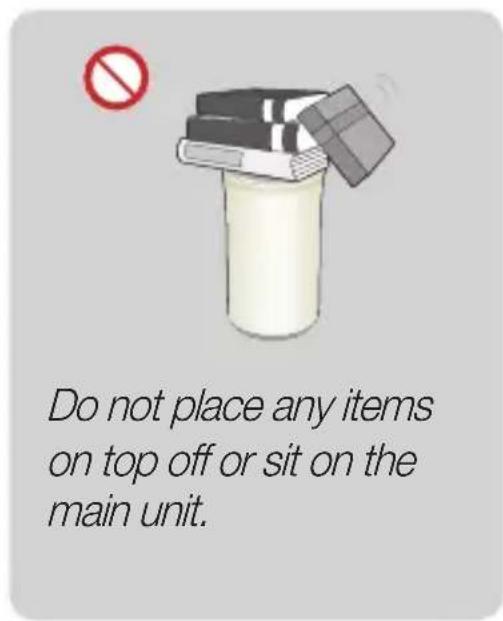
| Safety | Do not expose to moisture, do not place objects on the device. |
| Spare parts | Power adapter, power cable (contact customer service) |
| Operating temperature | 5°C to 35°C (estimated) |
Frequently Asked Questions - WAM1501 SAMSUNG
User questions about WAM1501 SAMSUNG
0 question about this device. Answer the ones you know or ask your own.
Ask a new question about this device
Download the instructions for your Hi-Fi System in PDF format for free! Find your manual WAM1501 - SAMSUNG and take your electronic device back in hand. On this page are published all the documents necessary for the use of your device. WAM1501 by SAMSUNG.
USER MANUAL WAM1501 SAMSUNG
Speaker Main Features
Wi-Fi connection is recommended for this speaker.
Provides a wide range of sound sources, Internet radio available, and supports group play with multiple connections or stereo sound feature.
| Features Wi-Fi | WiFiTM | Bluetooth® |
| Multiroom feature | Connect multiple devices at once. | One device connection |
| Music service | Variety of music services available with theSamsung Multiroom App.-Sound source service-Internet radio (Tuneln) | App installation per music service required |

NOTE
√ Bluetooth Setup, please refer to page 7.
Checking the Components
![graph TD A["Cardboard Box"] --> B["Cylinder"] A --> C["Telephone Receiver"] A --> D["Open Tablet"] style A fill:#f9f,stroke:#333 style B fill:#ccf,stroke:#333 style C fill:#cfc,stroke:#333 style D fill:#fcc,stroke:#333](/content/2026/03/447269/images/f2304aaaae75d9887e1442ccd49f697235e8aed961d633841101e4dbb13b68ad.jpg)
Getting Started
- Follow the installation steps in this user manual.
- Please download Samsung Multiroom app on your smart device.
Installation
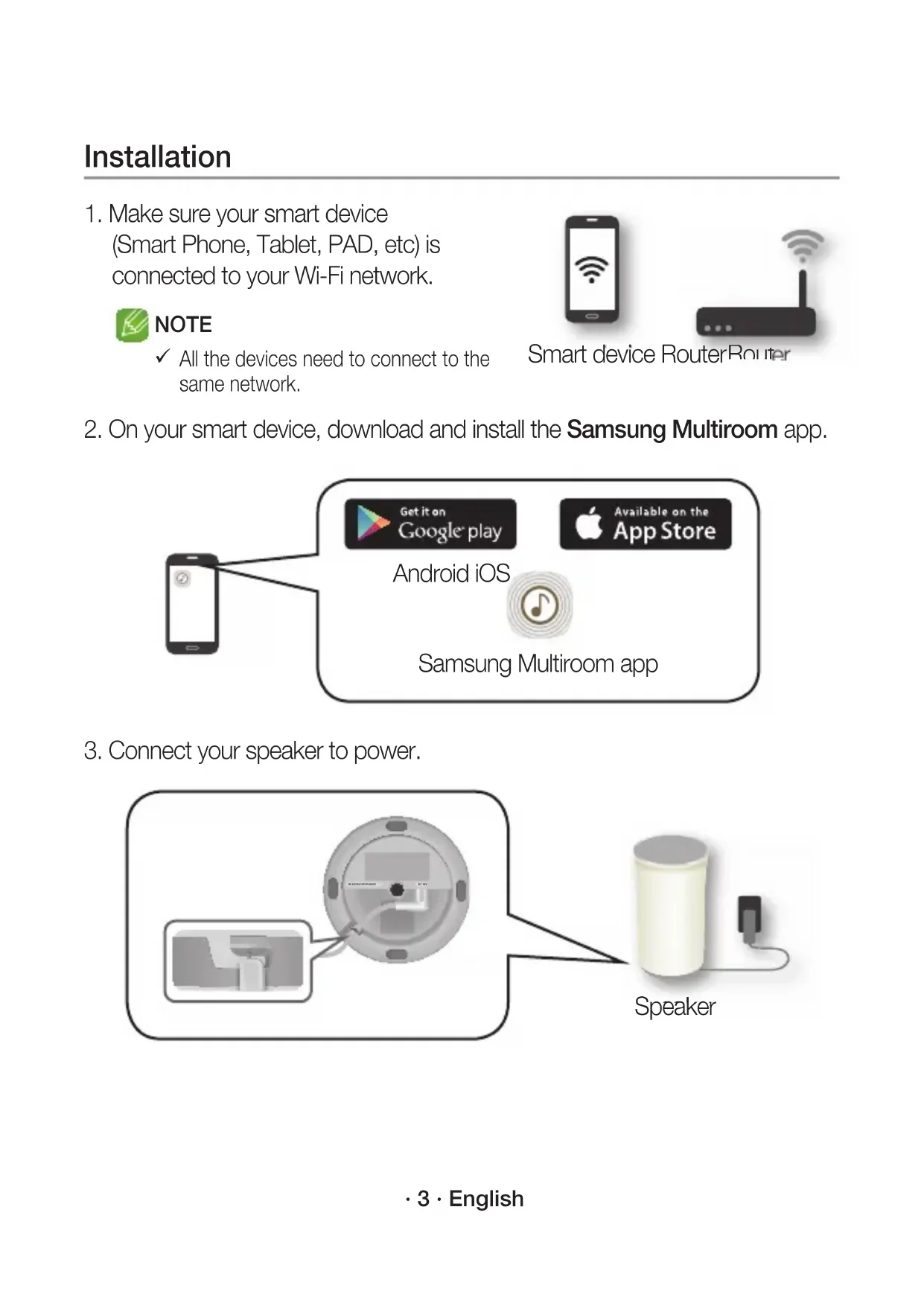
- Make sure your smart device (Smart Phone, Tablet, PAD, etc) is connected to your Wi-Fi network.

NOTE
√ All the devices need to connect to the same network.
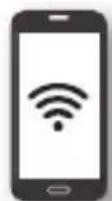
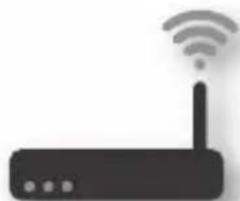
Smart device RouterRouter
- On your smart device, download and install the Samsung Multiroom app.
![graph TD A["Smartphone"] --> B["Get it on Google play"] A --> C["Available on the App Store"] B --> D["Android iOS"] C --> D D --> E["Samsung Multiroom app"]](/content/2026/03/447269/images/ae9b207ad42d9d4d631203b55f39364475a60748e30f2d9897d5adabca278d6b.jpg)
- Connect your speaker to power.
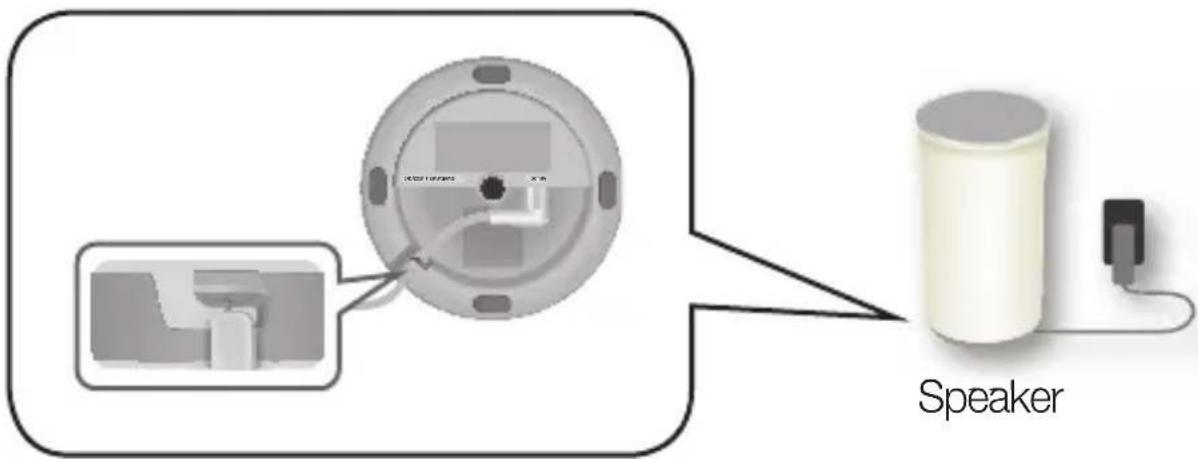
- Launch the Samsung Multiroom app on your smart device, and then follow the instructions on the screen to complete setup.
Play music after speaker setup is complete.
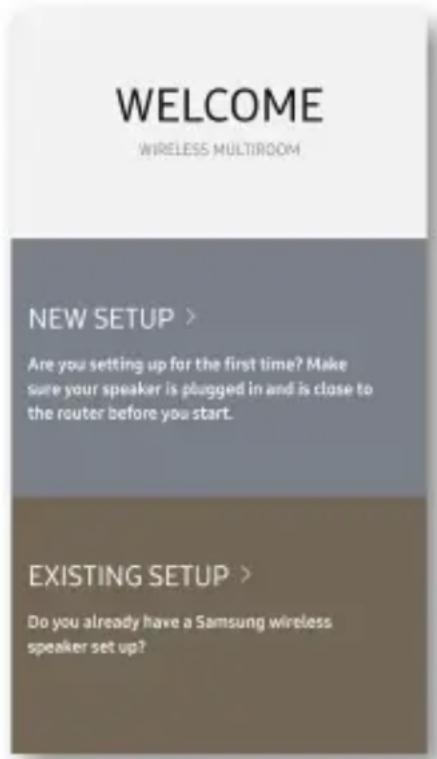
Welcome Screen
If Auto Set-up fails, follow the on-screen instructions.

NOTE
If speaker setup continually fails, press and hold the volume (+,-) buttons on top of the speaker simultaneously for five seconds to reset the speaker. Next, restart the app and follow the displayed instructions to configure the speaker again.
![graph TD A["Touch to select TV SoundConnect /Bluetooth/Wi-Fi"] --> B["SAMSUNG"] B --> C["Play/Pause"] C --> D["Tap"] D --> E["Indicator LED"] E --> F["Previous Song"] E --> G["Swipe"] G --> H["Next Song"] H --> I["Volume button"] J["MODE"] --> K["+"] K --> L["VOL"] M["Volume button"] --> N["-"]](/content/2026/03/447269/images/ef46038c0472eb2a67123ee8e16503f07b77679694624ca455133a3184c3fb19.jpg)

NOTES
Tap/Swipe: The whole area is available except the MODE and Volume (-,+) key area on the top. The speaker will enter standby mode to reduce energy consumption after 15 minutes of idle time.
SPK ADD/Wi-Fi SETUP
SERVICE
For service only.
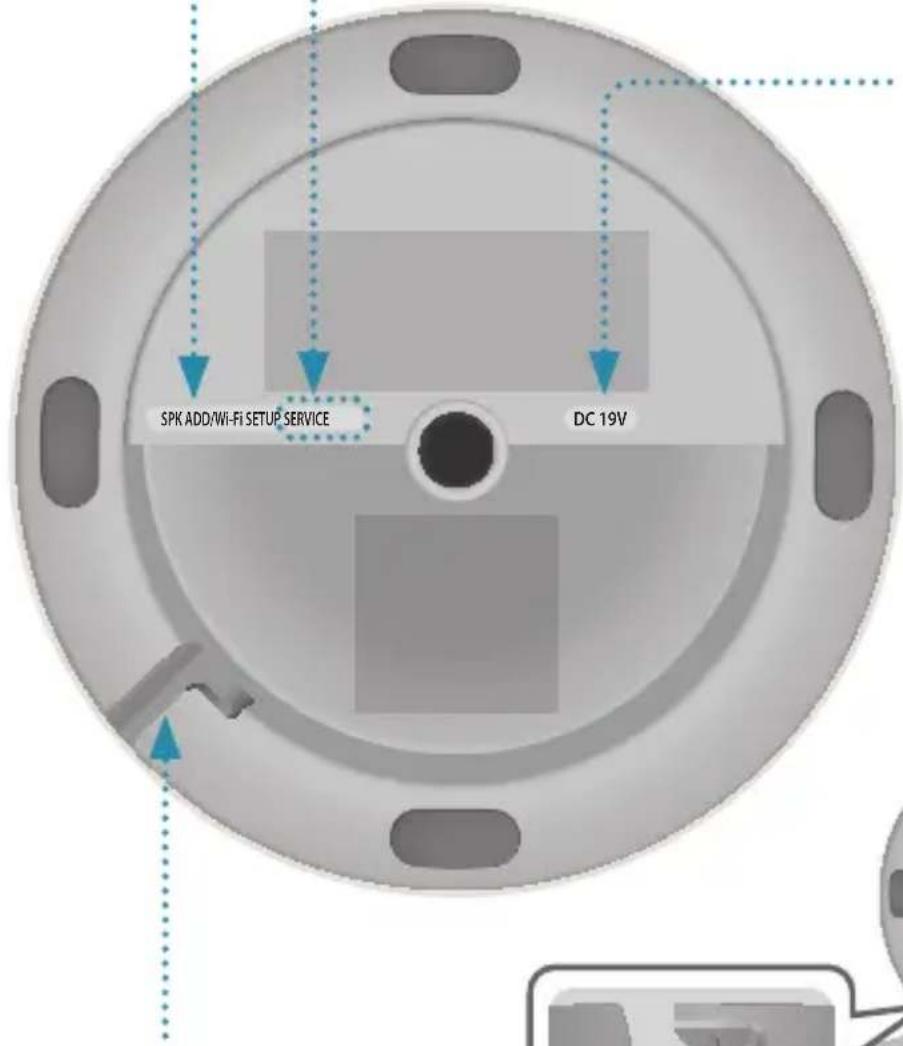
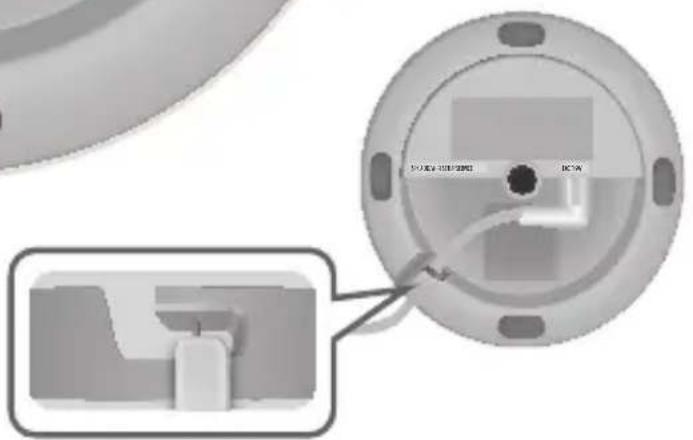
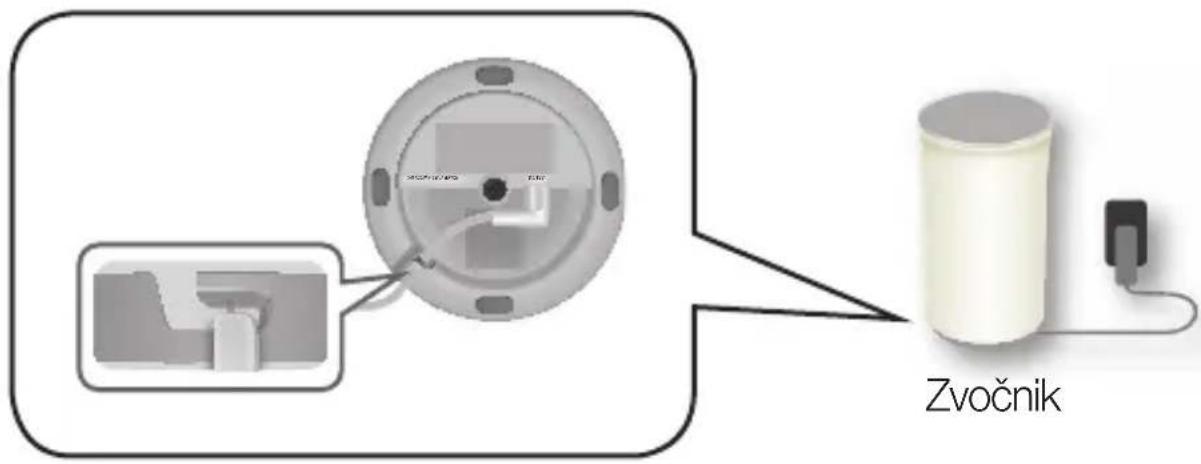
Notch for Power Cable
DC 19V
Connect the adaptor's output power cord to the DC 19V jack on the speaker.
- Touch the MODE button on the top of your speaker one or more times until you hear "Bluetooth is ready."
- Enable Bluetooth on your smartphone, and then select [Samsung] R1 from the Bluetooth list.
![Bluetooth My device Galaxy Note Only visible to paired devices Paired devices [Samsung] R1](/content/2026/03/447269/images/d22a673bf97891fd11f610d49715b7f5f3462cb7e7207880acc9d0f47c54f8f1.jpg)

NOTE
√ Without connection with the Samsung Multiroom app, you might see "Samsung Wireless Audio" on your Bluetooth list.
- Use any music app on your device to play music on your speaker.

NOTE
√ In Bluetooth mode, the Play/Pause/Next/Prev functions are available on Bluetooth devices supporting AVRCP.
Connecting to a TV via TV SoundConnect (Bluetooth)
TV SoundConnect allows an easy wireless connection between a Samsung TV and your speaker so you can enjoy listening to your TV's sound through the speaker.
- Touch the MODE button one or more times until you hear "TV SoundConnect is ready."

NOTE
√ TV SoundConnect can be used to connect a single speaker to a TV. (To connect multiple speakers to a TV, refer to "Connecting to a Samsung Smart TV over Wi-Fi").
- Press and hold the MODE button for 5 seconds to initialize TV SoundConnect Mode.
- A pop-up appears on the TV asking you to approve the connection. Approve to continue.

NOTES
Once connection completed, skip above step 2 and 3 when you connect the TV again. To connect a new TV, follow all 3 steps above. The TV SoundConnect (SoundShare) feature is available on several Samsung TV models released after 2012.
Connecting to a Samsung Smart TV over Wi-Fi
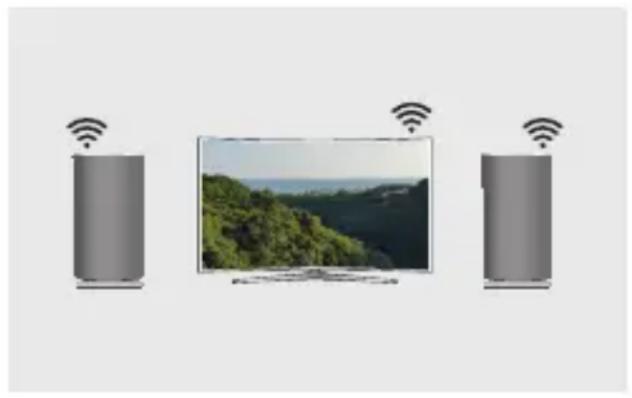
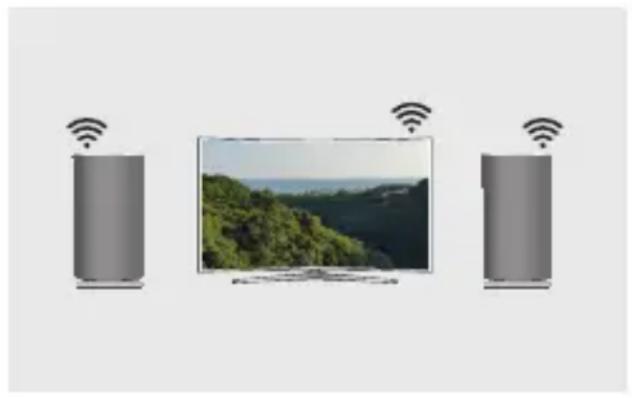
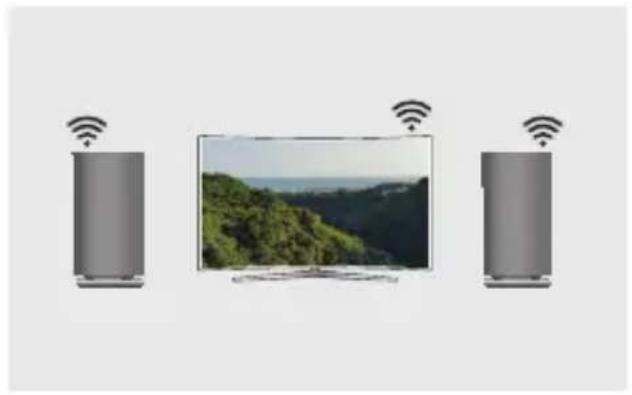
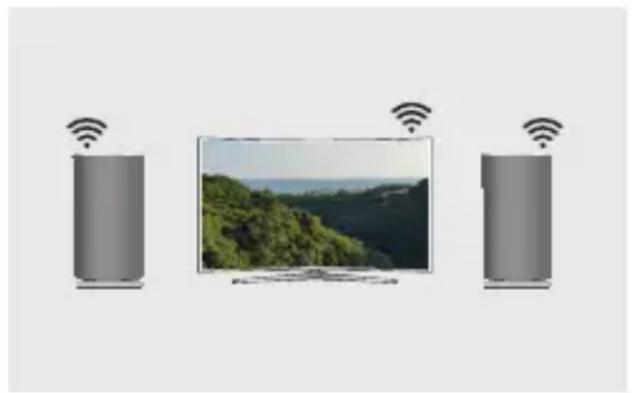
What is the Wi-Fi surround sound connection?
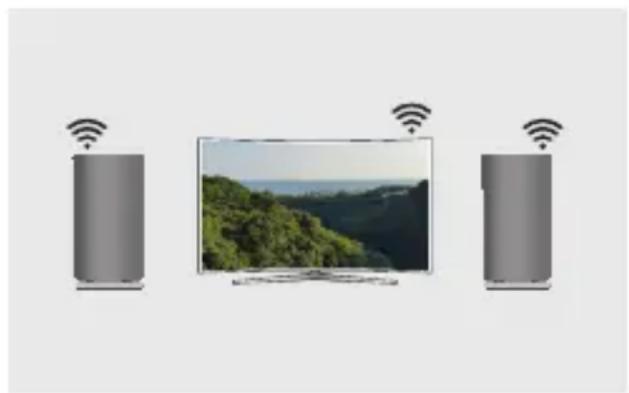
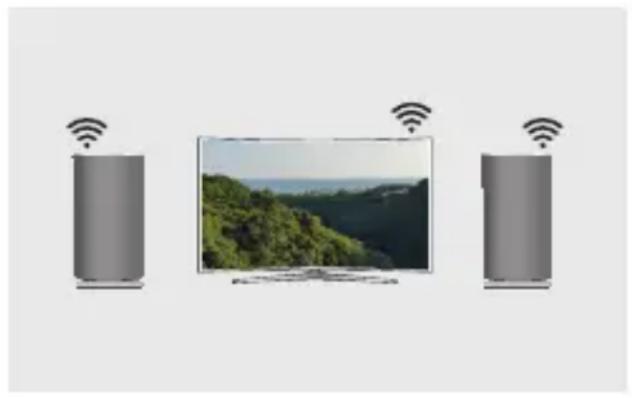
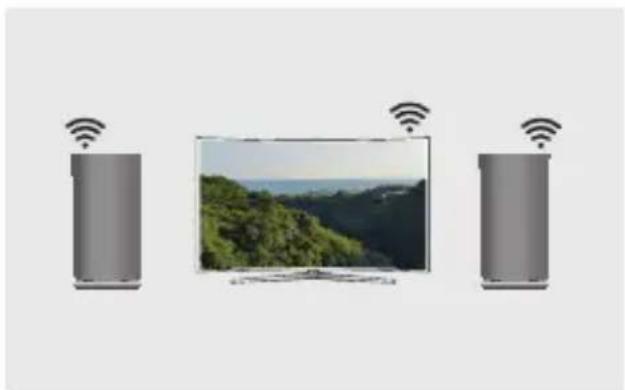
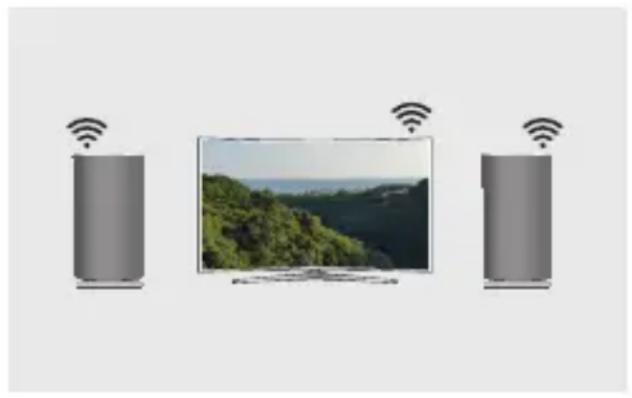
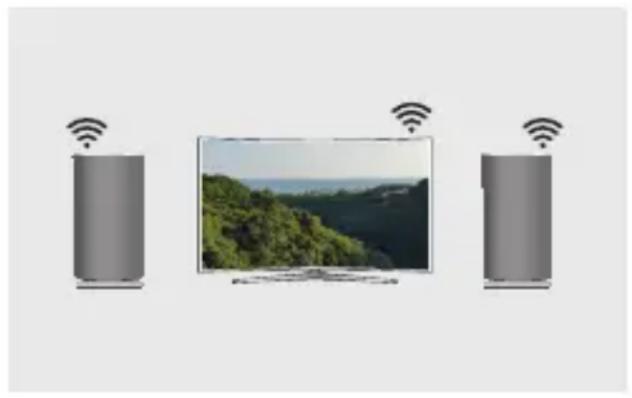
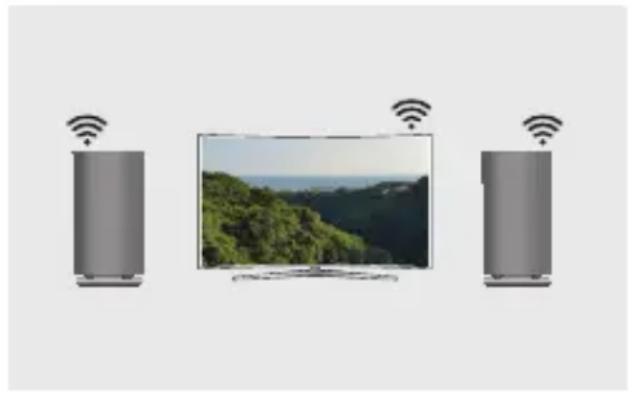
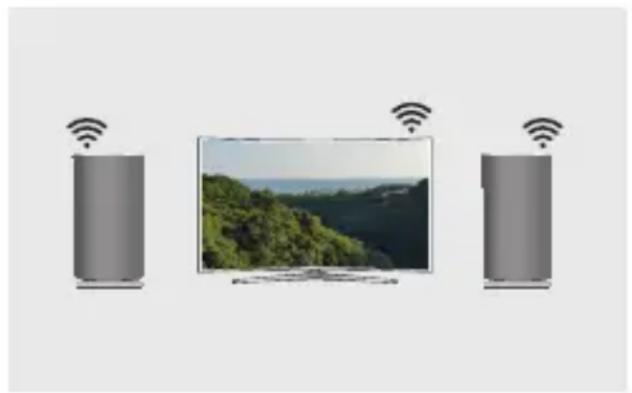
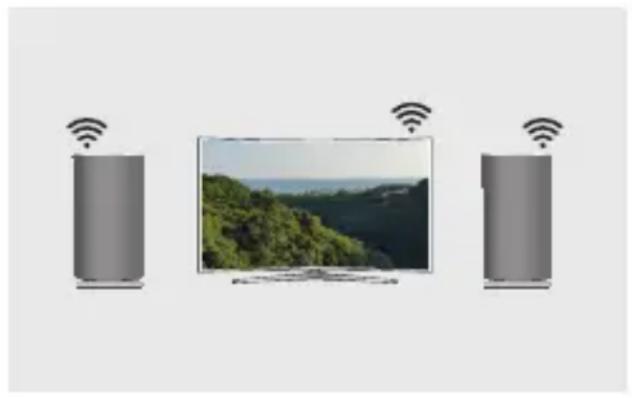
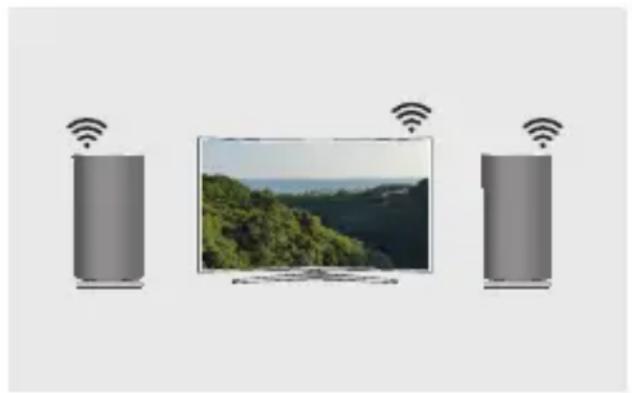
If your Samsung TV supports the Wi-Fi mode, connect the TV and audio devices on the same Wi-Fi network. You can enjoy a sound experience from the surround sound system.
Playing TV sound using the Soundbar and speakers
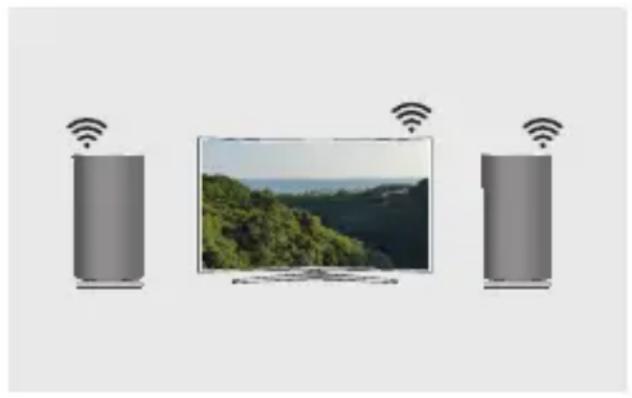
Playing TV sound using speakers only (up to five speakers can be connected)
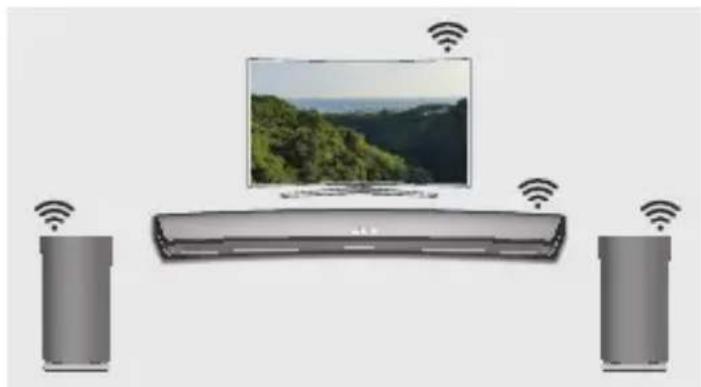
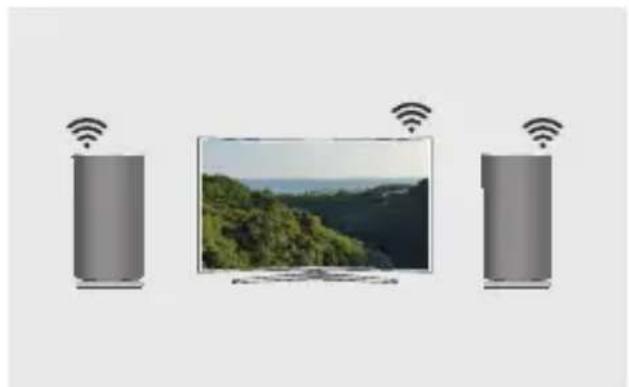
Checklist before Connection

Check information for your TV model.
For connection to a TV over Wi-Fi, only Samsung Smart TVs released after 2014 are compatible. (See the User Manual provided with your TV.)
When using a smart TV manufactured by other than Samsung,
Use a wired connection to connect between your TV and Samsung Soundbar that supports the multiroom feature. Then use the Multiroom app to set up your surround sound system.
(Refer to the Soundbar user manual at the Samsung website.)
- Check to make sure that the Soundbar and audio device are connected to a (Wi-Fi) network.

NOTE
Download the Samsung Multiroom app to your smart device, then follow the instructions in the app to connect the speakers and/or Soundbar to the (Wi-Fi) network.
- Check to make sure that the TV is connected to the network.
- How to check: Menu → Network → Network Status
- Check to make sure that the TV, Soundbar and speakers are connected to the same network.
Connecting to a Samsung Smart TV released in 2016
■ Connecting a single speaker or Soundbar
From the menus, select Sound Output.
Home Menu → Settings (💡 → Sound → Sound Output → Model name(Wi-Fi)
■ Connecting multiple speakers or connecting a single speaker along with the Soundbar
- On the TV menu, select Wireless Speaker Manager.
Menu → Sound → Expert Settings → Wireless Speaker Manager
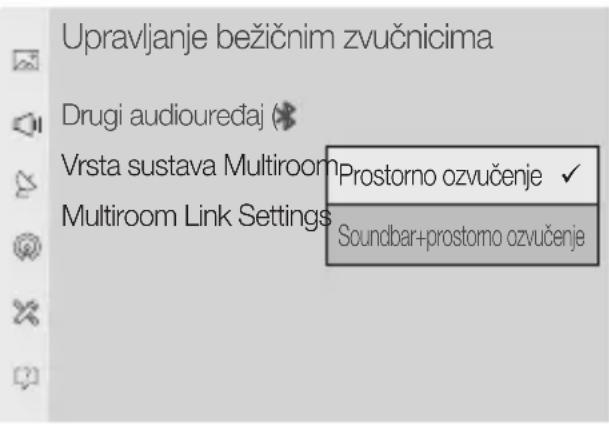
2. Select Multiroom Link Type.
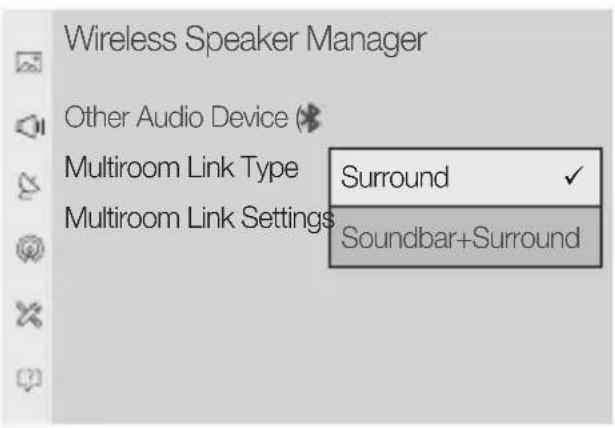
- Surround:
Set up with 2 to 5 speakers
- Soundbar+Surround:
Set up with one Soundbar and two speakers

NOTE
The surround sound system is not available with a combination of one Soundbar and one speaker.
3. Select Multiroom Link Settings. Select a speaker for each channel and select Save to complete configuration.
- Surround
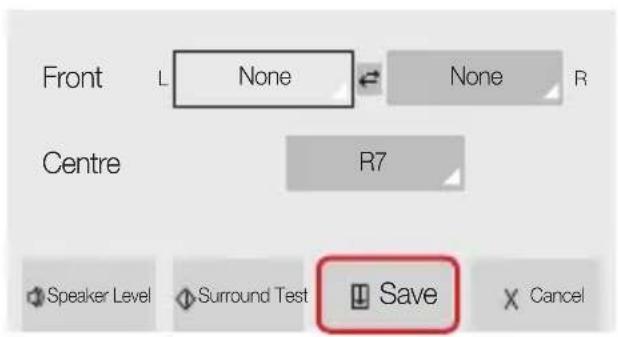
- Soundbar+Surround
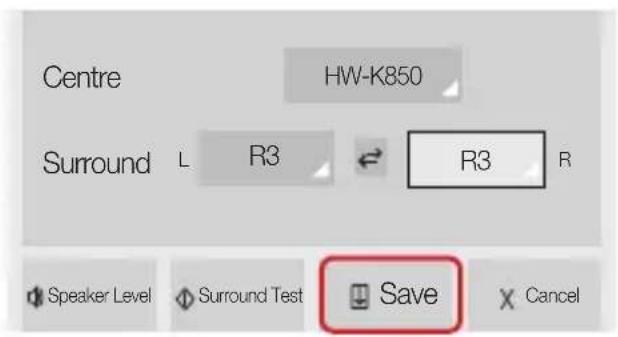
If a connection cannot be established, see "Checklist before Connection" on pages 9 and 10.
Connecting to a Samsung Smart TV released in 2015
Connecting a single speaker or Soundbar
- On the TV menu, select Speaker List. Menu → Sound → Speaker List
- Select a connected speaker from the list of speakers.


IMPORTANT
Soundbars are indicated by the 'Model name(Wi-Fi)'.
Connecting multiple speakers or connecting a single speaker along with the Soundbar
- Follow the instructions under "Connecting a single speaker or Soundbar" to connect a speaker.

IMPORTANT
√ To configure the surround sound system aligned with a Soundbar, select a Soundbar first.
Connecting to a Samsung Smart TV over Wi-Fi
- With the speaker selected, press the right directional key on the remote control. Select a speaker for each channel and select Save to complete configuration.
Connecting only a speaker![TV Speaker R1(Wi-Fi) R3(Wi-Fi) Wi-Fi Surround Setup We've automatically configured your surround setup. You can manually edit this configuration or select Exit to cancel. Front Left Front Right [Samsung] R3 [Samsung] R1 Speaker Level Start Test ExitSave](/content/2026/03/447269/images/c77812d899949edcd76854da3afbca11d7e7140a1cee8d2cdd44e7a62bb41f77.jpg)
Connecting a speaker along with the Soundbar
√ The surround sound system is not available with a combination of one Soundbar and one speaker.
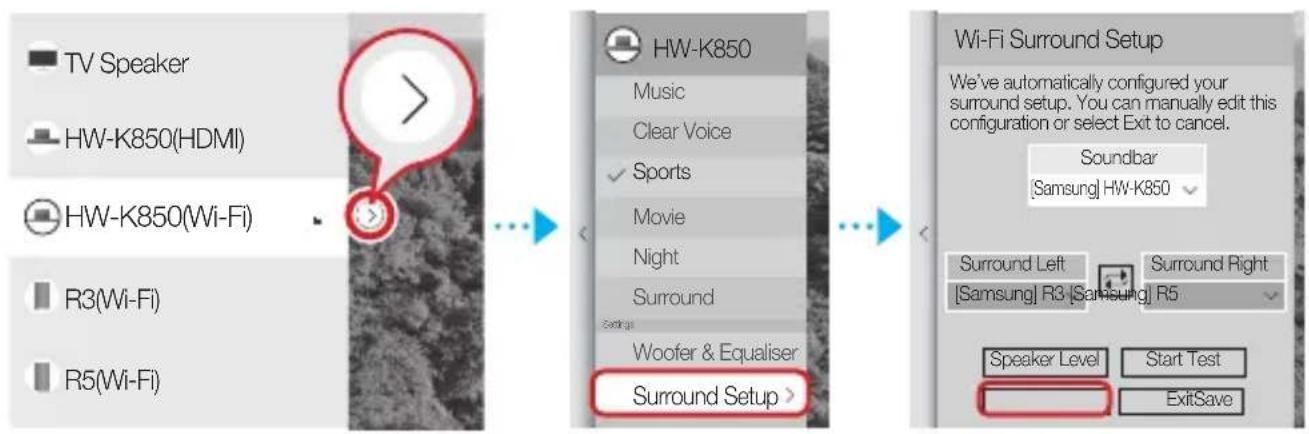
√ If a connection cannot be established, see “Checklist before Connection” on pages 9 and 10.
Connecting to a Samsung Smart TV released in 2014
1. From the menus, select Multiroom Link - Settings.
Menu → Sound → Speaker Settings → Multiroom Link - Settings
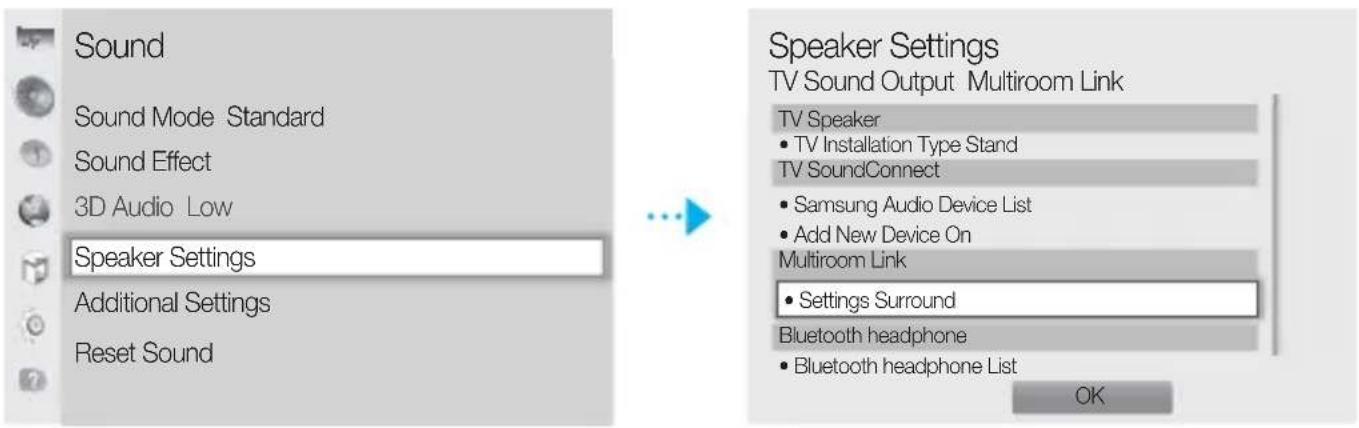
2. Select the Multiroom Link type.
![Settings Multiroom Link ✓ Surround Multiroom Front Left: Soundbar+Surround [Samsung]R5 [Samsung]R3 OK Volume Level Speaker Test Edit Name](/content/2026/03/447269/images/e0f591bd26f70c996890e98c1fc49099a2a9dcede2c58d55ec7beefa63ece55d.jpg)
- Surround :
Set up with one to five speakers
- Soundbar+Surround :
Set up with one Soundbar, or with one Soundbar and two speakers

NOTE
√ The surround sound system is not available with a combination of one Soundbar and one speaker.
Connecting to a Samsung Smart TV over Wi-Fi
- Select the number of speakers to connect. e.g., one speaker → 1CH, two speakers → 2CH
![Settings Multiroom Link 2CH Front Left Front Right [Samsung]R3 [Samsung]R3 OK Volume Level Speaker Test Edit Name](/content/2026/03/447269/images/c8e30946605ba66a736d68db45a85a31dda4da0d53a8cdafe8f7e94caeaabe0c.jpg)
- Select the speaker in the position you want and select OK.
![Settings Multiroom Link Surround 2CH Front Right Front Left OK Volume Level Speaker Test Edit Name Settings Multiroom Link Surround 2CH Front Right Front Left ✓ [Samsung]R3 [Samsung]R3 [Samsung]R5 OK Volume Level Speaker Test Edit Name](/content/2026/03/447269/images/0c9bbfc2148c612f5386dcc331b7723fb2ccf4a3693f9ab4240938ea36e2f3d8.jpg)
- Set TV sound output to Multiroom Link.
√ If a connection cannot be established, see “Checklist before Connection” on pages 9 and 10.

Router
Welcome screen

NOTE
Welcome screen
If automatic setup fails, follow the on-screen instructions.

NOTE
- Press the MODE button on the top of the speaker one or more times until you hear "Bluetooth is ready."
- Enable Bluetooth on your smartphone, then select [Samsung] R1 from the list.
![Bluetooth My device Galaxy Note Only visible to paired devices Paired devices [Samsung] R1](/content/2026/03/447269/images/d1c20a84d1c54b2daaa5eb3bf04d6d5c2801bc6e56bb4fe2e48dba79c1fa6dbc.jpg)

NOTE
√ If a connection with the Samsung Multiroom app is not established, the item "Samsung Wireless Audio" will appear on the Bluetooth device list.
2. Select the Multiroom Link system type.

Welcome screen

NOTE
Smart device Router
Welcome

NOTE

Welcome screen

NOTE
Router
Welcome screen

NOTE

Are you setting up for the first time? Make sure your speaker is plugged in and is close to the router before you start.
EXISTING SETUP >
Do you already have a Samsung wireless speaker set up?
Welcome screen

NOTE
Welcome screen

NOTE

Router
- On your smart device, download and install the Samsung Multiroom app.
![graph TD A["Smartphone"] --> B["Get it on Google play"] A --> C["Available on the App Store"] B --> D["Android iOS"] C --> D D --> E["App Samsung Multiroom"]](/content/2026/03/447269/images/d4526c488837bbaf3761e88b1bc0d030ea97c24e482f62391967dccb06a29b05.jpg)

NOTE

Welcome screen
Cable groove
DC 19V
Use the power cable to connect the adapter output to the speaker's DC 19V jack.
![Bluetooth My device Galaxy Note Only visible to paired devices Paired devices [Samsung] R1](/content/2026/03/447269/images/4bf6935bc899d1ea52fd38d5df545f26db255353bf90a5550336567e7e9a956b.jpg)

NOTE


If you do not connect to the Samsung Multiroom app, you may see Samsung Wireless Audio in your Bluetooth list.
Router
Welcome screen

NOTE
Router

NOTE

Getting started
- Follow the installation instructions provided in this user manual.
- Download the Samsung Multiroom app to your smart device.
- Make sure that your smart device (smartphone, tablet, PAD, etc.) is connected to the Wi-Fi network.

NOTE
Smart device Router Router
Welcome screen
- Press the MODE button on the TOP of the speaker once or more until you hear "Bluetooth is ready."
- Enable Bluetooth on your smartphone, and then select [Samsung] R1 from the Bluetooth list.
![Bluetooth My device Galaxy Note Only visible to paired devices Paired devices [Samsung] R1](/content/2026/03/447269/images/7a728530e5dca86d81de27c917f60b95924f8b0555b58c676489658f678a2fb3.jpg)

NOTE
√ Without connecting to the Samsung Multiroom app, it may be listed as "Samsung Wireless Audio" on the Bluetooth device list.
- You can use any music app on your device to play music on the speaker.

NOTE
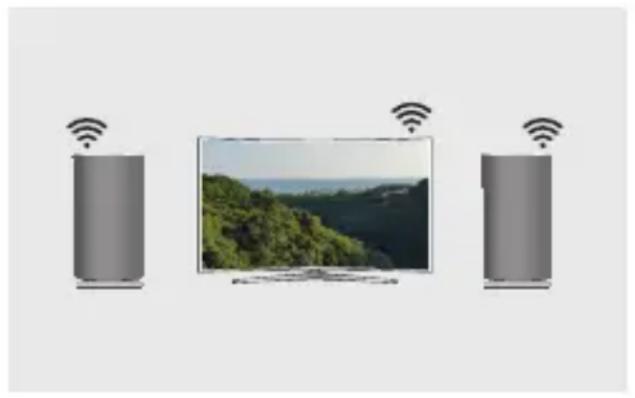
Checklist before connecting
※ Check the information for your TV model
For connecting to a TV via Wi-Fi, only Samsung Smart TVs manufactured after 2014 are compatible (see the user manual that came with your TV).
2. Select the Multiroom Link type.
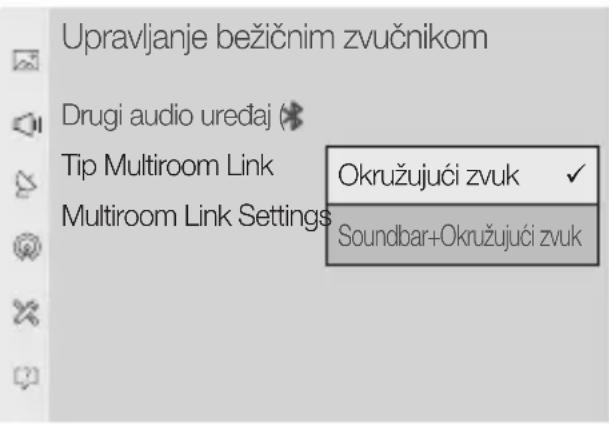
- Surround sound:

Router
Welcome screen

NOTE
Router
- On your smart device, download and install the Samsung Multiroom app.
![graph TD A["Smartphone"] --> B["Get it on Google play"] A --> C["Available on the App Store"] B --> D["Android iOS"] C --> E["Aplikacija Samsung Multiroom"]](/content/2026/03/447269/images/b091b06e3659d0540e7cf353b75d01bae7956f33f5d56f4c030165756529179d.jpg)
- Turn on the speaker's power.
Welcome screen
If automatic setup fails, follow the on-screen instructions.

NOTE

NOTE


- SPEAKER MAIN FEATURES
- NOTE
- CHECKING THE COMPONENTS
- GETTING STARTED
- INSTALLATION
- IF AUTO SET-UP FAILS, FOLLOW THE ON-SCREEN INSTRUCTIONS
- NOTES
- DC 19V
- CONNECTING TO A TV VIA TV SOUNDCONNECT (BLUETOOTH)
- CONNECTING TO A SAMSUNG SMART TV OVER WI-FI
- WHAT IS THE WI-FI SURROUND SOUND CONNECTION
- CHECKLIST BEFORE CONNECTION
- CONNECTING TO A SAMSUNG SMART TV RELEASED IN
- SELECT MULTIROOM LINK TYPE
- SURROUND
- SOUNDBAR+SURROUND
- SELECT MULTIROOM LINK SETTINGS. SELECT A SPEAKER FOR EACH CHANNEL AND SELECT SAVE TO COMPLETE CONFIGURATION
- CONNECTING A SINGLE SPEAKER OR SOUNDBAR
- IMPORTANT
- CONNECTING MULTIPLE SPEAKERS OR CONNECTING A SINGLE SPEAKER ALONG WITH THE SOUNDBAR
- CONNECTING A SPEAKER ALONG WITH THE SOUNDBAR
- FROM THE MENUS, SELECT MULTIROOM LINK - SETTINGS
- SELECT THE MULTIROOM LINK TYPE
- IF AUTOMATIC SETUP FAILS, FOLLOW THE ON-SCREEN INSTRUCTIONS
- SELECT THE MULTIROOM LINK SYSTEM TYPE
- EXISTING SETUP
- CHECKLIST BEFORE CONNECTING
- ※ CHECK THE INFORMATION FOR YOUR TV MODEL
- SURROUND SOUND
Brand : SAMSUNG
Model : WAM1501
Category : Hi-Fi System