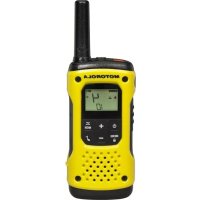
TLKR T92 H2O - Talkie Walkie MOTOROLA - Free user manual and instructions
Find the device manual for free TLKR T92 H2O MOTOROLA in PDF.



| Product Type | Two-way radio |
| Brand | Motorola |
| Model | TLKR T92 H2O |
| Power Supply | Rechargeable NiMH battery 800 mAh or 3 AA alkaline batteries |
| Number of Channels | 8 PMR channels (expandable to 16) |
| Sub-codes | 121 (38 CTCSS + 83 DCS) |
| Maximum Range | Up to 10 km (varies by environment) |
| Waterproof Rating | IP67 (submersible up to 1 m for 30 minutes) |
| VOX Functions | Yes, with 3 sensitivity levels (iVOX available) |
| Flashlight | White and red LED, activated by water detection |
| Display | Backlit LCD |
| Call Tones | 20 to choose from |
| Silent Mode | Vibration |
| Emergency Function | Alert with 30-second hands-free transmission and flashing red LED |
| Charging | Via micro-USB connector, full charge in 8 hours |
| Battery Life | Approximately 16 hours under normal conditions |
| Maintenance | Rinse with fresh water after contact with salt water; dry before opening battery compartment |
| Warranty | Via the retailer, need to present proof of purchase |
Frequently Asked Questions - TLKR T92 H2O MOTOROLA
User questions about TLKR T92 H2O MOTOROLA
0 question about this device. Answer the ones you know or ask your own.
Ask a new question about this device
Download the instructions for your Talkie Walkie in PDF format for free! Find your manual TLKR T92 H2O - MOTOROLA and take your electronic device back in hand. On this page are published all the documents necessary for the use of your device. TLKR T92 H2O by MOTOROLA.
USER MANUAL TLKR T92 H2O MOTOROLA
natural_image
Yellow and black motorola device with a handheld radio, no visible text or symbols on the device body.
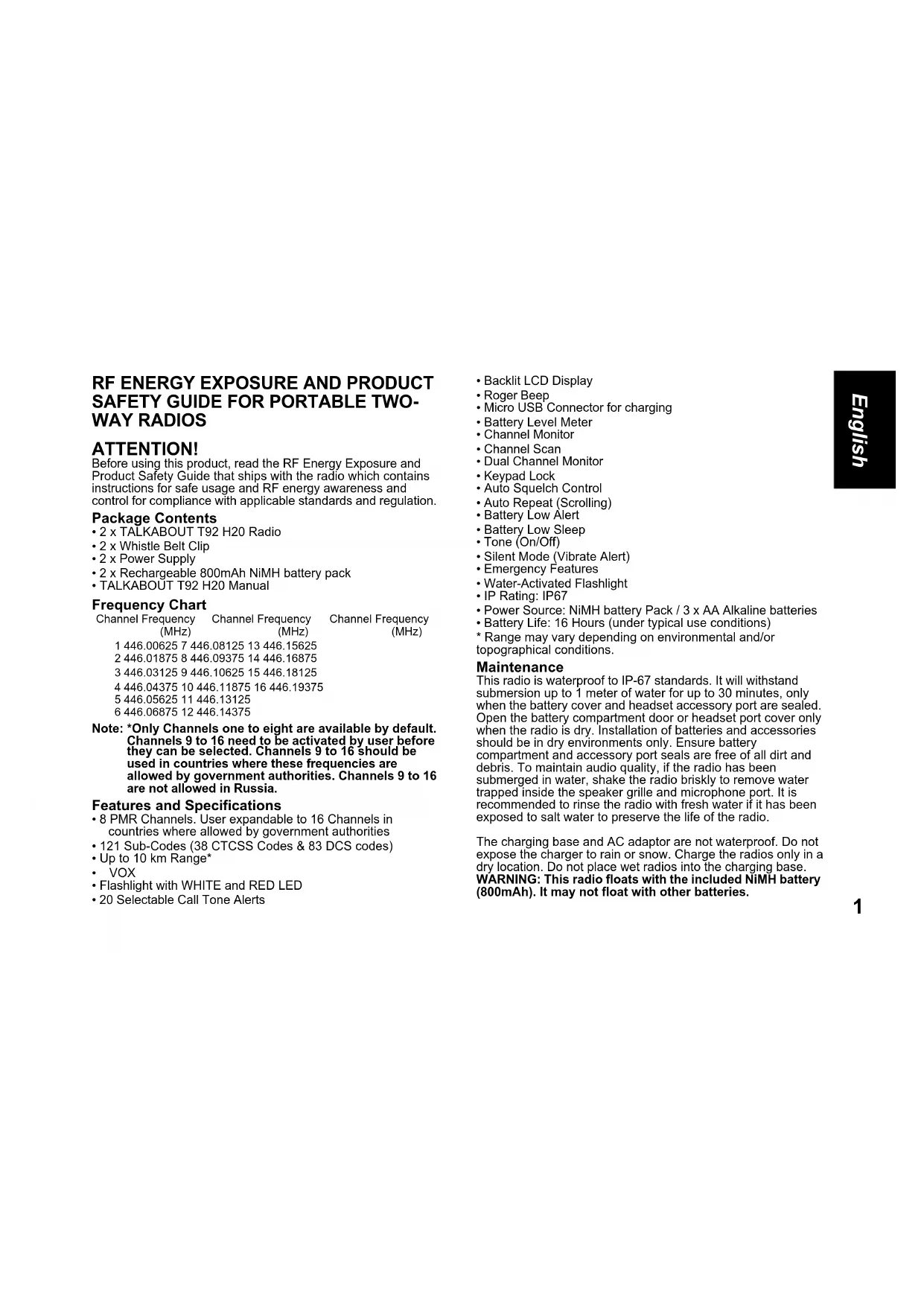
RF ENERGY EXPOSURE AND PRODUCT SAFETY GUIDE FOR PORTABLE TWO-WAY RADIOS
ATTENTION!
Before using this product, read the RF Energy Exposure and Product Safety Guide that ships with the radio which contains instructions for safe usage and RF energy awareness and control for compliance with applicable standards and regulation.
Package Contents
• 2 x TALKABOUT T92 H20 Radio
- 2 x Whistle Belt Clip
- 2 x Power Supply
- 2 x Rechargeable 800mAh NiMH battery pack
• TALKABOUT T92 H20 Manual
Frequency Chart
| Channel Frequency (MHz) | Channel Frequency (MHz) | Channel Frequency (MHz) |
1 446.00625 7 446.08125 13 446.15625
2 446.01875 8 446.09375 14 446.16875
3 446.03125 9 446.10625 15 446.18125
4 446.04375 10 446.11875 16 446.19375
5 446.05625 11 446.13125
6 446.06875 12 446.14375
Note: *Only Channels one to eight are available by default. Channels 9 to 16 need to be activated by user before they can be selected. Channels 9 to 16 should be used in countries where these frequencies are allowed by government authorities. Channels 9 to 16 are not allowed in Russia.
Features and Specifications
- 8 PMR Channels. User expandable to 16 Channels in countries where allowed by government authorities
• 121 Sub-Codes (38 CTCSS Codes & 83 DCS codes) - Up to 10 km Range*
- VOX
-
Flashlight with WHITE and RED LED
• 20 Selectable Call Tone Alerts -
Backlit LCD Display
• Roger Beep - Micro USB Connector for charging
- Battery Level Meter
• Channel Monitor - Channel Scan
• Dual Channel Monitor - Keypad Lock
• Auto Squelch Control
• Auto Repeat (Scrolling) - Battery Low Alert
- Battery Low Sleep
- Tone (On/Off)
- Silent Mode (Vibrate Alert)
• Emergency Features
• Water-Activated Flashlight
• IP Rating: IP67
• Power Source: NiMH battery Pack / 3 x AA Alkaline batteries - Battery Life: 16 Hours (under typical use conditions)
* Range may vary depending on environmental and/or topographical conditions.
Maintenance
This radio is waterproof to IP-67 standards. It will withstand submersion up to 1 meter of water for up to 30 minutes, only when the battery cover and headset accessory port are sealed. Open the battery compartment door or headset port cover only when the radio is dry. Installation of batteries and accessories should be in dry environments only. Ensure battery compartment and accessory port seals are free of all dirt and debris. To maintain audio quality, if the radio has been submerged in water, shake the radio briskly to remove water trapped inside the speaker grille and microphone port. It is recommended to rinse the radio with fresh water if it has been exposed to salt water to preserve the life of the radio.
The charging base and AC adaptor are not waterproof. Do not expose the charger to rain or snow. Charge the radios only in a dry location. Do not place wet radios into the charging base. WARNING: This radio floats with the included NiMH battery (800mAh). It may not float with other batteries.
Control and Functions
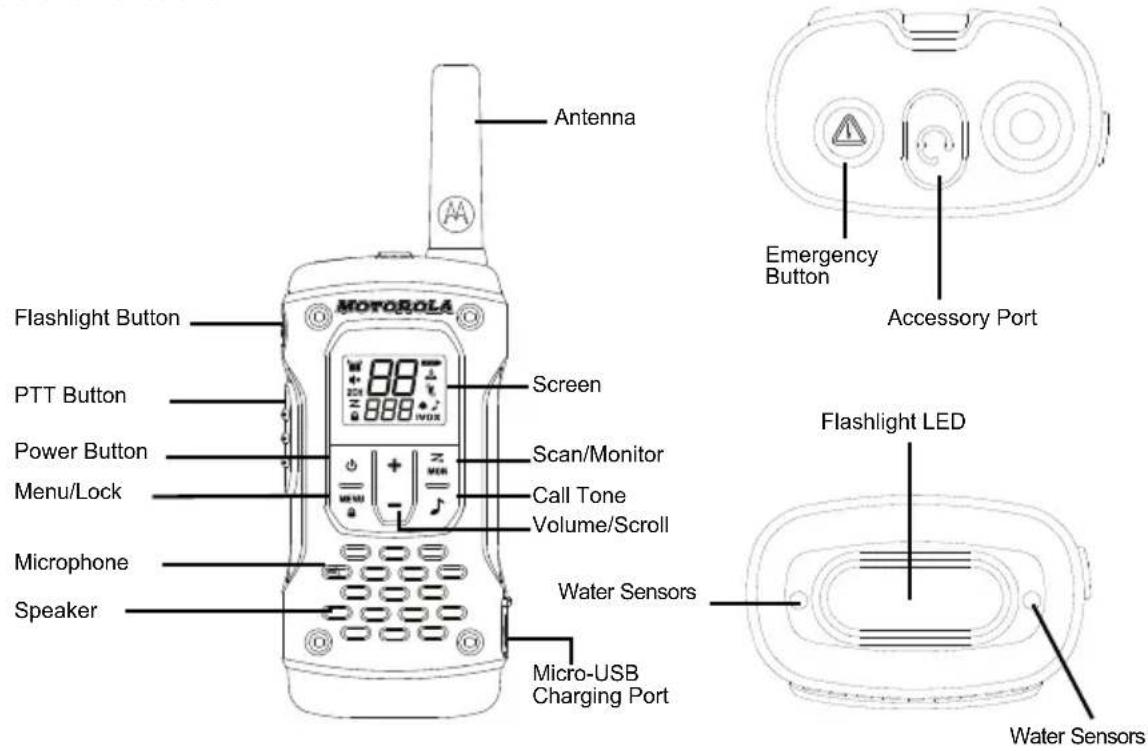
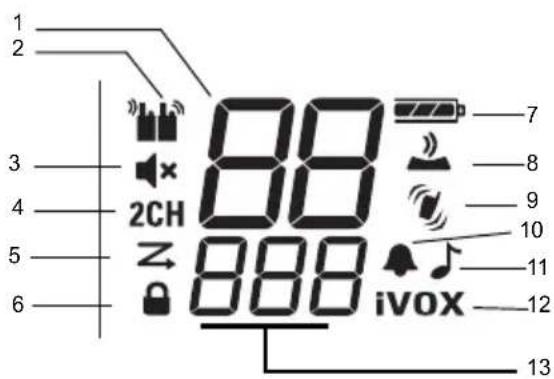
Display
| 1 Channel Indicator 2. Receive and Transmit Indicator 3. Mute [when speaker volume is set as 0] 4. Dual Channel Monitor [ON/OFF] 5. Scan Indicator 6. Key Lock Indicator 7. Battery Indicator [3 Battery Levels] | 8. Keypad Tone [ON/OFF] 9. Silent Mode (Vibrate Alert) [ON/OFF] 10. Roger Tone (ON/OFF) 11. Call Tone [1-20] 12. iVOX [OFF, L1, L2, L3]; VOX [L1, L2, L3] 13. Interference Eliminator Code [1-121] |
Installing the Batteries
Each radio can either use a one NiMH rechargeable battery pack or three units of AA Alkaline Battery.
Installing the NiMH Rechargeable Battery Pack
- Make sure your radio is turned OFF.
- With the back of the radio facing you, loosen the retaining screw on the battery door and open the cover.
-
Remove the NiMH battery pack from the clear plastic bag (do not disassemble or unwrap the battery pack).
-
Insert the NiMH battery pack with the diagram facing you. (The ribbon should be underneath the battery pack and should wrap around the right side of the pack for easy removal).
-
Close the battery cover and tighten the retaining screw on the battery door.
Installing the Three AA Alkaline Batteries
- Make sure your radio is turned OFF.
- With the back of the radio facing you, lift the battery cover latch up and remove the cover.
- Insert the three AA Alkaline batteries with (+) and (-) polarity as shown inside. (The ribbon should be underneath the AA alkaline batteries and wrap around the right side of the batteries).
- Close the battery cover and tighten the retaining screw on the battery cover.
Removing the Batteries
Removing the NiMH Battery Pack
- Make sure your radio is turned OFF.
- With the back of the radio facing you, loosen the retaining screw on the battery door and open the cover.
- Remove the NiMH battery pack by pulling the ribbon.
- Close the battery cover and tighten the retaining screw on the battery door.
Removing the Three AA Alkaline Batteries
- Make sure your radio is turned OFF.
-
With the back of the radio facing you, loosen the retaining screw on the battery door and open the cover.
-
Gently remove each alkaline battery by easing each battery out individually.
- Close the battery cover and tighten the retaining screw on the battery door.
Note: Exercise care when removing NiMH or AA batteries. Do not use sharp or conductive tools to remove either of these batteries. Ensure radio is fully dry before installing and removing batteries. The battery compartment seal should be free from dirt or debris before attaching the battery door. Remove the batteries before storing your radio for an extended period of time. Batteries corrode over time and may cause permanent damage to your radio.
Radio Battery Meter
The Radio Battery icon shows the battery charge level from full
777: to empty. When the radio has one segment left, the radio beeps periodically or after releasing the PTT button (Low Battery Alert).
Battery Capacity Maintenance
- Charge the NiMH batteries once every three months when not in use.
- Remove the battery from the radio after using for storage purposes.
- Store the NiMH batteries in a temperature between -20 °C to 35 °C and in low humidity. Avoid damp conditions and corrosive materials.
Using the Micro-USB Charger
The micro-USB charger is a handy port that allows you to conveniently charge your NiMH battery pack.
- Make sure your radio is turned OFF
- Plug the micro-USB cable into the micro-USB charging port on your radio. Connect the other end of the micro-USB charger to wall power outlet.
- An empty battery will be fully charged in eight hours.
- The battery meter bar will move when the battery is charging.
Note: When moving between hot and cold temperatures, do not charge the NiMH battery pack until the temperature acclimates (usually about twenty minutes). For optimal battery life, remove the radio from the charger within sixteen hours. Do not store the radio while connected to the charger.
Attaching and Removing the Belt Clip
- Attach the belt clip to the TÄLKABOUT plate at the back of the radio until the clip clicks in place.
- Attach the belt clip to pocket or belt strap until the clip clicks in place.
To Remove
- Push the release tab on top of the belt clip to release the latch.
- Pull the belt clip away from the back of the radio.
Turning your Radio On and Off
Press and hold the Rower button to turn the radio ON or OFF.
- In the ON position, the radio chirps and briefly shows all feature icons available on the radio.
- The display screen then shows the current channel, code and all features that are enabled.
Setting the Volume
From Standby Mode, press on either or to show the current value. Press or again to adjust the volume setting.
-
Press to increase the speaker volume.
-
Press to decrease the speaker volume.
Do not hold the radio close to your ear. If the volume is set to an uncomfortable level, it could hurt your ear. Adjust '0' to mute the speaker.
Talking and Listening
All radios in your group must be set to the same channel and Interference Eliminator Code in order to communicate.
-
Hold your radio 5–8 cm from your mouth.
-
Press and hold the PTT button while speaking. The Transmit

icon appears on the display.
- Release the PTT button. You can now receive incoming calls. When you do, the Receive 📷on appears on the display.
For maximum clarity, hold the radio 2 to 3 inches away and avoid covering the microphone while talking.
Talk Range
Your radio is designed to maximize performance and improve transmission range. Do not use the radios closer than 5 feet apart.
Monitor Button
Pressing and holding Scan/Monitor button 3 seconds allows you to listen to the volume level of the radio when you are not receiving. This allows you to adjust the volume, if necessary. You can also press Scan/Monitor button to check the activity on your current channel before you talk.
Push-to-Talk Time-out Timer
To prevent accidental transmissions and save battery life, the radio emits a continuous warning tone and stops transmitting if you press the PTT button for 60 seconds continuously.
Menu options
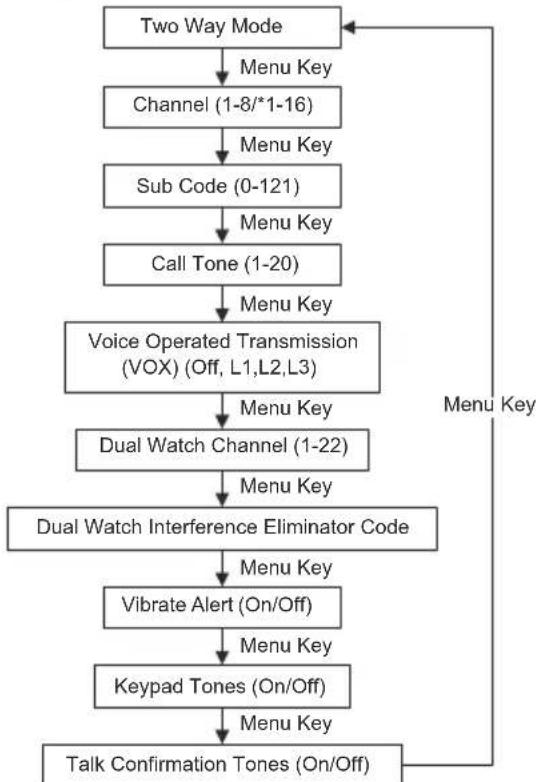
flowchart
graph TD
    A["Two Way Mode"] --> B["Menu Key"]
    B --> C["Channel (1-8/*1-16)"]
    C --> D["Menu Key"]
    D --> E["Sub Code (0-121)"]
    E --> F["Menu Key"]
    F --> G["Call Tone (1-20)"]
    G --> H["Menu Key"]
    H --> I["Voice Operated Transmission (VOX) (Off, L1,L2,L3)"]
    I --> J["Menu Key"]
    J --> K["Dual Watch Channel (1-22)"]
    K --> L["Menu Key"]
    L --> M["Dual Watch Interference Eliminator Code"]
    M --> N["Menu Key"]
    N --> O["Vibrate Alert (On/Off)"]
    O --> P["Menu Key"]
    P --> Q["Keypad Tones (On/Off)"]
    Q --> R["Menu Key"]
    R --> S["Talk Confirmation Tones (On/Off)"]
    S --> A
Note: *Only Channels one to eight are available by default. Channels 9 to 16 need to be activated by user before they can be selected. Channels 9 to 16 should be used in countries where these frequencies are allowed by government authorities. Channels 9 to 16 are not allowed in Russia.
Selecting the Channel
Your radio has eight channels. The channel is the frequency the radio uses to transmit.
- With the radio ON, press Menu button until the channel number starts to flash.
- Press or to change the channel. Long press on these keys allows you to scroll through the channels rapidly to browse the codes.
- Press PTT button to exit menu or ☐Menu button to continue set up.
Note: Your radio has eight channels by default. In countries where 16 channels are allowed, you can activate Channels 9 to 16 with the following steps:
- Press ▼Menu until the channel number starts to flash.
- Press and hold down and simultaneously for three seconds until you hear a beep and "16 CH" is displayed briefly.
Note: *Only Channels one to eight are available by default. Channels 9 to 16 need to be activated by user before they can be selected. Channels 9 to 16 should be used in countries where these frequencies are allowed by government authorities. Channels 9 to 16 are not allowed in Russia.
Selecting the Interference Eliminator Code
Interference Eliminator Codes help minimize interference by blocking transmissions from unknown sources. Your radio has 121 Interference Eliminator Codes.
To set the code for a channel:
- Press Menu button twice until the code "9" starts to flash.
-
Press or to select the code. You can press or hold to speed up scrolling through the codes.
-
Press the PTT button to exit menu or MENU Menu button to continue set up.
Setting and Transmitting Call Tones
Your radio can transmit different call tones to other radios in your group so you can alert them that you want to talk. Your radio has 20 call tones for you to choose from.
To set a call tone:
- Press Menu button three times until Call Tone icon appears. The current call tone setting will flash.
- Press or to change and listen to the call tone.
- Press the PTT button to exit menu or ⓄMenu button to continue set up.
In order to transmit your call tone to other radios, set up the same channel and Interference Eliminator Code on your radio and press Call Tone button.
Voice Operated Transmission (VOX)
Transmission is initiated by speaking into the microphone of the radio instead of pushing the PTT button.
- Press Menu button four times until icon VOX appears on the display. The current setting (L1-L3) will flash.
- Press or to select the sensitivity level.
- Press the PTT button to exit menu or 📄Menu button to continue set up.
L3 = High Sensitivity for quiet environments
L2 = Medium Sensitivity for most environments
L1 = Low Sensitivity for noisy environments
Note: There is a short delay between the time you start talking and when the radio transmits.
Dual Channel Monitor
Enables you to scan the current channel and another channel alternately.
To set another channel and start Dual Channel:
- Press Menu button five times until the Dual Channel
2CH icon appears. The Dual Channel will flash.
- Press or to select the channel then press Menu button.
- Press or to select the Interference Eliminator Code.
- Press the PTT button to exit menu or ☐ Menu button to continue set up.
- The radio starts to Dual Channel.
Note: If you set the same channel and code as the current channel, Dual Channel Monitor turns OFF.
Silent Mode (Vibrate Alert)
Silent Mode (Vibrate Alert) notifies you that your radio is receiving a message. This is useful in noisy environments. When the alert is on, the radio vibrates once every 30 seconds when you receive a message on the channel and code you set.
- Press Menu button seven times until Vibracall icon is displayed. The current setting will flash.
- Press or to change the setting to On/Off.
- Press the PTT button to exit menu or ☐Menu button to continue set up.
Keypad Tones
You may enable or disable the speaker key tones. You will hear the key tone each time a button is pushed.
- Press Menu button eight times until Keypad Tone icon appears. The current setting On/Off will flash.

- Press either or to turn On/Off.
- Press the PTT button to confirm or Menu button to continue set up.
Note: The following are not disabled when the key tone feature is OFF:
•Transmit time-out alert tone
- Call tone
- Low battery alert tone or
•The transmitted talk confirmation tone
Transmitting a Talk Confirmation Tone
You can set your radio to transmit a unique tone when you finish transmitting. It is like saying "Roger" or "Over" to let others know you have finished talking.

- Press Menu button nine times until the Roger Tone icon appears. The current setting On/Off flashes.
- Press or to turn On or Off.
- Press the PTT button to set or MENU Menu button to continue set up.
Emergency Alert Mode
The Emergency Alert feature can be used to signal members in your group of your need for urgent help. T92 H2O radios will operate in an automatic "hands- free" emergency control mode for a total of 30 seconds after activating the Emergency Alert. T92 H2O radios in your group will automatically advance the speaker volume to the maximum setting and sound a warbling alert tone for 8 seconds. The alert tone is emitted from your own radio speaker and the receiving radios in your group. After the 8 second alert, any spoken words or incidental sounds at your end will be transmitted to the group for 22 seconds. For the 30 second duration of Emergency Alert mode, T92 H2O radio controls and buttons will be locked to maximize reception of the emergency message.
- Press and hold the Emergency Alert button for 3 seconds.
- Release the button and the alert tone begin to sound. At the same time, it activates RED LED flash. There is no need to continue to hold the Emergency Alert button or use PTT for your message to be transmitted.
WARNING: The Emergency Alert feature should only be used in the even of an actual emergency. Motorola Solutions is not responsible if there is no response to the emergency alert from the receiving group.
Built-in Flashlight
Press the Flashlight button to cycle between OFF, RED Light, WHITE Light and then back to OFF again. The Flashlight will turn off when you press the Flashlight button if the RED Light is left on for more than 3 seconds. The Flashlight will turn off automatically after 30 minutes of non-activity if the battery level is below 50%.
Note: Turn off the flashlight when not in use to conserve battery power.
Keypad Lock
To avoid accidentally changing your radio settings:
- Press and hold Menu button until Key Lock Indicator icon displays.

-
You can turn the radio ON and OFF, adjust the volume, receive, transmit, and monitor channels when in the lock mode. All other functions remain locked.
-
Press Menu button and hold until Keylock Indicator is no longer displayed to unlock the radio.
Scanning
Use the scan function to do the following:
- Search the eight channels for transmissions from unknown parties.
• Find someone in your group who has accidentally changed channels or - To quickly find unused channels for your own use. There is a priority feature and two modes of scanning (basic and advanced) to make your search more effective.
- The "Basic Scan" mode uses the channel and code combinations for each of the eight channels as you have set them (or with the default code value of 1).
- The “Advance Scan” mode will scan all channels for any and all codes; detect any code in use and use that code value temporary for that channel.
- Priority is given to the “Home Channel” (i.e. the channel and Interference Eliminator Code your radio is set to when you start the scan). This means the initial channel (and code settings) is scanned more often than the other seven channels and your radio will respond quickly to any activity occurring on the home channel as a priority.
To start Basic Scanning:
- Press the key briefly. The Scan icon will appear in
the display and the radio will begin to scroll through the channel and code combinations. - When the radio detects channel activities matching the channel and code combination, the radio will stop scrolling and you can hear the transmission.
- Press the PTT button within 5 minutes after the end of the transmission to respond and talk to the person transmitting.
- The radio will resume scrolling through the channels 5 seconds after the end of any received activity.
- Press the Scan/Monitor button briefly to stop scanning.
To start Advanced Scanning:
To set another channel and start Dual Channel Monitor:
- Press the Scan/Monitor button briefly. The Scan
icon will appear in the display and the radio will begin to scroll through the channels. No Interference Eliminator Codes will filter what is heard. - When the radio detects channel activities with ANY code (or NO code), it stops scrolling and you can hear the transmission. Any Interference Eliminator Code that may be use by other party will be detected and displayed.
- When you respond and talk to the person transmitting, press the PTT button within five seconds after the end of the transmission.
- The radio will resume scrolling through the channels 5 seconds after the end of any received activity.
- Press the Scan/Monitor button briefly to stop scanning.

Scanning Notes:
- The transmission will be on the "Home Channel" if you press the PTT button while the radio is scrolling through inactive channels. You may press the Scan/Monitor button to stop scanning at any time.
- You may immediately resume the scan by briefly pressing the or if the radio stops on an undesired transmission.
- You may temporarily remove that channel from the scan list by pressing and holding or for 3 seconds if the radio stops repeatedly on an undesired transmission. You may remove more than one channel this way.
- Turn the radio OFF and then turn back ON, or EXIT and re-enter the scanning mode by pressing Scan/Monitor button to restore and remove channel(s) to the scan list.
- You cannot remove the "Home Channel" from the scan list.
- In the Advanced Scan, the detected code will only be used for one transmission. You must take note of that code, exit scan and set the detected code on that channel to permanently use the detected code.
Water Sensor
When the radio comes in contact with water, the WHITE LED will begin flashing until the battery is dead. Press the Flashlight button to turn off the flashing LED.
Warranty Information
The authorized Motorola Solutions dealer or retailer where you purchased your Motorola Solutions two-way radio and/or original accessories will honour a warranty claim and/or provide warranty service.
Please return your radio to your dealer or retailer to claim your warranty service. Do not return your radio to Motorola Solutions.
In order to be eligible to receive warranty service, you must present your receipt of purchase or a comparable substitute proof of purchase bearing the date of purchase. The two-way radio should also clearly display the serial number. The warranty will not apply if the type or serial numbers on the product have been altered, deleted, removed, or made illegible
What Is Not Covered By The Warranty
- Defects or damage resulting from use of the Product in other than its normal and customary manner or by not following the instructions in this user manual.
- Defects or damage from misuse, accident or neglect.
- Defects of damage from improper testing, operation, maintenance, adjustment, or any alteration or modification of any kind.
- Breakage or damage to aerials unless caused directly by defects in material or workmanship.
- Products disassembled or repaired in such a manner as to adversely affect performance or prevent adequate inspection and testing to verify any warranty claim.
- Defects or damage due to range.
- Defects or damage due to moisture, liquid or spills.
- All plastic surfaces and all other externally exposed parts that are scratched or damaged due to normal use.
- Products rented on a temporary basis.
- Periodic maintenance and repair or replacement of parts due to normal usage, wear and tear.
Copyright Information
The Motorola Solutions products described in this manual may include copyrighted Motorola Solutions programs, stored semiconductor memories or other media. Laws in the United States and other countries preserve for Motorola Solutions, certain exclusive rights for copyrighted computer programs, including the exclusive right to copy or reproduce in any form, the copyrighted Motorola Solutions programs.
Accordingly, any copyrighted Motorola Solutions computer programs contained in the Motorola Solutions products described in this manual may not be copied or reproduced in any manner without express written permission of Motorola Solutions. Furthermore, the purchase of Motorola Solutions products shall not be deemed to grant either directly or by implication, estoppel, or otherwise, any license under the copyrights, patents or patent applications of Motorola Solutions, except for the normal non-exclusive royalty free license to use that arises by operation of law in the sale of a products.
MOTOROLA, MOTO, MOTOROLA SOLUTIONS and the Stylized M logo are trademarks or registered trademarks of Motorola Trademark Holdings, LLC and are used under license. All other trademarks are the property of their respective owners. © 2016 and 2018 Motorola Solutions, Inc. All rights reserved.
VEJLEDNING OM RF- ENERGIEKSPONERING OG PRODUKTSIKKERHED TIL BÆRBARE TOVEJSRADIOER
OBS!
Push-to-Talk Time-out timer
For at forhindre utilsigtede transmissioner og for at spare batteritid, udsender radioen en konstant advarselstone og standser transmissionen, hvis du trykker på knappen PTT konstant i tres sekunder.
MENUINDSTILLINGER
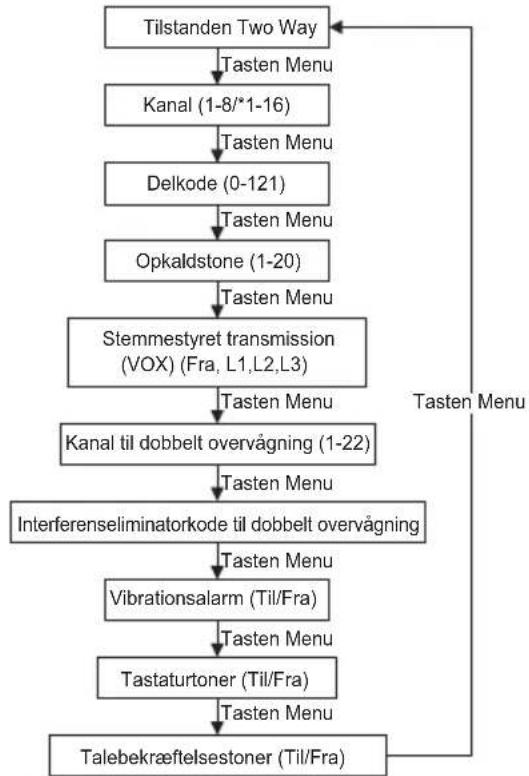
flowchart
graph TD
    A["Tilstanden Two Way"] --> B["Tasten Menu"]
    B --> C["Kanal (1-8/*1-16)"]
    C --> D["Tasten Menu"]
    D --> E["Delkode (0-121)"]
    E --> F["Tasten Menu"]
    F --> G["Opkaldstone (1-20)"]
    G --> H["Tasten Menu"]
    H --> I["Stemmestyret transmission (VOX) (Fra, L1,L2,L3)"]
    I --> J["Tasten Menu"]
    J --> K["Kanal til dobbelt overvågning (1-22)"]
    K --> L["Tasten Menu"]
    L --> M["Interferenseliminatorkode til dobbelt overvågning"]
    M --> N["Tasten Menu"]
    N --> O["Vibrationsalarm (Til/Fra)"]
    O --> P["Tasten Menu"]
    P --> Q["Tastaturtoner (Til/Fra)"]
    Q --> R["Tasten Menu"]
    R --> S["Talebekræftelsestoner (Til/Fra)"]
    S --> A
Voice Operated Transmission (VOX)
Kan. Freq. (MHz) Kan. Freq. (MHz) Kan. Freq. (MHz)
1 446.00625 7 446.08125 13 446.15625
2 446.01875 8 446.09375 14 446.16875
3 446.03125 9 446.10625 15 446.18125
4 446.04375 10 446.11875 16 446.19375
5 446.05625 11 446.13125
6 446.06875 12 446.14375
flowchart
graph TD
    A["Two Way Mode"] --> B["Touche Menu"]
    B --> C["Channel (1-8)*1-16"]
    C --> D["Touche Menu"]
    D --> E["Sub Code (0-121)"]
    E --> F["Touche Menu"]
    F --> G["Call Tone (1-20)"]
    G --> H["Touche Menu"]
    H --> I["Voice Operated Transmission (VOX) (Off, L1,L2,L3)"]
    I --> J["Touche Menu"]
    J --> K["Dual Watch Channel (1-22)"]
    K --> L["Touche Menu"]
    L --> M["Dual Watch Interference Eliminator Code"]
    M --> N["Touche Menu"]
    N --> O["Vibrate Alert (On/Off)"]
    O --> P["Touche Menu"]
    P --> Q["Keypad Tones (On/Off)"]
    Q --> R["Touche Menu"]
    R --> S["Talk Confirmation Tones (On/Off)"]
    S --> A
Transmission vocale (VOX
Can. Freq. (MHz) Can. Freq. (MHz) Can. Freq. (MHz)
1 446,00625 7 446,08125 13 446,15625
2 446,01875 8 446,09375 14 446,16875
3 446,03125 9 446,10625 15 446,18125
4 446,04375 10 446,11875 16 446,19375
5 446,05625 11 446,13125
6 446,06875 12 446,14375
Voice Operated Transmission (VOX
Dual Channel Monitor
1 446.00625 7 446.08125 13 446.15625
2 446.01875 8 446.09375 14 446.16875
3 446.03125 9 446.10625 15 446.18125
4 446.04375 10 446.11875 16 446.19375
5 446.05625 11 446.13125
6 446.06875 12 446.14375
Kan. freq. (MHz) Kan. freq. (MHz) Kan. freq. (MHz)
1 446.00625 7 446.08125 13 446.15625
2 446.01875 8 446.09375 14 446.16875
3 446.03125 9 446.10625 15 446.18125
4 446.04375 10 446.11875 16 446.19375
5 446.05625 11 446.13125
6 446.06875 12 446.14375
Push-to-Talk time-out-timer
flowchart
graph TD
    A["Two Way Mode"] --> B["Channel (1-8/*1-16)"]
    B --> C["Sub Code (0-121)"]
    C --> D["Call Tone (1-20)"]
    D --> E["Voice Operated Transmission (VOX) (Uit, L1,L2,L3)"]
    E --> F["Dual Watch Channel (1-22)"]
    F --> G["Dual Watch Interference Eliminator Code"]
    G --> H["Vibrate Alert (On/Off)"]
    H --> I["Keypad Tones (On/Off)"]
    I --> J["Talk Confirmation Tones (On/Off)"]
    J --> A
    style A fill:#f9f,stroke:#333
    style J fill:#ccf,stroke:#333
Voice Operated Transmission (VOX
Modus Emergency Alert
Tidsavbrudd for Push-to-Talk (PTT)
Canal Freq. (MHz) Canal Freq. (MHz) Canal Freq. (MHz)
1 446,00625 7 446,08125 13 446,15625
2 446,01875 8 446,09375 14 446,16875
3 446,03125 9 446,10625 15 446,18125
4 446,04375 10 446,11875 16 446,19375
5 446,05625 11 446,13125
6 446,06875 12 446,14375
Ecrã Instalar as baterias
Remover as baterias e as pilhas
Remover a bateria NiMH
MN002243A01-AE
Printed in

EAC