RP401R - Digital piano ROLAND - Free user manual and instructions
Find the device manual for free RP401R ROLAND in PDF.



| Product type | Digital Piano |
| Brand | Roland |
| Model | RP401R |
| Keyboard | 88 keys (PHA-4 Standard with escapement and Ivory Feel) |
| Sound Generator | SuperNATURAL Piano sound, GM2/GS/XGlite compatible |
| Maximum Polyphony | 128 notes |
| Built-in Metronome | Yes, with tempo and beat adjustment |
| Automatic Accompaniment | Yes (Rhythm function with many styles) |
| Recording | Yes, internal memory (10 songs) and USB key |
| USB Playback Formats | SMF (Standard MIDI File) and WAV (44.1 kHz, 16-bit) |
| Connections | USB Computer, USB Memory, Input (mini-jack), Output, 2 headphone jacks, pedal connector |
| Wireless LAN | Via USB wireless adapter (WNA1100-RL, sold separately) |
| Special Functions | Split, Dual, Twin Piano, Transpose, Headphones 3D Ambience |
| Pedals | Forte (with Damper Resonance), Sostenuto, Soft (assignable) |
| Dimensions (RP401R with music rest) | 1378 mm (W) x 423 mm (D) x 992 mm (H) |
| Weight (RP401R) | 40.0 kg |
| Power Supply | Included AC adapter, power consumption 9 W (average), 3-22 W |
| Auto Off | Yes, adjustable (OFF, 10, 30, 240 min) |
| Included Accessories | Owner's manual, safety instructions booklet, AC adapter, power cord |
| Maintenance | Soft dry cloth or slightly damp; wooden parts wipe in direction of grain |
| Safety | Use only the supplied adapter and cord; unplug when not in use for extended periods |
| Spare Parts and Repairability | Contact an authorized Roland service center |
| General Information | Owner's manual downloadable free of charge in several languages |
Frequently Asked Questions - RP401R ROLAND
User questions about RP401R ROLAND
0 question about this device. Answer the ones you know or ask your own.
Ask a new question about this device
Download the instructions for your Digital piano in PDF format for free! Find your manual RP401R - ROLAND and take your electronic device back in hand. On this page are published all the documents necessary for the use of your device. RP401R by ROLAND.
USER MANUAL RP401R ROLAND
Recording Performances 6
Playing Songs from a USB Flash Drive (Sold Separately) 7
Panel Descriptions 8
Front Panel. 8
Rear Panel Connections 9
Bottom Panel (Connecting Headphones or Memory) 9
Before You Play 10
Opening/Closing the Lid (RP401R) 10
Opening/Closing the Lid (F-130R) 10
Turning the Power On/Off 11
Setting the Reference Pitch. 11
Various Settings (Function Mode). 12
Basic Operation in Function Mode 12
Adjusting the Keyboard Sensitivity (Key Touch) 12
Changing the Way in Which the Sound Is Heard (Twin Piano Mode) 12
Dividing the Keyboard for Two-Person Performance (Twin Piano) 12
Specifying What the Transpose Will Affect (Transpose Mode) 12
Transposing the Keyboard or Song (Transpose) 12
Applying a Headphones 3D Ambience Effect to the Piano Sound (Headphones 3D Ambience) 12
Matching the Pitch with Other Instruments (Master Tuning) 12
Changing the Tuning Method (Stretch Tuning) 13
Changing How the Pedals Work. 13
Specifying How the Bass Part Behaves (Leading Bass) 13
Chord Recognition When Split Is On. 13
Preventing Doubled Notes When Connected to a Sequencer (Local Control) 13
Copying a Song (Copy Song). 13
Connecting to a Wireless LAN (WPS Connection) 13
Connecting to a Wireless LAN (Ad-Hoc Connection) 13
Viewing the Ad-Hoc Key. 13
Making the Power Automatically Turn Off After a Time (Auto Off) 14
Saving the Settings (Memory Backup) 14
Restoring the Factory Settings (Factory Reset) 14
Specifying the Maximum Volume (Volume Limit) 14
About the Wireless LAN Function 15
Basic Connection Method (Connect by WPS) 15
Connecting in Ad-Hoc Mode 15
Troubleshooting 16
When Using the Wireless LAN Function. 16
Message List 17
USING THE UNIT SAFELY 18
IMPORTANT NOTES 18
Main Specifications Roland RP401R: Digital Piano Roland F-130R: Digital Piano
| Keyboard | 88 keys (PHA-4 Standard Keyboard: with Escapement and Ivory Feel) |
| Sound Generator | Piano Sound: SuperNATURAL Piano Sound MIDI Format: Conforms to GM2/GS/XGite |
| Power Supply AC adaptor | |
| Power Consumption | 9 W (3 W-22 W) 9 W: Average power consumption while piano is played with volume at center position 3 W: Power consumption immediately after power-up; nothing being played 22 W: Rated power consumption |
| Dimensions | RP401R 1,378 (W) x 423 (D) x 992 (H) mm(with music rest): 54-1/4(W) x 16-11/16 (D) x 39-1/16 (H) inchesF-130R 1,361 (W) x 305 (D) x 778 (H) mm(with lid closed): 53-5/8 (W) x 12-1/16 (D) x 30-11/16 (H) inches |
| Weight | RP401R: 40.0 kg / 8 lbs 14 ozF-130R: 34.5kg / 76 lbs 1 oz |
| Accessories | Owner's manual, Leaflet "USING THE UNIT SAFELY," AC adaptor, Power cord (for connecting AC adaptor) |
| Options(Sold Separately) | USB Flash Memory (*1), Wireless USB Adapter (WNA1100-RL) (*1)*1: Use USB flash drive and Wireless USB Adapter sold by Roland.We cannot guarantee operation if other products are used. |
- In the interest of product improvement, the specifications and/or appearance of this unit are subject to change without prior notice.
Before using this unit, carefully read the sections entitled "USING THE UNIT SAFELY" and "IMPORTANT NOTES" (leaflet "USING THE UNIT SAFELY" and Owner's Manual p. 18). These sections provide important information concerning the proper operation of the unit. Additionally, in order to feel assured that you have gained a good grasp of every feature of your new unit, read Owner's Manual in its entirety. This manual should be saved and kept on hand as a convenient reference.
Performing
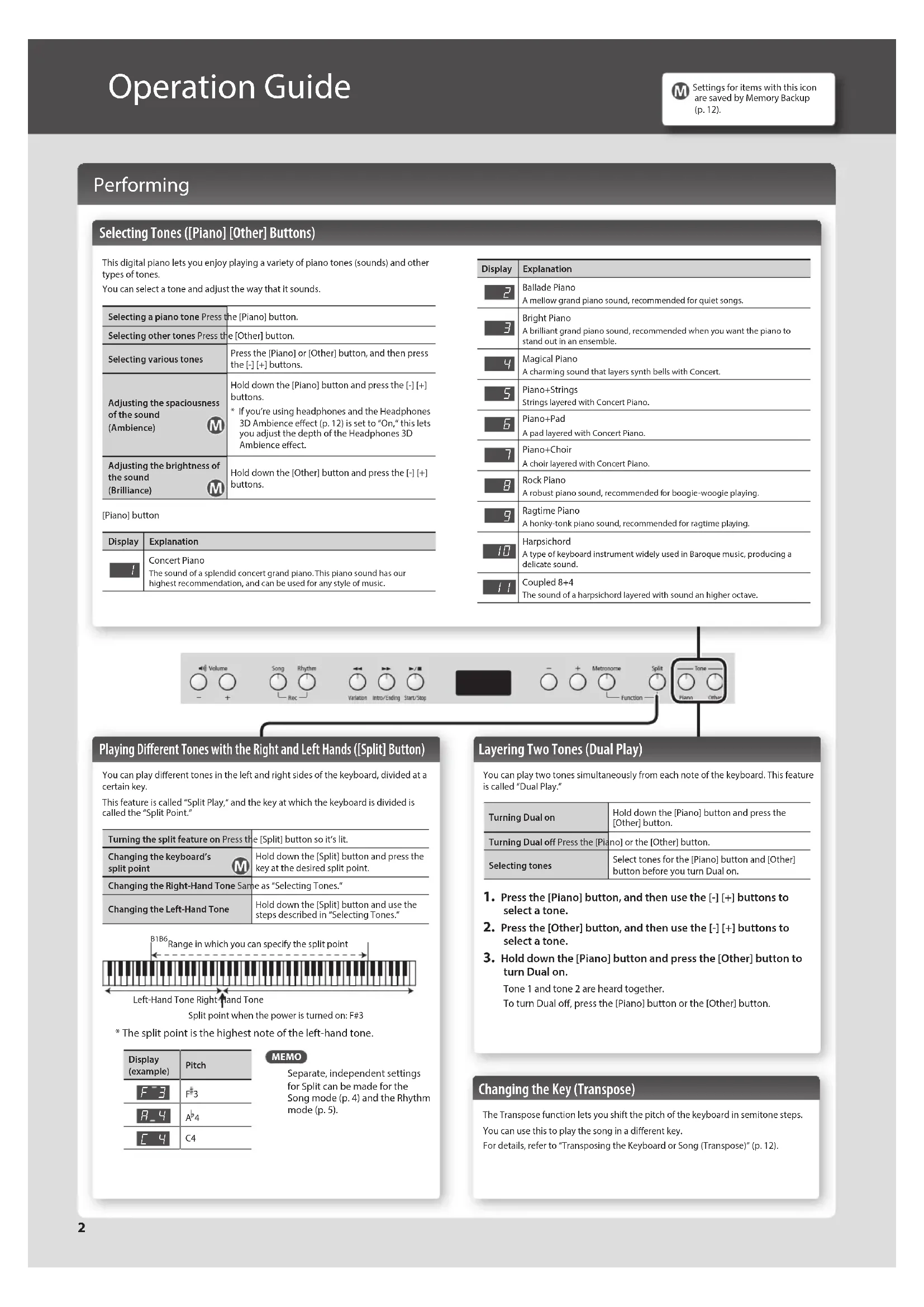
Selecting Tones ([Piano] [Other] Buttons)
This digital piano lets you enjoy playing a variety of piano tones (sounds) and other types of tones.
You can select a tone and adjust the way that it sounds.
| Selecting a piano tone Press the [Piano] button. | |
| Selecting other tones Press the [Other] button. | |
| Selecting various tones | Press the [Piano] or [Other] button, and then press the [-] [+] buttons. |
| Adjusting the spaciousness of the sound (Ambience) | Hold down the [Piano] button and press the [-] [+] buttons. * If you're using headphones and the Headphones 3D Ambience effect (p. 12) is set to "On," this lets you adjust the depth of the Headphones 3D Ambience effect. |
| Adjusting the brightness of the sound (Brilliance) | Hold down the [Other] button and press the [-] [+] buttons. |
[Piano] button
| Display | Explanation |
| / | Concert Piano The sound of a splendid concert grand piano. This piano sound has our highest recommendation, and can be used for any style of music. |
| Display | Explanation |
| 2 | Ballade Piano A mellow grand piano sound, recommended for quiet songs. |
| 3 | Bright Piano A brilliant grand piano sound, recommended when you want the piano to stand out in an ensemble. |
| 4 | Magical Piano A charming sound that layers synth bells with Concert. |
| 5 | Piano+Strings Strings layered with Concert Piano. |
| 6 | Piano+Pad A pad layered with Concert Piano. |
| 7 | Piano+Choir A choir layered with Concert Piano. |
| 8 | Rock Piano A robust piano sound, recommended for boogie-woogie playing. |
| 9 | Ragtime Piano A honky-tonk piano sound, recommended for ragtime playing. |
| 10 | Harpsichord A type of keyboard instrument widely used in Baroque music, producing a delicate sound. |
| 11 | Coupled 8+4 The sound of a harpsichord layered with sound an higher octave. |
![ROLAND RP401R - Selecting Tones ([Piano] [Other] Buttons) - 1](/content/2026/03/445470/images/d0fc9c3d1254bb3dc454ee92c3c36dfce0199f8a4900ec266d003a2a9dc8d207.jpg)
Playing Different Tones with the Right and Left Hands ([Split] Button)
You can play different tones in the left and right sides of the keyboard, divided at a certain key.
This feature is called "Split Play," and the key at which the keyboard is divided is called the "Split Point."
| Turning the split feature on Press the Split button so it's lit. | |
| Changing the keyboard's split point | Hold down the [Split] button and press the key at the desired split point. |
| Changing the Right-Hand Tone Same as "Selecting Tones." | |
| Changing the Left-Hand Tone | Hold down the [Split] button and use the steps described in "Selecting Tones." |
- The split point is the highest note of the left-hand tone.
| Display (example) | Pitch |
| F3 | F3 |
| F4 | A4 |
| C4 | C4 |
MEMO
Separate, independent settings for Split can be made for the Song mode (p.4) and the Rhythm mode (p.5).
Layering Two Tones (Dual Play)
You can play two tones simultaneously from each note of the keyboard. This feature is called "Dual Play."
| Turning Dual on | Hold down the [Piano] button and press the [Other] button. |
| Turning Dual off Press the [Piano] or the [Other] button. | |
| Selecting tones | Select tones for the [Piano] button and [Other] button before you turn Dual on. |
- Press the [Piano] button, and then use the [-] [+] buttons to select a tone.
- Press the [Other] button, and then use the [-] [+] buttons to select a tone.
- Hold down the [Piano] button and press the [Other] button to turn Dual on.
Tone 1 and tone 2 are heard together.
To turn Dual off, press the [Piano] button or the [Other] button.
Changing the Key (Transpose)
The Transpose function lets you shift the pitch of the keyboard in semitone steps. You can use this to play the song in a different key.
For details, refer to "Transposing the Keyboard or Song (Transpose)" (p. 12).
Using the Metronome ([Metronome] Button)
You can perform while the metronome sounds. You can adjust the tempo or beat of the metronome.
If a song is playing, the metronome will sound at the tempo and beat of that song.
![ROLAND RP401R - Using the Metronome ([Metronome] Button) - 1](/content/2026/03/445470/images/85f8ca89b2492a67c2fb540c103db407cb8d5c28cf38bf7d2bececda77d6799c.jpg)
| Using the Metronome Press the [Metronome] button so it blinks. | |
| Changing the Tempo | Turn on the [Metronome] button to display the tempo, and then use the [-] [+] buttons. |
| Changing the Beat | Hold down the [Metronome] button and press the [-] [+] buttons. |
| 4.4For details on the available time signatures, refer to "List of Time Signatures." | |
| Adding a count-in | Turn on the metronome, and then press the [▶/■ (Start/Stop)] button. |
List of Time Signatures
| Display | Beat | Display | Beat |
| 2.2 | 2/2 | 6.4 | 6/4 |
| 0.4 | Only weak beats will be sounded. | 7.4 | 7/4 |
| 2.4 | 2/4 | 3.8 | 3/8 |
| 3.4 | 3/4 | 6.8 | 6/8 |
| 4.4 | 4/4 (default) | 9.8 | 9/8 |
| 5.4 | 5/4 | 12.8 | 12/8 |
![ROLAND RP401R - Using the Metronome ([Metronome] Button) - 2](/content/2026/03/445470/images/1c88e33990c09b07f5b200ca02c3441e63d99194f952908a11f2c73e2164463e.jpg)
Adjusting the Keyboard Sensitivity (Key Touch)

Here's how to change the way in which the sound responds to your keyboard dynamics. You can adjust the response as appropriate for your playing strength.
- Hold down the [Metronome] button and press the [Split] button.
-
Use the [-] [+] buttons to choose “F□ i” and press the [▶/■] button.
-
Use the [-] [+] buttons to change the settings.
| Value | Explanation |
| F(Fixed) | The sound plays at one set volume, regardless of the force used to play the keys. |
| L2(Super Light) | An even lighter setting than L1(Light). |
| L1(Light) | Sets the keyboard to a light touch.You can achieve fortissimo (ff) play with a less forceful touch than N(medium)," so the keyboard feels lighter.This setting makes it easy to play, even for children. |
| N(Medium) | Sets the keyboard to the standard touch.This sets the standard keyboard touch. You can play with the most natural touch. This is the closest to the touch of an acoustic piano. |
| H1(Heavy) | Sets the keyboard to a heavy touch.You have to finger the keyboard more forcefully than "N(medium)" in order to play fortissimo (ff), so the keyboard touch feels heavier. Dynamic fingering adds even more feeling to what you play. |
| H2(Super Heavy) | An even heavier setting than H1(Heavy). |
- Hold down the [Metronome] button and press the [Split] button to exit Function mode.
Dividing the Keyboard in Two (Twin Piano)
You can divide the keyboard into left and right sections so that two people can play the same pitch ranges.
- Hold down the [Metronome] button and press the [Split] button.
- Use the [-] [+] buttons to choose "F D E" and press the [▶/■] button.
-
Choose the "□" setting.
-
Concert Piano is selected.
- Hold down the [Metronome] button and press the [Split] button to exit Function mode.
| Changing how Twin Piano sounds | In function mode, select “FΩZ” and choose “I” or “E”. f → Notes in the right section are louder in the right speaker; notes in the left section are louder in the left speaker. e → Notes in the right section are heard only from the right speaker; notes in the left section are heard only from the left speaker. |
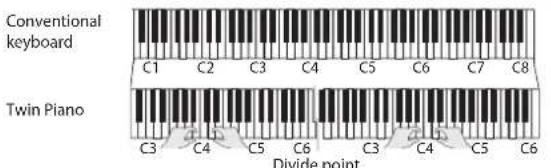
The damper pedal for The damper pedal for the left area the right area
Playing Back Songs
How to Use Song Mode ([Song] Button)
Press the [Song] button to select Song mode.
![ROLAND RP401R - How to Use Song Mode ([Song] Button) - 1](/content/2026/03/445470/images/43cafe409f33849f4f91e3d03c17dbce21de5dc8648ce90b3ea2742b369b2da2.jpg)
| Changing the Tempo | Press the [Metronome] button. Use the [-] [+] buttons to change the tempo. |
| Changing the Volume of the Song | Hold down the [Song] button and use the Volume buttons to adjust the volume of the song. Song volume - Manual performance volume 9 / 1 (Song is louder) - 9 / 1 (Same loudness) - 1 / 9 (Manual performance is louder) |
| Playing all songs | Hold down the [Song] button and press the [▶/■] button (All Song Play). |
![ROLAND RP401R - How to Use Song Mode ([Song] Button) - 2](/content/2026/03/445470/images/9288549fc198b61f0414bcd0d8d7c19b4ce9c7cbf20cdefd6fa6e5f054723d36.jpg)
Functions of the [<] [▶] [▶/■] Buttons
| Starting/Stopping SongPlayback | Press the \( \left\lbrack { \rightarrow / \cdot \cdot }\right\rbrack \) button. When the song has finished playing to the end, it will stop. |
| Fast-Forward | Press the \( \left\lbrack { \rightarrow \rightarrow }\right\rbrack \) button. By holding down the \( \left\lbrack { \rightarrow \rightarrow }\right\rbrack \) button and pressing the \( \left\lbrack { \leftarrow \downarrow }\right\rbrack \) button,you can fast-forward more quickly. |
| Rewind | Press the \( \left\lbrack { \leftarrow \downarrow }\right\rbrack \) button. By holding down the \( \left\lbrack { \leftarrow \downarrow }\right\rbrack \) button and pressing the \( \left\lbrack { \rightarrow \rightarrow }\right\rbrack \) button,you can rewind more quickly. |
Selecting Parts to Play
- Hold down the [ / ] button and use the [-] [+] buttons to select the parts to be played.
Through successive presses of these buttons, you can turn on or off the accompaniment part, left-hand part, and right-hand part to achieve the desired arrangement of played/muted parts.
Playback part play/mute status indication
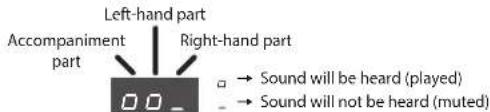
- When using Twin Piano, what you play in the left section is recorded to the left-hand part, and what you play in the right section is recorded to the right-hand part.
- When using Split, the left-hand tone is recorded to the left-hand part, and the right-hand tone is recorded to the right-hand part.
- When using Dual, tone 1 is recorded to the right-hand part and tone 2 is recorded to the accompaniment part.
- When playing anything other than Twin Piano, Split, or Dual, everything is recorded on the right-hand part.
Using Automatic Accompaniment (Rhythm) That Matches Your Chords
How to Use Rhythm Mode ([Rhythm] Button)
Press the [Rhythm] button to select Rhythm mode.
Split is turned on.
While the rhythm is playing, the left-hand part will not sound, since that section is dedicated to the recognition of chords.
| Selecting a Rhythm | Press the [Rhythm] button, and then use the [-] [+] buttons. | |
| For details, refer to "Rhythm List" at the end of this manual. * To switch the genre of rhythm, hold down the [Rhythm] button and press the [-] [+] buttons. | ||
| Changing the Tempo | Press the [Metronome] button. Use the [-] [+] buttons to set the tempo. | |
| 108 | ||
| Tempo range | 20 - 250 | |
| Changing the Volume of the Rhythm | Hold down the [Rhythm] button and use the Volume buttons to adjust the volume of the rhythm. | |
| Rhythm volume - Manual performance volume | ||
| 9 1 - 9 9 - 19 (Rhythm is louder) (Same volume) (Manual performance is louder) | ||
About the rhythm function
This unit contains many built-in rhythms in various musical styles, such as jazz and rock.
Rhythms include not only drum sounds, but also accompaniments featuring instruments such as piano, guitar, bass, and strings.
You can also add intros and endings to your rhythms, and insert fill-ins These features make it easy to develop effective and expressive rhythmic accompaniment.
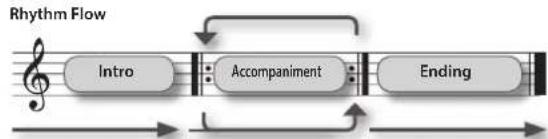
There are two types of rhythms: original accompaniment patterns, and variation accompaniment patterns, which embellish the original patterns.
It can be effective to use the quieter original patterns in the first half of the song, and then use the variation patterns in the latter half, when you want to build excitement.
How to play chords
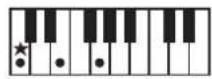
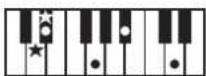
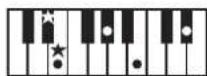
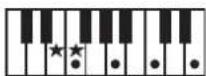
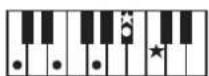
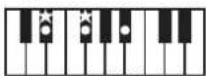
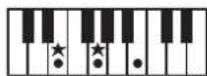
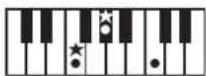
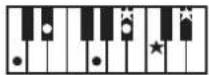
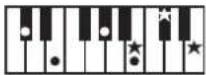
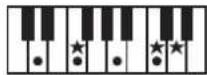
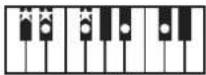
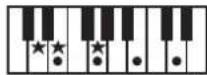
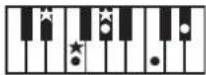
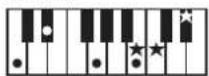
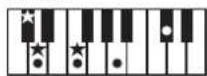
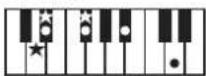
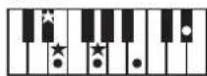
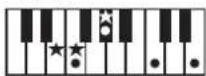
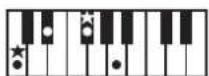
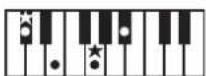
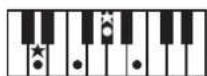
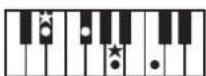
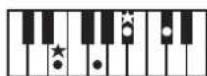
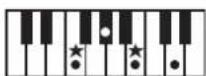
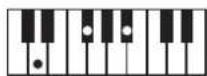
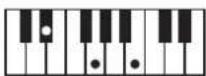
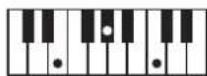
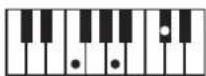
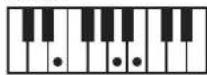
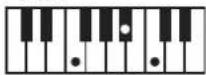
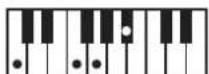
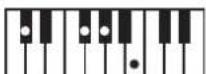
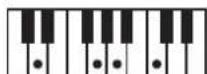
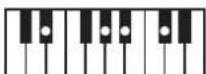
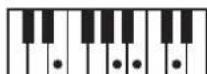
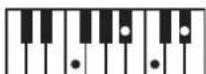
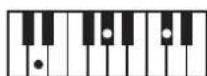
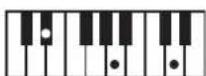
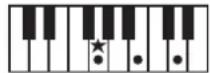
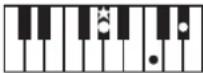
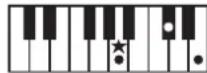
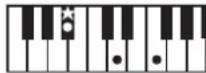
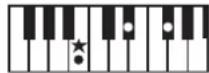
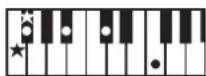
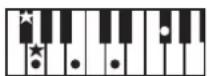
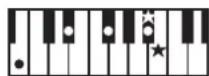
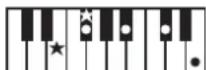
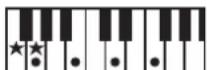
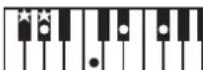
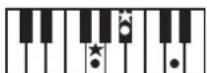
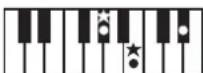
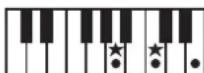
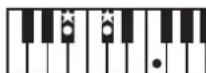
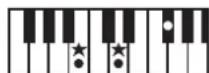
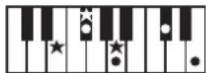
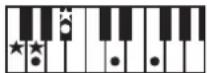
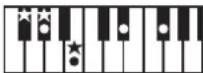
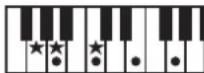
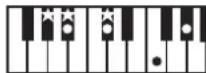
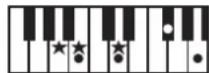
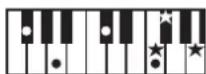
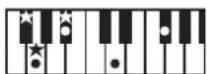
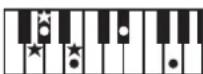
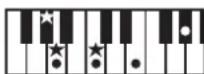
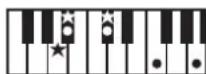
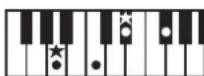
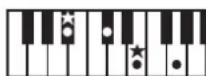
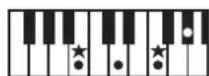
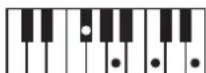
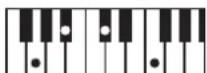
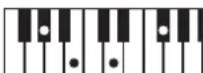
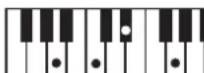
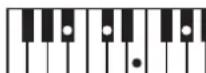
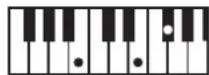
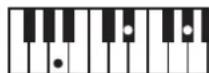
When a chord is played on the keyboard, a rhythm based on the chord that was played is sounded. (When the keys marked with "in the illustration are played, the result is recognized as "C.")
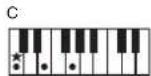
Note that it is not necessary to press all of the constituent notes of the chord; chords can be specified using simple fingering. (When the key marked with "★" in the illustration is played, it is recognized as "C.")
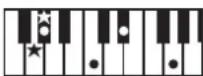
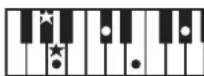
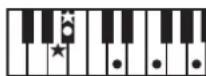
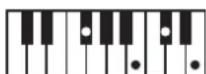
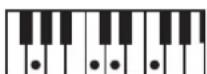
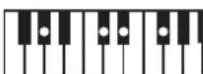
For details, refer to "Chord Recognition When Split Is On" (p. 13), and the "Chord Fingering List" at the rear of this manual.
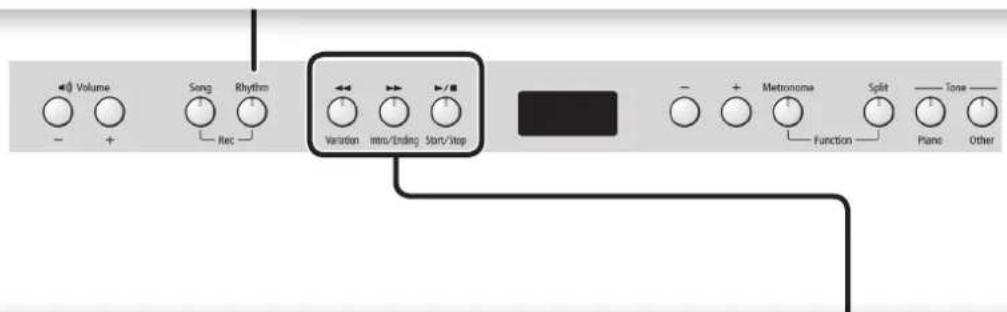
What the [< (Variation)] [> (Intro/Ending)] [> / (Start/Stop)] Buttons Do
| Starting/Stopping the Rhythm | Press the \( \left\lbrack { \rightarrow }\right\rbrack \) (Start/Stop)] button. |
| Adding an Intro | Turn on the [►(Intro/Ending)] button, and then play the rhythm. |
| Adding an Ending | While the rhythm is playing, turn on the \( \left| { \rightarrow }\right| \) (Intro/Ending)] button. An ending is played, and then playback stops. |
| Adding Variation to the Rhythm | Press the [←(Variation)] button. Off \( \rightarrow \) A simple accompaniment pattern is played. On \( \rightarrow \) A more flamboyant accompaniment pattern is played. |
| Inserting a Fill-in When You Switch Variations (Auto Fill) | While holding down the [←(Variation)] button, use the [-] [+] buttons to select "On," and then switch variations. What's a "Fill-In?" A short improvisational phrase inserted at the transition is called a "Fill-In." |
| Starting the Rhythm by Playing a Key (Sync) | Press the [Rhythm] button. The rhythm starts playing when you play the keyboard.  |
Playing Only the Drums or Another Specific Part
- While holding down the [▶/■ (Start/Stop)] buttons, use the [-] [+] buttons to select the mute setting.
Through successive presses of these buttons, you can turn on or off the drums, bass, and other instruments to achieve the desired arrangement of played/muted parts.
Play/mute status indication for the rhythm parts
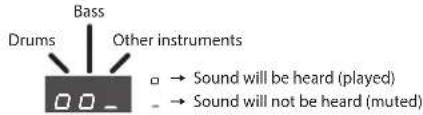
NOTE
For some rhythms, you'll hear other instruments even in the bass part.
Recording Performances

You can record your performance, including accompaniment.
You can play back a recorded performance to check your playing, or to play along with it.
Getting Ready to Record
- Select the tone that you want to play on the keyboard (p. 2).
- Start the metronome if desired.
Press the [Metronome] button.
While the metronome is sounding, specify the tempo and time signature of the song (p. 3).
If you want rhythm to play
- If you want a rhythm accompaniment to be heard while you perform, press the [Rhythm] button.
Specify the rhythm and tempo settings (p. 5).
If you don't want rhythm to play
- Press the [Song] button so the button is lit.
Entering Recording-standby Mode
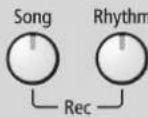
- Hold down the [Song] button and press the [Rhythm] button.
The [Song] button and the [Rhythm] button will light; the unit will enter recording-standby mode.
MEMO
If you decide not to record (i.e., if you want to exit recording-standby mode), hold down the [Song] button once again and press the [Rhythm] button.
Starting Recording
- Press the [▶/■] button.
A two-measure count will sound, and then recording will start.
During the count, measure numbers " - 2" and then " - 1" will appear in the display.
MEMO
Recording will start automatically if you play the keyboard while in recording-standby mode.
Stopping Recording
- Press the [ -] button.
By pressing the [ / ] button once again, you can hear the song that you just recorded.
Selecting the Destination of the Save
- Use the [-] [+] buttons to select the destination at which to save, and then press the [Metronome] button.
U(User)U.D I-U.10
(USB)7.0-7.99
A song with no recorded data (empty song)
Song number shown with lowercase "U" (User memory)
Song number shown with lowercase "n" (USB flash drive)
No dot shown
U.01
A song with recorded data
Song number shown with uppercase "U" (User memory)
Song number shown with uppercase ^ f_i^
(USB flash drive)
Dot shown
MEMO
If you decide not to carry out the save, hold down the [Song] button and press the [Rhythm] button to cancel it.
NOTE
If you select a song that already contains data (song number with an uppercase "U" or "N") and save, the previously recorded data will be lost.
- While the song is being saved, an animation of a rotating "G" symbol will appear in the display for several seconds. Do not turn off the power during this time. Doing so might cause the saved song to be lost.
If you want to erase the recorded song
You can erase a song by recording an empty song as follows.
- Press the [Song] button.
- Hold down the [Song] button and press the [Rhythm] button.
- Press the [/] button to hear the two-measure count, and then press the [/] button without playing the keyboard.
- Select the song number that you want to erase, and press the [Metronome] button.
A song containing no notes will be recorded; the song has been erased.
Playing Songs from a USB Flash Drive (Sold Separately)
Connecting a USB Flash Drive
NOTE
- If the USB flash drive contains a large number of song files, it may take some time for the data to be read.
-
Use only single-byte alphanumeric characters in the file names.
-
Using your computer, copy your favorite songs onto your USB flash drive (sold separately). This digital piano is able to play back SMFs (Standard MIDI Files) or audio files (WAV) from a USB flash drive.
Playable formats
Type Explanation
SMF Standard M|Di files (format 0,1)
WAV WAV format, 44.1 kHz, 16-bit linear
- Connect your USB flash drive to the USB MEMORY port of the digital piano.
Playing Songs
- Press the [Song] button.
- Use the [-] [+] buttons to select a song.

MEMO
- If you've selected an audio file (WAV file), a dot is displayed following the last digit.

The files on the USB flash drive are shown. "T" indicates a USB flash drive. The numbers are assigned automatically. If you later add or delete a file, the numbers will be automatically reassigned.
All files on the USB flash drive begin with "f1."
- If you use the [-] [+] buttons to make the display indicate "U" or "B," files in the digital piano's internal memory are displayed.
- Press the [▶/■] button to play the selected song.
The display shows the measure number of the currently playing SMF. If a WAV file is playing, the elapsed playback time is shown.

(Example: 1 minute 1 second has elapsed)
Lower the Level of an Audio File's Central Sound
This feature lets you reduce the loudness of the central sound of the audio (Center Cancel).
- When a song is selected, hold down the [▶/■] button and use the [-] [+] buttons to turn this feature "□□."
NOTE
This feature does not work perfectly with every song in some cases it may be unable to fully eliminate the central sound, or may alter the recording's tone quality.
About USB Flash Drives
If you're using a newly purchased USB flash drive, you must first format it on the digital piano.
NOTE
- Never insert or remove a USB flash drive while this unit is turned on. Doing so may corrupt the unit's data or the data on the USB flash drives.
- Carefully insert the USB flash drives all the way in—until it is firmly in place.
- Use USB Flash memory sold by Roland. We cannot guarantee operation if other products are used.
Formatting a USB Flash Drive
Here's how to initialize (format) the entire contents saved on a USB flash drive.
NOTE
- Formatting will erase everything that has been saved on the USB flash drive.
- Before using a new USB flash drive with this digital piano for the first time, you must format the USB flash drive.
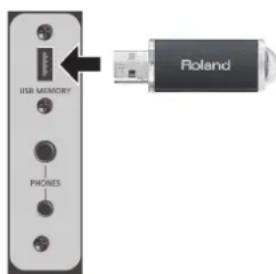
Bottom panel of digital piano
- Connect the USB flash drive that you want to format to the USB MEMORY port.
- While holding down the [Song] button, turn the power on.
Keep holding down the [Song] button until it indicates as "SUR" on the display. To cancel, press the [▶] button.
- To execute the format, press the [> button.
When all the LEDs on the buttons are lit, the operation is complete. - Turn the power off, then on again.
Front Panel
Adjusting the Volume and Balance (Volume Buttons)
Overall Volume
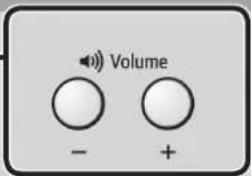
Use the Volume buttons to adjust the volume.
Volume Balance Between Song/Rhythm and the Keyboard (Song Balance)

While holding down the [Song] button or [Rhythm] button, use the Volume buttons to adjust the balance.
Volume of the song - Volume of the manual performance

(Song is louder) (Same volume)
(Manual performance) is louder
Relative Balance of Dual Tones (Dual Balance)

This is available if Dual is on.
While holding down the [Piano] button and [Other] button, use the Volume buttons to adjust the balance.
Volume of the piano sound - Volume of the other sound

(Piano is louder) (Same volume)
(Other is louder)
Relative Balance of Split Tones (Split Balance)

This is available if Split is on. Hold down the [Split] button and use the Volume buttons to adjust the balance.
Left-hand volume - Right-hand volume

(Left-hand is louder)

(Same volume)

(Right-hand is louder)
About the Display
This indicates the tone number, song number, measure number, tempo, selected
| function, or value. | ||||
| Tone number | Piano | I | Song number | Internal song |
| Other | I | C.0 I | ||
| Tempo | 108 | User | ||
| Measure number | I. | USB flash Drive | ||
Rhythm

For details on how to use the other buttons, refer to "Operation Guide" (p. 2)-(p. 7).
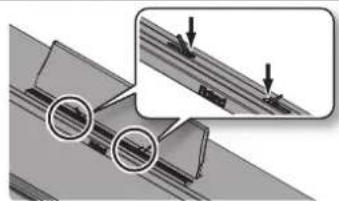
Music Holders (RP401R)
[Switch
This turns the power on/off (p. 11).
With the factory settings, the unit's power will automatically be switched off 30 minutes after you stop playing or operating the unit.
If the unit's power has been turned off automatically, you can use the [C] switch to turn the unit back on again. If you don't want the power to turn off automatically, change the "Auto Off" setting to "OFF" as described on "Making the Power Automatically Turn Off After a Time (Auto Off)" (p. 14).
RP401R
Bottom
Headphone Hook
Whenever you are not using the headphones, you can hang them on the headphone hook.
Rear
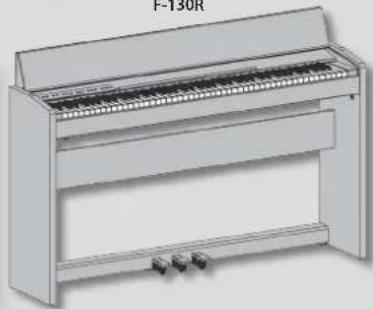
F-130R
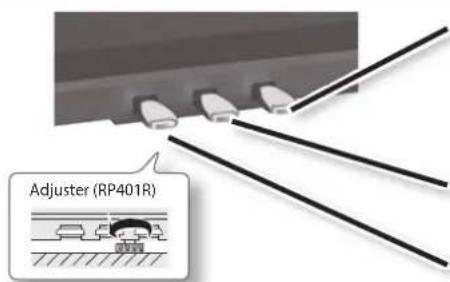
Turn the adjuster to lower it until the adjuster is in firm contact with the floor. In particular, when you've placed the piano on carpet, you must turn the adjuster until it is pressing firmly against the floor.
Damper pedal
Use this pedal to sustain the sound. While this pedal is held down, notes will be sustained for an extended time even if you release your fingers from the keyboard. The length of the sustain will change subtly depending on how deeply you press the pedal. On an acoustic piano, holding down the damper pedal will cause the strings for notes other than the ones you actually play to vibrate in sympathy with what you've played, producing a rich resonance. This unit simulates this sympathetic vibration (damper resonance).
Sostenuto pedal
This pedal sustains only the notes of the keys that were already pressed when you pressed the pedal.
Soft pedal
This pedal is used to make the sound softer. Playing with the soft pedal depressed produces a sound that is not as strong as when otherwise played with the equivalent strength. This is the same function as the left pedal of an acoustic piano. The softness of the tone can be varied subtly by the depth to which you press the pedal.
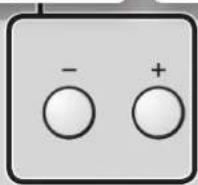
Adjusting a Value (-) [+] Buttons
Use the [-][+] buttons to adjust a value.
Changing a value continuously
Hold down the [+] button or [-] button.
Changing a value rapidly
While holding down the [+] button, press the [-] button to rapidly increase the value.
While holding down the [-] button, press the [+] button to rapidly decrease the value.
Restoring the default value Press the [+] button and [-] button simultaneously.
Disabling the Buttons (Panel Lock)
When you activate Panel Lock, all buttons will be disabled. This prevents the tones or settings from being changed if you inadvertently press a button. Press the [Other] button for a longer than usual amount of time.
Cancelling Panel Lock
Once again, press the [Other] button for a longer than usual amount of time.

Variation

Intro/Ending

Start/Stop

Metronome

Function

Function

Tone

Piano

Other
Rear Panel Connections
Output Jack
If you connect this jack to amplified speakers, the sound of this unit will be heard through them.
Input Jack
If you use a cord with a stereo mini-plug to connect a audio player or similar device, the sound of the connected device will be heard through this unit. Use the controls of the connected device (audio player) to adjust the volume.
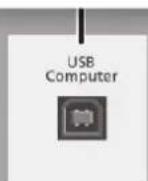
USB Computer Port
By using a commercially available USB cable to connect the USB Computer port of this digital piano to a USB port on your computer, you can produce and edit music using MIDI-compatible software on your computer.
DC In Jack Pedal Connector
Place the AC adaptor so the side with the indicator (see illustration) faces upwards and the side with textual information faces downwards.
The indicator will light when you plug the AC adaptor into an AC outlet.
Connect the pedal cord of the dedicated stand here.
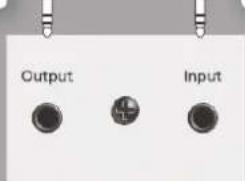
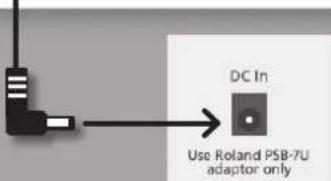
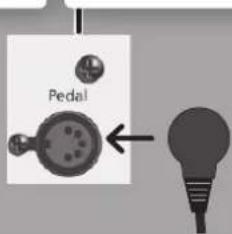
To prevent malfunction and equipment failure, always turn down the volume, and turn off all the units before making any connections.
Bottom Panel (Connecting Headphones or Memory)
PHONES Jacks
Since this unit has two headphones jacks, two people can also use headphones simultaneously.
A Headphones 3D Ambience effect will be applied, producing the sensation that the sound is emanating from the piano itself even when using headphones (p. 12).
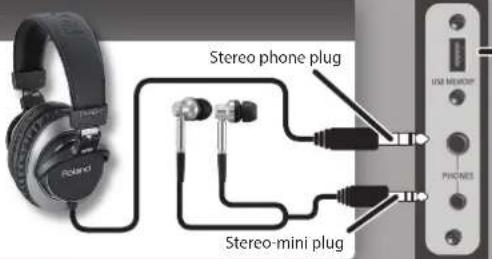
USB MEMORY Port
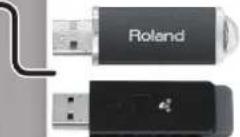
A separately sold USB flash drive or wireless USB adaptor can be connected here (p. 7, p. 15).
Use a USB flash drive or wireless USB adapter sold by Roland.
Opening/Closing the Lid (RP401R)
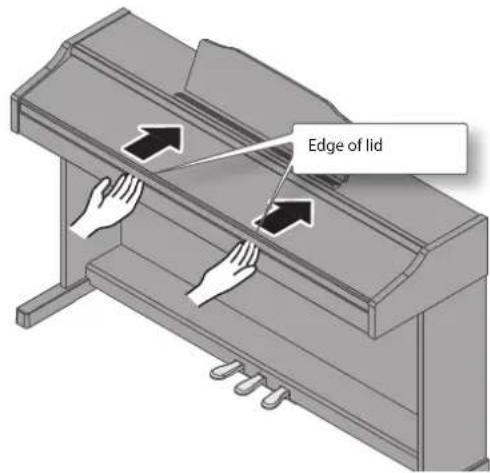
You must use both hands to open or close the lid.
Opening the Lid
- Use both hands to lift the edge of the lid, and push it away from yourself.
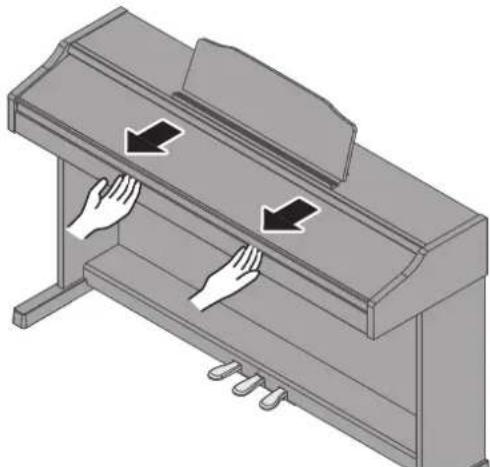
Closing the Lid
- Grasp and gently lower the edge of the lid with both hands.
NOTE
- When opening or closing the lid, please be careful not to get your fingers pinched between the movable part and the panel. In places where small children are present, make sure that an adult provides supervision and guidance.
- If you need to move the piano, make sure the lid is closed first to prevent accidents.
- Do not apply undue force to the music stand while it is in use.
- Do not open the lid while objects (papers or metal items) are resting on the lid. The objects could fall into the piano and become irretrievable.
Opening/Closing the Lid (F-130R)
You must use both hands to open or close the lid.
Opening the Lid
- Use both hands to lift the edge of the lid, and push it away from yourself.
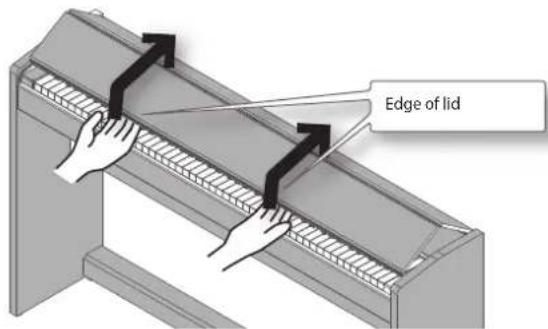
- Push the lid away from yourself until it stops.
Closing the Lid
- Grasp and gently lower the edge of the lid with both hands.
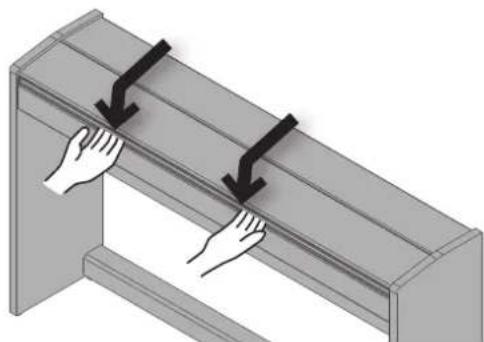
NOTE
- When opening or closing the lid, please be careful not to get your fingers pinched between the movable part and the panel. In places where small children are present, make sure that an adult provides supervision and guidance.
- If you need to move the piano, make sure the lid is closed first to prevent accidents.
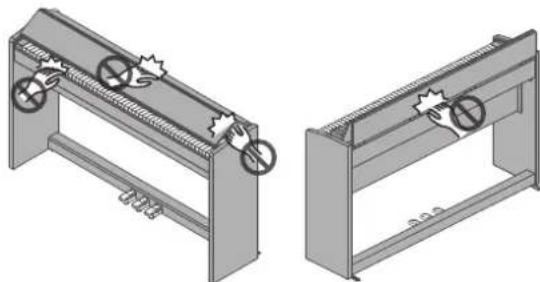
When opening or closing the lid, take care not to pinch your fingers between the folding sections.
It is dangerous to close the lid by pressing it from above, since you risk pinching your fingers between the sections of the lid.
Opening the lid by pushing it may cause this unit to fall over. You must grasp the edge of the lid when opening or closing it.
Turning the Power On/Off
Once everything is properly connected (p. 9), be sure to follow the procedure below to turn on their power. If you turn on equipment in the wrong order, you risk causing malfunction or equipment failure.
Turning the Power On
- Turn the [O] switch ON.
After a brief interval, you'll be able to produce sounds by playing the keyboard.
-
This unit is equipped with a protection circuit. A brief interval (a few seconds) after turning the unit on is required before it will operate normally.
-
Use the Volume buttons to adjust the volume.
The volume increases when you press the Volume [+ button, and decreases when you press the Volume [-] button.
This will adjust the volume of the speakers if you're using the speakers of the unit, or the volume of the headphones if headphones are connected. Each volume setting (for speaker or headphone) is saved automatically.
MEMO
The unit is designed so that nuances in the dynamics of your playing will be clearly heard even at low volume, and that the sound will remain clear even at high volume.
Turning the Power Off
- Turn the [o] switch OFF.
Setting the Reference Pitch
When playing ensemble with other instruments and in other such instances, you can match the standard pitch to another instrument (Master Tuning).

- In "Various Settings (Function Mode)" (p. 12), choose "F07" and then press the [▶/] button.
- Use the [-] [+] buttons to set the reference pitch.
Examples:
| Reference pitch Display | |
| 440.0 Hz (default) | 40.0 |
| 442.0 Hz | 42.0 |
Press the [▶■] button to return to the previous screen.
- If you want to save the setting, carry out the Memory Backup procedure (p. 12).
- Hold down the [Metronome] button and press the [Split] button to exit Function mode.
Basic Operation in Function Mode
- Hold down the [Metronome] button and press the [Split] button.
Function mode is selected.
- Use the [-] [+] buttons to select the function that you want to set, and press the / button to display the setting screen.
- Use the [-] [+] buttons to adjust the setting.
Press the > / 口 button to return to the previous screen.
- Hold down the [Metronome] button and press the [Split] button to exit Function mode.
Memory backup
The settings of this digital piano will return to their default state when you turn off the power. However, you can save the settings so they will remain unchanged even after the power has been turned off, then on again.
The settings of items marked with the "M" symbol in this operating manual can be saved by using the Memory Backup function.
- In Function mode, choose "F / G" (Memory Backup) and press the [▶■] button.
Function settings
| Display Value | Explanation | |
| F01 | F(Fixed), L2(Super Light), L1(Light), Ω(Medium), H1(Heavy), H2(Super Heavy) | Adjusting the Keyboard Sensitivity (Key Touch) M |
| Here's how to change the way in which the sound responds to your keyboard dynamics. You can adjust the response as appropriate for your playing strength. | ||
| F02 | I(Pair), Ω(Separate) | Changing the Way in Which the Sound Is Heard (Twin Piano Mode) M |
| This setting specifies how the sound will be heard when Twin Piano is on. page 3 | ||
| F03 | OFF, Ωn | Dividing the Keyboard for Two-Person Performance (Twin Piano) |
| This setting turns Twin Piano on/off. page 3 | ||
| F04 | I(Keyboard & Song), Ω(Keyboard), (Song) | Specifying What the Transpose Will Affect (Transpose Mode) M |
| This setting specifies what the transpose will affect. You can use the transpose to change the pitch of both the song and the keyboard, only the pitch of the song, or only the pitch of the keyboard. | ||
| F05 | -6-0-5 [semitone] | Transposing the Keyboard or Song (Transpose) |
| Here you can specify the transposition value. For example, if the song is written in E major but you want to play it using the fingering of the key of C major, you would set Transpose to "4." | ||
| If you play CEG→It will sound EG#B | ||
| * If this is set to "G," the Transpose function will be off. | ||
| F06 | OFF, Ωn | Applying a Headphones 3D Ambience Effect to the Piano Sound M (Headphones 3D Ambience) |
| You can apply a Headphones 3D Ambience effect which produces the sensation that the sound is emanating from the piano itself even when using headphones. * The Headphones 3D Ambience effect applies only to piano tones; it does not apply to other tones. On→Headphones 3D Ambience is on. Off→Headphones 3D Ambience is off. | ||
| F07 | 15,3(415.3)-4ΩΩ(440.0)-65,2(466.2) [Hz] | Matching the Pitch with Other Instruments (Master Tuning) M |
| This setting specifies the reference pitch for this piano (the pitch of middle A). page 11 |
| Display Value | Explanation | ||
| F08 | 1,2 | Changing the Tuning Method (Stretch Tuning) M This setting changes the type of stretch tuning, a tuning method that is used specifically for pianos, in which the high notes are tuned slightly sharper and the low notes are tuned slightly flatter. Normally, you should use the "1" setting (standard tuning curve). | |
| F09 | 1 (Sostenuto, Soft), 2 (Start/Stop), 3 (Intro/Ending), 4 (Variation), 5 (Fill-in), 6 (Leading Bass) | Changing How the Pedals Work Here you can assign the functions of the center pedal (F09) and left pedal (F10). 1 → Sostenuto pedal (F09), soft pedal (F10) 2 → Same function as the [→■ (Start/Stop)] button 3 → Intro/Ending function on/off (same function as the [→ (Intro/Ending)] button) 4 → Variation on/off (same function as the [← (Variation)] button) 5 → Fill-in 6 → Leading Bass function on/off | |
| F11 | OFF,On | Specifying How the Bass Part Behaves (Leading Bass) M The function that sounds the lowest note of a fingered chord as the bass tone is called "Leading Bass." Off → The bass part of the rhythm plays the root of the chord. For example, if you play the chord E-G-C (C major), the note C is sounded as the bass. On → The bass part plays the lowest note of the chord you play. If you play the chord E-G-C (C major), the note E is sounded as the bass. The Leading Bass feature is always on while Split is off. | |
| F12 | 1 (Intelligent), 2 (Standard) | Chord Recognition When Split Is On M Sets how the unit recognizes rhythm chords while Split function (p. 2) is on. Intelligent → Plays chords even when basic chord tones are missing, allowing you to generate chords with very simple keyboard playing. For details on how to play chords, refer to "Chord Fingering List" at the end of this manual. Standard → Normal chord recognition. | |
| F13 | OFF,On | Preventing Doubled Notes When Connected to a Sequencer (Local Control) If a software synthesizer is connected to USB MIDI, turn this item "OFF." Since most software synthesizer have their Thru function turned on, notes you play on the keyboard may be sounded in duplicate, or get dropped. To prevent this, you can enable the "Local Off" setting so that the keyboard and internal sound generator will be disconnected. | USB MIDI Sound Generator USB MIDI In Out Computer |
| F14 | U.O F-U, I.O (USER 01-10) | Copying a Song (Copy Song) | |
| U.O F-U,99 (USB 01-99) | A song that you recorded on this unit can be copied to a USB flash drive. The copy-source song number is displayed; use the [ ] [+] buttons to select the desired number, and press the [▶■] button to confirm it. The copy destination song number is displayed; use the [ ] [+] buttons to select the desired number, and press the [▶■] button to confirm it. | ||
| F15 | None | Connecting to a Wireless LAN (WPS Connection) | |
| This lets you establish a WPS connection. The display indicates "S.U.R"; press the [▶] (cancel) button or the [▶■] (execute) button to cancel or connect. | |||
| F16 | None | Connecting to a Wireless LAN (Ad-Hoc Connection) | |
| This lets you establish an ad-hoc connection. The display indicates "S.U.R"; press the [▶] (cancel) button or the [▶■] (execute) button to cancel or connect. | |||
| F17 | 000-999 | Viewing the Ad-Hoc Key | |
| Of the five-digit ad-hoc key, the lower three digits are shown (the upper two digits are 00), page 15 |
| Display Value | Explanation | |
| F18 | OFF, 10, 30, 240 [min.] | Making the Power Automatically Turn Off After a Time (Auto Off)This specifies the auto-off setting.The remaining time blinks before the power turns off. When there is less than one minute remaining, the countdown will be in seconds.* This setting is saved automatically when you change it. |
| F19 | None | Saving the Settings (Memory Backup)The settings of this digital piano will return to their default state when you turn off the power. However, you can save the settings so they will remain unchanged even after the power has been turned off, then on again.The display indicates "S____"; press the [▶] (cancel) button or the [▶■] (execute) button to cancel or execute. |

Restoring the Factory Settings (Factory Reset)
The settings you've changed in Function mode can be restored to their factory-set condition. This operation is called "Factory Reset."
NOTE
The "Factory Reset" operation will erase all settings stored by the Memory Backup function, as well as all songs you've recorded in internal memory.
1. While holding down the [Metronome] button and the [Split] button, turn on the power.
Keep holding down the buttons until it indicates as "SUR" on the display.
To cancel, press the [▶] button.
2. To execute the Factory Reset, press the [▶■] button.
When the Factory Reset has been completed, the display will indicate "End."
- Never turn off the power before the display indicates "End."
3. Press the [O] switch to turn the power off, then on again.
![ROLAND RP401R - Press the [O] switch to turn the power off, then on again. - 1](/content/2026/03/445470/images/32534ca9d0eb3054ea66bc78440a6c204f914e25dd186e79929825ed9cef849c.jpg)
Specifying the Maximum Volume (Volume Limit)
You can specify the maximum Volume setting. This will prevent undesirably high volumes even if the volume buttons are operated unintentionally.

1. Hold down the Volume [-] button and the Volume [+] button, and press the [-] [+] buttons to adjust the value.
Value 20,40,60,80100
MEMO
This setting is saved automatically when you change it.

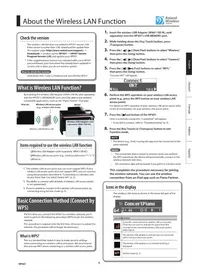
About the Wireless LAN Function
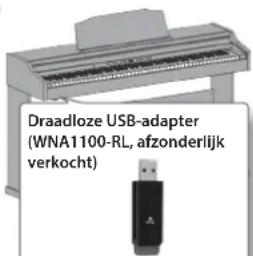
By inserting the wireless USB Adapter (WNA1100-RL; sold separately) into this unit's USB MEMORY port, you'll be able to use wireless-compatible applications (iOS apps such as the "Piano Partner").
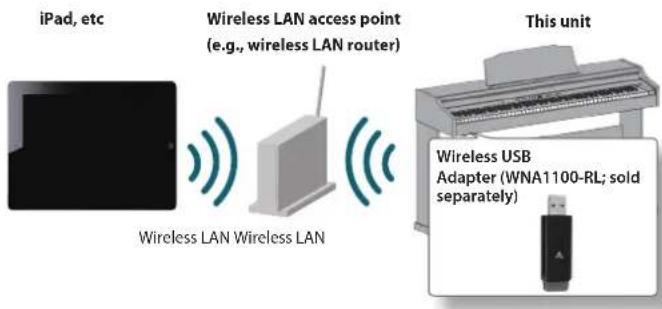
Items required to use the wireless LAN function
Wireless USB Adapter (sold separately: WNA1100-RL) 3
Wireless LAN access point (e.g., wireless LAN router) 1*2
□iPad,etc
1 The wireless LAN access point you use must support WPS. If you're unable to connect to the wireless LAN access point, try connecting using Ad-Hoc mode.
2 The ability to connect with all kinds of wireless LAN access points is not guaranteed.
*3 In some countries, the Wireless USB Adapter is not sold due to regulations concerning radio-frequency equipment. For information on whether the Wireless USB Adapter can be used in your country, please contact the nearest Roland Service Center, or an authorized Roland distributor, as listed on the "Information" page.
Basic Connection Method (Connect by WPS)
The first time you connect this unit to a new wireless network, you'll need to perform the following procedure (WPS) to join the wireless network.
This procedure is required only the first time. (Once you've joined the network, this procedure will no longer be necessary.)
What is WPS?
This is a standard that makes it easy to make security settings when connecting to a wireless LAN access point. We recommend that you use WPS when connecting to a wireless LAN access point.
- In Function mode ([Metronome] + [Split] button), choose "F / S" and press the [▶/■] button (p. 12).
- Press the [ / ] button once again to execute.
If you decide to cancel, press the [▶] button.
- Perform the WPS operation on your wireless LAN access point (e.g., press the WPS button on your wireless LAN access point).
For details on WPS operation of your wireless LAN access point, refer to the owner's manual for your wireless LAN access point.
You can use the wireless connection from an iOS app such as "Piano Partner." Choose "RP401R or F-130R" in the instrument select screen of your iOS app.
NOTE
The device (e.g., iPad) running the app must be connected to the same network.
MEMO
- The connection data is stored in memory when you perform the WPS procedure; the device will automatically connect to the wireless network from the next time.
- All connection data will be erased if you perform a factory reset.
Connecting in Ad-Hoc Mode
What is Ad-Hoc mode?
Ad-Hoc mode lets you connect this unit directly to an iPad or other wireless device without using a wireless LAN access point. This is a convenient way to use this unit with an iPad or other wireless device if you're in a location where the wireless LAN access point you normally use is unavailable, such as when you're away from home.
Limitations
The iPad or other wireless device connected in Ad-Hoc mode will be unable to communicate with the Internet or with another wireless device. However, an iPad or other wireless device that has cellular capability will be able to connect to the Internet via the cellular connection. Please be aware that if you use a cellular connection for Internet connectivity, you may incur costs depending on your rate plan.
- In Function mode ([Metronome] + [Split] button), choose "F 口 G " and press the [ / ] button (p. 12).
- Press the [▶■] button once again to execute. If you decide to cancel, press the [▶■] button.
- In Function mode ([Metronome] + [Split] button), choose "F | 7" and press the [▶/■] button (p. 12). Of the five-digit ad-hoc key, the lower three digits are shown.
555
If the display were to show the indication depicted in this illustration, you would add "00" as the upper two digits, and enter "00555" as the ad-hoc key.
- On the iPad or other wireless device to which you're connecting, select the ad-hoc SSID shown in the screen above to establish the connection.
Example: On an iPad, use [Settings] [Wi-Fi] [Choose Network] and select the ad-hoc SSID (RP401R or F-130R). A password entry screen appears; enter the ad-hoc key listed above.
For details on how to connect to a wireless LAN from an iPad or other device, refer to the owner's manual of that device.
5. When you want to end the Ad-Hoc mode connection, restore the iPad settings in [Settings] [Wi-Fi] [Choose a Network] to their previous state.
| Problem Cause/Action | |
| Even though you're using headphones and the sound is muted, a thumping sound is heard when you play the keyboard | This unit uses a hammer action keyboard in order to simulate an acoustic piano's playing touch as realistically as possible. For this reason, you'll hear the hammers thump when you play the keyboard, just as you would when playing an acoustic piano. Since this unit allows you to adjust its volume, you might notice the sound of the hammers in certain situations, but this does not indicate a malfunction. If vibration transmitted to the floor or walls is a concern, you may be able to minimize the vibration by moving the piano away from the wall, or by laying down a commercially available anti-vibration mat designed for use with pianos. |
| Power turns off on its own | When 30 minutes have elapsed since you last played or operated this unit, the power will turn off automatically. (This is the factory setting.) If you don't need the power to turn off automatically, turn the "Auto Off" setting off (p. 14). |
| Power does not turn on | Is the AC adaptor connected correctly? (p. 9) |
| Pedal does not work, or is "stuck" | Is the pedal connected correctly? Plug the cord firmly into the pedal connector (p. 9). |
| If you disconnect the pedal cord from the unit while the power is on, the pedal effect may remain "stuck" in the On condition. You must power-off the unit before connecting or disconnecting the pedal cord. | |
| Could Twin Piano be turned on? If Twin Piano is on, the right pedal will affect only the right-hand keyboard zone and the left pedal will affect only the left-hand keyboard zone (p. 3). | |
| Insufficient volume | Could the volume limit setting have lowered the maximum volume? The volume can't be louder than the specified volume limit. Change the volume limit setting (p. 14). |
| The volume level of the instrument connected to Input jack is too low | Could you be using a connection cable that contains a resistor? Use a connection cable that does not contain a resistor. |
| No sound/No sound when you play back a song | Could the unit's volume or the volume of the connected equipment be turned down? |
| Could headphones be connected? Could there be a plug inserted in a headphone jack? The speakers will not produce sound if headphones or plug are connected to the headphone jacks (p. 9). | |
| Has Local Control been set to "Off"? When Local Control is set to Off, no sound is produced on the keyboard. Set Local Control to On (p. 13). | |
| Not all the notes you play are sounded | The maximum simultaneous polyphony is 128 voices. If you're using the Dual tone (p. 2), if you're playing along with a song, or if you're making extensive use of the damper pedal, the performance data may exceed the available polyphony, possibly causing some of the notes you play to drop out. |
| Pitch of the keyboard or song is incorrect | Could you have made Transpose settings? (p. 12) |
| Is the Master Tune setting appropriate? (p. 11) | |
| The notes of a piano are tuned using a unique method (stretched tuning), which makes upper-range notes slightly higher in pitch, and lower-range notes slightly lower in pitch. For this reason, you might perceive the pitch as being incorrect, but this is the way an acoustic piano should sound. | |
| Sounds are heard twice (doubled) when the keyboard is played | Could you have selected a dual tone? (p. 2) |
| When this unit is connected to an external sequencer, set the Local Control to off. Alternatively, the sequencer could be set so its Soft Thru feature is Off (p. 13). | |
| Reverberation remains even though you've turned off the Ambience effect | The piano sounds of this digital piano faithfully simulate the sense of depth and resonance of an acoustic piano. For this reason, it may seem as though there is some reverberation even when the Ambience effect is turned off. |
| The sound of the higher notes suddenly changes from a certain key | On an acoustic piano, the approximately one and a half octaves of notes at the upper end of the keyboard will continue sounding regardless of the damper pedal. These notes also have a somewhat different tonal character. This unit faithfully simulate this characteristic of acoustic pianos. On this unit, the range that is unaffected by the damper pedal will change according to the transpose setting. |
| Problem Cause/Action | |
| High-pitched ringing is heard | If.you.hear.this.in/headphones: Piano sounds that have a brilliant and crisp character contain substan- tial high-frequency components that may sound as though a metallic ringing has been added. This is because the characteristics of an actual piano are being faithfully reproduced, and is not a malfunction. This ringing is more obtrusive if the ambience effect is applied heavily, so you may be able to minimize it by decreasing the ambience. |
| If.you.don't.hear.this.in/headphones: It is likely that there is some other reason (such as resonances within the unit). Please contact your dealer, the nearest Roland Service Center, or an authorized Roland distributor, as listed on the "Information." | |
| Sound wrong, or are buzzy | If you set the volume to the maximum setting, the sound may be distorted depending on how you perform. If this occurs, turn down the volume. |
| If.you.don't.hear.this.in/headphones: Performing at high volumes may cause the speakers or objects near the unit to resonate. Fluorescent lights or glass doors may also resonate sympathetically. In particular, this is more likely to occur for lower notes and higher volumes. You can take the following measures to minimize resonances. ·Locate this unit 10-15 cm (4-6 inch) away from walls or other surfaces. ·Keep the volume down. ·Move away from the objects that are resonating. | |
| If.you.hear.this.in/headphones: It is likely that there is some other reason. Please contact your dealer, the nearest Roland Service Center, or an authorized Roland distributor, as listed on the "Information." | |
When Using the Wireless LAN Function
| Problem Cause/Action | |
| Can't connect to a wireless LAN access point | Make sure that your wireless LAN access point supports WPS. If your wireless LAN access point does not support WPS, you can connect using the procedure described in "Connecting in Ad-Hoc Mode" (p. 15). |
| The 802.11a/b wireless standard is not supported. Please use the 802.11g/n (2.4 GHz) wireless standard. | |
| The WEP authentication method is not supported. Please use the WPA or WPA2 authentication method. | |
| Make sure that DHCP is enabled for your wireless LAN access point. | |
| The connection might not occur successfully due to the state of the radio signal. If so, use the procedure described in "Basic Connection Method (Connect by WPS)" (p. 15), and reconnect your wireless LAN access point. | |
| There is a limit to the connection data that can be remembered. Making a new connection may cause older connection data to be deleted.All connection data will be deleted if you execute a factory reset. If the connection data has been deleted, please re-connect to the wireless LAN access point. | |
| Communication is unstable | Communication may be unstable depending on the usage of the radio frequency spectrum.If communication is unstable, the response may be sluggish, or if using audio communication, there may be dropouts in the audio.The following actions may improve the situation:- Move the wireless LAN access point and this unit closer to each other.- Change the channel setting of the wireless LAN access point. |
| The unit is not found in the instrument connections of the iOS app(such as "Piano Partner") | Is the unit turned on? |
| Is the wireless USB adapter (WNA1100-RL) inserted to the unit? | |
| Is the unit connected to the wireless LAN? | |
| Are the unit and the iPad connected to the same network (the same wireless LAN access point)? | |
| Is the wireless LAN access point set to allow communication between wireless LAN devices?For details on settings, refer to the owner's manual of your wireless LAN access point. | |
| Indication Meaning | |
| E.01 The music file you attempted to save is read-only. It cannot be saved. | |
| E.02 An error occurred while writing. It may be that the protect tab of the external media is in the "Protect (write prohibit)" position, or that the external media has not been formatted. | |
| E.10 No USB flash drive connected. Connect a USB flash drive and try the operation again. | |
| E.11 There is insufficient free space at the save destination. Either connect a different USB flash drive, or delete unwanted data (song data) and try the operation again. | |
| E.14 An error occurred while reading. The USB flash drive may be damaged. Connect a different USB flash drive and try the operation again. You may also format the USB flash drive (p. 7). | |
| E.15 The file could not be read. The data format is not compatible with the unit. | |
| E.16 The data could not be read fast enough during song playback. After waiting several seconds, you may be able to play back the song by pressing the [▶■] button once again. | |
| E.18 This audio format is not supported. Please use WAV format, 44.1 kHz, 16-bit linear audio files. | |
| E.30 The unit's internal memory is full. | |
| E.40 The unit cannot deal with the excessive MIDI data sent from the external USB MIDI. Reduce the amount of MIDI data sent to the unit. | |
| E.46 The access point is not supported. Please use WPA or WPA2 authentica-tion. | |
| E.51 There may be a problem with the system. Repeat the procedure from the beginning. If it is not solved after you have tried a number of times, contact the Roland service center. | |
| E.65 The USB flash drive connector was subjected to excessive current. Make sure that there is no problem with the external media, then turn the power off, then on again. | |
| - - - The Panel Lock function is on (p. 9). | |
| PU When playing back a song, this is shown if the song starts on an upbeat. | |
| Blinking number When the Auto Off function is activated, the remaining time blinks before the power turns off. | |
WARNING WARNING

To completely turn off power to the unit, pull out the plug from the outlet
Even with the power switch turned off, this unit is not completely separated from its main source of power. When the power needs to be completely turned off, turn on switch on the unit, then pull from the outlet. For this reason into which you choose to co-power cord's plug should be within easy reach and readily

Concerning the Auto Off function
The power to this unit will be turned off automatically after a predetermined amount of time has passed since it was last used for playing music, or its buttons or controls were of Off function). If you do not want to be turned off automatically the Auto Off function (p. 14).
Use only the supplied AC adaptor and the correct voltage
Be sure to use only the AC adaptor supplied with the unit. Also, make sure the line voltage at the installation matches the input voltage specified on the AC adaptor's body. Other AC

adaptors may use a different polarity, or be designed for a different voltage, so their use could result in damage, malfunction, or electric shock.
Use only the supplied power cord
Use only the attached power cord. Also, the supplied power cord must not be used with any other device.

CAUTION
Disconnect the power plug whenever the unit will not be used for an extended period of time
Fire may result in the unlikely event that a breakdown occurs.

CAUTION CAUTION

Cautions when moving this unit
If you need to move the instrument, take note of the precautions listed below. At least two persons are required to safely lift and move the unit. It should be handled carefully,

all the while keeping it level. Make sure to have a firm grip, to protect yourself from injury and the instrument from damage.
Keep small items out of the reach of children
To prevent accidental ingestion of the parts listed below, always keep them out of the reach of small children.

Included Parts/Removable Parts Screws
- Check to make sure the screws securing the unit to the stand (RP401R) or the side boards (F-130R) have not become loose. Fasten them again securely whenever you notice any loosening.
- Disconnect the power cord.
- Disconnect all cords coming from external devices.
- Raise the adjusters on the stand (RP401R).
Close the lid. - Remove the music stand (RP401R).
Take care not to get burned
The area shown in the illustration may become hot, so take care to avoid burns.

RP401R
F-130R

IMPORTANT NOTES
Placement
- Do not expose the unit to direct sunlight, place it near devices that radiate heat, leave it inside an enclosed vehicle, or otherwise subject it to temperature extremes. Also, do not allow lighting devices that normally are used while their light source is very close to the unit (such as a piano light), or powerful spotlights to shine upon the same area of the unit for extended periods of time. Excessive heat can deform or discolor the unit.
- Do not allow objects to remain on top of the keyboard. This can be the cause of malfunction, such as keys ceasing to produce sound.
Depending on the material and temperature of the surface on which you place the unit, its rubber feet may discolor or mar the surface.
You can place a piece of felt or cloth under the rubber feet to prevent this from happening. If you do so, please make sure that the unit will not slip or move accidentally (F-130R).
Maintenance
To clean the unit, use a dry, soft cloth; or one that is slightly dampened. Try to wipe the entire surface using an equal amount of strength, moving the cloth along with the grain of the wood. Rubbing too hard in the same area can damage the finish.
Repairs and Data
Before sending the unit away for repairs, be sure to make a backup of the data stored within it; or you may prefer to write down the needed information. Although we will do our utmost to preserve the data stored in your unit when we carry out repairs, in some cases, such as when the memory section is physically damaged, restoration of the stored content may be impossible. Roland assumes no liability concerning the restoration of any stored content that has been lost.
Additional Precautions
- Any data stored within the unit can be lost as the result of equipment failure, incorrect operation, etc. To protect yourself against the irretrievable loss of data, try to make a habit of creating regular backups of the data you've stored in the unit.
- Roland assumes no liability concerning the restoration of any stored content that has been lost.
- Never strike or apply strong pressure to the display.
The sound of keys being struck and vibrations produced by playing an instrument can be transmitted through a floor or wall to an unexpected extent. Please take care not to cause annoyance to others nearby. - Do not apply undue force to the music stand while it is in use (RP401R).
- When opening or closing the lid, please be careful not to get your fingers pinched between the movable part and the panel. In places where small children are present, make sure that an adult provides supervision and guidance.
- Do not hang anything other than headphones on the headphone hook.
Do not apply undue force to the hook. Otherwise, you risk damaging the hook.
Using External Memories
- Please observe the following precautions when handling external memory devices. Also, make sure to carefully observe all the precautions that were supplied with the external memory device.
- Do not remove the device while reading/writing is in progress.
To prevent damage from static electricity, discharge all static electricity from your person before handling the device.
Intellectual Property Right
It is forbidden by law to make an audio recording, video recording, copy or revision of a third party's copyrighted work (musical work, video work, broadcast, live performance, or other work), whether in whole or in part, and distribute, sell, lease, perform, or broadcast it without the permission of the copyright owner.
- Do not use this product for purposes that could infringe on a copyright held by a third party. We assume no responsibility whatsoever with regard to any infringements of third-party copyrights arising through your use of this product.
The copyright of content in this product (the sound waveform data, style data, accompaniment patterns, phrase data, audio loops and image data) is reserved by Roland Corporation.
- Purchasers of this product are permitted to utilize said content (except song data such as Demo Songs) for the creating, performing, recording and distributing original musical works.
- Purchasers of this product are NOT permitted to extract said content in original or modified form, for the purpose of distributing recorded medium of said content or making them available on a computer network.
XGlite (Xg) is a registered trademark or a trademark of Yamaha Corporation.
- Roland, SuperNATURAL and GS are either registered trademarks or trademarks of Roland Corporation in the United States and/or other countries.
- Apple, iPad are either registered trademarks or trademarks of Apple Inc.
Contents
Bedieren des Instrumentes 2
Spieleng. 2
Piano-Klang (Headphones 3D Ambience) 12
WAV WAV Format, 44.1 kHz, 16-bit linear
Wert 20,40,60,80,100
HINWEIS
Tastaturdeckel (S.10)
Pedale (S.8)

Selection de sons (boutons [Piano] [Other])
Action des boutons [< (Variation)] [▶ (Intro/Ending)] [▶/■ (Start/Stop)]
Balance relative des sons doubles (Dual Balance)
Coperchio (p.10)
Pedali (p.8)
Conector DC In Conector de
Valor 20,40,60,80,100
RECUERDE
Gravar performances. 6
Sobrepor bois sons (Dual Play)
Conectar um pen drive USB
OBSERVACAO
Sobre pen drives USB
Valor 20,40,60,80/100
NOTA
instrumento,observe as
maintenance never as mesmasforadecrance de crplancs.
pequenas.
A Roland is an assume qualyer
responsabilitadede relativa a restaurant de
Wat de knoppen [<-(Variation)] [>-(Intro/Ending)] [>-(Start/Stop)] doe
(Linkerhand is luider)
(Gelijk volume)
(Rechterhand is luider)
Over de display
Wireless LAN Wireless LAN
Basisverbindingsmethode (Verbinding makes via WPS)
WAARSCHUWING WAARSCHUWING
| No. Name | No. Name | No. Name | No. Name | ||||
| 1 | Concert Piano | 4 | Magical Piano | 7 | Piano + Choir | 10 | Harpsichord |
| 2 | Ballade Piano | 5 | Piano + Strings | 8 | Rock Piano | 11 | Coupled Harpsichord |
| 3 | Bright Piano | 6 | Piano + Pad | 9 | Ragtime Piano | ||
[Other] button
| No. Name | No. Name | No. Name | No. Name | No. Name |
| 1 | Trem. TineEP | 12 | Mallet Isle | 23 Ballad Organ |
| 2 | Pop E.Piano | 13 | Morning Lite | 24 Full Stops |
| 3 | Tine EP | 14 | SymphonicStr | 25 Mellow Bars |
| 4 | FM E.Piano | 15 | Rich Strings | 26 Accordion |
| 5 | Bright FM EP | 16 | OrchestraStr | 27 Aerial Choir |
| 6 | Vib. ReedEP | 17 | DecayStrings | 28 Jazz Scat |
| 7 | Clav. | 18 | Harp | 29 Female Aahs |
| 8 | PhaserTineEP | 19 | PizzicatoStr | 30 Male Aahs |
| 9 | Vibraphone | 20 | ChurchOrgan1 | 31 Decay Choir |
| 10 | Marimba | 21 | ChurchOrgan2 | 32 Thum Voice |
| 11 | Celesta | 22 | Combo Jz.Org | 33 Soft Pad |

Rhythm List
| Genre No. | Name | |
| Pop | 1-1 | Gold Medium Beat |
| 1-2 | Frank's Way | |
| 1-3 | Gold Slow Beat | |
| 1-4 | Gold Beat | |
| 1-5 | Jessie Beat | |
| 1-6 | US Shuffle | |
| 1-7 | Strummin' Pop | |
| 1-8 | Unplugged Pop | |
| 1-9 | Amazing Gospel | |
| Ballad Rock | 2-1 | Easy Ballad |
| 2-2 | Acoustic Ballad | |
| 2-3 | Love Slow Rock | |
| 2-4 | Unplugged Ballad | |
| 2-5 | Spring Rock | |
| 2-6 | Joe's Rock | |
| 2-7 | Breaky Rock | |
| Disco | 3-1 | Seventies |
| 3-2 | Jamiro Dance |
| Genre No. | Name | |
| Disco | 3-3 | Gold disco |
| 3-4 | Survive disco | |
| 3-5 | Hitmix | |
| 3-6 | Club House | |
| 3-7 | Baby Beat | |
| 3-8 | Breath Rap | |
| 3-9 | Now Hip Hop | |
| Jazz Blues | 4-1 | Gold Swing |
| 4-2 | Midnight Slow Swing | |
| 4-3 | Big Band Medium | |
| 4-4 | Slow Jazz Waltz | |
| 4-5 | Cool Soul | |
| 4-6 | Cool Blues | |
| 4-7 | Go! Rock'N | |
| 4-8 | Blue Boogie | |
| 4-9 | Rock'N Slow | |
| Ball Room | 5-1 | It Valzer |
| 5-2 | Gold Wien Waltz |
| Genre No. | Name | |
| Ball Room | 5-3 | Gold Slow Waltz |
| 5-4 | Polka disco | |
| 5-5 | Gold Tango | |
| 5-6 | Gold Foxtrot | |
| 5-7 | Quick Step | |
| 5-8 | Go! Twist | |
| Latin | 6-1 | Gold Rhumba |
| 6-2 | Beguine | |
| 6-3 | Gold Cha Cha | |
| 6-4 | That's Mambo | |
| 6-5 | Cuba Salsa | |
| 6-6 | Acoustic Samba | |
| 6-7 | Jazz Bossa | |
| 6-8 | Fast Bossa | |
| 6-9 | Samba | |
| Tradit World | 7-1 | Pop Reggae |
| 7-2 | Love Reggae | |
| 7-3 | Gospel Shuffle | |
| 7-4 | Ska |
| Genre No. | Name | |
| Tradit World | 7-5 | German Polka |
| 7-6 | German Waltz | |
| 7-7 | 6_8 March | |
| 7-8 | US March | |
| 7-9 | Orchestral Waltz | |
| Country | 8-1 | Country Rock |
| 8-2 | Country Flyer | |
| 8-3 | Southern Twang | |
| 8-4 | Country Ballad | |
| 8-5 | Country Beat | |
| 8-6 | Country Pop | |
| Pianist | 9-1 | P. Arpeggio |
| 9-2 | P. Pop | |
| 9-3 | P. Classic Polka | |
| 9-4 | P. Waltz | |
| 9-5 | P. Boogie | |
| 9-6 | P. Ragtime |

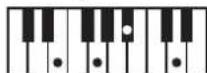
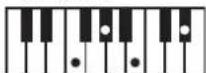
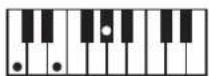
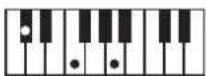
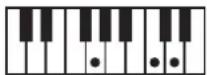
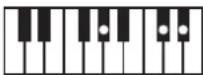
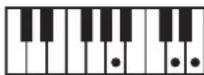
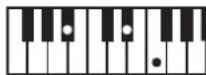
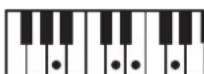
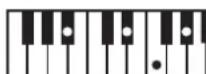
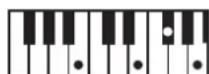
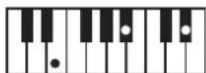
Chord Fingering List
CC#DE EF
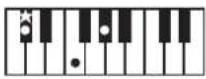
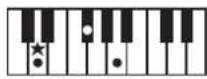
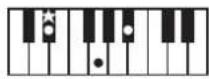
6
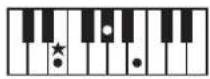
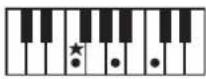
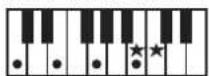
CM7 C#M7 DM7 E M7 EM7 FM7
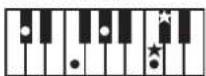
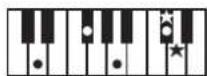
b
C7 C#7 D7 E 7 E7 F7
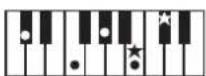
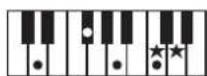
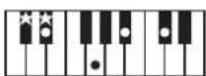
b
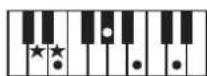
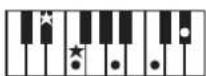
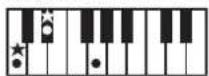
Cm C#m Dm E m Em Fm
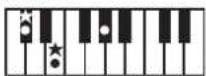
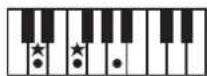
b
Cm7 C#m7 Dm7 E m7 Em7 Fm7
b
CmM7

C#mM7
DmM7
EbmM7
EmM7
FmM7
Cdim C#dim Ddim E dim Edim Fdim
b
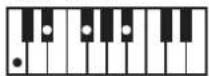
Cm7(b5)
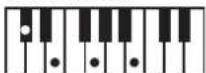
C#m7(b5)
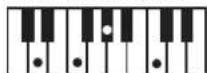
Dm7(b5)Em7(5Ebm7(b5)
Ebm7(b5)
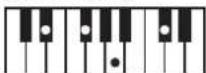
b
Fm7 (b5)
Caug
C#aug
Daug
Ebaug
Eaug
Faug
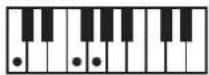
Csus4
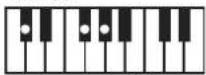
C#sus4
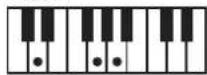
Dsus4
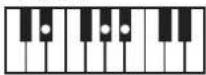
Ebsus4
Esus4
Fsus4
C7sus4
C#7sus4
D7sus4
Eb7sus4
E7sus4
F7sus4
b
F7/13
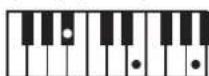
C7/13 C#7/13
D7/13 E 7/13
E7/13
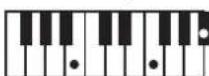
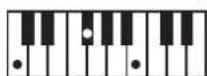
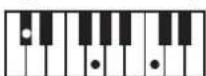

F#GAABB
b
6
F#M7 GM7 A M7 AM7 B M7 BM7
b
b
F#7G7A 7A7B 7B7
b
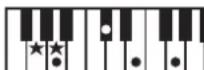
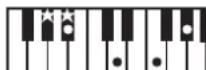
6
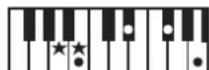
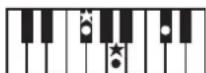
F#mGmAmBmBm
b
b
F#m7Gm7A m7Am7B m7Bm7
b
b
F#mM7
GmM7
bmM7
AmM7
bMM7
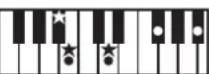
BmM7
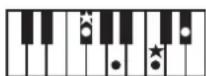
F#dim Gdim A dim
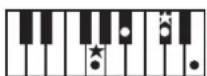
Adim
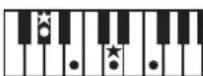
b
b
F#m7(b5)
Gm7(b5)
bm7(b5)
Am7(b5)
Bbm7(b5)
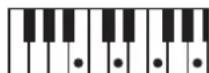
Bm7(b5)
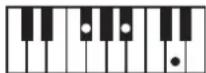
F#aug
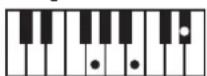
Gaug
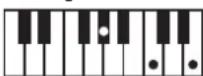
A baug
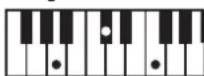
Aaug
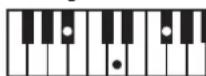
Bbaug
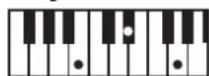
Baug
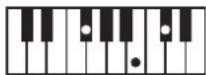
F#sus4
Gsus4
A bsus4
Asus4
Bbsus4
Bsus4
F#7sus4
G7sus4
A b7sus4
A7sus4
Bb7sus4
B7sus4
F#7/13
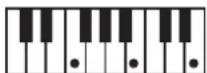
G7/13
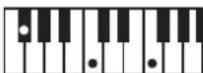
A b7/13
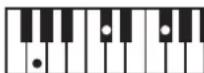
A7/13
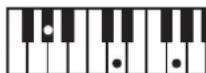
Bb7/13
B7/13
| No. Song Name Composer | ||
| 8.01 | Valse, op.34-1 Fryderyk Franciszek Chopin | |
| 8.02 | Polonaise op.53 Fryderyk Franciszek Chopin | |
| 8.03 | Nocturne No.20 Fryderyk Franciszek Chopin | |
| 8.04 | Die Forelle | Franz Peter Schubert, Arranged by Franz Liszt |
| 8.05 | Reflets dans l'Eau Claude Achille Debussy | |
| 8.06 | La fille aux Cheveux de Lin Claude Achille Debussy | |
| 8.07 | La Campanella Franz Liszt | |
| 8.08 | Scherzo No.2 Fryderyk Franciszek Chopin | |
| 8.09 | Étude, op.10-12 Fryderyk Franciszek Chopin | |
| 8.10 | Sonate No.15 Wolfgang Amadeus Mozart | |
| 8.11 | Liebestraume 3 Franz Liszt | |
| 8.12 | Étude, op.10-3 Fryderyk Franciszek Chopin | |
| 8.13 | Je te veux Erik Satie | |
| 8.14 | Valse, op.64-1 Fryderyk Franciszek Chopin | |
| 8.15 | Golliwog's Cakewalk | Claude Achille Debussy |
| 8.16 | Fantaisie-Impromptu | Fryderyk Franciszek Chopin |
| 8.17 | Arabesque 1 | Claude Achille Debussy |
| 8.18 | An der bereits, blauen Donau | Johann Strauss, Sohn |
| 8.19 | Auf Flügeln des Gesanges | Felix Mendelssohn |
| 8.20 | Mazurka No.5 Fryderyk Franciszek Chopin | |
| 8.21 | Gymnopédie 1 Erik Satie | |
| 8.22 | Étude, op.25-1 Fryderyk Franciszek Chopin | |
| 8.23 | Clair de Lune Claude Achille Debussy | |
| 8.24 | Étude, op.10-5 Fryderyk Franciszek Chopin | |
| 8.25 | Dr. Gradus ad Parnassum | Claude Achille Debussy |
| 8.26 | Grande Valse Brillante | Fryderyk Franciszek Chopin |
| 8.27 | La prière d'une Vierge | Tekla Badarzewska |
| 8.28 | Course en Troika | Peter Ilyich Tchaikovsky |
| 8.29 | To The Spring | Edvard Hagerup Grieg |
| 8.30 | Valse, op.64-2 Fryderyk Franciszek Chopin | |
| 8.31 | Radetzky Marsch | Johann Baptist Strauss |
| 8.32 | Träumerei | Robert Alexander Schumann |
| 8.33 | Moments Musicaux 3 | Franz Peter Schubert |
| 8.34 | Prélude, op.28-15 | Fryderyk Franciszek Chopin |
| 8.35 | Harmonious Blacksmith | Georg Friedrich Händel |
| 8.36 | Ungarische Tänze 5 | Johannes Brahms |
| 8.37 | Türkischer Marsch | Ludwig van Beethoven |
| 8.38 | Nocturne No.2 | Fryderyk Franciszek Chopin |
| 8.39 | Frühlingslied Felix Mendelssohn | |
| 8.40 | Präludium | Johann Sebastian Bach |
| 8.41 | Jägerlied | Felix Mendelssohn |
| 8.42 | Passepied | Claude Achille Debussy |
| 8.43 | Für Elise | Ludwig van Beethoven |
| 8.44 | Türkischer Marsch | Wolfgang Amadeus Mozart |
| 8.45 | Ständchen | Franz Peter Schubert |
| 8.46 | Humoreske | Antonin Dvořák |
| 8.47 | Blumenlied | Gustav Lange |
| 8.48 | Alpenglückchen | Theodor Oesten |
| 8.49 | Menuett G dur Ludwig van Beethoven | |
| 8.50 | Venezianisches Gondellied Felix Mendelssohn | |
| 8.51 | Alpenabendröte | Theodor Oesten |
| 8.52 | Farewell to the Piano | Ludwig van Beethoven |
| 8.53 | Brauthor Wilhelm Richard Wagner | |
| 8.54 | Forget-Me-Not | Heinrich Lichner |
| 8.55 | Wiener Marsch | Carl Czerny |
| 8.56 | Le Coucou | Louis Claude Daquin |
| 8.57 | Menuett G dur Johann Sebastian Bach | |
| 8.58 | Spinnerlied | Albert Ellmenreich |
| 8.59 | Gavotte | François Joseph Gossec |
| 8.60 | Heidenrösliein | Gustav Lange |
| No. Song NameComposer | ||
| 8.61 | Zlgeuner Tanz | Heinrich Lichner |
| 8.62 | La Cinquantaine | Gabriel Marie |
| 8.63 | Csikos Post | Hermann Necke |
| 8.64 | Dolly's Dreaming Awakening | Theodor Oesten |
| 8.65 | La Violette | Louis Streabbog |
| 8.66 | Fröhlicher Landmann | Robert Alexander Schumann |
| 8.67 | Sonatine op.36-1 | Muzio Clementi |
| 8.68 | Sonatine op.20-1 | Friedrich Kuhlau |
| 8.69 | Sonatine No.5 | Ludwig van Beethoven |
| 8.01: | Czerny 100-1-99 | Carl Czerny |
| 8.99 | ||
| 8.0 | Czerny 100-100 Carl Czerny | |
| 8.01: | Hanon 1-20 | Charles Hanon |
| 8.20 | ||
All rights reserved. Unauthorized use of this material for purposes other than private, personal enjoyment is a violation of applicable laws.
Musical scores are not included with this unit. You can purchase musical scores from their respective publishers.
* No data for the music that is played will be output from USB Computer port.
Information
When you need repair service, call your nearest Roland Service Center or authorized Roland distributor in your country as shown below.
AFRICA
REUNION
MARCEL FO-YAM Sarl
Royal Cape Park, Unit 24
Londonderry Road, Ottery 7800
Cape Town, SOUTH AFRICA
TEL(021)7994900
ASIA
CHINA
Roland Shanghai Electronics
Co.Ltd.
5F.No,1S00 Pingliang Road,
Yangpu Shanghai 200090, CHINA
TEL(021)5580-0800
Toll Free: 4007-888-010
Roland Shanghai Electronics
Co.,Ltd.(BEIJING OFFICE)
3F Soluxe Fortune Built
63 West Dawang Road
Chaoyang Beijing, CHINA
TEL: (010) 5960-2565/0777
Toll Free: 4007-888-010
HONG KONG
Tom Lee Music
11/F Silvercord Tower 1
30 Canton Rd
Tsimshatsui, Kowloon, 1980
HONG KONG
TEL852-2737-7688
Parsons Music Ltd.
8th Floor, Railway Plaza, 39
Chatham Road South, T.S.T.
Kowloon, HONG KONG
TEL:852-2333-1863
INDIA
Rivera Digitec (India) Pvt. Ltd.
- Nirman Kendra Mahalaxm
Flats Compound Off. Dr. Edwin
Moses Road, Mumbai-400011, India
INDIA
INDONESIA
PT. Citra Intirama
Ruko Garden Shopping Arcade
Unit 8 CR, Podomoro City
Ji.Letjend. S.Parman Kav.28
Jakarta Barat 11470, INDONESIA
TEL: (021) 5698-5519/5520
KAZAKHSTAN
Alatau Dybystary
141 Abylai-Khan ave, 1st floor
050000 Almaty, KAZAKHSTAN
TEL (727) 2725477
FAX: (727) 2720730
KOREA
Cosmos Corporation
27, Banpo-daero, Seocho-gu,
Seoul, KOREA
TEL: (02) 3486-8855
MALAYSIA/SINGAPORE
Roland Asia Pacific Sdn. Bhd.
45-1,Block C2,Jalan PJU 1/39
Dataran Prima, 47301 Petaling
Jaya, Selangor, MA
TEL: (03) 7805-3263
PHILIPPINES
G.A. Yupangco & Co. Inc.
339 Gil J. Puyat Avenue
Makati, Metro Manila 1200,
PHILIPPINES
TEL: (02) 899 9801
TAIWAN
ROLAND TAIWAN ENTERPRISE
CO, LTD.
9F-5, No. 112 Chung Shan
North Road Sec. 2 Taipei 104, TAIWAN, D.C.
TAIWAN R.O.C.
TEL (02) 2561 3339
THAILAND
Theera Music Co., Ltd.
100-108 Sol Verng
Nakornkasem, New Road
Sumpantawong, Bangkok
10100,THAILAND
TEL: (02) 224-8821
VIETNAM
VIET THUONG CORPORATION
386 CACH MANG THANG TAM ST. 3 Ave.11 Calle S.O
DIST.3, HO CHI MINH CITY, San Pedro Sula, HONDURAS
VIETNAM TEL: (504) 55
TEL: (08) 9316540
OCEANIA
AUSTRALIA/
NEW ZEALAND
Roland Corporation
Australia Pty.,Ltd.
38 Campbell Avenue, Dee Why
West NSW 2099, AUSTRALIA
For Australia
TEL: (02) 9982 8266
For New Zealand.
TEL: (09) 3098 715
CENTRAL/LATIN AMERICA
ARGENTINA
Instrumentos Musicales S.A.
Av.Santa Fe 2055
(1123) Buenos Aires, ARGENTINA
TEL: (011) 4508-2700
BARBADOS
A&B Music Supplies LTD
12 Webster Industrial Park
Wildey, St. Michael, BARBADOS
TEL: (246) 430-1100
BRAZIL
Roland Brasil Ltda.
Rua San Jose, 211
Parque Industrial San Jose
Cotia-Sao Paulo-SP, BRAZIL
TEL: (011) 4615 5666
CHILE
Comercial Fancy I S.A.
Rut: 96.919.420-1
Nataniel Cox #739,4th Flo
Santiago - Centro, CHILE
TEL: (02) 384-2180
COLOMBIA
CENTRO MUSICALS.A.S.
Boulevard Andrews, Albrook,
Panama City, REP DE PANAMA
TEL:315-0101
PARAGUAY
WORLD MUSIC
Jebai Center 2018, Centro
155, New National Road
Patras 26442, GREECE
TEL:2610435400
HUNGARY
Roland East Europe Ltd
- Törökbalint, FSD Park 3. ép.
HUNGARY
TEL: (23) 511 011
IRELAND
Roland Ireland
E2 Calmport Park, Calmport
Avenue, Dublin 12.
Republic of IRELAND
TEL: (01) 4294444
ITALY
Roland Italy S.p.A.
Rotunda Eng. Edgar Cardoso 23,
4-B
4400-676 Vila Nova de Gaia,
PORTUGAL
TEL: (+351) 22 608 00 60
ROMANIA
Pro Music Concept SRL
440221 Satu Mare
B-dul Independentenr.14/a
ROMANIA
TEL: (0361) 807-333
RUSSIA
Roland Music LLC
Dorozhnaya ul.3,korp.6
117 545 Moscow, RUSSIA
TEL: (495) 981-4967
SERBIA
Music AP
Sutjeska br.5 XS-24413 PALIC
SERBIA
TEL: (0) 24 539 395
SLOVAKIA
DAN Distribution, s.r.o.
Povazska 18
SK-940 01 Nové Zámky,
SLOVAKIA
TEL: (035) 6424 330
SPAIN
Roland Systems Group EMEA, S.L.
Paseo Garcia Faria, 33-35
08005 Barcelona, SPAIN
TEL:934939100
SWEDEN
Roland Scandinavia A/S
SWEDISH SALES OFFICE
Mārbackagatan 31, 4 tr.
SE-123 43 Farsta, SWEDEN
TEL (0) 8683 04 30
SWITZER
Roland (Switzerland) AG
Atlantic Close, SWANSEA SA7
9FJ, UNITED KINGDOM
TEL: (01792) 702701
MIDDLE EAST
BAHRAIN
Moon Stores
No.1231&1249 Rumaytha
Building Road 3931,
Manama 339,BAHRAIN
12.17-013-942
EGYPT
AI Fanny Trading Office
9, EBN Hagar Al Askalany Street.
ARD E1 Golf, Heliopolis,
Cairo 11341,EGYPT
TEL: (022)-417-1828
IRAN
MOCO INC.
Jadeh Makhsous Karaj (K-9)
Nakhe Zarin Ave.
Jalal Street, Reza Alley No.4
Tehran 1389716791, IRAN
TEL: (021) 44545370-5
ISRAEL
Halilit P. Greenspoon &
Sons Ltd
8 Retzif Ha'alia Hashnia St.
Tel-Aviv-Yafo ISRAEL
TEL: (03) 6823666
JORDAN
Al-Yousif Service Center
P.O.Box 126 (Safat) 13002
KUWAIT
TEL:00965802929
LEBANON
Chahine S.A.L.
George Zeidan St., Chahine Bldg.
Achrafieh, P.O.Box: 16-5857
Beirut,LEBANON
TEL: (01) 20-1441
OMAN
TALENTZ CENTRE L.L.C.
Malatan House No.1
Al Noor Street, Ruwi
SULTANATE OF OMAN
TEL:24783443
QATAR
AL-EMADI TRADING &
CONTRACTING CO
P.O.Box 62, Doha, QATAR
TEL:4423-554
SAUDI ARABIA
Adawliah Universal
Electronics APL
Behind Pizza Inn
Prince Turkey Street
Adawiah Building,
POBOX2154
Al Khobar 31952.
SAUDI ARABIA TEL: (03) 2617691
SYRIA
Technical Light & Sound Center
PO Box 13520 Bldg No.49
Khaled Abn Alwalid St.
Damascus, SYRIA
TEL: (011) 223-5384
U.A.E.
Adawliah Universal
Electronics APL
Omar bin alkhattab street, fish
round about, nayef area, deira,
Dubai, U.A.E.
TEL: (04) 2340442
NORTH AMERICA
…
CANADA
Roland Canada
(Head Office) 1000-2-1
5480 Parkwood Way Richmond, NC 21736
B.C.V8V2M4,CANADA TEL: (604) 370 6636
Poland:
Korland Canada Ltd. (Toll free: 017)
(Toronto Office) 170A. MacDonald Blvd.
170Admiral BoulevardMinimums On LTN6
CANADA
CANADA TEL: (905)
RolandCorporal
5100 S. Eastern Avenue
Los Angeles, CA 90040-2938
U.S.A.
TEL: (323) 890 3700

m = 311 ;

This symbol indicates that in EU countries, this product must be collected separately from household waste, as defined in each region. Products bearing this symbol must not be discarded together with household waste.

IMPORTANT: THE WIRES IN THIS MAINS LEAD ARE COLOURED IN ACCORDANCE WITH THE FOLLOWING CODE.
BLUE: NEUTRAL
BROWN: LIVE
As the colours of the wires in the mains lead of this apparatus may not correspond with the coloured markings identifying the terminals in your plug, proceed as follows:
The wire which is coloured BLUE must be connected to the terminal which is marked with the letter N or coloured BLACK.
The wire which is coloured BROWN must be connected to the terminal which is marked with the letter L or coloured RED.
Under no circumstances must either of the above wires be connected to the earth terminal of a three pin plug.
For the USA
DECLARATION OF CONFORMITY Compliance Information Statement
Model Name: RP401R, F-130R
Type of Equipment : Digital Piano
Responsible Party: Roland Corporation U.S.
Address: 5100 S. Eastern Avenue Los Angeles, CA 90040-2938
Telephone: (323) 890-3700
For the USA
FEDERAL COMMUNICATIONS COMMISSION RADIO FREQUENCY INTERFERENCE STATEMENT
This equipment has been tested and found to comply with the limits for a Class B digital device, pursuant to Part 15 of the FCC Rules. These limits are designed to provide reasonable protection against harmful interference in a residential installation. This equipment generates, uses, and can radiate radio frequency energy and, if not installed and used in accordance with the instructions, may cause harmful interference to radio communications. However, there is no guarantee that interference will not occur in a particular installation. If this equipment does cause harmful interference to radio or television reception, which can be determined by turning the equipment off and on, the user is encouraged to try to correct the interference by one or more of the following measures:
Reorient or relocate the receiving antenna.
- Increase the separation between the equipment and receiver.
- Connect the equipment into an outlet on a circuit different from that to which the receiver is connected.
- Consult the dealer or an experienced radio/TV technician for help.
This device complies with Part 15 of the FCC Rules. Operation is subject to the following two conditions:
(1) this device may not cause harmful interference, and
(2) this device must accept any interference received, including interference that may cause undesired operation.
This equipment requires shielded interface cables in order to meet FCC class B limit.
Any unauthorized changes or modifications not expressly approved by the party responsible for compliance could void the user's authority to operate the equipment.
For Canada
CANICES-3 (B)/NMB-3 (B)
For Korea
SAHJAN
This product contains chemicals known to cause cancer, birth defects and other reproductive harm, including lead.
Roland