HP507 - Digital piano ROLAND - Free user manual and instructions
Find the device manual for free HP507 ROLAND in PDF.



| Brand | Roland |
| Model | HP507 |
| Product Type | Digital Piano |
| Dimensions (approx.) | 1380 x 430 x 950 mm (with music stand) |
| Weight | 52 kg |
| Power Supply | AC adapter (included) |
| Keyboard | 88 keys, progressive hammer action, Ivory Feel touch |
| Sound Engine | SuperNATURAL Piano (multichannel sampling, no loop) |
| Maximum Polyphony | 128 voices |
| Number of Tones | More than 300 (including pianos, organs, strings, etc.) |
| Speakers | 2 x 25 W (built-in stereo amplification) |
| Pedals | 3 pedals (damper, soft, sostenuto) with half-pedal function |
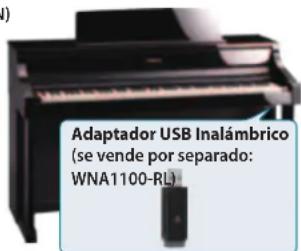
| Wireless Connectivity | Wireless LAN via USB adapter (WNA1100-RL, sold separately); compatible with iPad (Piano Partner) |
| Connectors | USB Memory, USB MIDI, Headphone jacks (x2), AUX Input, Audio Output |
| Display | LCD screen with network status icons |
| Recording Functions | Audio recorder (WAV), MIDI recorder (SMF) |
| Metronome | Built-in, adjustable tempo and time signature |
| Transposition | Yes, by semitones |
| Manual Languages | French, English, German, Spanish, Italian |
| Maintenance and Cleaning | Use a soft, dry cloth; avoid solvents and abrasive products; dust regularly |
| Safety | Do not expose to humidity; turn off after use; unplug the adapter during thunderstorms |
| Spare Parts and Repairability | Contact Roland support for spare parts; repair by authorized center only |
Frequently Asked Questions - HP507 ROLAND
User questions about HP507 ROLAND
0 question about this device. Answer the ones you know or ask your own.
Ask a new question about this device
Download the instructions for your Digital piano in PDF format for free! Find your manual HP507 - ROLAND and take your electronic device back in hand. On this page are published all the documents necessary for the use of your device. HP507 by ROLAND.
USER MANUAL HP507 ROLAND
The wireless LAN function was added in HP507 version 2.00. If the version is earlier than 2.00, download the update from the support page (http://www.roland.com/support/) Downloads product name (HP507) HP507 System Program Version 2.00, and update your HP507.
- If this supplementary manual was included with a new HP507 you purchased, your instrument has already been updated to version 2.00 or later; you do not need to update.
How to check the version
Hold down the [-] and [+] buttons and turn ON the HP507.
What is Wireless LAN Function?
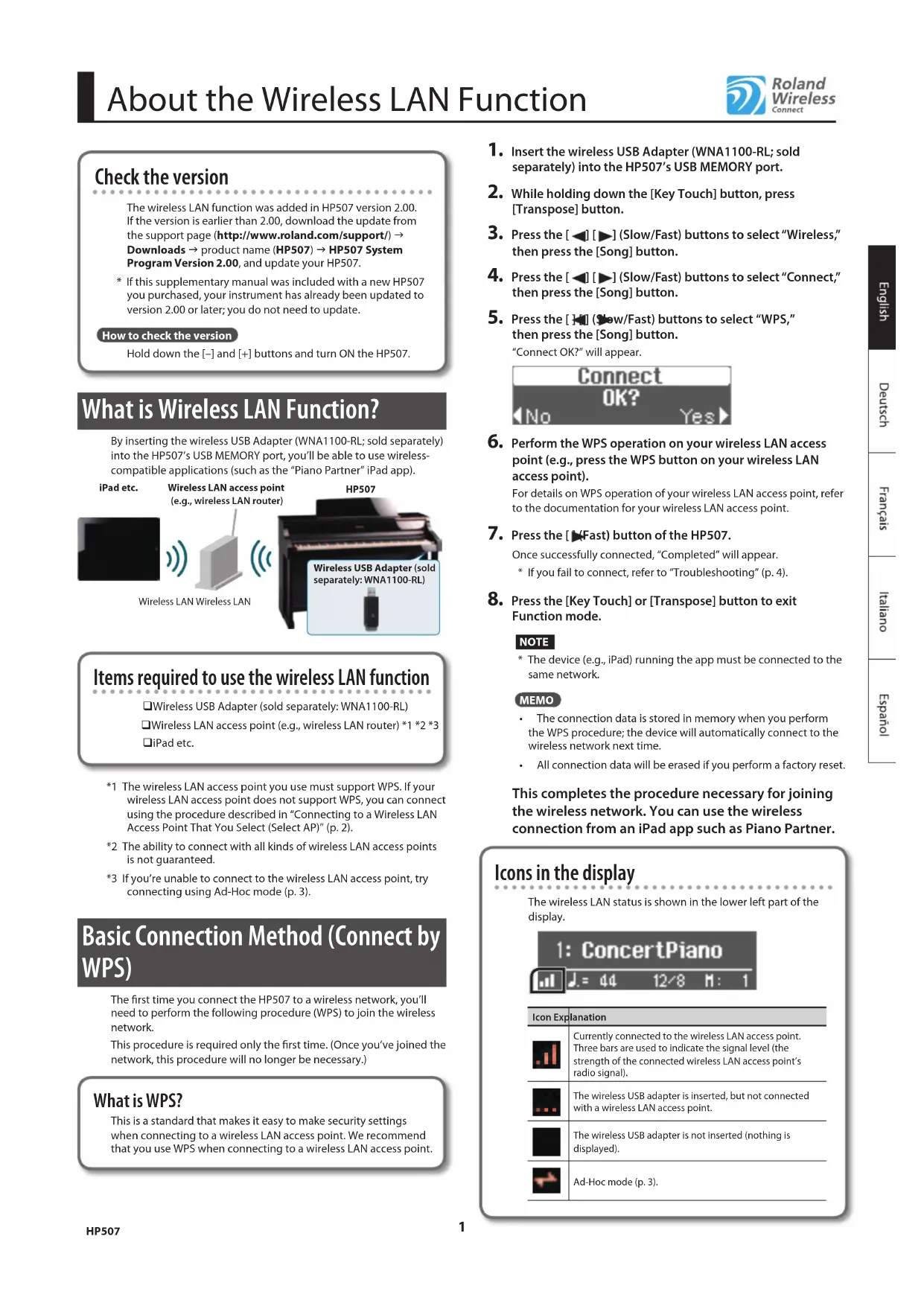
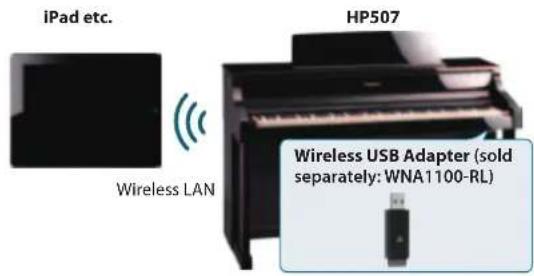
By inserting the wireless USB Adapter (WNA1100-RL; sold separately) into the HP507's USB MEMORY port, you'll be able to use wireless-compatible applications (such as the "Piano Partner" iPad app).
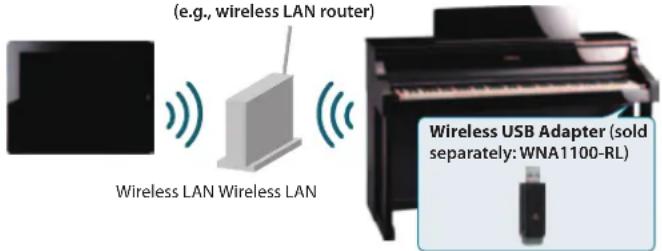
iPad etc.
Items required to use the wireless LAN function
Wireless USB Adapter (sold separately: WNA1100-RL)
Wireless LAN access point (e.g., wireless LAN router) 1 2 *3
iPad etc.
1 The wireless LAN access point you use must support WPS. If your wireless LAN access point does not support WPS, you can connect using the procedure described in "Connecting to a Wireless LAN Access Point That You Select (Select AP)" (p. 2).
2 The ability to connect with all kinds of wireless LAN access points is not guaranteed.
*3 If you're unable to connect to the wireless LAN access point, try connecting using Ad-Hoc mode (p. 3).
Basic Connection Method (Connect by WPS)
The first time you connect the HP507 to a wireless network, you'll need to perform the following procedure (WPS) to join the wireless network.
This procedure is required only the first time. (Once you've joined the network, this procedure will no longer be necessary.)
What is WPS?
This is a standard that makes it easy to make security settings when connecting to a wireless LAN access point. We recommend that you use WPS when connecting to a wireless LAN access point.
- Insert the wireless USB Adapter (WNA1100-RL; sold separately) into the HP507's USB MEMORY port.
- While holding down the [Key Touch] button, press [Transpose] button.
- Press the [←] [▶] (Slow/Fast) buttons to select "Wireless," then press the [Song] button.
- Press the [←] [▶] (Slow/Fast) buttons to select "Connect," then press the [Song] button.
- Press the [ ] (W/Ps/Fast) buttons to select "WPS," then press the [Song] button. "Connect OK?" will appear.

- Perform the WPS operation on your wireless LAN access point (e.g., press the WPS button on your wireless LAN access point).
For details on WPS operation of your wireless LAN access point, refer to the documentation for your wireless LAN access point.
- Press the [Fast) button of the HP507.
Once successfully connected, "Completed" will appear.
-
If you fail to connect, refer to "Troubleshooting" (p. 4).
-
Press the [Key Touch] or [Transpose] button to exit Function mode.
NOTE
- The device (e.g., iPad) running the app must be connected to the same network.
MEMO
- The connection data is stored in memory when you perform the WPS procedure; the device will automatically connect to the wireless network next time.
All connection data will be erased if you perform a factory reset.
This completes the procedure necessary for joining the wireless network. You can use the wireless connection from an iPad app such as Piano Partner.
Icons in the display
The wireless LAN status is shown in the lower left part of the display.
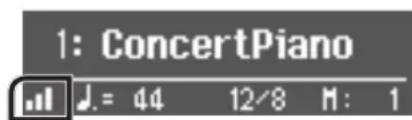
| Icon Explanation | |
| Currently connected to the wireless LAN access point. Three bars are used to indicate the signal level (the strength of the connected wireless LAN access point's radio signal). | |
| The wireless USB adapter is inserted, but not connected with a wireless LAN access point. | |
| The wireless USB adapter is not inserted (nothing is displayed). | |
| Ad-Hoc mode (p. 3). | |
Wireless LAN Function Settings
You can view or edit the wireless settings.
Basic Operation
- While holding down the [Key Touch] button, press the [Transpose] button.
- Press the [←] [▶] (Slow/Fast) buttons to select "Wireless," then press the [Song] button.
- Press the [ ] (New/Fast) buttons to select menu, then press the [Song] button.
| Menu Explanation |
| Status This shows the wireless LAN status. |
| Connect Connect to a wireless LAN access point. |
| Option Make settings for Wireless ID or Ad-Hoc mode (p. 3). |
In the explanations that follow, procedures will be indicated using arrows, like this: "Wireless" "Status."
Status Indication
This shows the wireless LAN status.
- Select "Wireless" "Status".
The status screen will appear.
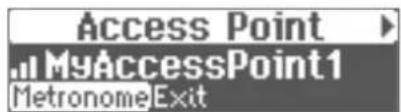
| Display Explanation | |
| Access Point | Currently connected to the wireless LAN access point. Three bars are used to indicate the signal level (the strength of the connected wireless LAN access point's radio signal). The identifier (name) of the connected wireless LAN access point is shown. |
| Now Connecting | A connection with the wireless LAN access point is being established. |
| Not Connected | The wireless USB adapter is inserted, but not connected to a wireless LAN access point. |
| Not Available The wireless USB adapter is not inserted. | |
| Ad-Hoc SSID | Ad-Hoc mode (p. 3). The Ad-Hoc SSID is shown. Press the [▶] (Fast) button to display the Ad-Hoc key.For details, refer to "Connecting in Ad-Hoc mode" (p. 3). |
- Press the [Fast) button to display the IP address.
Connecting to a Wireless LAN Access Point That You Select (Select AP)
This method lets you connect by choosing a wireless LAN access point from the list that is displayed.
-
Wireless standards 802.11g/n (2.4 GHz) and authentication methods WPA/WPA2 are supported.
-
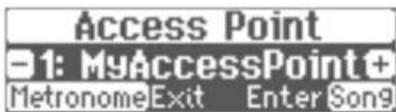
Select "Wireless" "Connect" "Select AP", then press the [Song] button.
The Select Access Point screen will appear.
-
An " ^ 串 " symbol is shown for the currently-connected wireless LAN access point.
-
Press the [-] [+] button to choose the wireless LAN access point to which you want to connect, and press the [Song] button.
-
You will be connected to the selected wireless LAN access point.
If you're using this wireless LAN access point for the first time, you'll proceed to the Passphrase screen.
If this is a wireless LAN access point to which you have connected in the past, just press the [Song] button and you'll be connected. Once successfully connected, "Completed" will appear.
Passphrase screen
- Enter the security code (passphrase) of your wireless LAN access point, and press the [Song] button.
How to enter characters
Use the [] [Slow/Fast) buttons to select the position at which you want to specify a character. Use the [-] [+] buttons to change the character.
* You cannot enter a space at the end of the passphrase.
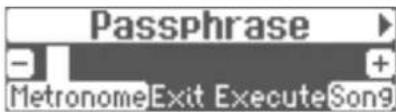
Once successfully connected, "Completed" will appear.
* If you fail to connect, refer to "Troubleshooting" (p.4).
- Press the [Key Touch] or [Transpose] button to exit Function mode.
Other Settings (Option)
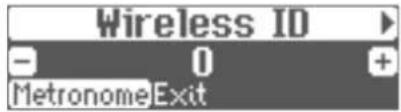
Make settings for Wireless ID or Ad-Hoc mode.
- Select "Wireless" "Option".
- Press the [ ] (New/Fast) buttons to select the parameter that you want to change.
- Press the [-] [+] button to edit the value of the setting.
| Parameter Explanation | |
| Wireless ID | Specifies the final digits of the HP507's device name and Ad-Hoc SSID (HP507) that will be shown as the instrument in the wirelessly connected app.Normally, you should specify "0," but if you have more than one of the same instrument, you can set the Wireless ID in the range of 1-99 to change the device name and Ad-Hoc SSID for each instrument, as follows.If Wireless ID=0, "HP507" (default value)If Wireless ID=1, "HP507_1" :If Wireless ID=99, "HP507_99" |
| Ad-Hoc Ch. | Specifies the channel (1-11) for Ad-Hoc mode.Normally, you won't need to change the channel.Try changing the channel only if you have problems connecting. |
Connecting in Ad-Hoc mode
Here's how to connect in Ad-Hoc mode.
What is Ad-Hoc mode?
Ad-Hoc mode lets you connect the HP507 directly to an iPad or other wireless device without using a wireless LAN access point. This is a convenient way to use the HP507 with an iPad or other wireless device if you're in a location where the wireless LAN access point you normally use is unavailable, such as when you're away from home.
Limitations
The iPad or other wireless device connected in Ad-Hoc mode will be unable to communicate with the Internet or with another wireless device. However, an iPad or other wireless device that has cellular capability will be able to connect to the Internet via the cellular connection.
Please be aware that if you use a cellular connection for Internet connectivity, you may incur costs depending on your rate plan.
- Select "Wireless" "Option" "Ad-Hoc", then press the [Song] button.
- Press the [Fast) button to turn the Ad-Hoc Mode "On." * To turn off Ad-Hoc Mode, press the [low) button.
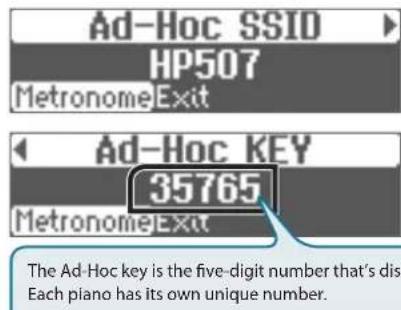
- Once in Ad-Hoc Mode, the Ad-Hoc SSID (HP507) will be displayed. Press the [Fast) button to display the Ad-Hoc key (a five-character text string). Write down this number.
MEMO
- The Ad-Hoc SSID (HP507) will be the value that you specified in the WIRELESS OPTIONS screen "Wireless ID" setting.
-
The Ad-Hoc SSID and the Ad-Hoc key can also be verified in the status screen.
-
On the iPad or other wireless device that you want to connect, select the Ad-Hoc SSID shown in the above screen to make the connection. (For example, on an iPad, choose [Settings] [Wi-Fi] [Choose a Network] to select the above Ad-Hoc SSID (HP507). A password entry screen will appear; enter the above Ad-Hoc key.)
For details on how to connect to a wireless LAN from an iPad or other device, refer to the owner's manual of that device.
- Press the [Key Touch] or [Transpose] button to exit Function mode.
- When you have finished the Ad-Hoc mode connection, restore the iPad settings in [Settings] [Wi-Fi] [Choose a Network] to their previous state.
Troubleshooting
- For problems related to communication, refer also to the owner's manual of your wireless LAN access point.
- For details on operating your wireless LAN access point, refer to its owner's manual.
| Problem Action | |
| Can't connect to a wireless LAN access point | Make sure that your wireless LAN access point supports WPS.If your wireless LAN access point does not support WPS, you can connect using the procedure described in "Connecting to a Wireless LAN Access Point That You Select (Select AP)" (p. 2).The 802.11a/b wireless standard is not supported. Please use the 802.11g/n (2.4 GHz) wireless standard.The WEP authentication method is not supported. Please use the WPA or WPA2 authentication method.Make sure that DHCP is enabled for your wireless LAN access point.If you don't get connected to the previously-connected wireless LAN access point when you turn on the unit, check and make sure the setting described in "Connecting in Ad-Hoc mode" (p. 3) is OFF.The connection might not occur successfully due to the state of the radio signal. If so, use the procedure described in "Connect- ing to a Wireless LAN Access Point That You Select (Select AP)" (p. 2), and select your wireless LAN access point and reconnect.There is a limit to the connection data that can be remembered. Making a new connection may cause older connection data to be deleted.All connection data will be deleted if you execute a factory reset.If the connection data has been deleted, please re-connect to the wireless LAN access point. |
| The display Indicates "Error 46," and can't connect to the wireless LAN access point | This Access Point is not supported. Please use the WPA or WPA2 authentication method. |
| Communication is unstable | Communication may be unstable depending on the usage of the radio frequency spectrum.If communication is unstable, the response may be sluggish, or if using audio communication, there may be dropouts in the audio. The following actions may improve the situation.Move the wireless LAN access point and the HP507 closer to each other.Change the channel setting of the wireless LAN access point. |
| The HP507 is not found in the instru- ment connections of the app (such as the iPad app Piano Partner) | Is the HP507 powered up?Is the wireless USB adapter (WNA1100-RL) inserted to the HP507?Is the HP507 connected to the wireless LAN?Are the HP507 and the iPad connected to the same network (the same wireless LAN access point)?Is the wireless LAN access point set to allow communication between wireless LAN devices?For details on settings, refer to the owner's manual of your wireless LAN access point. |
| Your iPad won't connect to the Internet | Is the wireless LAN access point connected to the Internet?Could you be connected in Ad-Hoc mode?The iPad or other wireless device connected in Ad-Hoc mode will be unable to communicate with the Internet or with another wireless device. However, an iPad or other wireless device that has cellular capability will be able to connect to the Internet via the cellular connection. Please be aware that if you use a cellular connection for Internet connectivity, you may incur costs depending on your rate plan. |
Checking the MAC Address
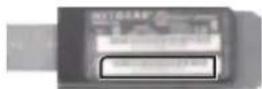
The MAC address indicated on the bottom of the wireless USB adapter (WNA1100-RL; sold separately).
Company names and product names appearing in this document are registered trademarks or trademarks of their respective owners.
Copyright © 2012 ROLAND EUROPE
All rights reserved. No part of this publication may be reproduced in any form without the written permission of ROLAND EUROPE.
Versionsprüfung
Mode Ad-Hoc (p. 11).

Wireless LAN Wireless LAN