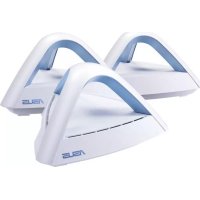
Lyra Trio MAPAC1750 - Wireless Router ASUS - Free user manual and instructions
Find the device manual for free Lyra Trio MAPAC1750 ASUS in PDF.



| Product type | Wireless router |
| Brand | ASUS |
| Model | Lyra Trio MAPAC1750 |
| Wi-Fi technology | 802.11a/b/g/n/ac |
| Frequency bands | 2.4 GHz and 5 GHz |
| Maximum power (EU) 2.4 GHz | 19.98 dBm |
| Maximum power (EU) 5 GHz | Up to 29.98 dBm |
| Network ports | 1 x Gigabit LAN port, 1 x Gigabit WAN port |
| Connectivity | Bluetooth 4.0+ (BLE) for setup |
| Setup/Configuration | Via ASUS Lyra app or web interface (http://router.asus.com) |
| LED indicator | Solid light blue (all good), red (connection lost), yellow (internet lost), solid white (ready for setup) |
| Mesh system | Yes, supports adding multiple Lyra Trio hubs |
| Operating temperature | 0°C to 40°C |
| RF safety distance | 20 cm (EU), 21 cm (Canada) |
| Power supply | DC power adapter |
| Standards | CE, ISED, VCCI |
| Maintenance | Clean with a soft, dry cloth. Do not use chemicals. |
| Safety | Follow warnings: do not expose to moisture, do not block vents, indoor use only. |
| ISP compatibility | Requires username and password for DSL connections |
| Warranty | See ASUS website for details |
Frequently Asked Questions - Lyra Trio MAPAC1750 ASUS
User questions about Lyra Trio MAPAC1750 ASUS
0 question about this device. Answer the ones you know or ask your own.
Ask a new question about this device
Download the instructions for your Wireless Router in PDF format for free! Find your manual Lyra Trio MAPAC1750 - ASUS and take your electronic device back in hand. On this page are published all the documents necessary for the use of your device. Lyra Trio MAPAC1750 by ASUS.
USER MANUAL Lyra Trio MAPAC1750 ASUS
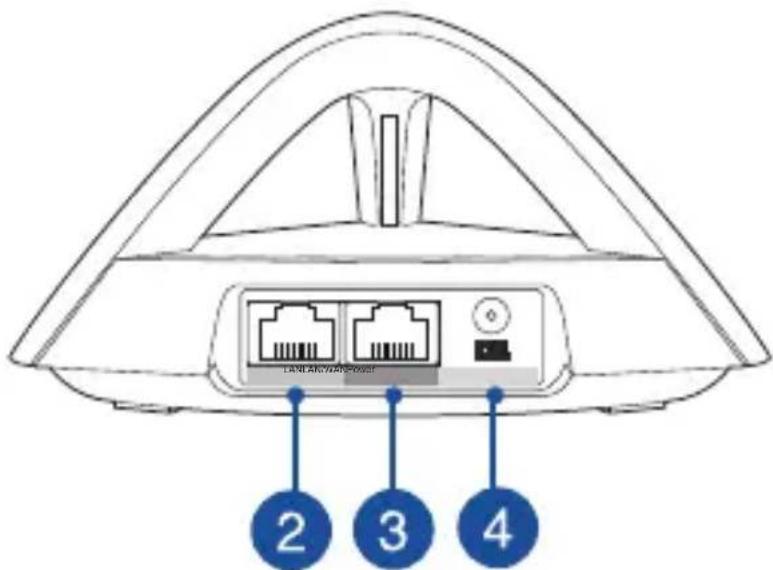
A quick look at your Lyra Trio
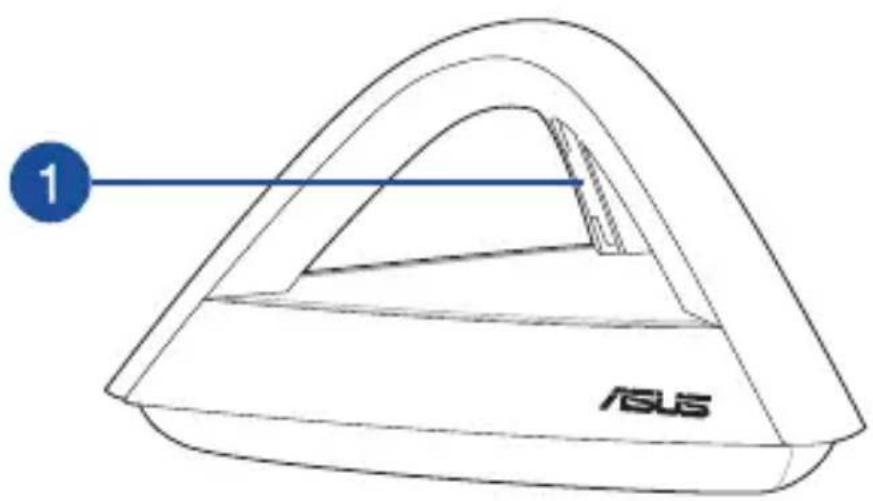
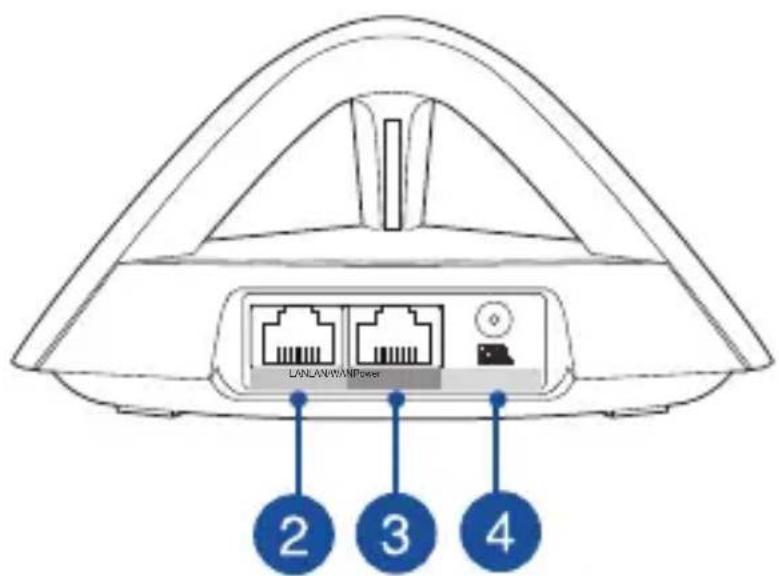
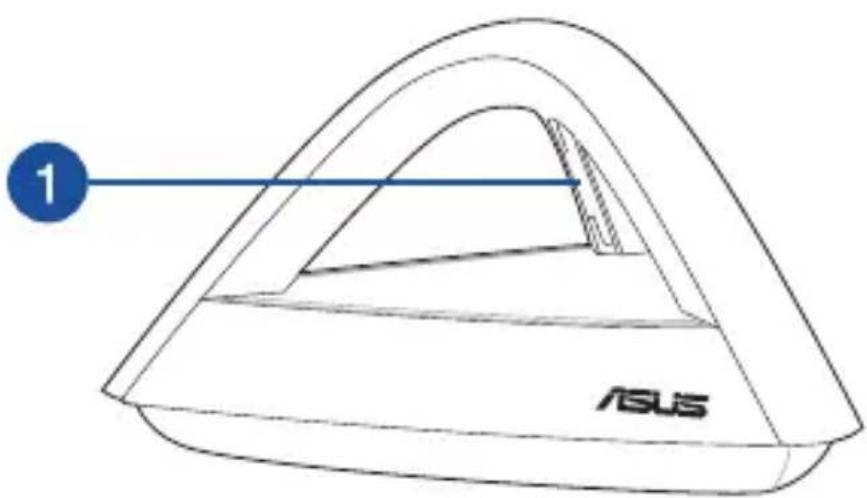
| 1. Status LED indicator |
| 2. LAN port |
| 3. WAN (Internet) port |
| 4. Power (DC-IN) port |
1
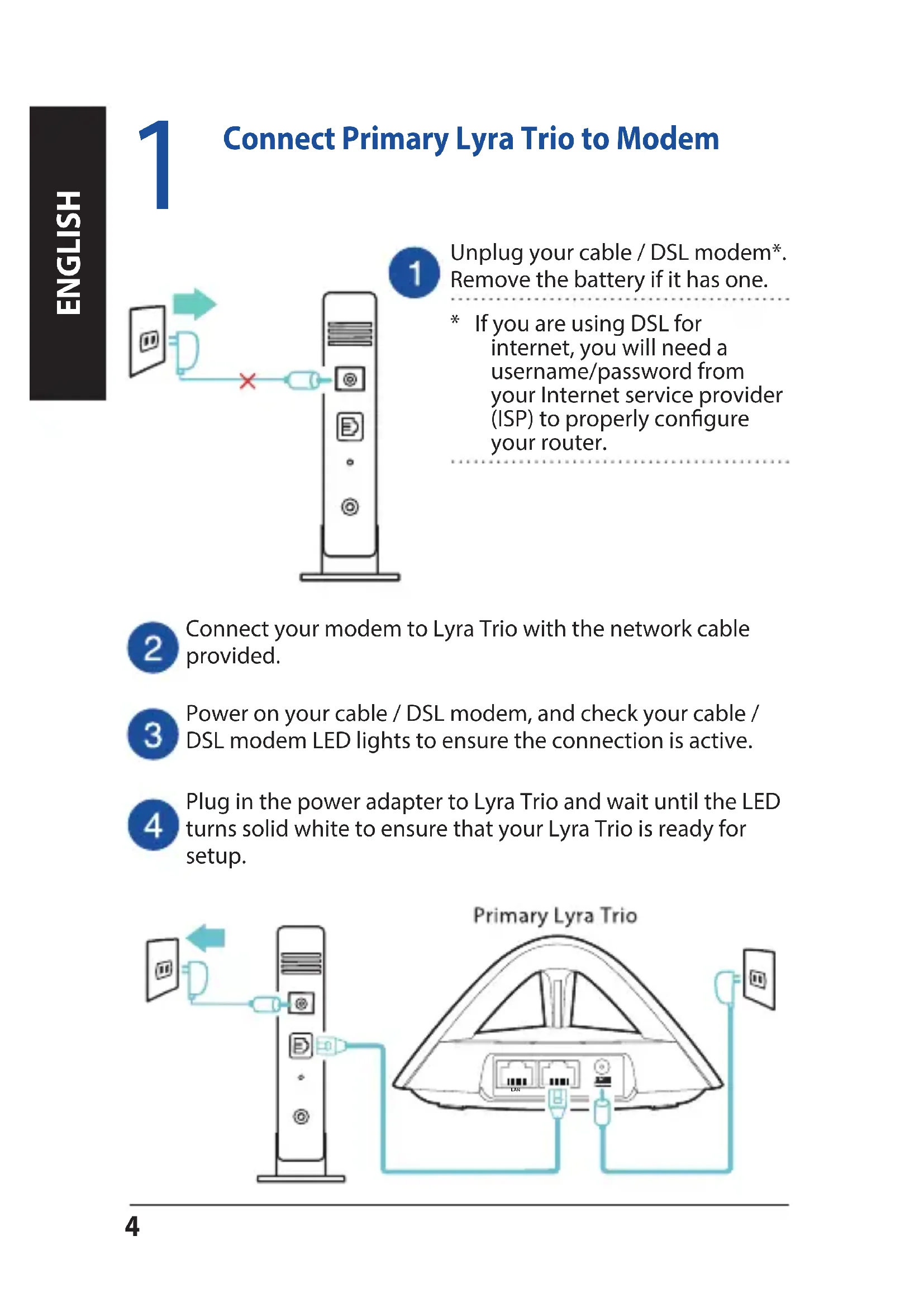
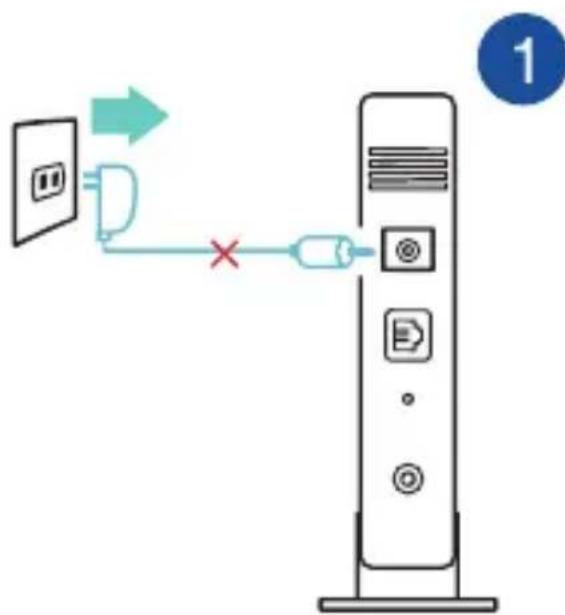
Connect Primary Lyra Trio to Modem
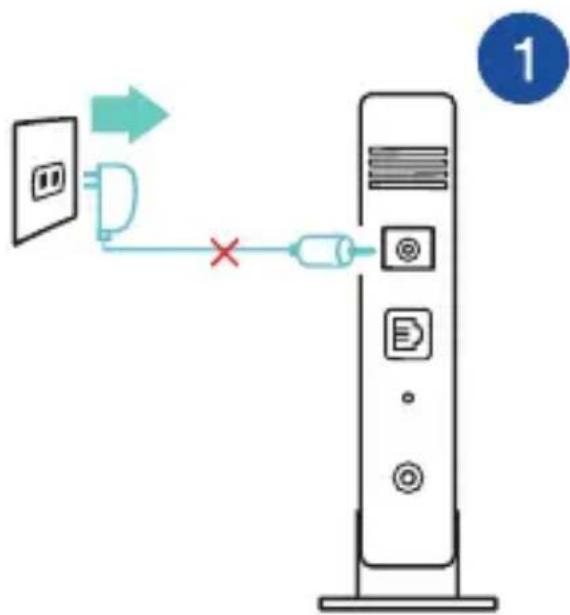
Unplug your cable / DSL modem*. Remove the battery if it has one.
- If you are using DSL for internet, you will need a username/password from your Internet service provider (ISP) to properly configure your router.
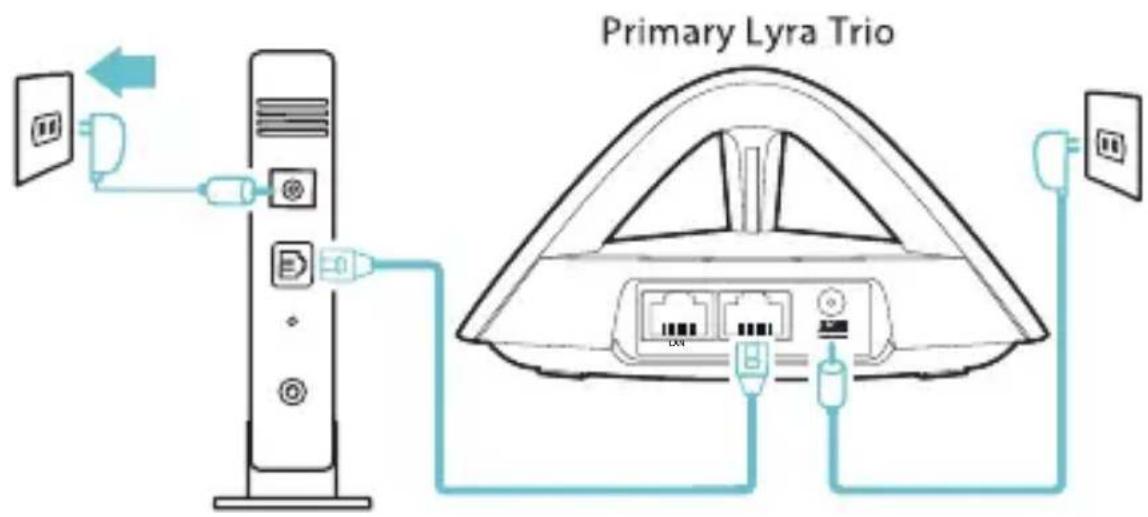
Connect your modem to Lyra Trio with the network cable provided.
Power on your cable / DSL modem, and check your cable / DSL modem LED lights to ensure the connection is active.

Plug in the power adapter to Lyra Trio and wait until the LED turns solid white to ensure that your Lyra Trio is ready for setup.
2
Setup your Lyra Trio WiFi system
METHOD 1 Through the App
Download the free ASUS Lyra app.
2 follow the instructions in just a few moments.
- Make sure your device supports BLE, Bluetooth 4.0 or above.

METHOD 2 Through the Web GUI
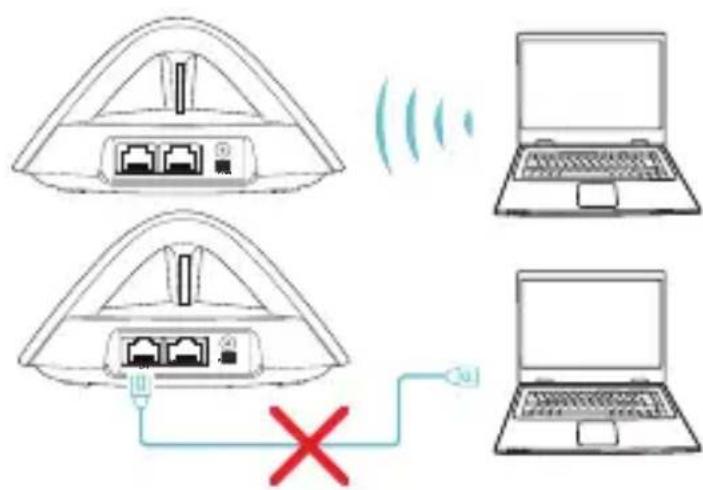
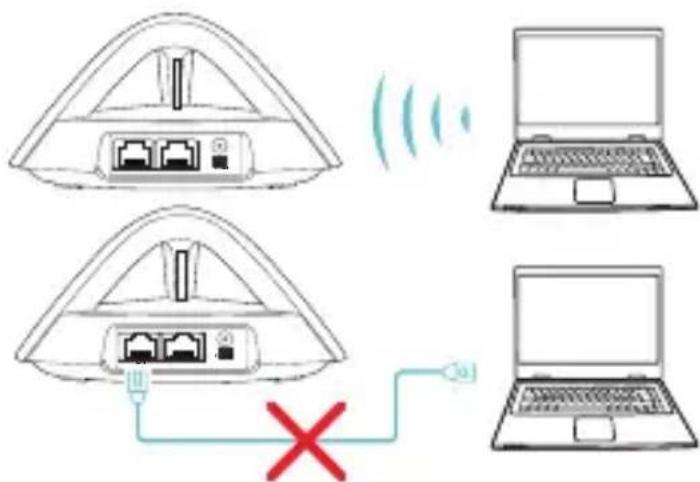
1 Open a web browser. You will be redirected to the ASU Setup Wizard. If not, navigate to http://router.asus.com
Primary Lyra Trio
3
Adding other Lyra Trio to current network
METHOD 1 Through the App
1
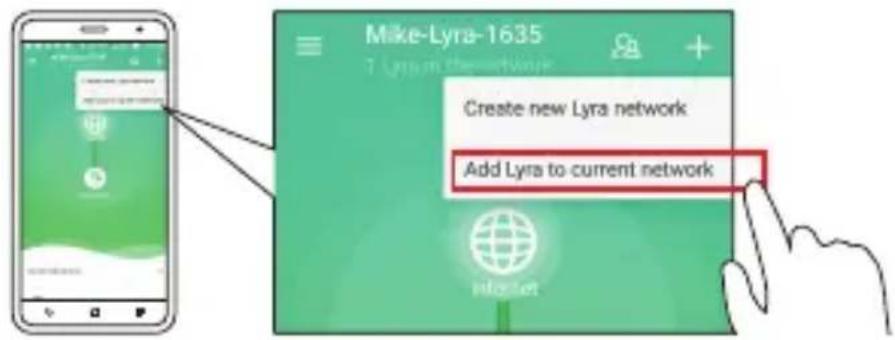
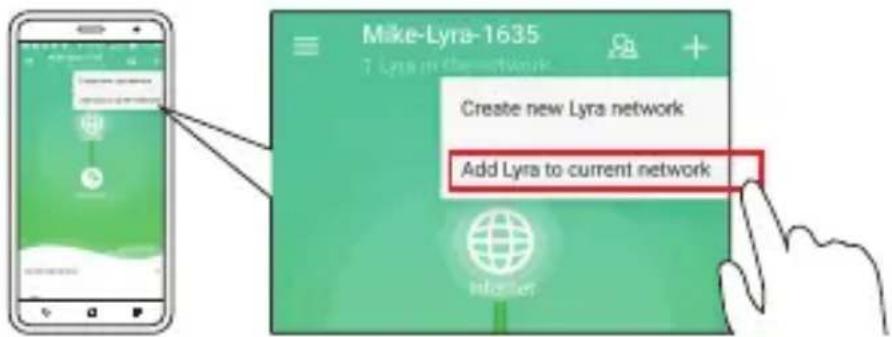
Launch Lyra app and click the "+" icon on the upper right corner, then choose Add Lyra to current network and follow the instructions to complete.
METHOD 2 Through the Pair Button
1
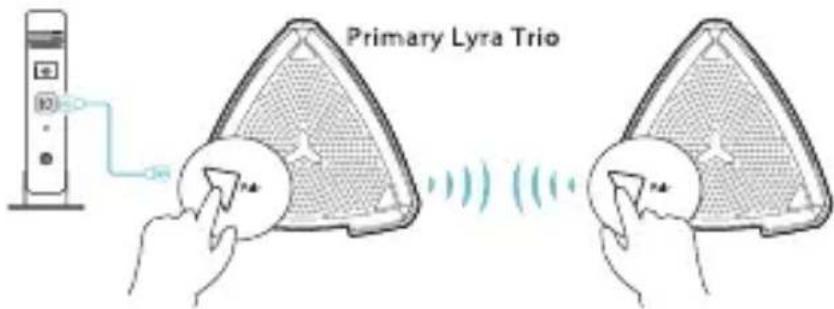
Press the Pair button on the Primary Lyra Trio until the LED starts to blink blue light.
2
Press the Pair button on the second Lyra Trio until the LED starts to blink blue, then turns solid light cyan, indicating the pairing process is completed.

-
Pairing feature only works with the Primary Lyra Trio device connecting to modem.
-
While setting up through Web GUI, ensure that you pair other Lyra Trio hub(s) with the Primary Lyra Trio using the Pair button.
Colors of Lyra Trio



Light Cyan
Everything is good!
Red
Lost connection to the primary Lyra Trio. Move it closer.
Yellow
Lost connection to the Internet. Please check the cable connected with your modem.
Solid White
Lyra Trio is ready for setup. It will start blinking when setting up with the app.
Safety Notices
- Use this product in environments with ambient temperatures between 0^ C ( 32^ F ) and 40^ C ( 104^ F ).
Refer to the rating label on the bottom of your product and ensure your power adapter complies with this rating. - DO NOT place on uneven or unstable work surfaces. Seek servicing if the casing has been damaged.
- DO NOT place or drop objects on top and do not shove any foreign objects into the product.
DO NOT expose to or use near liquids, rain, or moisture. DO NOT use the modem during electrical storms. - DO NOT cover the vents on the product to prevent the system from getting overheated.
DO NOT use damaged power cords, accessories, or other peripherals. - If the Adapter is broken, do not try to fix it by yourself. Contact a qualified service technician or your retailer.
- To prevent electrical shock hazard, disconnect the power cable from the electrical outlet before relocating the system.
Available on the App Store
METOД2 Ппeз ye6 GUI
1
PriPriaNvHyoDulLyra Trio


3
Available on the App Store
Preeepneppeepreepriyra Trio
3
Available on the App Store
Available on the App Store
Available on the App Store
Available on the App Store
2 METODAS Naudojantis internetiniu GUI
1
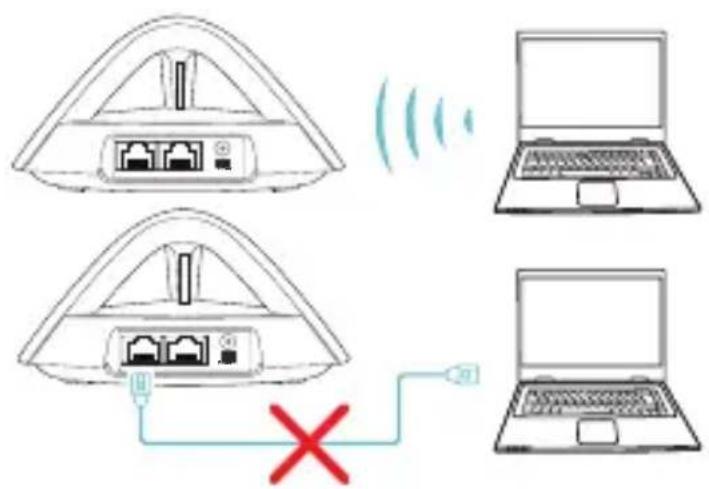
Prijunkite kompiuterj / nešiojamaji kompiuterj prie savo „Lyra Trio" i'renginio per „Wi-Fi" "ASUS_XX_AMAPS". Paleiskite interneto narśykle. Būsite nukreipti j sąrankos vedlj „ASUS Setup Wizard". Jeigu ne, naudokite http://router.asus.com.
Pagrindinis, Lyra Trio" jrenginys
3
Kito „Lyra Trio" irenginio pridèjimas prie esamo tinklo
1 METODAS Naudiojantis programme
1
Available on the App Store
2. METODE Timekja GUI izmantošana
WiFi "ASUS XX AMAPS". Atveriet timekja pārlūku. Tiek ASUS iestatīsanas vednis. Ja tas neatveras, navigējiet ur router.asus.com.
m = 311
3aynctte npinojkeHne Lyra n Haxmnte nKOHky «+» B Bepxhem npabom yrny, 3aTe M BbIbepnte Add Lyra to current network n Cnedyte nHCTpykncnM dJa 3aBepseHna.
METOД2 Yepe3 KhoNkU "COnpJxKeHne"
HaXMMTe uYdePxNBAuTe KHOKky ConpJKeHue Ha OCHOBHOM yCTpoIcTBe Lyra Trio, noka HnDnKaTOP He 3aMnRaET CINHM CBetOM.
2 yctpoiCTBe Lyra Trio, noka uHnIkaTOp He NaHHeT MnRaTb CnHIM CBETOM., 3aTeM 3arOpNTcBETIO-ROJy6bIM CBETOM, yKa3bIBaR, YTO npOueCC cOnpJxEHHaBepWeH.
A quick look at your Lyra Trio
| 1. LED-indikator stanja |
| 2. Vhod LAN |
| 3. Vrata WAN (internet) |
| 4. Vhod (DC-IN) vklop |
1
Primarno napravo Lyra Trio priključite na modem
1
Izkljucite kabelski modem / modem DSL*. Odstranite baterijo, ce je namešcena.
Available on the App Store
ASUS recycling and takeback programs come from our commitment to the highest standards for protecting our environment. We believe in providing solutions for you to be able to responsibly recycle our products, batteries, other components, as well as the packaging materials. Please go to http://csr.asus.com/ english/Takeback.htm for the detailed recycling information in different regions.
REACH
Complying with the REACH (Registration, Evaluation, Authorisation, and Restriction of Chemicals) regulatory framework, we published the chemical substances in our products at ASUS REACH website at http://csr.asus.com/english/REACH.htm
Federal Communications Commission Statement
This device complies with Part 15 of the FCC Rules. Operation is subject to the following two conditions:
This device may not cause harmful interference.
- This device must accept any interference received, including interference that may cause undesired operation.
This equipment has been tested and found to comply with the limits for a class B digital device, pursuant to part 15 of the FCC Rules. These limits are designed to provide reasonable protection against harmful interference in a residential installation.
This equipment generates, uses and can radiate radio frequency energy and, if not installed and used in accordance with the instructions, may cause harmful interference to radio communications. However, there is no guarantee that interference will not occur in a particular installation. If this equipment does cause harmful interference to radio or television reception, which can be determined by turning the equipment off and on, the user is encouraged to try to correct the interference by one or more of the following measures:
Reorient or relocate the receiving antenna.
- Increase the separation between the equipment and receiver.
- Connect the equipment into an outlet on a circuit different from that to which the receiver is connected.
- Consult the dealer or an experienced radio/TV technician for help.

WARNING! Any changes or modifications not expressly approved by the party responsible for compliance could void the user's authority to operate the equipment.
Prohibition of Co-location
This device and its antenna(s) must not be co-located or operating in conjunction with any other antenna or transmitter.
IMPORTANT NOTE:
Radiation Exposure Statement: This equipment complies with FCC radiation exposure limits set forth for an uncontrolled environment. End users must follow the specific operating instructions for satisfying RF exposure compliance. To maintain compliance with FCC exposure compliance requirement, please follow operation instruction as documented in this manual.

WARNING! This equipment must be installed and operated in accordance with provided instructions and the antenna(s) used for this transmitter must be installed to provide a separation distance of at least 20~cm from all persons and must not be co-located or operating in conjunction with any other antenna or transmitter.
Compliance Statement of Innovation, Science and Economic Development Canada (ISED)
This device complies with Innovation, Science and Economic Development Canada licence exempt RSS standard(s). Operation is subject to the following two conditions: (1) this device may not cause interference, and (2) this device must accept any interference, including interference that may cause undesired operation of the device.
Operation in the band 5150-5250 MHz is only for indoor use to reduce the potential for harmful interference to co-channel mobile satellite systems.
CANICES-3(B)/NMB-3(B)
Radio Frequency (RF) Exposure Information
The radiated output power of the ASUS Wireless Device is below the Innovation, Science and Economic Development Canada radio frequency exposure limits. The ASUS Wireless Device should be used in such a manner such that the potential for human contact during normal operation is minimized.
This equipment should be installed and operated with a minimum distance of 21cm between the radiator any part of your body.
This device has been certified for use in Canada. Status of the listing in the Innovation, Science and Economic Development Canada's REL (Radio Equipment List) can be found at the following web address:
http://www.ic.gc.ca/eic/site/ceb-bhst.nsf/eng/h_tt00020.html
Additional Canadian information on RF exposure also can be found at the following web:
https://www.ic.gc.ca/eic/site/smt-gst.nsf/eng/sf08792.html
KC: Korea Warning Statement
Precautions for the use of the device
a. Pay particular attention to the personal safety when use this device in airports, hospitals, gas stations and professional garages.
b. Medical device interference: Maintain a minimum distance of at least 15cm (6 inches) between implanted medical devices and ASUS products in order to reduce the risk of interference.
c. Kindly use ASUS products in good reception conditions in order to minimize the radiation's level.
d. Keep the device away from pregnant women and the lower abdomen of the teenager.
This product complies with the "India E-Waste (Management) Rules, 2016" and prohibits use of lead, mercury, hexavalent chromium, polybrominated biphenyls(PBBs) and polybrominated diphenyl ethers (PBDEs) in concentrations exceeding 0.1% by weight in homogenous materials and 0.01% by weight in homogenous materials for cadmium, except for the exemptions listed in Schedule II of the Rule.
Address 15 Li-Te Road, Peitou, Taipei, Taiwan 11259
Website
www.asus.com.tw
Technical Support
Telephone
+886228943447
Support Fax +886228907698
Online support support.asus.com
ASUS COMPUTER INTERNATIONAL (America)
Address 48720 Kato Rd., Fremont, CA 94538, USA
Telephone
+15107393777
Fax +15106084555
Website
usa.asus.com
Online support support.asus.com
ASUS COMPUTER GmbH (Germany and Austria)
Address Harkort Str. 21-23, D-40880 Ratingen, Germany
Support Fax +49-2102-959931
Website
asus.com/de
Online contact eu-rma.asus.com/sales
Technical Support
Telephone (Component) +49-2102-5789555
Telephone Germany
(System/Notebook/Eee/LCD)
+49-2102-5789557
Telephone Austria
(System/Notebook/Eee/LCD)
Support Fax
+49-2102-959911
Online support
support.asus.com
Networks Global Hotline Information
| Region Country Hotline Number Service Hours | |
| Europe | Cyprus 800-92491 09:00-13:00; 14:00-18:00 Mon-Fri |
| France 0033-170949400 09:00-18:00 Mon-Fri | |
| Germany 0049-1805010920 0049-1805010923 (component support) 09:00-18:00 Mon-Fri 10:00-17:00 Mon-Fri | |
| Hungary 0036-15054561 09:00-17:30 Mon-Fri | |
| Italy 199-400089 09:00-13:00; 14:00-18:00 Mon-Fri | |
| Greece 00800-44142044 09:00-13:00; 14:00-18:00 Mon-Fri | |
| Austria 0043-820240513 09:00-18:00 Mon-Fri | |
| Netherlands/Luxembourg 0031-591570290 09:00-17:00 Mon-Fri | |
| Belgium 0032-78150231 09:00-17:00 Mon-Fri | |
| Norway 0047-2316-2682 09:00-18:00 Mon-Fri | |
| Sweden 0046-858769407 09:00-18:00 Mon-Fri | |
| Finland 00358-969379690 10:00-19:00 Mon-Fri | |
| Denmark 0045-38322943 09:00-18:00 Mon-Fri | |
| Poland 0048-225718040 08:30-17:30 Mon-Fri | |
| Spain 0034-902889688 09:00-18:00 Mon-Fri | |
| Portugal 00351-707500310 09:00-18:00 Mon-Fri | |
| Slovak Republic 00421-232162621 08:00-17:00 Mon-Fri | |
| Czech Republic 00420-596766888 08:00-17:00 Mon-Fri | |
| Switzerland-German 0041-848111010 09:00-18:00 Mon-Fri | |
| Switzerland-French 0041-848111014 09:00-18:00 Mon-Fri | |
| Switzerland-Italian 0041-848111012 09:00-18:00 Mon-Fri | |
| United Kingdom 0044-1442265548 09:00-17:00 Mon-Fri | |
| Ireland 0035-31890719918 09:00-17:00 Mon-Fri | |
| Russia and CIS 008-800-100-ASUS 09:00-18:00 Mon-Fri | |
| Ukraine 0038-0445457727 09:00-18:00 Mon-Fri | |
Networks Global Hotline Information
| Region Country Hotline Numbers Service Hours | ||
| Asia-Pacific | Australia 1300-278788 09:00-18:00 Mon-Fri | |
| New Zealand 0800-278788 09:00-18:00 Mon-Fri | ||
| Japan 0800-1232787 | 09:00-18:00 Mon-Fri | |
| 09:00-17:00 Sat-Sun | ||
| 0081-570783886 | 09:00-18:00 Mon-Fri | |
| ( Non-Toll Free ) | 09:00-17:00 Sat-Sun | |
| Korea 0082-215666868 09:30-17:00 Mon-Fri | ||
| Thailand 0066-24011717 09:00-18:00 Mon-Fri | ||
| 1800-8525201 | ||
| Singapore 0065-64157917 11:00-19:00 Mon-Fri | ||
| 0065-67203835 11:00-19:00 Mon-Fri | ||
| ( Repair Status Only ) 11:00-13:00 Sat | ||
| Malaysia 1300-88-3495 9:00-18:00 Mon-Fri | ||
| Philippine 1800-18550163 09:00-18:00 Mon-Fri | ||
| India | 09:00-18:00 Mon-Sat | |
| India(WL/NW) | 1800-2090365 09:00-21:00 Mon-Sun | |
| Indonesia 0062-2129495000 09:30-17:00 Mon-Fri | ||
| 500128 (Local Only) | 9:30 – 12:00 Sat | |
| Vietnam 1900-555581 | 08:00-12:00 | |
| 13:30-17:30 Mon-Sat | ||
| Hong Kong 00852-35824770 | 10:00-19:00 Mon-Sat | |
| Americas | USA | 8:30-12:00 EST Mon-Fri |
| Canada | 9:00-18:00 EST Sat-Sun | |
| Mexico 001-8008367847 | 08:00-20:00 CST Mon-Fri | |
Networks Global Hotline Information
| Middle East + Africa | Egypt 800-2787349 09:00-18:00 Sun-ThuSaudi Arabia 800-1212787 09:00-18:00 Sat-WedUAE 00971-42958941 09:00-18:00 Sun-ThuTurkey 0090-2165243000 09:00-18:00 Mon-FriSouth Africa 0861-278772 08:00-17:00 Mon-FriIsrael *6557/00972-39142800 08:00-17:00 Sun-Thu*9770/00972-35598555 08:30-17:30 Sun-Thu |
| Balkan Countries | Romania 0040-213301786 09:00-18:30 Mon-FriBosnia 00387-33773163 09:00-17:00 Mon-FriHerzegovinaBulgaria 00359-70014411 09:30-18:30 Mon-Fri00359-29889170 09:30-18:00 Mon-FriCroatia 00385-16401111 09:00-17:00 Mon-FriMontenegro 00382-20608251 09:00-17:00 Mon-FriSerbia 00381-112070677 09:00-17:00 Mon-FriSlovenia 00368-5904540000368-59045401 08:00-16:00 Mon-Fri |
| Baltic Countries | Estonia 00372-6671796 09:00-18:00 Mon-Frilatvia 00371-67408838 09:00-18:00 Mon-Frilithuania-Kaunas 00370-37329000 09:00-18:00 Mon-Frilithuania-Vilnius 00370-522101160 09:00-18:00 Mon-Fri |
NOTES:
- For more information, visit the ASUS support site at: https://www.asus.com/support
UK support email: network support uk@asus.com
English CE statement
Simplified EU Declaration of Conformity
ASUSTek Computer Inc. hereby declares that this device is in compliance with the essential requirements and other relevant provisions of Directive 2014/53/EU. Full text of EU declaration of conformity is available at https://www.asus.com/Networking/Lyra-Trio/HelpDesk Declaration/.
Declaration of Conformity for Ecodesign directive 2009/125/EC
Testing for eco-design requirements according to (EC) No 1275/2008 and (EU) No 801/2013 has been conducted. When the device is in Networked Standby Mode, its I/O and network interface are in sleep mode and may not work properly. To wake up the device, press the reset, or WPS button.
This equipment complies with EU radiation exposure limits set forth for an uncontrolled environment. This equipment should be installed and operated with minimum distance 20cm between the radiator & your body.
All operational modes:
2.4GHz: 802.11b, 802.11g, 802.11n (HT20), 802.11n (HT40),
5GHz: 802.11a, 802.11n (HT20), 802.11n (HT40), 802.11ac (VHT20), 802.11ac (VHT40), 802.11ac (VHT80)
The frequency, mode and the maximum transmitted power in EU are listed below:
2412-2472MHz: 19.98dBm; 5180-5240MHz: 22.76 dBm
5260-5320MHz: 22.99dBm; 5500-5700MHz: 29.98dBm
2402-2480MHz (BR/EDR): 5.82 dBm; 2402-2480MHz (LE): 5.59 dBm
The device is restricted to indoor use only when operating in the 5150 to 5350 MHz frequency range.
The adapter shall be installed near the equipment and shall be easily accessible.

| AT BE BG CZ DK EE FR | |||||||
| DE IS IE IT EL ES CY | |||||||
| LV LI LT LU HU MT NL | |||||||
| NO PL PT RO SI SK TR | |||||||
| FI SE CH UK HR UA | |||||||
Bulgarian ИзяВленье OTHOCHO CE
Опостена.Deекларачnia 3a cboTBetCTBne Ha EC
2402-2480MHz (BR/EDR):5.82dBm; 2402-2480MHz (LE):5.59dBm
nH 5150-5350
ynnnnnn
Lithuanian CE pareiskimas
Supaprastinta ES atitikties deklaracija
The frequency, mode and the maximum transmitted power in EU are listed below:
2412-2472MHz: 19.98dBm; 5180-5240MHz: 22.76 dBm
5260-5320MHz: 22.99dBm; 5500-5700MHz: 29.98dBm
2402-2480MHz (BR/EDR): 5.82 dBm; 2402-2480MHz (LE): 5.59 dBm
- A quick look at your Lyra Trio
- 1
- Connect Primary Lyra Trio to Modem
- 2
- Setup your Lyra Trio WiFi system
- METHOD 1 Through the App
- METHOD 2 Through the Web GUI
- 3
- Adding other Lyra Trio to current network
- METHOD 2 Through the Pair Button
- Colors of Lyra Trio
- Light Cyan
- Red
- Yellow
- Solid White
- Safety Notices
- METOД2 Ппeз ye6 GUI
- METODAS Naudojantis internetiniu GUI
- Kito „Lyra Trio" irenginio pridèjimas prie esamo tinklo
- METODAS Naudiojantis programme
- METODE Timekja GUI izmantošana
- METOД2 Yepe3 KhoNkU "COnpJxKeHne"
- Primarno napravo Lyra Trio priključite na modem
- REACH
- Federal Communications Commission Statement
- Prohibition of Co-location
- IMPORTANT NOTE:
- Compliance Statement of Innovation, Science and Economic Development Canada (ISED)
- Radio Frequency (RF) Exposure Information
- KC: Korea Warning Statement
- Precautions for the use of the device
- Technical Support
- ASUS COMPUTER INTERNATIONAL (America)
- ASUS COMPUTER GmbH (Germany and Austria)
- Networks Global Hotline Information
- NOTES:
- English CE statement
- Simplified EU Declaration of Conformity
- Declaration of Conformity for Ecodesign directive 2009/125/EC
- Bulgarian ИзяВленье OTHOCHO CE
- Опостена.Deекларачnia 3a cboTBetCTBne Ha EC
- Lithuanian CE pareiskimas
- Supaprastinta ES atitikties deklaracija
Brand : ASUS
Model : Lyra Trio MAPAC1750
Category : Wireless Router