
32PW9520 - TV PHILIPS - Free user manual and instructions
Find the device manual for free 32PW9520 PHILIPS in PDF.



User questions about 32PW9520 PHILIPS
0 question about this device. Answer the ones you know or ask your own.
Ask a new question about this device
Download the instructions for your TV in PDF format for free! Find your manual 32PW9520 - PHILIPS and take your electronic device back in hand. On this page are published all the documents necessary for the use of your device. 32PW9520 by PHILIPS.
USER MANUAL 32PW9520 PHILIPS
If this instruction manual does not give an answer or if 'Tips' do not solve your TV problem, you can call your Local Philips Customer or Service Centre. See the supplied World-wide guarantee booklet. Please, have the Model and Product number which you can find at the back of your television set or on the packaging, ready, before calling the Philips helpline.
Model: Product No:
Due to continuous product improvements this manual is subject to change without notice.

End of life directives
Philips is paying a lot of attention to producing environmentally-friendly in green focal areas. Your new TV contains materials which can be recycled and reused. At the end of its life specialised companies can dismantle the discarded TV to concentrate the reusable materials and to minimise the amount of materials to be disposed of. Please ensure you dispose of your old TV according to local regulations.

Installation
Preparation 2
Keys on top of the TV 2
Your remote control 3-4
To use the menus. 5
Select the menu language and country 5
Store TV channels 6
Automatic installation 6
Manual installation 6
Give name 6
Reshuffle the programme list. 7
Select favourite TV channels 7
TV setup 7
General 7
Source 8
Decoder 8
Demo 9
Operation
TV menu Picture menu 9-10
Sound menu 10
Features menu. 11
Teletext guide 12
Teletext 13-14
Connect peripheral equipment
Connecting and selecting equipment 15-16
Audio- and video equipment keys 17
Tips 18
EasyLink features are based on the "one touch operation" approach. This means that a sequence of actions are executed at the same time in both the television and the video cassette recorder, provided both are fitted with the EasyLink function and connected with the eurocable supplied with your video recorder.
Preparation
1 Place the TV on a solid surface.
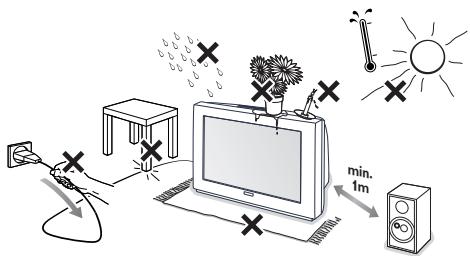
For ventilation, leave at least 5 cm free all around the TV. Do not place the TV on a carpet. To prevent any unsafe situations, do not place any objects on top of the TV. Avoid having direct sunlight and exposure to rain or water
2 Insert the aerial plug firmly into the aerial socket at the back of the TV.
3 Insert the mains plug of the TV in the wall socket having a mains voltage of 220V-240V.
Remote control: Insert the 2 batteries supplied (Type R6-1,5V).
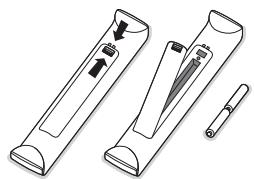
The batteries supplied do not contain the heavy metals mercury and cadmium. Please check on how to dispose of exhausted batteries according to local regulations.
Switch the TV on: Press the power switch ① on the front of your TV. A blue indicator on the front of the TV lights up and the screen comes on. If the TV is in standby mode (red indicator), press the -P+ keys or the red key on the remote control.
Keys on top of the TV
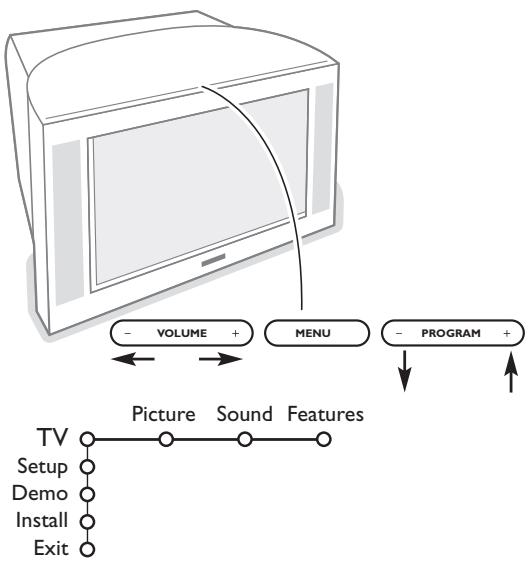
Should your remote be lost or broken you can still change some of the basic settings with the keys on top of your TV.
Press:
- the VOLUME - or + key to adjust the volume;
- the PROGRAM - or + key to select the TV channels or sources.
Press the MENU key to summon the main menu without the remote control.
Use:
- the VOLUME - or + key and the PROGRAM - or + key to select menu items in the directions as shown;
- the MENU key to confirm your selection.
Note:
When activated via the MENU key on top of the TV, only Exit lets you dismiss the menu.
Navigate to Exit and press the MENU key.
Use of the remote control
Note: For most keys pressing a key once will activate the function. Pressing a second time will de-activate it. When a key enables multiple options, a small list will be shown. Press repeatedly to select the next item in the list. The list will be removed automatically after 4 seconds or press OK to remove immediately.
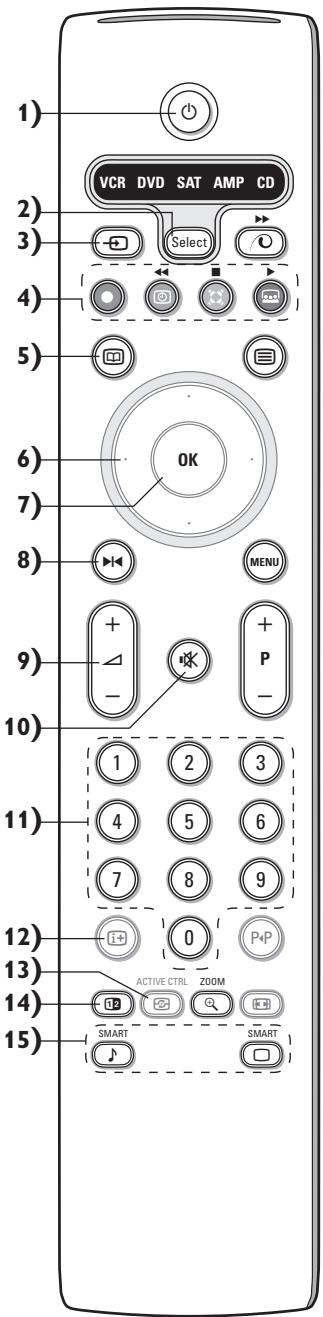
1) Standby
Press to switch the TV on or off.
When switched off, a red indicator on the TV lights up.
2) VCR DVD SAT AMP CD
Audio and Video equipment keys (p. 17)
3) Select peripherals (p. 16)
4)
Audio- and Video equipment keys (p.17)
Instant record
See Record with your recorder with EasyLink, p. 17.
5) Teletext Guide on/off (only available on certain versions) p. 12
Press the 12 key to show Teletext Guide on the right half of the screen.
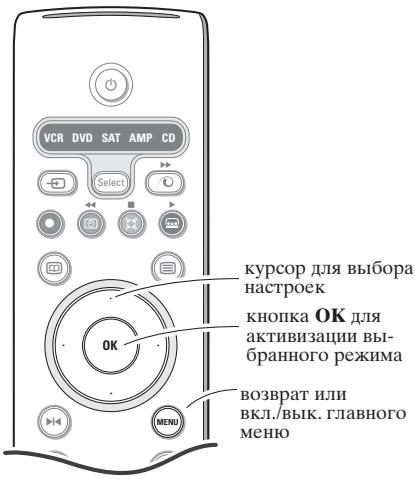
6) Cursor
Used to move around the menus and select adjustments.
7) OK Press this key
to activate your choice, when in the menus.
- to display the programme list.
8) Freeze
To freeze the picture.
9) -VOL+ (Volume)
To adjust the volume.
10) Interrupt the sound or restore it.
11)0/9 Digit keys
To select a TV channel.
For a two digit programme number, enter the second digit before the dash disappears. To switch immediately to a selected one digit TV channel, keep the digit key pressed a bit longer.
12) i+ On Screen information
Press to display information about the selected TV channel and programme.
Menu/Remote control info
When a menu is on screen, press 1 + to display info on the selected menu item. For information on the remote control functions, while the menu info is displayed, press any key on the remote control.
The normal function of the key is not executed.
13) Active control (only available on certain versions) see p. 10
14) Dual screen (only available on certain versions)
1 Press the or key.
Press the 12 key to show Teletext or Teletext Guide on the right of the screen.
2 • Picture/Teletext Guide:
-
Press the cursor left/right to select a TV channel.
-
Press the cursor down to move the puck to the blue ball in the left screen.
-
Press +P to select another TV channel.
-
Picture/Teletext:
See Active screen selection, p. 13.
3 Press the 12 key to switch off dual screen.
15) Smart keys
To select predefined picture and sound settings. Personal refers to the personal preference settings selected in the sound and picture menu.
Use of the remote control
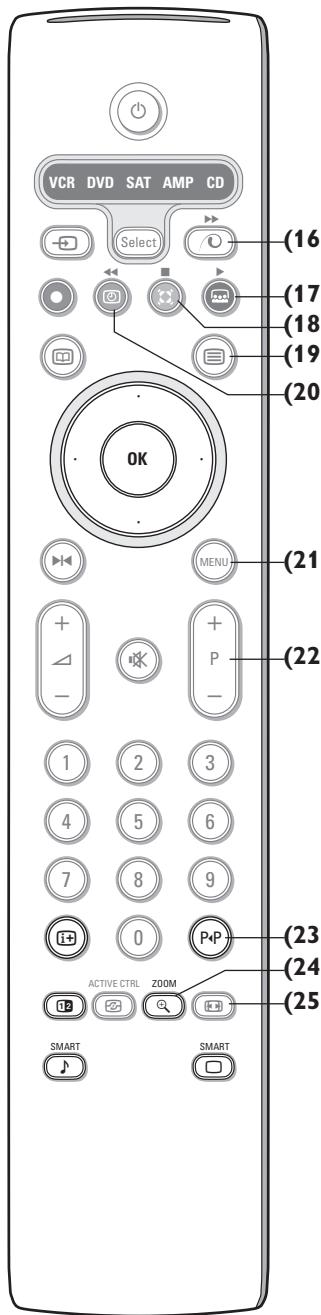
16) Pixel Plus 2 demo on/off
In the right part Pixel Plus 2 and Digital Natural Motion are switched on.
17) Cinema Go: See separate Cinema Link booklet supplied.
18) Surround mode Incredible surround
With stereo transmission, and when Incredible surround is selected, it seems as though the loudspeakers are spread further apart from one another.
Virtual Dolby Surround
Optimal with Dolby surround signals. Enables you to experience the effect of Dolby surround Pro Logic, reproducing a rear sound effect. See Sound menu, 3D effect, p. 10.
Note: You can make the same selection in the Sound menu, surround mode, p. 10.
19) Teletext on/off (only available on certain versions) p. 13
Press the 12 key to show teletext on the right half of the screen.
20) Time display: The time is displayed on the screen.
21) MENU: Main menu on/off see p. 5
22)-P+Programme selection
To browse through the TV channels and sources stored in the favourite list.
23) P-P Smart surf
With this key you can easily switch between 2 up to 9 different TV channels or sources. See General, Smart surf, p. 7.
Press the OK key or wait for the time out to dismiss the Smart surf display.
24) Zoom on/off
Press the zoom key to activate/deactivate the zoom function.
Press the OK key repeatedly to select one of the zoom magnifications (x1, x4, x9, x16).
Use the cursor up/down, left/right to shift the selected zoom window over the screen with the cursor.
The zoom window is reset after: selecting another TV channel, another picture format or when another picture format is selected automatically.
25) Picture format
Press this key repeatedly or press the cursor up/down to select another picture format:
If your television is equipped with a 16:9 screen: Auto format, Super zoom, 4:3, Movie Expand 14:9, Movie Expand 16:9, Subtitle zoom or Wide screen.
If your television is equipped with a 4:3 screen: Auto format, 4:3 or Vertical Squeeze.
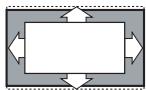
Auto format
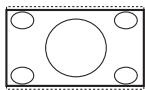
Super zoom
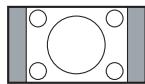
4:3
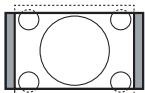
Movie Expand 14:9

Movie Expand 16:9
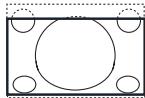
Subtitle zoom
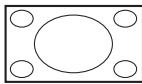
Wide screen
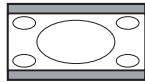
Vertical Squeeze
Auto format makes the picture fill the screen as much as possible.
In case of subtitles in the bottom black bar, Auto format makes the subtitles visible. If subtitles are only partly visible, press cursor up.
In case of a broadcaster logo in the corner of the top black bar, the logo disappears from the screen.
Super zoom removes the black bars on the sides of 4:3 programs with minimal distortion.
When in Movie Expand 14:9, 16:9, Super zoom or Subtitle zoom picture format, you can make subtitles visible with the cursor up/down.
To use the menus
Press the + key on the remote control to get information about the selected menu item.
Press the MENU key on the remote control to summon the main menu. At any moment you can exit the menu by pressing the MENU key again.
Note: If you have connected equipment with Cinema Link, more menu items are present.
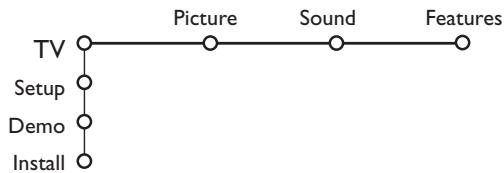
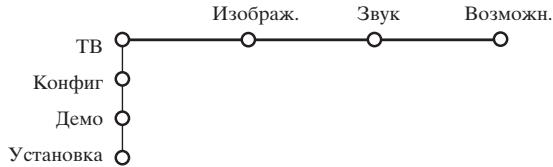
Use the cursor in the up/down direction to select the TV, Setup, Demo or Install menu.
Use the cursor left/right to select Picture, Sound or Features.
Note: Sometimes not all the menu items are visible on the screen (indicated by a cluster of blue balls). Use the cursor down or right to reveal all items.
Use the cursor in the left/right direction to select the menu item.
Use the cursor up/down again to select the control you want to select or to adjust.
Note: Items temporary not available or not relevant are displayed in a light grey colour and cannot be selected.
Installation
The installation menu contains the following items:

EasyLink
If your video recorder has an EasyLink function, during installation, the language, country and available channels are automatically transmitted to the video recorder.
Select the menu language and country
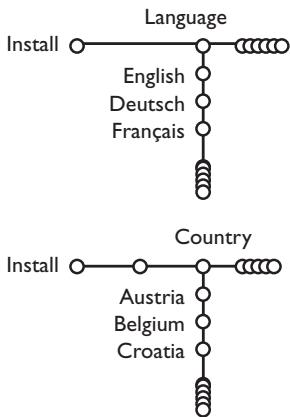
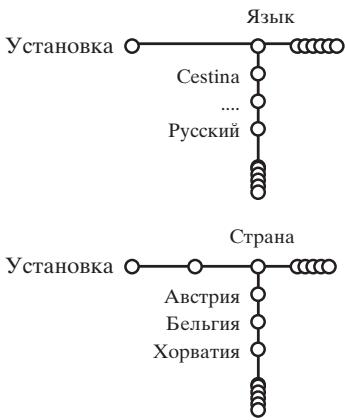
Press the MENU key on the remote control.
Use the cursor down to select Install.
Use the cursor right to select Language. Follow the instructions on screen.
Use the cursor up/down to select your preferred language and press the OK key to confirm your selection.
Use the cursor right to select Country.
6 Select the country where you are now located and press the OK key. Select Other when none of the countries applies.
7 Proceed with the Install menu.
Store TV channels
After language and country are set correctly, you can now search for and store the TV channels in two different ways: using Automatic Installation or Manual Installation (tuning-in channel by channel). Select your choice with the cursor right.
Automatic installation
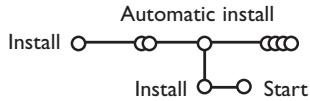
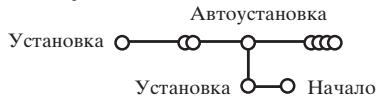
1 Select Automatic install in the Install menu. Note: All channels must be unlocked in order to autoprogram. If requested, enter your code to unlock all channels. (See TV, Features menu, Childlock, p. 11.)
Press the cursor down. The autoprogramming option label Start appears.
3 Press the cursor right.
4 The message Searching appears and the progress of autoprogramming is displayed.
If a cable system or a TV channel which broadcasts ACI (Automatic Channel Installation) is detected, a programme list appears. Without ACI broadcast, the channels are numbered according your language and country selection. You can use Reshuffle to renumber them. See p. 7.
It is possible that the cable company or the TV channel displays a broadcast selection menu. Layout and items are defined by the cable company or the TV channel. Make your choice with the cursor and press the OK key.
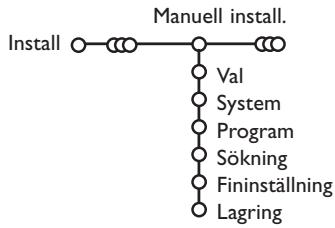
Manual installation
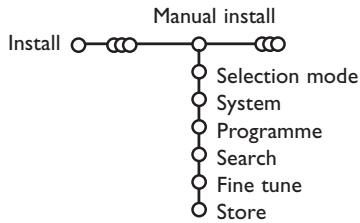
Searching for and storing TV channels is done channel by channel. You must go through every step of the Manual Installation menu.
1 Select Manual install in the Install menu.
Press the cursor down. Follow the instructions on screen.
Note: Search or direct selection of a TV channel. If you know the frequency, the C- or S-channel number, enter the 3 or 2 digits of the frequency or the channel number directly with the digit keys 0 to 9 (e.g. 048). Press the cursor down to proceed.
Repeat to search for another TV channel.
Give name
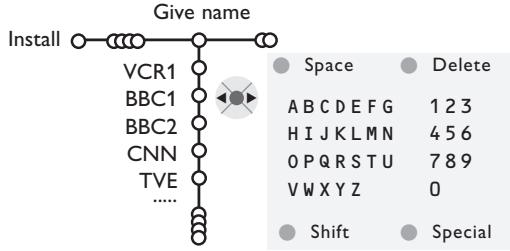
It is possible to change the name stored in the memory or to assign a name to a TV channel for which a name has not yet been entered. A name with up to 5 letters or numbers can be given to the programme numbers 0 to 99.
1 Select Give Name in the Install menu and press the cursor down.
2 Select the programme number.
Note: keep the cursor up/down pressed to scroll through the programme list quickly.
3 Press the cursor right.
A keyboard appears on the screen.
Press the cursor right to enter the keyboard. Press the cursor up/down, left/right to select the first character and press OK. Repeat for every character you want to enter. Select Space to enter a space; Delete to erase the highlighted character in the name entered; Shift to display upper- or lowercase characters on the keyboard; Special to display special characters on the keyboard. Press OK to confirm.
Press the cursor left repeatedly when you have finished the name giving.
Select another programme number and repeat steps to
Reshuffle the programme list
You can change the order of the stored TV channels.
1 Select Reshuffle in the Installation menu.
2 Follow the instructions on screen.
Select Favourite TV channels
1 Select Favourite programmes in the Install menu.
2 Select your programme number with the cursor up/down.
3 Select Yes or No with the cursor right.
4 Repeat 2 and 3 for every TV channel or external you want to make a favourite or a non-favourite TV channel or external.
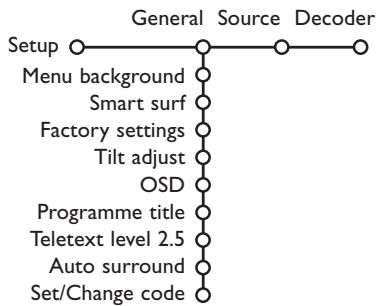
TV Setup
The Setup menu contains items that control the settings of the TV's functions, features, services and peripherals you may have connected.
The General menu allows you to change various settings that are presumably adjusted less frequently than most other settings.
The Source menu allows you to select a source. The Decoder menu allows you to define one or more programme numbers as decoder programme numbers.
Press the + key on the remote control to get information about the selected menu item.
General
Smart surf
1 Select Smart surf.
2 With the cursor left/right, select
- 2 programmes if you want the P4P key to toggle between the current and the previously selected channel,
- 9 programmes if you want the P&P key to summon a list of up to 9 channels which can be selected,
To add/remove a channel or source:
Tune to the channel or source you wish to add or remove. Press the P4P key and press the cursor right to add or remove.
Note: If there are already 9 channels/sources in the list, the one at the bottom of the list will be removed.
Factory settings
This resets the picture and sound settings to their predefined factory values, but maintains the channel installation settings.
OSD (On Screen Display)
See Use of the remote control, p. 3, i+ On screen information.
1 Select OSD.
2 Select Normal to activate the continuous display of the programme number. Also TV channel and programme information are extended. Minimum will display reduced channel information.
Note: When subtitles is switched on, see Features, p.11, continuous display of the programme number is not possible.
Teletext 2.5
Some broadcasters offer the opportunity to see more colours, other background colours and nicer pictures in the teletext pages.
1 Select Teletext 2.5.
Press the cursor right to select Teletext 2.5 On to take advantage of this feature.
Press the cursor right again to select Teletext 2.5 Off if you like the more neutral teletext layout.
The selection made is valid for all channels which broadcast teletext 2.5.
Note: It may take a few seconds before teletext broadcast switches over to Teletext 2.5.
Auto Surround
Sometimes the broadcaster transmits special signals for Surround Sound encoded programmes. The TV automatically switches to the best surround sound mode when Auto Surround is switched On.
Set/Change code
The Child lock feature (see TV, Features, p. 11) allows you to lock channels to prevent others from watching certain programmes. To watch locked channels, a 4-digit code must be entered. The Set/Change code menu item allows you to create or change a Personal Identification Number (PIN).
1 Select Set/Change code.
2 If no code exists yet, the menu item is set to Set code. If a code has previously been entered, the menu item is set to Change code. Follow the instructions on screen.
Important: You have forgotten your code!
1 Select Change code in the General menu and press OK.
Press the cursor right and enter the overriding code 8-8-8-8.
Press the cursor again and enter a new personal 4-digit code. The previous code is erased and the new code is stored.
Source
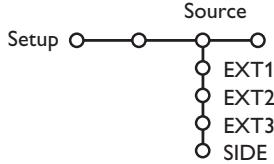
This menu allows you to indicate the peripheral you connected to one of the external inputs.
Press the cursor right to enter the list of types of peripherals attached to the selected input.
2 Select the peripheral device with the cursor up/down.
Once you have selected the source type, e.g. DVD, this source will automatically be selected when your remote control is in DVD mode, see p. 3, and when you press the key on the remote control.
Decoder
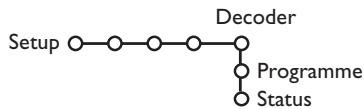
If a decoder or a descrambler is connected, see p. 15, you can define one or more programme numbers as decoder programme numbers.
1 Select Decoder with the cursor right.
2 SelectProgramme.
3 Select the programme number under which you have stored the programme coming from your decoder.
4 Select Status.
- Select the input used to connect your decoder: None, EXT1 or EXT2.
- Select None if you do not want the selected programme number being activated as a decoder programme number.
Note: Select EXT2 when the decoder is connected to your EasyLink video recorder.
Demo
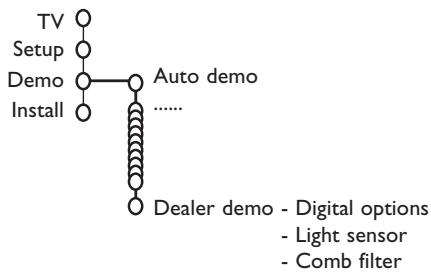
The Demo menu allows to demonstrate the TV features separately or in a continuous loop.
If Auto demo has been selected the demo will automatically present the features sequentially in a loop. Press one of the cursor keys to stop the Auto demo. If one of the features has been selected, this particular feature demo will run only once, and the Demo menu will reappear.
Note:The Dealer demo is not part of the automatic sequence and can only be activated separately.
TV menu
Press the MENU key on the remote control to summon the main menu.
Press the 1 + key on the remote control to get information about the selected menu item.
Picture menu
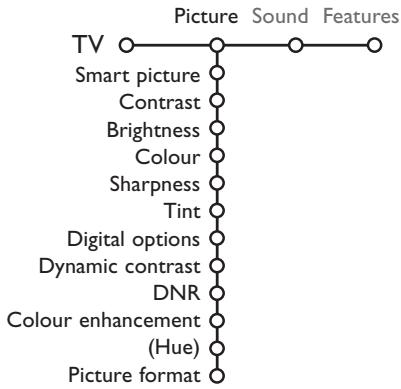
Press the cursor right to select Picture.
2 Select the menu items in the Picture menu with the cursor up/down.
3 Adjust the settings with the cursor left/right or enter the list of submenu items with the cursor right. Select a submenu item with the cursor up/down.
Note: To remove the menu background before adjusting the picture settings, see Select TV setup, General, p. 7.
Smart picture
Select Smart picture to display a list of predefined picture settings, each corresponding with specific factory settings.
Personal refers to the personal preference settings of picture in the picture menu.
Digital options
Pixel Plus 2 is the most ideal setting, doubles the horizontal resolution and increases the number of lines with 33% . You may consider to select Movie Plus in case a halo effect should disturb you. Dependent on your own preference, select Double lines, or 100Hz Digital Scan.
Note: When 60 Hz NTSC material is used, the options are changed to Pixel Plus 2, Movie Plus or Progressive, progressive scan without motion compensation.
Active Control
The TV continuously measures and corrects all incoming signals in order to provide the best picture possible.
1 Press the key on the remote control.
The Active Control menu appears.
Press the cursor up/down to select the Active Control values Off, Minimum, Medium (recommended) or Maximum.
The picture settings are being optimised continuously and automatically which is displayed by bars. The menu items can not be selected.
4 Press the cursor right to select Smart Picture.
Press the cursor up/down to select one of the predefined picture settings.
Press the cursor right to select Active Display.
Press the cursor up/down to select Show bars, one of the Dual screen demos or Off.
When you select Dynamic contrast, Pixel Plus 2, Digital Noise Reduction or Digital Natural Motion, the TV screen is divided into two parts: in the left part the selected picture quality setting is switched off; in the right part it is switched on.
Press the key again to switch off the Active Control menu.
Sound menu
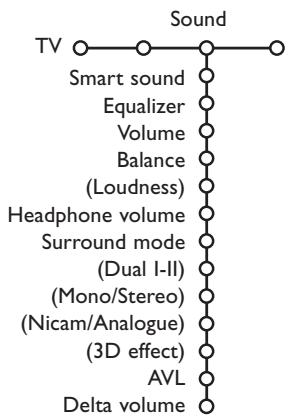
Press the cursor right to select Sound.
2 Select the menu items in the Sound menu with the cursor up/down and adjust the settings with the cursor left/right. Remember, control settings are at normal mid-range levels when the bar scale is centred.
Smart sound
Select Smart sound to display a list of predefined sound settings, each corresponding with specific factory settings of Treble and Bass.
Personal refers to the personal preference settings of sound in the sound menu.
Notes:
- Some menu items are only available in case of a Cinema Link configuration and when the Cinema Link is activated. Others are steered by the audio receiver instead of by the TV. See the separate Cinema Link booklet supplied.
- Dual I-II is only available with dual sound transmission.
- Mono/Stereo is only selectable in case of analogue stereo transmission.
- Nicam/Analogue is only selectable in case of Nicam transmission.
Features menu
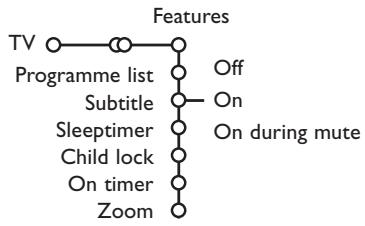
Programme list
Press the OK key to switch over to the selected TV channel or external.
Select subtitles
The subtitle page must be stored for each TV channel:
Switch on teletext and select the proper subtitle page from the index. Switch off teletext.
Subtitle On will automatically display them on the selected TV channels if subtitles are in the transmission. A symbol will indicate that the mode is on.
Select On during mute when you want to have the subtitles automatically displayed only when the sound has been muted with the key on the remote control.
Child lock
1 Select Child lock.
Lock
Child lock O---Custom lock--- Lock after
Unlock Programme lock
Press the cursor right to enter the Child lock menu. You're summoned to enter your code.
Note: You have to re-enter your code each time you enter the child lock menu.
Important: You have forgotten your code! See p. 8.
3 Select one of the menu items of the child lock menu:
- Lock if you want to lock all channels and externals.
-
Custom lock and press the cursor right. Select:
-
Lock after if you want to lock all channels and externals from a certain time onwards. Press the cursor right and enter the time with the cursor up/down and right. Press the OK key to validate.
-
Programme lock if you want to lock a certain TV channel or external;
- Select Unlock to disable all locks you have set.
Press the cursor right to select Features.
2 Select the menu items with the cursor up/down and adjust the settings with the cursor left/right.
On timer
1 Select On timer with the cursor down.
VCR1 Sunday Off BBC2 Monday On timer OOn CNN TVE Daily 15:45 ▲
2 Select On with the cursor right.
3 Press the cursor right again to enter the programme list.
4 Select the TV channel or external you want your TV to switch to on a selected time and day.
Press the cursor right again to select a day of the week or to select Daily.
Press the cursor right once again to enter the time with the digit keys or with the cursor up/down and press the OK key to activate.
7 Press the MENU key to turn off the menu. Note: To check your timer settings, press the i+ key.
Zoom
1 Select Zoom with the cursor down and press the OK key.
Press the OK key to select one of the zoom magnifications (x1, x4, x9, x16).
3 Additionally you can shift the selected zoom window over the screen with the cursor keys up/down, left/right.
4 Press the MENU key to turn off the zoom function.
Teletext guide
TV channels which broadcast teletext also transmit a page with the programme guide of the day. If the displayed teletext programme guide page satisfies the Video Programming via Teletext (VPT) requirements, it will be possible to record, remind, watch or lock programmes.
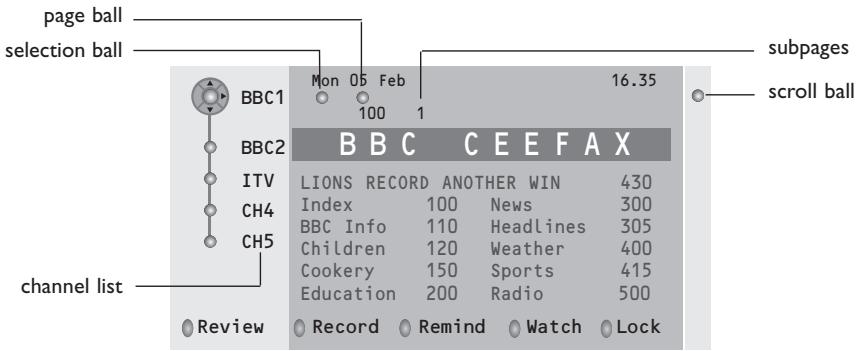
1 Press the key.
2 Select a TV channel with the cursor up/down and press OK.
Move the cursor up to the top of the channel list where the name of the selected TV channel reappears.
Press the cursor right to move the puck over the selection ball.
In the teletext index page, look for the programme guide page of the day or the following day.
Enter with the digit keys, the programme guide page number.
Press the cursor right twice to move the puck to the right to choose one of the subpages if available.
If the selected programme satisfies the VPT requirements, the TV will remember the last selected teletext page number of that channel that contains programme guide information and indicates which programme starts at what time.
Every time you press the key, the teletext programme guide page of the selected TV channel will be available.
Note:The broadcaster is responsible for the content of the information.
Basic functions
Press one of the grey, red, green, yellow or blue keys to activate a Teletext Guide function. The keys appear in grey if the function is not available.
Review: this menu provides a list of programmes that are marked as reminders, those that have to be recorded and those that are locked. This menu can be used to change or remove marked programmes.
Record: to programme the recording of the video recorder (if it has a NEXTVIEWLink function and is connected to EXT.2).
Remind: to automatically switch on the TV if it is in standby or to display a message if the TV is on.
Lock: to lock certain programmes to prevent recording or watching.
For the functions Record, Remind or Lock, a small menu pops up in which you can choose the interval: once, daily or weekly, or clear an earlier made record, remind or lock setting. The default interval is set to Once. To confirm the frequency, press the OK key.
Watch: to watch the selected and currently broadcast programme.
Teletext
Most TV channels broadcast information via teletext. This TV has a 1200 pages memory that will store most broadcasted pages and subpages to reduce waiting time. After each programme change, the memory is refreshed.
Switch Teletext on and off
Press to switch the teletext on.
| 102 «03 04 05 06 07 08 09 10 11 12» BBC CEEFAX 102 Mon 05 Feb 16.35.22 BBC CEEFAX | |||
| LIONS RECORD ANOTHER WIN 430 | |||
| Index | 100 | News | 300 |
| BBC Info | 110 | Headlines | 305 |
| Children | 120 | Weather | 400 |
| Cookery | 150 | Sports | 415 |
| Education | 200 | Radio | 500 |
| Lottery | 230 | Travel | 550 |
| Finance | 240 | Subtitling | 888 |
| Music | 280 | TV Listings | 600 |
| Red | Green | Yellow | Blue |
Select a Teletext page
- Enter the desired page number with the digit keys, the cursor keys up/down or with the -P+ key.
- Select the options at the bottom of the screen with the colour keys.
Previously selected teletext page
(Only possible in case there is no list of favourite teletext pages available. See p. 14.)
Press the P1P key.
Select the index teletext page
Press the grey colour key to display the main index (usually p.100).
Only for T.O.P teletext broadcasts:
Press 1 + . A T.O.P. overview of the teletext subjects available is displayed.
Select with the cursor up/down, left/right the desired subject and press the OK key.
Not all TV channels broadcast T.O.P. teletext.
Select subpages
When a selected teletext page consists of different subpages, a list of available subpages appears on the screen.
Press the cursor left or right to select the next or previous subpage.
Enlarge a Teletext page
Press repeatedly to display the upper teletext part, the lower teletext part and then to return to the normal teletext page size.
When the teletext page is enlarged, you can scroll the text, line by line using the cursor up/down.
Picture/Teletext
Press the key. Press the 12 key to show Teletext on the right of the screen.
Use the cursor keys to select a TV channel.
3 Press the 12 key to switch off dual screen.
Active screen selection
When in dual screen picture/teletext (12 key), enter the desired page number with the -P+ key, then press the MENU key, then select the left screen (with the blue ball at the top).
You can now select a compressed or full screen view of picture/teletext with the key.
Hypertext
With hypertext you can quickly jump to a pagENUM or search for a specific word shown on the current teletext page.
1 Press the OK key to highlight the first word or a number on the page.
Use the cursor up/down, left/right to select any other word or number you want to search for.
3 Press the OK key to confirm. The search starts. A message appears at the bottom of the screen to indicate the searching, or that the word or page is not found.
Use the cursor up to exit hypertext.
Teletext menu
(only available in full screen teletext mode)
Press the MENU key to activate the menu.
Press the cursor up/down to select the menu items.
3 Press the cursor right to activate.
Reveal
Reveals/conceals hidden information on a page, such as solutions to riddles and puzzles.
Press the cursor right to activate.
Favourite
You may create a list of eight favourite teletext pages in total, selected from various TV channels.
To add a favourite page to the list:
1 Select a favourite teletext page.
2 Select Favourite in the teletext menu and press the cursor right to enter the list.
3 Press the cursor right again to add the page.
4 Press the MENU key to watch the current page.
To watch a favourite page from the list:
When in Teletext, use the P4P key to browse through the favourite pages of the TV channel actually selected.
Note: Only the pages of the current channel can be selected.
Search
Selecting a word
On the keyboard on screen you can type in a random word you want to search for in the teletext pages.Whether upper- or lowercase is used has no influence.
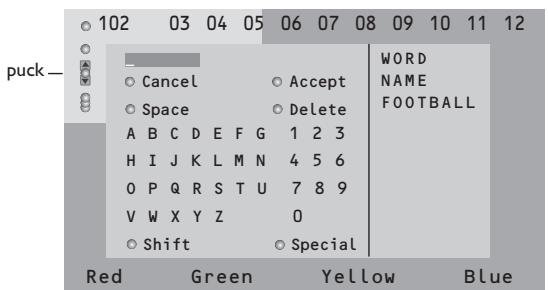
Press the cursor right to enter the keyboard.
Press the cursor left/right, up/down to select the characters, words or functions.
3 Press the OK key to confirm each character selected.
4 Select Cancel to cancel the word; Space to enter a space; Delete to delete the last character selected; Shift to switch between lowercase or capital characters; Special to display special characters on the keyboard and press the OK key.
Press the cursor left repeatedly to return to the Teletext menu again.
Searching a word
1 Type in the word on screen or select a word from the history list on the right and press OK.
2 Select Accept and press OK again. The message Searching appears.
3 To cancel the searching or to search for a new word, select Keyboard and press OK.
4 When a word is not found, a message appears. When the word is found, it is highlighted in the teletext page. To continue the search, press the OK key.
Cycle subpages (if available)
Makes the subpages cycle automatically. Press the cursor right to activate and to deactivate again.
Timed page
To display a specific page from a selected TV channel at a certain time.
Press the cursor right and select Yes or No.
2 Enter the time and pagENUMber with the cursor keys or the digit keys. Note: Teletext does not have to remain switched on, but you should watch the TV channel you have selected the specific page from.
Press the cursor left to return to the TV menu again.
Language
If the displayed characters on screen do not correspond with the characters used by the teletext broadcaster, you can change the language group here.
Select Group 1 or 2 with the cursor right.
Press the MENU key to leave the Teletext menu.
Connect Peripheral Equipment
There is a wide range of audio and video equipment that can be connected to your TV.
The following connection diagrams show you how to connect them.
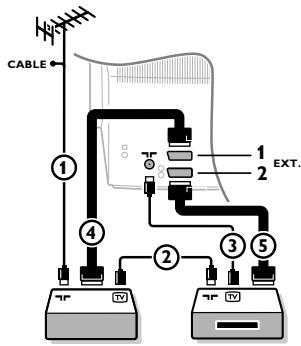
Depending on the versions, the TV set is equipped with 2 or 3 SCART connectors EXT1, EXT2 and EXT3 located on the rear.
Note: EXT. 1 can handle CVBS and RGB, EXT. 2 CVBS and Y/C, EXT. 3 CVBS and RGB. It is preferred to connect peripherals with RGB output to EXT. 1 or EXT. 3 as RGB provides a better picture quality.
If your recorder is provided with the EasyLink function, it should be connected to EXT.2 to benefit from the EasyLink functionality.
Recorder (VCR-DVD+RW)
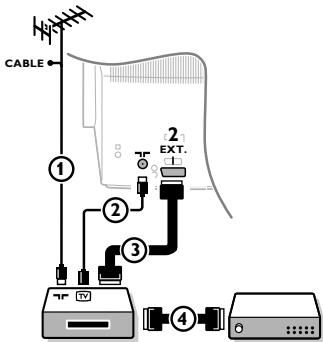
Connect the aerial cables ① ② and,to obtain the optimum picture quality,eurocable ③ as shown.
If your recorder does not have a euroconnector, the only possible connection is via the aerial cable. You will therefore need to tune in your recorder's test signal and assign it programme number 0 or store the test signal under a programme number between 90 and 99, see Manual installation, p.6. See the handbook of your recorder.
Decoder and Recorder
Connect a eurocable ④ to your decoder and to the special euroconnector of your recorder. See also the recorder handbook. See Decoder, p. 8. You can also connect your decoder directly to EXT.1 or 2 with a eurocable.
Other equipment (satellite receiver, decoder, DVD, games, etc.)
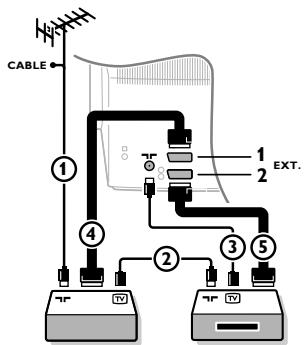
1 Connect the aerial cables ① ② and ③ as shown (only if your peripheral has TV aerial in-/output).
Connect your equipment with a eurocable ④ or ⑤ to one of the euroconnectors EXT.1, 2 or 3 to obtain a better picture quality.
2 Look for the test signal of your peripheral in the same way as you do for a recorder.
3 Make a selection in the Setup, Source menu, p. 8.
Side connections
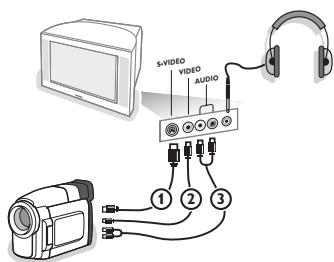
Camera or Camcorder
1 Connect your camera or camcorder as shown.
Connect toVIDEO ② and AUDIO L ③ for mono equipment. For stereo equipment also connect AUDIO R ③ S-VHS quality with an S-VHS camcorder is obtained by connecting the S-VHS cables with the S-VIDEO input ① and AUDIO inputs ③
Do not connect cable ① and ② at the same time. This may cause picture distortion!
Headphone
Insert the plug into the headphone socket _ij as shown.
Press on the remote control to switch off the internal loudspeakers of the TV.
The headphone impedance must be between 8 and 4000 Ohm. The headphone socket has a 3.5mm jack.
In the Sound menu select Headphone volume to adjust the.
headphone volume.
Stereo amplifier and two extra front speakers
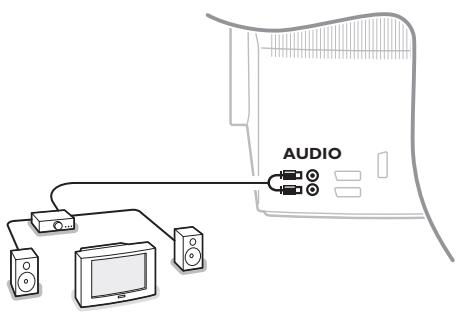
1 Connect the audio cables to the AUDIO input of your amplifier and to AUDIO L and R at the back of your TV.
The output level is controlled by the volume control of the amplifier.
Note: Switch off the TV and your audio amplifier before connecting them. Set the audio amplifier's volume to minimum.
To select connected equipment
Press the + key on the remote control repeatedly to select EXT1, EXT2, EXT3* or SIDE according to where you connected your equipment at the back or the right side of your TV.
Remark : Most equipment (decoder, recorder) carries out the switching itself, when it is switched on.
- Only available on certain versions.
Recorder or DVD with EasyLink
The recorder (VCR or DVD+RW) or DVD can be operated with the remote control via the Recorder or DVD menu on screen.
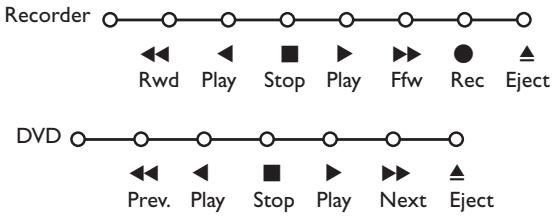
Press the MENU key on the remote control.
2 Select the Recorder or DVD menu with the cursor up/down.
3 Press the cursor left/right, up/down to select one of the recorder or DVD functions.
The key for recording can be operated in the TV mode.
If your EasyLink recorder has the system standby function, when you press the key for 3 seconds, both TV and the recorder are switched to standby.
Audio- and video equipment keys
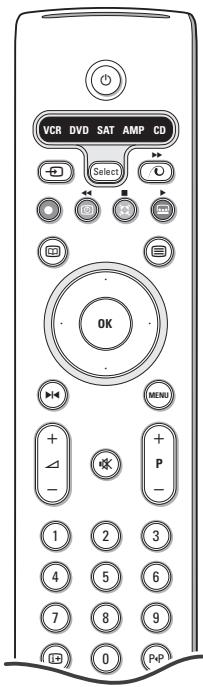
This system remote control operates the following Philips equipment: TV, VCR, DVD, SAT (RC5), AMP (+TUNER), CD;
Press the Select key to operate any of the equipment indicated in the display. Another device can be selected by pressing Select repeatedly within 2 seconds. The led will blink slowly to indicate the device. Press one of the keys on the remote control to operate the peripheral equipment. To return to TV mode press Select while the led is blinking. When no action is taken within 60 seconds, the remote goes back to TV mode.
Note: When the Select key is pressed and held for more than 2 seconds, the RC5/RC6 system select command is transmitted.
to switch to standby
for pause (VCR,DVD,CD)
for record,
for rewind (VCR, CD); search down (DVD, AMP)
for stop
for play
for fast forward (VCR, CD); search up (DVD/AMP)
to select your choice of subtitle language (DVD); RDS news/TA (AMP); to shuffle play (CD)
to select aDVD title; RDS display (AMP); info on screen (CD)
i+ display information
MENU to switch the menu on or off
-P+ for chapter, channel, track selection
0 to 9 digit entry
P<tpa te index (VCR), select a DVD chapter, select a frequency (AMP)
VCR timer
surround on/off (AMP, CD)
cursor up/down to select the next or the previous disc (CD)
cursor left/right to select the previous or following track (CD) search up/down (AMP)
Additionally the DVD, SAT and CD indicator can be programmed to operate the DVD-R, SAT (RC6), CD-R instead.
1 Press the Select key repeatedly until no LED is lit.
To program DVD-R, press the OK key + digit 2.
To program SAT (RC6), press the OK key + digit 4.
To program CD-R, press the OK key + digit 6.
From now on, when the corresponding (DVD, SAT, CD) indicator is selected, the remote control will operate your DVD-R, SAT (RC6) or CD-R.
Note: To return to the modes programmed in the factory, either remove the batteries for a few minutes, or press the OK key + digit 1 (DVD mode); or + digit 3 (SAT-RC5) or + digit 5 (CD mode).
Record with your recorder with EasyLink
In TV mode, it is possible to start a direct recording of the programme which is being displayed on the TV screen. Continue to press the record key on the remote control for more than 2 seconds.
Note:
Switching programme numbers on your TV does not disturb recording !
When recording a programme from a peripheral connected to EXT.1, EXT.3 or SIDE, you can not select another TV programme on the screen.
| Care of the screen | Do not touch, push or rub or strike the screen with anything hard as this may scratch, mar or damage the screen permanently. And please do not rub with dust clothes with chemical treatment. Do not touch the surface with bare hands or greasy cloth (some cosmetics are detrimental to the screen). Unplug the TV before cleaning the screen. When the surface becomes dusty, please wipe gently with absorbent cotton or other soft materials like chamois soaks. Do not use acetone, toluene and alcohol because they cause chemical damage. Do not use liquid cleaners or aerosol cleaners. Wipe off saliva or water drops as soon as possible. Their long time contact with the screen causes deformations and colour fading. |
| Poor Picture | ·Have you selected the correct TV system in the manual installation menu? ·Is your TV or house aerial located too close to loudspeakers, non-earthed audio equipment or neon lights, etc.? ·Mountains or high buildings can cause double pictures or ghost images. Sometimes you can improve the picture quality by changing the direction of the aerial. ·Is the picture or teletext unrecognisable? Check if you have entered the correct frequency. See Installation, p. 6. ·Are brightness, sharpness and contrast out of adjustment? Select Factory settings in the Setup, General menu, p. 7. ·Sometimes poor picture quality is possible when having activated an S-VHS camera or camcorder connected to the right side of your TV and another peripheral is connected to one of the peripherals at the same time. In this case switch off one of the other peripherals. |
| No picture | ·Is the aerial connected properly? ·Are the plugs tightly connected in the aerial socket? ·Is the aerial cable in good condition and does it have suitable plugs? |
| No sound | ·No sound on any channel? Check the volume isn't at minimum. ·Is the sound interrupted with the mute key ☑? |
| No solution found for your picture or sound problem? | Switch your TV off and then on again once. Never attempt to repair a defective TV yourself. Check with your dealer or call a TV technician. |
| Remote control | ·If your TV no longer responds to the remote control, the batteries may be dead or the wrong mode (TV or other peripheral, see p. 3) is selected. ·You can still use the MENU key and the -/+ keys at the top of your TV. |
| Menu | Have you selected the wrong menu? Press the MENU key again to exit from the menu. |
| Standby | Your TV consumes energy in the standby mode. Energy consumption contributes to air and water pollution. Power consumption: 1 W. |
Information for users in the UK
Not applicable outside the UK
Positioning the TV
For the best results, choose a position where light does not fall directly on the screen, and at some distance away from radiators or other sources of heat. Leave a space of at least 5cm all around the TV for ventilation, making sure that curtains, cupboards etc. cannot obstruct the air flow through the ventilation apertures.
The TV is intended for use in a domestic environment only and should never be operated or stored in excessively hot or humid atmospheres.
General Points
Please take note of the section 'Tips' at the end of this booklet.
Interference
The Department of Trade and Industry operates a Radio Interference Investigation Service to help TV license holders improve reception of BBC and IBA programmes where they are being spoilt by interference.
If your dealer cannot help, ask at a main Post Office for the booklet "How to improve Television and Radio Reception".
Mains connection
Before connecting the TV to the mains, check that the mains supply voltage corresponds to the voltage printed on the type plate on the rear panel of the TV. If the mains voltage is different, consult your dealer.
Important
This apparatus is fitted with an approved moulded 13 Amp plug.
To change a fuse in this type of plug proceed as follows :
- Remove fuse cover and fuse.
- Fit new fuse which should be a BS1362 5A,A.S.T.A. or BSI approved type.
- Refit the fuse cover.
In order to maintain conformity to the EMC directive, the mains plug on this product must not be removed.
Connecting the aerial
The aerial should be connected to the socket marked x at the back of the set. An inferior aerial is likely to result in a poor, perhaps unstable picture with ghost images and lack of contrast. Make-shift or set-top aerials are unlikely to give adequate results.
Your dealer will know from experience the most suitable type for your locality.
Should you wish to use the set in conjunction with other equipment, which connects to the aerial socket such as TV games, or a video camera, it is recommended that you consult your dealer on the best method of connection.
Stand (if provided)
Use only the stand provided with the set, making sure that the fixings are properly tightened. A diagram showing how to assemble the stand is packed with the stand. Never use a make-shift stand, or legs fixed with woodscrews.

Aide?
OSD (On Screen Display)
OSD (On Screen Display)
OSD (On Screen Display)
Manuell installation 6
Lagraprogramnamn 6
Omfordela programista 7
Välj egna favoritkanaler 7
Manuell installation
OSD (On Screen Display)
Annan extra-utrusting
OSD (On Screen Display)
Hactoian Taonoh DeiCTBnteH ToIbKO npn HAIuHneaTN 3anONHeHH Bcex npNBedeHHbIX Bblwe rpaΦ. (This card is only valid when all information is filled in and the stamp is present.)
ПОКУNTATEЛь (buyer)
AДPEC(address)
TEJIeΦOH (telephone)
Hactoia rapaHTnI npedocTbIeTc n3rTOBtTeIeM BdoJIHHeNKe K npaBAM NOTpe6nteJIy, yCTaHOJIeHNbIM DeICTByUOIm 3aKoHOJaTeJIbCTBOM PocnckOepeaUN, HnB KOe Mepe He OrpaHnUHbaET IX.
Hactoiara rapaHTn IeCTByET B TeueHe nOHO roa c DaTbI pInOp6peTeHn I3dJIIN NIOpa3ymEbaET rapaHTnHoe 0cIcyXnBaHne I3dJIIN B Cnyae O6hApYKeHn DeFeKToB, CBzAHHbIX C MaTePnAlamn I pa6ToR. B 3tOM Cnyae Notpe6ntJI NmeeT npABo, CpEn IpOyero, Ha 6ecnlaTHbI peMOHT I3dJIIN. Hactoiara rapaHTn DeIcTBntJIbHa npin Co6JIIODeHnn CNeDyUxN yCNOBn:
1.Издени длжно 6ыт bпибретен только на.Teppintopinn Pocnn,пчem Иckliountelho ДялньхБыTobbix hyxД.Издени dлжно Испьзова CBCTporOM COOTBETCTBn C nHCTpykUmeи NO ekCPlnyatauN C co6IIOdHEm npabIN I trpe6OBaHIn 6beOanachOCTn.
2. 063aHHoCTn n3rOToBHTeI NO hactoJIeI rapaHTNI INcIOHJIOCTc Ha TeppTOpIM PocCIN npOdaUzAMN OfUmaJIbHbIMN OcLnyKbAIOUImN (cepBNC) CEHTpAMN.
3. Hactoia rapaHTnHa paNpOCTpaHReTcHa deFeKtbl n3dien, BO3HKnUe B pe3yIbTaTe:
a) XIMINUeCKOTo, MEXAHUNeCKOTo INI INHO TO B03DeICTBnIA, IONABuNX NOCTOPOHHNX INPeDMETOB, HaceKOMbIX BO BYTpB N3DEIINIA;
6) He npabInbHoi 3KcIpyaTuIN, BKNIOUyA, Ho HE orpauHHuBaCb, NcOJIb3OBAHmEIM 3dJeINHa He NO eO PRaMOMy Ha3NaueHnIO uYCTaHOBky B 3KcIpyaTuIN 3dJeINB HApUeHne PraBnI n Tpe6OBaHmN 6e3oNachoCTn;
B) IN3HOCa DEtanei OTeJKN, lamn, 6aTapei, 3aUHTbIX 3KpaHOB, HAKONITeIe MyCOPA, peHMne, UETOK INMbIX DEtaJe C ORpAHueHHbIM CPOKOM INTOJB3OBAHINIA;
r)peMOHTaHINI HanaKnN3dEIny,ecnONHpOn3BeDehblIObIMn INbIMn IuCaAMn KpOME oCbLyJKBaHOUsX CEHTPOB;d) aJaNTaUm N I3MeHeHnC o bUHcN CcpEpbI pImMeHnN3dEIny,yKa3aHHoB B INCTpyKUIN IO 3KcJIpyaTaUIn.
- Hactoia rapaHTn deCTBtIbHa no pneIbIeHn BmecTe C opINHaIOM HactoIeTo TaIOna OpINHaIa ToBaHOrO ueKa, BldaHHO IpoIaBcOM, N3dEInR, B KOTOpOM OhapyKeHbldeKtbl.
- Hactoiaa rapaHTnaJeIcTBntbHaToIbkoInI
H3dJIIN,NCIOJIb3yEmbIXIINJIuYbIX6blTOBbIXHyKJ,N He
pacnpoctpaHaeTcRaH3dJIIN,KOTOpbIE NCIOJIb3yOTcR I
KOMMepuecknx,IPOMBIUJIeHHbIXNIIpOceCcnHOJIbHbIXZeJIe.
IIO BCEM BONpocam rapaHTnHOrO 6cnyKbAHnHaN H3dJIINФИINc 6obpaauTecb K BaWemy MeCTHomy npoDaBcy.
ФирmaФилincyctaHabnBaet cIeIyUcIe cPOKn CnyKbI n3dJIINIA:
Tpynna 1-5 net
PaHIO,paHIO6yDnJIbHNKIMarHHTOnbl,peHocHbIeMaHHTOnbl, TeneoONHbIE aannapTaI (npOBoNDhIE) ndpra npOdyKzna, IMeouaJe6OJbUyTOINMOCTb.
Tpynn2-7net
IpecoHaJIbHbIe KOMMbIOTebpI npepepepHbIe yCtpoiCTBa, CBETHbIe TeLEBn3OpI (BKIIOuaI pnoEklIoHHbIe), BInDEOMaHIrTOfoHbI, ABTomO6JIbHbIe MaHIrTOJIbI, Hi-Fi 3ByKOBOcPOnI3BOJdIaI aAnnpaTaPy (BKIIoUaY KOMNoHeHTbI), BInDEOKaMebpI npeHocHbIe BInDeOyCTpoiCTBa, paNIOTeFoHbI (6ecPbOBoHbIe), cIpPoBbIe cotOBIe TenefoHbI n anppaTpya IrgPOBOr Ha3HaueHn.
MeHIO hAcTpoiKN H3o6paJKeHHN 9-10
MeHIO hAcTpoiKN 3ByKa 10
MeHIO HAcTpoKIN DOIOJIHNITeJbHBIX
BO3MOXHOCTeI 11
IyTeBOHTeJIb IIO TeJIeTeKcTy 12
TeJIeTeKcT 13-14
IopKJIOueHne BHeHHx yctpoiCTB
ClyjxntIJIaOCTaHOBKn(3aMopaxKbHaHH)N3o6paXKeHHa 9KaPaHe.
9) -VOL+ (ΓpomKoctb)
Дяperулнровknгрмкocтн.
10) OKTJIIOUeHHe/BKJIIOUeHHe 3ByKa.
18) PeKHM Surround Incredible surround
Ipn ctepeoTpaHcJIaHH bIbOp Incredible surround co3daet BIIeayTJIeHne, KaK 6yITIO HnAMHKn paCIOJIOKeHbI Ha 6OJIbIeM paCtOraHH npyr OT npYra, Yem HA cAmOM IJeJIe.
Dolby Virtual surround
YBJIeTcI LyuHIMM BbI6OpOM Ipi IpeJaue 3Byka B cTaHApTe Dolby surround.
Пиэвлгет Oиутпь ᵇффektы Dolby surround Pro Logic, Вocipoin3BOДЯйICTBNE «3Byka c3aДИ.См. MeHIO HacTpOINK 3Byka, 3D ᵇффekt,ст. 1
IIpumueyane: MoKHO maKHe bblbpmb oom peKuM 8 MeHIO Hacmpouku 36yka, peKuM surround, cmp. 11."
19) TeIeTeKCT (Umeemc moIbko Ha heKomOpbIX ModeAix) BkJI./BbIKI CTp. 13 HaxmITE KhoIIky 12 IIy Ioka3a TeIeTeKCTa B IIpaBOH IIIOJIOHN EKpaHa.
20) OTo6paKeHHe BpeMeHH:Ha 3KpaHe oTo6paKaeTcTe KyIeee BpeM.
KhoIKN CJyXkAT JJI IpeKeJIIOUeHnI TeJIeKaHaJIOB H CnIHaJIOB H3 IpyTHX HcTOUYHKOB B CINCKe IIpeIIIOUteHnI.
23) P-P Smart surf (CmapT nonck)
C I NOMOIIbBO 3TOB KHOIIKN BBI MOKeTe JIeKIO nepeKIOoYaTcBc MExJy HeCKOJIbKHMN (OT JBYX IO JeBHTN) pa3JIHyHbIM TeJeKHaJIAMn HIN HCToUHNKAmN CnTHAJIa. CM. 06IIue yctAHOBKn, CMapr IOnck, ctrp.7. HaKMHTe KHOIIky OK nIJ IOIOJxMITE hCe3HOBeHHN eKpaHa CMapr IOncka.
IcnoJIb3ObaHHe MeHIO
HaKMMTe KhoNkY i+ IJIa HIOJyEHHH HhΦopMaHH O BbI6paHHOM NyHKTE MeHIO.
HaKMMTe KHOIIKy MENU Ha IIyIbTe IINCTaHIIIOHHORO yIpaBJIeHNIA IIY BbI3OBA IJIaBHORO MEHIO. B JIO6oN MOMeHT BbI MoKeTe BbIHTn H3 MeHIO, IOBTOpHO HaKaB KHOIIKy MENU.
IpiumueaHue: Ecluy Bac ecb ycmpoucmba, noKDauoehhbc nomoubu Cinema Link, mo B MeHIO npucymcmyom donoHaumebHbe nyKmbi.
HaxHMaIe KHOIIKN yIpaBJIeHnK KypcOpOM BBepx/BHN3 IJI BbI6opa MeHIO TB, KOHnr. (KOHpHpyaIIu), DEmo (Je-MOHCTpaIIu) IIIN YcTaNOBka. IpeMeIaIe Te KypcOp BJIeBO/BIIpaBO IJI BAIBbI6opa H3O6paK., 3ByK, BO3MOxH.
IpuMeaHue: Hno2da Ha ekpane budbI He 6ce nyKmbI MeHIO (Ha 3mo yka3bIeaem ckonJIeue 2oIy6bx uapukO6). IpeMeecmume Kypc0p BnU3 Uu ENpaO dIg omO6paKeHua 6cx nyKmO6.
3 JIy BbI6opa IIyHKTa MeHIO HcIOJIb3yIte KHOIIKN IJIy yIpaBJIeHNy KypCopOM JJIy IepMeIeHn BJIeBO/BIIpaBO.
BHOBb HcIOJIb3yIte KypCop IIJIe IepemeIeHnB BBepx/BHN3, YTO6bI BbI6paTb HJxHbI Bam 3JIeMeHT yIIpaBJIeHnH IIIN IIPOH3BeCTN HAcTpOHHy. CM., HaIIpHmep, MeHIO N3o6paK. (H3o6paKeHHe).
Ppmeaue: BpeMeHHo HeocmynhIe uu Heakmya.1bHbIe nyHKmbI MeHIO bIbOdAmcra CemIO-cepbIM UbeMOM, ux He.Ib3a 6bI6pamb.
YctaHObKa
MeHIO YcTaHOBka coepejKNT cJeDuOuIne IyHKtbl:

Функuar EasyLink
Eclu Bau buoemaumohon noodepkuuaem fynkuuO EasyLink, mo hacpmouku na3bka, cmpanbu u habopa docymnblx kana108, cdeanhble 60 epey rcmahobku, bdyum aomamueecku nepedahlbu buoema2humofohy.
MeHIO BbI6opa Ja3bIka HJIN cTpaHbI
HaKMHTe KHOIIky MENU Ha IIyJIbTe IINCTaHIOHHOR yIpaJIeHn.
C I NOMOIIbH Kypcopa IIepeMeCTHTecb BHN3 IN BbI6epHTe YcTaHOBka.
C IOMOIIbIc Kypcopa IIpeMeCTHTeB INpaBO H BbI6epHTe 3bIK.CJIeIyITe IOBJIHOIMMcHa 3KpAHe IHCTpyKIIHM.
4 IcnoJIb3yIte KypCop IIJIa IepemeIeHHN BBePx/BHn3 H BbI-6opa HyxHoro Bam J3bIka, 3aTeM HaxMHTe KHOIIky OK IIJIy IOITBepKJdeHHN BbI6opa.
C I NOMOIIbI Kypcopa IIpeMeCTHTecb BIIpaBO H BbI6epHTe IIyHKT CtpaHa.
6 BbI6epHTe cTpaHy BaIIIErO hIHeIIHrero Ipe6bIbAHnHa HnKMMTe KHOIIKy OK. BbI6epHTe Ipyra, ecJHn Huykna CTpaHa OTCyTCTByET B cINcKe.
7 IpoioJkaaIte pa60Ty c MeHIO yctahOBka.
Coxpaenne hactpoek TeJeBn3NoHHbIX KaHaJIOB
IocJIe KoppeKTHoH yCTaHOBKn 3bIka H cTpaHbI Bbl MoXeTe HaHTN HJxHbIe cTaHINn H 3aIOMHNt bIX NaCTPOKN IByM pa3HbIMn CIOco6Amn: HcIOJIb3yA ABTOcyTAHOBky HIN PyHyIO yCTaHOBky (Ha-CTPOKNaOHOrO KaHaJa 3a npYHM).CdeJaIte BbIbOp c IOMOIbIO IIepMeIeHHN Kypcopa BnPaBO.
ABTOYCTAHOBka
1 BbI6epHTe AByOCTaHOBka B MEHIO YcTaHOBka. IpuMeuaHue:Ja aemonpozpaMMuropoBaHua BCE kaHaJIbI doJXHbI 6bIMb pa36IoKupoAHbI. B clyuae Zanpocu cucmembI, Beedume Bau PIN-KOD dpa36IoKupoAHuaBX cexa KaHOB. (Cm.TB, MeHo naChePouku donoAnHMe.IbHbIX Bo3MOxHocmei, 3AmOK peBn. (6IoKupoBA docmyna dla demei), cmp.11).
HaKMMHe KHOIIky IepMeIeHnKypcopa BHN3. IOBHTcJIOJIHHTeJIbHbI NyHKT JIA ABTO-IPoRpaMMHpOBaHHaHaJIo.
3 HaXMHTe KHOIIKy IepemeIeHnKypcopa BIIpaBO.
4ПОЯВИТСС COOOJIeHHe ПОнсиHa 3KpaH eTOO6pa3HTcN HINIKKaTOp IpoIecca aBTOIIpo- rpaMMnPOBaHH.ПocJIe 3aBepIeHHaBTOMaTHYeCKoYCTaHOBKn yka3aTeJIb cHOBa IIpeHJdET Ha IyHKr YcTaHOBka.
PnO6hApUkeHHN Ka6eJIbHOH CNCTEmbI HIN TeJIeKaHaJIOB, IpePeaIOxH INΦOpMaIIHO ACI (Automatic Channel Installation - ABtOMaTHueckaHacTPOHKaHaJIOB), IOHc IIpeKpaIaEaTcN IIIOBBAIEcTcINcOK IIporpAMM. B OTCyTCTBHe cNCTEmbI ACI KaHaJIbI HymepyIOTcB COOTBeTCTBHN C Bbl-6paHHbIMN yCTaHOBKMn IAbIa N CTpaHbI. MoJHo HcIIIOJIb3OBaTb IIpeCTaHOBky IJIa Hx IIpeEHmepaIIHN. CM. cTp. 7.
B pnde clyuae KaebbHbe KOMnHaH uU uMekehaIbI nepeaHm MeHO b6bOpa npoqam. Bud u HabOp nyHK moM mak0zo MeHO onpeeJHOMc KaebbHou KOMnHaUe uu MeKeAHAOM. Bb6epume HxKbH yNkM MeHO c nomoubIO Kypcopa u HaKmme Khonky OK.
Puyna yctaHOBka
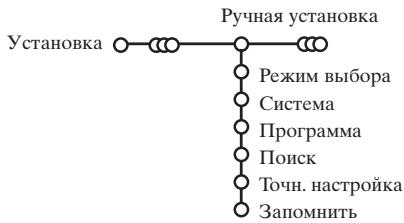
ПОИСК CTаHин 3aIOMHHaHHe KaHaJIOB IpoN3BOJNTcKaHaJI 3a KaHaJIOM. Bam Heo6xOДHMo IpoIb TN BCE IIIaIIM MeHIO PyuHOJ yCTa-HOBKN.
1 BbIepeHTE IIyHKT PyuHaA yCTaHOBka B MeHIO YcTaHOBka.
IIepeMeaTe KypCop BnH3. CJeIyTe IIOBIAIOIHMCHa 3KpaHe HHCtpyKiINM.
IIpumuehue: Iouck uuu HenocpedcmeHHbui bblbop mekehana. Eclu Bbl 3naeme yacmomy, HOpem 3fupnozo uuu KaabeIbHOZO kaHala, 6beDume 3 uufpbu, coombemcmyouue yacmome, c noomuubu oudpbo8x Klaaee om 0 do9 (hanpumep, 048). Iua npdoJkHenu hauMume Khonky nepemuehenu Kypcopa 6hu3.
IIOBTOPHTe OINcaHHyIO IPOUeIpy JJIg IIPoRpaMMHPOBaHHa KaJIO- ro KaHaJa.
3aatabHm
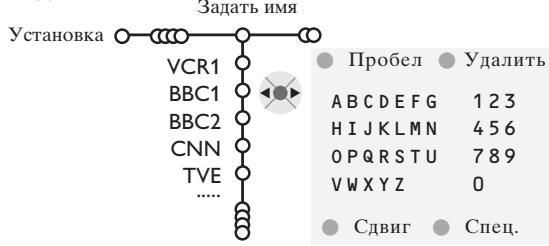
BbMOKTe He3MeHHTb COXpAHeHHbE B IaMaTb H3BaHnHaIPOrpaMM HIN IIpNCBOHTb Ha3BaHHe KaHaIy,ecJIn OHO eIe He 6bIIIO BBeJeHO.Ha3BaHne IINHO J05 6yKB HIN IIuΦp MoxHo DaTb IIpoPraMMam C HomepaMn OT 0 99.
1 BbI6epHTe IyHKT 3aIaTb HmB MeHIO YcTaHOBka H IepemecHTte KypCop BH3.
2 BbI6epHte Homep IIporpaMMbl. IpuMeuHue: dAa 6bIcmpo20 nepeMeuen no cnucky npOzpaM ydepKuaune hXcamou KhONKy nepemuenu Kypcopa 6eepx/8n3.
3 IepemecTe KypcOp BIIpaBO.
Ha 3KpaHe IIOBJIeTcKJIaIBHaTpya.
IpepeMeCTHe KypCop BIIpaBO JIA Haayla pa-60tBcKJIaBHaTpyoI. IpepeMeIaer KycCop BBepx/BHN3, BJIeBO/BIIpaBO BbI6epHTe IIepBbI cHMBoJI H NaXMHTe OK.IIOBTOpHTe 3TO JIA KaJIOr cHMBOJIa, KOToPbI BbIXOTHe BBeCTn.BbI6epHTe IIpo6eJI JIA BBOJa IIpo6eJIa,
YdaIHTb IJIa CTnpaHnna IOIcBceYeHNOrO CHMBOJIA BO BBOIDNMOM Ha3BaHH, CDbHr IJIa OTO6paJxHeHnHa KJIaBnA type CNMBOJIOB BepxHeRo HJINHNKHeO peHCTpa, Cnei. IJIa OTO6paXeHnHa KJIaBnA type CIIeIIHaJIbHbIX CNMBOJIOB. IJIa IIOTBepKJeHnN BbI6opa HaXMITE OK.
Послесаьершенивоваян ha3BaHHa HeckoJbKo pa3 HaKMHTe KHOIIKy
IpeMeIeHn KypCopa BJIeBO JII BO3BpaTaHa IIpeBbIyIuHn yPOBeHb MeHIO.
BbI6epHTe IpyrO HOMep IIporpamMbI N IO-BTOHPe IIIaRn C 3 IIO 4.
IIepeCTaHOBKn B cIncKe nporpaMM
BbMOxKe H3MeHrTb IopraIOK CJIeIOBaHHaBn B CINCKe 3aIOMHeHHbIX TeJIeBn3HOHHbIX KaHaJIOB.
1 BbI6epHTe IyHKT COpTHpOBKa B MEHHO YcTa-HOBKa.
CJIeIyIte IIOABJIaIOIIMcHa 3KpaHe HnCTpyKIIINM.
Bb6op IIpeIIOHTHeJIbHbIX TeJIeKaHaJIOB
1 BbI6epHTe IyHKT JIO6HMbIe nporpaMMbI B MeHIO YCTaHOBka.
C IOMOIIbIO IIepeMeIeHnKypcopa BBepx/ BHN3 BbI6epHTe HOpE IIpOrpaMMbl.
3 Iepemeiaa Kypcop BIIpaBO, BBI6epHTe Ja HJIH HeT.
4ПОВТОРИЕ IIIAHR 2I 3ДЛЯ KAKJORO TeJIe-BN3HOHORO KaHaJa IIN BHEIIHERO HCTOUYHKaCnHaJa, KOTOpBie BbIXOHTe CIDEJAb IIpeJIOYTHTEJBHBIM JIN6O NCKJIOHYTB I3 CIIINCKa IIpeIIOYHTaEMbIX KAHaJIOB.
HaujaIbHa nactpoKa
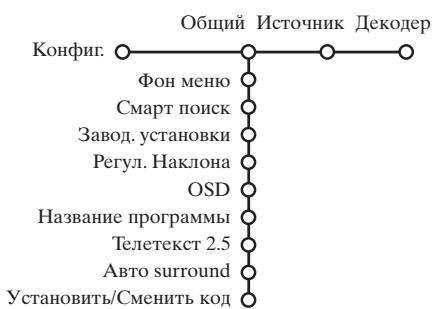
MeHIO KoHΦI. (KOHΦHrypaIIa) coJIepKHT IyHKtBI, yIpaBIAJIOIIne 4yHKIIaMM TeJIeIPHeMHNKa, yCTaHOBKOI pa3JIINuHbIX IapAmETPOB, CJyK6 I BHeIHIErO O6OpYIOBaHHN, KOtopoe BbMOKeTe IIOJKIIIOUHTb K TeJIeBn3OPY.
MeHIO O6nI IIO3BOJIaET H3MeHЯTb Te HaCTpoIKN, KOtOpbIe, IIO-BHIMOMOy, H3MeHЯHOTcpeKe 6OJIbIIHHCTBa npYnx.
MeHIO NcToHHK IpeHa3HaueHo JJIa BbI6opa HcToHHKa cnHHaJa.
MeHIO JeKoepIIO3BOJIAET OIIpeJeJIHTb OINH HJIN HeCKOJIbKO HOMePOB IIpOrpaMM IJIpa6OTbI Yepe3 JeKoep.
IIJIIIOJIyUeHnI HIIΦOpMaIH N O BbI6paHHOM IyHKTe MeHNO HAKMHTe KHOINKy 1+ Ha IIyJIbTe INCTaHIuONHOrO yIpabJIeHnI.
O6n (o6nue yctanobkn)
CmapT nonck
1IepemeiagKaYpcopBHN3,BbI6epnTeIyHKT CmapTnoHck.
2 Iepemeeua KypocBJIeBO/BIIpaBO,BIb6epHTe
2 nporpaMMb,ecJH XOTHTe, YTO6bl KHOIIKa Pp IO3BOJIJa IpeKJIIOuA TbC8 MeJy TeKyIIMM IIpeBldUIM KaHaJIOM,
9 nporpaMM,ecJH XOTHTe,YTObHaKaTHe Ha KHOIKy P PBbI3bIbAJIcINcOK HeCKOJIbKHX (IO 9) KaHaIOB, H3 KOTOpbIX MOXHO cJeJaTb Bbl6op,
Длдялбавлесьуддяелнka KaHaJa HJIN HCTOчнka ChrHaJa:
IpeKJIIOUHTecb Ha TeJIeKaHaJI HJIN HCTOuHNK cHnHaJIa, KOtOpb BbI XOTHTe IO6aBHTb HJIN ydaJIHTb. HApKMITE KHOIIky P I IepeMeCHTe KycCop BnPaBO IIJI IO6abJIeHIn HJIN yJaJIeHIn. IpuMeueHue: ecu b cnucke yKe uMeemc9 KaHa-lo8/uChmoTuHko6, HJxHui 3Alemehm cnucka bdyem ydaJeH.
3aBoIckHe yCTaHOBKn
Пи Bыборе 3TOг ПУнКТа IIpoINcXOДИТ BO3ВРаT yCTaHOBOK ИЗБржЕнЯ И 3Byka K И N IIpeДуСТАнOBJIeHHbIM 3aBOДСКИМ 3HaЧЕнЯМ. OДHAкО IIпн 3Tom HabТPoIGNKa KaHaJIOB coхpaHЯETся.
OSD (3KpaHna HnHkaHna)
Cm. HcIOJIb3OBAHHe IyJIbTa IINCTaHIIOHOHHOr yIpaBJIeHnA, cTp. 3, i+ HhΦOpMaIIHnHa ΘKpaHe.
1 Iepemeeiag Kypcop BHH3, BbI6epHTe IIyHKT MeHIO OSD.
2 BbI6epHtHe HopMaJIbHbI IJIa AKTHBn3aIIIN ΦyHKIIIN IOCTOARHHORIO IOKa3a HOMepa IIporpAMMbI Ha 3KpaHE. IIpi 3TOM TaKKe IIpeIOCTaBJIeTcR paIHpuHNa IHHΦopMaIIIN O TeJIeBn3HOHHOM KaHaJIe I IIporpAmME. IIpi BbI6ope IIyHKTa MHHMaJIbHbI KOJInYeCTBO IIpeIOCTaBJIeMOI INΦopMaIIIN O KaHaJIe YMeHBIIaETcI.
IpiumeaHue: Ko2da bKaiouen peKum CyomumpbI - cm. IonoJIHmElJIbHbe 603MOxHOcMn, cmp.11, HenpepbIrBHI nOKa3 HOMepa npOzpaMMbl ne603MOxKeH.
TeJIeTeKcT 2.5
HeKOTOpbIe BeIIaTeJIbHbIe KOMIIaHHN IIpeIOCTaBJIaHT BpeJHMe TeJIeTeKCTa TaKHe IIOJIHOHTeJIbHbIE BO3MOXHOCTH, KaK HcIIIOJIb3OBAHne O6OraIeHHoI ZBeTOBOI rAMMbI, Ha6Op pa3JIHNbIX IBeTobΦOHa N 6OJIee KaueCTBeHHbIe H3O6paKeHHa.
1 BbI6epHTe IyHKT MeHIO TeJIeTeKr 2.5.
2 Iepemeiaa Kypcop BnpaBO, BbI6epnTe TeIeTeKCT 2.5 BkI., YTO6bI HcIOJIb3OBaTb 3Ty yHKIIHIO.
3 EcJIN BbI IIpeIIOHouTaeTe cTAHapTHbI φOpMaT TeJIeTeKCTa, IIpeMeIIaJ KypcO BIIpaBO, BbI6epHTe TeJIeTeKCT 2.5 BbIKJ.
Baii BbI6Op IOBJIHaeT Ha BCE TeJIeKaHaJIbI, IIO KOTOpbIM IIpeJaetcTeJIeTeKCT.
IpuueaHue: Ipeekauoehue Telemekcma 6 peKum Telemekcm 2.5 moKem npoucxodumb c 3adepckoi 6 heckoJIbKO cekynd.
ABTO Surround
B pyae CJyuayaeB WeaTeJbHbIe KOMIIaHHn IpeJaOT CneHaJIbHbIe CnHaJIbI JIpyoPpMM CO 3ByKOBbIM COIIPOBOXJEHHem CTaHJApTa Surround. EcIn IIpy n ToM ABTo Surround BKJIOUey,TO TeJIeBHNOp aBTOMaTHueckn IpeKJIIOUyAEcra Ha JIyUHHn peKHM 06bEMHO BOCIPON3BeDEHHa 3Byka.
Cmehnltb kOd
3aMOKpe6eH.(6JIOKNPOBkaIOCTyIIaIJIaITei)(cM.MeHIO TeJIeBH3Op,HaCTpoNKaIOIOJIHNTEJIbHBIX BO3MOKHOCTe,ctp.11)IO3BOJIaET Bam6JIOKNPOBaTb KaHaJIbI,YTO6BIIpeOTBpaHTb IIPOCMOTp ITebMn OIPeJeJIeHNbIX IIpeJaU.ⅡJIIPOCMOTpa 3a6JIOKNPOBaHNbIX KaHaJIOB Heo6XOJIMO 3HaTb KOJ IOCTyIIa.IYHKT MeHHO CMeHHbKOJ IO3BOJIaET CO3IaTBINH3MeHHb cBOI IepcoHaJIbHbI HDeHTNHfKaIuHOHHbI Homep (PIIH).
1 BbI6epHTe IyHKT MeHIO YcTaHOBka/CMeHnITb KoI.
2 EcIn paHee KOI He BBOHJIcR, Ha3BaHHe IyHK-Ta 6yJeT YCTaHOBHTb KOD. EcIn KOI 6blI yKe BBeJeH paHee, Ha3BaHne IIyHKTa MeHIO 6yJeT CMeHHTb KOD. CJeNyIte IIOBIIHOUIMCMr Ha 9KpaHe HHTpyKIIHM.
BHHMaHHe:EcJn Bb3a6bJIIN KOJ!
1 BbI6epHTe IyHKT CMeHHTb KoI B MeHIO O6-Ⅲn HnHaKMnTe OK.
BBeIHTe yHnBepcaJIbHbI K0J 8-8-8-8.
3 CHOBA NaKMITE KHOIIkyIpaBJIeHnKypcOpom N BBEIHTe HObI IIepCOHaJIbHbI YeTbIpeX3NaHbIKoI. IIpH 3TOM IIpeIbIyIuN KOD 6yJeT cTePT H3 IaMaTH, a HObI KOI 6yJeT coXpaHeN.
HcToHHK (chrHaJa)
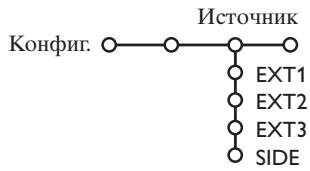
TO MEHIO IIO3BOJIAET BbI6paTb BHeIIHHee yCTPOINCTBO, IIOKJIIOUeHHOE K OJHOMY N3 BHEIIHHX BXOIOB.
I IepemecHTe KypcOp BnpaBO JJI BxOJa B CINCOK TNIIOB BHEIIHHX yCTPOINCTB, IIOJKIIIOueHHbIX K BbIOpaHHOMy BXOJy.
2 BbI6epHTe BHeIIHHe yCTpOiCTBO, IpeMeIaK Kypoc BBepx/BHN3. Ha pncyHKe Ioka3aHo, Kyda IIpoH3BOIDHTb IIOKJIIOUeHHe.
IocJIe TORO, KaK BbI BbIbpaJIH NcTOUHHK CnHaJa, HaIIpIMep, BnIEOMaHHTofoH, 3TOT HcTOUHHK 6yIeT aBTOMaTHueCKN BbIbpaTbcKaJbIb pa3, KOrJa IIyJIbT IINCTaHIIIOHHORO yIIpaBJIeHnna Haxo- IHTcR bpeXHMe BnIEOMaHHTofoHa (cm. cTp. 3) H KOrJa BbI hAXMeTe Ha IIyJIbTe KHOIIKy -
Декорер
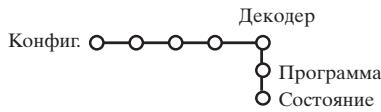
EcJN K TeJIeBn3Opy IIOJIKJIIOUeH JeKOJIep HJIN JIeIIINΦpaTOp, (cM. cTp. 15), BbI MoKeTe 3aJaTb OJINH HeCKOJIbKO HOMePOB IIporpamM KaK HOMepa IIporpamM JeKOJIepa.
1Iepemeeiag Kypcop BnpaBO, Bb6epnTe IyHKT MeHIO JeKoep.
2 BbIeepHTe IIporpamma.
3 BbI6epHte HOMep IIporpaMMbI, KOtOpaa 6yJeT IIpxHOJHTb Yepe3 JeKOJIep.
4 BbI6epnte CoctoHne.
- BbIbepHte BXoJ, K KOtOpOMy IIOKJIHOueH JeKOJIep: Het,EXT.1 IIJN EXT.2.
BbIbIpaHTe HEt,ecIN BbI He XOTHTe, YTO6bIBbIbpaHHa IIporpamma HcIOJIb3OBaJa JeKOJep.
PpumueaHue: Ecui deKodepe npoKIOuHen K bUedeomaaHmoufohy c noOdepeKoi fynkuuu EasyLink, bbi6epume bxod EXT.2.
PekHM dEmoHcTpaHH
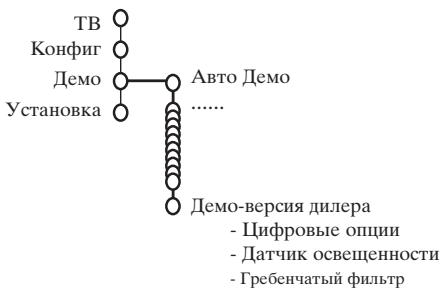
MeHIO IeMo IO3BOJIaET IIPOJEMOHCTpHPOBaTb KaK OTJIbHbIe BO3MOXHOCTN TeJIeBn3Opa, TaK INx Ha6Op B HeIIpepbIBHom INKJIe.
EcJIN BbI6paH pexKIM ABTO JEmo, 6yIeT IIpeIcTaBJIeHa JEMOHCTpaIIa BCEx BO3MOXHOCTe TEJIeBN3Opa IIOcJIeIOBAteJIbHO B IIKJIe. HaXMITE OINHy H3 KHOIIOK yIpaBJIEHNK YPCOPOM IJIa OCTaHOBVKnABTOMaTHueCKO JEMOHCTpaIIH. EcJIN BbI6paHa TOJIbKO OJHa N3 ΦyHKIIH, 3Ta ΦyHKIIH 6yIeT IIPOJEMOHCTpHPOBaHa TOJIbKO OJHH pa3, a 3aTeMe MeHIO JEmo Hcye3Het cKpaHa.
PpmeaHue: Pekum Deo-epcua du.era he aBlaemca yacmbno abmamunueckou noceledoameIbhoocnu u moJem sbim akmuusupoan moIbko omdeIbho.
MeHIO TeJIeBn3opa
HaKMMTe KHOIIKy MENU Ha IIyJIte έнстАинHOrO yIpyaBJIeHЯДЯ BBI3OBA rIaBHorO MeHIO. IJIЯ HOJUyEHHЯ Ифорmaць O bIb6paHOM IIyHKTe MeHIO haXaKMTe KHOIIky i+ Ha IIyJIte IdctaHnOHnOуIpyaBJIeHЯ.
H3o6paXeHHa
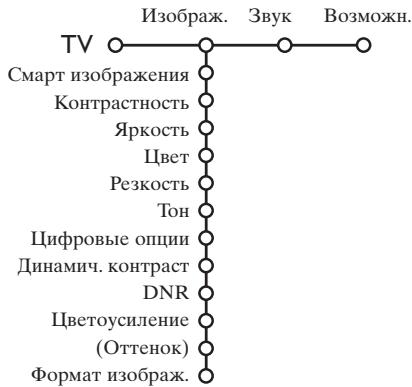
HaKMMTe KHOIIKy IepemeIeHnKypcopa BIIpaBO IJIBA BXOJa B MeHIO H3o6pax.
IIepeMeIaJ KypCOp BBepx/BHn3, BbIbHpaiTe IyHKtBi MeHIO HactPOnKN H3O6paKeHH.
3 Iepemei a Kypcop BJeBO/BIpaBO, yTaHOBnTe HJxKbIe 3NaueHnJAJI6o, Iepemei a KypcOp BIIpaBO, BOJInTe B CINcOK IIyHKTOB IOIMEHIO. BbI6epHTe IyHKT IOIMEHIO, Iepemei a KypcOp BBepx/BHN3. IpumueuHue:ДЯ ydaenu phoHa MeHo nepeh hacmpoukoi napamempo8 uO6paKeHua, cm. Konfuz.,Obuui,cmp.7
Cmapt H3o6paXeHHa
bI6epHTe IyHKT CMapr H3O6paXeHnIJIy BbIBOJa CINCKA IIpeIOIIpeJEIeHHbIX HaCTpoE K3O6paXeHnI, KaJdA N3 KOTOpbIX COOTBeTCTByET OIIpeJEIeHHbIM 3aBOIDCKHM NaCTpOJKAM.
Tak xoy OTHOCATcK IepcoHaJIbHbIM IIpeIIOHTHeJIbHbIM HaCTPOHKaM H3O6paJxHnB MeHIO HaCTPOKN H3O6paJxHn.
IuΦpoBbIe OIIHH
CAMOI OITHMajbHOJ yCTaHOBKOJ YBJAE TcR Pixel Plus 2, KOrJa yUBaHBAeTcR
ROPIN3OHtAJIbHOe pa3peIIeHne, a KOJIInueCTBO
CTPOK yBEJIuINbAeTcRA Ha 33% . BbI TaKKe
MOKeTe BbI6paTb peXHM Movie Plus B cIJyuae
HMeIOJIeOcER 三 P eKTa opeOIJA H3O6paKeHHa,
ecJN 3TO BAM MeIIaET. OJHaKO, B 3aBHCmOCTH
OT BaIIHX IIpeIIOUChEHH, BbIMoKeTe
BbI6paTb IBoIHbIE JInHHn JIn6o 100 Tl Digital
Scan (100-repIOBOoe IIuΦpoBoe
ckaHnpOBaHHe).
IpumeuHue: Iua cuzhala cmahdapma NTSC c
cuaomomo 60 Tn habop bauahmou u3mehemcna: npucymcmoyem Pixel Plus 2, Movie Plus u
Progressive (nocmpoohpa3bepmka 6e3
komnehcauu dbwckhenu).
AKTHBnaHaNactpoKa
TeJIeBn3HOHHbI II pHHeMHNK HeIIpepbIBHO H3MepeT I KOPpeKTpyEe T BcE BXOJAAIIe CNHaJIbI IJIa TORO, YTO6bI O6ecIeHTb HAnJIyU-IIIee BO3MOXHoe KaueCTBO H3O6paKeHn.
HaKMMTe KHOIIky Ha IIyIbTe IINCTaHIOHHORo yIpaBJIeHN.
IIoBHTcMeHIO AKTHBnaHaNCTpoKa.
3 Iepemeiaa KypcOp BBepx/BHN3, BbI6epHte OndHy H3 yCTaHOBOK AKTHBHOH NaCTPOIKN: BbIKJ., MmHMym, CpeHna (peKOMeHIOBAHHOe 3NaueHne) HIN MaKChMym. Pn TOM IIPOHCXOJHT HeIIpepbIBHaa ABOTMaTHuecka HaCTPOKA H3O6paXeHHN, YTO BnHO IO JInHeKam HAcTPOIKN. B 3TO BpemBa16op IyHKTOB MeHIO HeBO3MOXeH.
4 IepemecHTe KypcOp BIIpaBO H BbI6epHTe CmApT H3o6paJxHn.
③Перемеця Курсop Вьерх/Bин3,Быберпгоndу ИЗ пpeДОпe-ДeЛeньИНСачтpoEk ИЗбраженя.
6 IepemecHTe Kypocp BnpaBO HbIbepeHTe AKT. dncnJIeN.
7 Iepemeiaa Kypcop BBepx/BHN3, Bb6epnte Ioka3atb, OHy H3 JeMOHCTpaIIN CJIBOEHHORO 3KpaHa HJIN BbIKJ. KorJa BbI bIbIbIpaTe IIHHaMHeeCKN KOHTpact, Pixel Plus 2, DNr (IINΦpOBoe IIIyMoIOIaBJIeHne) INI ΒΦpOBoe ectCTBeHHOE IBHXeHne, TeJIeBH3HOHHbI ΚKpaH pa3JeJIeTcR Ha 2 qACTH: B JIEBOI YAcTH NBIb6paHHa YcTaHOBka KaYeCTBa H3O6paXeHHa BIKJIIOUeHa, a B IIpaBOI YAcTH BKJIIOUeHa.
8 JIIa BbIXOJa H3 MeHIO AKTHBHa HaCTPOKa IIOBTOPHO HAKMHTe KHOIIKy
MeHIO nactpoKn 3Byka
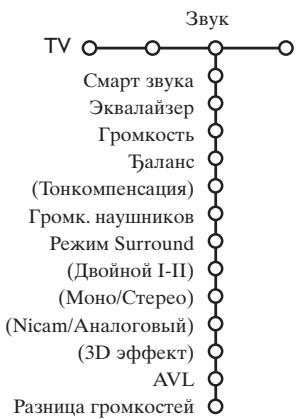
HaKMITE KHOIIKy IepemeIeHnKypcopa BIIpaBO JJIa BXOJa B MEHIO 3ByK.
2 Iepemeiua KypcOp BBepx/BHn3, BbIbupaTe IIyHKtB MeHIO Ha- cTpoKn H3o6paXeHHN, 3NaueHHN IapametPOB yCTaHaBJIHBAOTc c IIOMOIIbIO IepemeIeHHN Kypcopa BJIeBO/BIIpABO.CJIeNyET IIHNMaTb BO BHMaHHe, YTO HopMaJIbHbIe 3NaueHHN yCTaHO-BOK O6bUHO HaxOJrTcB CpeHNe YactH IIKaJIbI (B CJIyuae IeHTpHPOBaHHO JINHeHHO IIKaJIbI).
CmapT3Byka
Bb6epHTe IyHKT CMapr 3Byka IIЯ BBIOda cINcKa IIpeOIIpeJIeHHbIX yctaHOBOK BOCIIPOH3BeIeHnI 3ByKa, KaJIAЯ H3 KOTOpbIX COOTBeTCTByeT OIIpeJIeHHbIM 3aBOIckIM HaCTpOIKAM BbICOKHX YactOT I 6acOB.
Tak xoy OTHOCrTcK IIepcoHaJIbHbIM IIpeIIOuHTeJIbHbIM HAcToPKa 3ByKa B MeHIO HaCTpOKn 3ByKa.
IpuMeueHae:
- Hekomopbte nykhmb MeHIO docmynhb moIbKO b cIayue haIuua u aKmuusauu cuMemb Cinema Link. Pio opyux hacmpoek npou3o-dumc c nomoucbpo raduonpuemnka, a he meeubzopa. CM. omdeIbho npuaaemb oykaem no cuMemb Cinema Link.
-Пункm Довион I-II docmynen moIbko npu haIuIu duOuHOZO kaHaJa nepeoau 38yka.
-Пун KM Mono/Cmepeo moKem uCnoIb3Oabmbcra moIbKO 6 cIyuae anaIa2060u cmepeonepeba.
-Пункm Nicam/AnaIO2ObI MOKcem uCnoIb3O6aMbscra moIbKO 6 peJHcme nepea v cmanapme Nicam.
MeHIO BO3MOXHocTei
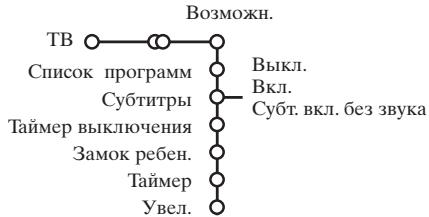
CnHcok nporpaMM
Haxmnte KhoIky OK IIJIepeKJIIOueHnHa BbI6paHHbI KaHaJI NJIIN BHeIIHHN HCTOuHNK cnHHaJa.
Bb16op cy6THTPOB
CtpaHnIa cy6THTPOB J0JIJXHa 6bITb 3aIOMHeHa
IIJ KAKDOrO TeJIeBn3HOHHoro KaHaJa:
BKIOuHTe TeJIeTeKCT H BbI6epHTe HxKHyO
ctpaHnIy cy6THTPOB H yKa3aTeJIa. BbIKIOuHi-
Te TeJIeTeKCT.
IocJI ToR, KaK HnΦopMaHЯ O cy6HTpax coXpaHeHa H BbIpaH IyHKT MeHIO Cy6HTpbl
BkI. (IOKA3aTb cy6HTpbI), cy6HTTpbl 6yUyt ABTOMATUeCKN IOKA3aHbI Ha Bb16paHHbIX TeJIeKaHaJIax (ecJIN HETpeJaCy6HTpOB).CIEuHaJIbHbI CNMBOJI 6yET yKa3bIBaTb, YTO pexHM BKJIIOUeH. Bb16epHe IYHKT Cy6t. BkJI. 6e3 3Byka, ecJIN BbI XOTHe, YTO6bl cy6HTtpBl ABTOMATUeCKN OTO6paJAAJNCb HA 3KpaHe, KOrJa 3BYK BbIKJIOUeH C IIMOIIbIO KHOIIKN Ha IIJIbTe DnCTaHINOHHORO YIIpaJIeHn.
BIOKINPOVBKaIOCTyNaIJIaIeTeH
1Iepemeeiay Kypcop BHN3,BbI6epHTe IyHKT MeHIO 3aMOK pe6eH.
BIOKHPOBKa 3aMOK pe6eH. BIOKHPoBaTb BIOKHP.uepe3 IIOJB3. BIOKHP.IpOgP. Pa36IOKHPoB.
HaXMMTe KHOIIKy IepemEIIeHnI Kypcopa BIIpaBO JIA BXOJa B MeHIO 3aMOK pe6eH. Bam 6yJeT IIpeJIIOJxKeH O BBeCTN KOJ IOCTYIIa.
PpumueaHue: Bam npudemcB6oDumb cboi KOD doCmyna kaKobu pa3, Ko2da Bbl 6xodume b.menHO 3aMOK pebeH.
BHHMaHHe:EcIn BbI 3a6bIIIN CBOI KOI IOCTyHa! CM.cTp.8.
BbI6epHTe OINH I3 IIyHKTOB MeHIO 3aMOK pe-6eh.
- EcIN BbI XOTHTe 3a6JIOKnpoBaTb BCE KaHaJIbI H BHeIHHne yCTpoIcTBA, BbI6epHTe IyHKT BIOKnpOBka.
- Bb6epHTe BIOKHPoBaTb HOB3. H NaKMHTe Kypcop IepemeHnBnBpaBO. Bb6epHTe:
-БлOKнрвka uepe3 (ecJIN BbI XOTHTe 3a6JIOKHPOBaTb BCE IIporpaMMbI,HaUNHЯ c OIIpeJeJIeHHOrO MOMeHTa BpeMeHN. IepemecHTe KypCop BIPaBO N BBeJInTe BpEMy,IIpeMeIIaY KypCop BBepx/BHN3 IN BIPaBO.HaKMnTE KHOIIKy IA JIIA IOITBepKJdeHNIA.
HaKMMTe KHOIIky IepMeIeHnKypcopa BIIpaBO IIIA BXOJa B MeHIO Bo3MOxH.
Iepemeiua Kypcop BBepx/BHn3, BbIpaIte IyHKtI MeHIO HAcTPOIKN I3O6paKeHIN; 3Ha-ueHIIaPamETPo yCTaHaBJIINBaHTcC IOMoIIbIO IepemeiueHNI Kypcopa BJIeBO/BIIpaBO.
- BIOKHPOBKa IIpOpaMMbI (ecJIIN BbI XOTHTe 3a6JIOKIPoBaT OIIpeJEJIeHHbI TeJIeKaHaJI HJIH BHeIHIN ICTOvHHK CNrHaJa;
BbI6epHTe Pa36JIOKupOB.JIJI OTMeHbI BCex ycTaHOBJIeHHbIX BaMH 6JIOKHPoBOK IOCTyIIa.
Taimep
I Iepemeeiag Kypcop BHN3, BbI6epHTe IIyHKT MeHIO TaHmep.
VCR1 IIOHeJeIbHHK BBC1 BToPnHK BBC2 15:45 BkJI. CNN EKeH. TVE
KHOIIKOI IepemeHnKypcopa BnpaBO bI6epHTe BKI.
Ee pa3 haxmnte KhoIIKy IepemeIeHnKyp copa BIIpaBO JIA BXOJa B CINcOK IIporpaMM.
BbI6epHTe TeJIeKaHaJI HIN BHeIIHHe yCTpoHcTBO, BKJIIOUeHHe KOToPOrO BbI XOTHTe 3aIpOrgaMMnPoBaTb Ha OIIpeJeJIeHHoe Bpemr IJehb.
CHOBa IepeMeCTHTE KypCop BIIpaBO IIJIa BbIbOpa IINr HeJeJIN NJIIN BbI6epHTe BapnaHT EKeiHeBHO.
CHOBa IepeMeCTHRe KypCop BIIpaBO IJIa BBOJa BpeMeHN C IIOOMIbIbIO IIΦpObBIX KHOIOK JIN6o C IIOMOIbIIOpeMeIeHHN KypCopa BBepx/BHN3, 3aTeM HaxKMITE KHOIIky OK IJIaBBeJeHHN B JeCTBHe CJIeJHaHHO yCTaHOBKN.
7 BbIINITE H3 MeHIO, Haxab KHOIIky MEnu M (MeHIO) IpuMeuaHue: Ira npocmmpa ycmaHOboK maUMepa hKMMne KHONKY i+
YkpynneHne
1 BbI6epHTe IyHKT YKpyHHeHHe, IpeMeIIa KypCop BHN3, H NaKMHTe KHOIIKy OK.
HaKHMaIgA,BbI6epHteOINH3MaCIIITa6OB yBeJIuHeHn (x1,x4,x9,x16).
3 IIOJIHNITeJIbHO BbI MOKeTe IepemeMaTb Bbl-6paHHoe yBeJIHueHHoe OKHO IO KpaHy c IO-MOIIbIO KHOIIOK yIIpaBJIeHHa KypcopOM BBepx/BHN3, BJIeBO/BIIpaBO.
HaKMITE KHOIIky MENU MДЯ OTMeHbI yKpyIIHeHn.
NytebointeJIb no TeJeTeKcty
TeJekHaJIbI, TpaHcJIpyUOIIHe TeJIeTEKCT, IIpeJaOT TaKKe c TpaHnUc I IporpAMMoI IpeJaU Ha teKuIiI NeIb. EcJIn IpeJaBaEmaJ c TpaHnUa TeJIeTEKCTa C IporpAMMoY yIOBJIeTBOPaR eTpe6OBaHNM. BnIeONIporpAMmPObAHNc I NOMOIIbU O TeJIeTEKCTa (VPT (Video Programming via Teletext), to BO3MOxHa 3aIHc b IporpAMM, HaNOMHHaHHe O IporpAMMax, Hx IPOCMToH 6IoKHpOBKa.
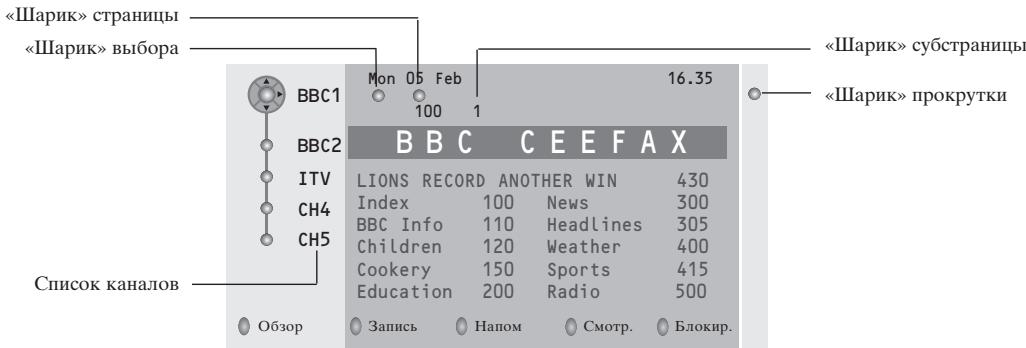
1 HaXMMTe KHOINKy
C I IOMOIIbIIO IIepeMeIeHnKypcopa BBePx/BHN3 BbI6epHTe TeJIeKaHaJI n HaXKMHTe KHOIIKy OK.
3 IepemecHTe Kypcop BBepx B HauaJIO CINHcKa KaHaJIOB, IJe IIOABJIeTcH MRA BbIbpaHHORo TeJIeBH3N-OHHoro KaHaJa.
C I IOMOIIbIO KHOIIKN IIepeMeIeHn Kypcopa BIIpaBO yCTaHOBHTe yka3aTeJIb Ha «IIIapHK» BBI6opa.
Ha ctpaHnue yka3aTeJIy TeJIeTeKCTa HauHnte ctpaHnU yIyTeBOJNTeJI IO IporpaMMam TeKyIeero HIN cJIeYIOJIero IHN.
C I I IOMOIIbI O II I IPOBbIX KHOIIOK BBEINTE HOMep CTpaHIIbI IITeBOINTEJIIO II IPOrpaMMAM. IBaKJIbI HAKMInTe KHOIIKy IIEpeMeIIeHNHa Kypcopa BIIpABO IJIa BBIOpa OJHOI N3 cy6CTpaHHI (ecJIH OHN eCTb) C I IOMOIIbI O «IIapHKa»-yKa3aTeJIa.
EcJIbBb6paHHaIIpOgPAMM yIOBJIeT BOpRcET Tpe6OBaHnM VPT, TeJIeBH3Op 3aIOHMHT HOMep IIOcJIeIHHeBb6paHHo cTpaHHIbI TEJIeTeKCTa, coIEpJkaIeI INHΦOpMaIIH O IIpoPamMe IpeJaY Bb6paHHOrKaHaJa, II IOKaJcET, KaKa IpeJaCaV B KaKoe BpeMa HaUHeTc.
KaJbIpa3,KoIgIa BbI HaxMeTe KHOIIky [Bam 6yIeT IOKa3aHa cTpAHIIa IIyTeBOINTeJIa IIO IIpo- rpaMMa MByIbpaHHOR B TeKUIIH MOMENT KaHaJIa.
PpmeuHae: 3a codepaHue unfopmau ombeyaem euaeMaIbnaKOMnauHa.
OchOBhIbe yHKIIHH
Paniee BbI6paHHa CTpaHua TeJIeTeKcTa
HcnoIb3ObaHue 603MOJHO moIbKO 6 mom cIyae, ecu omcymcm8yem cnucOK npednooumme.IbIbx cmpaHn meIeMeKcma (cM. cmp.14). HcnoJIb3yIte KHOIIKy P4P.
HaKmIte cepyIO KHOIIky IJIa BBIOJa Ha 3KpaH cTpaHHbI rJAbHOrO orJIaBJIeHNr (O6bIu-Ho 3TO cTp.100).
ToIbko DnIe TeIeTeKCTa B cTaHapte T.O.P.:
HaKMMTe KHOIIKy i+.Ha 3KpaHe IIOBJIaETc8
06IuH O63Op IIpeIlaIraeMbIX pa3JeIIOB TeJIe-
TEkCTa, IpeIaBaEMoro B cTaHApTe T.O.P. C IOMOIIbO KHOIIOK IpeMeIeHnKypocap
BBePx/BHN3,BJIeBO/BIIpABo BB6epHTe HJXHBn
06BJeKT H HaKMHTe KHOIIKy OK.
He BCE meLeEbuONHbIe KanaIbI mpaHcLupyom
TeIeMeKcm, coombeMcmByouu cmaHApmy T.O.P.
Bb6op cy6ctpaHn
EcJH BbIbpaHHa CTpaHHa TeJIeTeKCTa coCtOHT H3 HeCKoJIbKHX cy6cTpaHH,Ha 3KpaHe IIOBJIaE TcO JHa H3 HIX.
JIy Bblbopa IIpeIbIyIeH NIIcIeYIOIIe cy6cTpaHHbI IIepMeMaTe KypCop BJIeBO HIN BnPaBO.
YBeJIHueHHe cTpaHHbI TeJIeTeKcTa
ПОВТOPН НжимаTe KHOИКу ПОВТOPн нжимаTe KHOИКу (3HaUOK) ДЯ прсмOTpa Верхен чASTN CTpaHиMbI TeJIteKCTa, HNXH ЧАСТN CTpaHиMbI ИДЯ BOЗВРATA K HOPMaJIbHOMy pa3МЕpy CTpaHиMbI TEJIteKCTa. Когда CTpaHиMuIa TEJIteKCTa yBeJInuYeHa, Bы Можete ПОКрУHBAtB TEKT ПОСТpoUHo, ИСПОЛБ3УЯ KHOПКИ ПЕРеMuIeHЯ Кypcopa ВБЕРx/BHN3.
H3o6paXeHHa/TeJeTeKcTa
1 HaKMHTe KHOIIky. HaKMHTe KHOIIky 12 JIy IOKa3a TeJIeTeKCTa B IIpaBOI IOJIOBHe 3KpaHa.
2 Iepemeiaq Kypcop Bb6epnTe TeJIeBn3IOHHb KaHaJI.
3 HaXMMTe KHOIIKy 12 JIJI BbIKJIOHeHH peKIMa CIBOeHHORO 3KpaHa.
Bb6op aKTHBHO 3KpaHa
BpeKHMc cIbOeHHORo 3KpaHa H3O6paKeHHe/TeJIeTeKCT (KHONKY 12), BBeINTe HJXHBIOHOMep CtpaHIIbIC IIOMOIIbIO IIΦpOBbIX KJIaBIII, HaKMma KHOIKy -P+, HaKMHTe KHOIIky MENU, 3aTEM Bbl6epHTe JleBbI 3KpaH (C IIOMOIIbIO rOJIy6Oro IIIapHka B BepxHei qactH).
TeIepb BbIMOxKeTBeBb6paTbIOJIHOKpaHHbI INH CkAteBpeKHMbI H3O6paXeHHa / TeJIeTEKCTa KHOIIKOI
IcnoJIb3yraIHHepTeKCT,MOxHO6bICTPO IpeeHTN K cTpaHnue C OIIpeJeJIeHHbIM HOMepOM JInoBIOckaTb KOHKpeTHOE cJIOBO Ha TeKyIeC TpaHnue TeJIeTeKCTa.
HaKMHTe KHOIIky OK IJIY TORO, YTO6bI IIOI-CBeHTb IepBOE CJOBO HJH HOMep Ha CTpaHHIe.
IIepeMeIaJ KypcOp BBepx/BHn3, BJIeBO/BIIpaBO,BbI6epHTe JIO6oe IpyTOe CJIOBO HIN HOMep,KOTopBIE BbIXOTHTe NCKaTb.
3 HaXMMTE OK IIJI IOIITBepKJdeHnBb6Opa. HaUHeTcI IONCK.B HIXKHe YactN 3KpaHa IIOyBJIaETcCOo6IIeHne O XOJe IOncKa, JIN6O co06IIeHne O TOM, YTO CIOBO IIN CTpaHHua He HAJIeHbI.
4 IepemecHTHe KypCop BBepx IIa BbIXOJa H3 peKHa rHIIepTeKCTa.
(docmynno moIbko bpeKume noIHO3kpaHNO zo nokasa Telemekcma)
HaXMMTe KHOIIKy MENU IIJI BbI3OBA MeHIO.
2 BbIb6HpaIte IIyHKtI MeHIO, HcIOJIb3yJ KHOIIKN IepemEeHnKypCopa BBepx/BHN3.
3 JIA aKTHBn3aIIN BbI6opa IpeMeCTHTe KypCop BIIpaBO.
Функия «ПокаЗ»
IIO3BOJIaET OTKpbIbA Tb/IIpTaTb CkPbI TYIO HΦOpMaIuHo HA cTpauHnIe (HaIpyMep,pa3raJKN K 3aRaJkAMn ITOJIOBOMKaM).ДЯ aKTHBn3aIHH BbI6opa IIpeMeCTHTe KycCop BIpabo.
H36paHHoe
BbMOKeTe CO3JaTb CINHcOK H3 BOCbMn IIpeIIOuTHTeJbHbIX CTpaHHN TEJIeTEKCTa, BB6paHHbIX H3 pa3JNUHbIX TB KaHaJIOB.
Длдяdoбаьileни npeДIOHHTeJIbHOI CTpaHHcblK cINHcky:
1 BbI6epHTe cTpaHnUy TeJIeTeKcTa.
2 BbI6epHTe pexHM PpeIIOuTHT. B MeHIO TeJIeTeKCTa HnHaKMHTe KypcOp BIIpaBO JJIa BXOJaB CINCOK.
3 HaKmHTe Kypcop BnpaBO eIe pa3 IJIa JIO6abJIeHnCtpaHHIbI.
HaxmTe MNUJIa IipocMOTpa TekyuIe cTpaHHIbI.
IJIa IPOcMoTpa IIpeIIOuTHTeJIbHOJ cTpaHnBbI H3 CINNCKa:
BpeKHMteJeIeTeKCTa HcIOJIb3yIte KJIaBHIIy Pp IJIpaJIINCTbIBaHHBaIb6paHHbIX IpeIIOuHTTEJbHBIX CTpaHHI TeJEkaHAIOB. IpuMeaHue:MoXem 6bIMb b6bopaHa cmpauHa moIbKO mekyuezo kanaIa.
Понь
BbI6Op cIOBa
IoiJIb3yIcB OTO6paKaEMoH Ha 3KpaHe KJIaBaHa-typO, BbIO MoKeTe Ha6paTb CLOBO, KOtOpoe XOTeJIN 6bI HAI THN HA CTpaHHuaX TeJIeTeKCTa. PerHCTp cHMBOJIOB (CTPOUHbIE HJIIN IIpoIIINCHbIE 6yKBbl) IPN 3Anom 3HaueHn He HmeeT.
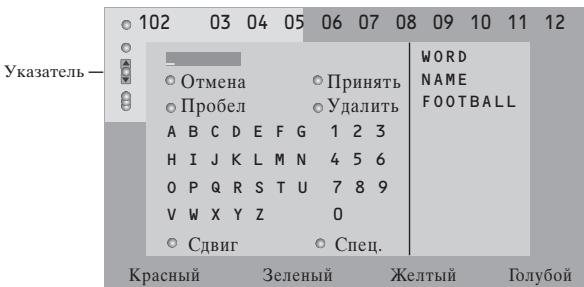
1IepemecHTe Kypcop BnpaBO IJIpa6oTbIC KJIaBHaTypor.
日 IIOJIb3yIITecb KHOIIKAMNI IepeMeIeHnKypocpaBJIeBO/BIIpabo,BBEpx/BHN3IJIa BbI6opa cIMBOJIOB,CJIOB HJINΦyHKIIH.
HaKHMaIte KHOIIky OK IIJI IOITBePKeHnKaJIORO BbI6paHHORO cMBOJIa.
4 BbI6epHte OTMeHa IIJIOTMEHbI BBOJa CJIOBA, IIpo6eI IJIIB BBOJa IIPO6eJa, YJaIHTb IIJI CTn-paHnI IIOcJIeIHero Bbl6paHHoro CmBOJIA, CdBnI IJIpeKJIIOHeHn MExJy BBOOMCTPOuHbIX H3aJIaBbIX CmBOJIOB, CneHaJIbHbI IJIIOKa3a Ha KJIaBNaType cIIeHaJIbHbIX CmBOJIOB. 3aTeM HaKMITE KHOIKY OK.
HaXMMTe HUxHoe YHcJIO pa3 KHOIIky IepemeIeHHa Kypcopa BJIeBO JIA BO3BpaTa B MeHOTeJIeTEKCTa.
ПОИСК СЛОВА
HaIeYaTaIe CIOBO Ha 3KpaHe JIN60 BbI6epHTe CIOBO H3 CINcKa IIpeJIbICTOpHN cIIpaBa H NaKMITE KHOIIky OK.
2 BbI6epHTe PpHnTb N cHOBa HaxKMnTe OK. IIOBNTc coo6IeHne O IOHCke.
3 JIJIr OTMeHbI IIOHcKa HJIN IIOHcKa HOBO R CJOBa CJIeIyET BbI6paTb KJIaBnatpy HHaKaTb OK.
4 EcJIN cJIOBO He HaJIeHO,IOBJIaETCs coo6HHe. EcJIN cJIOBO HaJIeHO,OHO IIocBeuHbAeTcHa CTpaHnIe TeJIteKCTa.IJIy IpoJOJIKeHHI IOHcKa HaxMITE KHOIIky OK.
IIHKI cy6ctpahnn (eclu ecmb cy6cmpanuubt)
A B TOMaTHuecka CMeHa cy6cTpaHHI B IHKJIe. Haxmam KhoIIky IIepemEIIeHnKypcopa BIIpaBO, 3aIyckaiTe HocTaHaBJIbAHBeITe IIKKJI aBTOMaTHueCKOcmEHbCy6cTpAHII.
3aJaanHe BpeMeHHIOka3a JJIcStpaHHI
IaHHa yHKnua o6cpeHbAeT
JEMOHCTpaHIO OIIpeJeJIeHHoC tpaHHbIB
3aHaHHoe Bpem.
HaKMMTe KHOIIKy IepemeIeHnKypcopa BIIpaBO IIIA BbIbOpa Da HIn Het.
BBeINTe BpemH HOMep cTpaHHbI,IOJIb3yRcB KHOIIKaMn IepMeIeHNr Kypcopa HIN IIΦpO-BbIMN KHOIIKAMN. IpumueaHue:He o8aemeJbHo,ymo6bl meJeMeekcm 6bl 6KIOUeH,odnako doJKeH 6blmb 6KIOUeH mom KaHa, c Komopo2o Bbl bIbpau KoHKpmHyo cmpauhy.
HaKMHTe KHOIIKy IepMeIeHnKypcopa BJIeBOIJI BO3BpaTa B MeHIO TeJIeBH3Opa.
3bIK
EcJIN CnMBOJIbI, BBIOBNMbIE Ha 3KpaH, He coOTBeTCTBYOT Ha6OpY CnMBOJIOB, HcIOJIb3yEmbIX TeJIeBEIIaTeJIbHOI KOMIIaHHeI, TpaHCJIpyIOIIe TeJIeTEkCT, 3Ta yHKIIINr IO3BOJIReT H3MeHHb Y3BIKOByI rpyIIIy. C NMOIIbIO KHOIIOK IIepemeIIeHnKycpopa BJIeBO/BIIpaBO BJI6epHTe IpyIIa 1 HJIIn 2.
Hakmnte KHOIIky MENU IIJIa BbIXOJa I3 MeHIO TeJIteKCTa.
PoiKJIIOUeHne BHeIHHx ycTpoIcTB
CiyecTByET HINPOKH Kpyr ayIHO- IN BnDEOyCTPOIcTB, KOtOpbIE MOYr 6bITb IIOKJIIOUeHbIK BaIIeMy TeJIeBn3Opy. IIpNBHeENHbIe HNKe CXEMbI NJIIOCTpHPyOT IIOKJIIOUeHne TaKHX yCTPOIcTB. B 3aBNCIMocTHn OT MoJeIe TeJIeBn3Op o6OpyOBaH 2 NIN 3 pa3bEmAMN JJIA BHeIIHHx yCTPOIcTB EXT1, EXT2 nEXT3, paCNOJIOXeHHbIX c3aIi.
IpuMeaHue: Bxod EXT.1 moJem nooDepKuUamb cuCmeMb nepeauu cu2HaIOB CVBS u RGB, exod EXT.2 - cucMeMb CVBS u Y/C, EXT.3 molko cuCmeMy CVBS u RGB. PeKomeHoyemca nookluoyambycmpoucmea c bVxOdbum cu2HaIOM b cuCmeME RGB k bVxOdaM EXT.1 uu EXT.3, m.k. RGB oecneuaeam lyuuee kaecm8o u3o6paJenHua. Ecu Bai buooeMaunofon nooepckuae am yhkuuio EasyLink, ezo cledyem nookluoyamb ko exodyEXT.2 1nucnoIb30aHua npeumuyuecmE EasyLink.
3aHHcbBaIOOee yctpoNCTBO (VCR-DVD+RW) (BnDeoMaIgHHToΦOH, 3aHHcbBaIOOIIv DVD-IIeep)
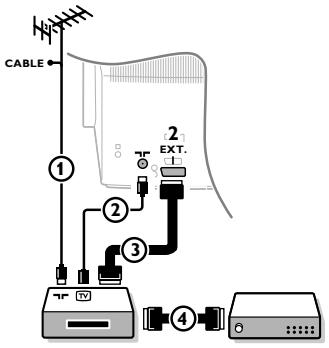
IIOKJIIOUOHTe, KaK IIOKA3aHO Ha pHyCHyE, aHTeHHbIe Ka6eJIH ①, ② H, IIIA IOJIYUeHNA HAJIYUIIIErO KauYeCTBa H3O6paXKeHn, EByPOKa6eJIb ③. IIPIH OTCyTCTBHN EBPOPa3BeMa, eINHCtBEHNbIM BO3MOxHBIM CIOOCoBOM IIOKJIIOUeHNA YBJIaETcAHTHeHHbI KAOBJL IIIO3TOMY Bam HyHXO 6yIeT HAcTpOnTb TcTeOBbl CNHAl BaIIIErO 3aIIHCbIBaIOIIeYO yCTPOHCTBa H Na3HaUYHbI JIIA 3TOFO CnHJaIa IIporpAMMy C HomePOM 0, JIN6O coXpaHHTb TcTeOBbl CNHAl Ka IIporpAMMy C HomePOM B INHTepBaJIe OT 90 Do 99 (CM.PyHNaY cTaHOBka, cTp.6).
Cm.pyKOBOCTBOIIO BaIIeMy 3aIIINcIbIAIOeMy yCTPOICTBY.
IeKoIep H BnDeomarHHTofoh
ПОДКЛIOHHTe EBPOKa6eJIb 4 K CBOeMy IeKOJIepy I K cIeIIHaJIbHOMy EBpOpa3IeMy BnIeOMaHHTofoHa. Cm. TaKKe HNCTpyKIIHIO IO NcKIIJyATAIHH BnIeOMaHHTofoHa. Cm. JIeKOJIep, cTp.8.BbI MOKeTe TaKKe IIOKJIIOuHTb IeKOJIep EBPOKa6eJIeM HeIIOcpeIcTBHeHHO K BXOJaM EXT.1 HIN 2.
IpyrOe 6obpyoBaHHe (IipHemHHK CnYTHNKOBORO cHraJa, IekOJIep, DVD-IIJIeIeHep, HpRoBbIe IIpHcTaNKn H np.)
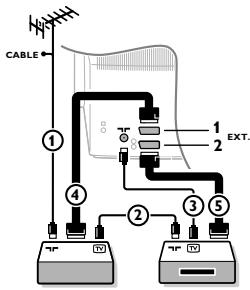
1 IIOIKJIIOUHTe, KaI NOKa3aHO Ha pHCyHKe, aHTeHHbIe Ka6eJIN ①, ② n ③ (TOJIbKO B TOM cIJyae, ecJIN IOIOJIHNTeJIbHOe yCTpOi-CTBO IMeETeJIeBn3HOHHbIe aHTeHHbIe BXOJIbI/BbIXOJIbI).
ПОДКИЮЧNTЕ.YСТРОИСТВОсЕВРОКаБЕЛEM ④ HIN ⑤ K OДHOMУ ИЗЕВPOPAZEBMOBEXT.1,2HIN3ДЛЯПОЛΥЕнHA3OБраЖЕнHA6JIeBBICOKOTOKAчEcTBA.
BbIOJIHnTE IONCK TECTOBORO CHrHaJIa BHeIIHero yCTpoIcTBA TaK Ke, KaK BbI 3TO JeJaJIIN B CJIyuae C BnIeOMarHHToFOHOM.
BbI6epHte HxHoe yCTPOcTBO B MeHIO KOHΦH, IcTOuHNK (CHHaJIa), cTp. 8.
Пожлоченькбokobьм pa3'beMaM
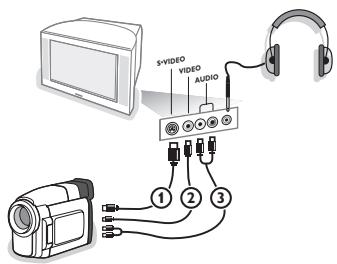
TeJIeKaMepa HIN BnIeKaMepa
1 IoiKJIIOHTe BnIeOKaMepy, KaK Ioka3aHO ha pHcyHKe.
3ПюиЗВeДиTe ПОДКЛЮЧЕня K BXOДAM VIDEO ②И AUDIO L ③ДЯ монофоического устpoиства. Дя Strepeофоического устpoиства ПОДсоЕДИНТecь ТаKKе K BXODIy AUDIO R ③.
KaueCTBO cTaHApTa S-VHS IIpi HcIOJIb3OBAHH INBHeOKeAmepbS-VHS MoKHO IOJUyHTb IIpi IIOKJIIOHyeHHN K BnIEOBXOJy S-VIDE0 ① H AUDIO ③ cIIOMOIIbIO Ka6eJIeS-VHS.
He noodcoedunhme kabeiu ① u ② odnohepeMeHHo! 3mo moKem npueecmu KuckaKeHuo uOobpaKeHua.
Hayushnkn
BcTaBBte IITeKeB B IpeHa3HaueHHbI JJIa HayIIHHKOB pa3beM H, KaK IOKa3aHO Ha pncyHke.
HaKMMTe KHOIIky Ha IIyJIbTe INCTaHIIOHHOYIpaBJIeHHa IIBYBIKJIIOUeHHBACTPOEHbIX INHAMIKOB TeJIeBN3Opa. IIOIHOe conpomueJeHue hayuHukOB doJHKHO cocmaIbIbMb om 8 do 4000 Om.Pa3mep 2He3da JnodKJIIOUeHHayuHukOB-3,5 MM.
B MeHIO 3ByK BbI6epHTe TpOMKocTb HayHHNKOB IJIa peRyJINHOBKNr pOMKoCTn 3ByKa B HayHHNKax. 15
CtepeoynJIHTeJIb I Dba DoIIOJIHHTeJIbHbIX FRONT dHaMaHka
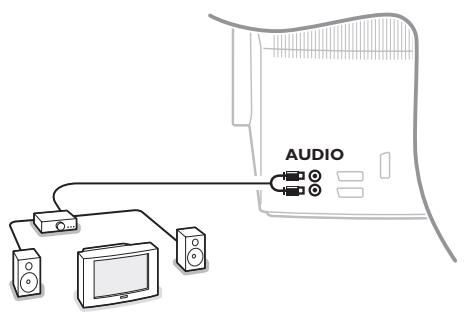
IIOJKJIOUHTe ayINOKa6eJIH K 3BYKOBOMY BXOy yCNJIHTeJIH K BXOJaM AUDIO L H R Ha 3aJHe IaHeJIH TeJIeBn3opa.
2 PeryJInpOBKa BbIXOJIHOr rPOMKoCTn OcyIeCTBJIaETCra IIOMOIIbIO peRyJInpOBKn rPOMKOCTN yChJIHTeJIa.
Ppumueanue:Biklouuume melebu3op u 3bkyo0u ycuaume nped meM, kak ux coedunmb Meckoy co6ou. YcmaHO6ume zpomkocmb 3bkyo02o ycuaume na MuHmym.
Bb6op noKJIOUeHHoro ycTpoiCTBa
HeckoJIbKO pa3 HaJHMaHTe KHOIIky -ДЯ BByIbOpa HyJHOrO BXOJa - EXT.1,EXT.2,EXT.3* JINI
SIDE-B COOTBeTCTBHH C TeM, KyJa BBy IIOJKJIIOUHJIn yCTpOietBO Ha 3aJHe NJIH IIpaBOJ IIaHeJIN
TeJIeBH3Opa.
PpumueaHue: BolbuiuHcMbo ycmpoucMb (dekodep, budeomazhumofo) camu obecneuabaem heo6xodumoe nepeKiaUoyHeue.
*umeeemcmaolbkoHaNekomopbIXmodeJAX
Pekopdep HnDVD c dyHKnei EASYLink
YIpaJIeHHe 3aIINcIbIAIOIHm yCTpoHCTBOM (BIIeOMaIHHToΦOHOM HJIN IIIIuIIM DVD) HJIN DVD-IIIeepem MOKeT OcyIeCTBJIaTbC c IIyJBTa IINCTaHIIOHHORO YIpaJIeHnC IIOMOIbIO 3KpaHHbIX MeHIO PeKOpIep HJIN DVD.
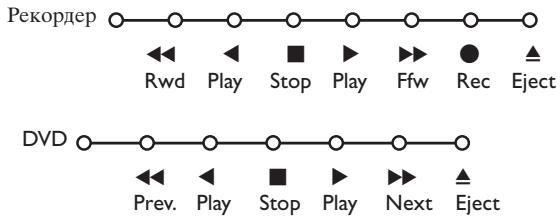
HaXMHTe KHOIIky MENU Ha IIyJIbTe IINCTaHIOHOHHoro yIpaJIbJIeHH.
Iepemeiaq Kypoc BBepx/BHn3, BbI6epnte MeHIO PeKOpIep HJIN DVD.
C IOMOIIbIO KHOIIOK IIepeMeIeHnKypcopa BJIeBO/BIIpaBO, BBepx/BHN3 BbIbnpaTe HxKHyO fYHKIIIO pekopIepa HJIN DVD.
Khonka dananucu, moxem ucnno306ambc8 pekumeme meebuzopa. Ecuu Bau buoedeomazhumofoh c fynkuuei EasyLink noodepkuabaem 8o3moojnoctmb nepeboda cucmemb6 pekum okuadun, m npu ydepkaaunu khonku 6 meenumpexcekyhoKak meeubzop, ma u buoedeomazhumofoh bkiouaomc (pexodam 6 pekum okuadun).
KhoIKN dIy ynpabJIeHnnyayno- n BnDeoycTpOcnTBamN
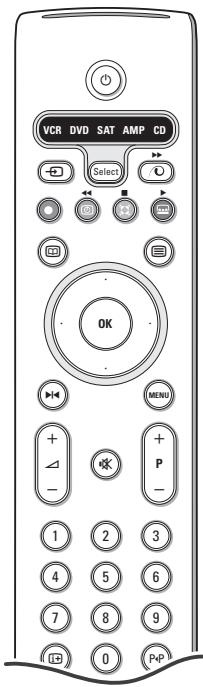
TOT cHCTeMHbI IyJIbT IINCTaHIOHOHOrO yIpaBJIeHnMOKeT pa6oTaTB co CJIeIyOIIHM o6OpYIOBAHHem Philips: TeJIeBn3Op (TV), BIIeOMaRHToΦOH (VCR), DVD IIIeep (DVD), cIIyTHIKOBbI peCnBep (SAT) IIO cTAHApTy RC5, ycJIHTeJIb (AMP) II TIOHeP (+TUNER), a TaKke CD IIIeep (CD).
HaKMMTe KHOIIKy Select (BbI6Op) IJIa BbI6opa JIO6Oro H3 yCTpoiCTB, OTO6paKaembIX Ha IIcIIJIe. IpyrOe yCTPOHCTBO MOxHO BbI6pTaB IOBTOPbHIM HaxaTHEM KHOIIKN Select B TeueHHe INTEpBaJIA BpeMeHH 2 cE.K. Ha Ib6paHHOe yCTPOICTBO Yka3bIBaET MeJIIEHNO MHIaIOIH CBEToIOIH. IJIa YIpaBJeHH BHEIHINM O6OpYIOBAHEm HAKMIte OINH KHOIIOK IIyIbTa INCTaHIOHORO YIpaBJIeHH. IJIa BO3pBaT a BPEHM pa60t bC TeJIeBH3OPOM HAKMTe KHOIIKy Select, IIOKA MIIaET CBEToIOIH INHINKAtoP. EcIIb N TEueHne 60 cekyHn He 6yIe TpeIInnHTo HNKAKHX JeIcTbN, IIyIbT INc-taHIOHHO yIpaBJIeHH cam BepHeTcB PexHM pa60t b C TeJIeBH3OPOM.
ПиMuMeaHue: Eclu haKamb u ydepeKuBamb Khonky Select (Bb6op) 6 haKamom cocmOraHnU b meueHue 6oJIe 2 cekyH, 6ydem npoucxodumnb nepeDau cauzHaJa bbl6opa cuCmeMb RC5/RC6.
IpebeBOB BpeKHM OxHJaHHa
may3a (DVD, CD, VCR)
3aIIINCb
IIpeMeOTKa (VCR,CD) IONCK BInpeI (DVD,AMP)
CTONI
BOCIIPOH3BeDeHHe
6bICTpaIepeMOTka BIIepeI (VCR, CD); IONCK Ha3aI (DVD/AMP)
BbI6opЯ3bIka cy6THTpOB (DVD); HOBOCTn RDS/TA (AMP); BOCIpOIN3BeIeHHe B IpoIN3BOJIbHOM IIopJKe (CD)
BbI6Op Ha3BaHnHa DVD-Ⅱncka; Ioka3 RDS (AMP); HhΦopMaIIHa hKpaHe (CD)
IIOka3 HOpMaIIH
MENUBKJIIOUeHHe H BbIKJIIOUeHHe MEHIO
-P+BbI6Op YacTH,KaHaJa,IOpOJKN
0-9 BBOJ YNCEJI
P P H N E K C MaHHTHOJ JeHTbI (VCR), BB16Op YacTH Ha DVD-ⅡNcKe, BB16Op YacTOrTbI (AMP)
TaiMeP BnDeOmaHHToFOHa
06bemHoe 3ByaHne (AMP, CD)
Kypcop BBepx/BH3
JIy BbIbopa cJeIyIOIeRo HJN IIpeIbIyIeRo IINcKa (CD)
KypocBJIeBO/BIIpaBO
JIy BbIbopa CJIeJyIOJIeRO HJH IIpeJIbI- JyIeRO TpeKa (CD)
JIy IIOHcKa BBepx/BHN3 IO YacTOTe (AMP)
ДиJOJIHITeJIbHOpeKHMbI DVD, SAT n CD MOrTy 6bIb 3aIpyrpaMMnPOBaHBi IJIyIypaJIeHNy yctpoIcTBaMn: DVD peKOpIep (DVD-R), cIIyTHNkoBbI peChBep (SAT) IIO cTaHApTy (RC6) n CD peKOpIep (CD-R) BmecTo yKa3aHHbIX.
1 HaKMMTe KHOIIky Select (BbI6opa) peKHMa HeCKOJIbKO pa3 IO Tex IOp, IOKa CBETOINIOHNyka3aTeJIb He 6yJeT Ropetb.
2 IIpy 4. Ipy 6. Teepb, KOrTa rOpHT cooTBeTCTByIOH INHINKATop (DVD, SAT, CD),IyIbT JY 6yIeT yipabTb BaIHMH ycToPcTBaMH DVD-R, SAT (RC6) HIN CD-R.
IIpuMeuHue: IaI 8o3Bpama K 3aBODckum ycmaHO6kam uIu 6bHbme bamaepukHa HeckoJIbKO MuHym, uIu HauKmume KhoNkOy OK + uOphpy 1 (peKum DVD), uIu + uOphpy 3 (peKum SAT-RC5), uAU + uOphpy 5 (peKum CD).
3aHcB Ha BndeOmaHHTofoH, IOnepXHbAIOUH BO3MOxHocTn EasyLink
B pexHMte TeJIeBH3Opa MoKHO Haayb IIpyMIO 3aINHc IIporpamMbI, dEmOHCTpHpyIOIIeHc H aKpaHe TeJIeBH3Opa. HaxMMTe KHOIIky 3aIHcN ,pacIOJIOXeHHyIO IOKpbIKoIyIbTa InCTaIHIOHHORO yIpaBJIeHn.
IpuMeuHue : IpeKluOeuHue npo2pamm meLbe6U3opa He Meuaem 3anucu! B cLyuae 3anucu npo2pamMbI c BHeuHHe ycmpouicmba, nodKluOeuHnO2o Ko 6xOdy EXT.1,EXT.3 uLIu SIDE BbI He MoJceme bbl6paMb dpy2yIO meLeBuzOnHyIO npo2pamMy Ha 3kpane.
| Ухов за океаном | He trpoанITE, He hajimaite, He trpinte и He улариite ПО gobrexoctи окераиа кakHMЛббТВьрдIMпpeДмETOM,Tak КAKTOМOTeКПОДAPАПТБИН He o66baTImO IOBpeДмTь OKePAN. ПОжAJLYСТА, He npOTnpaIte 3KpaH TKAнБc XHMЛчecKMЛпоПТКAMN. He npHKacaiTeCb K 3KpaHу руКAMИ ИЛ TKAнБIO, CoJIepKaIIeJжирь (HEKOTOBIE KOCMETHUeCKHcpeDCTBA rY6HtJIbI bI JI ПОкрыTGЯ). ПЕрДчSTКОД 3KрANA OTKILOCHTE TEJIeBn3Op OT cetN. EclIN ПОвЕХNOCTB 3aIIbIIJIaLcB, aKKypaTHO npOTPnTE eE TrpIoOyKO, xopoio соь�разоше IIbIb IIN IpyrIM aHAIIOHbIM MaTePRAIOOM, HauPIMeR БapXOTKo, CJeTka CMOeHHo B ChTOM 6eH3NHe. He hCIOJIb3yIte aIeTOH, TOIyoJI INI IN cIINrT, TAK KAK 3TO MOKET IPrBcTNI K XHMlueckOM YOBpeJdeHNo. He hCIOJIb3yIte XIDKne OChSTHeJI INI ChNCTAIIe A3pO3OJI. KaIeJIbKN СIIOHbI INI BOIy UdaJIaIte cpa3y IIO Mepe BO3MOxHocTNI. ДОЛROBpeMeHHbI Контakt с НМи пИВODITК J DeФOPMaIIN I OBeCiBcUHbIIO. |
| Плoxoe нзображени | ·Правильно ЛIN Выlbбрали СИстему TEJIeBEIIaHЯ в MEHIO рунок установки? ·He haxoДится ЛIN MOHITOP ИIN aHTeHNA CIIIIKOM 6JIIN3KO KДINHAMiKam, небаэмLEHOMY aydINOOBOPUDAHIO, HeOHOBIM CBETJIbHKAM I dpyrIM устюг STВам? ·Iopby I NbICOKNE 3ДaHЯ MOrTy BTbIbIbAT bIOBJHOe H3O6paJeHne IIN «ФaHTOMHoe» H3O6paJeHne Ha 3KpaH. Иногда КачесТВКо KapTNHKn yIaetcI yJIyUHNTb IPyTe M3MeHEnHЯ NaIPaBJIeHNOCTN aHTeHbI. ·HeBO3MOJHо pa3O6paTb H3O6paJeHne IIN TeJIeTeKCT? ПЮВерыte, Правильныю ЛIN чASTOTу Bb VBeJIIN (CM.YCTAHOBKa,ст.6). ·He yIaETcI OTrpEYIpOBaTb yapKoCTb, pe3KoCTb I KOHTpactHocTb? Выберпte 3aBoI. uCTaHOBKи B MeHIO KoHФИg. - CM.ст.7. ·Иногда ИЗКое качесТВ H3O6paJeHne BO3MOJHо рп ВКЛIOчEHn Видевам�ы CTaHДAPTA S-VHS, IIOДСоЕДИЕHNo K pa3bEмAM Na IprAOB БOKOBОI pAneJIb TEJIeBn3Opa, рп NaIChUH OДOBpeMeHNo IОДКЛIOчEHORO K BXODAM EXT.1 IIN EXT.2 ДуTORO BVEIIHero yctPOnCTBa. B 3Tom сIуаe ВыкЛIOчNTe ДуTORO BVEIIHHe obOpUdoBAHne. |
| Het n3obpaжени | ·Правильно ЛIN NOДКЛIOчЕHa aHTeHHa? ·ПLOTTOI JIN BxOДT IIITEKeRbI B pa3bEbl? ·He NOBpeJdeH JIN aHTeHNB KabeJIb N HmeeT JIN OH NOIXODI IIITEKeR? |
| Het 3Byka | ·Het 3Byka NO BCEM KANaIaM? ПЮВерыte, He yCTaHOBJIeHa JIN rPOMKoCTb Na MHINYMUM. ·3Byk IIpepbIIBaETcI prn HaxaTIN KHOJIKN BbIKJIIOUeHЯ 3Byka ? |
| Bы He smoglin разршп Ibpo6IeMy c n3obpaжени Звуkom? | ВыкЛIOчTE и сCHOBA BKVIOUHTe TEJIeBn3Op. HNKoГДа He IIbIaIteCb самостаятseьнho OTPeMOHTNPOBaTB HeNCIpaBHyн TEJIeBn3Op. CBJxHITeCb c Вашим IIpoДaBcIOM JInIb3OBHTe TELMactepa. |
| Пльт дstанцион- ноного ураловп. | ·EcIIи BaII SEJIeBn3Op IpeCTaJI pearHroBaTb Ha сгIHаJIbО IT pyJIbTa nIstcaHи Он"HОHorO yIipaBJIeHЯ, BO3MOJHO 3aKOHUnIcI ZapIaBepaHly TEJIeBn3Op. CBJxHITeCb c JIeN He BEpHbI pexHIM (TEJIeBn3Opa IIN IpyrHx yCTpOHTCB, CM.ст.3). ·ДЯуцраловпу TEJIeBn3Opor Bы можete ИсIOJIb3OBAtB KHOIIKy MENUи KHOIIKy -/+ ,pacIOLOJOeHbIe Na BepXHe IIaHepLI TEJIeBn3Opa. |
| Меню | ВОзможно, Бы He BEpHBO BB6paJIIM MeHIO? HabKMITEу УжКИКу IOVBTOPДЯ ВыixOДa ИЗ MeHIO. |
| Реким ождань | TeJIeBn3Op Iotre6JIeT 3JIeKTPo3HeprHIOиВpeKIMe OЖиДaHЯ. PacXOD 3JIeKTPo3HeprHIN BHCINT OIIpeDEJIeHbI BKJaIb 3aGrpZIeHHe BO3Дуxa И ВДы. PacXOD 3HeprHIN: 1 Bt. |
Muy importante :
20) Time display: The time is displayed on the screen.
OSD (On Screen Display)
OSD (On Screen Display)
Veja Utilizando o Controle Remoto, a p. 3, i+ Informacao naanela.
2 Ekova/Onyoc Teletext
- Tov Kepoopa apotepa/0Eia yia va euiEeTnAonTko kavai.
- Iieote Tov Kepoopa kata wia va uetakivnoTe to biok o poc nmuKoukida otnv apiotepn obovn.
-πεσε +P-γia va ειλέξετάλλο τηλεοπικό kαναλι.
Eikova/Teletext: i Eunoyn evpync oovnc, 13.
3 PiEOTe TPO 12 yia va anevepyonoioeTn Ieitoupyia dIiAno oOvns.
Eikovikó Dolby surround
iakec E Iaoye
* diaeio aonoklaioTka oipoevEc kdoic
Oivtεo n DVD με EasyLink
OSD (On Screen Display)
18) Surround rezim Incredible surround
Zapnuti/vypnuti zvuku Surround (AMP, CD)