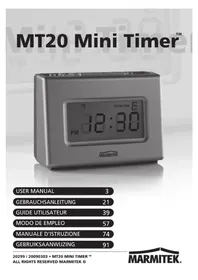
MT20 - Electronic timer MARMITEK - Free user manual and instructions
Find the device manual for free MT20 MARMITEK in PDF.


Frequently Asked Questions - MT20 MARMITEK
User questions about MT20 MARMITEK
0 question about this device. Answer the ones you know or ask your own.
Ask a new question about this device
Download the instructions for your Electronic timer in PDF format for free! Find your manual MT20 - MARMITEK and take your electronic device back in hand. On this page are published all the documents necessary for the use of your device. MT20 by MARMITEK.
USER MANUAL MT20 MARMITEK
- To prevent short circuits, this product should only be used inside and only in dry spaces. Do not expose the components to rain or moisture. Do not use the product close to a bath, swimming pool etc.
- Do not expose the components of your systems to extremely high temperatures or bright light sources.
- In case of improper usage or if you have altered and repaired the product yourself, all guarantees expire. Marmitek does not accept responsibility in the case of improper usage of the product or when the product is used for purposes other than specified. Marmitek does not accept responsibility for additional damage other than covered by the legal product responsibility.
- This product is not a toy. Keep out of reach of children.
- Do not open the product (battery panel excepted): the device may contain live parts. The product should only be repaired or serviced by a qualified expert.
- Keep batteries out of the reach of children. Dispose of batteries as chemical waste. Never use old and new batteries or different types of batteries together. Remove the batteries when you are not using the system for a longer period of time. Check the polarity (+/-) of the batteries when inserting them in the product. Wrong positioning can cause an explosion.
- Only connect the adapter to the mains after checking whether the mains voltage is the same as the values on the identification tags. Never connect an adapter or power cord when it is damaged. In that case, contact your supplier.
- Automatic switching devices provide comfort, but can also be dangerous. They can surprise people or can ignite clothing hanging over an electric heat source. Please be careful and take appropriate measures to avoid accidents.
TABLE OF CONTENTS
SAFETYWARNINGS 3
TABLE OF CONTENTS 4
HOW DOES MARMITEK X-10 WORK? 5
INTRODUCTION 8
How it works 9
QUICK TOUR. 10
How to program a timed event 11
Special programming buttons 11
SETTING UP THE MINI TIMER. 12
Setting the clock 12
Controlling x-10 modules 12
Setting something to happen every day at the same time. 13
Setting a timed event to occur Once only 14
Setting a timed event to occur in the "Security" mode 14
Reviewing timer events 14
If the display shows FULL 15
Selector switch 15
Instantly Controlling Modules 15
Setting the Alarm Buzzer 16
To Cancel/Snreeze the wake-up alarm 16
Suspended the wake up function 16
CHANGING THE HOUSECODE 17
FREQENTLY ASKED QUESTIONS 18
TECHNICAL SPECIFICATIONS 20
HOW DOES MARMITEK X-10 WORK?
Marmitek X-10 components use the existing mains wiring to communicate (using Marmitek X-10 signals). You can build a complete system using the three different kind of components of the Marmitek X-10 System:
- Modules: These components will receive Marmitek X-10 signals and will switch or dim the attached lamp or appliance. Examples of these modules are lamp modules and appliance modules. These are available as build-in, micro, DIN rail and plug-in modules.
- Controllers: These components will transmit Marmitek X-10 signals and thus will control the Modules.
- Transmitters: Wireless components like remotes. The signals of these components will be received by a controller with transceiver functionality (IRRF 7243, TM13 or CM15Pro). The Transceiver will translate the signals into Marmitek X-10 signals on the power line.
ADRESSES
Up to a maximum of 256 different addresses can be preset. These are subdivided into a so-called HouseCode (A to P incl.) and a UnitCode (1 to 16 incl.). The HouseCode can also be set on the controllers, so that the controllers and modules become part of the same system. The address can be set either using code dials or by pressing buttons, depending on the type of module.
The Marmitek X-10 System uses standard commands, which control all units with the same HouseCode at the same time (e.g. all lights on, all off, etc.).
SIGNAL RANGE
Range of Marmitek X-10 signals over the Power Line and how to increase the range.
The Marmitek X-10 System is based on power line communication. The range of the Marmitek X-10 signals very much depends on the local circumstances. On average the range is a cable length of 80 meters.
If you have difficulties with the range of your Marmitek X-10 signals, please pay attention to the following facts:
-
When more than one phase is used for your electrical system, it is necessary to couple these phases for the Marmitek X-10 signals. For coupling you can use FD10 Phase Couplers/Filters. You only need to install a Phase Coupler/Filter when your wall outlets and light switches are divided over more than one phase (more than one group is no problem). For bigger buildings or longer distances we advice you to use an active repeater instead of passive FD10's.
-
It is possible that Marmitek X-10 signals are attenuated by devices and lights which are connected to the power line. In a normal home situation this effect is negligible (the Marmitek X-10 system is using active gain control to eliminate the effects). However, it is possible that a particular device in your house is attenuating the signals so much that the range of Marmitek X-10 signals is decreased significantly. When you have range problems, it is wise to try to locate the device which is attenuating the signals simply by unplugging devices from the power line, and testing the differences in range for your Marmitek system. When e.g. your conclusion is that e.g. your computer monitor is attenuating the signal, you can use a FM10 Plug-in Filter between the power line and the monitor to eliminate the effects.
Known devices which can cause attenuation are:
PC Monitors
PCs with heavy internal power supplies
Old Televisions
Copiers
Fluorescent Lights
Gas Discharge Lamps (Energy Saving Lamps)
-
Some (old) devices are able to disturb the signal by transmitting noise on the power line. Because the Marmitek X-10 signals are transmitted on 120kHz , only noise on or near this frequency will have influence on the range. When you use a FM10 Filter to connect this device to the power line, the noise will be filtered.
-
The Marmitek X-10 protocol has several mechanisms to avoid modules to be switched on or off by other sources than your Marmitek X-10 Controllers. However, it is possible that the Marmitek X-10 signals are disturbed by e.g. baby phones which are in TALK mode (continuous transmission). When these kind of signals are present on the power line it is possible that the Marmitek X-10 signals will not come through.
-
The mains do not stop at the front door of your home. Everything that is attached to mains nearby your home can have influence on Marmitek X-10 signals (e.g. heavy machinery). If you think that your system is influenced by devices out of your house, it is advisable to install FD10 Phase Coupler/Filter on each phase entering the house.
These filters will block signals coming into or going out of your house, but will also match the impedance for the mains. Hereby make your house Marmitek X-10 compatible for these units. The FD10's will not only filter but will also couple the phases (please see 1).
INTRODUCTION
The Marmitek X-10 Mini Timer controls up to 8 X-10 Modules automatically or instantly. You can have your outside lights as well as inside lights and appliances go on and off at preset times to give your home a lived-in look while you are away.
You can program your Modules to go on and off at the same time every day or you can set your radio to wake you up "Once" only, for an early morning flight. There is even a "Security" Mode that automatically varies your programmed time each day so your home doesn't look like it's controlled by a timer.
You can keep the Mini Timer by your bedside and it will wake you up on weekdays. It has a snooze feature so you can sleep a while longer and you can turn the alarm off on weekends.
You can manually turn off your child's radio or night light from your bedside. You can turn on ALL lights connected to Lamp Modules with the touch of a button if you hear a suspicious noise at night. You can even turn off everything in the system with one button.
BEFORE YOU BEGIN
Keep in mind that your Marmitek X-10 System will always turn lamps and appliances on or off the instant you press the buttons. That's obvious - but there can be some unexpected consequences.
For example, an empty coffee pot can be remotely turned on. If that should happen, your coffee pot may be damaged from overheating. If an electric heater is turned on by remote control while clothing just happens to be draped over it, a fire could result. Therefore, do not use with high power heating devices such as portable heaters.
Always be aware of what appliance you are turning on or off so that potentially dangerous situations will not occur.
WHAT IT DOES
The Marmitek Mini Timer plugs into any AC outlet in your home and you set it like a digital alarm clock. Channel number 1 also activates an internal buzzer so you can use it as an alarm clock too! You can program up to 8 X-10 Modules from the Mini Timer and you also have instant control of 8 Modules.
There is a handy snooze feature which lets you cancel the alarm buzzer by pressing any key. This will stop the buzzer and will set the alarm off again in 10 minutes. You can do this indefinitely.
Advancing to a particular time (in the Prog Set/Review mode) and then pressing a number ON or OFF key will set an on or off time for that Module, every day. However, if (within 4 seconds) you press "Once" you will change that program to occur only once, if you press "security" you will change the program to occur at different times each day (variably).
How it works
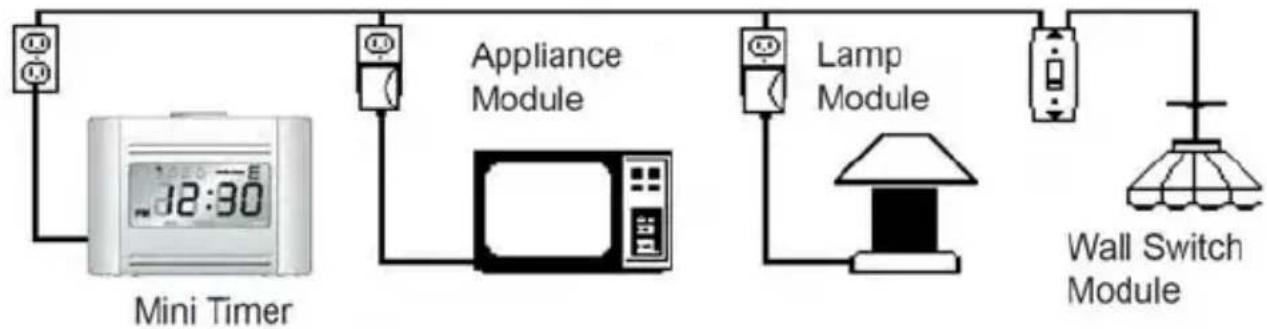
The Mini Timer plugs into any AC outlet in your home and transmits digitally encoded signals over your house wiring instantly or at the times you set. These signals are received by the X-10 Modules.
You Plug a lamp up to 300 watts into a Lamp Module, an appliance such as a radio, fan, or coffee pot into an Appliance Module and replace important indoor or outdoor security lights up to 3600 watts with the In Wall Appliance Module (modules sold separately).
SETTING IT UP
Connect the power supply to the Mini Timer and plug the power supply into any convenient AC outlet.
NOTE: you must use the power supply that came with the Mini Timer. The power supply contains circuitry required to control your Marmitek X-10 modules, so you CANNOT replace it with a regular 12V power supply.
Install two AA alkaline batteries in the compartment on the back, if desired (to protect the time and programmed events if there's a power outage).
QUICK TOUR
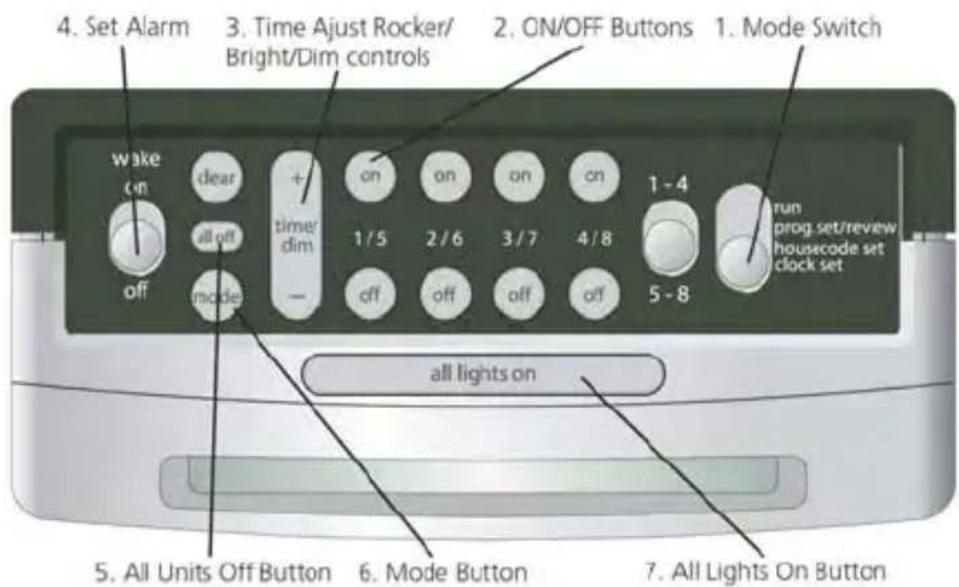
Let's quickly review the functions of each part of the keyboard (you can go to SETTING UP THE MINI TIMER for a step by step tutorial if you prefer). Referring to the diagram below and the cutaway sections that follow, you will see that the keyboard on the Mini Timer consists of 7 basic areas.

run
prog.set/review
housecode set
clock set
- Mode Switch. This is used to select whether you want to set or review a timed event, change the Housecode, or set the clock. See Changing the Housecode to change the Housecode.
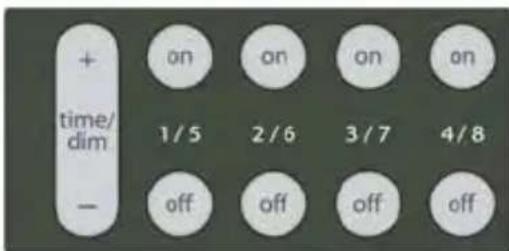
- ON/OFF Buttons. There are 4 sets of ON/OFF buttons. They let you turn Modules 1 through 4 (or 5 through 8) on and off instantly by pressing either the ON or OFF button.
In the "Prog Set/Review" mode these button are used to set on and off times for the selected number (1 to 4 or 5 to 8).
-
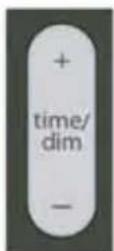
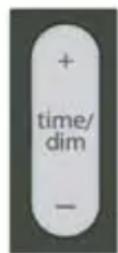
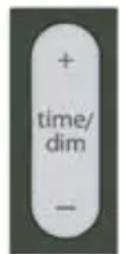
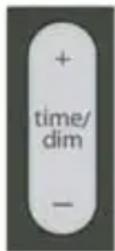
Time/dim Adjust Rocker. This is used to set the time of the clock and the time you want to set for each programmed event. Also brightens/dims Lamp and Wall Switch Modules, after selecting desired number button.
-
Alarm. The number 1 button also sets the time for the internal alarm buzzer.
-
All Units Off Button. Instantly turns Off ALL Modules including Appliance Modules.
-
Mode Button cycles through Daily, Once, and Security Modes.
-
All Lights On Button. Instantly turns on ALL Lamp/dimmer Modules.
How to program a timed event
- Place the mode switch in "Prog Set/Review" position.
- Advance to the desired time.
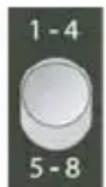
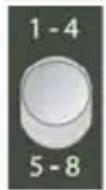
- Set the 1-4/5-8 switch to the desired position.
- Press any of the 4 ON or OFF buttons to set an On or Off time for that Module. This will program the Mini Timer to turn that Module on (or off) at that time every day.
- Advance to another time, and press another ON or OFF button as desired.
- Set the Mode switch back to RUN.
Special programming buttons
- Mode button. If within 4 seconds after setting an On or Off time, you press the "Mode" button once or twice until Once shows in the display, you will modify the program to carry out your programmed event only Once and it will not repeat on the next day.
Press again (within 4 seconds after setting an On or Off time) until Security is shown in the display, to modify the program so that your lights (or appliances) will go on or off at a slightly different time every day (within the programmed hour). With each press the display shows whether you've selected Once, or Security. If neither Once nor Security is displayed, the event happens at the same time every day.
- Clear Button. Pressing this (in the Prog/Review Mode) cancels the On time or Off time being displayed.

- Wakeup Switch. In the "ON" position an internal wake up buzzer will sound at

the time programmed for Module number 1. When this sounds you can turn it off by pressing any button to obtain the "snooze" feature. This will turn the buzzer back on in 10 minutes and will do so each time you operate snooze.
The alarm can be cancelled by moving the Buzzer switch to "OFF" and back to "ON" (for wake up the next morning).
- Selector Switch. Used to select whether you want your Mini Timer to instantly
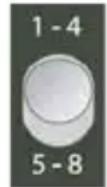
control Modules set to Unit Codes 1 thru 4 or 5 thru 8. You can move the selector switch back and forth to achieve instant control of 8 X-10 Modules. You can also move the switch during programming to select which modules (1-4 or 5-8) you are setting times for.
SETTING UP THE MINI TIMER
Setting the clock
Plug the Mini Timer into any convenient AC outlet. Fit two AA alkaline batteries in the battery compartment to protect the time and program for up to 48 hours in the event of a power outage. If the battery is low, dead, or not installed, the low battery indicator will show in the display.
When you first plug in the Mini Timer the display will flash. It will also flash if you have had a power outage and have not installed two AA alkaline batteries or if the batteries are dead.

run
prog.set/review
housecode set
clock set
- Set the mode switch to "Clock Set."
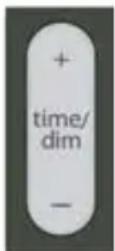
- Press the top of the "Time" rocker to advance to the correct time. A quick press on the rocker will advance the time by 1 minute. If you hold the rocker down the display will advance to the correct time faster. If you overshoot, you can use the bottom rocker to go back.
Controlling x-10 modules
Follow the steps below to make sure you can control your Modules before you program the Mini Timer.
- Install and set up all of your Marmitek X-10 Modules referring to the instructions included with them. Be sure to turn off the power at the main circuit breaker panel when installing Wall Switch Modules or Micromodules.
- Set all of your Modules to the same Housecode as the Mini Timer (default is A).
- Set each Module to a Unit Code Between 1 and 8.
- Set the Mode Switch on the Mini Timer to the "RUN" position.
- To turn On a particular Module, set the selector switch to 1-4 or 5-8, then press the ON button corresponding to the number you set on the Module you want to control. Then press and hold Bright or Dim to brighten or dim the light (Lamp/dimmer Modules only).
- To turn Off a particular Module, set the selector switch to 1-4 or 5-8, then press the OFF button corresponding to the number you set on the Module you want to control. The display shows On or Off next to the module number for the button you pressed.
To turn on ALL lights connected to Lamp Modules and Wall Switch Modules (with the same Housecode as the Mini Timer), press the "All Lights On" button. This does not affect appliances.
To turn off ALL lights AND appliances connected to any kind of X-10 Module (with the same Housecode as the Mini Timer), including Appliance Modules, press the "All Off" button.
Setting something to happen every day at the same time
After you have installed all of your Modules and checked that they are working instantly from the Mini Timer you are ready to program timed events.
- Set the Mode Switch to the "Prog Set/Review" position.

run
prog.set/review
housecode set
clock set
-
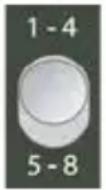
Set the 1-4/5-8 switch as desired.
-
Press the "Time" advance rocker key to advance to the desired on or off time.
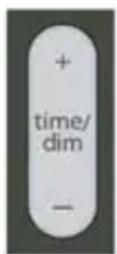
When you first press the rocker the time will advance by 1 minute. If you hold the top of the rocker down the display will "speed up" so you can get to the desired time faster. When you get close to the desired time, you can "tap" the rocker a few times to get to the exact time you want. If you overshoot, you can press the bottom of the rocker to go back.
- When you reach the desired time press the ON or OFF button for the Unit Code you want to program an On or Off time for.
For example: If you advance to 12:45 PM and then press the ON button for number 2, you will program the Module set to Unit Code 2 to go On at 12:45 PM every day. If you advance to 7:00 AM and then press the OFF button for number 2, you will program the Module set to Unit Code 2 to go Off at 7:00 AM every day.
You can now advance to another time and press another ON or OFF button (or the same button) to program another time.
NOTE:
You can program a total of 64 On or Off times. These are distributed between the 8 unit codes (selected with the 4 ON/OFF buttons). You could for example program Module number 1 to go On 32 times and Off 32 times, but then that would use up all the memory and you wouldn't be able to program any times for any of the other 7 unit codes. Or, you could program modules 1 thru 8 to go On and Off 4 times each. I.E. you could program 4 On and Off times for modules 1 thru 4, then slide the selector switch to the 5-8 position and program another 4 On and Off times for modules 5 thru 8.
If you try to set an on or off time and the memory is full, the display will read FULL. To clear this, press the Clear button.
Setting a timed event to occur Once only
If (within 4 seconds after setting an On or Off time) you press the "Mode" button once or twice until Once shows in the display, you will modify the program for that particular Unit Code to occur only Once.
The event you have programmed will happen (at the time you have programmed) within the next 24 hours, and will then be automatically cleared from memory and will not happen again the next day.
You can mix Once and Daily events for the same Unit Code (up to the 64 maximum events for all 8 unit codes).
Setting a timed event to occur in the "Security" mode
If you advance to a specific time, and then press one of the ON or OFF buttons, you will set an On or Off time for that Unit Code to occur every day at exactly the same time.
If however, within 4 seconds after setting an On or Off time, you press the "Mode" button once or twice until Security is shown in the display, you will modify the program for that particular Unit Code to occur every day at a slightly different time each day.
The event you have programmed will happen at the time you have programmed on the first day, and will then happen at a different time on each subsequent day (within the hour you have programmed). For example:
If you advance to 7:35 PM, press the ON button for number 2 and then (within 4 seconds) press the Mode button once or twice until Security shows in the display, the Module(s) set to Unit Code number 2 will go On at exactly 7:35 PM on the first day and any time between 7:00 PM and 8:00 PM every day after that. This time will vary each day so that the Module doesn't go on at the same time each day (to give your home a lived-in look).
You can mix Once, Daily, and Security events for the same Unit Code (up to the 64 maximum events for all 8 unit codes). See note at bottom of Setting something to happen every day at the same time
Reviewing timer events

run
prog.set/review
housecode set
clock set
Set the Mode Switch in the "Prog Set/Review" position. If no events exist in memory 0:00 is displayed, otherwise the first event found in memory is displayed.
If (while in Prog/Review Mode) one of the 4 module ON (or OFF)
buttons is pressed without modifying the current time, and no events are in memory for that module, 0:00 is displayed.
If (while in Prog/Review Mode) one of the 4 module ON (or OFF) buttons is pressed without modifying the current time, and events do exist, each press of the module ON (or OFF) button cycles through (and displays) all the ON (or OFF) events for that particular module. I.E. you are "Reviewing" the times that are set. The display also shows whether the event is a Once event or a Security event. Note if it's a Security event the actual time that the next event will occur will be shown. If neither Once nor Security is displayed, the event is a Daily event.
If (while in Prog/Review Mode) one of the 4 module ON (or OFF) buttons is pressed after modifying the current time, then the time is stored as a new event for that module. I.E. you can program new events while reviewing the current programmed events.
While displaying any time for any module it can be deleted using the Clear key. All events for a module can be cleared by pressing Clear multiple times until the display shows 0:00.
If an event time is modified and you do not want to store it to any module ON/OFF button, press Clear. The previous event is now displayed and can be deleted if desired by pressing Clear again.
If the Mode switch is moved after a time has been changed and without a module ON/OFF button being pressed, this time is discarded and is not stored in memory.
If the display shows FULL
If FULL is displayed when you try to enter a programmed time, this means that you have tried to enter an additional time when you have already used up all the available memory. Cancel one or more of your set times by pressing a number ON (or OFF) button, then press Clear to clear that event. Then enter another timer event.
Selector switch
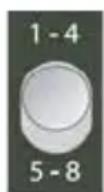
1-4 position - With the "Selector" switch in the 1-4 position the 4 ON and OFF buttons control (and set times for) Modules set to Unit Codes 1 thru 4 respectively.
5-8 position - With the "Selector" switch in the 5-8 position the 4 ON and OFF buttons control (and set times for) Modules set to Unit Codes 5 thru 8
respectively.
Instantly Controlling Modules
With the Mode switch in the RUN position you can slide the Selector Switch back and forth to instantly control Modules set to 1 thru 4, or 5 thru 8. Also, in the Prog Set/Review mode you can set events for modules 1 thru 4, then move the selector switch and program more events for modules 5 thru 8. See note at Setting something to happen every day at the same time for maximum number of events you can program..
MT20TM
Setting the Alarm Buzzer

With the "Wake" switch in the "ON" position, any program you set for Module number 1 will also set the internal alarm buzzer.
A bell icon will show in the display to indicate that a time for the Buzzer is set.
For example: If you connect your bedside lamp to a Lamp Module set to Unit Code 1 and then program Module number 1 for an On time of 7:00 AM - At
7:00 AM your bedside lamp will turn on and the internal buzzer in the Mini Timer will sound. You can turn the buzzer off (when you wake up) by sliding the Buzzer switch to the OFF position. You can turn off your bedside lamp by pressing the OFF button for Module 1. You can leave the Buzzer switch in the OFF position if you don't want to use the wake up feature. This will not affect any programs you have entered for Module 1.
Alternatively, if the Buzzer switch is OFF and you place the Mode switch in the Clock Set position, you will "suspend" both the buzzer AND any times you have set for Module 1. This is useful to suspend the wake-up function on weekends. See To Cancel/Snoopze the wake-up alarm.
The backlight and the buzzer do not operate when the unit is running on the backup batteries.
To Cancel/Snoopze the wake-up alarm
When the alarm sounds at the time you have set, you can cancel it in one of two ways:
- Slide the Wake switch to the OFF position. This will cancel the alarm permanently. Slide the switch back to "ON" if you want the alarm to wake you up the next morning.
- Press any key. This will give the "snoopze" feature. Pressing any key while the buzzer is sounding will turn the buzzer off and will automatically turn it back on in 10 minutes time. You can do this indefinitely.
The buzzer will automatically turn off, and stay off, after 10 minutes if you ignore it. Any Module(s) you have installed and set to Unit Code 1 will turn On when the buzzer sounds and will stay On after you turn the Buzzer switch to OFF or cancel buzzer using the snooze feature. You will need to press the OFF button for number 1 to turn the Module(s) off. Alternatively, you could program it/them to turn off later.
Suspending the wake up function
If you set channel 1 for an On time of 7:00 AM and number 1 is your bedside lamp, at 7:00 AM every day, your bedside lamp will turn on and the internal buzzer will sound. If you turn the Buzzer switch off on Friday nights the buzzer will not wake you up the next morning but your bedside lamp will still turn on.
To suspend the program for channel 1 turn the Buzzer switch to OFF, AND place the Mode switch in the "Clock Set" position. The On program for BOTH the Alarm buzzer AND the bedside lamp will then be suspended.
You can control Modules instantly with the Mode switch in the "Clock Set" position, just as you can when it's in the RUN position, but remember to place the Mode switch back to RUN and put the Buzzer switch back to the ON position on Sunday night to resume the wake-up program for weekdays.
Note: Pressing the ON button for Module number 1 with the Mode switch in the RUN position or Clock Set position does not activate the internal buzzer. This buzzer only sounds at the times you set.
CHANGING THE HOUSECODE
When you first plug in the Mini Timer it controls X-10 Modules set to Housecode A.. If you want to change the Housecode:

run
prog.set/review
housecode set
clock set
- Set the Mode switch to "Housecode Set."
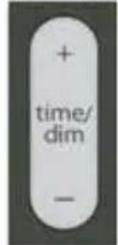
- Press the up or down "Time" rocker to select the desired Housecode (as shown in the display).
- Set the Mode switch back to RUN.
FREQUENTLY ASKED QUESTIONS
What is the reason for modules to switch on/off spontaneously?
It is possible that a Marmitek X-10 System is installed at one of your neighbours using the same House Code. To solve this problem try to change the House Code of your system, or have FD10 Phase Coupler/Filter installed at your incoming mains.
My modules will not respond to my controller.
Make sure that the House Code on all Modules and Controllers are set to the same House Code (A..P).
My modules will not react to my remote / sensor.
When you use a remote or sensor, you should have at least one TM13 Transceiver or Marmitek X-10 Security Console installed in your house. These components will translate the radio signals to the Marmitek X-10 signal on the power line. Using several remotes and sensors, you only need one central transceiver.
Am I able to increase the range of my remotes by using more Transceivers?
Yes, you can use more than one TM13 Transceiver in your home when the range of your remotes is not sufficient. The TM13 is using so called collision detection to prevent signals to be disturbed when more than one TM13 is transmitting. TM13's will wait for a quite power line before transmitting their data. To prevent your Marmitek X-10 System to become slow or to prevent dimming from becoming less smooth, make sure that the TM13 units are placed as far away from each other as possible.
a Particular Module won't go on or off from the buttons on the Mini Timer:
Check that you have power to the outlet controlling the Module and the switch on the light or appliance is ON.
Check that the Unit Code and Housecode on the Module are set correctly. Try plugging the Module and the Mini Timer into the same outlet. If the Module doesn't work in ANY outlet, not even with the Module and the Mini Timer in the same duplex receptacle (top and bottom) the Module may be defective.
You can't control ANY Modules from the Mini Timer.
Check that there is a time displayed on the Mini Timer and that you have power to the outlet it is plugged into.
Check that the Housecode for the Mini Timer is set correctly (see Changing the Housecode). Try plugging the Module and the Mini Timer into the same outlet. If NONE of your Modules work in ANY outlet, not even with the Module and the Mini
Timer in the same duplex receptacle (top and bottom) the Mini Timer may be defective
Intercom systems
Intercom systems which send voice signals over existing electrical wiring may interfere with the operation of the Mini Timer when the intercom is in use. If the Intercom system has its own separate wiring it will not cause a problem.
Power interruptions
When the power is restored after an outage, Lamp Modules and Wall Switch Modules will normally be OFF. Appliance Modules have a "latching relay mechanism" and will stay as they were before the interruption.
This means that when you first plug in an Appliance Module which you have just purchased, it may in an ON or OFF state (the state it was in before unplugging it after factory testing).
Battery backup
If you install two AA alkaline batteries in the battery compartment of the Mini Timer your programmed times will be protected for up to 48 hours in the event of a power outage. The backlight and the buzzer do not operate when the unit is running on the backup batteries.
Battery indicator
If the batteries are low, dead, or not installed, the low battery indicator will be shown in the display. It is recommended that you check the condition of the batteries regularly and replace them at least once every 6 months.
Do you still have questions? Please check out www.marmitek.com for more information.
TECHNICAL SPECIFICATIONS
MT20:
Backup battery: 2 x AA batteries.
Dimensions: 121 × 56 × 86 ~mm
Weight: 200 g
Colour: Silver
PS90:
Power: 230V + 10% -15% ,50Hz
Supply current : < 4,5W
Signal transmission: >5Vpp in 5 Ohm at 120kHz ± 1kHz
X-10 transmission: 1 pulse burst at 0^ , 60^ and 120^
Sends X-10 Key codes: On, Off, DIM+, DIM-, All Units OFF, All Lights ON.
Ambient temperature: - 10^ C to +50^ C (operation)
-20°C to +70°C (storage)

Environmental Information for Customers in the European Union
European Directive 2002/96/EC requires that the equipment bearing this symbol on the product and/or its packaging must not be disposed of with unsorted municipal waste. The symbol indicates that this product should
be disposed of separately from regular household waste streams. It is your responsibility to dispose of this and other electric and electronic equipment via designated collection facilities appointed by the government or local authorities.
Correct disposal and recycling will help prevent potential negative consequences to the environment and human health. For more detailed information about the disposal of your old equipment, please contact your local authorities, waste disposal service, or the shop where you purchased the product.
SICHERHEITSHINWEISE

run
prog.set/review
housecode set
clock set

run
prog.set/review
housecode set
clock set
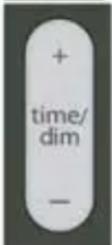

run
prog.set/review
housecode set
clock set
run
prog.set/review
housecode set
clock set
run
prog.set/review
housecode set
clock set
Sendet X-10 Keycodes: ON, OFF, DIM+, DIM-, All Units OFF, All Lights ON.
run
prog.set/review
housecode set
clock set

run
prog.set/review
housecode set
clock set
run
prog.set/review
housecode set
clock set
run
prog.set/review
housecode set
clock set
run
prog.set/review
housecode set
clock set
- Pone el Mode Switch a "Clock Set" ("Ajustar la Hora").
run
prog.set/review
housecode set
clock set
run
prog.set/review
housecode set
clock set
run
prog.set/review
housecode set
clock set
run
prog.set/review
housecode set
clock set
run
prog.set/review
housecode set
clock set
run
prog.set/review
housecode set
clock set
run
prog.set/review
housecode set
clock set

run
prog.set/review
housecode set
clock set
VEILIGHEIDSWAARSCHUWINGEN
VEILIGHEIDSWAARSCHUWINGEN 91
INHOUDSOPGAVE 92
HOE WERKT MARMITEK X-10? 93
INTRODUCTIE 95
Hoe het werk. 96
SNELLE RONDLEIDING 96
DECLARATION OF CONFORMITY 108
HOE WERKT MARMITEK X-10?
run
prog.set/review
housecode set
clock set
run
prog.set/review
housecode set
clock set
- Zet de Modus Schakelaar in de "Clock Set" stand.
run
prog.set/review
housecode set
clock set
- Zet de 1-4/5-8 Schakelaar in de stand die u wilt.
run
prog.set/review
housecode set
clock set

run
prog.set/review
housecode set
clock set
Stuart X-10 Key Codes: ON, OFF, DIM+, DIM-, All Units OFF, All Lights ON.
DECLARATION OF CONFORMITY
Hereby, Marmitek BV, declares that this MT20 is in compliance with the essential requirements and other relevant provisions of the following Directives:
DIRECTIVE 2004/108/EC OF THE EUROPEAN PARLIAMENT AND OF THE COUNCIL of 15 December 2004 on the approximation of the laws of the Member States relating to electromagnetic compatibility
Directive 2006/95/EC of the European Parliament and of the Council of 12 December 2006 on the harmonisation of the laws of Member States relating to electrical equipment designed for use within certain voltage limits
Directive 2002/95/EC of the European Parliament and of the Council of 27 January 2003 on the restriction of the use of certain hazardous substances in electrical and electronic equipment
Marmitek is a trademark of Marmidenko B.V. | MT20™ is a trademark of Marmitek B.V. All rights reserved.
Copyright and all other proprietary rights in the content (including but not limited to model numbers, software, audio, video, text and photographs) rests with Marmitek B.V. Any use of the Content, but without limitation, distribution, reproduction, modification, display or transmission without the prior written consent of Marmitek is strictly prohibited. All copyright and other proprietary notices shall be retained on all reproductions.