WPR 400 - Remote control MARMITEK - Free user manual and instructions
Find the device manual for free WPR 400 MARMITEK in PDF.


User questions about WPR 400 MARMITEK
0 question about this device. Answer the ones you know or ask your own.
Ask a new question about this device
Download the instructions for your Remote control in PDF format for free! Find your manual WPR 400 - MARMITEK and take your electronic device back in hand. On this page are published all the documents necessary for the use of your device. WPR 400 by MARMITEK.
USER MANUAL WPR 400 MARMITEK
Wireless presentation remote
Easily navigate through your slides and highlight details on the screen
- air mouse
- magnify function
- built-in battery
- Windows/Mac
text_image
1 2 3 4 5 6 7 8 MARMITEK.Set content
1 x WPR 400 remote
1 x WPR 400 receiver
1 x sleeve
1 x USB-C power cable

text_image
QR code image containing encoded data, no visible human-readable textProfessional

text_image
QR code image containing encoded data, no visible human-readable textuser guide
Safety Instructions
Please read these instructions thoroughly before you use the device and keep them for future reference.
- Only for indoor use.
- Do not use the product in a damp environment or near water.
- Do not expose the product to extremely high or low temperatures, strong light sources or direct sunlight.
- This product is not a toy. Keep out of reach of children.
- The built-in rechargeable battery is not replaceable. Do not remove or replace the battery. Dispose of unit properly. Do not dispose unit in trash or fire.
- Never open the product: the device may contain parts with deadly voltage.
- Repairs or service should only be performed by qualified personnel.
- Improper use, self-installed modifications or repairs will void any and all warranties.
- Marmitek does not accept any product responsibility for incorrect use of the product or use other than for which the product is intended.
- Marmitek does not accept liability for any consequential damage other than the legal product responsibility.
Setup
Before using the WPR 400 for the first time, please charge the device for 1 hour with the included USB-C charging cable.
- Plug one end of the USB cable into a charger (or into the USB port of a computer).
- Plug the other end of the cable into the USB-C port on your WPR 400.
Note: The LED indicator will slowly blink red while charging. When the battery is full, the LED indicator will turn off.
After charging, remove the charging cable and insert either the USB-A or USB-C side of the receiver into an available USB-port of your PC.
The WPR 400 requires software in order to use the highlight, magnify and digital pointer functionality on screen. Download the software from www.marmitek.com/pages/software and install on your windows or macOS PC. The ‘Marmitek presenter’ software does not gather or save any information regarding you or the device it is installed on.
Starting the WPR400
To start using the device, switch the mode switch(1) to either video (VID) or presentation (PPT) mode. While starting, the indicator will blink green for a time. After the indicator goes off, the connection is made to the receiver.
Presentation mode
Presentation mode (PPT) should be enabled when you are presenting a slideshow. Beside some buttons that will only work during a presentation, there are also buttons that work outside the presentation.
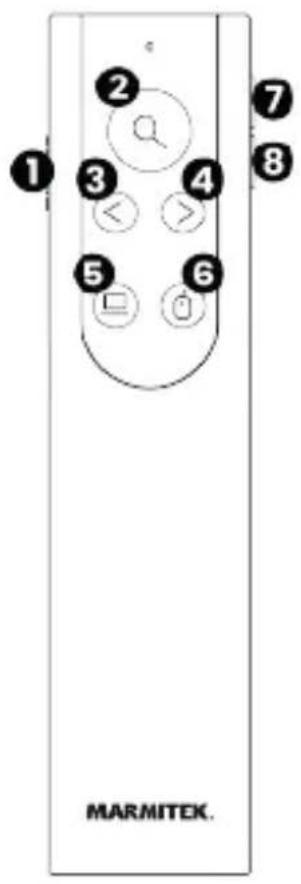
- Mode switch: Switch between 'OFF', 'VID' and 'PPT' for the mode you want to use.
- Highlight/magnify/digital pointer button: Press and hold the button to have the highlight, magnify or digital pointer on screen. After releasing the button, the effect will freeze on screen until the button is pressed again. Double press the button to switch between highlight, magnifier and digital pointer. This button works during and outside of your presentation.
- Previous button: Sends you to the previous slide in your presentation.
- Next button: Sends you to the next slide in your presentation.
- Start/stop and black screen button: While in the presentation edit screen, press once to start the presentation. During the presentation, press once to turn the screen black. Press again to show the presentation again. Double press the button to stop presenting.
- Air mouse and annotation button: The WPR 400 supports air mouse. Press the button once to start air mouse mode and move the presenter to move the cursor on screen. In this mode, the previous(3) and next(4) button changes function to left and right click respectively. Press the button once again to quit air mouse mode.
In a presentation, you can start annotation mode by double pressing the button. This will change the cursor into a dot. In annotation mode, press and hold the button to make notes on screen. Double press the button in annotation mode to remove all notes. To quit out of annotation mode, deactivate air mouse mode by single pressing the air mouse button.*
-
Volume +: Increases the volume of the PC. While holding the highlight button, this button also enlarges the circle on screen. This button works during and outside of your presentation.
-
Volume -: Lowers the volume of the PC. While holding the highlight button, this button also shrinks the circle on screen. This button works during and outside of your presentation.
*note: not all presentation programs supports annotation mode. Check the user guide of your software to see if annotation is supported.
Video mode
Video mode (VID) should be enabled when you are playing media on the screen. Beside some buttons that will only work while watching media, there are also buttons that work outside the media player.
- Mode switch: Switch between 'OFF', 'VID' and 'PPT' for the mode you want to use.
- Highlight/magnify/digital pointer button: Press and hold the button to have the highlight, magnify or digital pointer on screen. After releasing the button, the effect will freeze on screen until the button is pressed again. Double press the button to switch between highlight, magnifier and digital pointer. This button works while in a media player and outside of the program.
- Previous button: Skips backwards through your media playlist.
- Next button: Skips forward through your media playlist.
-
Start/stop and mute button: Single press the button to start or stop your video. Double press the button to mute or unmute the audio of the PC.
-
Air mouse button: The WPR 400 supports air mouse. Press the button once to start air mouse mode and move the presenter to move the cursor on screen. In this mode, the previous(3) and next(4) button changes function to left and right click respectively. Press the button once again to quit air mouse mode.
- Volume +: Increases the volume of the PC. While holding the highlight button, this button also enlarges the circle on screen. This button works inside and outside of your media player.
- Volume -: Lowers the volume of the PC. While holding the highlight button, this button also shrinks the circle on screen. This button works inside and outside of your media player.
Software
The Marmitek presenter software has some customization options to tailor the experience to your liking. The software will minimize in the system tray of your PC and can be opened by clicking the icon in the system tray. When the software opens, you can find in the top right of the program the battery level of the connected presenter. On the left side you can find the different setting-tabs. The following features are present:
- Guide: Explains the basic functions of your presenter.
- Spotlight brightness: Lets you determine how dark the background of the highlight function needs to be.
- Magnification level: Lets you determine the magnification level of the magnifier function.
- Anti-lost notification: Enables the anti-lost notification to let you know when you might be forgetting to take out the receiver from your PC.
- Digital pointer color: Changes the color of the digital pointer when shown on the screen.
- Run on startup: Lets you determine if the program needs to start running when starting the PC.
- Version: Tells you the current version of the installed software.
The Marmitek presenter software does not require an account or any other personal data to function. The software will not gather any personal information while being installed on your device.
Technical specifications
Technology
Communication 2,4 GHz RF
Range up to 100 meters
Connections
Remote 1x USB type-C (female)
Receiver 1x USB type-A (male)
1x USB type-C (male)
General
Dimensions (h x w x d) 130 x 30 x 13 mm
Weight 50g
Battery
Type 4.1 V, 250 mAh polymer
Charging time 1 hour
Power USB type-C / 5 VDC
In order to continue improving the product, Marmitek reserves the right to change specifications and/or designs without prior notice.
Declaration of Conformity

Hereby, Marmitek BV, declares that the WPR 400 is in compliance with the essential requirements of the 2014/53/EU and 2011/65/EU Directives.
Full Declaration of Conformity is available at
http://www.marmitek.com/en/declarations-of-conformity/
natural_image
Abstract geometric pattern composed of nested L-shaped lines (no text or symbols)pro
25020770/20240230 | WPR 400™
all rights reserved © MARMITEK
PO Box 4257 - 5604 EG Eindhoven - The Netherlands
stay connected marmitek.com